
What is the best web browser for you

Battle of the browsers: Which is best?

web browsers

Over the years we’ve seen many browsers come and go as the main source for internet exploration. While Microsoft and Apple dominate the field of operating systems, their browsers (Edge/Internet Explorer and Safari) tend to fall behind in usage compared to some other programs out there. If you’re struggling to decide between the top performing browsers, here is a simple and easy guide to help you learn the differences between them.

Guide to the best web browsers

Google Chrome

Chrome is widely regarded as one of the best browsers, and for good reason. It performs exceptionally well, and is able to connect the same account across multiple devices. However, its main benefit is its large variety of extensions. This allows for a highly customizable experience, and really can make Chrome perform any function you want for it too.

Google Chrome Free Download ►
8

The downside to using Chrome, however, is its high-RAM usage. For low spec computers, this can cause some performance issues, since Chrome will be using so much of the computer’s process power. It can be especially hard to run Chrome and other intensive programs at the same time on these computers. That makes it less optimal for people who use graphically intensive programs like video games.
Mozilla Firefox

In contrast to Chrome, Mozilla is one of the most RAM-efficient browsers for what it is capable of. While it doesn’t have quite the collection that Chrome does, it still allows for a pretty customizable experience with a competitively large amount of add-ons. Mozilla is also less likely to use your information as a marketing tool. So if that’s something that concerns you about Google, or other big companies, then Firefox is the way to go.


Mozilla Firefox Free Download ►
7

Opera

While you may not have heard of Opera before, it’s actually one of the top performing browsers, particularly for businesses. This is because it is able to provide a RAM-efficient and secure browsing experience with a built in ad blocker. It has many of the benefits that top-performing browsers have, while being able to provide the security of being a browser favored by a smaller community (and as such, less malware is prepared for it). The only real downside to this browser is that, it isn’t always able to open every site properly, like Microsoft browsers are able to. Despite this, the browser itself is constantly being developed, and slowly growing as an excellent choice.

8

Safari

Safari is often overlooked as a browser, since being an Apple product makes it less common among fans of Windows or Google. However, Apple is well known for its compatibility between its products, and Safari is no exception to this. If you have other Apple devices, then you can sync your Safari between them, which can really help organize your web browsing. Safari’s biggest benefit, however, is its content blockers. While ad-blockers are popular, Safari is able to block a variety a different content, such as cookies, in order to create a cleaner experience.

Safari Free Download
7

Despite this, Safari still lags behind Firefox and Chrome in extension capability. That’s not to say it lacks extensions altogether, but it is less compatible with many add-ons, compared to the other two.

Microsoft Edge & Internet Explorer

While these browsers are independent of each other, they are both owned by Microsoft, and function rather similarly. Microsoft Edge is the newer default program for all Windows computers. While it doesn’t have the extension capability that Chrome or Firefox have, it still runs at a reasonably high speed, and has integration with many Microsoft programs including Cortana. It, unfortunately, is not backward-compatible with other Windows operating systems, and can only be used on newer computers. Despite this, it’s an easy to use browser that is great for simple interactions.

Microsoft Edge Download now ►
6

Internet Explorer, on the other hand, is typically better for companies that use old programs that may not function well on other browsers. Consumers of these programs can also find Internet Explorer beneficial, since it’s able to run almost any site at a reasonable speed. Something that other browsers require extensions to do, or are unable to do at all. Despite this benefit, it’s unlikely to find many programs that won’t operate equally well on another browser, so Internet Explorer is typically not recommended compared to other popular browsers.

Internet Explorer Free Download ►
6


Based on this, it’s clear that Chrome is the best for customizability on high-end computers, while Firefox is the more RAM efficient choice. Opera is a good middle ground between these two, and perfect for older computers looking for a secure browser. Outside of those three, however, Safari, IE, and Edge each have their own benefits. Being able to open some sites, especially older ones, without needing to worry about functionality, is probably the biggest benefit of the Microsoft browsers, while Safari has a unique content blocker that is incredibly useful. Other than the typical browsers, there are a few more niche browsers that can be useful as well.

Brave

Brave has slowly gained its own following as being one of the fastest and most secure browsers out there. The biggest benefit of Brave is that its built-in adblocker replaces potentially dangerous ads with its own, so that it can bypass most sites that would prevent the use of an adblocker. It also runs faster than almost any other popular browser out there. Of course, this comes at the expense of extension-capabilities that the other browsers are known for.

Brave isn’t the only fast-growing browser. Midori is probably the best option for RAM-efficiency out there, and Tor Browser is perfect if you’re often using incognito mode (since it doesn’t track you the same way other browsers do). They aren’t as popular or customizable as the other browsers, but they are great at what they do, and definitely worth checking out.

Tor Browser Free Download ►
7

How to make Google Chrome run faster

These 4 steps will make Chrome fly!

Has your Google Chrome been a little sluggish lately? Here are several things you can do to speed up your browser!

How to make Google Chrome run faster

1. Update Chrome

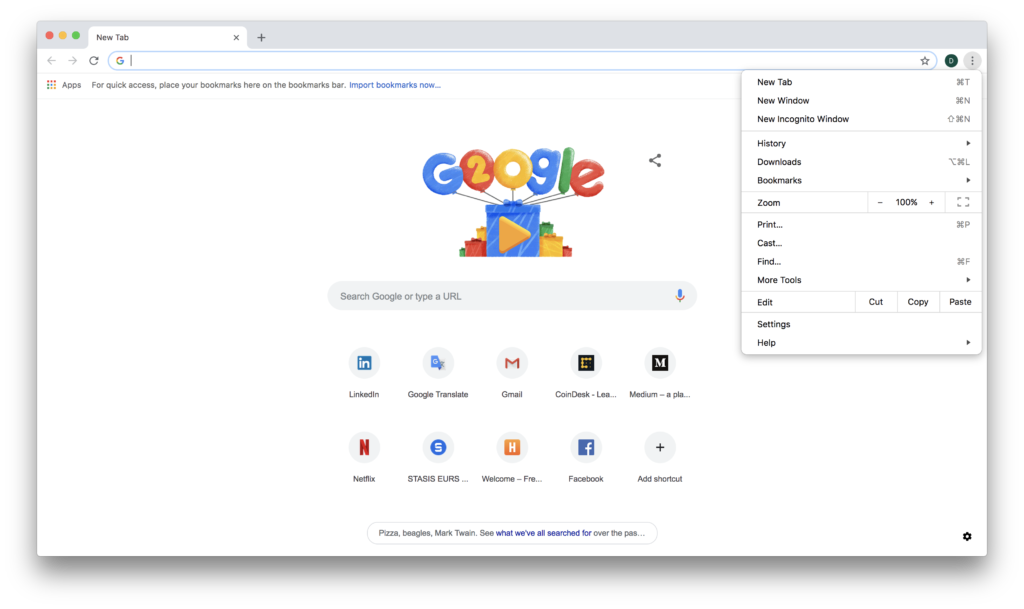
One thing that can slow down Chrome is using an outdated version. Chrome will always run fastest when you’re using the latest version, so be sure to update it! Chrome normally updates automatically, but you can check to see if there’s an update available by clicking on the More button in the top right corner of the browser (it looks like three vertical dots). If an update is available, you’ll see an option that says “Update Google Chrome.” If you don’t see this option, then your browser is already up-to-date.

2. Close tabs

The more tabs you have open, the harder Chrome has to work. Closing tabs that you’re not using can help Chrome run as quickly and efficiently as possible. To close a tab simply click the X in the right-hand side of the tab. If you’re using Windows, Linux, or Chrome OS, you can also close a tab by holding the “Ctrl” and “W” keys down at the same time. On a Mac, hold down “⌘” and “W” at the same time.

Google Chrome Download Free
7

3. Let Chrome pages open faster

Did you know that you can make your web pages open faster on Google Chrome? All you have to do is turn on network action predictions and select “page prefetch.” Once that setting is turned on, Chrome will automatically preload any links you might open to save you loading time.

To do this you first need to open Chrome. Click the More button at the top right corner of the browser and go to Settings. Once you’re in Settings, click the Advanced button at the bottom of the screen. Finally, find the “Privacy and security” section and turn on “Use a prediction service,” which will help you load pages more quickly in Chrome.

4. Check for malware or viruses

Finally, ensure there isn’t any malware slowing down your Google Chrome. These directions only work for removing malware on a Windows computer. First, you need to open Chrome then click More at the top right. Go to Settings. After that, click Advanced, which will be at the bottom of the screen. You will see a “Reset and clean up” option, where you should click “Clean up computer.” Finally, click “Find” and Google Chrome will scan your computer for unwanted software and offer to remove it for you. In order to remove the malware, all you have to do is click Remove.

Google Chrome turns 10 years old: here’s what’s new

Google Chrome is 10 years old. Here’s how the browser is being tweaked for the big anniversary.

Happy birthday, Chrome!

Google’s popular browser debuted 10 years ago on September 2, 2008. Since then, Chrome has gained a 59% market share, over three times that of its nearest rival. Its popularity can be owed to its many plugins, clean interface, easy-to-use design, and strong Google branding.

To celebrate their milestone, Google is giving Chrome a facelift. Google Chrome 69 (the latest update) comes complete with a subtle UI overhaul that rounds out edges and softens up the interface. Tabs are now rectangular, allowing them to be more closely grouped together without losing header clarity. The edges of the search bar have been rounded out, losing the edges in exchange for a more minimalistic design more in line with the mobile version.

Also, the tab page is now more customizable, with users able to upload their own custom icons and backgrounds. Google claims these UI changes not only look good but will increase productivity by reducing distractions.

In addition to the digital touch-up, Google has introduced some new quality of life features. A new “smart answer” tool will answer simple questions that you type into the search bar. A revamped password manager can now generate and save secure passwords for trusted websites.

Perhaps most importantly of all, the infamous T-rex minigame has been updated, which shows the 8-bit dino chasing a birthday cake. Happy birthday, Chrome!

This free browser extension will save you money on more than 100 websites

You’re at the grocery store. You’ve got your cart full and are at the checkout lane when suddenly you hear a voice behind you. You turn. To your surprise, you see your friend rushing towards you, waving his arms with a fistful of coupons gripped in his hand.

That friend is Honey.

9

What is it?

Honey is a free extension for Google Chrome, Safari, Firefox, Opera, and Edge, and its sole job is to find any relevant or applicable coupons for what you’re purchasing. It then tacks them onto your order and saves you the money. Honey looks up those coupons quietly and automatically, and you’ll honestly forget it’s even there until you’re right at checkout.

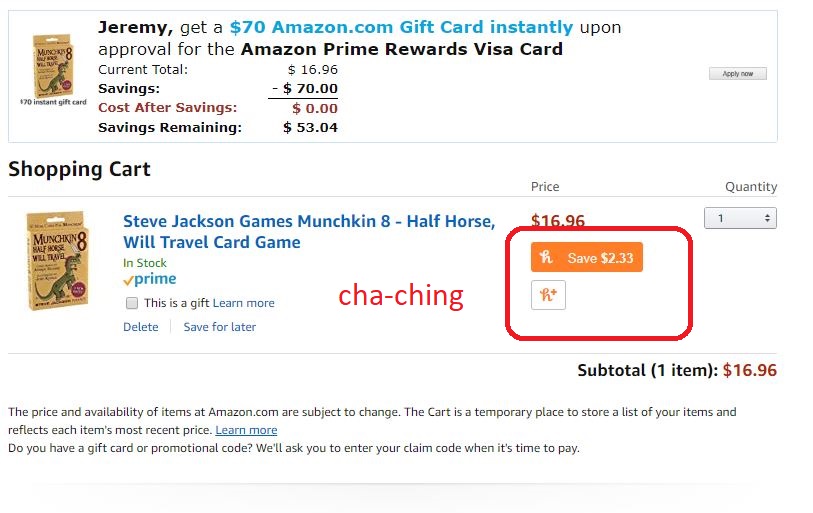
So what’s this like in action? Let’s say, for example, that you’re on Amazon about to order a new deck of cards. Browse until you find it, then add it to your cart as usual.

Amazon.com

Once you’re in the cart ready to buy them, a little Honey blurb (like the one pictured above) will appear directly below the item’s cost. Honey scans through any potential coupons pertaining to your order, and automatically shaves off the most money it can. Why spend extra money, right?

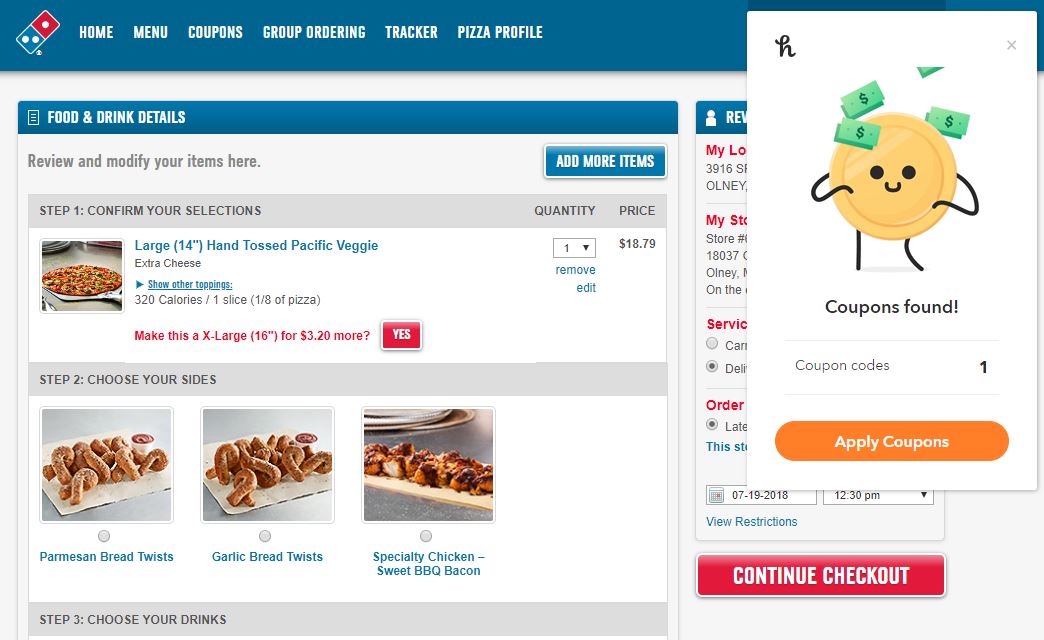
This isn’t just for Amazon.com either. Honey’s got you covered for discounts with over 100 online stores. That includes things like Gamestop, Safeway, Timex, Motorola, Vonage, even Dominos. If there’s a coupon for it, Honey will find it and instantly apply it.

How can you install it?

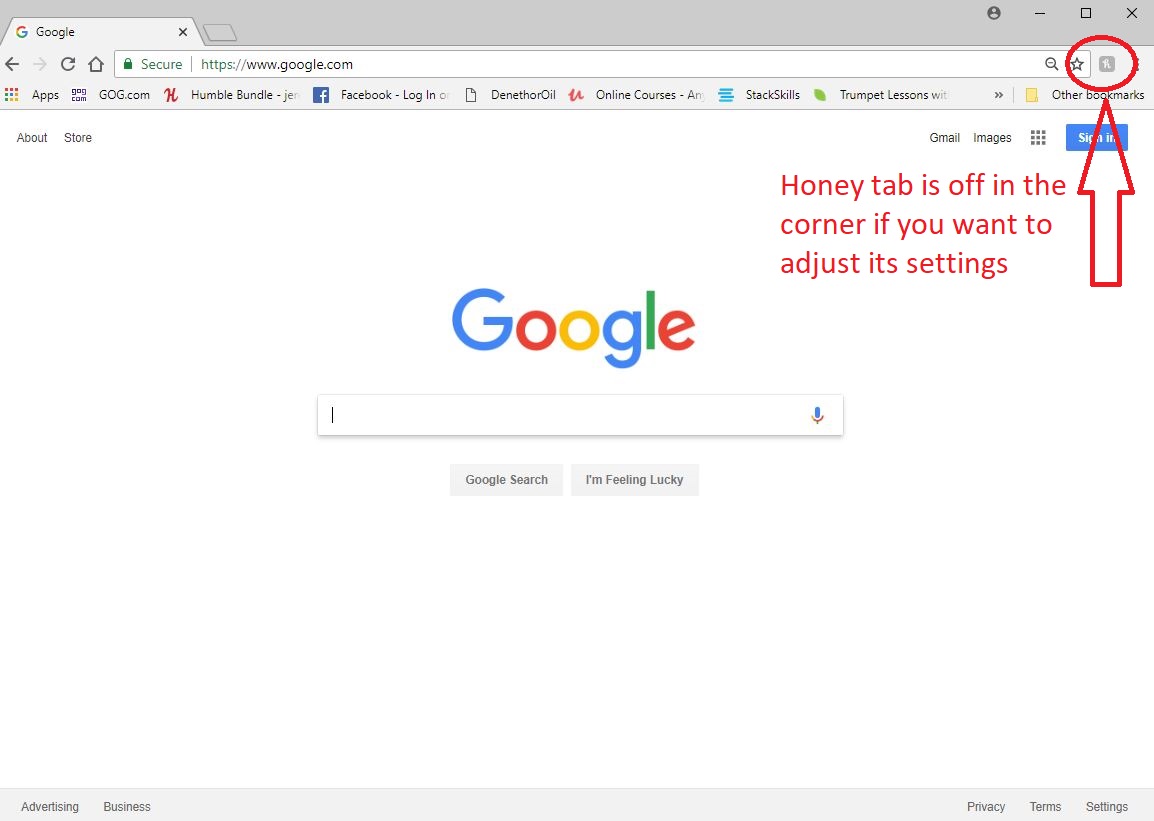
Right here. Go through the quick process and Honey will appear above your bookmarks bar in your Chrome browser. Once you see it, you’re done. If you so choose, you can click on the Honey icon at the corner of your browser if you want to see what stores are trending, or if you want to share codes that you find with the Honey community. Here’s a step by step on how to install the extension:

Once it’s set up, Honey does the work for you from here on out. No need to click anything extra or subscribe or anything.
This sounds too good to be true

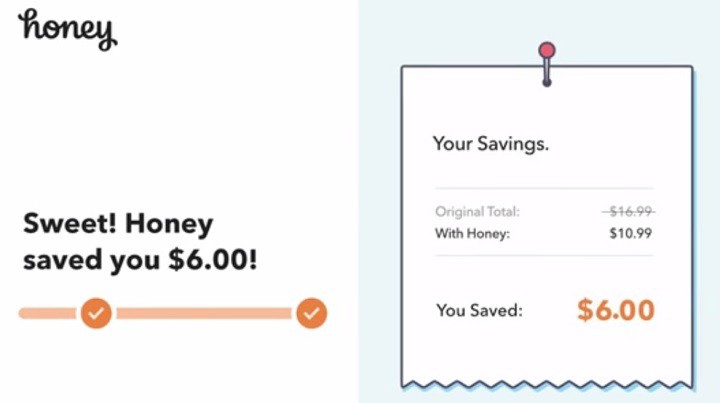
If you’re wondering how Honey makes any profit, here’s the short answer: In some cases, when you use a coupon code or earn Honey Gold, the extension earns a small commission from the store you’re buying from. Some of those earnings go to members.

https://windowsreport.com/honey-extension-shopping-coupons-online/

So there you have it. There’s a free extension available right now that’s always looking to save you money. Get out there and download it.


Error 404, etc: what the most common errors mean on Chrome, Firefox and other web browsers

Image via: Pexels

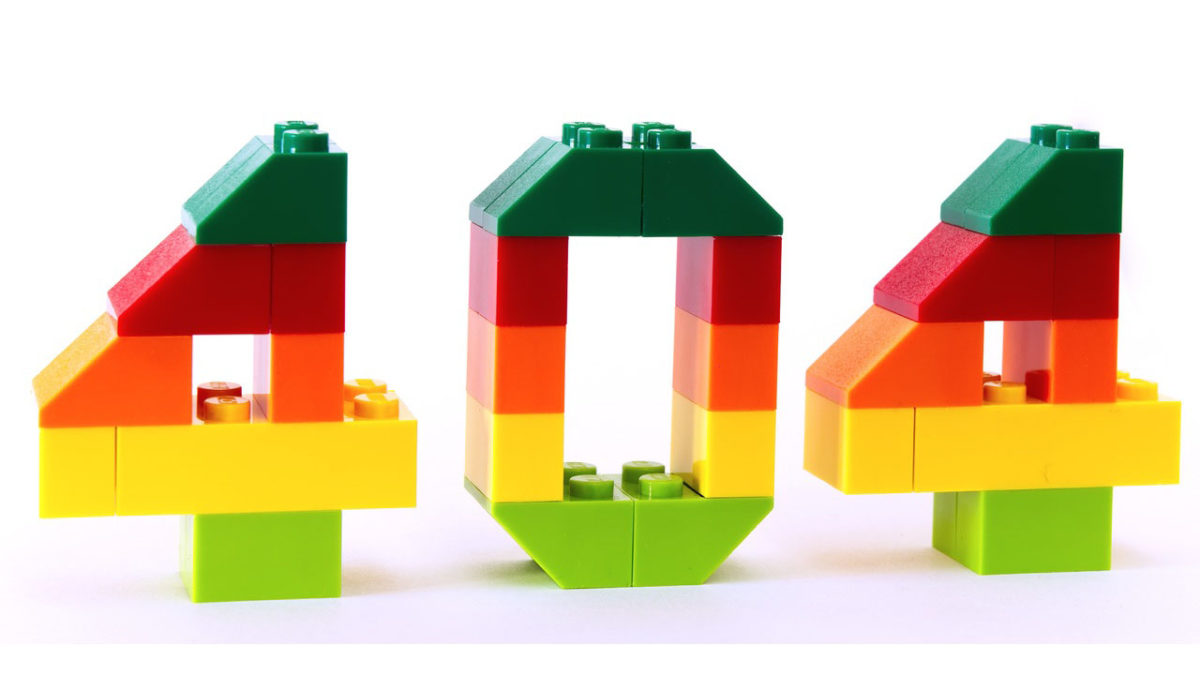
Error 404, error 401, error 500… Sound familiar? If you regularly browse online, you may have encountered them, since they are the most common errors that appear on Chrome, Firefox, Opera, and other web browsers. To help you out, we’ve made a list of the top errors and explained what they mean.

7

Before we get started, what’s an HTTP error?

HTTP errors occur when you want to go to a web address and the browser isn’t able to access it, which can happen for different reasons.

The most common types of errors start with the numbers 4 and 5. Although there are error codes that start with 1, 2 and 3, you’re unlikely to encounter them when browsing.

These error numbers are usually followed by a short explanation, but they don’t give you much information. So, we’ll give you the full scoop on each of them below.

What the most common HTTP errors mean

Error HTTP 404 (Not Found)

This error means that the page you want to access doesn’t exist at the moment. This may be because you incorrectly entered the web address or because the page owners deleted it. It’s possible that a page showing a 404 error won’t have one later on, which means it’s come back online.

Error HTTP 403 (Forbidden)

This error shows up when you try to access a prohibited web page, i.e. one that isn’t accessible to the public. For example, a database, a backend code (that programmers work with) or a page exclusively for subscribers.

Error HTTP 401 (Unauthorized)

This one is like the 403 error, but it happens when there’s an authentication failure (for example, on the form to access editing of a website). No page should ever show this error, unless it’s for internal use only and isn’t public-facing (for example, a company’s intranet).

Error HTTP 400 (Bad Request)

This error appears when the page you’re trying to access isn’t able to make sense of your request. This usually happens because of a client error or a web address with an invalid format.

7

Error HTTP 500 (Internal Server Error)

This refers to an error with the internal server you’re trying to access. It could involve different issues related to that server, such as incorrect configuration or an overflow of requests.

Error HTTP 503 (Service Unavailable)

The server can’t respond to the browser’s request because of too much traffic or maintenance. This is usually fixed after a few minutes, especially in the second case.

Error HTTP 504 (Gateway Timeout)

This error means the wait time to return the web page has run out. This may be due to a server error (for example, it’s gone offline) or because the web page has a code that never finishes executing and produces a loop.

Error HTTP 509 (Bandwidth Limit Exceeded)

This error indicates that the web page you want to access has exceeded its bandwidth. This primarily happens on web pages with a cheap “hosting” service that doesn’t allow large volumes of traffic.

So there you have it! May all your webpages load flawlessly and may you never encounter these numbers. And if you do, feel free to refer back here so you know why you’re disappointed.


5 reasons to use Firefox over Chrome

When it comes to internet browsers, there are two clear leaders: Mozilla Firefox and Google Chrome. Each has its own quirks and it’s not unusual to use both for various reasons. However, if you only want to choose one right now, we’ll give you 5 reasons to use Firefox over Chrome.

7
Mozilla Firefox Quantum is a free, open-source web browser that offers numerous features and customization options. Its performance is excellent, and it's designed to protect your privacy.

Privacy

With the current mass hysteria regarding privacy, especially after Facebook’s scandals, having a browser like Mozilla Firefox is a complete guarantee of privacy. The program is open-source, so it doesn’t have a multinational company behind it trying to monitor our every movement. So, that’s a plus for Firefox.
By the way, we should add that the browser has important tools when it comes to privacy. They have small apps or extensions available that can be added to enhance privacy.

Consuming fewer resources

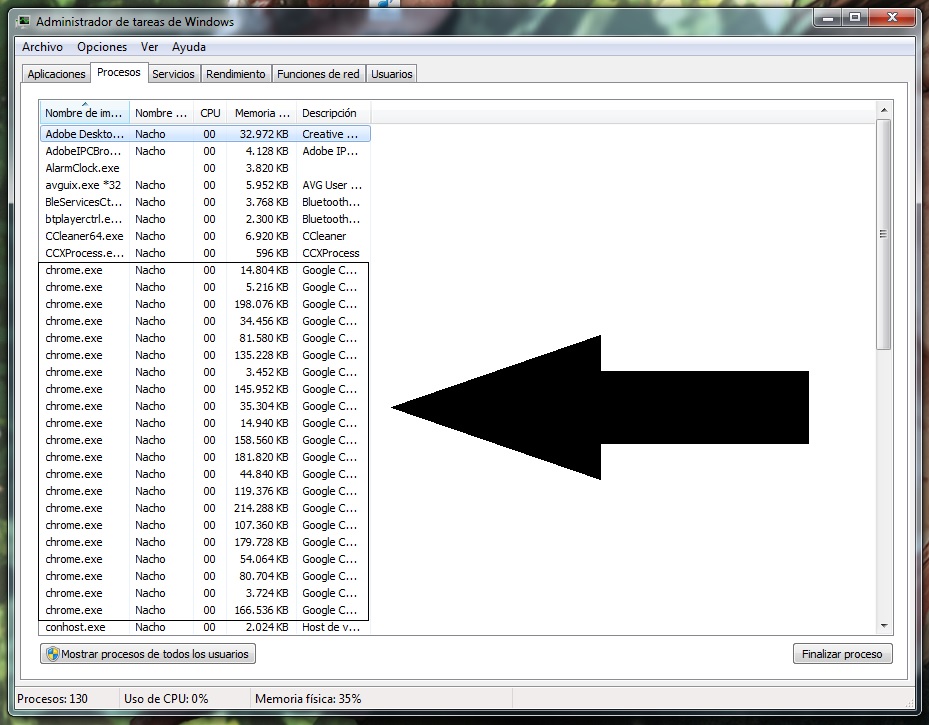
This is by far Google Chrome’s weak spot and where Firefox comes out on top: the resources it consumes. If you open the task manager while you’re using Google Chrome with a few tabs, pay attention to the processes. Almost certainly, you’ll have several fields dedicated exclusively to the Google browser. That absolutely kills performance.

Both Firefox and Google Chrome have multiprocessing, but the difference is that while Google Chrome opens one process per tab, Firefox allows three tabs per process. This makes a subtle (but significant) difference.

Tabs

In the previous point, we mentioned that Google Chrome consumes lots of processes due to open tabs. Now, let’s talk about this at the design level. We like the format of Google Chrome more than Firefox, but it has a problem: when many tabs are loaded… it’s impossible to see each one. Mozilla, on the other hand, has a nice horizontal scroll that lets you always see what’s on screen.

Google could learn a thing or two about how the most famous fox on the internet handles tabs. 

7

Extensions galore

There was a time when Google Chrome was the leader in extensions. However, in recent years, it hasn’t completely kept its place. Firefox has managed both to offer the same (or more) extensions and also maintain high-quality thanks to its community following.

We should also add that many extensions are crossovers, so they will work between browsers problem-free.

Synchronization

We won’t mislead you: if there’s one good thing about Google Chrome, it’s that all of Google’s tools are masterfully interconnected. Luckily, Firefox has gone to work on this issue in latest versions and the synchronization between browsers now works reliably.

Thanks to this, all the content on your PC can be seen later on your cell phone (or other devices, of course). Also, you can use Google’s extensions to get more out of it.

Ultimately, your choice of browser is up to you, but if you’ve tossed Firefox aside for the last few years, it’s worth another look.


How to earn free stuff with Microsoft Rewards

There’s a rare thrill in getting something for nothing – especially from a big corporation. You feel like you’ve beaten the system; one that wants to drain every last penny from your wallet in return for those must-have goods.

So when you can legitimately earn free stuff from Microsoft by making some small changes to your online habits, it’s worth trying. You might not earn much, but every little helps, and it’s an opportunity to get a bit more value from your spend.

What is Microsoft Rewards?

Microsoft Rewards is a lot like any loyalty program. It rewards you with points for using its products and services, such as shopping in the Microsoft Store, using its Edge browser, and searching with Bing. There are also other ways to earn, such as doing quizzes and clicking links, and you get 100 points just for taking the Rewards tour.

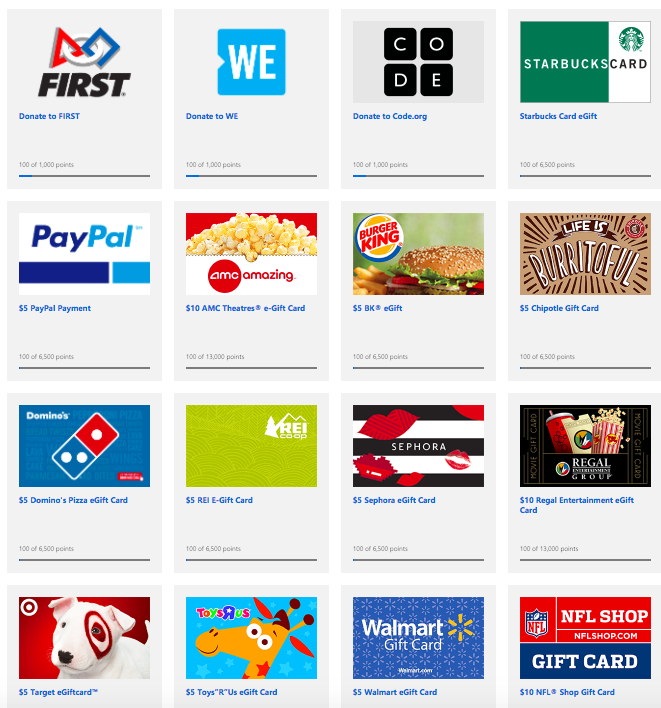
You can then redeem your points for sweepstake entries, gift cards, Xbox game passes, charitable donations, and much more. According to Microsoft, you need around 5,000 points to earn enough for a $5 reward. That sounds like a lot, but it’s actually quite doable when you realize how little you need to do to earn points.

How do you register?

Microsoft Rewards is free to join, but you must have a Microsoft account. So if you don’t have one, sign up now.

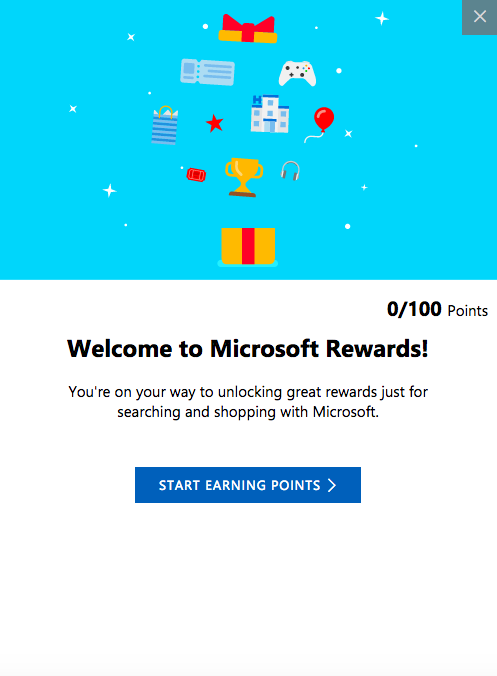
Once signed in, just head over to the Rewards tab. You’ll then get the “tour” as a series of pop-ups (like the one below) that explain how Rewards works, and at the end, you’ll receive 100 points. A nice little start to your pot.

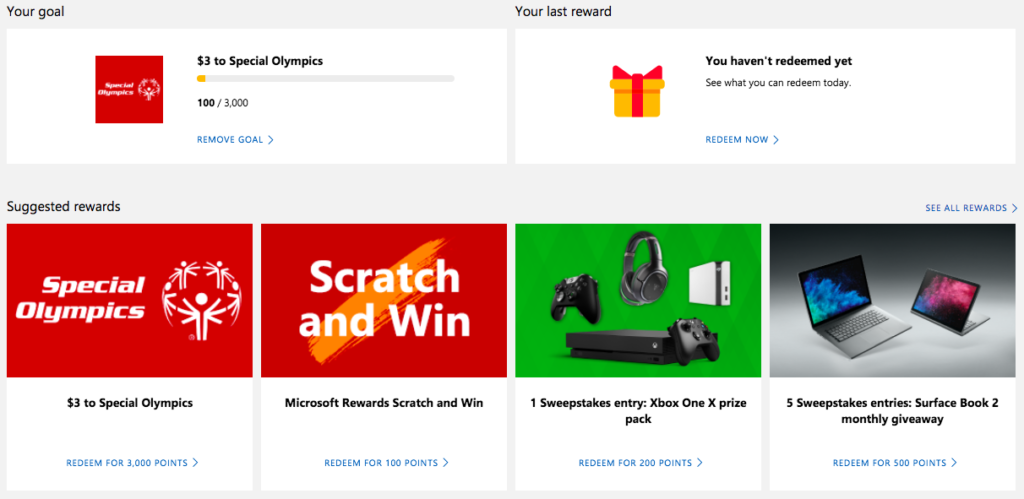
Before you look into earning points, you might want to set a goal first. This helps motivate you to earn points by setting a target for you to hit, which can be anything from a donation to your favorite charity or a shiny new Xbox One.

How do you earn points?

There are lots of ways to earn points. Two of the simplest are to use Microsoft’s Edge browser and Bing search. This might be a bit painful if you’re used to Chrome and Google, but are they also offering you free stuff? No? So, maybe it’s worth the switch.

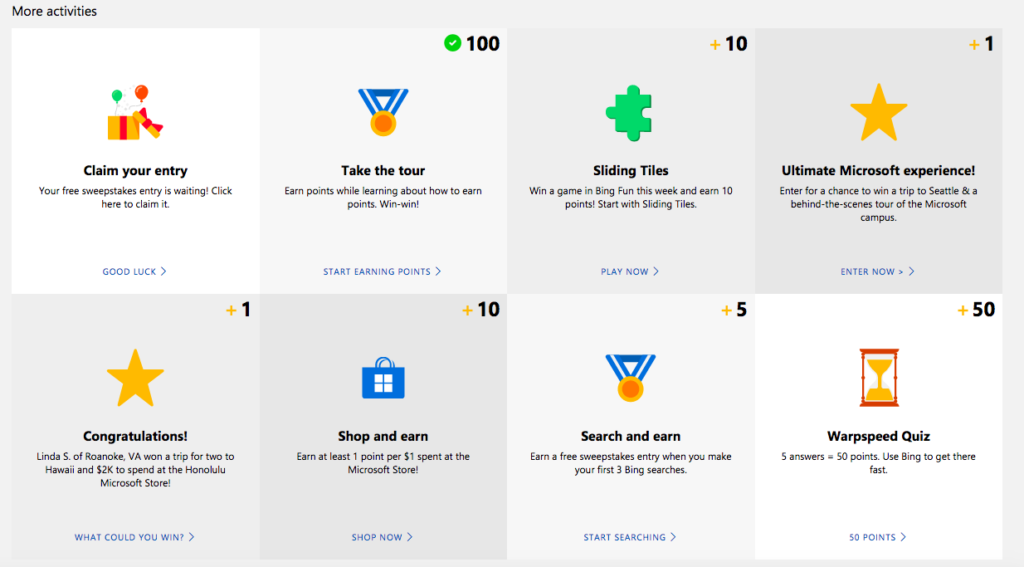
Aside from using Bing and Edge, you can play games, enter competitions, and shop online to earn points.

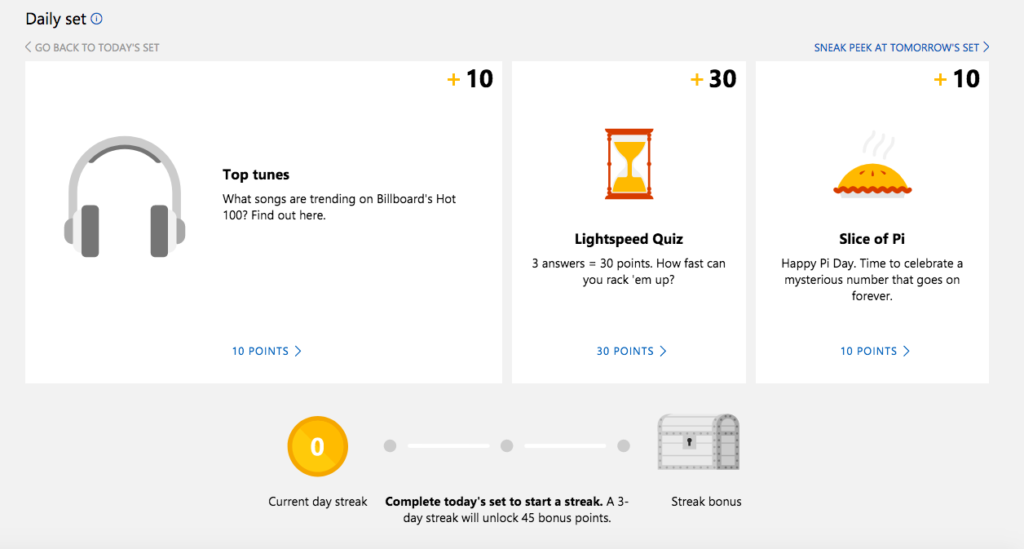
There’s also the Daily Set – three daily tasks that when done every day for a 3-day run, earn you an extra 45 points.

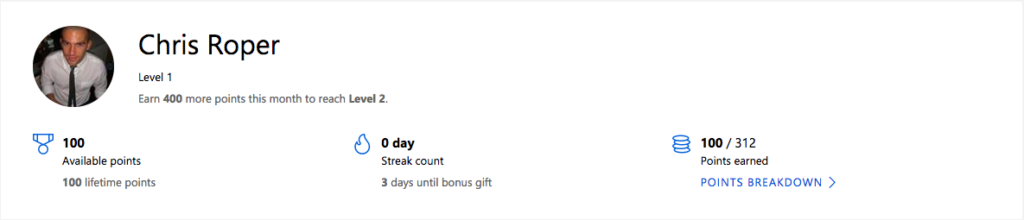
At the top of the “Earn” tab you’ll find your profile and points, so you can keep track of your progress.

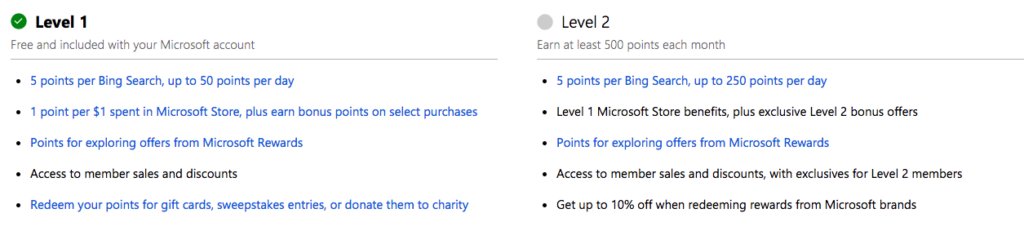
Once you’ve gone past 500 points you’ll “level up” and be able to collect even more points for the same activities.

How do you redeem points?

Once you’ve reached your points goal, or earned enough to start swapping points for prizes, head over the “Redeem” tab. Here you’ll find a broad selection of treats to spend your points on, or you can donate the points to charities for an equivalent cash amount. For some charities, Microsoft will even match your donation dollar for dollar. Just click on what you want to redeem your points for and follow the instructions from there.

That sums up Microsoft’s Rewards program. It’s actually a very easy-to-use program – just make sure you’re always logged into your Microsoft account, otherwise your points won’t be registered.

Now you can search for jobs directly on Google

Google has done it again. By now, the only thing it can’t help you find is your lost car keys. In addition to turning up search results for movie showtimes, flights, and almost everything else you’d want to know, now you can check for job openings.

To job hunt on Google, just use words like “work” or “job” + the field or profession you’re interested in. This will give you related results in your location.

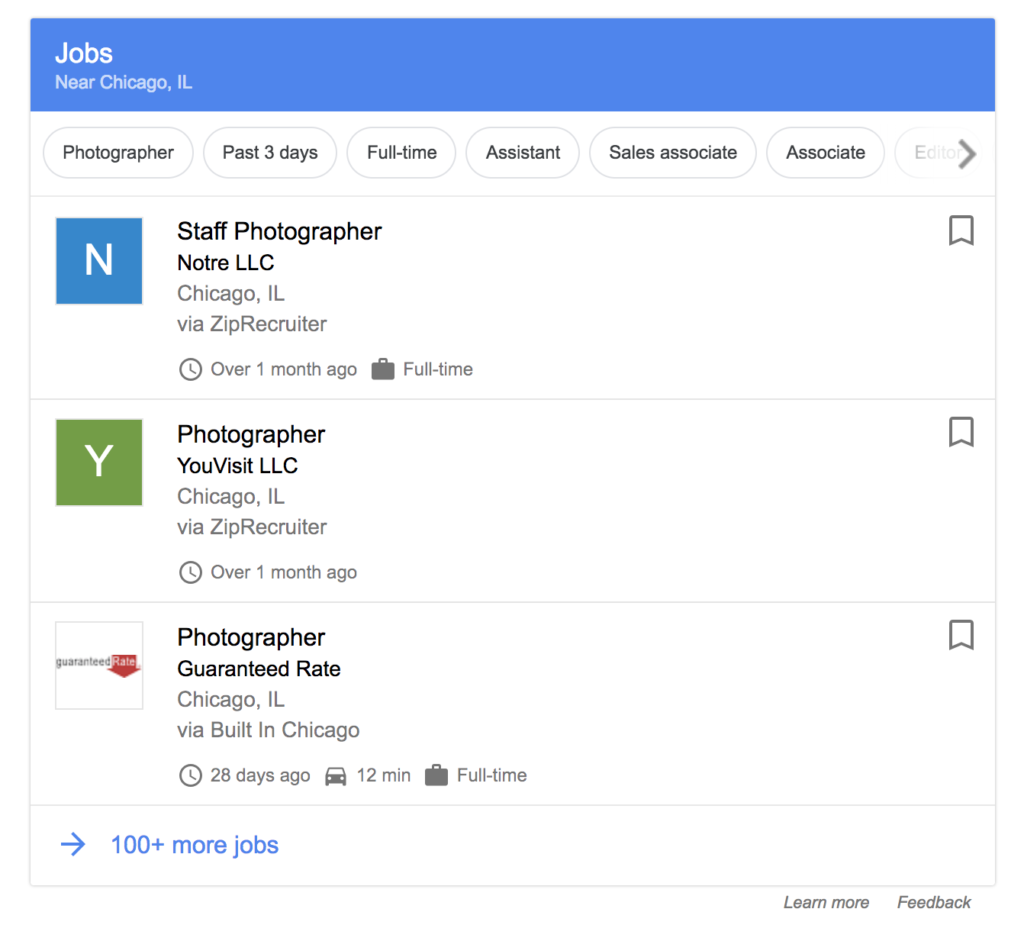
For example, I searched “photographer jobs” and Google showed me related job openings in the Chicago area:

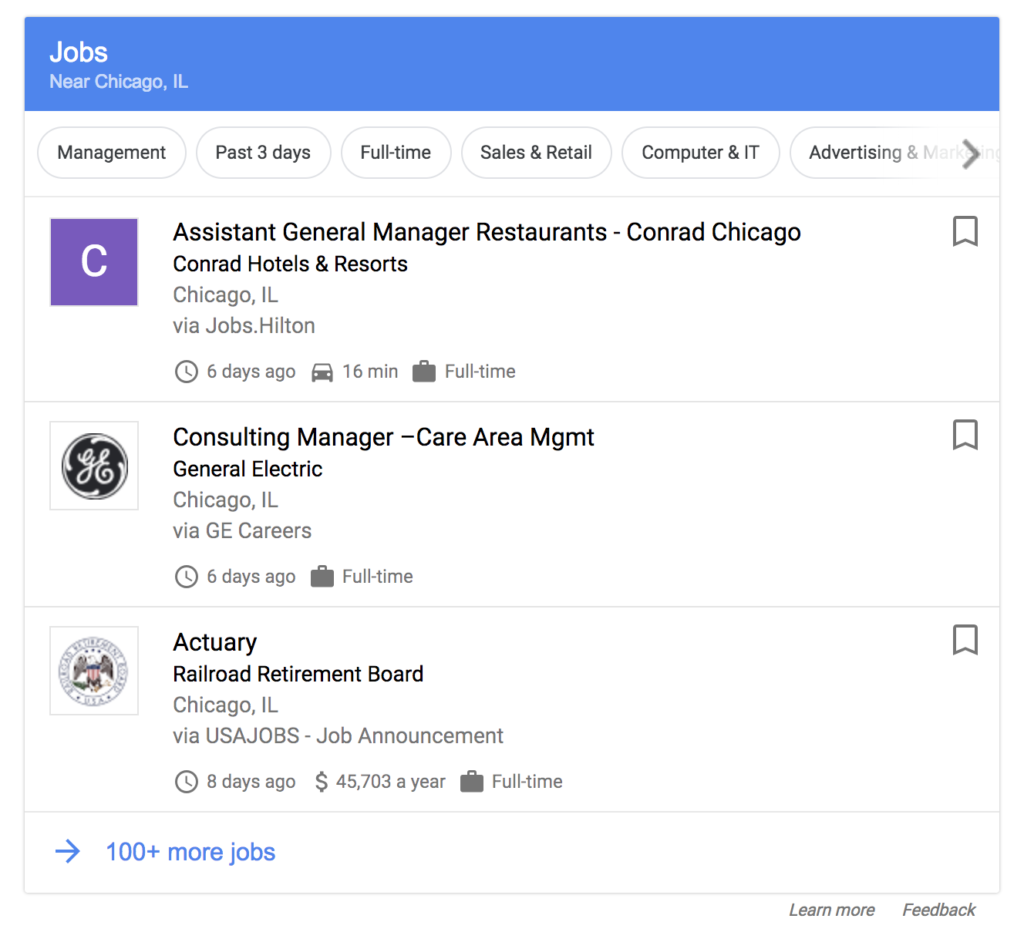
You can also do a generic search, like “jobs,” which will give you results of all kinds and filters to specify the sector and other info.

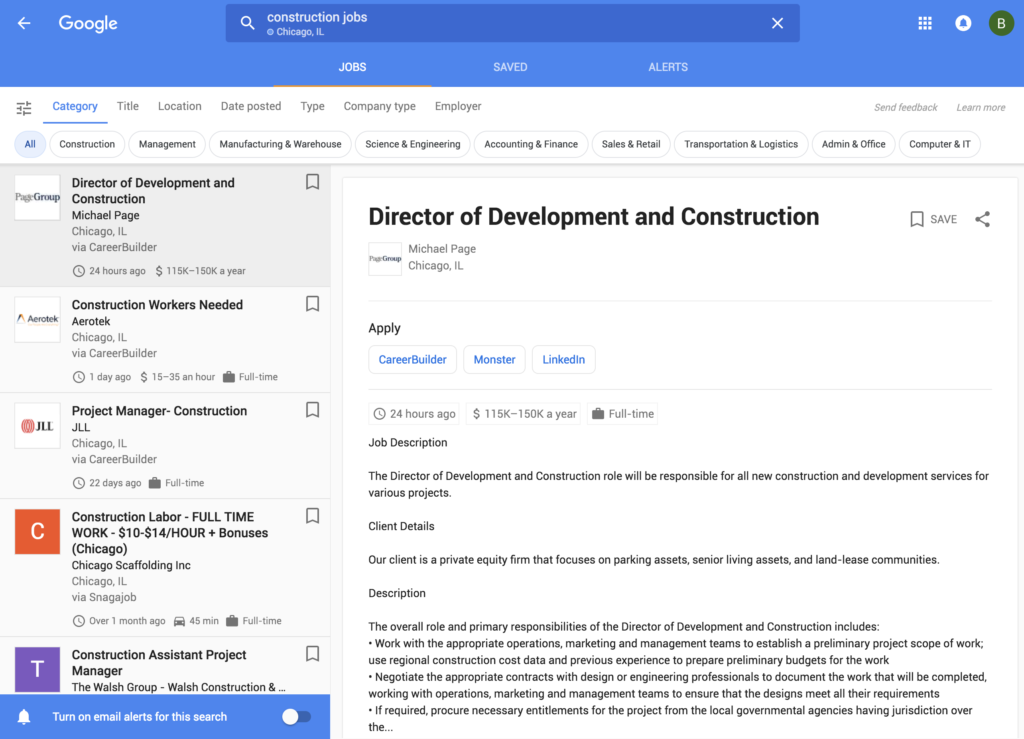
If we go to the detail page of any opening, we can read all the info, see other related openings and check openings with different filters.

We should note that Google’s solution doesn’t replace current job openings on platforms (such as Indeed, Glassdoor, and Linkedin), but rather aggregates all the info onto the same site, so you don’t have to go from page to page hunting for jobs.

This Google job search is similar to what Skyscanner does with flights or Trivago with hotels: it compiles different offerings from the most popular sites in the same place. So, to get more info on a job opening, Google will redirect you to the page where it’s posted.

What are your favorite online job hunting resources? Let us know with a comment below!

Look out for these dangerous Chrome extensions

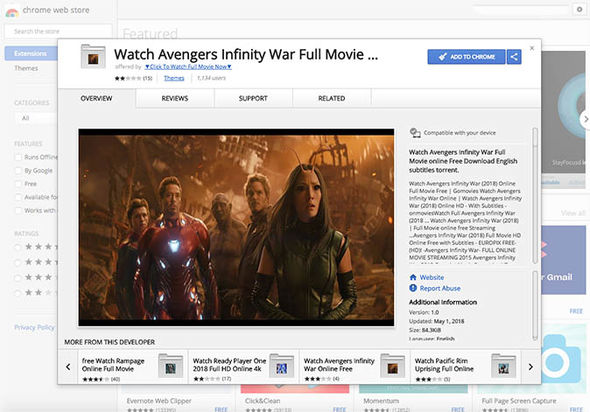
Chrome users beware. There are fake extensions in the Chrome store offering free movies that could cause you harm. If you see an extension offering films like Ready Player One or the Avengers, do not click on them. The promise of full access to HD and 4K versions are false.

Image via: The Telegraph

Anybody falling for this trick will find themselves redirected to a site called Vioos.co. Vioos looks like a streaming page but clicking on any of the videos on offer will take the user to another website called Zumastar. Zumastar then prompts you to create a “free” account that’ll you access to unlimited free movies, but this is just a scam to steal your data and infect your PC with malware.

Another possibility is being taken from vioos to EtnaMedia.net, which is blocked by MalwareBytes. MalwareBytes took action against the domain to halt suspected fraudulent practices. Users who found themselves on EtnaMedia.net reported charges to their credit cards without their knowledge or consent.

It is best to only download Chrome extensions from trusted developers and always think twice about clicking links.


Google Drive relaunch: check out the new interface

Google has relaunched Google Drive with a new interface and design. Now, the cloud storage tool has a cleaner look and other aesthetic updates.

Some examples include: a more transparent background color, a new font, rounded corners… Many of the changes follow Google’s Material Design style guide.

In this sense, Google has gotten a makeover. A few days ago, Google surprised us with an important Gmail redesign, possibly its second most important app after Google Drive. Aesthetically, the new Google Drive looks exactly like the new Gmail, making Google products more consistent.

Google Drive Download Free
7

What do you think about the changes to Google Drive?