Emojis are better at karaoke than you are

When the iPhone X first shipped one of the standout features was face tracking technology, akin to that found on the Xbox Kinect. To show it off Apple launched animojis, which tracked your facial movements and moved an emoji of your choice to match them. Once released it didn’t take long for users to start putting it to good use. Animoji karaoke was born.

Twitter quickly became awash with chickens, dogs, monkeys, and even poop singing along to karaoke classics like Queen.

Well now Animoji karaoke is back, and Apple has gone all out in a bid to build up hype for its Worldwide Developer’s Conference. The song getting the animoji treatment is Citizen Kane by Korean group Hyukoh.  As well as the face tracking bear, chicken, and dragon emojis Apple has produced a neon fused video to go with the pumping Korean beats. Check it out. Bets are you’ll love it.

Yes, Apple is now an emoji company

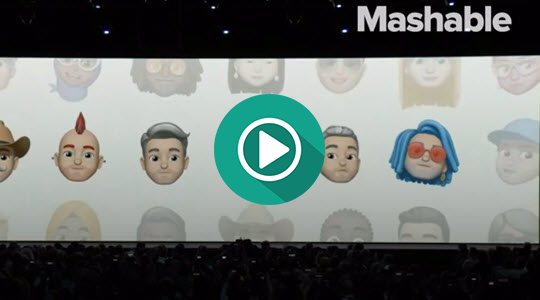
It is two emoji stories in one week for Apple, proving the hippest tech company really is out there pushing the world to where it needs to be. Where would we be, as a modern civilized society, if we weren’t able to make emojis sing along to our favorite songs? Fortunately, as we’ve seen, Apple has saved us from having to live in such a horrible place, and thanks to the biggest announcement from Apple’s Worldwide Developer’s Conference it’s gone one better. Emojis are dead. Long live the Memoji.

Source: Mashable

Yes, if you buy one of Apple’s incredibly expensive products, you’ll be able to put all of that tech to good use by turning yourself into an emoji.

You can tailor everything from skin color to accessories. As the live demo shows, you can even make sure your Memoji has “just the right amount of freckles.” The world truly is a better place thanks to Apple’s constant innovation. We must thank our Silicon Valley overlords for bestowing upon us such power. Memojis are so good, that is almost worth Apple paying hardly any tax on the billions of dollars they make every year. Almost. Try harder Apple, or maybe just pay your taxes, like the rest of us.

iPhone X vs Samsung S8 vs Google Pixel 2XL

If you’re like me, you can’t imagine living without your smartphone. For better or worse (we still remember you fondly, month-long Nokia 3210 battery), we’ve come to rely on the convenience of having a device in our pockets for work and play.

Back in 2007, Apple was the first company to envision the perfect combination of phone and personal computer, with the release of the iPhone. This device revolutionized our relationship with technology, proving you could carry a very capable computer in your pocket.

Compared to that first smartphone, today’s flagship devices are almost obscenely powerful. So if you’re looking to upgrade to a shiny new iPhone, or the most powerful Android smartphone on the market, we’ve got the scoop on the year’s hottest flagship devices from Apple, Samsung, and Google.

iPhone X

With its edge-to-edge “top-notched” screen and refined design, the new iPhone redefines what a luxury smartphone is.

Just like Apple’s other devices, software and hardware pair perfectly; everything just works. The processor is blazing fast, the camera is excellent as ever, and the battery life – while shorter than competitors – is decent. There are fun features like animojis, too, which uses face-tracking to animate your face on a monkey, pig, or… poop.

Downsides? This phone is expensive. Really, really expensive. At $1000+, every time you drop this phone could put another dent in your savings. It’s hardly something you want to hide away in a big, bulky case, so get insurance.

The other downside is Apple’s continued insistence on proprietary hardware. There’s no headphone jack, and if you want to fast charge, you have to buy a lightning USB-C cable and power brick for another $50.

Bottom line:

Best phone of the year? If you’re turned off by Apple, then no. But if you’re looking for the ultimate high-end smartphone, with a slick user experience to match, the iPhone X is the one for you.

Who it’s for:

Trend-conscious fashionistas, and turtle-neck wearing Chief Technology Officers.

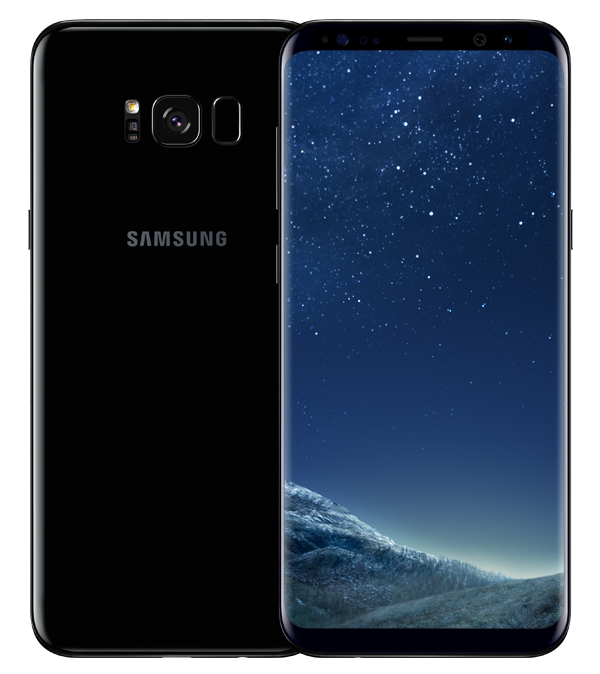
Samsung Galaxy S8

With an incredible edgeless screen, industry-leading hardware, and excellent battery life, the Galaxy S8 is constellations ahead of other smartphones.

Not only blazingly fast, the standout feature is that screen. The 5.8” infinity display is drop-dead gorgeous, with a higher resolution (1440 x 2960 pixels) than any other phone on this list. If that’s not enough, Samsung also offers the Galaxy S8+, which has a gigantic 6.2” screen.

The less good? The fingerprint scanner is located awkwardly next to the rear camera. Bixby, Samsung’s take on a virtual assistant, isn’t quite as slick as Google or Siri.

The bottom line:

When it comes to luxury Android phones, the Samsung S8 clearly leads the pack. Despite the niggles, not only will this phone turn heads, it’s got the brains to match those incredible looks.

Who it’s for:

People who hate being “contained” by screen edges, and Apple-hating hipsters.

Google Pixel 2XL
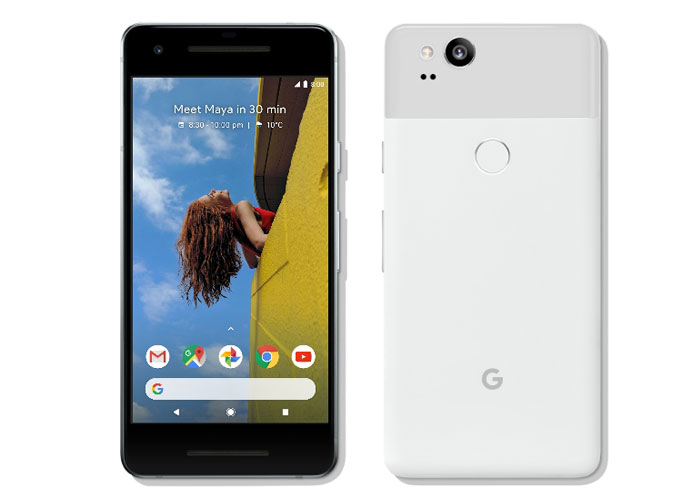
Direct from the original creators of Android, comes a smartphone with oodles of power, and a combination of software and hardware that work in perfect harmony. The Google Pixel 2XL is a purebred stallion in a stable full of donkeys.

This phone has the best version of Android, hands down. The bundled Google apps integrate seamlessly, and you get unlimited cloud storage for your photos with Google Photos. Good thing too, because the camera on this device is absolutely stunning. When paired with Google Lens, a unique app that contextualizes what it’s seeing, you can, amongst other things, point your camera at a Wi-Fi network name and password, and your phone will automatically connect.

Google Assistant is back too, and better than ever. Plus, this time, there’s no more shouting at your phone or struggling with gloves; you simply squeeze your phone to activate the helpful AI assistant.

The bad? The design isn’t quite as inspiring as those from Apple and Samsung. The metal and glass feel a bit plasticky in your hand, and the screen doesn’t stand out.

The bottom line:

While it might lack the immediate oomph of the iPhone X or S8, this phone is packed to the brim with great features. Add the game-changing camera, and you have the most well-rounded Android smartphone on the market.

Who it’s for:

Die-hard Android purists, and people who don’t want to have a heart-attack every time they drop their phone.

That completes our round-up. Best of luck finding the device that suits you, and when you do, enjoy that new phone smell. Just don’t drop it. Please.

Why Snapchat’s latest update is making fans angry

When it comes to updates, things go one of two ways. Either everything goes live and users sing your praises, or users hate the changes and will crucify you on social media (hello, automatic U2 album download).

So, when Snapchat released their newest update back in January, like anyone with the best intentions, they were probably hoping for praise. But what they got instead was a bucketload of grief.

Giving their thoughts on the upcoming changes, the company wrote:

“Until now, social media has mixed photos and videos from your friends with content from publishers and creators. While blurring these lines has been an interesting experiment, it has also produced strange side-effects (such as fake news) and made us feel like we have to perform for our friends, rather than just express ourselves.”

Snapchat Download Free
8

After the update was released in January, it became clear users were unhappy. In fact, the update has gone down like a lead balloon tied to a piece of concrete. Users aren’t keeping quiet about their displeasure either. There is currently a Change.org petition with 1,253,605 signatures at the time of writing, asking for Snapchat to rollback the design of the app.

So, to help you through the pain of the update, we’re going to take you through everything that’s changed.

Swipe left – Friends

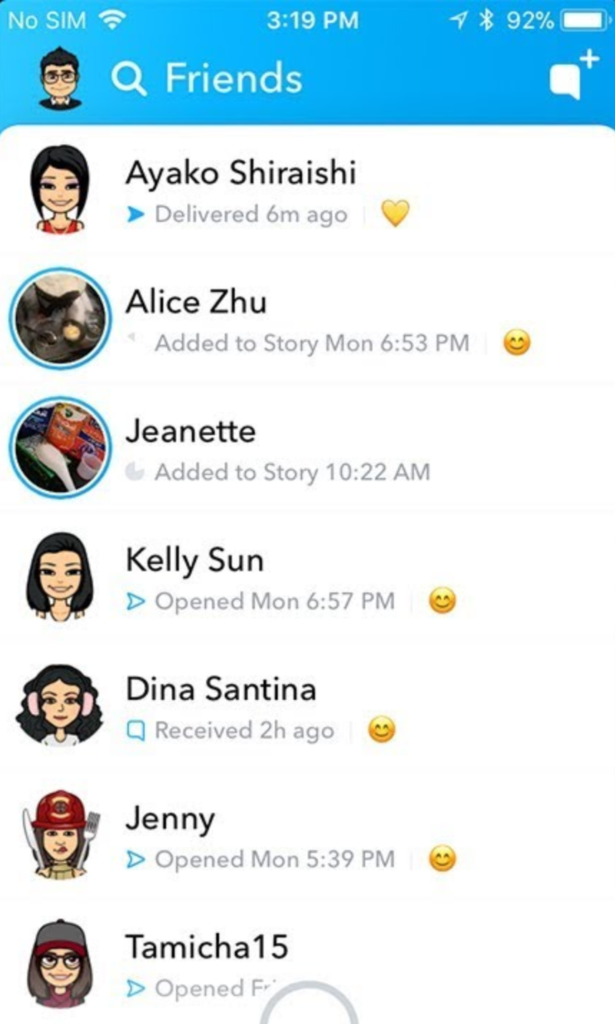
Everything to do with friends is now in one place.

Where stories used to be viewed by swiping right – and more on that later – now friends, messages, and stories are all combined in one place. It’s a bit messy. If a friend posts a story, you’ll see a preview picture. Click on their profile pic to be taken to the story.

You can only see recent contacts’ stories now, so if you haven’t ever messaged someone, you’ll need to make contact with them before you can see their stories.

Swipe right – Discover

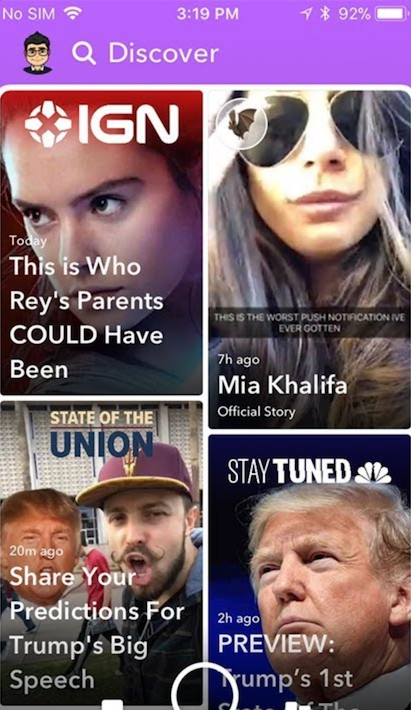
Another big change: swiping right no longer takes you to the stories page. Instead, you’ll see influencer content, paid-for ads, and friends’ stories appearing together in the new Discover feed.

There’s very little information about how Snapchat chooses what to show you, and a lot of people are annoyed about seeing lots of content they have no interest in at all.

If you want to see less from a particular source, long-press on a tile, and select “see less of this”.

Other changes

While the biggest changes are to the Friends and Discover tabs, there are a few other features worth mentioning.

  • No easy way to mass clear conversations. You can’t clear all from settings anymore, and have to long-press on each conversation, then select settings > clear.
  • No easy way to see the number of views on your posted stories, now you have to view these within your profile page.
  • No more animated profile pictures. Instead, Snapchat replaced these with Bitmoji Deluxe.
  • Our Story now makes you disclose your location by default.

Do we think Snapchat will change anything back? They did respond to the Change.org petition on the February 20, telling users:

“In the coming weeks, we are introducing tabs in Friends, and Discover, which will make it easier to find the Stories that you want, when you want them … You’ll be able to sort things like Stories, Group Chats, and Subscriptions, allowing you to further customize your own experience on the app.”

So, clearly, they know that something needs to change, and it’s hard to argue with a petition with over a million signatures and plummeting scores on app stores. But, will those people get what they want? We’ll see.

How to earn money with Instagram

In an increasingly digital world, there are countless ways to earn some cash on the side, and maybe – if you’re lucky – turn a passion or hobby into a full-time job. Anything from blogging to drawing webcomics can earn you a fortune if done right. Even posting on Instagram.

Yep, you read that right. You can earn money just from posting your pictures on Instagram. Seems crazy, but it’s simply a case of finding your niche, and marketing it well.

So, could you earn money from your Instagram posts? While it’s unlikely you’ll reach the dizzying heights of the world’s highest-paid Instagram stars (unless you’re planning on becoming a Hollywood A-lister anytime soon) it’s still possible to monetize your Instagram feed with a bit of planning.

Almost all of the cash that’s earned on Instagram comes from sponsored posts, where brands and businesses pay a user to promote their product in a paid-for post. So, how can you get a slice of that action? Let’s look at some helpful tips on how to earn money from your Instagram posts.

Followers

An obvious point, but you must have a large number of followers to be considered by sponsors. But how large is large? The biggest and highest-paid stars have 1 milion+ followers, but you don’t necessarily need that many to get paid. Recently, we have seen the rise of the micro-influencer, smaller accounts with less than 20k followers, which brings us to our next point.

Engagement

Although followers are important, what’s more important is your followers’ engagement – the number of people who view your posts and click the links. If you’ve only got 20k followers, but your engagement rate is 5 percent, that can be very appealing to businesses and brands. They would pay less to advertise and get a higher rate of return than an account with a million followers but only 1 percent engagement.

Businesses are even more interested if you have a well-defined, dedicated, and unique fan-base. But how do you get these fans?

You’ve got to…

Find your niche

According to figures released by Instagram, the app has over 500 million daily users. Why should any of them check your account? You have to stand out. This means putting some thought into your profile, and what you post on it.

Choose a profile picture that really encapsulates your channel, and make it pop. Write a strong bio, that sums up who you are and what you do. Why not use some emojis on your bio? Pictures tell a thousand words, and a carefully placed airplane emoji has more impact than writing “I fly around the world in airplanes”.

Next, think about your channel’s purpose. Cooking tips? Traveling advice? Yoga instruction? What makes you different from all the other users who post stuff exactly like you? You need something to differentiate you from everyone else, while still being familiar enough for people to latch onto. This can be as simple as an open attitude to travel and health, or as complicated as only posting pictures of floors or doors.

Be consistent

What’s important once you’ve found your niche, is to be consistent. If you only post pictures of doors, don’t suddenly switch it up to cats – your users will wonder what’s going on. Businesses want to give money to reliable accounts that deliver consistent results, and one of the best ways for them to find you is if you’ve become a consistent source of great content.

#hastags #hashtags #hashtags

People either overlook hashtags, or do them badly – #blessed #lit #justsaying – but when used well, hashtags can help grow your fanbase, and connect you with businesses and brands.

Using the five dot trick, you can hide those unsightly #tags from your post, but still include as many as you like. This helps your posts reach the widest possible audience. Remember, mix it up – try adding ten general tags, five to connect with other accounts, five for the location of the picture, and five for the picture itself. Get creative, but try not to go too over the top, #k?

Remember: be patient, and be consistent. If your content is great, and you keep on working to connect with more fans and followers, eventually businesses will begin to reach out to you, and you might be one of the lucky people who get paid just for posting pictures. Good luck!

How to read messages on Facebook Messenger without the sender knowing

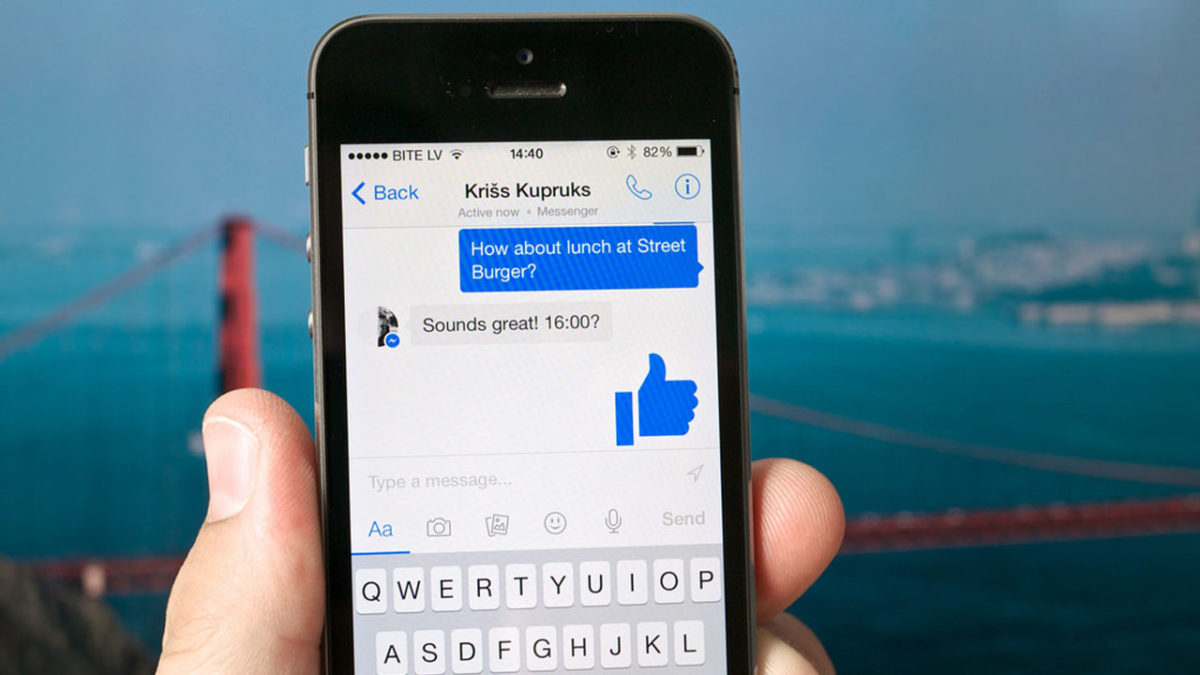
Messaging services have spurred new ways of communicating around the world. That blue checkmark is a confirmation that your message has arrived and been read. You know it. The recipient knows it.  And that can be awkward at times.

In the case of WhatsApp, you can disable the message confirmation, but with Facebook Messenger it’s not so easy… or maybe it is. We’ll show you how to read messages on Facebook Messenger without the sender knowing.

On your cell phone

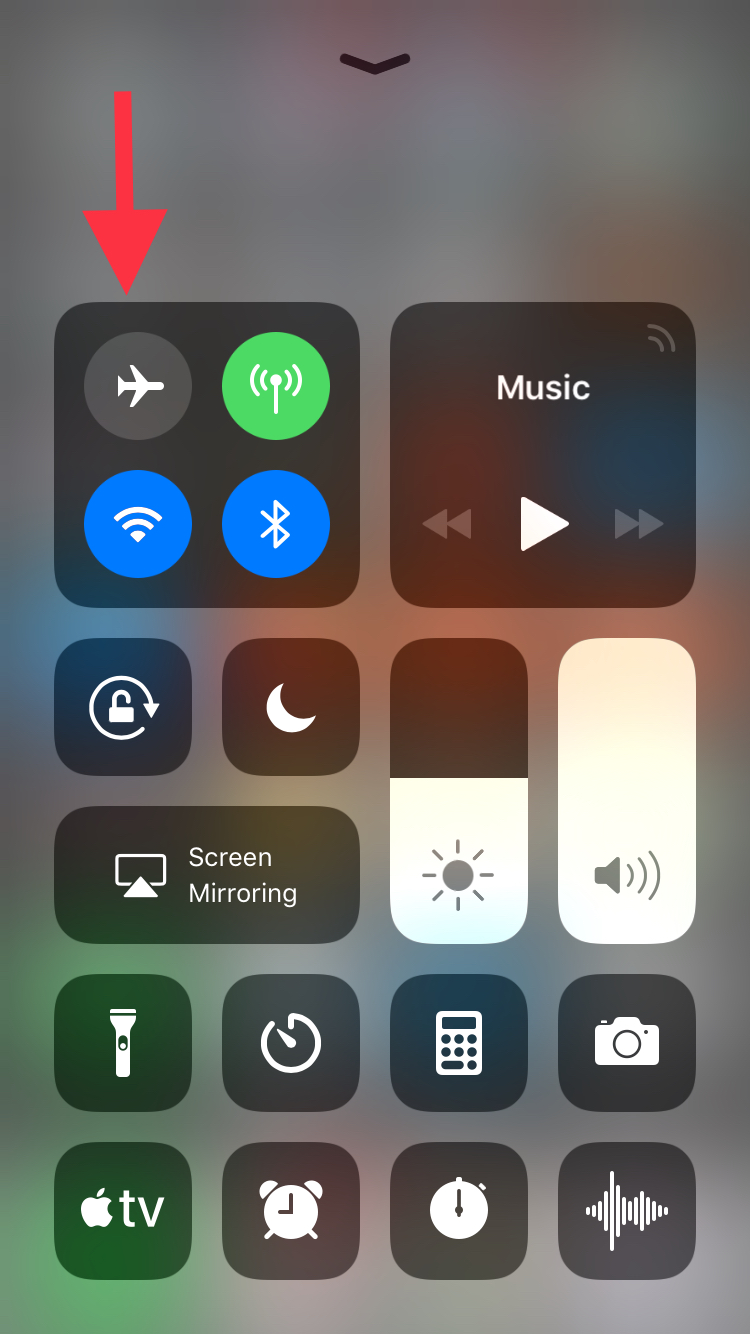
Let’s start this guide with your smartphone, where this app is most used. In the case of mobile devices, making it so Facebook Messenger doesn’t detect your view is so easy it might scare you: simply put it on Airplane Mode. Yup, that’s the big reveal. If you put it on this mode, your messages on Facebook Messenger won’t appear as seen.

This happens because the app downloads all the messages going to your phone, regardless of whether they are read or not. However, if you enable Airplane Mode and then go into the messaging app, without internet there won’t be any read receipt or even the possibility of responding. It’s the modern day equivalent of “driving into a tunnel.”

On your PC

We already mentioned that it’s pretty easy to get this unseen message with your smartphone and it’s just as straightforward with your PC, though there are a few additional steps.

If you use Google Chrome, what you should do is install the extension Unseen. The name is straightforward. It blocks received messages so they don’t appear as read when you go into the app.

FB Unseen Download Free
7

If you use Mozilla Firefox, there are several extensions like this, though our advice is to go for Message Seen Disable. It works pretty well and doesn’t give you any trouble with browsing or using Facebook Messenger, so it’s one of the best options.

Now that you know how to read messages without them appearing as seen, you just have to choose how to do it. We like the smartphone method best, which takes a matter of seconds (literally) to complete the process. It’s up to you.

Gmail’s best new features

At the end of last year, Google pledged that we would see a lot of new features for Gmail in 2018. This email service is the most popular in the world, so the Mountain View team has been working to offer new features. And now we’ve received the first of them. Here are Gmail’s best new features.

New design

Gmail has always been known for having a clumsy interface, typical of the last decade. However, we should clarify that it’s quick, easy and functional, so it’s understandable that Google doesn’t want to touch anything that works well… they just want to improve it.

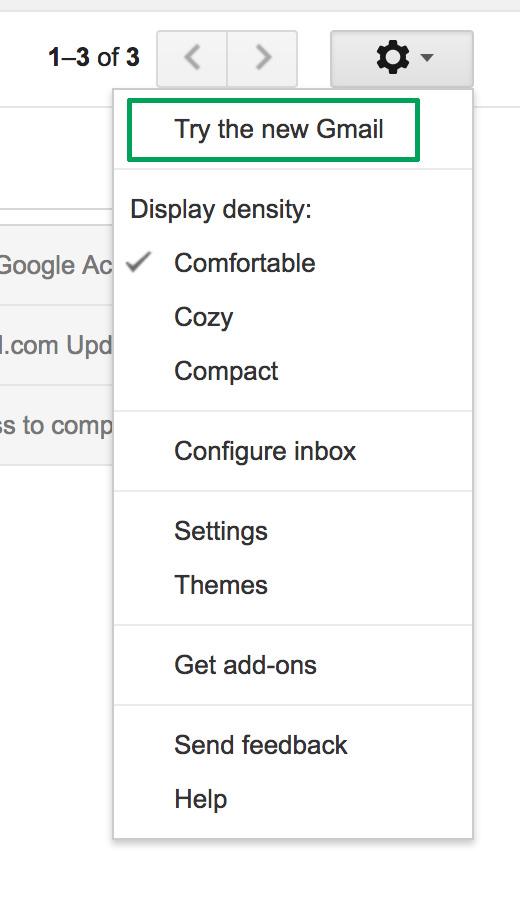
Finally, the search company has added a new Gmail design. To enable it, just go to the gears icon at the top and click “Try the new Gmail.” The platform will reload after a few seconds and a short tutorial will appear explaining the new features.

Gmail now has a cleaner and more readable design, with rounded and not-so-rectangular shapes. It also added new features at the user experience level. For example, attached files in emails can be downloaded without having to open the email at hand (this is a big hit).

Offline mode

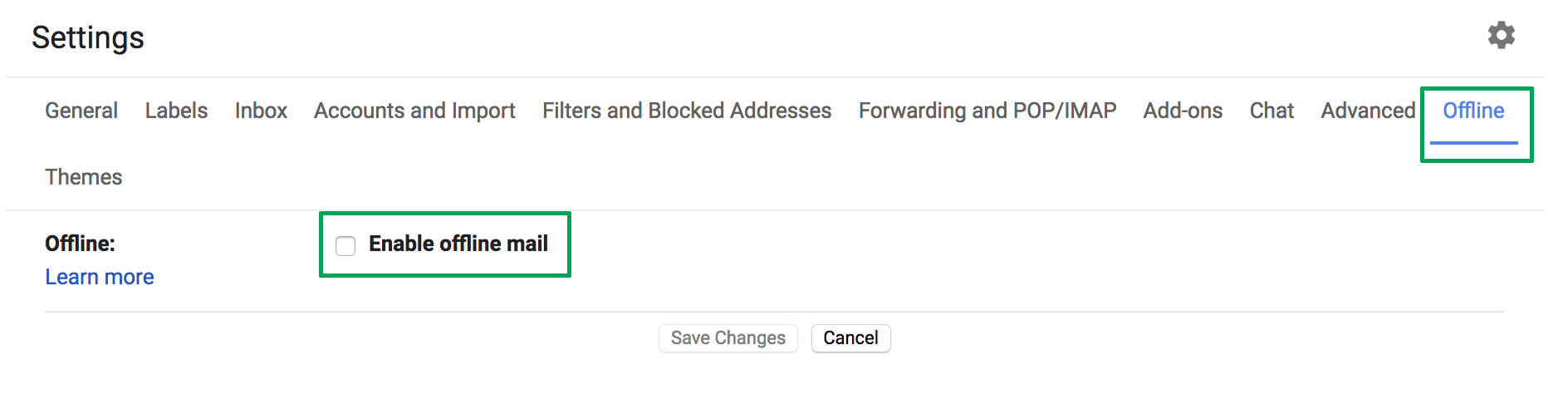
This is one of the greatest new features of this latest update, which the community has been requesting for some years now: offline mode. To get it, you must have the new Gmail design, so follow the steps in the previous point.

Once you’ve done that, enabling offline mode is very simple. Click on the settings icon and then the “Settings” option – redundant, we know. If you take a quick look, you’ll see a field that wasn’t there before, a box called “Offline.” Click there and enable the box “Enable offline email.” It will ask you how many days of messages you want to synchronize, so choose what’s best for you. Now you’re good to go.

Reminders

Maybe you haven’t responded to your email for a few days and have to do it. Now Google will remind you with a little yellow message. This feature even appears in emails that have already been read. The idea is that no message goes overlooked.

Auto-response

This was already introduced in past trial phase versions, but now, at last, it’s here: the auto-response. This feature involves Google’s AI suggesting what could be your short response to a message you’ve received. For this, the system displays some answers on the screen: you can then choose one and click send. Quick and easy.

Gmail Access now
8

Self-destructing emails

We’ll wrap up this list of new features with the best one for spies: self-destructing emails. Known under the name “Confidential mode,” this feature is activated once an email is sent and prevents that person from copying, pasting, resending or printing the text. Also, you can add a reading time limit. After this time, the email will no longer be available.

How to recover a deleted WhatsApp photo or video

It’s one of the most frequently asked questions when you’re having issues: “How can I recover a deleted WhatsApp photo or video?” For some reason, you deleted that snapshot and now want to get it back on your device. Yes, friends, you can recover it. In fact, today at Softonic we’re going to teach you how.

Before we get started, check carefully

We’re going to recommend a series of recovery programs, but before we get started, we want to ask you something: are you sure you’ve checked carefully?

We’re asking this question for a simple reason: WhatsApp saves all your images and videos in two different folders. One is the device’s “Image gallery” and the other is a dedicated folder for the app called “WhatsApp Images” (within the “Gallery,” of course).

In the case of iOS, the images are also found within every user. If you click on the profile name once the chat is open, you’ll see a field called “Multimedia, links and docs.” Go in and you’ll have access to all the images that you’ve downloaded since you installed the app (if you didn’t delete them previously, of course).

With apps

Once you’ve checked that the images aren’t there, it’s time to use apps to recover the snapshots. For this, we have two tools that work fairly well: DigDeep and Disk Digger, the first free and the second paid.

Starting with DigDeep, this app is extremely easy to use, so much so that its design is the most complex part. With a rough and ugly appearance, this software lets you recover all deleted images with two simple clicks. Literally. Once you have it downloaded and installed, you’ll see that several pictures of deleted images will pop up. Click on the one you would like to recover and click on “Restore.” It doesn’t get any easier.

DigDeep Image Recovery Download Free
9

For Disk Digger, the ins and outs are the same, except the free version of the app only recovers a thumbnail of the photo. Of course, the developers’ idea is that you’ll see the images or videos that you want to recover. And you won’t think twice about upgrading to the paid version.

DiskDigger Undelete Download Free
8

About WhatsApp Web

We’ll wrap up with a little trick that you may not know: WhatsApp Web, i.e. the computer platform for this app, may have your photos. For this, you only have to enter the site, scan the QR code that it requests (following the instructions that WhatsApp indicates) and you’ll see the app opens on your computer.

If you click on the chat of any user, you’ll see that same box as the iOS version (“Multimedia, links and docs”). Go in and you’ll have all the photos and videos that you’ve exchanged with that person at your fingertips!

WhatsApp makes a big change: no more annoying photos from your contacts

Soon you’ll have the power to stop photos and videos sent by your WhatsApp contacts from appearing in your phone’s photo gallery. How many times have you opened your gallery to show a photo to a friend, only to find dozens of goofy photos or videos from those idiotic, muted group chats? Never fear. Those uncomfortable moments are at an end.

WhatsApp Messenger Download WhatsApp
8

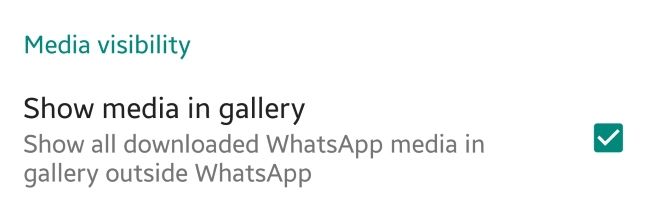
This new feature appears in the latest WhatsApp beta version. This means that soon we’ll have it available in the regular version. Once the update rolls out, just have to go to the settings section of WhatsApp and then to Data and storage. There will be a new option called “Media visibility.” Simply disable “Show media in gallery” and the problem is solved.


What do you think about this new feature? Will you use it? Leave us a comment!

Facebook banned: New national policy aims to limit negative effects of social’ media

The government in Papua New Guinea has decided to ban Facebook for a month. The move comes in a bid to study the effects of social media on the people of the small island nation. In addition to the study, fake users will also be targeted and eliminated from the social platform.

Papua New Guinea’s communication minister, Sam Basil, said:

“The time will allow information to be collected to identify users that hide behind fake accounts, users that upload pornographic images, users that post false and misleading information on Facebook to be filtered and removed.”

With recent scandals like the Cambridge Analytica Facebook data leak still fresh in people’s minds, Basil says that the country is acting with its citizens’ best interests at heart. There are also plans for a local social network being set up on the island, but Basil says the government will wait until the results of this study are known before action is taken.

This isn’t the first time a country has temporarily banned Facebook. Sri Lanka did the same at the beginning of the year to prevent the spread of racial hatred. Banning Facebook is no doubt a controversial option but with the social network getting in trouble in Myanmar recently for helping incite racial violence, it is clear Facebook isn’t doing enough to meet its global responsibilities.

What do you think? How would you feel if Facebook was banned in your country?