Alexa and other smart assistants found to be vulnerable

AI voice assistant’s like Amazon’s Alexa and Google’s Assistant have seen their popularity soar over the last few years. This will only continue, but placing highly tuned distance microphones all over your home raises certain security issues. If they can always hear, does that mean that they’re always listening? The developers say no, and laud the security technology they’ve bundled into their AI, but researchers at a series of universities have found some alarming vulnerabilities.

The problem lies in the rapidly expanding number of voice assistant apps that are rolling out across the different platforms. Alexa and Assistant are the two biggest platforms and users can add third-party skills or actions to their voice assistant. These new apps are the raison d’etre behind the blog players developing voice assistants as a platform. They want to control a whole new marketplace.

As pointed out on the MalwareBytes blog, the researchers have discovered a particular vulnerability called voice squatting or masquerading:

“Voice squatting is a method wherein a threat actor takes advantage or abuses the way a skill or action is invoked. Let’s take an example used from the researchers’ white paper. If a user says, “Alexa, open Capital One” to run the Capital One skill, a threat actor can potentially create a malicious app with a similarly pronounced name, such as Capital Won. The command meant for the Capital One skill is then hijacked to run the malicious Capital Won skill instead.”

Users could inadvertently be invoking a harmful action from their voice assistant, simply because it sounds similar to the name of a legitimate action.

Voice masquerading takes this action even further. Rather than simply tricking users with similar sounds, voice masqueraders outright deceive. They pretend to be legitimate apps so that they can phish personal information from the unsuspecting user. If a malicious app pretends to be your bank, your most personal data immediately becomes at risk.

Another trick these fake voice apps use is to pretend to switch to another app or to offer a fake termination of an app, but then continue to listen in. Again this could be to phish information or to simply listen in and record what is going on around the smart speaker. Theoretically, this type of vulnerability could evolve an entirely new kind of ransomware with blackmail against the release of secret conversations being used to extort money from unsuspecting smart assistant users.

These two types of vulnerability are alarming, but they shouldn’t turn you off smart assistants altogether. MalwareBytes recommends that if you use a smart assistant, you need to really get to know the all-hearing product you’ve brought into your home. Understanding how the smart speakers work will help you protect yourself from potential attack. In the video examples shown above, a vigilant user would have noticed the discrepancies between the two responses to the voice command.
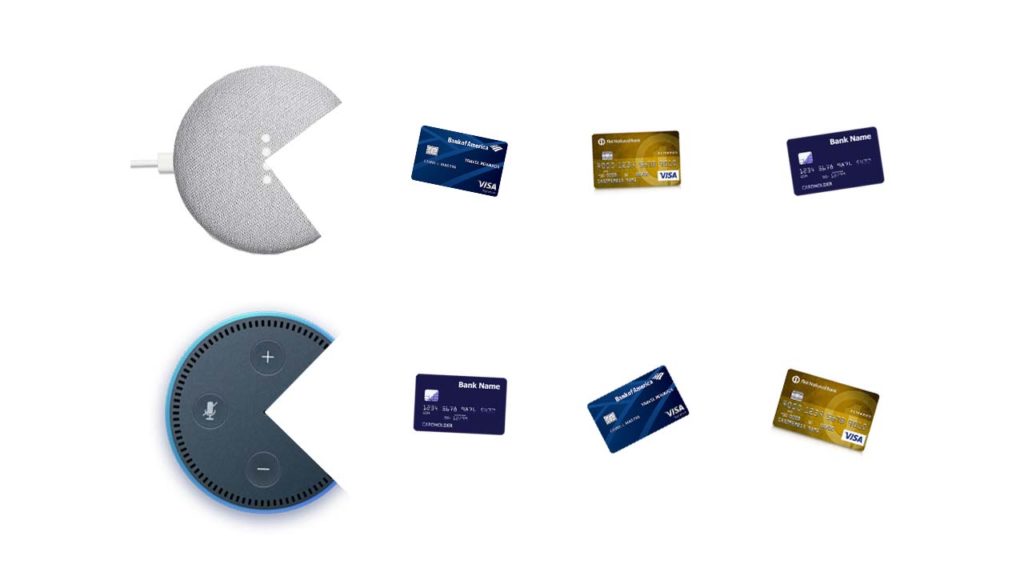
Your smart speaker could be eating up all your details

We talk a lot here at Softonic about spotting fake emails and web pages so that your information can’t be phished and then used against you. Malicious actors are now also using sonically activated means of tricking users, which will be much harder to spot. Also, as the technology develops, talking to these smart assistants will sound more and more like talking to an actual person. This will cause you to lower your guard, but you have to remain alert to potential threats against you.

As always with these types of security issues, you are the person responsible for your security. Your own vigilance is the best line of defense you have.


10 apps to celebrate Geek Pride Day

Geeks, unite! Today, May 25, we celebrate geek culture. On this day, fans of sci-fi, fantasy, TV series, comics, video games, etc.… proudly declare their passion for the geek world. To honor your “Yep, I’m a geek!” pride, check out these 10 geeky-as-heck apps for your cell phone.

You’ll find all the download links for the apps at the bottom of the page…

infographics set and Information party Graphics vector

10 best apps for geeks

1. Voice Changer with Effects

Don’t let its generic name and icon fool you: this Voice Changer with Effects falls completely in geek territory. You can take on the voice of Optimus Prime from Transformers, Darth Vader, a zombie, a dragon, an alien… or even a ghost, whatever that means.

Download Now

2. Indiana Jones Whip

When you think of Indiana Jones, his faithful whip quickly comes to mind. This app makes the famous sound of Indy’s whip every time you shake your phone. Warning: the sound doesn’t come with a physical effect so it won’t help you train lions, for example.

Download Now

3. Star Wars Official App

Usually, official apps from big franchises are super boring. The official Star Wars app is a rare exception: it has an Augmented Reality feature, weather predictions for the Star Wars universe, the ability to unlock characters and ships… and you can even fight with a lightsaber or join the Dark Side.

Download Now

4. Stranger Things: The Game

If Stranger Things is an 80s-throwback party, its video game is nothing less. You’ll find references to Mario and Pac-Man throughout an adventure recreated in 16-bits, which was launched between seasons of the series. 100% free from start to finish.

Download Now

5. Gif Maker

Have you ever stumbled on a GIF from your favorite series or movie and thought “I could do something better?” Well, the moment has come to prove it to the world. With this app, you can go wild and easily create lots of GIFs.

Download Now

6. Instant Buttons

On this app, you’ve got popular sounds, plus the geekiest ones around. Just tap their eye-catching buttons and have a listen. And if your favorite sound isn’t available, you can add it yourself.

Download Now

7. SeriesGuide Show Manager

Do you follow TV series as they’re released in the U.S.? This app not only has the TV programming but also uses notifications to tell you when new episodes will appear. This app will free up all that space in your brain that you were using for planning and remembering what was on. Now you’ll have more space for… well… remembering the lyrics to your favorite openings.

Download Now

8. Comic & Meme Creator

Is your dream to make your own superhero comic or manga with “tsundere,” “senpai” and “mecha” characters? Well, with this app you can create stories from its extensive catalog of characters, items and backgrounds, to then share the final result with your friends.

Download Now

9. LINE Webtoon

If you like reading comics and don’t have LINE Webtoon, you’re missing out on a ton of digital comics, many of them from Western artists of all kinds: romance, action, comedy, epic sagas, short strips… All for free.

Download Now

10. Cinema Trivia Quiz

Think you know everything about cinema? The time has come to prove it with this cinema trivia app that is regularly updated to include the latest blockbusters. At the time of writing this article, there were over 1,500 questions awaiting you.

Download Now

What are VPNs and why should you use one

If you use the internet a lot, you’ll have probably already heard of VPNs. Over a short period, VPNs have gone from being thought of as obscure programs to extremely useful tools that can give anyone the freedom to surf the web with complete freedom and security and without a need for any sort of extensive technical expertise.

Do you want to know in more detail what exactly a VPN is and how you could use one? Well keep reading, let’s look at what VPNs are and why you should start using one from today.

What is a VPN?

Normally, when we access a webpage from a PC or mobile phone, our device sends various instructions through the router, seeking access to the webpage in question. These instructions head to the Internet Service Provider, which then carries them out before sending the result (the webpage) back to our device. What happens if we add an intermediary between both steps? This is when the VPN, otherwise known as your very own Virtual Private Network, comes into play.

What virtual private networks do is add one more step to your connection, acting as a tunnel between all the orders you send to your router or modem and your browser. This intermediate step made by the VPN encrypts all of your information, making it much safer.

In this way, using a VPN prevents anybody altering the data you send and receive, ensuring a more reliable and intrusive-proof connection.

Panda VPN Premium Download Now
10

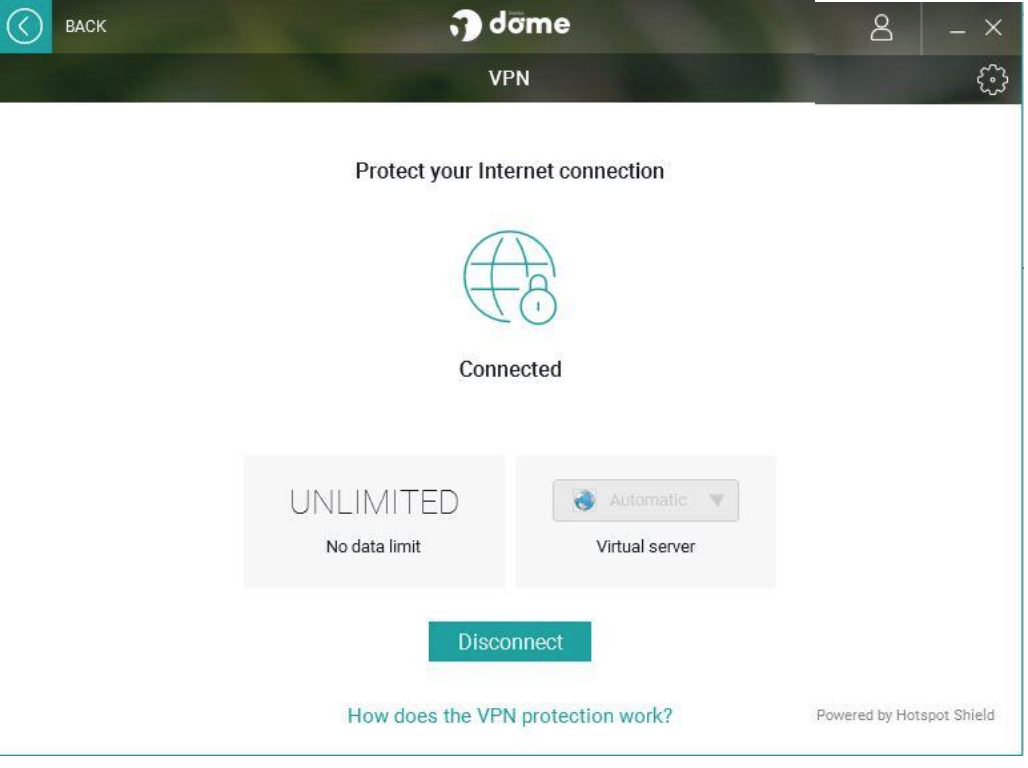
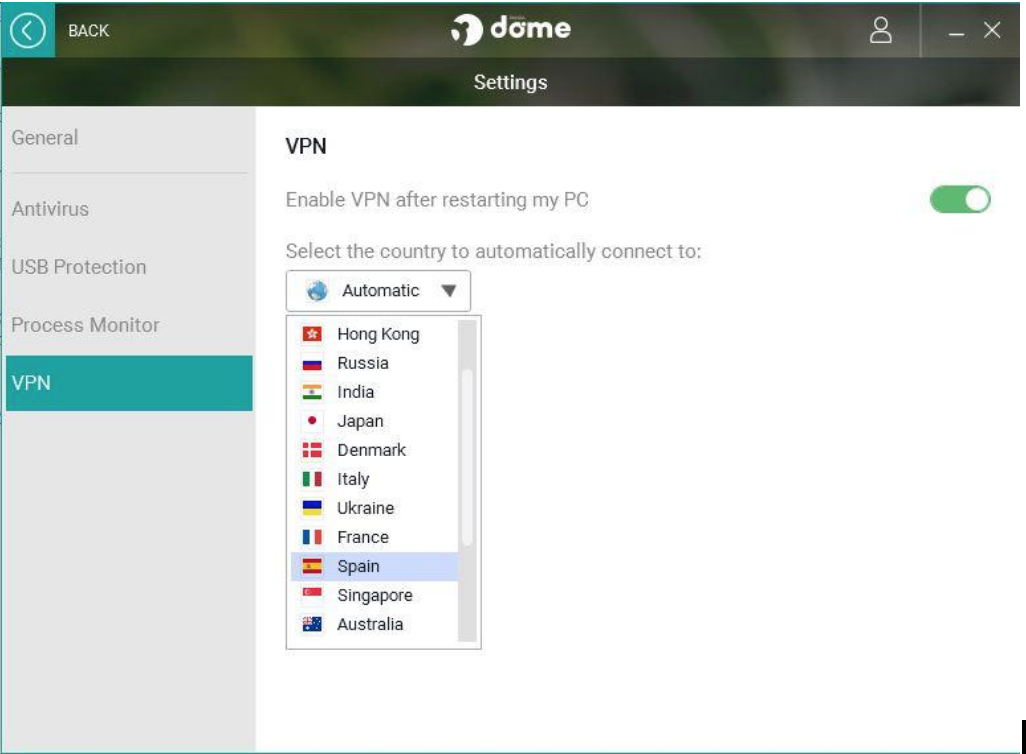
Another great advantage of your VPN is that it can simulate a connection in different countries around the world. For example, imagine you are in Spain and that you are connecting to a VPN with a server in the United States: this means all the websites you visit will think you’re in the United States.

Using a VPN is as simple as downloading it and installing it on your PC or phone. Once done, you simply register and connect. From then on, it’ll encrypt everything you do on the internet.

Why do I need a VPN?

Encrypted data and connection from different countries are both very good, but how do these advantages translate into everyday use? Here we bring you four very practical uses for VPN networks:

1. Stay safe on public networks

Cafes, hotels, libraries, study centers … Today there are many places where you can surf freely, and without having to enter personal information. That’s great, but it also opens the door to cyber-attacks and threats. On public networks using a VPN is essential.

In public places, the VPN will act as an extra layer of security to avoid hackers accessing your data. Obviously, you should continue to maintain certain security measures when you access the internet via open networks, but adding a VPN will give your security a big boost.

2. Working remotely

If you have a profession that allows you to work from home (or from anywhere else for that matter), installing a VPN is a very good idea. Although you can access the different company services and servers as is, adding a VPN to the process is a good way to secure everything you do. With a VPN you will avoid sensitive company data being compromised or delicate transactions being altered or affected.

3. Online shopping and banking

If you regularly buy things online or make online banking transactions, activating a VPN is a great idea. All these processes move very sensitive data, such as account numbers or other personal information. A VPN minimizes the risk that a hacker could hijack that data.

Another added value of using a VPN when shopping online is being able to browse stores that are not from your country. Maybe you’ll find the item you’re looking for at a lower price.

4. Workaround geo-location restrictions

Using a VPN allows you to visit websites restricted in your country. In some countries, especially in China, censorship is commonplace. So, with a VPN, you can visit censored websites without limitations.

Also, thanks to your VPN you can take advantage of services and content that might only be available in certain parts of the world. For example, the European Netflix or HBO libraries are different from the American libraries. Using a VPN with an IP from different countries gives you access to previously unavailable content.

Where to download a reliable VPN

There are a lot of different VPNs, available for free or with more premium features that come at a cost. Our recommendation is Panda VPN, which was recently launched by renowned antivirus developer Panda.

Panda VPN Premium Download Now
10

Using Panda VPN is very simple: you just have to install it through the link below and follow the instructions. Create a Panda account (if you don’t already have one), access it, activate your VPN and enjoy all the advantages of navigating without limits and with an added level of security.

The free version, Panda VPN FREE, offers you access from one device, 150 MB daily transfer and a single default location.

If you want access to a more extensive VPN offering, you should try Panda VPN Premium. Panda VPN Premium allows you to access the web from many different locations, has unlimited data transfer, and can be used on up to five different devices.

Furthermore, Panda VPN Pro also includes an antivirus that comes with the Panda guarantee.


Researchers find anxiety lurking in your inbox, to no one’s surprise

Source: Getty Images/ PhotoAlto

Is checking email late into the night making you tense, affecting your relationships, and generally screwing with your life?

Then you may well be suffering from technostress, a threat to our well being that is finally being taken seriously by researchers.

The condition isn’t helped by managers who expect that we will always be ready to reply to late-night or weekend messages.

Some bosses have realized that far worse than existential despair and suicidal depression, this also makes us drones less productive, and so they’ve started banning out of hours emails.

French workers have even won the right to disconnect, allowing them to insist on email-free evenings and weekends. And a lot of us are asking when the rest of the world will follow suit.

How to identify fonts in any photo

“I love the font in this photo, but I don’t know what it’s called.” As you step into the exciting world of design and creative work, this question has definitely popped up in your head. And that’s completely normal: we all want to know as many font styles as possible, since they could be useful for future work and create a better end product.

If this question continues to puzzle you, don’t worry: we’re here to help. We’ve brought you the three best webpages or apps to find out the type of font used in a text, image or video.

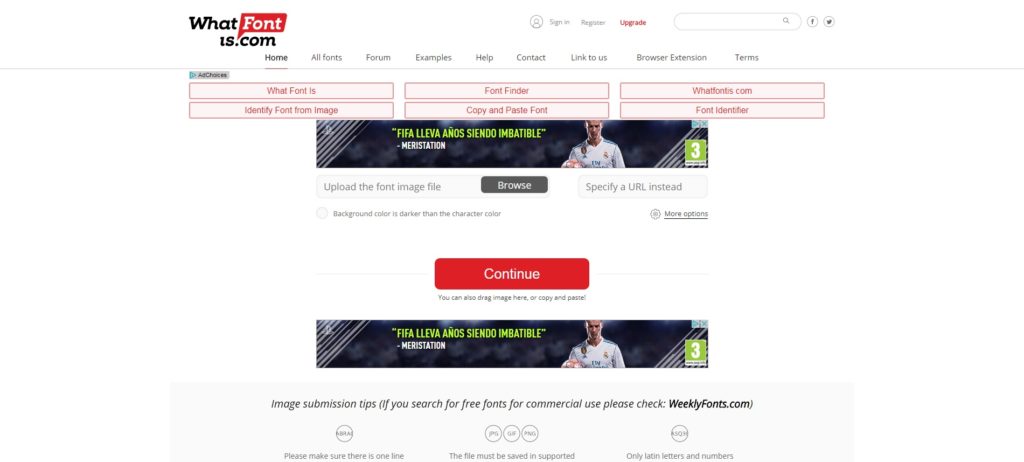
What Font Is

It may seem a bit uninspiring to just look it up, but it’s the best suggestion if you’ve got little time to write and/or design. What Font Is is a website that accomplishes the mission of this post, i.e. finding out the type of font we don’t know at the moment. The best part? It’s free and works well. Very well, in fact.

All you have to do is upload an image with text from your PC (or paste a link to the website in question) and the website will take care of the rest. Of course, we’ll give you a few tips to narrow the search.

Also, and this is important, it has a browser extension for Chrome and Firefox that lets us send over the font we want to look up. In other words, we’ll save time going to the website, since it will send the font directly through the browser extension.

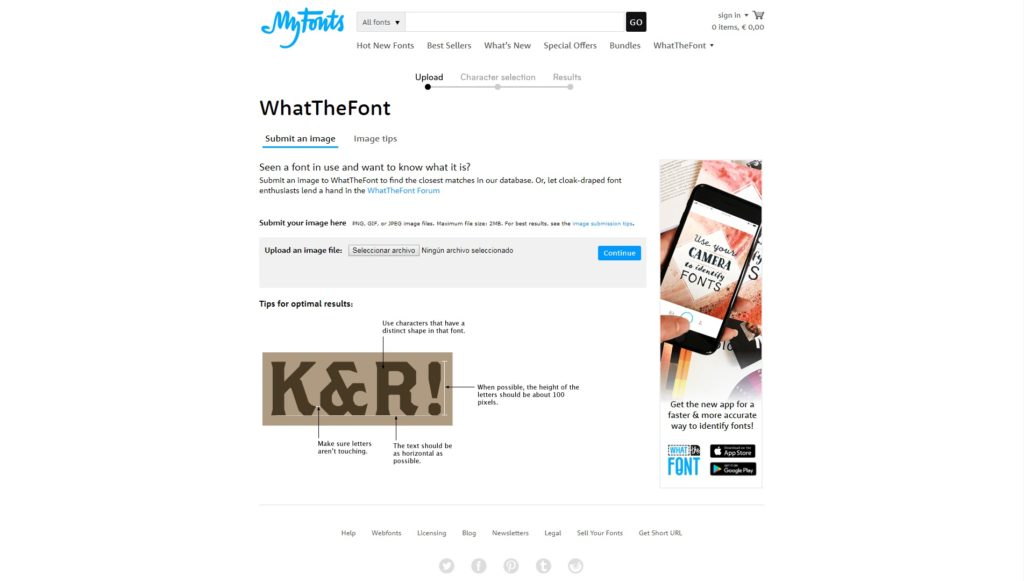
My Fonts

This one is almost identical to What Font Is, so we also recommend it for its high success rate: My Fonts. The mechanism is the same: we take a photo and upload it to the website. Once there, it gives us some results with the font in question used in the text.

We’ll point out that if the system doesn’t find the font we’re using, it will offer a series of alternatives that try to get at the result we want (ideal if it’s needed urgently).

Matcherator

This is the last, but not least on the list: Matcherator. Unlike its two rivals above, this website has the benefit of being regularly updated, which makes it easier to search for fonts more accurately.

Currently, for example, it has an advanced mode, an image editor and can detect less common font types within standard templates on the internet.

Also, its system is similar to the previous two: you upload an image to the platform and it comes back with the font to download. Moreover, it lets you detect typeface on websites with a higher success rate than the other two rivals (especially in this area).

Now you’ve got this complete guide for detecting fonts, so you won’t be in a rush when looking for the design that’s just right.

3 reasons why you should be using OpenOffice

Still paying for Microsoft Office? It might be time to stop.

Apache’s OpenOffice isn’t just powerful, it’s free. You can use it much the same way you do Microsoft Office – without forking out a few hundred bucks for the pleasure – and is much easier to use offline than Google’s free productivity apps.

Whether you’re writing blogs, doing your accounts, or preparing that important presentation for Monday morning, you can do it all with OpenOffice. Even governments and companies are using it.

But is it really better than paid software? Let’s take a look.

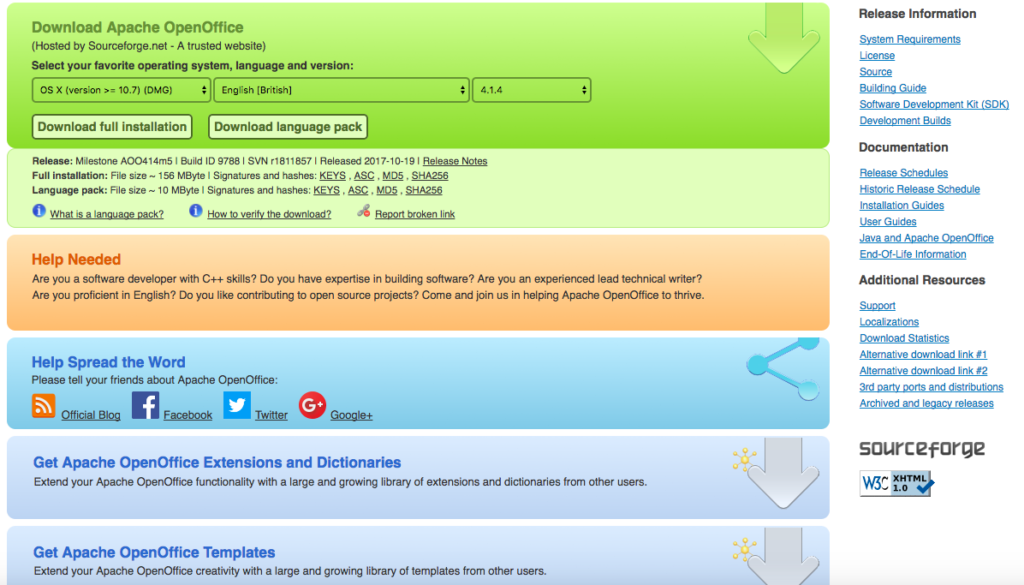
Download OpenOffice

3 reasons why you should be using OpenOffice

1. You can do almost anything with OpenOffice

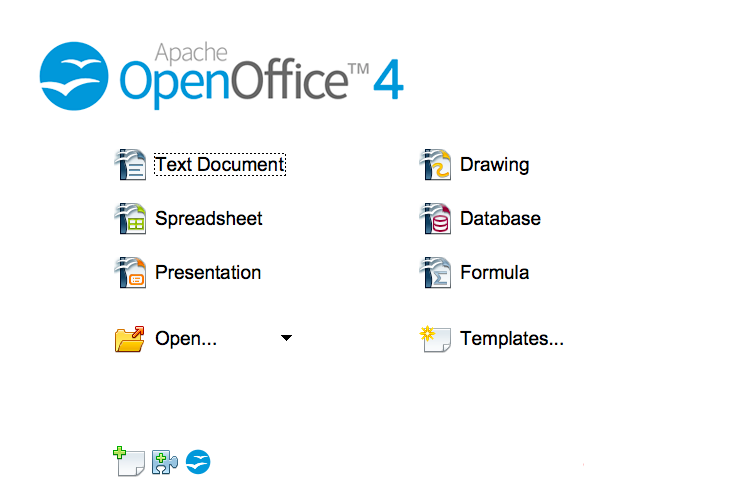
OpenOffice comes with these applications:

  • Writer (word processor – similar to Word)
  • Calc (spreadsheet engine – similar to Excel)
  • Impress (presentations – similar to PowerPoint)
  • Draw (vector graphics editor)
  • Math (equations and formulae editor)
  • Base (databases)

This gives you ultimate flexibility, all in one handy program.

All OpenOffice apps read Microsoft file types – even those from ten to fifteen years ago (some of which Microsoft Office 2016 can’t!). This is particularly useful if you own or work with organizations that might possess older file types than Microsoft Office can support. You might get the occasional formatting issue, but for most users, this won’t be a problem – especially if you’re only working with single files.

2. It’s very easy to use

OpenOffice has a simple user interface that is similar to Office 2003, and it is constantly improved with user feedback. If you’re familiar with Microsoft Office applications, you’ll recognize similar buttons and toolbars, making it very easy to use. And if you hated the ribbon toolbar Microsoft introduced in 2007, you’ll be glad to know it doesn’t exist in OpenOffice.

There’s also a large, helpful community behind OpenOffice – as is typical for open-source projects like this one. So if you get stuck, there’s usually some kind person available to help. They might even have worked on some of the code behind OpenOffice, too, which makes them far more useful.

3. You get upgrades faster

OpenOffice is open-source software, meaning anyone can review and upgrade the code it’s written in. This means bugs are found quicker, and you don’t have to wait too long for upgrades.

Better yet, upgrades are free, and because development is collaborative and democratic, you have a say in which features you’d like to see. You can even develop OpenOffice code yourself if you have the skills, and introduce your own features into the community.

And have I said this is free software? I don’t mean to harp on about it, but as most paid software is going down the subscription route – such as Adobe’s Creative Suite and Microsoft’s Office 365 – this is a pretty big deal.

Of course, OpenOffice won’t be for everyone. It lacks some of the more advanced features of its paid competitors, and if you’re used to working in the cloud, there are better options. But with 231.9 million downloads so far, it’s a serious contender – especially if you’re on a budget.

Download OpenOffice.

All the Best Free Software for your PC

You spend hundreds of dollars on your brand new PC, and then what happens? You have to go and spend even more money on all the software you need, to do the jobs you bought the PC for in the first place. Never mind what you bought the PC for you have to buy programs just to protect your new PC from viruses and malware.

Well, do not worry because there is a lot of free software you can get your hands on to help you out. You can get free software for Windows 10 you can get free software like Microsoft Word, you can get free software for editing photos, you can get antivirus free software and even free software for video editing. You don’t need to spend a lot of money on expensive programs for your new PC. There are plenty of free programs for PC so let us have a look at some of the best now:

Best free programs for PC

1. Best antivirus free software: Avira Antivirus

Avira header

Avira Free Antivirus offers a broad range of security features that add up to offer the best free antivirus software you’re likely to find. As well as strong antivirus scan and protection facilities Avira offers some great features like safe shopping searches, system speed up and a VPN. This is the best free software download for PC you’ll find and one of the most important. To learn more about Avira Click Here, otherwise…

Avira Free Antivirus Download Avira
8

2. Best backup free software: Google Drive

Google Drive wants to be the Ultimate Backup and Sync Tool

These days you need to do more than just install a free antivirus program to keep yourself safe. Ransomware is a modern threat that sees your data being stolen and then held for ransom. This means if you’re going to download free software you need some to get some backup free software for your computer. Free software downloads like Google Drive are essential. Drive will give you 15GB of free space to keep all of your personal data safely backed up. You need it now!

Google Drive Download Google Drive
7

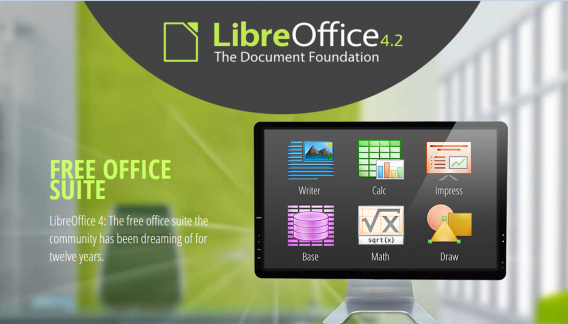
3. Free software like Microsoft Office: Libre Office

LIbreOffice header

Almost everybody needs to use programs like those found in the Microsoft Office suite so a top priority must go to getting the free software download for PC of Libre Office. Libre Office is an open source productivity suite that rivals Microsoft Office and even has programs, like Math and Draw, that can’t be found in the expensive Microsoft offering. If you work in an office this is an essential free program to download.

LibreOffice Download LibreOffice
7

4. Media Player: VLC Media Player

vlcHEADER

One of the best free programs for PC is VLC Media Player. It is one of the most popular programs in the world and carries the codecs required to play almost every kind of video file. Once you’ve downloaded VLC you will be able to play almost any type of video you can find. As well as offering a complete video playback solution VLC has plenty of other features and you can check out 5 of the best here.

VLC Media Player Download VLC
8

5. Free software for photo editing: GIMP

Do you want the photos you share to be breathtaking - GIMP

If you want free software like Photoshop you should look no further than GIMP. GIMP stands for GNU Image Manipulation Program and it is almost as powerful as Adobe Photoshop. With this free software editing becomes possible for all. Whether you’re merely touching up an old image or creating a brand new one, GIMP offers you a complete set of tools to take care of whatever editing job you have in front of you. GIMP may be the best photo editing free software but we’ve also put a list together of 5 free photo editing programs. Check it out here.

7

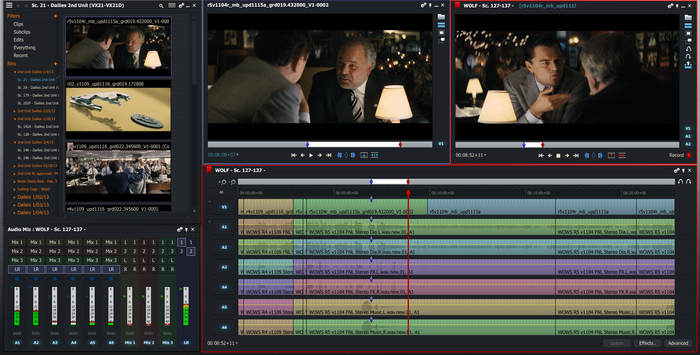
6. Free software for video editing: Lightworks

5 Free Programs for Editing Videos lightworks

Lightworks is available on many free software download websites but you can get it right here. It is one of the best editing free software programs you can get and is used by professionals as well as amateurs. If you’re a budding video editor or director this is great free video editing program for you to download. For info on other free video editing programs click here.

Lightworks Download Lightworks
7

Follow me on Twitter: @PatrickDevaney_


The Best Free Alternatives to MS Paint

With Microsoft’s decision to leave Microsoft Paint out of the next update for Windows 10 we thought we’d put a list together of all the best free programs out there for all you digital artists. MS Paint has been around for 32 years and will have been the first graphics program that many designers will have ever used. It is sad that it’ll no longer be bundled along with Windows, but don’t worry, there are plenty of free alternatives out there including a pleasant surprise.

Some are a little more advanced than others are but they’re all free so let’s get started.

5 free alternatives to Microsoft Paint

1.  Microsoft Paint

The Best Free Alternatives to MS Paint ms paint

That is right. Microsoft will remove Microsoft Paint from your Windows 10 PC the next time they update it but they’re not killing it off altogether. According to the Microsoft blog, MS Paint will still be available for free via the Windows Store. The same blog post reminds us that many of the MS Paint features we know and love are now a part of Paint 3D but who cares. Don’t take away our childhood.

Get MS Paint Now

2. Paint 3D

The Best Free Alternatives to MS Paint paint 3d

Paint 3D is the shiny new 21st Century version of MS Paint that Microsoft are now shipping out with Windows 10. Paint 3D first rolled out, alongside MS Paint, with the Creators update and will full on replace MS Paint once the Fall (or Autumn) update drops. It pretty much does exactly what it says on the tin. It is an updated version of MS Paint that allows you to create digital masterpieces in 3D.

Get Paint 3D Now

3. GIMP (Mac)

GIMP1-568x454 copy

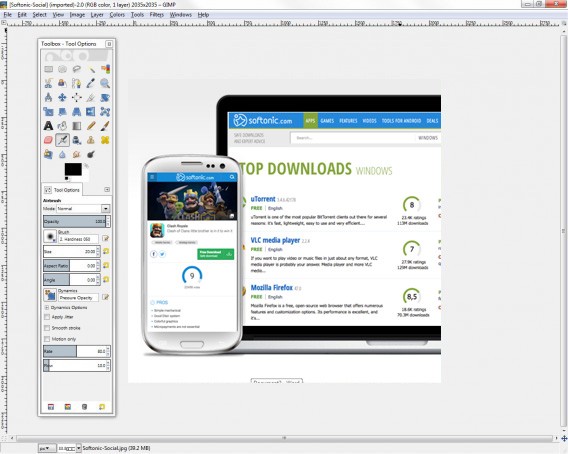
GIMP stands for GNU Image Manipulation Program and it is almost as powerful as Adobe Photoshop. It is an open sourced program, which means it has an army of volunteer developers working in the background to ensure it has all the best features. GIMP offers a complete set of tools for all types of photo editing. It might be a little more advanced than the humble MS Paint but if you’re looking for complete graphic design suite you should look no further than GIMP.

Get GIMP Now (Mac)

4. Paint.net

Paint.NET

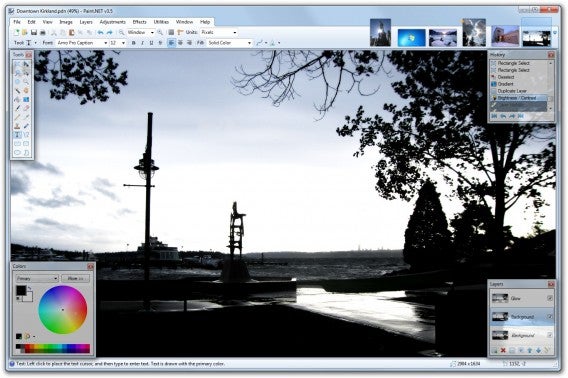
Paint.net is like MS Paint’s older and more mature cousin. It offers a similar layout to MS Paint but enjoys many more features. Features like color correction, contrast, sharpen and blur and even a layer-friendly interface make Paint.net a more complete graphic design suite than MS Paint ever was. The simple user interface, however, means that it won’t appear intimidating and doesn’t demand that new users learn how to use it quickly. If you still consider yourself to be a beginner, Paint.net is the alternative you want.

Get Paint.net now

5. Krita

The Best Free Alternatives to MS Paint krita

Krita was made with comic and Manga artists in mind. Krita has plenty of features for all budding illustrators and definitely marks a step up from MS Paint. You can work using layers and can customize brush sizes, textures, palettes and more. You can even import brush and texture packs that have been made by other artists. If you feel like you’ve learnt a lot from MS Paint and would like to continue your development, Krita would be a great option for you.

Get Krita now

Similar Articles

All the Best Free Software for your PC

Want The Photos You Share To Be Breathtaking?

Why the latest Windows 10 Update is called the Creators Update

5 Productivity Utilities to Make Your PC Faster! – Utilities

When you first buy a new PC, it’s blindingly fast. Programs open in a flash, and playing games or surfing the Internet is like sitting at the controls of the Millennium Falcon. Then, in a little over a year or so, it begins to slow down. Things don’t open as quickly as they once did. The Internet lags a bit, and games, well, your 8-year-old son says his handheld gaming contraption runs faster. However, there are lots of free utilities that will clean up the junk that’s causing your PC to lag, making your machine run like new again. Here are five of the most popular PC speeding and cleaning utilities:

1. PC Speed Up

PC Speed Up searches your system for settings, files, processes, and programs that can lead to a sluggish machine. This utility actually utilizes several tools to optimize your experience. After detecting problems, it will ask you whether or not you want the software to fix them for you.

2. Baidu PC Faster

Baidu PC Faster is another tremendously popular PC cleaning tool. This utility uses cutting edge technologies, including four separate cleaning modes and over 300 various cleaning checkpoints during its comprehensive scan. It is also constantly being updated for better computer cleaning and optimization techniques and technologies. Baidu also offers a powerful antivirus solution.

3. SystemCare (Advanced SystemCare Free)

SystemCare is another popular pick, which comes with a booster to speed up the computer boot-up process, as well as a Startup Manager, which helps protect your browser. The SystemCare Toolbox, Performance Monitor, and other features make it one of the most powerful free PC cleanup tools on the market. The tools are clean, easy to use, and intuitive, so even the average computer user can make use of its most potent features. This product also offers some helpful privacy and security features you might be interested in.

4. Chrome Cleanup Tool

Created by Google, Chrome Cleanup Tool is designed to scan your Chrome browser and remove any software that might be having conflict issues with Chrome. These conflicts can sometimes lead to software crashes, opening in a different startup page, unwanted toolbars, and popup ads that can drive you crazy. This tool removes and fixes all these issues and more.

5. SpeedFan

This tool is a bit different than the others on this list. While those primarily focus on finding and fixing issues that cause latency (such as de-fragging the computer and removing unwanted software), this tool works with the hardware. SpeedFan tracks vital system statistics, such as temperature, fan speed, etc, and makes sure the system is running optimally from a hardware standpoint. In addition to basic monitoring, SpeedFan stays on top of voltage, accesses the SMART information on your hard drive, and tracks hard drive temperature as well. It reduces the amount of power your system consumes, while also lowering noise and helping achieve optimal hardware lifespan.

WinRAR is an indispensable utility for PCs…check out WinRAR Tips and Tricks to learn more!

Five fantastic free alternatives to Microsoft Office

Microsoft Office is beyond a doubt the most recognizable productivity suite out there. But not everyone wants to invest in office software, so we have found you the five best free alternatives.

OpenOffice (Windows|Mac)

Perhaps the best known of our list is OpenOffice. This is a powerful package that provides four main applications: Writer (Work), Calc (Excel), Impress (PowerPoint), and Base (a management tool). All of these are great, but what makes Open Office standout are it add-ons that further increase its power.

LibreOffice (Windows|Mac)

LibreOffice is an off shoot of OpenOffice that is developed with the same ethos. It is a complete suite that continues to grow and renew itself thanks to the support of its ever growing number of followers. Though it is similar to OpenOffice, LibreOffice provides greater compatibility and a faster update cycle.

Google Docs (Web|iOS|Android)

You are probably already well aware of Google’s incredibly versatile online productivity suite. To use Google Docs all you need is a Gmail account to access Drive. From there you can store, manage, and edit all kind of documents for free, either through your browser or with the mobile apps. Best of all these all sync automatically, letting you continue working when on the move.
FreeOffice (Windows)

It may not be the most well-known on the list, but that does not impact FreeOffice’s quality. Offering TextMaker, PlanMaker, and Presentation’ll, you won’t feel like you are missing anything with this suite. In addition to this, it is fully compatible with all Microsoft file types and it is lightweight, making it perfect for older PCs.

Office Online (Web)

That’s right, a great free alternative to Office is Office… well, Office Online. Microsoft’s connected service that integrates OneDrive, slightly stripped back versions of Word, Excel, and Power Point, plus a few extras like OneNote and Sway. Each of these tools also integrates Skype to better facilitate collaborative work.

And there you have it, 5 apps to help you get productive without spending a cent. If you think we have forgotten any, just let us know in the comments

Next week we’ll talking about Chromecast apps. Subscribe so you don’t miss that, and I’ll see you then.

Related Stories

The best antiviruses of 2016

Top 5 battery saving apps for your smartphone

2016’s most anticipated games

Follow me on Twitter: @DoFuss