10 things you didn’t know you could do with Google Calendar

Google has a ton of services, which means many go overlooked. A common one is Google Calendar, the calendar platform that is linked to other tools as well. If you’re a big fan, you may already know these tricks, but if not, heads up: here are 10 things you didn’t know you could do with Google Calendar.

Change colors

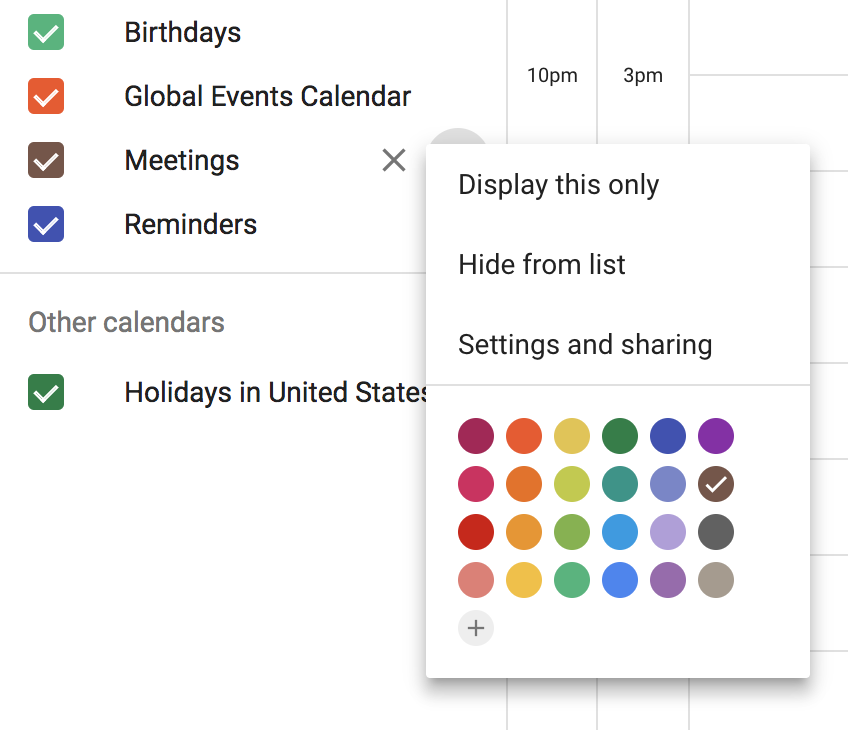
This is one of the simplest features: having different colors for each calendar. Don’t just have one calendar with work stuff and family stuff and your friends’ birthdays. Make a separate calendar for each function. On the left side, click the + button next to “Add a friend’s calendar.” Then click “New calendar.” Add the name and any details, then click “create calendar.” We just created one called “Meetings.” When we go back to the main calendar, we can hover our cursor to the right of the calendar title and click the three dots to open “Options for (calendar name).” Switch the check mark to your favorite color and enjoy!
Share calendars

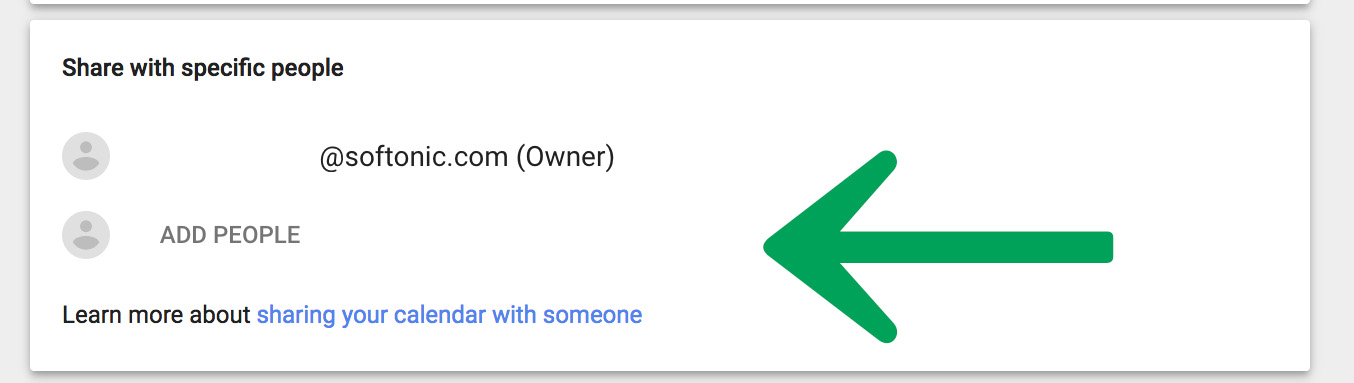
If you work with other people, having a common work calendar is the best way to stay organized. It’s as easy as going to the settings, selecting the calendar name on the left, then scrolling to “Share with specific people” and adding participants’ emails. Likewise, you can assign roles – whether readers or editors – to each person.
Offline mode

A useful feature that can help you in a pinch: using offline calendars. When you’re on a calendar, click on “Settings” and then “Offline.” Google will download all the necessary data to your PC to use the calendar when you’re not connected. There’s a catch: you need the Google Calendar extension to take advantage of this.

Email notifications

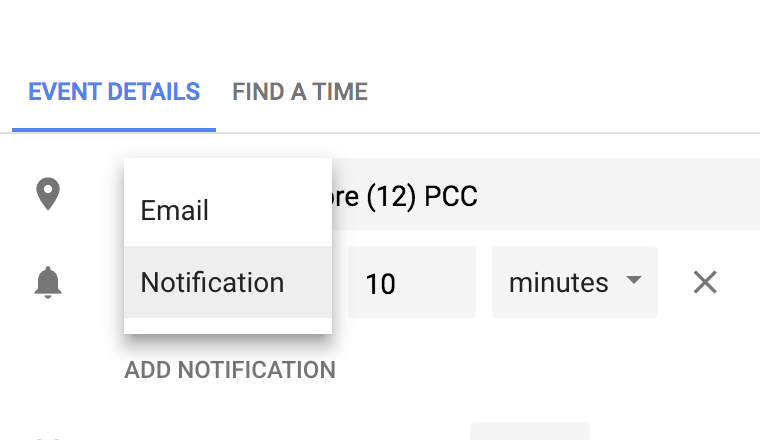
You’ve got an important appointment, so you put it on your calendar, but your life is busy so you forget to check your calendar on that fateful day. If you don’t want this to happen, you can send yourself a notification via email. Open your event and click the edit icon in the upper left corner to get to the “Event Details” screen. Next to the little bell icon, click “Notification” and you’ll see an “Email” option.  Piece of cake.
Attach files

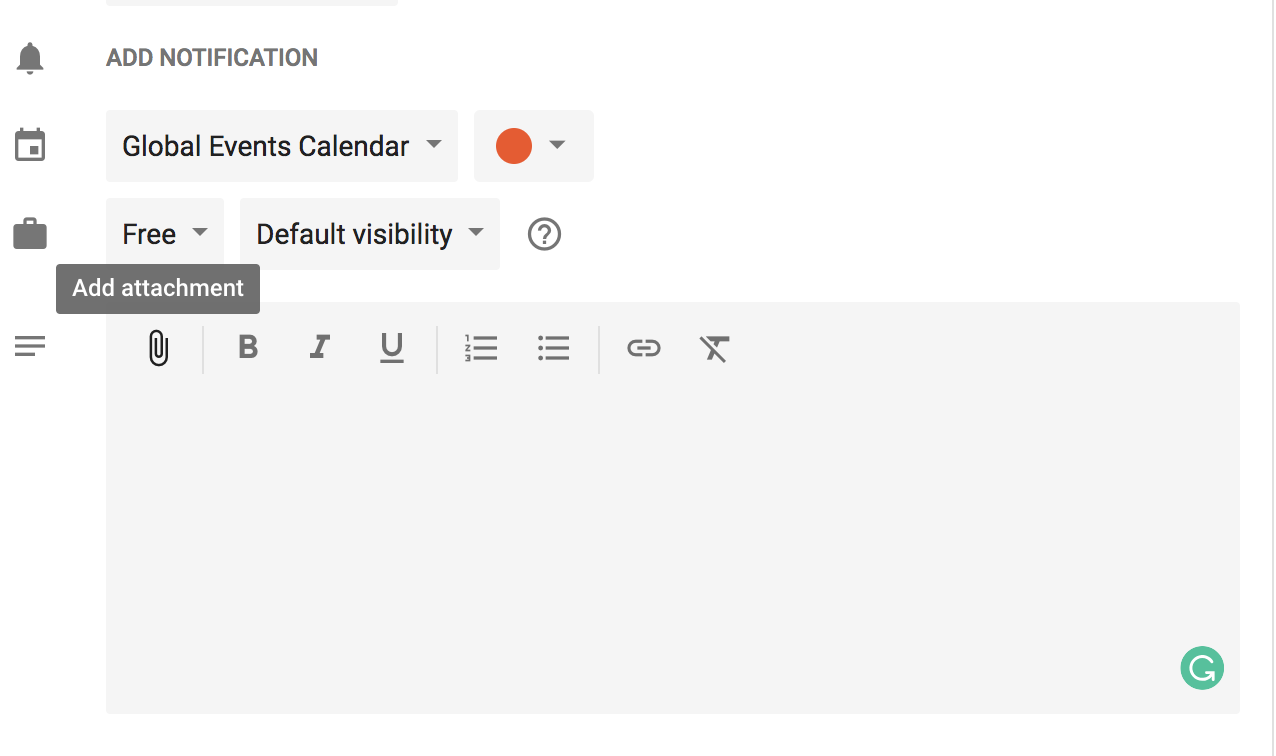
You can attach files to each event. This is especially helpful if you’re taking a trip, for example, and you want to include the boarding passes. When you’re creating an event, look at the big text box and click the paper clip to “Add attachment.” You may have to save it to the Drive first, but that will only take a few seconds.
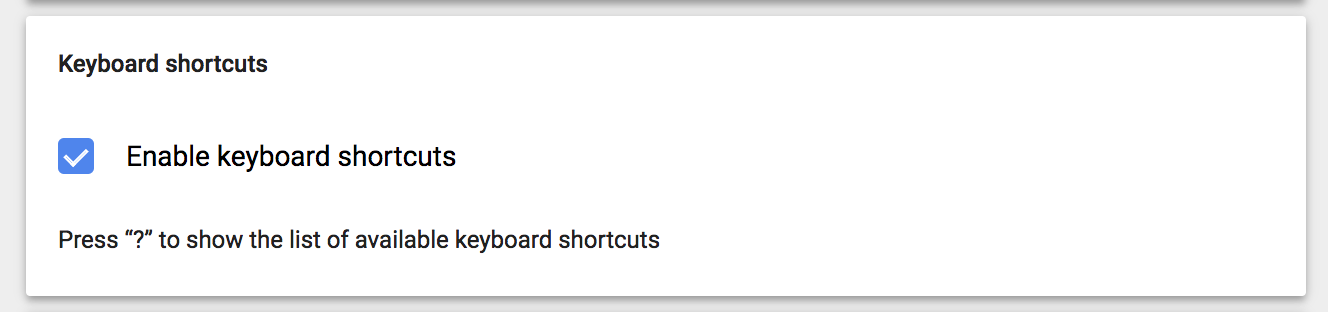
Keyboard shortcuts

Keyboard shortcuts can help you out in a hurry. To enable them for the Google calendar, go to the settings and scroll to the end to see “Enable keyboard shortcuts.”
Embed calendars

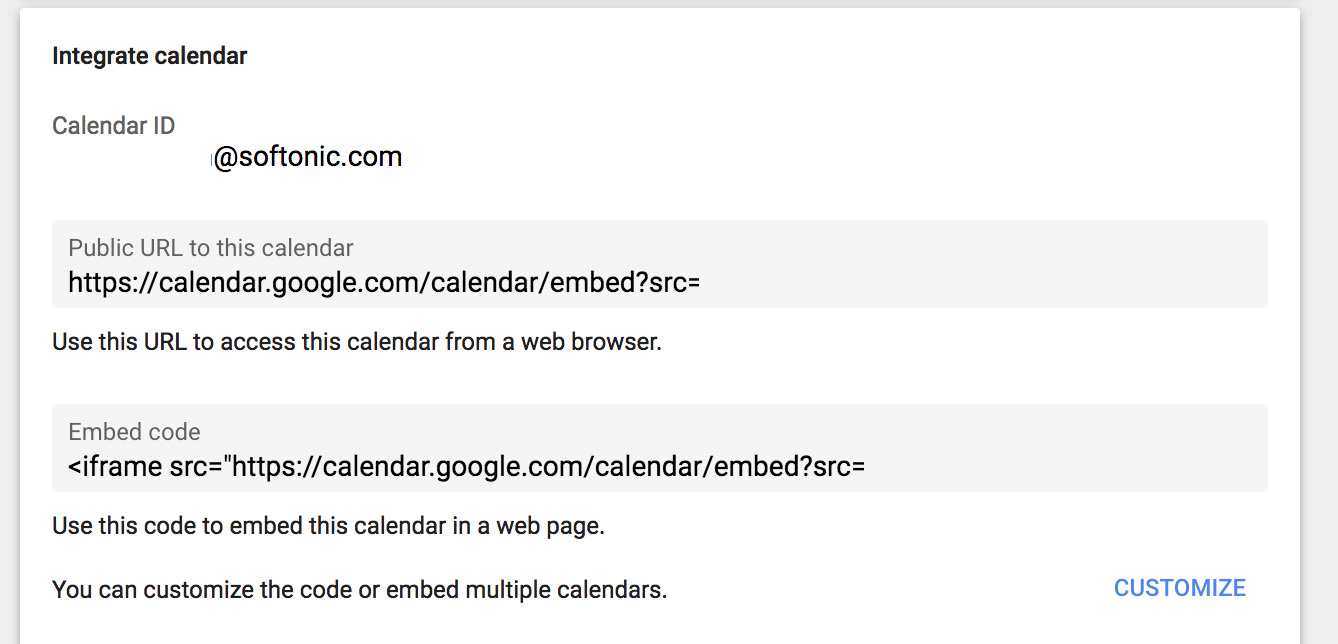
Just like you can share your calendar, you can also embed it widget-style into a web page. When you go to the settings of the calendar at hand, click on “Integrate calendar” and go to the bottom. When you find the code that starts with “iframe,” copy and paste it into your personal or professional web page.
Change time zones

You travel a lot and have meetings in different time zones. Google Calendar lets you configure each one according to the country you’re in. Wonderful, right? It’s one of those features that you can even take advantage of without traveling, since you may work with international clients from home.

Quick schedule view

The Google Calendar may look ugly and unwieldy. Did you know you can change it? Click where it says “Month” and you’ll get several options. Our advice for a quick glance is to set it to “Schedule.” It’s a no-brainer: all the content can be seen as if you were checking… well, a scheduling planner. 

 

Do more, faster, with this digital toolkit

Every household needs a set of tools. You never know when you might need to tighten a screw or put up a shelf. With the right set of tools, you can do just about anything. The same goes for your computer. Your computer is a very capable machine, but it’s not perfect, and a digital toolkit helps you do more, faster, and without calling in an expert.

When your laptop screams “no!”, you normally have to scour the internet for a fix. Maybe you need to extract an archive in an obscure format, encrypt an important email, or recover lost data – whatever the reason, your machine’s native programs won’t always be enough, which is why a digital toolset can really come in handy.

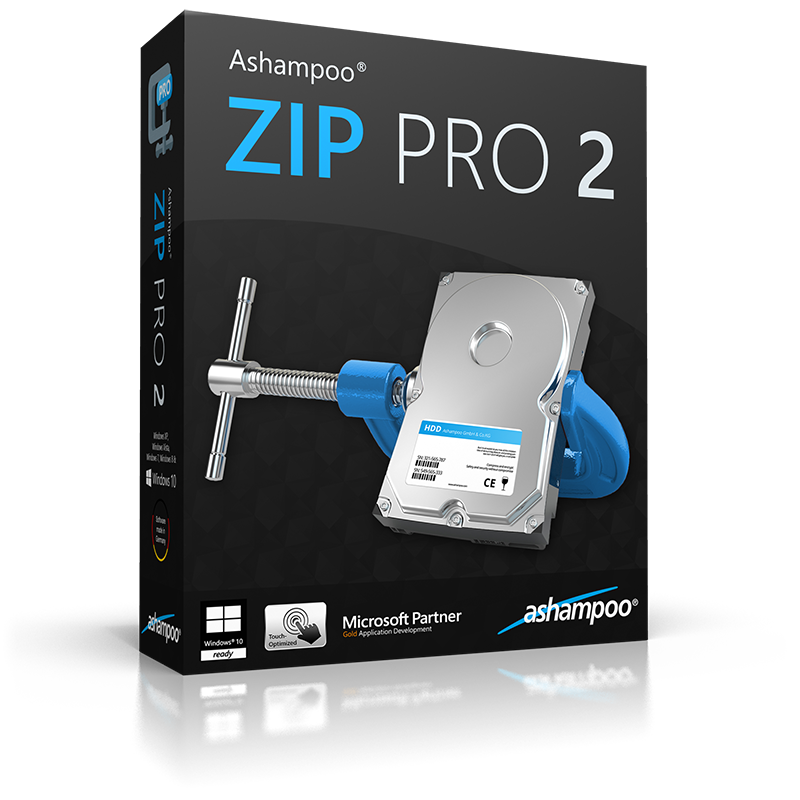
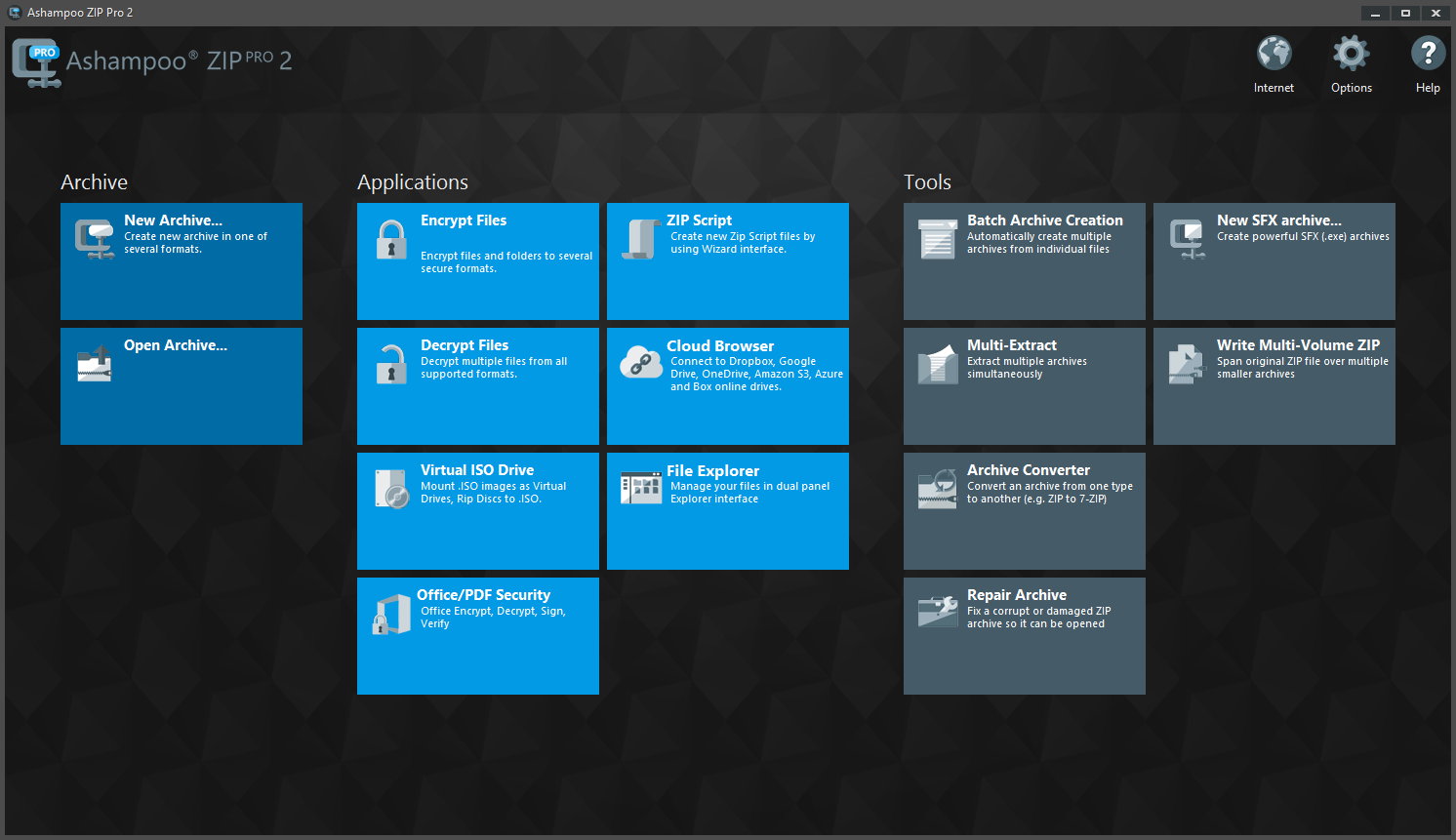
One of our favourite digital toolkits is Ashampoo Zip Pro 2. Why? First, it bundles lots of useful software in one tidy package, so you don’t need to download multiple programs and litter your desktop with separate icons for every little task you throw at your machine. Everything works within your operating system, so you can perform tasks on your files with a right-click alone.

Second, Ashampoo Zip Pro 2 is one of the most powerful file managers we’ve tested. It compresses, archives, and extracts virtually any file system, including .zip, .rar, and .tar. Compression is increasingly common now we share so much data on a daily basis, and although most machines support .zip by default, other formats are gaining ground. Zip Pro 2 ensures you can work with any file, and even upload them to DropBox, Google Drive, or OneDrive with a single click.

Zip Pro 2 also comes with its own version of file explorer, including split-view (like the old Windows Explorer), file preview, and CD/DVD burning tools. Speaking of physical media, if you want to create more space in your home by recycling old CDs and DVDs, just copy them to your computer with Zip Pro 2 and run them on the virtual mount. It works exactly as if the disks were in the drive. And if your media is damaged, Zip Pro 2’s recovery tool will repair and restore damaged files so you don’t waste money or time downloading replacements.

No digital toolset would be complete without robust security, and Zip Pro 2 is as tough as nails. Securing your data with 256-bit encryption, the same used by the US government, ensures sensitive data is for your eyes only. Add Zip Pro 2 to Outlook or MS Office applications and you can compress, sign, and encrypt all your digital property, without ever leaving the application.

if Zip Pro 2 were a real box of tools, you probably couldn’t lift it off the floor. But while it’s heavy on features, Ashampoo Zip Pro 2 is light on price: you can download it today for just $14.99, down 50% off the retail price of $29.99. We think that’s a bargain, and while these tools won’t fix your kitchen sink, they’ll make your digital life so much easier.

Get better internet for 12

The internet is the backbone of society. Never before has it penetrated so widely or so deeply. It’s in virtually everything we do, from shopping to hiring a taxi.

We rely on the internet so much, it’s easy to get frustrated when it’s not working. We often sit at the laptop, fiddling with wifi settings, IP addresses, and DNS servers to boost speeds or fix faulty connections. The problem is, we often make things worse.

When things are going well, we tend to spend our time enjoying the fruits of the world wide web instead of learning how they grow. But when things go wrong, troubleshooting can be an overwhelming, confusing, and intimidating experience.

Although we’re dependent on the internet for almost everything, few of us understand how it works. Forums and YouTube tutorials help with the basics, but can only do so much. Internet connections fail in a thousand different ways, and understanding the root cause and the means to fix it often require specialist knowledge many of us lack.

Nevertheless, when Netflix pixelates or Spotify won’t connect, we don’t want to waste hours on the phone to our ISP (Internet Service Provider). Going through the motions with tech support can be gruelling, especially if you’re unsure of what you’re describing, and more often than not the problem is a simple one. If only you had an expert on hand to analyse and optimise your internet connection, everything would be fine…

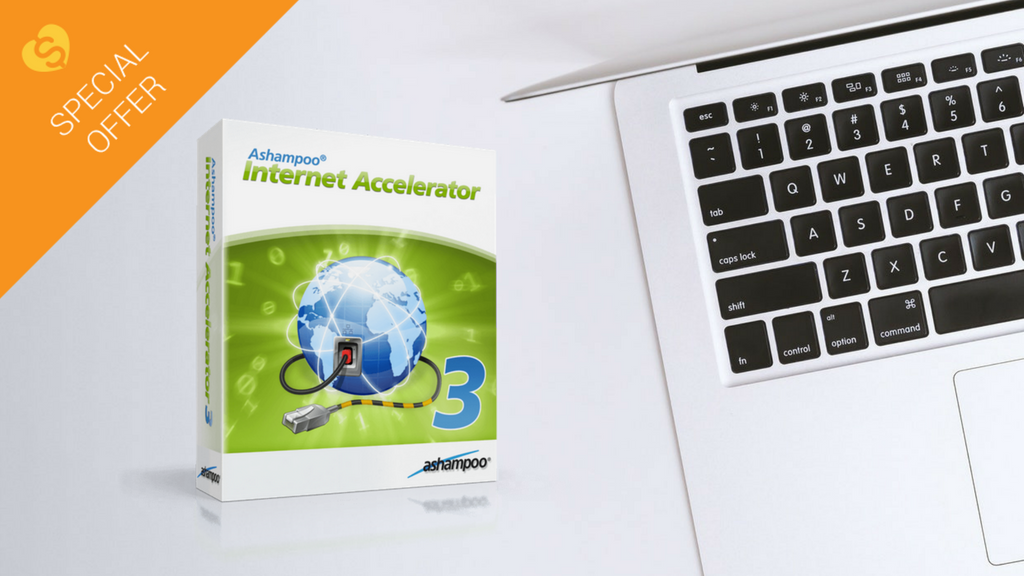
Well, now you can. Ashampoo Internet Accelerator 3 will solve most internet connection problems in a single click. Ashampoo has assessed many of the common internet connectivity issues and programmed Internet Accelerator 3 to identify and fix them automatically, without your help. Not only does this save you time reading technical forum posts or on frustrating calls to IT support, but also prevents misdiagnosis, which can make a simple problem worse.

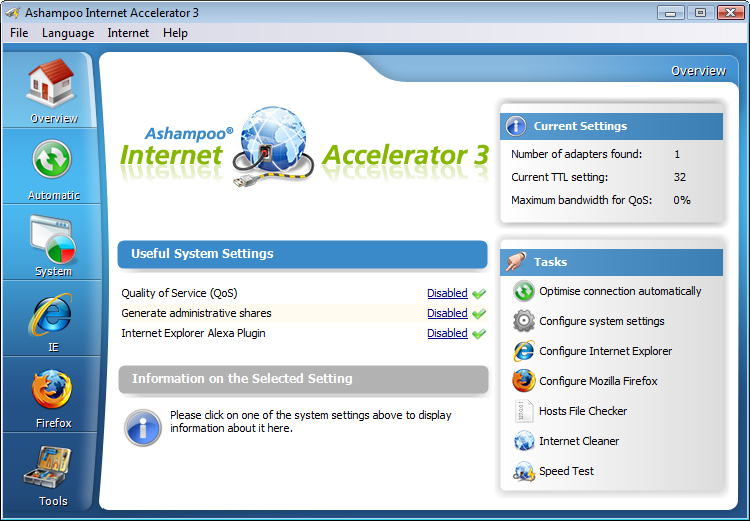
Internet Accelerator 3 works by analysing your computer’s internet settings. Then, it configures these settings to increase the speed and stability of your connection. It’s all done automatically through a clean, simple user interface, so you can choose just how involved you want to be. Advanced users can view and change the settings themselves.

Aside from fixing common internet problems and boosting performance, Internet Accelerator 3 also speeds up browsers like Internet Explorer and Firefox. It’ll clean up old temporary internet files and cookies, too, freeing up hard drive space for more important content.

Ashampoo Internet Accelerator 3 ensures you’re getting the fastest, stablest connection without opening a help page or dialling a support line. Download it today for just $12 . That’s better internet performance for less than a breakfast.

The easy way to synchronise your files

How many devices do you own? Chances are you have a laptop, smartphone, and maybe even a tablet. If you’re really into gadgets, throw in an external HD, digital camera, and a Kindle as well. Maybe a GoPro, a flash drive, a digital photo frame… the list goes on.

As our technology family grows, it becomes increasingly difficult to keep track of all our files. Often, they get split between different devices, and hunting them down and organising them is a frustrating, time-consuming chore.

Your computer is almost certainly the most powerful device you own, so it makes sense to use it as a hub for handling all your files. That way you’ll know what’s stored across all your devices, you can delete anything you don’t need, and recover content you might otherwise have lost.

Synchronising your devices is no easy task, however. First, you need to decide what to copy. Otherwise, you could end up with duplicates that waste valuable space on your hard drive. You also need to organise copied files into folders so you can find them again.

You might not want to copy every file extension, either. If you’re connecting the office flash drive, for example, you might only need the reports (DOC) and not the spreadsheets (XLS). Or if you’re backing up ebooks, you only need the ebook files (AZW, EPUB, or MOBI), and not the note files (MBP). Sorting file libraries is yet another tedious task to perform. 

We’ve found a much better way to synchronise files in Ashampoo Media Sync. This powerful synchronisation tool takes all the hassle out of file management while still keeping you in control of your files. Configure your device once, and Ashampoo Media Sync will remember it forever, only synchronising the files you want, and organising them into separate folders for videos, music, images, and documents.

So how does it work?

The first time you attach your device, you configure exactly what to sync right down to the file extension, and then set the output location (a folder on your hard drive, for example). When you reattach the device again, Ashampoo Media Sync will synchronise automatically using these preferences, ensuring you always have an up-to-date file library for all your devices in one place. If you’d rather choose syncing options each time, deselect Auto-run (in Manage Devices) and quickly scan and copy files with just a few clicks.

Organising and managing files with Ashampoo Media Sync is so easy, you’ll wonder how you ever managed without it. Better yet, there’s a 40% discount off the retail price of $29.99, making it a steal at just $17.99. At that price, it’s the perfect way to manage your files while also saving you time. 

Thinking of buying MS Office? Read this first

When Microsoft released Office back in 1990, few could’ve predicted its popularity today. There were 1.2 billion users in 2016. To put that into perspective, that’s around 16% of the world’s population. It might have the lion’s share of the market, but is it still good value? Let’s take a look.

To use Microsoft Office, you need a fat wallet. A single license costs at least $149.99, so for a family of four you pay almost $600. Of course, you could pay $9.99 per month for Office 365, but you’ll never own the software, and for many, it’s an unwelcome expense added to the monthly budget.

Aren’t there free alternatives? I hear you ask. Well, yes, there are cloud-based productivity apps from Google and Microsoft, and Apache’s OpenOffice if you want an offline suite. They provide a similar yet restricted feature set, but cross-platform file support isn’t great, and advanced users usually find them limiting.

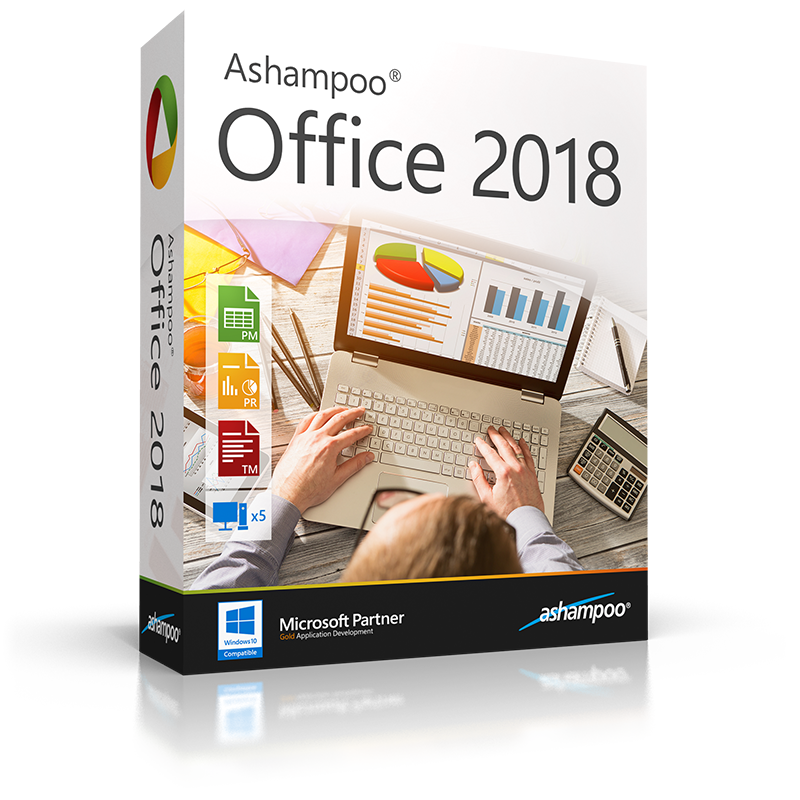
Thankfully, there’s a middle ground. For those wanting the best of both worlds – maximum performance and a low price – we recommend Ashampoo Office 2018 as the perfect mix of value and features.

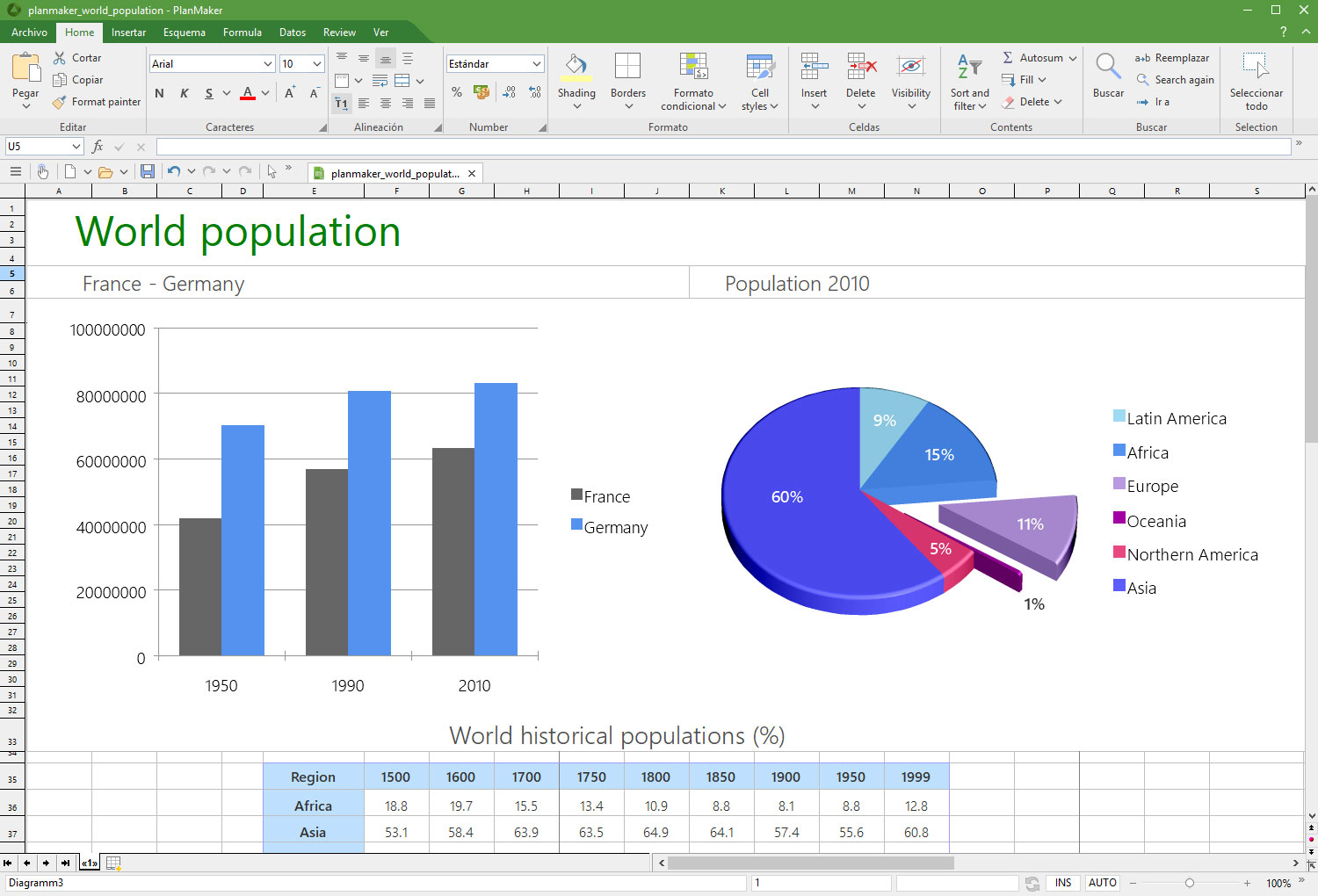
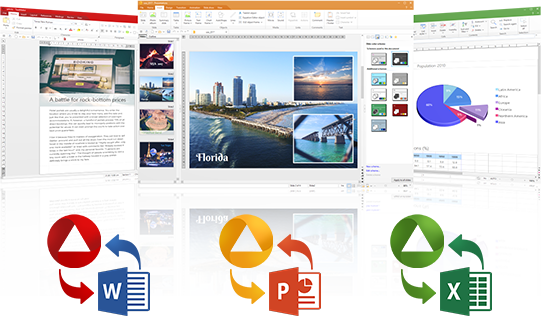
The suite includes three key programs that mimic (and even excel) Microsoft’s most popular Office applications: TextMaker (similar to Word), PlanMaker (similar to Excel), and Presentations (similar to PowerPoint). Each offers similar features to those found in MS Office, but without the hefty price tag.

Ashampoo has spent a lot of time and effort perfecting the user experience, so there’s virtually no learning curve. The layout replicates much of what makes MS Office so simple – even the ribbon menu is there (though there’s a classic menu layout if you prefer the old style).

One of the reasons people are reluctant to leave Microsoft’s closed ecosystem is a fear of being unable to work with Microsoft files. Ashampoo Office uses MS Office file types by default, and supports legacy formats from MS Office 6 right up to Office 2016. So whether it’s a docx, xlsx, or pptx, Ashampoo Office works with them all, preserving content and formatting as if it were a native file.

You can also install Ashampoo Office on a portable flash drive, something Microsoft doesn’t currently support. Why would you need to do this? Well, if you’re switching computers all the time, such as hot-desking at work or university, having a portable version of the software saves installing it on other devices. Not all computers use MS Office, and not all alternatives support Microsoft files, so having a portable version of Ashampoo Office is a convenient back-up.

So what’s the price of Ashampoo’s powerful office suite? At the moment, it costs just $29.99 for a license on up to five devices. That means your whole family for a fraction of the cost of MS Office. So if you’re looking for an affordable office package that doesn’t skimp on features or cross-platform compatibility, Ashampoo Office 2018 is the one for you.

Work with PDFs? It’s time you got this software

The PDF file system is one of the simplest way to manage digital documents. Created in 1993 by the code ninjas over at Adobe, the PDF has made it super easy for everyone to view and edit documents, whether you’re a Mac or PC user. 

Today, the PDF is one of the most versatile file formats. Not only is it happy with text and images, but it supports links, multimedia, forms, and even 3D models – not bad for a file system that’s over 25 years old.

But to work with PDFs, you need a PDF program, and sadly, not all are created equal. We’ve been playing around with the best of them to find one that truly outshines the others, and we think we’ve found it in Ashampoo’s PDF Pro.

PDF Pro is an all-in-one program to view, create, edit, and convert PDF files. Let’s take a look at what it can do for you.

1. Full editorial control

PDF Pro lets you edit PDFs as easily as if they were MS Word documents. Is that a big deal? Absolutely, because most PDF programs don’t offer such flexibility without conversion or exporting to another program. This makes copyediting an article, story, magazine, or academic paper a piece of cake, and saves hours of messing around with different formats.

PDF has all the tools you’d expect of a document editor, including a spell checker, a built-in change log so you can keep track of your changes, and a find and replace tool which also has the option of changing content across multiple documents. These tools let you work on your PDF natively, without ever leaving the program.

If want to collaborate with others on your PDFs, either at work or school, PDF Pro supports annotations and comments, so you can share your opinions within the PDF rather than in a separate file. And if you’re working on a bunch of PDFs at once, PDF Pro will merge them together for you, and give you full control over page ordering and orientation. For big projects like dissertations, legal documents, or academic papers, this feature is a real time-saver.

2. Super easy file conversion

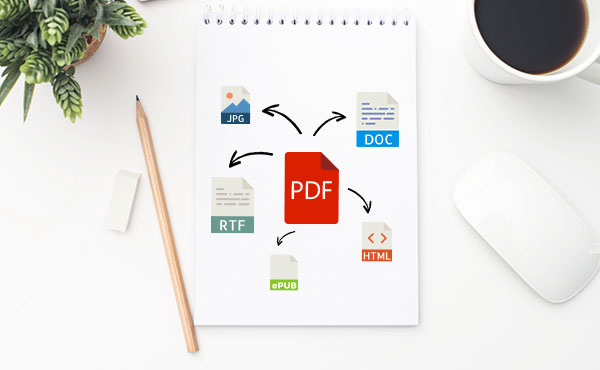
While PDFs are great, sometimes you need different output formats for specific tasks – if you’re writing an ebook, for example, or want to code a webpage. PDF Pro makes it quick and easy to convert your source PDF into different formats, including EPUB, HTML, JPEG, and RTF, without losing detail or structure.

This works the other way round, too. PDF Pro’s powerful OCR (Optical Character Recognition) engine means you can scan just about anything for fast, flexible editing using PDF Pro or your favourite office tools. 

3. Security against fraud and intellectual property theft

With so much of our work done online, it’s even more tempting for cybercriminals to steal our data. PDF Pro secures your documents with 128-bit AES encryption, the same level of security used by the US National Security Agency (NSA). You decide what your recipients see, which helps protect you against fraud, theft, and data tampering. 

Ashampoo’s PDF Pro combines everything you need to read, edit, and manage PDFs in one tidy package. For a limited time, you can enjoy the program for just $29.99 – over a 60% discount on the retail price. With that much PDF power at your fingertips, we think it’s a steal.

Google Translate gets a new AI boost no matter where you are

If you use Google Translate a lot, you’ll have probably noticed that over the last couple of years the translations it offers have improved a lot. The reason Translate got better at its job is machine learning. AI algorithms, specifically named neural machine translation (NMT), have allowed Google Translate to offer much more accurate translations.

Google Translate Download now
8

For the last two years, however, there has been a catch in that the NMT has only worked when happening on Google’s hardware. In short, it only works if you’re connected to the internet when you’re using Google Translate

Google Translate offers language specific download packs. If you think you’ll be offline or if you don’t want to use international roaming you can download a language pack and use Google Translate when you’re offline. Although useful, this phrase-based machine translation (PBMT), as Google calls it, falls short of the NMT available if you can connect to Google’s servers.


On-device AI translations much better than the old PBMT but not as effective as AI translation done on Google’s servers


Google has now announced that it is bringing a version of NMT to mobile devices. You’ll be able to benefit from AI assisted translation even if you’re using a downloaded language pack and you’re not connected to Google’s servers.

Amazingly, Google Translate language packs only take up 35-45mb of space, so they’re well worth having. Google points out that the on-device version of NMT still isn’t as effective as the online version but that it is much more accurate than the previous PBMT method. Google says it will be rolling out the new On-device NMT in 59 languages in the next few days and offered these instructions to those wanting to take advantage of it:

“To try NMT offline translations, go to your Translate app on Android or iOS. If you’ve used offline translations before, you’ll see a banner on your home screen which will take you to the right place to update your offline files. If not, go to your offline translation settings and tap the arrow next to the language name to download the package for that language. Now you’ll be ready to translate text whether you’re online or not.”

Offline translation is a really useful feature. If you’re low on data, traveling abroad, or you’re simply prudent enough to want to take advantage of Wi-Fi whenever you have it these new On-device AI algorithms will make a big difference to your language translations.

How to earn money with Instagram

In an increasingly digital world, there are countless ways to earn some cash on the side, and maybe – if you’re lucky – turn a passion or hobby into a full-time job. Anything from blogging to drawing webcomics can earn you a fortune if done right. Even posting on Instagram.

Yep, you read that right. You can earn money just from posting your pictures on Instagram. Seems crazy, but it’s simply a case of finding your niche, and marketing it well.

So, could you earn money from your Instagram posts? While it’s unlikely you’ll reach the dizzying heights of the world’s highest-paid Instagram stars (unless you’re planning on becoming a Hollywood A-lister anytime soon) it’s still possible to monetize your Instagram feed with a bit of planning.

Almost all of the cash that’s earned on Instagram comes from sponsored posts, where brands and businesses pay a user to promote their product in a paid-for post. So, how can you get a slice of that action? Let’s look at some helpful tips on how to earn money from your Instagram posts.

Followers

An obvious point, but you must have a large number of followers to be considered by sponsors. But how large is large? The biggest and highest-paid stars have 1 milion+ followers, but you don’t necessarily need that many to get paid. Recently, we have seen the rise of the micro-influencer, smaller accounts with less than 20k followers, which brings us to our next point.

Engagement

Although followers are important, what’s more important is your followers’ engagement – the number of people who view your posts and click the links. If you’ve only got 20k followers, but your engagement rate is 5 percent, that can be very appealing to businesses and brands. They would pay less to advertise and get a higher rate of return than an account with a million followers but only 1 percent engagement.

Businesses are even more interested if you have a well-defined, dedicated, and unique fan-base. But how do you get these fans?

You’ve got to…

Find your niche

According to figures released by Instagram, the app has over 500 million daily users. Why should any of them check your account? You have to stand out. This means putting some thought into your profile, and what you post on it.

Choose a profile picture that really encapsulates your channel, and make it pop. Write a strong bio, that sums up who you are and what you do. Why not use some emojis on your bio? Pictures tell a thousand words, and a carefully placed airplane emoji has more impact than writing “I fly around the world in airplanes”.

Next, think about your channel’s purpose. Cooking tips? Traveling advice? Yoga instruction? What makes you different from all the other users who post stuff exactly like you? You need something to differentiate you from everyone else, while still being familiar enough for people to latch onto. This can be as simple as an open attitude to travel and health, or as complicated as only posting pictures of floors or doors.

Be consistent

What’s important once you’ve found your niche, is to be consistent. If you only post pictures of doors, don’t suddenly switch it up to cats – your users will wonder what’s going on. Businesses want to give money to reliable accounts that deliver consistent results, and one of the best ways for them to find you is if you’ve become a consistent source of great content.

#hastags #hashtags #hashtags

People either overlook hashtags, or do them badly – #blessed #lit #justsaying – but when used well, hashtags can help grow your fanbase, and connect you with businesses and brands.

Using the five dot trick, you can hide those unsightly #tags from your post, but still include as many as you like. This helps your posts reach the widest possible audience. Remember, mix it up – try adding ten general tags, five to connect with other accounts, five for the location of the picture, and five for the picture itself. Get creative, but try not to go too over the top, #k?

Remember: be patient, and be consistent. If your content is great, and you keep on working to connect with more fans and followers, eventually businesses will begin to reach out to you, and you might be one of the lucky people who get paid just for posting pictures. Good luck!

The 10 Golden Rules Of A Successful Manager


Successful management is a combination of team building, delegating at the right time, and ensuring job satisfaction of your employees.

Are you in a Manager position? Would you like to lead a team? Set yourself apart and become an awesome Manager with these 10 golden rules.

#1: Set clear goals and expectations

What, when, where, and why

“Make more sales” is ambiguous. You need to be clear and well-defined, like “increase sales in June by 10% compared to May”.

#2: Be approachable

Have an open door policy

Keep channels open and encourage your team to talk to you when there’s an issue.

#3: Build positive work relations

Maintain a good rapport

Embrace your role as a leader by providing a friendly, positive and inspiring environment.

#4: Be available

Provide support when needed

Guide employees when they are stuck and provide support, to help them learn and grow.

#5: Encourage opinions & ideas

Create a culture of innovation

Motivate employees to share ideas and involve them in decision-making processes, leading to both the company’s and their own personal growth.

#6: Acknowledge good work

Recognition is the key to motivation

Be it a simple ‘thank you’ note or an extensive email acknowledging good work, appreciating employees for a job well done is important.

#7: Help people enjoy work

Make workdays enjoyable

You don’t need a dedicated day like “Freaky Friday” to make this happen. Simple surprises like an appreciation email or a casual conversation, can go a long way.

#8: Communicate effectively

Engage better

Cultivate positive workplace situations and foster healthy interpersonal relations.

#9: Remain transparent

Your key to building trust

Trust and transparency go hand in hand. Teams function better when their leader is transparent about both the pros and cons of situations

#10: Be an Example

An archetype of a Manager

“Do as I say, not as I do” doesn’t work! Lead by example by being a positive role model in all situations.

Gmail’s best new features

At the end of last year, Google pledged that we would see a lot of new features for Gmail in 2018. This email service is the most popular in the world, so the Mountain View team has been working to offer new features. And now we’ve received the first of them. Here are Gmail’s best new features.

New design

Gmail has always been known for having a clumsy interface, typical of the last decade. However, we should clarify that it’s quick, easy and functional, so it’s understandable that Google doesn’t want to touch anything that works well… they just want to improve it.

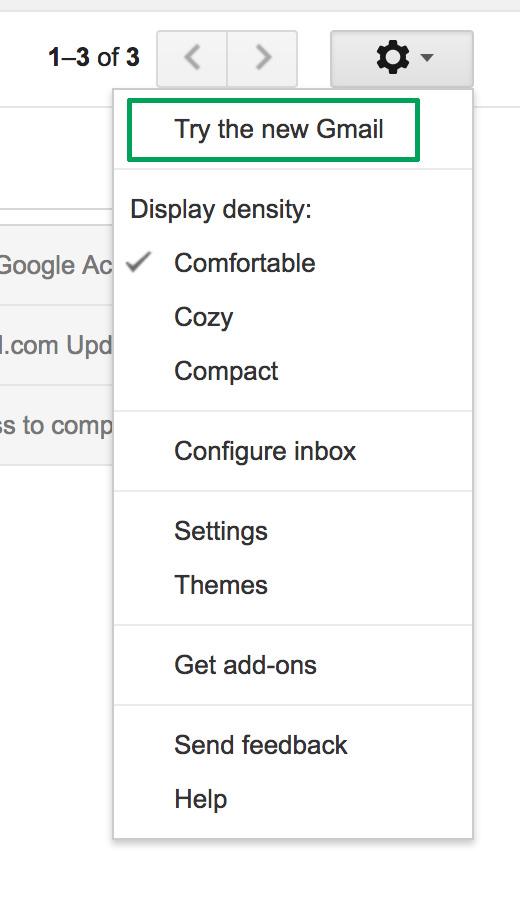
Finally, the search company has added a new Gmail design. To enable it, just go to the gears icon at the top and click “Try the new Gmail.” The platform will reload after a few seconds and a short tutorial will appear explaining the new features.

Gmail now has a cleaner and more readable design, with rounded and not-so-rectangular shapes. It also added new features at the user experience level. For example, attached files in emails can be downloaded without having to open the email at hand (this is a big hit).

Offline mode

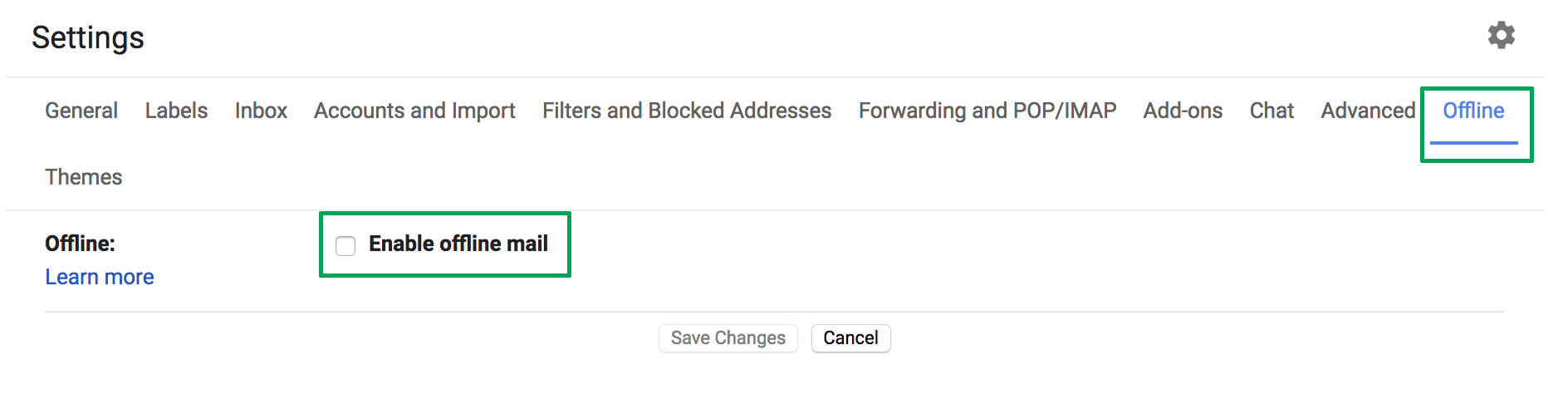
This is one of the greatest new features of this latest update, which the community has been requesting for some years now: offline mode. To get it, you must have the new Gmail design, so follow the steps in the previous point.

Once you’ve done that, enabling offline mode is very simple. Click on the settings icon and then the “Settings” option – redundant, we know. If you take a quick look, you’ll see a field that wasn’t there before, a box called “Offline.” Click there and enable the box “Enable offline email.” It will ask you how many days of messages you want to synchronize, so choose what’s best for you. Now you’re good to go.

Reminders

Maybe you haven’t responded to your email for a few days and have to do it. Now Google will remind you with a little yellow message. This feature even appears in emails that have already been read. The idea is that no message goes overlooked.

Auto-response

This was already introduced in past trial phase versions, but now, at last, it’s here: the auto-response. This feature involves Google’s AI suggesting what could be your short response to a message you’ve received. For this, the system displays some answers on the screen: you can then choose one and click send. Quick and easy.

Gmail Access now
8

Self-destructing emails

We’ll wrap up this list of new features with the best one for spies: self-destructing emails. Known under the name “Confidential mode,” this feature is activated once an email is sent and prevents that person from copying, pasting, resending or printing the text. Also, you can add a reading time limit. After this time, the email will no longer be available.