20 Windows processes you can kill to make your PC run quicker

In Windows, all processes are listed in the Task Manager. Among the processes that use the most resources, some are useful, while others run unnecessarily in the background. So, which processes can you easily eliminate to increase the speed of your PC? We’ll show you 20 processes that your PC doesn’t need.

We’ve divided the processes into 5 categories: quick starters, software updates, processes from hardware manufacturers, software processes and Windows processes. For each of these, you’ll find a short explanation.

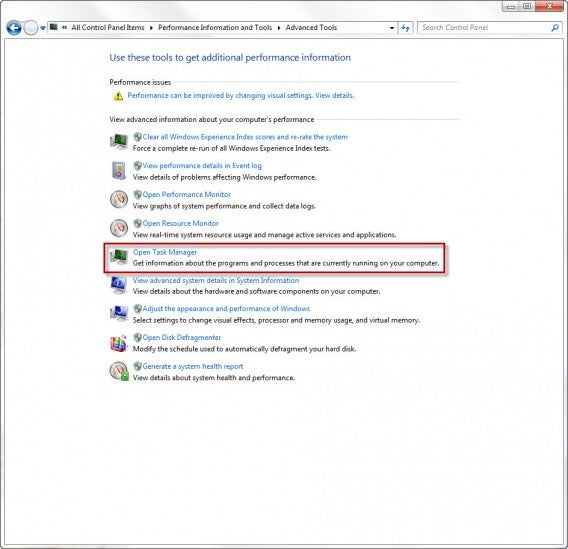
First, you’ll need to access Task Manager. Do this by going to Control Panel> All Control Panel Items> Performance Information and Tools> Advanced Tools> Open Task Manager. Alternatively, press CTRL + ALT + DEL and click on Task Manager.
Task Manager

Then, click on the tab that says Processes.

Quickstarter

Quickstarters preload parts of a program in case the user wants to open the program later. If you don’t open and close these programs often, however, the process can be eliminated.

  • reader_sl.exe is a part of Adobe Reader and stands for Adobe Acrobat Speed Launcher. It speeds up the launch of the reader, but isn’t actually necessary.
  • jqs.exe accelerates the launch of almost all software that works with Java. The Java Quick Starter isn’t really necessary.
  • Osa.exe enables some Microsoft Office programs in Windows XP to launch more quickly and anchors certain Office functions to the start menu. The Office Source Engine may be of interest to regular Office users, but probably not to others.
  • soffice.exe fulfills the same purpose as Osa.exe, but for the Office packages StarOffice and OpenOffice.

Software-Updates

Update managers periodically check whether a new version of the program is available. To save memory, you can change the update options in the program and regularly look for updates when you open it. In the meantime, you can simply end these processes.

  • AdobeARM.exe belongs to Adobe Acrobat and Adobe Reader. The process runs in the background and checks for updates to Adobe products.
  • AAM Update Notifier.exe comes with Adobe Creative Suite products. The process manages updates for multiple Adobe programs.
  • Jusched.exe actually stands for Java Update Scheduler. Once a month, the process checks whether there is a new update for Java, which is quite infrequent for a process that’s always running.
  • DivXUpdate.exe runs in the background and checks for updates to DivX Plus. You can simply terminate the updater; it launches automatically when you open any DivX program.

Processes from hardware manufacturers

Hardware manufacturers generally supply the appropriate software and drivers for their devices. Many nice additional features are automatically added on the computer, but in most cases they’re not used very often.

  • NeroCheck.exe searches for drivers that could trigger conflicts with Nero Express, Nero, and NeroVision Express. You can also start this service manually if necessary.
  • HKCMD.exe accompanies Intel hardware. The process allows the user to allocate any function to the keys, but also often leads to a sluggish system.
  • atiptaxx.exe/ati2evxx.exe comes with ATI video card drivers. The processes provide faster access to the graphics card settings on the taskbar or individual keys.
  • RAVCpl64.exe stands for Realtek HD Audio Manager. The process detects which audio devices are connected to your computer, including headphones or a microphone. Conveniently, the devices are also recognized without the process and will run anyway.
  • Nwiz.exe usually accompanies a NVIDIA graphics card. Anyone who uses NVIDIA nView functions needs the process. but it’s otherwise unnecessary.
  • CCC.exe stands for ATI Catalyst Control Center. For gamers and users with higher demands for the graphic settings on their PC, this is certainly interesting; for everyone else, it’s not necessary.
  • SynTPEnh.exe is used on many laptops and has drivers for touchpads, but Windows can provide these too. In addition, Synaptics TouchPad Enhancements is a known solution for stability problems.

Software Processes

In addition to updates, many programs offer useful and less useful services in the background. Anyone can decide for themselves whether they really need a button for each application in the start menu.

  • winampa.exe places Winamp to the right at the bottom of the taskbar and makes sure that no other programs with media content are linked.
  • iTunesHelper.exe/iPodService.exe works in the background for iTunes and QuickTime. If the process runs without these programs, it can be stopped safely – iTunes starts it automatically if needed.
  • OSPPSVC.exe comes with Microsoft Office 2010. The Office Software Protection Platform verifies that Office still has a valid licence.

Windows Processes

Windows also comes with a number of interesting, yet resource-intensive processes. Decide for yourself what to make of them.

  • Sidebar.exe makes the practical widgets on Windows 7 and Vista possible, but also eats up a lot of memory. Anyone who doesn’t use the widgets can stop Sidebar.exe.
  • wmpnetwk.exe searches the network for media files in order to populate them into Windows Media Player. If you don’t use the media player, or don’t want to search for new files, you can stop the service.

Here, you can find more processes and explanations

If you have more questions about processes and their functions, you can also consult various databases. Please note, most databases are compiled by users, so you should always consult multiple sources.

  • I am not a geek – about processes and their dangers
  • Neubert – with less content, and no search function
  • Searchtasks – with search function and recommendations on processes

[Original article by on Softonic.de]

The Best 24 Apps for Windows 10

One of Windows 10’s biggest features as an operating system is its flexibility moving between devices. Whether you are on your home computer, tablet, or phone, Window 10 is designed to offer a cohesive experience. Here is our pick of apps that offer you a great experience where ever you are.

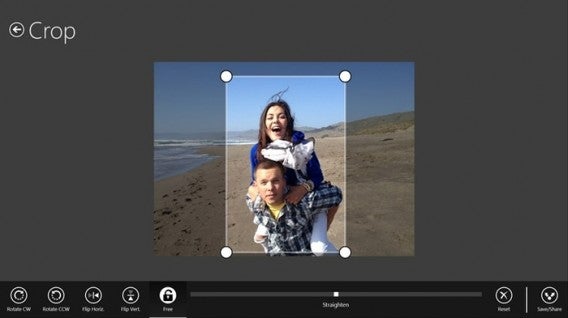
Adobe PhotoShop Express

Adobe’s fantastic photo editing suite has long been the gold standard, and with PhotoShop Express they have managed to perfectly adapt the experience to touchscreen. The app allows you to quickly and easily tweak you pictures with options like red-eye removal, noise reduction, and a range of filters. The free version even lets you upload 50 photos a month to the cloud.

Download it here

Adobe Photoshop Express

AllRecipes

Cooking apps are a wonderful tool for any budding chef, and AllRecipies maybe the best of them all. With a fantastic clean layout, it’s easy to find, favorite, and read any recipe you want. Plus, I find the recipes on the app fantastic.

Download it here

AllRecipes

Age of Empires: Castle Siege

Constructing your town and army to pit them against other player’s armies and towns is becoming one of the biggest social gaming genres. However, Microsoft have used the trend to relaunch their beloved Age of Empires franchise with Age of Empires: Castle Siege. It has worked brilliantly, as the game offers more direct unit control than the competition, making it feel significantly more involved.

Download it here

Age of Empires

Angry Birds Space

Ah yes, those mad birds have been to many wild and wacky places – but to our mind space is the greatest. Angry Birds Space doesn’t add any new or weird abilities, it simply places you in space and forces you to deal with the physics and gravitational forces that apply in the cold dark vacuum that is most of the universe.

Download it here

Angry Birds Space

Asphalt 8: Airborne

Gameloft’s Asphalt series has long been mobile gaming’s go to arcade racing experience, and Asphalt 8: Airborne is just the latest, most over-the-top interpretation of this. Keeping the high-speed racing and crisp graphics the franchise is known for, the eighth installment adds high-flying ramps and aerial maneuvers to really take the action to the next level.

Download it here

Asphalt 8: Airborne

Crossy Road

Why did the chicken cross the road? Well, we are not sure, but probably to download Crossy Road. This endless take on the Atari classic Frogger uses simple taps and swipes to give you precise control of a road-running chicken as it desperately tries to navigate highways, rivers, and railway tracks without being turned into nuggets.

Download it here

Crossy Road

Cut the Rope 2

What makes physics intriguing as an element in puzzles? Is it that we feel we have an innate understanding of how it should work and the ways we fail fascinate us? Or is it simply that inside we all want to be part of some huge Rube Goldberg machine? Who knows, but it is what Cut the Rope 2 taps into as you slice your way through ropes to drop and swing candy into Om Nom’s gaping maw.

Download it here

Cut the Rope 2

Dropbox

You probably already have a Dropbox account, making the Dropbox app even easier to recommend. This cloud storage/sharing solution gives you 2GB of storage for free when you open an account. The app’s clean and simple design also allows you to easily find the files you want, with photos particularly well displayed in albums.

Download it here

Dropbox

Facebook

If you use Facebook, as I am prepared to guess most people reading this do, then it’s hard to ignore the usefulness of the official Facebook app. Providing a simple layout which allows you to easily access all of the social platform’s options whether you are using a touchscreen or a mouse, you probably need this installed.

Download it here

Facebook

Firefox

Firefox is already many peoples go to browser of choice thanks to its high-level of customization and fast surfing experience. Well, add to that the fact that Firefox offers full Windows 10 integration, and Mozilla’s browser could easily become the number one choice for internet on the Microsoft platform.

Download it here

Firefox

Flipboard

Flipboard is a magazine viewer that offers you a curated news-feed of your interests, all beautifully laid out to look like a magazine. It’s a far more compelling way of viewing the sites you regularly visit, particularly on mobile devices.

Download it here

Flipboard

Flow Free

So simple, so free, Flow Free is another of those puzzle games that can really take over your mind. You know you are in trouble when you start day dreaming about a game and solving puzzles you create for yourself while you’re meant to be work. If you have a job that demands your full attention, maybe don’t download this.

Download it here

Flow Free

Fresh Paint

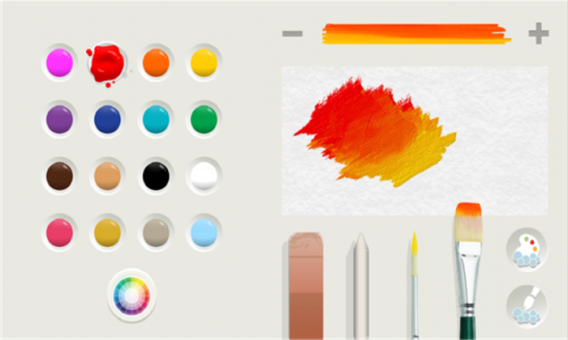
Providing you with a full featured painting app, Fresh Paint is a fantastic way to unleash your creativity. What is so wonderful about Fresh Paint is its tactile nature as, alongside a standard color wheel it also allows you to mix your own colors on a digital palette before applying them to your canvas.

Download it here

Fresh Paint

Frozen Free Fall

You can take your pick of match-three games, from Bejeweled to Candy Crush, they are all much of a muchness. However, I have struggled to let go of Frozen Free Fall. Well, I say that, what I really mean is that my friend’s daughter has struggled to let it go, so it remains installed on my phone.

Download it here

Frozen Free Fall

Jetpack Joyride

Escape mad scientists with a rocket pack. No, there isn’t much need to expand on Jetpack Joyride’s core concept to make it appealing. The only other thing you really need to know is that the simple controls and comical power-ups mean that it is, in fact, as fun as it sounds.

Download it here

Jetpack Joyride

Minecraft

If you absolutely have to have a game to launch on the same day as your new operating system, then none could be better than Minecraft. Whether this was a driving force behind Microsoft’s purchase of Mojang we will never know, but it certainly is not going to hurt the company to have the Minecraft Windows 10 Beta on its store front.

Download it here

Minecraft

Minion Rush

Endless runners are everywhere, and at this point you can get them in any flavor you fancy – from Spider-Man to Tomb Raider. Personally, however, I find it hard to resist the little yellow minions as they waddle their way through Minion Rush. The game itself is a fine example of the genre, and the minions make the perfect slapstick fodder to be on the end of every failed jump.

Download it here

Minion Rush

Modern Combat 5: Blackout

While Call of Duty’s mobile incarnations may all have been awful, that hasn’t stopped Modern Combat borrowing the idea of an extravagant modern military story. Modern Combat 5: Blackout offers everything CoD does, with a solid country hopping plot, loads of weapons, and a robust multiplayer mode that allows up to 12 players to compete together online.

Download it here

Modern Combat 5: Blackout

Nook

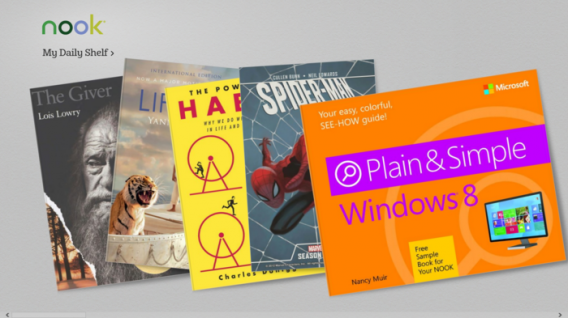
If you use your phone or tablet as a portable personal library, then Nook is the perfect app for you. With a huge library curated by Barns and Noble, and plenty of options to make your reading experience easy on the eyes, Nook is the app for bookworms.

Download it here

Nook

OneNote

In isolation, Microsoft’s note taking tool is just good. Add in a Microsoft 365 account, and all of the cross app and cloud storage options it opens up, and OneNote becomes a truly fantastic tool. Allowing you to edit across devices, great touchscreen support (such as the intuitive radial menu), and the ability to pull pictures from social media platforms like Facebook, OneNote is a must.

Download it here

OneNote

Pako

If you enjoyed the bit in GTA where you are trying to outrun a seemingly endless sea of police officers, then you are in luck, because that is all Pako is. Viewed from an isometric perspective, you must speed around the urban arenas trying to stay ahead of the cops for as long as possible. With a nifty 70s gangster movie motif, Pako is brilliantly playful.

Download it here

Pako

Skype

Even with every other messaging service starting to offer calls and video, Skype is still up there as the best ways to connect with friends and family around the world for free. Since its acquisition by Microsoft the service has continued to improve, and its cross platform functionality on Windows 10 makes it an even more flexible communication tool.

Download it here

Skype

Threes!

Threes! maybe one of the most perfectly conceived mobile games ever. Simple, fast, and skillful, trying to combine tiles of the same number together with simple swipes, while not boxing yourself into an impossible situation, is the kind of addictive challenge that can ruin whole afternoons.

Download it here

Threes!

Twitter

“Twitter is many people’s social network of choice. If you are one of these people, like me, you need this app. That’s 140 characters, right?”

Download it here

Twitter

Related Stories

Which Windows 10 version should I get?

What’s new in Office 2016 for Windows

Microsoft will fight Windows 10 piracy by giving it away this summer (update)

Technical Preview of Windows 10

Follow me on Twitter: @DoFuss

What you need to know about syncing photos in iCloud

What happens when you sync your photos using Photo Stream, the new iCloud Photo Library, or iCloud backup? Where do they go, what happens if you stop syncing, and what are your options?

Apple’s known for its generally easy to use OS X and iOS operating systems, but services like iCloud Backup, your Photo Stream, and the most recently added iCloud Photo Library (still in beta) can be a bit of a grey area for many iPhone owners (especially celebrities, apparently).

Sure, they may be useful features, but you might not want to save every photo you take in the cloud. Recent celebrity attacks may have come from a vulnerability in iCloud (albeit one that Apple already patched), but that doesn’t mean that you shouldn’t have some control over where your photos are going when they’re being sent to the ominous sounding ‘cloud’. Consider Photo Stream, iCloud Backup, and iOS 8.1’s newest addition, iCloud Photo Library, along with the alternatives, to see what’ll work best for you.

Photo Stream

First thing to note: Apple is hoping you’ll replace your Photo Stream and Camera Roll with the consolidated iCloud Photo Library (I’ll explain more below), but it’s not mandatory. Secondly, your Photo Stream and Camera Roll are not the same thing. Your Camera Roll is in your iPhone’s local storage, while your Photo Stream contains photos synced across all your iOS devices via iCloud. Delete a photo from your Camera Roll, and it sticks around in your Photo Stream. The same is true for the reverse.

Your Photo Stream isn’t necessarily a traditional back-up though: if you have multiple iOS devices, you’ll be able to access your photos from every device, as long as your Photo Stream is turned on for both.

Photo Stream

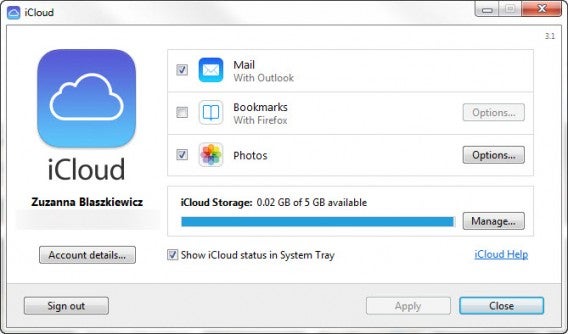
What some people might not know, is that you can access your photos via desktop too. If you’re using Windows, you’ll have to download the iCloud Control Panel, while Mac users can access their photos in a forthcoming OS x Yosemite update that’ll include a new photo app, a replacement for the soon to be discontinued iPhoto and Aperture.

iCloud

In your Photo Stream, your photos aren’t stored in the traditional sense of a cloud service with one central, online hub. Rather, photos are available only between devices and your desktop computer. Notably, your Photo Stream doesn’t save all your photos, only 1000 at a time, deleting older ones as space fills up.

iCloud Photo Library

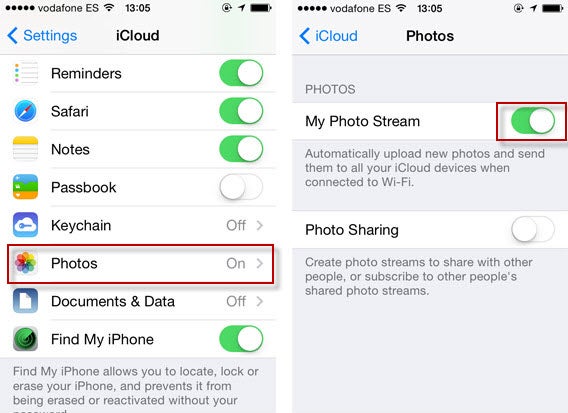
With iCloud Photo Library (which is still in beta), you can now automatically sync all your photos from what was previously your Photo Stream and Camera Roll. The iCloud Photo Library will sync your photos across all your Apple devices, like Photo Stream. But unlike Photo Stream, which you can only access through the iCloud Control Panel, the iCloud Photo Library automatically stores the original, high-res photos in iCloud and resizes them for every device, making them accessible through iCloud.com. Again, it’ll also be accessible to Mac users through the forthcoming photos app. Another bonus is that any edit you make on one device will be automatically saved on all other devices.

You can activate the iCloud Photo Library by going to Settings > Photos and making sure it’s turned on.

iCloud Photo Library

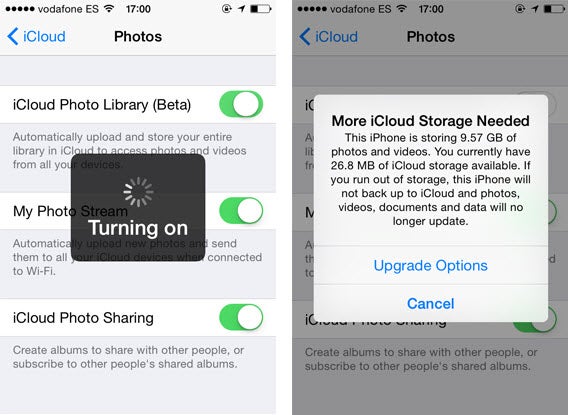
It seems like the perfect solution, considering that the Camera Roll doesn’t automatically sync photos, and Photo Stream only keeps up to 1000 photos or for 30 days, whichever comes first. The biggest caveat, of course, is that your iCloud backup only comes with 5GB of free storage, so if you have more than that and want to automatically backup all your photos, you’ll have to pay for additional storage.

Another downside is that it makes it more difficult to curate your photos because they’re all automatically backed up.

Storage & Backup

Backing up your device using iCloud is more comprehensive than simply the Photo Stream, letting you backup your accounts, documents, and basically your entire iPhone’s settings.

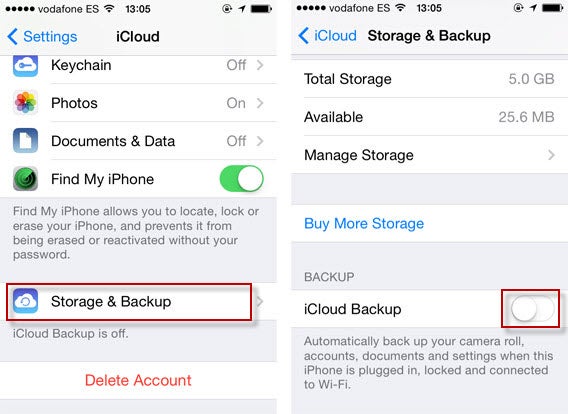
To access Storage & Backup, go to Settings, and then to iCloud. Keep scrolling until you reach Storage & Backup. If you scroll down, you’ll see the option for iCloud Backup, which automatically backs up your files and settings when your iPhone is charging and connected to Wi-Fi. To turn it off, simply swipe left.

iCloud Storage

Curiously, the iCloud Backup is actually less accessible than the iCloud Photo Library or Photo Stream. There’s no online resource for you to access the data that’s been backed up; it’s only accessible when you restore an iPhone and log into your iCloud account.

Doing an iCloud backup of your phone is not to be confused with the newly introduced iCloud Drive, which similar to other cloud storage services, can be accessed online and only saves files, documents, and photos, not the entirety of your iPhone’s apps and settings.

Notably, your iCloud Backup and your Photo Stream can be used independently of each other. You can turn on your Photo Stream without having the iCloud Backup enabled and access your photos, while turning on your iCloud Backup and turning off your Photo Stream will still give you backups of your photos, although it’ll be the ones from your Camera Roll. Using the iCloud Photo Library means they’ll sync and save everywhere. Either way, there is still cloud access to your photos.

Alternative solutions

I must admit, I don’t think iCloud is the best backup service for me, mainly because I’m limited to 5GB of free space, which barely scrapes the surface of my Camera Roll.

Still, whether you insist on using iCloud or not, there are ways to protect the photos on your iOS device.

Two-Step verification

Apple ID offers two-step verification, which sends an SMS code to your mobile device in order to manage your account. Setting it up can do wonders for your protection.

iTunes Backup

It may not be as easy or convenient as the cloud, but the old classic iTunes backup is always a good option. It might be easy to forget (I learned the hard way after getting into the habit of using an external charger without plugging my iPhone into my computer, forgetting to do a backup before attempting (and failing) to update to iOS 7.1.1, and subsequently getting all my data wiped without having done an iTunes backup in 4 months), but getting into the habit of plugging your phone into your computer and setting up automatic backup upon connection is definitely worth it. There’s also the option of setting up Wi-Fi Sync between your iPhone and PC connected on the same network.

Third-party storage services

Most notably, Carousel by Dropbox will automatically sync all the photos from your Camera Roll. All you have to do is turn on the photo permissions for the app to have all your photos sync, giving you an actual storage space for your photos that can be accessed online. For added safety, you can encrypt files in cloud storage with services like Boxcryptor and Cloudfogger.

Carousel

Curate your photos

It’s not hard to understand why many people prefer the cloud as a storage space. It’s convenient, usually syncs automatically, can be accessed from almost anywhere, and can provide huge amounts of storage space at little or no cost. Despite known targeted celebrity attacks, it’s also generally safe.

Regardless, the best thing you can do is manage your personal collection of photos and where they’re stored. If you don’t want something out there in some hypothetical cloud, delete if from you Photo Stream, turn off your iCloud backup, or use two-step verification. That, or just use Snapchat.

If you want to know about cloud storage services, check out our article on creating the best backups for you.

Original article published on September 2nd, 2014.

Follow me on Twitter @suzieblaszqwicz

The top 7 download managers

Sometimes downloading files in bulk can be a pain, but I’ve found the quickest, safest and sleekest download managers for you. What you’re looking for in a download manager is a program that will automate the process, relieve bandwidth usage, and organize how files are being downloaded.

Most of the apps we cover here offer features like download scheduling, automatic disconnect after download, batch downloading, and speed optimization. If you tend to install lots of new programs, games, or videos and music, it’s probably a good idea to set one up on your PC.

Flashget: The fastest of all download managers

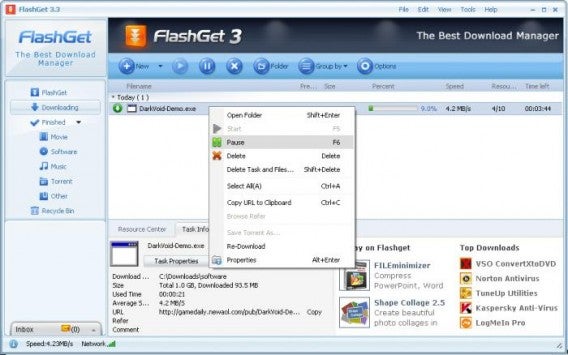
FlashGet download manager

FlashGet promises download speeds of six to ten times faster than downloading normally through a browser. The program supports basically every download protocol including HTTP, FTP and MMS. This is one of our highest rated download managers, so check it out.

Download Flashget for Windows

Download Accelerator Plus:  Squeezes the best out of your Internet connection

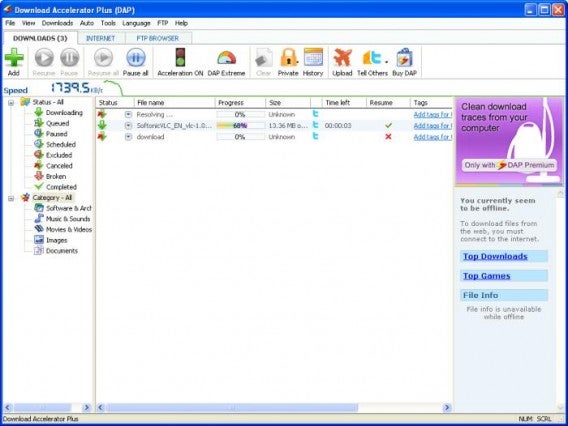
Download Accelerator Plus interface

Download Accelerator Plus has a ton of cool features. You can watch a video while you’re downloading instead of waiting for it to finish, and can convert videos into MP3 to be compatible with other devices.

Download Download Accelerator Plus for Windows

Internet Download Manager: Works with all major browsers

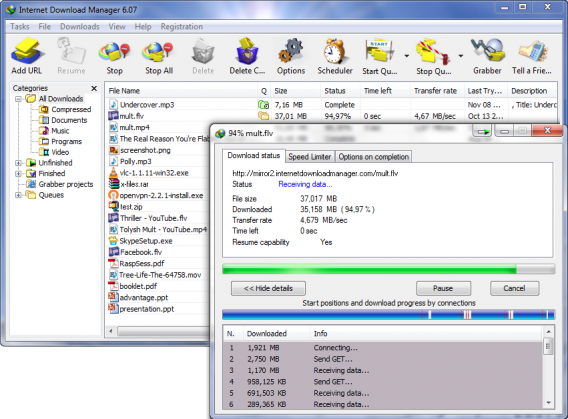
Internet Download Manager interface

Internet Download Manager has been around for a long time, but it’s still being supported for modern operating systems. The app works with Windows 8.1 and all the major web browsers. Beyond offering faster downloads an an interface to manage them all, it can pick up on downloads when your connection gets interrupted.

Download Internet Download Manager for Windows

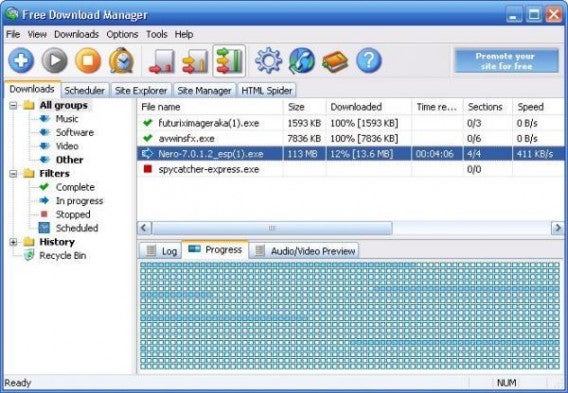
Free Download Manager: A free and solid all around download application

Free download manager

Free Download Manager works much the same as the other download managers, offering increased speeds and support for tons of download protocols like BitTorrent and FTP. This software is open source and available under the General Public License, meaning a community of developers can always improve it. The app even has a remote control feature that lets you view the list of active downloads from any computer.

Download Free Download Manager for Windows

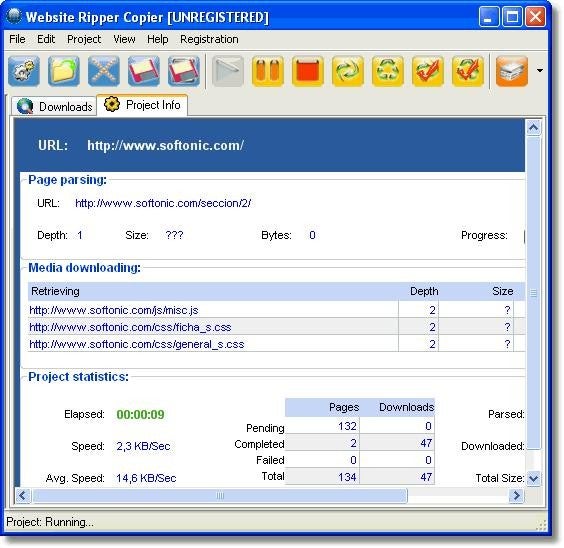
Website Ripper Copier: Automatically download all content from a web page

Website Ripper Copier

Website Ripper Copier is unique in that it lets you download entire websites for offline browsing or archiving. WRC offers pop-up free browsing and speeds up general browsing as well. The app is paid, but you can download a free trial before you make the commitment.

Download Website Ripper Copier for Windows

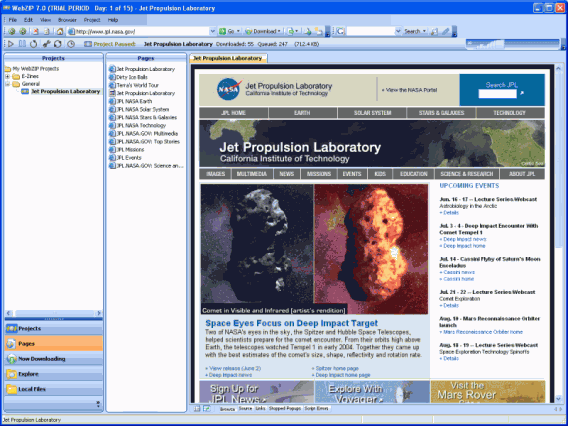
WebZIP: Collect web content to browse offline

WebZIP

WebZIP is light on resources and basically runs on any computer. Save images, music, and other media files to keep for offline use. The app even downloads entire websites like Website Ripper Copier.

Download WebZIP for Windows

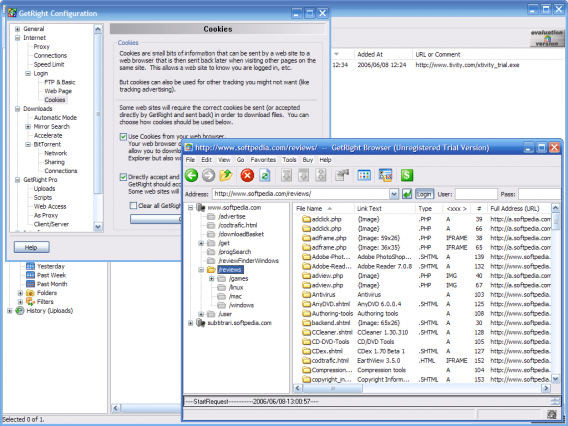
GetRight: Compact but fitted with all the necessary download features

GetRight downloader

GetRight helps users with an unreliable internet connection continue their downloads where they left off, instead of having to start over from the beginning. Sometimes downloads can take hours, and having to restart from the beginning can be devastating. GetRight has automation tools to let you turn off your computer when downloads are done, saving you on your power bill. The app quickly hunts for items on the webpage for you to download.

Download GetRight for Windows

Whether you’re looking for speed, convenience, or organization, every download manager will have something for you. You can also check out the download managers now automatically available in most browsers like Chrome, Firefox and Safari for more options.

If you want to know how to safely backup all your files, then check out our guide for creating your own backup recipe.

Original article published on April 19th, 2007.

Google Hangouts Easter Eggs lets you change background colors, release ponies

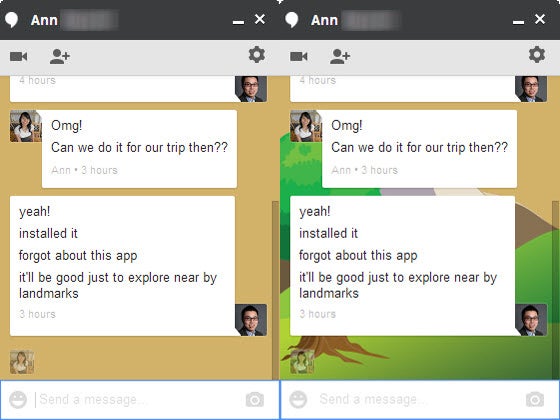
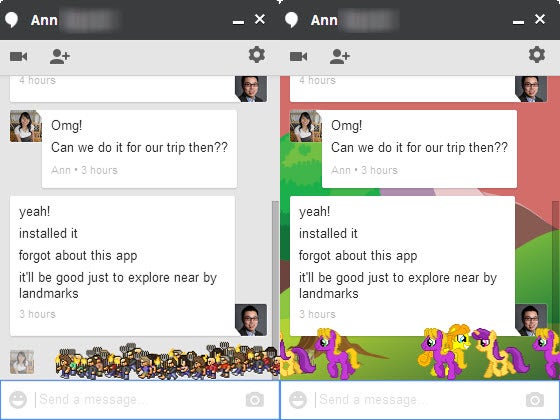
hangouts EastereggsGoogle’s Hangouts messaging app already includes 850 different emoji icons but what if you want something a little different? Well you’re in luck since the engineers at Google have built in some hilarious Easter Eggs into the app.

To activate these, simply refer to the chart above. These commands are simple with a “/” followed by the command. For example, “/ponystream” unleashes a torrent of “My Little Pony” looking characters across your chat window.”/bikeshed” will change your chat background to a random color.

There’s also the famous “KONAMI code,” which lets you change your background to an cartoon landscape. My personal favorite is “/pitchforks,” which unleashes an angry, pitchfork-wielding mob. To get rid of the Easter Eggs, simply close and re-open the chat window.

google hangouts easter eggs 2

Unfortunately these Easter Eggs don’t work on the mobile version of Hangouts. If you want to try them out, you’ll have to use the web or Chrome app.

[Source: Moritz Tolxdorff (Google+)]

How to: Create a photo slideshow in PowerPoint

You’ve probably had a few PowerPoint photo slideshows in your email already. They seem to be a popular topic for messages coming from friends and relatives with too much spare time on their hands. But have you ever tried creating one? It’s easier than you think, and it might actually be a good way to share pictures – just don’t abuse the slideshows with cute kitty images!

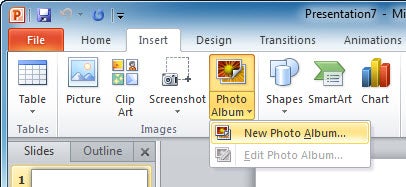
1. Open up PowerPoint, click the Insert tab and then the Photo Album button. Select New Photo Album to open the Photo Album settings menu.

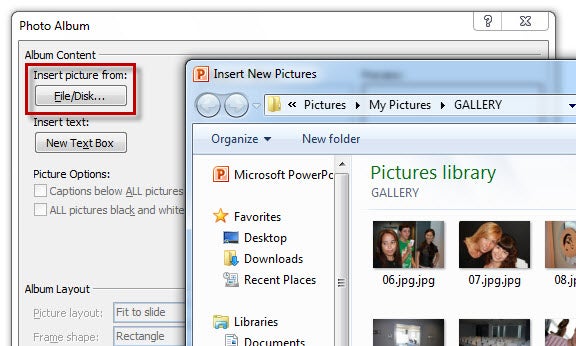
2. In this new window, click the File/Disk button to select the photos you want to use in your slideshow. Remember you can select multiple files simultaneously by holding the Ctrl key while selecting them with your mouse.


Continue reading “How to: Create a photo slideshow in PowerPoint”

8 Things You Must Do Before Reformatting Your PC

Your PC is slow. Really slow. You’ve used CCleaner to get rid of the garbage, you’ve lightened the load by uninstalling bloatware with Revo, you’ve checked inside, outside, upside down and backwards for a virus, and you still have time to make a coffee by the time it takes your computer to start up. Is it time to reformat your hard drives?

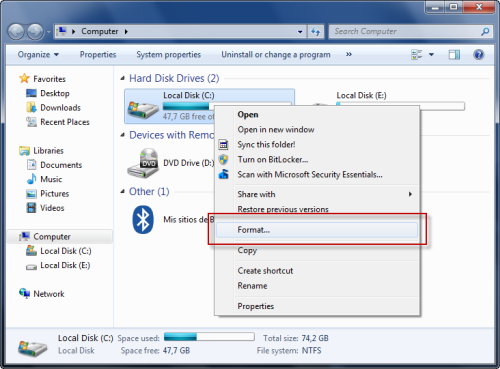
Luckily for you, reformatting your computer is really simple. Go to My Computer, find the offending hard drive (in all likelihood, C:) and right click. You’ll see Format… under the context menu options, and find all the information you need when you click.

What takes a little more effort, however, is preparing for the reformat. As it will erase absolutely everything on the disk, if you don’t make the right preparations, you could find yourself with a faster computer, but absolutely nothing to do on it. Follow the steps laid out in our list first to make reformatting your hard drive as easy and safe as possible!

Continue reading “8 Things You Must Do Before Reformatting Your PC”

5 free art apps for your PC

I bought a graphics tablet for my PC, and I must say I’m very happy with it. I’ve always liked drawing and computers, and a gadget like this was the perfect link between two of my favorite pastimes. After installation and initial set-up, I spent some time searching for the appropriate software to make the most out of my new toy. Besides Adobe Photoshop (which works great with pressure-sensitive input devices like my tablet) there are also other drawing editors you may not know about. Here are free art apps:

Drawing by Agrianti, an ArtRage user

Graphic & Design apps

Artweaver – Includes a dozen customizable brushes that recreate different drawing tools:  oils, pencils, charcoal, chalk, acrylics, felt pens, and more. It also has support for layers and transparency and a history window that lets you undo any previous action.

TwistedBrush – This free app doesn’t have as many features as its full version, but makes up for it with a bunch of great features: lots of brushes to choose from, support for layers, photo cloning and tracing, pattern, textures, and more. And it does feel like actual painting on canvas!

ArtRage – Delivers an impressively realistic canvas feel when drawing on your tablet. The latest release includes tools like watercolor, glitter sprinkling, and sticker spray. You can also trace a real image and turn it into a beautiful drawing – even if you’re not very artistically-gifted.

Flowpaint – Though it’s not the best drawing apps around here, Flowpaint still lets you grasp the feeling of actual drawing tools when using digital brushes on the computer. It doesn’t require installation and runs under Java.

Greenfish Painter – Not as fully-featured as other drawing apps, but still a reasonably good piece of software to use as virtual canvas. You can freely paint on its interface, mix different colors on your palette like in real life and tweak brushes to meet your needs.

Check out more graphic design apps

Adobe Reader X now available to download

Image via: Pexels

If you work with PDF documents on a regular basis, then be sure to check out the new Adobe Reader X, which is now available for download. The tenth version of the ubiquitous PDF reader comes with a host of new features to make working with electronic documents more comfortable.

New features of Adobe Reader X include sticky notes and a highlighter tool for sharing ideas and comments about documents. Adobe has also ramped up the amount of content viewable in PDF format, to include drawings, email messages, spreadsheets, video, and more. Document security has been tightened, thanks to a new Protected Mode for safer viewing of PDFs.

Adobe Reader X is available to download for free now, for Windows, Mac, Linux and Android operating systems. Watch this space for a full review of the program.

Three ways to open DOC files without Word

Whether you like it or not, DOC files are a standard for sharing documents online these days. The problem comes when someone emails you a DOC file and you don’t have Microsoft Office installed on that computer. Don’t worry: even if you don’t have Word on your system, there are other ways to open DOC files without Word – and all three of them for free:

1. Google Docs

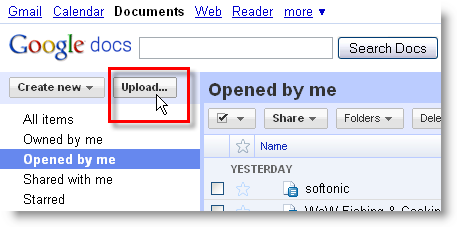
Google’s online suite not only creates and saves documents as DOC, but also works with DOC files imported from your hard drive. So if you ever find yourself with a DOC file on a Word-less computer, head to Google Docs in a web browser and click the Upload button. You’ll be able to import files from your hard drive, up to 1024 MB – 500 KB per DOC file.

Three ways to open DOC files without Word

Continue reading “Three ways to open DOC files without Word”