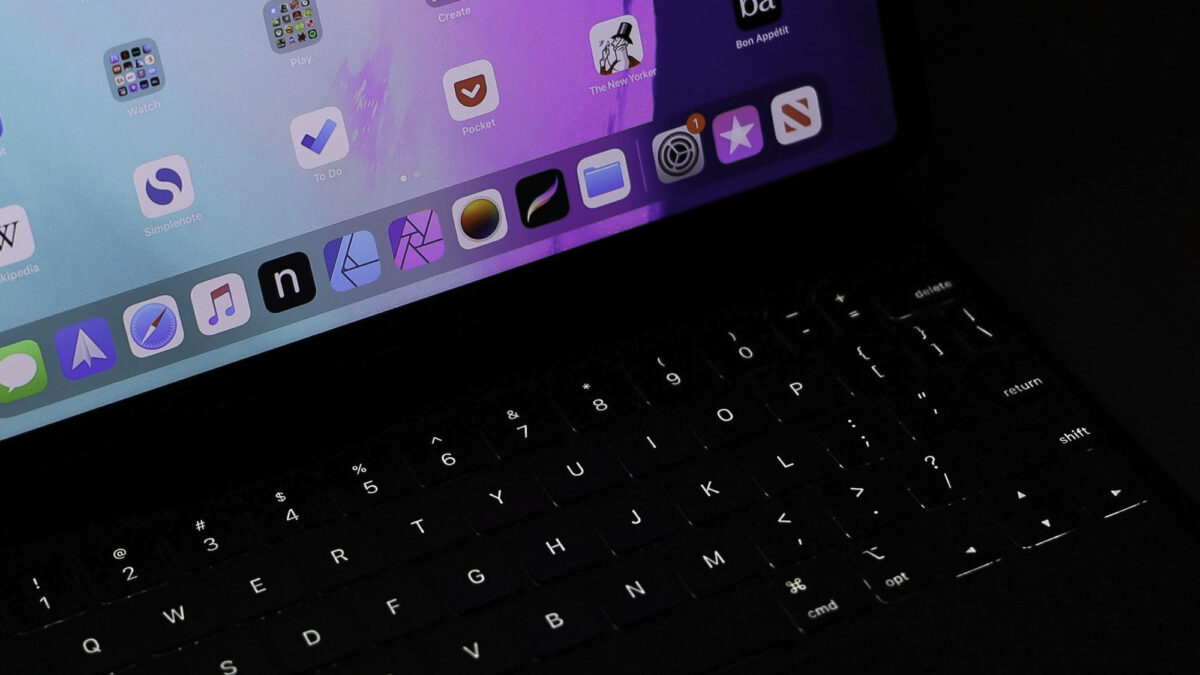
With a backlight that we can easily adjust to our needs, we can write comfortably wherever we are.
The way we type on our iPad significantly influences our comfort and productivity. While typing directly on the touchscreen can be an option, there is also the feel of a physical keyboard, such as the Magic Keyboard, to consider for a more comfortable and efficient experience.
Thanks to the identity certificate from the tax agency we will be able to do online procedures in the easiest way on our iPhone, iPad or Mac.
A digital certificate of identity allows us to carry out procedures with the public administration online. A resource that we can use to check the work life, to file the tax return or even to carry our driver’s license on the iPhone thanks to the app miDGT. Installing this digital certificate of the Tax Agency on an iPhone, iPad or Mac with Safari is very simple. Let’s see it.
Apple devices are less exposed to threats, which is one reason why their apps tend to behave well most of the time. Nevertheless, iOS apps occasionally become unresponsive, leaving users unable to access functions or regular quit options. In times like these, the best option is to use Force Quit.
Years ago, the only way to deal with a non-responsive app was to initiate a hard shutdown, potentially compromising the system. This was especially true of older computers. Force quitting, however, provides a convenient workaround on all Apple devices. The function is effectively a shortcut that helps you combat buggy apps without putting your valuable hardware at risk.
How to Force Quit on your Mac laptop
If your mouse cursor has turned into an everlasting spinning wheel of death, you’re likely dealing with a crashed application on your laptop. The best solution is to initiate a Mac Force Quit through one of these methods:
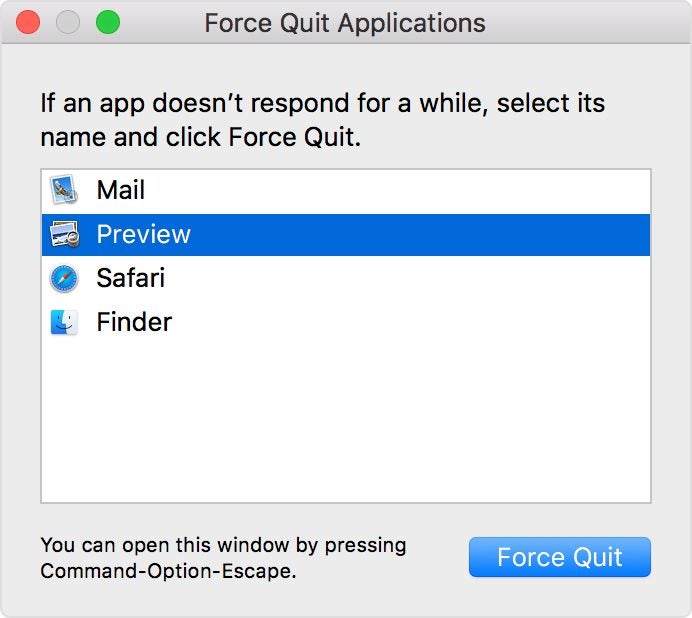
Press the Option, Command, and Esc (Escape) keys at the same time.
In the upper-left corner of your screen, click the Apple icon and then select Force Quit.
Hold down Option and right-click the icon of the unresponsive app in your Dock. You’ll then see a Force Quit action in the pop-up menu.
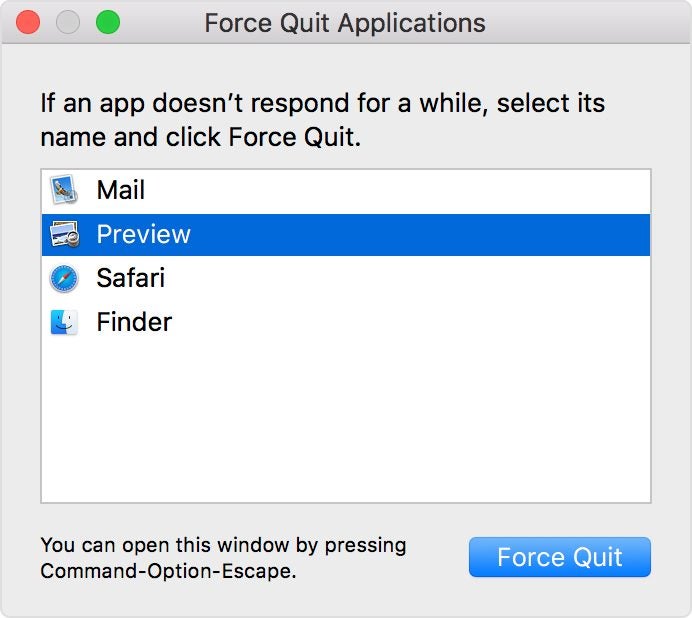
Methods one and two will reveal the Force Quit applications window. You’ll then select the unresponsive app and select Force Quit.
How to Force Quit frozen apps on iPhones
You’ll start the process of force-quitting a stuck app via the App Switcheron your iPhone. Accessing this feature varies depending on which iPhone you have and the version of iOS it uses.
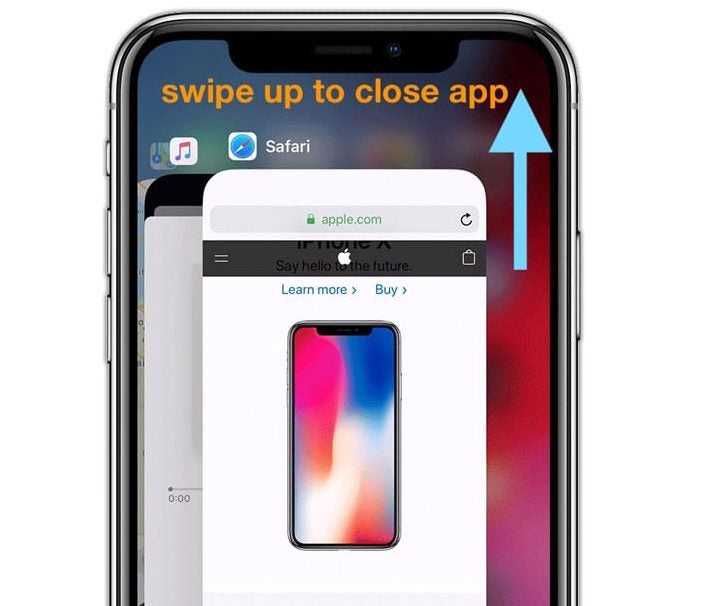
For iPhone models X and above, you will observe a notch selector at the top of the screen. These mobile devices lack the traditional home buttons found in earlier models. Here are 3 steps to Force Quit on an iPhone X and above models:
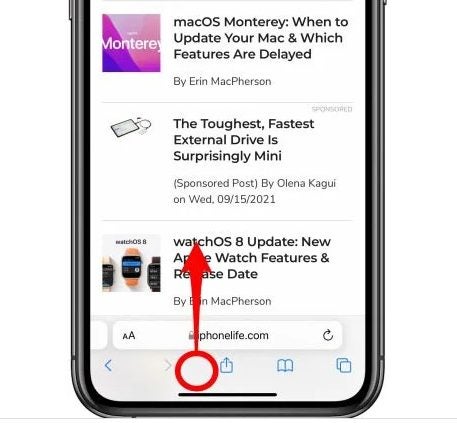
As you are in the unresponsive app, swipe up from the home bar at the bottom of the iPhone screen.
Hold your finger over the display until you see the preview of the app, moving it to the middle of the screen. Then lift your finger to open the App Switcher.
Scrolling horizontally in the App Switcher, you can find all the apps you’ve previously accessed. Swipe on the stuck app’s preview to quit the application. The app will disappear, effectively halting the program.
How to Force Quit frozen apps on iPads
The approach to force quitting an iPad is similar to the process on iPhone. However, the interfaces differ slightly.
Here is the process for iPad Pros running iOS 12, iPadOS13 or higher:
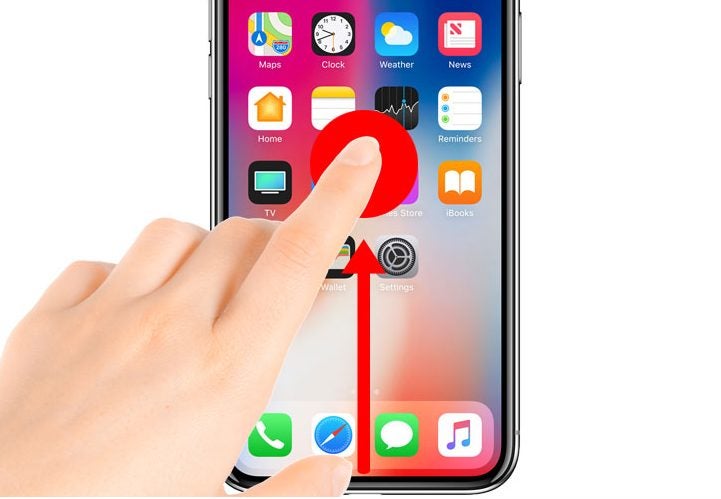
Swipe up from the bottom section of the screen toward the middle and hold for a brief second.
Upon letting go of the screen, you will encounter the App Switcher.
Select the app you want to Force Quit from the App Switcher grid to dismiss it, and complete the process.
How does Force Quit work?
When an app closes on an iPhone or iPad, it continues to run in the background. Many users are unaware that they are essentially pausing the app so that it demands less CPU. This ensures the optimal function of the device.
Poor performing applications freeze and become stuck before rendering themselves unusable. In this case, the Force Quit command is the only option aside from initiating a hard shutdown procedure.
Is force quitting safe for my device?
Force quitting a stuck application is the safest way to resolve an unresponsive application and prevent the issue from happening again. Frozen applications in Apple devices are predominantly attributable to insufficient RAM.
Devices short on memory (RAM) can support a limited number of applications, including those that remain open in various tabs or windows. The system will become unresponsive anytime its available memory resources are close to maximum capacity.
RAM is like your workbench in the sense that it outlines how much space that is available for work. If you have too many projects crowding up your bench, you won’t be able to work on anything at all.
Once you’ve Force Quit the app, you can access it again from the home screen or your applications folder. If it’s a trusted app, it should reload and work like new.
Apple users got the short end of a paradoxically long stick when it comes to artistic capabilities.
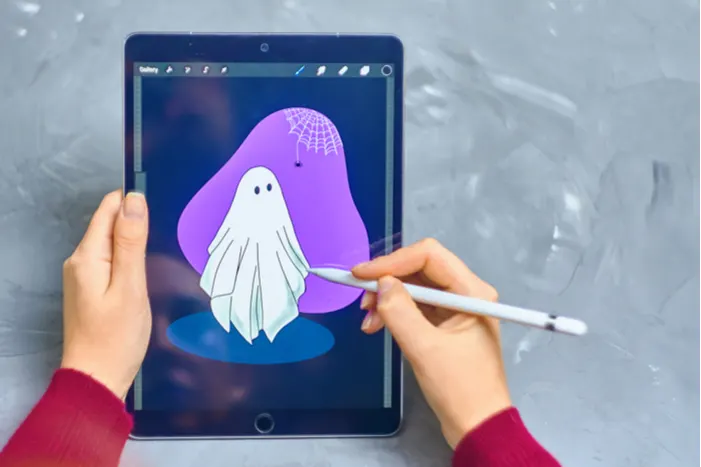
The Apple Pencil represents one of the most sophisticated digital art tools and ProCreate on the iPad works like a dream. However, using computer-bound programs for animation and design (ToonBoom, Photoshop, etc.) can become a nightmare experience on the Mac.
The simple fact is this: almost no professional artistic programs are available for use on the iPad in their full form. Sadly, while the device has many aspects of a personal computer, they are still considered by the Apple store as portable devices. To make matters worse, there is no way to use an iPad as a second screen for your Macbook!
Turn your iPad into a graphics tablet with Astropad
What is it?
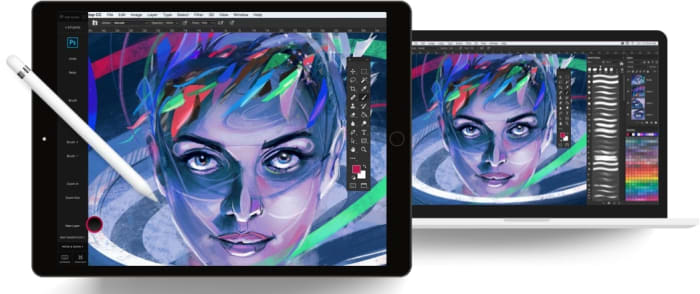
Astropad is an application that turns your iPad into a fully-functioning graphics tablet by allowing the iPad to control a Macbook’s screen, whether by using a finger or a stylus.
You may now be asking: what is a graphics tablet?
Graphics tablets are electronic pads that connect – whether wired or wireless – to a laptop so the user can draw with a stylus as if they were using a sketch pad or painting on a canvas. While graphics tablets come with their own technical difficulties, the versatility of digital artwork provides large benefits: the ability to export artwork with ease, the availability of a huge range of artistic tools.
Admittedly, a decent graphics tablet of similar size may cost less than $100. Also, a graphics tablet complete with a monitor (screen) may only cost a few hundred dollars more.
However, we’re willing to bet many Apple users already purchased an iPad for everything else it can do: take excellent photos, play music through powerful speakers, connect to a keyboard for easy, portable typing.
If this is the case, for Astropad’s cost of $30, you can add all the capabilities of a graphics tablet. We think that’s worth the cost!
How to Connect
So, let’s say you’re sold. You now have Astropad and you want to set it up. What does that look like? How do the devices connect?
The Easy Way
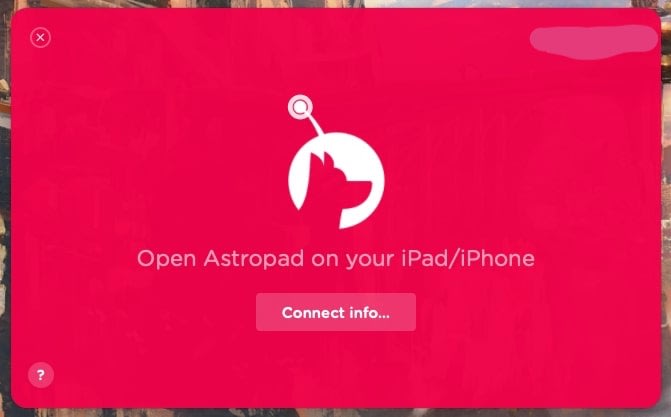
Before anything else, you’ll need to download AstroPad on your mobile device and buy it on your laptop.
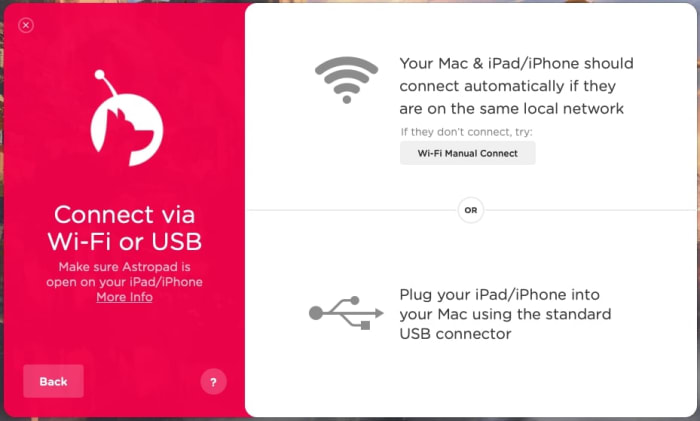
Open your laptop and iPad. If they’re both connected to the same Wi-Fi, the program will instantly bring them together. Congratulations! You’re already set to go.
The Hard Way
Occasionally, you will be unable to connect your iPad and laptop to Wi-Fi at the same time. When that’s the case, there are two options:
Wired connection. Like a wired graphics tablet, simply use your USB-to- lightning connector and link the two devices. You may need to keep them connected thereon, but your graphics tablet will be complete!
Manually connect with a QR code. Please note: your tablet must be able to connect to the same Wi-Fi source as your laptop in order for this to work. It’s one way to tie them together quickly if they’re not on the same internet connection but will be useless if the device isn’t allowed to join.
Once your devices connect, you’ll have a window that looks something like the picture above. If it seems weird, don’t panic! You can use your computer cursor to manipulate everything around and inside the viewing window as usual… except, you will need to move the handles if they’re in the way.
On your device, you’ll see what’s inside the selector box on your laptop, with a few more options on the side. Let’s talk about those tools:
The left button gives you the ability to use shift-control/option/command at any time. These buttons are used often in writing programs, and thanks to Astropad’s design, you won’t be missing them here!
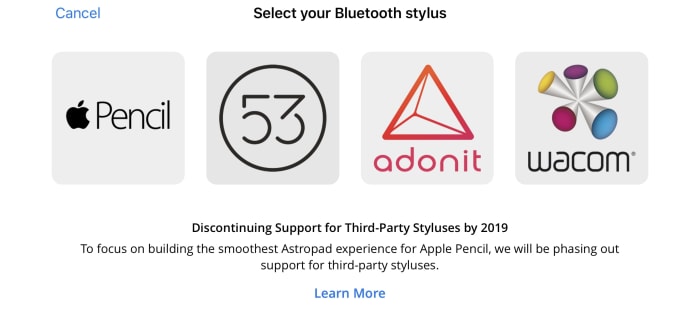
The second option allows for the connection of many types of Bluetooth styluses. This may be a huge relief to those who prefer other options to the Apple pencil, which can be pricey:
Finally, the third option, the “window” option, allows you to change the AstroPad viewing window from the graphic tablet. On your device, click this button to open a new set of options, allowing you to drag, expand, or reduce the viewing window with ease:
Together, all these things create an easy environment where you can use dedicated artistic styluses on the iPad in conjunction with the powerful creation programs available on a Mac.
In fact, there are even peculiar benefits to this route! While the viewing window for normal graphics tablets may be hard to control, AstroPad gives you an easy way to focus on the artistic window of a creative program and focus on the many surrounding animation tools with your laptop. You can kill two birds with one stone!
Wrapping up
Astropad works great, so our one complaint would be tracking: as you can expect, the connection between a laptop screen and your tablet won’t be as fast as drawing on the iPad itself. Still, the delay isn’t too bad, even by modern day standards. You may not notice whatsoever.
That being said, we hope Astropad can help you on your journey through the digital arts.
This new feature from iOS brings the PlayStation to your mobile device!
Soon, you will be able to play your favorite PlayStation 4 games from your iPhone just like you do on your console!
Earlier this week, Appleannounced at WWDC that the new iOS13 and iPadOS will support Xbox One and PlayStation 4 controllers. If you pair that with Sony’s app PS4 Direct Play, you can use the iPhone or iPad as a monitor, while the PS4 controller gives you full control of the game. The feature will be available later this year.
Basically, if you have an iPad or iPhone, you also have a portable PS4. Next time your flight gets delayed and you have a few hours to kill at the airport, you can bust out Overwatch.
As it currently sits, you can’t play every game to its full capabilities on Remote Play. For example, you can’t use either of the thumbstick controls. As these are typically used to sprint or crouch in most games, you’re out of luck if they’re necessary to the game.
Luckily, the addition of the controller means that you can play each game as it was intended.
This can really be a game-changer. From now on, if you have a long train ride to work, or if you have downtime after class, you can get playing!
The downsides
Remote Play still requires a console. You could technically connect it to your friend’s PS4 at their house, but you would be playing their save files. We imagine they’d be a bit upset if you deleted their God of War save file to start your own.
If you can charge your iPhone or iPad while playing, you don’t need to worry about depleting your battery. If you can’t, streaming your games from the PS Network on top of actually playing them will surely drain your battery.
How to set up PS4 Remote Play
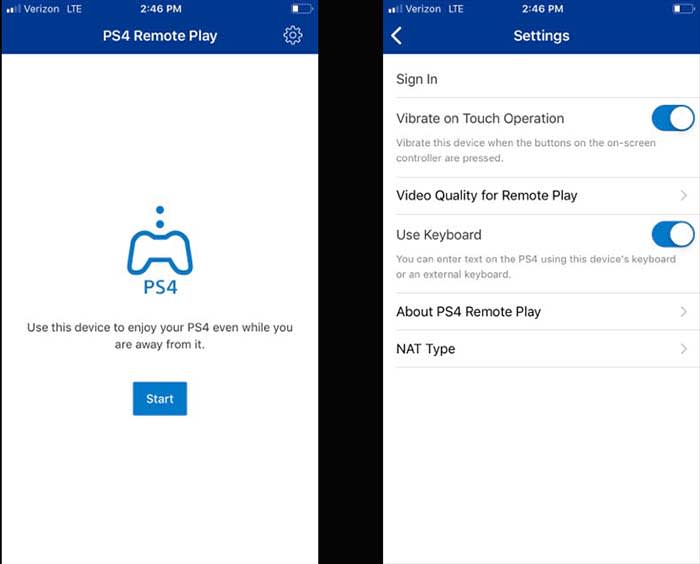
After downloading the app and turning on your PS4, log into your account on your PS4
Log your PS4 and iPhone onto the same Wi-Fi network
Open the app
Open Settings and log in to your PlayStation Network account
Click the big, blue start button. This will make the app search for your PS4
There’s a chance that it will fail. If it does, do NOT panic
A prompt will pop up asking for a code so you can manually connect the device
On the PS4, go to your Settings, and choose “Remote Play Connection Settings”
From there, choose “Add Devices” where you will see the code
Type the eight-digit code on your app.
Once you’re done, click “Register”
You’re all set!
Wrapping up
One of the worst parts about getting a new game is having to leave it behind while you’re in the middle of something. When Insomniac’s Spider-Mancame out last year, we highly debated going on hiatus at work so we could play it. This new feature from iOS means that the game is no longer confined to our living rooms.
We’re psyched to be able to play on the go. We just hope we don’t become video game addicts while we’re at it.
We took the key takeaways from the WWDC and compiled them for you below. This way, you can save yourself from listening to Tim Cook’s bad jokes and Apple’s constant humblebrags, and go straight to the important stuff.
WWDC key takeaways
The new iOS 13 is coming this fall
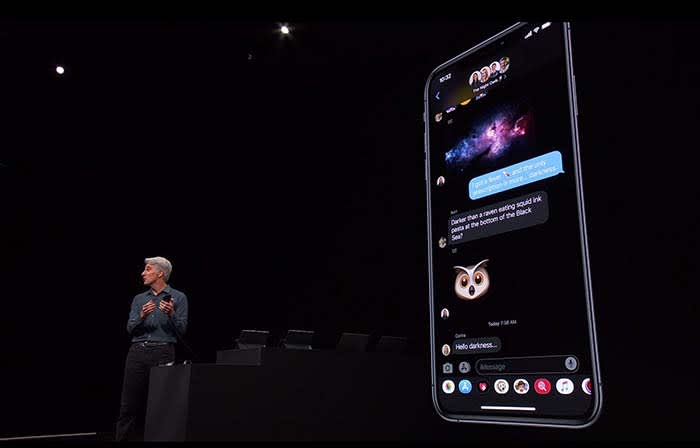
Not gonna lie, Dark Mode on Messages looks clean
Going with the trend, Apple announced that iOS12 will be replaced with iOS13.
The theme of iOS13 is “faster.” Face ID unlocks 30% faster, app downloads are 50% smaller, and updates are 60% smaller. Because of this, apps will launch twice as fast.
Dark mode is coming to iOS. Different apps such as Messages, Safari, and even your home screen will appear darker, giving them a cool sleek new design.
Google Calendar and Keep apps get the dark mode treatment
You will soon be able to sign in with Apple rather than Facebook or Google to help protect your privacy.
For apps that still require an email address, signing in with Apple can also give apps a fake email address. Apple will forward emails sent from your fake address to your real one. This way, the apps will not have your real email address, and you can disable those fake addresses if you want to stop receiving messages.
Your iPhone is probably packed with thousands of trackers sending private data
While talking about a new cycle-tracking feature for women coming to the Apple Watch, a spokeswoman talked about sharing data with apps. The new takeaway from Apple is that “you control your data, and you control what gets shared with what apps IF you want to share anything at all.”
Basically, Apple is trying to be more transparent about what data users are sharing with apps. The message is that they don’t want you to divulge what you don’t want to share, and what you don’t have to share.
Facebook steals information about your menstrual cycles, home buying, more
These tools can help edit photos as well as videos. You can even rotate videos and give them filters.
Other key takeaways from WWDC:
An OS system for all devices!
Every Apple device will have its own OS system. iPhone will be keeping iOS and Mac is keeping MacOS, but iPads will get iPadOS, Apple Watch is getting WatchOS, and AppleTV is getting TVOS.
What’s new with iPad?
The new iPadOS will have all the same features that iOS13 will have.
However, probably one of the wildest features coming to the iPad is the ability to plug in a thumb drive.
This small little change sparks a slew of questions. The new iPad they showed did not appear much thicker than your typical iPad. That said, we don’t know if a new iPad is coming that is thick enough to receive a normal USB. We also don’t know if a special type of USB must be purchased, or if you have to use an intermediary device to connect a USB to an iPad.
With all Apple devices getting thinner and thinner, we find it hard to believe that that the iPad will break the mold in this regard. However, being able to plug in a USB can potentially save us a lot of headaches.
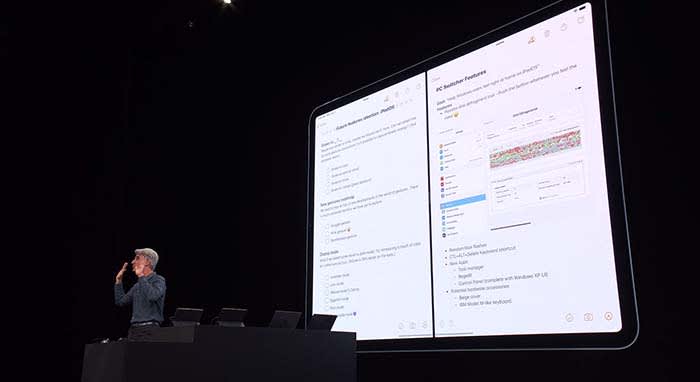
Apple wants users to be able to use their iPad as if it were a normal desktop computer. Going along with this change, iPads will be able to use split-screen to view multiple apps at once.
Going along with this theme, when viewing websites through Safari, you will now see the desktop version of the page rather than the mobile version.
Along with new keyboard shortcuts being added, you will be able to use touchscreen commands to copy, paste, and undo by extending or retracting your fingers.
If you need extra space when working on your Mac, a new app called Sidecar will allow you to use your iPad as a second display screen for your Mac.
Apple TV+ is coming this fall with an original show
Apple TV+ will stream video in 4K. Along with featuring music and music-related content like videos, Apple TV+ will also have its own original show called “For All Mankind.”
“For All Mankind” takes place in a reality where the Soviets beat the U.S. in the race to put a man on the moon. It goes into how the U.S. would react to this reality, and how we would try to bounce back.
The show looks… okay, but not good enough to warrant purchasing Apple TV+. We will have to wait and see what other original content might come our way before making a decision. For now, we will just plan on buying Disney+, and be happy with that call.
Siri will be able to read your messages to you while you’re listening to your AirPods. You can even respond to her. This works for other messaging apps as well.
During the demonstration, a man was on an exercise bike listening to music when Siri informed him that a friend sent a message. After reading off the friend’s message, the man was able to immediately reply by telling Siri what to say. Throughout the process, the man did not have to stop riding.
It’s a cool feature, but we can’t help but point out a flaw in their demonstration. Apple also owns Beats by Dre, which is coming out with a wireless headphone of its own, similar to AirPods. These are supposed to be used while working out, not AirPods. Basically, we’re all sorts of confused.
Apple Watch is a proud, independent device that don’t need no iPhone
Apple Watch will soon be able to operate completely independently without needing to be managed through an iPhone app.
The App Store is also coming to Apple Watch. New apps will include, but are not limited to:
Audiobooks
Voice Memos
Calculator
Podcasts
Homepod hopes to compete with Alexa
Homepod can now understand who in your house is talking to it and can personalize the request. For example, if your roommate asks it to play a song, HomePod will play a song it knows your roommate will like.
With more than 100 titles to choose from, Apple Arcade will be a subscription service like Netflix or Hulu, but for gaming. Gamers will be able to play with both an Xbox One and a PlayStation 4 controller.
Wrapping up
Some of these new features are far more significant than others. When the iPad’s split-screen capabilities were unveiled, the audience members erupted. Why they went bananas for a feature we’ve had on computers for years, we don’t know.
However, the new privacy tools from Apple do deserve praise.
We can’t wait to see how some of these new features and products will unfold for Apple, and we will keep you updated the whole way.
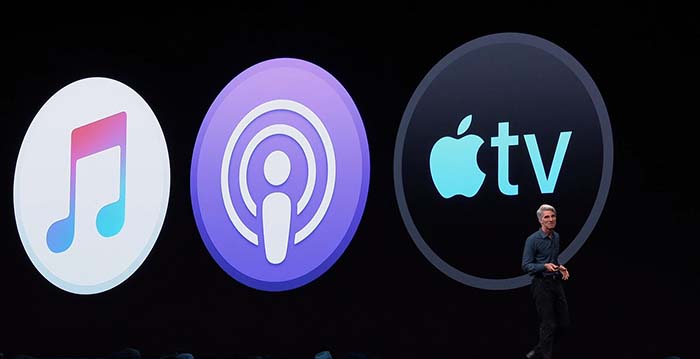
After being the go-to Music app for years, iTunes has been divided into a new app trinity: Apple Music, Apple Podcast, and Apple TV.
If you used iTunes to sync your music to your iPhone, do not worry. You can still sync your music to your iPhone through Apple Music.
In case you want to find a podcast but you don’t remember the name of it, Apple Podcast has a feature that allows you to find podcasts based its content.
Apple TV has 4K HDR playback support, and also features your channel subscriptions similar to Prime Video.
Apple Music is expected to have a feature that allows users to buy digital songs. However, Apple is rumored to stop having users download mp3s altogether in favor of a music subscription product.
Wrapping up
iTunes was a landmark product for Apple for years. It helped drive the sales for nearly half a billion iPods. The departure of iTunes signifies the end of an era, and that Apple is ready to jump into the next generation of music.
We want to mention right off the bat: should you try to become a professional animator with an iPad? The answer is no: there are far better tools for the job. But if you’re already an iPad fan, enjoy art, and want to give animation a try, we’ve got the apps for you! They can get you started, and help you begin tackling the fundamentals:
At 4.6 stars from over 25,000 reviews, Flipaclip is our recommendation. This app mimics the feel of creating a stick figure flip book in elementary school, with all the upgrades and benefits that can be expected from an iPad’s powerful software.
And, for our second option, Animation Desk offers a decent experience that has been rated at 4.4 stars with a little over 4,000 ratings. It’s slightly more complicated, but no less powerful!
Now that you’ve been acquainted, let’s get into it:
Price
First things first: how much will this cost?
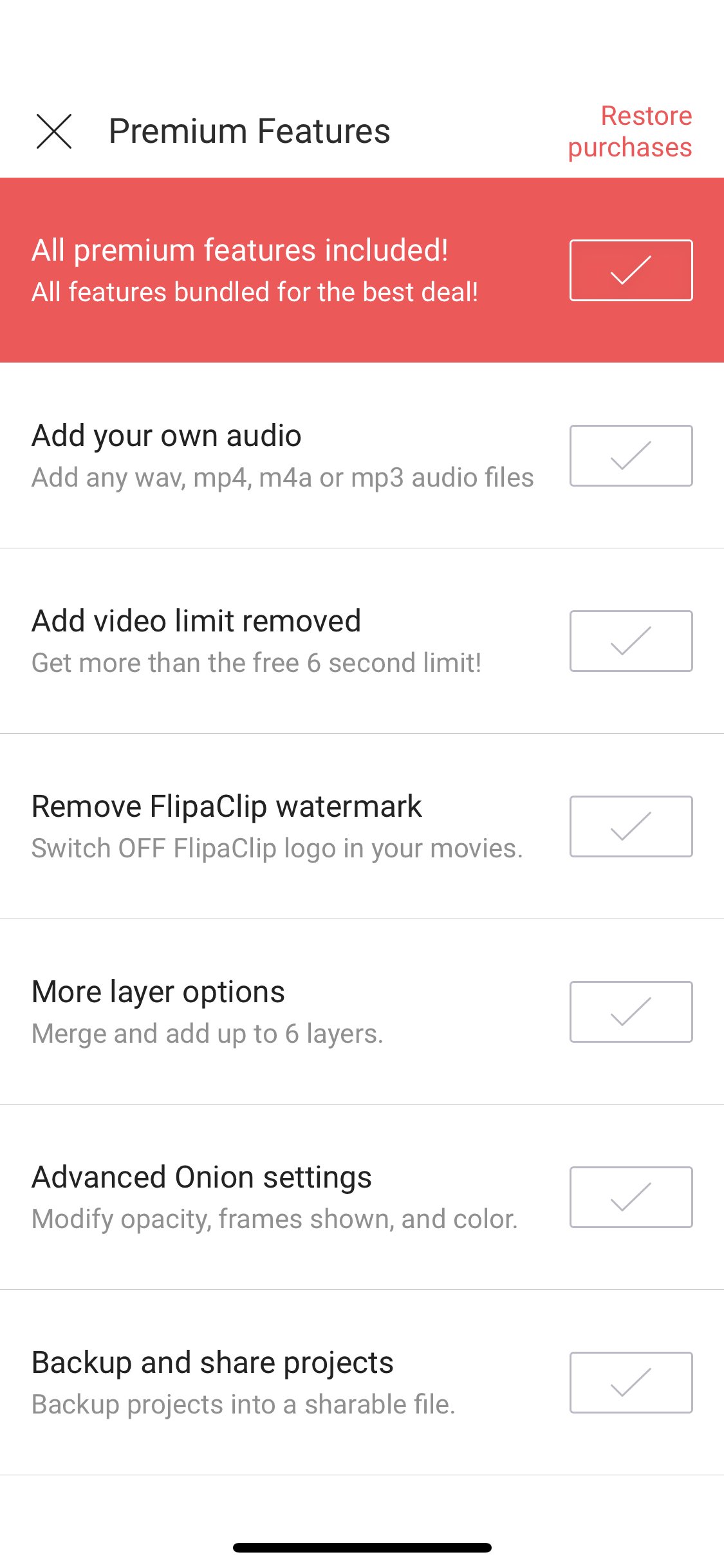
Flipaclip can be downloaded for free, but prepare for rampant ads, a limited number of files, and severe limitations. So, basically, you actually have to pay for premium, which is going to run you around…$6.
Yep, just six bucks. For everything. It’s essentially a six dollar app! Here are just a few things provided with the full product:
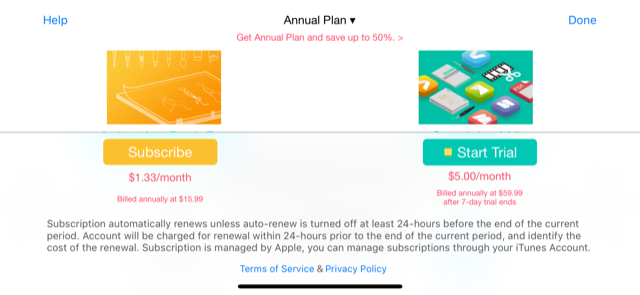
Animation Desk can be used for free as well, but also has restrictions. However, the app doesn’t tell you what these are and, instead, offers yearly subscriptions for $16 or $60 a year. A subscription can provide more pen tools and access to other creativity apps from the developer.
There’s also a $20 “Ultimate” version, but it has fewer stars from fewer ratings on the app store, likely due to the initial fee. If you like Animation Desk’s free version, it may be your cup of tea!
The User Interface
With price out of the way, you can begin to judge the apps themselves. So, next comes the user interface, one of the most important factors!
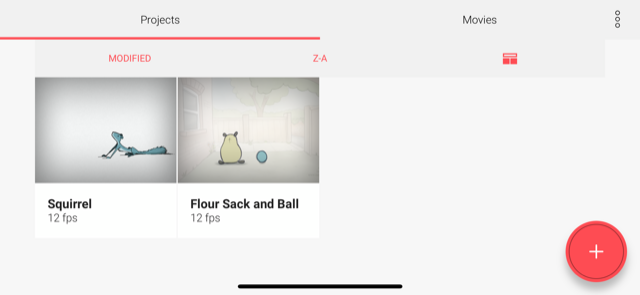
What do you see when opening the app? Here it is:
FlipaClip
The main menu looks clean and intuitive. Navigation couldn’t be easier:
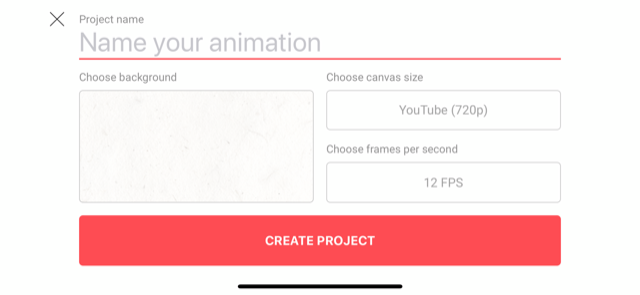
Making a new animation? When you hit “+”, you get a screen that easily allows you to change the size, title, and Frames Per Second (FPS) for the project. Choose a background; it can be one of FlipaClip’s paper backgrounds, or you can insert an image of your choice later.
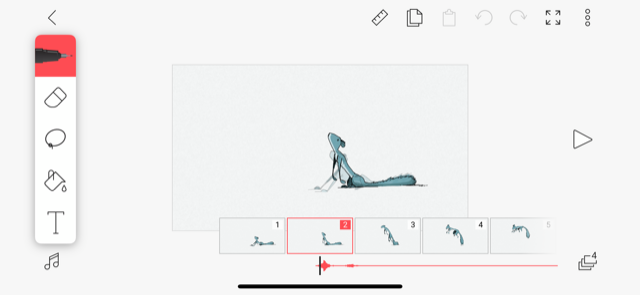
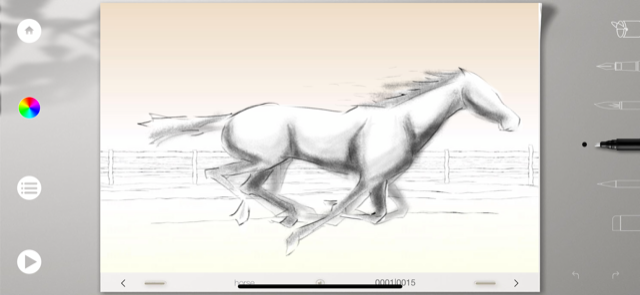
Here, FlipaClip combines the best parts of a drawing app with animation tools. On the left, you have your pens, eraser, lasso, fill, and text tools. At the bottom, the slide controls:
The difficulty is in the drawing, where it should be, rather than the app’s usage.
Animation Desk
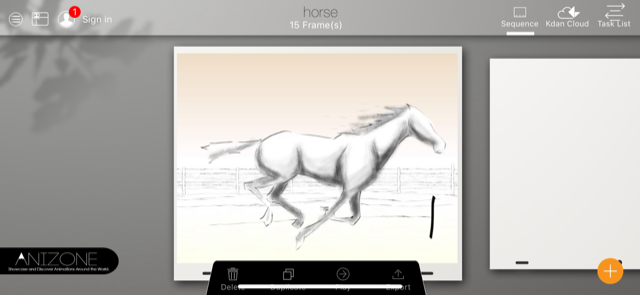
While FlipaClip appears more easygoing, Animation Desk looks more professional, with a slate gray background. There are more icons and options, which may be helpful or simply make the picture “busy.”
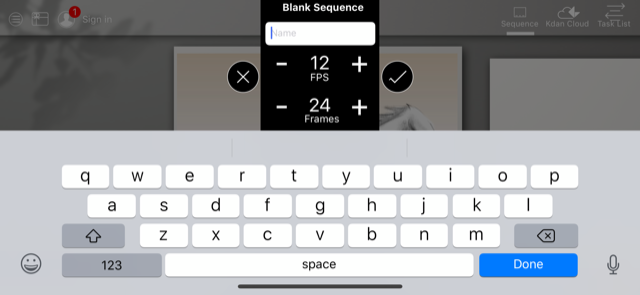
Animation Desk’s project creator asks you choose a name, FPS rate, and starting number of frames to work with. Here, we have 24 frames at 12 frames per second… or a 2-second video.
Inside the creator menu, you’ll find your art tools on the right and a sort of navigation menu at the bottom. The color selector landed on the left side, amongst the menu and frame selection buttons.
A Few More Thoughts
Let’s talk about some notable similarities and differences between the two.
Both apps facilitate the use of animation frames with all the regular tools expected of an artistic app. But, unlike more professional animation apps like Adobe Animate, neither of these tools allow vector-based graphics, or time-based frame placement.
They both are legitimate animation options.
There are a few differences:
flipaclip
FlipaClip has a few great pros. We’ll name four:
Zoom in and out: the frame can become larger than your iPad screen, or smaller (Animation Desk only allows the frame to shrink). This makes altering small details much easier.
A ruler: create straight lines!
Easier animation tools: at the bottom of the screen, FlipaClip’s frame viewer works intuitively: slide left and right to different parts of the video. Copy videos, paste, and add new ones simply by pressing down on the selector slide.
Settings menu: easily change onion settings (the faint lines showing future and past frames), establish a grid, and add outside materials.
animation desk
Trying Animation Desk? Check out these benefits!
Brushes: with the payment, there are a ton of new brushes available. Without this, both programs have the original four: pen, brush, marker, and pencil.
Truly free: you can use the app without paying and avoid running into rampant ads and other crippling limitations.
The creation environment. It bears being mentioned again: Animation Desk looks good!
Conclusion
The Apple store numbers don’t lie: FlipaClip works better in a number of important ways, but Animation Desk has a few killer benefits that will be perfect for some users.
We hope this helps you take a solid stab at animation: the practice can be highly rewarding!
An official WhatsApp for iPad is currently being developed.
WhatsApp updates are usually about new features or tweaks to old ones. Apart from the recent introduction of WhatsApp Business, it is never about a new app altogether. Well, alongside the addition of WhatsApp Business the Apple App Store, WhatsApp users on iOS will soon have another brand-new app available to them.
An official WhatsApp for iPad is currently being developed
With each new release of an updated WhatsApp beta version, we learn about future tweaks coming to our favorite messaging app. Version 2.19.40 for iOS, however, has something much bigger. As well as the usual adjustments and bug fixes, 2.19.40 also has information on an official WhatsApp for iPad.
Until now, the only way to use WhatsApp on your iPad has been through using WhatsApp Web via your iPad’s web browser. This has meant that you’ve needed to maintain an active connection to the internet (via your linked mobile phone) to work WhatsApp on your iPad. If your phone has no connection to the internet, even if your iPad does, you can’t use WhatsApp on your iPad. It now looks like this situation is due to change.
Take an early look at WhatsApp’s brand-new dark mode
The first major thing to note about the official WhatsApp for iPad is that it requires a new registration, including a new mobile phone number. Don’t worry if your iPad doesn’t have a SIM card slot, however, as you can still receive your account confirmation code on another device and then simply input it on your iPad. The only thing you will need is a unique mobile phone number that isn’t already attached to a WhatsApp account.
From there, the differences are mostly aesthetic with the iPad WhatsApp taking advantage of the increased screen size found on the iPad. You can see below that you’ll be able to see both the list of all your chats and your current active chat at the same time, both in portrait and landscape mode.
This will make it much easier to chat with multiple friends at once, skipping between different chats without having to change the screen you’re looking at, like on an iPhone. This also gives the upcoming official iPad WhatsApp a bit of a Facebook Messenger feel.
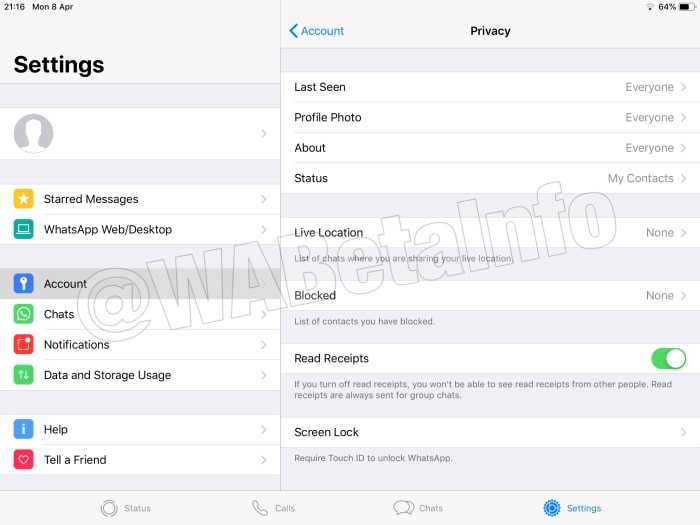
This split screen aesthetic will also carry over to the Calls screen, with a list of all calls showing next to the particular call you’ve selected at the time. The Settings menu too will appear with the split screen presentation, showing the general settings menu on the left of the screen and the options of the currently selected menu on the right.
Mostly, the app will be the same as the iPhone app, it’ll just be able to show more on the screen as iPad screens are much bigger. According to WABetaInfo, who discovered the code for the iPad WhatsApp, the only real difference is the lack of a Camera tab in the new app.
The official WhatsApp for iPad still isn’t available, even for WhatsApp beta users. All we know now is that WhatsApp is working on a new app for iPad. When we have more about when we can expect to see it in the Apple App Store, we’ll let you know.
Life just got a little bit easier for those suffering from paralysis.
A new brain implant called BrainGate2 allows for people suffering from limb loss or neurological damage to interface with tablet devices, allowing them to easily enjoy activities like browsing the web or streaming music.
Scientists create gloves that let you touch virtual objects
The BrainGate2 uses microelectrodes implanted directly into the brain’s motor cortex, which controls motor function. The implant then receives natural commands from the brain to move limbs, which the BrainGate2 sends to a wireless mouse attached to a tablet.
A user simply thinks about where they want the cursor to move, causing the cursor to move automatically. This allows paralyzed people to use tablet devices just as easily as a neurologically typical person would, letting them message friends, browse Twitter, or binge some Netflix. The technology is incredibly intuitive and smooth. You can watch footage of the BrainGate2 in action below:
While brain-computer interfaces are nothing new, an incredible advantage of the BrainGate2 is that it works right out of the box with any tablet or device compatible with a wireless mouse. Removing the need for additional specialized equipment is a huge help financially and practically for BrainGate2 users.
Do you think this tech will see widespread use in the future? Let us know!




 Once your devices connect, you’ll have a window that looks something like the picture above. If it seems weird, don’t panic! You can use your computer cursor to manipulate everything around and inside the viewing window as usual… except, you will need to move the handles if they’re in the way.
 The left button gives you the ability to use shift-control/option/command at any time. These buttons are used often in writing programs, and thanks to Astropad’s design, you won’t be missing them here!
 Finally, the third option, the “window” option, allows you to change the AstroPad viewing window from the graphic tablet. On your device, click this button to open a new set of options, allowing you to drag, expand, or reduce the viewing window with ease:
 Together, all these things create an easy environment where you can use dedicated artistic styluses on the iPad in conjunction with the powerful creation programs available on a Mac.