How Brave eliminates common browser problems

Brave brings you fast, private browsing without many of the drawbacks of other browsers.

Brave

The internet has evolved into an essential component of our daily lives, and its use in American homes has increased by 400% in the past 20 years. According to the USC Annenberg Center for the Digital Future the number of hours we spend on the internet every week has risen from 9.4 (the statistic back in 2000) to 23.6. Overall internet penetration has increased from 67% to 92%. That’s all time that you’re spending on a specific internet browser, whether it’s Firefox, Chrome, Safari, Opera, or what have you. No matter your choice, it’s helpful to know the good, the bad, and the ugly of every choice out there. Not all browsers are created equally, so we’ve compiled a list of each one’s strengths and weaknesses:

Is it time for you to make a switch? Check out the stats below and decide for yourself!

1. Google Chrome
Google ChromePros:

With the monolithic Google behind its creation, it’s no surprise that Chrome is fast, efficient, and user-friendly. It’s got pretty much anything you’d need to make the most of the web, like quick answers in your address bar, one-click translations, and a wide variety of extensions and customization options.

Chrome will also automatically protect you from security issues like scamming and phishing, making it pretty safe to browse with, too. Just as Google is the most popular search engine, Google’s Chrome is currently the most popular browser. Chrome’s popularity has led to a surplus of extensions and websites catered to the browser, making it a highly customizable experience to boot.

Google Chrome Download now ►
7

Cons:

As powerful and popular as Chrome is, the browser is not without fault. In order for it to achieve its impressive speeds, Chrome needs to take extra resources from your PC:

Chrome splits every tab, plugin, and extension into its own process – that’s how it manages crashes so competently. The downside is that means it’s far more taxing on RAM since it’s duplicating tasks for each tab. Chrome is one of the ‘heaviest’ browsers and can get swarmed by bloatware, making it less than ideal for machines with limited RAM. There’s also the mounting suspicion of tying your data to Google, and if privacy is your concern you should likely look elsewhere.

2. Mozilla Firefox
FirefoxPros:

One of the earliest browsers out of the gate, Firefox brings to mind two things: Privacy and speed. While other browsers that capitalize on privacy do so at the cost of loading speed and/or heavier use on system resources, Firefox manages to succeed on both fronts, achieving a browsing experience that gives Chrome a run for its money.

Mozilla is a non-profit organization, meaning it’s got far less interest in mining and selling your data than, say, Google Chrome. Firefox also updates on the regular to bolster user privacy and ad-blocking. Its combined speed and safety put it at the top of TechRadar’s web browser ranking as recently as September 2018, claiming that Firefox has “retaken its crown” in recent months, and is now deserving of another look from avid Chrome users.

Mozilla Firefox Download Now ►
7

Cons:

Firefox is fast, but it’s not always faster than Chrome. This is mostly apparent on pages with tons of images or videos, at which point you’ll probably want to simply install an add-on or extension to either speed it up or block them. This brings us to Firefox’s second weakness: If you start installing extra plug-ins to customize your experience to the same extent as Chrome, Firefox will start to lag noticeably behind the competition.

Lastly, Firefox doesn’t have built-in support for Flash. Flash is notoriously dangerous, so this isn’t so much of an issue in 2018 when the internet is largely abandoning the platform. Even so, just like Apple got a negative response for removing the aux jack, we feel it’s necessary to mention any upgrades that leave old tech in the dust.

3. Microsoft Edge
Microsoft EdgePros:

Microsoft Edge the default browser for Windows 10. As such, it does a decent job of keeping in line with the speed, intuitive UI, and ‘clean’ aesthetic of many facets of Windows 10. Edge holds its own by modern web standards, and additionally offers a few capabilities you won’t get in other browsers: Webpage markup, integrated Cortana features, and a clean-cut reading mode.

Recent updates have also included a Tab Preview, Set Aside, ebook reading, and a handful of nifty extensions. Edge also no longer uses the infamous ActiveX, browser helper objects, or VBScript support that made Explorer slow as dirt. Edge is easily a significant improvement over Internet Explorer in terms of speed, accessibility, and compatibility. It also weighs substantially less than Chrome, meaning you’ll have a less bloated browser experience, albeit a more bare-bones one.

Cons:

Edge has struggled to achieve market share, mindshare, and positive reviews. The first three months of 2018, Microsoft Edge pulled a less-than-impressive 8% of the 1.2 billion visits to government websites from consumer and business PCs and Macs. This figure isn’t wholly reliable for another reason that Edge gets a lot of flak: The browser is not even available on any Windows OS older than 10, or if you’re using a Mac.

The real head-scratcher is why Microsoft feels the need to support multiple browsers for different Windows Operating Systems when they could just work to make Edge backward compatible. Doing so would certainly help give it some much-needed traction. For more reasons why you might find Edge disappointing, check out this article.

4. Opera
Opera browserPros:

Opera is as underrated as it is high-quality, and it’s certainly both of those things. Opera is a Chromium-based software, which means it’ll feel similar to Google Chrome when it comes to facets like rendering, and was the flagship for popular modern browser features such as private browsing and pop-up blocking. Opera also offers a free VPN that will replace your IP address with a new one, making it more difficult for ads to track your location and harass you.

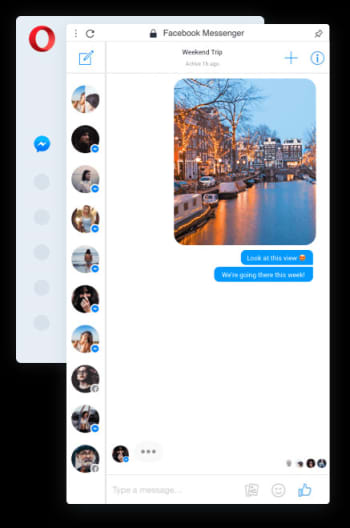
Opera pushes a focus on privacy and like Edge offers a simple, intuitive layout, and has built-in messenger services like WhatsApp, Telegram, and Messenger, making it altogether a quick, smart, intuitive browser that go toe-to-toe with the competition.

Cons:

Opera doesn’t offer as many plug-ins as other browsers and it’s also lacking in parental controls (if such a thing matters to you). Occasionally the browser will also have issues playing videos or have trouble keeping pace with other browsers like Firefox.  Moreover, there’s no shining reason why a person would switch to Opera. It performs everything a browser should, but doesn’t really excel in anything either. For speed, people go to Chrome. For customization,they go to Firefox. With Opera, there’s little pull to use it when compared to the competition; most people have a strong reason for using one browser or another and being caught in the middle isn’t helping its case.

5. Safari
SafariPros:

Safari’s got the home field advantage with the Apple crowd. It’s the default browser for all the company’s products, mobile or otherwise, and Safari has become intertwined with the Apple experience. Apple does a solid job with security, and Safari is no exception. Browsing with Safari is a ‘better safe than sorry’ experience and can be further optimized quite easily to bump your protection even higher. Safari uses default pop-up blocking, which is always a huge plus.

If you’re an Apple user, Safari is still an excellent browser, even 15 years after its release. It’s already preloaded on all Apple products, so it’s at your disposal immediately and seamlessly works in tandem with all software produced by the company.

6

Cons:

If you’re not an Apple user, then Safari is useless to you. Microsoft products want as little to do with the competition as possible, so if you’re in with Microsoft you may never even use Safari. Besides the enhanced security options, there also isn’t a ton you can do to customize Safari, meaning that you’ll get a good, safe experience but not necessarily and adjustable one.

Why we like Brave
BraveIf you haven’t heard of Brave before, it’s likely because its first stable release just landed for iOS back in early August. The platform is now available on iOS, Android, macOS, Windows, and Linux. Who created it? Brian Bondy and Brendan Eich, who you’ll remember as the inventor of JavaScript and the co-founder of Mozilla (makers of Firefox).

Much like Firefox prioritizes user privacy, Brave automatically blocks any third party trackers, shutting down anything that might worsen your browsing experience such as third party cookies, pop-ups, and ads. None of that even makes it past the first line of defense. From that point forward, the rest is up to the user.
Brave is fast (up to eight times faster than the mobile competition), offers extensions that you’re familiar with, shields you from third party trackers, and because Brave blocks excessive third party requests, you’re actually saving money on your data plan. But then we get to the age-old dilemma of publishers and advertisers not generating revenue due to blocked ads.

Brave has an answer for that too:

How Brave solves the ad problem

Basic Attention TokenWith Brave, users can always select an ad-free browsing experience. However, Brave introduces a new private advertising platform that users can opt-in to and receive rewards for their attention. Users who elect to view ads earn Brave’s Basic Attention Tokens (BATs) which can then be used to support publishers and content creators, distributing your monetized attention how you see fit. You’ll then benefit from better ad-matching, and your data remains private.

Thirty percent of the ‘revenue’ gained from watching the ads goes to Brave, while the other 70% goes directly to the user. Should you choose to browse with Brave Rewards, your data stays private and you’ll still benefit from more accurate ad-matching and reception of Basic Attention Tokens. If this sounds like a feature you’d be interested in, you’ll be happy to know over 33,000 content creators and publishers are already registered receive tips and contributions from their users.

Softonic is proud to partner with Brave. When you download from us, we may earn a commission.
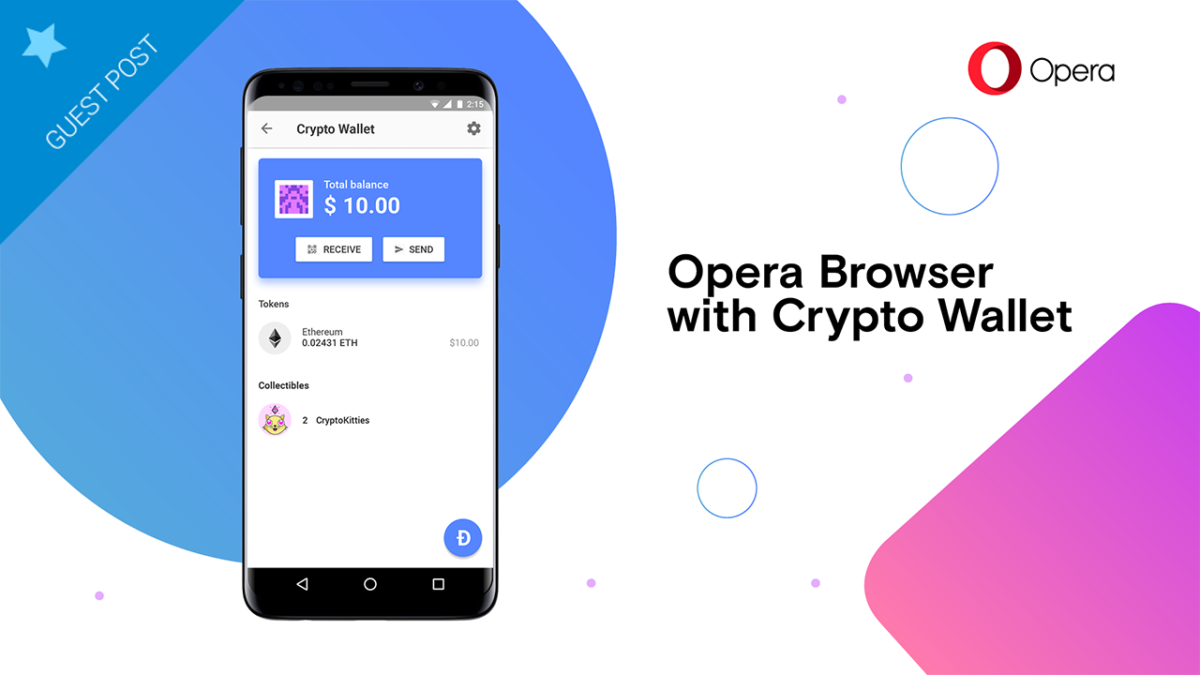
How to store and use cryptocurrency with Opera’s web browser wallet

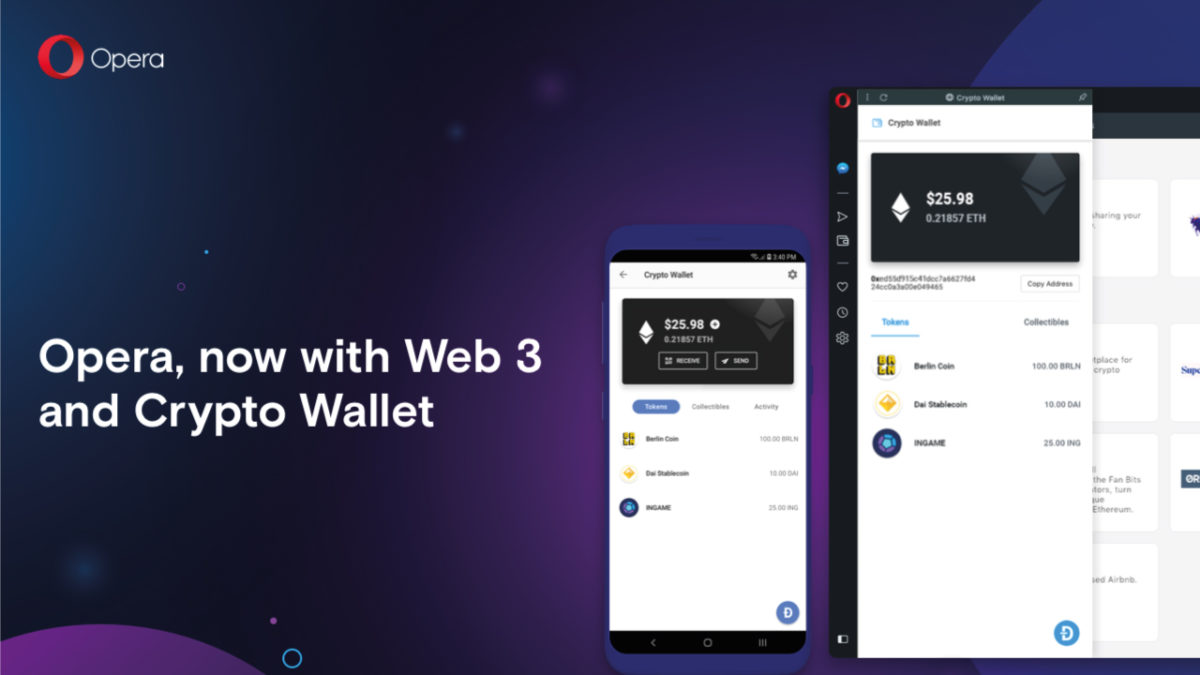
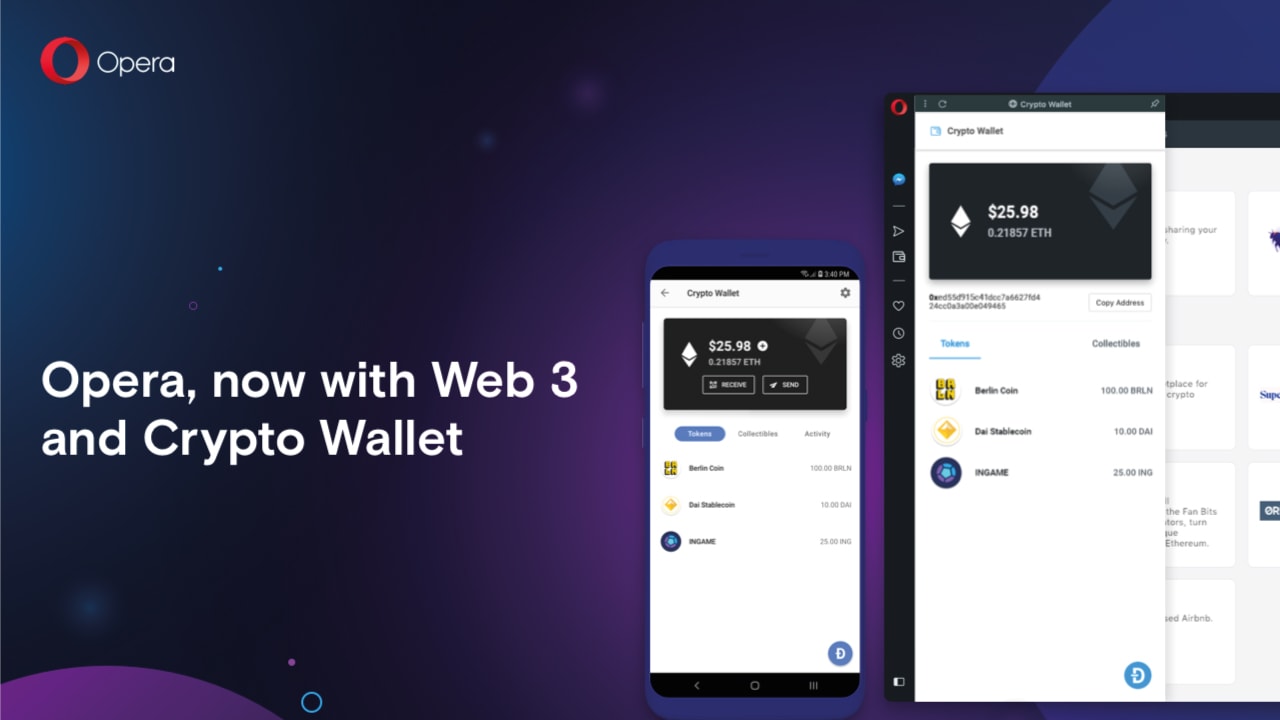
Opera is the first to offer web 3.0 capabilities on its platforms through blockchain integration. Learn how to store and use cryptocurrency with Opera’s web browser wallet.

Our team is always looking for things we think our readers will value. If we make a content partnership like the one featured in this article, then we may receive compensation for publishing.

Now that the novelty of cryptocurrency has worn off, there is plenty of speculation about what their real-world use cases might look like. Will they replace fiat currency and become a new way of conducting business? Will they be a sort of alternative stock market where investors speculate on the perceived value of different digital assets?

To some degree, probably a little bit of both.

However, the more tangible use case is through the decentralized infrastructure growing up around digital currencies. Blockchain-based games, dApps, digital payments – all expressed through web 3.0 capabilities – are the most practical expression of digital currencies.

If you’re unfamiliar with web 3.0, you’re not alone. While the jargon hasn’t made it to the popular lexicon yet, its capabilities are, and Opera is leading the charge.

A web browser with more than 320 million global users, Opera is the first to offer web 3.0 capabilities on its platforms through blockchain integration, a native crypto wallet, and growing access to the emerging decentralized ecosystem.

This week, Opera took another significant step in that regard, announcing its plans to integrate TRON into its platform’s built-in digital wallet (What is TRON?). Opera’s built-in wallet already supports Ethereum’s Ether token and other Ethereum-based ERC-20 tokens, and the browser intends to add additional blockchain platforms in the next year.

These moves allow users to access videogames, dApps, and online payments directly from their browser, making it incredibly easy for anyone to access web 3.0 functionality.

3 Steps to store and use cryptocurrency with Opera’s wallet

1. Create an Opera Crypto Wallet

While Opera is quickly building an iOS app, it is currently an Android-based service, which is where users start. From there, setting up your wallet is simple.

  1. On your Opera for Android browser, go to Settings.
  2. Tap Crypto Wallet.
  3. Tap Open Wallet.

When generating an account, users receive a 12-word backup phrase that’s used at sign in. This is meant to be the primary security mechanism that protects your account. Opera representatives will never ask for your passphrase, and users are strongly encouraged to store it in a safe location to ensure the integrity of their Opera account.

2. Connect to Your Computers

Opera’s browser works with all major computing platforms, and users can quickly integrate their crypto wallets to their computer browser by adding the Crypto Wallet sidebar.

  1. Click the Easy Setup button in the far-right edge of the toolbar.
  2. Under Features, click Crypto Wallet.
  3. Open the Crypto Wallet sidebar and reveal the code.
  4. Open your Android browser and tap the bar scan icon.
  5. Scan the code with your Android device.
  6. View your wallet’s funds, tokens, and collectibles.

3. Enjoy Web 3.0 Functionality

Once users set up the browser wallets, they are free to make purchases and to send/receive tokens. Opera applies its Android app as a de-facto two-factor authentication service that users implement to verify transactions.

In this way, users can keep their accounts secure while actively participating in today’s digital environment.

Opera’s wallet detects and conveys ERC-20 tokens, which can be used to make purchases or to complete other applicable transactions. Meanwhile, crypto collectibles, a growing niche among crypto enthusiasts, can also be bought and traded through the built-in wallet.

Complete with a wallet address and a dApp explorer, Opera users are equipped to discover new products, to participate in new ecosystems, and to maintain security and integrity throughout the process.

By bringing these features directly to the desktop, Opera is making the processes of using digital currencies more realistic and simpler than ever before.

While digital currencies will undoubtedly have many use cases in the future, practical and painless usability will play a prominent role in that space.

How to tell if your PC is cryptojacked

What is cryptojacking and how do you know if you’re affected?

There are a lot of reasons a computer could be slow: Excessive programs running in the background; bloated temp files; a corrupted hard drive; or if you’re unlucky, it could be malware and viruses. One particularly sinister emerging threat is cryptojacking, which can increase overheating, slow down processing speed, and drain your batteries – all under the radar.

What is cryptojacking?

Cryptojacking is when someone takes hold of your computer to mine cryptocurrency. Often, hackers will ensnare you by infecting a website or online ad with an infected JavaScript code. The code auto-executes once loaded into your browser. Alternatively, a hacker might lure you into clicking a malicious link in an email. Once you click it, it uploads a cryptomining code to your computer and suddenly your processing power is getting leeched to an outside source.

Why would someone bother doing this?

Money.

Cryptojacking allows someone with malicious intent to steal computing resources from a victim’s device instead of having to build their own dedicated cryptomining computer. In this way, they can compete against sophisticated cryptomining operations without any of the costly overhead.

Stay protected

Even on a healthy computer, it’s tough to track the origin of a program that’s draining all your CPU. It’s harder still when you’re trying to do so on an infected computer that’s slow as dirt. Troubleshooting when your computer can barely chug along is a nightmare. As such, the best way to deal with cryptojacking threats is to not get infected in the first place.

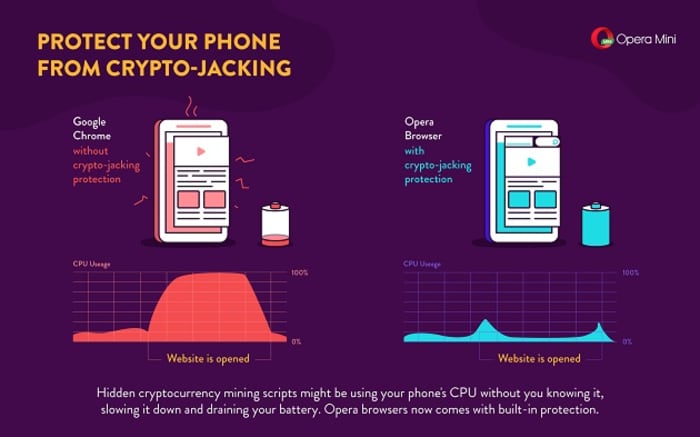
A smart, secure browser is your first line of defense – especially one that can block JavaScript. While this effectively closes any door on a cryptojacking attempt, the obvious drawback is that blocking JavaScript will also cull functions that you like and need. The best middle ground is Opera, a browser that’s been fighting the cryptojacking war since before we even knew about it. If you install Opera on your mobile device, it’ll actually block risky mining scripts when visiting a site. It’s analyzed over 100 mined websites, and noted how smartphones such as the Galaxy S8 or HTC One suffered reduced performance when exposed to cryptojacking.

Opera Mini cryptojacking

You can also download an extension like No Coin which blocks miners using your computer resources without consent. Opera even comes with the extension already installed on download.

Lastly, Opera even made this cool test to tell you whether you’ve been cryptojacked. If you’re a regular user of cryptocurrency, it might be a good idea to bookmark the page.

Using Opera in tandem with a strong anti-malware tool will help keep your PC protected from cryptojacking attempts, but it always helps to take extra precautions before clicking on that sketchy email, or opening a link that you don’t trust. Stay frosty, and stay tuned with Softonic for more tips and tricks to keep protect your computer protected.

Why you should upgrade your browser to Opera

Why Opera browser is the right choice for you, both desktop and mobile. New free, unlimited VPN, crypto wallet and much more. Download Opera for free.

Opera Browser

The browser wars have been going on for years, bringing you better features, designs, and faster performance. But whether you’re a die-hard Chrome fan or a Firefox devotee, it’s time you had a rethink. Opera’s latest browser has a ton of new features designed for the internet of the future – an internet that puts your experience, privacy, and enjoyment at its core.

While most browsers have been improving through incremental upgrades, Opera has rethought the entire browser experience, setting a new standard. Why should you care? For the first time ever, you have all the tools to control your digital life in-browser, putting the world at your fingertips like never before.

You use your internet browser every day, so why settle for second best? Upgrading to Opera’s latest browser could be your best decision yet – let’s explore why.

Explore the Web of the future with Opera Reborn 3 Free Download
8
Install the browser and join our mailing list to get all the juicy tips!

1. Opera is the first browser ever to support Web 3.0

Web 3.0 is an emerging technological trend that shifts control of the internet from centralized bodies – like governments, ISPs, and large corporations – to the public.

Powered by blockchain technology, a kind of decentralized, digital ledger, Web 3.0 describes a free and democratic internet that gives power to the people using it. So no more spying, censorship, or exploitation of users by elite groups or organizations.

Web 3.0 networks are run entirely by the people connected to them, and Opera is the first browser ever to let you browse and transact on these new networks. You will therefore enjoy all the benefits of Web 3.0 – such as decentralized applications, digital asset management, and more – before anyone else.

2. Enjoy a FREE and unlimited VPN

A VPN (Virtual Private Network) both protects you online and ensures you can access every website on the internet – even if they’re blocked in your country. It works by routing all your incoming and outgoing internet traffic through its servers, thereby masking your location and encrypting any data you share.

Most VPNs cost money, cap your usage, and require you to install an extension that’s potentially unsafe. Opera, however, integrates a powerful, unlimited VPN in-browser for FREE. Better yet, there are no usage limits, and you can toggle it on and off by clicking a button in the URL bar – no extra installations or extensions required.

Explore the Web of the future with Opera Reborn 3 Free Download
8
Install the browser and join our mailing list to get all the juicy tips!

3. Block ads and other unwanted content

Ads are a frustrating distraction, drawing you away from the content you love. With large gaudy images, spammy headlines, and a creepy knowledge of your interests, it can feel like having a pushy sales team inside your machine. But with Opera’s built-in ad-blocker, you can kick them out for good.

Some websites, however, rely on ad revenue to survive. They will often put content behind paywalls that require you to view ads before accessing the content. Luckily, Opera lets you whitelist certain websites to allow ads through, giving you full control over the content you want or don’t want to see.

4. Safely store your digital value with Crypto Wallet

Remember Web 3.0? Another benefit of blockchain networks is the ability to create digital value. Since digital assets are flexible, borderless, and efficient, they can help fix many of the problems of our existing economies as well as bring financial services to millions of the unbanked around the world.

Opera’s integrated Crypto Wallet lets you join the Web 3.0 economy. You can store, send, and transact digital value in-browser, secured by private keys stored on your smartphone. So whether you’re storing cryptocurrency, trading digital assets like Bitcoin, or using your favorite Ethereum dApp, you can do everything without leaving your browser.

5. Enjoy a redesign that emphasizes digital freedom

The internet is evolving faster than ever, but you don’t have to let others decide your experience for you. With Opera, you can personalize the web. Don’t like ads? Turn on ad-blocker. Can’t access censored content? Use the VPN. Want to explore Web 3.0? Explore blockchain networks and sign transactions through the integrated Crypto Wallet.

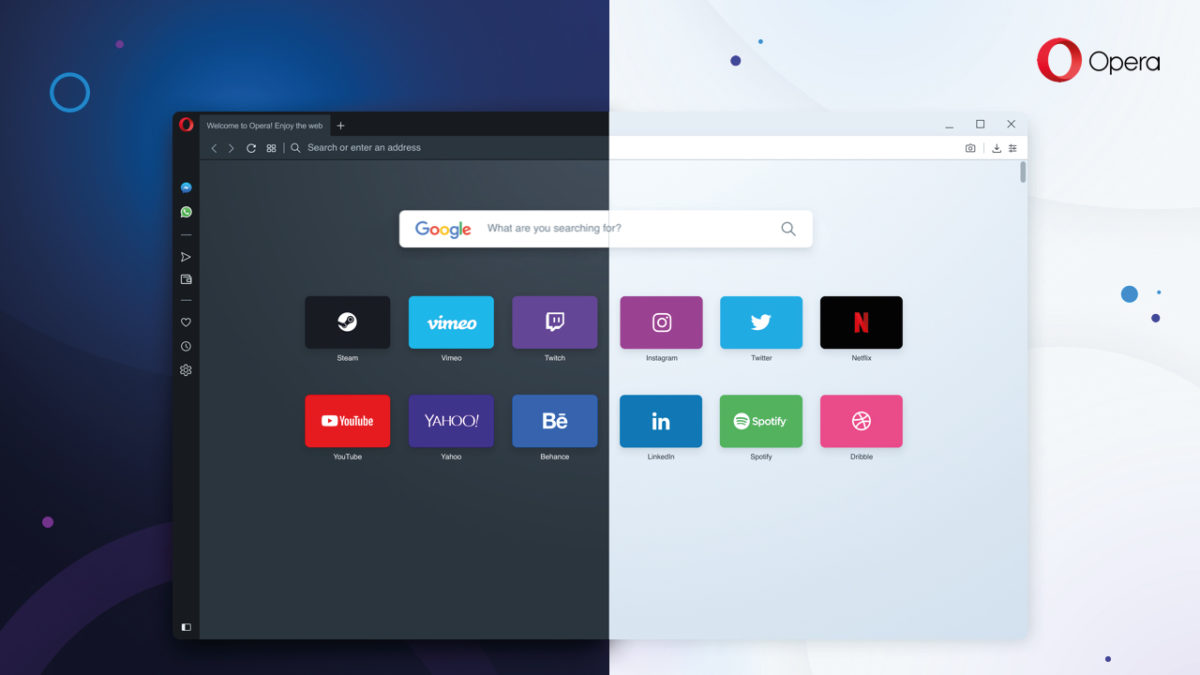
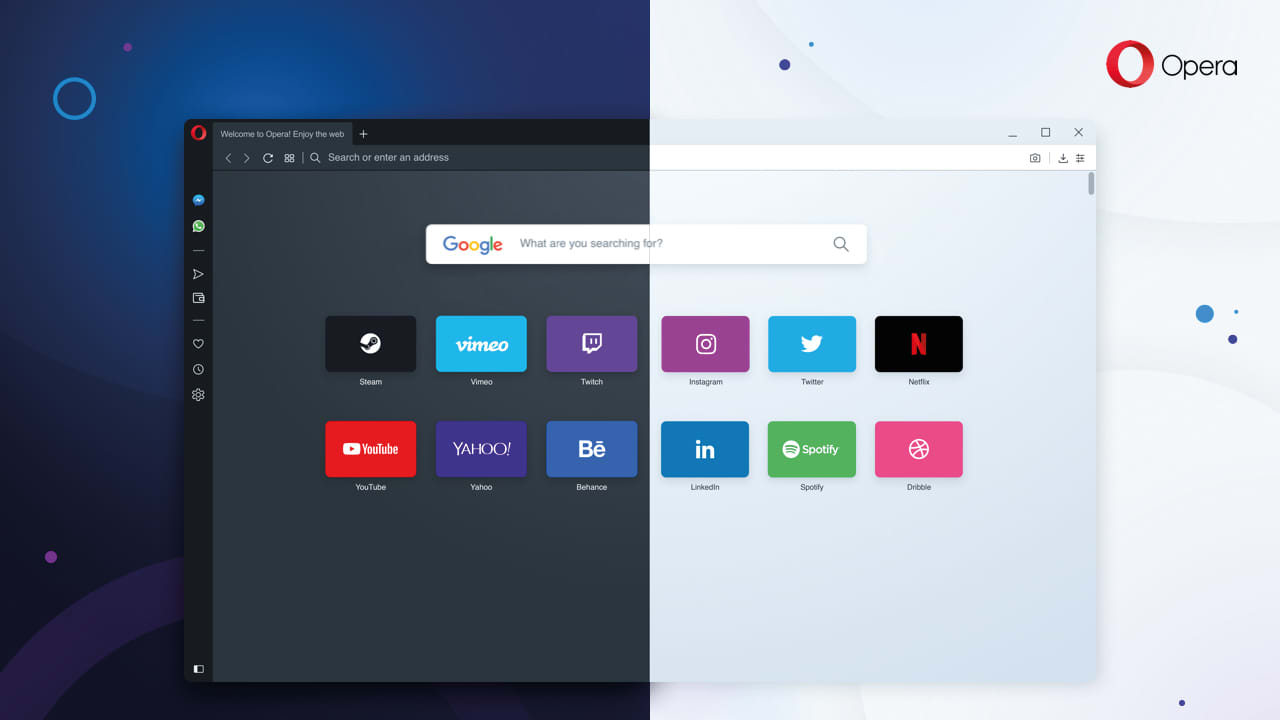
Opera’s redesign puts everything you need for a personal, tailored web experience. From the integrated snapshot tool to the battery saver, from the light and dark browser themes to the Messenger and Whatsapp integration – Opera is one of the most sophisticated and user-centric browsers available today. Download Opera now and enjoy a web made just for you.

Explore the Web of the future with Opera Reborn 3 Free Download
8
Install the browser and join our mailing list to get all the juicy tips!

Softonic is proud to partner with Opera. When you download from us, we may earn a commission.

How to import your bookmarks into Opera

Switch to Opera’s latest browser. Free, unlimited VPN, ad-blocking minimalist interface for distraction-free browsing, and Web 3.0. Learn How to import your bookmarks into Opera.

Opera browser

People dislike change. Why? Because usually it takes effort – and let’s face it, we can all be a bit lazy at times. But our reluctance to try something new often means missing out.

Take internet browsers, for instance. I could list ten different reasons why you should switch to Opera’s latest browser. I might mention the free, unlimited VPN, the ad-blocking minimalist interface for distraction-free browsing, or the Web 3.0 support that includes a secure crypto wallet.

But if the switch to Opera isn’t easy, you’ll probably just stick to what you know. Thankfully, Opera knows this well. Instead of just making one of the best browsers ever, they’ve also made it easier than ever to switch – starting with bookmarks.

Explore the Web of the future with Opera Reborn 3 Free Download
8
Install the browser and join our mailing list to get all the juicy tips!

Why import your bookmarks to a new browser?

I’ll be honest with you. I don’t use bookmarks as often as I should. I’m one of those simple folk who always types in the web address. And when I forget a URL, I waste time googling the site until I find it again. It’s frustrating, time-consuming, and makes research harder than it needs to be.

However, lots of people do use bookmarks. And they absolutely rave about them. Not only are they handy links to your favorite websites, but they’re an invaluable tool for organizing your digital life. They also help personalize the web – a guidebook to everything you love online, accessible with a single click.

In a way, bookmarks are a bit like fast travel points in Skyrim or Red Dead Redemption – places of interest you can access instantly without retreading the same old paths. So when you change browsers, it’s important you take your bookmarks with you. Or, like me, you’ll be wasting your life googling websites you’ve already visited.

How to import your bookmarks into Opera (desktop)

Importing your bookmarks into Opera is super easy. Simply follow the steps below:

  • Download and install Opera (if you haven’t done so already)
  • On the top menu, click Opera → Import bookmarks and settings…
  • Choose which browser you’d like to import from, or import directly from an HTML file.
  • Select what you’d like to import (you might also want to download cookies and your browsing history).
  • Click Import.

Once done, you should see another popup window with a big tick showing the import was successful. You can also show the bookmarks bar in Opera for fast access to your favorite websites.

How to import your bookmarks into Opera (mobile)

Once you’ve imported your bookmarks into Opera on desktop, you can then synchronize with Opera’s mobile app. This is the only way to get your bookmarks into Opera for mobile, but thankfully, it’s really easy.

  • Download and install Opera for desktop.
  • Import bookmarks as described above.
  • On the top menu, click Opera → Synchronise…
  • Sign into Opera (if you’re not already signed in).
  • You will now be able to see all the bookmarks, open tabs, browsing history, and settings on all of your devices, including your mobile app.

Synchronization only works if you’re signed in to Opera on all your devices, so make sure you stay logged in. You won’t lose data by not logging in, but you won’t have access to everything across all your devices. They need to be logged into Opera servers to enable the synchronization to work.

So there you go – a really simple way to have one of the best browsers on the market without giving up on the ease and convenience of your existing bookmarks. Some changes are easier to make than others, right?

Explore the Web of the future with Opera Reborn 3 Free Download
8
Install the browser and join our mailing list to get all the juicy tips!

Softonic is proud to partner with Opera. When you download from us, we may earn a commission.
How to use the free unlimited VPN included in Opera

Opera browser includes everything you need already built-in, including a battery saver, snapshot tool, ad-blocker, and better yet, a FREE and unlimited VPN. Download and install Opera browser for free.

Opera browser

Opera’s latest browser pulls out all the stops to give you the best web experience. All those fiddly extensions you have to download on other browsers? No longer necessary. Opera includes everything you need already built-in, including a battery saver, snapshot tool, ad-blocker, and better yet, a FREE and unlimited VPN.

Explore the Web of the future with Opera Reborn 3 Free Download
8
Install the browser and join our mailing list to get all the juicy tips!

What is a VPN?

VPN stands for Virtual Private Network. Instead of exchanging information directly with the internet, all your traffic goes through the VPN servers first, preserving your anonymity and protecting your data.

This means you can mask your computer’s IP address so websites don’t know your location. The VPN also encrypts your data, so anyone spying on your connection can’t view sensitive information, such as bank details and credit card numbers.

Why do you need a VPN?

VPNs are like the skeleton keys of the internet. They bypass censorship and other restrictions to ensure you get full access to the world wide web. They also prevent governments, agencies, criminals, or your ISP (Internet Service Provider) from spying on you, and potentially, using that data to persecute, extort, or steal from you.

A VPN protects you on public wifi, for example. Cybercriminals often exploit these unsecured connections to infiltrate bank accounts or steal sensitive data. A VPN, however, encrypts your connection, so even if someone hacks into the public wifi spot, they won’t make sense of your data. VPNs are therefore extremely powerful tools to keep you safe online.

Why use Opera’s VPN?

Most free VPN providers cap your data usage, limit bandwidth, or require you to log in and activate the VPN every time you want to use it. This leads to a slow, frustrating experience, forcing you to upgrade for a hefty price for the best service. And even then, many of these VPNs require you to install an extension that is potentially unsafe.

Opera’s VPN replaces your IP address with a virtual one, hides your location, and protects you on public wifi networks. Better yet, it’s completely FREE, has no bandwidth or usage limits, and never stores (or even views) your data. It’s therefore one of the easiest, most hassle-free ways to enjoy the internet – and as it’s fully integrated within the browser, once activated you won’t even know it’s there.

Explore the Web of the future with Opera Reborn 3 Free Download
8
Install the browser and join our mailing list to get all the juicy tips!

How to switch on Opera’s VPN (desktop)

If you’re looking for a safe, fast, and censorship-free internet, download Opera and turn on the integrated VPN. It takes just a few minutes, and full instructions are below:

  1. Download Opera.
  2. Install and start Opera.
  3. On the top menu, click Opera → Preferences…
  4. Go to Advanced → Features
  5. Toggle VPN on

Now, instead of communicating with third-party websites directly, everything goes through the VPN servers first to cover your tracks. This might slow your internet speed a bit, but you probably won’t notice, and it’s a small price to pay for the additional security and privacy.

Once enabled, you can toggle the VPN off and on by clicking the VPN button in the URL bar. You can also choose which location to present to the internet, but Opera is smart enough to choose the best one for the page you’re trying to access. Feel free to toggle the VPN off and on as you like.

How to switch on Opera’s VPN (mobile)

At the moment, you only get the integrated VPN on Opera’s mobile app for Android. To enable the VPN, download and install Opera for Android, click settings (the three vertical dots in the top right) and toggle the VPN on. Once enabled, you can toggle the VPN on or off from the URL bar in the same was the desktop version.

Opera has done an excellent job of pulling together the features you need for the best web experience. The integrated VPN is super useful, and being free and without usage limits, puts it at the top of our most recommended VPNs ever – the fact it’s preinstalled on one of the best browsers, too, is just the icing on the cake.

Explore the Web of the future with Opera Reborn 3 Free Download
8
Install the browser and join our mailing list to get all the juicy tips!

Softonic is proud to partner with Opera. When you download from us, we may earn a commission.

If you use WhatsApp or Facebook Messenger, you have to check out the Opera browser

No more switching tabs to message people on WhatsApp or Messenger. Opera browser has fully-featured WhatsApp and Messenger integration.

There aren’t many web browsers that stand out for having truly unique features. These days we’re all looking for a quick and secure browser and pretty much all of the big ones can offer this. After that, there isn’t too much to choose between them. Sure, privacy advocates veer towards Firefox and Apple fanboys use Safari, but it is difficult to put your finger on discernible differences between the offerings of the big web browser developers. That is, apart from Opera.

New features come to the internet all the time but has any web feature had such a huge impact on our daily lives as instant messaging? Who doesn’t have a separate tab or window with either Facebook Messenger or WhatsApp open right now? Well, Opera has long been studying how we use the web and innovating new features designed to accommodate common web practices. The Opera browser now has fully integrated versions of WhatsApp and Messenger built into the browser.

No more switching tabs to message people on WhatsApp or Messenger

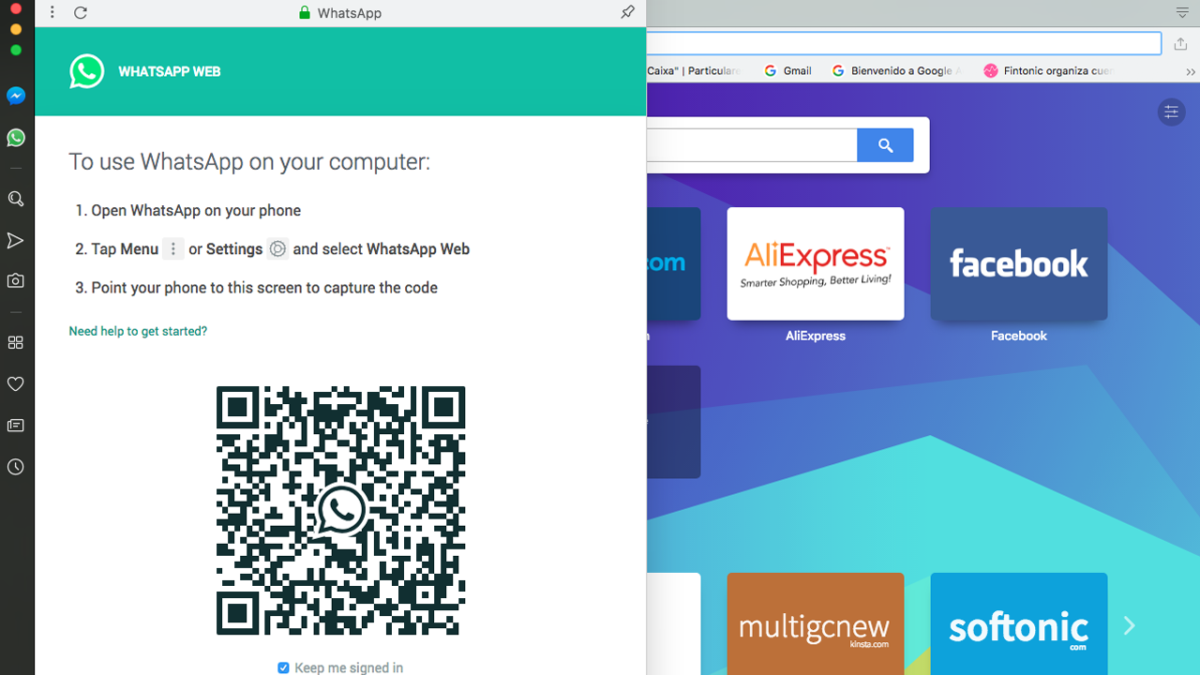
One of Opera’s key features for a while now has been its sidebar, which sits stealthily at the left-hand side of the browser. The sidebar gives quick and easy access to common web tools like search, downloads, favorites, etc. Last October, Opera also added two new buttons to the sidebar; the WhatsApp and Messenger chat bubbles.

Messenger Opera integration

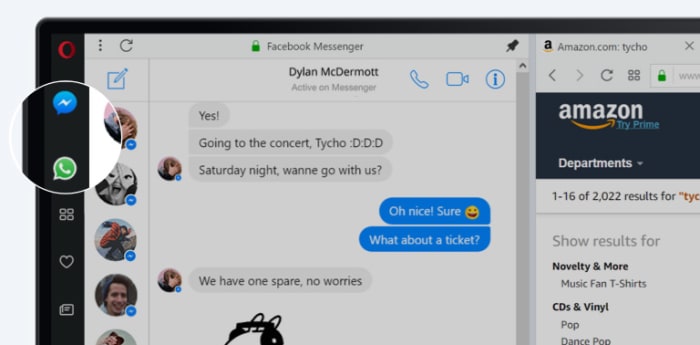
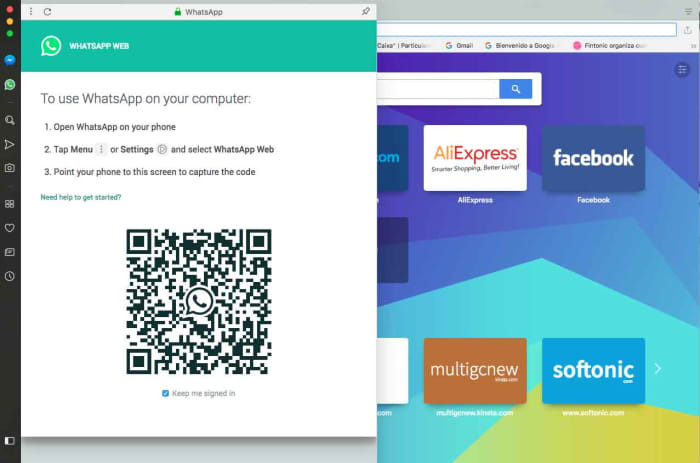
Clicking the WhatsApp and Messenger icons opens out fully functional and well-designed chat widgets from the sidebar. They offer all the features you’ll find on the web versions of both apps, but sit above the web page you’re currently browsing and only cover about a sixth of the page.

With the integrated messengers being so small, the design is key, and Opera has pulled it off nicely. All the buttons and features are there but they’re tastefully placed in a way that feels right. Contact icons are down the left and hand side, with the conversation taking up most of the display space.

Messenger Opera integration chat bubble

On top of the neat design and full feature sets, the Opera browsers WhatsApp and Messenger integrations offer other key messaging app tools to ensure you’ll never have to leave the web page you’re browsing to check your messages again. You can activate in-browser notifications for incoming messages, pin your favorite chats, mute conversations, or log off from the services altogether.

The key here is that when you get a new message all you have to do is click the icon to the left of your page, read the message, and then respond, should you feel the need. Throughout that whole process, there is no need to switch tab and the web page you’re viewing stays on the screen the whole time.

WhatsApp web on Opera browser

In the tech world, small things make big differences, but with WhatsApp and Facebook Messenger integration, Opera has added a large feature to its browser that creates a smoother workflow and makes it harder to become distracted from what you’re doing. This is more than a big difference; this is a big deal.

Softonic is proud to partner with Opera. When you download from us, we may earn a commission.
Opera browser adds crypto-wallet

Opera releases Reborn 3 browser with support for cryptocurrencies and ad blocking.

The fight to be the most complete and fastest browser has raged for some time, and the battle just heated up with the arrival of Opera Reborn 3. Reborn 3 brings new options and a new design. It includes a dark theme for both mobile and desktop use. It also has complete customization to control privacy and security when surfing the web.

But this upgrade not only affects design and usability, but it also incorporates options such as a free VPN.

Opera Reborn 3 wants to be the browser of the future. It incorporates a security blockchain technology that is used to make payments. Fans of these electronic currencies are in luck since the new version of Opera allows us to operate with them with total security.

Reborn 3 also brings an ad blocker to the table. That’s not all, it also brings features like a currency converter, desktop-mobile compatibility, a screen grabber, and messages in the sidebar.

Of course, the interface has also been modified so you can customize the browser to your liking. Without question, Opera Reborn 3 is going to give the rest of the browsers on the market a run for their money.

What is the best web browser for you

Battle of the browsers: Which is best?

web browsers

Over the years we’ve seen many browsers come and go as the main source for internet exploration. While Microsoft and Apple dominate the field of operating systems, their browsers (Edge/Internet Explorer and Safari) tend to fall behind in usage compared to some other programs out there. If you’re struggling to decide between the top performing browsers, here is a simple and easy guide to help you learn the differences between them.

Guide to the best web browsers

Google Chrome

Chrome is widely regarded as one of the best browsers, and for good reason. It performs exceptionally well, and is able to connect the same account across multiple devices. However, its main benefit is its large variety of extensions. This allows for a highly customizable experience, and really can make Chrome perform any function you want for it too.

Google Chrome Free Download ►
8

The downside to using Chrome, however, is its high-RAM usage. For low spec computers, this can cause some performance issues, since Chrome will be using so much of the computer’s process power. It can be especially hard to run Chrome and other intensive programs at the same time on these computers. That makes it less optimal for people who use graphically intensive programs like video games.

Mozilla Firefox

In contrast to Chrome, Mozilla is one of the most RAM-efficient browsers for what it is capable of. While it doesn’t have quite the collection that Chrome does, it still allows for a pretty customizable experience with a competitively large amount of add-ons. Mozilla is also less likely to use your information as a marketing tool. So if that’s something that concerns you about Google, or other big companies, then Firefox is the way to go.

Mozilla Firefox Free Download ►
7

Opera

While you may not have heard of Opera before, it’s actually one of the top performing browsers, particularly for businesses. This is because it is able to provide a RAM-efficient and secure browsing experience with a built in ad blocker. It has many of the benefits that top-performing browsers have, while being able to provide the security of being a browser favored by a smaller community (and as such, less malware is prepared for it). The only real downside to this browser is that, it isn’t always able to open every site properly, like Microsoft browsers are able to. Despite this, the browser itself is constantly being developed, and slowly growing as an excellent choice.

8

Safari

Safari is often overlooked as a browser, since being an Apple product makes it less common among fans of Windows or Google. However, Apple is well known for its compatibility between its products, and Safari is no exception to this. If you have other Apple devices, then you can sync your Safari between them, which can really help organize your web browsing. Safari’s biggest benefit, however, is its content blockers. While ad-blockers are popular, Safari is able to block a variety a different content, such as cookies, in order to create a cleaner experience.

Safari Free Download
7

Despite this, Safari still lags behind Firefox and Chrome in extension capability. That’s not to say it lacks extensions altogether, but it is less compatible with many add-ons, compared to the other two.

Microsoft Edge & Internet Explorer

While these browsers are independent of each other, they are both owned by Microsoft, and function rather similarly. Microsoft Edge is the newer default program for all Windows computers. While it doesn’t have the extension capability that Chrome or Firefox have, it still runs at a reasonably high speed, and has integration with many Microsoft programs including Cortana. It, unfortunately, is not backward-compatible with other Windows operating systems, and can only be used on newer computers. Despite this, it’s an easy to use browser that is great for simple interactions.

Microsoft Edge Download now ►
6

Internet Explorer, on the other hand, is typically better for companies that use old programs that may not function well on other browsers. Consumers of these programs can also find Internet Explorer beneficial, since it’s able to run almost any site at a reasonable speed. Something that other browsers require extensions to do, or are unable to do at all. Despite this benefit, it’s unlikely to find many programs that won’t operate equally well on another browser, so Internet Explorer is typically not recommended compared to other popular browsers.

Internet Explorer Free Download ►
6


Based on this, it’s clear that Chrome is the best for customizability on high-end computers, while Firefox is the more RAM efficient choice. Opera is a good middle ground between these two, and perfect for older computers looking for a secure browser. Outside of those three, however, Safari, IE, and Edge each have their own benefits. Being able to open some sites, especially older ones, without needing to worry about functionality, is probably the biggest benefit of the Microsoft browsers, while Safari has a unique content blocker that is incredibly useful. Other than the typical browsers, there are a few more niche browsers that can be useful as well.

Brave

Brave has slowly gained its own following as being one of the fastest and most secure browsers out there. The biggest benefit of Brave is that its built-in adblocker replaces potentially dangerous ads with its own, so that it can bypass most sites that would prevent the use of an adblocker. It also runs faster than almost any other popular browser out there. Of course, this comes at the expense of extension-capabilities that the other browsers are known for.

Brave isn’t the only fast-growing browser. Midori is probably the best option for RAM-efficiency out there, and Tor Browser is perfect if you’re often using incognito mode (since it doesn’t track you the same way other browsers do). They aren’t as popular or customizable as the other browsers, but they are great at what they do, and definitely worth checking out.

Tor Browser Free Download ►
7