Best templates for Microsoft Office

This is where to find all the best Microsoft Office templates for Microsoft Office.

Microsoft Office templates

We don’t need to get into how good Microsoft Office is. It is by far the most popular productivity suite for Windows and Mac and has been for quite some time. Did you know though, that Office can be even better than it is when you first install it? Well, Office templates are pre-formatted documents that allow you to quickly add your particulars and create all manner of impressive documents from flyers, to posters, to resumes in a matter of mere minutes.

Now sure, Microsoft Office does come with some pre-installed templates but there are a lot more out there, you just have to find them. No matter what type of project you’re working on, we’ll walk you through some of the best sources of Office templates on the internet. When you’re done reading this guide, you’ll be able to do so much more with your Office 365 subscription.

6

Microsoft Office templates

Microsoft Office Online templates
Office online templates

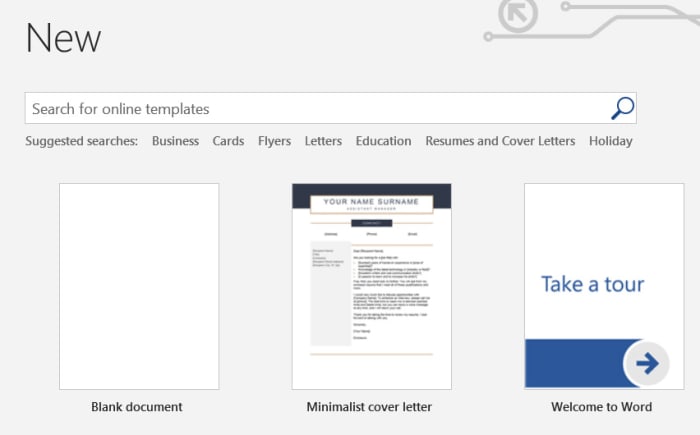
The first source of Office templates you should know about can be found right there within the Office apps themselves. You simply open up the particular Office app, if you’re looking for a Microsoft Office Template for Word then open Word or if you’re looking for Excel templates open Excel. Then you simply click New and you’ll see a search bar at the top, which says “Search for online templates”. From there you’ll be able to search for official Microsoft Office templates for resumes, cover letters, business cards, etc. simply by typing what you’re looking for.

Office Online Download now
7

Microsoft Office templates for Word

Without a doubt, Microsoft Word is the Microsoft Office program that people use templates with the most. On Word, you can get new templates for resumes, cover letters, calendars, invoices, newsletters, brochures, business cards, flyers, certificates, and more.

Microsoft Word templates

Unsurprisingly, with there being so many different types of Office templates available, there are lots of different places you can find them. Below you’ll find links to some excellent sources of Microsoft Word templates we’ve found online:

Template.Net has a wide variety of different types of Word templates including templates for newsletters, templates for cover letters and letterheads, templates for budgets, and even less common Word templates like for tracking baby growth or speciality brochures.

Layout Ready is another excellent source of Microsoft Word templates covering everything from Postcard templates to Business Card templates.
Microsoft Word 2016 Download Now
9

Microsoft Office Templates for PowerPoint

As if giving presentations weren’t hard enough already, creating edgy and eye-catching presentations on Microsoft PowerPoint comes with its own set of technical difficulties. PowerPoint templates, however, can take the sting out of building your presentations so that you can concentrate on your public speaking.
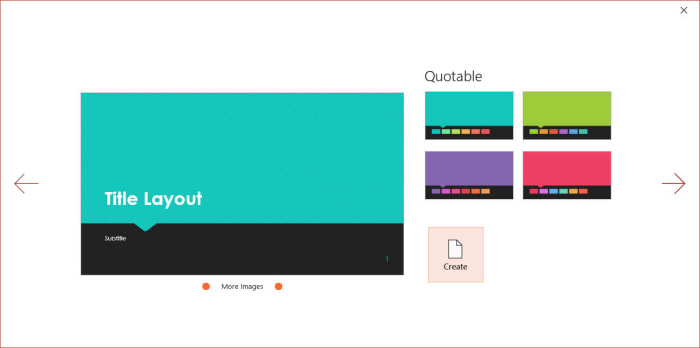
PowerPoint templates

Smart Sheet is a great place to download free Microsoft Office templates for PowerPoint. You’ll find Office temples for marketing plans, SWOT analysis templates, finance templates, marketing plan templates, and more. Downloads are free and couldn’t be simpler. You just find the PowerPoint template you want and hit download.

Microsoft PowerPoint for Android Download now
8

Microsoft Office templates for Excel

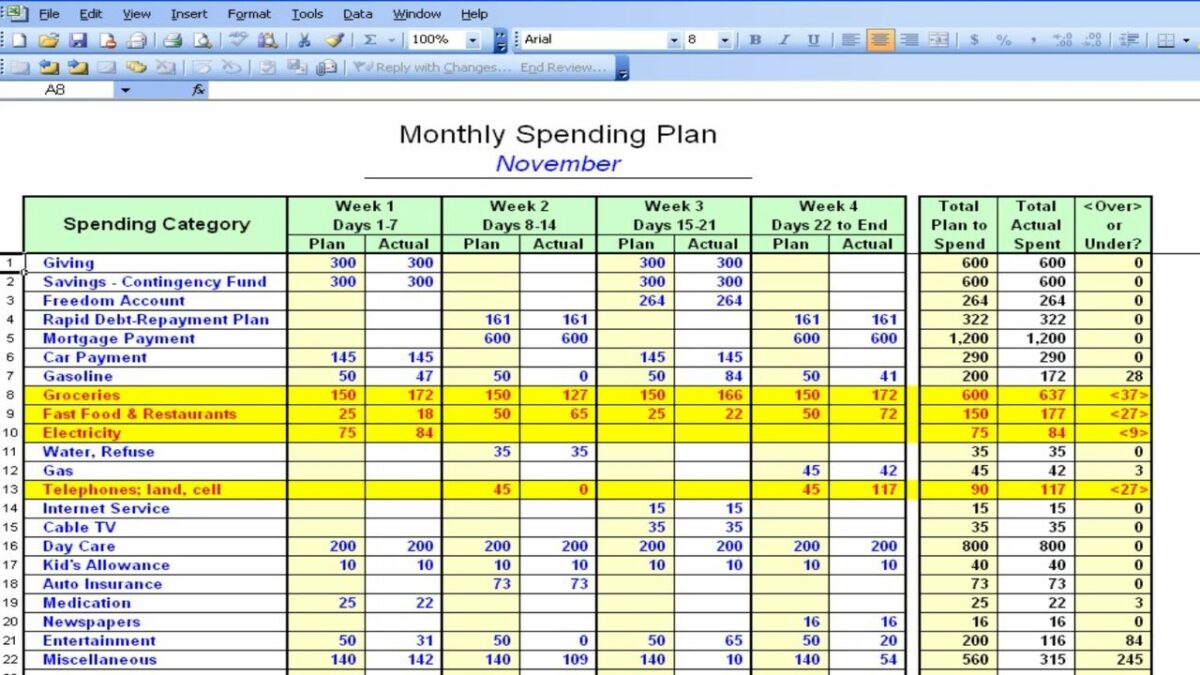
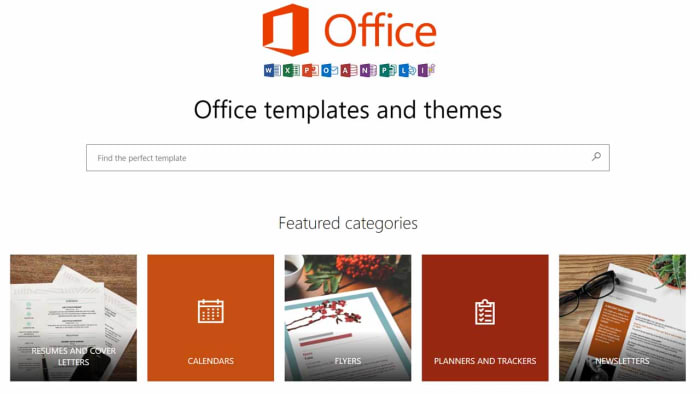
Although you’ll find a lot of the official Microsoft Office templates using the in-app method we laid out earlier, you’ll also be able to find more Office templates over at office.com. If you go to the Excel page at templates.office.com, you’ll find some excellent options that might not show up using the in-app method. No doubt you’ll have already seen a lot of the search results that come up, but you’ll find the odd hidden gem too.
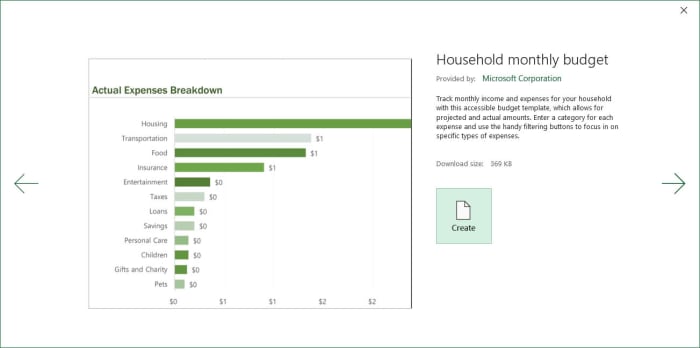
Excel templates

Microsoft Excel Download now ►
7

Microsoft Office resume templates 2019

Now that we’ve gone through the main app-specific sources of Microsoft Office templates, let’s look at some of the particular types of template that you might need, and start with resumes.
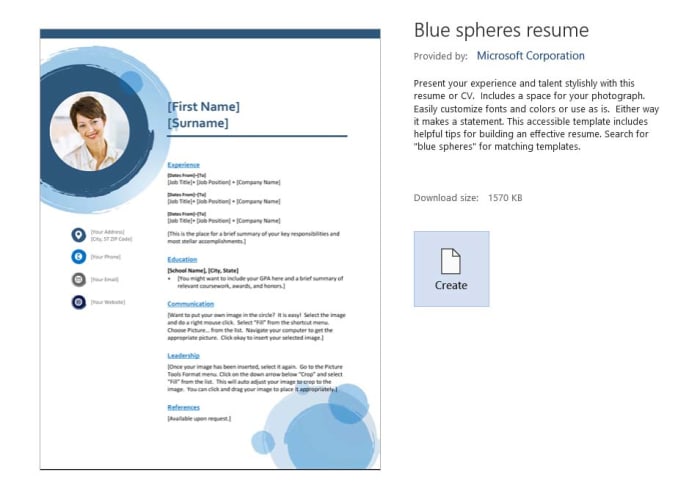
Resume office templates

Resume templates are among the most useful. A good resume will help you stand out from the crowd whenever you’re applying for jobs. This is more important than ever these days as HR managers and recruiters often have to go through hundreds of applications for every position. This means they may only get to look at your resume for a few seconds at most.

The best resume templates are for Microsoft Word and you’ll find some excellent examples at Template Monster.

Microsoft Office templates for invoices

Invoices are another type of tricky document that you could save a lot of time on if you simply download free templates first and then fill in all the appropriate information correctly. You can create invoices easily enough using Microsoft Word or Microsoft Excel.
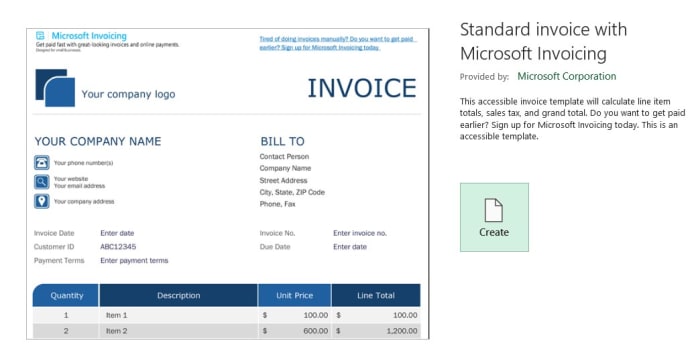
Invoice templates for office

For a good source of Microsoft Word templates for invoices check out Hloom, where you’ll find many different types of invoice templates. If you’d prefer to create your invoices in Excel, taking advantage of the more dynamic data capabilities offered by a spreadsheet, you ‘ll find some great options at Spreadsheet 123.

How to make your own Microsoft Office templates

You might not know this, but it isn’t that difficult to make your own Microsoft Office templates if you’re comfortable enough with design to think you can give it a go yourself. The process is a little different between each program but mostly the same.

To create templates in Microsoft Word, Microsoft Excel, or Microsoft PowerPoint all you need to do is layout the template in each program as you’d like it to be saved. It is important to remember here that you don’t want to save any text in your templates that you may forget to change later on. It is a good idea to use text like “Insert… here” for example.

When you’ve finished designing your template, instead of saving your work as a Word document, Excel document, or PowerPoint document you save it as a Word template that has a file type of .dotx instead of .docx, Excel template, or PowerPoint template. These will then be available to use next time you launch Microsoft Office.

Wrapping up

We’ve walked you through where to find the best Microsoft Office templates for the main apps and we’ve also looked at the places to find particular types of templates like invoice templates and resume templates. If you made it all the way through this guide, you’ll also know how to save your own templates for future use too. If you do end up making your own templates, we’d love to see the results. Share them with us in the comments below.
Microsoft Office for free? Try these great alternatives

You don’t need to pay premium prices to gain access to the premium features you expect from Microsoft Office. These are the best free alternatives to Microsoft Office.

Free Microsoft Office apps

If you’ve ever used your PC to do anything even remotely productive, chances are you’ve used Microsoft Office. The Microsoft productivity suite has always been the most popular suite of programs built to help you write documents, draw up spreadsheets, prepare presentations, and more. Microsoft Office is an institution.

As with most other established institutions, however, the Microsoft Office suite comes with a hefty price tag. The reliability that you get from an established productivity suite comes at a premium. If you balk at the idea of paying out for your productivity programs, then you’ll be glad to know that it doesn’t have to be that way. Let’s go through some of the best alternatives to Microsoft Office that you can use for free.

6

Microsoft Office alternatives for free

Google Docs, Google Sheets, and Google Slides

Google’s own productivity suite, linked to Google Drive, hasn’t been around as long as the Microsoft offering. It has, however, quickly gained a strong reputation for reliability and ease of use across multiple devices. Docs is a cloud-based suite of apps that uses the powers of modern web browsers to do all the heavy lifting. Although the programs are all online-first pieces of software they can all be made available for offline use too, so that you don’t have to worry about being connected to the internet before you start work.

You do need an account but once you have a Google account, which will give you access to Gmail and Google Drive’s cloud storage you’ll also then be free to use the Google Docs suite as you wish. Although many IT departments still rely heavily on the likes of Microsoft Word and Excel, Google Docs and Google Sheets offer amazing real-time collaborative capabilities making them perfect for team-based projects. This means Google Docs is the best free alternative to Microsoft Office for teams and IT managers should look into the enterprise level G Suite offering of the service.

Google Docs download free ►
8

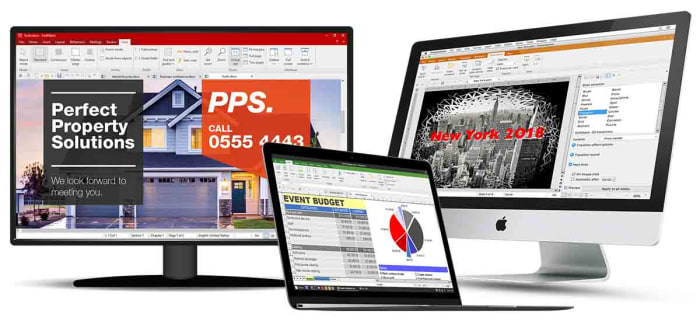
SoftMaker Free Office

Free Office alternatives SoftMaker
Image via: SoftMaker

Free Office is the original free alternative to MS Office. The program has been around since 1987 and not only looks very similar to the Microsoft productivity suite, thanks to a recent update, it is also fully compatible with all Microsoft office files like DOCX and XLSX as well as many other file formats.

As the name suggests, Free Office is completely free to use, although you will have to register an account with the developer SoftMaker before you’ll receive your download link. It is available across multiple operating systems for Windows, Mac, and Linux users.

We recommend Free Office as the best free Microsoft Office alternative for anybody who is already used to Microsoft Office but no longer wants to pay for it.

SoftMaker FreeOffice Download now
7

Microsoft Office Online

Office Online

Another great option for former Microsoft Office users looking to take the strain off their wallets is Microsoft’s new online versions of the major Office programs. All are free to use. Microsoft Office Online gives access to cloud-based versions of Word, Excel, PowerPoint, OneNote and more. Although not as fully featured as the apps associated with an Office 365 subscription, this is still a great online office suite. It should be more than enough for most casual users who simply want a way to edit documents.

Office Online can be used across multiple operating systems using different web browsers like Microsoft Edge and Google Chrome. It can run with files stored locally on your PC as well as those stored on your Microsoft OneDrive. You will, however, need a Microsoft account before you can use Office Online.

Office Online Download now
7

Libre Office

Libre Office has been around in its current form since 2010 when it split from Free Office and has never failed to impress. Stemming from The Document Foundation, Libre Office is free and open-source software meaning it is worked on by a global community of collaborating developers.

With Libre Office, you’ll find comparable programs to Microsoft Word, Microsoft Excel, Microsoft PowerPoint, and more. You’ll also be able to run Libre Office on Microsoft Windows devices as well as Apple devices running Mac OS. Libre Office works on Linux machines too. There is also a Libre Office app for viewing your PDF files on Android devices and a plethora of add-ons to play around with too.

The only real downside associated with Libre Office is regarding compatibility with Libre files often experiencing formatting irregularities when viewed and edited in other programs.

LibreOffice Download LibreOffice
7

Open Office

Open Office by The Apache Software Foundation is another Microsoft Office alternative you can get for free that has a long history behind it. Open Office first appeared over 20 years ago and ever since, Apache has been updating, tweaking, and refining it. It is a great free office suite, offers strong alternatives to all of the core Microsoft Office programs, and can be installed on Windows, MacOS, and Linux.

Apache Open Office is similar to Libre Office in that it is open-source software, but it also shares Libre Office’s compatibility issues. Both use the open-source Open Document Format, which means you’ll be able to open versions of your Open Office documents on other programs but you might experience a few inconsistencies with the fonts and formatting.

Apache OpenOffice Download now
8

OfficeSuite

OfficeSuite apps

If you’ve owned an Amazon Kindle Fire or a Toshiba, Sony, or Alcatel device you might already be familiar with OfficeSuite by MobiSystems. All those devices come with OfficeSuite pre-installed. If you’ve never owned one of those devices before, and you’re looking for a free alternative to Microsoft Office or free word processing capabilities, it might be worth your time familiarizing yourself with what OfficeSuite has to offer.

OfficeSuite comes in a number of payment tiers with the basic offering being the free version, which gives access to a number of features. These include the ability to view and edit Word, Excel, and PowerPoint documents as well as being able to view PDF files. Admittedly, this is a very basic offering indeed, but it does meet the needs of many users and it’ll also give access to sharing platforms like Dropbox and iCloud. The main issue, however, is that basic users will be pushed heavily into taking out a paid subscription that will allow them to use OfficeSuite across their desktop, tablet, and smartphone.

OfficeSuite Download now
8
Final recommendations

We’ve been through quite a few free Microsoft Office alternatives for you to consider. As we’ve already pointed out we think that using Google’s online programs, like the word processor Docs and spreadsheet builder Sheets, offers the best experience for teams.

For anybody already used to the Microsoft Office layout, we’d recommend Free Office as developer SoftMaker has worked hard to make the experience as similar to that offered by Microsoft Office as is possible.

If you’re new to the game, however, and you’re looking for your first productivity suite, we’d recommend Libre Office. You can install it on your device for free and as well as offering reliable alternatives to the Microsoft Office programs, it also offers added apps like Math and Draw.

Other programs worth considering are WPS Office and Apple’s iWork.

How to fix the most common Windows 10 update errors

Windows 10 updates can cause a lot of problems. This guide will walk you through some common problems and solutions but will also show you how to deal with more specialized and advanced problems.

Possibly the most controversial feature of Microsoft Windows 10 is the regular update service that is forced upon users. Sure, it is good to have your desktop operating system receive whatever  regular feature updates and security updates that that come with the latest update. The flip of this, however, is that for too long Microsoft was forcing these updates upon us when we weren’t ready, getting in the way of whatever we were doing at the time. Even worse, in many cases Windows updates haven’t worked properly, Windows update problems are very common. If you’ve ever encountered a Windows update error, or if you’re annoyed because you tried to run Windows update and it failed, fear not; don’t go back to Google, we’re here to help.

The latest and greatest version of Microsoft's operating system.

Common Windows update errors and problems

As Microsoft has been updating Windows every six months or so since midway through 2015, there are many updates we could get into. We’re going to concentrate on the recent updates from October of last year (2018) and May of this year (2019). For clarity these are Windows versions  1809 and 1903 respectively. We’ll start with the most recent update, Windows 10 version 1903. This is how to fix Windows.

Windows 10 version 1903 update issues

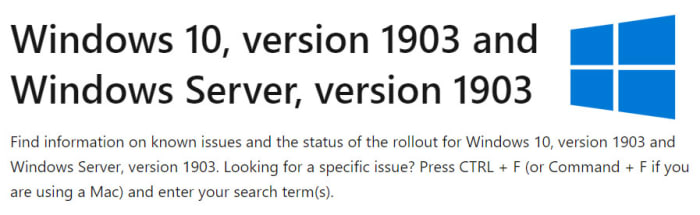
The recent Windows 10 May update has caused quite a few problems for users despite Microsoft trying to reboot its reputation and going to great pains to try and prevent similar issues to those cause by the October update from 2018. Microsoft has even created a dedicated webpage that lists all recorded Windows update 1903 issues. The page also includes a list of known fixes to each issue.

Windows 10 version 1903 update errors

There are many different types of Windows 10 update error codes that could be behind your problem. You could see error codes like “windows 10 error code 0xc00000e9”, “windows 10 error code 0xc00000f”, “windows 10 error code 0xc004c003”, or “windows 10 update error 0x8000ffff”. If the sight of such codes gives you a headache, don’t worry. There is simple way to address many different types of Windows update errors. Step forward the Windows 10 update troubleshooting tool.

Windows Update Troubleshooter

The Windows Update Troubleshooter will analyse your system files, search for the problem that has stopped the Windows 10 update working, and then try and find a fix. All it takes is a simple click here and a right-click there. If you’re looking to fix Windows update without getting into the command prompt, this is what you need to do. When trying this fix remember to run as administrator.

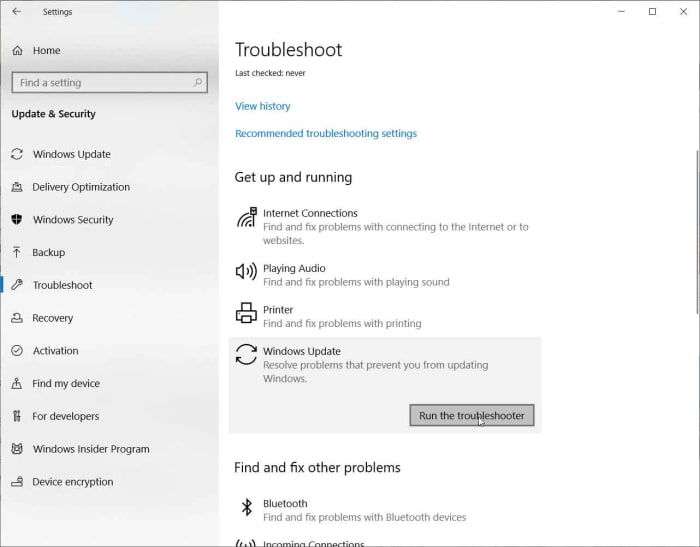
windows 10 update troubleshooter

To start the Windows update troubleshooting tool, open the Windows Settings, then hit Update & Security, and then finally select the Troubleshoot option. Find the Get up and running menu and then hit Windows Update at the bottom of the list. Click the Run the troubleshooter button to start the tool. The troubleshooter will then investigate what’s blocking your update and may offer a solution. If it does, click Apply this fix. Follow all the instructions the tool gives and then restart your device. This should have fixed your problem.

More ways to fix your Windows update problems

Obviously, the Windows update troubleshooting tool we walked you through above can also be used to address common issues that’ll mean your Windows update won’t work. There are a number of other tricks you can use to try and sort out your update error codes.

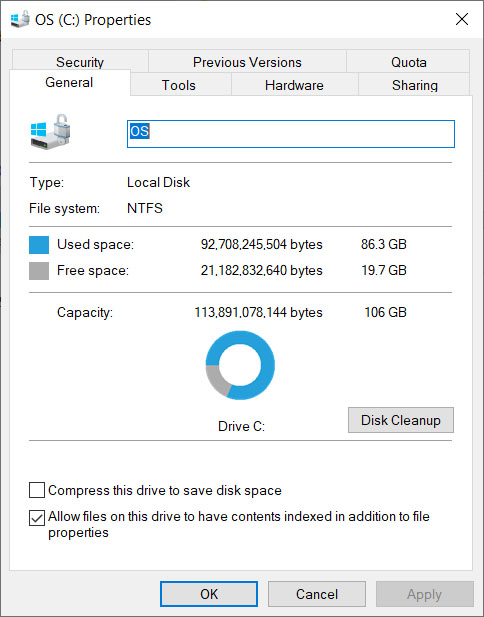
One of the most common Win 10 update problems is not enough disk space. Windows 10 updates are very large these days meaning, if you don’t have plenty space on your hard drive, they won’t work properly. Check how much space you have on your drive, free up some disk space, and then try again when you have more free space.

windows 10 disk space

Another problem, which you might not have considered is that your antivirus program might be interfering with the Windows update and causing errors. If you’ve run into problems updating Windows 10, try disabling your antivirus program and then running the update again. In extreme circumstances you may even need to delete your antivirus software temporarily while you update to the latest version of Windows 10.

Windows 10 update 1809 issues

You may remember that the Windows October 2018 update caused a lot of problems for the first people to download it. We specifically warned you not to install updates until, because they were deleting people’s files! Microsoft ended up pausing the roll-out of the update so that they could address the main issues.

If the update deleted any of your files, you need to contact Microsoft that says it is able to help you reclaim your lost files. You can find out all the necessary contact details on the Microsoft support website.

Windows 10 Error Recovery

We’ve tried to walk you through the common tools and solutions Windows 10 has for fixing update errors. We’ve also shown you how to find official extensive lists of known Windows 10 update problems and potential fixes in case the common solutions won’t deal with your Windows 10 update error code. All of this, however, can seem a bit daunting and if your Windows 10 update fails every time, you may decide that you want to uninstall your Windows 10 update. If you can’t fix problems, reset them.

reset Windows 10 updates

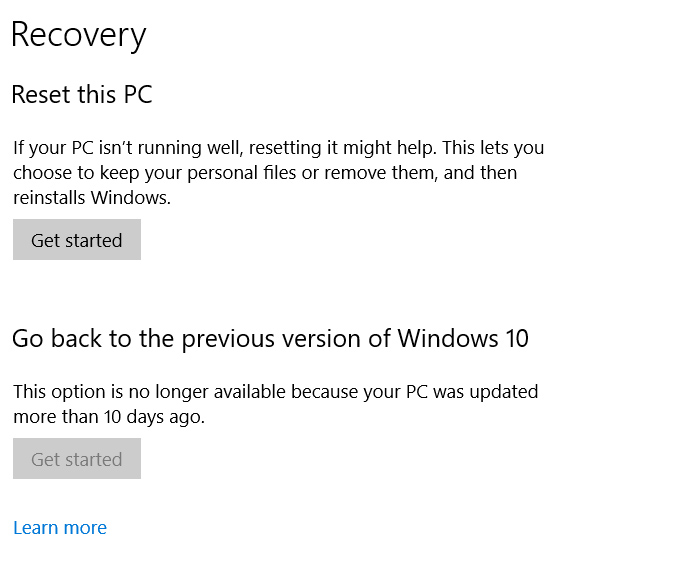
To uninstall your Windows 10 update if you have your login details, all you need to do is go to Settings, then Update & Security, look for Recovery, and then find Go back to the previous version of Windows 10. Finally, click Get started. You’ll see your update history and need to answer a quick question to help Microsoft improve future updates and then click No thanks when it asks you if you want to check for updates. Then keep clicking next until you get the option Go back to earlier build. Following these steps will revert Windows back to the previous version. This option is only available for ten days after you’ve updated Windows.

The latest and greatest version of Microsoft's operating system.

One thing you need to consider, however, on top of the ten day period is that if you’ve deleted the previous versions to free up space on your hard drive, this option won’t be available. This means you need to be sure you’re happy with the update you’ve installed before you delete previous versions.

How to fix Bluetooth problems in Windows 10

This guide will help you deal with many common Bluetooth problems on Windows 10.

Solve Bluetooth problems on Windows 10

Bluetooth is one of those technological advances that is so good it almost feels like magic. Where did those wires go? How does it work? etc. When you banish cables and wires from your life, it can feel baffling, to say the least. Like all great technology, however, Bluetooth is not without its problems. As you’d guess, connectivity can cause difficulties so let’s look at how to fix Bluetooth issues on Windows 10.

The latest and greatest version of Microsoft's operating system.

Bluetooth not working on Windows 10

If you’re Windows 10 PC can’t find your Bluetooth device there could be a whole host of reasons behind it. This is because there are many different types of Bluetooth device and many different types of Bluetooth connection error. You could be trying to connect a Bluetooth mouse, Bluetooth headphones, a Bluetooth keyboard, or maybe even a Bluetooth speaker. The frustration is the same for all.

Windows 10 Bluetooth Troubleshooter

If you’re looking to fix Bluetooth problems, there is no better place to start than with the official Windows operating system Bluetooth support service, which will give clear on-screen instructions to help you go through your Bluetooth settings and fix your Bluetooth connection.

Bluetooth troubleshooter

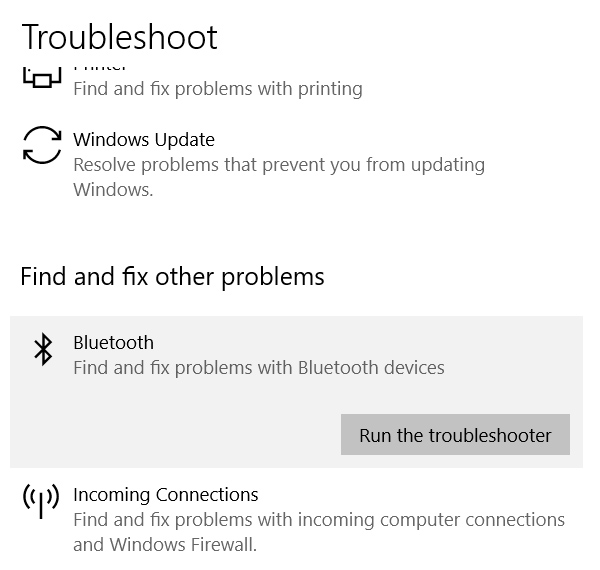
To access the Bluetooth troubleshooter open Windows Settings, click Update & Security, and then go to Troubleshoot. Find the Bluetooth option, click on it, and then click Run the troubleshooter. This will launch the troubleshooting tool and highlight how to solve Bluetooth problems in Windows 10. Follow all the on-screen instructions and then restart your computer. Once you’ve rebooted your device try and connect your Bluetooth devices again.

Bluetooth Drivers

Although you need a special Bluetooth adapter to make a connection, there could be a software issue causing your problem. You may need to update the driver, or you may need to re-install your Bluetooth drivers.

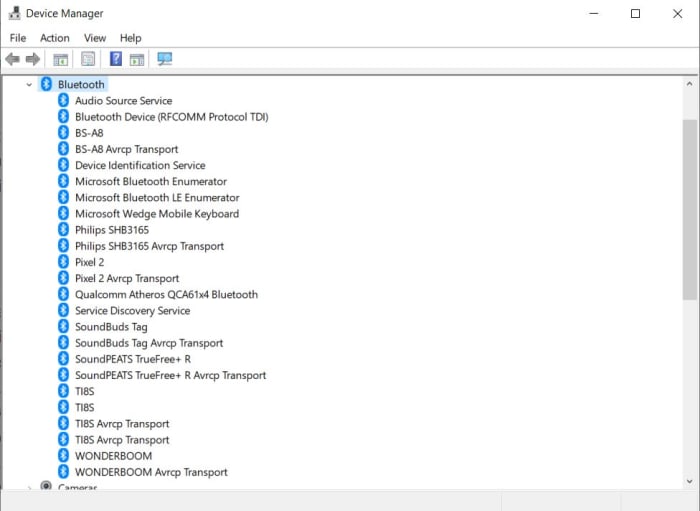
bluetooth device manager

To update or re-install your Bluetooth drivers you need to open the Windows Device Manager and click the Bluetooth option. This will open a list of Bluetooth driver software. If you double-click or right-click on the desired driver and then hit Update driver, Windows will update the Bluetooth driver. Once the process is complete reboot your Windows PC and try again. If it still doesn’t work, repeat the process but instead click Uninstall driver instead of Update. Then, when the process is complete reinstall the Bluetooth device’s driver by going to the manufacturer’s website.

Check your Bluetooth connection settings

The problem could be that a simple switch needs flicking. Your PC might not be set to allow Bluetooth connections and then even if it is, it might not be discoverable. This means you need to check your connection settings.

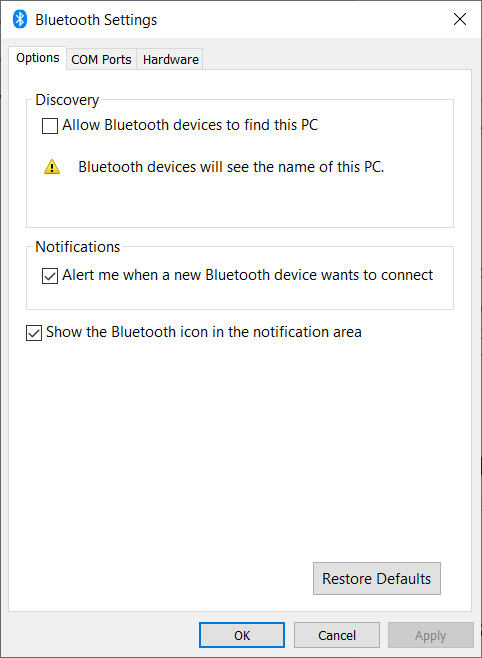
To check your Windows 10 Bluetooth connection settings, open the Settings menu and then click Devices. Once you’ve done so, in the Bluetooth & other devices section scroll down until you see the More Bluetooth options button. Click it and then make sure the box next to Allow Bluetooth devices to find this PC is ticked.

more bluetooth settings on Windows 10

To make sure Bluetooth is turned on your Windows PC couldn’t be simpler. All you need to do is click the speech bubble to the right of the clock icon on the Windows taskbar. This will open up the new easy access Windows 10 settings box. In the middle you should see the Windows Bluetooth toggle button, which will allow to turn Bluetooth on and off again very easily. If the button is colored blue, it means Bluetooth is turned on.

Make sure Bluetooth services are running

There is a chance that your machine’s Bluetooth Support service might not be active and that is why you can’t connect to your Bluetooth devices. There could be many reasons why this is the case but no matter what is behind it, if Bluetooth services aren’t active you won’t be able to connect Bluetooth devices to your Windows PC.

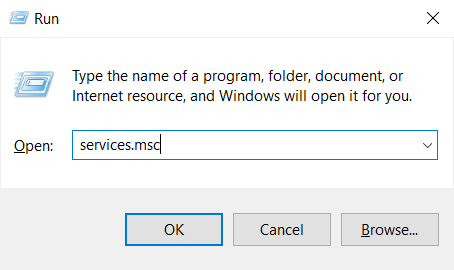
run services.msc on Windows 10

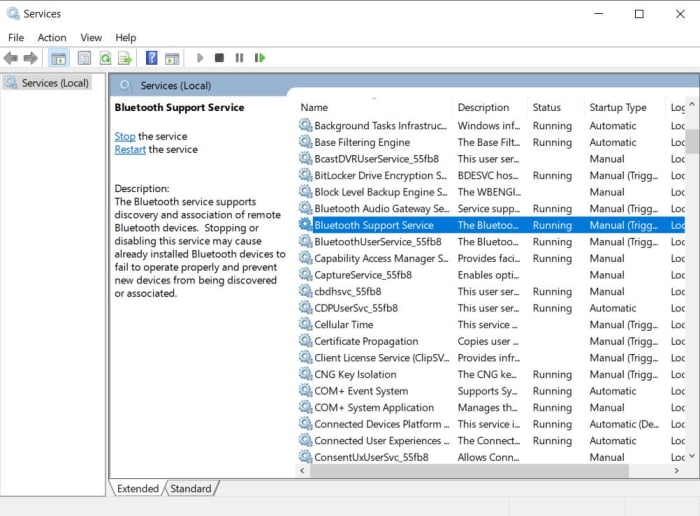
To check if Bluetooth support services are active on your PC, you need to open the Run dialog box. You do this by simultaneously pressing the Windows key and R key at the same time. When you have the Run dialog box open, type in services.msc and press enter. This will open the Windows Services box and you’ll need to find and double-click on the Bluetooth Support option. If it isn’t active, click Start to activate it.

Bluetooth Services on Windows 10

Once you’ve activated the Windows Bluetooth support services there is one more option you can select to make sure you don’t run into the problem again. While still in the Bluetooth Support service look for Startup type and switch it to Automatic. After you’ve done this open the Log on tab, then the Local System account, and hit OK. After you’ve done this restart your PC and retry connecting to the Bluetooth devices that have been causing you problems.

The latest and greatest version of Microsoft's operating system.

Wrapping up: How to fix Bluetooth issues on Windows 10

We’ve been through some of the main Bluetooth errors you might experience when using Windows 10 and how to fix them. It is important when you’re experiencing difficulties to cover all potential issues that you may have overlooked. That means you should also check settings that aren’t explicitly related to your Bluetooth settings. For example, if you have Airplane mode active on your Windows PC, this could be blocking all the Bluetooth settings we’ve mentioned.

We’d also like to point you in the direction of a specialized Windows 10 Bluetooth connection tutorial we’ve put together for Softonic users, which will walk you clearly and concisely through various Bluetooth connection procedures.

Finally, if you find yourself in the unfortunate position where you’ve followed all of our instructions and are still having Bluetooth connection problems, you should go to the official Microsoft support page on how to fix Bluetooth problems in Windows 10. Here you’ll find a slightly more detailed look at some of the solutions we’ve been through as well as the option to talk to Microsoft’s virtual support bot about your Bluetooth problems.

8 new Windows 10 2019 features that you may have missed

Check out all the best new features that have come with Windows 10 updates in 2019.

Windows 10 is an ever-evolving operating system for your PC. Once you download Windows 10 and install it, you’ll regularly receive updates and new features. Microsoft has turned Windows 10 into the most popular desktop OS on the planet, which means an article about new Windows 10 best hidden tips and features will be very useful to a lot of people. Therefore today; we’re bringing you a list of 8 Windows 10 best new features from 2019 that you might have missed.

Best Windows 10 features of 2019

Due to the regular updates, Windows 10 has a number of different versions. These versions have numbers, which usually show the month and year that Microsoft first made them available. They begin with 1507 (July 2015) and go all the way up to the latest version of Windows 10, which is 1903. In this article, we’ll be looking at some of the Windows 10 1903 best new features.

The latest and greatest version of Microsoft's operating system.

The final thing to consider about Windows 10 updates, however, is that they tend to come every six months. If you’ve been paying attention, you’ll realize that this means we should be about to see a new Windows 10 update arrive on our PCs any second now, in fact it started rolling out on September 25, 2019. It might be a while before you get it though. We’ll finish up our Windows 2019 new feature update then by looking at some of the features that will ship with version 1909.

1. Windows Sandbox

One of the biggest new features to land on Windows 10 in 2019 is only available for Windows 10 Pro users and above. It has, however, also been added to Windows Defender. The Sandbox feature marks a major update as it allows you to test new software in a secure environment, which is cut off from the rest of your machine.

Why is it important that Windows Defender Antivirus can run in a sandbox?

2. Improved Cortana and Search features

When Microsoft first started pushing Windows 10 as a free desktop operating system in 2015, the software giant made a huge deal about Cortana. Microsoft’s AI assistant was baked into the search bar found next to the Start button. Basically, Cortana handled all search queries on Windows 10.

This has now changed, as Microsoft has decided to give you a choice for search. Thanks to the 2019 Windows 10 update you can now choose to show the regular search box or Cortana on the taskbar. Also, the new prevalence of the text search bar means Cortana will only handle voice searches from now on. If you really don’t like Cortana, you can go one further. By going to Settings, then Cortana, and finally Talk to Cortana you can stop her from performing voice searches too, essentially disabling her altogether.

The new Windows 10 search features now also allow you to perform Enhanced searches. These new types of search will go through everything on your PC rather than just your file libraries and desktop. To perform Enhanced searches go to Settings, then Search, then hit Permissions and History, and finally open the Searching Windows tab.

Cortana and Search options

3. Windows 10 Light Theme

Dark Modes have seemingly been taking over recently, with all major apps announcing their own darker way of doing things. This year though, Windows decided to go the other way by making a big deal out of the introduction of a Light Theme. To give your Windows 10 a brighter and sunnier outlook all you have to do is go to Settings, then Personalization, Colors, and then Choose your Color. You even have the option to run a Custom theme, which will allow you to select separate color options across the OS.

Windows 10 Light Theme

4. Improved Game Bar

The Windows 10 Game Bar made a splash on launch as it brought lots of different gamer friendly features into one handy place. The 2019 Windows 10 update added Spotify and meme making features to the Game Bar. This means you can now control Spotify while you’re playing your games on Windows 10 and more easily snap screenshots and make memes from your gameplay.

5. Improved Windows 10 Security features

An interesting little change that Microsoft has introduced to Windows 10 this year is the introduction of password free log ins. With password databases often ending up in the hands of hackers, Microsoft has pushed forward with alternative means of signing into your Microsoft account, and then offering local (on your device only) ways of logging in thereafter. You can now register your phone number with your account and use a special code Microsoft will send you each time you want to log in. After that you can use Windows Hello to log in using a fingerprint or PIN once you’ve signed in locally. Check out the link below to see why your four-digit Windows Hello PIN code is more secure than a much longer password.

Best Windows 10 September 2019 features

Windows 10 update screen

The thing about Windows 10 updates is that they tend to be big and have, over time, attracted a fair amount of criticism. They take time to download and install and  can be rather annoying, if they come at the wrong time. Microsoft has tried to alleviate this in a number of ways and Windows 10 version 1909 shows a new way it is attempting to do so. The September update has been designed to be less disruptive and will offer fewer changes than past updates. There are a few nice new features to talk about, however, so let’s get started.

6. Add other AI Assistants to the Taskbar

Following on from the silencing of Cortana we metioned earlier, Microsoft seems to be turning its back on the Master Chief’s faithful assistant even further. With the latest Windows 10 update, you’ll be able to add other AI assistants to your Windows 10 taskbar, like Amazon’s Alexa for example.

7. Online Search

Another boost to Windows 10’s search features that 2019 has wrought, is the addition of Online Search features to File Explorer. As well as searching all your local files, Windows 10 1909 gives you the option to search files you’ve stored on your One Drive too.

OneDrive devices header

8. Create a Calendar event directly from the Taskbar

This little update will make life much easier for anybody who uses the Windows 10 calendar. As soon as you have the Windows 1909 update installed on your PC, you’ll be able to open the Calendar widget in the taskbar and create a reminder right there. A quick, simple, and elegant solution.

windows 10 2019 new feratures
Image via: Windows Blog

So, there you have the best new features to come to Windows 10 in 2019. Make sure you stick with Softonic for more cools lists, tips, tricks, and solutions for all your favorite apps, programs, and software.

How to insert multiple lines into the same Microsoft Excel cell

Become an Excel master with this cool trick!

Microsoft Excel has become such a popular spreadsheet application thanks to the numerous advanced features it provides to users in the know. One of the best tricks to learn is how to add several lines into the same cell on your spreadsheets. Adding additional data to a cell can be an excellent way to stay organized while making your information readily accessible. It is also an effortless way to attach written notes to the spreadsheet.

Microsoft Excel DOWNLOAD

While Excel does not traditionally offer word processing, you can use the multiple lines trick to bypass this limitation. In just four steps and a few seconds, you will be customizing your Excel spreadsheets like a pro.

  1. Choosing a spreadsheet cell to modify

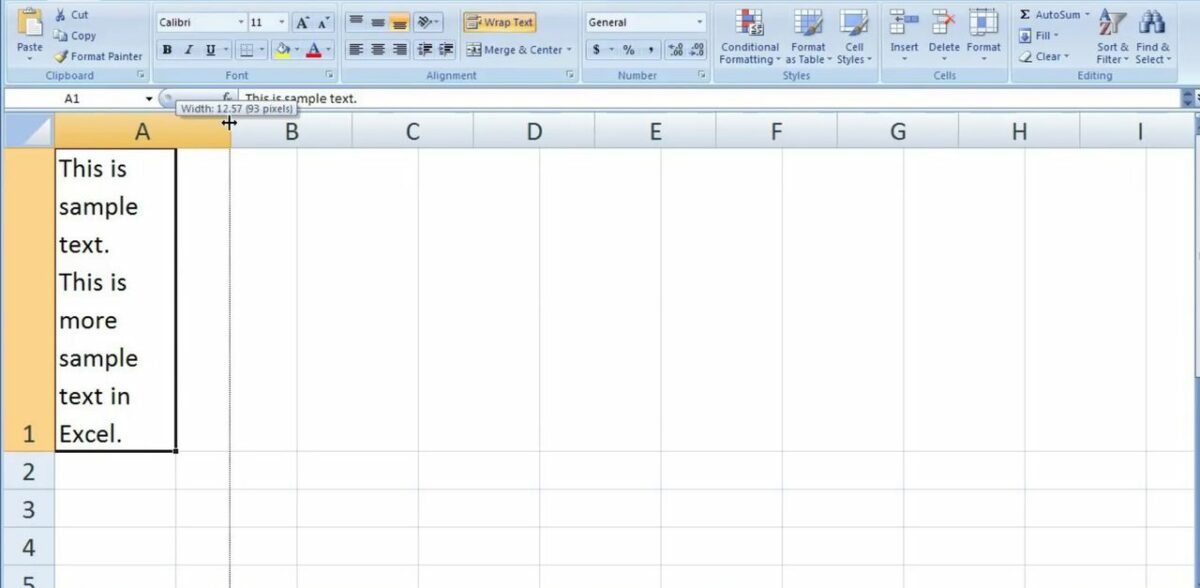
    This is what a modified cell looks like

    First, you will need a spreadsheet that could use some additional formatting. You most likely already have one in mind before viewing this tutorial. Good reasons to modify a spreadsheet cell include adding notes, writing long strings of characters, or to organize the data in question. Once you have a specific cell in mind click on it to select it in Microsoft Excel.

  2. Adding new lines to the cell

    Wrapping text is a solid solution for bloated cells

    Modifying the cell is as simple as holding down the alt key and pressing enter. If done correctly, your text cursor will start blinking on the line below. Like in any word processor, you are now free to type directly below the previous row of information. You can repeat the alt + enter technique as many times as you need on any given spreadsheet cell.

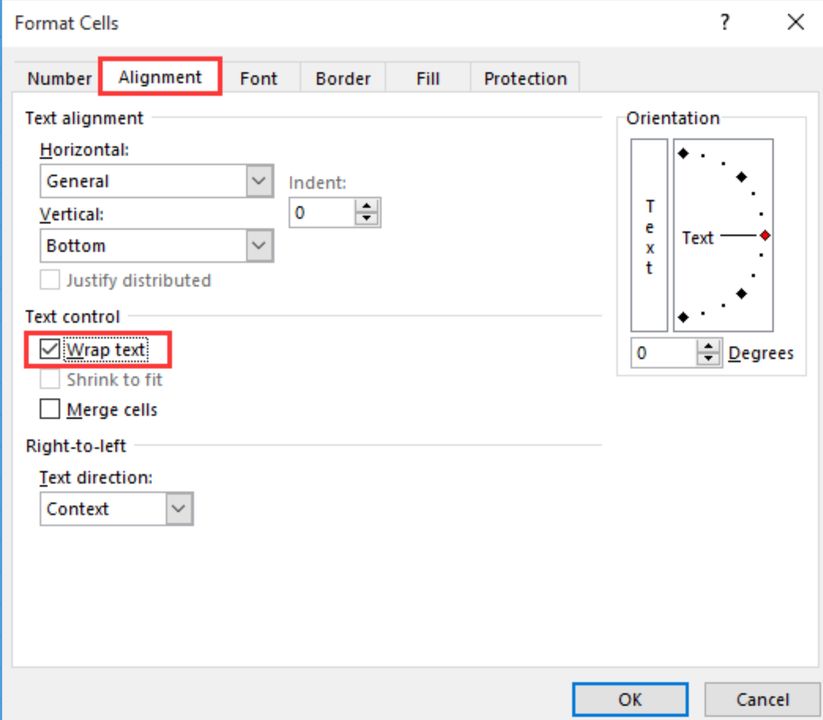
    If you wish to dive deeper, there is a more comprehensive way to achieve comparable results using the wrap text feature in Microsoft Excel. This is perfect for when your cell already has a bunch of text without any of the nice formatting. Right-click on the cell you wish to modify and select Format Cells from the drop-down menu that appears. From the Format Cells window, click on the box that says wrap text under the alignment tab. Be sure to confirm your changes by clicking on OK before leaving this window.

  3. Adjusting the cell’s height

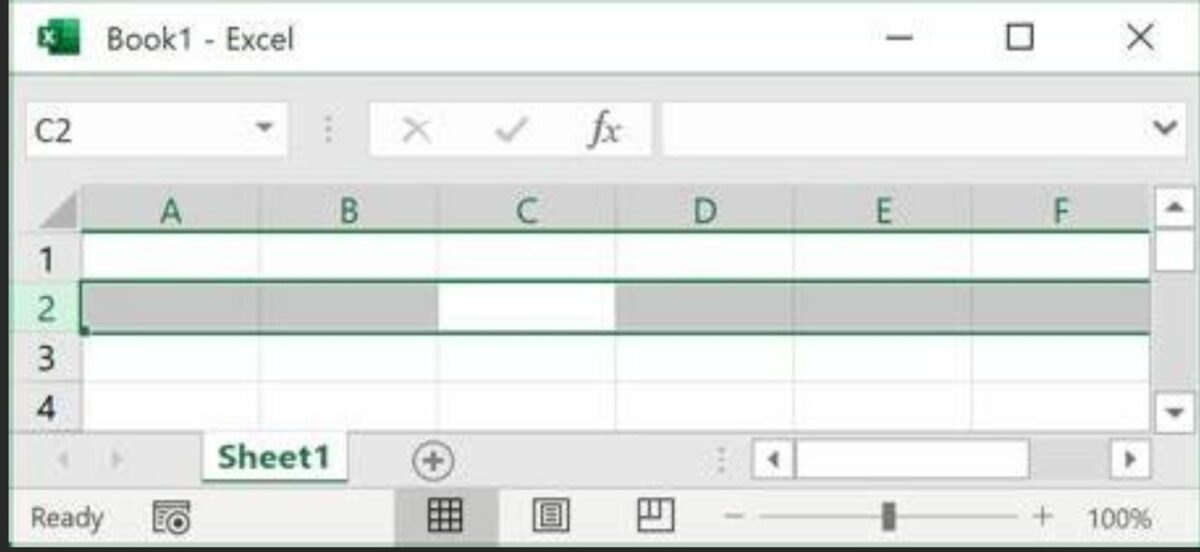
    You know which row is selected thanks to the green box on the left

    As you continue to add more lines to the same cell, you may notice the formatting start to falter. Luckily, you can readjust the height of any cell to complement your recent changes. To do this, look on the left side of the screen for the panel that displays which row is selected in Excel.

    In the picture above, the selected row is row 2. This is shown by the box highlighted in green. If you wish to make the cell larger, click the line between rows 1 and 2 and drag the mouse cursor up until the row is resized to your liking. To make the cell shorter again, grab the line between rows 2 and 3 and drag the mouse cursor down. Again, do this until the row is big enough to fit every line you added in the previous step.

  4. Saving your progress

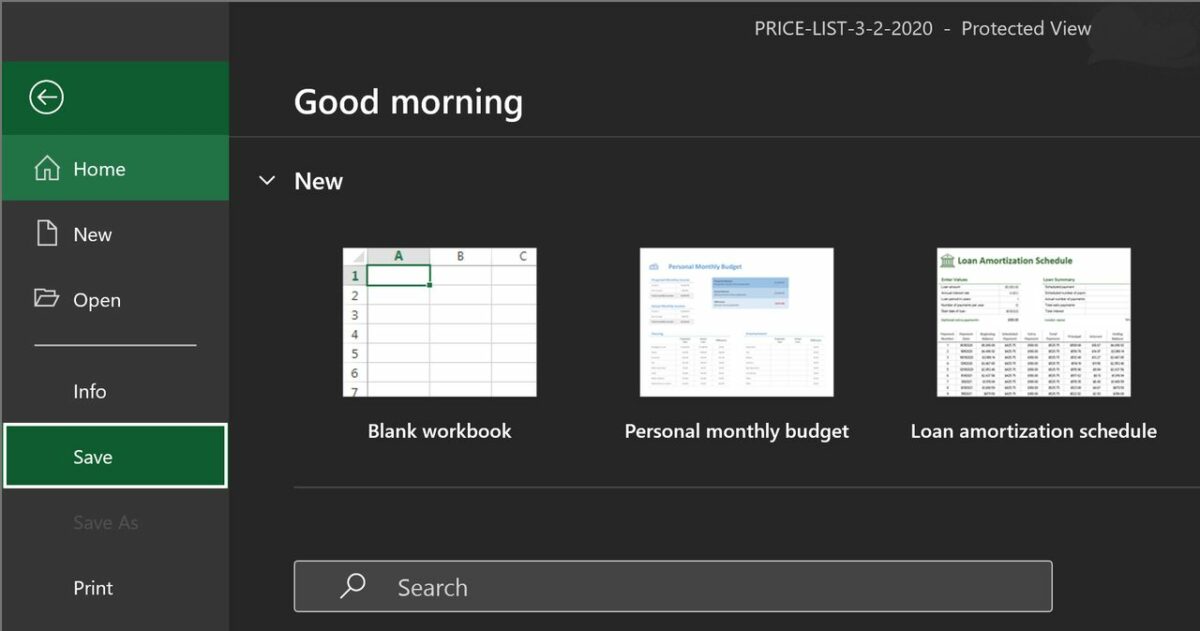
    Always save your work even after the smallest adjustment

    Since it is quite easy to forget to save your work when practicing a new skill, be sure to record your new progress before closing the program. It is especially important to save when you are making final adjustments before a deadline. To save the spreadsheet, click on File in the top left corner and select save on the dropdown menu that appears. Alternatively, you can click the floppy disk icon at the top of the screen if you have previously saved the spreadsheet before. After saving at least once, you can also toggle the autosave feature from the panel right next to the floppy disk icon.

Taking Microsoft Excel to the next level

After learning how to add additional lines to each cell, the next step is to continue learning more about the advanced options available in Microsoft Excel. A wise place to start would be with the formula wizard. Don’t worry, you will not have to do any math. Instead, Excel’s formulas allow you to implement numerous exciting functions that will save you loads of time in later projects. To learn all about the formula wizard, check out our article on the subject.

Microsoft Excel formulas READ MORE

Wunderlist vs. Todoist: which one is the best to-do list app?

If you’re overwhelmed with choices Wunderlist and Todoist are the two favorite apps in the space— a good place to start looking for the right tool to whip your work-life balance into place.

What should you look for in a productivity app?

That is the million dollar question. Organization is a personal and often sensitive topic. Some prefer something simple (a la Mac’s built-in task list or Gmail’s inbox-based option).

Others treat organizing like a complex multi-step process—think personal Trello cards that you drag from start to finish, checking off milestones as you cross them.

  • Do you like the calendar layout?
  • Does it integrate with your email, other apps?
  • How do you feel about the interface?
  • Does the “filing system” work for you?
  • Do you need habit tracking?
  • What about collaboration tools?

Here, we’ll compare the two rival to-do apps and see how they stack up.

Todoist

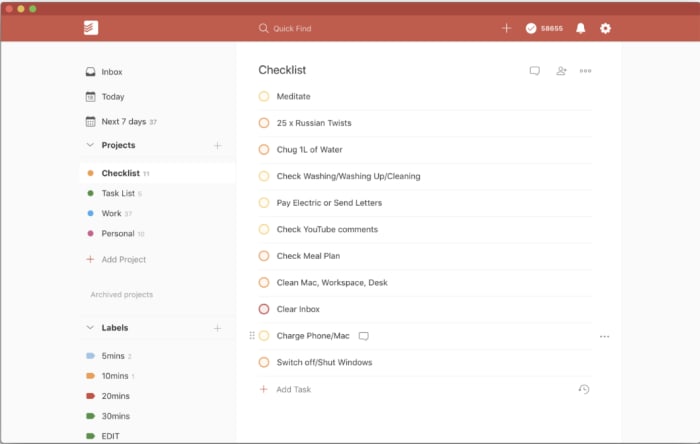
todoist home screen

Todoist leads the 17 million or so to-do apps (yes, really) you have to choose from. The reason being, it’s a dedicated to-do app with years of positive reviews backing its effectiveness.

Signing up is as simple as connecting by way of Facebook or Google and from there, you can start filling up your list. Set deadlines, assign priorities to tasks, and delegate work to others. Completing tasks is a matter of checking off a box.

If you want every feature, you’ll need to pay about $4 a month, or $29 for the full year. Which, if you like the lite gamification vibe, then it’s not a huge expense. Initially, it looks the app just presets a Gmail-esque task list.

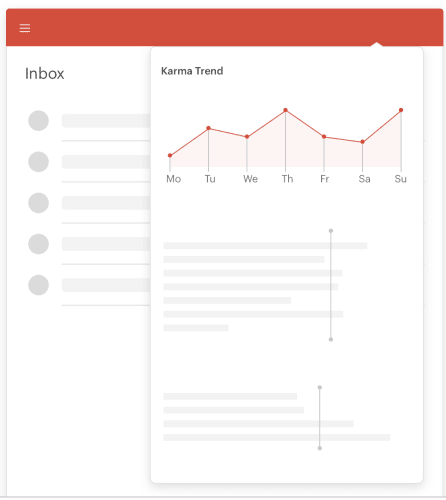
But, it gets better—for one, you can create projects and divide them up by task—checking off each small step on the road to completion. It also aims to build a habit-tracking element into the mix by offering “Karma Points” each time you complete a to-do.

todoist karma

The free version comes with the basic lineup of tools, but if you’re into it, we recommend springing for the Premium features.

The paid plan allows for more customization—you can filter based on criteria such as due date, project, label, assignee, or a combination. Search by using the @ symbol— to locate tasks within seconds— @pending, @email, etc.

The paid plan includes things like color-coded progress reports you can sort by week or month—this may or may not be relevant to you.

The benefit is, you’ll get an overhead view of how you spend your time, and you can feel good about yourself for sticking with an obligation for x days in a row.

Unfortunately, Todoist lacks a few basics. For example, there’s no traditional calendar view, which makes it a bit hard to plan ahead.

It does integrate with Google Calendar and iCal, so this might not be a huge issue.

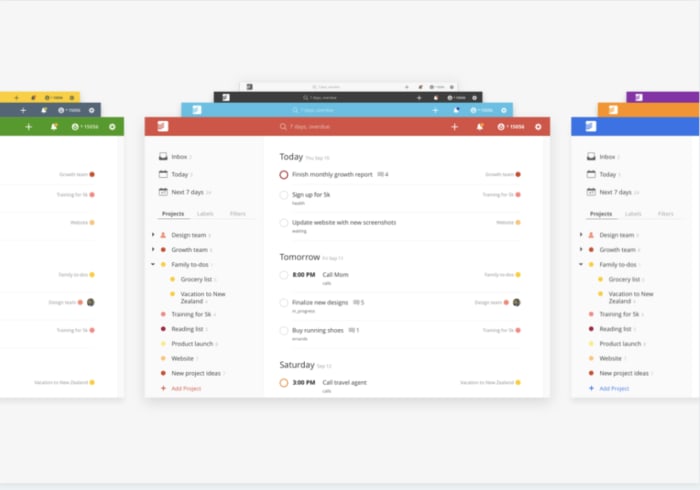
todoist upcoming tasks

It would also be nice to see a Pomodoro timer integrated with the Karma Points system, but again, it’s not the end of the world.

Todoist Download Free
9

Wunderlist

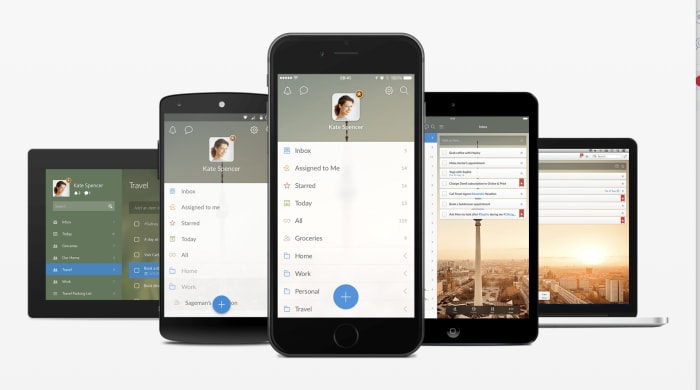
Wunderlist multiple devices

Wunderlist is similar to Todoist, another productivity app that’s been around the block a few times.

The app was acquired by Microsoft back in 2015, and merged with the company’s branded list-maker, Microsoft To-Do—but it seems that due to complaints from the fanbase, Wunderlist and Microsoft To-Do are separate apps these days.

If you’re looking for something free, Wunderlist might be the better option of the two. The platform no longer offers a premium option.

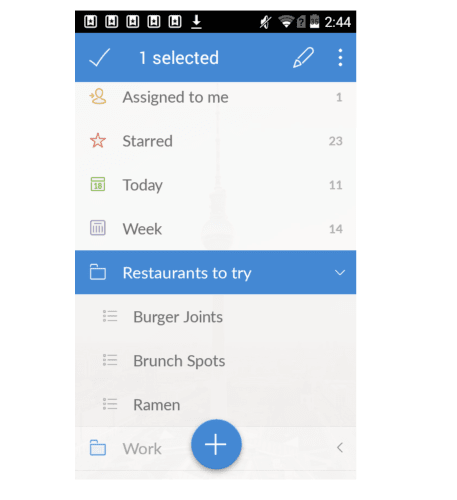
Each time you add a to-do list, you can label it—then access your lists in the app’s inbox.

This way household reminders won’t intermingle with follow-up reminders and tasks linked to larger projects.

Wunderlist keeps track of a lot of details, which is great. But, visually it’s pretty overwhelming. Some users might have trouble sorting through the lists and actually doing the tasks.

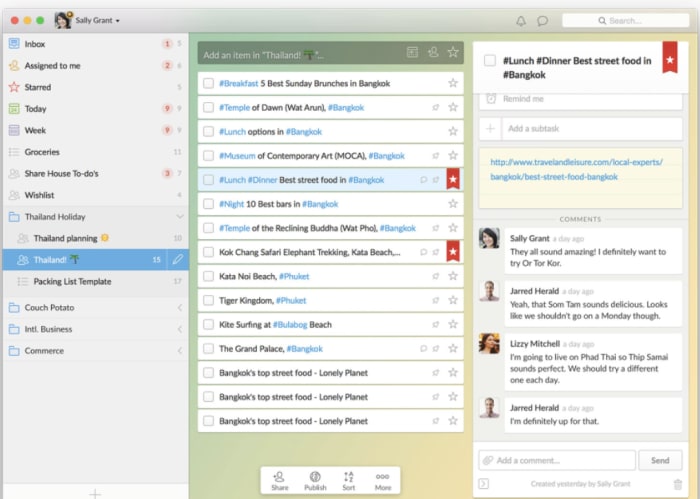
wunderlist list view

Wunderlist is a useful tool for those who do a lot of collaborating. Sure, Todoist has a delegation tool, but it’s part of the premium package. As you can see in the above image, users can select a task and review related communications or comment.

wunderlist to-do

Wunderlist is 100% free, so the built-in collaboration option makes it easy to share tasks with your spouse or roommates, or even coworkers if you’d prefer to keep a particular to-do outside of a more formal project management tool.

Wunderlist Download Free
7

What is the best to-do list app?

If it’s a question of Todoist vs. Wunderlist, it’s nearly a tie. The interfaces are slightly different, but in either case, you’re getting a simple to-do list app that works on web and mobile.

However, Todoist, in our opinion, may have a slight edge. At a glance, it didn’t seem that there were very many features, but after a little digging, we found Todoist can get as complex as you like.

How to record internal sound on Mac OS X

Use Soundflower and Audacity to record audio!

MAc

Recording internal sound on a Mac is problematic. Unlike Windows, you can’t simply record whatever noise is playing. If you’ve ever got stuck wondering how to capture streaming audio from a website or any other sound playing through your Mac, here’s how to do it:

How to record internal sound on a Mac

Using QuickTime Player

Although we will detail another method using Audacity and Soundflower, you can also use QuickTime Player to record audio.

QuickTime Player Download now ►
7

To record audio, follow these steps:

  1. Go to the File menu
  2. Choose “New Audio Recording”
  3. Click the arrow next to the record button to choose the recording and microphone quality.
  4. Use the volume slider to monitor the audio while it’s recording.
  5. Click the red Record button to start recording. Click it again to stop.

Using Audacity and Soundflower

Step 1

Download and install Audacity, an audio recorder/editor, and Soundflower, which allows your internal sound to be captured.

7

Soundflower Download Now ►
7

Step 2

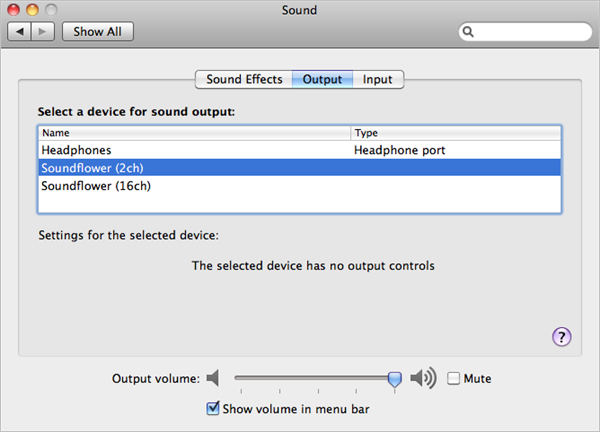
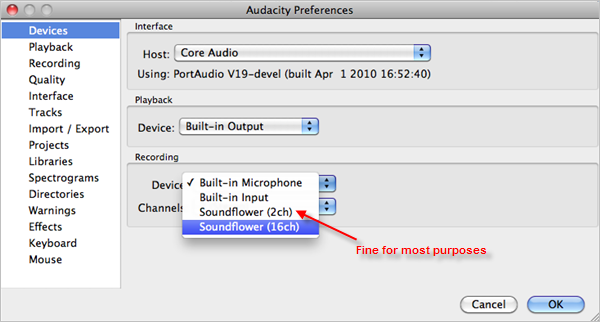
Open System Preferences > Sound > Output. Now that Soundflower is installed, you’ll be able to choose it instead of the built-in output. Soundflower (2ch) is fine for most purposes. Note that once you do this you will no longer be able to hear a sound. To make a clean recording, also turn off all sound effects here in the Sound preferences.

Soundflower

Step 3

Open Audacity and in preferences, look under Devices and choose Soundflower (2ch) from the Recording Devices drop-down menu.

Soundflower

Step 4

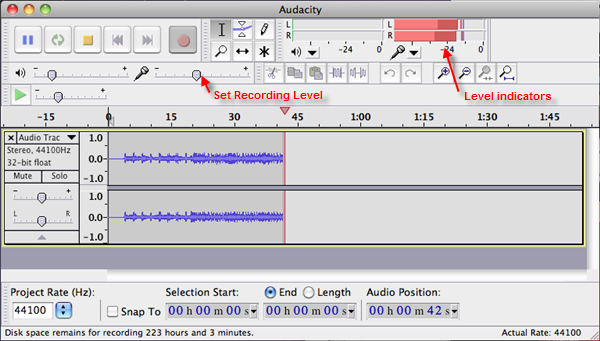
On the top right of the Audacity interface, there is a microphone symbol with a drop-down menu next to it. Click it, and hit ‘Turn on monitoring.’ You will now see red level indicators jumping whenever a sound is made. Play the sound or stream you want to capture and adjust the microphone level-slider on the left so the red bars reach close to zero when they peak.

Soundflower

Step 5

You’re now ready to capture. Stop your stream, and pause it at the start. Hit the red record button in Audacity, then play your sound stream. Be aware that if you haven’t turned off any sound alerts or effects, these will also be captured in your recording. Once finished, save the project from the File menu. At this point, you can turn on the internal audio again in System Preferences. Any editing of your recording should be done now (See this post for audio editing with Audacity).

Step 6

Again from the File menu, choose Export which allows you to convert your recording into a more useful format like MP3 or FLAC. You can now listen to your captured recording at your leisure.

3 tricks to control the time you spend on WhatsApp and other apps

Are you a smartphone addict? Here’s the cure!

Has anyone ever told you that you spend way too much time on WhatsApp?

What about Facebook? Twitter? Instagram?

Maybe you just spend too much time fiddling around on your phone in general. 

If you think so, we got a secret for you: you’re most likely right. Fear not! There is a cure for your app addiction. We found three different methods for you to try!  

WhatsApp Messenger Download Now ►
8

Turn off notifications

It’s a simple method, but it can work!

Disable each and every one of your notifications to keep you from being disturbed. Obviously, you shouldn’t remove notifications for ALL of your messaging services in case there’s an emergency.

It is proven that when you unlock your phone in response to a notification, you’re likely to open up other apps and waste more time on your phone.

To deactivate notifications in WhatsApp, go to “Settings” and then “Notifications. ” From there, uncheck the corresponding boxes and your phone will stop receiving alerts. This is also a great way to help conserve your data!

Set specific hours

Again, it sounds simple enough, but if you only allow yourself to use apps during certian hours of the day, you will find yourself using them less and less.

If you need to use WhatsApp for work, only using it during business hours can help out. Or, if you use it to talk to your friends and family after work, you can only all yourself to use it after dinner time.

Once you have a set schedule of use for all of your apps, your time management skills will get much sharper.

Quality Time

Having a smartphone addiction is nothing to be ashamed about. Just like if you have a substance abuse addiction, there is an app to help you with your app addiction.

Are you worried if you are too hooked on your Android? How much time do you invest in Facebook Messenger? What about in Candy Crush? Do not fear: here is Quality Time to help you … or to just confirm that you should divorce your smartphone.

Quality Time helps you see just how much time you’re devoting to using all of your apps. There is also an option to “take a break.” This means that you cannot use any apps while you take a break. 

Quality Time Download now ►
10

With this application, we can also control how many times we unlock our smartphone every day.

Finally, we can tell our phone that we do not want to receive notifications, that calls are blocked (at bedtime, for example) or restrict some apps.

Wrapping up

Do you know other tricks to control your smartphone usage time? Share them with us.

Best free benchmarking software

Make sure your computer is running at peak performance with these benchmarking apps!

Benchmark

There are many reasons to benchmark your computer. Knowing the technical details of your computer can tell you what it’s capable of doing or if you can run a specific game. Regardless if you only use your computer for tasks such as playing games or editing photos or video, it’s important to know if your system is up to the job.

Here are the best free benchmarking programs all designed to test your computer’s performance.

Best free benchmarking software

Futuremark PC Mark 8

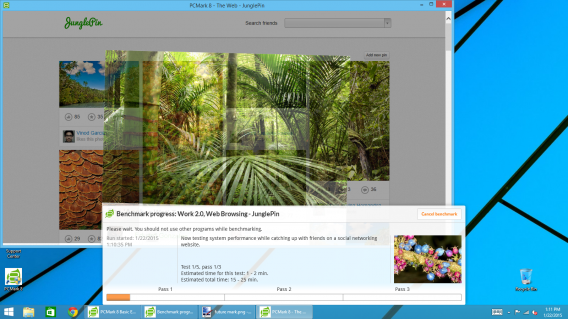
futuremark pc mark

Futuremark is famous for its graphics testing software, 3DMark. Designed to stress your graphics card using complex computations that translate to games, 3DMark is a great test to see how powerful your GPU is. Futuremark also makes PCMark, which is designed to test your computer’s capability in a more real-world setting.

PC Mark 8 focuses on your using your computer for everyday tasks like office suite productivity, web browsing, and video chat. The test simulates these situations and gives you the results. It supplies a breakdown, but these numbers may be a little confusing. You can also compare your scores to others who have tested their machines online.

While the full version of PC Mark has more advanced options, the free version still gives you a general idea of how well your computer runs. If you’re looking to benchmark your computer for gaming, then use 3D Mark.

PCMark 8 Download now ►
7

Novabench

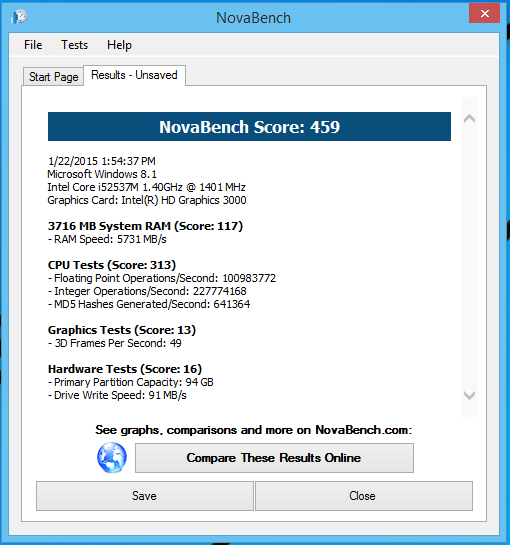
novabench

Novabench is another great option if you’re an advanced user. The test Novabench runs is relatively simple on the surface; it tests your RAM, CPU, GPU, and the hard drive. The score can be compared online and will give you a better idea of how good your computer is relative to others.

The problem with Novabench is that many of the test results are strings of numbers that might not mean much to a normal user. Even the results don’t tell you much and you’ll have to go online to compare results.

Novabench might be worth considering as a secondary test rather than your primary one to compare numbers like CPU tests or RAM speed rather than using the final Novabench score.

NovaBench Download now ►
9

PassMark Performance Test

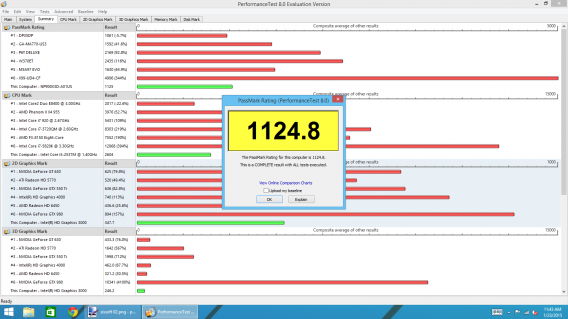
passmark performance test

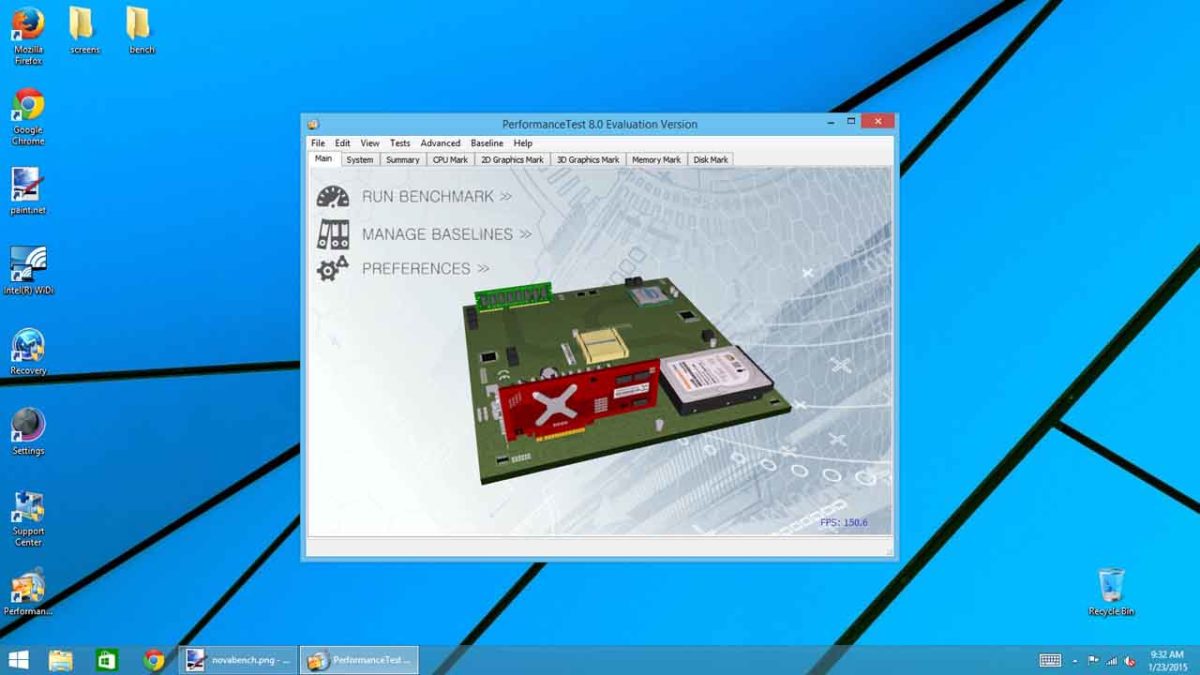
Performance Test is the best benchmarking app for people who want to learn more about their computer, but don’t want to deal with arbitrary numbers. While the program gives you a benchmark number, it displays more relevant information on other tabs.

Performance Test also shows how your computer stacks up against others within the program. You will need to know a little about your computer like what kind of processor or graphics card it’s using for the results to make sense. But the amount of information that Performance Test supplies is a perfect start to begin tweaking your system.

I suggest using Performance Test if you’re looking to upgrade your computer because it’s great for figuring out what parts you need to upgrade your system. The program offers a free 30-day free trial before requiring a purchase.

Passmark Performance Test Download now ►
7

SiSoft Sandra

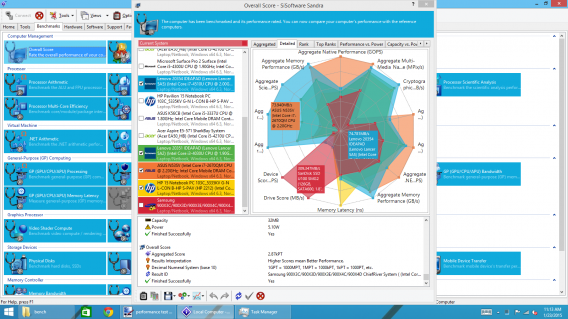
sissoftware sandra

When I ran SiSoft Sandra to benchmark my laptop, I didn’t expect amazing results. My laptop is built for productivity and internet browsing but Sandra’s results compare performance between manufacturer’s laptops. This means it’s not a comparison to other users who may have built their own computers, but to off-the-shelf computers.

The problem with Sandra is that it gives too much information, even for a power user like me. It contains comprehensive tests that will cover just about everything and anything. The initial test for Sandra took around 30 minutes, during which I let the laptop run through every test without touching it.

If you’re using an ultrabook, there’s no reason to run SiSoft Sandra unless you want to be depressed. These computers aren’t meant to run games or resource-heavy apps. If you’re benchmarking a custom-built gaming machine, the results of your test might be really useful in deciding how to further optimize your system.

Sisoft Sandra Download now ►
7

Fraps

fraps

If you play games, you probably already know about Fraps. The real-time frames per second (FPS) benchmarking tool is widely used to test how well games run. As opposed to other benchmarking software, there are no artificial tests. Fraps will log the current FPS in the game you’re running to give you an indicator of how well your system handles a particular game.

There are other tools like a screen capture short key (which doesn’t capture the FPS number) and a video capture tool so you can record gameplay to upload somewhere else. The program is light so it doesn’t use system resources so you don’t experience any lag when playing a game.

Fraps’ specialized benchmarking means that it’s not the best choice for someone who isn’t playing games on their computer. But if you’re a PC gamer, using Fraps can give you important statistics about your system.

Knowing the potential and real-time performance of your computer is important. It’s useful to test a new computer and see how well it can perform. Benchmarking the same computer, later on, will tell you if you should upgrade your components or buy a new computer. Benchmarking may seem overwhelming, but with the right program, you’ll be able to know exactly what you can expect from your computer.