Instagram Stories users embarrassed by new questions feature

Instagram users anonymous questions

Anonymity. The onset of social networks has simultaneously stripped us of our privacy while also creating a legion of anonymous internet trolls. Under the cloak of anonymity, they spill their bile all over the internet without fear of recrimination. Twitter is awash with so much hate that there are even browser extensions out there to block all the anonymous nonsense out. It seems that when we think we’re saying things anonymously, we make things a little spicier than we usually would.

Instagram Download Instagram
7

Users on Instagram both proved this reality to be true and were caught out in the process this week. Instagram has rolled out some new interactive features for its Snapchat copying Stories feature. Users can now ask questions as a part of their Instagram Story. The thing is, the answers to these questions are not anonymous. Whoever asked the question can see who answers it. A lot of Instagram users didn’t know this, however, and answered as if nobody was looking. Ever since they’ve been taking to Twitter publicly to talk about their embarrassment. Check out some of the best (and worst) Tweets below:

It isn’t all bile, however, sometimes anonymity allows us to say those things that were too scared to say. Our heart wants to sing, but our fearful brain holds us back. In those moments, anonymity can give us an opportunity to say what we’ve always wanted to say.

We’re with you Ty, you wholesome meme of a man. The only question left now, is what happened next?


The indestructible iPhone!

Arvinder Naberhaus was enjoying a biplane flight with one of her friends a few days ago. As the plane flew over her childhood home she tried to snap some photos on her mobile and it flew out of her hand.

Sometimes things happen that defy belief. Not long ago, we told you about an iPhone X that still worked after it been dropped from the highest bridge in California. The screen was cracked but the fact that it still worked at all after being dropped 1,000 feet is a truly amazing thing. Well, an iPhone in Iowa has gone one better than that phone in California. It was dropped out of a plane and not did it still work, the screen didn’t even crack!

Arvinder Naberhaus was enjoying a biplane flight with one of her friends a few days ago. As the plane flew over her childhood home, she tried to snap some photos and the phone flew out of her hand. The pilot told her it would be gone forever, but Naberhaus was determined to try and find it once the flight had ended.

Once back on the ground she used the Find My iPhone app to find the phone’s location and headed off to find it. As she approached a yard, she suddenly heard her ringtone and rushed to find her phone face down in the grass. She picked it up and found not a single sign of damage. Naberhaus’s friend Donna Johnson, who was flying with her at the time spoke to WHO-TV about the moment they found the phone:

“I literally went into shock. I asked is this for real, is that the same phone and I said this is a miracle phone, you can’t drop a phone 1,000 feet and have it still work!”

The phone was completely unharmed when they found it in the tall grass!

It wasn’t long after they found the phone unharmed that it started pinging notifications for a meeting that Naberhaus had scheduled. A meeting she made on time.


Why the NRA should be terrified of this version of GTA

Conservative leaders have long attacked Grand Theft Auto for inciting violence and bad behavior in the people that play it. University professor Joseph Delappe is trying to flip that narrative. Delappe is using GTA V to highlight violent gun crime in America. Rather than the violence in society coming from the game, the violence in Delappe’s version of GTA V comes directly from society.

$22.99
GTA V

From: Amazon

What Delappe has done is hack a version of GTA V and is broadcasting it over the internet via a live stream called Elegy. The hack has taken the normally passive NPCs (non-playable characters) and turned them into gun-toting killers. Rather than peacefully going about their day, the NPCs are shooting and killing each other. These aren’t random killings, however. Every murder in the stream represents a real gun homicide in the states.

Be advised the stream below is for mature viewers only

Watch live video from josephdelappe on www.twitch.tv

Every day, Elegy resets and reenacts every gun crime homicide that has happened in 2018. That is a lot of killing reenacted every day, and every day more people will die than the day before. Delappe describes it like this:

“Gun homicide totals since January 1st are revised daily on this website which are then fed directly into the project – starting at 0 each midnight, each day the new total body count since January 1st is reenacted in it’s totality and so on. As of July 4th, 2018 there were 7,293 gun homicides in the United States – by the end of 2018 this number will likely reach close to 15,000.”

In 2015 Janelle Monáe released the powerful song HELL YOU TALMBOUT as a protest against police violence perpetrated against people of color all over America. The song invites everybody to say the name of all the victims up to the time it had been written and invokes a visceral emotional reaction from all but the coldest of listeners. Delappe’s project doesn’t have the names of the victims, but the numbers are stark. The fact they keep increasing day after day hammers home another point that sits perfectly next to Monáe’s humanization of the disturbing statistics we hear about every day on the news.

The project started on July 4 and plans to run until July 4, 2019. Expect a bloodbath.


UNREAL Mobile launches the cheapest unlimited mobile plan ever

In 2012, FreedomPop made headlines for being the world’s first free mobile service. Although the free plan was great for light use, the usage caps left power users out in the cold.

Now, UNREAL Mobile, an offshoot of FreedomPop, is going after the premium market by offering the world’s first unlimited mobile plan for just $10.

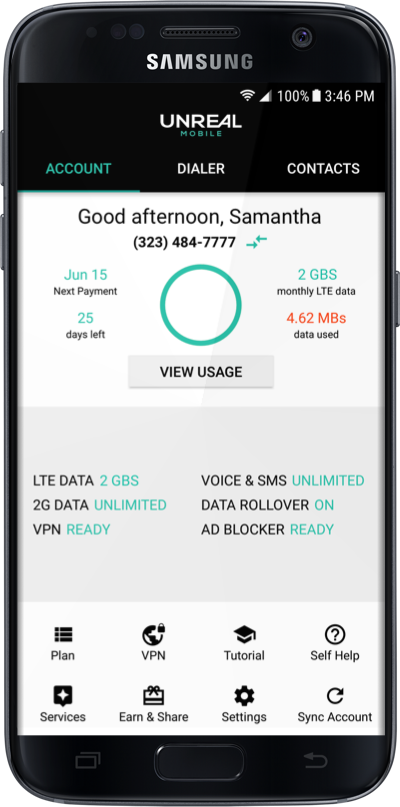
Power users can now spend less but enjoy the same flexibility of more expensive plans from Verizon and Sprint. In addition to unlimited calls, texts, and data, you also get encryption, privacy, and ad-blocking features, too.

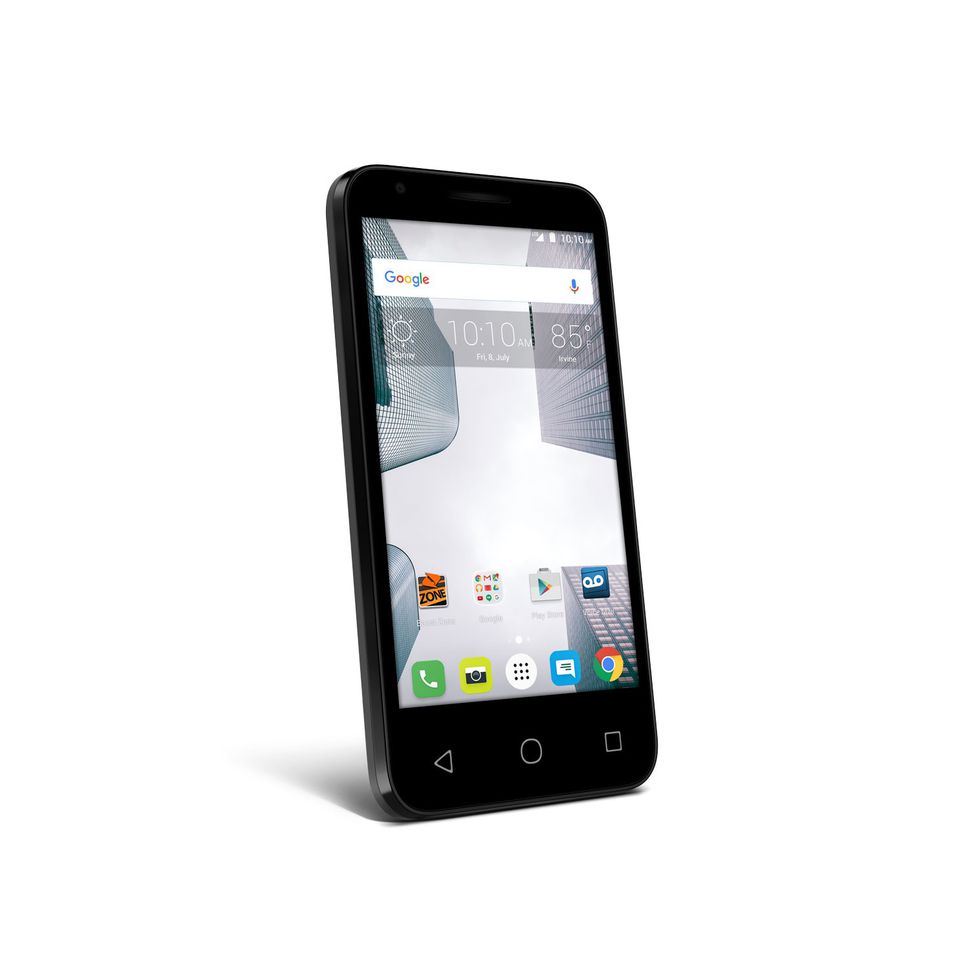
UNREAL Mobile is currently offering a free trial on their Unlimited Talk, Text, & Data + 2GB LTE (worth $15/month). This also comes with a 67% discount on the Alcatel Dawn LTE for $49.99 (worth $149.99) for a limited time only.

With a 30-day money back guarantee, you can try UNREAL Mobile risk-free before deciding if it’s the right plan for you.

Here’s how it works.

UNREAL Mobile Phone Plan

You get…

  •      Free trial of Unlimited Talk, Text, & Data + 2GB LTE (worth $15/month)

Plus…

  •      Enjoy 67% off the Alcatel Dawn LTE at just $49.99 (worth $149.99)
  •      Get peace of mind with a 30-day money back guarantee
  •      Save your high-speed data with monthly data rollovers
  •      Earn a high-speed data bonus of 10% after 3 months
  •      Protect your data with encryption and privacy
  •      Smart usage with data compression so your high-speed data goes further
  •      Use your phone number anywhere, across any device
  •      … and lots more

If you enjoy the freedom of an unlimited plan, UNREAL Mobile could save you $100s a year. It’s the cheapest unlimited plan on the market, and with a 30-day free trial and money back guarantee, it’s the perfect time to try it out for yourself.


Here’s everything we know about The Last of Us 2

Details are slowly trickling in about the follow-up to Naughty Dog’s post-apocalyptic survival masterpiece, including an incredible new trailer showcased at E3. Here’s what we know so far about The Last of Us 2’s story, gameplay, and other rumors. If you still haven’t played the first game, be warned: spoilers are incoming.

The Last of Us 2 is set five years after the somewhat ambiguous ending of the first game. After finally reaching a research facility run by the Fireflies in Utah, Ellie was quickly whisked away. Marlene, the leader of the Fireflies, informed Joel that in order to find a cure for the infection, they would have to operate on Ellie’s brain, killing her in the process. Forced to choose between saving Ellie and curing the infection, Joel chose Ellie. He massacred his way through the Fireflies facility before finally reaching Ellie just as she was about to undergo the operation that would kill her. When Ellie finally wakes up from her drug-induced coma, Joel lies about what happened, telling her that the Fireflies had found other test subjects besides her and that they were still unable to find a cure. 

The game ends with Joel and Ellie returning to the settlement run by Joel’s brother, Tommy. When Ellie once again asks Joel if what he told her is the truth, he doubles down on his lie, and the credits roll.

Several years later, Ellie is now a teenager. Joel will be taking a backseat this time around; Naughty Dog has confirmed that players will be taking control of Ellie in this installment. Joel will still have a large presence in this game, but what exactly that presence will be remains a mystery. In the game’s first trailer, we only see his silhouette, which led some to speculate that Joel is dead, and only remains as a figment of Ellie’s imagination. Though Joel certainly isn’t getting any younger, the latest E3 trailer seems to refute this. New character Jesse approaches Ellie at a party at Tommy’s settlement, remarking that her “old man,” presumably Joel, called him out for slacking while making his rounds. He also mentions that Joel always seems to take a greater interest when Ellie is on patrol with them.

This certainly sounds like the Joel we know and love, but also of note is the way Ellie reacts to this remark. She definitely doesn’t seem happy that Joel is butting in, which could mean several things. Though Ellie and Joel grew closer over the events of the first game, it ended with them somewhat at odds with each other. Just based on the way Ellie seems to resent Joel’s overprotectiveness, it doesn’t seem like that’s changed much in the five years between the two games. However, is this just Ellie going through a rebellious teenager phase, or did she find out at some point that Joel lied to her?

Whatever the reason, Ellie has grown up quite a bit since the last time we saw her. The new gameplay trailer shows her fighting off enemies with the same brutal combat style introduced in the first game. Melee combat, improvised weapons, and stealth are all returning in a big way in this new game, and combat overall seems much more fluid than in the first entry. Ellie transitions seamlessly between running, hiding, and fighting, and at one point we see her quickly crafting an explosive arrow mid-fight to get the upper hand on her opponents.

So, who exactly are these opponents? Details have been sparse on them so far, but Naughty Dog has revealed that they are a pseudo-religious cult known as the Seraphites. Their goal is to wipe out sin as they see it, though what “sin” they’re attempting to wipe out remains unclear. The cult members all seem to share a similar appearance. Male members of the cult shave their heads, while women have the same braided hairstyle. Looking closely will also reveal that the cultists all have Glasgow Smiles, the same kind of scars that gave The Joker his distinctive grin in “The Dark Knight.” In addition, all members also seem to wear similar long, brown duster coats.
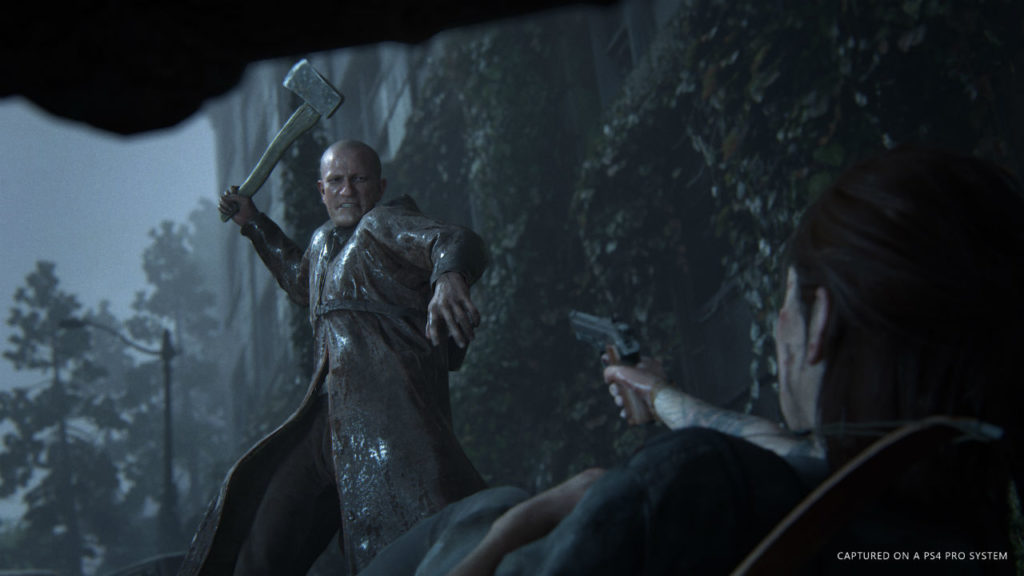
Aside from what they look like, we know that the Seraphites aren’t very nice people. They seem to kill in a particular ritualistic style that involves hanging and disemboweling their enemies, and will “clip the wings” of their targets by brutally breaking their limbs with a hammer. New characters Yara and Lev are a brother and sister duo who were formerly members of the Seraphites. Though it’s still unclear how their story intersects with that of Joel and Ellie, it seems likely that we’ll learn more about this vicious cult through them.

Aside from the Seraphites, we can also see graffiti of the Fireflies logo on a signpost in the game’s first trailer. This is the only hint we’ve seen that they might be returning in the second game. Joel’s rampage at the end of the first game left the group without any clear leadership, so it seems likely that if they do reappear, they’ll be out for revenge. If this is the case, between the Fireflies and the Seraphites, Joel and Ellie will certainly have their hands full.

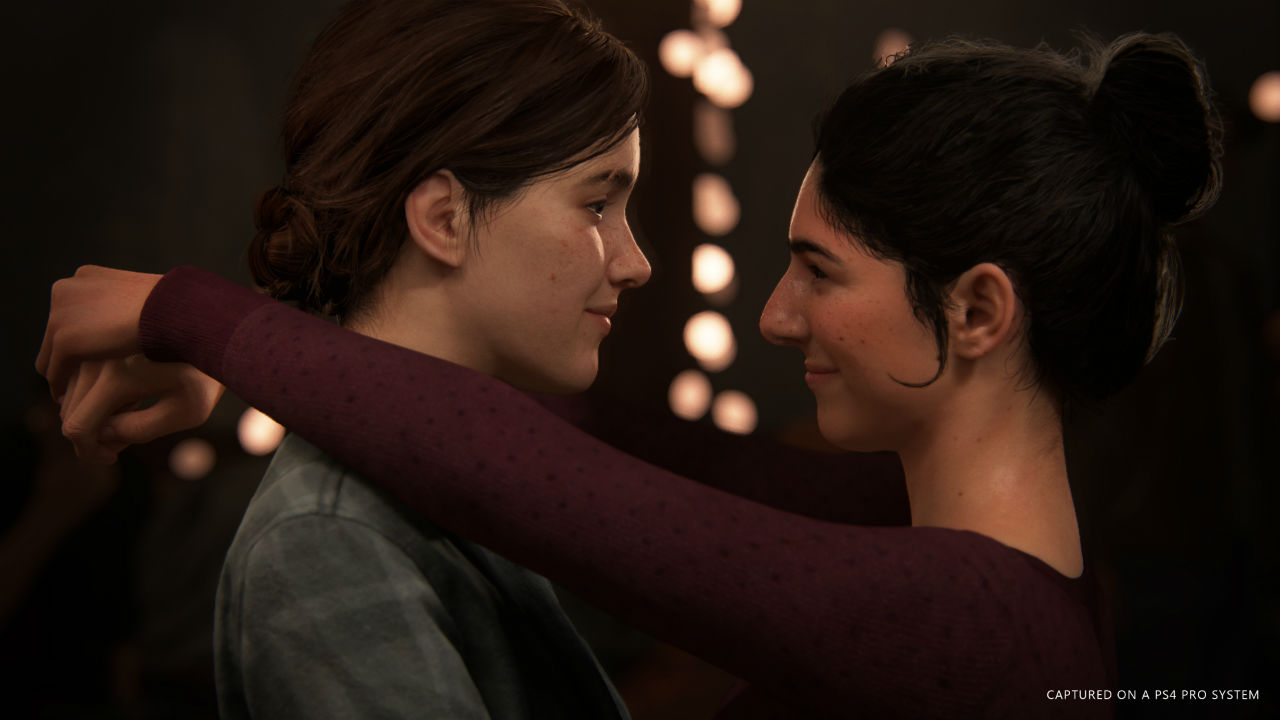
Several new characters are also being introduced this time around. In addition to Yara and Lev, we’ve also met an unnamed woman voiced by Naughty Dog veteran Laura Bailey. Naughty Dog loyalists will recognize her from her role as mercenary Nadine Ross in Uncharted 4, and it seems like she’s bringing the same intensity to this mysterious new character. We’re also going to meet a few new residents of Tommy’s settlement. Shannon Woodward, who fans of HBO’s “Westworld” will know as park technician Elsie Hughes, plays Jesse’s ex-girlfriend Dina. She takes a starring role in the latest trailer, sharing a kiss with Ellie during a dance at the party. It’s unclear whether their relationship will develop into something more serious than a somewhat tipsy kiss.
One final important detail that Naughty Dog has revealed: whereas the first game was about love, this game is going to be about hate. From what we’ve seen so far, this game is going to have a much, much darker tone than the original. Between Ellie’s colder and more ruthless outlook and the brutal executions perpetrated by both her and the Seraphites, this game promises to be an extremely intense ride, and it seems like Naughty Dog won’t be pulling any punches this time around. Though no official release date has been revealed yet, Naughty Dog has been revealing a steady stream of new content since announcing the game, and we’re excited to see what else lies in store for Joel and Ellie.
How to livestream your Xbox gameplay

Looking to launch your career as a world-famous gamer? Live-streaming your gameplay from the Xbox requires a small amount of effort and a large amount of thought. The basics are easy, so we’ll start with choosing how to stream, then move toward using streaming programs. Finally, we have a bonus section with extra tips and tricks!

Choose how to stream

To be straightforward, you’re probably going to want to download Mixer or Twitch from the Microsoft store (no worries, they’re free). While YouTube Streaming is certainly a possibility, it’s far more difficult. Especially if you have a Mac laptop. That being said, we recommend Mixer or Twitch. If you are unfamiliar…

Mixer is Microsoft’s official streaming service and only works for the Xbox. This specialization means a smaller viewership compared to other services. Despite this, the app has notable strengths. For example: group streaming, which means multiple screens and Xboxes at once. If you’re looking for an easy program and aren’t worried about monetization, Mixer has a lot to offer.

Twitch currently leads the streaming industry. It’s well equipped to connect gamers with viewers and has notable perks like video storage, which allows your past gameplay to be preserved online. It is available on numerous devices, including phones and computers. You can download it here:

Twitch DOWNLOAD FREE
9

A quick note: if you plan on streaming yourself, you may enjoy watching others as well! On the other hand, if you’re confused by the idea of watching others play games, we have a few explanations: first, watching a good streamer feels like having a game night with friends. Alternatively, it can allow competitive gamers to watch over the shoulders of elite players and learn better techniques. Try it and see!

Create an Account

Whatever streaming route you choose, you’ll need to create an account. Be prepared with an email and phone number in case you need to verify the account.

Some apps may not allow you to make an account from the Xbox itself. If you find this to be the case, use another device (computer, phone, etc.) to make the account and then sign on with your Xbox afterward.

Using Your Program

By now you should have Mixer or Twitch downloaded on your Xbox and be signed in to the new account. Congratulations! At this point, each app works differently:

Mixer

As the official Microsoft app, Mixer is part of the built-in broadcast system. Click the “Home” button on the Xbox controller (shown below) to go the main screen.

Next, move to the “Broadcast and capture” tab. From here, you are given the choice to start broadcasting. Click on this button, and you will begin streaming on Mixer!

(There are a few extra settings. For example, you can choose whether or not to include your headset’s audio feed in the broadcast.)

Twitch

Twitch is not the official Xbox streaming app. So, to use this program you’ll need to open both your game and the app at the same time.

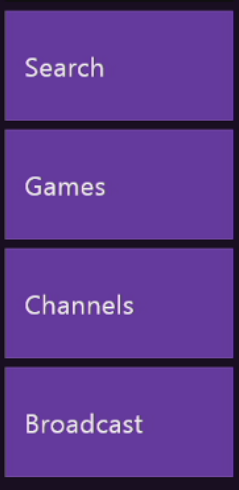
Once this is finished, enter the Twitch app. There should be a bar with four buttons, the bottom one being “Broadcast.” Select this button.

Doing so allows you to begin streaming! The app will take you through a few more steps while displaying a sample of how the broadcast will look. After this is finished, you can return to your game. You’ll know the broadcast is going when a small blue broadcast box appears.

The Other Considerations

You’ve begun streaming! We’re glad for you, but would like to serve up some food for thought. A few items to mull over:

  1. How’s your internet speed? If you’re experiencing slow internet (possibly due to the proverbial “McDonald’s Wi-Fi”), you may run into serious lag while trying to play your game online.
  2. What game are you streaming? If you’re trying to pick up subscribers, well-established streaming games like Fortnite, Overwatch, and Rocket League may not be for you. Try to find new games that are becoming popular and get ahead of the hype.
  3. What are your expectations? Even if you find a good, new game, streaming requires a lot of hard work and good luck to become big. Those looking for quick fame and fortune should beware. On the other hand, passion and persistent work will give you a better chance at success.
    Rocket League download now
    7

Overall, remember this: business, business, business. The fact that you’re trying to stream games probably means you already enjoy video games, but good streaming is a holy combination of fun and business. This means: stick to a schedule so your viewers know when to expect you, look for opportunities to expand your audience outside of streaming itself (conventions, friends, etc.), and consider your brand. How do the things you say, wear, and do, define your type? Are you the master gamer? The fun but competent guy-next-door? The gaming comedian? Be careful about deciding who to be when you are online, especially in a live broadcast setting that can be seen by many people.

Admittedly, this is a lot to think about when you begin streaming. With persistence and mindfulness, we believe in your ability to master the ins and outs of video game streaming.


The best ways to collaborate in Google Docs

Want to start collaborating with other people on a project in Google Docs? Follow these easy steps so every member of your team can join in.

Google Docs provides one of the best word processing tools for free. Likely, its one downside comes from the need to connect online… but this also leads to one of its greatest strengths: real-time collaboration.

Before online collaboration, word processing documents had to be sent via email or flash drive to the other members. Now, a group can work together at the same time with a few easy steps!

Google Docs download free
8

1. Create an Account

Working in Google Docs requires simply creating an account. If you have a Gmail already, there’s no need to worry: sign into Docs with your usual email and password.

In fact… if you’re signed in to Gmail you may be automatically taken to the welcome screen of your fresh Docs page!

2. Create a Document

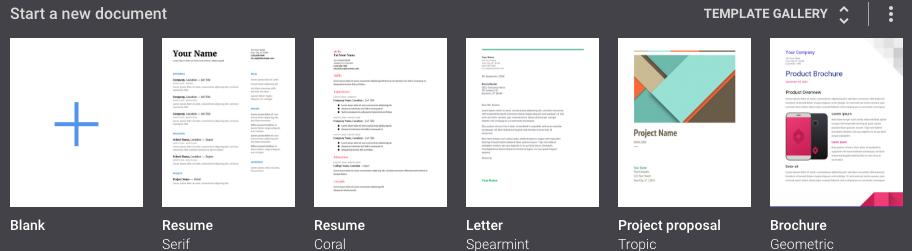
The top of the page should show various document types to choose from. Select any of these to start your new project:

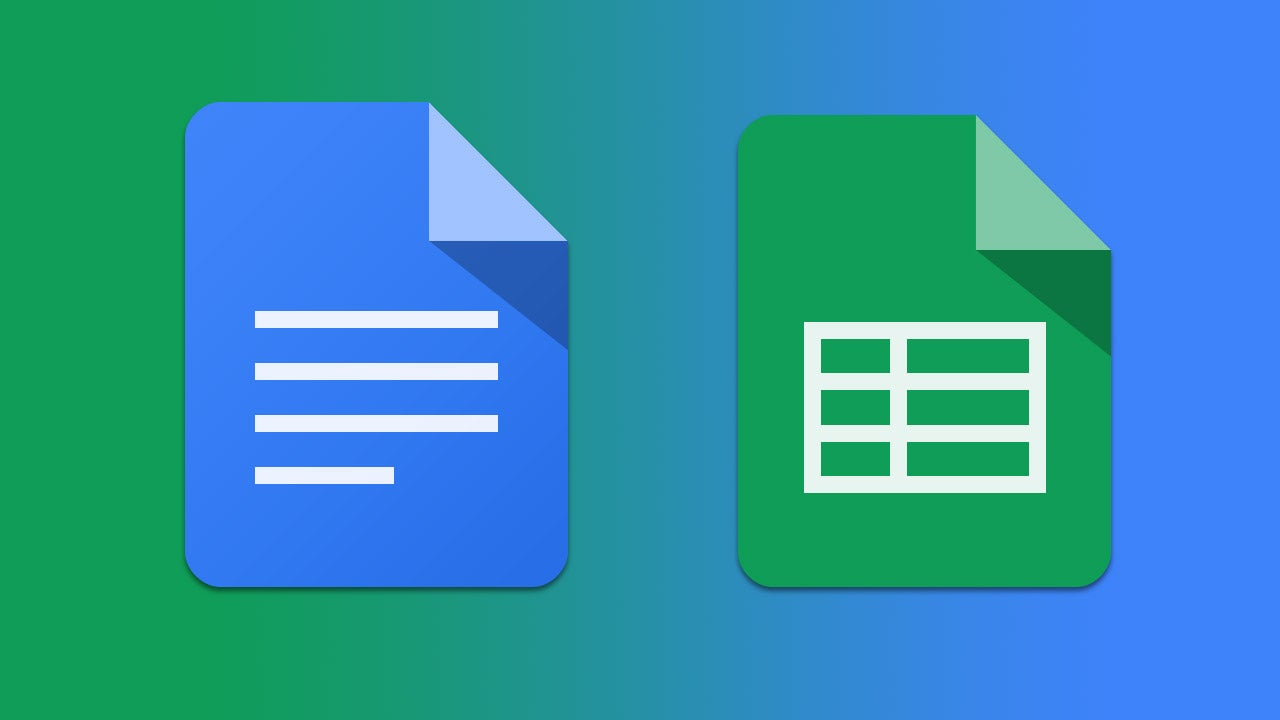
If, instead, you see the “New” button shown below, you are in probably in Google Drive, not Google Docs. Don’t worry: Google Drive simply collects all your documents from Google Docs, Spreadsheets, and Slides. Aside from that, it performs most of the same functions.

That said, clicking the “New” button gives you the choice of creating a new word document, spreadsheet, or slideshow. Unlike Google Docs, it doesn’t offer pre-formatted templates.

3. In the Document, Hit the “Share” Button

The button should look something like this:

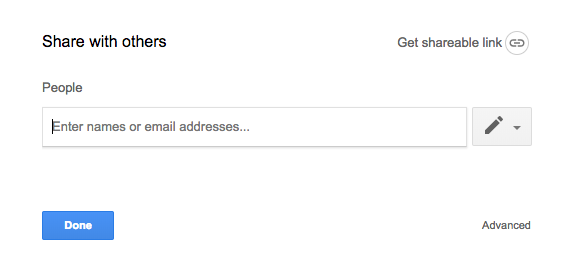
Tapping the button leads you to the share screen:

This is where you choose who to collaborate with. Any address can be entered, Gmail or not. You can choose whether or not that person can view, edit, or become the owner. Be careful with ownership, however: once ownership is transferred to someone else, you cannot get it back yourself.

4. Start Working

So, project invites have been sent! The email will include a simple and efficient link to the project. As long an account has editing privileges, the user can change things at the same time as others.

NOTE: you can tell when multiple users (or the same user on different devices) are viewing the document. An icon will appear at the top right for each device currently using the page.

Collaboration can now begin!

5. Moving Forward

From here on out, there are a few more tools that may be useful for your team.

First, the view mode:

Selecting this button allows you to choose whether you are editing, suggesting, or viewing. We’ll focus on suggesting: the suggesting option allows you to harmlessly enter changes which then appear as (pause for effect) suggestions! This can be useful for communicating in group projects.

If you need to leave a more detailed message, try the comment button:

Comments are attached to specific items – letters, words, or phrases – within the project.

Bonus Tip

You can add collaborators to a project or even an entire file from the main page of Google Drive as well. Clicking the “Add Person” button below pulls up the familiar “Share” window.

We wish you the best with your new project!


Here’s what you need to know before buying a Chromebook

Thinking of simplifying with an inexpensive Chromebook? Here’s what you’ll experience when shifting from a Mac or PC.

Chromebooks have risen to prominence in recent years as a practical and relatively cheap alternative to a PC or MacBook. Those looking for a workhorse to serve the essential functions of a computer will find most, if not all, of their needs met by one of these machines, though cost-reducing trade-offs mean they set themselves apart from their more expensive brethren in a number of ways.

Hardware

Chromebooks, generally speaking, are minimalist in the design of both their hardware and software. They tend to be small — most have screens measuring 13 inches or less — and light. This makes them even more portable than most traditional laptops; even the biggest Chromebooks, such as the 15.6-inch Acer Chromebook 15, weigh less than 4 pounds. Most newer Chromebooks are also built with aluminum, making them surprisingly durable, and their lack of a fan means they run quietly while still remaining cool to the touch.

Many newer models also boast tablet functionality, complete with a touchscreen and 360-degree hinge. This makes the switch from laptop to tablet easy and — since most Android apps are created with touchscreen-based devices in mind— useful for playing games, streaming video or reading.

However, Chromebook hardware can sometimes be of notably lower quality. Although more than functional, touchpads can be overly sensitive, touchscreens can be glitchy and running multiple programs or open Chrome tabs can slow the computer due to the limited RAM available.

Operating system

Like Apple and Microsoft, Google has its own proprietary operating system: Chrome OS, a lightweight, cloud-based system that uses the internet to limit reliance on hardware and streamline the user experience. It’s based around the Chrome web browser, a familiar tool for many, and it’s extremely fast; the system takes only a moment to boot up, and applications open instantly. This makes Chromebooks ideal for those looking to shed the bulkier operating systems offered on PCs and Macs, and the lack of bloatware means the laptop is virtually pristine on first use.

However, the system’s slim profile comes with a few major drawbacks. For starters, most major software developers offer their products for Mac or PC, but few cater to Chromebook users (at least, so far). This means Chromebooks have nothing to offer users looking to install powerful programs. An architect couldn’t install 3D modeling software, for instance, and gamers will need to look elsewhere for a computer to run StarCraft or Fortnite.

Applications

There’s plenty of utility to be found in these slim machines. Because Google’s web browser serves as the nexus for most of the system’s functions, Google Drive and its suite of office apps are easy to access, and the ability to save files for offline use means the Chromebook is much less reliant on an Internet connection than it once was. Naturally, documents are also backed up to the cloud for easy retrieval on other devices.

Access to the Google Play store brings millions of apps and games to the Chromebook, including popular programs like Gmail, Hearthstone, Minecraft, and Microsoft Word. Anything that can be accessed by an Android device can be used on a Chromebook, although few of those programs have been optimized for that purpose, causing fuzzy, unfocused graphics for a number of apps. Netflix, for example, can stream high-definition video but features a decidedly low-definition menu screen. Until more developers optimize their content for use on Chrome OS, only a small number of programs will look as though they belong on a Chromebook screen.


How to make the best memes (and do it well)

Memes add a certain spice to life. Although they are one of the simplest forms of communication – possibly just a picture and a few words – memes help people laugh about everything from relatable human issues to the age-old slapstick fail. They can be entertainment or healing, satire or sarcasm.

If you’re like us, extensive viewing of memes on sites like iFunny or Reddit’s subreddit r/funny will eventually lead to the desire to create memes yourself. To become…

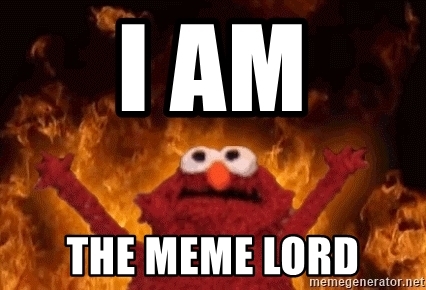
A Meme Lord.

Having trouble starting your path to Lordship? We’re here to help!

First, choose your tools

When deciding how to make memes, you’ll have to figure out what program to use. This can be difficult because there is a huge range of applications that have the right features. To save time, we’ll discuss the features themselves.

1. Image capture: some memes are simply photos or screenshots that need no explanation to be hilarious:

2. Image editing: as long as you have image capture, you’ll want to be able to crop images and place them together or in a sequence. Many interesting combinations are possible when different pictures are spliced together. Take, for example, the magic of photoshopping:

My wife ran and won her age group in her first 5k this weekend. Here are a couple pictures from the race. from funny

3. Captioning/doodling: this comes in all shapes and sizes. Some applications allow you to put words above or below your picture, place them over the image, or use them as memes themselves. These applications range from Snapchat all the way to professional editing software like Adobe Illustrator.

Doodling in action:

4. The Extras. Gathering images, editing, and making captions will take you a long way. Still, there are tons of other ways to make memes: create gifs and add words. Do silly things with Instagram tools. Create cartoons yourself. While enjoying memes, watch what other users are doing and then experiment with whatever you enjoy!

this guy is the best doctor from funny

NOTE: some programs are made expressly for meme-making purposes. For example: Mematic, which offers captioning and image editing functions. Food for thought!

Mematic download free
7

Now, Choose Your Path

Every journey starts with a single step. In this case, we’d like to suggest two ways to go: using an old meme format or making something new. These are just suggestions to help you get the gears turning.

Use an Old Meme Format

A meme format is a meme type that has been used often. For example the “invisible camo” memes:

As long as you’re using the old joke in a new way, you can both pay homage to the original content while adding to it.

Make Something New

Have a good idea off the top of your head? Make it as soon as possible, or write the idea down for later! Whether or not the idea becomes a one-hit wonder or a popular meme format, you should feel proud of what you made.

Once you’re done, send your meme out!

After Posting

So you’ve released your project into the wild. The next step is: gauge your audience’s reaction and learn from it! If your post went well, what factors came together to reach success? If it went badly, what could have happened? Was your meme posted at a bad time? Is the image quality good? Gather data and prepare better for the next time and never forget: persistence breeds luck.

You’re on your way to becoming a Meme Lord!


5 of the best laptops for around $400

Budget laptops are easy to find, but you’ll have to make sacrifices.

Depending on your needs, you might want a larger screen, more RAM, a bigger hard drive, or faster processor. If you prioritize a couple of these and accept a reduction in (or loss of) other features, you’ll find a laptop that does what you want at a price that doesn’t break the bank.

We’ve listed five of our favorite budget laptops below. Note these are proper laptops, not Chromebooks. A Chromebook outsources most of its processing power to the cloud through Google’s browser, so you need to be online to get the most out of it. If you’re really tight for cash, they’re a reasonable alternative and cost much less (usually under $250).

For everyone else, here’s our rundown of the best laptops for under $400…

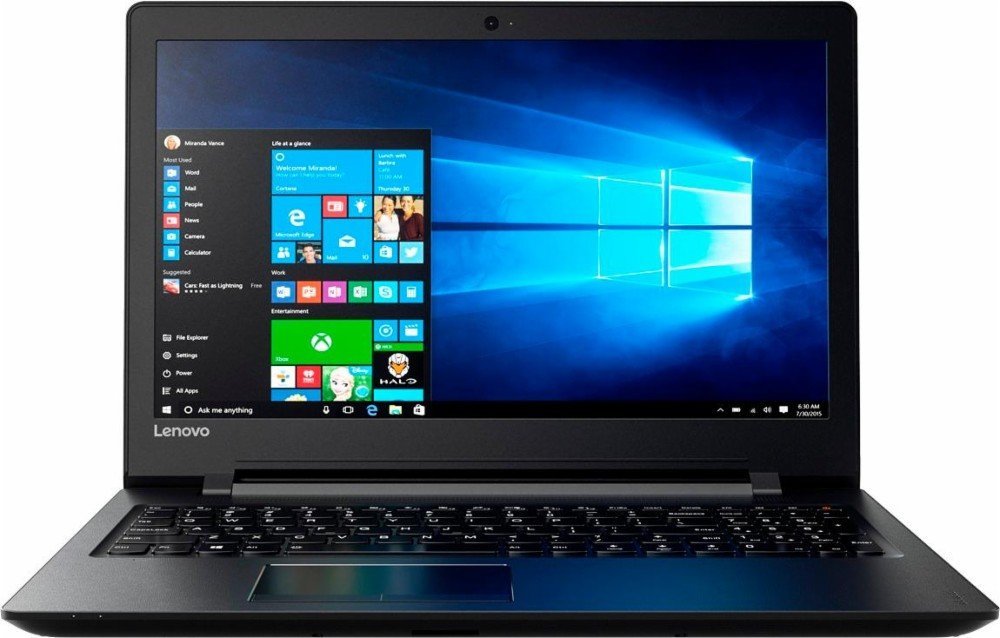
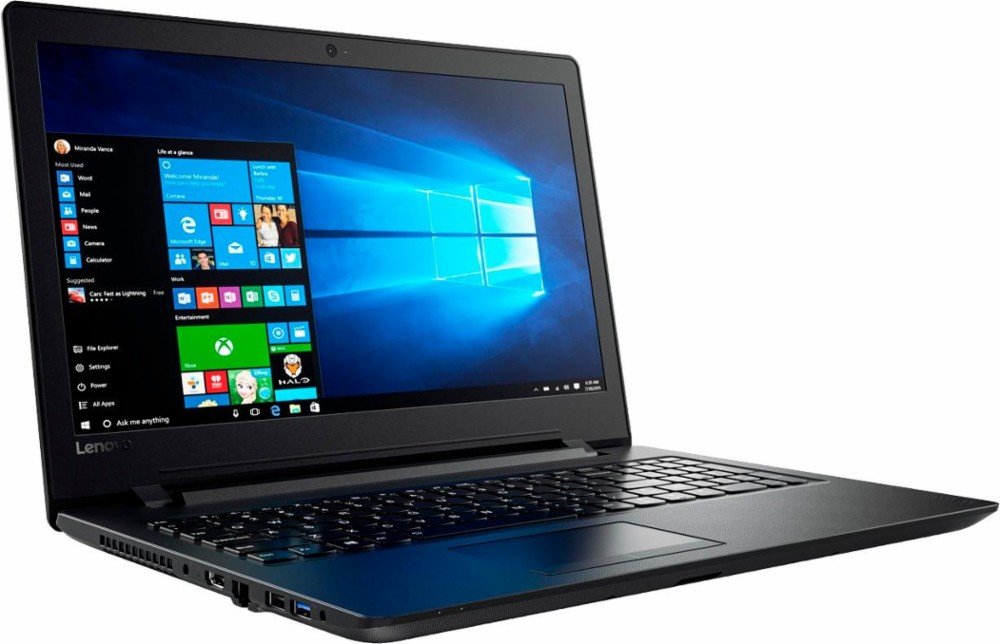
1. Lenovo IdeaPad

The Lenovo IdeaPad is a great all-rounder. From its 15.6” HD screen to its full-size keyboard, the hardware is perfect for business and study. The AMD quad-core A6 processor ramps up to 2.4 GHz – enough for most tasks – and the 500GB HDD will store hundreds of photos and movies.

The standout feature is the 8GB RAM, which ensures you don’t experience slow-down when using several applications at once, or during RAM-heavy tasks like photo and video editing.

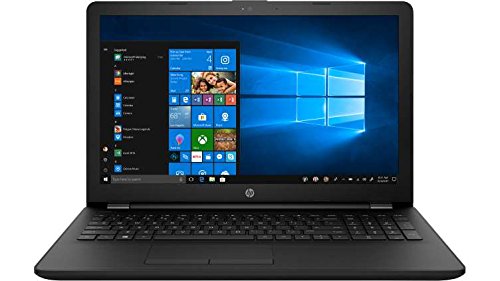
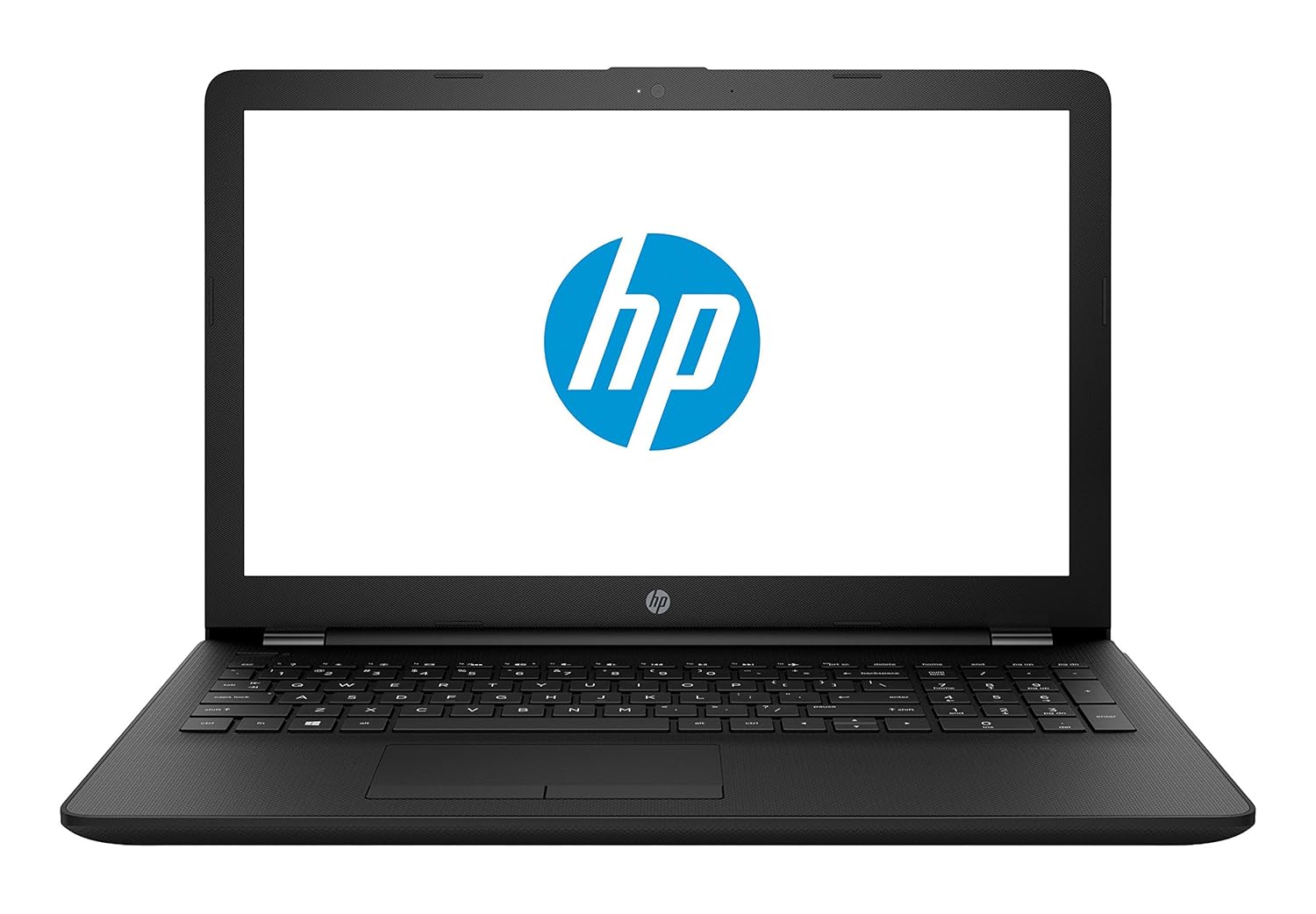
2. HP 15-BS091MS

Not the most inspiring name, but it certainly makes up for it in features. The HP 15 uses an Intel i3 processor clocking 2.4 GHz, has 6GB RAM, and a 15.6” HD LED touchscreen. The standout feature? Its massive 1TB HDD.

If you want to store all your photos and movies, as well as download the latest software without worrying about filling up the HDD, this laptop is for you. The Intel processor is also a bonus – while it clocks the same as the IdeaPad, Intel CPUs are generally considered of better quality, so should run faster.

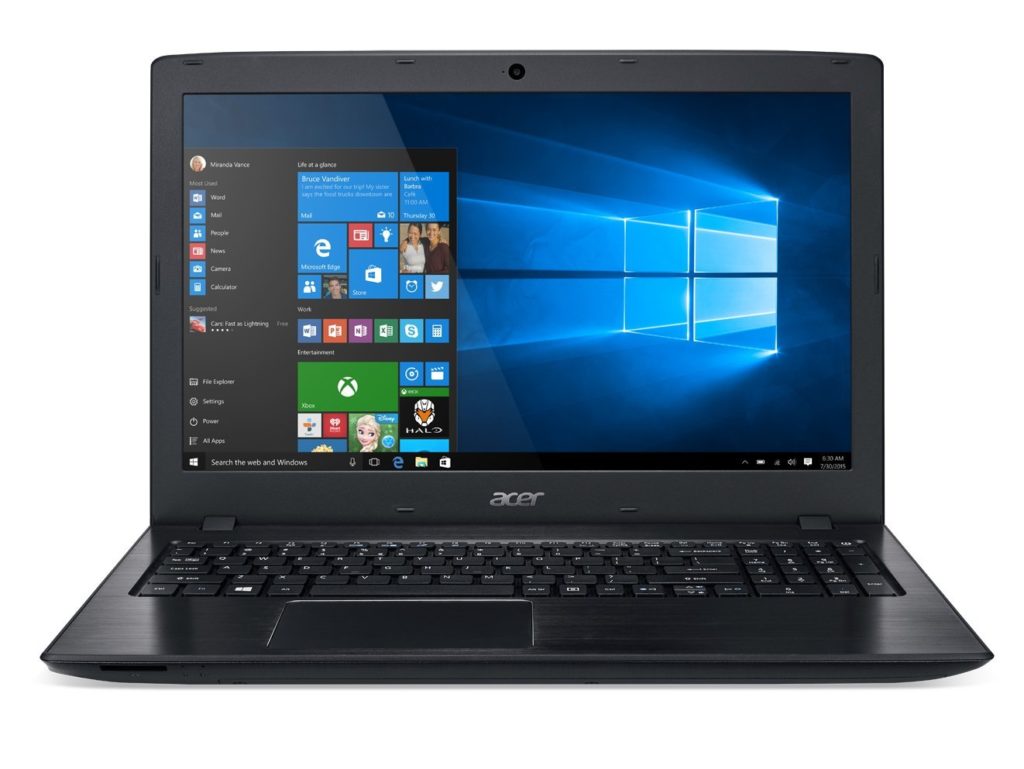
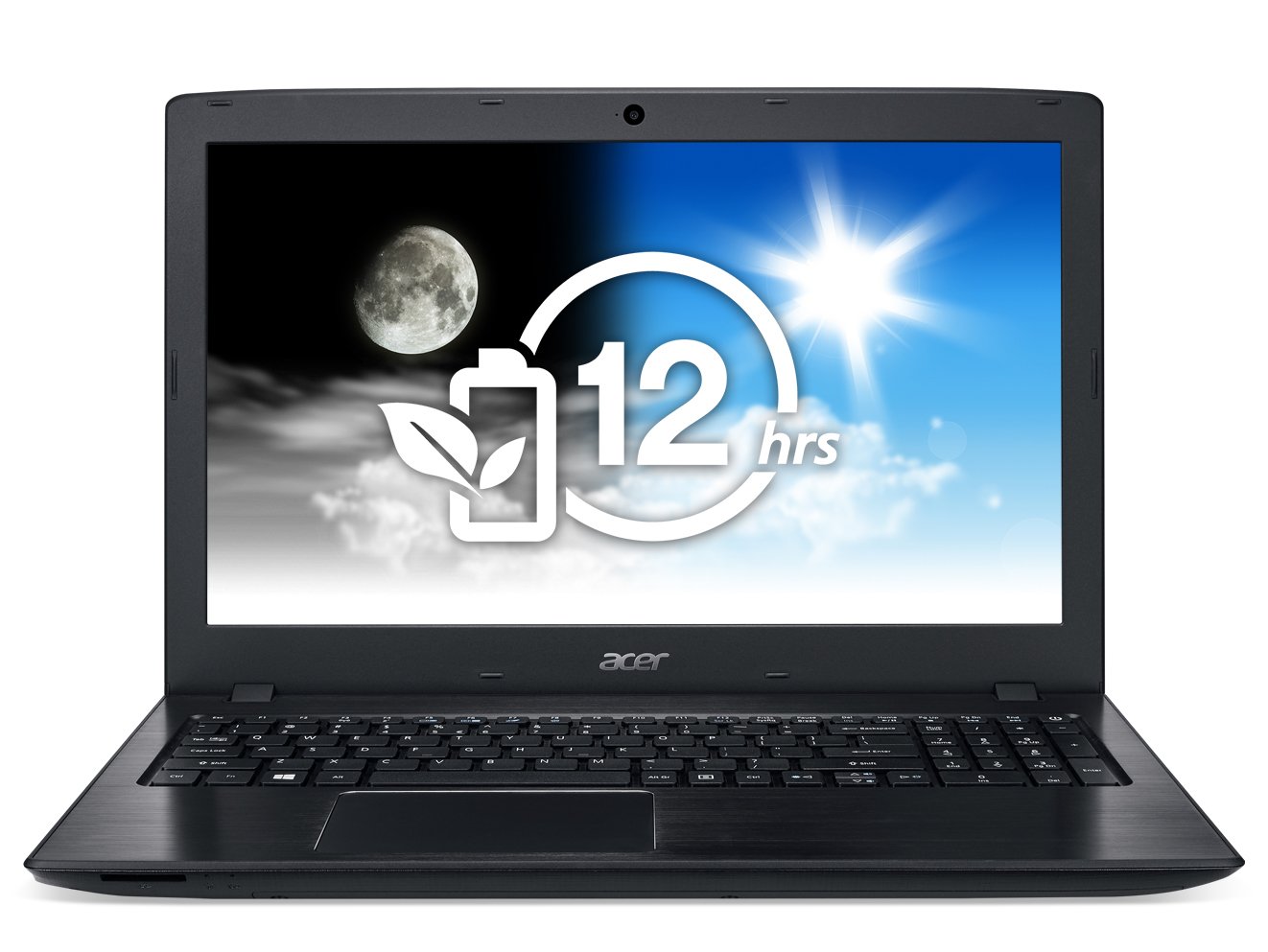
3. Acer E15

The E15 also has a 7th generation Intel i3 processor clocking at 2.4 GHz, but only 4GB RAM. This will make it a bit slow during intensive tasks, but it does make up for it in storage with a 1TB HDD (and you can always add more RAM later).

While the screen also measures 15.6”, it enjoys a full HD display of 1920×1080 – perfect for movies and media editing – but no touchscreen. The E15’s standout feature is its 12-hour battery life, the longest of any laptop on this list.

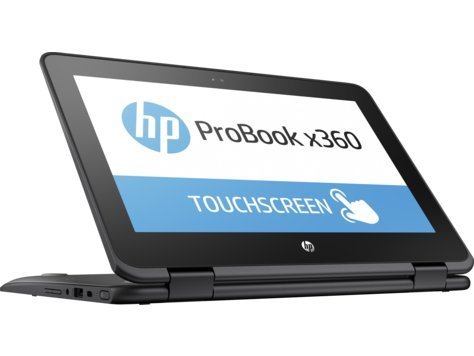
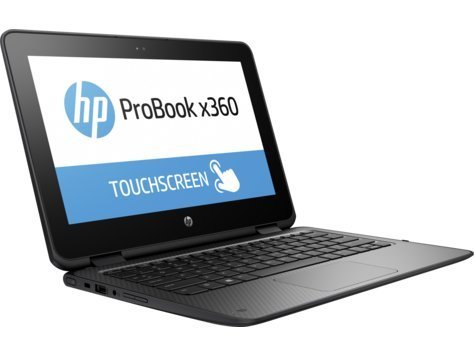
4. HP ProBook x360

If you’re looking for something to use on the move, the ProBook is worth a look. Its processor is relatively underpowered, but for emails, watching videos, and browsing it’s more than capable. The 11.6” HD touchscreen is small enough for large handbags and small backpacks, and the 360-degree hinges mean you can use it like a tablet. Bear in mind there’s no DVD/CD drive, though.

The 128GB SSD might not hold as much as the others, but SSDs are faster and less prone to failure. There’s no standout feature as such, instead, it’s the perfect blend of size and features , touchscreen, and SSD that make this a great portable machine.

5. HP 17-AK010NR

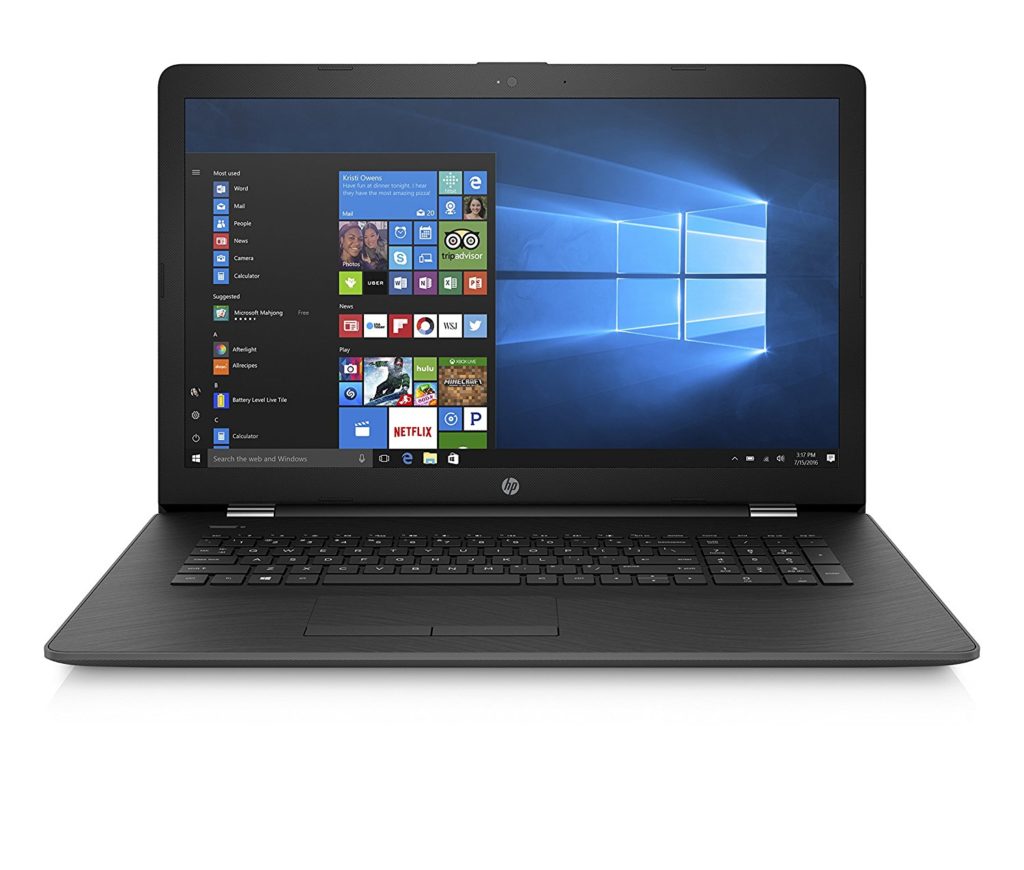
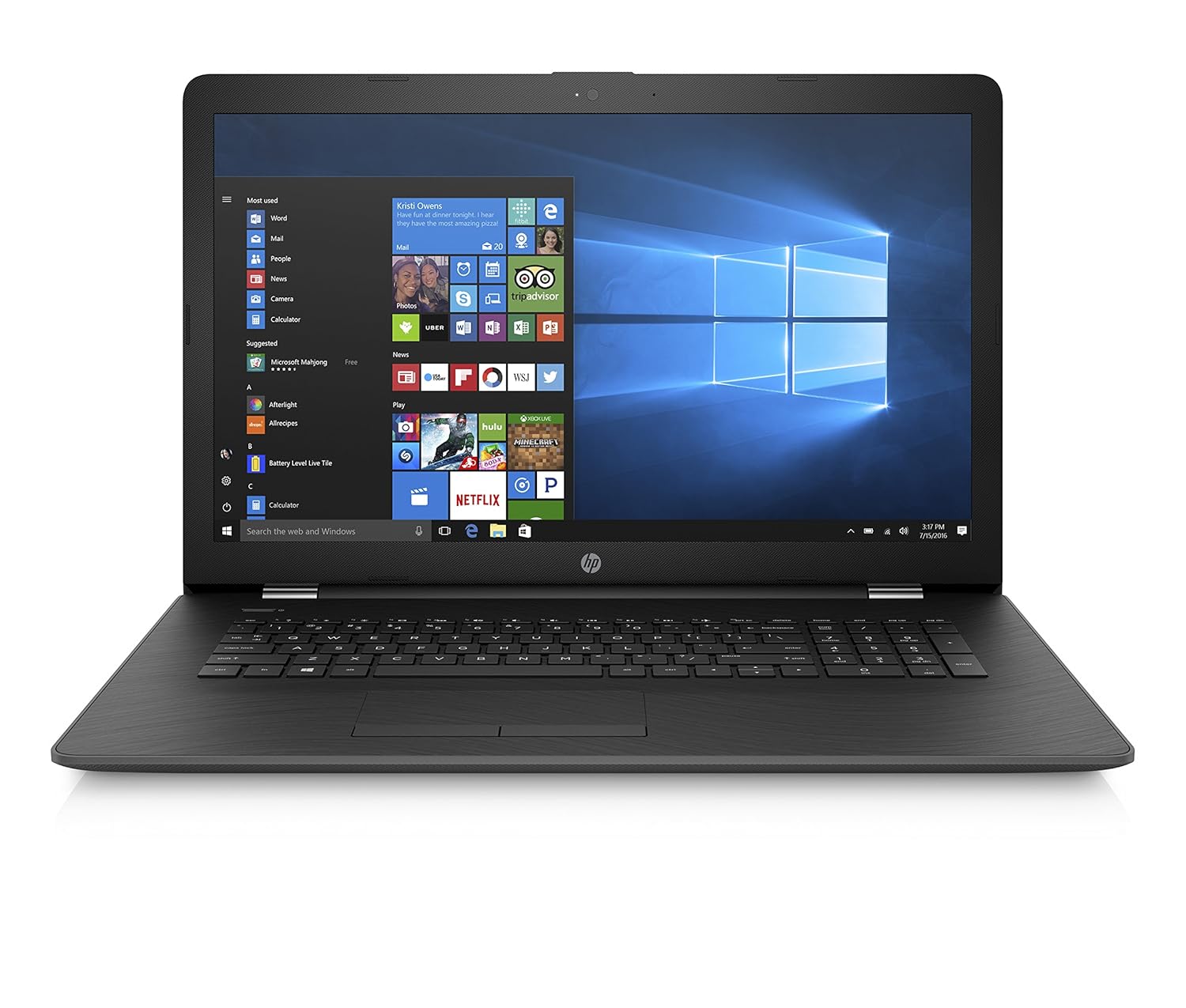
The HP 17 might not use an Intel processor, but its AMD A9 chip clocks up to 3.6 GHz. That’s easily enough for the toughest computing tasks, but its 4GB RAM does let it down a bit. Thankfully, it’s expandable. There’s a CD/DVD drive, and a decent battery life of 6 hours for video playback. The standout feature here is the 17.3” LED screen.

At 1600×900 its not full HD, but unless you’re a pixel-peeper, you probably won’t notice. It’s higher than 720p, so still a great choice for HD movies, and that extra screen space is perfect for working on two documents at once.  

You don’t have to spend thousands to get a decent laptop. There’s plenty of choice out there for almost any budget, but to avoid disappointment, ensure you know what’s most important to you before clicking that order button.