Google Lens now has a standalone app

Back at the Google I/O conference in 2017 Google announced Google Lens. The crux of Google Lens was its ability to scan the real world around you and give real information about what you were seeing. Today, Google Lens still offers the same ability to users, but Google wants to make it a little more accessible. Google Lens now has its own app. With the new Google Lens app, if you want Google to tell you about the world around you, all you have to do is open up the app and point it at whatever is puzzling you.

Google Lens Download Now
7

Until now Lens could be found on most Android phones, but it was tucked away in various other apps. You could scan your photos with Lens, for example, or Google Assistant also had its own version of Lens to help it help you. Lens has always been useful and intuitive, but it has never really begged users to give it a spin and see what it can do. Now, all users running Android Marshmallow or higher can download a standalone Lens app and give it a go.

The Google Lens app is a pretty standard affair. You open it up and find a viewfinder, complete with a representation of a working algorithm scanning whatever the camera sees. As well as providing information, Lens can also be used to digitize and copy text from documents.

If you haven’t tried Google Lens yet it is definitely worth giving it a go via the new app. Lens can be a useful tool both if you’re out and about around town, or at home or in the office. Plus Google is likely to expand on Lens’ capabilities over time. If you already have Lens on your phone, as a part of some other app, maybe you don’t need to get the standalone app.

Click Here to try the new Google Lens App

Have you used Google Lens before? Tell us about your experience in the comments below.

How to earn free stuff with Microsoft Rewards

There’s a rare thrill in getting something for nothing – especially from a big corporation. You feel like you’ve beaten the system; one that wants to drain every last penny from your wallet in return for those must-have goods.

So when you can legitimately earn free stuff from Microsoft by making some small changes to your online habits, it’s worth trying. You might not earn much, but every little helps, and it’s an opportunity to get a bit more value from your spend.

What is Microsoft Rewards?

Microsoft Rewards is a lot like any loyalty program. It rewards you with points for using its products and services, such as shopping in the Microsoft Store, using its Edge browser, and searching with Bing. There are also other ways to earn, such as doing quizzes and clicking links, and you get 100 points just for taking the Rewards tour.

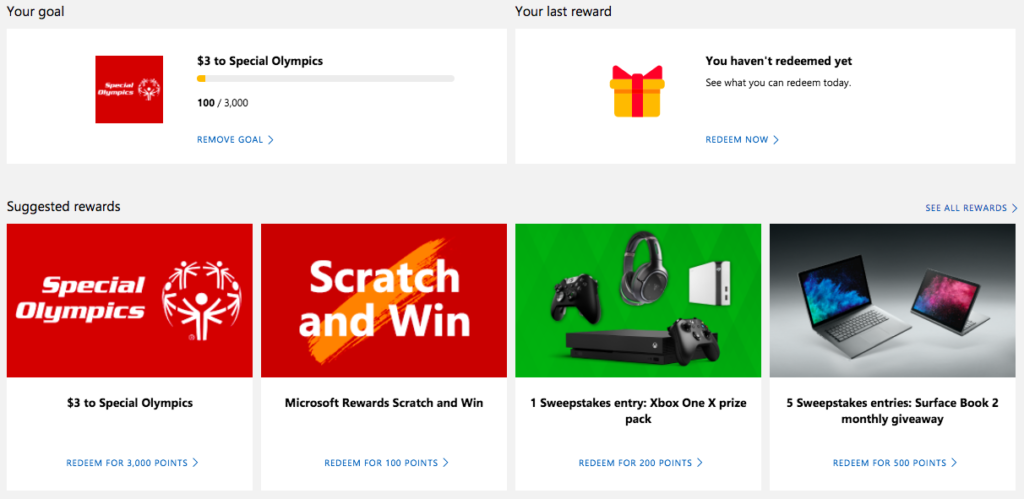
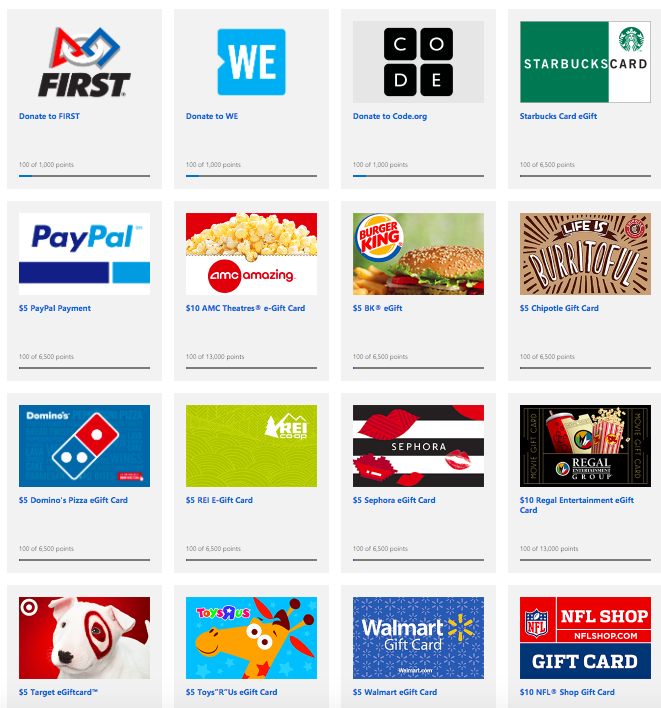
You can then redeem your points for sweepstake entries, gift cards, Xbox game passes, charitable donations, and much more. According to Microsoft, you need around 5,000 points to earn enough for a $5 reward. That sounds like a lot, but it’s actually quite doable when you realize how little you need to do to earn points.

How do you register?

Microsoft Rewards is free to join, but you must have a Microsoft account. So if you don’t have one, sign up now.

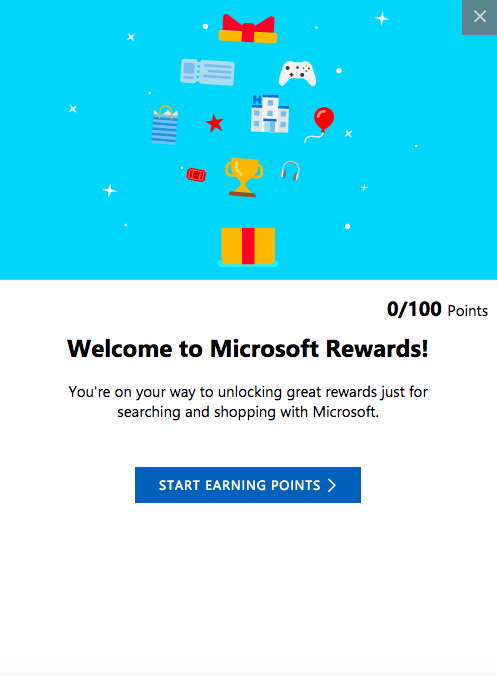
Once signed in, just head over to the Rewards tab. You’ll then get the “tour” as a series of pop-ups (like the one below) that explain how Rewards works, and at the end, you’ll receive 100 points. A nice little start to your pot.

Before you look into earning points, you might want to set a goal first. This helps motivate you to earn points by setting a target for you to hit, which can be anything from a donation to your favorite charity or a shiny new Xbox One.

How do you earn points?

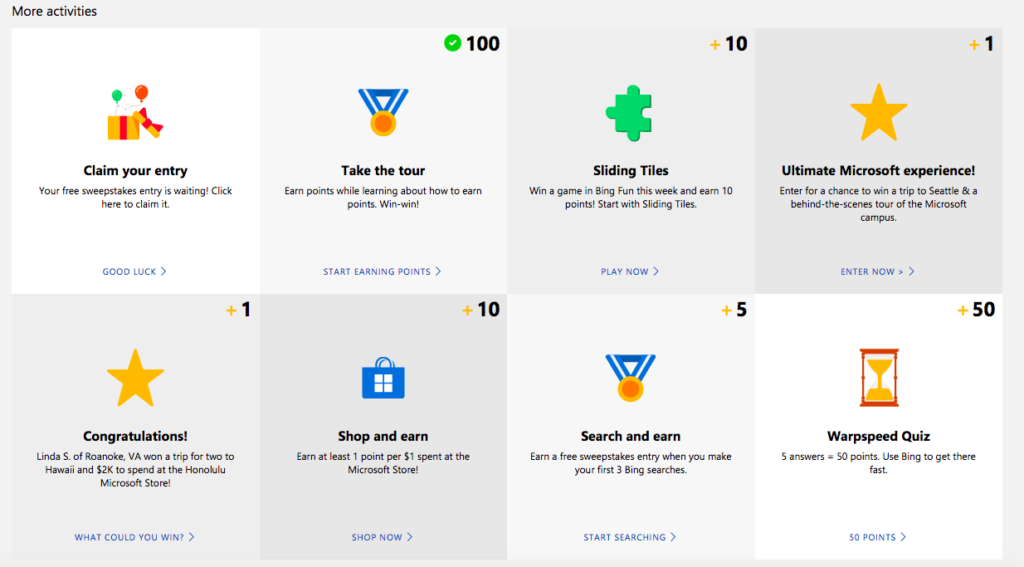
There are lots of ways to earn points. Two of the simplest are to use Microsoft’s Edge browser and Bing search. This might be a bit painful if you’re used to Chrome and Google, but are they also offering you free stuff? No? So, maybe it’s worth the switch.

Aside from using Bing and Edge, you can play games, enter competitions, and shop online to earn points.

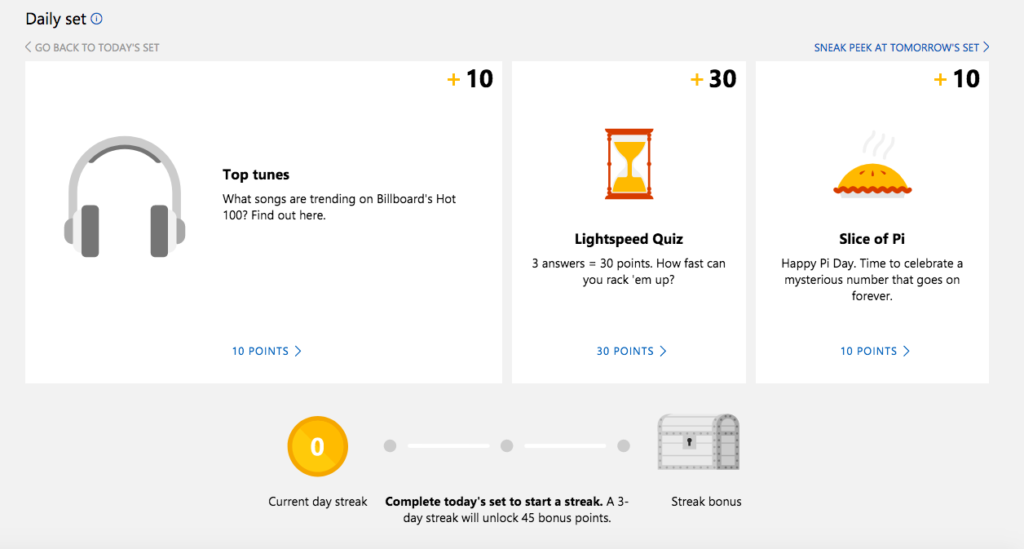
There’s also the Daily Set – three daily tasks that when done every day for a 3-day run, earn you an extra 45 points.

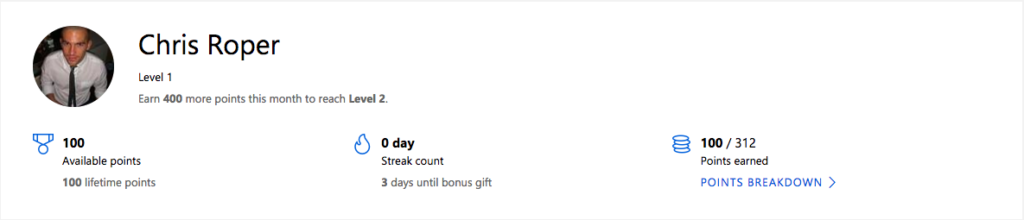
At the top of the “Earn” tab you’ll find your profile and points, so you can keep track of your progress.

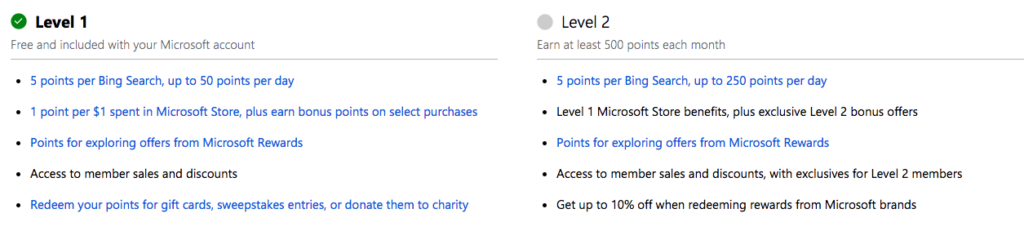
Once you’ve gone past 500 points you’ll “level up” and be able to collect even more points for the same activities.

How do you redeem points?

Once you’ve reached your points goal, or earned enough to start swapping points for prizes, head over the “Redeem” tab. Here you’ll find a broad selection of treats to spend your points on, or you can donate the points to charities for an equivalent cash amount. For some charities, Microsoft will even match your donation dollar for dollar. Just click on what you want to redeem your points for and follow the instructions from there.

That sums up Microsoft’s Rewards program. It’s actually a very easy-to-use program – just make sure you’re always logged into your Microsoft account, otherwise your points won’t be registered.

Google confirms Gmail updates will be available to everybody next month

Google has been drip-feeding us news of its big Gmail update for a while now. It has also been running an opt-in trial of the new features via its Early Adopter Program (EAP). It seems that this trial has been going well as Google has confirmed in a blog post that the new features will be receiving a general availability (GA) launch next month. That means we’ll all have access to them by the end of July 2018.

A more detailed timetable of the, as laid out in the blog post, looks like this:

“In July 2018, G Suite admins will have the following options in the Admin console:

  • Immediately transition their users to the new Gmail. For a period of time, users will still have the option to opt out.
  • Allow their users to opt in to the new Gmail at the time of their choice. For a period of time, users will still have the option to opt out.
  • Wait approximately four weeks until their users are allowed to opt in to the new Gmail. For a period of time, users will still have the option to opt out.
  • This is the default setting. During this four-week period, users will not have the option to opt into the new Gmail.”

gmail black header

This means that come August all users will be able to opt in to the new Gmail system. The blog post goes on to say:

“Approximately 12 weeks after the GA announcement in July, any users who’ve opted out of the new Gmail will be automatically migrated to the new experience, with no option to opt out. Users who’ve already transitioned to the new Gmail will lose the ability to opt out.”

Which means once October rolls around, everybody will be using the updated Gmail and nobody will be able to opt out

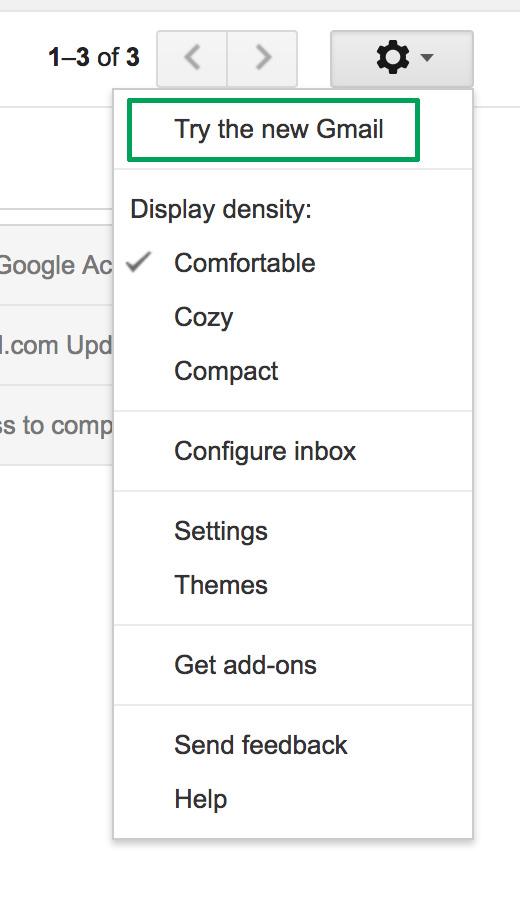
We’ve laid out all the best features of the new Gmail for you here, and even shown you how to try out the new system now. If you want to try out new email features including self-destructing emails, auto-response, reminders, and offline mode you can. All you have to do to give it a whirl is head to Gmail menu cog and click Try the new Gmail. If you don’t like it, you can go back, but make sure you pay attention to the timetable laid out above, as soon you won’t have the option.

iPhone X vs Samsung S8 vs Google Pixel 2XL

If you’re like me, you can’t imagine living without your smartphone. For better or worse (we still remember you fondly, month-long Nokia 3210 battery), we’ve come to rely on the convenience of having a device in our pockets for work and play.

Back in 2007, Apple was the first company to envision the perfect combination of phone and personal computer, with the release of the iPhone. This device revolutionized our relationship with technology, proving you could carry a very capable computer in your pocket.

Compared to that first smartphone, today’s flagship devices are almost obscenely powerful. So if you’re looking to upgrade to a shiny new iPhone, or the most powerful Android smartphone on the market, we’ve got the scoop on the year’s hottest flagship devices from Apple, Samsung, and Google.

iPhone X

With its edge-to-edge “top-notched” screen and refined design, the new iPhone redefines what a luxury smartphone is.

Just like Apple’s other devices, software and hardware pair perfectly; everything just works. The processor is blazing fast, the camera is excellent as ever, and the battery life – while shorter than competitors – is decent. There are fun features like animojis, too, which uses face-tracking to animate your face on a monkey, pig, or… poop.

Downsides? This phone is expensive. Really, really expensive. At $1000+, every time you drop this phone could put another dent in your savings. It’s hardly something you want to hide away in a big, bulky case, so get insurance.

The other downside is Apple’s continued insistence on proprietary hardware. There’s no headphone jack, and if you want to fast charge, you have to buy a lightning USB-C cable and power brick for another $50.

Bottom line:

Best phone of the year? If you’re turned off by Apple, then no. But if you’re looking for the ultimate high-end smartphone, with a slick user experience to match, the iPhone X is the one for you.

Who it’s for:

Trend-conscious fashionistas, and turtle-neck wearing Chief Technology Officers.

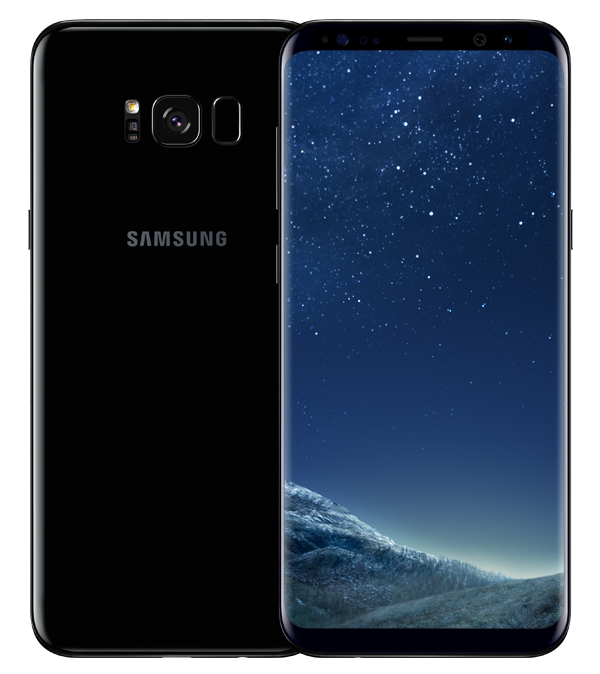
Samsung Galaxy S8

With an incredible edgeless screen, industry-leading hardware, and excellent battery life, the Galaxy S8 is constellations ahead of other smartphones.

Not only blazingly fast, the standout feature is that screen. The 5.8” infinity display is drop-dead gorgeous, with a higher resolution (1440 x 2960 pixels) than any other phone on this list. If that’s not enough, Samsung also offers the Galaxy S8+, which has a gigantic 6.2” screen.

The less good? The fingerprint scanner is located awkwardly next to the rear camera. Bixby, Samsung’s take on a virtual assistant, isn’t quite as slick as Google or Siri.

The bottom line:

When it comes to luxury Android phones, the Samsung S8 clearly leads the pack. Despite the niggles, not only will this phone turn heads, it’s got the brains to match those incredible looks.

Who it’s for:

People who hate being “contained” by screen edges, and Apple-hating hipsters.

Google Pixel 2XL
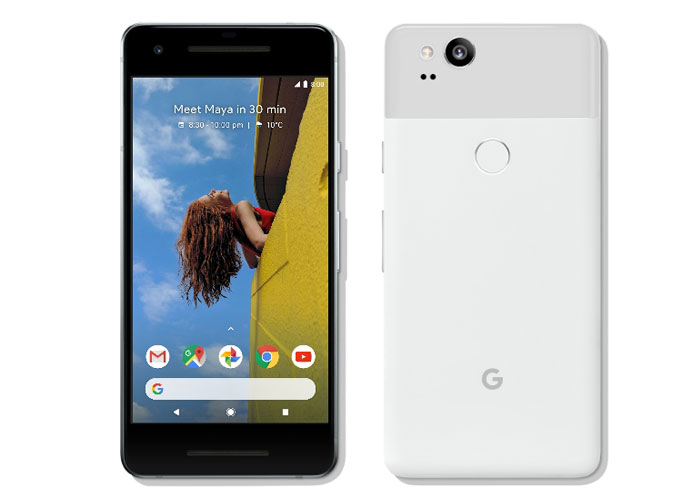
Direct from the original creators of Android, comes a smartphone with oodles of power, and a combination of software and hardware that work in perfect harmony. The Google Pixel 2XL is a purebred stallion in a stable full of donkeys.

This phone has the best version of Android, hands down. The bundled Google apps integrate seamlessly, and you get unlimited cloud storage for your photos with Google Photos. Good thing too, because the camera on this device is absolutely stunning. When paired with Google Lens, a unique app that contextualizes what it’s seeing, you can, amongst other things, point your camera at a Wi-Fi network name and password, and your phone will automatically connect.

Google Assistant is back too, and better than ever. Plus, this time, there’s no more shouting at your phone or struggling with gloves; you simply squeeze your phone to activate the helpful AI assistant.

The bad? The design isn’t quite as inspiring as those from Apple and Samsung. The metal and glass feel a bit plasticky in your hand, and the screen doesn’t stand out.

The bottom line:

While it might lack the immediate oomph of the iPhone X or S8, this phone is packed to the brim with great features. Add the game-changing camera, and you have the most well-rounded Android smartphone on the market.

Who it’s for:

Die-hard Android purists, and people who don’t want to have a heart-attack every time they drop their phone.

That completes our round-up. Best of luck finding the device that suits you, and when you do, enjoy that new phone smell. Just don’t drop it. Please.

Gmail’s best new features

At the end of last year, Google pledged that we would see a lot of new features for Gmail in 2018. This email service is the most popular in the world, so the Mountain View team has been working to offer new features. And now we’ve received the first of them. Here are Gmail’s best new features.

New design

Gmail has always been known for having a clumsy interface, typical of the last decade. However, we should clarify that it’s quick, easy and functional, so it’s understandable that Google doesn’t want to touch anything that works well… they just want to improve it.

Finally, the search company has added a new Gmail design. To enable it, just go to the gears icon at the top and click “Try the new Gmail.” The platform will reload after a few seconds and a short tutorial will appear explaining the new features.

Gmail now has a cleaner and more readable design, with rounded and not-so-rectangular shapes. It also added new features at the user experience level. For example, attached files in emails can be downloaded without having to open the email at hand (this is a big hit).

Offline mode

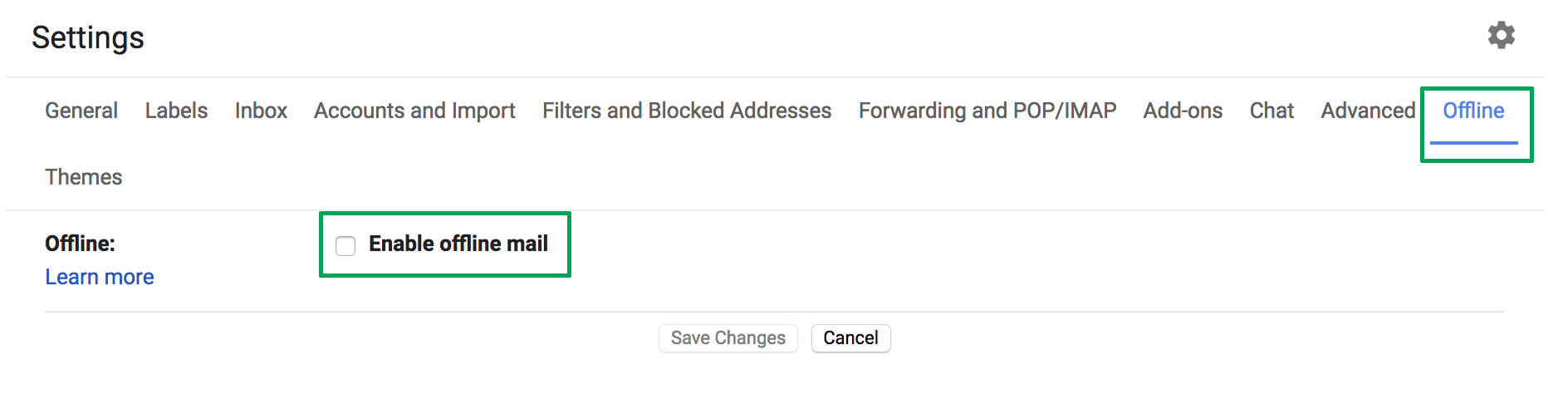
This is one of the greatest new features of this latest update, which the community has been requesting for some years now: offline mode. To get it, you must have the new Gmail design, so follow the steps in the previous point.

Once you’ve done that, enabling offline mode is very simple. Click on the settings icon and then the “Settings” option – redundant, we know. If you take a quick look, you’ll see a field that wasn’t there before, a box called “Offline.” Click there and enable the box “Enable offline email.” It will ask you how many days of messages you want to synchronize, so choose what’s best for you. Now you’re good to go.

Reminders

Maybe you haven’t responded to your email for a few days and have to do it. Now Google will remind you with a little yellow message. This feature even appears in emails that have already been read. The idea is that no message goes overlooked.

Auto-response

This was already introduced in past trial phase versions, but now, at last, it’s here: the auto-response. This feature involves Google’s AI suggesting what could be your short response to a message you’ve received. For this, the system displays some answers on the screen: you can then choose one and click send. Quick and easy.

Gmail Access now
8

Self-destructing emails

We’ll wrap up this list of new features with the best one for spies: self-destructing emails. Known under the name “Confidential mode,” this feature is activated once an email is sent and prevents that person from copying, pasting, resending or printing the text. Also, you can add a reading time limit. After this time, the email will no longer be available.

4 of the most affordable IoT devices

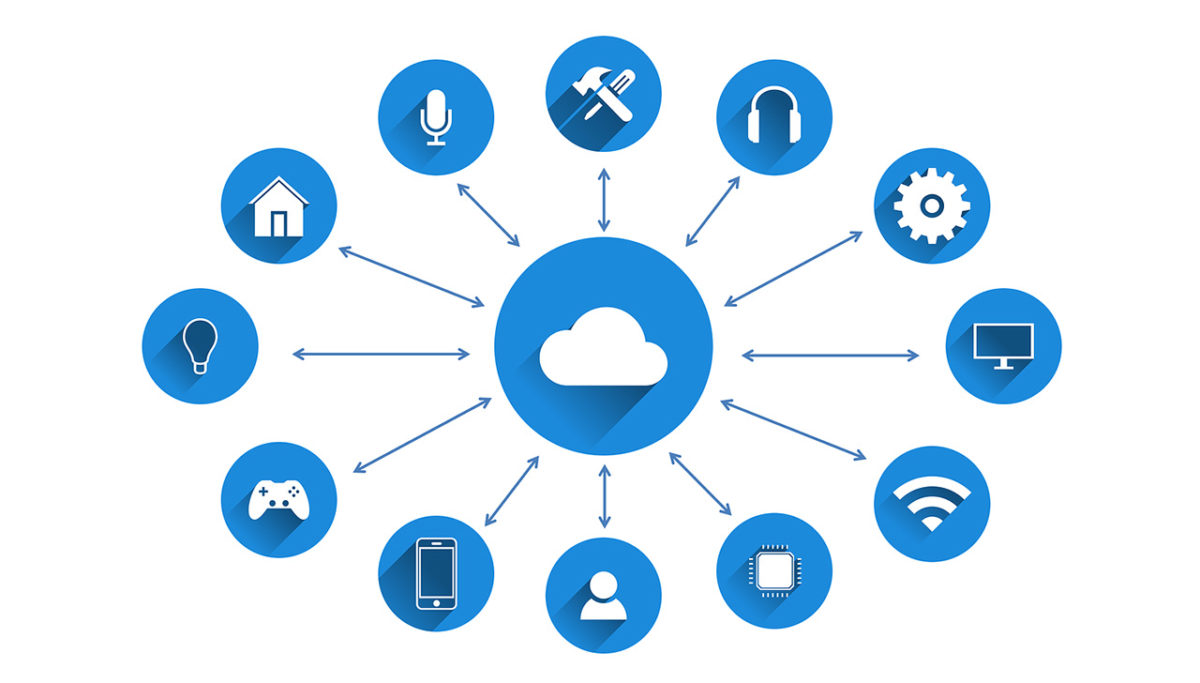
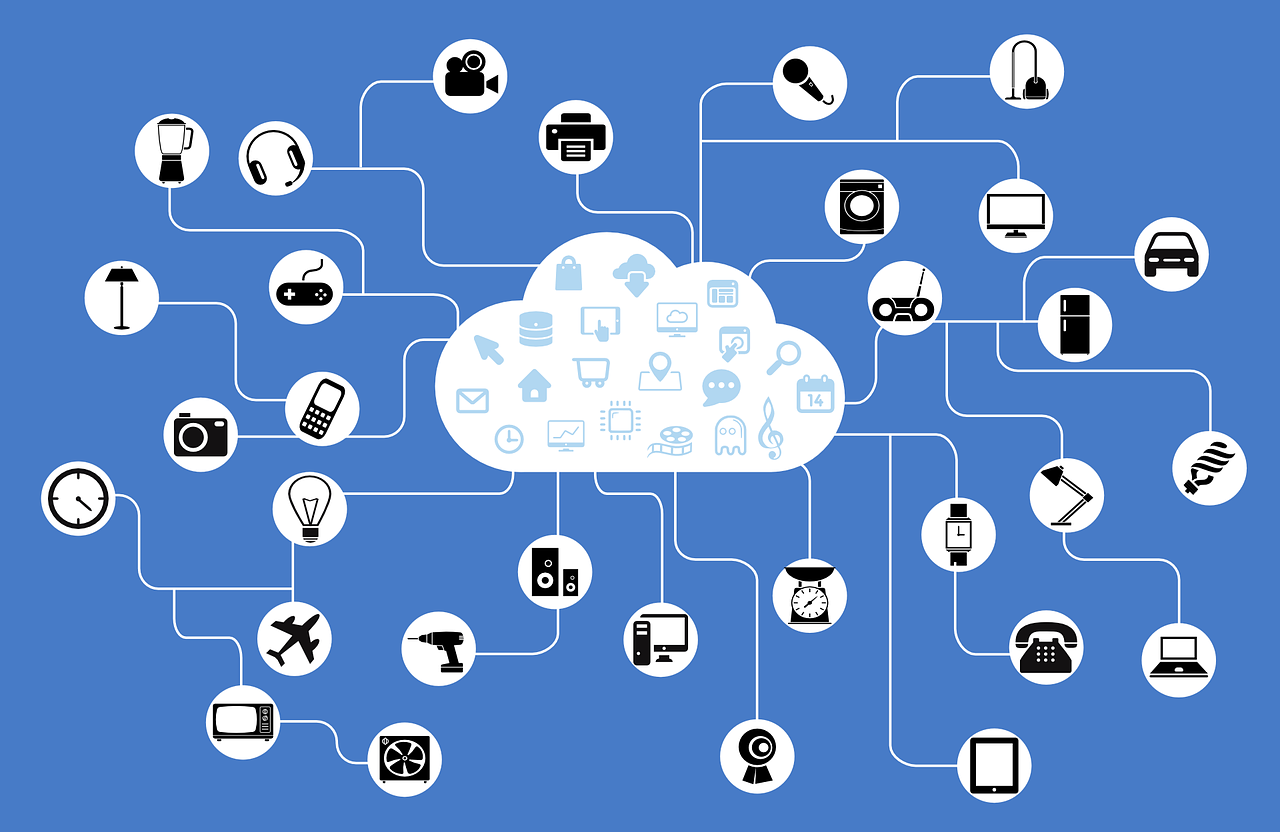
The Internet of Things (IoT) has long promised to bridge the gap between the internet and the physical world. The estimated number of internet-enabled devices increased 31% from 2016 to 8.4 billion in 2017, and experts predict that there will be 30 billion of them by 2020. With an estimated global market value of $7.1 trillion by 2020, IoT looks set to become a big part of our future lives.

While not every device is as useful as it claims to be, manufacturers are scrabbling to release an ever-increasing number of products. You may have noticed one common trend among them all: they’re expensive. This kind of makes sense – we’re not just talking about a normal hairbrush; we’re talking about a smart hairbrush, with Wi-Fi, a microphone, and a gyroscope. No, really.

Fortunately, with the sheer number of devices available, you can find IoT devices that don’t break the bank. Here are four of them.

Tile – $26.99


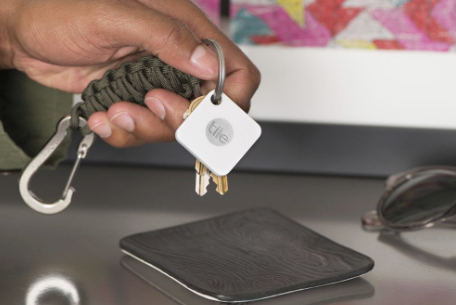
First up is this handy little gadget. The Tile is a tiny Bluetooth tracker that attaches to just about anything. Keys, bags, wallets, or whatever else you can think of. The device is simple and easy to use – just pair it with your phone, open the app, and as long as you’re within 100 feet of the Tile, it’ll play a loud tune until you find it.

It works the other way too. Just click Tile, and it’ll make your phone ring. There are also “Sport” and “Style” versions with waterproofing and double the range of the standard model.

Awair Glow – $99g

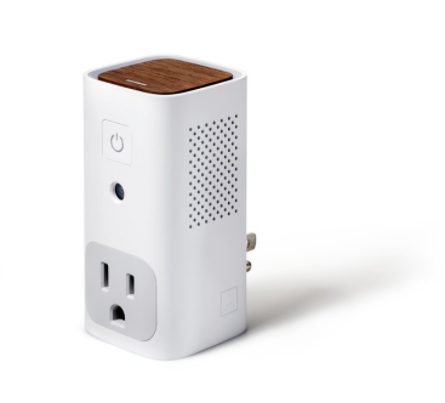
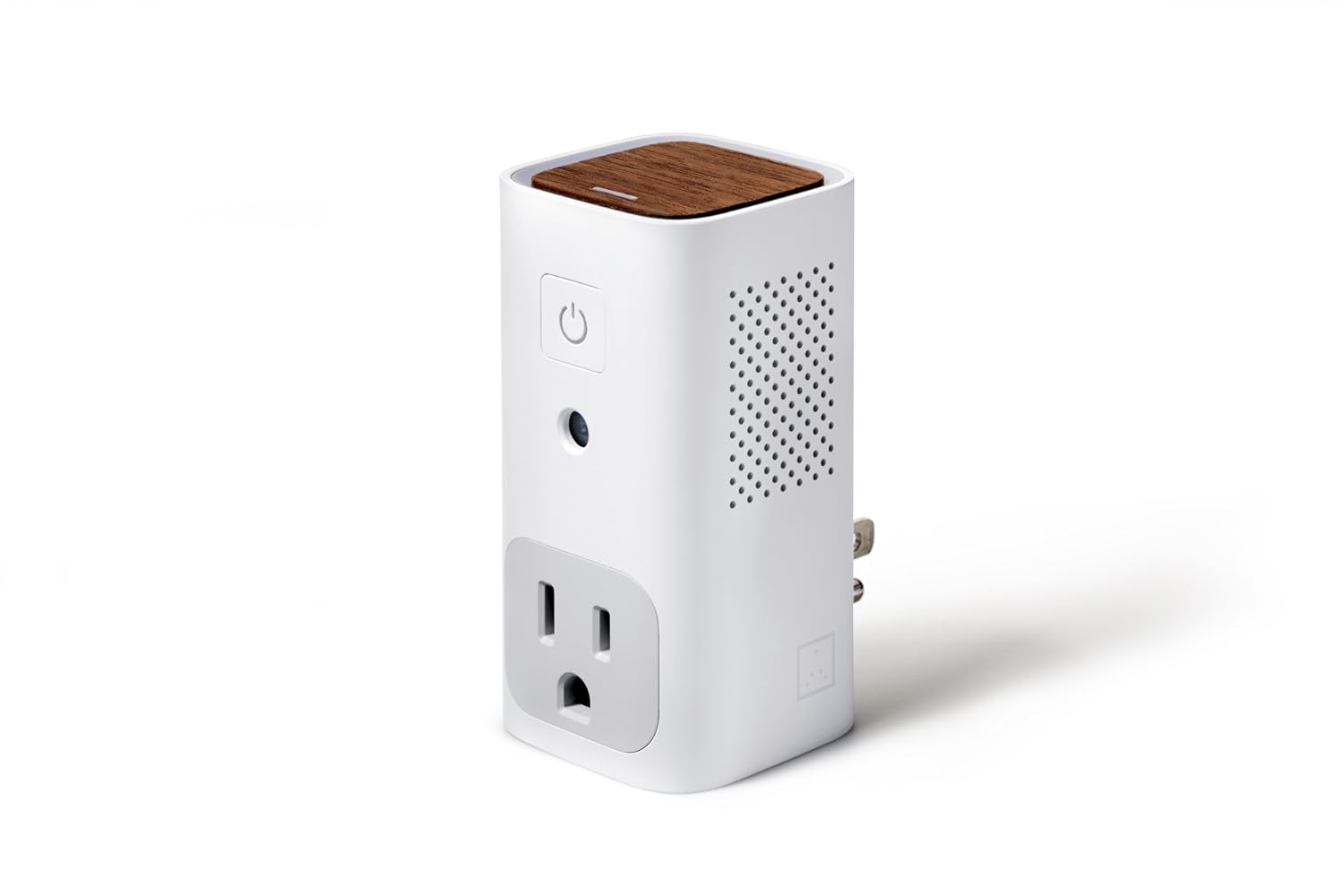
The Awair helps you monitor air quality in your home, giving you the temperature, humidity, and CO2 levels and chemical composition. The LED on the top shows you at-a-glance – red, yellow, or green – what the overall quality of air in a room is, and the associated app lets you track exact levels down to the PPM (parts per million) while also logging past data so you can see improvements over time.

Cleverly, the Awair can also trigger non-smart devices such as dehumidifiers or air filters at specific times, or when certain criteria are met within the measured parameters.

Wemo Mini-Smart Plug – $29.99

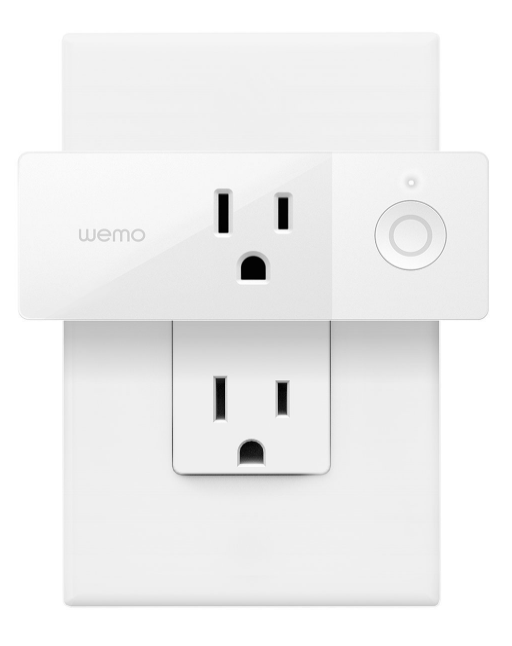
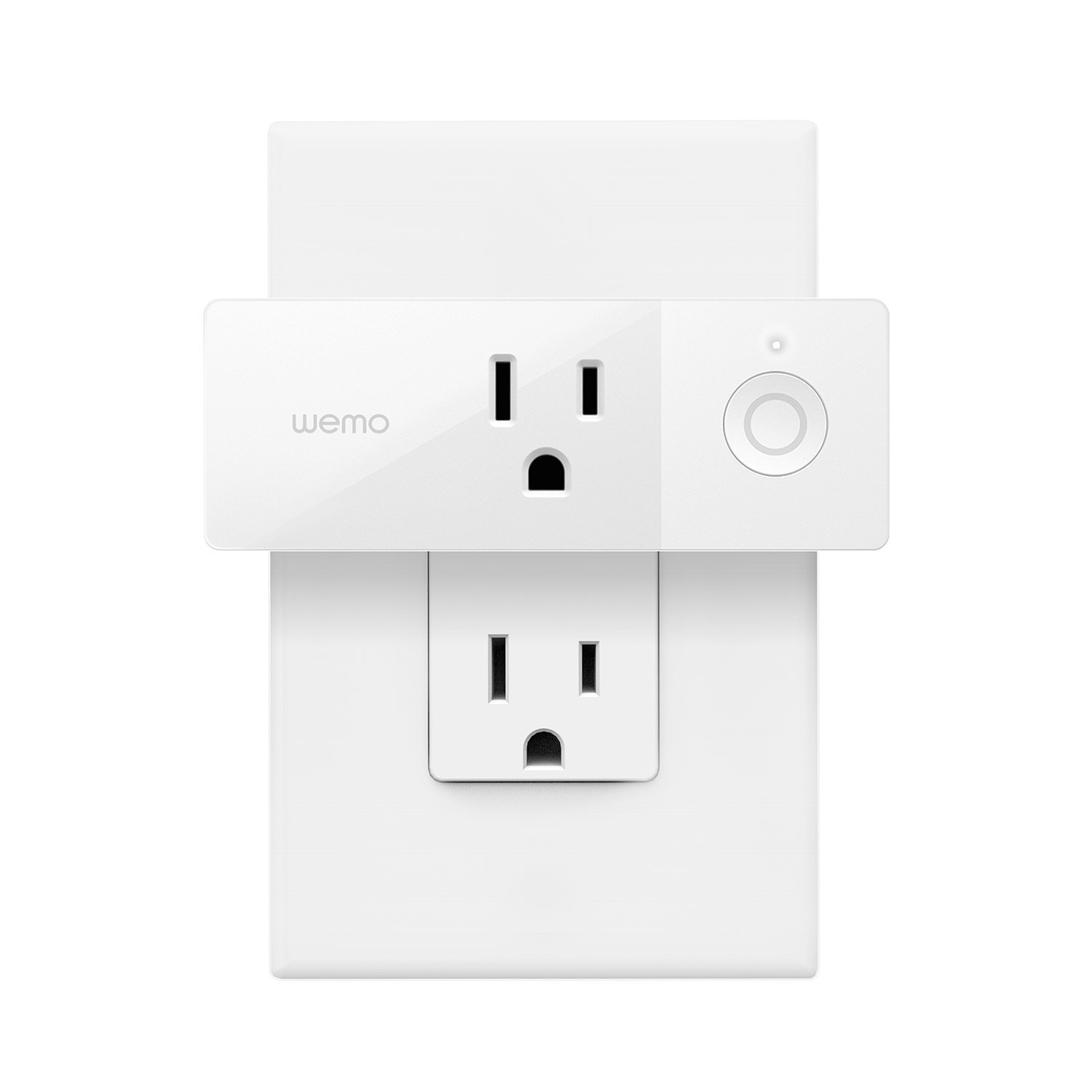
This handy plug lets you turn any pluggable device into a smart one. Using your existing home Wi-Fi, you can wirelessly control TV’s, lamps, heaters, fans, and anything else you can plug in, all from the Wemo app. You can also set schedules for devices and control them via your phone, giving you control over your devices even when you’re not at home.

Kas Smart LED Light Bulb – $39.98

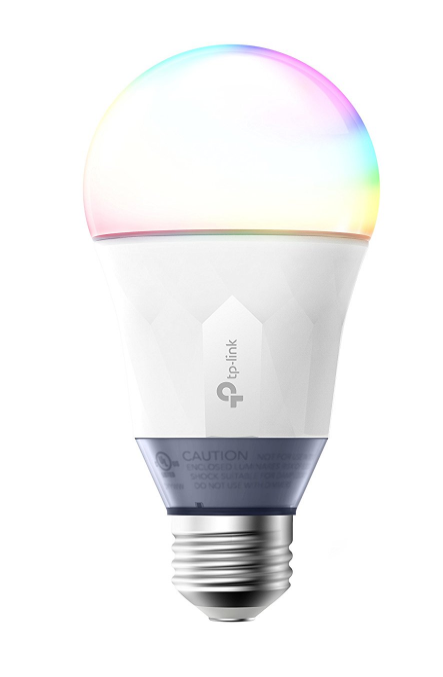
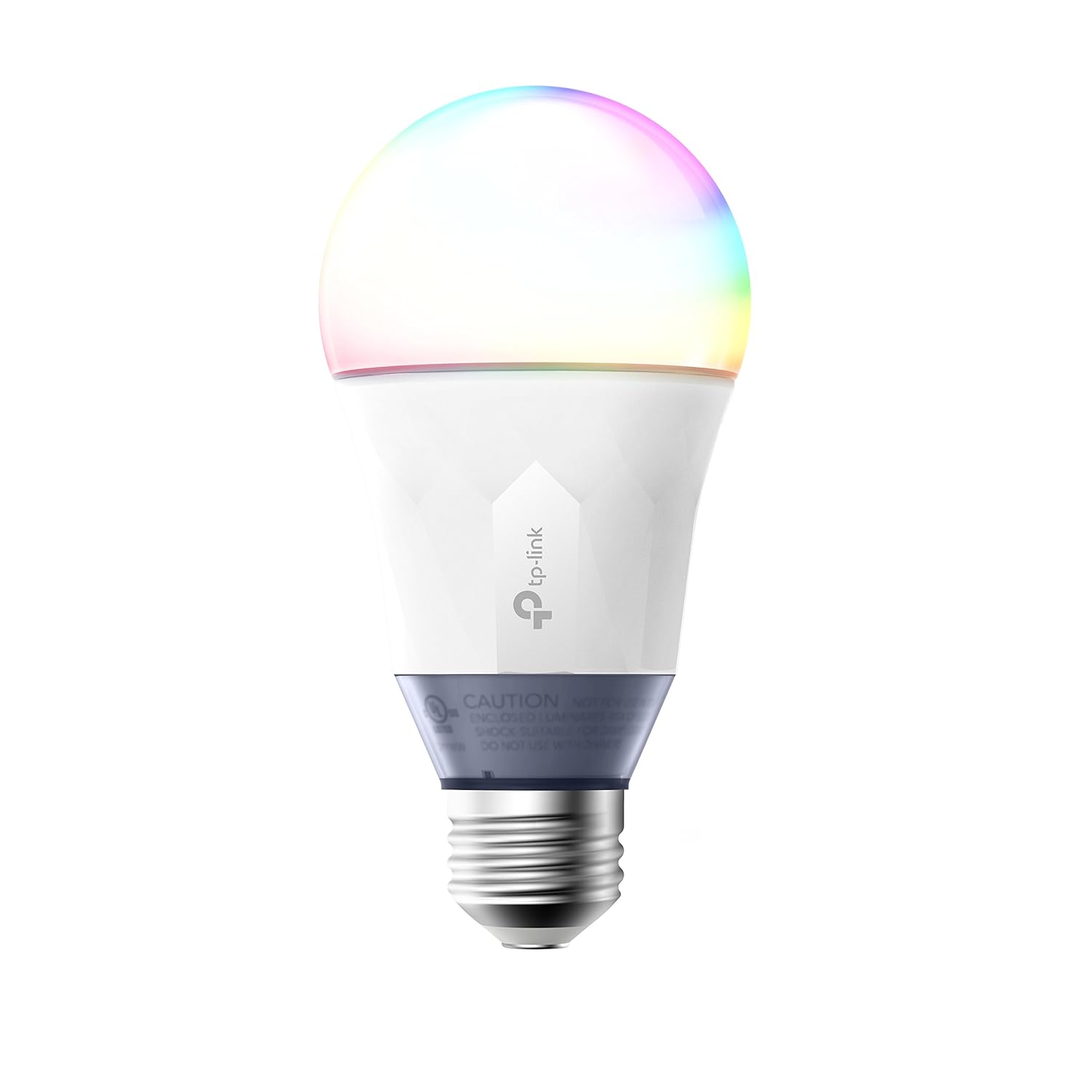
Control your lighting from a smartphone with this smart bulb from Kas. Connecting via your home Wi-Fi, you can use the free Kasa app to set colors, brightness, and track energy usage from your smartphone or tablet. The app lets you create schedules or “scenes” that let you set the mood with a swipe. Or just ask Alexa or Google Assistant to dim the lights for you.

So, remember, it doesn’t cost the earth to add a bit of IoT convenience to your home. Hopefully, some of the devices above will fit your budget!

Reddit now gets more traffic than Facebook in the US

Reddit’s recent design overhaul was all about modernity. CEO Steve Huffman explained that he didn’t want Reddit to feel old anymore. If Reddit were to compete in the future, it would have to look like it belonged there. Reddit is already seeing that it belongs in the future as the popularity of the so-called “front page of the internet” is on the upswing. So much so, that according to Amazon’s web traffic analysis platform Alexa, Reddit is now getting more U.S. visitors than Facebook and is the third most popular website in the U.S. behind only Google and YouTube.

This, of course, isn’t all about the rise of Reddit. Facebook’s slow demise, exacerbated by a user base that is migrating to other social platforms (including Reddit, and, fortunately for Mark Zuckerberg, WhatsApp and Instagram) and the recent Cambridge Analytica scandal also deserves attention. The stats, however, do not lie and Reddit looks to be in a strong position going into the future. A lot of people like visiting Reddit, and when they’re there, they like it and spend a lot of time on the site.

Reddit: The Official App Download Now
8

The average Reddit user spends over 15 minutes on the discussion hub every day. This is almost five minutes longer than Facebook users spend on the social network. It is substantially longer than YouTube users, who on average spend 8 minutes and 31 seconds on the site, and Google users, who clock in an average of 7 minutes and 16 seconds.

Users like Reddit

For years, Reddit has been the go-to place for all manner of online chat ranging from pop culture to the fringes of acceptable discourse. As we’ve seen Easter egg-filled TV series, movies, and video games become the norm, Reddit’s community has taken the lead in finding the hidden details and discussing what they mean. The recent redesign was supposed to make the site more welcoming to those who discover the site through those conversations, and it already seems to be working. More people than ever are finding Reddit, and more and more of them are coming back. Reddit’s little alien can definitely look to the future with a smile on its face.

3 fun things to do with your Google Home

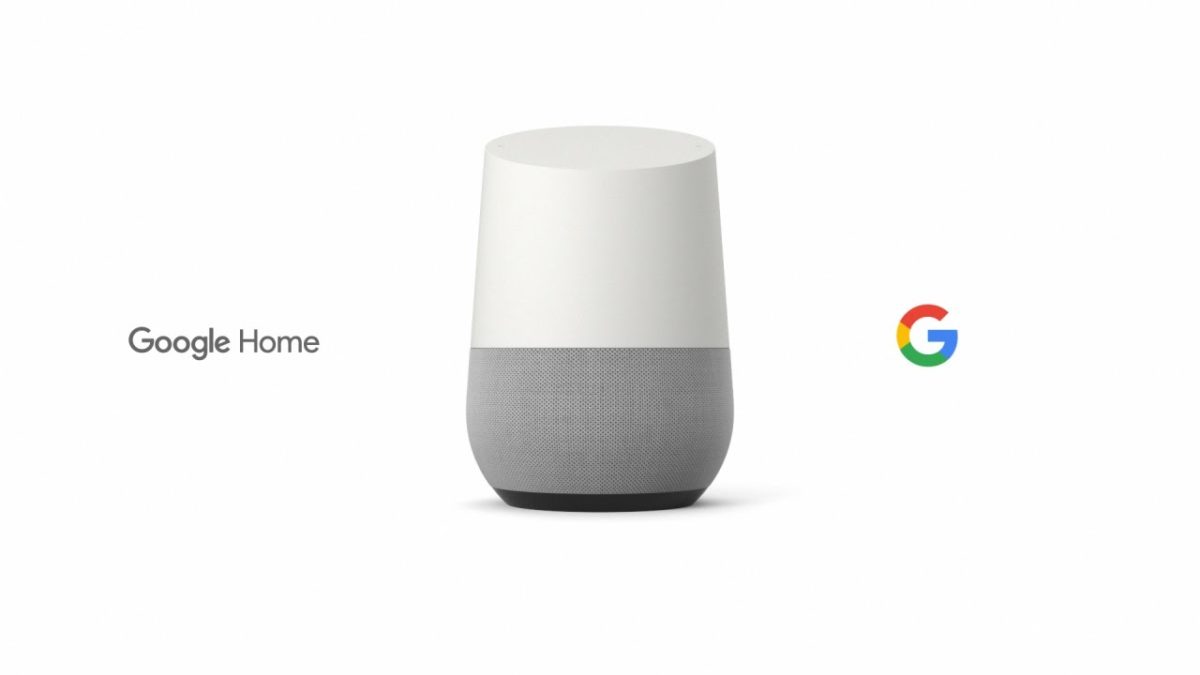
Google introduced the Home smart speaker back in 2016, amid fierce competition from Amazon’s Alexa. We wrote about what distinguishes them from each other in our blog, and today, we’d like to talk about the quirky features that make Google Home fun.

Did you know that Google Home has a whole team dedicated to developing the device’s personality? Neither did we. Lead by Ryan Germick, (who also manages the team responsible for Google’s doodles), and including writers from Pixar and The Onion, the team has created a range of entertaining, quirky features that really make it stand out. 

So what fun things can you do with your Google Home?

1. Remember stuff

For the forgetful among you, this is essential. While it might not be the most fun feature on this list, if you’ve ever found yourself frantically searching for your passport the day before a flight, worry not – Google has your back.

Say something like, “OK Google, remember my passport is in the third kitchen drawer next to the washing machine.” When you need to find it in the future, say “OK Google, where’s my passport?” and you’ll be helpfully pointed to the exact location, and what date you originally asked Assistant to remember. 

2. Questions, jokes, and trivia

It’s not known how many individual responses Assistant has, as Google has never released a full list. Needless to say, it’s probably somewhere between many and lots – some probably haven’t even been discovered yet.

Here’s a small sample of fun questions you can ask Assistant:

  • Can you sing a song?
  • What’s the meaning of life?
  • Can you tell me an interesting fact?
  • Do you know Cortana?
  • Can you make me a sandwich?
  • Can you tell me what you want, what you really, really want?
  • What is your voice?
  • What are you wearing?

3. Games and kids’ stuff

The smart speaker comes preloaded with a bunch of games to while away rainy afternoons. There are guessing games, adventures games, math and number games, and a host of trivia games where Assistant will act as your game show host.

Here are a few examples:

  • 21 Blackjack, the gambling classic; try to hit 21 without going bust.
  • Guess My Age, where Assistant will ask you questions and try to guess how old you are.
  • 6 Swords, a game based on the first edition of Dungeons & Dragons, where you and up to six friends can explore cities, castles, and dungeons.
  • Mad Libs, the classic game where you fill in the blanks with the funniest word you can.
  • Number Recall, a sequence of numbers which you have to recall back, and every time you get it right, the sequence gets longer.

Google has added a whole collection of apps designed especially for children, including stories like the classic fairy tale Little Red Riding Hood, and more postmodern pieces like The Chef Who Loved Potatoes.

Assistant also comes packed full of children’s games, so they can keep themselves entertained while you, presumably, hide in the kitchen drinking cocktails, and looking for your passport. Some examples include:

  • Talk Like a Chef, where they learn foodie phrases and facts.
  • Sporcle Junior, a fun quiz for kids, presumably about sporks.
  • National Geographic Bee, which will test their knowledge of places across the globe.
  • Tricky Genie, where you are told a tale and asked for ways to help the characters.
  • The brilliantly named Ding Dong Coconut is a wacky party game which tests their memory by matching sounds to random words.

Google Home is packed with fun features, and who knows, you might even find a few new ones yourself! Experiment, have fun, and let us know if you find something cool. 

Now you can search for jobs directly on Google

Google has done it again. By now, the only thing it can’t help you find is your lost car keys. In addition to turning up search results for movie showtimes, flights, and almost everything else you’d want to know, now you can check for job openings.

To job hunt on Google, just use words like “work” or “job” + the field or profession you’re interested in. This will give you related results in your location.

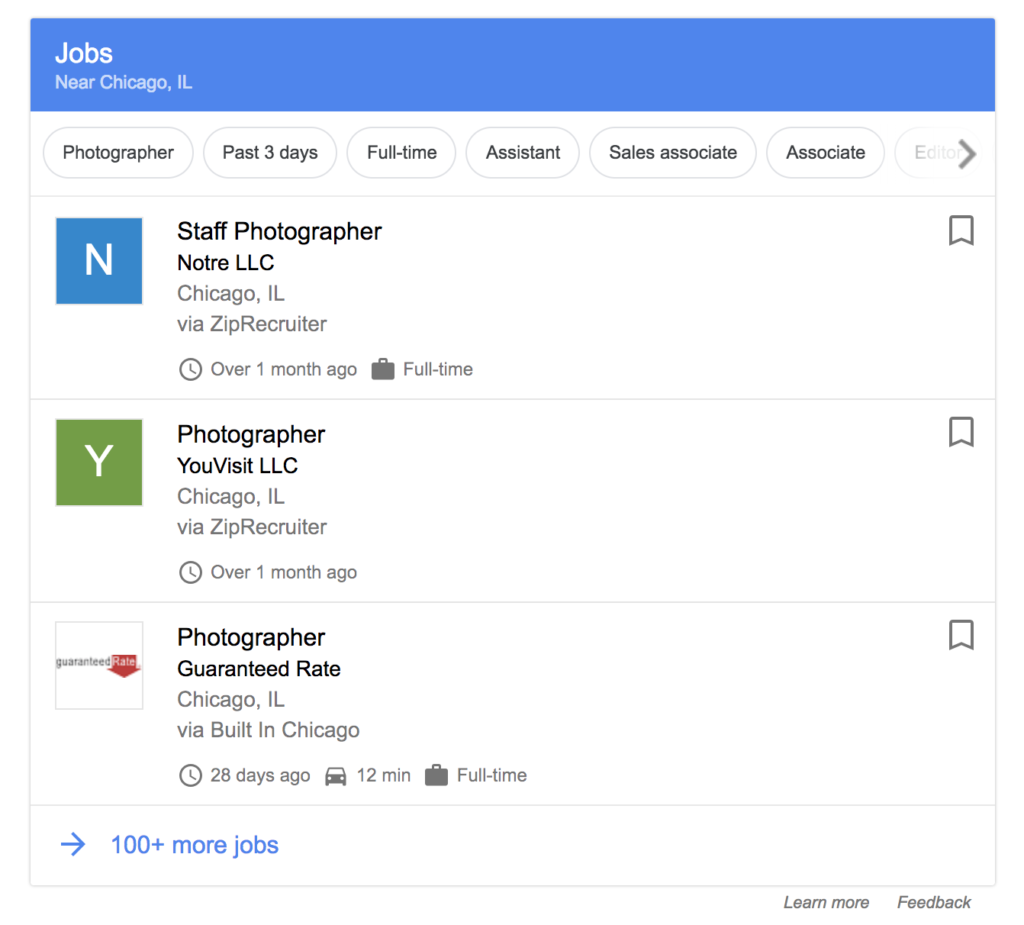
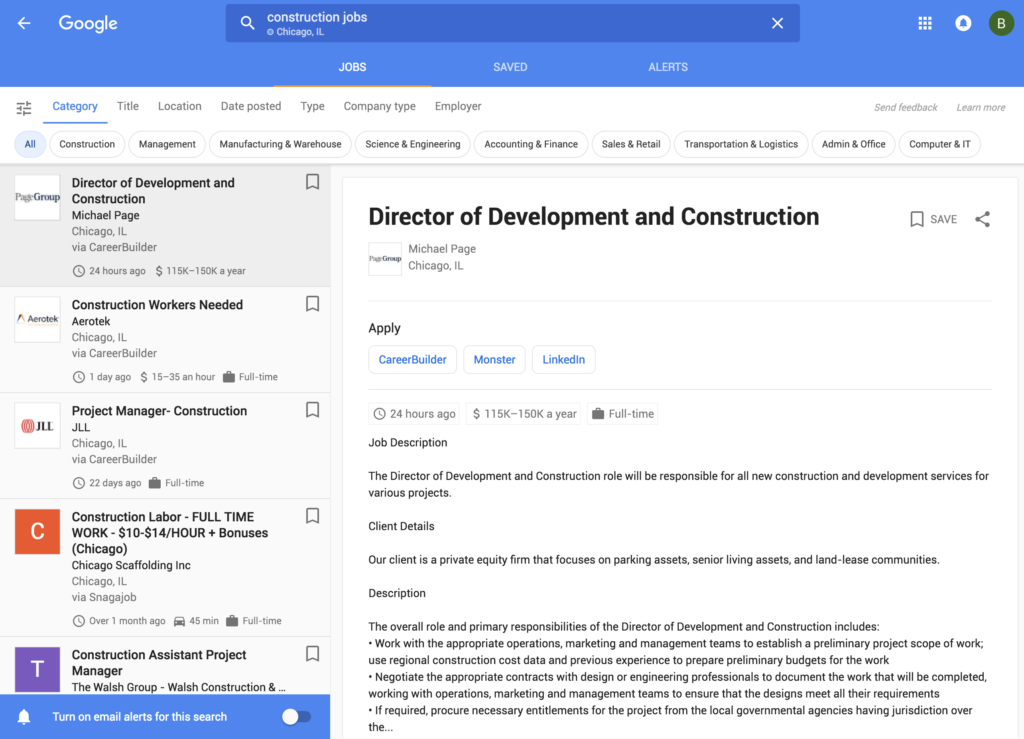
For example, I searched “photographer jobs” and Google showed me related job openings in the Chicago area:

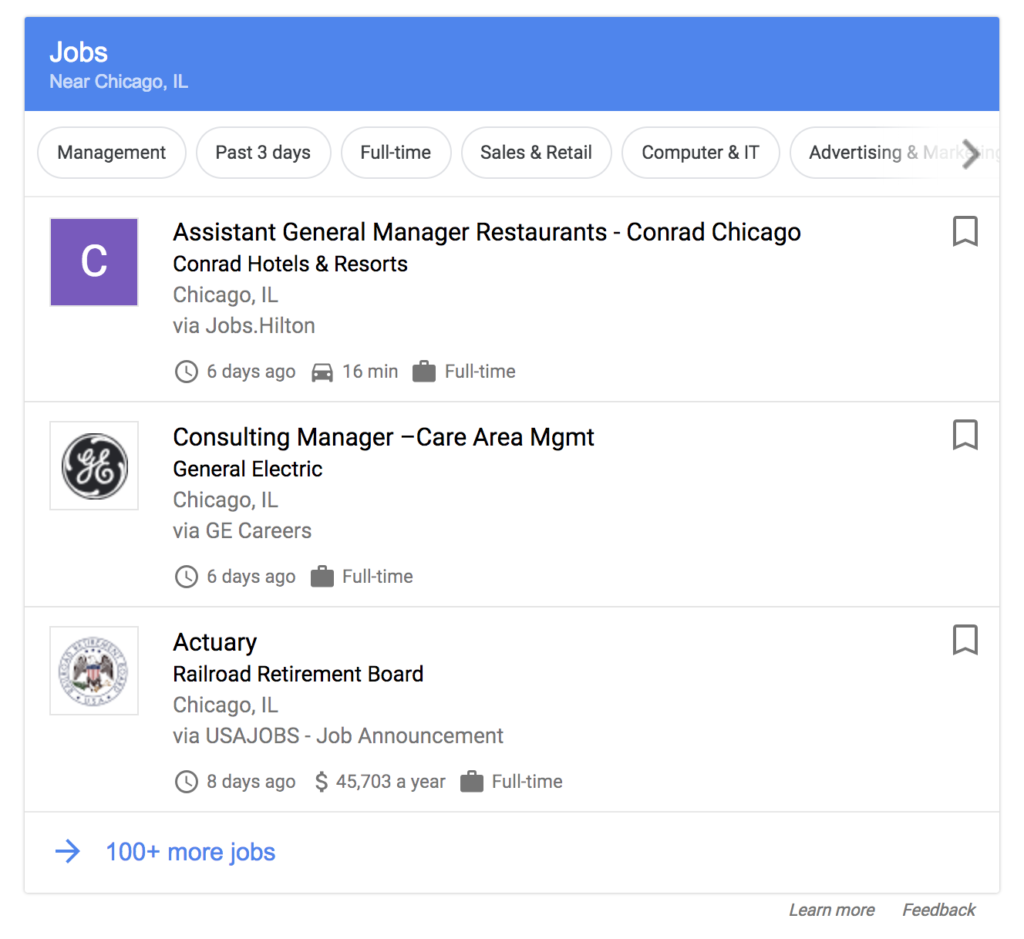
You can also do a generic search, like “jobs,” which will give you results of all kinds and filters to specify the sector and other info.

If we go to the detail page of any opening, we can read all the info, see other related openings and check openings with different filters.

We should note that Google’s solution doesn’t replace current job openings on platforms (such as Indeed, Glassdoor, and Linkedin), but rather aggregates all the info onto the same site, so you don’t have to go from page to page hunting for jobs.

This Google job search is similar to what Skyscanner does with flights or Trivago with hotels: it compiles different offerings from the most popular sites in the same place. So, to get more info on a job opening, Google will redirect you to the page where it’s posted.

What are your favorite online job hunting resources? Let us know with a comment below!

Look out for these dangerous Chrome extensions

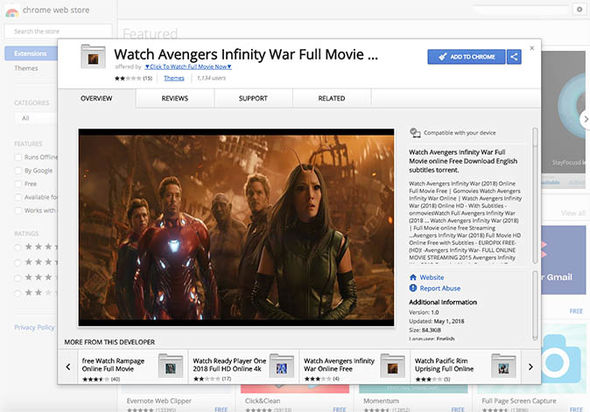
Chrome users beware. There are fake extensions in the Chrome store offering free movies that could cause you harm. If you see an extension offering films like Ready Player One or the Avengers, do not click on them. The promise of full access to HD and 4K versions are false.

Image via: The Telegraph

Anybody falling for this trick will find themselves redirected to a site called Vioos.co. Vioos looks like a streaming page but clicking on any of the videos on offer will take the user to another website called Zumastar. Zumastar then prompts you to create a “free” account that’ll you access to unlimited free movies, but this is just a scam to steal your data and infect your PC with malware.

Another possibility is being taken from vioos to EtnaMedia.net, which is blocked by MalwareBytes. MalwareBytes took action against the domain to halt suspected fraudulent practices. Users who found themselves on EtnaMedia.net reported charges to their credit cards without their knowledge or consent.

It is best to only download Chrome extensions from trusted developers and always think twice about clicking links.