YouTube’s algorithms are helping push lies about the Parkland school shooting

Source: Motherboard

After the inhumanity of the Parkland shooting, it seems that lack of human oversight on YouTube is aiding and abetting those who think the whole slaughter of the 14 students, two coaches and one teacher was a media invention.

A video on the Google-owned platform suggested that shooting survivor and now gun-control advocate David Hogg was a so-called crisis actor – bought and paid for to appear in fraudulent footage of an atrocity that “never happened.”

Despite (or perhaps because of) the insane insensitivity of the video, it quickly trended before YouTube took it down… Yet another example of what can happen when algorithms decide what a grieving nation wants to watch.

Google’s shiny new job search engine couldn’t be simpler

Source: Shutterstock

Finding a job can be tough, but Google wants to help make it easier, and the webmaster has finally launched its promised job search engine that should do just that. All you have to do to access it is type jobs or internships into a Google search bar.

There are plenty of great options for specializing your search too. You can search for specific types of jobs typing science jobs for example. You could also look for jobs near me, or you could look for jobs in a specific location by typing something like Washington jobs.

Once you click on the jobs tab, you’ll get more details about the types of jobs you’re after. These details include the date the job was posted, the industry, the type of work, the location, and the company type. You can then filter and sort your search results accordingly and sign up for job alerts based on your preferences.

The only thing you can’t do on Google jobs is apply for the positions you like. Instead, Google will send you to the original posting of the job so that you can apply directly to the company.

What are you waiting for?


All the Best Free Software for your PC

You spend hundreds of dollars on your brand new PC, and then what happens? You have to go and spend even more money on all the software you need, to do the jobs you bought the PC for in the first place. Never mind what you bought the PC for you have to buy programs just to protect your new PC from viruses and malware.

Well, do not worry because there is a lot of free software you can get your hands on to help you out. You can get free software for Windows 10 you can get free software like Microsoft Word, you can get free software for editing photos, you can get antivirus free software and even free software for video editing. You don’t need to spend a lot of money on expensive programs for your new PC. There are plenty of free programs for PC so let us have a look at some of the best now:

Best free programs for PC

1. Best antivirus free software: Avira Antivirus

Avira header

Avira Free Antivirus offers a broad range of security features that add up to offer the best free antivirus software you’re likely to find. As well as strong antivirus scan and protection facilities Avira offers some great features like safe shopping searches, system speed up and a VPN. This is the best free software download for PC you’ll find and one of the most important. To learn more about Avira Click Here, otherwise…

Avira Free Antivirus Download Avira
8

2. Best backup free software: Google Drive

Google Drive wants to be the Ultimate Backup and Sync Tool

These days you need to do more than just install a free antivirus program to keep yourself safe. Ransomware is a modern threat that sees your data being stolen and then held for ransom. This means if you’re going to download free software you need some to get some backup free software for your computer. Free software downloads like Google Drive are essential. Drive will give you 15GB of free space to keep all of your personal data safely backed up. You need it now!

Google Drive Download Google Drive
7

3. Free software like Microsoft Office: Libre Office

LIbreOffice header

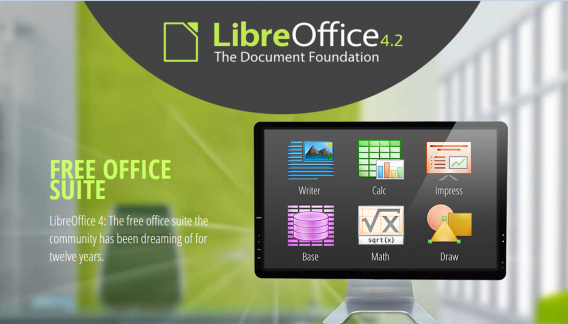
Almost everybody needs to use programs like those found in the Microsoft Office suite so a top priority must go to getting the free software download for PC of Libre Office. Libre Office is an open source productivity suite that rivals Microsoft Office and even has programs, like Math and Draw, that can’t be found in the expensive Microsoft offering. If you work in an office this is an essential free program to download.

LibreOffice Download LibreOffice
7

4. Media Player: VLC Media Player

vlcHEADER

One of the best free programs for PC is VLC Media Player. It is one of the most popular programs in the world and carries the codecs required to play almost every kind of video file. Once you’ve downloaded VLC you will be able to play almost any type of video you can find. As well as offering a complete video playback solution VLC has plenty of other features and you can check out 5 of the best here.

VLC Media Player Download VLC
8

5. Free software for photo editing: GIMP

Do you want the photos you share to be breathtaking - GIMP

If you want free software like Photoshop you should look no further than GIMP. GIMP stands for GNU Image Manipulation Program and it is almost as powerful as Adobe Photoshop. With this free software editing becomes possible for all. Whether you’re merely touching up an old image or creating a brand new one, GIMP offers you a complete set of tools to take care of whatever editing job you have in front of you. GIMP may be the best photo editing free software but we’ve also put a list together of 5 free photo editing programs. Check it out here.

7

6. Free software for video editing: Lightworks

5 Free Programs for Editing Videos lightworks

Lightworks is available on many free software download websites but you can get it right here. It is one of the best editing free software programs you can get and is used by professionals as well as amateurs. If you’re a budding video editor or director this is great free video editing program for you to download. For info on other free video editing programs click here.

Lightworks Download Lightworks
7

Follow me on Twitter: @PatrickDevaney_


How to unsubscribe from push notifications (Chrome, Firefox, Edge and Safari)

Have you accidentally given permission to receive notifications from a website or are you tired of getting notification requests? Below, we’ll tell you how to disable them according to the browser you’re using.

Google Chrome (laptop)

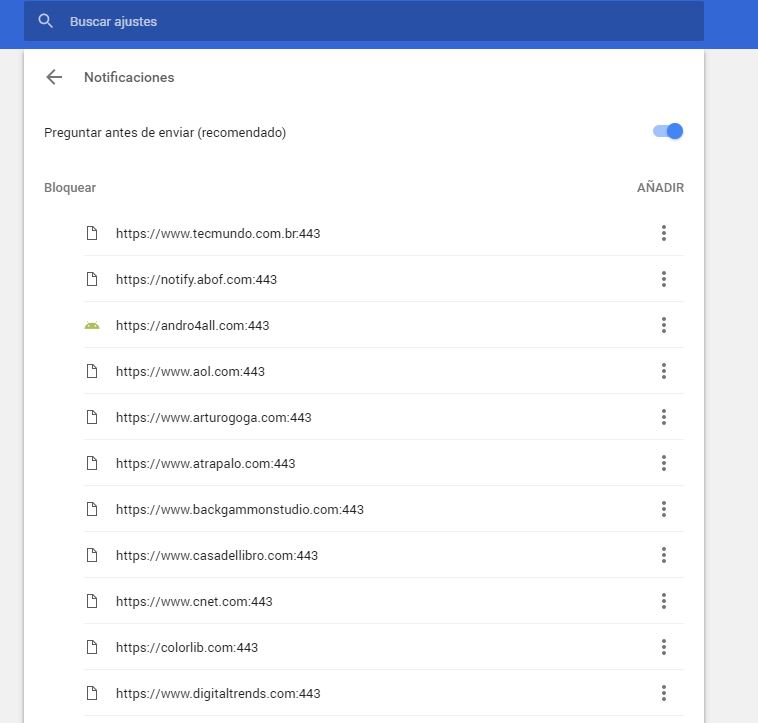
To disable Chrome notifications, copy this address chrome://settings/content/notifications and paste it in your browser. This way, you’ll go straight to the “Notifications” section of Chrome Settings.
461

If you want to stop receiving permission requests for notifications, disable the “Ask before sending (recommended)” option to “Block all.”

Want to block notifications for a specific website? You’ll see that you’ve got two options: “Block” and “Allow.” Under “Allow,” look for the web page you want to stop receiving notifications for, click on the three vertical dots beside it and then select “Block.” It’s that easy!

Google Chrome (cell phone)

Go to “Settings” (by tapping on the three vertical dots in the top right). Press “Web page settings” and then “Notifications.”

If you want to stop receiving permission requests for notifications, disable the “Ask before allowing websites to send notifications (recommended)” option to “Blocked.”

Want to disable specific notifications? Below, you’ll have two options: allowed and blocked notifications. Select one that is allowed and then the “Notifications” option to block it. Easy peasy.

Mozilla Firefox (laptop)

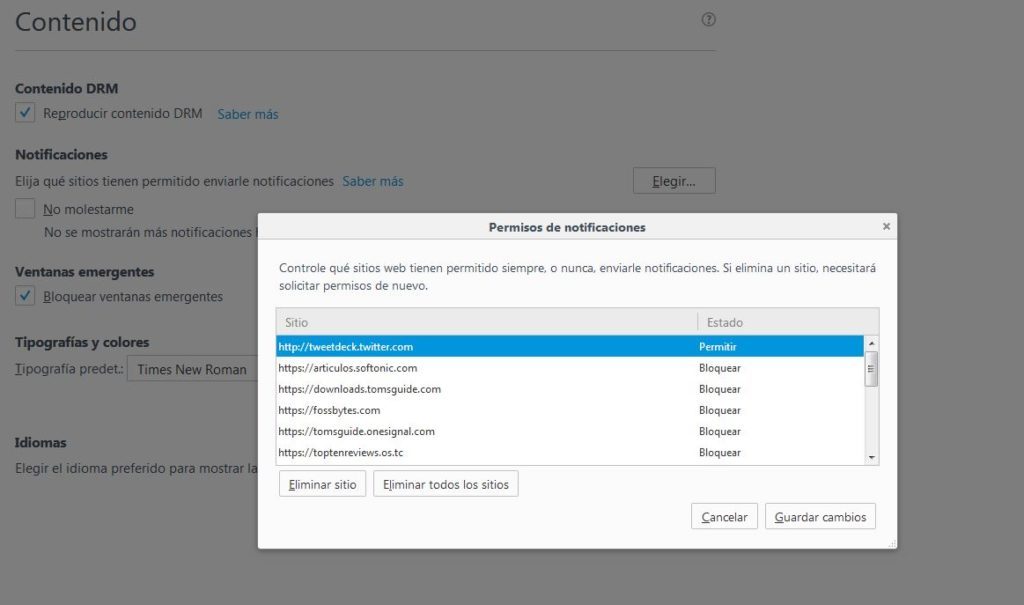
To disable notifications on Firefox, copy this address about:preferences#content and paste it in your browser to access the “Content” section of Firefox Options. Here you’ll see the “Notifications” subsection.

If you want to stop receiving so many permission requests for notifications and notifications themselves, enable the “Do not disturb me” option.
464634-1024x605

Want to block notifications for a specific web page? Click on “Select.” A list with all the notifications you’ve allowed or blocked to date will show up. Look for the website you no longer want to receive notifications from and select “Remove site.”

When you go to that page again, it will once again ask for permission to send you notifications (unless you’ve enabled the “Do not disturb me” option). Select that you don’t want to receive notifications. Case closed.

Unfortunately, there’s no easier way to block specific notifications on Firefox.

Mozilla Firefox (cell phone)

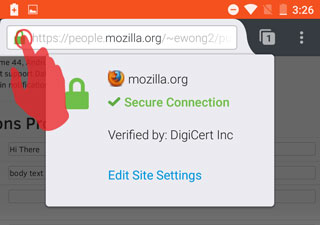
For now, there’s only one very basic way to disable notifications for this version of Firefox. You must go to the page that you want to disable notifications for and click on the Control Center (the green lock to the left of the URL).
2016-07-18-15-42-33-81e41b

Then select “Edit site settings.” Tap the white square to “check” it and then press “Clear.” This way, the website will stop sending you notifications unless you go back and give it permission.

Microsoft Edge (Windows 10)

To get started, click on the Over Edge section at the top right of the window. It’s a three-dot horizontal icon. Click Settings, and then click Advanced Settings.


Under Notifications, click Setup. Find the webpage you don’t want to be notified about and click the slider point to go to Disabled.

Apple Safari

To stop receiving notifications for a web page, go to “Preferences” and then click on “Notifications.” Look for the website on the list and select “Block.”

If you want to stop receiving permission requests for notifications, don’t leave the “Notifications” section; simply uncheck the box “Allow websites to ask for permission to send push notifications.”


Is Google Search Always the Best Option?

Google is like Xerox. Google is so ubiquitous and dominant that its name is synonymous with the act of searching for things on the internet. Just like we don’t say photocopying, we don’t say searching for something on the internet. Google is like Xerox.

Thing is though, searching for stuff on the internet (which could literally be for anything in the world that has existed or could possibly exist ever) is a complex business. There are a lot of variables to consider including what you’re searching for and what you’re handing over to the company running the little magic box when you tell them what you’re looking for.

Bearing all this in mid then, let us have a look at a few reasons not to use Google and have a look at some of the other alternatives out there:

It will always give you bad news if you’re asking about your health

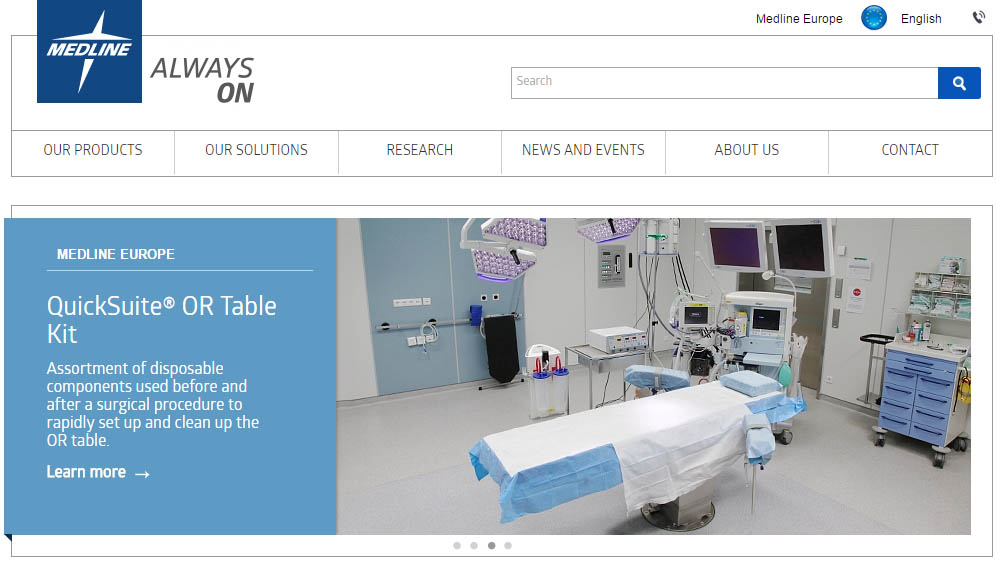
Reasons not to use Google for search medline
Searching on Google for medical advice won’t end well. Try specialist sites instead.

It is no laughing matter but it is a long running joke that if you ask Google what is wrong with you, it will tell you that you have cancer. Even google Scholar is not very good at diagnosing what is wrong with you based on the symptoms you’ll type in.

That does not mean, however, that there aren’t more reliable search engines out there for you to use should you feel unwell. Dedicated healthcare providers and biomedical research specialists like Embase, Medline and Pubmed are all highly recommended.

Google tracks you

DuckDuckGo doesn’t collect any of your information!

A huge part of Google’s business model comes from farming you for data and then selling that precious precious data to advertisers. People can fall on either side of the fence with this one. Some people see this as a service and take advantage of the tailored ads they receive. Others, however, see this as a gross invasion of their privacy.

For this second type of person, there are a plethora of ad blockers and ad free browsers available for you to download and it is even possible to delete all the data Google has captured from you. Of course, there is also the incognito mode but if you don’t even feel comfortable working incognito you should check out the DuckDuckGo search engine.

Reasons not to use Google for search

DuckDuckGo has a very simple privacy policy. It doesn’t collect or share any of your information. This means you won’t be followed around by ads or have to worry about your data being stored in some data bank in the middle of nowhere.

You might want to search the Deep web

What is the Deep Web? Well the internet is seemingly built on layers of information and the internet we use every day only represents the top 2 or 3 layers of all the information the internet holds. Everything else is the Deep Web. Some people believe there is a part of the internet so deep that it is called the Mariana’s Web after the Mariana Trench, which is the deeepest part of all the earth’s oceans.

The Deep Web is all of the information that isn’t picked up by normal search engines. It is built on anonymity and secrecy, 2 concepts that aren’t conducive with Google’s modus operandi. You won’t be able to search the Deep Web using Google but the aforementioned DuckDuckGo could do it. Alternatively, you should check out Softonic Solutions. Our users have contributed many different resources for accessing the Deep Web.

It isn’t the best search engine for video

Reasons not to use Google for search bing videos
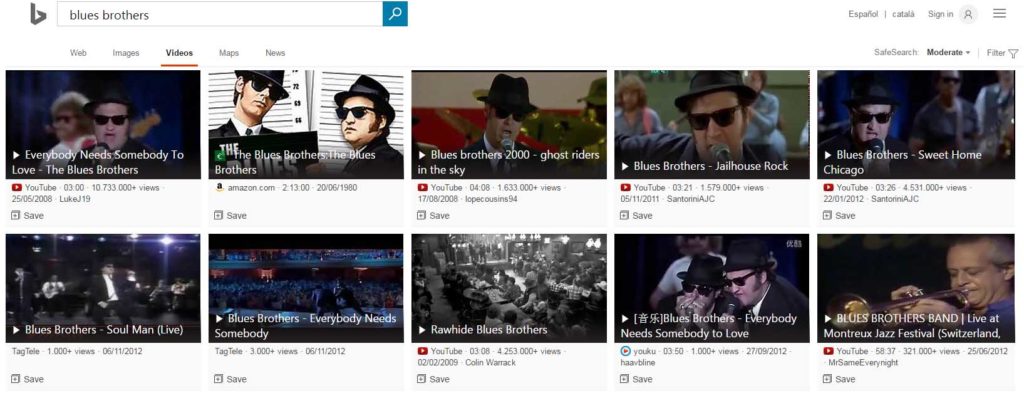
Bing is much better at showing video search results than google is

Google reigns supreme because it is the best search engine by far. This is only mostly true. Anybody working on Windows 10 will no doubt have given Microsoft Edge a go and consequently performed at least a few searches using Bing. Almost everybody who did is probably back on Google by now. It just works better and feels better when performing searches.

Wait one minute though. Microsoft Bing is actually a far superior search engine when it comes to videos. Results are laid out thumbnail style and you’ll get a little preview if you hover the mouse over the video you’re thinking of clicking.

It isn’t as clever as you think it is

Reasons not to use Google for search wolfram alpha
If you want a big brain Google might not be your best option!

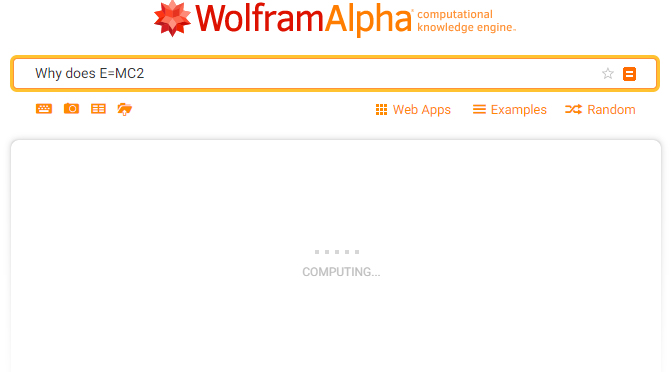
OK, these days I find I can type maths problems into google quicker than I can open the calculator app. It is clever and it is quick. Google is far from top dog though, when it comes to computing technical equations and calculations. That prize goes to Wolfram Aplha, which has the impressively intelligent tagline “computational knowledge machine” All of sudden Google’s multicolored logo is making it look like a kid in kindergarten.

I suppose the real reason for this article is to show you just how many different possibilities there are out there for getting you the answer you want. Googling something does not count as research but if you check across a number of sources you can have more confidence in the information you find. Also as we’ve highlighted specific queries might need specific search engines. Hopefully we’ve connected you with a way to find the answer you’re looking for.

Follow me on Twitter: @PatrickDevaney_

New Google Apps to Take On Skype, Facetime and Whatsapp

Google’s solution for free mobile calls and messaging was introduced to us earlier this week and is positioned to take on the likes of Apple’s Facetime, Microsoft’s Skype and Whatsapp.

Google Duo

The first of the two apps is Google Duo, a video-calling application that, unlike Facetime, is available on both Android and iOS. This means that you’ll now be able to make free calls to all your friends and family, regardless if they’re using an Android or iOS device.

The one feature that Google hopes will get you very excited about is Knock Knock. Not found on rival apps, Knock Knock lets you preview who’s on the other end of the call, and lets you decide if it’s worth getting out of that meeting to pick up.


Google Allo

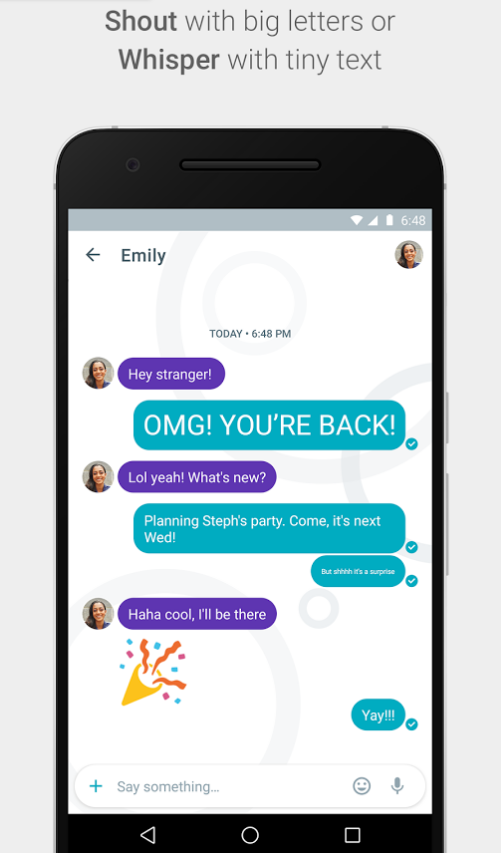
The second app is called Google Allo – a smarter, more feature-packed version of Whatsapp. With Allo, you get to make Google searches directly within the messaging app, get predictive reply suggestions, write in bigger or smaller font to simulate shouting or whispering to the other person, and many other features.

Allo Shout

Allo assistant


So when can you get your hands on these apps?


If you’re in the US, you’re in luck! Google Duo is already available on Google Play and the App Store, and for the rest of you, Google says that they will be available worldwide “in the next few days”.


There is no word yet on Google Allo’s launch date.


However, you can now pre-register for both Google Duo and Allo on Google Play, so that you get (presumably) a notification when these apps are available in your region. iOS users, you’ll just have to watch this space.


Let us know what you think about these two apps in the comments below!

Google Hangouts Easter Eggs lets you change background colors, release ponies

hangouts EastereggsGoogle’s Hangouts messaging app already includes 850 different emoji icons but what if you want something a little different? Well you’re in luck since the engineers at Google have built in some hilarious Easter Eggs into the app.

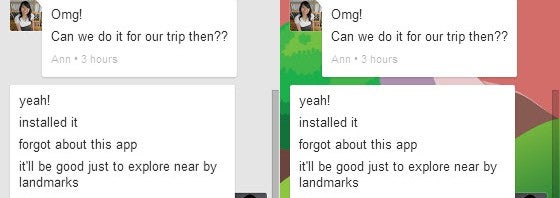
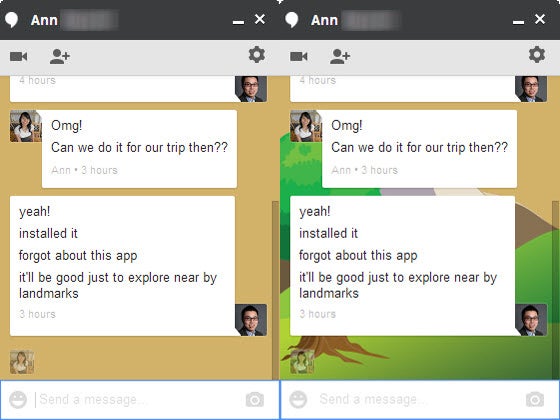
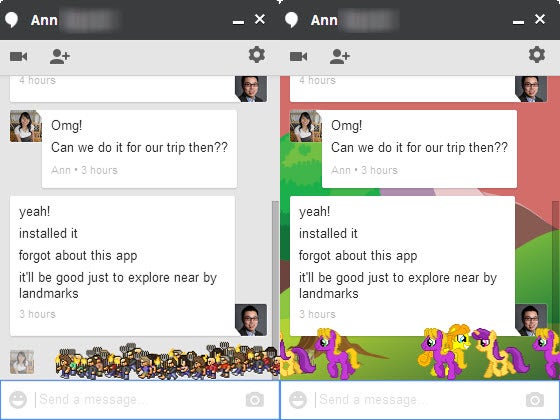
To activate these, simply refer to the chart above. These commands are simple with a “/” followed by the command. For example, “/ponystream” unleashes a torrent of “My Little Pony” looking characters across your chat window.”/bikeshed” will change your chat background to a random color.

There’s also the famous “KONAMI code,” which lets you change your background to an cartoon landscape. My personal favorite is “/pitchforks,” which unleashes an angry, pitchfork-wielding mob. To get rid of the Easter Eggs, simply close and re-open the chat window.

google hangouts easter eggs 2

Unfortunately these Easter Eggs don’t work on the mobile version of Hangouts. If you want to try them out, you’ll have to use the web or Chrome app.

[Source: Moritz Tolxdorff (Google+)]

Three ways to open DOC files without Word

Whether you like it or not, DOC files are a standard for sharing documents online these days. The problem comes when someone emails you a DOC file and you don’t have Microsoft Office installed on that computer. Don’t worry: even if you don’t have Word on your system, there are other ways to open DOC files without Word – and all three of them for free:

1. Google Docs

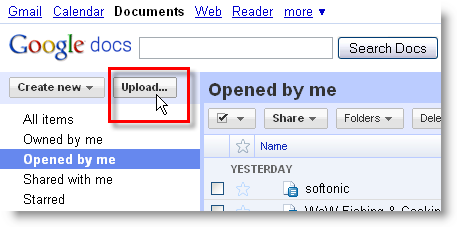
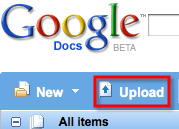
Google’s online suite not only creates and saves documents as DOC, but also works with DOC files imported from your hard drive. So if you ever find yourself with a DOC file on a Word-less computer, head to Google Docs in a web browser and click the Upload button. You’ll be able to import files from your hard drive, up to 1024 MB – 500 KB per DOC file.

Three ways to open DOC files without Word

Continue reading “Three ways to open DOC files without Word”

3 free ways to open Word documents without Office

Yesterday my father rang me wanting some help with opening a Microsoft Word document. He didn’t have Microsoft Office installed, there was no way he was going to pay up to $229 to buy it and to cap it all, he’d never even used a word processor before. I shuddered at the challenge that lay ahead of me but to my pleasant surprise, within 10 minutes I’d taught him how to open, edit, save and even send the document by e-mail – and all without having to have Microsoft Office or Word installed on his computer. If my dad can do it, anyone can and so here’s 3 ways that you can do the same:

1. Google Docs

If you’ve received the document by e-mail, download it, go to Google Docs and upload it. Note that you’ll need to sign-up for a Google Account first.

google-docs-upload.png

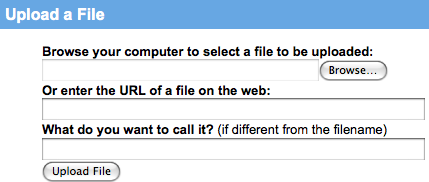
Simply browse to the file you want to upload and it will open automatically in Google Docs.

google-docs-upload-2.png

From there you can edit it in much the same way as you can in Word and send it by e-mail directly from your Gmail account. Continue reading “3 free ways to open Word documents without Office”