Unlock the Hidden Potential of Your iPhone with These 14 Secret Settings

Little hidden features that can make our use of the iPhone much more efficient and comfortable at the same time.

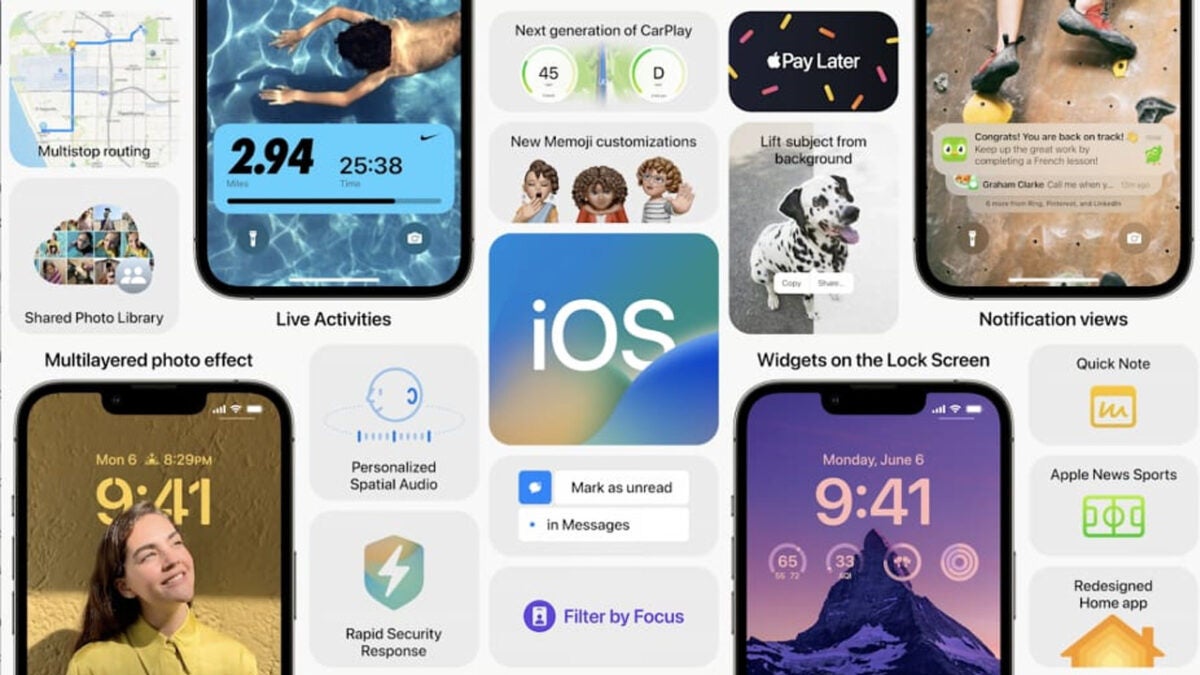
The iPhone has become an indispensable tool for many people worldwide. It has revolutionized the way we communicate, view information and perform everyday tasks. With a plethora of applications available in the App Store, the iPhone is capable of doing almost anything, from managing emails to helping us do our tax returns with an identity certificate, to allowing you to pay for anything in installments with Apple Pay Later, to name just a few.

Continue reading “Unlock the Hidden Potential of Your iPhone with These 14 Secret Settings”

iOS 16.3 is here: What is New and why it matter for your safety

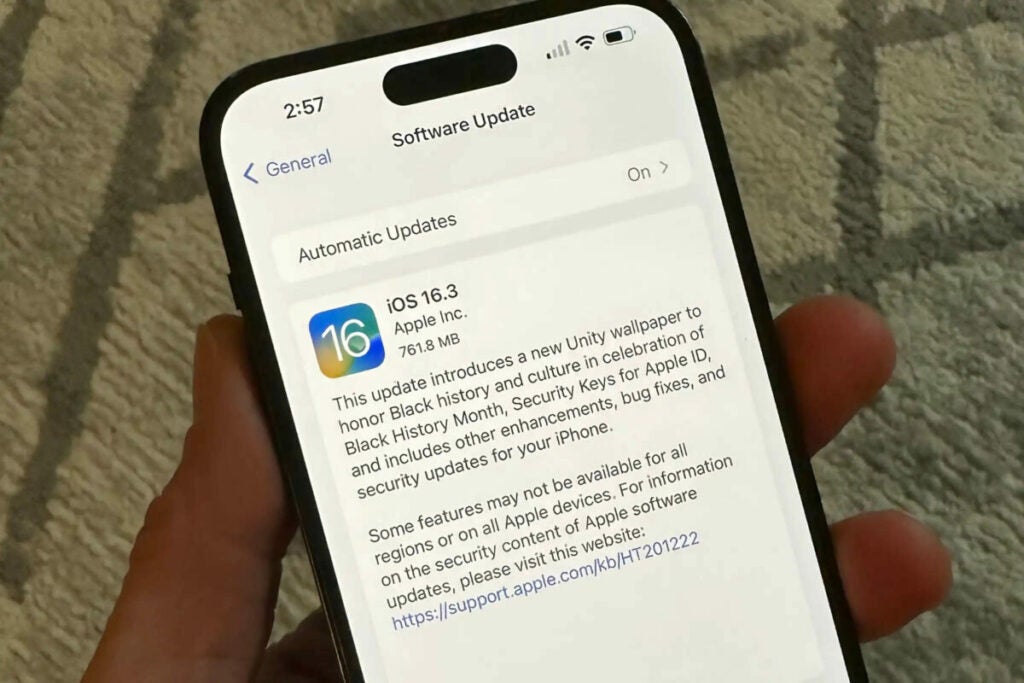
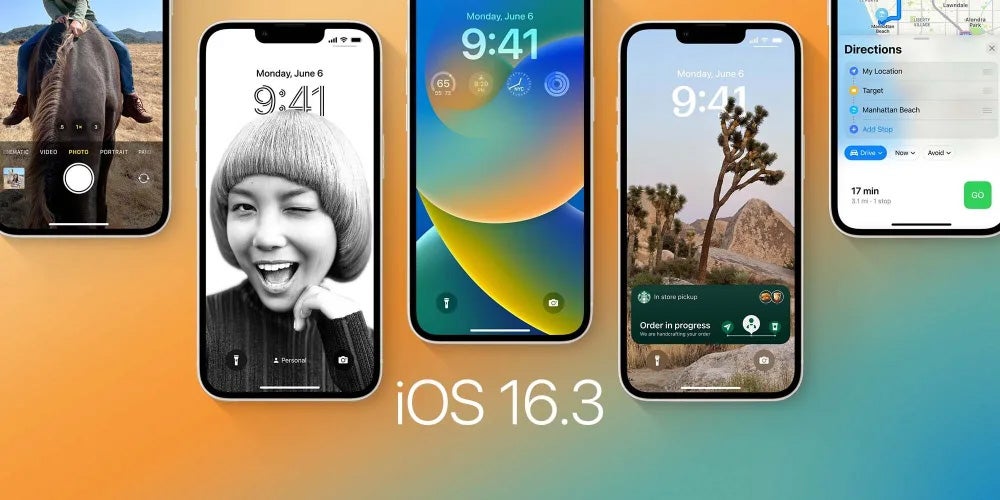
Apple has rolled out iOS 16.3 for almost all iPhone models, following a month of beta testing. The update includes several new features such as a revamped method for securing your Apple ID, modifications to Emergency SOS, and other key updates.

iOS 16 for iPhone DOWNLOAD

Additionally, Apple has also created a special wallpaper to celebrate Black History Month. Below, we’ll take you through everything we know about the newly released iOS 16.3.

Everything you need to know about the new iOS 16.3 update 02

What’s new in iOS 16.3? 

To keep this brief, we’re going to list the new features, as there are quite a few that we’d like to make you aware of. We’ll break this section into two parts; the brand-new features, the bug fixes, and general iPhone improvements. 

New features

  • The new Unity wallpaper in the latest iOS 16.3 update pays tribute to Black history and culture in celebration of Black History Month.
  • Users can now add an extra layer of security to their Apple ID by requiring a physical security key as part of the two-factor authentication process on new devices with the introduction of Security Keys.
  • The update also includes support for the second generation of HomePod
  • To prevent accidental emergency calls, the process for making an Emergency SOS call has been changed so that you have to hold the side button with the down or up volume button, and then release it.

General improvements

  • The update addresses a bug where drawing strokes made with the Apple Pencil or finger don’t appear on shared boards in the Freeform app. (this is for iPad)
  • The issue where the wallpaper may appear black on the lock screen has been fixed.
  • The bug of horizontal lines appearing while waking up the iPhone 14 Pro Max has been resolved.
  • The problem of inaccurately displaying the Home Lock Screen widget with regard to the status of the Home app has been addressed.
  • The update also resolves the problem where Siri doesn’t respond correctly to music requests.
  • The issues where Siri requests in CarPlay may not be understood correctly have been fixed.

How to install iOS 16.3

iPhone and iPad models can now access the latest iOS 16.3 and iPadOS 16.3 updates. To update your device, navigate to the Settings app, select General, and then select Software Update. If the update is not immediately available, keep checking, as it may take some time for it to reach your device. The updates were expected to be made available to all users within an hour of the release yesterday, and we have yet to isolate any issues with this process.

After starting the installation, your iPad or iPhone will download the update and then prompt you to restart your device to complete the process. Keep in mind that your device will not be usable while it is rebooting to install the update. Additionally, Apple is releasing iOS 15.7.3 for older iPhones that are not compatible with iOS 16, as well as iOS 12.5.7 for devices that cannot support iOS 13 or newer versions.

Everything you need to know about the new iOS 16.3 update

All the best Space wallpapers

These five sites have all the best space wallpapers you can download for free. Check them out now.

This week at Softonic HQ we’re concentrating on bringing you fantastic wallpapers for your Windows PC or Apple Mac, and also all the best places to find them.  If you’re looking for cool desktop backgrounds including scenes and images from your favorite video games, the biggest sporting events around the world, the latest movies, and hip minimalist pictures we have you covered. Today though, we’re covering wallpapers and backgrounds from space. We don’t mean they’ve come from space; we mean desktop wallpapers of all things space related. We’ve got to say, some of these are incredible!

With these Space wallpapers we’re going to do things a little differently. Rather than highlighting particular images we like such as famous nebulas, supernovas, black holes, spiral galaxies, and planets like Saturn and Jupiter; we’re going to concentrate on where to find them all. Let’s go.

HD and 4K Space Wallpapers

Wallpaper Access

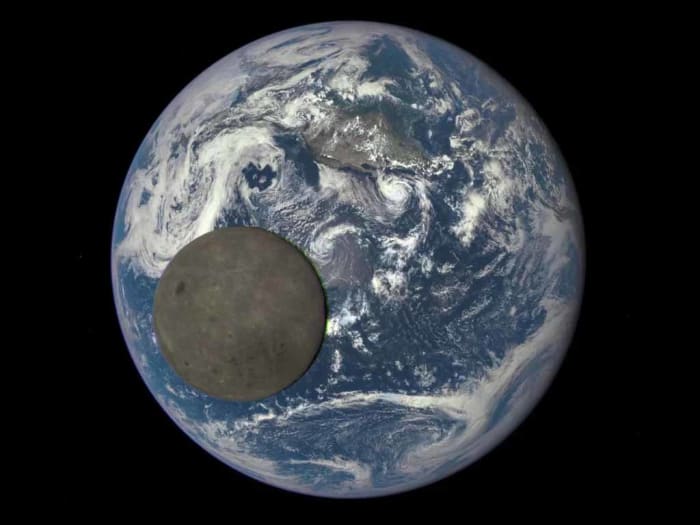
As you’ve probably guessed from the name of this website, it doesn’t specialize in space-related matters. Clearly, what Wallpaper Access specializes in are wallpapers and backgrounds. That doesn’t mean though, that the space images you find here won’t be special. On the contrary, Wallpaper Access is a great place to go find a huge collection of ultra-high-resolution space images that you can use as the background on your PC or Mac. In particular, the 4K Space Wallpapers collection is fantastic, with 69 breathtaking scenes both of outer space and views from outer space looking back to earth.

Hubble Space Telescope

The Hubble Telescope is one of the most iconic human machines ever built. Thanks to its earth orbiting platform, the Hubble has been able to capture some of the most incredible scenes of space the human race has ever laid eyes on. If you have a particular image of outer space stuck in your mind, chances are it was taken by the Hubble. By going to straight to the source of those space images here, you’ll be able to get your hands on space images with ridiculously epic titles like A rose made of galaxiesThe pillars of creation, and Galactic wreckage. What’s also great about the Hubble website is that it gives you free access to the full size original image meaning you won’t have to compromise on quality, if you don’t want to, and you’ll also get interesting explanations about all the images written by teams that captured them. If you’re looking for HD space wallpapers of the Milky Way, Orion’s Belt, our Solar System and beyond; this is the place to start your search.

Unsplash

Unsplash might just be the coolest stock photography library on the internet. It has thousands, if not millions of fantastic images, which have all been uploaded by the artist or photographer behind them. What’s even better about Unsplash is that all the images are available for free. As you’d expect from such a site, Unsplash has a fantastic section on space images that has many great space scenes and vistas that would be perfect as your wallpaper.

Space.com

Space.com describes itself as, “the premier source of space exploration, innovation, and astronomy news, chronicling (and celebrating) humanity’s ongoing expansion across the final frontier.”  Sounds cool, doesn’t it! As you’d rightly imagine, all that makes space.com the perfect place to find some truly awe-inspiring space-related backgrounds. Also, just like with at the Hubble website you’ll not just get the images to use as your background, you’ll also learn about what is going in the images and how they were taken. If you’re looking for something a little deeper than merely an image that looks cool, this is the place to go.

NASA

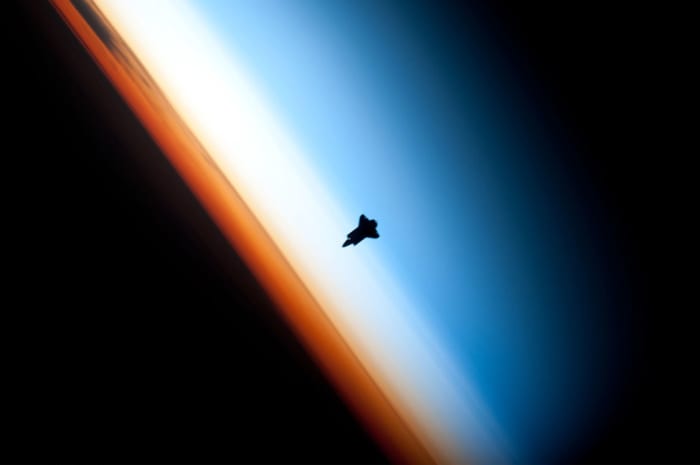
Our final source of amazing space-related wallpapers is NASA. As you’d expect from the most famous space agency on the planet, NASA has a huge library of space images. These include photos captured by telescopes on earth and in orbit, photos of cool equipment such as radio telescopes, mission mockup images like those of the famous Curiosity Rover, historic mission photos, and much much more. If you want backgrounds with space shuttles and International Space Station missions, this is the site you’re looking for.

Out of all the sites we’ve brought you today, the NASA website is our favorite because on top of offering you some fantastic images that will make great backgrounds, being a fantastic place to learn about space, and doing all of that for free; many of the images on the NASA site will make you feel emotional as you’ll recognize them. You might know who the person is in the image, what the shot is of, or even just feel an emotional attachment for the robot you’re looking at. NASA is a huge part of our global culture these days and that really gives the desktop wallpapers you’ll find here a lot more weight.

Wrapping up

We’ve shown you five great places to source all the best space wallpapers available on the web. If you’re a big space fan, you’ll definitely find the wallpaper you’re looking for on one of the five sites above. In fact, you’ll find a lot more than just backgrounds on three of the sites meaning it all depends just how deep you want to go. You might log on to the Hubble or NASA websites simply looking for a new background for your PC and emerge hours later having ended up researching anything from the composition of moon rocks to the age of the oldest and youngest galaxies. That’s just it with space though, the possibilities are endless.

7 tricks to use Microsoft Office free, without paying a cent

Ever wondered how to use Microsoft Office for free? Get instant access to several Microsoft Office versions without paying a cent. Learn how to do it here!

Microsoft office apps

Office for free? You want it, right? Microsoft Office remains the top dog of office apps. As good as the apps are, however, we understand that not everybody can afford to pay for them. We’ve covered here the best free Office alternatives, like Google Docs and LibreOffice, but we also know that some of you might want the real version of Office. Don’t worry though, Softonic has your back: put that credit card away (except for number 5) because here are 7 ways to get free access to the Microsoft Office suite on Windows and Mac.

6

7 tricks to get access to free Microsoft Office

1. Use Microsoft Office Online

Little by little, Microsoft has been growing the number of Office apps that you can use for free online. You’ve got Microsoft Word, Excel, PowerPoint, OneNote, Sway, Email, Contacts, Calendar, OneDrive and Docs.com all without the need to install Office on your hard drive. If you have a Microsoft account and a reliable internet connection, you can use these free office programs on a Windows PC, Apple Mac, or Linux using web browsers like Google Chrome and Microsoft Edge. Microsoft Office Online programs even offer some cool and unique features like real-time Skype chats while collaborating on documents with friends or colleagues.

Try out Microsoft Office online here, choose the app you want to use, and log into your Microsoft account. You’ll also find Office Online in the Products menu over at office.com.

You won’t get all the Office 365 features with Microsoft Office Online, but you will at least be able to edit documents

Office Online Download now
7

2. Use mobile apps

The Mobile office apps work just like the online versions we’ve already mentioned. The difference is that they’ve been optimized for mobile devices.

Here we’ve listed the available Microsoft Office mobile apps, which are available for free on Android:

Word

Microsoft Word for Android Download Now
8

Excel

Microsoft Excel for Android Download now
8

PowerPoint

Microsoft PowerPoint for Android Download now
8

OneDrive Cloud Storage

OneDrive for Android Download now
8

Outlook

Microsoft Outlook for Android Download now
7

OneNote

OneNote for Android Download now
7

SharePoint

For iPhone and iPad, it’s more difficult to list the mobile Office applications as there are different versions for both Apple devices. You can find the list of all Office apps for Apple devices, including those for the new iPad Pro, on Microsoft’s iTunes listing.

Again though, don’t expect the full Office 365 experience, but this free version of Office will allow you to do basic editing.

If you want to get Office 365, you’ll have to try one of the following methods.

3. Get Office from your school

If you’re a student or teacher, you may be entitled to an Office 365 education subscription. Enter your school email address hereYou’ll get Office software including Word, Excel, PowerPoint, Microsoft Teams, and OneDrive storage among other tools, totally free. If your school isn’t registered, let them know what they’re entitled to ASAP!

4. Persuade your boss

Huh? What kind of company doesn’t have Microsoft Office 365? If yours doesn’t, it could be time for you to step up. You’ll have to sell it though, and go through the numerous Office 365 options available and the benefits they’ll bring to the business. The important thing is that your company will foot the bill!

Microsoft Office for companies

5. Sign up for a free month trial of Office 365

Try out the Office 365 Home version. You’ll have a 1 month trial to experiment with the Office 365 personal package that includes Word, Excel, PowerPoint, Outlook… Also, the trial gives you access to 1TB of cloud storage on OneDrive.

Office 365 trial

Keep in mind, however, that to download the trial, you’ll have to enter a current debit or credit card number. When your one-month trial ends, you’ll automatically be charged for an Office 365 subscription so make sure you don’t forget to deactivate your account before the trial ends.

6. Sign up for a free trial of Office 365 ProPlus

Have you already finished your one-month free Office 365 personal trial? What about 30 MORE days? Well, here you go. Sign up here for Office 365 ProPlus. You’ll have to sign up for the Evaluation Center, but in our final trick, we’ll go into this in a little more detail.

Office 365 ProPlus

7. Try your luck with the TechNet Evaluation Center

Microsoft likes having users try out their products’ new features before officially launching them and this includes everything from DocX Word documents to Microsoft’s latest and greatest software innovations. This allows the software giant to resolve any software issues and problems, before they’re rolled out to all users.

Microsoft Office online - TechNet Evaluation Center

This is where Microsoft’s TechNet Evaluation Center comes into play. If you sign up, you can get free access to the products Microsoft needs testing. This usually means you’ll get to try them for 30-60 days. Sometimes, you might even cross paths with Office, like with the trial for the ProPlus version we just told you about.

Remember though, that the versions you’ll find in the Evaluation Center are still rough around the edges. You should expect all sorts of surprises!

What if you’ve used up all these options?

What happens if you’ve already used up all your free trials? Then you’ve got no choice but to buy Office (unless you’re satisfied with the online and mobile versions). Our personal recommendation is Office 365 Personal, which costs $69.99 a year or $6.99 a month.

If you don’t want to invest in the office package, don’t worry because there are other options out there! Try out these free alternatives to Microsoft Office and you won’t be disappointed.

Comparing the Top Video Chat Apps

They’ve been around for years, but these days, video chat apps have become absolutely essential. They let you connect in a much warmer way than a text or a phone call, because there’s nothing like seeing the other person and chatting face-to-face. Many messaging apps now have integrated video chat, while other apps have been developed exclusively for this purpose. Do you know which one is best for you?

Mujer haciendo una videollamada

In today’s article, we’re going to compare the most popular video chat apps for PC and mobile devices. We hope it helps you to choose the best app to meet your needs. Let’s have a look!

WhatsApp

Logo de WhatsApp

  • Available for: Android, iOS, Windows Mobile.
  • What you need: A smartphone with a SIM card.
  • Contact info it needs: Your contact’s phone number.
  • Types of calls: Audio and video.
  • Group chats?: Yes.

Messenger

Logo de Messenger

  • Available for: Android, iOS, Windows Mobile.
  • What you need: A Facebook account.
  • Contact info it needs: Your contact’s Facebook account.
  • Types of calls: Audio and video.
  • Group chats?: Yes.

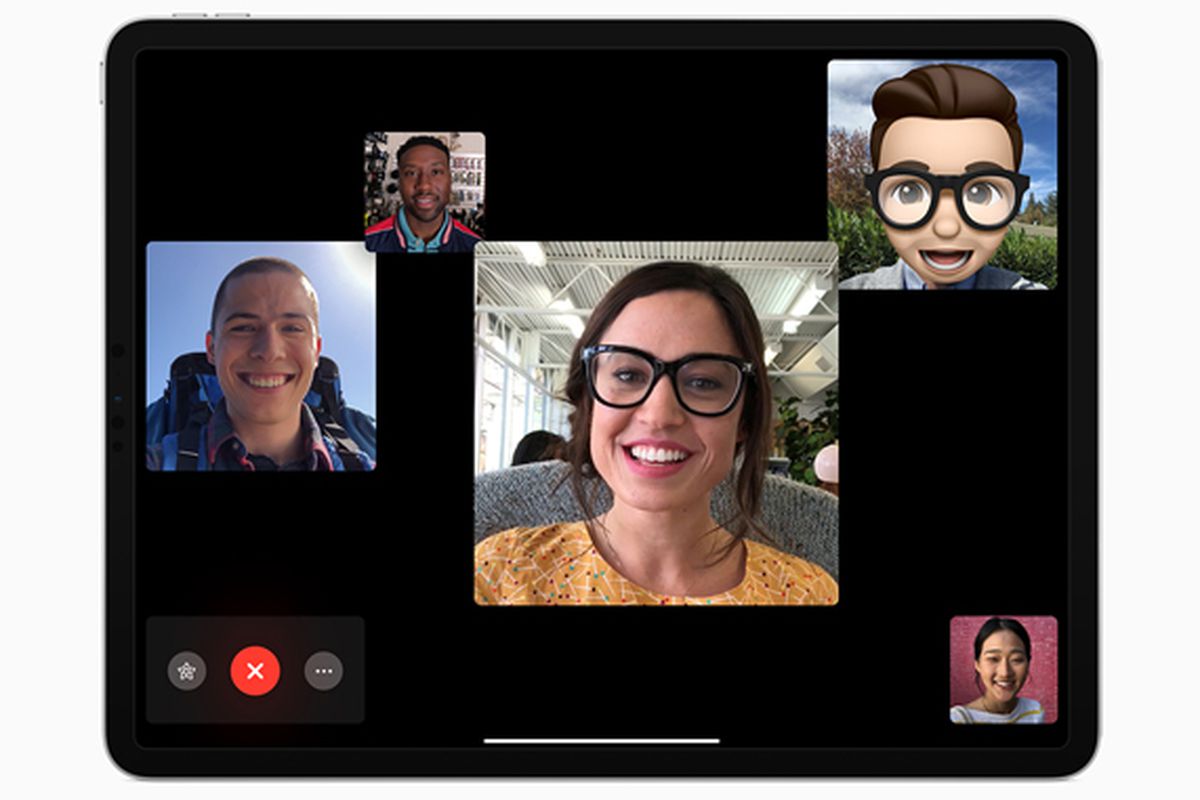
FaceTime

Logo de FaceTime

  • Available for: iOS or MacOS.
  • What you need: iPhone or Mac with Apple ID.
  • Contact info it needs: Your contact’s email address or Apple ID.
  • Types of calls: Audio and video.
  • Group chats?: Yes.

Zoom

Logo de Zoom

  • Available for: PC, Mac, Android, iOS.
  • What you need: A registered Zoom account.
  • Contact info it needs: Meeting ID, Zoom account, meeting URL.
  • Types of calls: Audio and video.
  • Group chats?: Yes.

Skype

Logo de Skype

  • Available for: PC, Mac, Android, iOS.
  • What you need: A Microsoft account or Skype account.
  • Contact info it needs: Skype user ID.
  • Types of calls: Audio and video.
  • Group chats?: Yes.

Google Duo

Logo de Google Duo

  • Available for: PC, Mac, Android, iOS.
  • What you need: A Google account.
  • Contact info it needs: Your contact’s Google account.
  • Types of calls: Audio and video.
  • Group chats?: No.

Which video chat app is the most reliable?

One of the most important qualities of any video chat app is a stable connection that won’t crash. Unfortunately, it’s common for these apps to have perfect video quality but be out-of-sync with your internet connection, so they lag, drop calls or constantly freeze.

All of the above-mentioned apps offer decent stability; that is, you can have video chats without significant glitches where audio or video are concerned. Google Duo and FaceTime definitely stand out as the most stable, because regardless of whether you’re using Wi-Fi or your phone’s data plan, they are incredibly smooth.

Skype is also reliable, and we have never found it to freeze. That said, its smooth connection is due basically to its inferior video quality. Similarly, Messenger has significantly lower video quality than the rest of the apps, especially in group chats. The least-reliable option is WhatsApp, because it can sometimes freeze for a few seconds. That said, its performance is still more than satisfactory.

The best: Google Duo (Android and Windows) and FaceTime (iOS, MacOS).

Which video chat app is the best to use on my phone?

Since it’s so convenient, you’ll probably want to use your phone for video chats. Although the above category already gives you an idea of the best app for phones, there’s one factor that it doesn’t consider: what happens when you’re not connected to Wi-Fi? Unless you have an unlimited data plan, you need to be sure that a video chat won’t eat through all your data. That’s why it’s also important to determine which app consumes the least data.

After testing the apps on our list, we found that they use, on average, 10 MB per minute during video chats. Some are very data-hungry, such as WhatsApp, which uses 20 MB, while others are more moderate consumers and therefore more advisable for phones. Again, this is the case of Google Duo and FaceTime, which use 7 MB and 4.5 MB, respectively. That’s why we recommend both for video chats using your phone’s data plan.

The best: Google Duo (Android and Windows) and FaceTime (iOS, MacOS)

Which app is the best for group chats?

This time the answer is easy, because it only depends on how many people you want to invite to your video chat. Below are the numbers of participants allowed by each app.

  • WhatsApp- eight participants.
  • Messenger- 50 participants.
  • FaceTime- 33 participants.
  • Zoom- 100 participants in the free version, 1,000 in the paid version.
  • Skype- 50 participants.
  • Google Duo- It doesn’t allow group calls.

As you can see, most of these video chat apps make it possible to have group chats. Again, one of the best options is FaceTime because it allows a large number of participants and is very reliable. The only drawback is that you and your contacts need to be Apple users. Otherwise, Messenger and Skype are your best bets, because both are reliable and smoother than WhatsApp. Finally, we recommend Zoom for group chats, classes, and conferences.

Which video chat app is the most secure?

Another key point when having video chats is to make sure the app doesn’t have security holes and your data won’t be intercepted by third parties.

Among the apps we’ve mentioned, the safest is definitely WhatsApp, because your entire conversation is encrypted on both devices using the Signal Protocol system from Open Peer. Another standout is Google Duo, which uses the same encryption system to prevent potential hackers from stealing your data.

Messenger, on the other hand, is a safe app, but if you want 100% encrypted conversations, you have to activate Secret Conversations mode. Finally, we don’t recommend using Zoom for video calls about any important or personal matters, or if you’re planning to share confidential data. This app has run into some serious security issues, and although it has gotten much better, it still has a lot of room for improvement.

The best: WhatsApp and Google Duo.

Which app is the best for video chats with filters?

Filters are one of the most in-demand features because they make video chats so much fun. By adding real-time effects to our conversations, they can lighten up the mood when we’re chatting with family and friends. We looked at the apps on this list to find the best video chat filters, and only three have them: Google Duo, Skype, and Messenger.

Google Duo offers lots of original, creative filters that will make you the center of attention, for example, a dinosaur, a flower, or an adorable cat. Skype also has a decent number of video filters: you can add hearts or floating teddy bears, or distort your face in funny ways. Finally, Messenger deserves special mention, because this app has a huge collection of filters that are constantly updated. For this reason, we consider Messenger to be the best of the main video chat apps when it comes to filters.

The best: Messenger.

Which video chat app should I choose?

There is no quick answer to this question. To choose the best video chat app, you need to stop and consider the kind of video conferencing you want to do (calling your parents, a virtual conference, a meetup with a group of friends, etc.). Then it’s important to think about the device you’ll be using for the video chat (desktop, laptop, phone, tablet, etc.), and finally, the kind of connection you’ll be using (cable, Wi-Fi, phone data plan, etc.). This will make it easier to identify the perfect app to enjoy your video chats to the fullest.

Where can I download the most popular video chat apps?

Once you’ve decided which video chat apps to use, it’s important to download them from their official websites, Google Play, the App Store, or a trusted website. Below you can find the links to download all of the video chat apps we have analyzed in this article. All of these downloads are verified and completely safe, so don’t be afraid to install them on your device.

WhatsApp

  • WhatsApp for Android

WhatsApp (Android) DOWNLOAD
8

  • WhatsApp for iOS

WhatsApp (iOS) DOWNLOAD
8

Messenger

  • Messenger for PC

Messenger (PC) DOWNLOAD
7

  • Messenger for Android

Messenger (Android) DOWNLOAD
8

  • Messenger for iOS

Messenger (iOS) DOWNLOAD
8

FaceTime

  • FaceTime for Mac

FaceTime (Mac) DOWNLOAD
6

  • FaceTime for iOS

FaceTime (iOS) DOWNLOAD
8

Zoom

  • Zoom for PC

Zoom Meetings DOWNLOAD
9

  • Zoom for Android

Zoom Meetings (Android) DOWNLOAD
8

  • Zoom for iOS

Zoom Meetings (iOS) DOWNLOAD
8

Skype

  • Skype for PC

Skype (PC) DOWNLOAD
8

  • Skype for Android

Skype (Android) DOWNLOAD
8

  • Skype for iOS

Skype (iOS) DOWNLOAD
8

Google Duo

  • Google Duo for Android

Google Duo (Android) DOWNLOAD
8

  • Google Duo for iOS

Google Duo (iOS) DOWNLOAD
8

Don’t forget to keep your device secure by updating your video chat app regularly to fix any security holes it might have.

We hope you’ve found our comparison of the best video chat apps useful. Do you use an app that isn’t on our list? Tell us about it in the comments section!

Facebook Messenger tips and tricks

Do you use Facebook Messenger a lot? These tips and tricks will help you get a lot more out of the Facebook messaging app.

Facebook Messenger has been around for years now and has grown into a truly monumental app. It can do all sorts from shopping to games and is now so much more than a mere messaging app. The thing is though, with so many headline-grabbing features these days, it is easy to miss some of the more nuanced little Facebook Messenger tips that will make it a much better app to use day in and day out.

Today we’re going to go through some of the best less well-known features and tools for Facebook Messenger. Quick and simple tips that will make your life on Messenger much easier. Let’s begin

Facebook Messenger tips

These Facebook Messenger app tips and tricks will all help you get more out of the app and enjoy using it more.

Messenger Lite

Yep, our first Messenger tip actually involves downloading a different app. The Messenger Lite app cuts out all the advanced features fluff so that if you only ever use Messenger to send and receive messages, this is the app for you. Messenger Lite will only take up minimal space on your phone and will need a lot less processing power and system memory to run properly. Downloading Messenger for anybody who only uses the app for its core functions, but it is particularly useful for anybody using an older or less powerful Android smartphone or iPhone. The only thing to remember, however, is that some of the tips we share below might not apply to Messenger Lite.

Messenger Lite Download Now
9

Mute notifications

This little trick allows you to stop annoying notifications breaking up your day all the time. If you’re working, watching a film, reading a book, or simply doing anything that requires concentration, muting notifications on Facebook Messenger is a necessity. This particular tip is targeted at particular contacts, meaning if you have a particular guilty party who messages you all the time, you can silence their pings for a limited amount of time or until you activate them again. To do so hit their name in your contacts list, go to notifications, and hit Mute.

Pin group chats

If like us, you’re on group chats a lot talking to a lot of people at once, you’ll find this little tip very useful indeed. Messenger allows you to pin your group conversations to the top of your inbox so that they’re always there sitting at the top of your messages. To do so all you need to do is find the group chats you’re looking to pin, select it, and then hit the pin icon. You can even assign these pinned conversations special names or give them group photos so they’re even easier to identify.

Share music

With Facebook being such a huge global company, there’s no surprise that it has plenty of collaborative partnerships with other online sites and services. One industry that pairs particularly well with Messenger is the music industry as you’re always looking to share that last track you love with your friends. Step up all the major streaming sites like Spotify, Amazon Music, and Apple Music. Messenger is paired with all of them, meaning when you’re listening to track on any of those networks, all you have to do is hit Share and the option to ping it to your contacts on Messenger will appear.

Block someone

We’ve all wanted to do it at some point, most of us probably have on one network or another. Blocking contacts is almost like a last resort that comes when people are just too annoying, or in some even worse situations, downright abusive. To block a contact on Messenger, go to the People tab and tap on the name of the contact you want to block. From here you’ll see the Block option, which will give you the chance to block just their messages or to enact a complete block across all of Facebook. Be careful with this one though, because people are sensitive creatures at the end of the day, and we should all try to protect the mental health of our fellow internet users.

Create a poll

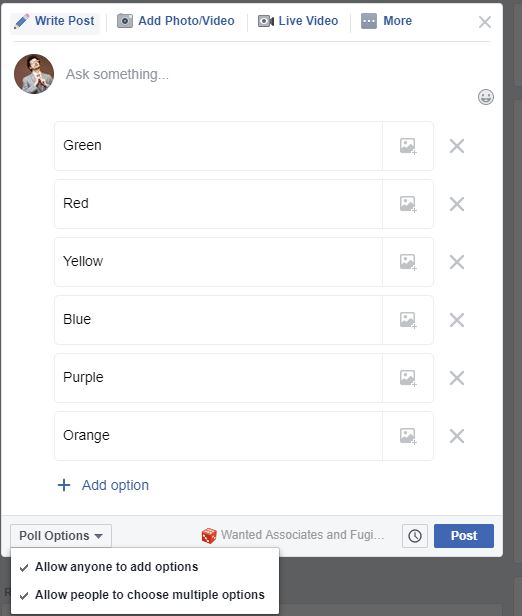
Polls are useful tools for everyone and aren’t just the playthings of political strategists. Asking your Messenger contacts to take part in a quick poll is a quick way to ask for many opinions on a single issue you’re dealing with. Obviously, however, polls are a group only function so to start a poll you need to select the group you want to poll and then hit options button that lies in the bottom left of the screen. From there hit the Polls button, type out your question, and then hit Create Poll.

Take back the messages you sent by mistake

This is another trick born of something that we’ve all done. Whether it be a simple typo or sending a full message to the wrong person, every single one of us has sent a message that we’d like to take back. Fortunately, Facebook understands this need and has built a delete message feature into Messenger. Now, whenever you send a message on Messenger you have 10 minutes to undo sending so that nobody who hasn’t seen it will ever see it. To do this all you need to do is hold your finger down on the message you want to delete and then select Remove for Everyone. You can then rest assured that your message has been wiped. You’ll be left with a short message saying You removed a message but you can then get rid of that too by holding your finger down on that and clicking Remove.

These apps are draining your battery

Does your smartphone battery hardly ever last a full day? These five apps are killing your battery.

Smartphones are amazing and there is absolutely no doubt that the phones we have today are much better than the phones we had just a few years ago. That is not true, however, for the batteries that power them. Battery life is the same as it ever was. Mobile phone manufacturers haven’t been able to move beyond a simple truth. For more battery power, you’re going to need a bigger battery. It really is that simple. You can’t have more power without having a bigger phone and phones are about as big as they can get.

As a phone owner, however, there are things you can do to help squeeze a bit more power out of your Android or iPhone’s battery. Yep, you should be familiar with your device’s battery saver mode and of course things like screen brightness, Bluetooth and Wi-Fi usage, and battery health will have an effect too, but you also need to know that certain third-party apps will be placing a massive strain on your battery usage. If you delete these apps, you will immediately notice a difference. Let us show you then, the apps that are draining your battery.

Biggest battery draining apps

All the apps below are draining more than their fair share of battery. If you regularly find your phone dying before the end of the day, consider deleting any of the following apps that you have installed on your Android or Apple mobile device.

Facebook

Mark Zuckerberg doesn’t just want all your private data, seemingly, he wants all of your battery power too as he owns the top three apps to make it into our battery draining list. Facebook, however, is by far and away the biggest of the lot though, and deleting Facebook from your phone will have the biggest effect of any action we’ll recommend you today.

The main reason behind Facebook’s excessive battery drain is that it is constantly trying to spy on everybody all over the world. This means that the app on your phone is constantly tracking what you do and constantly trying to notify you about what everybody else on your network is doing. Think about it, Facebook is always running in the background, it syncs and updates whenever it wants to, and it is constantly updating contacts and software. This means you can limit Facebook’s power usage by turning off all internal notifications for the app. Or you can just delete it altogether.

Facebook Messenger

Hot on the heels of Facebook is Facebook Messenger. You know that app that extra Facebook decided you had to download as it was no longer ok to send messages to your friends using the Facebook app. Yeah that app that you shouldn’t even need but do because a global corporation forces you to download it. That app is a massive battery hog that is likely causing your phone to run out of battery long before it needs to.

The reasons for this are much the same as they are for Facebook. Messenger is a busy app, constantly buzzing away in the background and using a lot of your phone’s hardware in the process. Fortunately, for anybody looking to save battery without losing access to the biggest social network on earth, you can download the Lite versions of Facebook and Facebook Messenger, which will use a lot less power than their bigger siblings.

WhatsApp

WhatsApp

We’re now at number three on our list and as you can see, we’re still talking about a Zuckerberg-owned app. WhatsApp is an incredibly useful app, so much so, that it is the most popular messaging app in the world. That comes as no surprise too, when you consider that you can use WhatsApp to text and call your friends and family, make video calls, easily send photos and videos, and effortlessly create messaging groups with lots of different people. Not too bad at all for a free app.

The catch, however, is that WhatsApp uses a lot of battery power. The internet modem on your smartphone is one of the most power-hungry pieces of hardware it has. By sending all your messages and transferring all your social data over the internet rather than the phone antenna, you’re placing more of a strain on your device’s battery. The real kicker here, though, is that there’s no real alternative. If you want WhatsApp to use less of your battery, you’re going to have to use it less.

Google Maps

Just like with your data, the other big guilty party when it comes to hogging your battery power is Google. In particular, out of all the Google apps, Google Maps is the one that is using the most of your juice. Google Maps needs a lot of data to accurately keep you up to date on your whereabouts. As we mentioned above, more data means more power.

To limit the amount of power that Google Maps needs you need to go into Settings on your mobile and then scroll down until you find the Google Maps option. Once you’re there select Location and adjust to While Using the App. Another quick battery-saving measure you can do is turn off notifications too.

Snapchat

Snapchat makes it onto our list today by being guilty of a number of the crimes we’ve mentioned above. Basically, Snapchat is always on and constantly tracking and looking for something to notify you about. On top of that, Snapchat is constantly tracking your location so that it can tell your friends where you are and what you’re up to.

As you’ve probably guessed, the best way to stop Snapchat hogging all your battery is to delete it from your phone altogether. If you don’t want to do that, however, you can limit certain features and functions. You need to go into the Snapchat app and open Settings and select the Who Can… option and hit My Location. When you’ve done that hit Ghost Mode and you should start to notice your battery lasting a little longer at the end of the day.

How to convert videos to different formats

Converting video files can sound intimidating but there’s nothing to be worried about. Here we’ll show you five ways to convert video formats.

Converting videos from one file type to another may sound like some sort of technical nightmare but actually. It is a lot easier than you’d think. There are a million and one reasons you might need to do it too. You may want to upload your video to the internet or maybe that video you took on your iPhone is too large as you now have a camera that can capture in 4K.

Whatever the reason doesn’t matter as there are a lot of great programs out there that can help you take a video saved as one format and convert it into another. We’ll now walk you through the best of them and show you just how easy it can be to convert video files.

Video converters

Unlike with pictures, there is no single file type for video that everybody uses. There is no JPG of video, and instead, there are many different video formats including MP4, AVI, MOV, WMV, MKV, MPEG, WebM, AAC, and FLV to name but a few. This is how to convert them all into each other.

iMovie

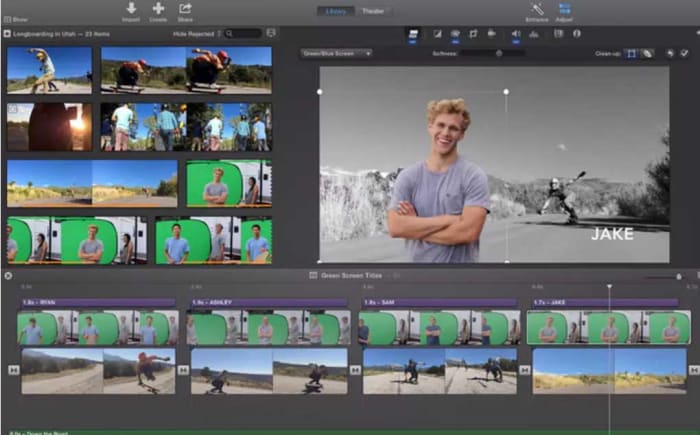
iMovie for Mac offers a rather robust entry-level video editing suite for all budding movie makers fortunate enough to have a Mac. iMovie has a plethora of cool features that will allow you to take your home movies and camera phone recorded videos and bring them all together into a polished final product.

Another of the key features iMovie has to offer is the video conversion tool. With this tool you simply need to import the video file of your choice and add the video to your storyboard. From there you need to hit Share and then choose File. This will then give you the option to save the video with a new name, new resolution, new quality, level, and a new file format.

iMovie Download now
7

MiniTool Movie Maker

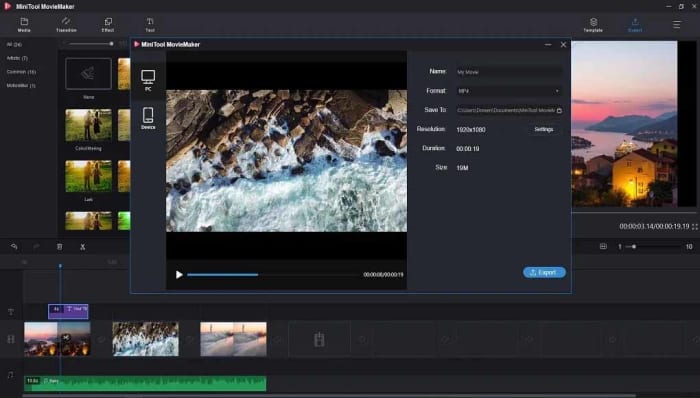
We like MiniTool Movie Maker here at Softonic because gives away a lot of great video editing features for free. Furthermore, as well as offering anybody looking to make their first movie the tools they need to do so, the app also lets you make your videos for free without having to display a watermark, like most other free video editing apps, do.

The video converter on MiniTool Movie Maker allows you to convert almost all different video file types and even gives you the option to edit the videos you’re converting too by adding various elements such as subtitles or filters. It is easy to use too. You simply import your video and set your target format and the app does the rest.

MiniTool Movie Maker Download now
9

Total Video Converter

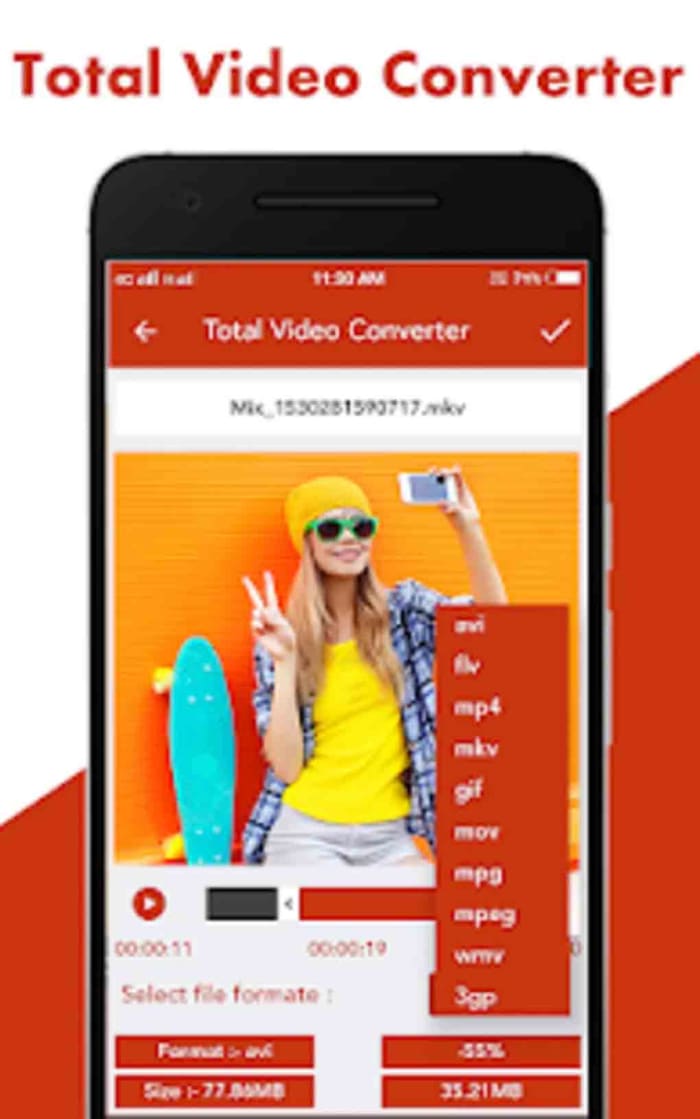
This app for Android offers a quick and simple video conversion solution for mobile users. There’s also a Windows version of the program and a version for Apple Macs too. Sadly, however, there’s no iOS version available at the moment so iPhone users can’t use this program to convert their videos.

Converting videos on mobile couldn’t be easier. When you open the app, it will automatically show you all the video files you have on your device. This means you don’t have to go searching around your device or copying and pasting files from one place to another. The app just shows you everything you need right there in one place. From there it is simply a case of selecting the video you want to convert and the format you want to convert it to and then hit Convert. The app will do the rest. The app converts files quite quickly and also offers a video player too so that you can watch the videos you’re converting too.

Total Video Converter Download now
8

Online Video Converter

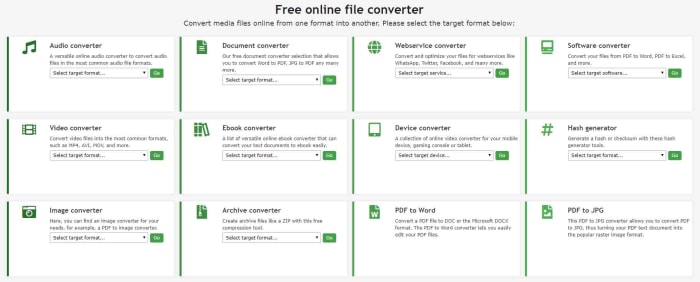
As well as showing you the best apps for Android, iPhone, Windows, Linux, and Mac for converting videos, we thought it would also be helpful to show you the best website for converting videos too. Online-Convert is an absolute beast of a site that will help you convert almost any type of file, not just videos. Here you can easily convert Word files to PDF and vice versa as well as easily converting software, images, eBooks, audio, and more.

We’re here though for video and the process couldn’t be simpler. All you need to do is go to the site and find the Video Converter box. There you need to open the drop-down menu and select the type of video file you want to convert your video into. Once you’ve done that, click Go, upload your video, and then hit Start Conversion. There are more advanced video conversion settings you can play around with, but these are optional. This method can be as simple or as complicated as you like.

VLC Media Player

VLC converter MP4

VLC Media Player is the internet’s favorite video and media player. It can play almost every type of video format and codec and barely breaks a sweat while other video players would struggle or simply crash. VLC is the don and always has been. VLC also offers a pretty robust video conversion solution too, which we’ve gone into in greater detail before.

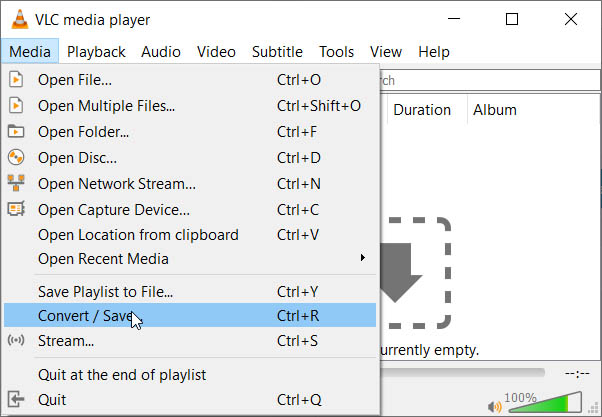
The video conversion process on VLC Media Player couldn’t be easier. If you open the program and go to the Media menu, you’ll see the Convert/Save button. You simply need to click this and then click the Add button to select the video file you want to convert. After that, you click Convert and select the destination of the converted file, the file name, and the new file type. As you’d imagine with VLC there are an awful lot of compatible file types here for you to choose from. From there it is as simple as hitting Start.

VLC media player download free ►
8

Best Chromecast apps

Have you just bought a new Chromecast? These are the must-have apps you need on your Android or iOS device to get the most out of your purchase.

The Google Chromecast is a fantastic little device that makes it possible to wirelessly “cast” media from your Android and iOS mobile device onto your TV. You simply plug the Chromecast into one of your TV’s spare HDMI ports, hook it up to a USB-based power supply, and then you’re good to go. The connection then works over Wi-Fi, which means you can control apps on your phone that are then run through the Chromecast.

The way the system works then relies on compatible apps. Not all apps will stream wirelessly from your mobile device your TV via the Chromecast. Instead, you need to find Chromecast compatible apps and that is what we’re here for today. Today, we’re going to walk you through all the best Chromecast apps.

Best apps for Chromecast

These are the Chromecast apps you need to download right now. They will help you stream your content wirelessly from your mobile device to your TV.

Google Home

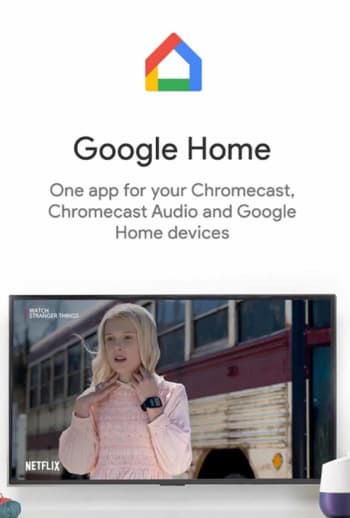
This list will mostly revolve around media. The Chromecast is a fantastic little device that makes it really easy for you to take the media content you have or are streaming onto your phone and have it display on your much bigger TV. In truth, however, there’s more to the device than that and the Google Home app is how you unlock what else the Chromecast has to offer.

The Google Home allows you to run all your smart home connected devices and also allows you to enjoy features such as content discovery, universal search, and app recommendations. If you’ve just got your first Google Chromecast, you should definitely download the Google Home app as, in truth, it is more like the official companion app to the Chromecast. In fact, the app used to be called the Chromecast app.

Google Home Download now
8

Netflix

Netflix in the living room

So, we’ve already mentioned that one of the top uses for the Google Chromecast is casting media such as videos and photos to your big screen TV. You’ll no doubt be relieved and in no way surprised then to learn Netflix is compatible with your Google Chromecast and is one of the best Chromecast apps around today. You can, of course, download Netflix on Android smartphones and iOS iPhones.

What’s great about the Netflix mobile app is that it allows you to cast your movies or TV shows to the TV and then use your mobile phone as a remote control. You can control playback, skip scenes, and of course browse the Netflix library all while sat on the sofa using your phone. Other great Chromecast media playing apps include HBO Go, Hulu, Roku, Plex, and if you’re in the UK, the BBC iPlayer. By connecting your phone to your TV the Chromecast turns your television into a smart TV.

8

YouTube

YouTube on the TV really is a treat. In truth, the platform has long been a big-screen platform with well-produced content that’s easily able to compete with more established networks coming from a wide variety of professional media outlets as well YouTube’s army of popular bedroom content producers.

The YouTube Chromecast app is simple yet effective and it couldn’t be easier to cast any video you find onto your TV. YouTube also has a premium model now too that includes being able to download videos but that also gives access to premium content, much like Netflix has Netflix Originals.

8

AllCast

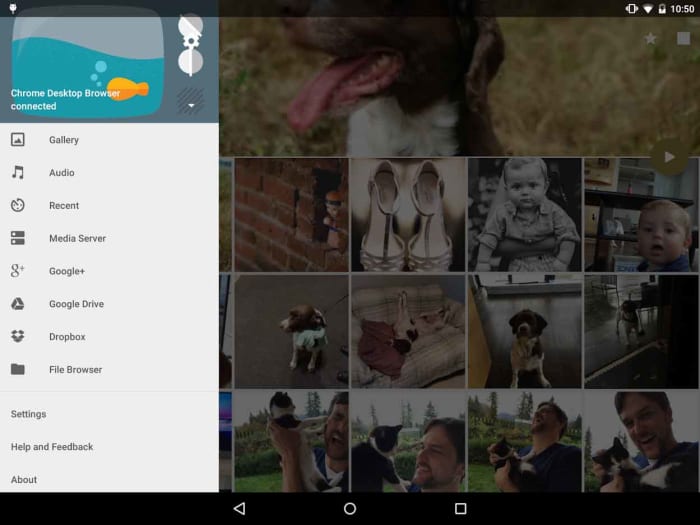
AllCast is probably the most versatile Chromecast app out there and is available on both iOS and Android devices. AllCast offers an easy and effective way to cast all the photo and video media you have on your phone onto your lounge TV. The app also makes it possible for you to cast photos you have stored on cloud storage solutions like Dropbox.

You can try AllCast for free, but all the best features are hidden behind a paywall. Furthermore, you can only cast videos up to five minutes in length on the free version, which means you’re going to have to pay to get any real value out of the app.

AllCast Download now
7

TED

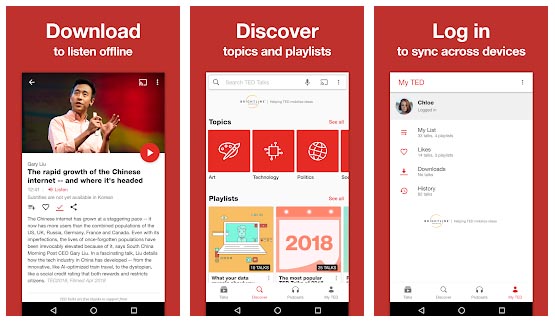
TED talks are a cultural phenomenon these days. Instantly shareable and infinitely inspiring, everybody has watched and shared at least one TED talk. That’s what makes the TED app so perfect for using with your Chromecast. TED talks can inspire you on a personal level, but so often you want to share the experience with somebody else and that is the Chromecast comes in.

Whether you’re watching a brand-new lecture on your living room TV or sharing one of your old favorites with your family, the Chromecast-enabled TED app makes it easier than ever to watch TED talks as a group.

Google Photos

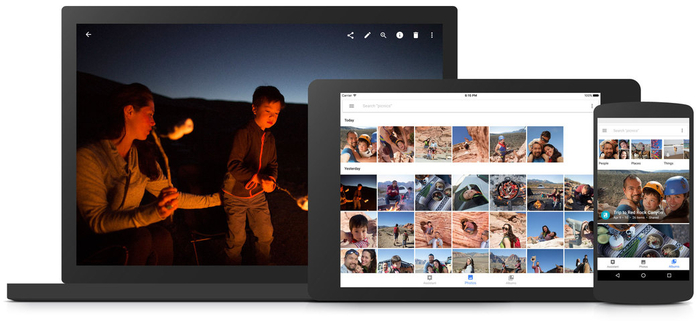
How to Breathe New Life into your Old Phone Get a cloud based photo sync app google photos

It probably comes as no surprise that there are many great Google apps that are Chromecast compatible. We’ve already mentioned YouTube and Google has recently made its native Files app for Android Chromecast-compatible too, which offers another great way for you to display the photos and videos you hold on your phone on a much larger screen.

The final app we’re highlighting today, though, is Google Photos, which deserves a special mention all on its own. As well as turning your TV into a giant picture frame, the Chromecast compatible Google Photos app can also help you broadcast all the magical creations you can build on the app. As well as slideshows and albums, Google Photos can help you turn the photos and videos you’ve captured on your smartphone into dynamic movie-like experiences, complete with transition effects, music, and even special integration elements from other Google apps such as Google Maps.

Google Photos Download Google Photos
7

The best apps for making videos from photos

Want to turn your photo collections into videos? These five apps, programs, and websites will help you create epic slideshow videos.

According to Facebook users on the social network engage with videos an awful lot more than they engage with photos. Furthermore, we’ve now also got social networks like Snapchat and Tik Tok that encourage users to create short and snappy videos and photo videos to share across the network. We’re transitioning from a photo first world to a video-first world. Hell, we might even be living in a video-first world right now and we simply haven’t caught up yet.

It isn’t easy for many of us, I included, to simply create fun and engaging videos at the drop of hat. If like me, you’re still a photos first person, you will be looking to make videos out of your photos. Today, we’ll walk you through some of the best apps to help you make videos from photographs.

How to make videos with pictures

Below we’ve laid five of the best ways to turn your photographs into slideshow-like videos. You don’t need impressive video editing skills or experience. These Android and iPhone apps, programs, and websites have all been designed to be user-friendly and with ease of use in mind.

MiniTool Movie Maker

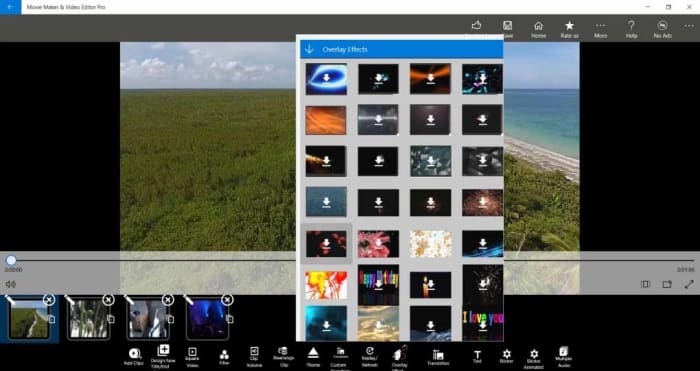
Our top choice today is the MiniTool Movie Maker, which offers a fantastic and free solution to anybody looking to turn their photos into videos. What stands out about the MiniTool solution is that it gives you the freedom to create your movies without imposing a company watermark. Normally, these tools make you include their branding on free versions and will only remove them if you pay for a premium version.

Other standout features of the MiniTool Movie Maker app, which is available to download on Windows include fun and easy to use Hollywood-style movie templates and an impressive array of effects including transitions titles. Editing tools to go with your slideshow capabilities include splitting and trimming clips and combining multiple clips together. When you’re done and your video is complete, MiniTool can export your creation to all major video file formats.

MiniTool Movie Maker Download now
9

Google Photos

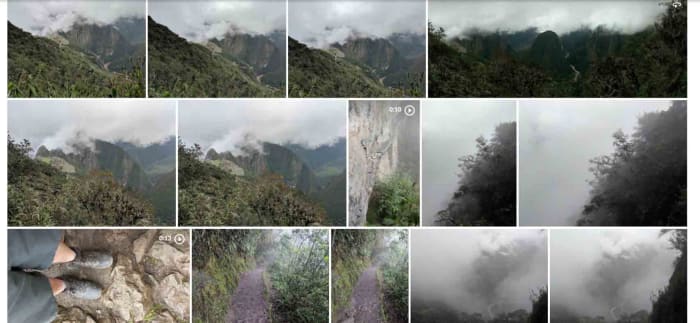
Google Photos is a great tool for making videos out of your photos. The app is so good at making videos from Photos that it can do it by itself. Google Photos can automatically group your photos together, based on a number of different categories it can recognize, and then add music and transition effects to create short videos from your pictures. This means that once you have the app installed on your Android phone or tablet, or iOS iPhone or iPad you’ll automatically receive notifications from the app telling you whenever it makes movies from your photos.

These automatic movies are great but obviously you’re going to want to make your own too. There’s nothing stopping you at all from making your own photo slideshow movies using Google Photos and you can include all the cool effects that go into the automatic movies too. These features include music, text, transition effects, and even Google Maps integrations showing where you were when the photos were taken and even including your travel details too.

Google Photos Download Google Photos
7

Slideshow Maker

Slideshow Maker is another video editor for Windows 10 that offers a lot of video editing features that will help you take your static photographs and give them a new life. Similar to the MiniTool Movie Maker, Slideshow Maker has some really great features including slow-motion effects, color filters, and more. Impressively, Slideshow Maker is even capable of outputting videos that can work with VR headsets too.

Another key feature of Slideshow Maker is that it is free although you will have to deal with a number of adverts if you use the free version. Another negative point that you need to consider is that the app isn’t compatible with MP4 video files, which is a very common video format. If most of your files are MP4, you might want to look at one of the other apps on today’s list.

Slideshow Maker Download now
9

Photo Slideshow

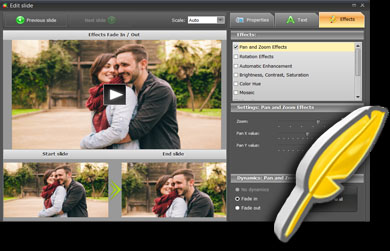
This classic Windows program offers a wide array of professional-level movie-making features. The kicker here, however, is that the program isn’t free, and you’ll only get access to its features for a very short free trial period.

If you do decide to go with Photo Slideshow, however, you’ll get access to features like transition effects, music tracks for your slideshows, face focusing effects, and even animation. The animation effects, in particular, add a lot of possibilities to your videos allowing you to pan in and zoom into your photos. Other cool animations adding vignettes and retro film-like effects to your movies too.

Photo Slideshow Download now
7

Animoto

Our final solution today for turning photos into videos is the Animoto site. Animoto does have professional and team plans but, fortunately, it also offers a free plan for casual users like you and me. The only catch with the free version is that your videos will include an Animoto watermark. If you don’t mind that, however, then Animoto offers a simple solution that doesn’t require you to download any apps or programs at all.

What’s great about the Animoto solution is just how simple it is. You will have to create an account on the site but once you’ve done that everything will run smoothly. All you need to do is select the template you want from the many available on the site and then upload your photos. After that is just a case of putting your photos in order and letting Animoto do the rest. If you’re a technophobe, then we suggest you look at Animoto as it couldn’t be simpler to use and still impressive results.