The best apps to learn a new language

Ready to speak a new language? Here are your 3 best options.

So you’d like to learn a language? There are a number of apps out there offering their services to beginners or veteran language learners. So many, in fact, that it can hard to decide which to use, or in what combination. Just follow our guide and you’ll know your jabón from your jamón in no time!

The best apps to learn a new language

Mondly

Let’s face it: learning a new language can be hard. Most of us don’t have the time or discipline to nail it. That’s why Mondly is such a great option. The app helps you “gamify” the learning experience.

Mondly offers chatbots to help you have a conversation in your new language, a focus on phrases over words, and possibly the coolest feature in a language app: augmented reality. Watch this:

Mondly also offers a virtual reality verison and a separate app for kids. And, impressively, the app is available in 33 different languages, so even if you’re not a native English speaker, the app will be a perfect fit.

Right now, Mondly is offering 20% off their normal price for Softonic readers. Just click here for the discount. It would make a great gift for any member of your family who might want to learn something new for the holidays.
Duolingo

Duolingo quickly rose in popularity as one of the best free language-learning applications. At this time, it offers a great number of languages from Spanish to Japanese, with even a few languages from fictional realms: Klingon (Star Trek) and High Valyrian (Game of Thrones).

To begin learning with Duolingo, download the app or open the mobile site. Then, create an account and the initial setup is finished.

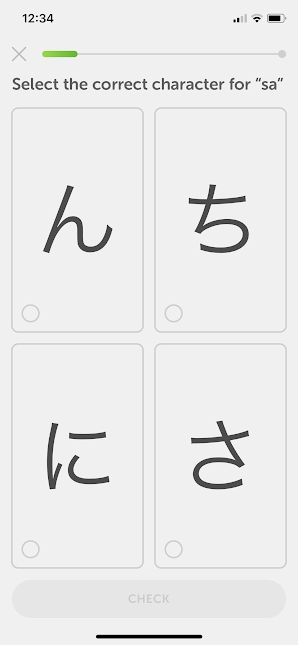
At this point, you’ll be able to choose your language. On mobile it will look something like this:
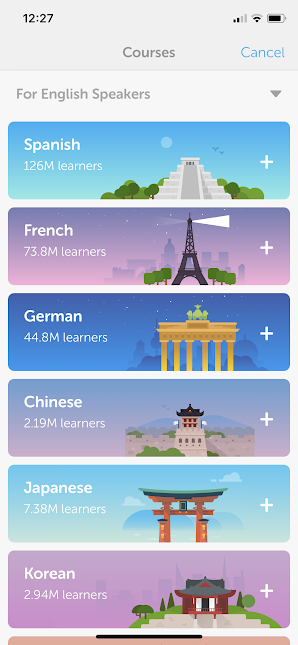
Once you find your language (try here to see what courses are offered), you will be given the option to start at the beginning or take a test for advanced placement. If you already know a good amount of your language, this may be a helpful tool.

Duolingo: Learn Languages Free download free ►
7

Duolingo’s learning routines start with a simple question/answer format, then move on to creating, typing answers, and picture matching. The user interface is clean and refreshingly minimalist: (Japanese course introduction shown)
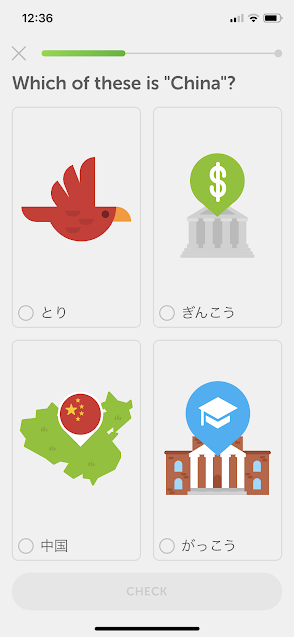
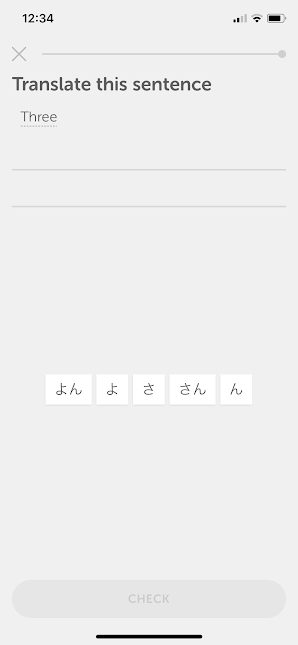
Outside of the lessons, Duolingo has a few other perks. There is a reward system that allows you to track your study streaks. Spending “lingots” will change the appearance of the program’s mascot, an owl. Also, the app provides a “group” function that connects you with other users over language-learning challenges. Finally, there is a practice section that allows you to go over past material.

Overall, the app works well and helps make learning fun. When your attention is being demanded by other games, it’s nice to have something education that can compete.

(Duolingo includes ads: the paid, premium account takes these away)

Rosetta Stone

Ah, the wizened master. Rosetta Stone.

Don’t expect to go very far without paying a price: Rosetta Stone costs about $175-$300 depending on the product. Also, be careful what you buy: activation codes give you access to the program for a limited time only. Make sure to get one of their offers with a lifetime download so you can use the materials and come back later if the time expires. If, of course, you want to really challenge yourself to learn quickly, the activation code may be best. Just choose carefully.

Like Duolingo, the program starts by giving you sections to start learning from, each tier earned by finishing the last:
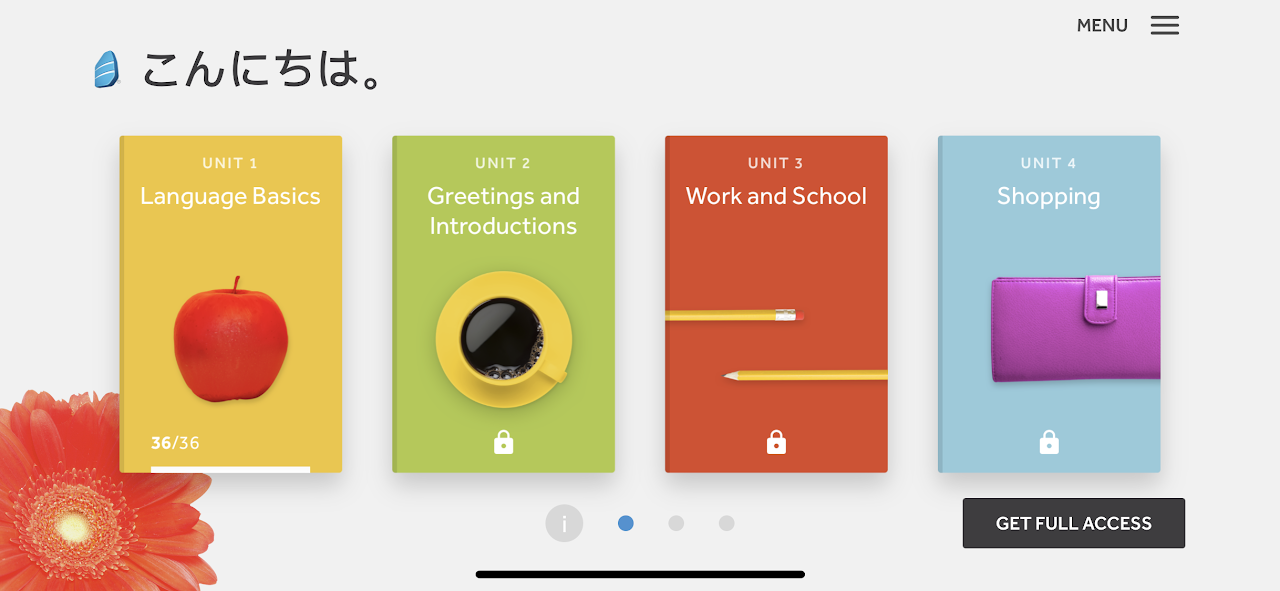
Unlike Duolingo, however, Rosetta Stone requires the user to speak into a microphone while matching scenes:
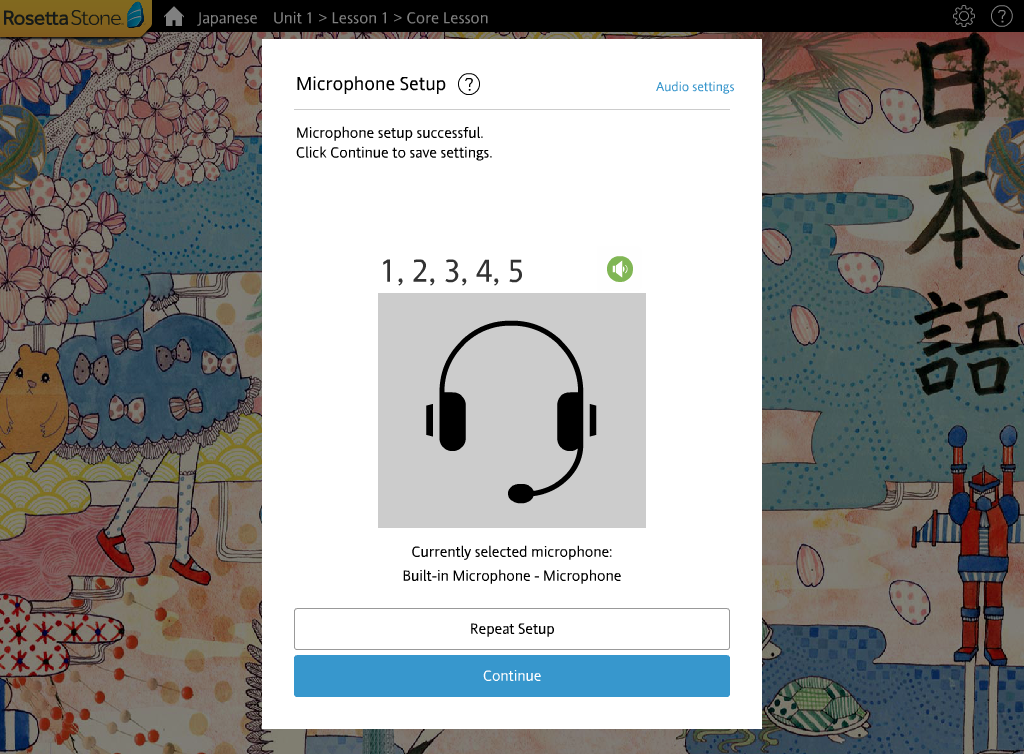
The voice recognition, combined with the familiar matching, typing, and visual comparison helps to learn on many levels. The realistic photos can be confusing sometimes since they are not as specific as designed graphics, but they do help create a mental picture for objects and phrases.

If you’re looking for an elite program and aren’t worried about the cost, this may be for you.

Still, keep in mind with both Duolingo and Rosetta Stone: they are lacking in a few areas.

Learn Languages: Rosetta Stone download free ►
7

What the Apps Miss

Most language apps work through a process of induction. Your mind makes connections with words, pictures, letters, and sounds as it goes along. The same process makes learning language easier in a classroom or in another country: when surrounded by new information, the human mind picks up contextual clues and creates a mental map of information discovered.

However, this isn’t always perfect for reading, writing, and speaking another languages: knowing phrases to say and letters to read can only get you so far. To really thrive (and improve how fast you learn), you may want to gain some foundational knowledge.

Still not sold? Trust us, the foundations are important. For example, in English an adjective goes before a noun: “the red dog”. In Spanish, the adjective comes after: “el perro (dog) rojo (red)”. New language learners may be surprised by changes like this, which aren’t often mentioned in inductive courses.

What Else You’ll Want

So, if you want to find more, consider a few of these options:

  1. A class. The classroom setting gives you access to teacher feedback, understanding of facial expressions, language learning buddies, and much more. Check out a university nearby and see if they have courses!
  2. Textbooks. If you don’t want to pay for the full tuition and can stomach a textbook, this may be a cheaper option to gain a solid understanding of grammar rules for the new language.
  3. Other apps. Many apps specialize in teaching your language more in-depth. Take a while to look around online, there’s sure to be something there.
  4. Grab a dictionary. Once you have grammatical understanding, you may simply want to look up the words to string together new phrases. Just remember to keep testing your ability without assistance; there will come a time when you don’t need help anymore.
  5. Meet people. Face-to-face interaction combines many levels of learning, with the additional bonus that most people you speak with are glad to provide advice. So whether this involves travel to another country or meeting friends nearby, we can’t recommend practicing with others enough.

We hope these suggestions help your language study!
Check out Google Keep’s new design

Google Keep is now Keep Notes and looks a lot like other Google apps thanks to its latest update

Google Keep Material Design Update
Image via Flickr

Google has some pretty big products that shape our lives as we use them every day. There is, of course, the search engine that embodies the internet as a whole, but other huge products include Google Chrome, Gmail, and Google Maps. With so many massive Google products making the rounds, it is easy to forget about some of Google’s smaller products. Google Keep is one such product. And it’s better than ever after a massive overhaul.

Google Keep Download Free ►
8

Google Keep is now Keep Notes and looks a lot like other Google apps, thanks to its latest update

Google Keep has been one of the best note-taking apps available on Android. It has been a while, however, since it last got a lick of paint. This is finally about to change, thanks to update version 5.0.411.09, which will bring Keep in line with Google’s Material Design philosophy.

This change aligns Keep with a wide range of other Google apps that have already been subject to the Material Design UI update, including Google Photos, Google Drive, and Google Calendar.

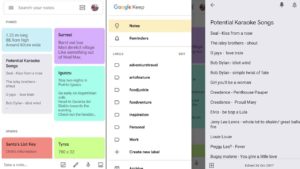
This is what Google Keep Notes new interface looks like
The new Keep Notes interface. Doesn’t everybody have a list of potential karaoke songs on their phone?

The update makes Keep look cleaner and more modern. Cards now have rounded corners and stand out much more against a white backdrop, as opposed to the old grey background with squared corners on cards. The search bar is now whiter than it was before, but still acts the same as it always has. Users still have control over the color scheme of their own version of Google Keep, so if white isn’t your thing, you can change it up. The other big change is the name. Keep is now called Keep Notes.

Apart from the new design and name change, the latest Keep Notes update doesn’t bring any new features. The update is merely cosmetic to bring Keep Notes in line with Google’s singular design philosophy for all its products.

The update has already begun rolling out to all Keep Notes users, but it is being done in stages. You’ll know if you’ve received the update as the name of the app on your phone will have changed from Keep to Keep Notes. If you haven’t already received it, don’t worry, it is on its way.

What do you think about Google’s new Material Design philosophy? Do you think it adds a new modern flair to Google’s apps or do you have a problem with a layout for serious apps that could be described as a little cartoony? Let us know in the comments below.


How to convert files into pdf

Converting files to the standard PDF format can be difficult. This is how to create PDF files.

Converting files to the standard PDF format can be difficult. This is how to create PDF files.

PDFs allow us to send documents exactly as they are with confidence. When we send a PDF we know that the file can’t be altered, will arrive complete, the data it contains is secure, and the recipient will be able to read all of the information easily. PDFs are great for CVs, cover letters, reports, spreadsheets, and if you need anything printing, converting the file to PDF will make the printing process much simpler and remove any chance of the print coming out badly.

How to convert files to pdf

PDFs then are like digital photocopies of whatever it is we are doing. You can’t create documents as PDFs. You first have to create your document in another program and then convert the file to PDF. In this way, you’re able to continue working on your project and convert your work to PDF at various stages of development, right up until the work is complete. This begs the question, however, how do you convert files into PDF?

The complete PDF solution

If you open a PDF on almost any PC or Mac chances are it will open in Adobe Acrobat. It is not an exaggeration to call Adobe Acrobat the king of PDF programs. You would find it much more difficult to open and view PDF files if it wasn’t for the free version of Adobe Acrobat you likely have. Adobe Acrobat can do so much more, however, than just open PDF files. Adobe Acrobat is the best tool for converting files to PDF as well as a whole host of other features for creating, editing, and managing PDF files.

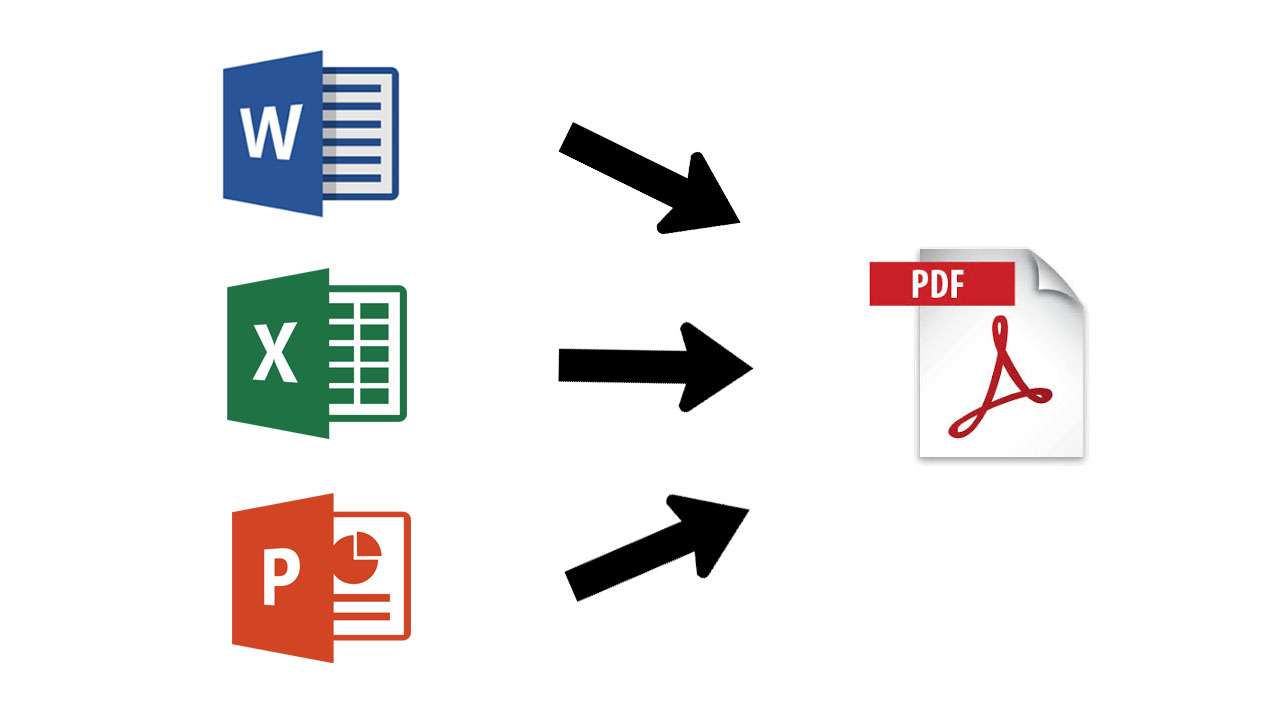
To convert a file to PDF using Adobe Acrobat is quick and simple. All you need to do to convert a Word, Excel, or Powerpoint file to PDF is:

  1. Open the Office file you wish to convert
  2. In the Adobe ribbon, click Create PDF.
  3. Select Protect PDF in the resulting dialog box.
  4. You can then decide whether add a password to encrypt your PDF file.

When complete all you have to do is Click OK, give your PDF file a name and save it in the desired folder.

Adobe Acrobat Pro DC Try Now
9

Do more than just convert files to PDF

Acrobat Pro can do much more than easily convert Microsoft Office files from your browser or mobile device, into PDFs. It can also send a PDF version of photographs, merge multiple files into a single PDF file, and protect your PDF files with passwords and permissions. Acrobat Pro even gives you the option to edit paper documents as PDFs and media like audio and video to your PDF files. You can see a complete list of the extensive PDF related features offered by Acrobat Pro below.

Without a doubt, Adobe Acrobat offers the most reliable and secure way of converting files to PDFs. A subscription to Acrobat Pro offers the best way to convert files into PDF and back again. It also offers a rich feature set, centered on all the different problems that may need a PDF solution. Acrobat Pro offers an easy solution for slipping between creating, editing, and viewing PDF files. If you’re looking for the best way to convert a file to PDF, you should check out Adobe Acrobat Pro

If you have a PDF that needs converting now, why not try Adobe Pro DC today.

Adobe Acrobat Pro DC Try Now
9

Google Assistant just got a lot better

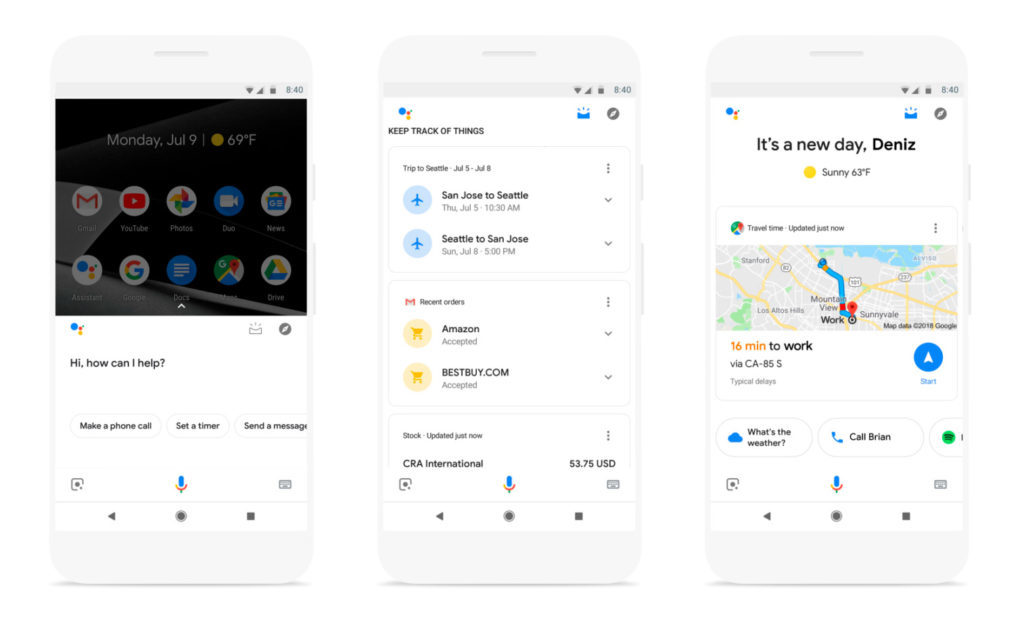
Google Assistant has just received a nice little update that will make it easier to use. Google wants Assistant to help you get through your day. To help Assistant do this the new update makes Assistant much more visual.

Google Assistant Download now
8

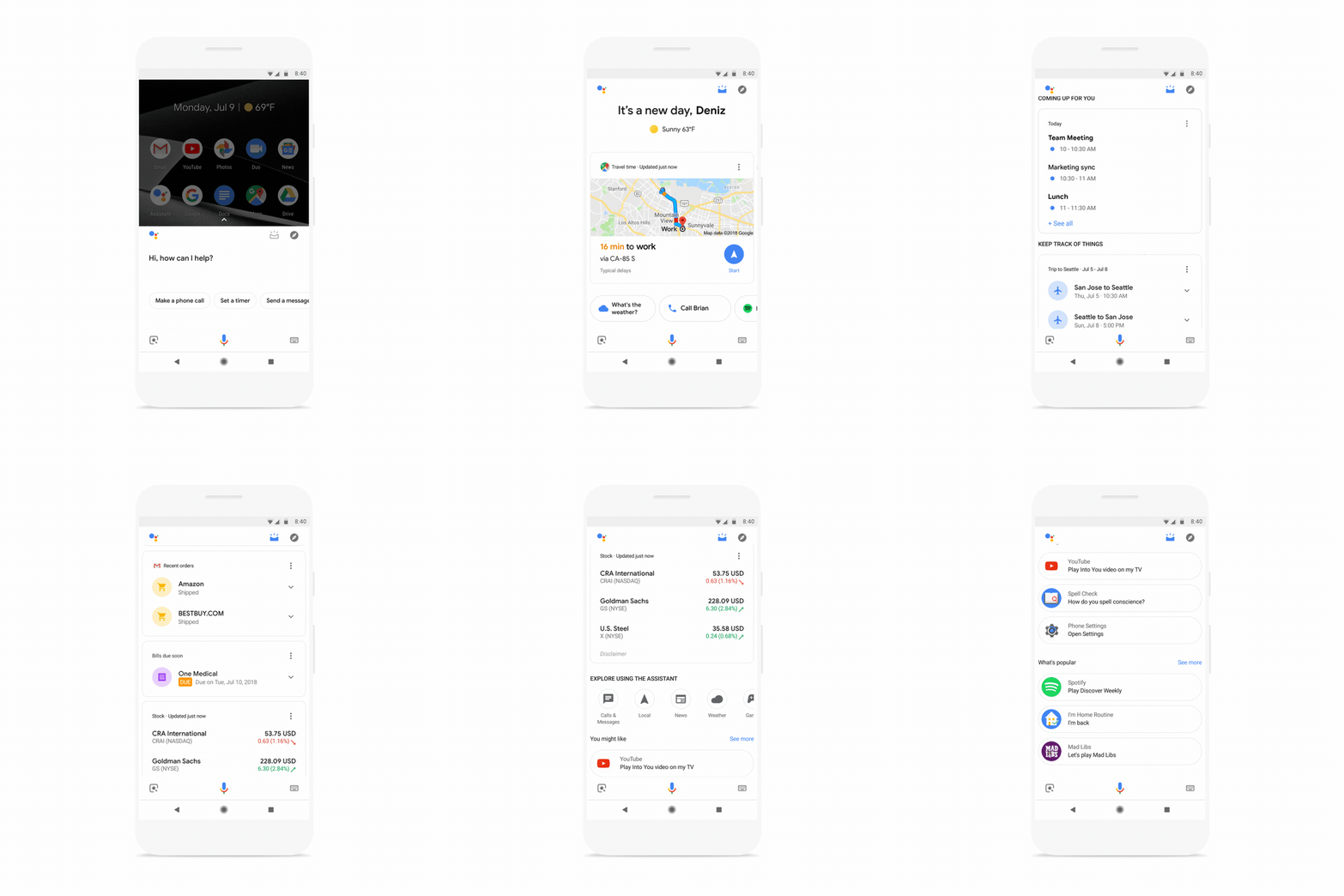
The Assistant collects data like hotel reservations and flights, package deliveries, scheduled appointments (meetings, doctor, etc), reminders of pending payments, etc. from the various Google products you’re using (Gmail, Calendar…). It then combines this with environmental information like traffic and weather to provide up to date personalized instructions.

The update puts all of this information together in one place and offers users a visual snapshot of their day. According to the Google blog:

“Travel times are front and center, so you know when to hit the road whether you’re getting ready for work, a lunch meeting, or heading home for the night. As you scroll down, you’ll see your agenda, reminders, restaurant or movie reservations, your favorite stocks, upcoming bills, packages in transit, and suggestions for new Actions you should try.”

If you’re an Android user and you have the latest version of Google Assistant you should find the new visual snapshot icon in the top right of the screen when you open Assistant. iOS users will find the new feature in the Google app on their iPhones.


How to create an easy budget in Google spreadsheets

Everyone should make a budget. They give you a secure understanding of your financial situation and can help plan for a deficit of funds or ensure that expenditures are below income. Whether you’re looking forward to the next financial year, going on a vacation, or planning a wedding, budgets are there for one thing: to help you make the most of your cash!
Despite the benefits, it’s not hard to imagine why many people don’t make budgets: working with numbers on a spreadsheet or paper can be seen as boring or time-consuming. Neither of these things needs to be true! Open up Google Spreadsheet and get ready to change your life.

Google Sheets download free
8

Option 1: Use a Template

In Google Spreadsheets, you are given the option of a few templates, two of which are “Annual Budget” and “Monthly Budget”. Both provide easy tools which will help you track your funds.

Annual Budget

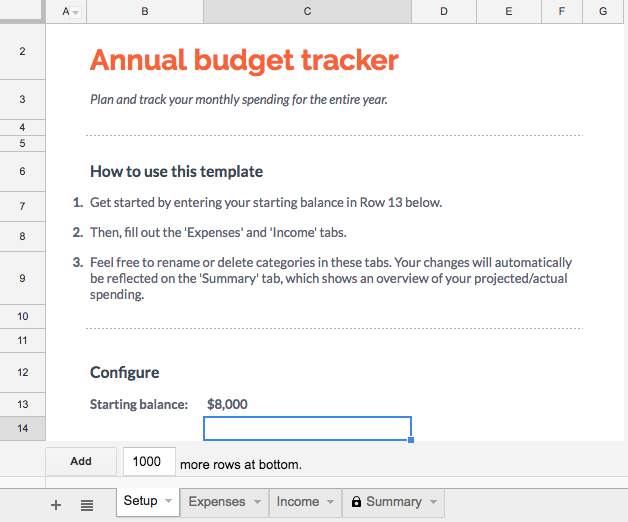
When opening the Annual Budget, you’ll see a spreadsheet with multiple tabs. We’ll go through each, explain the easy process for using it, and finally discuss how to quickly and thoroughly analyze the results!

On this first tab, enter your starting balance. This may be however much you have in savings, or it could be the maximum amount you wish to spend for the year.

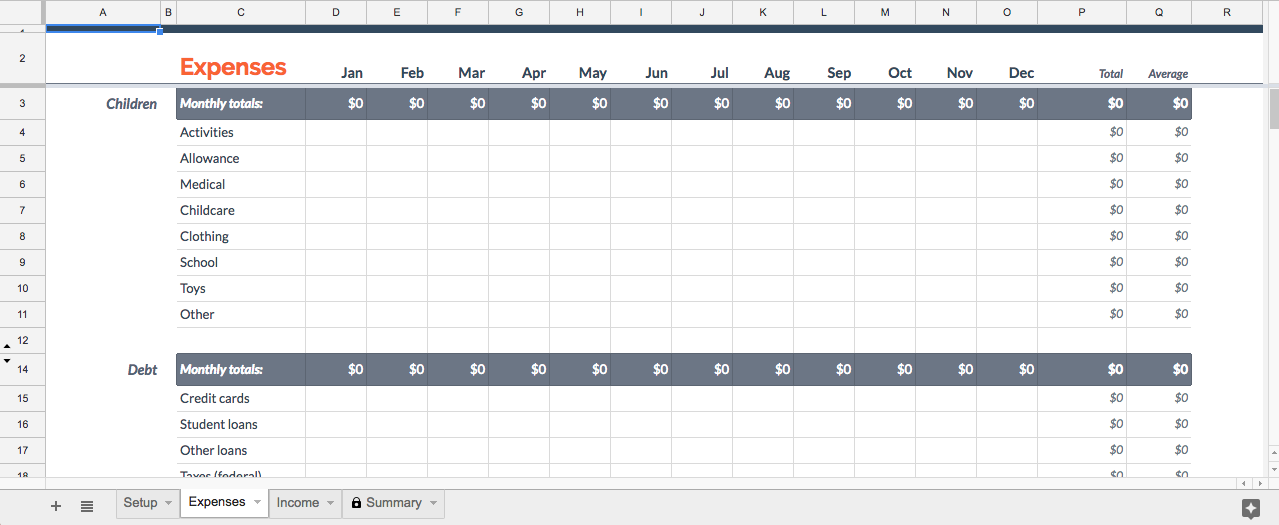
The next tab is for expenses. Simply fill in either how much you spent, or how much you plan to spend in each area:

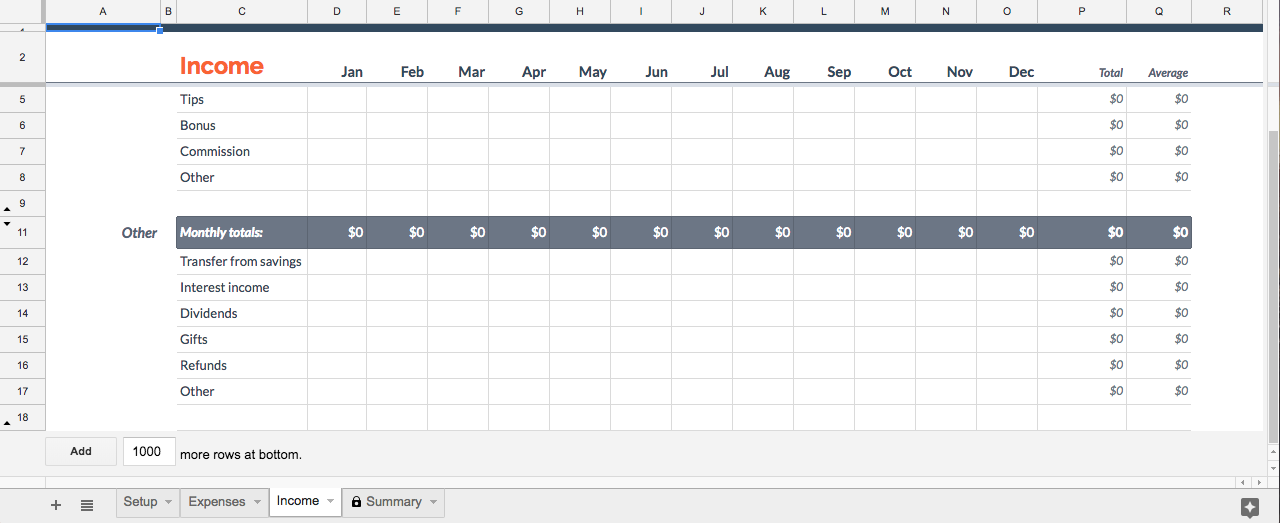
The next tab is income, and works much the same as expenses:

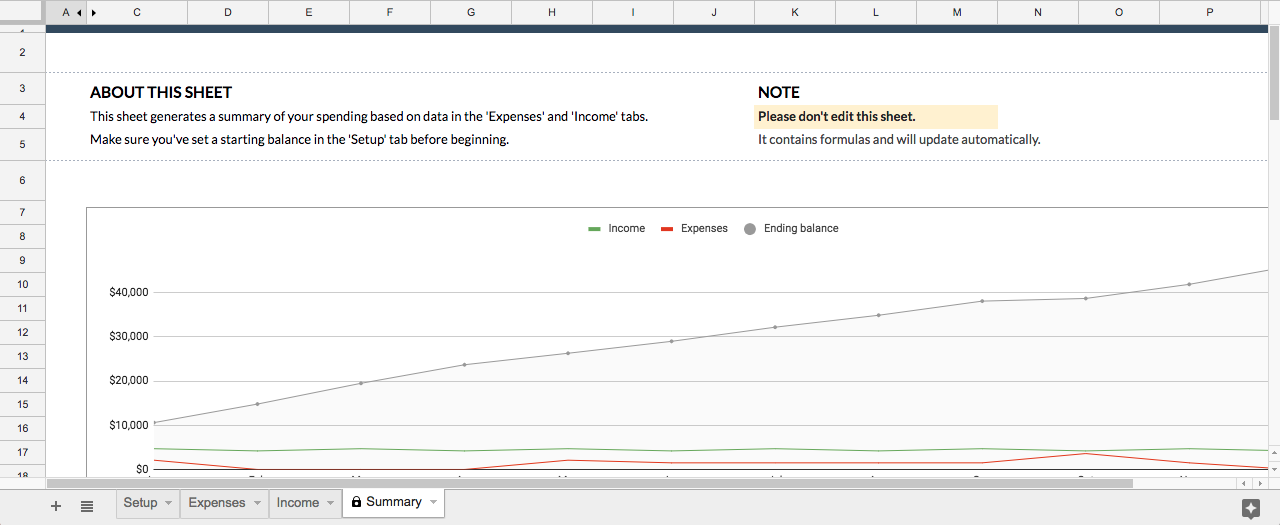
Finally, once this is finished, you can check out the summary page!

Before looking at the data below, check the graph. It quickly shows you where your income and expenses are, and where your initial balance has ended up.

If you haven’t already, now’s the time to ask questions like: where do I want the gray line to end up? If it’s falling, am I okay using up savings this year? If it’s going up, do I want to spend the extra money, keep it the same, or save even more?

If you’re okay with the results, great! If not, it’s time to head to the summary below the graph. Here, you’ll be able to see how you’re spending and earning money. The more you understand about your own cash movements, the easier it will be to figure out what needs to change to achieve your financial goals.

You Need a Budget (YNAB) DOWNLOAD AND START SAVING
8
Monthly Budget

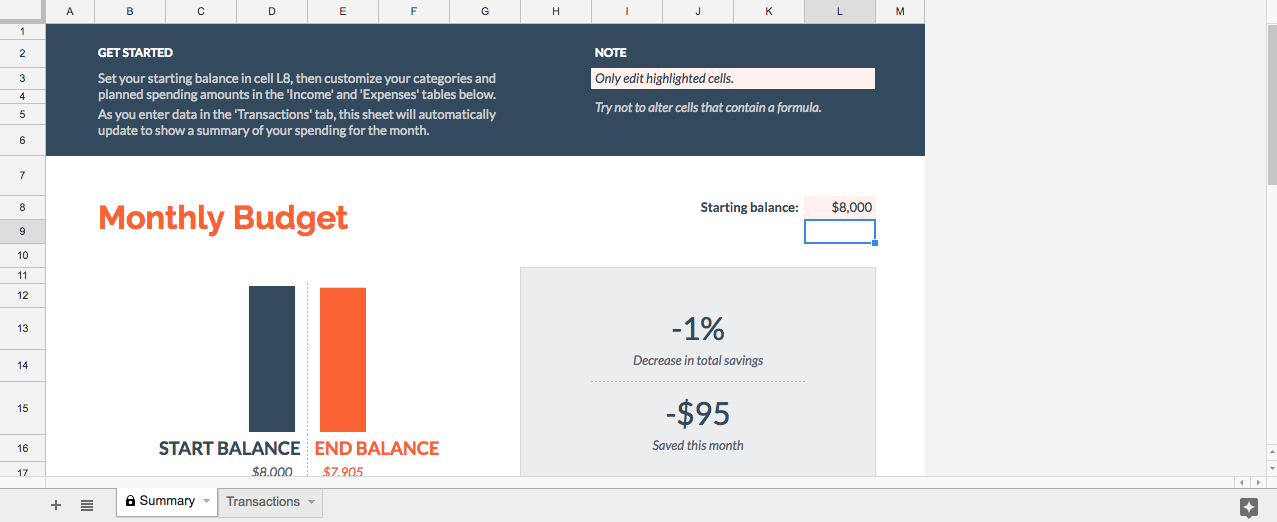
Spreadsheet’s Monthly Budget option looks a bit different, but works generally the same. There are two pages to work with, the first being “Summary”:

Here, you see the change in Starting Balance. Below, you also get a very simple and effective summary of expenses and income.

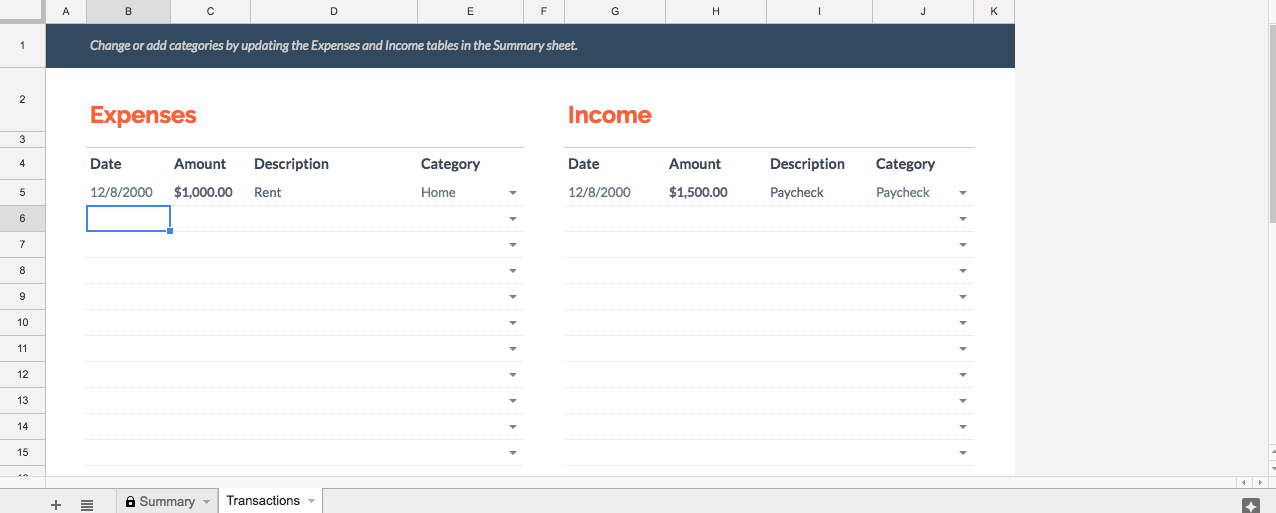
However, you probably should go to the second page, where the transactions are actually entered:

Once all the information is in place, you’re ready to head back to the summary page. As with the Annual Budget, look at what’s happening to the Starting Balance to make sure you’re where you want to be. If not, there’s no shame in that. Just check your transactions and see what can be done: either lowing expenditures or increasing income. You’ll be back on track before you know it!

Option 2: Make Your Own

If you don’t like the templates that Google provides, you are able to create your own. Both Spreadsheets and Drive offer the ability to create a blank spreadsheet document, at which point you can develop to your heart’s content.

Remember, the most important aspects of a budget are: what money is going out, what’s coming in, and what’s the overall change? From there, you can add all sorts of bells, whistles, and analyses.

Last Words

If you create a budget for past events, you may need to get help from your bank to remember what was spent/earned. On the flip side, when you’re creating a budget for future events, avoid this issue by keeping track of spent cash!


The best ways to collaborate in Google Docs

Want to start collaborating with other people on a project in Google Docs? Follow these easy steps so every member of your team can join in.

Google Docs provides one of the best word processing tools for free. Likely, its one downside comes from the need to connect online… but this also leads to one of its greatest strengths: real-time collaboration.

Before online collaboration, word processing documents had to be sent via email or flash drive to the other members. Now, a group can work together at the same time with a few easy steps!

Google Docs download free
8

1. Create an Account

Working in Google Docs requires simply creating an account. If you have a Gmail already, there’s no need to worry: sign into Docs with your usual email and password.

In fact… if you’re signed in to Gmail you may be automatically taken to the welcome screen of your fresh Docs page!

2. Create a Document

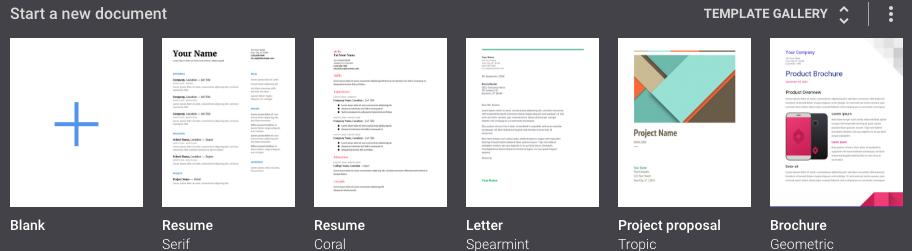
The top of the page should show various document types to choose from. Select any of these to start your new project:

If, instead, you see the “New” button shown below, you are in probably in Google Drive, not Google Docs. Don’t worry: Google Drive simply collects all your documents from Google Docs, Spreadsheets, and Slides. Aside from that, it performs most of the same functions.

That said, clicking the “New” button gives you the choice of creating a new word document, spreadsheet, or slideshow. Unlike Google Docs, it doesn’t offer pre-formatted templates.

3. In the Document, Hit the “Share” Button

The button should look something like this:

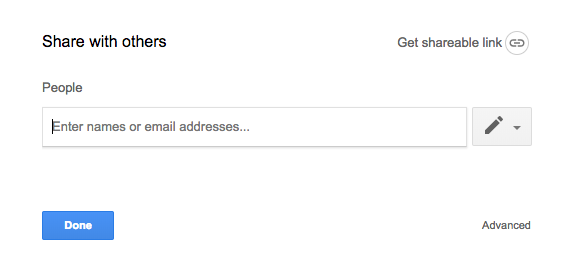
Tapping the button leads you to the share screen:

This is where you choose who to collaborate with. Any address can be entered, Gmail or not. You can choose whether or not that person can view, edit, or become the owner. Be careful with ownership, however: once ownership is transferred to someone else, you cannot get it back yourself.

4. Start Working

So, project invites have been sent! The email will include a simple and efficient link to the project. As long an account has editing privileges, the user can change things at the same time as others.

NOTE: you can tell when multiple users (or the same user on different devices) are viewing the document. An icon will appear at the top right for each device currently using the page.

Collaboration can now begin!

5. Moving Forward

From here on out, there are a few more tools that may be useful for your team.

First, the view mode:

Selecting this button allows you to choose whether you are editing, suggesting, or viewing. We’ll focus on suggesting: the suggesting option allows you to harmlessly enter changes which then appear as (pause for effect) suggestions! This can be useful for communicating in group projects.

If you need to leave a more detailed message, try the comment button:

Comments are attached to specific items – letters, words, or phrases – within the project.

Bonus Tip

You can add collaborators to a project or even an entire file from the main page of Google Drive as well. Clicking the “Add Person” button below pulls up the familiar “Share” window.

We wish you the best with your new project!


5 of the best laptops for around $400

Budget laptops are easy to find, but you’ll have to make sacrifices.

Depending on your needs, you might want a larger screen, more RAM, a bigger hard drive, or faster processor. If you prioritize a couple of these and accept a reduction in (or loss of) other features, you’ll find a laptop that does what you want at a price that doesn’t break the bank.

We’ve listed five of our favorite budget laptops below. Note these are proper laptops, not Chromebooks. A Chromebook outsources most of its processing power to the cloud through Google’s browser, so you need to be online to get the most out of it. If you’re really tight for cash, they’re a reasonable alternative and cost much less (usually under $250).

For everyone else, here’s our rundown of the best laptops for under $400…

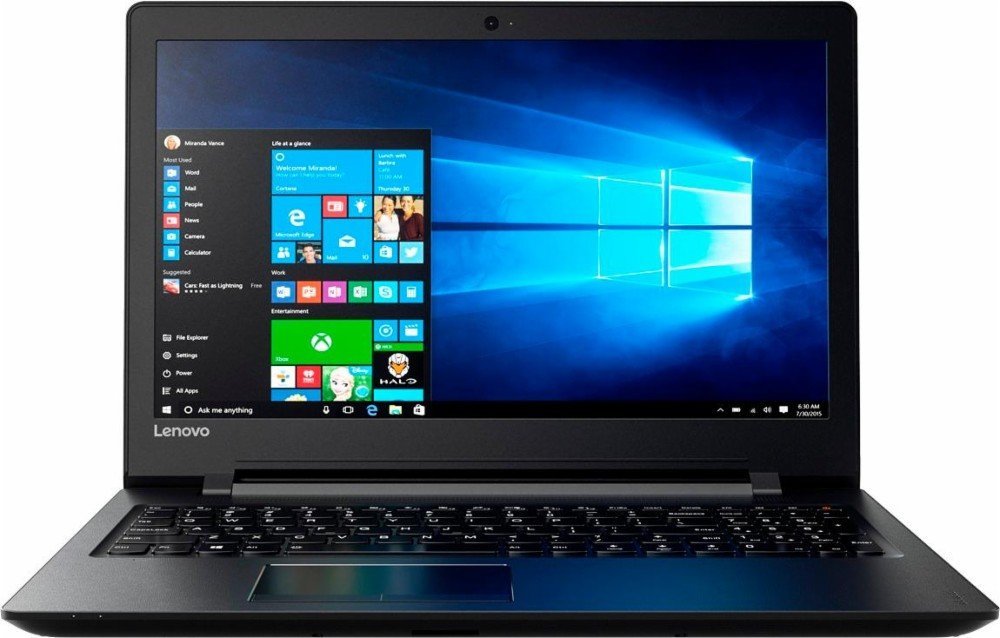
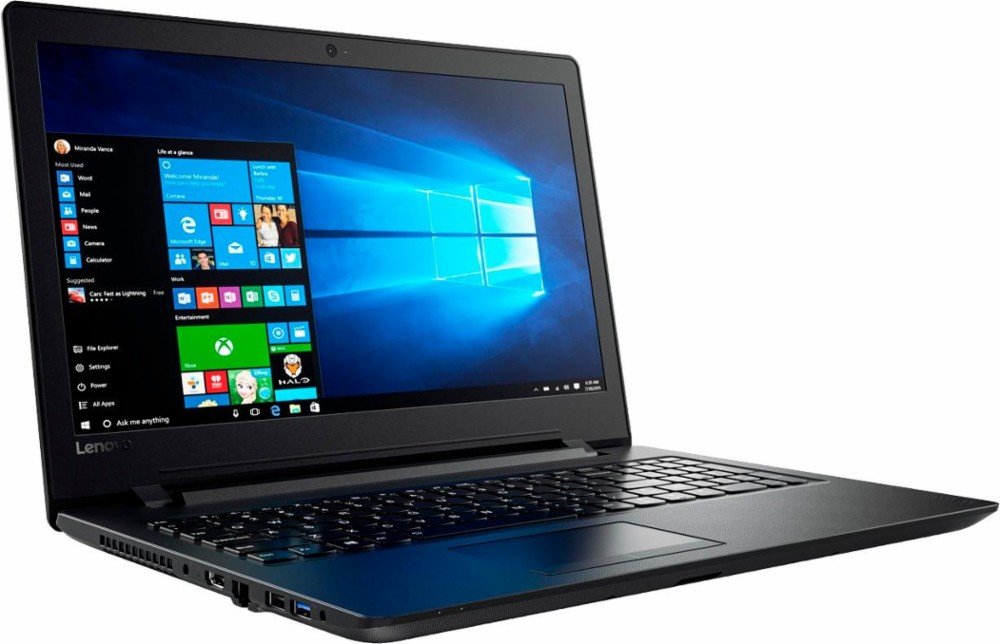
1. Lenovo IdeaPad

The Lenovo IdeaPad is a great all-rounder. From its 15.6” HD screen to its full-size keyboard, the hardware is perfect for business and study. The AMD quad-core A6 processor ramps up to 2.4 GHz – enough for most tasks – and the 500GB HDD will store hundreds of photos and movies.

The standout feature is the 8GB RAM, which ensures you don’t experience slow-down when using several applications at once, or during RAM-heavy tasks like photo and video editing.

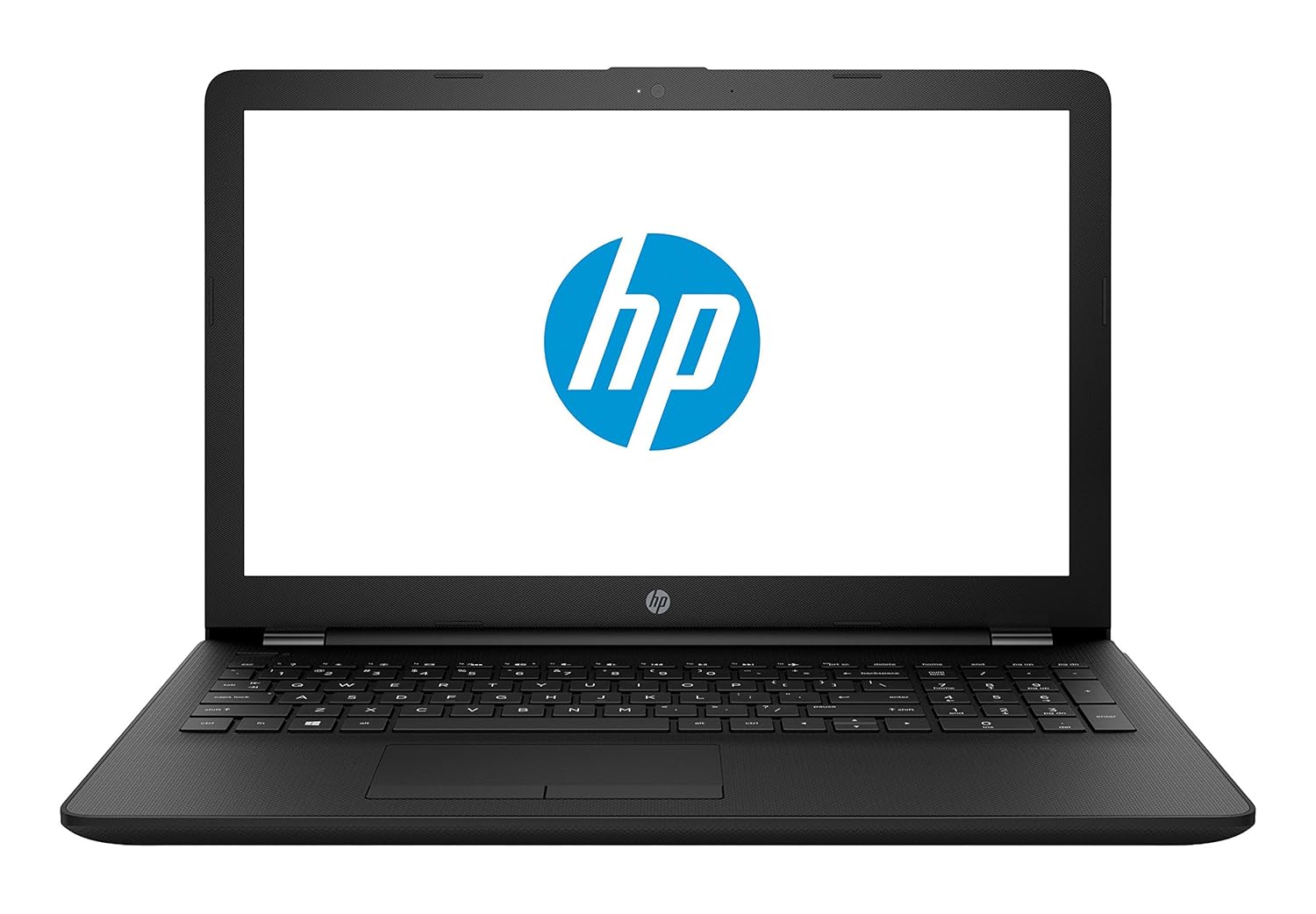
2. HP 15-BS091MS

Not the most inspiring name, but it certainly makes up for it in features. The HP 15 uses an Intel i3 processor clocking 2.4 GHz, has 6GB RAM, and a 15.6” HD LED touchscreen. The standout feature? Its massive 1TB HDD.

If you want to store all your photos and movies, as well as download the latest software without worrying about filling up the HDD, this laptop is for you. The Intel processor is also a bonus – while it clocks the same as the IdeaPad, Intel CPUs are generally considered of better quality, so should run faster.

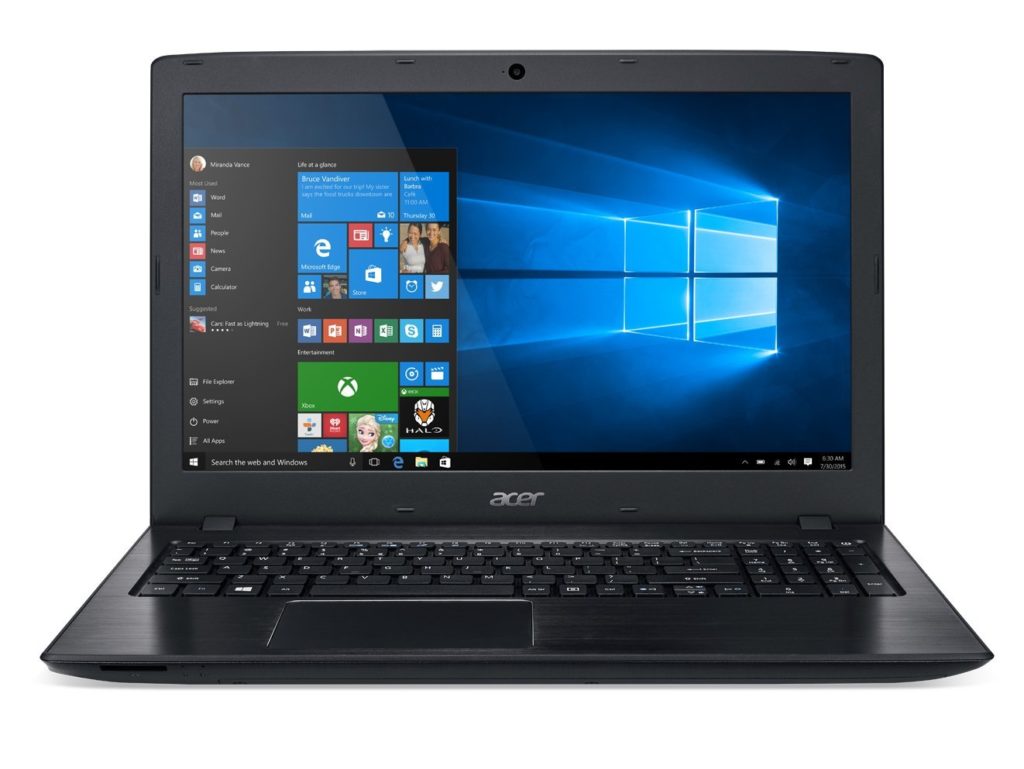
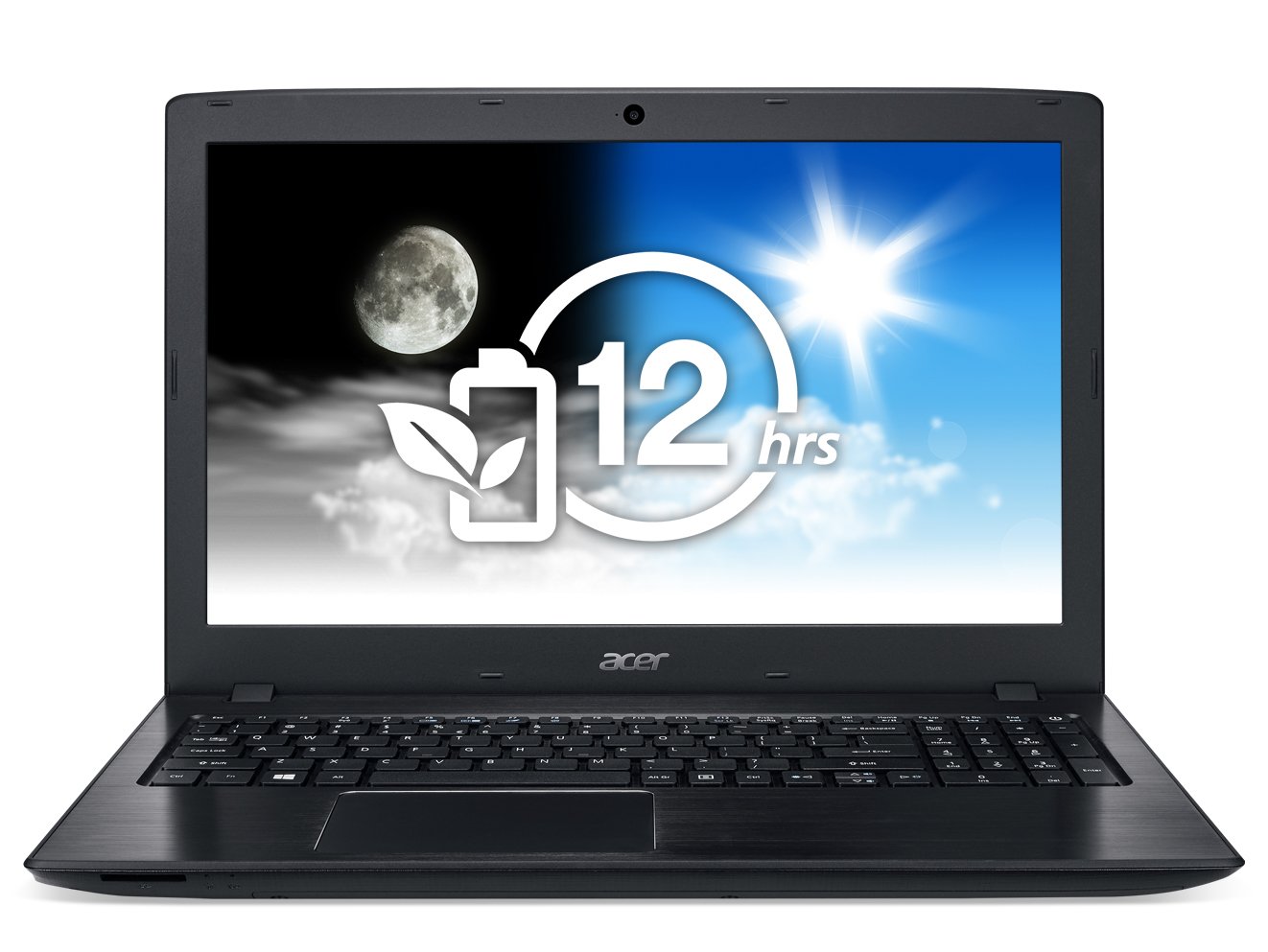
3. Acer E15

The E15 also has a 7th generation Intel i3 processor clocking at 2.4 GHz, but only 4GB RAM. This will make it a bit slow during intensive tasks, but it does make up for it in storage with a 1TB HDD (and you can always add more RAM later).

While the screen also measures 15.6”, it enjoys a full HD display of 1920×1080 – perfect for movies and media editing – but no touchscreen. The E15’s standout feature is its 12-hour battery life, the longest of any laptop on this list.

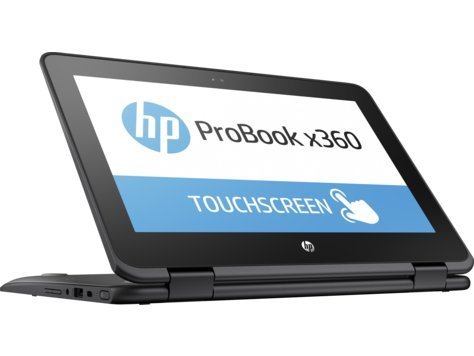
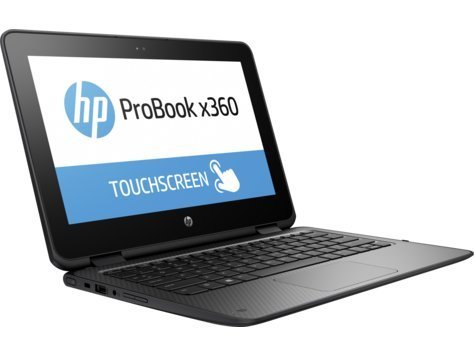
4. HP ProBook x360

If you’re looking for something to use on the move, the ProBook is worth a look. Its processor is relatively underpowered, but for emails, watching videos, and browsing it’s more than capable. The 11.6” HD touchscreen is small enough for large handbags and small backpacks, and the 360-degree hinges mean you can use it like a tablet. Bear in mind there’s no DVD/CD drive, though.

The 128GB SSD might not hold as much as the others, but SSDs are faster and less prone to failure. There’s no standout feature as such, instead, it’s the perfect blend of size and features , touchscreen, and SSD that make this a great portable machine.

5. HP 17-AK010NR

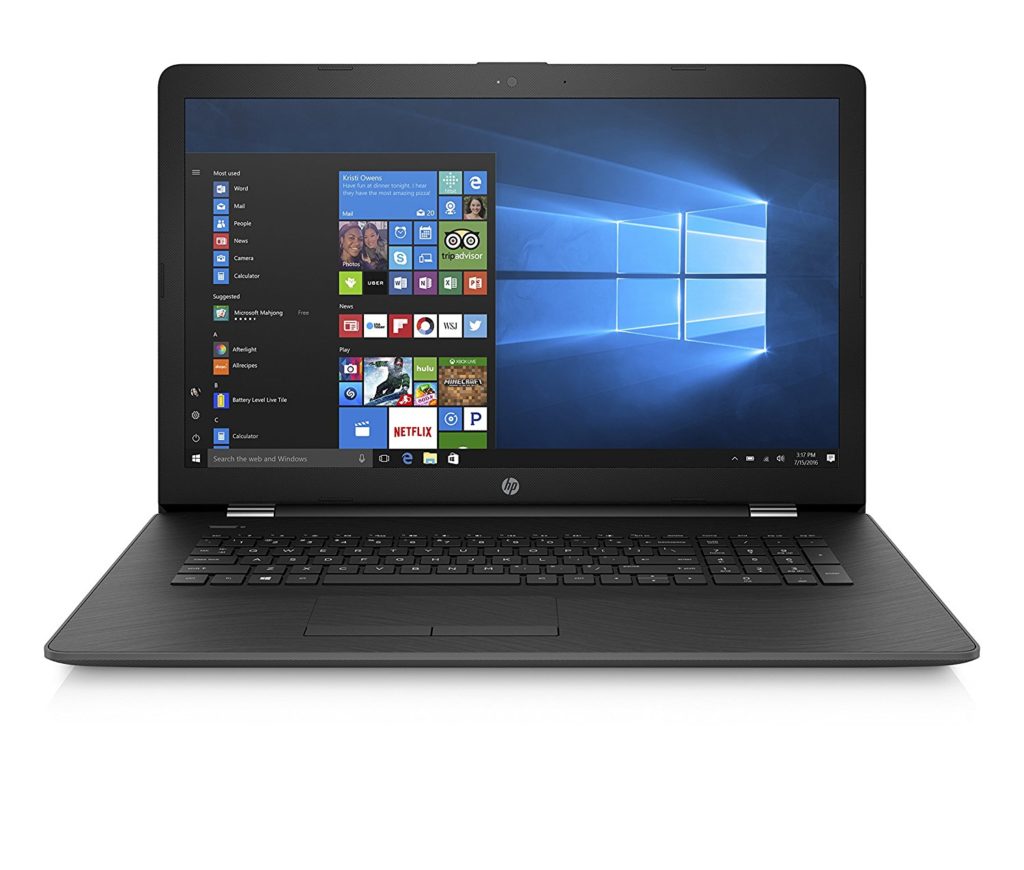
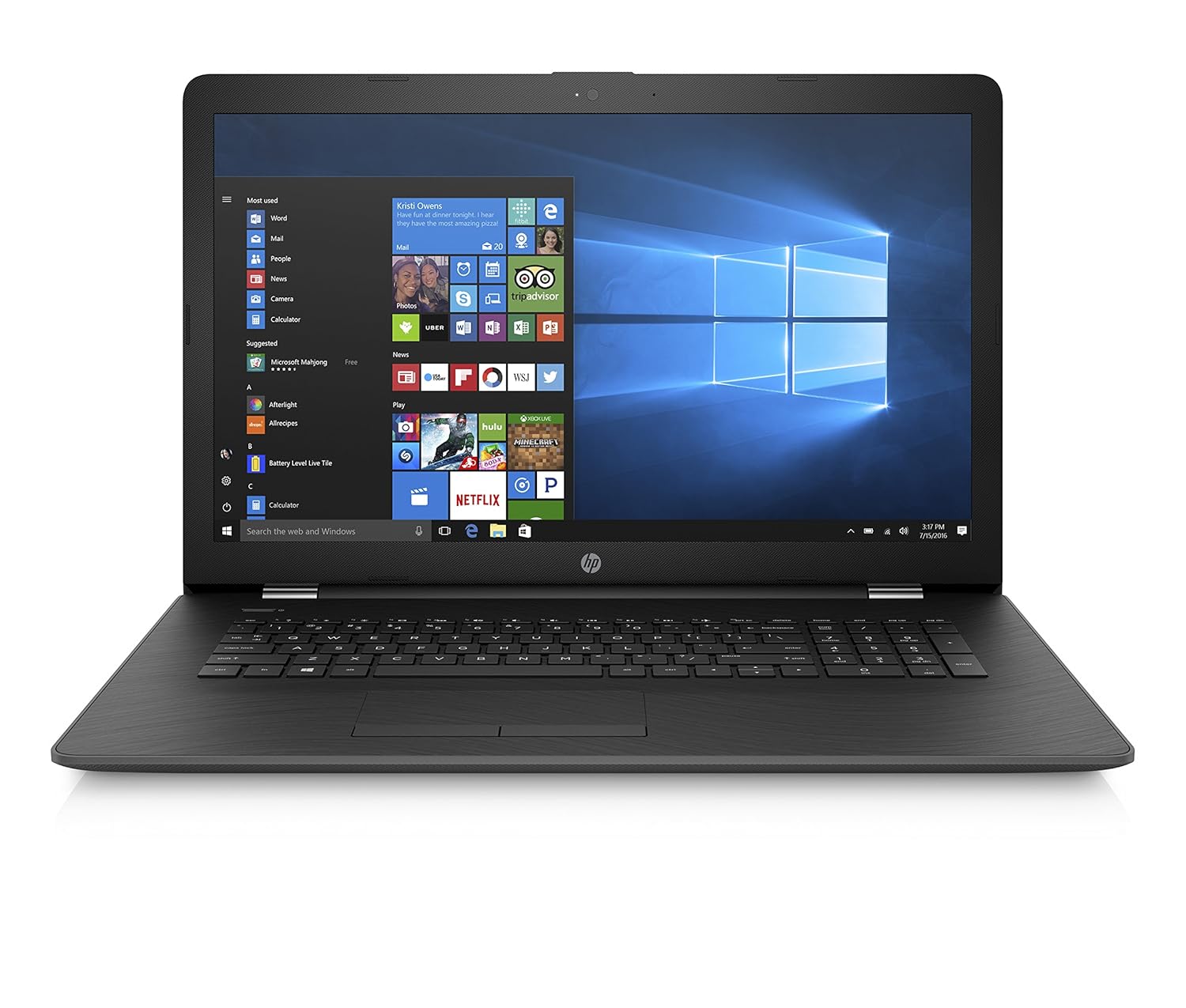
The HP 17 might not use an Intel processor, but its AMD A9 chip clocks up to 3.6 GHz. That’s easily enough for the toughest computing tasks, but its 4GB RAM does let it down a bit. Thankfully, it’s expandable. There’s a CD/DVD drive, and a decent battery life of 6 hours for video playback. The standout feature here is the 17.3” LED screen.

At 1600×900 its not full HD, but unless you’re a pixel-peeper, you probably won’t notice. It’s higher than 720p, so still a great choice for HD movies, and that extra screen space is perfect for working on two documents at once.  

You don’t have to spend thousands to get a decent laptop. There’s plenty of choice out there for almost any budget, but to avoid disappointment, ensure you know what’s most important to you before clicking that order button. 


How to record your screen for free using Windows 10

Trying to capture some in-game footage of your latest killstreak on Fortnite? Or maybe you’re looking to snag some video that you can overlay some VO on later. Pics or it didn’t happen, right?

While tools like FRAPS, Snagit, and Camtasia do boast high-quality capture, you’re downloading software that’s going to cost a pretty penny. If you’re looking for good quality, intuitive video capture software that is 100% FREE you might be surprised to find that Windows 10 already has you covered.

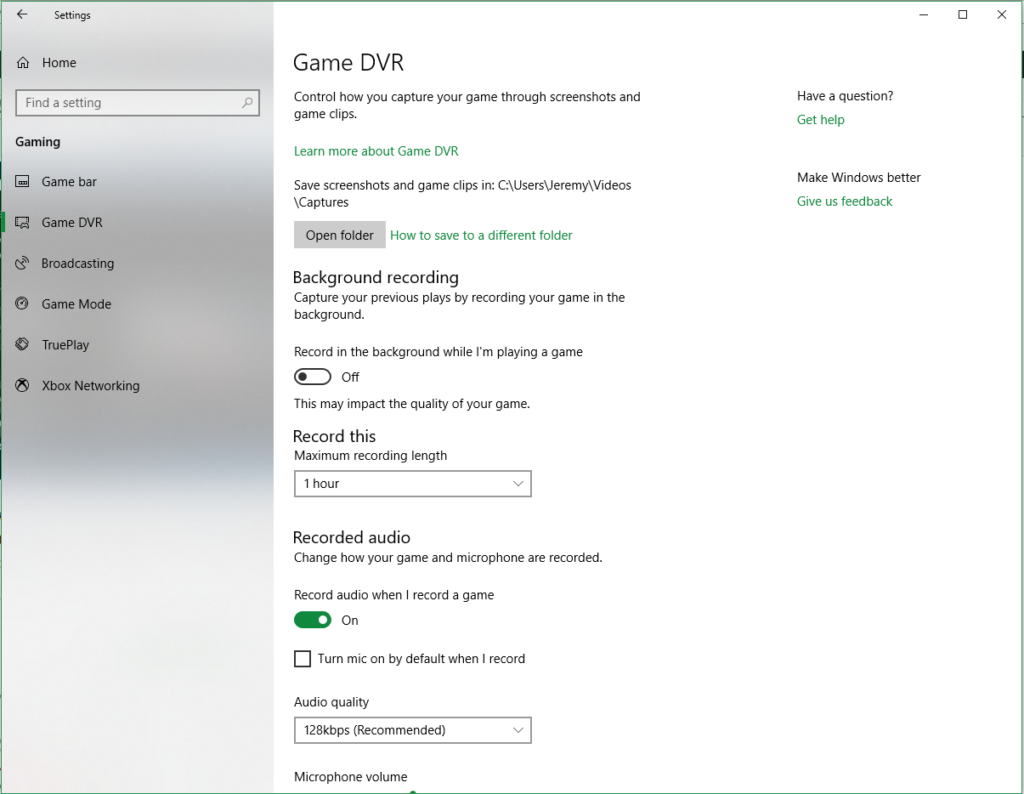
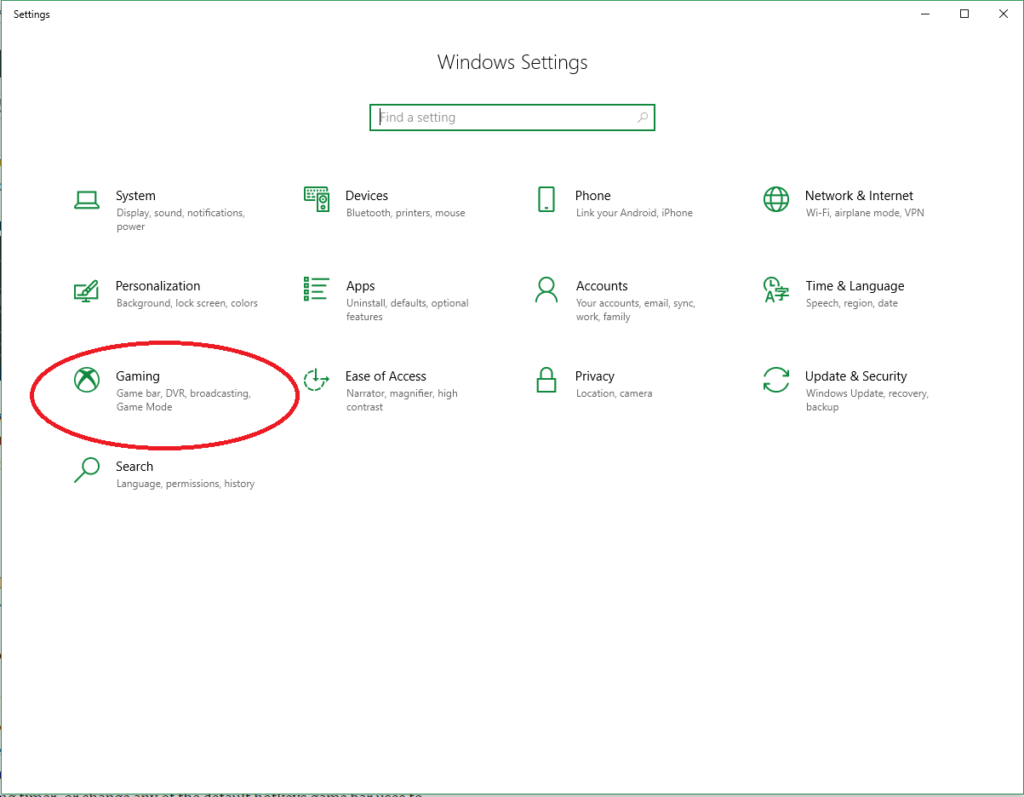
The Windows 10 OS automatically comes with Game DVR, your easy answer to start getting video immediately. It can be found right in your Settings tab under Gaming.

If you own an Xbox controller you can also open the Game Bar at any time by pressing and holding the Xbox button. Either way, it will take you to this screen:

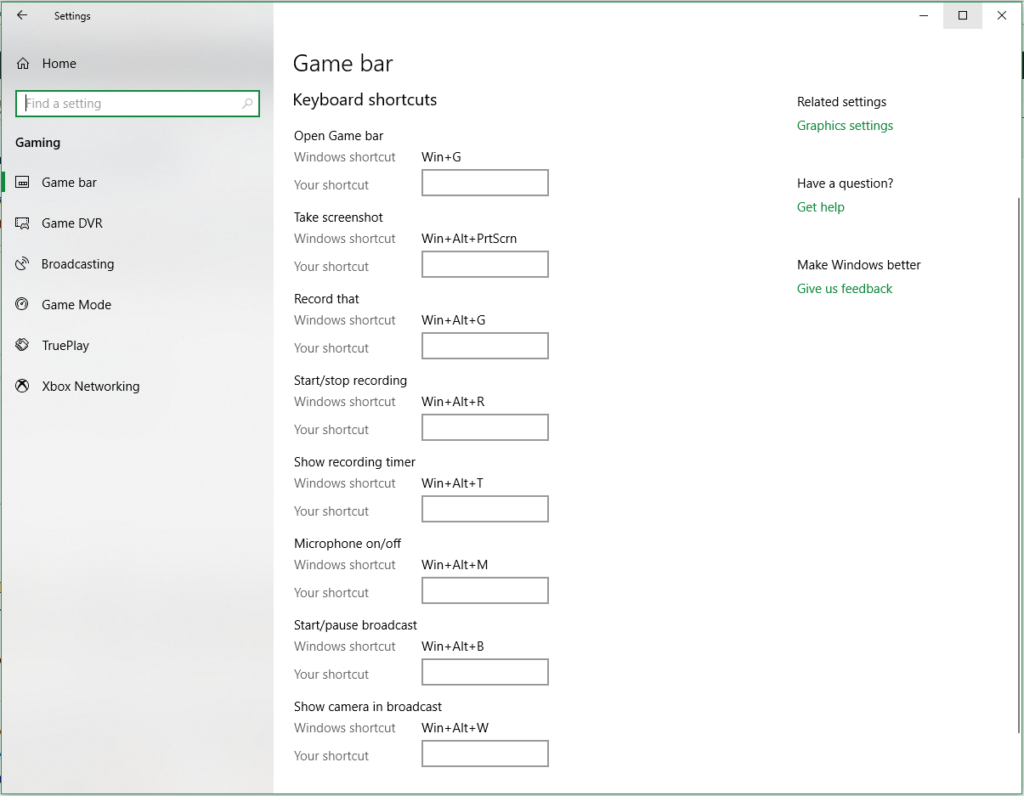
From here you have a variety of options to customize, such as which folder your video will be saved to, how long you want the recorder to capture for (anywhere from 30 minutes to 4 hours!), fps, and the video quality. You can also use Game Bar to capture screenshots, show the recording timer, or change any of the default hotkeys Game Bar uses to ones you prefer.

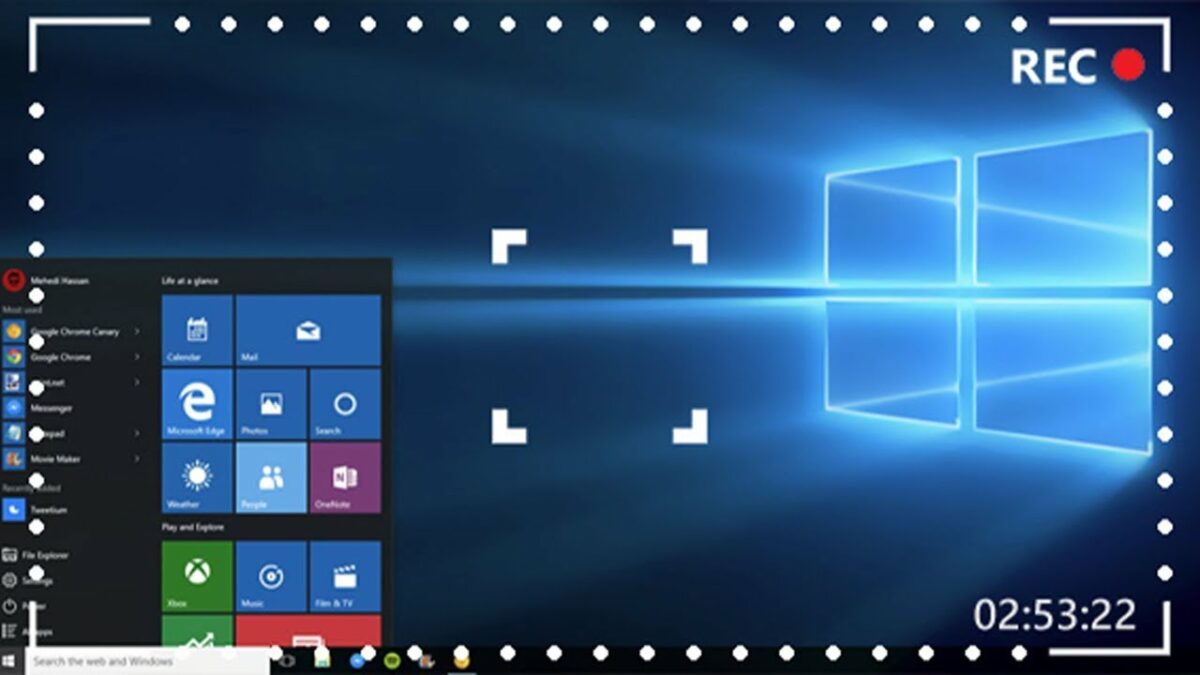
Not easy enough? Without even setting anything up you can just get in game and press Win+Alt+R and it will begin recording. You may see a toolbar appear, which means the recording has begun.

Press Win+Alt+R again and it will stop recording, and your video will be saved to your Videos/Captures folder by default. It will be saved as a .mp4 and from here you can do whatever you wish with your saved footage!


Slack goes down, chaos ensues

No, it wasn’t just you. This morning (June 27), Slack went down for about three hours. Slack reports the outage is over, so you can stop forming tribes, barricading your office door, and forging weapons from office supplies to defend against… whatever the hell a post-Slack world looks like.

For those of us who depend on Slack for easy, instant communication, the temporary outage felt like being thrown into the pre-internet dark ages. Predictably, lots of people turned to Twitter to express their angst.

And finally, one that’s NSFW…

We’re with you, Captain Picard.

9


Does Facebook want you to spend less time on Facebook?

Mark Zuckerberg has admitted that passive consumption of social media is bad. If you’re sitting at home alone and all you’re doing is scrolling through social media feeds hour after hour, it is bad for your health. Ideally, if Zuckerberg really does care about users of his various social networks, he’d want them to become active users who contribute to social discourse as well as just reading what others have posted. Recent Facebook innovations show a move in this direction, but there is a movement gathering pace in the tech world, and it has Facebook in its sights. That movement is the “Time Well Spent” movement.

Facebook Lite Download Facebook Lite
7

We’ve recently seen both Apple and Google bring in new features on their mobile operating systems that help people control the amount of time they’re spending on their phones. Apple’s new feature tracks phone usage and can even set limits. Google’s new control panel will show how much time you’ve been spending, which apps you’ve been spending it on, and will even recommend that you take breaks. It now looks like Facebook is testing out a similar feature.

The new Facebook feature, first spotted by engineer Jane Manchun Wong, is called Your Time on Facebook. Although it has only been seen in the code of an unreleased version of Facebook; if it is released officially, it will help allow you to see how much time you’re spending on the social network each day.

Facebook usage notifications
Facebook will start telling you how much time you’re spending on Facebook

Facebook confirmed to Tech Crunch that it will be rolling out this new feature, but is yet to talk of an official release date:

“We’re always working on new ways to help make sure people’s time on Facebook is time well spent.”

The interesting thing about the Facebook usage panel, leaked by Wong, is its simplicity. It offers only very basic metrics and makes no distinction between passive and unhealthy time on the site, and active participation, which Zuckerberg claims is better for both users and society. Hopefully, Facebook will improve its control panel, but if the control panel on Facebook-owned Instagram is anything to go by that is just wishful thinking.

(function(d,s,id){var js,fjs=d.getElementsByTagName(s)[0];if(d.getElementById(id))return;js=d.createElement(s);js.id=id;js.src=’https://embed.playbuzz.com/sdk.js’;fjs.parentNode.insertBefore(js,fjs);}(document,’script’,’playbuzz-sdk’));