How to Download Windows XP for Free

Nostalgia. How do you feel about it? I like the warm fuzzy feeling I get when thinking about stuff from back in the day but hate the crushing disappoint I feel when I reacquaint myself with things from the past. Spoiler alert, they almost never live up to the unbelievably high expectations I have of them.

That is why I’m not that sure about this little guide but as you may feel differently or may have a genuine need for it I’m going to walk you through this completely free and legal way I’ve found to get your hands on Windows XP. Microsoft may have stopped providing support for the most dominant operating system the world has ever seen but still, it is Windows XP.

Now whether you’re a developer and you need to test your coding creations across different operating systems or if you’re simply hankering for a dose of nostalgia doesn’t matter. If you want XP this is how to get it.

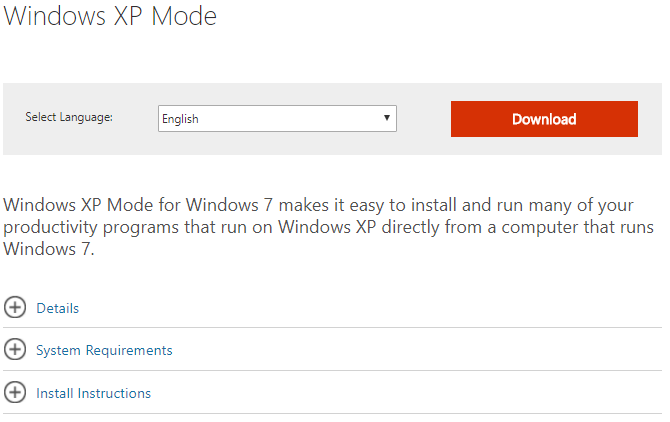
Stage 1: Go to the Microsoft Windows XP mode page and select Download. The executable file will download but when it is finished you don’t want to install it.

How to Download Windows XP for Free 1

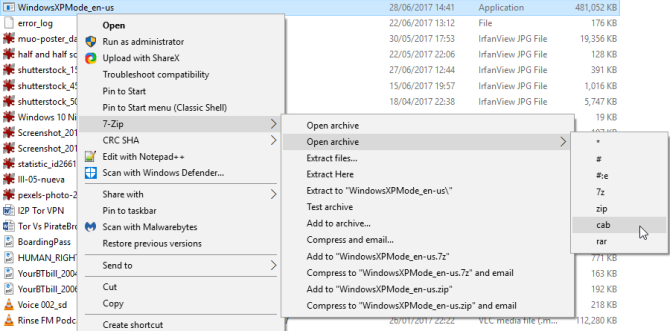
Stage 2: Right click on the exe file and then select 7-Zip, then Open archive and then finally cab.

How to Download Windows XP for Free 2

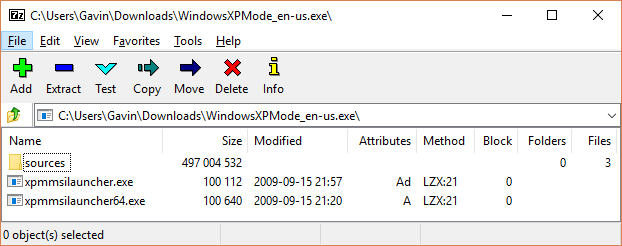
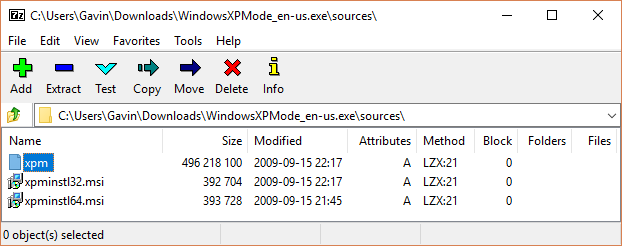
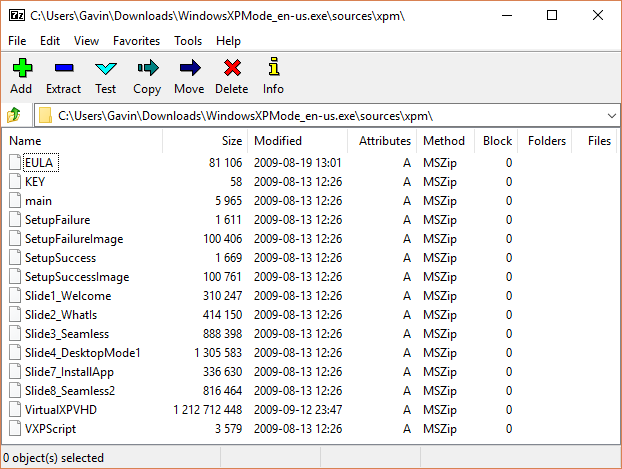
Stage 3: You’ll find 3 files and if you click sources you’ll find another 3 files. If you double click xpm you’ll open up the Windows XP mode virtual hard drive folder.

How to Download Windows XP for Free 4

How to Download Windows XP for Free 3

Stage 4: Extract the files by clicking Extract in the toolbar. Then select where you’d like to extract the files too and create a new folder. Pressing OK will then start the process.

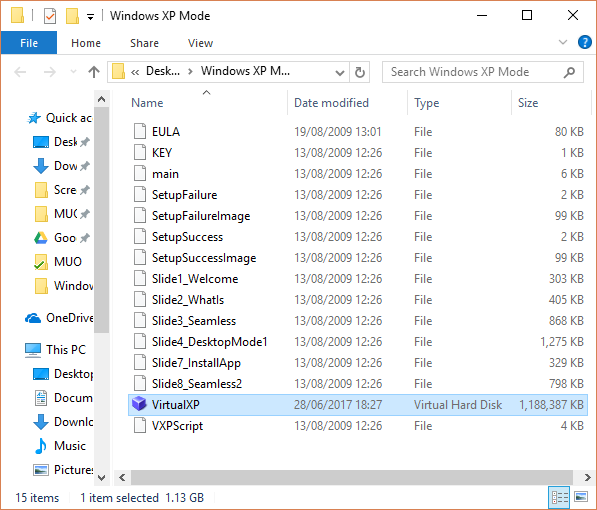
Stage 5: Once the files have all been extracted, head over to the location you selected and select the file VirtualXPVHD. Rename the file and simply add a . between the P and the V so that the file is now called VirtualXP.VHD. This will change the file into a virtual hard disk.

How to Download Windows XP for Free 5

How to Download Windows XP for Free 6

Stage 6: Now that you have the virtual hard drive you’re going to need a virtualization program to run your virtual copy of Windows XP on. VirtualBox is the best and you can download a copy of it here.

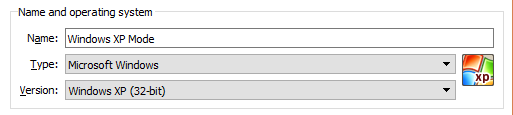
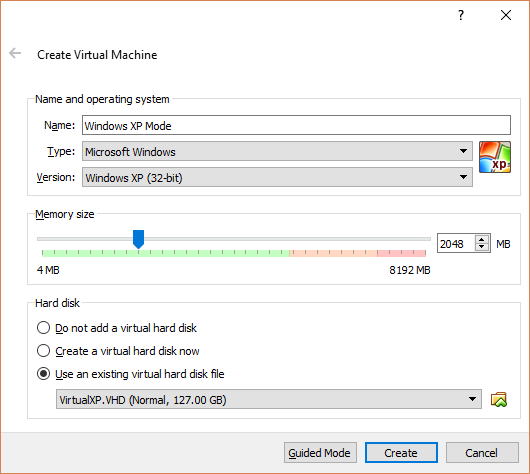
Stage 7: Once you’ve downloaded and installed VirtualBox open it and select New. Select Expert Mode and then give your virtual machine a suitable name, like Windows XP Mode.

How to Download Windows XP for Free 7

Stage 8: Now you have to assign the RAM you want your virtual machine to be able to use. Anything between 512mb and 2048mb will be fine but remember that your computer needs to use RAM too.

How to Download Windows XP for Free 8

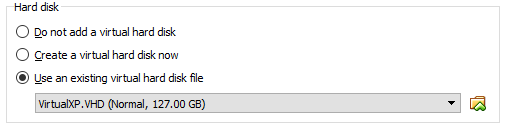
Stage 9: You now need to assign a hard disk to your virtual machine. This is where we go back and get the virtual hard disk we created earlier.

How to Download Windows XP for Free 9

Once you’re done you should have something that looks a little like this:

How to Download Windows XP for Free 10

If you have click create.

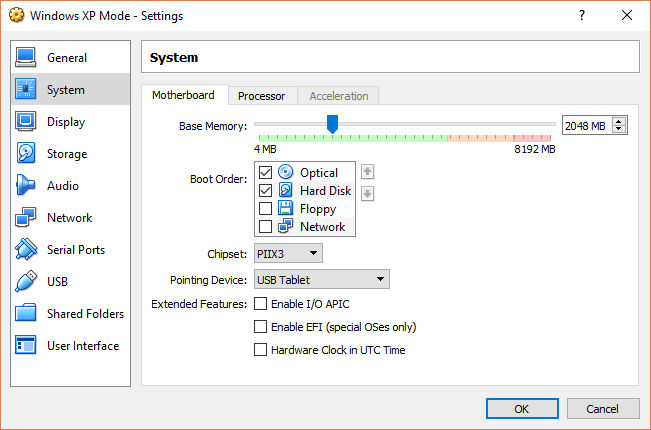
Stage 10: Before you get started on your new virtual machine running Windows XP you need to do a little playing around with various settings. Go to the VirtualBox toolbar and select Settings. Then go to System and select Boot Order. You want to put Hard Disk to the top of the list.

How to Download Windows XP for Free 12

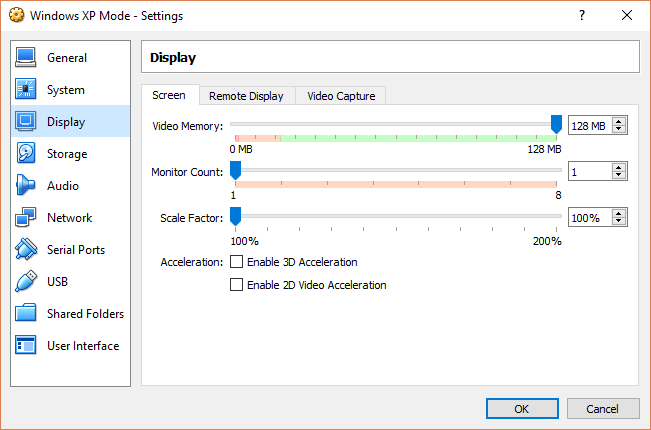
Stage 11: Then go to Display and increase the video memory to 128mb.

How to Download Windows XP for Free 11

Stage 12: Go to Network settings in VirtualBox and check that all of your network settings have been automatically applied to the virtual machine.

How to Download Windows XP for Free 13

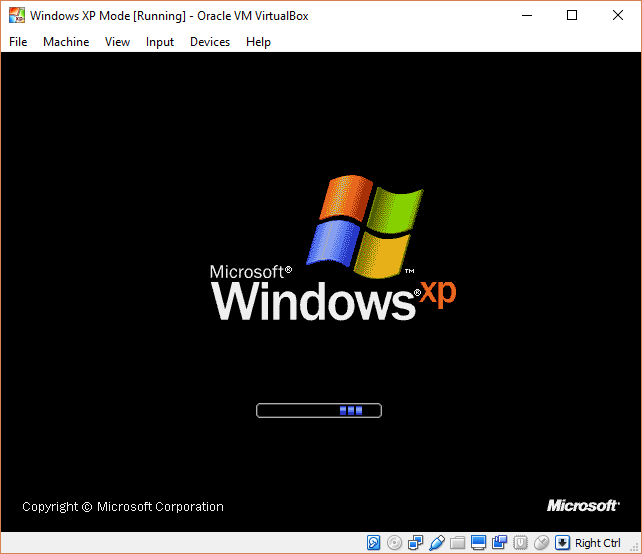
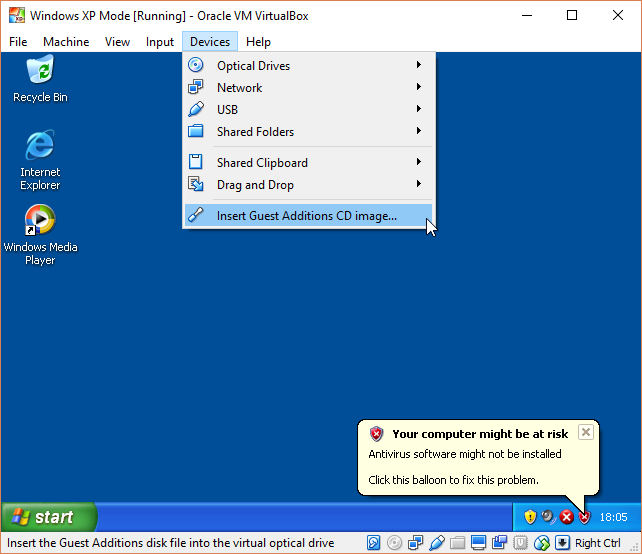
Stage 13: Boot that baby up. Don’t too excited just yet, however, as there are a couple more stages to get through. When you get to a completely black screen press Right Ctrl + R to restart the virtual machine. Cancel all of the new hardware installation and Microsoft Automatic Update wizards and head to Devices.

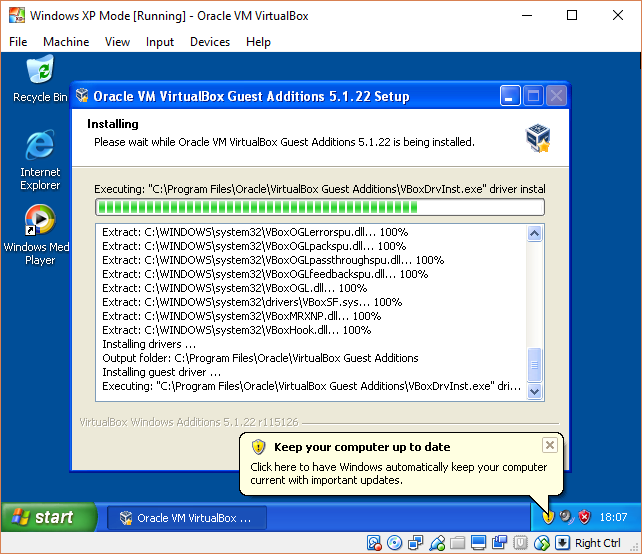
Once there select Install Guest Additions CD Image and use the default installation location.

How to Download Windows XP for Free 13

Stage 14: Once this is complete Reboot the machine again and you’ll have a fully functional virtual machine running Microsoft Windows XP. You’ll be able to use it for 30 days unless you have an old XP code lying around. If not then you can go through the whole process again in 30 days time.

How to Download Windows XP for Free 14


Follow me on Twitter: @PatrickDevaney_

Via: Makeuseof

How to watch WMV files on Mac

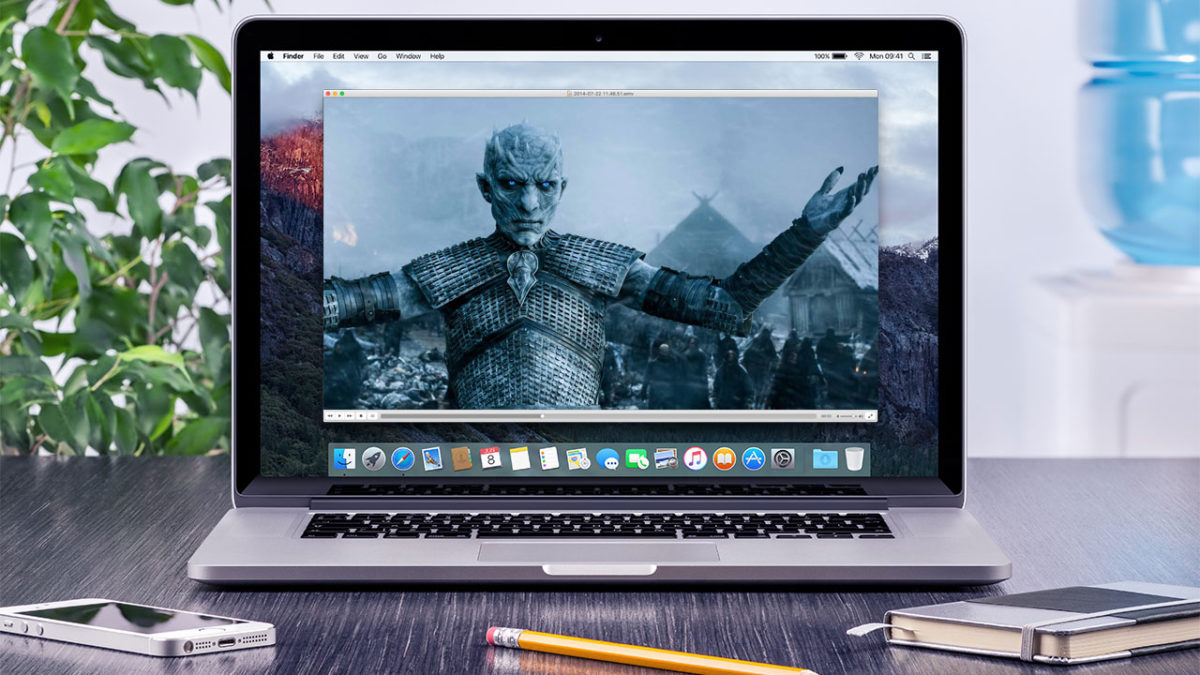
A very common problem Mac users have is playing Windows Media Video (WMV) files. When your Mac attempts to open and play WMV files by default in QuickTime, you’ll commonly receive an error message along the lines of ‘This is not a movie file’.

The reason behind this it the fact that WMV files use Microsoft proprietary codecs that don’t work in OS X. This gets really annoying if you come across a WMV file and want to watch it on your Mac.

Microsoft discontinued Windows Media Player for Mac way back in 2006, meaning there’s no longer a tailor-made player for the WMV format for OS X. Fortunately, there are a few free and easy solutions.

Option 1 – Use a Mac Video Player that Supports WMV

The good news is that there are plenty of simple and useful choices when looking for a wmv player for Mac. There are dozens to choose from in our catalog, but below we’ve selected the top 3 WMV compatible players for you.

flip4macFlip4Mac Plugin

This is probably the easiest solution to watch WMV files because it enables QuickTime playback of WMV files.  This plugin, created by Telestream, allows you to import, export and play Windows Media video and audio files on your Mac. The Flip4Mac WMV plug-in also works with other QuickTime based apps like iMovie and Final Cut Pro, meaning you can even edit WMV files on your Mac too.

Download Flip4Mac Plugin

VLC-media-player-iconVLC Media Player

The most versatile player out there, VLC media players lets you play WMV files without the Flip4Mac Plugin, although it’s only a playback solution; it doesn’t let you edit WMV files in QuickTime supported apps including iMovie and Final Cut. The great thing about VLC Media Player, however, is that it’s lightweight, fast, and can handle almost any media format you throw at it.

Download VLC Media Player

Get More With These 5 Expert Hacks for VLC Player

MPlayerOSX

MPlayer OSX

This player emerged out of the Google Codes project as an attempt to create an all-round player. MPlayer OSX is a simple but powerful video player designed specifically for Mac and can handle WMV playback. It features more options and preferences than VLC Player, with the only drawback being that the first time it plays a video, it has to build a font cache, which can take a while. Luckily, it only has to be done once.

Download MPlayer OSX

Option 2 – Convert the WMV file to a Different Format

Another option, and one that is equally good is to use a tool to convert wmv to mp4 or another popular format supported on the Mac. This is a particularly good option if you’re going to want to share the video with other Mac users. Once again, there are a lot of wmv converters for the Mac in our catalog. To save you some time, we’ve hand-picked some of the best ones right here.

VLC-media-player-iconVLC Media Player

Oh, VLC, what would we do without you? Yes, if you’ve read this far then you know that VLC Media Player already shows up on our list of WMV Video Players.

But VLC is also a killer tool for converting videos of all formats, and it’s hands-down the best tool of the bunch for converting WMV to MP4 or any other major video format supported by the Mac.

Download VLC Media Player

VLC-media-player-iconTotal Video Converter Lite

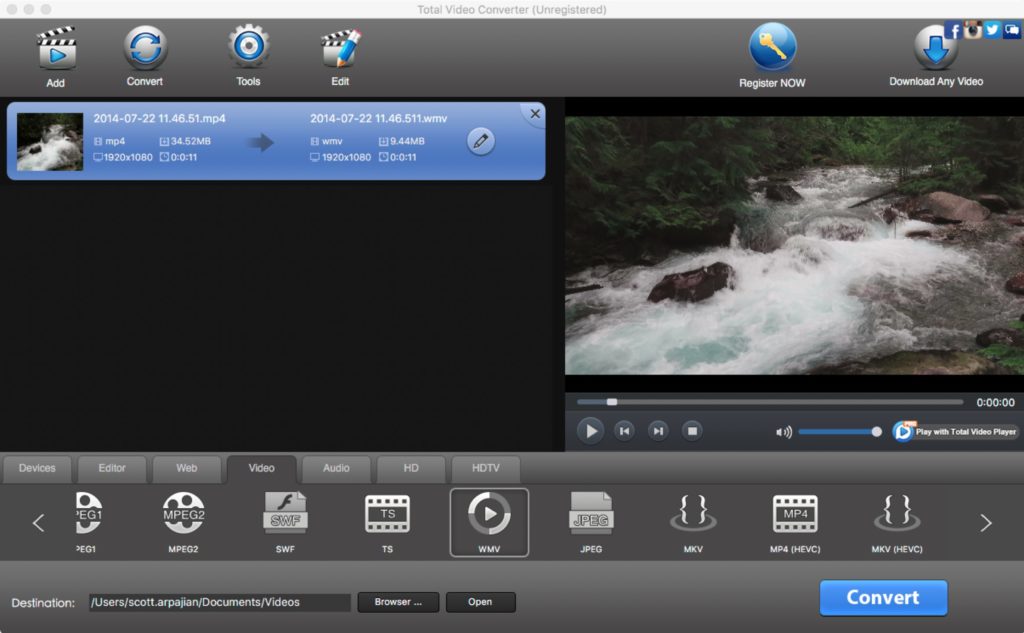
Another top-notch option for converting WMV files on your Mac to another format is Total Video Converter. It features a friendly user interface that will be more comfortable to some Mac users than VLC and it supports conversions of over 160+ video format types.

The unregistered lite version is limited to converting just the first 30% of your file, however, and you’ll need to upgrade to the Pro version of Total Video Converter to complete the job.

But VLC is also a killer tool for converting videos of all formats, and it’s hands-down the best tool of the bunch for converting WMV to MP4 or any other major video format supported by the Mac.

Download Total Video Converter Lite

Total Video Converter Lite for Mac

Original article published on July 6, 2009.

9 tricks to use CCleaner properly – it does more than you think

If all you do with CCleaner is set it to automatically clean your system and then assume the job is done, then you are seriously wrong. You can endanger valuable information and slow your system performance if the program is not properly configured. And we all make this mistake, because very few people know how to use CCleaner properly – myself included. That is, until recently, because I have been reading a lot of tutorials to get myself up to speed (links at the end).

I have distilled my learning into 9 easy tricks to learn how to use CCleaner super effectively.

Download CCleaner

CCleaner does not do what you think

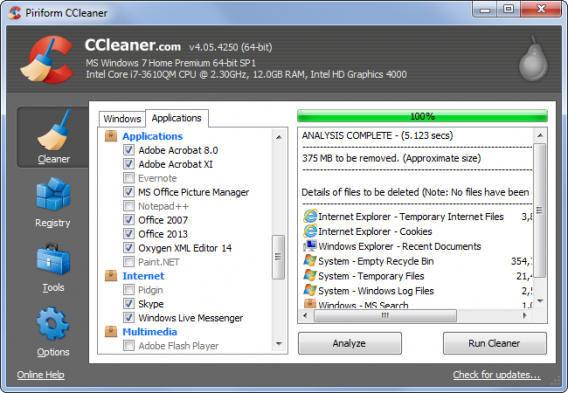
Many people believe that CCleaner is a maintenance tool that automatically improves the performance of their computer. Actually, CCleaner cleans your discs by deleting temporary files, or files that take up a lot of space. This frees up room on your hard disk, which can result in improved performance.

Why is it important to understand this? Because if you use CCleaner every day believing that your computer will run faster, you are mistaken; indeed, in many cases, it may run slower.

This is what you should do BEFORE cleaning with CCleaner

Before running CCleaner’s… cleaner… think of exactly what you want to clean. If you are not interested in deleting your cache and cookies, then set the program to ignore them. Alternatively, if you do not want others to spy your browsing history, then clean them frequently.

However, what happens if you clean your machine and it runs slower? This is because your computer needs some files to perform efficiently. If you delete these files with CCleaner, performance will suffer. If you visit some favorite pages every day, but clean the cache every few hours, you’ll find these pages take longer to load.

This brings me to my next point.

Protect the important cookies

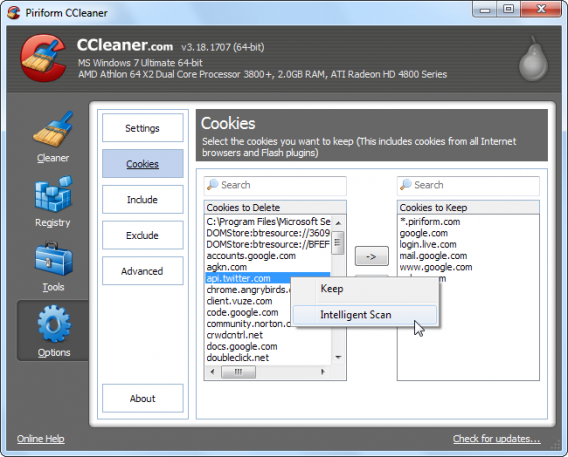
CCleaner deletes all cookies by default – but you may well want to keep some of them around to keep your browsing quick.

You have two options for this. On the one hand, you can use CCleaner’s Smart Scan to detect the cookies you use most and protect them from most common cleans (such as Google). Alternatively, you manually flag the cookies that do not want to be touched.

Do the same with programs

You can apply protection to programs and files. This feature is particularly useful if you find that CCleaner is obsessed with trying to eliminate a file that you actually want. You can exclude whole disks, folders, files, or records. You can also protect specific file extensions.

If you use Registry Cleaner often, you’re going to get in trouble

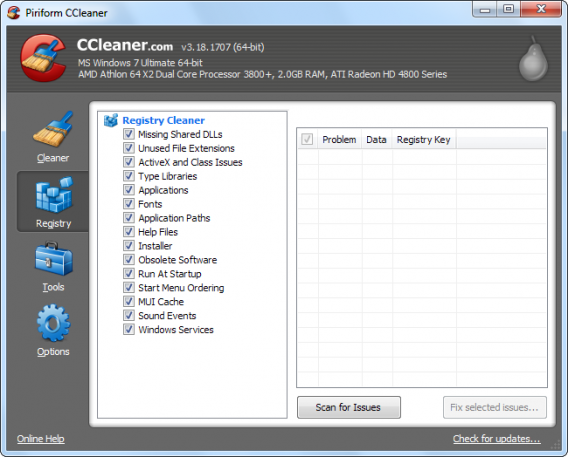
I do not recommend that you regularly use CCleaner’s Registry Cleaner. After all, who cleans their house every day? A clean registry can help if your system is damaged, but it doesn’t improve your performance under normal circumstances and – in some cases – it can be harmful. Leave this feature alone unless you have problems running a particular program.
Registry cleaner

This feature offers much more than its name suggests

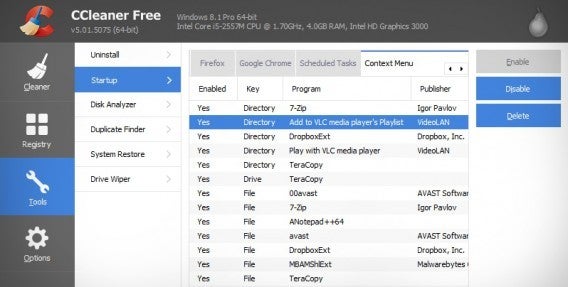
Startup is an optional tool that, in theory, lets you disable programs that run automatically when you start your computer. In this way, you can access and edit your PC boot process.

Startup

What few people know is that Startup allows you to disable or remove scheduled tasks and browser extensions. These options are already included by default in Windows, but you can have a look during one of your regular cleanings.

Breaking the myth of Cleaner Hard Drives

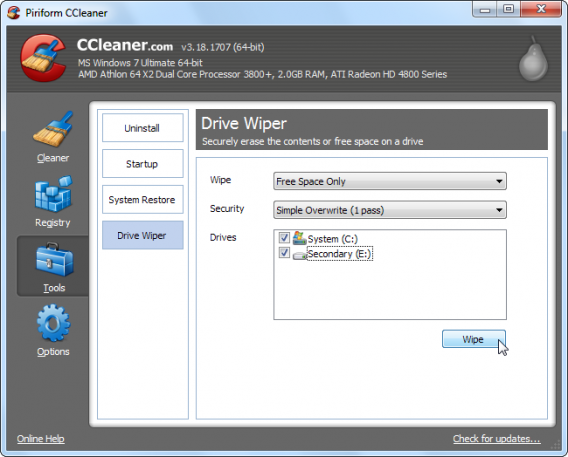
One of the great myths behind hard disk cleaners is that you need to perform multiple scans to get the drive really clean. But there is no need for this with CCleaner’s Drive Wipe, because it can clean your drive with a single click, completely removing unwanted files while leaving programs untouched.

Note that when you delete a file in Windows it doesn’t actually delete it; it simply removes the path to it so it can’t be seen by the system, freeing the space it occupied and allowing it to be overwritten. This allows files to be restored by those who know how. That does not happen with CCleaner, which overwrites old files as it deletes them. Great for security, but please be sure that you want to delete the selected files.

Forget this tool

CCleaner has many secondary tools, the most redundant of which is Uninstall Programs. This is totally dispensable and does not work as well as the Windows Uninstaller. There are better uninstallers out there, like Revo, which you can download from Softonic.

You see? You do not need to know everything about CCleaner.

… and finally, the Golden Rule

It doesn’t matter if you use CCleaner or another cleaning tool – never do any cleaning without making a backup of important files first. If the program deletes something important, the consequences can be catastrophic. Fortunately, with a backup or a restore point, you can recover the state of your computer in a couple of clicks.

Sources: TechRepublic, How To Geek (text 1, text 2, and text 3), Guiding Tech, Life Hacker

Related Stories

3 Productivity Hacks for Office 2007

How to clear the cache on Safari for Windows

Windows 10: The 45 most useful keyboard shortcuts

How to delete your browsing history and protect privacy in UC Browser

Why doesn’t uTorrent open?

Why doesn’t uTorrent open por softonic-en

You’ve just installed uTorrent and restarted your computer, but the program won’t open. We know, it’s so irritating! But why does it happen? Usually, by double-clicking on the desktop uTorrent icon, the program should open. However, sometimes, this doesn’t work.

Once uTorrent is installed, it should open automatically when you start Windows and remain minimized in the system tray. Because of this, it sometimes seems like the program won’t open, when in fact it’s already running. This happens because the program’s settings are designed by default to resume downloads as fast as possible when you turn on your computer without having to open the program.

To ensure that uTorrent is open, first locate the uTorrent icon in the system tray, which should be next to the Windows clock.

Once you’ve located the uTorrent icon, double click to open it. uTorrent will open and you’ll be able to use it.

If you do not want uTorrent to open automatically when Windows starts, open the program, click on “Options“, and go to “Preferences“. In the “General” tab, find the option “Start uTorrent when Windows starts“. Then, all you need to do is to unmark this option to avoid uTorrent opening when you turn on your computer.

To close uTorrent, right-click on the icon in the system tray and select “Exit“.

uTorrent has many settings, so you might want you take a look at them and choose those that fit your needs!

20 Windows processes you can kill to make your PC run quicker

In Windows, all processes are listed in the Task Manager. Among the processes that use the most resources, some are useful, while others run unnecessarily in the background. So, which processes can you easily eliminate to increase the speed of your PC? We’ll show you 20 processes that your PC doesn’t need.

We’ve divided the processes into 5 categories: quick starters, software updates, processes from hardware manufacturers, software processes and Windows processes. For each of these, you’ll find a short explanation.

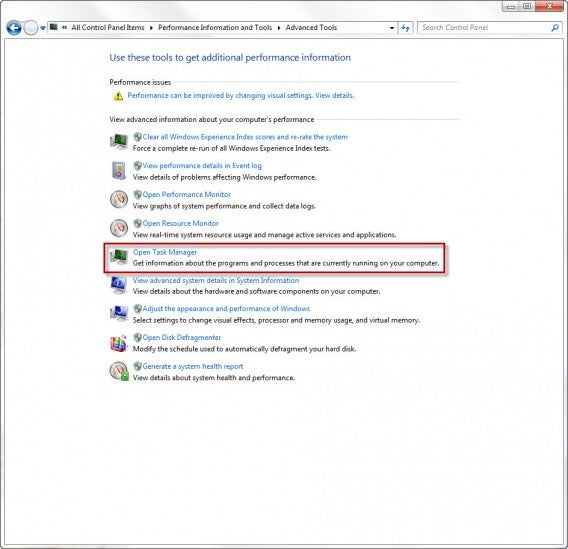
First, you’ll need to access Task Manager. Do this by going to Control Panel> All Control Panel Items> Performance Information and Tools> Advanced Tools> Open Task Manager. Alternatively, press CTRL + ALT + DEL and click on Task Manager.

Task Manager

Then, click on the tab that says Processes.

Quickstarter

Quickstarters preload parts of a program in case the user wants to open the program later. If you don’t open and close these programs often, however, the process can be eliminated.

  • reader_sl.exe is a part of Adobe Reader and stands for Adobe Acrobat Speed Launcher. It speeds up the launch of the reader, but isn’t actually necessary.
  • jqs.exe accelerates the launch of almost all software that works with Java. The Java Quick Starter isn’t really necessary.
  • Osa.exe enables some Microsoft Office programs in Windows XP to launch more quickly and anchors certain Office functions to the start menu. The Office Source Engine may be of interest to regular Office users, but probably not to others.
  • soffice.exe fulfills the same purpose as Osa.exe, but for the Office packages StarOffice and OpenOffice.

Software-Updates

Update managers periodically check whether a new version of the program is available. To save memory, you can change the update options in the program and regularly look for updates when you open it. In the meantime, you can simply end these processes.

  • AdobeARM.exe belongs to Adobe Acrobat and Adobe Reader. The process runs in the background and checks for updates to Adobe products.
  • AAM Update Notifier.exe comes with Adobe Creative Suite products. The process manages updates for multiple Adobe programs.
  • Jusched.exe actually stands for Java Update Scheduler. Once a month, the process checks whether there is a new update for Java, which is quite infrequent for a process that’s always running.
  • DivXUpdate.exe runs in the background and checks for updates to DivX Plus. You can simply terminate the updater; it launches automatically when you open any DivX program.

Processes from hardware manufacturers

Hardware manufacturers generally supply the appropriate software and drivers for their devices. Many nice additional features are automatically added on the computer, but in most cases they’re not used very often.

  • NeroCheck.exe searches for drivers that could trigger conflicts with Nero Express, Nero, and NeroVision Express. You can also start this service manually if necessary.
  • HKCMD.exe accompanies Intel hardware. The process allows the user to allocate any function to the keys, but also often leads to a sluggish system.
  • atiptaxx.exe/ati2evxx.exe comes with ATI video card drivers. The processes provide faster access to the graphics card settings on the taskbar or individual keys.
  • RAVCpl64.exe stands for Realtek HD Audio Manager. The process detects which audio devices are connected to your computer, including headphones or a microphone. Conveniently, the devices are also recognized without the process and will run anyway.
  • Nwiz.exe usually accompanies a NVIDIA graphics card. Anyone who uses NVIDIA nView functions needs the process. but it’s otherwise unnecessary.
  • CCC.exe stands for ATI Catalyst Control Center. For gamers and users with higher demands for the graphic settings on their PC, this is certainly interesting; for everyone else, it’s not necessary.
  • SynTPEnh.exe is used on many laptops and has drivers for touchpads, but Windows can provide these too. In addition, Synaptics TouchPad Enhancements is a known solution for stability problems.

Software Processes

In addition to updates, many programs offer useful and less useful services in the background. Anyone can decide for themselves whether they really need a button for each application in the start menu.

  • winampa.exe places Winamp to the right at the bottom of the taskbar and makes sure that no other programs with media content are linked.
  • iTunesHelper.exe/iPodService.exe works in the background for iTunes and QuickTime. If the process runs without these programs, it can be stopped safely – iTunes starts it automatically if needed.
  • OSPPSVC.exe comes with Microsoft Office 2010. The Office Software Protection Platform verifies that Office still has a valid licence.

Windows Processes

Windows also comes with a number of interesting, yet resource-intensive processes. Decide for yourself what to make of them.

  • Sidebar.exe makes the practical widgets on Windows 7 and Vista possible, but also eats up a lot of memory. Anyone who doesn’t use the widgets can stop Sidebar.exe.
  • wmpnetwk.exe searches the network for media files in order to populate them into Windows Media Player. If you don’t use the media player, or don’t want to search for new files, you can stop the service.

Here, you can find more processes and explanations

If you have more questions about processes and their functions, you can also consult various databases. Please note, most databases are compiled by users, so you should always consult multiple sources.

  • I am not a geek – about processes and their dangers
  • Neubert – with less content, and no search function
  • Searchtasks – with search function and recommendations on processes

[Original article by on Softonic.de]

The Best 24 Apps for Windows 10

One of Windows 10’s biggest features as an operating system is its flexibility moving between devices. Whether you are on your home computer, tablet, or phone, Window 10 is designed to offer a cohesive experience. Here is our pick of apps that offer you a great experience where ever you are.

Adobe PhotoShop Express

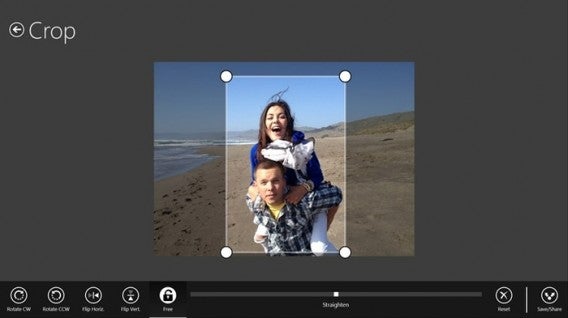
Adobe’s fantastic photo editing suite has long been the gold standard, and with PhotoShop Express they have managed to perfectly adapt the experience to touchscreen. The app allows you to quickly and easily tweak you pictures with options like red-eye removal, noise reduction, and a range of filters. The free version even lets you upload 50 photos a month to the cloud.

Download it here
Adobe Photoshop Express

AllRecipes

Cooking apps are a wonderful tool for any budding chef, and AllRecipies maybe the best of them all. With a fantastic clean layout, it’s easy to find, favorite, and read any recipe you want. Plus, I find the recipes on the app fantastic.

Download it here

AllRecipes

Age of Empires: Castle Siege

Constructing your town and army to pit them against other player’s armies and towns is becoming one of the biggest social gaming genres. However, Microsoft have used the trend to relaunch their beloved Age of Empires franchise with Age of Empires: Castle Siege. It has worked brilliantly, as the game offers more direct unit control than the competition, making it feel significantly more involved.

Download it here

Age of Empires

Angry Birds Space

Ah yes, those mad birds have been to many wild and wacky places – but to our mind space is the greatest. Angry Birds Space doesn’t add any new or weird abilities, it simply places you in space and forces you to deal with the physics and gravitational forces that apply in the cold dark vacuum that is most of the universe.

Download it here

Angry Birds Space

Asphalt 8: Airborne

Gameloft’s Asphalt series has long been mobile gaming’s go to arcade racing experience, and Asphalt 8: Airborne is just the latest, most over-the-top interpretation of this. Keeping the high-speed racing and crisp graphics the franchise is known for, the eighth installment adds high-flying ramps and aerial maneuvers to really take the action to the next level.

Download it here

Asphalt 8: Airborne

Crossy Road

Why did the chicken cross the road? Well, we are not sure, but probably to download Crossy Road. This endless take on the Atari classic Frogger uses simple taps and swipes to give you precise control of a road-running chicken as it desperately tries to navigate highways, rivers, and railway tracks without being turned into nuggets.

Download it here

Crossy Road

Cut the Rope 2

What makes physics intriguing as an element in puzzles? Is it that we feel we have an innate understanding of how it should work and the ways we fail fascinate us? Or is it simply that inside we all want to be part of some huge Rube Goldberg machine? Who knows, but it is what Cut the Rope 2 taps into as you slice your way through ropes to drop and swing candy into Om Nom’s gaping maw.

Download it here

Cut the Rope 2

Dropbox

You probably already have a Dropbox account, making the Dropbox app even easier to recommend. This cloud storage/sharing solution gives you 2GB of storage for free when you open an account. The app’s clean and simple design also allows you to easily find the files you want, with photos particularly well displayed in albums.

Download it here

Dropbox

Facebook

If you use Facebook, as I am prepared to guess most people reading this do, then it’s hard to ignore the usefulness of the official Facebook app. Providing a simple layout which allows you to easily access all of the social platform’s options whether you are using a touchscreen or a mouse, you probably need this installed.

Download it here

Facebook

Firefox

Firefox is already many peoples go to browser of choice thanks to its high-level of customization and fast surfing experience. Well, add to that the fact that Firefox offers full Windows 10 integration, and Mozilla’s browser could easily become the number one choice for internet on the Microsoft platform.

Download it here

Firefox

Flipboard

Flipboard is a magazine viewer that offers you a curated news-feed of your interests, all beautifully laid out to look like a magazine. It’s a far more compelling way of viewing the sites you regularly visit, particularly on mobile devices.

Download it here

Flipboard

Flow Free

So simple, so free, Flow Free is another of those puzzle games that can really take over your mind. You know you are in trouble when you start day dreaming about a game and solving puzzles you create for yourself while you’re meant to be work. If you have a job that demands your full attention, maybe don’t download this.

Download it here

Flow Free

Fresh Paint

Providing you with a full featured painting app, Fresh Paint is a fantastic way to unleash your creativity. What is so wonderful about Fresh Paint is its tactile nature as, alongside a standard color wheel it also allows you to mix your own colors on a digital palette before applying them to your canvas.

Download it here

Fresh Paint

Frozen Free Fall

You can take your pick of match-three games, from Bejeweled to Candy Crush, they are all much of a muchness. However, I have struggled to let go of Frozen Free Fall. Well, I say that, what I really mean is that my friend’s daughter has struggled to let it go, so it remains installed on my phone.

Download it here

Frozen Free Fall

Jetpack Joyride

Escape mad scientists with a rocket pack. No, there isn’t much need to expand on Jetpack Joyride’s core concept to make it appealing. The only other thing you really need to know is that the simple controls and comical power-ups mean that it is, in fact, as fun as it sounds.

Download it here

Jetpack Joyride

Minecraft

If you absolutely have to have a game to launch on the same day as your new operating system, then none could be better than Minecraft. Whether this was a driving force behind Microsoft’s purchase of Mojang we will never know, but it certainly is not going to hurt the company to have the Minecraft Windows 10 Beta on its store front.

Download it here

Minecraft

Minion Rush

Endless runners are everywhere, and at this point you can get them in any flavor you fancy – from Spider-Man to Tomb Raider. Personally, however, I find it hard to resist the little yellow minions as they waddle their way through Minion Rush. The game itself is a fine example of the genre, and the minions make the perfect slapstick fodder to be on the end of every failed jump.

Download it here

Minion Rush

Modern Combat 5: Blackout

While Call of Duty’s mobile incarnations may all have been awful, that hasn’t stopped Modern Combat borrowing the idea of an extravagant modern military story. Modern Combat 5: Blackout offers everything CoD does, with a solid country hopping plot, loads of weapons, and a robust multiplayer mode that allows up to 12 players to compete together online.

Download it here

Modern Combat 5: Blackout

Nook

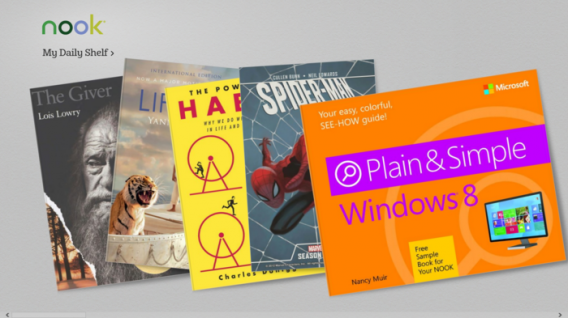
If you use your phone or tablet as a portable personal library, then Nook is the perfect app for you. With a huge library curated by Barns and Noble, and plenty of options to make your reading experience easy on the eyes, Nook is the app for bookworms.

Download it here
Nook

OneNote

In isolation, Microsoft’s note taking tool is just good. Add in a Microsoft 365 account, and all of the cross app and cloud storage options it opens up, and OneNote becomes a truly fantastic tool. Allowing you to edit across devices, great touchscreen support (such as the intuitive radial menu), and the ability to pull pictures from social media platforms like Facebook, OneNote is a must.

Download it here

OneNote

Pako

If you enjoyed the bit in GTA where you are trying to outrun a seemingly endless sea of police officers, then you are in luck, because that is all Pako is. Viewed from an isometric perspective, you must speed around the urban arenas trying to stay ahead of the cops for as long as possible. With a nifty 70s gangster movie motif, Pako is brilliantly playful.

Download it here

Pako

Skype

Even with every other messaging service starting to offer calls and video, Skype is still up there as the best ways to connect with friends and family around the world for free. Since its acquisition by Microsoft the service has continued to improve, and its cross platform functionality on Windows 10 makes it an even more flexible communication tool.

Download it here

Skype

Threes!

Threes! maybe one of the most perfectly conceived mobile games ever. Simple, fast, and skillful, trying to combine tiles of the same number together with simple swipes, while not boxing yourself into an impossible situation, is the kind of addictive challenge that can ruin whole afternoons.

Download it here

Threes!

Twitter

“Twitter is many people’s social network of choice. If you are one of these people, like me, you need this app. That’s 140 characters, right?”

Download it here

Twitter

Related Stories

Which Windows 10 version should I get?

What’s new in Office 2016 for Windows

Microsoft will fight Windows 10 piracy by giving it away this summer (update)

Technical Preview of Windows 10

Follow me on Twitter: @DoFuss
LEGO Jurassic World: unlock secret characters (and dinosaurs)

LEGO Jurassic World is the first time that we’ve got to enjoy playing with our favorite characters from the four “Jurassic” movies. As you play through the game you can unlock the 100+ characters, but what if I tell you that you can play with some of these characters more easily?

As with the previous games in the series, LEGO Jurassic World gives you the option to enter codes to unlock extras without having to wait. All you have to do is follow the below instructions and you will have access to extra characters, dinosaurs, and other bonuses.

Entering the code

– The codes are entered by pausing the game and accessing the Extras / Enter code menu. You can also enter them from the cheat console located in the Jurassic World Innovation Center.

– Note that you will have to enter the codes each time you start a game of LEGO Jurassic World until you unlock them officially.

Enter the code!

Minifigure unlock codes

ACU Trooper (Female) — AU25GR

ACU Trooper (Male) — 28SPSR

Carlos — VK3TP3

Carter — 9GESXP

Cooper — 5BETZ5

Dennis Nedry (Costa Rica) in Hawaiian shirt — RAVKRT

Dieter Stark — EKCKLC

Dino Handler Vic or Bob — YQ6S7Z

Ellie Degler — AV9DTJ

Gyrosphere Operator Josh — 9NGZZQ

Henry Wu (Jurassic World) — A3HC7E

InGen Guard Jerry — QKBCWT

InGen Hunter — 38YWVR

InGen Hunter 1 — 8XL359

InGen Mechanic AKA InGen Hunter 3 — RMVVB8

InGen Mercenary AKA InGen Contractor — VZRSD3

InGen Scout AKA InGen Hunter 1 — 8XL359

Jimmy Fallon (from The Tonight Show) — 6MKHSG

John Hammond (Lost World) — PR2R6Y

Juanito Rostagno — XTH9A3

Jurassic Park Driver — 3FE78R

Jurassic Park Warden (Female) — 8WY3FV

Jurassic Park Warden (Male) — XJS7UY

Jurassic World Paddock Worker — BX9Z6R

Jurassic World Ranger — GW9TGH

Jurassic World Worker (Female) — L5AU6Y

Nash (Runway) — BRLNWC

Raptor Handler Jenny — SXZ7CC

S.S. Venture Crewman — 62539J

Scientist (Female) — XVXGXF

Scientist (Male) — SKKLWC

Udesky (Alt) — PFEBS6

Young Raptor Handler (Jurassic World) — 7VNLJT

Dino-roars

Dinosaur unlock codes

Ankylosaurus — PAAADT

Compsognathus — KAAAWV

Dilophosaurus — HAAAVW

Indominus Rex — GAAAAC

Pachycephalosaurus — IAAADT

Spinosaurus — MAAARF

Stegosaurus — FAAAVT

Triceratops — AAAADC

Tyrannosaurus Rex — CAAADT

Velociraptor — DDDFAC

Vehicle unlock codes

Jurassic Park Responder Vehicle — 3FE78R

Red Brick codes

Minikit Detector — JYJAFX

Studs Score Multiplier x2 — 5MZ73E

Play and discover even more secrets

Additional characters and improvements are just the start in LEGO Jurassic World. Remember this is a LEGO game, so it is stuffed full of special blocks and secret areas that will demand multiple attempts to reach.

Related Stories

LEGO Jurassic World review

App of the Week: LEGO Jurassic World

LEGO Worlds Preview

Follow me on Twitter: @mariabaeta

How to use WhatsApp on Windows


WhatsApp offers a great way to chat with friends for free from your phone. But did you know you can also use WhatsApp on a Windows PC?

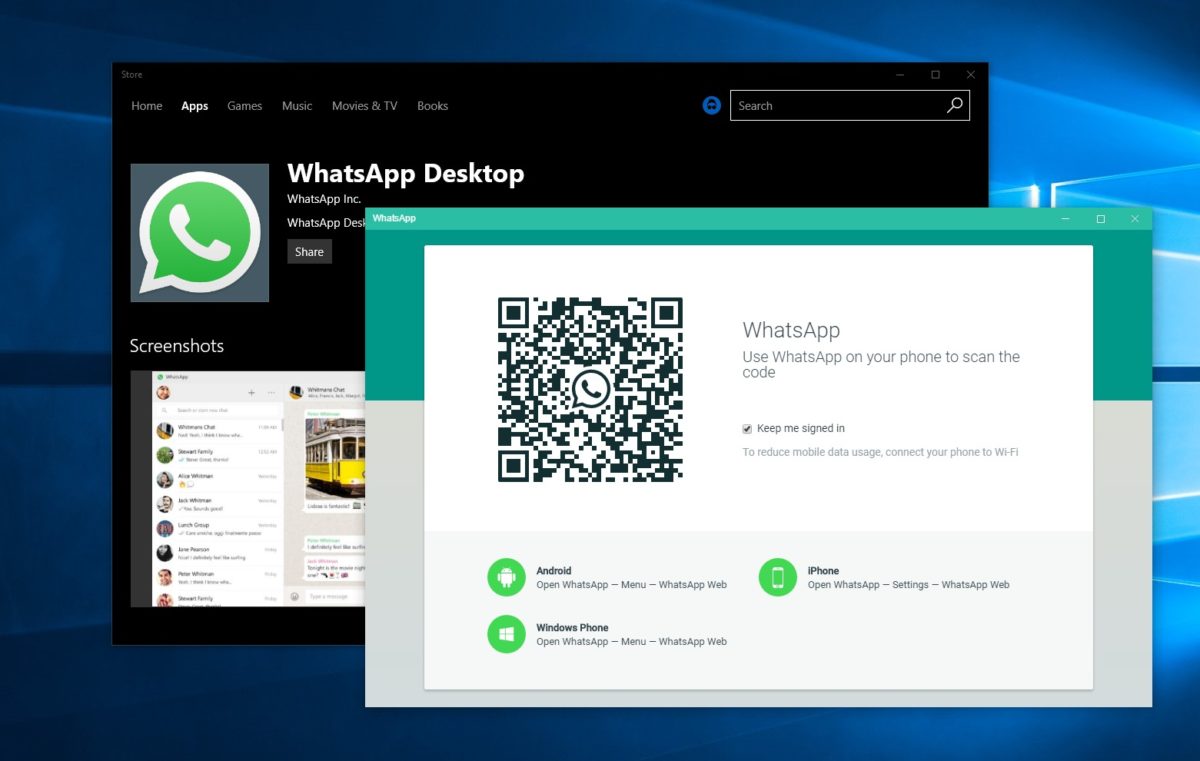
Using the BlueStacks App Player for Windows, it’s possible to install WhatsApp on your computer. This gives you the ability to send and receive WhatsApp messages without having to pull your phone out of your pocket.UPDATE: WhatsApp has come out with an easy way to chat from your computer. It’s called WhatsApp Web and you’ll need Chrome, Firefox, or Opera and the latest version of WhatsApp for Android, BlackBerry, and Windows Phone. Learn more about WhatsApp Web and how to use it here. If you prefer to download WhatsApp on your computer, have a look at WhatsApp for PC instead!
[materials]–>

How to install WhatsApp on a PC

To get WhatsApp on your computer you first need to download and install BlueStacks App Player. This is a free program that emulates Android applications on your PC. You can use it to run many Android apps and games through a windowed interface on your computer. Don’t worry, it’s very easy to use, as you’ll see.

The next thing you’ll need is a mobile phone number. This is used to verify your account and the app looks at your mobile phone contacts to find out which are using WhatsApp. If you already have WhatsApp installed on your phone it won’t work, since you can only run one instance of the app per phone number.

<!–[/materials]

–>

[body]–>

Setting up BlueStacks

Once you’ve installed BlueStacks App Player you’re ready to get WhatsApp onto your Windows PC. Here’s how it’s done:
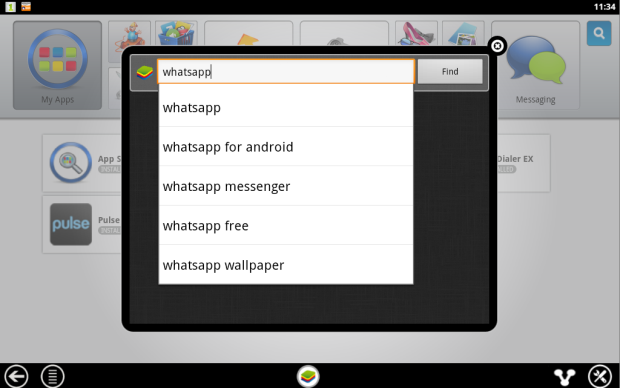
1. Click on the App Search icon in BlueStacks and perform a search for “WhatsApp”. Click Find.

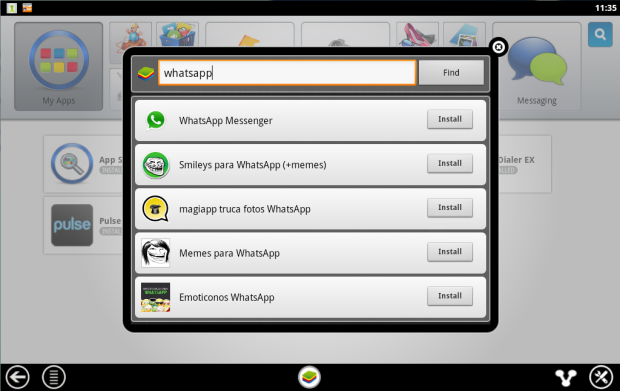
2. In the results list you should see WhatsApp Messenger as the top result. Click Install.

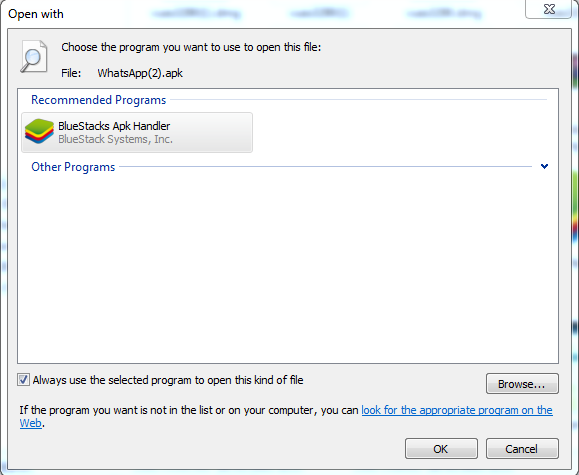
3. If you can’t find WhatsApp Messenger in the BlueStacks search, or if it won’t install, go download the WhatsApp APK file from the official site. Right click on the icon once downloaded, select ‘Open with…’ then choose BlueStacks Apk Handler. Click OK and WhatsApp will be installed in BlueStacks.

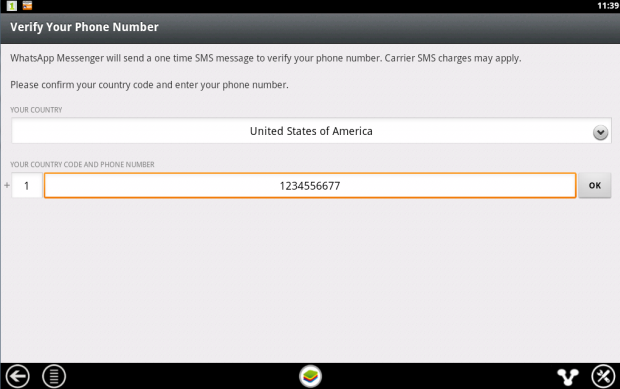
4. Once installed, clicked the WhatsApp icon in BlueStacks to launch it. When you run it for the first time you’ll be asked to verify your phone number. Select your country followed by the phone number you want to use for WhatsApp.

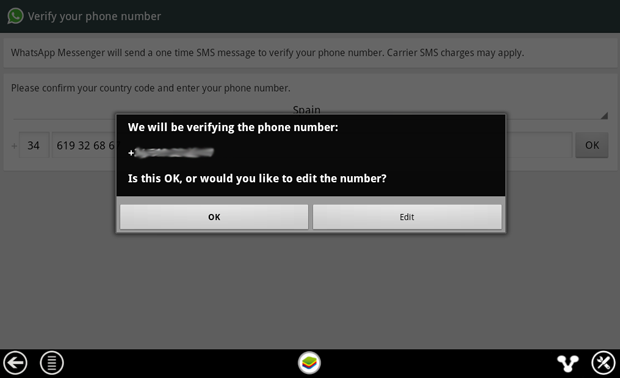
5. When confirmation of your number comes up, make sure the number is right then click on OK to proceed.

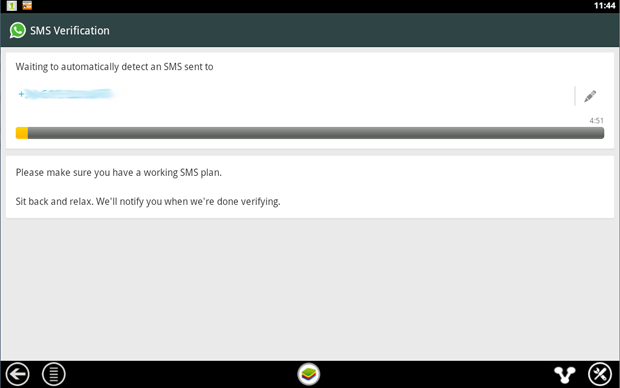
6. WhatsApp will now attempt to send you an SMS verification message. This will fail but you need to wait until it’s finished anyway.

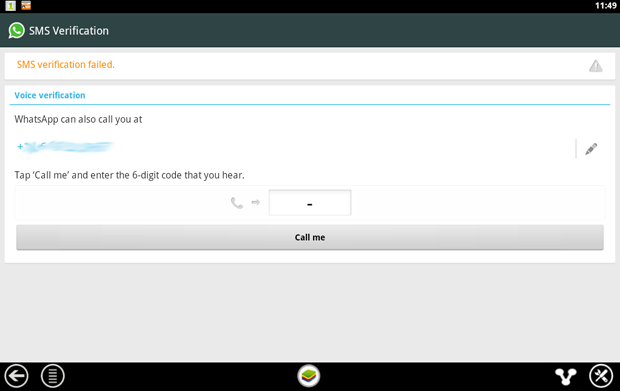
7. When the SMS verification fails, you’ll be given the option to be contacted by phone with the verification code. When you click the Call me button your phone will ring after a few seconds and a recorded message will read you the code. Type this code into the space provided.

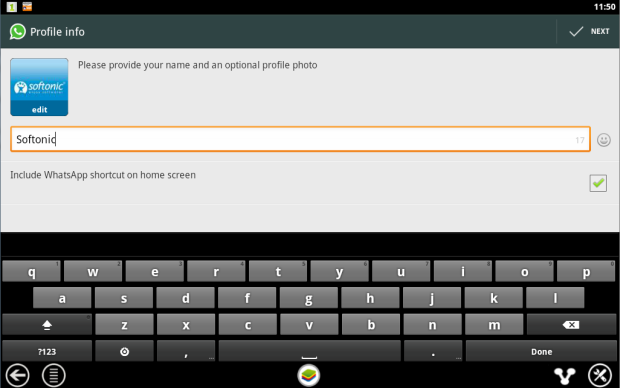
8. When you’ve correctly entered the code you’ll be prompted to set up your profile information. Enter a name and add a profile picture if you like.

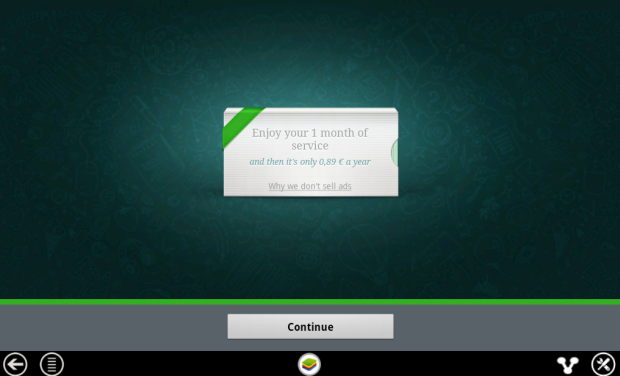
9. You’ll be reminded that WhatsApp is free to try for a month, after which time you need to pay on an annual basis.

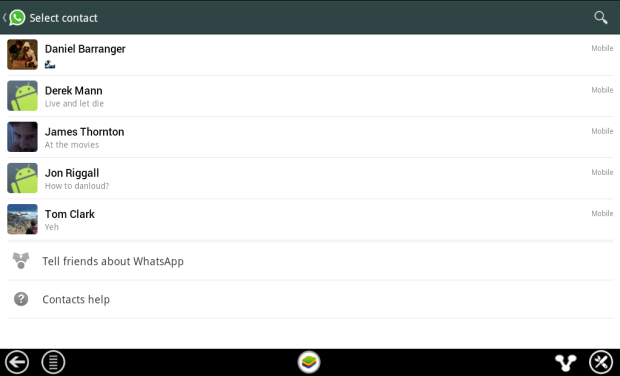
10. After clicking Continue your WhatsApp contacts list will be loaded. This is based on your phone contacts (on the number you used) who have WhatsApp installed. Click on a contact to start chatting to them.

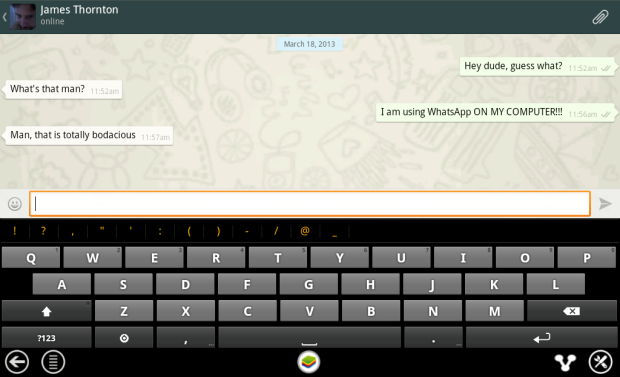
11. Now you can chat away to your contact on WhatsApp, in just the same way as you would on a mobile device. You can switch between the keyboard and emoticons using the icon next to the message input box.

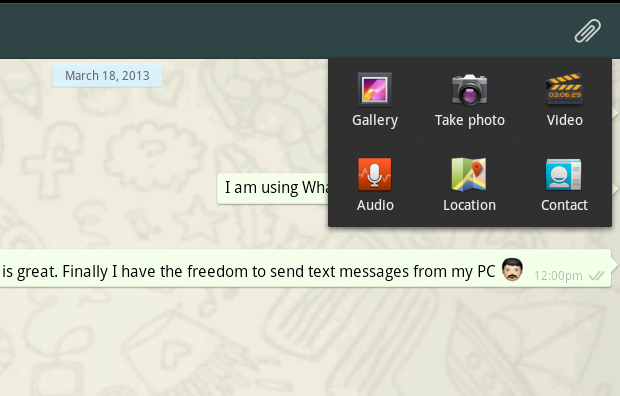
12. It’s possible to use some of the file sharing features of WhatsApp on your PC. In our tests we were able to send photos, video and audio. To send files using WhatsApp click on the paper clip icon in the top-right corner.

<!–[/body]

–>

Conclusion

There you have it! That’s how you can run WhatsApp on your PC. While it might be a work-around, it performs well and will tide most users over until WhatsApp decides to release a desktop client.

How to activate and deactivate roaming on your phone

Among all the things you have to keep in mind when traveling, taking your smartphone with you is usually near the top of the list. You always want to stay connected, not to mention the powerful cameras on smartphones that are now substituting for the real thing, and of course, not getting lost with the help of Google maps and guidebooks. But there’s one thing you’ll want to be wary of: roaming charges.

What is roaming?

Although the concept of roaming is more extensive and covers all types of wireless technology including Wi-Fi networks, in this case, roaming refers to the usage of another network’s coverage areas.

World map

With roaming you can communicate from any country (Image: Wikipedia)

Basically, if you have a cellular contract with a company in your country and you want to go abroad, in order to make a phone call, send messages, or use the Internet with your 2G, 3G, or 4G connection, your phone has to use connections available from local providers.

The technology is useful because it allows you to use your phone and your SIM card in other countries very easily but it’s a double-edged sword; it may turn out that your phone company’s roaming rates are high, resulting in an huge phone bill.

How do you enable and disable roaming?

There are two ways to enable and disable roaming on your mobile device. One way is to talk to your network provider, and the other is to configure it manually in your phone.

If you’d prefer not to do it manually, have a look at your network provider’s official website or call its customer service number. Sometimes the service is enabled by default, otherwise, you’ll have to ask them to turn it on. The same also applies in the opposite case, if you want to disable it.

Below, I’ll show you how to disable roaming on your Android, iPhone, Windows Phone, and Blackberry.

Android

To check whether you have roaming enabled or disabled on your Android phone, go to Settings > Wireless & networks > More > Mobile networks and look to see if the data roaming option is checked or not.

Make sure you un-check it if you don’t want to use roaming. To be sure, you should also un-check the Enable Data option.

Enable data

Another interesting option is to limit the consumption of mobile data to avoid getting a shock when the bill comes. Go to Settings > Wireless & networks > Data usage and enable the Set mobile data limit option. You can then set the limit in the chart displayed below.

Limit data

If you’re with a network provider that offers affordable roaming rates, you need to go to the same section, Settings > Wireless & networks > More > Mobile networks, and then Network operators. After scanning for networks, it will show the available network providers.

iOS

To disable roaming on your iOS device, whether it’s an iPhone or an iPad with a 3G connection, you need to go to Settings > Cellular and disable the Cellular Data and Data Roaming options.

iOS data settings

When using roaming, you can restrict which apps use mobile data to save on your bill. From the same section, Settings > Cellular, scroll down until you get to the Use cellular data for section.

Here, you’ll see a list of apps that use the Internet. Un-check those that you won’t need on your trip (especially games). The apps will still work, but won’t send or receive data.

iOS apps using data

Another possibility is that you already know which network provider offers the cheapest roaming service. In that case, go to Settings > Carrier and you’ll be able to select a specific network provider. Simply disable the Automatic option and wait to see the list of available operators in that area (it can take up to two minutes to display the full list).

Windows Phone

Using a Windows Phone, you can also enable and disable roaming.

To do this, go to the the application list and then go to Settings > Mobile Network and SIM > Data roaming options.

BlackBerry

From the Home screen, go to Settings > Network Connections > Mobile Network.

If the Mobile network selector is O, change it to I, and in the drop down menu that appears, change the Data roaming services option to O (off) or I (on).

Roaming is easy to control

As you may have seen, enabling or disabling roaming on your smartphone is relatively easy, although it’s not as apparent in the phone settings as you may have expected.

The quickest way is to directly configure the device (via calling customer service or using manuals on the official website), provided that your network provider gives you the option.

In any case, if you don’t need this service, disable it. If you do need it, try to bring down the cost by using only the apps you really need for your trip.

Related Articles

How to use Google Maps offline on Android

Google is tracking your every move but you might want it to

Why Lyft isn’t a glorified taxi service

Follow me on Twitter: @gilead1984

How to display Unicode languages in Windows

Languages like Chinese, Korean, and Vietnamese, based on symbols as opposed to letters, can frequently run into display issues on Windows.

Displaying these language symbols requires a standard system called Unicode, which according to Wikipedia, “is a computing industry standard for the consistent encoding, representation and handling of text expressed in most of the world’s writing systems.” The standard includes a big set of languages including right-to-left scripts like Arabic.

If you want to display foreign languages in Windows, however, the operating system isn’t always the problem. Some programs aren’t designed to display different languages. On the web, browsers take encoding information from the website, but if the browser can’t read the correct information, then Unicode won’t display properly.

This doesn’t mean that you can’t display them though. To get Unicode to display in Windows and your browser only takes a few steps.

Windows Region Settings

A frequent problem is programs that don’t support Unicode, but making it work is actually quite simple.

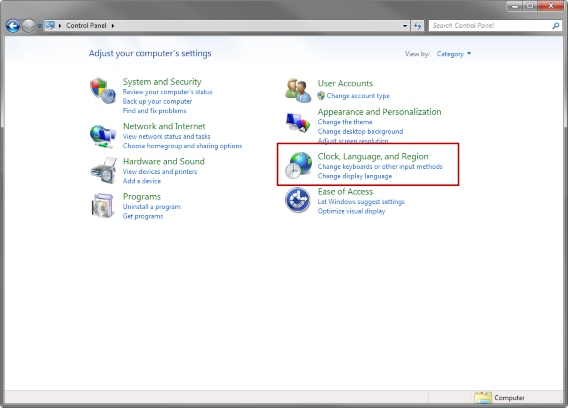
Go to Control Panel and locate Clock, Language, and Region.

windows control panel clock language and region

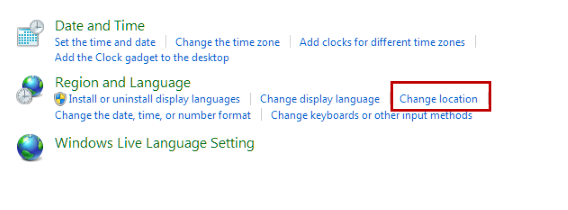
Select Change location.

Change location

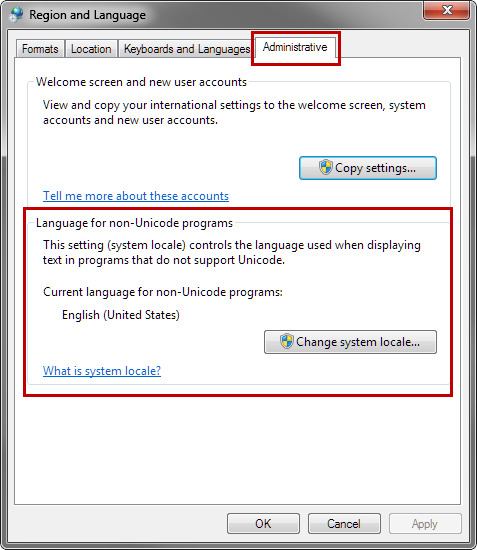
The Region and Language menu will open. Choose the Administrative tab. In this tab, you’ll see Language for non-Unicode programs. Select Change system locale. Note that you need to be the administrator to change the system locale.

Region and Language

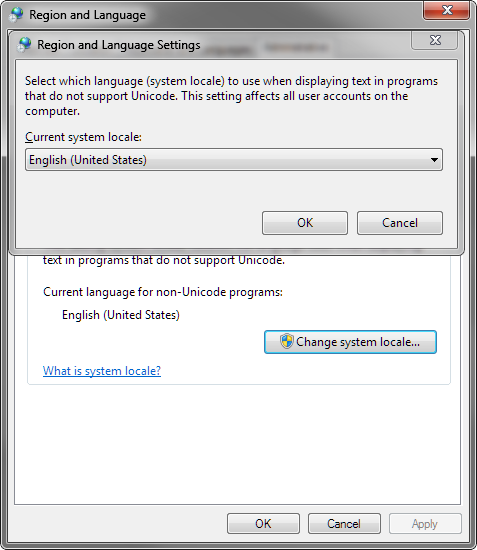
Choose the appropriate location for the language you want to display. You may need to restart Windows for the changes to apply. Now, you should be able to view the language that wasn’t previously displaying in the program.

Region and Language Settings

Generally, you won’t ever need to change this setting for recent programs, but older programs may have problems.

Check out the video tutorial below for changing language in Windows 8.

Default player

brightcove.createExperiences();

Google Chrome

If you upgraded to Chrome 64-bit, there may be a bug within Chrome that’s causing errors when displaying Unicode. I found this problem when trying to read Korean. The fix that appears to be working is disabling DirectWrite within the developer section of Chrome 64-bit.

If you’re using an older version, you may still have some problems, but here’s how to display Unicode within Chrome.

Auto-detect encoding in Chrome

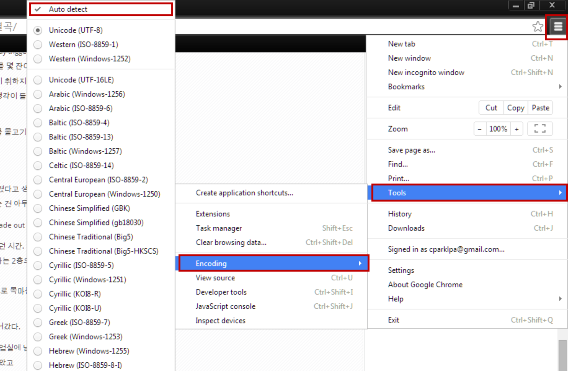
Chrome has built-in support for a lot of languages, and it can get annoying to switch between them. The best option is to set Chrome to Auto detect language encoding. Follow this flow to select the auto detect option:

Chrome Menu (three bars) > Tools > Encoding > Auto detect.

google chrome auto detect encoding

This can impact Chrome’s speed because it has to check every site you visit, but it shouldn’t get to the point where you notice a huge drop in performance.

Mozilla Firefox

Recent versions of Firefox don’t have direct options to control Unicode. Instead, the browser can allow sites to choose their own fonts. This is active by default, but here’s how to make sure the option is enabled.

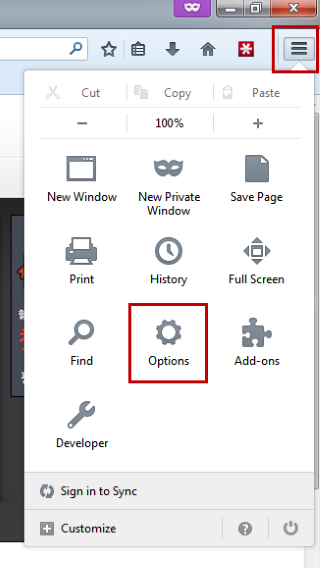
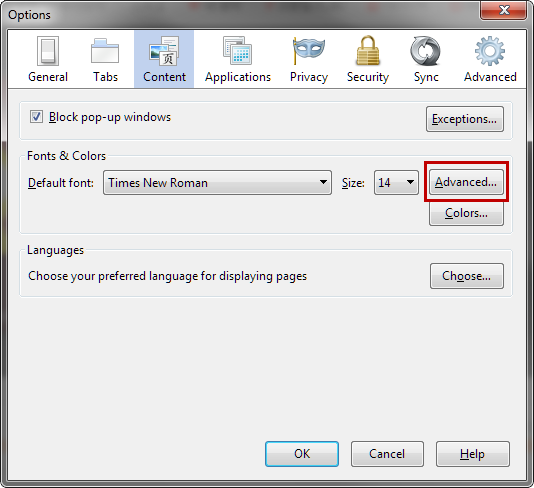
Select the options menu (three bars) and click on Options. Under the Content tab select Advanced.

firefox options

Under Advanced is the Fonts option, where you can set default fonts.

firefox options content advanced

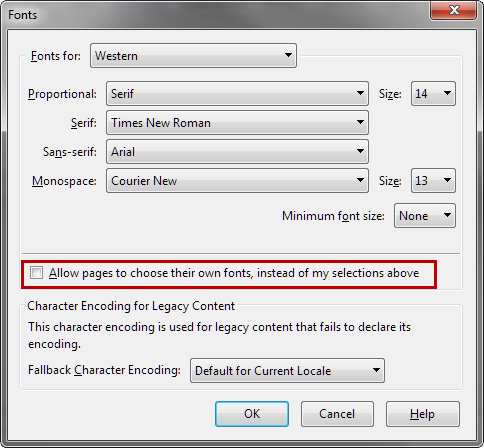
Under the set of fonts, check to see if Allow pages to choose their own fonts, instead of my selections above is selected. If that option isn’t checked, Firefox will display the fonts selected above that, which can make pages display incorrectly.

firefox options content advanced choose your own fonts

With the option selected, Firefox will display the site’s fonts. In the case of Unicode, Firefox should be able to display any Unicode fonts that exist.

Internet Explorer

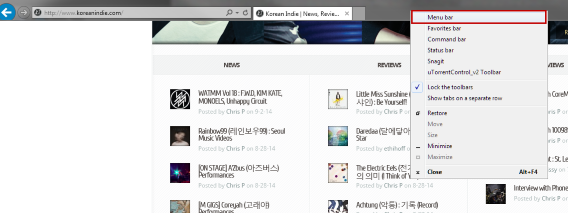
If you use Internet Explorer, then you have a similar option like in Chrome. You will need to use the Menu bar, which isn’t shown by default in Internet Explorer 11. Enable the Menu bar by right-clicking with the mouse in the header.

internet explorer menu bar

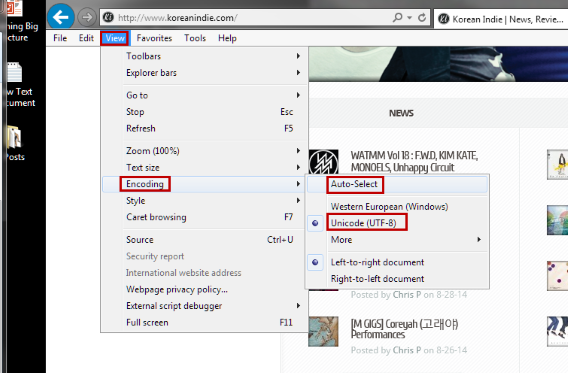
Click on View, then find Encoding. By default, Internet Explorer 11 has selected Unicode (UTF-8) and that should cover most languages. If you ever run into a problem, you can enable Auto-Select. This option will automatically choose the correct encoding for the page.

internet explorer menu bar view encoding auto select

Unicode compatible

Unicode isn’t something people think about if they view the same pages all the time, but if you know another language and browse other sites, you can run into this problem. Although most programs support multiple languages, and web browsers are designed with Unicode support, the problems can emerge with older programs or sites that don’t push the right information.

You shouldn’t have issues with Unicode if you’re running the latest software, but there are always possible problems like the case of Chrome 64-bit. Make sure that when you update your browsers, you check the settings to make sure they aren’t changed, or you could run into problems.

Related Articles

What you need to know about syncing photos in iCloud

Office Tip: access your Word, PowerPoint and Excel documents online

Stop ignoring Android app permissions

Follow me on Twitter: @chrislikesrobot