
Scam apps are all over the Play Store

The Google Play Store is packed with dangerous apps. Here’s what to look for.

scam apps

At the end of last year, the App Store and the Play Store removed a fake Alexa set-up app that was stealing users browser history and sending data to an unknown Chinese server.

We also recently posted an article covering the fraudulent GPS apps lurking in the Play store, and popular apps like WhatsApp and Fortnite are repeat targets of scammers trying to get a cut of the action.

Suffice to say, users from both the Apple and Android sides of the aisle should tread carefully when it comes to downloads.

Scam apps have long been a problem, yet, it’s difficult for the platforms to get ahead of these bad actors.

Widespread ad fraud

A few months back, Buzzfeed published an article that revealed a massive fraud ring in the Google Play Store. A company, called, We Purchase Apps was responsible for stealing millions in ad revenue. The story broke back in October 2018, and it looks like the company has since taken down their website.

And then there are instances like this one involving Cheetah Mobile and Kika Tech in December 2018. It was discovered that the two popular apps were engaging in ad fraud, by way of three malicious SDKs: AltaMob, BatMobi, and YeahMobi.

In this case, the scheme was something called app install attribution abuse, which means SDKs fake the number of new downloads to receive the payout from the developer. Google did remove the apps in question, demanding that they remove the SDKs.

It’s easy to ask why Google doesn’t just pull these apps automatically and inform consumers of fraudulent activity. But the sheer volume makes this a near-impossible task. Mobile attribution firm, AppsFlyer looked at 17 billion app installs spanning 7,000 apps globally. According to their findings, more than a quarter of those apps have engaged some form of install fraud.

The reason is, anyone can create and upload an app — and with so many amateur developers competing for space on the platform, there are plenty of opportunities for scammers to slip through the cracks.
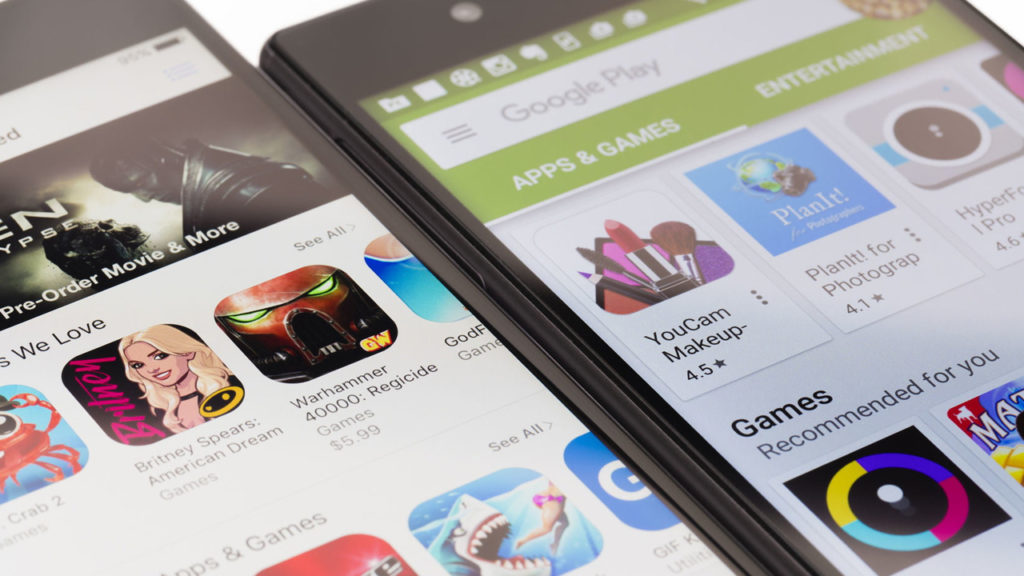
A look at some of the biggest Play Store scams in recent memory

Fortnite fakers

Like WhatsApp, scammers are capitalizing on another one of the biggest apps in the game; Fortnite. Fortnite is a prime target for scammers, as the app is free and can be played across game consoles, phones, and PCs. While scams have spanned a range of mediums—the Play store has been walloped by fake apps.

One example is this Google Play app that claimed to help users earn free V-Bucks. As you can see in the image below, the scammers benefitted by including a link that “automatically gives the app a five-star rating.” That skewed results and prompted more downloads.

fortnite android scam

Navigation apps

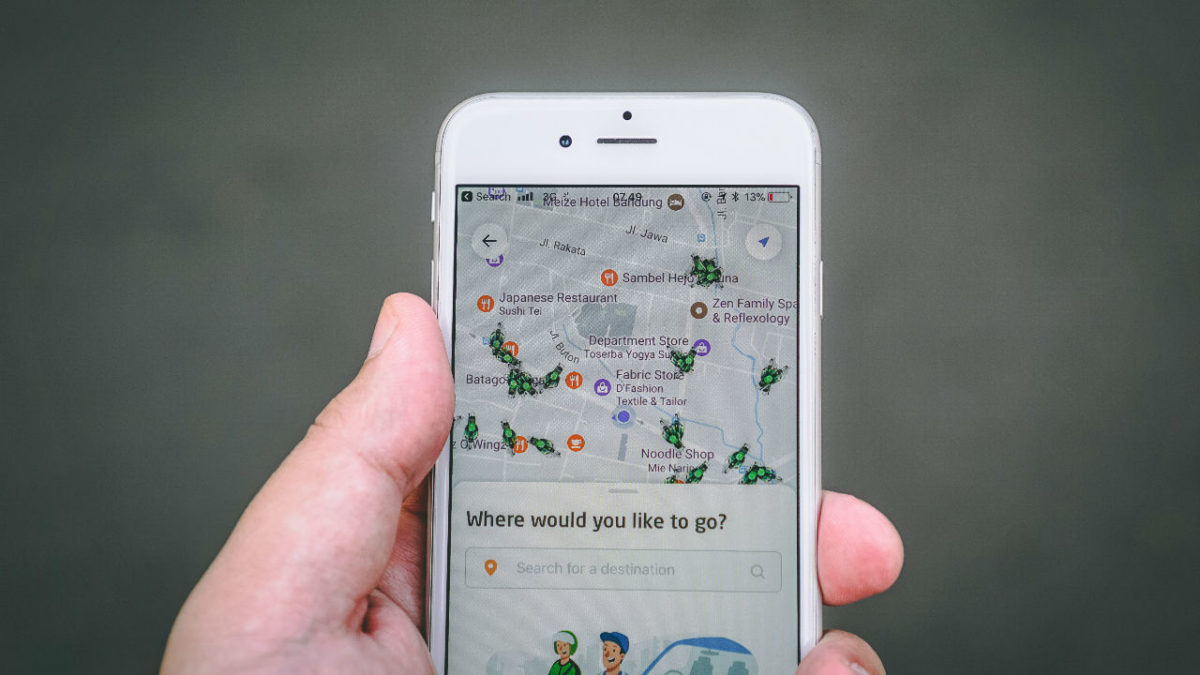
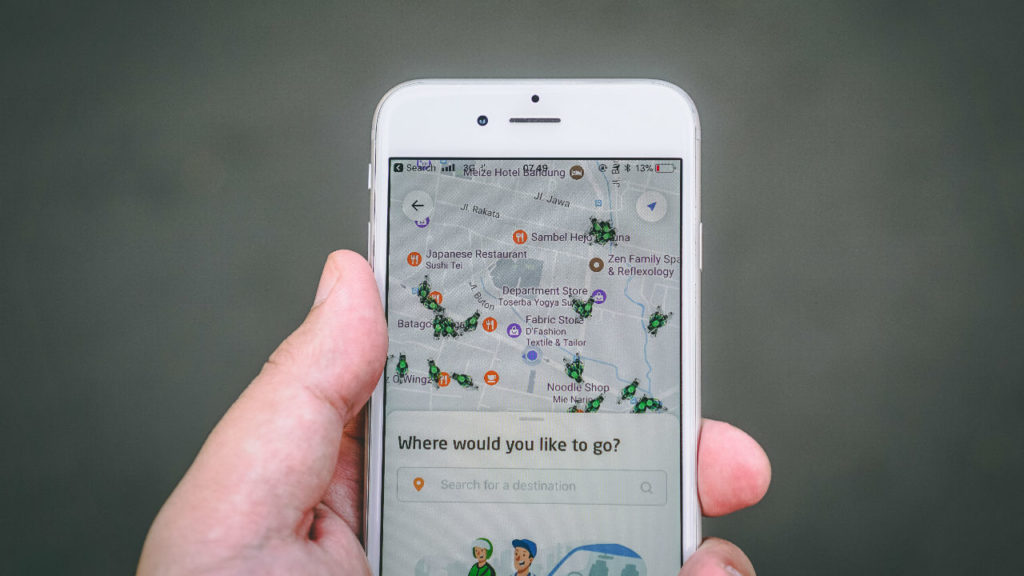
Researcher Lukas Stefanko of ESET found that the Google Play Store is loaded with navigation apps that pass Google Maps off as their own, then run ads over the program. Stefanko says that creating these fake apps is easy — all scammers need to do is add a small modification and they can start making ad revenue.

While the problem may be more of an issue for advertisers, consumers have found that the apps ask for a lot of information that has nothing to do with the program.
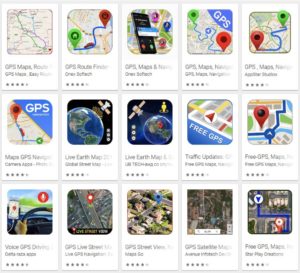
fake google map fraud

Fake WhatsApp

Over a million people were tricked into downloaded fake Android apps posing as WhatsApp. Initially, the fraudulent app was called “Update WhatsApp,” then it changed its name to “Dual Whatsweb Update” when users started to catch on.

Battery saver and performance booster fakes

battery saver apps

Many of the fraudulent apps currently lurking in the Play Store are apps that claim to save your battery charge or boost performance by freeing up RAM.

These apps are BS. They don’t do anything except give you a little animation to look at;  a technical representation of how “hard” the tool is working to generate more power.

Avoid these so-called performance boosters, as their advertised benefits are things your phone does automatically.

Apple users aren’t off the hook

Sure, Google might get more attention for their massive collection of scammy Android apps, but the App Store has its own share of problems.  One example is a Touch ID scam, a tactic that asks for your thumbprint or Face ID to authorize charges that, according to Wired, range from $90 to $120 each.

There have been several instances of these scams showing up in fitness assistant or health-focused apps, like this heart rate monitor or a since-removed app called Fitness Balance.

Tips for staying safe while shopping Google Play

The common wisdom for Play Store installs is; don’t download anything from malicious third-party apps. Unfortunately, fraudsters are becoming increasingly sophisticated.

These days you’ll need to be more careful; try the following preventive measures to lower your risk of installing infected apps:

  • Make sure you download from reputable sources only. Okay, duh. But, just a reminder: the top search result is usually the “official” version of the app you’re looking for. Double-check that the official developer posted the app. Additionally, add-ons or “cheat” apps like the Fortnite example from third-parties are especially risky, so be extra careful with these.
  • Read the reviews. Chances are, an infected app will have some low ratings, along with several bad reviews.
  • Do not change any security settings or root your device.
  • Use a reputable anti-virus scanner. While PCs are the usual malware victims, hackers can also break into your phone.
  • Check app permissions before downloading. Make sure permissions make sense. Granting access to sensitive data should be a red flag, so just double check that the fine print seems within the normal range.

Remember that you can also download apps from Softonic’s catalog as well, and we ensure that the apps we carry are free from any malware. Stay safe out there!


7 ways to stay inspired when you are your own boss

Do you work alone? If so, these tips can keep you creative, balanced, and happy.

Working for yourself might seem like the ultimate dream. You make your own hours, wear sweatpants if you want to, and don’t live life dreading pointless meetings.

Your business, your rules.

But, being a model employee and running a tight ship isn’t always easy. It’s hard to stay inspired, motivated, creative, when it’s day-in, day-out, cranking out work on your own.

Below, we’ve compiled a list of seven ways to stay inspired when you work for yourself.

How to stay motivated when you work for yourself

1. Make time for reading

reading

Adding reading to a never-ending pile of to-dos may sound counterintuitive. Where is that time for leisure reading supposed to come from anyway?

Even 45 minutes or an hour spent reading a good book can do a world of good.

For one, if you’ve ever spent days on end writing a ton of content, you know that you’ll start to sink into the habit of using the same words over and over. Reading works in a different style than your own can help you pick up some new ways to communicate an idea — even if you’re not aware of it.

Reading business books or self-help books can be great sources of inspiration, but don’t discount the power of a good pleasure read.

Emory University’s Center for Neuropolicy published in a 2013 study that found reading changes the brain not only during the activity but afterward, as well. The study found that reading promoted heightened connectivity in the temporal cortex, an area associated with our ability to process language.

In turn, reading can serve as inspiration, no matter the genre or relation to your day-to-day work.

We should mention though, the way we read on the web — scanning in an F formation — your Apple news habit doesn’t offer the same benefits as reading an old-fashioned book.

2. Spend time looking at the big picture

Focusing on the zoomed out view can help you keep your head in the game. Revisiting your mission is super important. Long term, you should look at two things: what do you want to create with your business? And, second, how far do you want your reach to extend?

It’s easy to lose sight of primary goal when you’re caught up in the weeds invoicing, editing, or putting together spreadsheets.

3. Write down goals—and review them frequently

goals

Writing down smaller goals is a basic concept. But this is different than making your to-do list.

Instead, write down goals, along with a progress report or the steps that need to be completed.

The point is, do whatever it takes to keep your big picture items in view, documenting your progress, and making plans for your business in the long run.

4. Become a mentor

Spending a lot of time working alone can make you a bit self-absorbed.

Taking some time to help someone who is just getting started in their career can renew some of the passion that gets lost in the day to day shuffle — between to-do list items, calls, and demanding clients.

Whether you choose to hire an assistant, get an intern, or spend time with someone who needs a little extra help — this relationship can be mutually beneficial.

For them — they’re benefitting from your knowledge and experience. On your end, you’ll have access to a fresh perspective. You’d be surprised; rattling off ideas and listening to what the new blood has to say can be a powerful motivator.

5. Delegate or outsource to save time

delegating

Knowing when to delegate is a skill that all bosses need to nail. It’s essential for time management and allows you to focus on the stuff that matters.

You may have started out doing everything yourself, but you can’t be a master of everything, right?

Instead, you need to realize that growing your own business means taking the time to hire an assistant for your social media accounts. Or outsourcing a graphic design job for your new website.

By all means, do the things you love, but know that getting qualified help allows you to take your vision to the next level.

One reason that people don’t delegate as much as they should is, it’s hard to write a job description and create a system for deadlines, deliverables, and standards. As such, you should start by taking a day to create your own SOPs and writing them out — for each job type.

Things to do before hiring a helper:
  1. ID tasks and associated deliverables
  2. Who do you need to delegate tasks to? How many different people do you need to find?
  3. Where will you find people? Some roles may be filled by gig workers, while others may be better suited to a real-deal employee.
  4. Management plan — from communication to deliverables ownership, to payments, write out all of the specifics, according to each role that needs to be filled.
  5. Set a schedule for status meetings and updates. Communication is critical, and regular check-ins mean you have the chance to make corrections if your designer/developer/freelance writer/social media guru isn’t entirely on the same page.

6. Brainstorm/network/talk with others

When we ditch the old 9-5, we miss out on the positives of working in an office setting too. As much as it’s nice to do your own thing, there’s a lot of creativity that comes from working with other people or you know, just chatting.

With the rise of social media and all of these business tools that have made it easier to work from anywhere, we lose something in the process. Make a point of grabbing lunch with a friend, attending local Meetups or networking events, or reaching out to contacts in your industry.

7. Find a schedule that works

schedule

Some say the secret to success is waking up early. Others get their best work done in the dead of night after everyone has long been asleep.

Whatever your chronotype, your preferences, and so on — it’s essential that you find a schedule that works for you and your brain.

Set the start of the day and the end of the day at the same time and stick to it Monday through Friday.

You’ll start to understand the times of day when you’re most productive and from there, can structure your daily tasks according to that schedule. Second, working the same hours every day makes it easier to set boundaries with your friends and family, as well as your clients.

While freelancers and entrepreneurs don’t always have the luxury of on time and off time, working during the same hours each day also prevents that inevitable work-life bleed.

Wrapping up

Inspiration comes in part by being smart with how you spend your time. For example, if you fail to delegate the tasks that are boring or hard or just not your thing, you’re sapping your mental energy before you get to the “good stuff.”

Instead, making time for networking and mentoring means you’re exposing yourself to new people and perspectives, which can help you break out of a rut. Or listening to podcasts you enjoy, reading a few chapters of a book before you go to bed each night, or even taking on a new hobby — these things get your brain working in ways that don’t immediately seem related to your work.

In the end, these habits listed above work together to save you time and help you avoid burnout.

Top 5 apps to simplify your life

Feeling like your life is too cluttered? Try these great apps to simplify and streamline your everyday existence.

minimalism

Looking for a simpler life? We’ve compiled a list of apps that will help you cut out the extra things that you don’t need, streamline productivity, and move toward a less stressful year.

Top 5 apps for minimalists

1. Amount Plus

amount plus screenshot

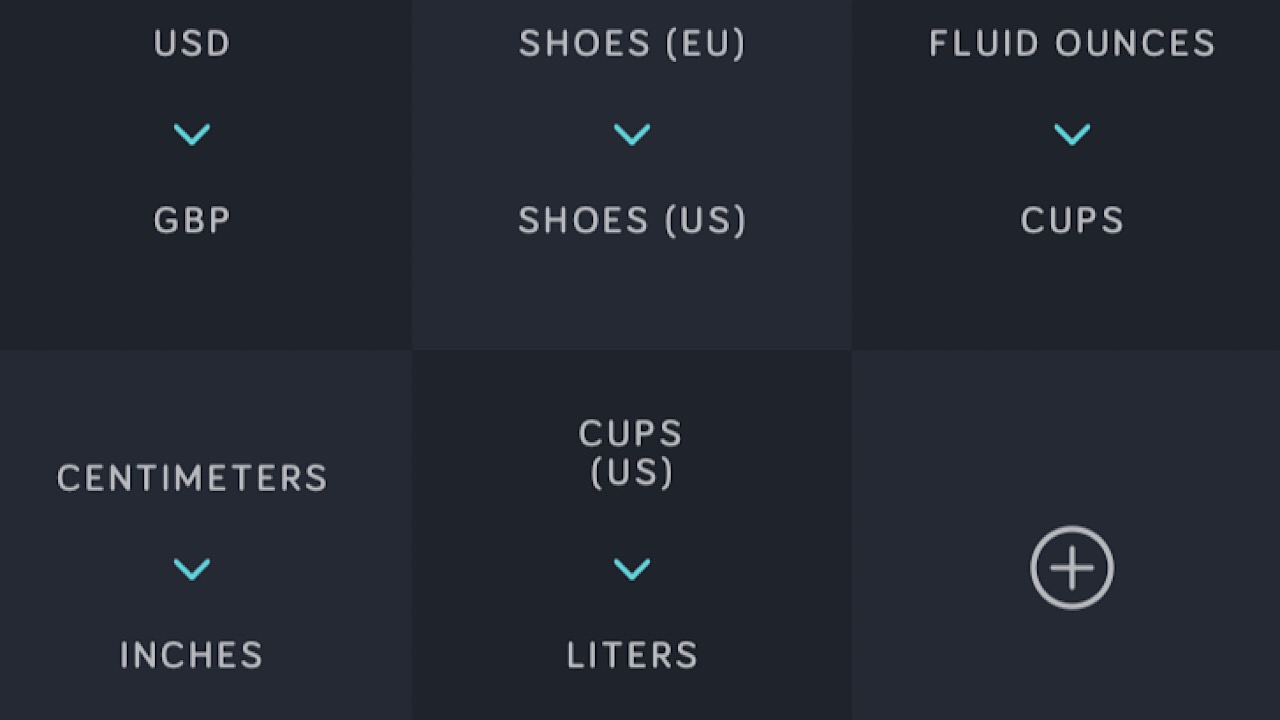
This is an app that everyone needs. Amount is a conversion app that you can whip out when you’re having a brain fart. The best part is that you can make shortcuts on the homepage for the conversions you use most. You can have your currency converter, European shoe size to American shoe size, and ounces to cups all in the same place. Toggle from day to night mode to make it easier on your eyes. Amount Plus comes in at only $0.99, so it’s definitely worth having. Available for iOS. 

Amount Plus - Unit Converter Download Now ►
8

2. MinimaList

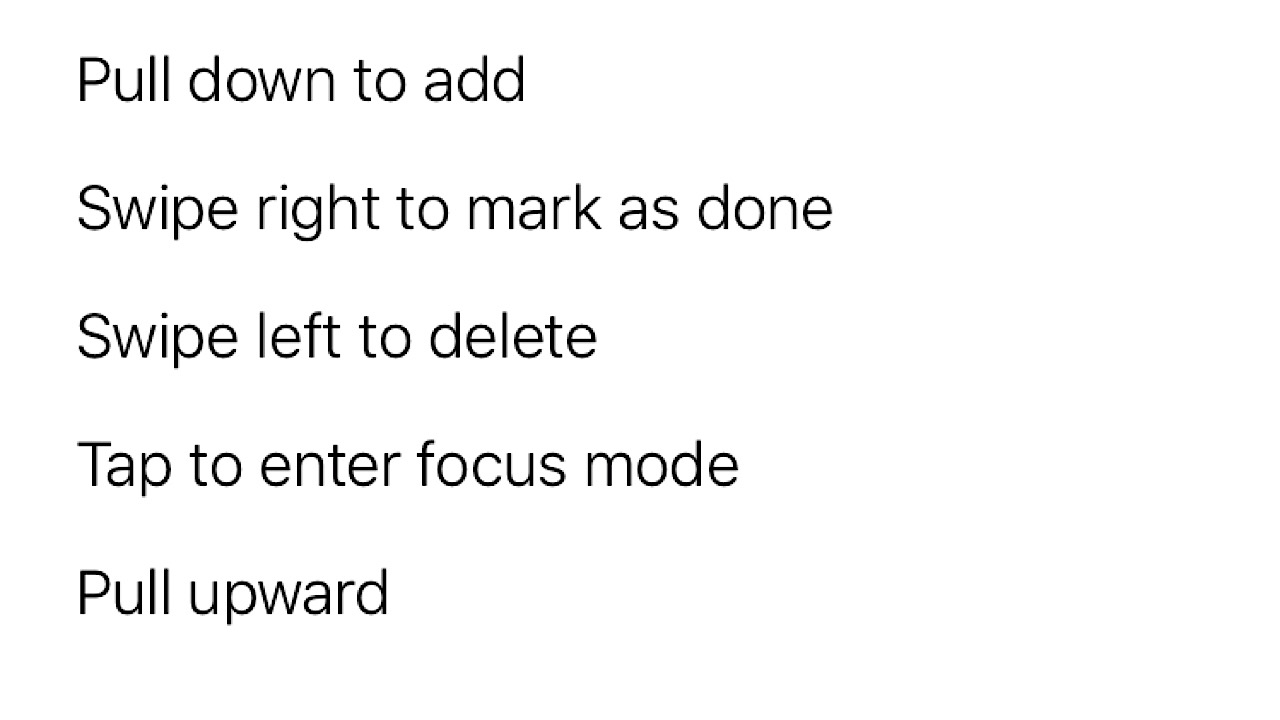
The most simple app for tasks that you’ll ever have. As soon as you open it, you’ll see only five steps you’ll need to navigate the app:

MinimaList screenshot

Create a task, mark when it’s finished, and delete it when it’s done and you want to make room for another task if you’d like. Add lists of tasks for today, tomorrow, and next week. You can even add a timer in focus mode so you don’t end up doing more than one thing at a time. For $2.99, you can get a lifetime upgrade and choose another font out of 8, or change the background color. Available for iOS.

MinimaList – To Do List, Reminder & Task Manager Download Free ►
7

3. Feedly

feedly screenshot

Stay in the loop without having to go open a lot of apps or visit a ton of websites. Feedly helps you concentrate your news sources into a few (or just one) customizable feeds, separated by industries like tech or politics. Name your ‘Comic’ feed, select from the variety of your favorite websites or apps for online comics, and add them to the feed. Every time you refresh it’ll show you what’s new with the sources that you chose. If you’re on the go but see something you’d like to read, save it to your ‘read later’ list. With the $8 per month upgrade, you can unlock features like unlimited feeds and Google keyword alerts. Media can be overwhelming, but with Feedly, it won’t be. Available for iOS and Android.

Feedly Reader Download Free ►
8

4. NoWaste

NoWaste screenshot

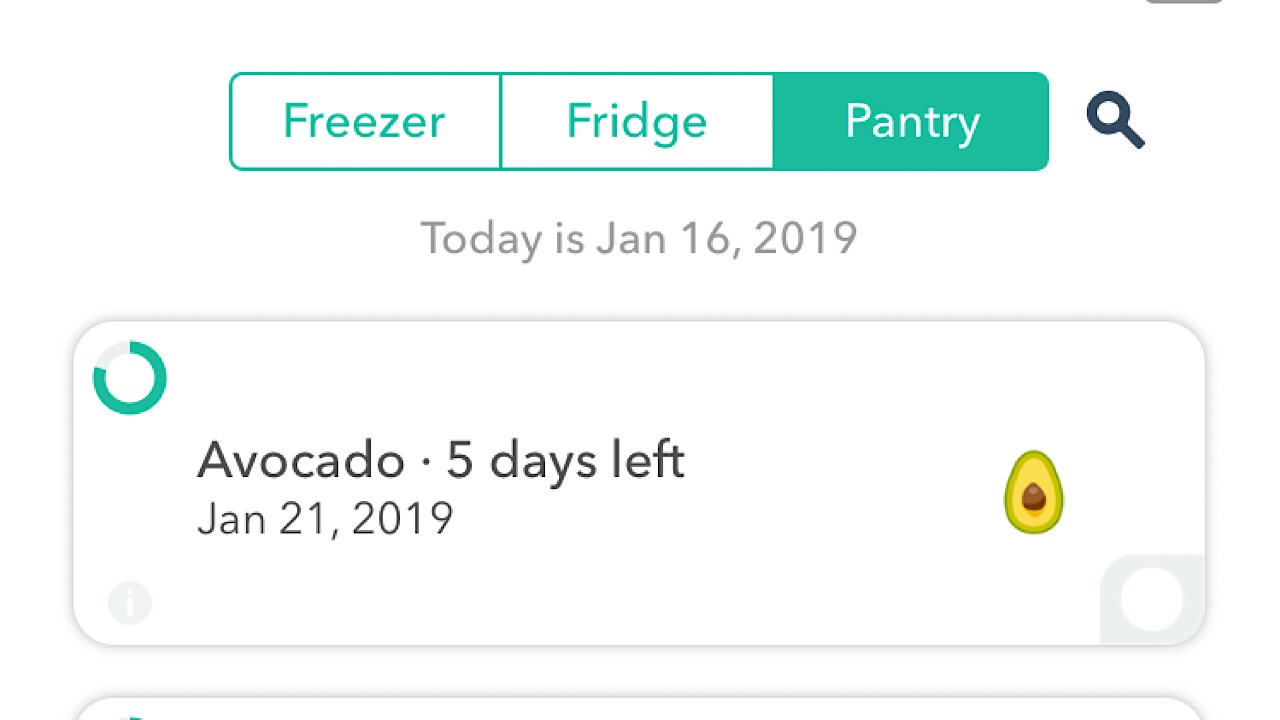
If you have issues remembering to eat food before it goes bad, NoWaste is a must have. Start by choosing the ingredients that you have in your pantry, fridge or freezer, then customize them by weight or amount. The app will automatically display how long the food will last before it spoils, so when you’re putting away your groceries, make sure to add them to the app. Every few days you can check and see which foods you should whip up into a meal so you don’t waste them. A lifetime upgrade is $5.99 and you can set expiration alerts, and create a meal plan so your family will keep their paws off of the shrimp that you’re using for dinner tonight. Available for iOS.

NoWaste - Food Inventory List Download Free ►
7

5. Minimalism Amino

Minimalism amino logo

Amino is an app for groups, and the Minimalism Amino is a group where you can chat with other minimalists on all things minimalism. Contribute to the conversations already created, or make your own chatroom within the group. This is a great place if you’re just starting your minimalist journey, or if you’re wondering about a better way to cut down on something. Join challenges to see how well you can do with food waste in 30 days, or reach out to a minimalism veteran if you’re feeling stuck or have fallen off the wagon. Available for iOS and Android.

Minimalism Amino Download Free ►
8

Making things more simple by cutting out some of the things that you think are necessities can be difficult, but try out a few of our suggestions and we can promise that you’ll be walking down the path to decluttering your space and your mind in no time.


Learning to say no

Have trouble saying “no”? Here’s how to get better at rejecting requests.

People pleasing isn’t a trait worth celebrating.

Many of us have trouble saying no — and that tendency doesn’t represent niceness, so much as a reputation as a pushover or someone who can be taken advantage of.

If you haven’t learned to say no, chances are, your emotional health might suffer in the long run. When you’re always going out of your way to make others happy, you’re not giving yourself a chance to be at your best.

And, you’ll be up to your gills in extra work and extra social activities you’d just as soon skip out on.

How to say no to people

how to say no

Why is saying no so hard?

Saying no seems like such a small thing. But, boy, can it be tough to employ those two tiny letters in certain moments.

We live in a culture that values a great big yes. The reason is, we’re social creatures. Humans thrive when we give and we get — and as we’ve evolved from being hunter-gatherers and traders, asking people for favors and doing them in return is what reciprocity means in a modern world.

One theory is, saying yes (even when we really don’t want to) is a means of putting off discomfort. Psychology Today says the difficulty stems from our desire to be accepted by our peer group.

We worry that if we don’t lend a hand or do a favor, we’ll be punished by the people we care about. At work, this translates to a fear of missing out on opportunities or not being seen as a team player.

Yeses lead to burn out

Jonathan Becher wrote an article for Forbes about the power of saying no. It’s essentially a roundup of quotes, but it’s a good source of inspiration for those who feel trapped in a cycle of saying yes. A favorite quip comes from Steve Jobs — focusing is about saying no.

If you feel overcommitted, it’s important to know yourself well enough to figure out what’s going to push you over the edge. Remember that no doesn’t need to be nasty — it’s about self-preservation.

Learn to figure out if someone is taking advantage of you

Sometimes people need help, others are trying to take advantage of you. It’s important to know the difference. Master manipulators might use flattery to get you to do something they don’t want to do; “you’re so good at X thing, can you help me with X project?”

These people will attempt to pressure you into taking on a project without any regard to your schedule or whether or not this is something you want to do.

If you encounter this kind of behavior, it’s important to remember you have a choice. Be firm and get out of the conversation as fast as possible.

saying no to extra work

Preparing for a “no”

While it sounds a little silly, it might be worth doing a little assertive role play at home. Here are a couple of ideas that might help you get more comfortable with the word, “no.”

Keep some stock phrases on hand
  • I appreciate your asking me, but no thanks.
  • Thanks for thinking of me, but I have too much on my plate right now.
  • No, thanks!
  • I’m booked solid, wish I could help
  • Sorry, I can’t.
  • I’d rather not, thanks.
  • I think I’ll pass.
Practice at home

Psych Central has a few good tips for saying no, some of which include practicing at home. The article mentions practicing in front of a mirror and reciting your predetermined phrases.

They also recommend talking back to commercials — saying no “I won’t ask my doctor about trying a new drug.” etc. It sounds silly, but the idea is, you’ll start feeling more confident as you hear yourself talking back more often.

Don’t add too many details to your response

If you want to say no, do it. But, there’s no need to tell this long-winded story about why you can’t. Otherwise, it feels like a lie. Keep it simple and use phrases like “I appreciate you asking me for help, but I just don’t have the capacity right now.” Or, “sorry, that day doesn’t work for me.” Be firm and strong in your response.

You’re not asking the other person for permission to get out of the situation at hand — the choice is yours.

Sleep on it before coming up with an answer

Few requests demand an on-the-spot answer. Keep that in mind before an enthusiastic “Yes, I’d love to” crosses your lips. Often something seems okay in the moment, only to turn into dread just as you’ve got a chance to think about what this new commitment actually entails.

Give yourself a chance to think about the request by saying something like “let me think about it” or “I’ll get back to you tomorrow.” This allows you to weigh the request against your existing schedule. You’ll need to check your calendar anyway to ensure you’re not overbooked.

With these tips, we hope you’ll learn how to assert yourself, protect your boundaries, and have healthier relationships. Good luck!

5 video games that have actually killed people

Discover the weird, terrifying ways some players have died because of video games.

Though gaming may seem like a pretty safe hobby, the reality is that playing video games can be seriously dangerous and detrimental to your health… and sometimes, even fatal. Hard as it may seem to believe, cases exist from all corners of the globe detailing gamers who have died while playing video games. The question is… what games could possibly be capable of killing their players? Here’s our list of some of the world’s most dangerous games.

The 5 deadliest games

5. Berzerk

berzerk arcade game
Image courtesy Atari

The first recorded case of a video-game related death dates back to the 1980s. Jeff Dailey, a 19-year-old gamer, hoped to make history by posting a high score in the arcade game Berzerk. Berzerk involved players controlling a human character, guiding their avatar through a maze-like arena while dodging incoming laser fire from opposing aliens. After a marathon session at his local arcade, Dailey posted a high score of 16,660 points immediately before suffering a fatal heart attack.

This story doesn’t end with Dailey, however. The very next year, gamer Peter Burkowski died in almost the exact same way, succumbing to a heart attack after making the high score list. Rumors still persist that some kind of curse hangs over Berzerk, but it seems more likely that the combination of the high-intensity game and marathon sessions led to the demise of the two teens.

4. World of Tanks

world of tanks
Image courtesy Wargaming

Twitch streamers are known for going to ridiculous lengths to attract viewers to their stream, such as the Fortnite streamer who recently dabbed for 10 straight hours. In 2017, World of Tanks player Brian Vigneault, also known by the username Poshybrid, had planned a similar marathon stream. His goal was to stream the game for 24 uninterrupted hours as part of an effort to raise money for the Make-a-Wish foundation.

Unfortunately, Vigneault only made it to hour 22. At around 3:30 on February 19th, Vigneault took a quick smoke break and never returned to the stream. Though most viewers assumed that Vigneault had simply drifted off, a friend who attempted to contact him later via Discord was informed by a detective that Vigneault had tragically collapsed and died.

3. Wii Fit

wii fit
Image courtesy Nintendo

It seems somewhat ironic that a game designed for fitness could be fatal, but that’s exactly what it was in the case of 25-year-old Tim Eves. According to friends and family, Eves was the picture of health, working as a scout leader and moonlighting as the drummer for a local rock band. Eves had recently returned to England from a trip to Portugal to celebrate his mother’s birthday. While hanging out with his girlfriend, Eves decided to get in a workout using WiiFit. As his girlfriend looked on, Eves collapsed during a jogging session and was later pronounced dead. His official cause of death remains uncertain, but his otherwise excellent health has led some to suspect Sudden Adult Death Syndrome.

Unfortunately, Eves isn’t the only person to have been killed by a Wii. As part of a contest held by a local radio station, San Francisco resident Jennifer Strange died after drinking and holding two gallons of water, hoping to win one of the consoles. She died due to water intoxication, and the station was slapped with a whopping fine of $16 million.

2. Halo

halo 3
Image courtesy Bungie

Halo is a classic franchise with die-hard fans, although a few have taken their passion for the sci-fi shooter too far. In 2007, teenager Daniel Petric attempted to murder his parents after they took away his copy of Halo 3. After his parents banned him from playing the game, he managed to access his father’s gun safe. Retrieving a handgun, he shot both of his parents in the head. Though his father survived, his mother tragically died, and Petric himself is currently serving a lengthy prison sentence.

In 2011, gamer Chris Staniforth was known among friends for his Halo fanaticism. He reportedly engaged in marathon sessions that would last 12 hours or more multiple times per week. Unfortunately, these lengthy sedentary periods led a blood clot to develop in his legs. The clot eventually came loose and traveled to his lungs, leading to Staniforth’s sudden and regrettable death.

1. Starcraft

starcraft
Image courtesy Blizzard

It goes without saying that Starcraft can be incredibly addictive, with sessions potentially lasting for hours at a time. Some people, unfortunately, don’t know when to call it quits, and Starcraft addiction has been the cause of more than one fatality.

The case of Lee Seung Seop is perhaps one of the more famous instances of a gaming-related death, garnering global publicity when the story first broke in 2005. After quitting his job and breaking up with his girlfriend, Seop went to an internet cafe in South Korea, where he began his marathon Starcraft session. He played from Wednesday straight through to Friday evening, reportedly barely eating and drinking and only standing to use the restroom. On Friday, after friends begged him to return home, Seop suddenly collapsed in his chair. His death was later attributed to a combination of exhaustion and malnutrition.

In China, a man died under similar circumstances, eventually passing away after playing Starcraft for an unbelievable 27 straight days. In similar fashion to Seop, the man reportedly subsisted solely on a diet of Ramen Noodles and barely left his chair over the course of the lengthy session.

Compared to other hobbies like extreme sports, playing video games is a relatively safe pastime. Like most other things, however, games should be enjoyed responsibly. While it may be tempting to lose yourself in the virtual world, proper diet and exercise are necessary to avoid meeting a tragic and avoidable end.

5 best mobile apps for playing Magic: The Gathering

These great apps can make your next Magic game even more fun!

With the release of Magic: The Gathering Arena, playing Magic online has become easy and common for fans of the game. However, this isn’t the only program that Wizards of the Coast has given us to make our Magic experience better. There are many mobile apps from both Wizards and third-party publishers that make playing Magic significantly easier. It can be difficult to manage your decks and tokens without a little extra assistance. These apps help you organize both your decks and the battlefield so you don’t have to worry about managing everything yourself. There are even apps to help you practice Magic when you don’t have many partners to play with. Here are some of the best apps out there.

Best mobile apps for playing Magic: The Gathering

Practicing MTG – Magic Duels

magic duels

While Magic has two primary ways to play its game on PC, there is only one legitimate way to play the game on mobile. Magic Duels is an officially sanctioned Magic app that functions very similarly to Magic: The Gathering Arena. You can play full games of Magic on your phone with this app. Although there are a few more AI options in the mobile title, the game essentially follows the same pattern as Arena by making you spend in-game currency on packs to get new cards. Magic Duels also has Steam connectivity, which means you can play it on your PC as well.

All in one app –Magic the Gathering Portal

This app is currently unreleased but has been announced by Wizards of the Coast with a limited beta coming at some point in the near future. An official release date hasn’t been set yet, but once released, this app will be a one-stop shop for all things Magic related. You can use it to easily look up cards, manage life totals, and even put together tournaments. You can find out everything this app promises to offer in the official announcement page for the app.

The goal of Wizards seems to be that you’ll only ever need Portal and Duels to manage your decks and playtime with Magic. However, until Portal is released, you’ll likely want to check out these third-party apps:

Playfield managment – Magic Life Counter

magic life counter

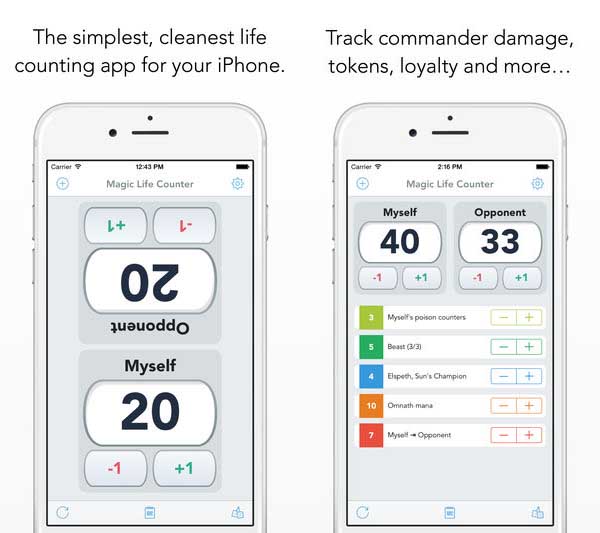
Currently, the Life Counter app is the best way to manage the battlefield without external items. As the name implies, this app’s primary job is to track the Life totals of each player. However, the app is capable of far more than just this. You can manage counters and buffs on the app as well. This way you won’t need any actual tokens to assist in your Magic games. It essentially is the precursor to Portal, since it will allow you to do all the same companion functionality aside from deck building and card-specific things. 

MTGLife Counter Free Download
7

Deck building – MTG Manager

MTG manager

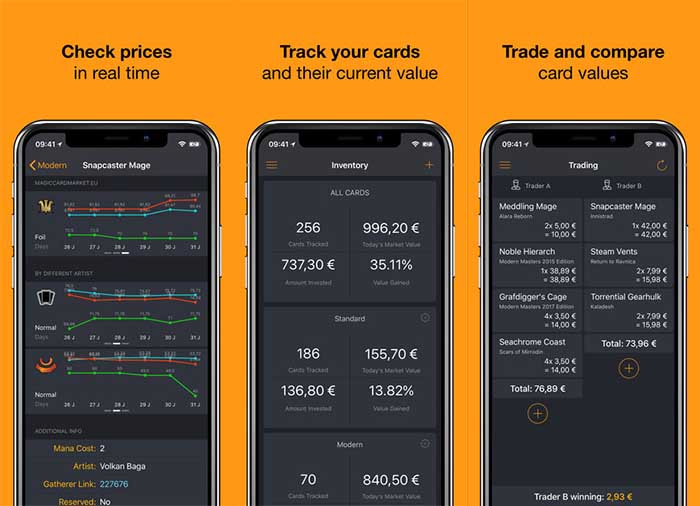
There aren’t as many Magic deck building apps as one might expect, given how popular the game is. However, MTG Manager is probably the best free one available. This app lets you scan your cards so you don’t have to go searching through a compendium to find the exact card you have. It will then tell you everything you need to know about that card’s history, and even what tournament formats it is allowed in. You can also still search through their compendium, in case you are looking for information on a card you don’t have, and are putting together ideas for future decks. With this compendium and scanning feature, you can manage the cards you’ve added to the app into different decks. You can then edit and search through these decks however you see fit. An ideal setup for anyone who has too many decks to manage on their own.

A premium alternative to MTG Manager is Decked Builder. This app has a small fee attached to it, but it provides an equally large compendium of cards, and an easier interface to follow.

Decked Builder Download
7

Tournament management – My Bracket

My Bracket

Despite being categorized as a “Sports” app, this is probably the best tournament app for Magic until Portal is released. It lets you completely customize your tournaments with options for multiple elimination rounds, reusable ladders, and easy readjustments. It also has one of the cleanest interfaces of any bracket app, which means you won’t have to worry about ads covering your screen the entire time you’re using it. Even though this app isn’t “Magic-specific,” it is currently the best app for planning a Magic tournament with your friends.

Each of these apps covers a different area of playing Magic. Whether you end up using all of them, or only a few, you’ll immediately notice these aspects of your Magic experience improving. Managing your deck and tokens can be a difficult process, especially for long-time Magic players who have hundreds of cards. Hopefully, these apps will help take the stress of card management out of the equation for you. And if you’re interested in learning about some online alternatives to Magic Duels, then be sure to check out our article on how to play Magic online. Or if you’re new to Magic, then you’ll definitely want to check out our guide to Magic playstyles to help you start building your decks.

How to manage and restrict location data on your phone

Don’t let your location leak without your knowledge. Follow our guide for maximum privacy.

manage and restrict data access

The New York Times found that at least 75 companies receive people’s exact location data from hundreds of apps with location services enabled. The NYT reported that these companies are selling that information to advertisers and investment firms.

Location tracking apps include things like maps and weather, which rely on GPS signals to deliver results.

So, which apps are gathering data? Unfortunately, there’s no clear answer here. The NYT article says there isn’t a definitive list detailing which apps are currently tracking our whereabouts.

Some apps collect location data and sell it to third parties right away, while others hang on to data and use it later.

In those cases, the makers of the app might be saving the information for targeted ads, emails, or something else.

How to stop location tracking on your phone

The process of turning off tracking is likely familiar to most readers. In your phone’s settings, you can opt in or out of location tracking services.

In case you need a refresher, here is a brief rundown of how to do this on your phone:

iPhone location settings

if you’re using an iPhone, check the settings for each individual app. Many apps come with internal settings that allow you to indicate that you don’t want your location used for advertising or whatever else. iPhones 8 or later give you control over which apps have access to the information stored on your device.

What this means is, you’ll have to grant messaging apps permission to import your contact list or social media sites access to your camera.

opt in data collection

Apple’s privacy page, however, does explicitly state that if you allow third-party apps to use your location data, you play by their rules.

Of course, the company recommends you read the terms of service that lays it all out. Not a bad idea, but who really does this?

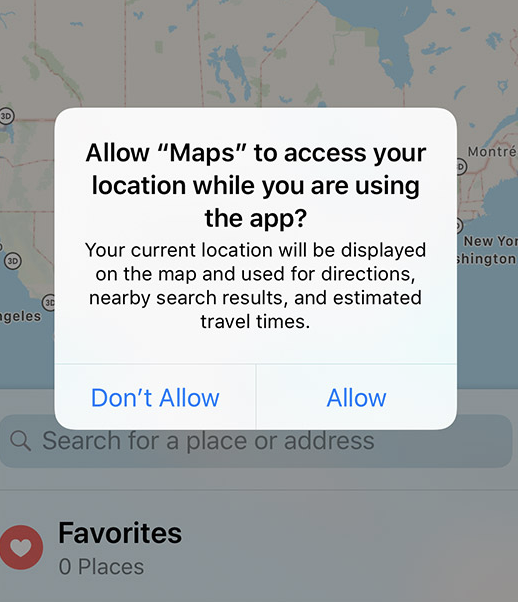
When you install a new app, there’s the familiar screen that asks if you’d like to allow X app to access your location while using the app. Click allow or don’t allow.

To turn off location services, head over to the privacy settings and press location services. There, you can choose which apps have access to location data and which you’d like to disable.

Android location settings

On Android, it’s a little more complicated. Android phones don’t allow you to limit an app’s access to your data to when you’re using it. Instead, apps that have permission to track can do so, whether you have the program running or not.

The newest versions of Android software allow you to limit data collection to just “a few times per hour” but that doesn’t give you any control — it just mitigates the risks of round-the-clock-tracking.

Of course, you can always just disable location services. But, the downside is, it interferes with your ability to use the GPS, call an Uber, or order food.

The problem is, however, there’s no good way to know what happens with the data you give apps access to. The NYT reported that they don’t know which 70-ish companies are buying data from your favorite weather app.

The only solution, again, is combing over privacy policies. Sorry.

Maybe it’s Google you need to worry about?

According to an August 2018 AP investigation, Google tracks location histories even if you’ve turned off the feature.

The problem, at the time of reporting, affected over 2 billion people using Google Maps on their devices. This number represents anyone with an iPhone or Android running the program. According to the support page, once you turn off your Location History for your Google account, it’s off for any device linked to that account.

Google’s location tracking deception may violate more than consumer trust. It also violates the FTC’s consumer protection statutes against deceptive privacy policies.  

How to disable Google Location History (for real)

Browser and iOS

  • Sign into Google
  • Go to Google Account (dropdown menu in upper right corner)
  • Personal Info and Privacy —> My Activity
  • Click activity controls —> Web & App Activity
  • Then, toggle setting to off

Android

  • Go to Google settings from Google Account
  • Tap data and personalization
  • Click web app and activity and do the same

Of course, this information is super vague. Google’s description of the Web & App activity settings is, turning it on saves your activity on Google sites. The benefit, according to Google, is faster searches, better recommendations, and personalized Maps, Search and other “experiences.”

Wrapping up

As you can see, turning off location tracking data is relatively simple. The main thing consumers need to be aware of is actually keeping track of which apps they’re giving their data to.

In many cases, forking over your data has benefits. Most app-based services use your location to deliver their set of offerings — think Uber, Lyft, Grubhub. Google Maps and Waze keep us from getting lost.

And then there’s the fact that it’s just plain convenient to use your Google log-in across sites and devices.

At the end of the day, between the Facebook fiascos and Google’s misleading auto-tracking practices, there are no more excuses to opt out of being informed. So, we’ll leave you with another tired reminder: make sure you read the privacy policies for all of your apps.

Xbox Live is coming to Nintendo Switch

Could this solve Nintendo’s online gaming issues?

Xbox Live is coming to Nintendo Switch

Yes, you read that headline right.

Microsoft’s flagship online gaming service Xbox Live is coming to Nintendo Switch, iOS, and Android. The news was revealed through the name of Microsoft’s upcoming presentation “Xbox Live: Growing & Engaging Your Gaming Community Across iOS, Android, Switch, Xbox, and PC (Presented by Microsoft).” The company will roll this out at the Game Developers Conference in March.

The description for the event reads: “Xbox Live players are highly engaged and active on Xbox and PC, but now they can take their gaming achievement history, their friends list, their clubs, and more with them to almost every screen.” Microsoft clearly didn’t want people to know this yet, as the conference listing has been removed from the Game Developers Conference schedule.

Almost 20 years ago, Microsoft revolutionized online gaming with Xbox Live. The service introduced many features that are now standard, like friends lists, universal usernames, voice chat, parties, achievements, matchmaking, lobbies, and more. Basically, every online gaming service, from PlayStation Network to Steam, has been built off the foundation of Xbox Live. The obvious exception is, of course, Nintendo.

Nintendo has been infamous for their complete inability to make a decent online service. For a company that makes some of the most creative and innovative games ever, online seems to be the one concept Nintendo cannot get right. From 12-digit Friend Codes to a lack of matchmaking and voice chat, Nintendo disappointed online gamers consistently, but their incompetence was tolerable enough because their services were free. Nintendo Switch Online was Nintendo’s first attempt at a premium online service, and reception has been overwhelmingly negative due to the service’s lack of basic features like built-in voice chat.

Xbox Live coming to Switch could provide a much-needed boost to Nintendo’s online community. The ability to party up with friends and chat with them through supported games would provide Nintendo fans with the functional online service they’ve begged for. While we don’t exactly know how the service will work on the Switch, it certainly can’t hurt the console’s online reputation. Also, though it’s unclear if Xbox Live would cost money on the Switch, it should be noted that the Switch version of Minecraft uses Xbox Live for multiplayer at no additional cost.

Nintendo and Microsoft have shown that they’re willing to work with each other over the past few months, including teaming up to make a commercial that promotes crossplay between their consoles. Bringing Xbox Live to Switch is the next step in this relationship, so who knows what collaborations the two companies will make in the future?

Google Project Jacquard weaves tech into our clothes like in Black Panther

See how Google could revolutionize the clothes we wear.

Remember that scene in “Avengers: Infinity War” when the Border Tribe warriors throw up their blue shawls to create an energy shield? The fantasy nation of Wakanda is a scientific marvel, portrayed as boasting technology decades ahead the rest of the world. Weaving quasi-magical powers into their people’s clothing is one such example. The truth is however, this particular fantasy may not be as far off as we thought. Google’s Project Jacquard began as far back as 2014 and a year later, the earliest conductive threads were manufactured in a factory in Japan.

Swipe, touch, an hold to engage different commands.
Project Jacquard opens a new world of fast and convenient accessibility.

What is Project Jacquard?

Google created Project Jacquard to upgrade the way we use clothing. Their aim was to design and incorporate new hardware to completely overhaul our concepts of convenience, comfort, functionality, efficiency, and fashion by putting it all together in a device literally on our person. Wearable textiles (tech-stiles?) are perhaps not news, but neither was the portable phone when Apple came along. Similarly, Google has raised the bar by pushing the boundaries of what most consider novelty items, and taking them past prototypes into commercial viability.

“Our focus has always been to add a new layer of connectivity and interactivity to things you already know, love, and use every day,” Jacquard explains on their website. “By starting with raw materials, such as yarns and textiles, we found ways to provide unprecedented access to the digital world through items that aren’t typically considered to be technology. So your most beloved items – a favorite jacket, a pair of shoes, the bag you take everywhere – will keep you connected to your digital life in new, seamless ways.”

What does it do?

Jacquard takes everyday technological conveniences and weaves them into the fabric of your clothes. It means you’ll be able to connect to digital life without having to reach for your smartphone or boot up your computer. With a literal brush of your cuff, you can “navigate your life while living it.” Examples of what you’ll be able to include:

Safer navigation

“Stay focused on where you’re going, not your screen,” says Jacquard. With navigation tech stitched into your jacket you don’t have to keep glancing at your phone while driving, or fumbling with GPS at traffic lights.

It's like next-gen thinking for clothing.
Navigate traffic and answer the phone – all without a device.

Communicate without carrying a phone

The coolest one in our opinion – You can answer or ignore calls with a swipe across the cuff of your shirt. Or check your texts while you’re on the go.

Manage your music

Just tap your sleeve and you can adjust volume, pause, change, and skip the current song you’re listening to on your device.

Even just walking from place to place is taken to the next level. You can drop location pins wherever you go with a simple gesture. That location is then saved to your Activity, so you can easily find it later. You can even share pins with friends. Everything’s even accessible right on Google Play.

How does it work?

Everything about how Jacquard works is embedded into the electronics. The conductive metal alloys used are incredibly thin, so they combine seamlessly (no pun intended) with a variety of natural or synthetic fibers. It’s not like you’ve got an iPhone stitched into your sleeve – once spun, Jacquard Threads have the weight and feel of normal yarn.

Until your sleeve beeps at you, of course.
Jacquard’s tech is woven directly into the threads. You’ll hardly notice you’re wearing them.

That means that since they look, feel and perform like any other kind of yarn, they can be woven using traditional techniques and equipment. This is one of the primary reasons Jacquard is so exciting – the possibility that this tech could be implemented all over the world with standard textile practices is amazing indeed. “We’re trying to shrink all the components down to the size of a button,” says Jacquard’s Research and Development Lead Nan-Wei Gong. “Ultimately this will be something that’s so small that we can embed it into the manufacturing process.”

Jacquard is now working with Levi’s

At the 2015 I/O conference Jacquard excitedly announced their partnership with Levi’s, and on September 27, 2017 their Levi’s Commuter Trucker jacket went on sale. This was one of many firsts for Levi’s, but a particularly exciting moment for the Jacquard team, who got to see their dream put on a more public platform. “The Jacquard vision centers around expanding the functionality of the clothes people already wear and love. And that’s exactly what we did with Levi’s.”

Is this the future?

We’re still a ways from vibranium-powered kinetic barriers woven into every pack of underwear, but Jacquard has shown us a reality that is not outside our reach.

Do you think Jacquard is giving us a glimpse into the future with this technology? Let us know in the comments below, and stay tuned for updates on the coolest line of clothing to hit the market.

5 tricks to speed up Windows 10 start time

Follow these steps for a faster Windows experience.

windows

Windows 10 has a ton of cool features, but for some users, starting it up is a slow process.

This is especially true after continued use or on older computers. Luckily, with a few tweaks and simple maintenance you can speed up your startup process and resume using Windows 10 without so much waiting around. So without further ado, here are 5 ways to speed up  your Windows 10 start time:

Windows 10 Download now
7

1. The fast startup feature

Windows 10 comes equipped with a setting specially designed for faster startup times. The aptly named fast startup feature will prepare your computer on shutdown for the next time you power up, so you can get to work more quickly.

When this setting is enabled, upon shutdown, Windows will save the state of your device, including open programs and drivers.

It will preload that information so when your turn your PC on again, it can quickly boot it all back up. It’s similar to hibernation mode, so if you want to update your computer, you’ll have to disable this feature or hit restart.

To enable fast startup:

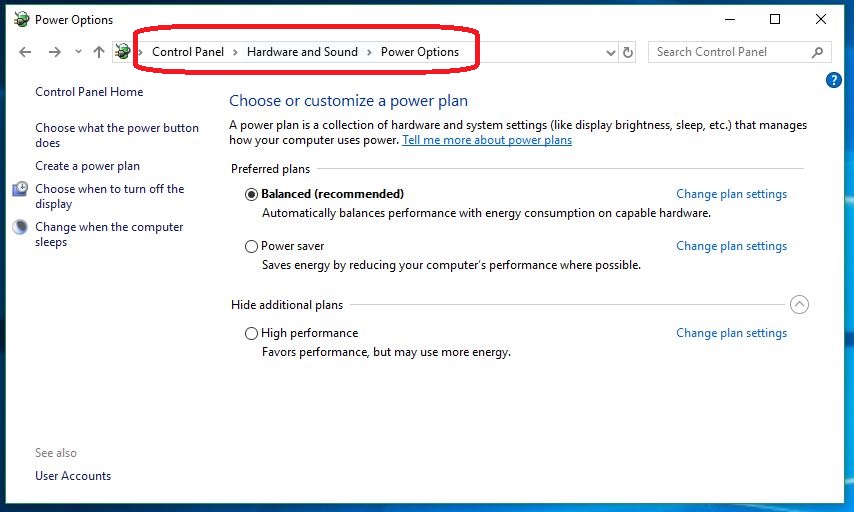
1. Open your Power Options

To do this, just hit the Win key and type ‘Control Panel.’ Open up the Desktop app. Sort by Large Icons and you’ll see Power Options:

You can also adjust those plan settings.

If you want to speed up your PC, you can also be sure Balanced or High Performance are set on this screen. Avoid Power Saver.

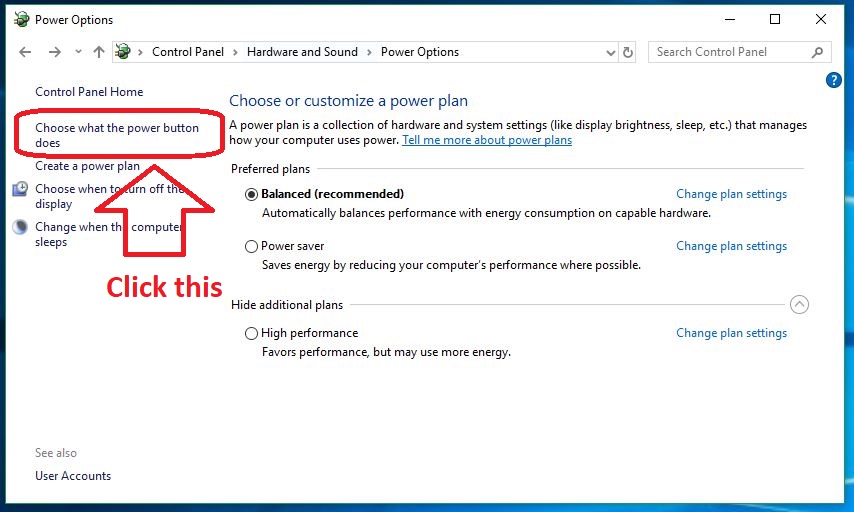
2. Choose what the power button does

On the left of this window is an option that says ‘Choose what the power button does.‘ Click it.

Adjust the settings here.

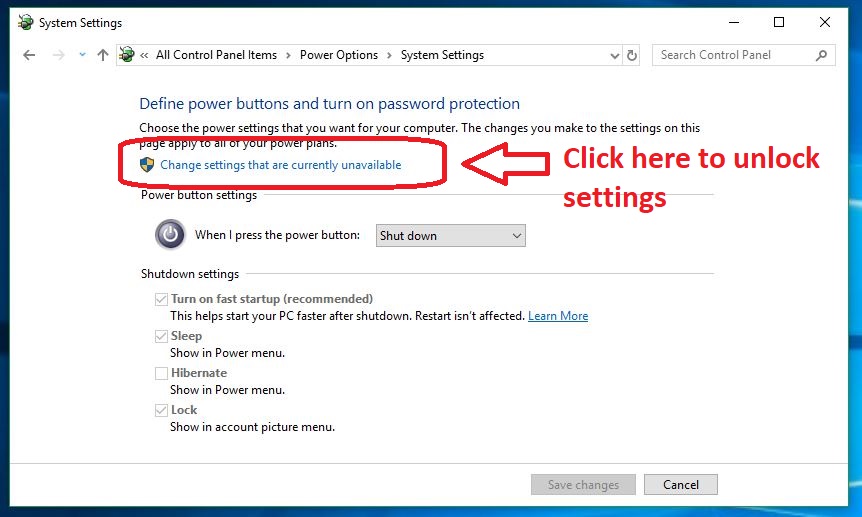
3. Unlock control

Now you’ll be on the screen where we’ll be changing the settings. Oftentimes these settings are locked. Simply click the Admin option to ‘change settings that are currently unavailable’ and you’ll be given control.

Don't forget your password!

If your Shutdown settings are blocked, you need to unlock them via Admin control.

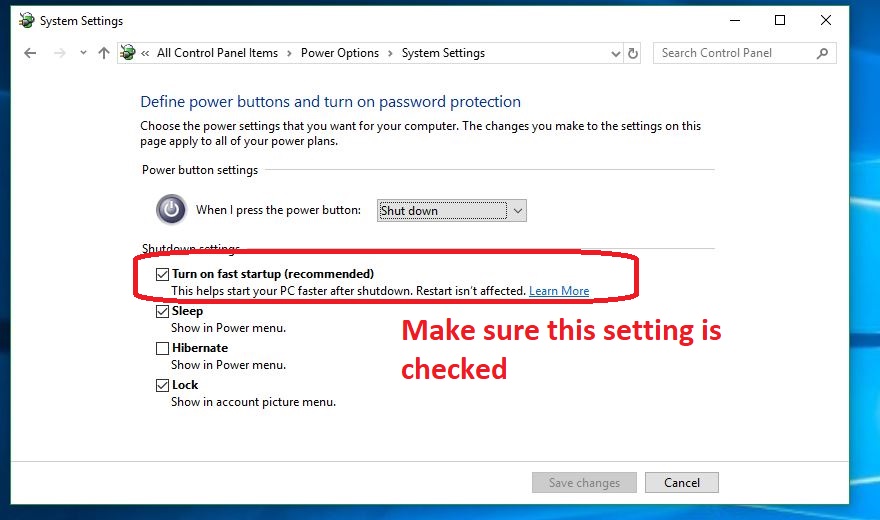
4. Enable ‘Turn on Fast Startup’

The top option under the ‘Shut down‘ drop-down should be ‘Turn on fast startup (recommended).’ Be sure to have this option engaged and you should notice faster boot times.

It's checked on by default.
You can also adjust Hibernate, Lock, and Sleep options.

2. Automatically open fewer programs

If your computer still takes a long time to boot up, it could be a sign that your computer is opening too many programs when it turns on.

If it automatically opens a lot of programs it has more work to do, which means everything’s going to take longer to get started. Luckily there’s a way to tell Windows not to bother opening specific programs on start-up.

How to open fewer programs on startup

1. Open Task Manager

You can open your Task Manager at any time by hitting Ctrl+Shift+Esc or by right-clicking the bottom bar of your screen and selecting Task Manager. You can also bring it up via the Ctrl+Alt+Delete menu.

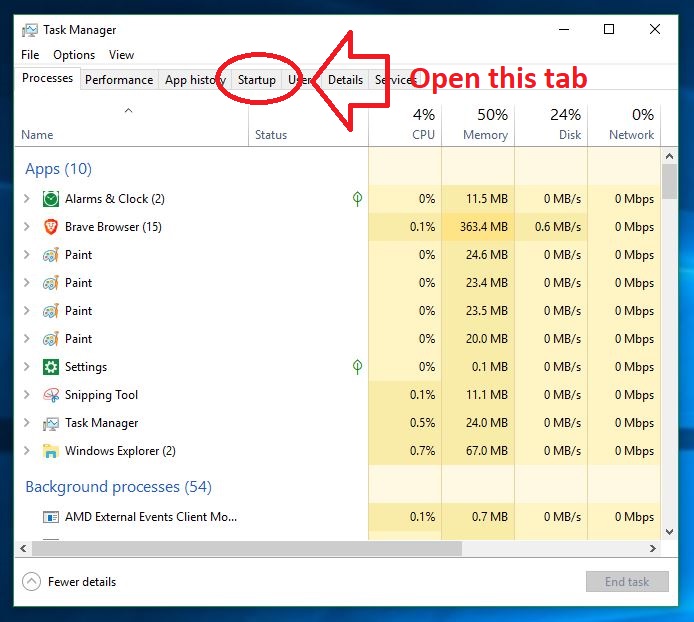
2. Open the Startup tab

‘Startup’ should be the fourth tab in your Task Manager. Open it to view all your Startup processes.

How many Chrome tabs do you really need open?
Another trick is to disable processes on this page.

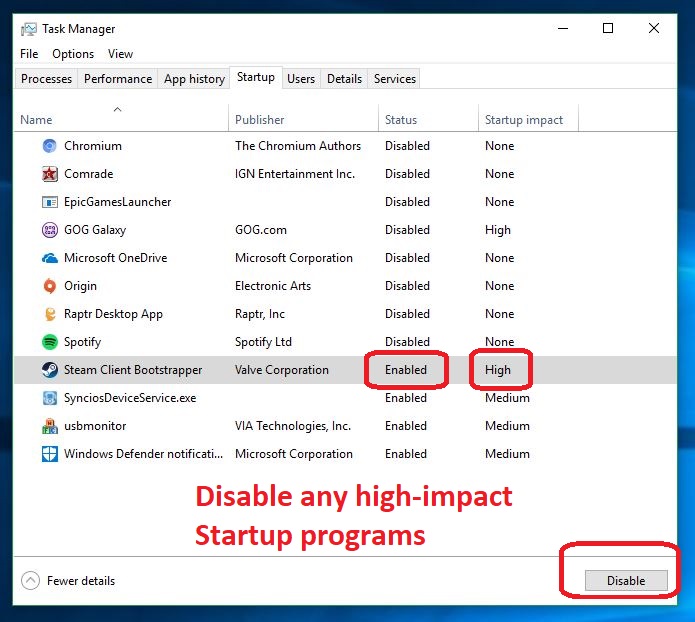
3. Disable unnecessary programs

On the Startup page you’ll be able to see any programs that are hogging Windows’ attention upon booting. Anything that you don’t want to be done automatically should be selected and disabled. You should notice a significantly faster startup time after doing this.

You can also manage the startup queue.
High-impact programs should be the first to go if you have to choose.

While you’re here, you can also manage the queue of which Publisher gets priority upon startup.

3. Clean up your files

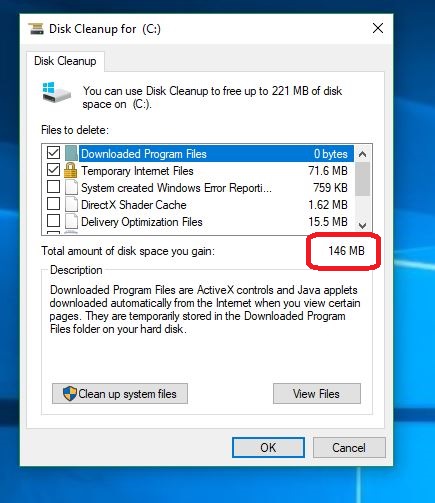
Cleaning out space on your hard drive will make things easier on your computer, enabling faster startup times and more efficient operation. To do this, you can run Disk Cleanup or manually delete things you don’t need, often called bloatware.

To run Disk Cleanup, just search for it, open it and hit OK. If you’ve never done this before, you’ll be surprised how much your PC will clean out.

Make your computer happier by deleting waste data.
We’ve seen this number as high as 4 GB.

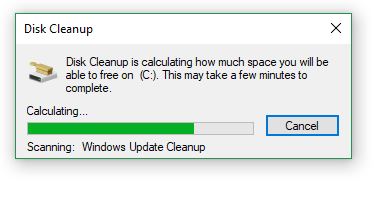
You can also choose ‘Clean up system files’ for the program to go through your computer and rid it of temporary files, installers and other unnecessary baggage.

The cleanup program should only take a few minutes.
The process is fast and is an investment towards a faster, lighter computer.

You can also uninstall specific programs by doing the following:

  1. Right-click the Start menu
  2. Select Control Panel
  3. Go to Programs
  4. Choose Uninstall a Program
  5. Select the unneeded programs and hit Uninstall

4. Shorten the Boot Menu timeout

When Windows starts up, you see the Boot Menu appear before the operating system loads. From this menu, you can choose startup options, such as Safe Mode.

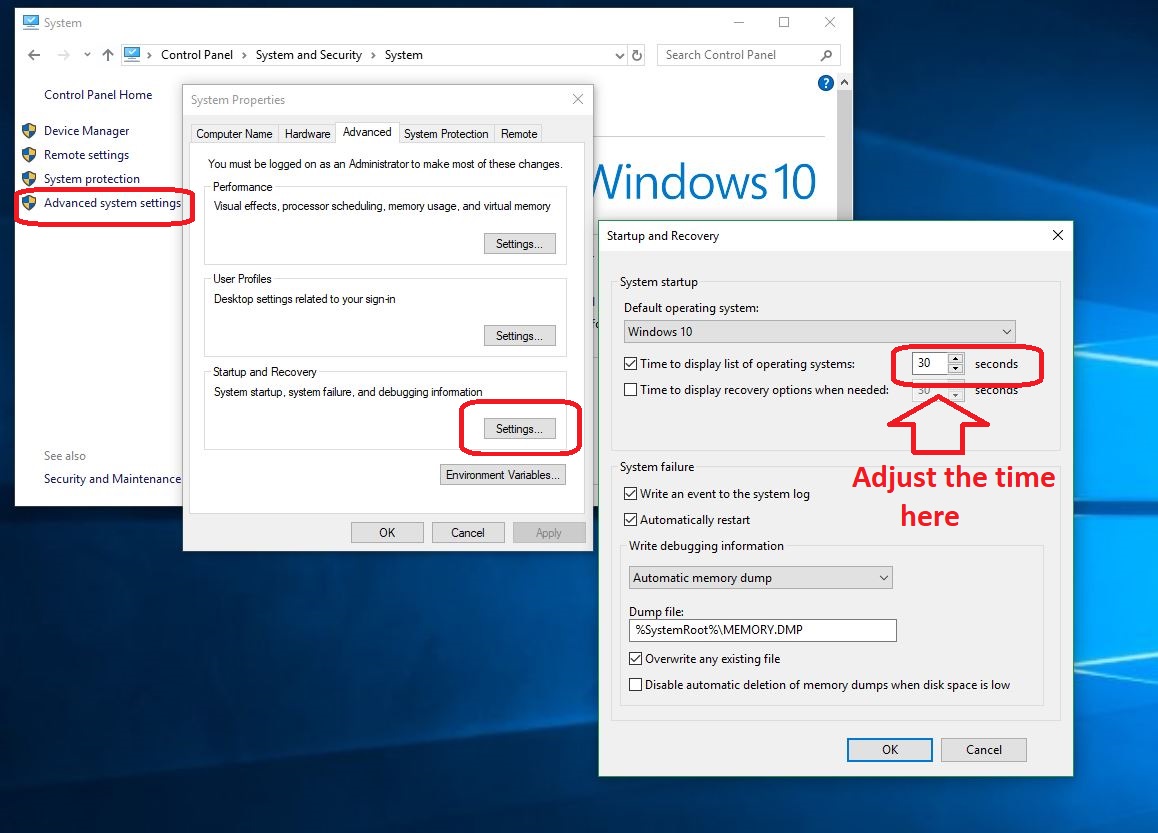
By default, the Boot Menu displays for 30 seconds. If you reduce this, you can cut down your startup time by a few seconds.

How to shorten the Boot Menu timeout

1. Open Control Panel

As before, to open your Control Panel all you have to do is hit the Win key and type ‘Control Panel.’

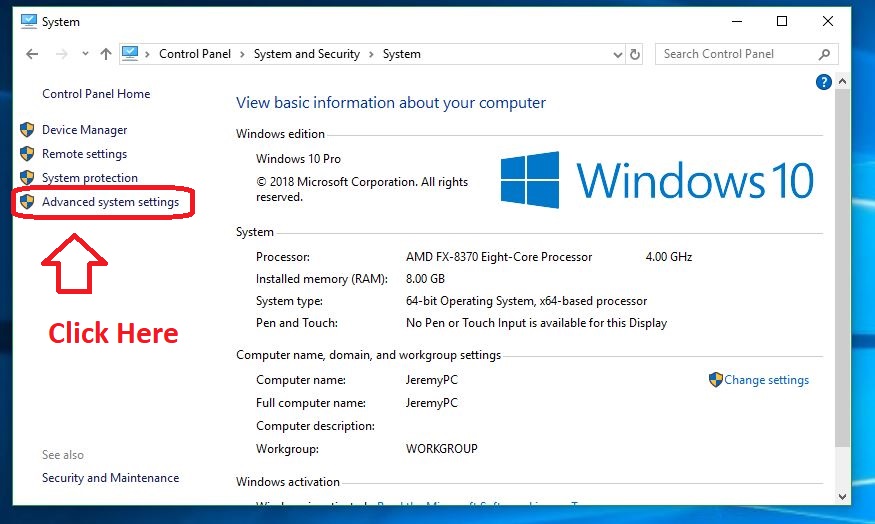
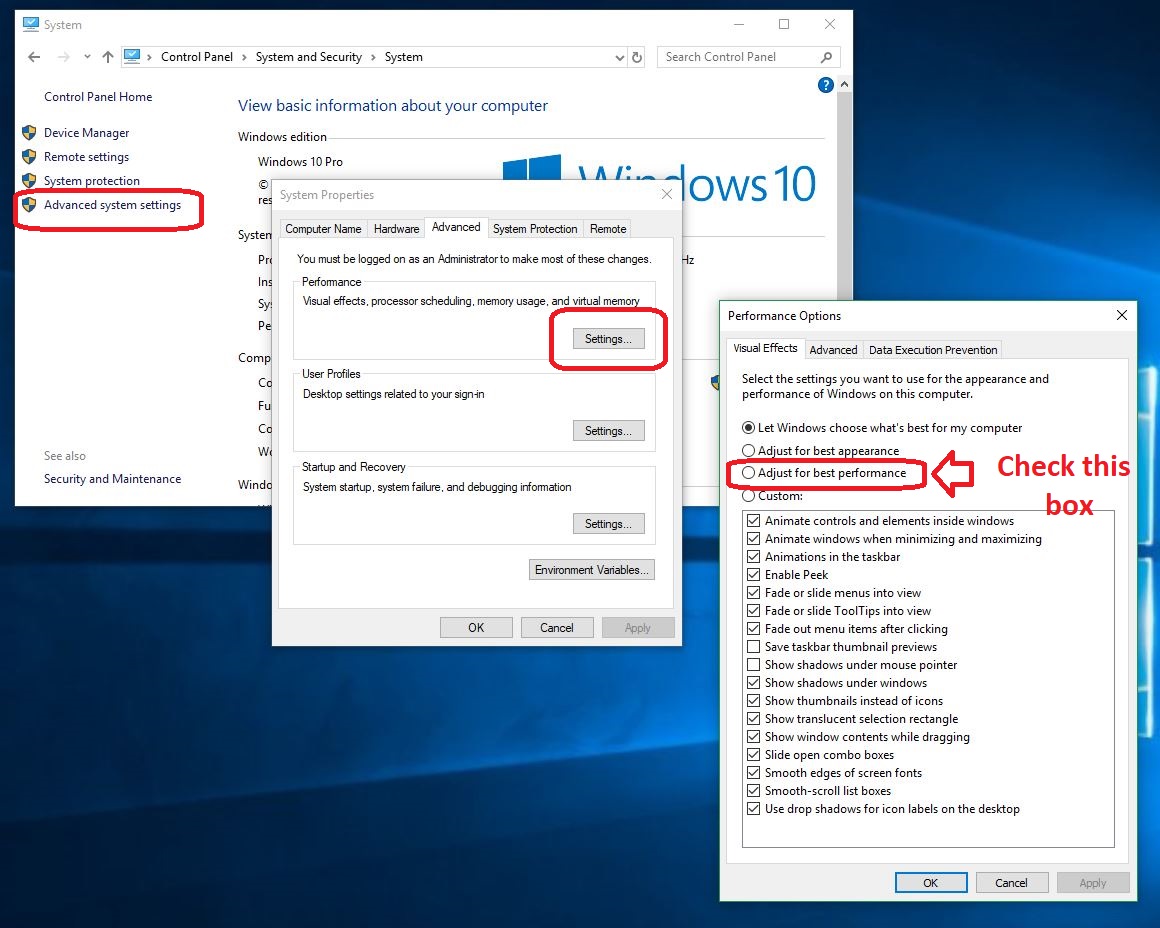
2. Open Advanced System Settings

Click ‘System and Security,’ then System. On the left you’ll see ‘Advanced system settings.’ Click here.

Advanced System settings appear on the left

3. Adjust the time

From the Advanced system settings screen, click ‘Settings’ under Startup and Recovery. From here you can lower the time to display the list of operating systems. Hit OK when you’re done.

It's especially worth your time if you've only got one OS to begin with!
Most people don’t know you can even do this.

5. Go Bare Bones

Windows 10 includes a number of special effects and features that are more for looks than anything else. If you’re more concerned about startup time than style, you can turn off options like drop shadows and thumbnails to speed things up a bit. Here’s how.

How to drop some features to speed up Windows 10

1. Head back to Advanced System Settings

Open the Control Panel back up by pressing the Win key and typing ‘Control Panel.’ Click ‘System and Security,’ then System. On the left you’ll see ‘Advanced system settings.’ Click here.

2. Open the performance options tab

Click ‘Settings’ this time within the box that says ‘Performance.’

3. Adjust for best performance

The new window should allow you to handpick which visual effects Windows 10 will use. For the best performance all around, you should just check the box that says ‘Adjust for best performance.’

We care more that it's fast rather than pretty.
Turn off any of the superfluous bells and whistles here.

With the custom settings, you can also manually remove find other little features to turn off. Each item you get rid of will boost your PC’s performance by a little bit. Our recommendation is to simply deselect anything you think you can live without. Flashy stuff like transparent menus and tip notifications are cool, but don’t do much but bog you down.

If you try all of this and your computer still starts up slow, let Windows automatic troubleshooter program take a look around your computer and see if it spots any issues. It will then do its best to automatically fix them.

Using these tricks should help you speed up your startup time and get more done, while also taking care of your computer.