Simply put, since Picasa became Google Photos, it has gone on to change our very relationship with photographs. We’ve never had photography so easy and we’ve never taken more photos knowing we’ll be able to view them, share them, and edit them on any device and no matter where we are. The thing with Google Photos though, is that it isn’t just about photos, and Google is about to introduce an interesting little feature to Photos that will really liven up our timelines.
The new Google Photos live video thumbnail feature will play all videos you scroll past in their entirety as long as they’re on your screen
You might have already noticed it, if you have the latest version of Google Photos (v4.20) already installed on your phone. Whenever you’re scrolling through the Google Photos timeline any videos you’ve captured or added to your Photos collection will play right there in the thumbnail.
You won’t hear any sound, which is good because autoplay videos with sound are very annoying, but the videos will play from to start to finish in the thumbnail and will loop around and start again should they stay on your screen for longer than the length of the video. If this doesn’t happen for you, you should update Google Photos now.
If there is more than one video thumbnail on the screen at the same time, then Photos will try to play them as live thumbnails one at a time in reverse chronological order. Our tests have found this feature to be a little buggy, however, but we’re sure it’ll work perfectly sooner rather than later.
You can tell a video thumbnail from the small play icon in the top-right. Now, if the video is hosted on your Android phone, it will play without sound in the thumbnail itself.
The other thing to consider is data. If you’re automatically backing up your old photos and videos to the cloud and are worried about the data live video thumbnails might use up, don’t. Our tests showed that all backed up videos didn’t show as live thumbnails and remained static when operating over both mobile and Wi-Fi networks. It is only locally hosted videos that will get the live thumbnail treatment.
The feature works differently on desktop. You can hover the mouse cursor over any video thumbnail and it will play through.
For now, live video thumbnails are only available on Android as the feature is yet to launch on iOS. There are no auto video thumbnails on Photos for desktop, but video thumbnails will play if you hover your mouse cursor over them. This feature works on desktop for all videos too, as they’re all hosted online anyway.
If this was you, then you need to read this guide to learn everything there is to know about this master of Kung-Fu before we get to see Simu Liu bring the character to the big screen.
Guide to Marvel Phase 4: Everything you need to know
Special Marvel Edition #15: The first appearance of Shang-Chi
Shang-Chi first appeared in 1973. He is known as the master of Kung-Fu. In 1972, there was a wildly popular show called “Kung-Fu.” Kids loved it. It starred a martial arts student who learns the way of the fist from his sensei. The famous “if you can snatch the pebble from my hand…” line as well as calling your pupil “grasshopper” originated from this show.
Marvel wanted to adapt the show into a comic series but was denied by the show’s network. So, Marvel made a similar comic series to capitalize on the growing Kung-Fu fad. Basically, Shang-Chi is a ripoff of a popular ’70s TV show.
His dad is a complicated man
According to his origin, Shang-Chi is the son of Fu Manchu. However, this was changed in later comics.
For those who don’t know, Fu Manchu was a character played by Christopher Lee in the 1960s. He is an evildoer who veers headfirst into Asian stereotypes… and he was played by a white guy. Needless to say, Fu Manchu was a very racist depiction.
However, Fu Manchu was very popular when he was around, so Marvel got the rights to make Fu Manchu comics. Later on, Marvel lost the rights to Fu Manchu, which left them with a predicament with Shang-Chi. In 2010 in an issue of “Secret Avengers” it is discovered that Fu Manchu was merely an alias, and Shang-Chi’s father’s true name is Zheng Zu.
Marvel would probably rather not make a Shang-Chi movie altogether than make one with the PR nightmare that is Fu Manchu, so losing the rights to him was a blessing in disguise.
Later on, Zheng Zu faced even more development. He soon became the ruler of the Ten Rings, taking on the mantle of the Mandarin. As the new Mandarin, he led the Ten Rings to try to overthrow K’un L’un (more on that later), but was ultimately stopped by Shang-Chi.
Although Shang-Chi mainly relies on hand-to-hand combat, he does at times use a sword, a staff, and nunchucks. However, he’s got nothing on Michaelangelo.
Later on, Marvel realized that if you don’t have superpowers, you can’t really stand out in a world of superheroes. As a result, Shang-Chi obtained the ability to create copies of himself.
What is his story?
Shang-Chi is the son of Fu Manchu (Zheng Zu) and a white American woman who his father genetically selected.
Not much of a love story.
Fu Manchu trained Shang-Chi in the ways of martial arts and being an assassin. While on a mission for his father, Shang-Chi learned that Fu Manchu was actually evil. He then swore to his father that he’d devote his life to taking him down.
Basically, most Shang-Chi comics are about him thwarting his father’s various plans.
Despite his controversial beginnings, Shang-Chi was a pretty big hit for Marvel. He appeared in several more special editions and even fought alongside other martial artists like Iron Fist and even became an honorary Avenger.
In fact, he once joined forces with the Avengers alongside Captain America to thwart the Mandarin and save the world.
Quite often, Shang-Chi is a secondary character in most stories and another character like Iron Fist or Captain America has the lead role.
Isn’t he basically just Iron Fist?
Although they have a few differences in their powers, Shang-Chi and Iron Fist have a lot in common. First off, both of them have a shared bond with the mystical land of K’un L’un.
K’un L’un is a hidden world filled with monks who train night and day in martial arts. Their champion is the Iron Fist who is a living weapon filled with all the power of K’un L’un.
Although they are both martial artists, they have different fighting styles. Iron Fist heavily relies on his abilities as the living weapon to make his fists glow with fiery energy for more devastating attacks.
Although Shang-Chi has the ability to copy himself, he seldom uses it. He prefers to fight hand-to-hand rather than on other methods. As a result, even Iron Fist has admitted that Shang-Chi is the greatest martial artist in the world.
Despite their similar fighting styles, Iron Fist and Shang-Chi have very different personalities. Iron Fist’s abilities as the living weapon make him overly confident and cocky with his abilities. Also, Iron Fist finds pleasure in thwarting his enemies while Shang-Chi views his battles as a necessary evil.
Who are the Ten Rings?
The Ten Rings is a criminal organization run by the Mandarin. It gets its name from the 10 rings worn by the Mandarin that grant him powers. These powers include:
Rearranging matter
Shooting beams
Creating vortexes
A beam that disintegrates things
A light that casts everything into darkness
A light that makes magnetic fields
Shooting flames
Shooting lighting
Mind control
Shooting ice
Man, where were these things when the Avengers needed them against Thanos?
Basically, the Mandarin is one of the toughest guys around, and he is hellbent on world domination. As a result, the Ten Rings follow him for a piece of the action.
The Ten Rings have already made their presence known in the Marvel Cinematic Universe. They were the terrorists who captured Tony Stark in “Iron Man.” They also assisted Whiplash in “Iron Man 2.” Finally, in “Ant-Man,” a member of the Ten Rings was at Pym Laboratories.
See the tattoo?
The Ten Rings were also featured in “Iron Man 3.” If you remember, Ben Kingsley played an actor who was playing the Mandarin. However, in a special Marvel made afterward, fans learned that the real Mandarin was actually out there.
What will the movie be about?
Marvel hasn’t revealed much about “Shang-Chi and the Legend of the Ten Rings,” so this is just a theory. It will be directed by Destin Daniel Cretton. Tony Leung will play the Mandarin.
We know for a fact that the movie will feature both the Ten Rings and the Mandarin. In Marvel’s “Secret Wars” Zheng Zu (Shang-Chi’s father) is the Mandarin and the leader of the Ten Rings. Our theory is that the movie will follow this route as Shang-Chi fights against his father to dismantle the Ten Rings from the inside out.
Wrapping up
Do you think “Shang-Chi and the Legend of the Ten Rings” is going to be a decent movie, or do you think it will be a swing and a miss? Let us know in the comments below! Also, make sure you share this guide with your friends so they can learn about Shang-Chi as well!
You may have uploaded your phone number as part of two-factor authentication. But the FTC says advertisers used those numbers to target you without your knowledge.
The feds are also attacking Facebook for not clearly explaining that users could turn off a facial recognition tool often used for tagging photos. Allegedly, 30 million users were left in the dark about that setting.
So will Facebook ever learn or are we doomed to report these constant data leaks every single day?
According to the Washington Post, Facebook is agreeing to “submit to unprecedented federal oversight of its business practices, including the creation of a special committee on its board of directors that regularly certifies the tech giant is handling user data appropriately.”
Somehow, we think this isn’t the end of Facebook’s privacy scandals…
This is why Facebook can’t stop election interference
Before you post your next photo online, run it through Photoshop Express to make it stand out!
Photoshop Express makes your photos pop by enhancing the lighting, sharpening edges, providing clarity, toning down harsh colors, and bringing out vibrancy. It’s a great app for photo collages, too! If you’ve been on any social media site for a while, you’ve probably seen photos that could use this treatment: legitimately well-taken pictures that are just plain hard to see!
If you enjoy taking pictures on the go, don’t let this happen: grab Photoshop Express – a free photo editor app from Adobe’s Creative Cloud – and start improving your photos in no time!
Once you’re finished, you may need to create an account before starting your photo editing. After that, you’re all set!
Moving on…
On opening the app
Welcome to the camera roll!
If you allow Photoshop Express to view your pictures, this environment will have a number of snapshots to choose from; in this case, a selection of pictures from our trip to The Getty Museum. Good times!
A few more things:
If you want to select multiple images for a collage, you’ll need to go from “Edit” to “Collage”. This will allow you to choose multiple photos for organization.
The menu bar at the top left will have account details, preferences, and info on Photoshop Express. If you’re looking to change an accessibility aspect, enable push notifications, or something else of that nature, head to this location first.
Clicking the world icon at the bottom left opens the “Discovery” menu. Search through pictures, collages, and other photographic creations from people around the globe! We don’t visit often, since we generally use Photoshop for specific photos, but maybe you’re the type of person to be inspired by impressive, user-generated content!
If you have your photo selected, let’s move on to:
The real important stuff
Let’s not beat around the bush, shall we?
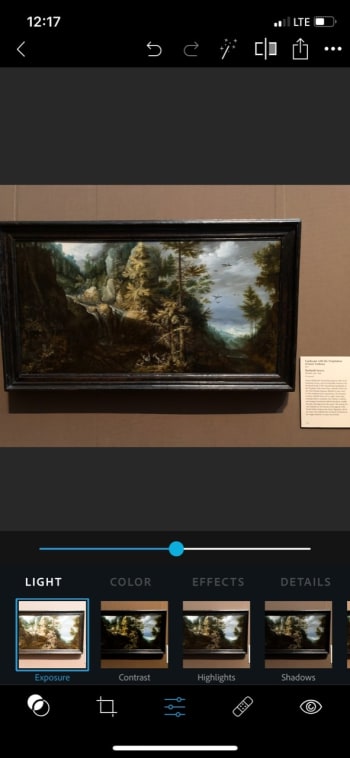
We recommend heading to the menu that looks like a triple slider: the lighting and effects tab. These options allow for the greatest control over your picture’s general quality, from lighting to color and definition.
(We’re operating on the assumption you already resized the photo in Apple photos. If not, there’s an expansive menu for this just left of the sliders.)
As you can see, the first group of settings influences light, and the premier option in this group is exposure. We recommend going from through each and every one of these details! Play with the sliders, see what the effects look like, and decide what works.
From the photo above, we brought out a lot of detail in Roelandt Saver’s “Landscape with the Temptation of Saint Anthony.” In the original, many parts are so dark it seems the sections have lost their clarity altogether. But after a little work, it looks far better and, most importantly, closer to the painting’s actual appearance:
Congratulations! With the slider settings alone, you vastly improved the quality of a photo and gave it a more realistic appearance!
But wait! There’s more…
A lot of other things
Photoshop Express has even more tools on hand. Let’s discuss them!
Just remember: these functions are designed to improve the quality of a photo, not for “shopping” it. You’ll have a far more difficult time removing that one relative to insert Chris Pratt than you would in Full Photoshop.
Before the slider tools, we’d like to highlight three things. The very first menu has your “looks.” These are preset filters much akin to Instagram’s tools.
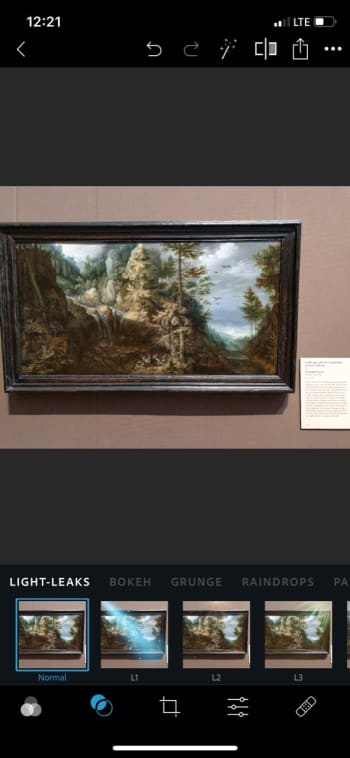
The next menu has light effects: add a spotlight, sparkles, raindrops, cosmos, and more! These are fun and silly, much like the snapchat things you can find.
Finally, you have the crop tool! In addition to resizing, rotation, and transforming services, Photoshop Express has numerous photo ratios. Size your picture inside of anything from a square (great for Insta and icons) to profile covers for various web resolutions.
After the slide tool, there are even more options! At this point, we’re usually finished with our photo enhancements, but for the curious…
Bandage: remove unwanted areas with the blemish remover. At this time, the tool appears to be a bit finicky and difficult to use with a finger. Be careful, and use the undo tool as necessary!
The Eye: remove red eye and pet eye. You can do an auto-detect sequence, or click the eyes to select them.
The T: add text! Are you creating an inspiring quote? A pretty aesthetic? A meme? Whatever the case, adding captions and quotes has never been easier! Choose your style of letter, then select the font, color, alignment and more.
Finally, at the very end, there are EVEN MORE OPTIONS. Aren’t you glad we focused on the most important stuff first?
Let’s run through these real quickly:
The stickers menu has stickers (surprise surprise), the frame tool allows for a vignette effect alongside multiple bevels and fancy edges – borders and frames, the two Photoshop tools respectively open a library of impressive effects and link to your Creative Cloud (these require a full subscription), the layout tool has a number of collage-esque inerts, and the pencil allows you to send your picture to other mobile Adobe apps for further development.
And that’s all, folks!
Conclusion
Adobe Photoshop has an enormously wide range of abilities. We use it to increase photo quality and hope you’ll decide to as well. However, for the projects that plan to go further, Express might just have those specialized tools you need. We hope you enjoy the process with this quick guide!
How I Met My Dog gives users an in-depth survey to help find the right dog. The questions help determine what kind of pet trainer you will be, what your home can handle, as well as what you are looking for in a dog?
The survey takes less than 20 minutes, but make sure you are honest with yourself when taking the survey. The only “wrong” answers you enter are the ones that are lies. If you say the dog will never be in its kennel, but it will be for a few hours, you are only hurting yourself and the dog by lying.
I took the survey and wasn’t matched with any dogs.
However, there are a bunch of factors that could have led to this. First off, I 100% do not need another dog. I love dogs, but I might lose my mind if I get another.
There is also always the chance that the site couldn’t find any dogs at all in my area. As of now, there are only 13 states that have shelters that work with the site. I live in Illinois, and only two shelters (neither of which are near me) are affiliated with How I Met My Dog. You can see the full list here.
Finally, I have a unique situation. With a young puppy and an old cat already running amuck in my small apartment, there might not be a dog that fit those needs.
Sometimes, finding out that you shouldn’t get a dog is better than finding a dog up for adoption.
Find a new home for your dog
Speaking from experience, finding a new home for a dog you currently own can be very painful. Lots of negativity can cloud your mind even after you find your dog a new home, so you need to make sure you pick the right one. Luckily, How I Met My Dog has a tool to find a new home for your pup.
This feature is still being developed, but you will enter the information about your dog, what kind of care they need, and how well they behave.
Wrapping up
Hopefully, this website can help you find your forever friend. Make sure you comment a picture of your dog in the comments below and tell us about your experience with the site!
In case you’ve never heard of it, Tor is a web browser that allows you to surf the web privately without fear of government surveillance or being tracked. It is very popular in Russia although it is available in other countries.
Aside from this recent news, it’s okay, but there are better options that we will get into later.
How were they trying to do this?
When someone uses Tor, their internet service provider gets a ping that lets them know that it is being used. However, the ISP doesn’t get notified about what websites they were surfing.
The hackers stole more than seven terabytes of data from SyTech, the Russian Intelligence contractor.
In that data, they discovered that SyTech planned to use a program called Nautilus-S to discover what website a Tor user was on before closing the window.
Did it work?
Oddly enough, this breaching plan seemed like more trouble than it was worth. Even if you were a Tor user in Russia, there was a slim chance that you were susceptible to the breach, and an even slimmer chance that the info would be sent back to SyTech.
According to a statement from a Tor spokesperson, even if a Tor user was affected by the breach, they were still kept anonymous.
What should I do?
Unless you live in Russia and worry about government surveillance, you probably aren’t a Tor user. If you are, you might want to switch your browser of choice.
These are the moments that made the original Star Wars Trilogy take flight.
It’s hard to put into words how profoundly the original Star Wars trilogy changed the world of movies. For the first time, audiences were introduced to a world of Jedi, Sith, aliens, space battles, and lightsabers. Names like Luke Skywalker and Han Solo would soon become commonplace, and the glowing lightsaber would become one of the most iconic weapons of all time.
It’s hard to condense the great moments of these legendary films into a single list, but without further ado, here are the 10 most unforgettable moments of the original Star Wars movies.
10. The Throne Room Duel – Episode VI
Image courtesy Lucasfilm/Disney
It was all leading up to this. As the battle rages around them, Luke Skywalker finally faces off against the evil Emperor Palpatine and Darth Vader in a throne room high atop the second Death Star. Having grown from an unassuming farm boy into a wise and skilled Jedi Knight, Luke faces down his own father in a climactic battle of good against evil.
The best moment of the fight comes when father and son fight side by side to take on the true evil, sending Emperor Palpatine plummeting to his death in a massive chasm… or at least, so we thought.
9. The Carbon Freezing Chamber – Episode V
Image courtesy Lucasfilm/Disney
Lured into an ambush on Bespin, things are looking pretty bleak for our heroes. With Darth Vader waiting in the wings, bounty hunter Boba Fett comes to collect on Han Solo’s head. Before making the trip across hyperspace to Tatooine, Han is slated to be frozen into a slab of carbonite.
In their last moments before Han goes under, Han and Leia share a kiss and Leia professes her love for him. Han unforgettably replies, “I know.” (Leia echoes that line back to him in “Return of the Jedi” during the battle on Endor.)
This iconic scene comes with an even more iconic setting: a smoky, dark chamber lit from beneath with an ambient orange glow. It’s a striking backdrop for both this moment and the later duel between Luke and Vader.
The tiny green alien Yoda made an instant impression on audiences when he first appeared in Episode V. After finding himself on the swamp planet Dagobah, Luke stumbles upon the wise old master in hiding from the Empire. Though appearing to be somewhat doddering and absent-minded, Yoda also provides Luke with the training he needs to fully become a Jedi. “Do or do not. There is no try.”
7. Trash compactor – Episode IV
Image courtesy Lucasfilm/Disney
In what is easily one of the most nail-biting moments of Episode IV, our heroes escape from a squadron of Storm Troopers on the Death Star only to find themselves in an even deadlier predicament. Trapped in a trash compactor, the group soon finds that they aren’t alone. Some kind of alien creature is stirring in the sludge beneath.
As if that’s not enough, the compactor itself soon activates, threatening to flatten all three heroes between the unyielding metal plates. It’s only after some hair-raising and claustrophobia-inducing moments that the compactor is deactivated and the heroes live to fight another day.
7 Instagram accounts every Star Wars fan needs to follow
Jabba’s Palace is pretty much one unforgettable moment after another. From Princess Leia’s iconic golden bikini to the rancor pit to the corpulent form of Jabba himself, the atmosphere in the crime lord’s palace on Tatooine is one of violence and debauchery.
It’s also a fairly important moment story-wise: it’s the first time Luke returns to Tatooine since leaving with Obi-Wan and Han, and illustrates to audiences just how far the young Jedi has come since first leaving on the Millenium Falcon.
5. Mos Eisley Spaceport – Episode IV
Image courtesy Lucasfilm/Disney
“You will never find a more wretched hive of scum and villainy.” Obi-Wan’s summation of Mos Eisley is pretty spot-on. It’s Luke’s first introduction to the galaxy at large, as well as the audience’s. Here, we meet a colorful variety of aliens, criminals, Storm Troopers, and other thugs.
We’re also treated to our first meeting with the inimitable Han Solo… not to mention that catchy cantina tune that’s almost impossible to get out of your head.
In the climactic moments of Episode IV, the Death Star is lining up to fire on the rebel headquarters on Yavin IV. All looks lost for the rebellion. Their only hope is a small squadron of fighters, led by Luke Skywalker. The plan is to exploit a small flaw in the Death Star’s armor that could completely overload the station.
It’s an unbelievably intense battle sequence, made even more so when Darth Vader himself appears in his personal fighter and begins picking off the rebel pilots one by one. Soon, Luke is the only pilot that remains, and all looks lost… if not for the last-second arrival of Han Solo and the Millenium Falcon. The supposedly invincible Death Star is destroyed in spectacular fashion, exploding into thousands of twinkling fragments.
3. Vader vs. Obi-Wan – Episode IV
Image courtesy Lucasfilm/Disney
The Vader vs. Obi-Wan battle is a truly legendary moment, where the two former comrades face off on opposite sides of the battlefield. It’s a moment made even more compelling if you’ve watched the prequel trilogies and seen the bond between Anakin Skywalker and Obi-Wan Kenobi first hand.
The fight itself is a tense showdown between two skilled duelists, and the first time that the two have faced off since their final showdown on Mustafar. It’s hard to create a moment any more epic than this, but one fan created this incredible reimagining to show what it would look like if the two masters fought at full speed.
Incredible fan edit reimagines Star Wars fight between Obi-Wan and Darth Vader
Out of all the battles that have taken place in the Star Wars universe, the Battle of Hoth is probably the coolest… and no, that isn’t a pun.
For starters, we’re introduced to the intimidating AT-ATs, which are essentially giant walking tanks that resemble mechanical camels. The Empire fields quite a few of these beasts against the Rebel base on Hoth, hoping to wipe them out in a single stroke.
All the Rebels have to defend themselves are tiny Snowspeeders… which Luke Skywalker puts to good use by using their tow cables to tangle up the legs of the AT-ATs. This David-and-Goliath moment takes the battle from just another altercation to something truly creative and original.
1.”I am your father” – Episode V
Image courtesy Lucasfilm/Disney
It’s an unforgettable line from one of the most memorable moments in movie history. As Darth Vader and Luke Skywalker face off on Bespin, Vader corners Luke above a massive drop, slicing off his hand and driving Skywalker onto a precarious antenna array hanging over the chasm.
Up to this point, the audience has been led to believe that Darth Vader killed Luke’s father, Anakin, long ago. Vader then reveals the truth: he and Anakin Skywalker are one and the same. I
t was the plot twist heard ’round the world, and remains one of the most shocking and unexpected scenes in cinema.
So, did we miss anything? Let us know in the comments what your favorite moments were, and be sure to check back with Softonic for all the latest news from a galaxy far, far away.
These are the 10 best moments of the Star Wars prequel trilogy
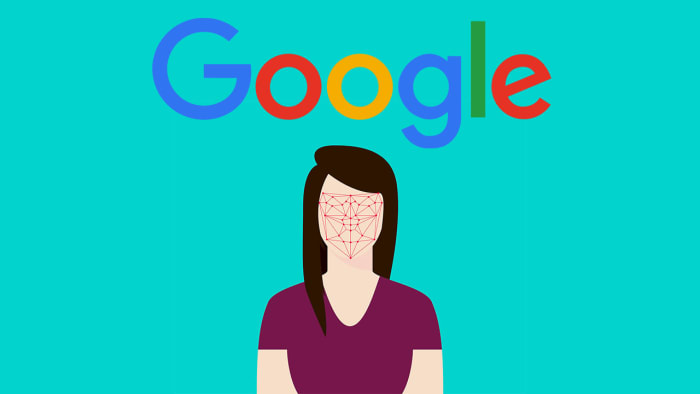
Google employees are stopping people in the street and offering them $5 to scan their faces.
Google leads the pack in a number of fields. From internet search to internet browsers via email clients and smartphone operating systems, the search giant has an impressive portfolio of apps and products that are the best in their field. There is another key area though, where Google excels and that is AI.
It seems though, that there is a particular type of data Google currently needs for its AI that the internet itself can’t serve up alone. Not only that, but it looks like the search giant is willing to pay you to get it. If you feel comfortable selling your face to Google, then you might be able to earn yourself the princely sum of $5.
Google employees are stopping people in the street and offering them $5 to scan their faces
Selling your face to Google sounds like a rather terrifying prospect, but according to the guys at ZDNet the process is quick and, rather reassuringly, painless. The whole process takes around five minutes and mostly involves you pointing the selfie camera of a modified smartphone at your face from a number of different angles.
The people at Google aren’t after your actual face; they just want to gather as much information about it as they can get their hands on. So far so good then, but what do they want all of this facial data for?
In the account given on ZDNet, the Google employees are approaching people on the street and saying something like, “Hi, I work for Google and we’re collecting data to improve the next generation of facial recognition phone unlocking.”
Google needs scans of your face so that it can teach its AI how to recognize certain unique facial features. This is likely to be related to the facial biometric security system that Google is rumored to be working on for the upcoming Pixel 4 handset.
When a similar incident took place involving a somebody over at Android Police, all the Google employees said was that the scans were for a “future Google product,” which sounds a little vague for something as personal as scan of your face.
With the recent hysteria surrounding the viral FaceApp, would you hand over detailed scans of your face to a company whose motto is no longer “Don’t be evil” for a mere $5 gift card to Amazon or Starbucks?
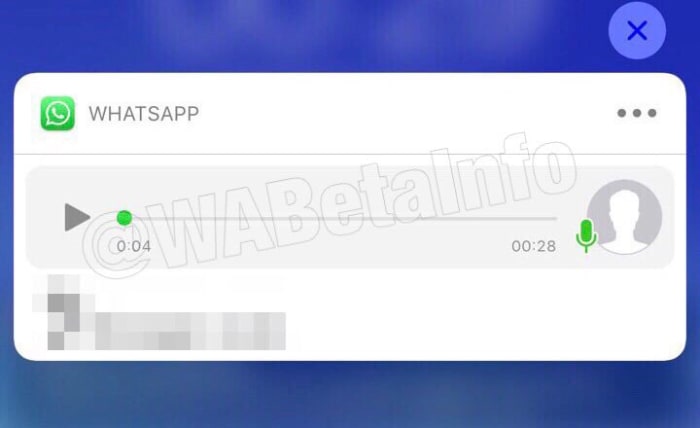
WhatsApp notifications have been spotted in the beta, complete with a play button for incoming voice messages.
Over the last few years, WhatsApp has evolved quite a bit and added more than a few new features that make our everyday messaging experience smoother. Sure, it looks the same as it always has but little tweaks like adding stickers, voice-to-text messaging, and improved voice notes have turned WhatsApp into a messaging beast.
One such update that has really made a difference has been adding the ability to preview received messages in the notifications bar of your phone. Whenever you receive a text message on WhatsApp you can read a preview of it in your system notifications without having to open the app.
Again, it was a small change but in practice, it made a big difference. WhatsApp is now running tests on extending this feature to voice notes as well as text messages.
WhatsApp notifications have been spotted in the beta, complete with a play button for incoming voice messages
WhatsApp voice notes have become one of WhatsApp’s most-loved features and recently we’ve seen them updated. The “Consecutive voice notes” update saw multiple voice notes playing automatically, one after the other, once the user has pressed play on the first message. Voice notes now look set to get another update, although this update will offer something different to consecutive play.
I leave this here.
Yes, it’s a push notification with an incoming voice message, on iOS.
It will be available in future (maybe in a major update with other features?) pic.twitter.com/eSm55GxFuO
A recent tweet from WABetaInfo shows a screenshot of a WhatsApp notification that includes a play button and progress bar for a voice note. The notification is from the iOS version of WhatsApp, which means that soon we could be seeing WhatsApp voice notes we can play directly from the notification get when we receive them.
Unfortunately, beyond this leaked screenshot, information on this new feature is thin. Previews of text messages only run to a certain number of characters before being capped off with an ellipsis.
The screenshots don’t show whether something similar will happen to voice notes over a certain length. Will we only be able listen to snippets from the voice note, if it is over a certain length?
Also, there is no word on whether consecutive voice notes will work from system notifications, although an educated guess would say that this might be a bridge too far.
That’s all there is with this one for now. There is nothing on whether the feature will come to Android, too. And like with all leaks from the beta, there is no guarantee the feature will even land on iOS. This is just a very early leak on a feature that likely still has some development ahead of it before it’ll land on the regular app.
It is an interesting feature, however, which could make our lives easier should it land, and that’s why we thought you’d like to hear about it now. Stick with us for all the latest WhatsApp news and rumors.
Researchers have discovered a number of different scams relating to FaceApp.
If you haven’t seen an aged version of a friend or family member recently you’ve either been living in a cave somewhere or you’ve possibly been the victim of some sort of unknown EMP-type event. FaceApp has taken the internet by storm with its realistic AI aging filter. FaceApp is an AI-powered photo manipulation app that has a few different filters, but it is the aging filter that has garnered so much popularity recently.
The FaceApp aging filter has become so popular that there are plenty of people out there who would be willing to pay for a premium version of the free app. If you’re one of those people or you know somebody who might be one of them remember this; there is no premium version of FaceApp. If you find a premium version of FaceApp it is a scam.
Researchers have discovered a number of different scams relating to FaceApp
The first scam highlighted by security researcher Lukas Stefanko on the We Live Security blog relates to a fake pro version of FaceApp like the one detailed above. The “pro” version of the app is advertised on a fake website.
What’s worse, the “pro” version is advertised as a “free premium” app, which doesn’t even make any sense. All the website will do is push users to click an endless number of ads, sign up to various subscriptions, and view special offers for other paid apps.
Image via: We Live Security – Beware of fake FaceApp pro websites like this one
After what must have seemed like an eternity’s worth of clicks, all Stefanko and his team ended up with was the regular version FaceApp that is available on the Google Play Store.
Another scam Stefanko’s team have uncovered comes via YouTube videos. Their blog post shows a YouTube video that has well over 150,000 views, which again describes a fake “pro” version of FaceApp. The YouTube videos also contain shortened links in their descriptions where users can download the fake apps. In reality, much like with the fake website scam, these only lead users to apps that are simply designed to deliver ads to the unsuspecting user.
Image via: We Live Security – Looking for a “pro” version of FaceApp will only ever find you spam ads like this one or something worse.
The key takeaway here is to not allow ourselves to become too carried away by viral hype and lose our senses in the process. Stefanko has this important message, that we should all remember when there is a viral app doing the rounds. “Hype attracts scammers, and the bigger the wave, the higher the risk of falling victim of a scam. Before joining the hype, users should remember to stick to basic security principles.
Regardless how exciting the topic is, avoid downloading apps from sources other than official app stores, and examine available information about the app (developer, rating, reviews, etc.). Especially in the Android ecosystem.” Fake apps are a common problem, but they’re particularly dangerous when everybody is talking about the newest big thing.
If you want a more detailed explanation on how to avoid fake apps in the Google Play Store check out the short guide we’ve written below.
How to detect fake apps in the Google Play Store in just 3 steps

























 Puppies! Puppies! Puppies!


 Speaking from experience, finding a new home for a dog you currently own can be very painful. Lots of negativity can cloud your mind even after you find your dog a new home, so you need to make sure you pick the right one. Luckily, How I Met My Dog has a tool to find a new home for your pup.