How to stop Mac apps from automatically opening

Tired of every having 20 apps open when you log onto your Mac? Here’s how to stop them!

mac

If you have this problem, it’s either really annoying or getting to that point: you open up your Mac laptop, and that app (for us, it was Adobe Acrobat) pops up again. While it doesn’t ruin your whole day, the event brings your momentum to a halt and derails your thought process. Every day. For months. Eventually, we asked: is there an easy way to solve it?

Oh yeah. There sure was! Let’s get right in and talk about how to…

 Stop Mac apps from automatically opening

The quick and easy way

While this route usually works, you may want to check the full list of programs that open automatically from the settings. Still, if you want to go through this quickly…

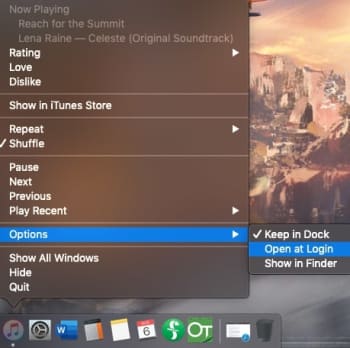
Right-click the application in question, either from the Finder menu or the App Dock. Once you have the information menu open, head into the Options bar and visit the “Open at Login” choice. If there’s a checkmark beside it, click the tab to turn off that function. Boom! Easy as that:

First Option

The surefire way

If you want to make sure this doesn’t happen again and check for any other programs that are opening when your Mac starts up, follow these comprehensive steps:

Step 1: Go to Settings

Pro tip: there are two ways to find this. For the longest time, we’ve used the System Settings app in our dock:

Settings

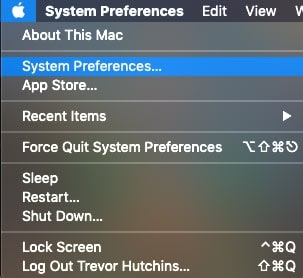
ToolbarHowever, you can also visit your Mac’s info tab, which generally is found at the top left of the screen. From there, choose System Settings in the drop-down menu:

Maccc

If you’re dying to clear up space in the dock, you can delete the app and use this shortcut instead! It’s just a suggestion, of course. If your dock looks fine or if you enjoy the shortcut too much, by all means, keep it around.

Step 2: Get to users and groups

Here’s where we get tripped up: to make the settings easy to understand, Apple combined apps in different categories. However, sometimes the specific function you’re searching for isn’t in an intuitive place.

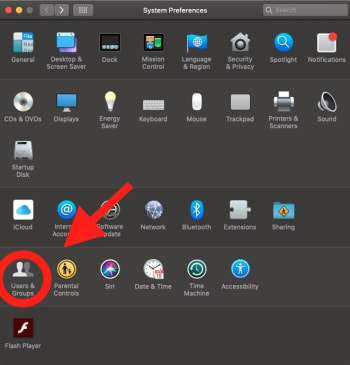
We spent a good amount of time searching through Security and Privacy (we’ll bring this up again later when discussing app permissions) when the real tools were located in Users and Groups:

Groups and SuchStep 3: Go to login items

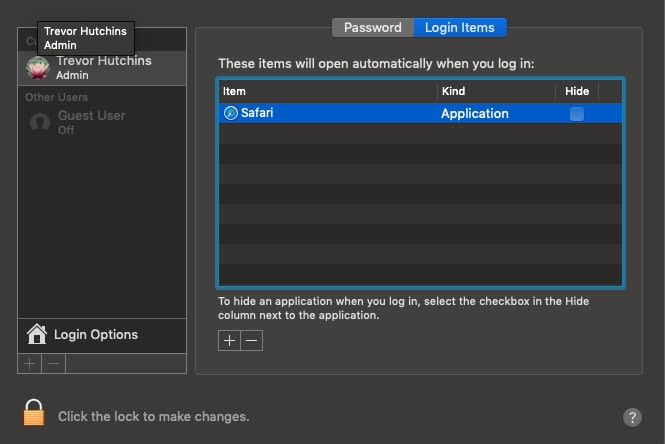
Within Users and Groups, you’ll want to choose the subtab for “Login Items,” the codename for apps-that-open-always. From here, you can choose to delete them from the list! Simply select the offending app, and click the minus button (-) below the box.

The Goods
(Safari added for example)

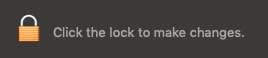
We were able to alter this particular window while changes were locked. However, if your computer doesn’t allow it, make sure to unlock your system by selecting the lock pictured at the bottom left. You’ll need to enter your computer login password immediately afterward:

SHERlockedOnce that’s finished, you’re good to go! Except…

Step 4: For future reference

You may have noticed we skimmed past a very important question (get ready for this reveal)…

Why does this happen in the first place?

We didn’t put Adobe Acrobat into the Login Items box, and you probably didn’t either. So how do they get in there? Can you stop it in the future? Here’s one method that might help:

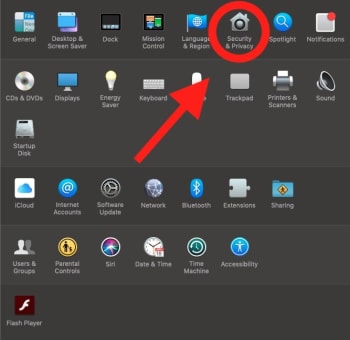
Go back to settings. This time, take a right turn into Security and Privacy:

Settings Again

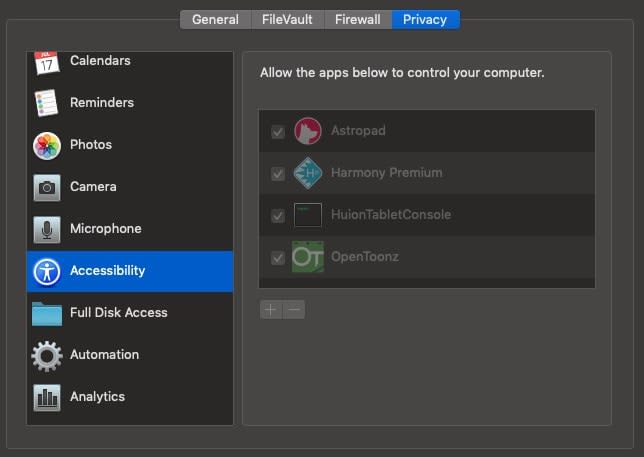
In the left bar, find Accessibility.

AccessibilityThe apps within this section are given the ability to control your computer, which is likely how unwanted apps voyage to the Login Items section. We recommend keeping only apps you trust in this section.

Still, sometimes even AAA apps like Adobe Acrobat can decide they want attention. If anything starts acting up, we recommend checking this section and removing the app in question!

And that’s about that

It’s funny how little settings and changes can make such a large difference over time. We hope this quick fix helps keep your sanity in check by stopping legitimate apps from becoming irksome pop-ups!

10 best video game heroes of all time

From the intergalactic spaceships to the fields of Hyrule, these video game protagonists are absolutely iconic!

Uncharted

No video game is complete without a good protagonist. Sure, cool settings and tense plotlines are great and all, but at the end of the day, all the best stories are about compelling characters. This is even truer in the case of video games; as players, we don’t just watch the stories of these characters, we experience them.

Over the years, the world of gaming has seen more than its fair share of strong heroes, and it’s hard to narrow down such a crowded field to the 10 best. That said, here’s our lineup of gaming’s 10 most iconic heroes.

10 best video game protagonists

Soap MacTavish- Call of Duty: Modern Warfare

soap mctavish call of duty modern warfare
Image courtesy Infinity Ward

Soap beat out Lara Croft from Tomb Raider and Dante from Devil May Cry by just a hair.

When Soap first arrives in the original Call of Duty 4, he’s about as green as it gets. Taken under the wing of the gruff, no-nonsense Captain Price, Soap soon grows into an elite veteran soldier.

In Modern Warfare 2, he’s the commander of his own special operations unit, no longer the raw recruit we first guided through a SAS training run.

By Modern Warfare 3, Soap is a hardened soldier; as players, one of the most gratifying parts of the Modern Warfare series is taking that journey along with Soap. Like him, we start as recruits and end up as hardened professionals.

Call of Duty 4: Modern Warfare Download now ►
8

Gordon Freeman- Half-Life 2

gordon freeman half life 2
Image courtesy Valve

Gordon Freeman is a man of many talents. Not only can he complete equations complex enough to make your head spin, but he can also stop an alien invasion almost singlehandedly using little more than a crowbar.

Gordon is a scientist-turned-reluctant warrior, and it’s that experience that separates Gordon from the typical gruff FPS protagonist. His background lets us experience different perspectives and encounter some even weirder science along the way.

Half Life 2 Download now ►
8

Mega Man- Mega Man Series

mega man
Image courtesy Capcom

With more than 100 games spanning multiple systems, it’s undeniable that this intrepid blue adventurer has left his mark on gaming. Mega Man is an originally mild-mannered android that reluctantly takes up arms to defend the world from (usually robotic) threats.

With challenging levels, unique boss battles, and a host of different powerups, Mega Man takes a simple formula and perfects it. He’s a classic hero in every sense of the term.

Mega Man 11 Download now ►
9

Ezio Auditore- Assassin’s Creed II

ezio auditore assassin's creed
Image courtesy Ubisoft

When we first met Ezio, it was hard to imagine that the mischievous playboy would one day become the most elite and respected assassin of all time. However, throughout several games, he becomes exactly that.

Though the Assassin’s Creed series has its share of strong protagonists, as players we essentially get to live out Ezio’s entire life, from youth to old age. He’s one of the richest and most well-developed characters in the series, and he left an indelible mark on fans around the globe.

Assassin's Creed Download now ►
8

Big Boss- Metal Gear Solid

big boss metal gear solid
Image courtesy Konami

Big Boss is as much a philosopher as he is a warrior. Not content to merely fight the wars of others, Big Boss makes it his life purpose to change the world. Though he starts as a young idealist and a true hero, series veterans will know that he eventually ends up as one of the main antagonists of the series.

The Metal Gear Solid prequels allow players to experience Big Boss’s complicated and tragic backstory, and in true Metal Gear fashion, eventually, realize that he may not have been a villain after all.

Heck, his clone is Solid Snake who is another great character that almost made this list. Big Boss is the definition of an iconic character, and he’s a staple in gaming history.

Metal Gear Solid V: The Phantom Pain Download now ►
7

Commander Shepard- Mass Effect

commander shepard mass effect
Image courtesy EA/Bioware

Commander Shepard’s story is your story. Sure, there are a few things out of your control… but as a player, you have a whole galaxy’s worth of choices and decisions at your fingertips. From choosing your appearance, your squad, or how you act in a particular scenario, there are almost unlimited possibilities when it comes to how you want to experience Commander Shepard’s journey. Even though we’re still playing a character, we get to play them exactly the way we want to as players, which makes Commander Shepard an even more powerful and defining hero.

Mass Effect 3 Download now ►
8

Link- Legend of Zelda

legend of zelda link
Image courtesy Nintendo

Sorry Cloud Strife from Final Fantasy VII, there is only room for one pointy-eared swordsman on this list!

Link has seen more than his fair share of action over the years, growing from a few green pixels to the blue-eyed hero we know today. This intrepid adventurer never gives up, no matter what the forces of darkness throw at him. He may sometimes come off as inexperienced, but that just makes him all the more relatable. His tenacity and courage leave an indelible mark on players and fans.

We were close to putting Samus Aran on this list, but Link and a certain someone else from the Super Smash Bros. roster won out overall!

The Legend of Zelda Download now ►
8

Nathan Drake- Uncharted

uncharted nathan drake
Image courtesy Naughty Dog

A modern-day Indiana Jones, Nathan Drake has a sharp mind, tenacious attitude, and a wise-crack for every situation. He’s not the typical stalwart hero. He’s got plenty of flaws of his own and is perhaps one of the most relatable characters in gaming. He’s just an ordinary guy facing down extraordinary (and sometimes supernatural) circumstance. That makes him all the more human… and a hell of a lot of fun to play.

Uncharted 3 Download now ►
7

Arthur Morgan- Red Dead Redemption 2

arthur morgan red dead 2
Image courtesy Rockstar

The tale of Arthur Morgan is a long one, but completely worth the journey. Despite a laundry list of characters you meet along the way, at the end of the day, Red Dead 2 is Arthur’s story. Arthur Morgan is an outlaw with a gruff exterior and a heart of gold despite his flaws. All he wants is to do what’s right for himself and those he cares about. His story is filled with betrayal, joy, heartbreak, and every emotion in between. When we start the game, Arthur is essentially a stranger to us, but by the time the credits roll, he feels like family, and it’s an exceedingly difficult goodbye.

Red Dead Redemption II Download now ►
8

Mario

mario
Image courtesy Nintendo

Was there ever any doubt? The king of gaming’s heroes retains his crown. With adventures spanning worlds, consoles, and many years, this red-shirted plumber does it all with a smile and unflappable positivity. No matter what new evil comes to bear, Mario will do anything to protect those in harm’s way. When you think about a video game character, Mario is probably the first one that comes to mind. Mario is, simply put, the best.

Super Mario Bros. 3 Download now ►
8

Wrapping up

So, did we miss anyone? Let us know in the comments, and check back with Softonic for more gaming-related goodness.

Twitter’s new feature allows you to subscribe to replies

Twitter is testing a new function that allows users to get notifications when someone replies to a tweet reply!

Twitter

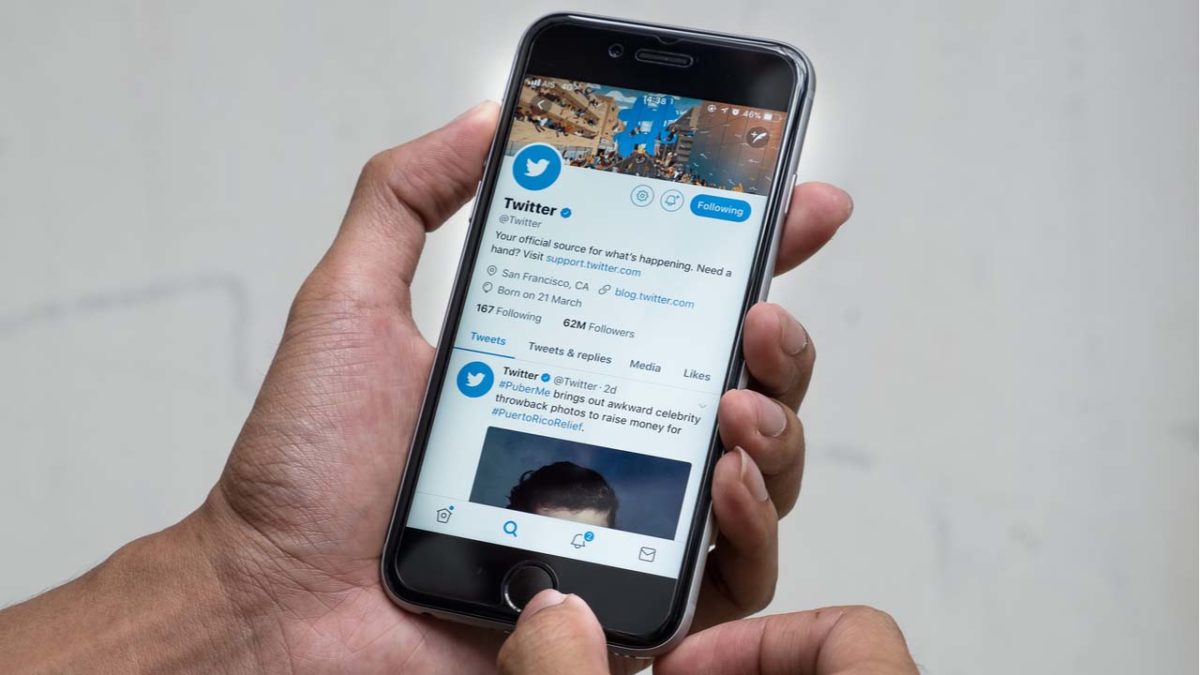
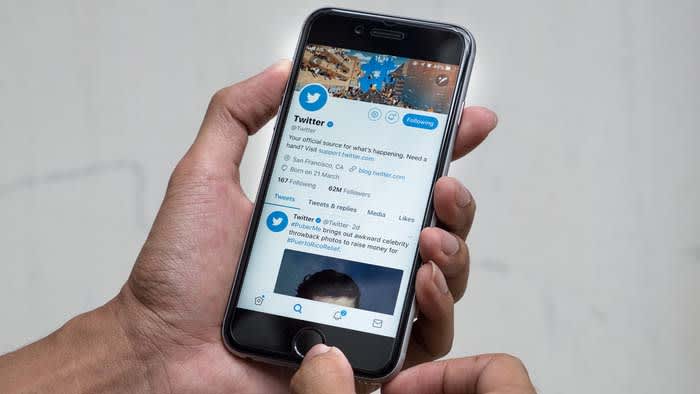
Twitter is now testing a new feature that allows users to get notifications by subscribing to tweet replies.

Now, if a user replies to a tweet, you can be notified!

How do I do it?

Well, it’s only for mobile for now. If you were hoping to use it on your desktop, you’re out of luck. If you want to try this out on mobile, tap on the reply that you want to follow. From there, click on the bell in the top right of your screen. After that, you can get notifications for if someone replies to the tweet in question.

Why would I do this?

The best way to describe this feature would be “neat, but unnecessary.” There aren’t many situations when subscribing to replies sounds like a good idea. If you want to follow some Twitter drama that’s going to stem from a reply, this can help out. If you’re interested in the conversation between users in a reply chain, it can come in handy. However, you can also just periodically check back also.

Before this new feature, you would only get a notification from a tweet reply if a user replied to you. Even if you commented somewhere in the reply chain, you would only get a notification if the replying user also replied to you.

No Man’s Sky Beyond trailer showcases a VR universe

No Man’s Sky Beyond adds 32-player support and populates the galaxy with life!

No Man's Sky

Hello Games just released a trailer for No Man’s Sky Beyond, which brings incredible VR tech to the massive open-world game. Although we were already burned once, we can’t help but feel hyped from this trailer: 

No Man’s Sky Beyond is set to launch on Aug. 14. It will be available for Xbox, PlayStation, PlayStation VR, Steam VR, and PC. This is the biggest update to No Man’s Sky since the game’s initial release. 

Back in 2016, gamers everywhere were hyped for No Man’s Sky. It promised to be one of the biggest open-world games ever created if not THE biggest.

Unfortunately, our tears of joy rapidly turned into tears of sorrow once we actually started playing the game.

No Man’s Sky was a giant open-world experience, but all of the planets we were able to visit just felt like more and more of the same. Basically, each planet was not entirely unique; they were basically the same few looped over and over again. 

No Man's Sky Download NOW ►
6

Despite its checkered past, No Man’s Sky Beyond sold us with just two letters: VR. No Man’s Sky Beyond is the type of game that seems like it was always meant to be in VR. Traveling the galaxy in our spaceship as we hop from planet to planet could be an endlessly fun experience in VR. 

Along with playing in beautiful VR, you will be able to explore the cosmos with up to 32 players at once! 

All of the empty, barren planets that butchered our hype now look lush and full of life.

Should I finally buy No Man’s Sky now?

As much as we want to say, “YES, GO BUY THE GAME RIGHT NOW! IT LOOKS AMAZING!” we would recommend waiting to hear reviews first. Yeah, it looks like fun and it looks like it would be next to impossible to screw up. However, we thought the same thing back in 2016.

We are going to hope for the best, but Hello Games already broke our hearts once. We aren’t about to just let them do that again.

How to stream to Discord Community in 5 easy steps

Soon you will be able to stream games on Discord, but there’s a catch!

Discord is software that allows many people to talk to each other for an unlimited amount of time. You can use it to create channels and servers to interact with friends, colleagues, or groups of family members in visual, audio, or text formats. It doesn’t matter if you do so casually or in a formal business context. The result is still excellent communication about anything.

The app was originally designed for gamers to get together online and chat about games and gaming. But before too long, the players wanted a more inclusive communication platform for social groups, businesses, schools, clubs, and more. That led to Discord opening up to other uses, including streaming. Here’s a look at how to stream on Discord.

Discord FREE DOWNLOAD
9

Accessing Discord

The app is available for Windows (11, 10, 8.1, 8, 7), iOS, Mac, Linux, and Android.

 Once you’ve downloaded it onto your device, you can start communicating with whoever you want or streaming content. An increasing number of people are live streaming videos of themselves playing games while giving commentary. You, too, can build your own community and stream games or whatever else you like to people on your channels.

How to stream on Discord

Discord has a live chat feature that allows subscribers and streamers to interact in the same room. Therefore, streamers have many opportunities to interact with their viewers and build their communities to include as many people as possible who want to hear or see what they are offering. You need a server as well as a voice channel to stream. Here’s how to do it

  1. Download and install Discord

    How to stream to Discord Community

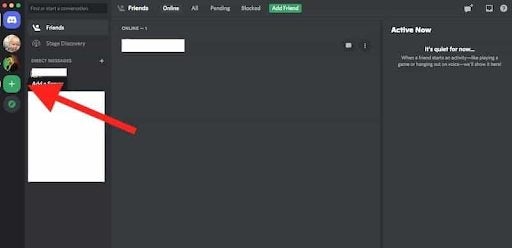
    Go to the Discord download page. Click on Download for Mac/Windows. Then install the software on your device. Open the app, register, and log in. You’ll see an invitation to go into public servers on the screen. There’s a plus icon that allows you to create your own servers. Once you’ve done so, a list of your servers will appear.

  2. Create a server

    How to stream to Discord Community

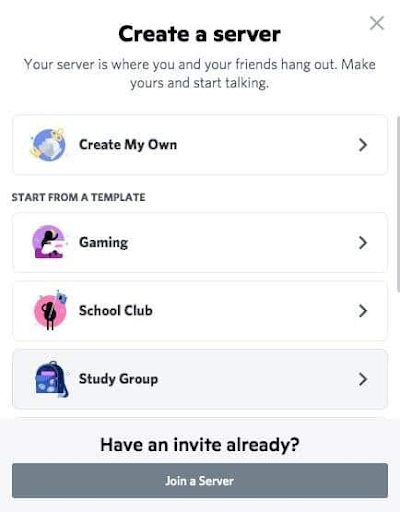
    Clicking on the Plus icon will take you to a screen where you’ll see templates for different categories of servers and an option to create your own. Once you have done so, give your server a name and an icon.

  3. Create channels

    How to stream to Discord Community

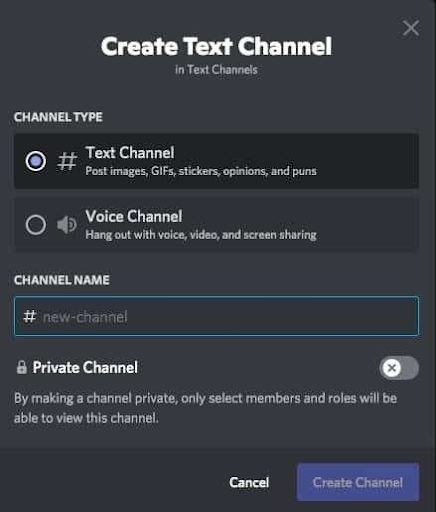
    Now you can set up different channels in your server for different topics, invite friends and contacts and start communicating. There are Voice or Text channels. To create a new channel, click the small plus icon. Pick the channel type, name your channel, and click on Create Channel. Now you can start streaming on any of your channels.

  4. Start streaming

    How to stream to Discord Community

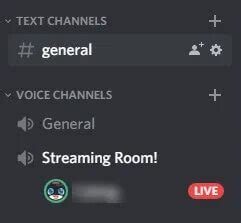
    You can only stream on Mac or Windows, and audio sharing is only available on Windows 10 or macOS version 10.13 or later. Here’s how: Open Discord and get onto a voice channel on one of your servers. Look for the option to turn on your video. Click on the Video button to make the camera appear. You’ll then be visible on the screen, and conversation mode will be on.

  5. Share your screen

    How to stream to Discord Community

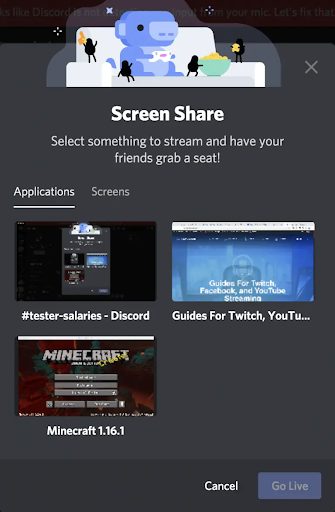
    Click on the Screen icon. A pop-up window will appear where you can choose how to share (a screen on your system or the whole screen). Then click on the Go Live button to share your screen with viewers. And you’ll be streaming!

    You can invite people to join you on our server. Click on the Invite button or send a server invite link. You can end your stream by clicking on the red Disconnect button on your Discord screen.

Watching a Stream

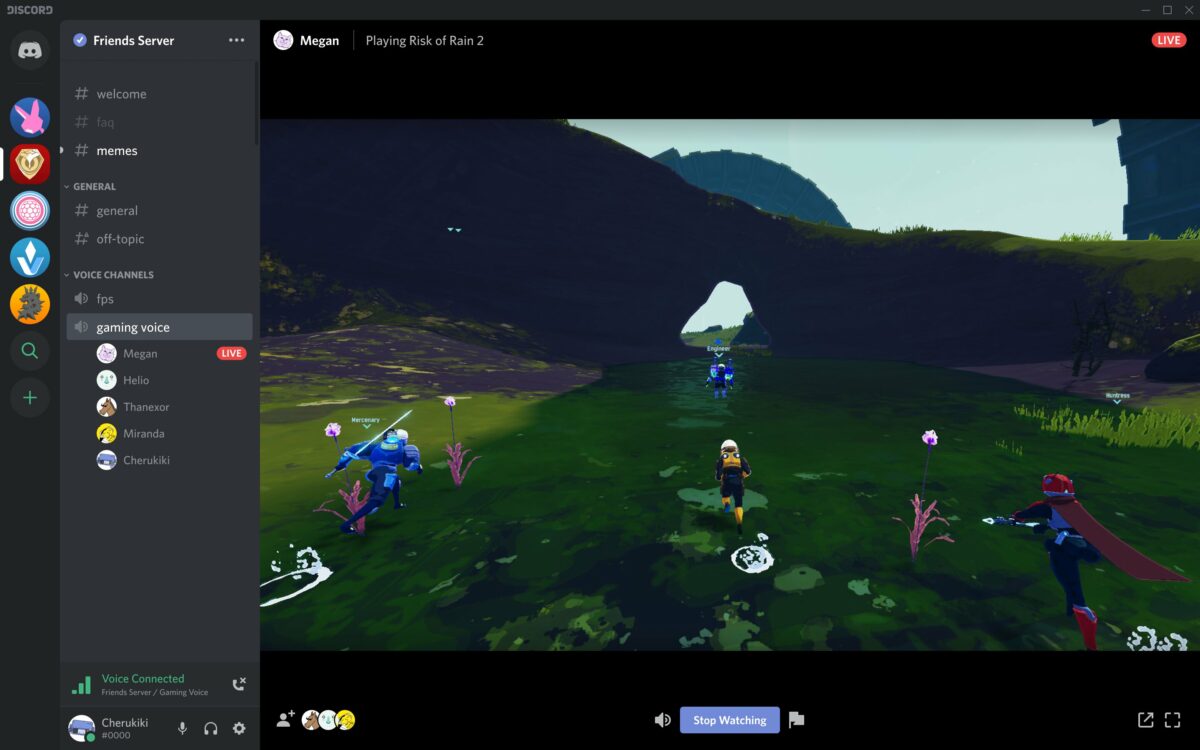
If you’re on a server where someone is live streaming, you can join the stream with a click.

 You can see if someone is streaming because there’ll be a Live button on the screen. Click on the server’s name in the voice channel, and a window will pop up. Click on Join Stream to watch it.

Should you stream on Discord?

Streaming is a wonderful way to reach many people live on a Discord channel. You can stream so many different things, including games, the original reason for the introduction of streaming, cooking or gardening demonstrations, music, music videos, and movies, to name a few. The best thing about streaming is that you can find new Discord friends while you’re doing so. 

You can see their messages and replies in real-time, and you can reply to them in the same way. Engaging them while streaming is a good way to get them interested in your content so that they can spread the word about your stream. If you’d like to learn more, check out our guide on what Discord is and how it works.

The Facebook groups where people ask for money

Blessing groups help Facebook users in need ask for financial aid, but are they safe?

Facebook money

It was only a matter of time. Facebook Messenger now makes it easy to send and receive money for free.

A recent piece from The Atlantic brought attention to a new trend on Facebook: asking for money in groups known as “blessings groups.”

While initially, we expected something akin to random Venmo requests, these Facebook groups appear to be a lifeline for needy users. They are also a way for good samaritans to give directly to those in need — in this case, mostly low-income moms who need some help getting by.

Here’s a look at what we learned about this social lifeline:

Messenger Download free ►
7

What are blessings groups and who is using them?

The concept is simple, blessings groups are similar to crowdfunding sites but less formal. Posters often request small amounts to cover basic living costs like gas money to get to work or a few extra dollars for food until that next paycheck comes in.

The key difference between blessings groups and a site like GoFundMe is that the latter is used for large expenses like medical bills, charity runs, or launching a new business. The groups offer smaller amounts and many cap funding at $500 per post.

Most groups have names like App Blessings or Give Me Some $$$. Yeah, they get straight to the point.

facebook groups donate

How it works is like this: people share how much they need, along with some logistical details like preferred method of payment, photos, and some sort of assurance that they’re a “real person” not some kind of a scammer.

From there, the community can respond by asking questions about the request in the comments section. Often, funders upload receipts as a way to add some transparency to the process.

Are these Facebook Groups regulated?

The bulk of the Facebook blessings groups we found were closed groups, operating according to a similar set of rules.

  • No promotional content or live-selling
  • No hate speech or violence
  • You need to have a profile picture that shows your face
  • No referral links to sites like GoFundMe

So, while there are no formal regulations in place, the platform seems to focus on enforcing some basic guidelines. People must be respectful and transparent about why they need the money, how much they’ve received, and so on.

What’s worth pointing out is that this is one of the few places, short of walking up to a person on the street where you can donate directly to an individual case.

Additionally, crowdfunding on Facebook is less polished than the GoFundMe and IndieGoGo campaigns where success often hinges on marketing savvy and attractiveness.

Another thing worth mentioning is that Facebook does offer some guidance for personal and non-profit fundraising. However, it’s unclear whether this approach is included in the rules.

Facebook crowdfunding offers an alternative

If you look at GoFundMe’s FAQ page, it does look like users do have the option to raise money for themselves and the site doesn’t take a cut. However, funds may take a few days to go through. According to the site, it could be up to five business days.

The other thing to consider is that a GoFundMe page might receive more criticism from their community than they would request money in this less formal setting.

Facebook payments are also sent through Messenger, Cash, PayPal, or Venmo, so people get paid immediately. This is huge,  as The Atlantic notes, users seek help on these platforms because they need to pay their gas bill that day or feed their kids.

One group, Give Me Some $$$ (strangers helping strangers and paying it forward), allows people to sign up for VIP membership.  It’s a $10 fee, which goes toward supporting the neediest users.

Bottom line: Facebook fundraising might be the new safety net

Panhandling

While there’s no guarantee that your donations aren’t going to someone lying about their situation for extra cash, Facebook users seem to do a pretty good job sussing out a scammer.

And, what’s more, like traditional crowdfunding, not everyone in need receives funding. That could be due to their conduct online or a case that’s less than glamorous.

These robocall blocking apps are selling your data

Several robocall blocking apps are selling your data as soon as you hit the download button

robocall

If there is one thing that every person regardless of race, religion, or political stance can get behind, it’s that we all hate robocalls.

This hatred has gotten so apparent that even the FCC has taken action to stop them. However, many of us have still taken matters into our own hands by downloading apps to block robocalls.

Unfortunately, according to an article from TechCrunch, some of these apps are compromising our privacy as soon as we download them. The robocall apps Hiya, TrapCall, and Truecaller all were selling user data to third-party analytics companies. 

How serious is this?

Apps stealing your data is nothing new, but that doesn’t mean that it’s not an issue. Hiya and Truecaller were selling information about your phone such as the model and software, which is in direct violation of Apple’s App Store guidelines. 

Although these three apps were the ones called out most in the TechCrunch article, they are not the only offenders. Many robocall blocking apps immediately send some data to Facebook as soon as you hit the download button.

Robocall blocking apps are nice, but you are still running a risk no matter which one you download. Basically, if it sounds too good to be true, it probably is.

I have one of those apps! What should I do?

Fear not! There are plenty of robocall blocking apps that you can download that won’t sell your data. Again, you just have to ask yourself if it is worth the risk.

RoboKiller - Block Spam Calls & Identify Callers Download Now ►
8

If you’re done with these apps altogether and want to make sure you are protected, there are some things you can do. First, you should uninstall the app in question. Once it is uninstalled, use an app like PhoneClean to make sure all traces of it are gone.

PhoneClean Download now ►
7

The next thing you should do is run a virus scan. Even if the app is gone, there is always a chance that something is happening in the background to send data to third-parties.

Avast Free Antivirus Download now ►
8

Once you’re done running a virus scan, restart your phone. If the scan found something, restarting your device can make sure that everything malicious caught by the virus scan is gone.

Wrapping up

Look, we all hate robocalls. If we get one more fake call telling us about a car warranty we don’t have, then we might just throw our phone out the window. However, this doesn’t mean that we should pursue a method of blocking robocalls that can potentially do more harm than good.

As stated before, the FCC is working on a way to block robocalls for good. It is probably in your best interest to wait until that plan is unveiled before you go seeking your own solutions.

What is Soundcloud, how does it work and how to use it

Spotify may be the big dog when it comes to music streaming, but there’s a lot to like about SoundCloud!

SoundCloud is a free website and app that lets users share, collect and discover music and podcasts. It is the ideal platform to share your own musical creations and mixes with the world. All the music you upload to SoundCloud is streamable. The artist can even make the songs or playlists downloadable or redirect interested parties to a website where they can purchase the songs/albums.

The app is a great platform for discovering new artists or sharing their music with a new audience, thus growing their following. SoundCloud has a desktop version for Mac as well as mobile apps for iPhone and Android. In this SoundCloud guide, we will cover what SoundCloud is, how it works and how to start using it.

What Is SoundCloud?

SoundCloud is known as an online audio distribution platform, which simply means it is a platform where users can share music. SoundCloud was founded in 2007 and remains one of the premier artist-first platforms that is driven by a community of artists and listeners.

While SoundCloud is free to use for artists and listeners alike, a subscription version is available. If you want more freedom, you can consider SoundCloud Go. What is SoundCloud Go? SoundCloud Go is the first tier in the SoundCloud subscription and costs $4.99/month. The subscription version doesn’t contain any ads and offers offline listening options as well. 

If you are an artist, SoundCloud is a great platform to get your music out into the world and start building a global following. If you are a music enthusiast that loves staying on top of the hottest music trends, SoundCloud is a great space to find new talent.

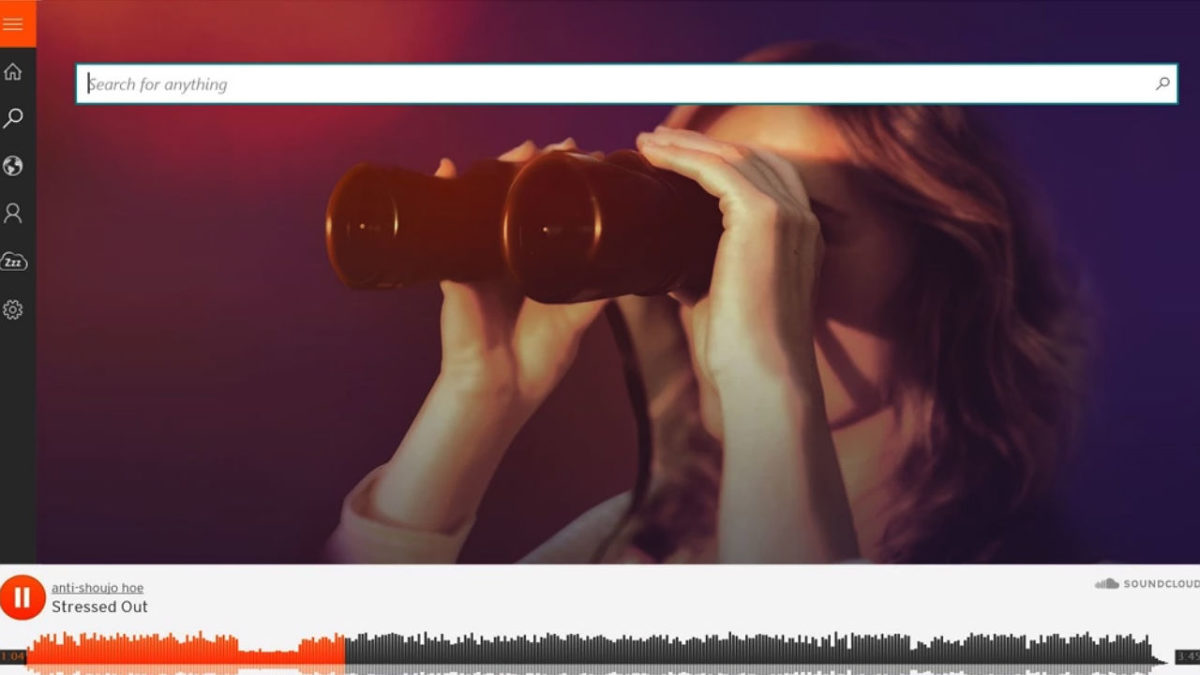
Soundcloud

How Does SoundCloud Work?

To start using SoundCloud, you’ll have to create an account first. This can be done through the Mac desktop client directly or via the app. Once you’ve created your account, you can start listening to music or uploading your own. Anyone can start using SoundCloud to listen to music or start uploading music for free.

If you are an artist, there are also subscriptions available specifically for music creators. These subscriptions include more insights and stats, support and other opportunities. This is perfect once you’ve established your profile and are starting to grow a following.

It is important to note that you can only upload music you have rights to on the platform. This means you cannot just upload your favorite artists’ songs. The creators who hold the rights to those have to upload them.

What Is the SoundCloud App?

The SoundCloud app is a convenient way to take all your music, playlist and likes with you wherever you go. The SoundCloud app is available on both Android and iOS devices. Once you have the app installed on your phone and logged in with your account, you can take your music with you wherever you go.

How to Use SoundCloud?

To start using SoundCloud, the first thing you’ll need to do is create your account. You can do this easily through the SoundCloud website, the app or the Mac desktop client. Once logged in, you can customize your profile by clicking on your display name at the top right of the screen and then selecting ‘Profile’. Once all the basics are in place, you can use the below SoundCloud tips to get started.

Discover new music on SoundCloud

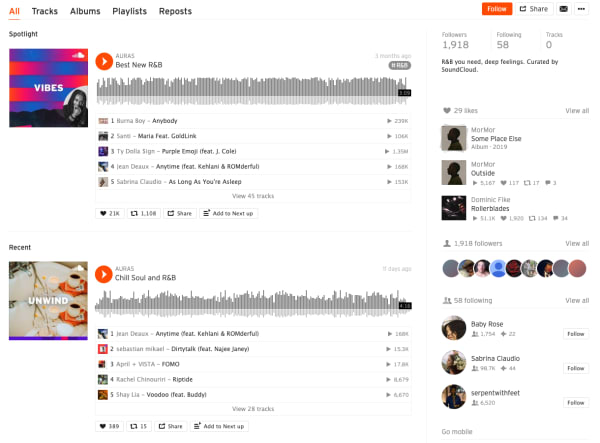
soundcloud feed

Everything is taggable, and it’s easy to bump into music similar to or related to the music you like.

Here are some of the new features included in the SoundCloud app this year:

  • Personalized recommendations
  • “The Feed” is a feature that curates an artists’ likes, follows and reposts on the platform. The idea is, it helps foster a connection between artists and listeners, giving artists a chance to share recommendations.
  • New playlists: The Morning Mourning, Drippin (new rap), and Speed Bumps (new electro), and more.
  • Communities: Genre-based pages designed to help you find new music, in a way that feels different than the Netflix or Spotify approach.

Many of the newer features aim to give users a sense of community, which certainly isn’t unique to the SoundCloud website.

Find your community

SoundCloud is aiming to position itself as a digital community. As such, they’ve introduced community profile pages, which work just like any of the other pages on the SoundCloud website. However, it aims to bring together “authentic” communities (their words).

What these community pages look like out in the wild represents something a bit different than what you’ll get from your average profile page on social media.

Instead, you can follow any of the following communities:

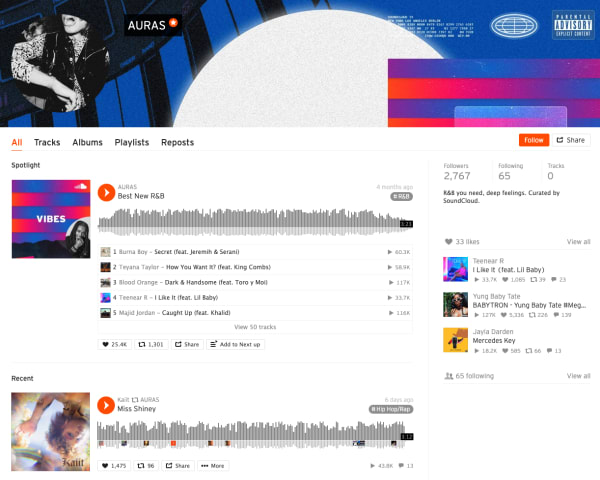
Here’s what AURAS looks like:

Soundcloud communities

As you can see, you’ll get a round-up of different playlists based on your favorite types of music.

While initially, we were a bit confused about how this feature differs from say, following Spotify playlists, it turns out that Communities are a cool way to discover new music. It is not some shoddy attempt at turning SoundCloud into, say, Facebook for music.

The community building part comes in here. Fans and creators can connect with other people who share similar tastes. Join Scenes if you’re looking for some low-key relaxation vibes.

Follow Hustle for the latest in hip hop. AURAS is all about R&B, while Circuits represents the electronic underground.

How to download from SoundCloud

Not every track on SoundCloud is downloadable. To figure out if a track is downloadable, first, find a track on SoundCloud that you’d like to download. Click the More button, and look for the Download file option. If you don’t see one, that means that the creator of the track did not want the track to be downloaded.

SoundCloud
Source: SoundCloud

If it is there, you are in luck, and you can commence with your download! Just make sure you have a decent app for listening to the track.

VLC media player Download free ►
8

How to upload to SoundCloud

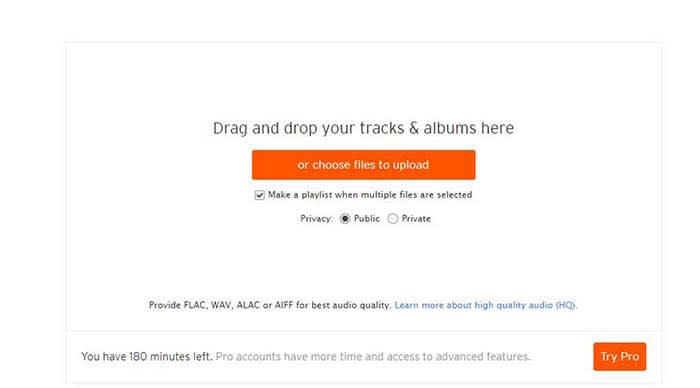
Uploading tracks to SoundCloud is a pretty quick and painless process. First off, in order to upload anything to SoundCloud, you need to sign in. Once you’re signed in, go to the Upload page. From there, you’ll see a page that looks like the one below:

SoundCloud

You can either drag and drop tracks and albums onto the page, or you can use their file uploader. Check the box on whether you want to share your tracks publicly or privately.

Please note that if you don’t have a Pro account, you have three hours worth of content that you can upload. If you only have a few singles you want to share, that should be enough for you. However, if you also have several diss tracks, love ballads, a swan song, and a comeback album, you may want to consider upgrading to pro. 

Once you choose the tracks you want to upload, click the button to begin uploading. Once you’re done, you can fill out the track names, the genre, and add whatever tags you’d like. After that, you’re all done! Make sure you give yourself a cool artist name and tweet out to all your friends so you can share your tracks with them!

Promoting your music on SoundCloud

Not just a listener? SoundCloud is one of the few accessible forms of DIY distribution and marketing for independent artists.

While podcasters have tools like Stitcher, Anchor, Apple, and Google, there are few places for aspiring artists to connect with their fans.

Spotify and Stem recently discontinued their music distribution offerings. Stem announced it would be dropping tens of thousands of artists, while Spotify called it quits on their self-upload beta program.

Music

It may be in your best interest to create a page or a site to help promote your work. WordPress has great tools for making a free website, or a cheap website if you want access to more customization.

Wordpress Download now ►
7

However, one of the best tools for promoting your work is Tumblr. Although posting on all your social networks can help, Tumblr is a cut above the rest.

If you make a Tumblr post, you can copy your track or playlist’s URL and paste it into the Audio section of a post. Tumblr allows users to use tags to help discover new tracks. If you include the genre, your name, and the themes of your music, Tumblr users can start finding you. For example, if you write a break-up song, include “break-up” in your tags so all of the lonely hearts out there can find it!

SoundCloud recently announced that it is adding distribution to its self-monetization Premier program.

Eligible creators now have access to an open beta where they can upload songs, monetize, and publish to external streaming platforms like Apple Music and Spotify.

What’s more, SoundCloud says those who use its distribution service will keep ALL royalties obtained from third-party services.

How to Embed

This is just a quick little note for promoting, but if you want to embed a track, click the Share button next to the track and then on the Embed tab. From there, you will get an embed code that you can copy and paste to your heart’s desire.

SoundCloud vs. Spotify

From a user standpoint, SoundCloud and Spotify bring very different experiences to the table. While it’s almost not really a matter of SoundCloud vs. Spotify, here’s a quick look at some of the pros and cons associated with each platform. You’ll see that there’s plenty of reason why you should get a SoundCloud account.

Spotify vs SoundCloud
8

Spotify

Pros

  • Spotify is more polished. The user interface is super easy to use. You can search for artists, follow playlists, and browse through recommendations without any onboarding tutorials.
  • Spotify allows for offline use. You can download as many songs and podcasts as your phone storage allows. No need to worry about usage caps or dead spots.
  • Spotify has established artists are on the platform. From indie bands to pop stars, most artists that you can name can be found here. It’s the leading streaming platform, so you’ll generally find what you’re looking for.

Cons

  • The free version is super limited. Unless you love hearing ads after every other song, regular listeners should invest the $10/month for an upgrade.
  • It’s not great for finding underground artists and hidden gems. Spotify hosts a ton of music, but mainly from established artists. If you’re all about the “obscure” Spotify won’t cover all of your bases.
  • It’s missing some big names, too. From time to time, an artist might feud with Spotify and pull their music. There’s no guarantee every song you want will be on the platform.

SoundCloud

Pros

  • It’s great for finding independent artists. SoundCloud hosts known artists alongside those still grinding it out from home. The platform provides a great way to find hidden gems from total unknowns. “Old Town Road” and “The Git Up” are recent songs that exploded from SoundCloud.
  • Discovery feels less “algorithm-driven.” While personalized recommendations are a core feature, it’s easier to break out of the recommendation loops you’ll find on Spotify.
  • Stream provides a unique way to get updates. Users can follow artists and playlists they like to receive updates and keep track of their favorite tunes. They can also share tracks with the community, almost like retweeting on Twitter.
  • SoundCloud has private sharing. You can use the share button to privately embed and share artists and tracks.

Cons

  • It does not have the best sound quality. Spotify has SoundCloud beat when it comes to audio. We’re talking 320 kbps vs. 128 kbps. You’ll notice the difference.
  • The user-experience can be confusing. While the design is attractive in a lot of ways, SoundCloud is somewhat hard to figure out.
  • There is no offline support. You’ll need to signup for SoundCloud Go to download songs to your device.

Wrapping up

There’s a lot to take in when it comes to breaking down the SoundCloud experience. For creators and listeners alike, the platform remains a solid choice for anyone who wants to discover new content and break away from the algorithmic rut that sometimes happens when you depend on Spotify or Pandora for recommendations.

Ultimately, the SoundCloud app has some limitations. Again, the usability and sound quality could be better, but it’s also one of the few places online where not everything is super polished, commercial, and on everyone’s radar.


How to change your Mac’s ‘Open With’ settings

If you’ve screwed up the program that opens your files, here’s how to fix it in a flash.

Uh-oh LegoEver had this happen?

You download a file, let’s say a spreadsheet. Unfortunately, since you haven’t downloaded Microsoft Excel and don’t use Google Spreadsheets, you choose a random app to open the file…yep, it’s Garageband. Why Garageband???

From now on, your file will automatically open inside an app that can’t adequately read, use, or interact with the information. That can be either a frustrating inconvenience or a serious problem if the file was important for school, work, et cetera! So, what comes next?

First things first, try the official method!

How to change your Mac’s ‘Open With’ settings

Step 1: Find the file in question

Nice and easy: find the file in question. If you’re looking at the file now and know you want to change the settings in the future, we recommend dragging it to the desktop. However, you could also search for it in Finder or create a special folder, whatever works for you!
Step 2: Go into the information settings

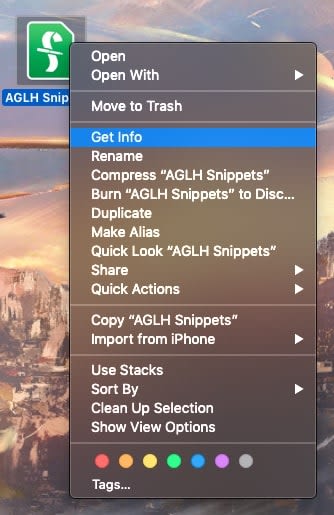
Double-click the file and choose the “Get Info” settings. For a Final Draft document, you’ll be looking at something like this:

The File

There you go! In almost all file types, it’s sandwiched between “Move to Trash” and “Rename”.

Step 3: Locate the ‘Open with’ tab

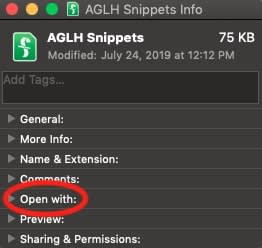
This information box can tell you the file type, size, give a preview, display the thumbnail used, and more, but right now we’re just looking for a small tab that says “Open with”:

Info

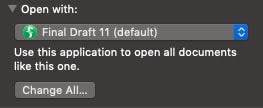
Give it a click to activate the drop-down menu! It’ll tell you right off the bat which program you’re currently using to interact with the file’s contents:

Open WithStep 4: Fix it!

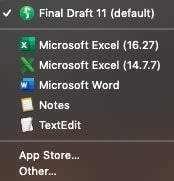
If the application listed isn’t correct, click on the app name to see a drop-down list of suggested options and more! All it takes is one click to change to another program, so we recommend selecting the right one carefully.

Programs

Just remember, there are a few other options: you can decide from the menu above to choose other applications not listed, or go to the app store and buy/download something that works better.

Also, in the main “Open With” settings locale, you may choose to open a whole category of file types with a specific app. Be careful with broad changes like this!

Once you’re finished changing the settings, make sure to check the files and ensure they’re opening properly. If they are… congrats, you’re all finished!

Except for one quick warning…

A Scary Situation: Apps (Optional Boss Fight)

You can’t easily change the “Open With” settings for applications!

A little backstory for the issue: we downloaded a free online program called Inkscape, basically Adobe Illustrator without the monthly subscription free. Sounds great, right?

It probably would’ve been, but…

Before Inkscape landed in the Applications folder, our Mac assumed the incoming program was simply a foreign file and asked what app we’d like to open it with. Adobe Illustrator (a similar app) was in the mix, so we innocently chose this.

Flash forward: every time we try to open Inkscape, we arrive at Adobe Illustrator instead.

Here’s the rub: as mentioned, you can’t change the “Open With” settings for apps because they’re meant to be opening files themselves! Once we put Inkscape into the Applications folder and it was registered, there was no way to change the setting. At least…none we’ve discovered as of yet.

If you’re downloading an app and Mac asks to open it with another, don’t allow it. It’s best to stop this problem before it happens, if possible!

Conclusion

Be careful when deciding what apps open what files. Most of those settings are fortunately easy to change, albeit difficult to find. Sometimes, however, the changes can get locked by Apple protocol and require far more work. We hope this article helps you solve the first issue and avoid the second!


8 best apps for parents of babies and toddlers

Your phone can help you be a better parent. Here’s how.

new parent

Congratulations/condolences! You’re a new parent! Becoming a parent can be one of the most difficult transitions in your life. But with new technology, this process can be much easier than it was a few decades ago. Your phone is an incredible resource of information and cataloging that you may not even be fully aware of. With these apps, you’ll be able to put all your parenting anxiety away. (You can bookmark this until naptime. We won’t blame you.)

8 best apps for new parents

Reading Eggs

Eggs

Reading Eggs has learning tools for kids from ages 2 to 13.

When it comes to teaching your kids how to read, Reading Eggs does an egg-cellent job!

Kids have a blast playing games, singing songs, and earning rewards, all while improving their reading skills. 

The creators of Reading Eggs used solid scientific research to make a proven, working formula for teaching children how to read. With more than 2,000 online books for your kids to read, they will have plenty to keep them occupied. 

There is a version for teachers as well as one for parents. If you’re a parent, you can take advantage of a four-week trial to see how just how well Reading Eggs works. If Reading Eggs sounds like something you want to try with your kids, crack open this link to get started! 

Along with the Reading Eggs app, there are also workbooks that you can purchase if you want to reduce your child’s screen time, but still want them to work on their reading. 

Reading Eggs Download now ►
10

Peanut

New parents can sometimes struggle to make friends, or keep those who aren’t parents themselves. This app can help you meet other parents who are looking to spend time with similar families. The main purpose is to retrain your individuality, so you don’t just turn into “blank’s mom.” Their YouTube Channel does a great job of expressing the experience of using the app.

SitterCity

This app can help you find a sitter no matter where you may be. It can really be a lifesaver for last-minute sitter needs. Sitters fill out detailed profiles on their availability and references, making them easy to contact and sort through. It can really decrease the time and effort that goes into meeting with multiple sitters to choose the right one. 

Child Lock

Child Lock

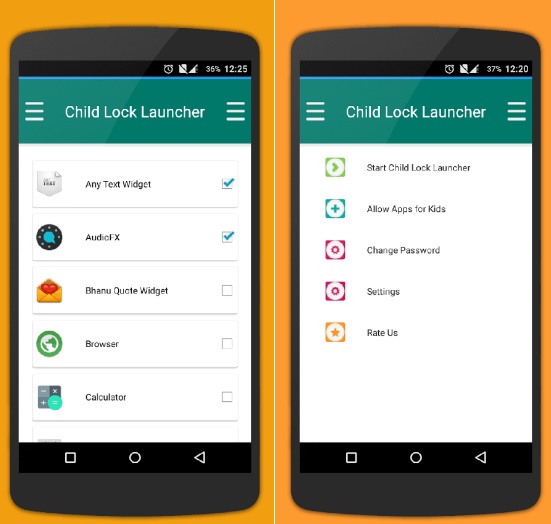
When a child is old enough to start using your devices, it may be difficult to keep them from accessing apps that you’d prefer them not to use. (“Tyler! I’ve told you a million times, ‘Black Mirror’ is only a Mommy and Daddy show.”)

Thankfully this app lets you customize your phone with locks to prevent your child from accessing anything you deem inappropriate. The customizability comes in deciding what you want to be locked and for how long. It has options for virtually everything on your phone, allowing you to pick and choose exactly what your child has access to.

BabyCenter

When you’re expecting, it can be overwhelming to try and find all the information you need leading up to the birth of your child. This app gives you real expert advice on all the questions you are wondering about when you have your first child. From what’s okay to what’s not, you’ll be able to find out a plethora of important information much quicker than continually looking it up online.

BabyCenter - Pregnancy Tracker Free Download
7

PBS Kids Video


Keeping your child entertained is the hardest thing to do when you can’t constantly be in the same room as them. This gets especially hard once they become a toddler and have a better understanding of the world around them. Thankfully, there are some fantastic shows out there to keep kids entertained and learning. No station is better at this than PBS Kids. They even have their own app so you have the station with you at all times. This app is more for your child than for the actual parent.

PBS Kids Video Free Download
10

Baby and Child First Aid

When something seems off about your child, it may be your first instinct to go straight to the hospital and find out what’s wrong. Alternatively, you may not realize something is more serious than it seems. This app helps you figure out what you need to do when something is off with your child, and whether it’s the right time to go to the hospital or to figure it out at home. While the app is owned by the British Red Cross, the advice is universal and worth using even outside of the UK.

Baby Connect

The ultimate baby tracker. This app keeps track of everything, from medical records to new achievements. It is the perfect app for recording your child’s first moments in life and keeping the schedule on track. For more information on this app, be sure to check out our in-depth article on how to use it.

Baby Connect Download Now ►
8

For some babies and young children, white noise won’t cut it for helping them sleep. Thankfully, our Softonic Solutions community offers their list of the best apps for helping your child fall asleep. 

Softonic is always looking for products we think our readers will value. When you buy through links on our site, we may earn an affiliate commission.