How to create Minecraft skins

This guide will show all the best tools for finding, editing, and creating Minecraft skins.

Minecraft is all about possibilities. It is such a huge game, with so many customizable elements that in Minecraft the possibilities are endless. As the name suggests, the world of Minecraft is full of elements that you can mine and then craft into items. You can then in, turn combine these items and elements to build more advanced items and before you know it, you’re three years into a building a beach house in the dessert and having your friends over for tea.

Minecraft Download now ►
7

Minecraft isn’t just about shaping the world around you, however. The endless possibilities begin much closer to home. Thanks to Minecraft skins you can shape your own character. The avatar that represents you can be shaped by your imagination too. In fact, the more unique your Minecraft skin is, the better. Let’s look at Minecraft skins in a little more detail, where to find them, and how to create your own.

Minecraft - Pocket Edition Download and play now
8

Minecraft Skins

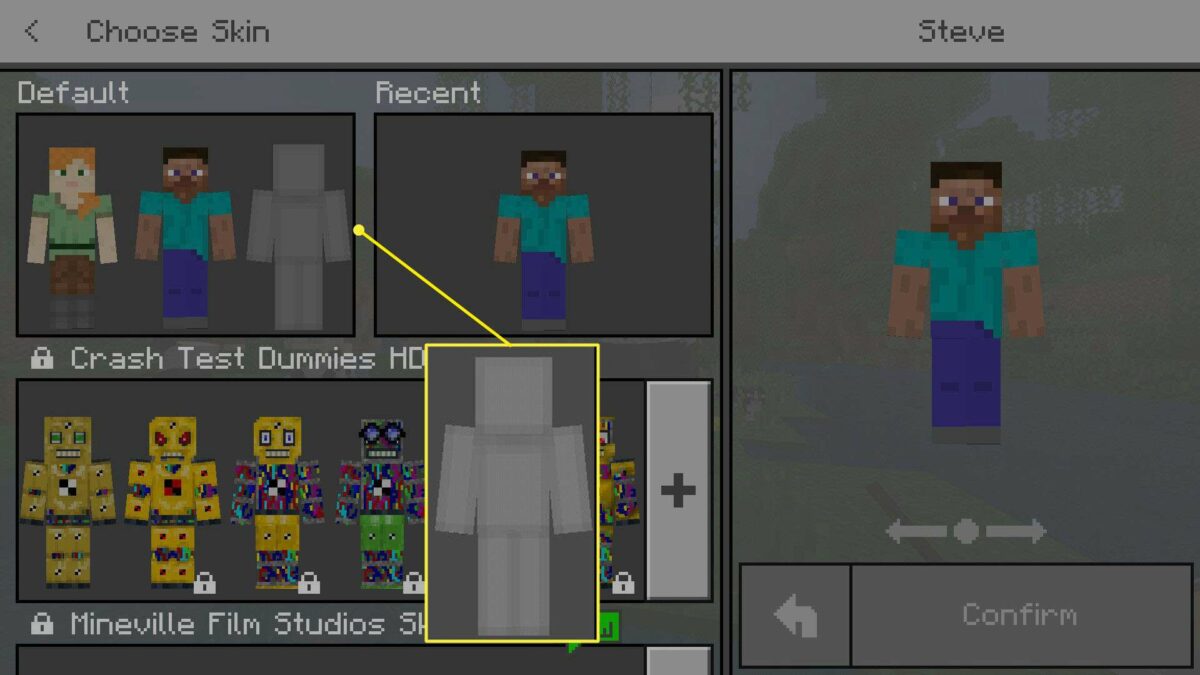
When you’re playing Minecraft, you can look at yourself at any moment, simply by pressing the F5 key. There are two default skins, “Steve” and “Alex”. They’re pretty basic, offering pixelated representations of a couple of normal-looking people. Don’t worry though, you don’t have to be normal, if you don’t want to be.

Minecraft skins are like digital wraps that completely cover your Minecraft character. In their base form, they’re saved as tiny PNG files and look a bit like flat pack paper figures that you fold in certain ways to give them their 3D physical form.

Default Alex skin on Minecraft

Where to find Minecraft Skins

There are literally millions of Minecraft skins out there, pre-made and ready to download. It’d take too long to go through all the places you can find them, so we’ll just tell you about the two best sources of Minecraft skins.
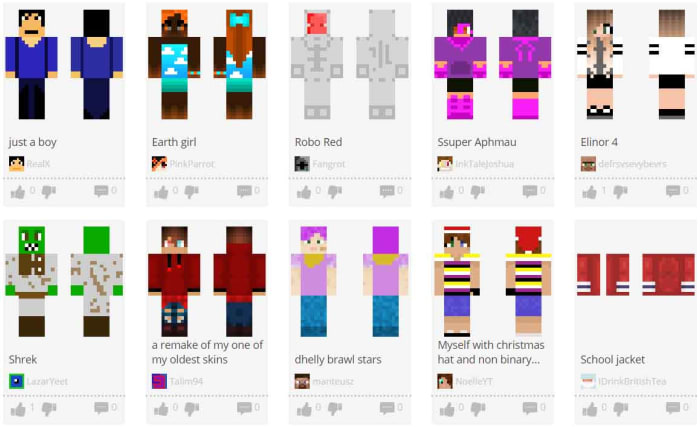
The Skindex Minecraft

The Skindex (www.minecraftskins.com) offers a seemingly endless library of user-generated skins and layers. As well as being able to download full player skins that’ll give your character a complete look, The Skindex also gives you the chance to download separate layers like hairstyles or items of clothing to put on top of your own Minecraft skin elements.

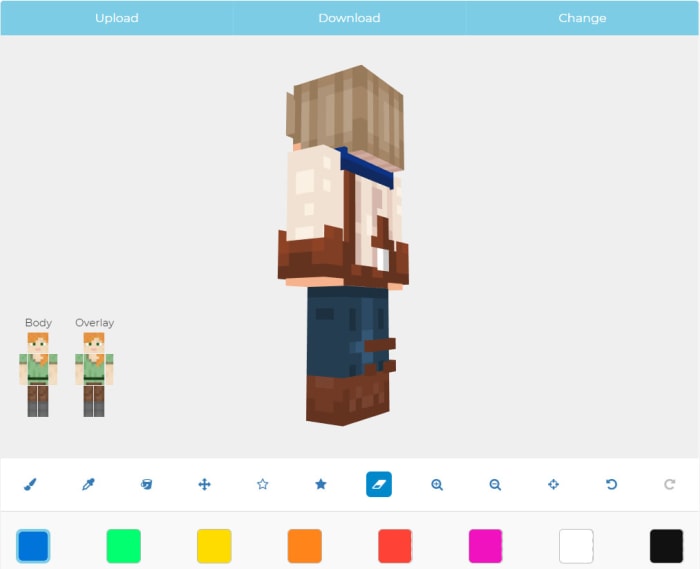
MinecraftSkins.net is a little more polished than The Skindex. It offers different categories for Minecraft Skins like Movies, Games, People, and Fantasy. On top of giving you the option to download the skins you find, MinecraftSkins.net also gives you the chance to edit and personalize them.
MinecraftSkins

Another great place to find Minecraft skins is Binge.co where the community helps users find answers to all sorts of questions. Check out the “What are the best Minecraft Skins?” and “What are the best resources for finding Minecraft Skins?” pages to see what the bingers have been saying about custom skins.

How to edit skins on Minecraft

The skin editor found on MinecraftSkins.net offers a handy and simple to use tool for editing Minecraft skins. You can easily rotate the skin you’re working on, overlay a grid on top so you can paint on a pixel-by-pixel basis, and quickly undo any mistakes you might make. There is a vital element missing from MinecraftSkins.net, however. There is no Minecraft skin creator.

How to make custom Minecraft skins

The Minecraft Wiki page, Minepedia, lays out all of the best community-driven Minecraft skin editors available today. There are mobile apps for editing Minecraft skins on an Android smartphone or iPhone, and apps and web-based skin editors for editing Minecraft skins on Windows PC, Mac Xbox, or PlayStation.

3D Skin Editor for Minecraft
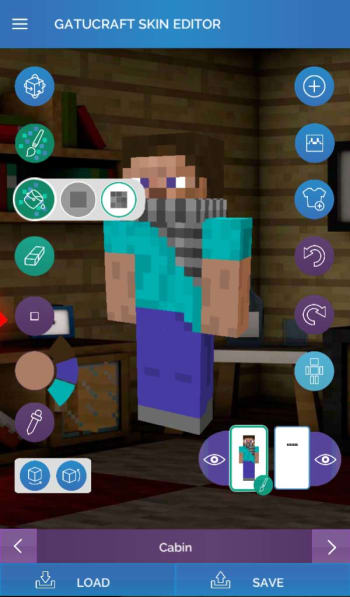
3D Skin Editor

QB9’s new skin editor for Minecraft is a very popular tool for Android and iOS, used by Minecraft users all over the world. It has all manner of advanced editing tools from a full spectrum color-picker to advanced zoom and rotation features. Once you’ve created your Minecraft skin you can then upload it to your Mojang account and use it on your PC, PS4, or Xbox One.

NovaSkin

NovaSKin Minecraft skin editor

NovaSkin is a web-based Minecraft skin creator that offers you a 3D model of your creation. It also gives you the handy element isolation tool, which allows you to remove all the other elements, like legs, torso, and head, etc. that you’re not working on at the time. You can also search for inspiration by pulling up the skins of users you’ve met in the game by searching for their Minecraft username.

MC Skinner
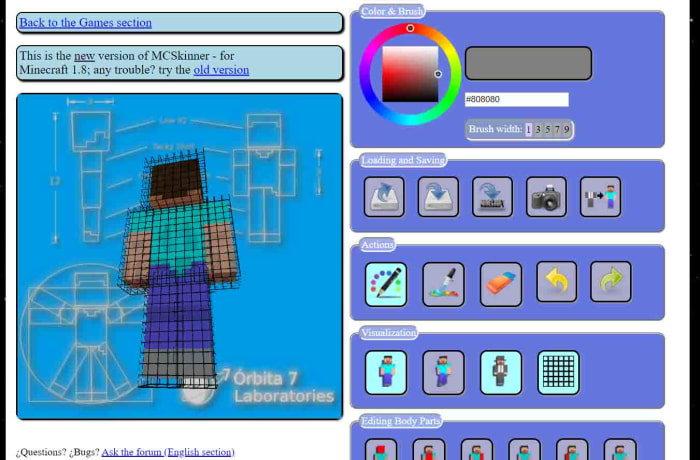
MC Skinner for Minecraft

MC Skinner is another well-known Minecraft skin creation tool that works in your web browser. It might look a little dated, but it still has all the regular skin creation and editing tools and some very interesting skin visualization tools too. You can see what your skin will look like when it is carrying out animated movements and offers a secondary grid for looking at the added layer, which can be used for things like glasses and helmets etc. Once you’re done you can upload your creation directly to Minecraft.net.

Wrapping up

As you can see, your Minecraft avatar is a world in itself. Furthermore, nobody wants to look like a Steve, so it is very important to get your avatar wrapped up in a cool skin that you think represents you in the real world or the type of player you think you might be in Minecraft.

If you’re a new Minecraft player and you think creating your own skins from scratch is a bit beyond your skillset, stick to the likes of The Skindex and MinecraftSkins.net. You’ll definitely be able to find a skin that suits you, to begin with. After a while though, you will want to change things up.

When you decide that you want a totally unique skin, whether that be through tweaking a pre-designed skin or building yourself one from scratch, you have a few options available to you. The three we’ve laid out make the design process as easy as possible, but also walk you through the uploading process too. In no time at all, you’ll be walking around your Minecraft server in a skin unlike any other.

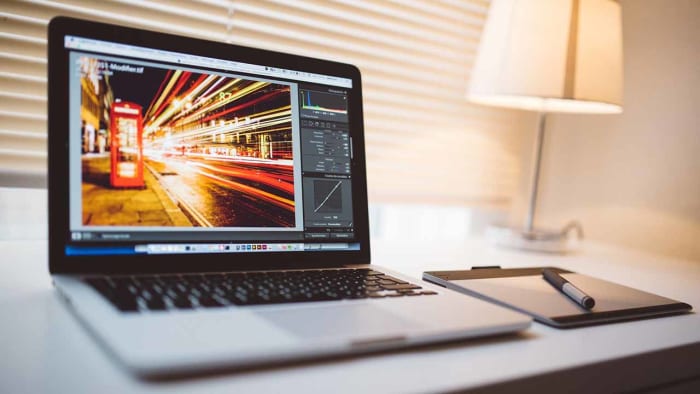
Photoshop for free? The best free alternatives

You don’t need to fork out lots of cash to get Photoshop like editing features. These are the best free alternatives to Photoshop

Best free photoshop alternatives

Adobe Photoshop’s established position as the number one image editing and photo-editing program for Windows and Mac is so strong that many people don’t even bother searching for alternative options. It is Photoshop or nothing. It doesn’t have to be that way though. Many Photoshop features are pro-level features, which means many of us will never know or understand how to use them. Furthermore, there are plenty of alternative photo editing programs out there that can do all the basic editing you need to do.

It isn’t just about getting simplified versions of Photoshop neither. There are great alternative programs out there that can offer comparable tool sets to that offered by the Adobe program. Oh yeah, we forgot to mention. A lot of these alternatives to Photoshop won’t cost you a penny. They’re completely free. Let’s not waste any more time then, these are the best free alternatives to Photoshop.

Free alternatives for Photoshop

GIMP

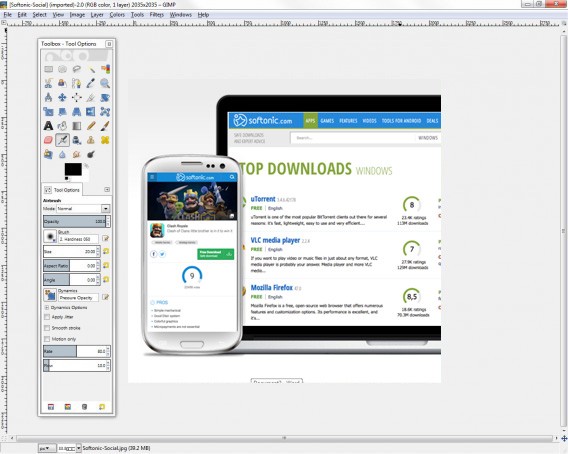
We’re starting off with a big dog here. GIMP, which stands for Gnu Image Manipulation Program is the most fully formed and arguably most well-known Photoshop alternative there is. GIMP is like an open source Photoshop developed by a global team of volunteer developers to work on Microsoft Windows, Linux, and Apple Mac. It has an extensive set of features to rival what even Photoshop has to offer and can edit a wide range of file formats including RAW files. This means GIMP is a pro-friendly alternative to Photoshop with features like layer masks and filters enabling photographers and graphic designers to get their work done. GIMP is also a customizable photo editing software as users can download add-on packs to add the extra features they need.

8

PIXLR

Pixlr

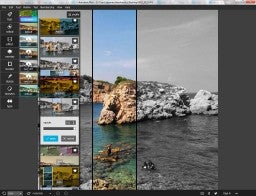
The PIXLR editor is an interesting photo editor because it is browser based, which means you can use in on all platforms via a modern web browser like Google Chrome or Mozilla Firefox. Impressively, despite this PIXLR offers a photo editing experience that rivals and indeed betters many of the downloadable alternatives. The PIXLR image editor also has a very similar layout to Photoshop meaning you’ll likely pick it up quickly, if you’re used to using the Adobe program. PIXLR also comes as a mobile app for Android and iOS iPhones and iPads.

PIXLR Download now
8

Squoosh

free photoshop alternative by Google

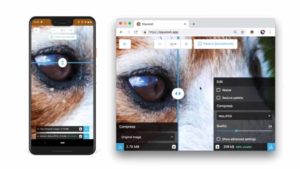
Squoosh is another browser-based photo editing program, although it offers a much more limited set of features than PIXLR or Gimp. Designed by the Google Chrome Labs team, Squoosh is designed to help you convert and optimize your images for publication across a wide variety digital platforms. If all you need to do is resize your image or make basic changes to the color palette then Squoosh is a good option that won’t intimidate you with a huge number of unknown features and buttons.

Paint.NET

Do you want the photos you share to be breathtaking - Paint.net

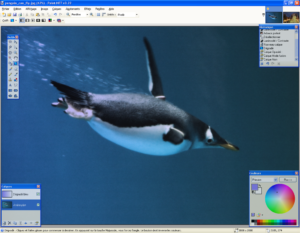
Another good free alternative to Photoshop that isn’t overly complicated is Paint.NET. If you’re an amateur photographer or if you’re looking for an image manipulation tool for a one-off project, then Paint.NET could be the option you’re looking for. That is unless you have a MAC as Paint.NET is only available on Windows. Paint.NET has a much gentler learning curve than GIMP while still offering, via plugins, access to a wide range of features including filters, masks, and layers.

Paint.NET Download now
8

Krita

The Best Free Alternatives to MS Paint krita

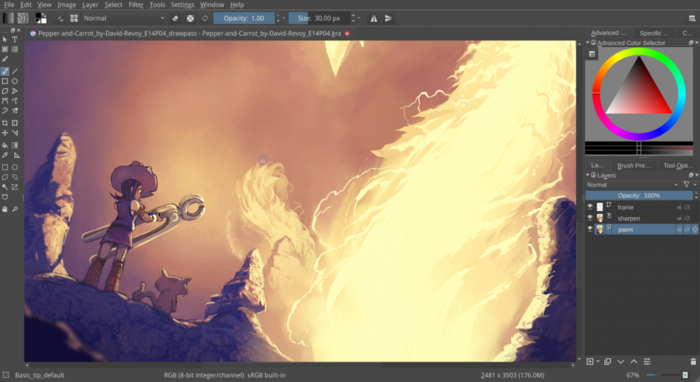
Like GIMP, Krita is another piece of open-source editing software. Krita works on Linux, Windows, and Mac but offers a lighter experience than GIMP even though it has received a lot of new features in recent years. Krita features include the ability to create and edit HDR images, which is a rather advanced feature and a wide array of brush customizations. This makes Krita a great program for digital illustrators.

Krita Download now
8

SumoPaint

Sumo Paint

SumoPaint is a very popular and very capable alternative to Photoshop. One limitation, however, is that it can’t work with the standard Photoshop PSD file. SumoPaint has all the usual features including text gradients, brushes, and whatnot and works with many different types of images including JPEG, BMP, GIF, and TIFF.

Sumo Paint Download now
9

PicMonkey

PicMonkey is another online photo editor that aims for the more socially-minded users. The interface is very simple and makes it very easy to perform basic edits and add text overlay and filters. PicMonkey isn’t going to rival Photoshop but it does offer simple editing mechanics and so isn’t too hard to get into. You can download it as an app on Android or iPhone and it also has a Google Chrome extension too.

PicMonkey Download now
8

Inkscape

Inkscape

A much more professionally minded piece of software built with graphic designers in mind is Inkscape. Inkscape is great for illustrators as it is optimized to work with vector images. Inkscape provides a great way to transform photos into vector images but it also has a range of more customary features like cropping and cutting and pasting. Technically, Inkscape is more of an alternative to Adobe Illustrator rather than Photoshop but it is still worth a mention.

Inkscape Download now
7

Photopea

Photopea

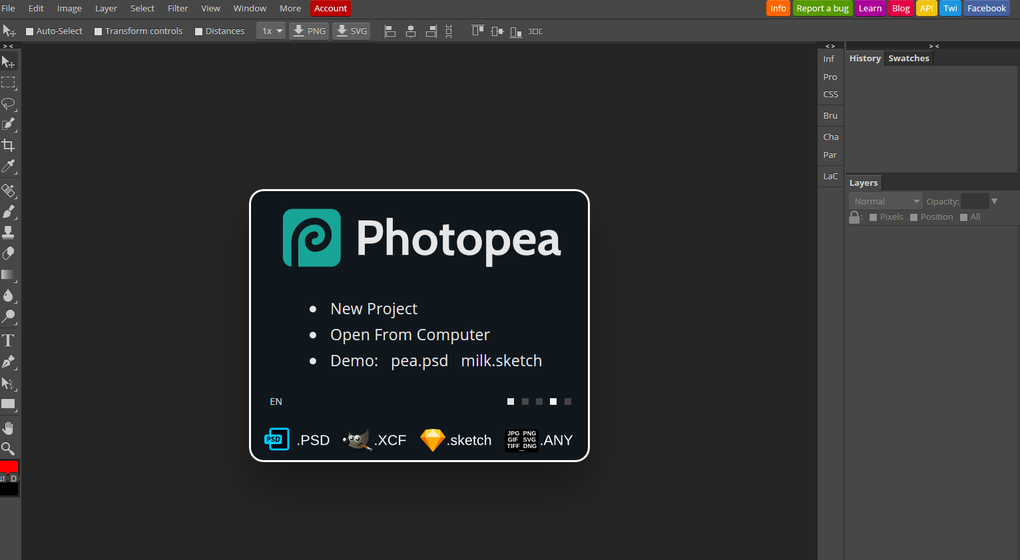
Our final entry into this list is Photopea, which is another online photo-editing tool. Photopea looks very similar to Photoshop and even works with the standard Photoshop PSD file meaning you could work across the two platforms if needs be. Photopea also has many advanced features like vector graphics support and advanced layering meaning it is a credible alternative to Adobe Photoshop. The main problem, however, is that the program is funded by ads. This means you’ll either see a lot of ads that will encroach on your work surface or you’ll have to pay a $9 per month subscription to get rid of them.

Photopea Download now
8
Wrapping up

There you have 9 great free alternatives to Photoshop. The important thing here is to consider what type of photo editing project you need to work on. If you’re looking for a program to perform basic image editing for social media then a program like Squoosh, PicMonkey, or Paint.NET could be all you need. If, however, you need a more rounded experience that you could use professionally, you should definitely look into the likes of GIMP, Krita or PIXLR.

Best plugins for Microsoft Word

These Microsoft Word Plugins will help you save time and take care business.

We’ve recently been looking into the best templates for Microsoft Office applications and also particularly looking at the best templates for Microsoft Word. Templates aren’t the only tool available, however, to augment your Microsoft Word experience. Like with browser extensions plugins, or add-ins as their known for Office apps, can add particular features to your version of Microsoft Word.

There are many different types of Microsoft Word plugin so let’s go through some of the best available. A lot of these add-ins will also work on Excel, Outlook, and PowerPoint.

Microsoft Word 2016 Download Now
9

Plugins for Microsoft Word

In past versions of Office, add-ins used to be called Office apps and in many ways that describes them rather well. Mini Office programs that add specific features to your Office documents. Think about having to find a certain image or maybe signing an electronic document and you’ll get an idea of what Microsoft Word add-ins can do.

Where to find Microsoft Word add-ins

how to find add-ins for Word

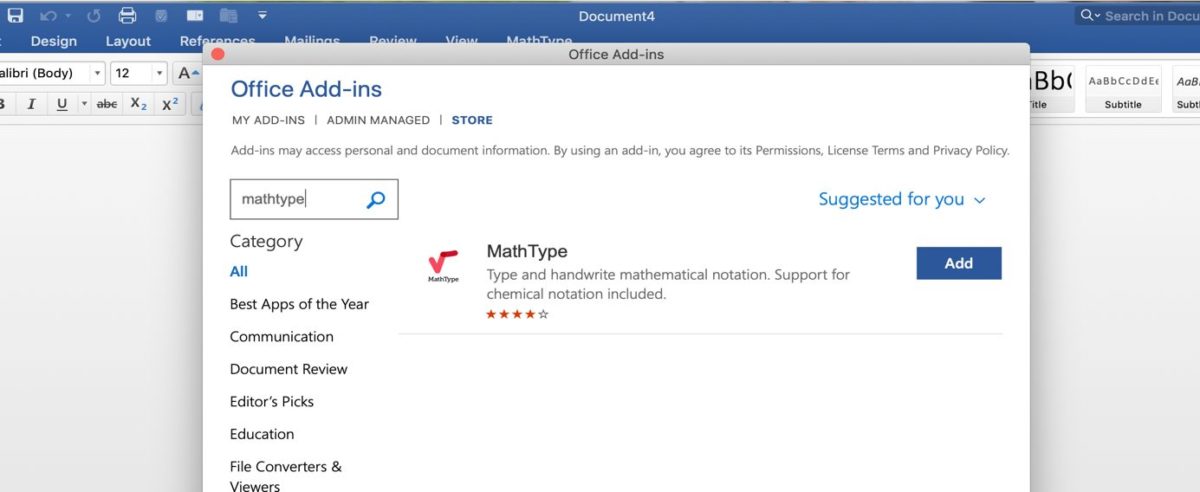
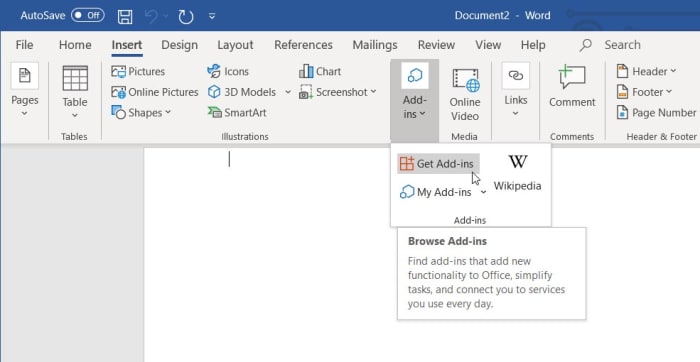
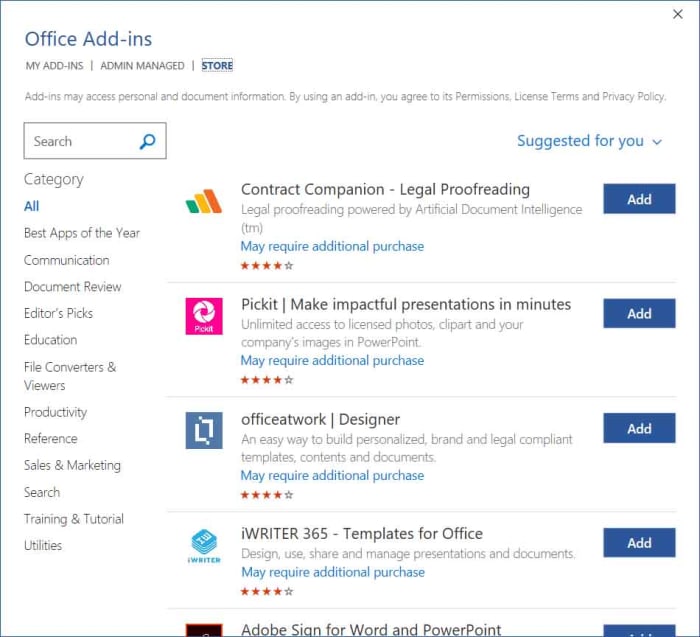
There is an official Microsoft Office store for add-ons that can be found in the Insert tab in the main menu ribbon that runs across the top of the latest version of Microsoft Word. If you’re running Word as a part of an Office 365 subscription, you’ll have the latest version and so once you’ve clicked on Insert you should see the Add-ins option. Clicking this will show you the Get Add-ins button, which will open the store when clicked.

Choosing the right add-ins for Word

Office add-in store

Just like with any app or browser extension store, you need to tread carefully when installing add-ins on Microsoft Word. Not all add-ins will work as well as each other and some could even cause problems. This means you need to pay attention to the add-ins Names and more importantly Ratings.

The most useful plugins for Microsoft word

Wikipedia Word add-in

Wikipedia Word add-in

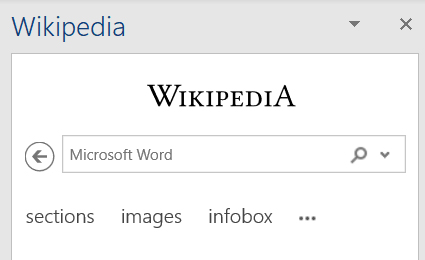
The Wikipedia add-in for Microsoft Word adds a handy encyclopedia widget to your word processing. You can search Wikipedia entries by typing into the search bar, which is found to the right on new documents or you can simply highlight text while the add-in is active, and it will automatically search for the highlighted text. Images and tables will be minimized but still form a part of the Wikipedia entry and can be opened up simply and quickly.

Wikipedia Word add-on Download now
9

Emoji Keyboard

Emoji keyboard add-in

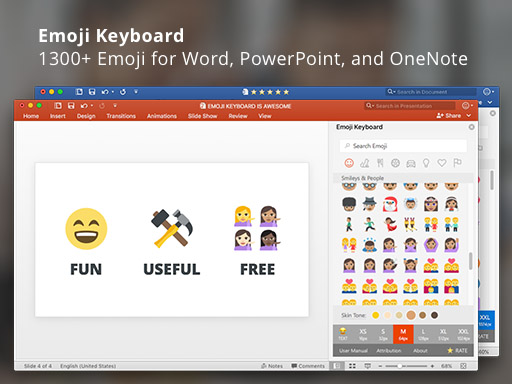
If there is one way that smartphones have greatly excelled over laptops and PCs in recent years it is through the seamless integration of emojis. On your phone, extensive libraries filled with all manner of different types of emoji lie just a simple tap away. The Emoji Keyboard add-in for Microsoft Word puts this capability on Windows PC and Mac too.

Emoji Keyboard Download Now
9

Handy Calculator

Word addin handy calculator

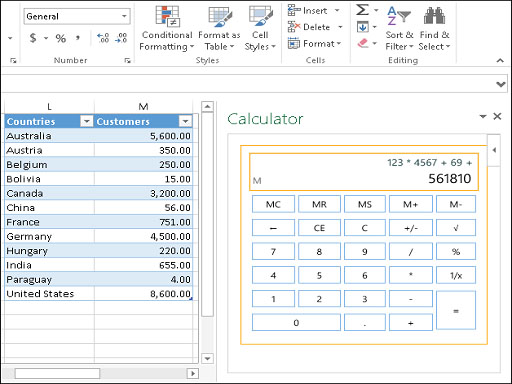
The Handy Calculator Word add-in is simple enough but very useful. It adds a basic calculator function to Microsoft Word that works right there in the app. There is no need to open a separate calculator program, which could save you time opening new apps and then flipping between them while you get on with your work. Also, as well as a regular calculator the Office add-in store at office.com has lots of different types of calculator add-in including a BMI calculator, a VAT calculator, and even more complicated tools like a benefit-cost analysis calculator.

Handy Calculator Download Now
9

DocuSign for Word

Docusign word add in

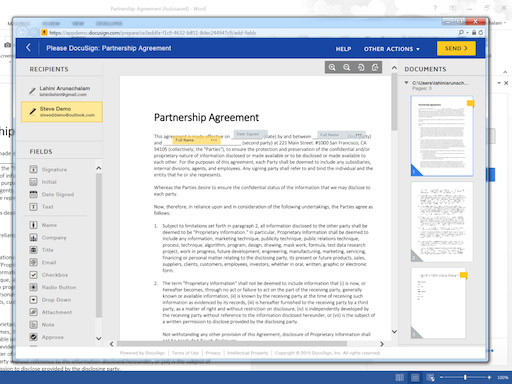
Giving consent is simple enough on a physical document. You simply scribble out your signature and you’ve consented to whatever is written in the text on the document. It isn’t so simple on digital documents when you don’t have a pen and most people use standard input devices like keyboards. This is where the DocuSign for Word plugin comes in. It offers an easy, in-app way to add eSignatures to your Microsoft Word documents.

DocuSign for Word Download Now
9

OfficeMaps

officemaps plugin

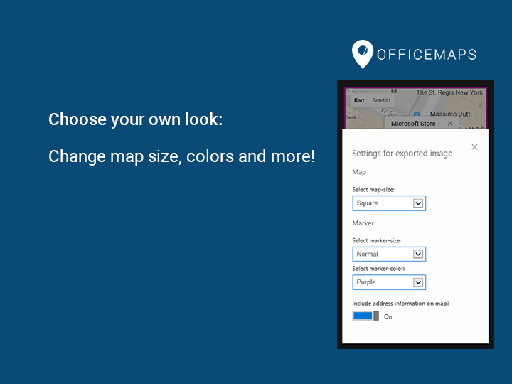
The OfficeMaps add-in for Word makes it very easy to add images of maps into your documents. If you’re making flyers, posters, invitations, or any other type of document that could benefit from having a map, this Word plugin will save you time and effort. All you need to do is search for the location in question and then add the map to your document.

OfficeMaps Download Now
9

Grammarly

grammarly for office

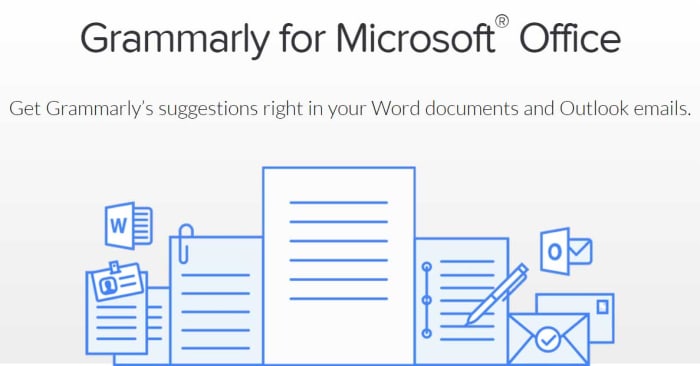
Grammarly works like an AI-augmented extension of Word’s in-built spelling and grammar checker. Although, the best Grammarly services require a paid subscription the free option still marks an improvement over the basic Word checker. It’ll also learn from you the more you use it.

Grammarly for Microsoft Office Download Now
9

Pexels

pexels word addin

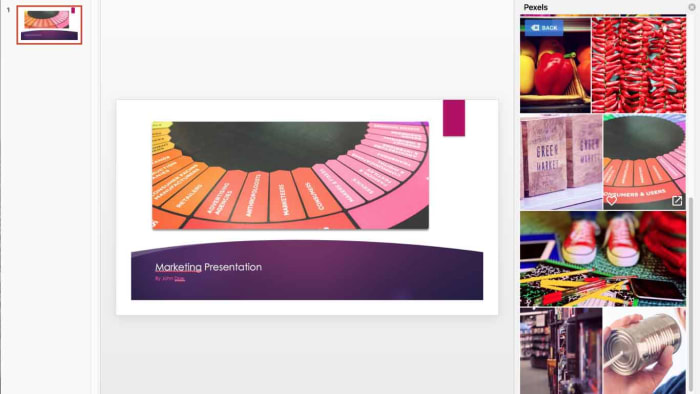
Pexels is a library of free stock imagery that you can use for any document that you’re working on that need visuals. The Pexels add-in for Word adds this library to Microsoft Word so that you search the stock images without having to leave Word or open your web browser. Another Word add-in that offers access to an extensive library of free-to-use stock imagery is Pixabay Images.

Pexels Download Now
9

Icons by Noun Project

icons by noun project for word

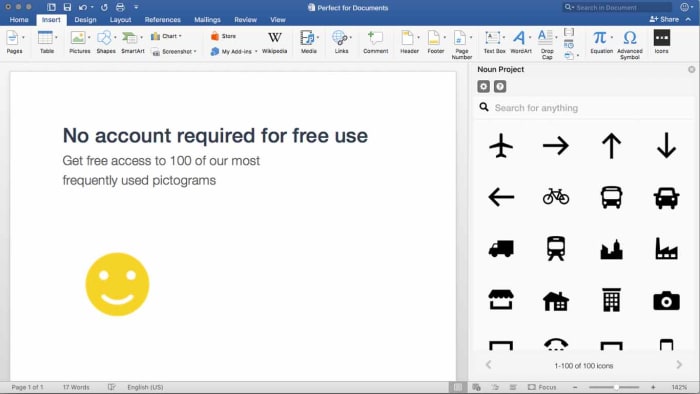
The final Word add-in we’re going to highlight today works a little like the Emoji Keyboard. The Icons by Noun Project Word plugin makes it very easy to add icons and symbols to your documents, which normally would be difficult to do using just your keyboard. With the Word add-in installed, all you need to do is search through the database of icons and then click the one you want to add it to your document.

Icons by Noun Project Download Now
0

Just like with browser extensions, Word plugins are built to help save you time, make life easier, and most of all keep you in the same app. We’ve highlighted our top Word plugins that will do all of those things. Some Word add-ins offer simple extensions to your Word experience but others, like the Emoji keyboard and Icons by Noun Project, offer elegant solutions to the new types of problems that have materialized since we started using smartphones as much as we use our PCs. Other good add-ins worth your attention are Font Finder, Consistency Checker, Myscript Math Sample, Woodpecker, and Abbreviation List.

We hope you like the Microsoft Office add-ins we’ve recommended and would love to hear about any add-ins you like, which we haven’t mentioned. Let us know all about them in the comments below.

Best templates for Microsoft Word

We’ve together a list of all the best places to find many different kinds of template for Microsoft Word.

The best templates for Microsoft Word

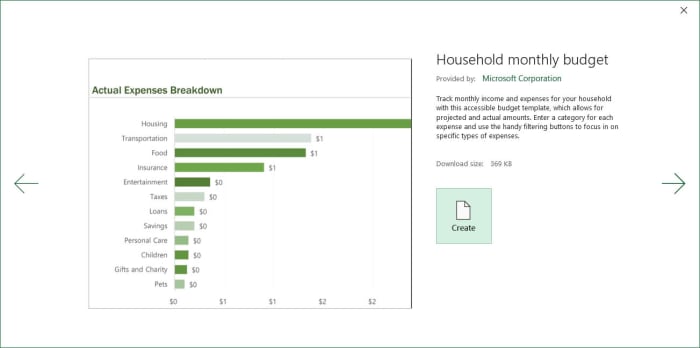
Templates are pre-formatted Microsoft Office files that make it easy for you to create professional-looking documents in no time at all. No matter the type of document you want to create; certificates, invoices, budgets, shopping lists, posters, flyers, etc., with templates all the design work is done for you. The only thing you need to do is put the information you want into the document at hand. Easy peasy.

There are lots of different types of Microsoft Office templates. There are templates for Excel and templates for PowerPoint etc. but the most popular Office app templates are for MS Word. There are more types of Word templates than for the other Office programs. Let’s take a look then at the best free Microsoft Word templates.

Microsoft Word 2016 Download Now
9

Free Microsoft Word templates

Microsoft Word templates for resumes

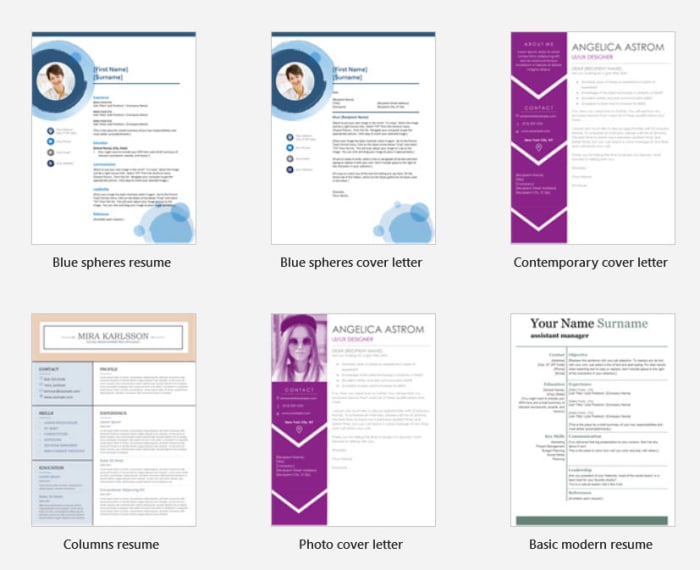
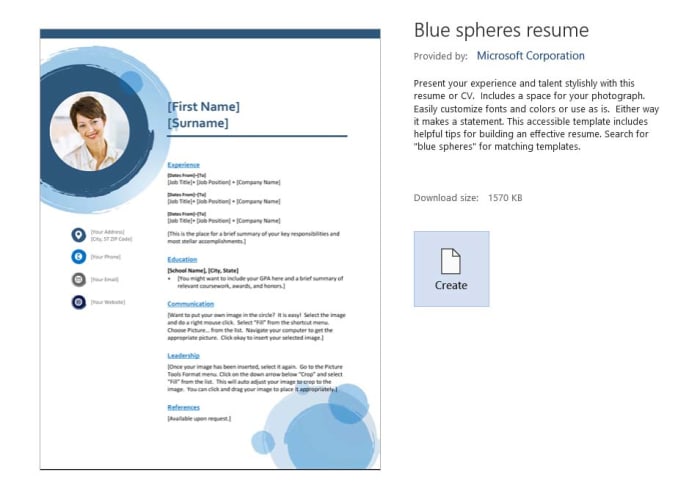
Resume templates are special Microsoft Word documents that are amazing tools for any aspiring job seeker. They make it easy for you to layout your employment history and education background in an eye-catching manner. There are a lot of great places to find free Microsoft Word templates for resumes online and below we’ve listed some of the best.

Resume templates for Word

A great place to start is office.com, where you’ll find many professionally designed resume templates. At office.com you’ll be able to find many different types of resume template. It has options ranging from simple, more traditional resumes with basic text formatting to full color, modern marvels complete with imaging and innovative design principles. You can also find templates for cover letters too.

Another good source of .dotx Word templates for resumes is Go Skills. There you can choose your favorite from 50 resume templates. No matter the job you’re looking for, Go Skills should have the right type of resume.

The final source of free resume templates for Microsoft Word we’ll mention is freesumes.com. At freesumes you’ll have access to over 150 resume templates. All you have to do is find the right one for you, hit download, unzip the template file, and then open it as a new document.

Microsoft Word templates invoice

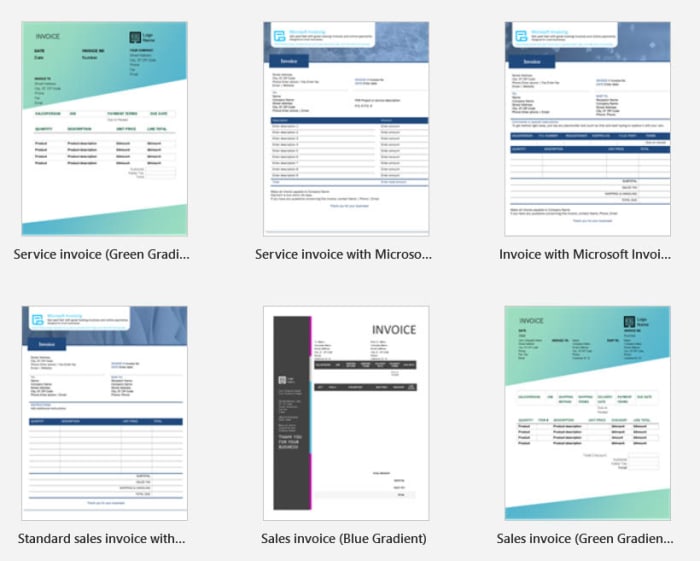
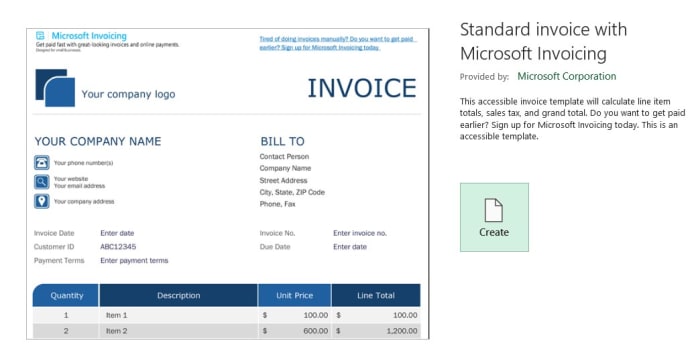
Again, you’ll find invoice templates for Microsoft Word at office.com, but let’s have a look at some of the other places where you’ll be able to find free Microsoft Word templates for invoices.

Microsoft word templates invoices

Smart Sheet is an excellent online source of many different types of Microsoft Office templates. As well as having invoice templates for Excel, Smart Sheet also has many different types of invoice templates for Word. There are different variations of blank invoices, past due invoices, and invoices for different types of business, like Freelance Writer invoices and Web Design invoices.

Another great template library for Microsoft Word is the Template Archive. There you’ll find 50 different service invoice templates for Word. These include simple text-only invoices but also more ambitious designs that give you the chance to add branding, color, or background imagery. If you’re looking for invoice templates because you’re starting your own business, you’ll be glad to know that Template Archive also has templates for business cards too.

Microsoft Word templates calendar

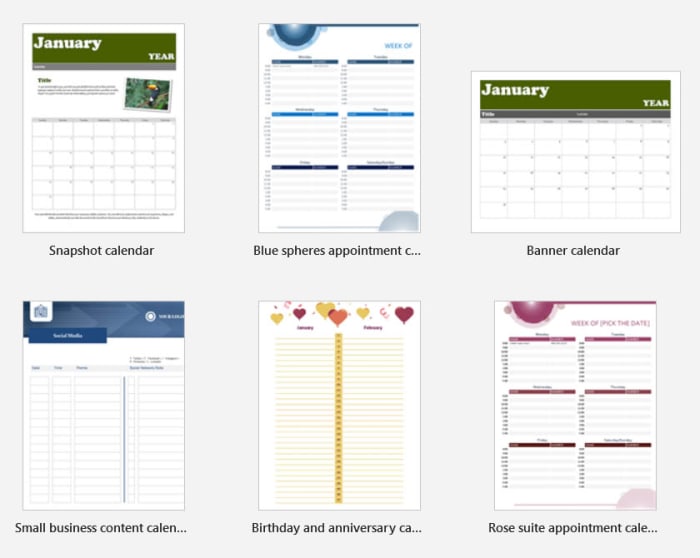
Personal calendars are fun to make, and Microsoft Word is an excellent tool for making your own calendars. Using templates makes it even easier by doing most of the hard work for you.

Calendar Labs has a lot of different types of printable calendar templates for Microsoft Word. Remember when you’re downloading your calendar template to make sure you download the right year as otherwise your days and dates will be off.

Word templates for calendars

Another good source of Word templates for calendars is Calendarpedia. The website looks like it could do with a modern design overhaul, but it has many different types of calendar templates from weekly schedules to 3-year calendars.

Microsoft Word templates for labels

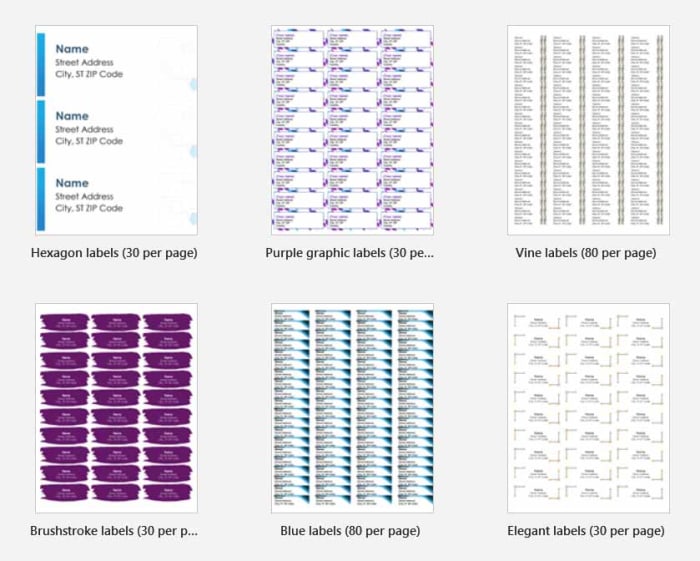
Making clear and easily understood labels on Microsoft Word is easy to do if you use the right templates. Fortunately, there are lots of great places where you can find them.

A good source for all things label-related is wordlabel.com. There you’ll find walkthroughs on how to create your own new template for labels using Microsoft Word, but also an extensive library of ready-made templates too.

word templates for labels

At Online Labels you’ll find over 350 different label templates that you can download and then use with Microsoft Word. Whether you need to print a single label or batches of thousands you’ll be able to find what you’re looking for at Online Labels.

Microsoft Word templates for brochures

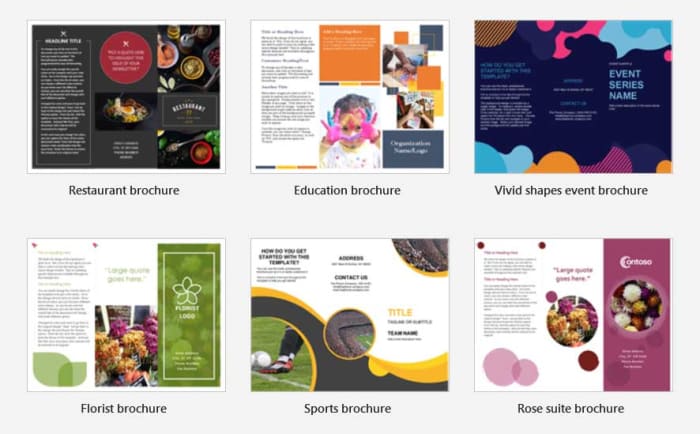
The final type of Microsoft Word template we’ll cover is templates for brochures. Many printing companies offer Microsoft Word templates for creating your own brochures so that you can then take them and have them printed. One such company, offering free Microsoft Word templates for brochures, is Printing for Less. On the Printing for Less website, you’ll find many different types of brochure templates, which you can download for free.

Word template brochures

Another great source of brochure templates for Microsoft Word is the Template Lab. If you’re looking for bi-fold or tri-fold brochure templates for Microsoft Word, you will find many interesting options at Template Lab. There are also other types of brochures like Accordion Fold and Z Fold brochures available too. Furthermore, the Template Lab also offers brochure templates for Photoshop and downloadable PDF brochure templates too.

Having recently brought you all the best sources for Microsoft Office templates and today shown you how to find all the different types of template available for Microsoft Word, we hope we’ve been able to help you out with whatever creative project you’re currently working on.

Templates offer a great way for you to give yourself a head start on that job you either need to do or aren’t feeling very motivated to begin. There is no reason to start with a blank document. With the right document template for Microsoft Word or any of the other Office programs, you’re already halfway done by the time you start the job. We hope we’ve helped you get there with this guide.

Best templates for Microsoft Office

This is where to find all the best Microsoft Office templates for Microsoft Office.

Microsoft Office templates

We don’t need to get into how good Microsoft Office is. It is by far the most popular productivity suite for Windows and Mac and has been for quite some time. Did you know though, that Office can be even better than it is when you first install it? Well, Office templates are pre-formatted documents that allow you to quickly add your particulars and create all manner of impressive documents from flyers, to posters, to resumes in a matter of mere minutes.

Now sure, Microsoft Office does come with some pre-installed templates but there are a lot more out there, you just have to find them. No matter what type of project you’re working on, we’ll walk you through some of the best sources of Office templates on the internet. When you’re done reading this guide, you’ll be able to do so much more with your Office 365 subscription.

6

Microsoft Office templates

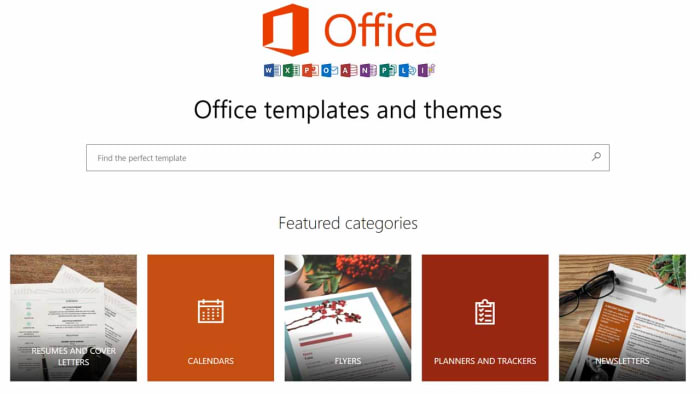
Microsoft Office Online templates

Office online templates

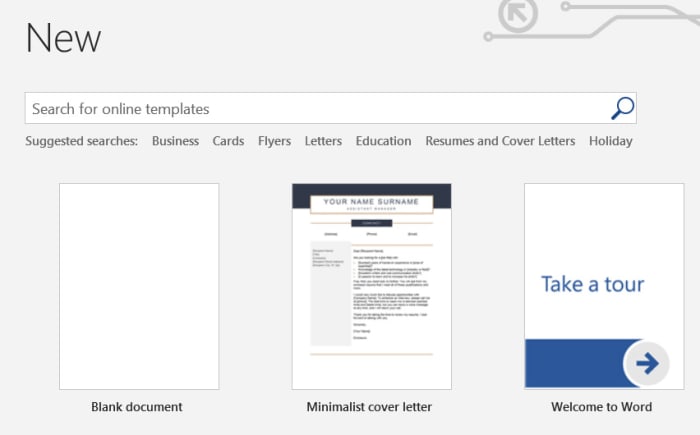
The first source of Office templates you should know about can be found right there within the Office apps themselves. You simply open up the particular Office app, if you’re looking for a Microsoft Office Template for Word then open Word or if you’re looking for Excel templates open Excel. Then you simply click New and you’ll see a search bar at the top, which says “Search for online templates”. From there you’ll be able to search for official Microsoft Office templates for resumes, cover letters, business cards, etc. simply by typing what you’re looking for.

Office Online Download now
7

Microsoft Office templates for Word

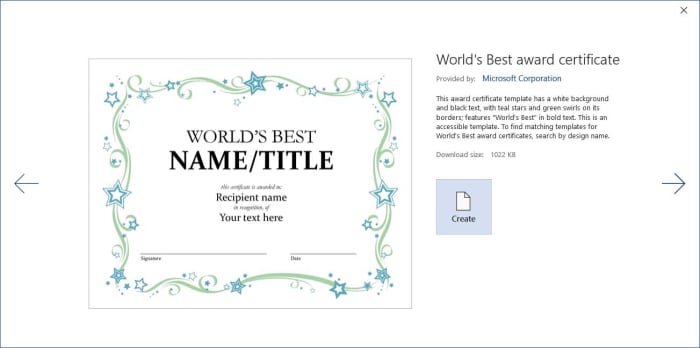
Without a doubt, Microsoft Word is the Microsoft Office program that people use templates with the most. On Word, you can get new templates for resumes, cover letters, calendars, invoices, newsletters, brochures, business cards, flyers, certificates, and more.

Microsoft Word templates

Unsurprisingly, with there being so many different types of Office templates available, there are lots of different places you can find them. Below you’ll find links to some excellent sources of Microsoft Word templates we’ve found online:

Template.Net has a wide variety of different types of Word templates including templates for newsletters, templates for cover letters and letterheads, templates for budgets, and even less common Word templates like for tracking baby growth or speciality brochures.

Layout Ready is another excellent source of Microsoft Word templates covering everything from Postcard templates to Business Card templates.

Microsoft Word 2016 Download Now
9

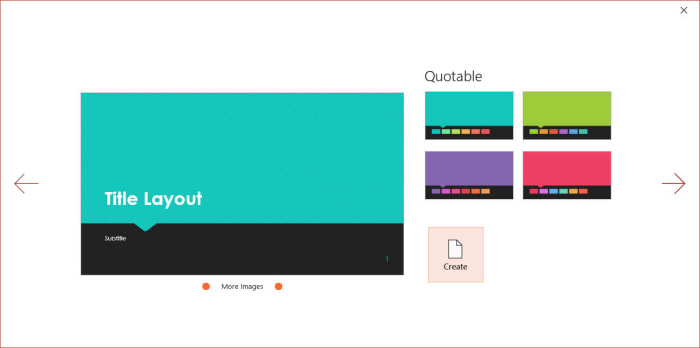
Microsoft Office Templates for PowerPoint

As if giving presentations weren’t hard enough already, creating edgy and eye-catching presentations on Microsoft PowerPoint comes with its own set of technical difficulties. PowerPoint templates, however, can take the sting out of building your presentations so that you can concentrate on your public speaking.

PowerPoint templates

Smart Sheet is a great place to download free Microsoft Office templates for PowerPoint. You’ll find Office temples for marketing plans, SWOT analysis templates, finance templates, marketing plan templates, and more. Downloads are free and couldn’t be simpler. You just find the PowerPoint template you want and hit download.

Microsoft PowerPoint for Android Download now
8

Microsoft Office templates for Excel

Although you’ll find a lot of the official Microsoft Office templates using the in-app method we laid out earlier, you’ll also be able to find more Office templates over at office.com. If you go to the Excel page at templates.office.com, you’ll find some excellent options that might not show up using the in-app method. No doubt you’ll have already seen a lot of the search results that come up, but you’ll find the odd hidden gem too.

Excel templates

Microsoft Excel Download now ►
7

Microsoft Office resume templates 2019

Now that we’ve gone through the main app-specific sources of Microsoft Office templates, let’s look at some of the particular types of template that you might need, and start with resumes.

Resume office templates

Resume templates are among the most useful. A good resume will help you stand out from the crowd whenever you’re applying for jobs. This is more important than ever these days as HR managers and recruiters often have to go through hundreds of applications for every position. This means they may only get to look at your resume for a few seconds at most.

The best resume templates are for Microsoft Word and you’ll find some excellent examples at Template Monster.

Microsoft Office templates for invoices

Invoices are another type of tricky document that you could save a lot of time on if you simply download free templates first and then fill in all the appropriate information correctly. You can create invoices easily enough using Microsoft Word or Microsoft Excel.

Invoice templates for office

For a good source of Microsoft Word templates for invoices check out Hloom, where you’ll find many different types of invoice templates. If you’d prefer to create your invoices in Excel, taking advantage of the more dynamic data capabilities offered by a spreadsheet, you ‘ll find some great options at Spreadsheet 123.

How to make your own Microsoft Office templates

You might not know this, but it isn’t that difficult to make your own Microsoft Office templates if you’re comfortable enough with design to think you can give it a go yourself. The process is a little different between each program but mostly the same.

To create templates in Microsoft Word, Microsoft Excel, or Microsoft PowerPoint all you need to do is layout the template in each program as you’d like it to be saved. It is important to remember here that you don’t want to save any text in your templates that you may forget to change later on. It is a good idea to use text like “Insert… here” for example.

When you’ve finished designing your template, instead of saving your work as a Word document, Excel document, or PowerPoint document you save it as a Word template that has a file type of .dotx instead of .docx, Excel template, or PowerPoint template. These will then be available to use next time you launch Microsoft Office.

Wrapping up

We’ve walked you through where to find the best Microsoft Office templates for the main apps and we’ve also looked at the places to find particular types of templates like invoice templates and resume templates. If you made it all the way through this guide, you’ll also know how to save your own templates for future use too. If you do end up making your own templates, we’d love to see the results. Share them with us in the comments below.

Microsoft Office for free? Try these great alternatives

You don’t need to pay premium prices to gain access to the premium features you expect from Microsoft Office. These are the best free alternatives to Microsoft Office.

Free Microsoft Office apps

If you’ve ever used your PC to do anything even remotely productive, chances are you’ve used Microsoft Office. The Microsoft productivity suite has always been the most popular suite of programs built to help you write documents, draw up spreadsheets, prepare presentations, and more. Microsoft Office is an institution.

As with most other established institutions, however, the Microsoft Office suite comes with a hefty price tag. The reliability that you get from an established productivity suite comes at a premium. If you balk at the idea of paying out for your productivity programs, then you’ll be glad to know that it doesn’t have to be that way. Let’s go through some of the best alternatives to Microsoft Office that you can use for free.

6

Microsoft Office alternatives for free

Google Docs, Google Sheets, and Google Slides

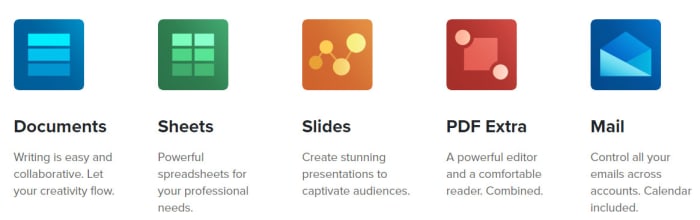
Google’s own productivity suite, linked to Google Drive, hasn’t been around as long as the Microsoft offering. It has, however, quickly gained a strong reputation for reliability and ease of use across multiple devices. Docs is a cloud-based suite of apps that uses the powers of modern web browsers to do all the heavy lifting. Although the programs are all online-first pieces of software they can all be made available for offline use too, so that you don’t have to worry about being connected to the internet before you start work.

You do need an account but once you have a Google account, which will give you access to Gmail and Google Drive’s cloud storage you’ll also then be free to use the Google Docs suite as you wish. Although many IT departments still rely heavily on the likes of Microsoft Word and Excel, Google Docs and Google Sheets offer amazing real-time collaborative capabilities making them perfect for team-based projects. This means Google Docs is the best free alternative to Microsoft Office for teams and IT managers should look into the enterprise level G Suite offering of the service.

Google Docs download free ►
8

SoftMaker Free Office

Free Office alternatives SoftMaker
Image via: SoftMaker

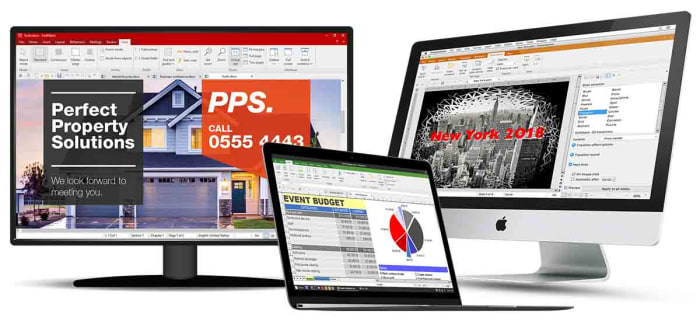
Free Office is the original free alternative to MS Office. The program has been around since 1987 and not only looks very similar to the Microsoft productivity suite, thanks to a recent update, it is also fully compatible with all Microsoft office files like DOCX and XLSX as well as many other file formats.

As the name suggests, Free Office is completely free to use, although you will have to register an account with the developer SoftMaker before you’ll receive your download link. It is available across multiple operating systems for Windows, Mac, and Linux users.

We recommend Free Office as the best free Microsoft Office alternative for anybody who is already used to Microsoft Office but no longer wants to pay for it.

SoftMaker FreeOffice Download now
7

Microsoft Office Online

Office Online

Another great option for former Microsoft Office users looking to take the strain off their wallets is Microsoft’s new online versions of the major Office programs. All are free to use. Microsoft Office Online gives access to cloud-based versions of Word, Excel, PowerPoint, OneNote and more. Although not as fully featured as the apps associated with an Office 365 subscription, this is still a great online office suite. It should be more than enough for most casual users who simply want a way to edit documents.

Office Online can be used across multiple operating systems using different web browsers like Microsoft Edge and Google Chrome. It can run with files stored locally on your PC as well as those stored on your Microsoft OneDrive. You will, however, need a Microsoft account before you can use Office Online.

Office Online Download now
7

Libre Office

Libre Office has been around in its current form since 2010 when it split from Free Office and has never failed to impress. Stemming from The Document Foundation, Libre Office is free and open-source software meaning it is worked on by a global community of collaborating developers.

With Libre Office, you’ll find comparable programs to Microsoft Word, Microsoft Excel, Microsoft PowerPoint, and more. You’ll also be able to run Libre Office on Microsoft Windows devices as well as Apple devices running Mac OS. Libre Office works on Linux machines too. There is also a Libre Office app for viewing your PDF files on Android devices and a plethora of add-ons to play around with too.

The only real downside associated with Libre Office is regarding compatibility with Libre files often experiencing formatting irregularities when viewed and edited in other programs.

LibreOffice Download LibreOffice
7

Open Office

Open Office by The Apache Software Foundation is another Microsoft Office alternative you can get for free that has a long history behind it. Open Office first appeared over 20 years ago and ever since, Apache has been updating, tweaking, and refining it. It is a great free office suite, offers strong alternatives to all of the core Microsoft Office programs, and can be installed on Windows, MacOS, and Linux.

Apache Open Office is similar to Libre Office in that it is open-source software, but it also shares Libre Office’s compatibility issues. Both use the open-source Open Document Format, which means you’ll be able to open versions of your Open Office documents on other programs but you might experience a few inconsistencies with the fonts and formatting.

Apache OpenOffice Download now
8

OfficeSuite

OfficeSuite apps

If you’ve owned an Amazon Kindle Fire or a Toshiba, Sony, or Alcatel device you might already be familiar with OfficeSuite by MobiSystems. All those devices come with OfficeSuite pre-installed. If you’ve never owned one of those devices before, and you’re looking for a free alternative to Microsoft Office or free word processing capabilities, it might be worth your time familiarizing yourself with what OfficeSuite has to offer.

OfficeSuite comes in a number of payment tiers with the basic offering being the free version, which gives access to a number of features. These include the ability to view and edit Word, Excel, and PowerPoint documents as well as being able to view PDF files. Admittedly, this is a very basic offering indeed, but it does meet the needs of many users and it’ll also give access to sharing platforms like Dropbox and iCloud. The main issue, however, is that basic users will be pushed heavily into taking out a paid subscription that will allow them to use OfficeSuite across their desktop, tablet, and smartphone.

OfficeSuite Download now
8
Final recommendations

We’ve been through quite a few free Microsoft Office alternatives for you to consider. As we’ve already pointed out we think that using Google’s online programs, like the word processor Docs and spreadsheet builder Sheets, offers the best experience for teams.

For anybody already used to the Microsoft Office layout, we’d recommend Free Office as developer SoftMaker has worked hard to make the experience as similar to that offered by Microsoft Office as is possible.

If you’re new to the game, however, and you’re looking for your first productivity suite, we’d recommend Libre Office. You can install it on your device for free and as well as offering reliable alternatives to the Microsoft Office programs, it also offers added apps like Math and Draw.

Other programs worth considering are WPS Office and Apple’s iWork.

The best free video editing mobile apps from 2019

These are the best free video editing apps for mobile

Best free video editors

We recently brought you the best free video editing apps available to download. In that list we concentrated on heavy hitters like Lightworks and HitFilm Express. These feature packed programs can help you produce professional looking videos and movies, but they need powerful PCs and laptops to run. With today’s list we’re doing things a little differently. Today we’re bringing you the best free video editing apps for mobile devices running iOS or Android.

With so many mobile-only social media video sharing platforms like IG TV, Snapchat, and Tik Tok it makes sense for us to tell you about all the video editing programs for your iPhone, iPad, and Android devices. With these programs you’ll be able to record videos on your smartphone, edit them right there too, and then finally publish them to the web. All without having to transfer any files to any other devices like a Windows PC or a Mac. Let’s get started.

Best free mobile video editing apps

Quik

Want to make or share a great video? - GoPro Quik

Quik is the video editing app that GoPro brought out to help people edit all the best videos recorded on their action cams. Fortunately, it works well with mobile phone video clips too. It utilizes a lot of AI, which means many settings are automatically taken care of by the app. Things like colors and framing all take care of themselves meaning there are a few less things for you to worry about.

Quik also offers features many regular editing features like zoom, scene transitions, and also the ability to bring photos into the action from your smartphone gallery. You can publish your videos in 720p or full 1080p HD format and you can even frame your videos to fit the social network you’re looking to share them on.

9

KineMaster

KineMaster mobile video editor

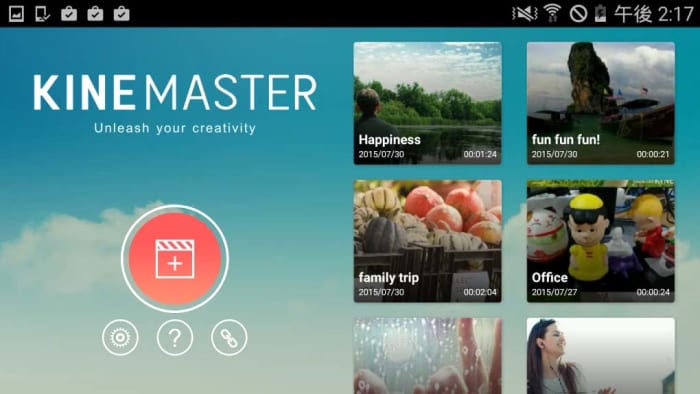
Just because you’re editing your videos on mobile doesn’t mean you need to accept a simplified version of the process or an app that tries to do as much as possible for you. KineMaster is for people looking to make a professional video as it offers a great video editing suite that wouldn’t be out of place on a full PC. Multiple video layers, up to four audio tracks, frame-by-frame editing, and speed and color control to name but a few.

The downside for the free version of KineMaster is that all videos will publish with a watermark. Also, there are limitations on some features with the Pro Version, which costs either $4.99 a month or $39.99 for a year’s subscription offering a more fully loaded experience. If you’re looking to make big movies on the fly though, the free version definitely offers enough for you to make an informed decision on whether to splash out and go Hollywood with Pro or not.

KineMaster Download now
9

VivaVideo

Viva Video mobile editing app

Whereas we concentrated on more advanced video editors with our list of video editing software for PC, we’re trying to mix things up here with our mobile video editors. Mobile videos can be serious business, but they can also be fun, and VivaVideo is a much more fun offering than the likes of KineMaster.

Viva Video makes it easy to edit videos complete with things like stickers, special effects, added animated content, and even has cool extras like video filters. It also comes with its own audio tracks and music library. Then once you’re done making your masterpiece VivaVideo makes it easy to share your movies on the VivaVideo network, which reportedly has over 200 million users.

VivaVideo Download now
8

PowerDirector

PowerDirector free video editing app

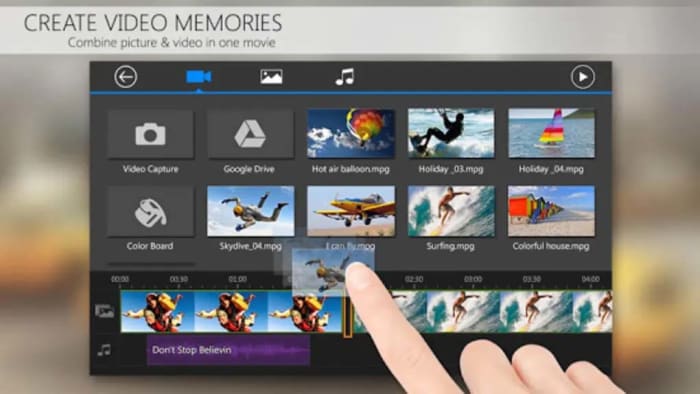
PowerDirector is one of the most well-known video editing apps as it has been around for quite some time. It offers a respectable set of features including video effects, sound effects, after-effects like green screen, and other features include slow motion editing and scene transitions. PowerDirector also makes it easy to drag and drop your video clips and edit your vertical videos, which could come in handy, if you’re sharing your content on platforms like IG TV.

As is usually the case with free apps for editing videos, PowerDirector has a few negatives you’ll need to consider too. These include watermarks and quality limitations unless you make in-app purchases. For free you’ll only be able to publish your videos up to 720p and your videos will all have watermarks.

PowerDirector Download now
9

Videoshop

Video shop free video editor

Videoshop is another mobile video editor that is more fun than serious. It can help you make great animations by giving you simple control over the speed of your footage. You can speed the action right up or slow it to a crawl. Furthermore, it also has all the usual bells and whistles including text, resizing and rescaling your shots, and even the ability to use your own music from your smartphone’s library.

Unfortunately, however, although the app is free, you’ll have to pay a subscription, if you want full access.

Video Shop Download now
10

Magisto

MAgisto video editing app

Magisto might just be the simplest video editing app for mobile out there. It is all designed with one handed use in mind. Like Quik, Magisto uses a lot of Artificial Intelligence to help you get your movies looking as professional and eye-catching as possible for minimum effort. All the usual features are here with Magisto’s AI working under the hood to serve up image stabilisation, video filters, and various cropping techniques.

If you want to change up “your” movie style, you can purchase premium subscriptions that will offer different editing techniques and styles. Even with this premium model of financing the app, however, developers have still filled Magisto with ads, which might get in the way of your experience.

Magisto Download now
8

We’ve gone through six of the best free mobile apps for video editing. Although many of them do offer premium versions or pro level subscriptions each has enough in the free version for you to sink your teeth into. Some apps offer simple intuitive interfaces that will do a lot of the video editing for you while others offer more substantial feature sets that’ll give you the added control you’ll need to make the movie you want to make. The different types of app we’ve highlighted means we’re going to leave it up to to you to decide which is the best video editor for you.

Other good options we haven’t looked at today include Apple iMovie, FilmoraGo, and Adobe Premiere Clip.

The best free video editing software of 2019

These are the five best free video editors available on the internet today. Check them out now.

Best free video editors

There are a lot of amazing video sharing platforms these days. Beyond the obvious ones like YouTube and Facebook, you have smartphone specific apps like Tik Tok and IGTV. This being the case, we’re not surprised you’re looking for some top-quality video editing programs. Simply filming the best video isn’t enough these days. You need to know how to edit videos too. If you want to stand out from the crowd, you need to edit your video files, make them look as professional as possible, and then make them available cross-platform to Windows, Android, or Apple Mac OS, iPhone, and iPad so that as many people as possible can see them .

As if editing video clips wasn’t hard enough already, getting your hands on a decent video editor can end up costing an arm and a leg. Therefore, we’re bringing you a list of all the best FREE video editors.

Best free video editing software

HitFilm Express

As you’ll probably imagine, a lot of the free video editing programs we’re going to include in this list will be related to more fully featured, yet paid for, versions of the same program. HitFilm Express is one such video editing tool that offers an impressive Pro version of the software for $299. The great thing about the latest free version of HitFilm Express, however, is that it has a lot of features that have come from past Pro versions. Let’s take a closer look.

HitFilm Express

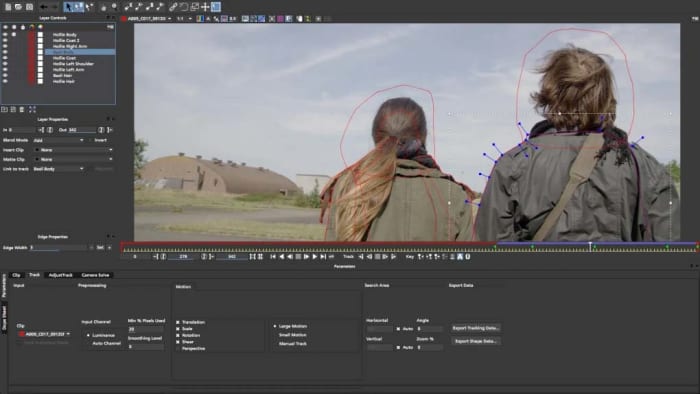
HitFilm Express uses a timeline editor interface and offers some user-friendly playback options that will help you out when you’re trying to edit your professional video. Impressively, a recent update also added the ability to edit 4K (4096 X 2160) footage, and even the ability to use the power of your GPU, with Nvidia and Intel support, to help with decoding. Other key features include 360 degree editing, special effects, video effects, multicam support, 3D effects, and GoPro support to name but a few. You’ll also be able to publish your videos into multiple output formats.

There are trade-offs, however. For a start, although you don’t have to pay for the free version you will have to ‘earn’ it. You’ll have to mention the developers on social media before they’ll give you access. On top of that, there are also some add-on features like animated text that you’ll have to pay for.

HitFilm Express Download now
8

VSDC Free Video Editor

VSDC free editor

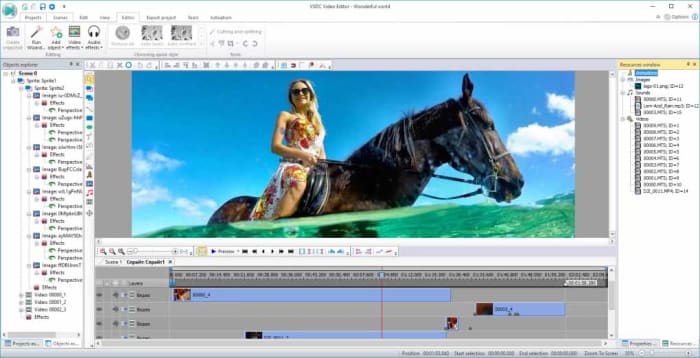
There is an awful lot you can do with the free version of VSDC Video Editor. There are many audio editing features, sound effects, and visual effects available for you to play around with. VSDC also offers green screen capabilities and there are a lot of cool Instagram-like filters that you can use to enhance your footage.

The downsides related to VSDC are mostly related to its interface. Its enhanced feature set make its interface rather complicated and a little daunting for beginners. There is a lot going on here. Fortunately, however, VSDC has a comprehensive YouTube channel filled with video tutorials for all the main features. There is also a paid real-time support service for free users that starts at $10. There is, however, a premium version of VSDC available, which is much cheaper than some of the other premium versions we’ve featured on this list.

VSDC Free Video Editor Download VSDC
7

Lightworks

Want to make or share a great video? - Lightworks

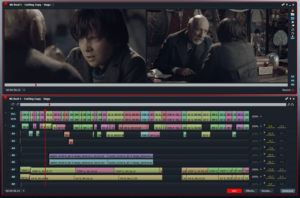
Lightworks is a well-known video editor that offers comprehensive control over all the snips and cuts you’ll need to turn your home movies into Hollywood style blockbusters. Lightworks has been used to edit Hollywood movies including Martin Scorsese’s movie The Wolf of Wall Street.

Obviously, the free version isn’t as fully featured as the pro version, which costs $24.99 a month or $437.99 outright. With the free version you’ll only be able to export your movies to YouTube or Vimeo and only with a maximum resolution of 720p. You will, however, be able to import all video formats and use a wide range of the pro features, you’ll just be heavily limited in your video export file format options.

Lightworks Download Lightworks
7

Want to learn how to use VLC as video converter?

Blender

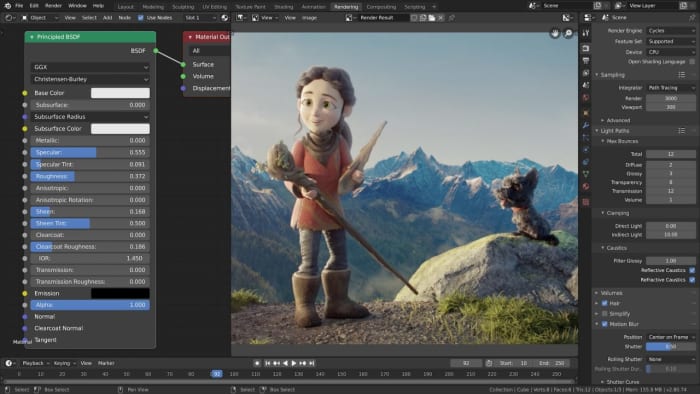
Blender is a rare thing of beauty among free video editing programs. Rather being a free version of a pro product, Blender is a completely free piece of software as it is open source. That means Blender is a community developed product that has been put together by developers all over the world. This isn’t just good because it means the software is free, it also means that new advanced features often come from video editors themselves who’ve noticed a shortcoming in the software’s capabilities.

Blender interace

Cool features that come as standard with Blender include being able to Live Preview your work, which could be made of up to 32 separate tracks each capable of holding video, images, masks, effects, and audio tracks. Other key features include transitions, filters, and speed control.

As you’d expect from a community led program, however, Blender can be a little hard to take in at times and has quite the steep learning curve. There is no set manual explaining how everything works and you won’t be able to rely on official support channels. If you look hard enough though, you should be able to find all the help you need on the online Blender forums or YouTube.

Blender Download now
8

DaVinci Resolve

DaVinci Resolve

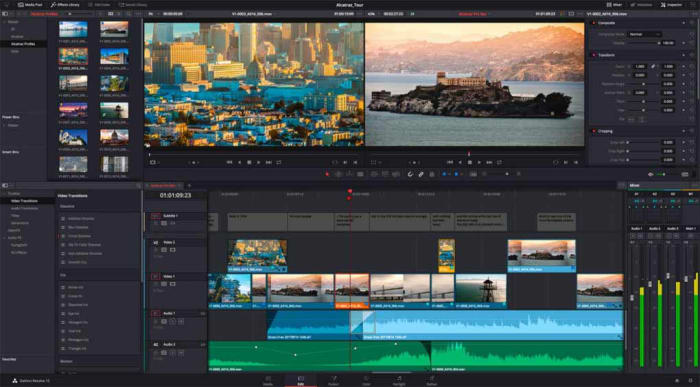
Like HitFilm Express, DaVinci Resolve has a premium version that comes in a $299. The free version of DaVinci Resolve, however, has some very capable features and should be more than enough for all amateur film makers.

DaVinci Resolve has a fully featured editing suite and offers high-resolution editing all the way up to Ultra HD and at an impressive 60 frames per second. Furthermore, it is much easier to use and has a more intuitive interface than the likes of VSDC. DaVinci also offers faster rendering times than the free version of HitFilm Express, which could give this the edge when you’re looking for a free video editing suite.

DaVinci Resolve Download now
8

We’ve outlined five of the best free video editors for you to download for free. Each represent a high level of editing features and could see you producing very professional looking results. We have assumed a certain level of video-editing ability here, with each program catering to video editors who already know what they’re doing. We’ve also not spoken about editing apps like Adobe Premiere Pro and Final Cut Pro, which target professionals.

If you’re just getting started with your new hobby and you’re just looking to make a few YouTube videos, we recommend looking for more beginner friendly programs like iMovie or Movie Maker. It is worth pointing out again though, that many of the programs we’ve listed do have online technical support channels, extensive YouTube tutorials, or community-based forums all designed to help you learn how to use your new tools.

VLC: All you can do besides play videos

Check out some of the best hidden features of VLC. Learn how to record audio, video, and your desktop and may other great features too.

VLC Media Player by VideoLAN is an absolute behemoth open-source digital media and video player. It is quite comfortably able to play almost all types of codecs, file formats, and media from MP3 files to MP4 and a whole host of other video format playlists. This is the thing though, whereas it is definitely important for a media player to be able to play video file types like MKV, MOV, and AVI; VLC Media Player can actually do so much more.

That’s why we’ve decided to put together a list of the 5 best hidden features of VLC. After reading our guide not only will you know about the best VLC features, you’ll also know how to use them. Let’s get started:

VLC media player download free ►
8

5 of the best hidden VLC tricks and features

How to use VLC to convert audio and video files

VLC Player offers a very competent option for anybody who needs to convert a media file from one format to another. If you’ve VLC Player installed on your Windows PC or Mac, you won’t need to purchase, download, or install any third-party software so that you can convert your media files. It doesn’t even require a special plugin. No more searching for solutions on Google, this is how to convert video.

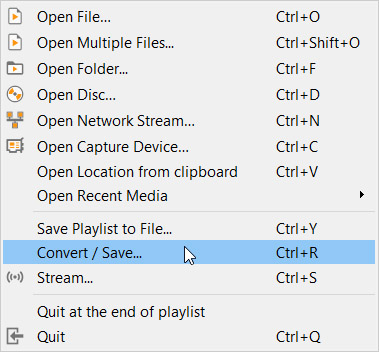
VLC media menu

First you need to open VLC, then click on the Media dropdown menu, and finally hit Convert/Save. You’ll then need to select the videos or audio files you want to convert using the Add button. Then in the Destination file box put the folder you want your converted files to save to and what you want the files to be called. After that you choose the VLC file type by clicking on the spanner button and selecting from the dropdown menu. Once you’ve followed the above instructions all you need to do is hit the Start button to begin. There are also some advanced features you can take advantage of, and you can find out all about the advanced VLC file conversion features here.

How to use VLC to record video and audio

If you have a Windows 10 PC or a Mac, you will have a native camera app and sound recorder for taking photos and videos using your webcam and recording sounds using your microphone. That’s all well and good but you can do both on just one app; VLC. Furthermore, as we’ve just seen, VLC can also convert audio and video files easily meaning you can quickly and simply take your recordings and convert them into any video output or file type. These will then be good for use on all your devices from Android smartphones and tablets to Apple iPhones and iPods.

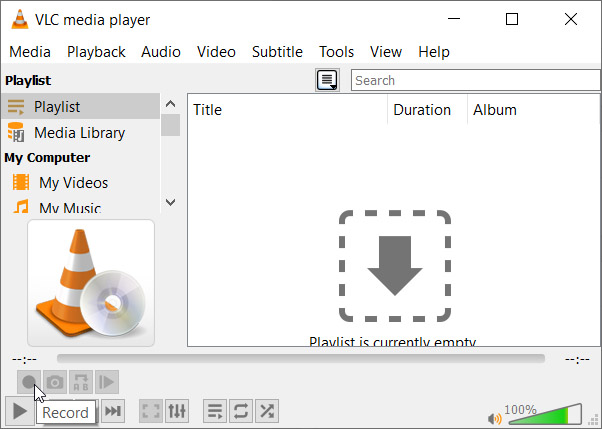
Advanced controls on VLC

To record audio on VLC you need to activate Advanced Controls by clicking View in the top menu and then selecting Advanced Controls. This will display new controls in the bottom-left of VLC above the play button. To start recording sound all you need to do is press the Record button. To stop recording and save your file, simply press the Record button again.

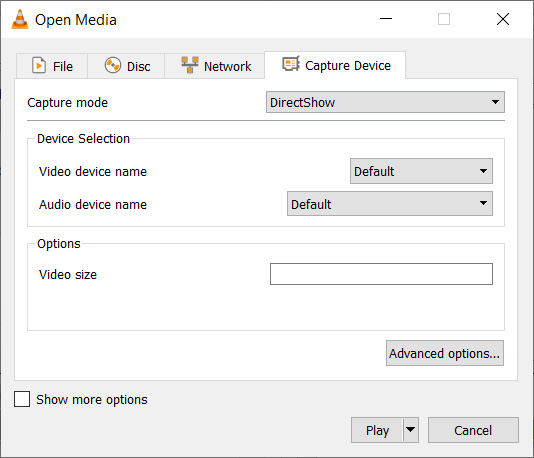
Open Media on VLC

To record video on VLC using your webcam you need to go to Media then Open Capture Device. You now need to set Capture Mode to Direct Show and you’ll need to select your webcam from the options in the Video device name menu. If you want to record sound with your video, you’ll need to select your microphone from the Audio device name menu.

How to use VLC to record your desktop

Screenshots are an important part of the modern digital life we’re all living. Yes, you guessed it VLC does screenshots too, but we’ll get to that in a minute. VLC also offers the chance to record everything that is happening on your desktop rather than simply catching an instant.

Record desktop on VLC

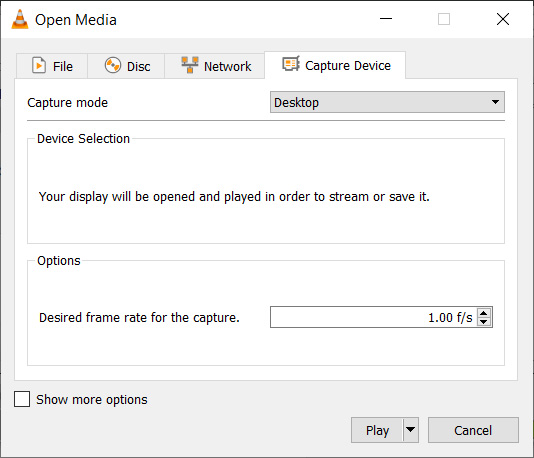
To record your desktop open VLC, hit Media in the top menu and then click Open Capture Device. You now need to change the Capture mode setting to Desktop and then select the framerate you want for your recording.  After that hit Convert so that you can select the file type your recording will save as and hit Start to begin. When you’re done recording your desktop hit Stop to save it.

How to screenshot on VLC

There are two ways to snap screenshots of videos using VLC. The first is to right-click and then select Video in the dropdown menu and select Take Snapshot. The other way to take a screenshot using VLC is to use the keyboard shortcut. On Windows or Linux press Shift + S and on Mac OS press CMD + ALT + S.

How to use VLC to rip DVDs onto your PC

DVDs used to be everything. When they first replaced VHS tapes their superior quality and sleek smaller form factor made them perfect for collections. If you’ve a huge DVD collection and want to save the movies and shows on your PC in case something happens to them or just because you never watch DVDs anymore, VLC can help you out.

Rip DVD on VLC

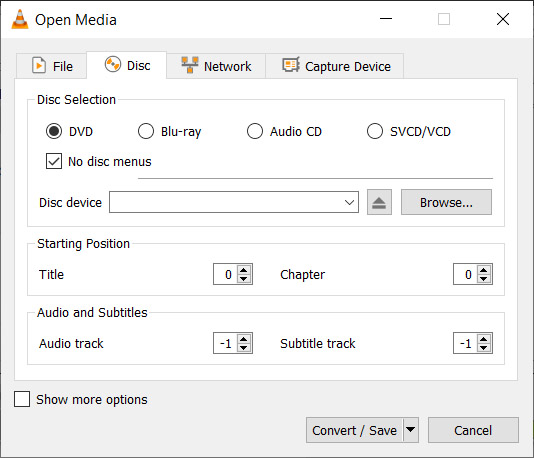
To rip a DVD using VLC insert the disc and then go to Media and then hit Convert/Save. Open the Disc tab and then choose the type of disc you’re ripping, which in this case is DVD. After that, check the No disc menus button and choose the desired Disc device where you want to save your DVD. Then hit the Convert/Save button and choose the file type you want to save your DVD as and then hit Start to begin the process.

Wrapping up

So, there you have five hidden VLC features that go beyond just playing media files. Now you know how to take advantage of some of the best VLC features. If you’d like to know more cool hidden VLC features, you’ll be glad to know that we’ve put together another guide to some of the best hidden VLC features, which you can read here. This guide includes how to listen to internet radio and podcasts using VLC and even gets into video effects.

VLC isn’t just great because it is a free open-source piece of software. It puts a lot of very powerful tools at your fingertips. We hope you enjoy using the tools we’ve highlighted in this guide.

Best apps to download audio and video from YouTube

If you want to download videos from YouTube or other video hosting websites, you should check out these great apps.

YouTube is an incredibly large video library. There are literally billions of videos you can watch on the YouTube app. You always, however, need an internet connection to watch them. YouTube allows you to stream videos but doesn’t allow you to download videos.

Well, that is not entirely true. YouTube does now give you the chance to download videos to your device so that you can watch them later, in a similar fashion to how you can download movies and shows on Netflix. Like Netflix, however, YouTube Premium costs money. If you want an official YouTube downloader, you need to pay for YouTube Premium.

Unofficially, there are many apps and programs out there that can help you download videos from YouTube. Google might not be too happy with you doing so, due to its ad-based revenue stream. If, however, you’re not going to share the videos once you’ve downloaded them, you shouldn’t fall foul of the law should you decide to use such tools to download YouTube Videos. Let’s look then at some of the best YouTube video downloader apps.

Best apps for YouTube video download (Android devices, iPhones, and Windows)

Videoder Video Downloader

Videoder app

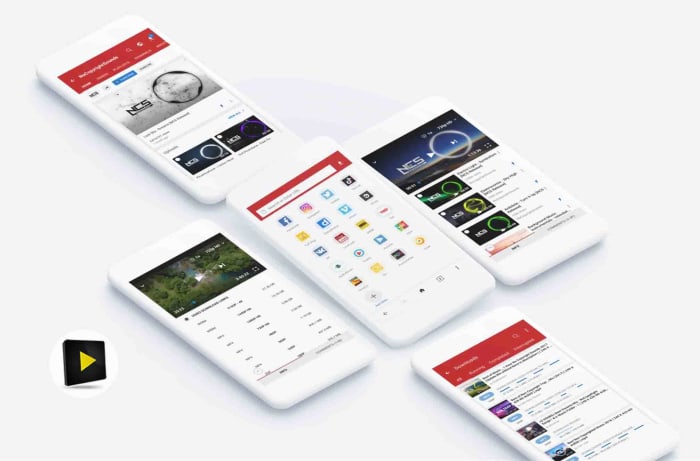
The Videoder Video Downloader App is by far the best app for YouTube download for Android, according to Softonic users. It has been downloaded over 2 million times and has an impressive 9 out of 10 rating.

That popularity comes from Videoder being a free, reliable, and easy to use video downloading tool. Videoder makes downloading your online videos as simple as possible by showing a video search bar that allows to search for the videos you’re after rather than simply copying and pasting the url. This is great, if you don’t already know the YouTube video you’re looking for.

The app also gives you the chance to select the video’s resolution and download file format. This makes it great should you be trying to download YouTube videos to watch on another device like an iPod or a Mac. Videoder also offers great download speeds.

Videoder Video Downloader Download now
9

Vidmate

Vidmate

If Videoder is the best YouTube downloader app according to Softonic users, then Vidmate is certainly the most popular video downloader. With over 19 million downloads to its name and an average user rating of 8 out of 10, Vidmate is clearly helping people download YouTube videos easily and effectively, all over the world.
It gives you control over video quality and is great for downloading videos in SD, HD, 2K, and even 4K formats. As well as YouTube, Vidmate also makes it very easy to download videos from other sites like Dailymotion, Facebook, Instagram, TikTok, Vimeo, and Tumblr.

On top of its video downloading abilities, Vidmate also offers a video player, huge video libraries and playlists, and even access to live TV channels, which it can help you  watch for free.
VidMate Download now
8

TubeMate

tubemate header

TubeMate is a classic YouTube downloading app for Android that has been around since Android version 2.3. The app works a bit like a web browser, so it is very simple to use. All you do is open the app and then browse away as normal or paste the url of the video you’re looking to download into the address bar. Whenever the app detects a video on the page it’ll display a download button, which will list the various options like video resolution etc. when clicked.

TubeMate works with other video sites, not just YouTube, and comes with its own media player for watching the videos you’ve downloaded. The flip of using TubeMate, is that it might struggle with today’s videos that have much higher resolutions.

TubeMate Download now
7

Snaptube

Snaptube

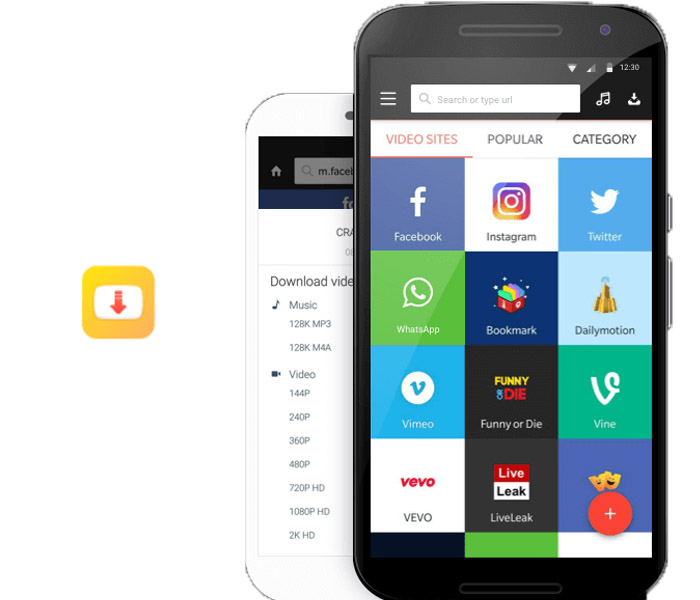
Snaptube is a great Android app that offers a simple way to download videos from YouTube. As well as offering extensive videos libraries for you to search through, Snaptube also offers YouTube batch downloads for your favorite videos. The new tool allows you to set up multiple YouTube video downloads at once. To use it though, you’ll have to first download the add-on YouTube Bulk Downloader.
Snaptube Download now
8

All Video Downloader

All Video Downloader

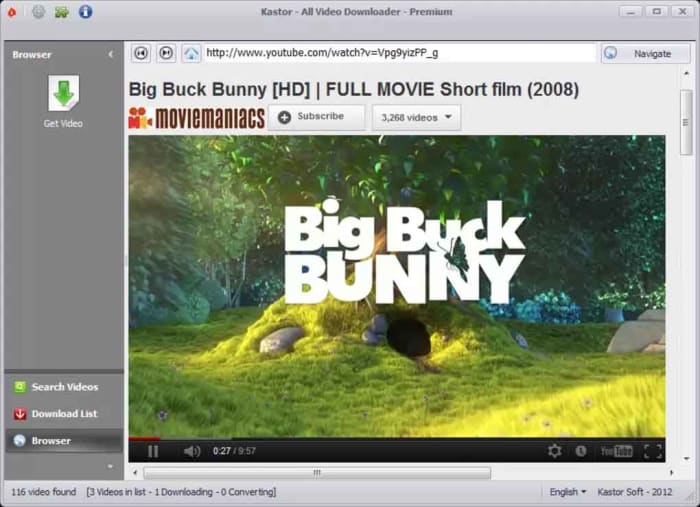
The All Video downloader app offers a competent option for downloading YouTube videos on Android. It allows you to both search for videos to download, and simply copy and paste their URL into the address bar. It also works as a video converter and offers many different video formats like AVI, WMV, MPEG etc., which can then be viewed on a plethora of different devices including the iPhone, iPad, and Android phones and tablets.
All Video downloader also gives you control over the size of your downloaded videos and will work on many different video hosting websites. It is limited, however, to only two video downloads at a time.

All Video Downloader Download now
6

Ummy Video Downloader

Ummy video downloader

The Ummy Video Downloader for Windows offers a great way to download video and audio from YouTube. It is very simple and easy to use and has a respectable 8 out of 10 rating from Softonic users. Ummy is designed to give you access to YouTube videos offline, which could come in handy, if you think you’ll be without internet connection for a prolonged period.

The app has a simple user interface and works by allowing you to copy and paste the url of the video files you’re after into a search field. You then have the option to specify the video and audio output format with choices including MP4, MP3 files, MKV, FLV, MOV, and AVI. If you’re downloading a video, you’ll also be able to specify the output resolution before hitting download.

Ummy Video Downloader Download Now
8
Wrapping up

As you can see there are lot of great free apps available online for downloading videos from YouTube. We’ve shown you six of the best apps available for downloading YouTube videos for smartphones like Android and the Apple iPhone, and even on a Windows PC too. What’s even better is that many of these apps also enable downloading videos from other video hosting sites too. That means many of the apps we’ve highlighted offer comprehensive video downloading solutions beyond just being able to save YouTube videos alone. As always, we’ll point out, however, that downloading videos from YouTube breaches the app’s terms of service and if you share any of the videos you download, you could also be guilty of trademark violation.