Popular Facebook app hacked. Millions of users affected

The popular Facebook app Timehop, which highlights users’ old Facebook content has been hacked. The attack took place on the July 4 and resulted in the data of over 21 million users ending up in the hands of hackers.

The popular Facebook app Timehop, which highlights users’ old social media content has been hacked. The attack took place on the July 4 and resulted in the data of over 21 million users ending up in the hands of hackers. Due to the breach, Timehop has suspended all the social media permissions it held and has begun alerting its users.
Over 21 million users have been affected by the Timehop hack

In a blog post detailing the attack, Timehop claims to have discovered the attack while it was taking place. While the company was able to interrupt the attack, some user data was still taken. This data includes names, email addresses, and about 4.7 million user phone numbers. Timehop reports that no private/direct messages, financial data, or social media or photo content, or Timehop data including streaks were affected by the attack.

Timehop users who want to continue using the service will have to re-authenticate the Timehop apps they’re interested in keeping. Until affected users do this, as the apps no longer have permission, their apps will be running dormant. Any apps that are re-authenticated will receive a secure permissions chip, replacing the compromised chips affected by the breach.

The reasoning behind the breach seems to be an issue with the security of the cloud computing service Timehop was using:

“The breach occurred because an access credential to our cloud computing environment was compromised. That cloud computing account had not been protected by multifactor authentication…”

Timehop hasn’t released the specific details of the breach, but the lack of two-factor authorization means a hacker only needed to guess the password of the account to access all of the data.

Timehopp data breach 21 million users affected
Users will have to re-authenticate Timehop apps

This breach only highlights further the importance of taking adequate security measures to protect your data, with two-step authorization being a minimum level of security these days. Now could also be a good time to take a look at the permissions you’ve been giving to third-party apps via your social media and Google accounts. Apps like Timehop take our details and then we don’t even use them that often, while our details remain part of a database that is attractive to thieves and scammers. For information on how to secure your data, check out any of the Softonic tutorials below.

 

Tips and tricks for writing a novel in Google Docs

You’re ready to become the next George RR Martin and write your first novel. Where to begin? Follow these steps and let Google Docs take you to the published land!

Google Documents offers the impressive power of other word processing applications, free to anyone with Wi-Fi and an internet-capable device. With a small amount of technical prowess, you can avoid a number of issues common to writing online.

Before the Beginning

If you’re planning on developing a lengthy document in Google documents, we recommend using the “New” button to create an entire folder for your project.

Folders can be made at any stage of the writing process, but starting right off the bat provides a good platform to organize any number of documents and spreadsheets to facilitate planning, character creation, and more.

The Beginning

As long as you send a clean manuscript to agents and editors, you can format however you like during the writing stage. We’ve found a few things that make life easier.

  1. At the top left, name the document well. You want to be able to find it later and differentiate the file from others in the folder.
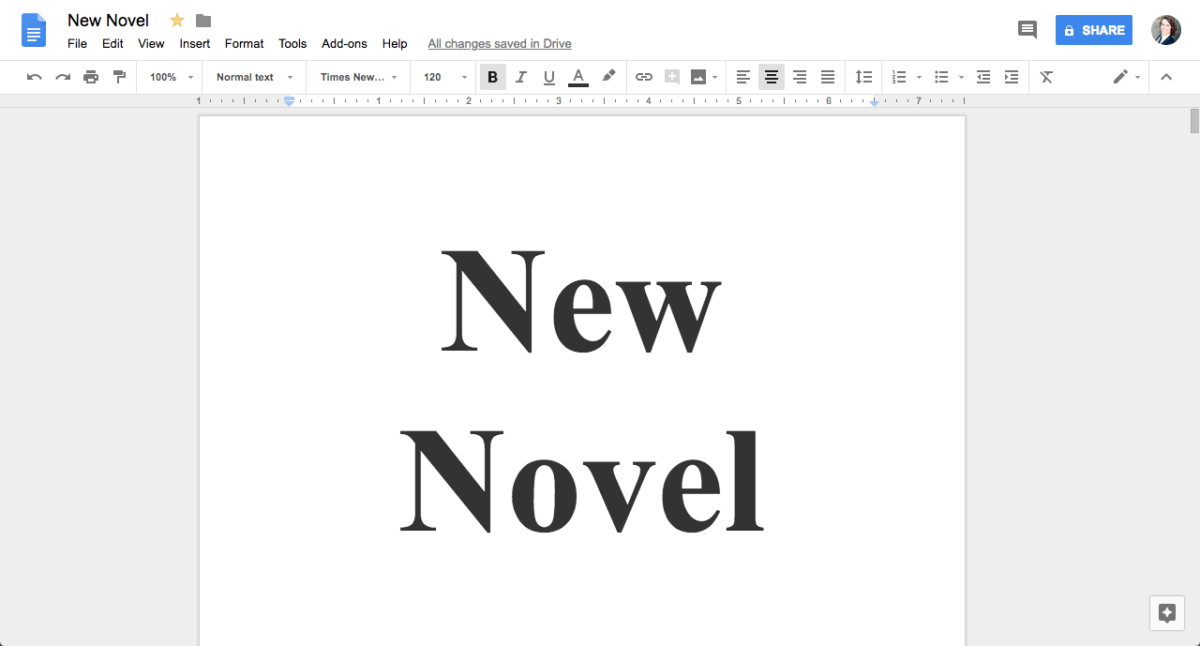
  2. Create a title page. This isn’t absolutely necessary, but it looks professional. Also seeing the title over your name can be a useful motivator.
  3. Create a Table of Contents with chapter links, which allows you to instantly go to a word or phrase. First, select the line you wish to link, click “Insert” in the options bar, and hit “Bookmark.” It will create a blue banner:

Click the blue banner and hit “link.” Your web browser’s search bar will show you the URL: copy it. Then, head back to your Table of Contents and hit any of the “Create Link,” which look like this:

Insert the URL you copied and the link will be created! Following the link will take you right back to your chapter from anywhere.

The Middle

As time goes on, a few more issues can arise.

Large documents often load slowly in Google documents, depending on Wi-Fi speeds. In our experience, a 25,000-word file began exhibiting serious lag. If (or when) this happens, create a new document within the same folder and go through the beginning steps again: name it appropriately, create a title page, and develop the table of contents.

Additionally, consider placing images above each chapter. Many young writers come from a culture swathed in pixel-rich graphics, which means a two-color document can become long and tedious by comparison. Use Google Images, Deviant Art, or even Pinterest to find pictures that inspire you and make navigation far easier.

Pinterest Download Free
8

REMEMBER: if the artwork is not yours, you shouldn’t use it for commercial purpose, only personal inspiration. Remove the files from the document before sending out the manuscript and allow your hard work to speak for itself.

The End

After several sleepless nights and months staring at your cursor, the novel is finished! But it needs to be prepared and packaged. Start by placing the separate pieces of your document in one file, and apply basic manuscript formatting (contact information on the lower right side of the cover page, 1-inch margins, 12-pt size, readable font, new chapters begin partway down the page, etc.).

Many literary agents ask for a specific document type: usually PDF, Word Document, and occasionally hard copy. All of these options are found in the “File” tab. To convert to PDF or a Word Document, choose the “Download As” menu and then make your selection. To create a hard copy, printing is at the bottom of the page.

Congratulations on finishing your novel, we wish you the best!


How to set up your Gmail account in Outlook

Lots of us use Outlook as a program to check our email. But did you know you can also use this software to read Gmail messages? It’s true! Today we’ll show you how to set up your Gmail in Outlook.

Enable Gmail

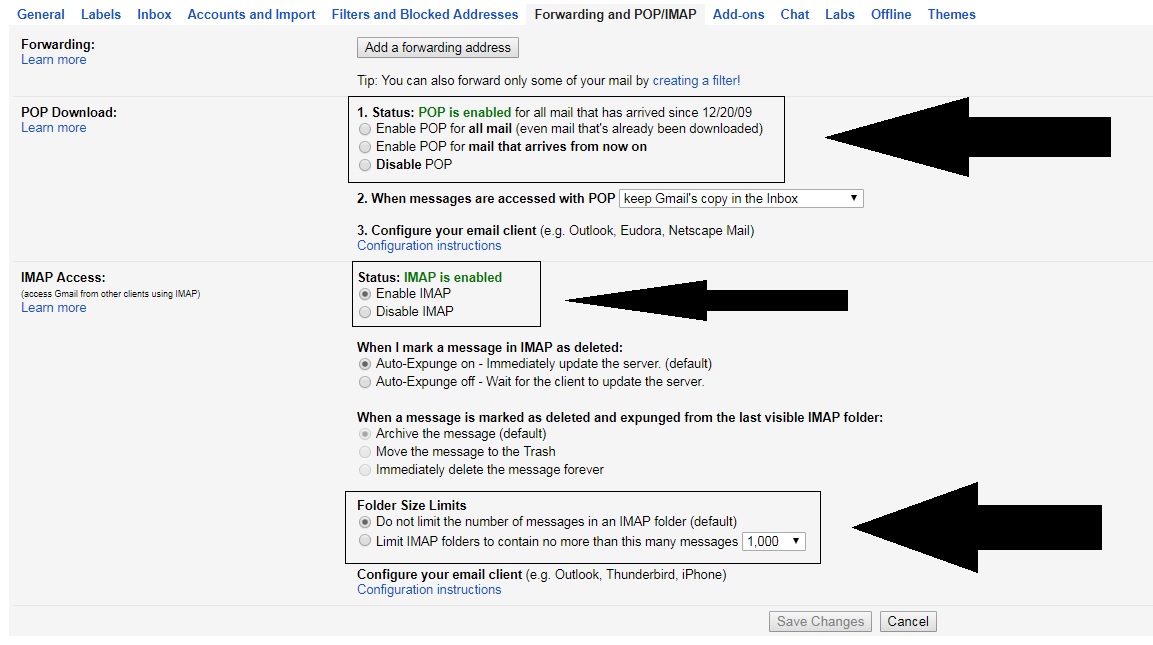
First of all, you must see if your Gmail account is enabled to send and receive email from other platforms. To do this, go to “Settings” and click on the field “Forwarding and POP / IMAP” (depending on the version of Gmail you have, it can change names). Once inside, check three areas specifically:

  • “POP Download” is enabled.
  • “IMAP Access” is enabled.
  • The size limit of folders has no limits .

That done, let’s hop over to Outlook.

Quick and easy

Once you have Outlook open, it’s as quick and easy as clicking on the icon of three lines at the top and going to the “Information” section. Here, look for the first option that appears: “Add account.” 

If you click on it, a pop-up window will appear where you can add your email address and password. After enabling everything in the previous step, the approval will take only a few minutes (and shouldn’t give you any trouble).

Congratulations! Now your email can find you wherever you go!


Has Siri just highlighted cyber-security weaknesses at the heart of the British government?

Is Siri the most useless of all the AI assistants? Well, objectively speaking, probably, but Siri’s lack of practical use can lull iPhone users into a false sense of security. Despite a lot of Softonic tutorials on mobile security, it is easy to forget that once activated, Siri is always listening.

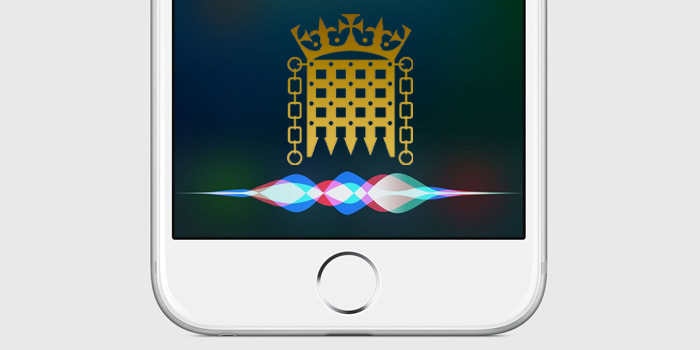
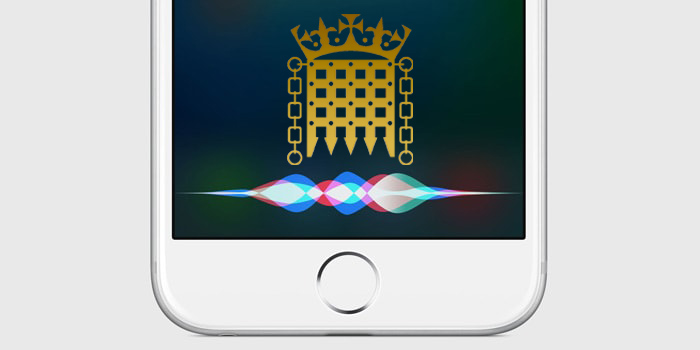
Siri listening to the UK Government
If Siri was listening in the Houses of Parliament, where else was she listening?

Although it isn’t ideal to forget that your PHONE could be listening to everything you say, most of us can get away with the oversight. If you’re the Defense Secretary of the United Kingdom, however, there are a lot of things that you or the people around you might be saying that you don’t want to a hackable device to hear. In the UK Parliament yesterday, UK Secretary of Defense Gavin Williamson was interrupted by Siri trying to answer a query while he was talking about Syria. Siri is set to “always listening” on his phone. Let that sink in. Siri is listening to everything that UK Secretary of Defense is saying.

So just how vulnerable is Siri and, accordingly, all of the classified secrets that UK Secretary of Defense has to talk about on a daily basis?

Well, in September, Chinese researchers discovered a shocking backdoor into voice assistants from Google, Amazon, Microsoft, and yes, Appl,e too. Called DolphinAttack, the vulnerability plays on the fact that digital assistants can hear frequencies that lay outside the range of human hearing. This allows attackers to issue normal voice commands at such a high frequency that it is inaudible to human ears.

DolphinAttack means that anybody within a few feet could be issuing silent commands to a smartphone’s digital assistant. The researchers didn’t just stick to basic commands either. Using only basic equipment, the researchers were able to get iPhone’s to make calls and even initiate FaceTime video calls. Incredibly, they were even able to make Alexa unlock IoT connected smart locks or redirect the navigation systems on Audi A3. If a user is wearing an Apple Watch, it allows these ultrasonic attacks to take place from further away.

The implications of such an attack could be severe for a man, like Williamson, with high-security clearance. Anybody passing him in the street could issue an ultrasonic command, which could open a certain website on his mobile browser. From there, the website could automatically install malware onto the phone that would open up the contents of the phone and possible communications to exploitation.

Siri is supposed to only respond to the voice of the user who trained it, but with convincing deep-fake technology becoming more and more prevalent it is easier than ever to reproduce somebody else’s voice. In this particular case, it doesn’t matter that Siri was responding to Williamson’s voice. As Jordan Peele adeptly demonstrates below, it wouldn’t be hard to fake him saying “Hey Siri,” and then feed the fake command through the ultrasonic processors.

It is all well and good laughing at Siri’s interruption in the House of Commons, and coming up with a witty response to make light of the embarrassing situation. Is there something more, however, that we need be seeing. Does Siri’s intervention highlight a worrying lack of insight into the implications of modern technology at the highest levels of the Conservative government in the UK? A lack of insight that could be putting the security of the British nation and her allies at risk? Is it a laughing matter if the man in charge of security for an entire country can’t even manage the security settings of his own mobile phone?


Your Gmail inbox is not as private as you think it is!

It probably won’t come as a big surprise, but Facebook isn’t the only big tech company sharing your personal data all over the internet. Google is doing the same in a somewhat shocking manner. According to a report in The Wall Street Journal (WSJ), Google is allowing third-party app developers access to your inbox so that they can read your emails.

Gmail app developers can read your emails
App developers have access to your Gmail inbox and can read your private emails

Google hasn’t exactly been hiding this practice, but it certainly hasn’t highlighted the fact. Talking to The Verge, Google said that it only gives access to vetted third-party app developers.

“The vetting process involves checking whether a company’s identity is correctly represented by its app, its privacy policy states that it will monitor emails, and the data that the company is requesting makes sense for what the company does.”

This means that Gmail app developers will get access to Gmail user data, which will include people’s emails, private details, who they’re writing to, and when emails were sent.

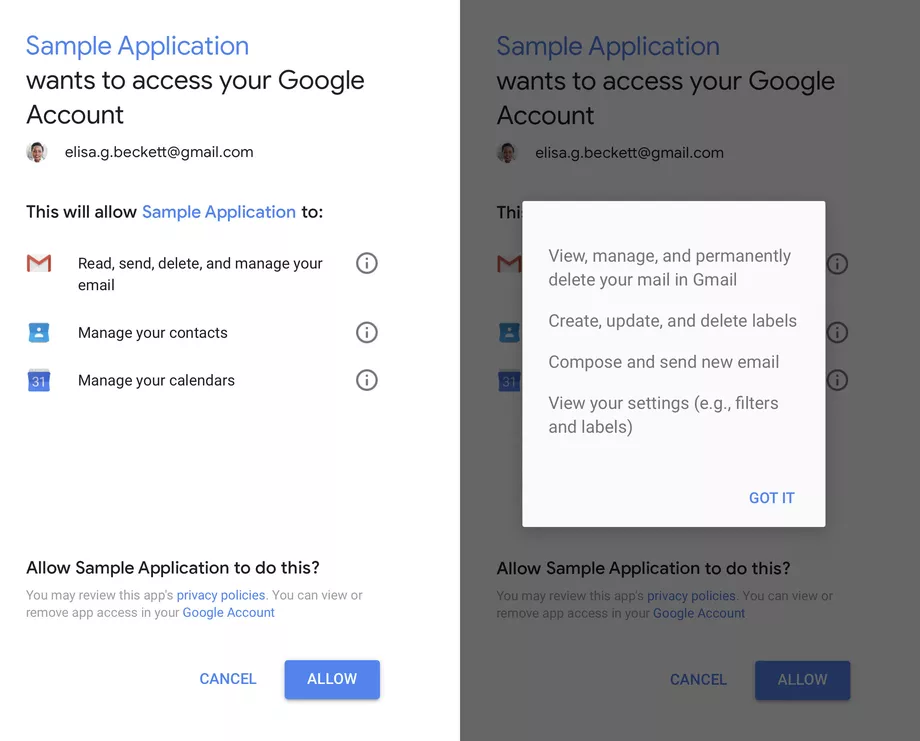
The real shocking revelation to come out of the report from The WSJ is that it isn’t just machines which are scanning for Metadata. Real people have access to the content of users’ emails and can read even the most private correspondence. User consent is required, but as always it is buried in confusing language. The example below shows an example of a consent form users receive. It shows that the app will have access, but there is no mention of human access.

Image via: Google

If you’re shocked by the revelation that strangers can read your emails and would like to review which apps have access to your account, you can do so here. If you’re not happy with the apps that have access to your Gmail, you’ll be able to revoke permission also.


You can now control what Google knows about you

Google knows a lot about you. So much, in fact, that it can show you personalized ads. Starting now, you can carefully control what Google shows you in ads by removing categories that it has “assigned” you.

This Google option, which can be found at this link, lets you see the profile that the company has on you, based on your online behavior and any data that you’ve given out: age, sex, and tastes. Think a category doesn’t represent you? (According to Google, I’m a man.) Or simply don’t want to be shown ads from certain categories? Just click on that category and then “Disable.”

In addition to this option, Google now gives you more info about why you see certain ads for its products, such as YouTube. If you click on “Why am I seeing this ad” within an ad, it will explain in detail why it’s being shown to you (because of your tastes, where you live, etc.).

Of course, these new options don’t mean that Google will stop having info about you, but at least now you can call the shots by controlling the profile Google keeps on you.

This option reminds us of Facebook, which a while back included a section with all the info it was storing on you. In the article “How to find out what Facebook knows about you,” we explain this in detail.

What do you think about Google storing so much info on us?


The new “Google WhatsApp” is already available on PC

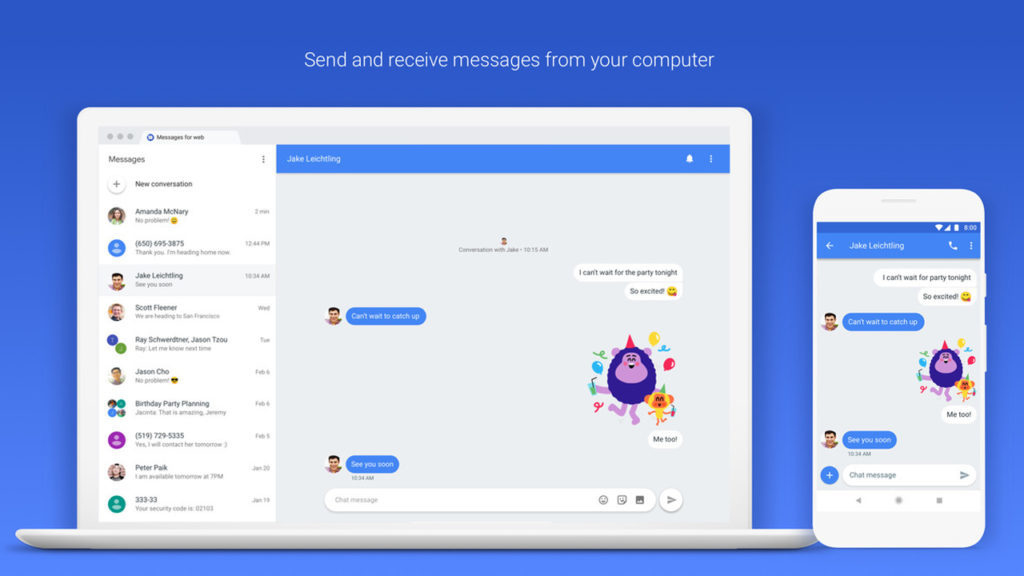
So last year Google announced that it was giving the humble SMS app an upgrade. Not just any upgrade though, SMS was going to get the full-on messaging upgrade it needed to take on WhatsApp. Well now, Google’s messaging app is now available to download on PC.

8

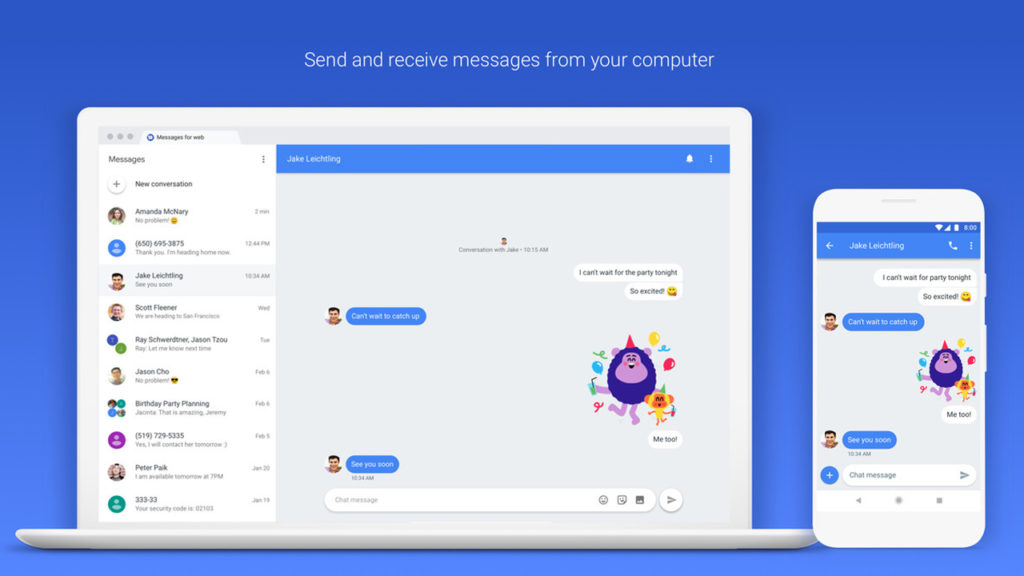
The PC version of Google messages works a lot like WhatsApp Web but is a reflection of the SMS app found on Android phones. It can send texts and photos to all of your contacts. As well as this, however, it’ll even allow users to send messages to email addresses using their phone number.

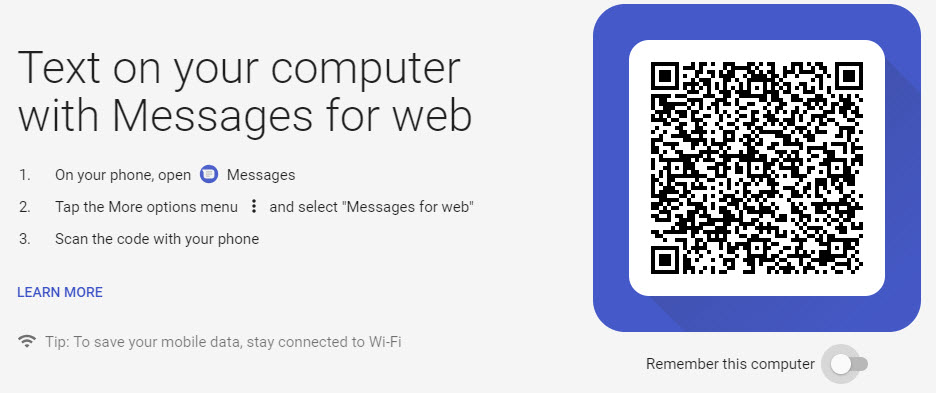
To use Messages on PC all you have to do is:

1. Check that you have the latest version of the Messages app installed on your smartphone. If you don’t click here to download it.

2. Once you have the app installed, open it, tap the three dots in the upper right corner, and then Messages for Web.

3. On your desktop, using any browser, go to messages.android.com.

4. Scan your QR code with your smartphone’s camera and you’re good to go.

Messages on PC does still have some shortcomings that you need to consider. You can send images, emojis, and stickers; but you can’t send GIFs like you can with the mobile app. It does, however, have a Dark Mode, which is exclusive to the web version.

It is worth remembering, however, that this app does send SMS, so you’ll have to be wary of your data plan if you don’t want to incur a lot of unwanted charges.

What do you think of this move from Google? Do you think you might give it a try and turn away from WhatsApp? Let us know in the comments below.


Does Facebook want you to spend less time on Facebook?

Mark Zuckerberg has admitted that passive consumption of social media is bad. If you’re sitting at home alone and all you’re doing is scrolling through social media feeds hour after hour, it is bad for your health. Ideally, if Zuckerberg really does care about users of his various social networks, he’d want them to become active users who contribute to social discourse as well as just reading what others have posted. Recent Facebook innovations show a move in this direction, but there is a movement gathering pace in the tech world, and it has Facebook in its sights. That movement is the “Time Well Spent” movement.

Facebook Lite Download Facebook Lite
7

We’ve recently seen both Apple and Google bring in new features on their mobile operating systems that help people control the amount of time they’re spending on their phones. Apple’s new feature tracks phone usage and can even set limits. Google’s new control panel will show how much time you’ve been spending, which apps you’ve been spending it on, and will even recommend that you take breaks. It now looks like Facebook is testing out a similar feature.

The new Facebook feature, first spotted by engineer Jane Manchun Wong, is called Your Time on Facebook. Although it has only been seen in the code of an unreleased version of Facebook; if it is released officially, it will help allow you to see how much time you’re spending on the social network each day.

Facebook usage notifications
Facebook will start telling you how much time you’re spending on Facebook

Facebook confirmed to Tech Crunch that it will be rolling out this new feature, but is yet to talk of an official release date:

“We’re always working on new ways to help make sure people’s time on Facebook is time well spent.”

The interesting thing about the Facebook usage panel, leaked by Wong, is its simplicity. It offers only very basic metrics and makes no distinction between passive and unhealthy time on the site, and active participation, which Zuckerberg claims is better for both users and society. Hopefully, Facebook will improve its control panel, but if the control panel on Facebook-owned Instagram is anything to go by that is just wishful thinking.

(function(d,s,id){var js,fjs=d.getElementsByTagName(s)[0];if(d.getElementById(id))return;js=d.createElement(s);js.id=id;js.src=’https://embed.playbuzz.com/sdk.js’;fjs.parentNode.insertBefore(js,fjs);}(document,’script’,’playbuzz-sdk’));


10 things you didn’t know you could do with Google Calendar

Google has a ton of services, which means many go overlooked. A common one is Google Calendar, the calendar platform that is linked to other tools as well. If you’re a big fan, you may already know these tricks, but if not, heads up: here are 10 things you didn’t know you could do with Google Calendar.

Change colors

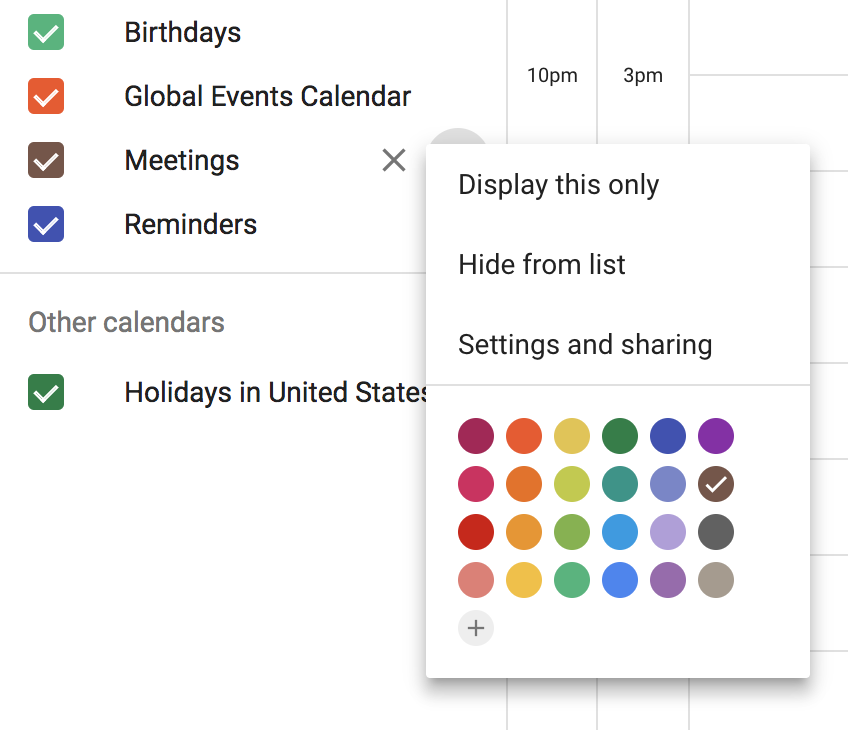
This is one of the simplest features: having different colors for each calendar. Don’t just have one calendar with work stuff and family stuff and your friends’ birthdays. Make a separate calendar for each function. On the left side, click the + button next to “Add a friend’s calendar.” Then click “New calendar.” Add the name and any details, then click “create calendar.” We just created one called “Meetings.” When we go back to the main calendar, we can hover our cursor to the right of the calendar title and click the three dots to open “Options for (calendar name).” Switch the check mark to your favorite color and enjoy!

Share calendars

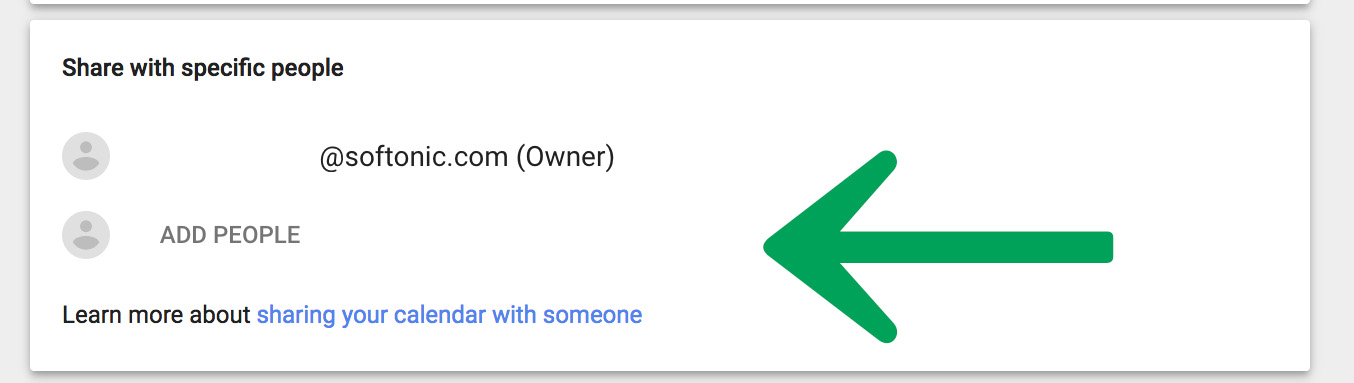
If you work with other people, having a common work calendar is the best way to stay organized. It’s as easy as going to the settings, selecting the calendar name on the left, then scrolling to “Share with specific people” and adding participants’ emails. Likewise, you can assign roles – whether readers or editors – to each person.

Offline mode

A useful feature that can help you in a pinch: using offline calendars. When you’re on a calendar, click on “Settings” and then “Offline.” Google will download all the necessary data to your PC to use the calendar when you’re not connected. There’s a catch: you need the Google Calendar extension to take advantage of this.

Email notifications

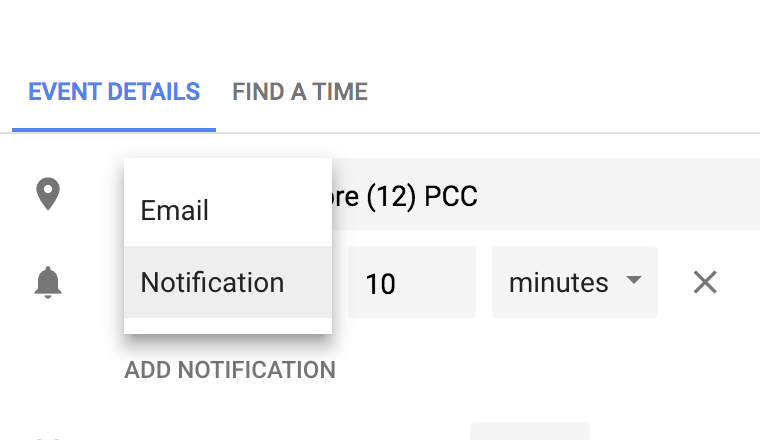
You’ve got an important appointment, so you put it on your calendar, but your life is busy so you forget to check your calendar on that fateful day. If you don’t want this to happen, you can send yourself a notification via email. Open your event and click the edit icon in the upper left corner to get to the “Event Details” screen. Next to the little bell icon, click “Notification” and you’ll see an “Email” option.  Piece of cake.

Attach files

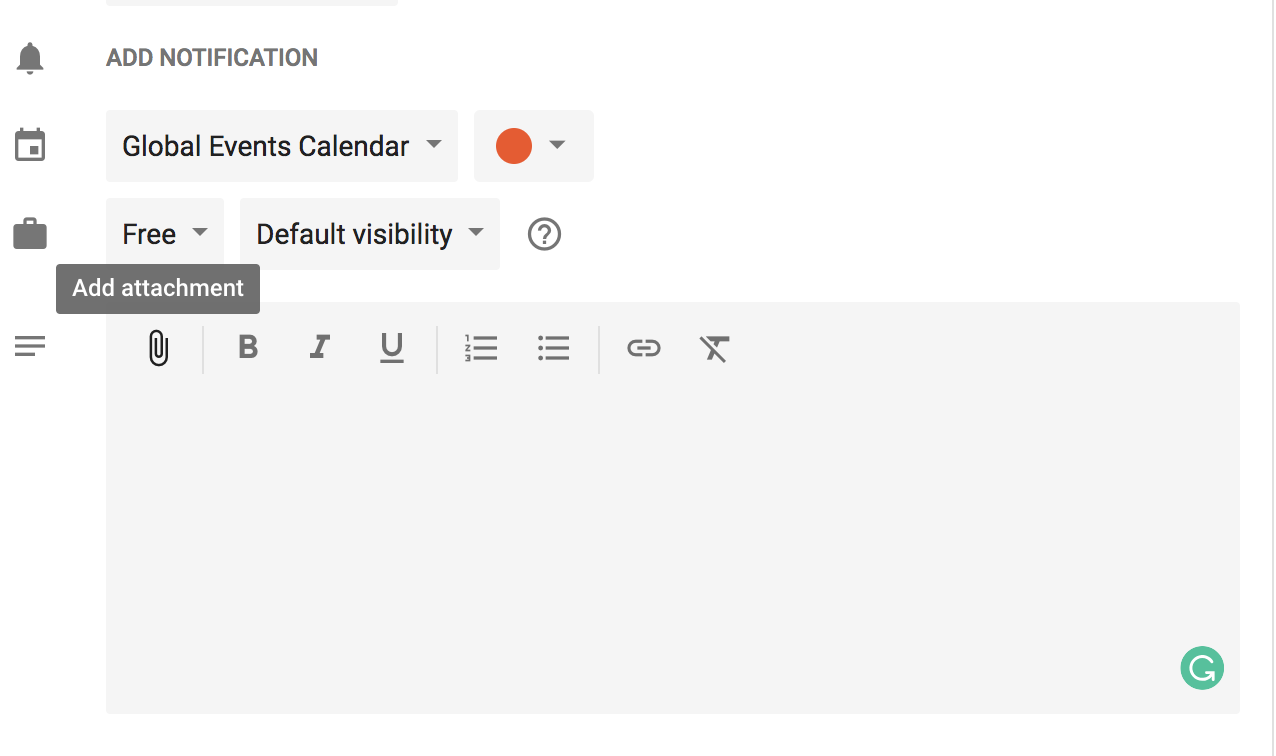
You can attach files to each event. This is especially helpful if you’re taking a trip, for example, and you want to include the boarding passes. When you’re creating an event, look at the big text box and click the paper clip to “Add attachment.” You may have to save it to the Drive first, but that will only take a few seconds.

Keyboard shortcuts

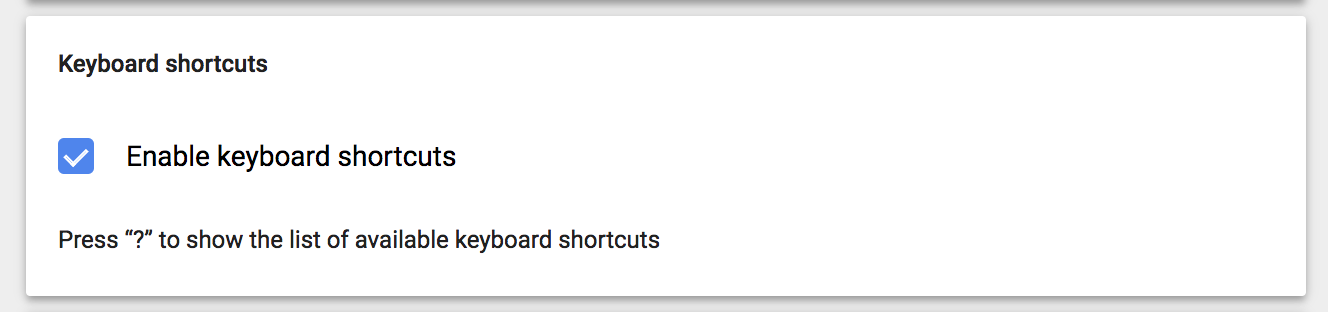
Keyboard shortcuts can help you out in a hurry. To enable them for the Google calendar, go to the settings and scroll to the end to see “Enable keyboard shortcuts.

Embed calendars

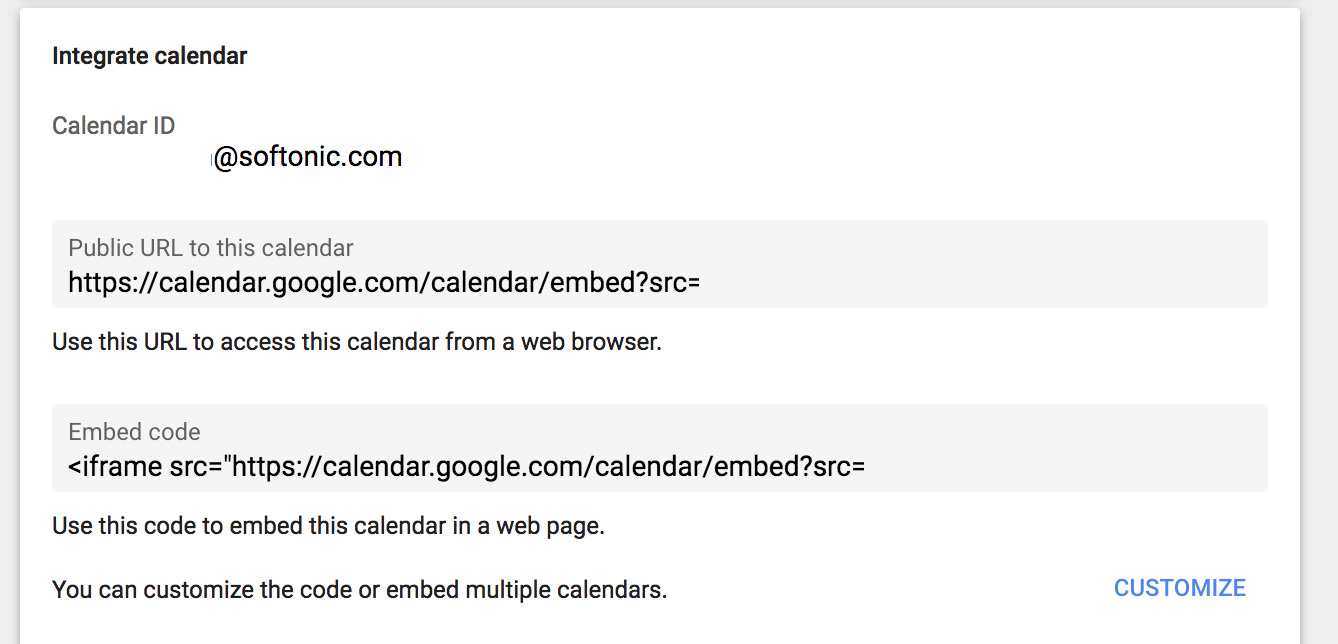
Just like you can share your calendar, you can also embed it widget-style into a web page. When you go to the settings of the calendar at hand, click on “Integrate calendar” and go to the bottom. When you find the code that starts with “iframe,” copy and paste it into your personal or professional web page.

Change time zones

You travel a lot and have meetings in different time zones. Google Calendar lets you configure each one according to the country you’re in. Wonderful, right? It’s one of those features that you can even take advantage of without traveling, since you may work with international clients from home.

Quick schedule view

The Google Calendar may look ugly and unwieldy. Did you know you can change it? Click where it says “Month” and you’ll get several options. Our advice for a quick glance is to set it to “Schedule.” It’s a no-brainer: all the content can be seen as if you were checking… well, a scheduling planner. 


Now you can measure things on your Android mobile using AR

Google’s ARCore is its platform for creating augmented reality experiences. It allows your phone to sense the world around it and interact with the information it detects. This means if your phone is ARCore compatible it’ll be able to use apps like Google Lens, which can search the internet based on visual images. Google has just released another cool app for ARCore compatible apps, Google Measure.

To check if your mobile is ARCore compatible click here. If your phone is on the list, you can download Google Measure here.

Apple recently announced to huge fanfare that all iPhones would be getting the ability to measure things simply by aiming the camera at it. This is Google’s answer to that, and it works really well.

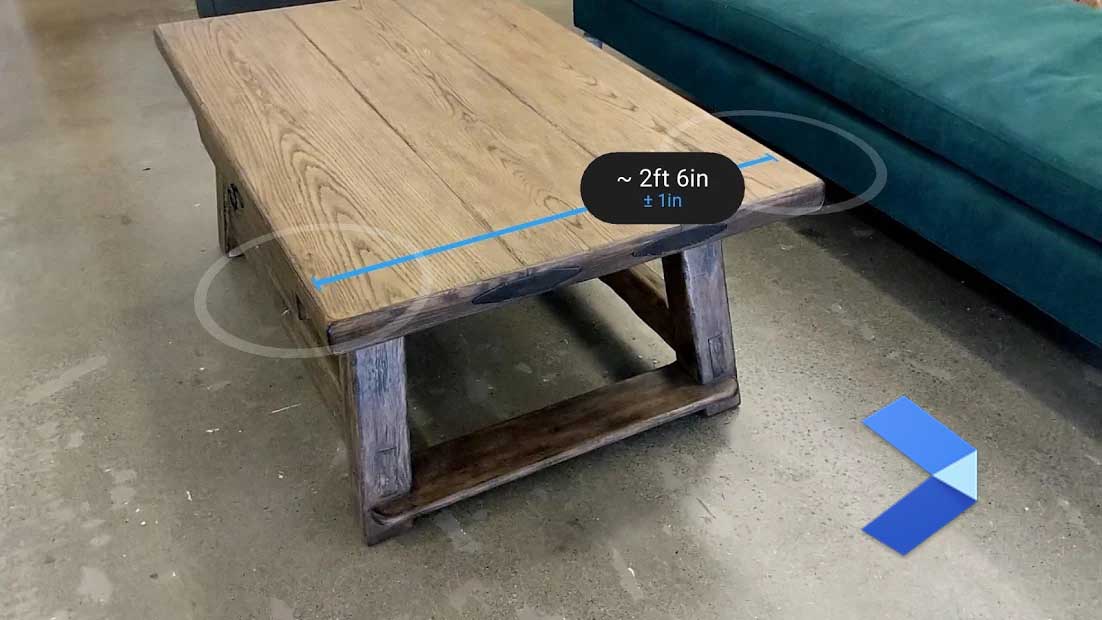
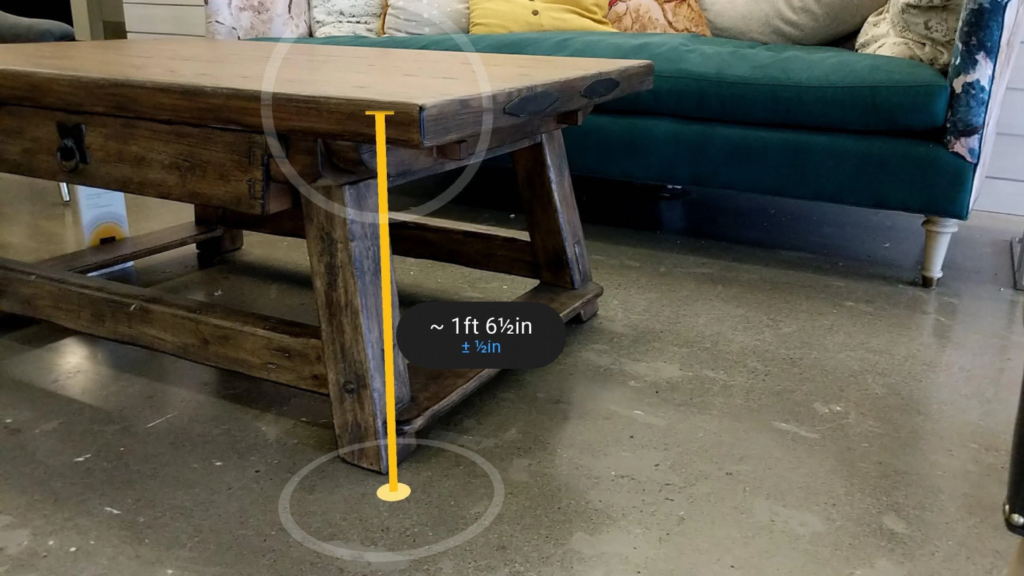
If you’re after a fairly accurate measurement quickly, all you have to do is whip out your Android phone, point it at what you need measuring, drag a line across it, and then note down your measurement. It might not be accurate enough for professional measurements, but it is certainly good enough for everyday measurements around the house.

Images via: Google Play Store

Measure has been available for quite some time now, but only on Tango devices, which specialized cameras and sensors. AR technology has now advanced sufficiently that specialized equipment is no longer needed. Regular images from regular cameras can be used to sense environmental conditions. This means that over time we should expect to see more and more AR apps like measure coming to everyday smartphones.