
All the best Space wallpapers

These five sites have all the best space wallpapers you can download for free. Check them out now.

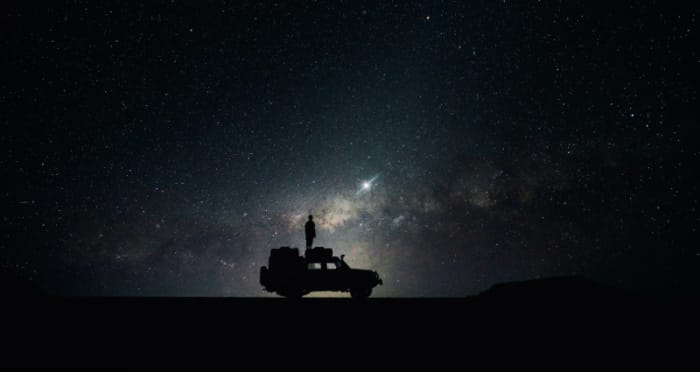
This week at Softonic HQ we’re concentrating on bringing you fantastic wallpapers for your Windows PC or Apple Mac, and also all the best places to find them.  If you’re looking for cool desktop backgrounds including scenes and images from your favorite video games, the biggest sporting events around the world, the latest movies, and hip minimalist pictures we have you covered. Today though, we’re covering wallpapers and backgrounds from space. We don’t mean they’ve come from space; we mean desktop wallpapers of all things space related. We’ve got to say, some of these are incredible!

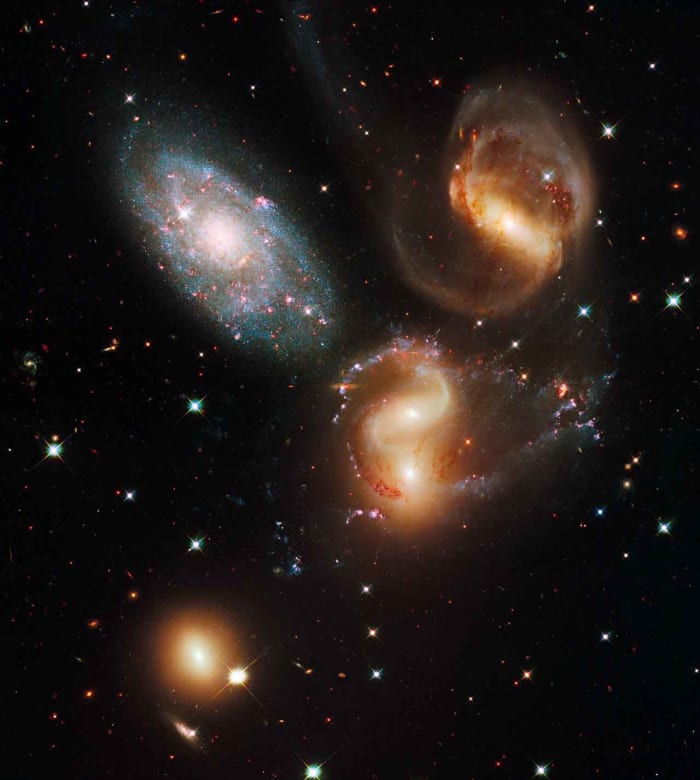
With these Space wallpapers we’re going to do things a little differently. Rather than highlighting particular images we like such as famous nebulas, supernovas, black holes, spiral galaxies, and planets like Saturn and Jupiter; we’re going to concentrate on where to find them all. Let’s go.

HD and 4K Space Wallpapers

Wallpaper Access

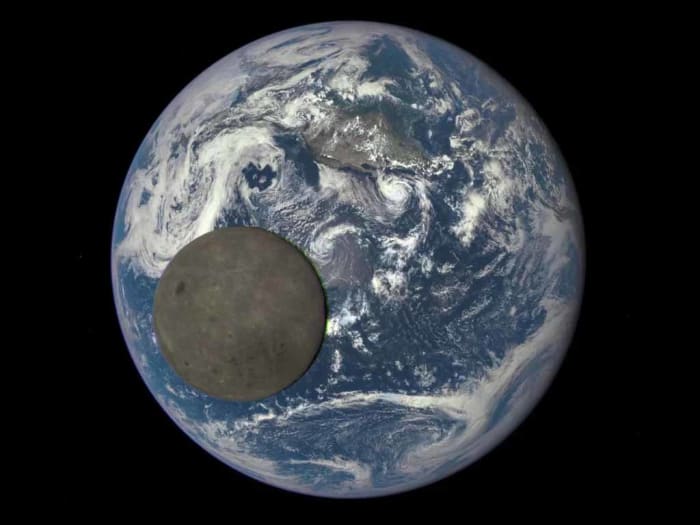
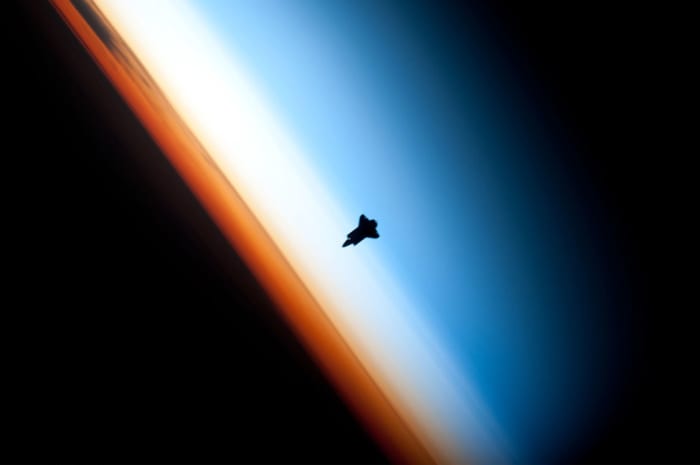
As you’ve probably guessed from the name of this website, it doesn’t specialize in space-related matters. Clearly, what Wallpaper Access specializes in are wallpapers and backgrounds. That doesn’t mean though, that the space images you find here won’t be special. On the contrary, Wallpaper Access is a great place to go find a huge collection of ultra-high-resolution space images that you can use as the background on your PC or Mac. In particular, the 4K Space Wallpapers collection is fantastic, with 69 breathtaking scenes both of outer space and views from outer space looking back to earth.


Hubble Space Telescope

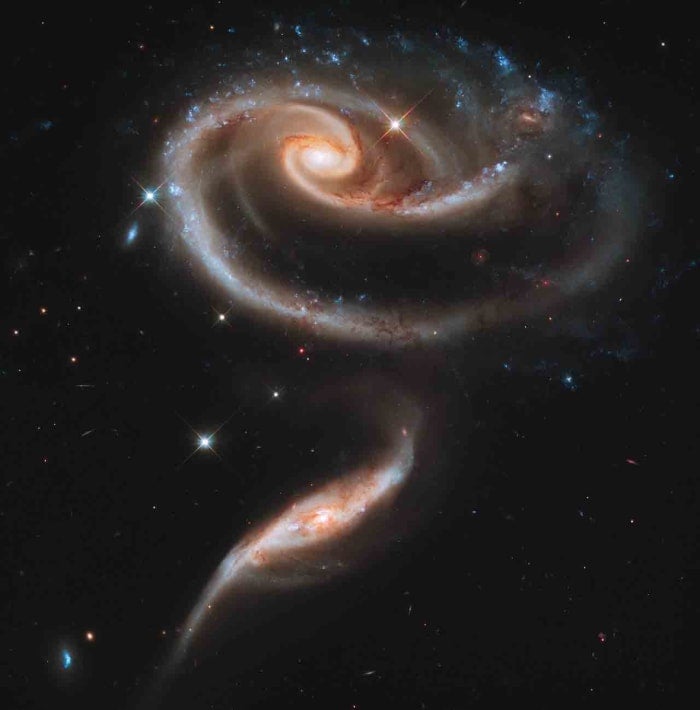
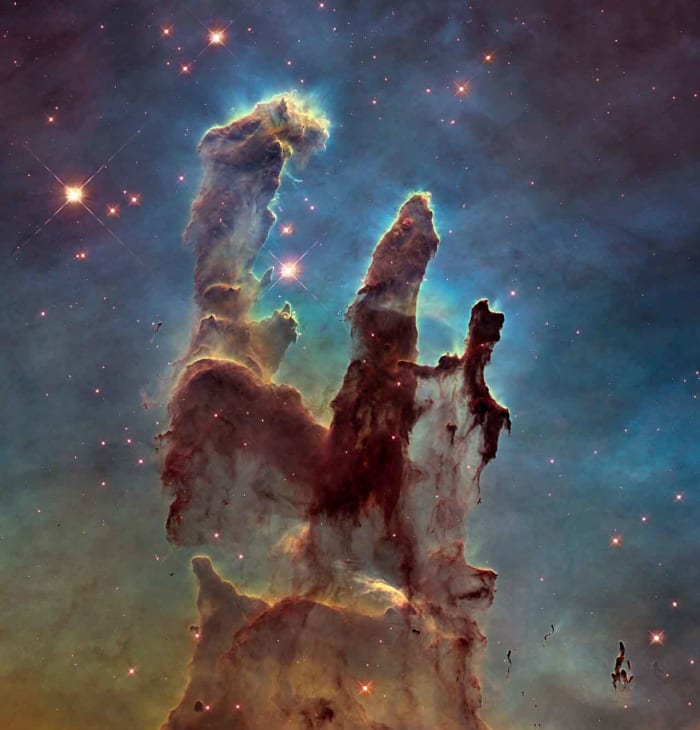
The Hubble Telescope is one of the most iconic human machines ever built. Thanks to its earth orbiting platform, the Hubble has been able to capture some of the most incredible scenes of space the human race has ever laid eyes on. If you have a particular image of outer space stuck in your mind, chances are it was taken by the Hubble. By going to straight to the source of those space images here, you’ll be able to get your hands on space images with ridiculously epic titles like A rose made of galaxiesThe pillars of creation, and Galactic wreckage. What’s also great about the Hubble website is that it gives you free access to the full size original image meaning you won’t have to compromise on quality, if you don’t want to, and you’ll also get interesting explanations about all the images written by teams that captured them. If you’re looking for HD space wallpapers of the Milky Way, Orion’s Belt, our Solar System and beyond; this is the place to start your search.
Unsplash

Unsplash might just be the coolest stock photography library on the internet. It has thousands, if not millions of fantastic images, which have all been uploaded by the artist or photographer behind them. What’s even better about Unsplash is that all the images are available for free. As you’d expect from such a site, Unsplash has a fantastic section on space images that has many great space scenes and vistas that would be perfect as your wallpaper.


Space.com

Space.com describes itself as, “the premier source of space exploration, innovation, and astronomy news, chronicling (and celebrating) humanity’s ongoing expansion across the final frontier.”  Sounds cool, doesn’t it! As you’d rightly imagine, all that makes space.com the perfect place to find some truly awe-inspiring space-related backgrounds. Also, just like with at the Hubble website you’ll not just get the images to use as your background, you’ll also learn about what is going in the images and how they were taken. If you’re looking for something a little deeper than merely an image that looks cool, this is the place to go.


NASA

Our final source of amazing space-related wallpapers is NASA. As you’d expect from the most famous space agency on the planet, NASA has a huge library of space images. These include photos captured by telescopes on earth and in orbit, photos of cool equipment such as radio telescopes, mission mockup images like those of the famous Curiosity Rover, historic mission photos, and much much more. If you want backgrounds with space shuttles and International Space Station missions, this is the site you’re looking for.

Out of all the sites we’ve brought you today, the NASA website is our favorite because on top of offering you some fantastic images that will make great backgrounds, being a fantastic place to learn about space, and doing all of that for free; many of the images on the NASA site will make you feel emotional as you’ll recognize them. You might know who the person is in the image, what the shot is of, or even just feel an emotional attachment for the robot you’re looking at. NASA is a huge part of our global culture these days and that really gives the desktop wallpapers you’ll find here a lot more weight.


Wrapping up

We’ve shown you five great places to source all the best space wallpapers available on the web. If you’re a big space fan, you’ll definitely find the wallpaper you’re looking for on one of the five sites above. In fact, you’ll find a lot more than just backgrounds on three of the sites meaning it all depends just how deep you want to go. You might log on to the Hubble or NASA websites simply looking for a new background for your PC and emerge hours later having ended up researching anything from the composition of moon rocks to the age of the oldest and youngest galaxies. That’s just it with space though, the possibilities are endless.
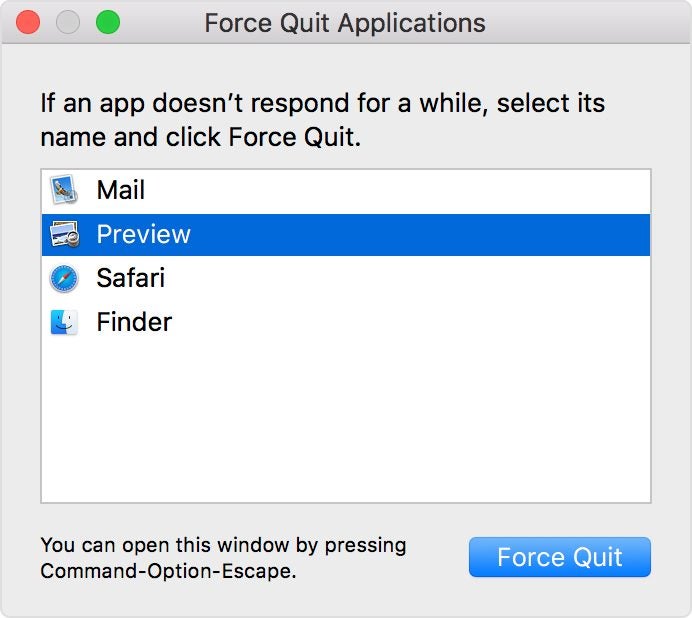
How to Force Quit frozen apps on your Mac, iPhone, and iPad

Apple devices are less exposed to threats, which is one reason why their apps tend to behave well most of the time. Nevertheless, iOS apps occasionally become unresponsive, leaving users unable to access functions or regular quit options. In times like these, the best option is to use Force Quit.

Years ago, the only way to deal with a non-responsive app was to initiate a hard shutdown, potentially compromising the system. This was especially true of older computers. Force quitting, however, provides a convenient workaround on all Apple devices. The function is effectively a shortcut that helps you combat buggy apps without putting your valuable hardware at risk. 

How to Force Quit on your Mac laptop

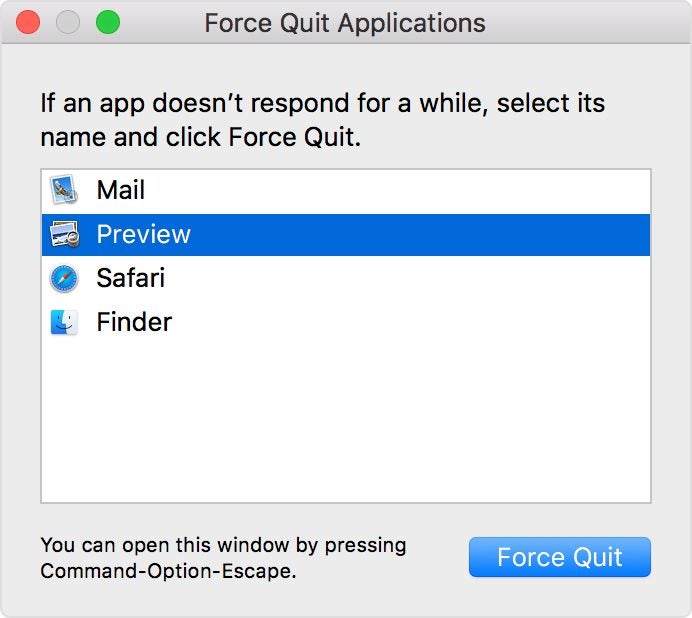
If your mouse cursor has turned into an everlasting spinning wheel of death, you’re likely dealing with a crashed application on your laptop. The best solution is to initiate a Mac Force Quit through one of these methods:

  • Press the Option, Command, and Esc (Escape) keys at the same time.
  • In the upper-left corner of your screen, click the Apple icon and then select Force Quit.
  • Hold down Option and right-click the icon of the unresponsive app in your Dock. You’ll then see a Force Quit action in the pop-up menu.

Methods one and two will reveal the Force Quit applications window. You’ll then select the unresponsive app and select Force Quit.

How to Force Quit frozen apps on iPhones

You’ll start the process of force-quitting a stuck app via the App Switcher on your iPhone. Accessing this feature varies depending on which iPhone you have and the version of iOS it uses. 

For iPhone models X and above, you will observe a notch selector at the top of the screen. These mobile devices lack the traditional home buttons found in earlier models. Here are 3 steps to Force Quit on an iPhone X and above models:

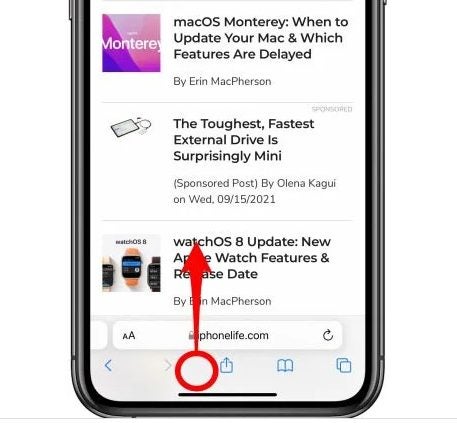
  • As you are in the unresponsive app, swipe up from the home bar at the bottom of the iPhone screen.
Swipe up from the home bar
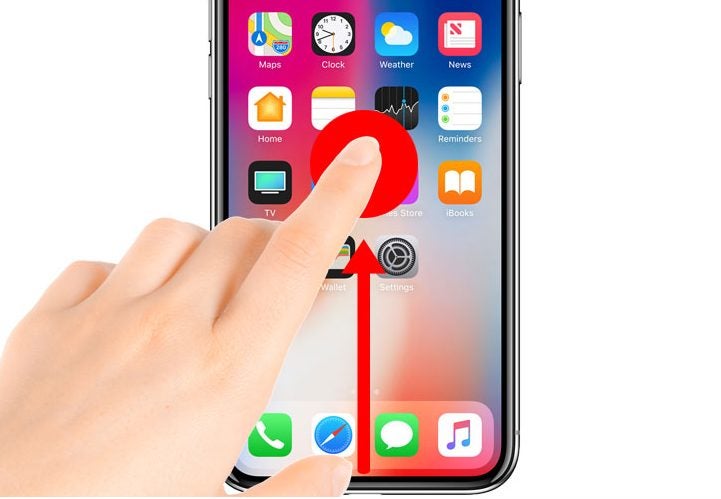
  • Hold your finger over the display until you see the preview of the app, moving it to the middle of the screen. Then lift your finger to open the App Switcher.
Hold your finger over the display
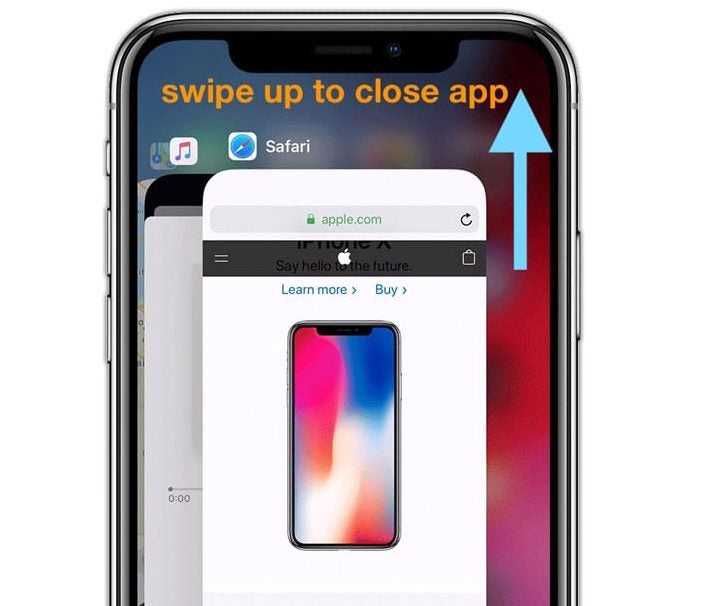
  • Scrolling horizontally in the App Switcher, you can find all the apps you’ve previously accessed. Swipe on the stuck app’s preview to quit the application. The app will disappear, effectively halting the program.
Swipe up to close app

How to Force Quit frozen apps on iPads

The approach to force quitting an iPad is similar to the process on iPhone. However, the interfaces differ slightly.

Here is the process for iPad Pros running iOS 12, iPadOS13 or higher:

  • Swipe up from the bottom section of the screen toward the middle and hold for a brief second.
  • Upon letting go of the screen, you will encounter the App Switcher.
  • Select the app you want to Force Quit from the App Switcher grid to dismiss it, and complete the process.

How does Force Quit work?

When an app closes on an iPhone or iPad, it continues to run in the background. Many users are unaware that they are essentially pausing the app so that it demands less CPU. This ensures the optimal function of the device. 

Poor performing applications freeze and become stuck before rendering themselves unusable. In this case, the Force Quit command is the only option aside from initiating a hard shutdown procedure. 

Is force quitting safe for my device?

Force quitting a stuck application is the safest way to resolve an unresponsive application and prevent the issue from happening again. Frozen applications in Apple devices are predominantly attributable to insufficient RAM

Devices short on memory (RAM) can support a limited number of applications, including those that remain open in various tabs or windows. The system will become unresponsive anytime its available memory resources are close to maximum capacity

RAM is like your workbench in the sense that it outlines how much space that is available for work. If you have too many projects crowding up your bench, you won’t be able to work on anything at all.

Once you’ve Force Quit the app, you can access it again from the home screen or your applications folder. If it’s a trusted app, it should reload and work like new.

Best Mobile Apps for Enhancing Photos

These are the best apps to help you edit the photos you take on your Android smartphone or iPhone

Are you a professional photographer that needs to be able to edit images on the move or just a person who likes to add that extra zing to their personal snaps? The development of mobile technology has brought about more complex photo editing apps with features that only used to be able on the desktop. Here is a compilation of the best apps to increase your creativity and get you producing photos that will surely impress your audience.

Best mobile apps to make photos look better

Snapseed

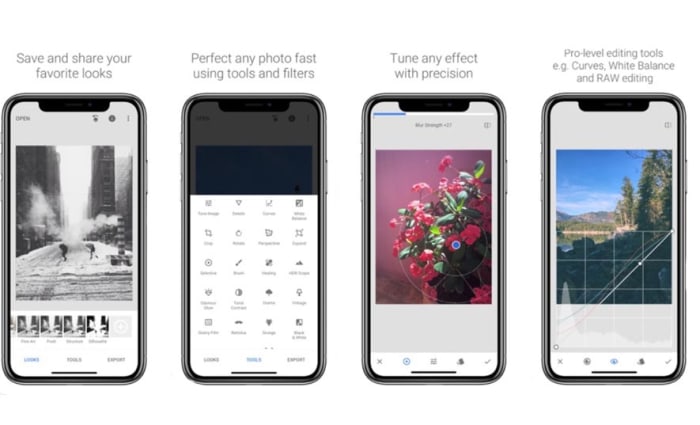
Another excellent Google app creation is Snapseed, which is a professional level app for editing your photos with a huge range of tools to spruce up your images.  It takes some knowledge of photography but a little experimentation will have you producing images that will be the envy of your friends. Being a Google app, it can also be accessed from Google Photos inside the editing options.

Key features:
  • Choose from over ten convenient styles to apply to your photo.
  • Finely tune your image with popular options such as brightness, contrast, saturation, and ambiance.
  • Rotate, crop, expand, and apply perspective to your pictures.
  • Apply HDR and other visually pleasing filters.
  • Comprehensive export options including exporting to selected folders, sharing with people of other apps, and saving copies with size/format/quality adjustments.

There are more features to play around with, just download and dive straight in.

9

Adobe Photoshop Express

Originally for desktop PCs, Adobe Photoshop has become the best photo editor on the market and the go-to image editor for the discerning professional. It offers an endless list of alterations that you can apply to images to get them to the required standard.

What this app does is take the best features of Photoshop and make them accessible for free on your mobile device. The interface is relatively easy to use, and a welcome benefit of this app is that it does not contain any annoying advertisements to interrupt your editing.

Other Key features:
  • Adjustment of contrast, brightness, exposure, hue saturation, luminance, and shadows.\
  • Rotate, flip, and perspective correcting functions.
  • A crop function that comes with pre-sets for those of us who like to upload to social media.
  • Removal of red-eye for people and animals.
  • The ability to make beautiful collages.
  • Usual sharing with links to the desktop version and Adobe cloud, but also other apps like Google Photos and Facebook.

Adobe Photoshop Express Download now
8

Adobe Lightroom CC

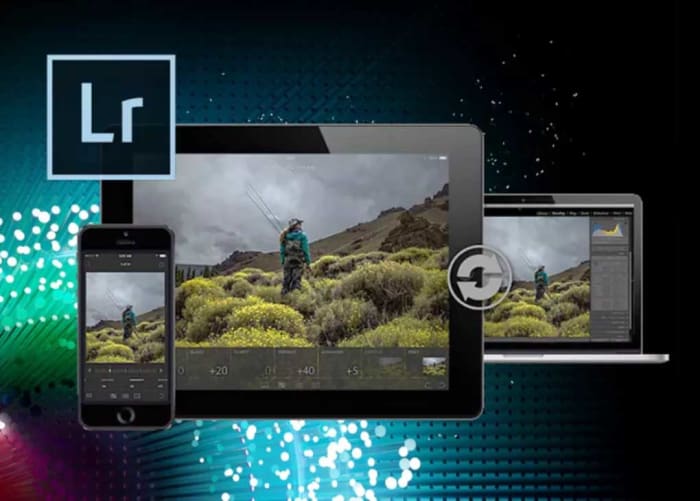
As with Photoshop, Adobe Lightroom CC also has a fully functional desktop version.  The mobile version of the app and in closely linked to the desktop app and if you want the full benefits of this amazing program, you really have to buy the full version. It main benefits are that it is easier to use than photoshop and enables you to work on more than one photograph at a time.

Other Key features:
  • Comprehensive feature set with similar adjustments to photoshop.
  • Great for people who like to post to social media easily and quickly.
  • Ability to edit RAW images (paid only).
  • Editing does not destroy the original image and all edits can be undone.
  • Can create and apply pre-sets even in the mobile version.
  • Available on iOS, Android, Windows, and Mac.

Adobe Lightroom CC Download now
7

VSCO

VSCO Cam for Android header

Being another of the best free editing packages in the mobile world, VSCO offers a wide range of features for editing and posting to social media. You have access to the VSCO community, where you can post your pictures and view others to gain ideas from other users.  The paid version introduces a place where you can expand your knowledge with tips and tutorials.

Other Key Features:
  • Easy use interface
  • Features comparable to other apps in this category, like light exposure, contrast, cropping, clarity, and shadow adjustments. All available without upgrading.
  • The same adjustments can also be made to videos.
  • Access to some of the best filters in the business and even more with the paid version. It will also suggest pre-sets for quick editing on the go.
  • Available on iOS, Android, Windows, and Mac.

6

Touchretouch

Remove any unwanted blemishes from your images with this handy app with just one touch or swipe of your finger. It is a paid app but at such a low price compared to the results it produces, it has become one of the most popular photography tools on the market.

Key features:

  • One-touch removal of unwanted objects in your pictures.
  • Quick repair tool.
  • Line removal tool.
  • Clone stamp to recreate selected parts of the image.

TouchRetouch Download now
8

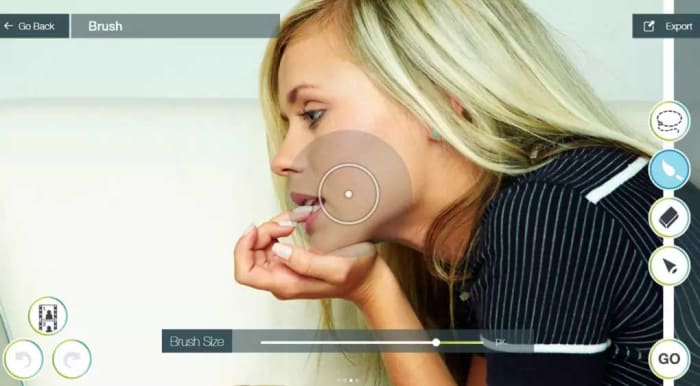
PicsArt

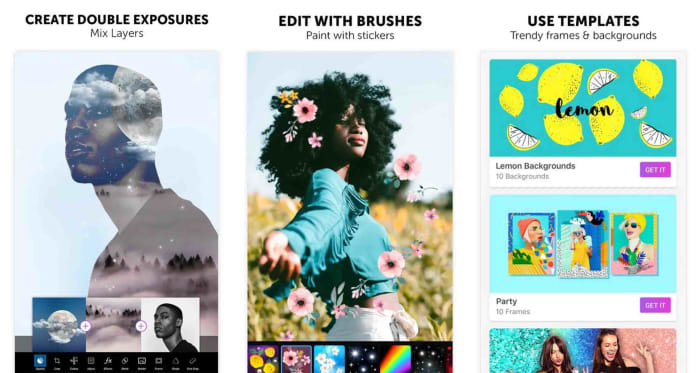
An awesome app containing the standard editing tools but also the ability to add a multitude of quality effects to your images. Like VSCO it also has it’s own community, where you can explore ideas from other users, and your photos can also be uploaded to popular social media sites like Facebook and Twitter. Believe it or not, a negative aspect of this app could be that it has too many features, but that is for you to decide.

Key features:
  • A huge amount of editing tools including the standard options provided by the other apps in this list.
  • A template gallery for quick and easy editing.
  • Several different types of effects that can be applied to your images, such as Magic, Duotone, and pixel stretch, to name but a few.
  • Ability to change picture backgrounds.
  • A great range of interesting filters.
  • A meme generator that provides templates to create some humorous memes to share.
  • Available on iOS, Android, and Windows.

PicsArt Download now
7

All the best tips and tricks for Google Photos

These are all the best tips and tricks for Google Photos that will help you take better photos and make it easier to find them when you want to view them.

Google Photos

The introduction of cameras on most devices has increased the need for effective photo applications. Google Photos has been around for about 5 years now and is a free app that can help you organize your memories and much more. The app is available on Android phones and iOS iPhone and iPad devices. Your photo collection can also be viewed and edited on web browsers at photos.google.com.

The main reason for downloading Google Photos, as opposed to other photo apps, is that it is a free unlimited back up of all the photos and videos on your device. The images are restricted to 16MB and videos to 1080p, but this is more than enough for the majority of phone cameras out there.

After downloading and opening the app you will be asked if you want to back up the photos on your device and, and from then on all of your photos and videos will automatically be backed up to Google’s cloud storage. All you need is a Google account. In addition to photo back up, Google Photos has a massive amount of features that you may not know about, so here are some more useful tips to get you started.

Google Photos Download Google Photos
7

Google Photos tips and tricks

1. Back-Up More Folders

To start off, Google Photos will automatically backup from your camera folder and prompt you to add other image folders, as they are created on your phone. But if you want the ability to back up other folders in your Google Drive directory, this can be done in menu > settings > Backup and sync > Back up device folders. You can then choose the important image folders that you need backing up.

2. Create More Space on Your Phone

Google Photos Create More Space

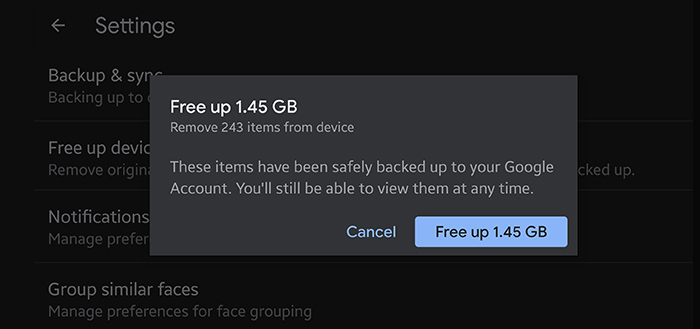
Phone companies are forever increasing the amount of storage space available on their devices and the more expensive phones seem to have a huge amount of space. However, as you visit more places and meet up with more friends, this space inevitably runs thin and you get the annoying pop-up informing you of your lack of space. Google Photos has got you on this and makes it easy to free up space. With one tap, you can delete the photos and screenshots on your phone that have already been backed up to your Google Drive. This means that you are not wasting time going through your vast photo collection to find things to delete. You can carry on snapping away quickly and with ease. This feature can also be activated in settings>Free up device storage.

3. Powerful Photo Search

With Google being known as the best search engine in the world, it is no surprise that they can apply these acumen to its Google Photos application. Finding certain photos to quickly show a mate can usually involve traipsing through an endless disorganized mess of pictures on your phone, at which time your friend has up and left to speak to someone less preoccupied.

With the Google Photos search, you can easily search your photos and videos for anything you can think of including people, animals, places, activities, and inanimate objects. The search possibilities are endless. Just click on the search box at the top of your app, or Google Photos webpage, and type in whatever search words you can think of. In the drop-down menu, there is also a selection of faces you can select and other useful search filters, enabling you to quickly find what you are looking for. You will be surprised, and maybe a little creeped out, by the results generated as Google Lens can even pick out people in the background of photos that you never even knew were there.

4. Automatic Album Creator

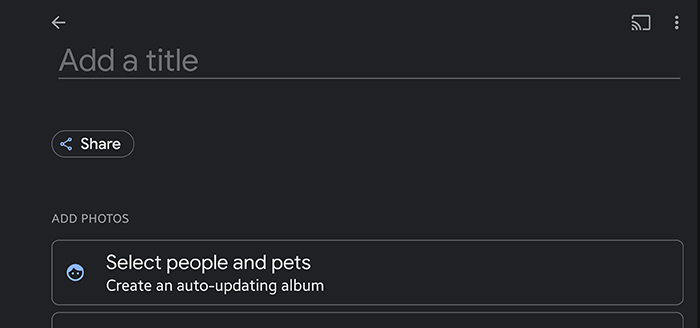
If like most people, you do not have time for the tedious task of sifting through endless pages of photos and organizing them into folders, then help is at hand. When you click on the albums tab in the Google Photos app, you will see that there are some albums that have been automatically created at the top of the page; such as people, places, and things. But things are about to get better, as you can also create your own unique albums.

Automatic Album Creator

If you select New Album, you will notice that there is an option to select people and pets. Pressing this will present you with a collage of faces that have been extracted from your Google Photos pictures. All you need to do is select the faces to include in the album, click confirm and it will automatically create an album for that person or pet, just insert an album name at the top. What’s more, it will continually group any future pictures of that person or pet, into the same shared album. If you do not see faces when you create an album, then you can turn face grouping on and off in menu>settings>Group similar faces.

5. Google Home Integration

Google Home

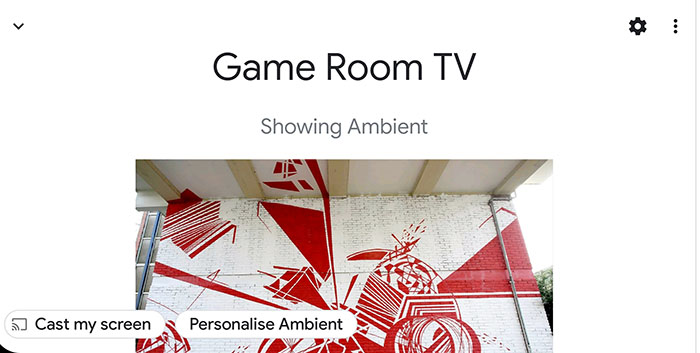
Over the past few years, smart home devices have really taken off, with Google home being one of the class leaders. If you have a Chromecast or a Google Nest Hub, there is a feature called ambient mode, which can display images from your Google Photos albums on your screen, when your device is not in use. Enabling this feature is easy, but you need to have the Google Home app installed on your smartphone and your smart devices connected to it. To set up this feature, open up the Google Home app, select your Chromecast or Nest Hub, and tap on ‘Personalise Ambient’ at the bottom of the page. Then tap Google Photos and select the album that you would like to be displayed. The album selected will then be promptly displayed on the device of your choice.

6. Rediscover This Day and Memories

Rediscover your day is a nice way to be reminded of past events to maybe upload to social media and rekindle old times. This feature is automatically turned on in google photos but can be turned off and on in settings > suggestions > Rediscover this day. This is an excellent feature of Google Photos until a lovely picture of you and an old flame pops up to destroy your actual day. But don’t worry, Google has thought of this and you can now hide people from your memories with a few simple steps.  In the Google app navigate to menu > settings > memories > hide from memories > people and pets and you are presented with a photomontage of faces to forever delete from your daily thoughts.

7. Stylized photos and Editing Tools

Photo editing tools

As you take photos on your smartphone, Google will also select certain photos and automatically edit them to look much more magical or put them into an attractive collage. If you lose track of one of these stylized photos, you can access them, as well as rediscover your day collections, in the For you tab at the bottom of the Google Photos app.

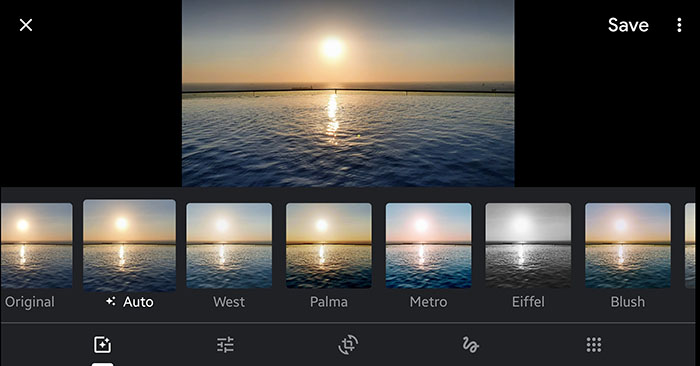
When opening an image in Google photos, you are sometimes presented by pop-up adjustments that google can make automatically to your picture. You can also click the second icon from the left at the bottom of the page to open up editing tools.   Here you can apply filters, change lighting, crop, rotate, draw, and write on your picture. These tools are simple to use and can really boost all your photos and slideshows. If you want to share photos, you want them to look great, so image editing is key.

8. Photo Printing (USA only)

Google Photos Printing

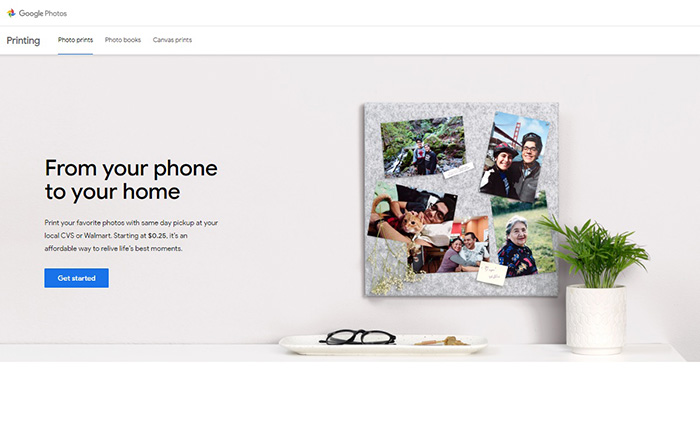
Now that you have organized your photos into albums and know where your important snaps are, how about decorating your house with some of your most treasured memories. If you are lucky enough to live in the US, your favorite photos can now be printed and collected the same day at over 11,000 locations, courtesy of CVS, and Wallmart. You have three options of photo prints, photo books, and canvas prints, which are ordered and paid for on pick up from the store.  Details of how to do this can be found here.

Where to find the best sports wallpapers

If you’re a sports fan, we’ll walk you through of the best places to find sports wallpapers and backgrounds for your phone and desktop PC or Mac.

We’re back with another of our desktop and mobile wallpaper guides today, bringing you the best places to find the coolest backgrounds and wallpapers for all of your devices. Scroll down to see all the other cool guides we’ve brought you this week including the best movie wallpapers, video game wallpapers, space wallpapers, and minimalist wallpapers. Today, however, we’re concentrating on sports and we’ve found some fantastic collections for you to use on your electronic devices.

We’re going to cover all the biggest sports in the world from American Football to what the rest of the world calls football but is known as soccer in the US. We’ll also look at Baseball, Basketball and many other great sports. Let’s not waste any more time then, and get into the best sports wallpapers for Windows PCs, Apple Macs, Android smartphones and tablets, and iPhones and iPads.

Sports HD Wallpapers

NBA.COM

We’re starting today’s sports list with basketball. The NBA is the biggest basketball association in the world with all the greatest players donning team vests for NBA teams like the New York Kicks, Utah Jazz, LA Lakers,  Boston Celtics and more. As you’d expect, NBA.COM is a central hub for all things Basketball related in the US. You can do everything there from buying tickets to following live score updates.

What we’re interested in today, however, are the sports backgrounds you find via the team pages. Most NBA team pages have official basketball wallpapers that you can download and use for free. These are professionally produced backgrounds that look fantastic. To access them you need to click the Teams option in the menu that runs across the top of the page. From there, select your team in the menu down the left side of the page and then click the Team website option over on the right side of the page. When you’re there, you need to search for the Fans or Community sections in the menu that runs across the top of the page. If your team has an official Wallpapers section, this is where you’ll find it.

FIFA.COM

FIFA is the world governing body for soccer or football as it known all around the world. FIFA is responsible for setting the laws of the game that other football associations then follow and also decides who will host the World Cup. If you’re interested in learning more about football, the FIFA website is a great place to go. You’ll also find an excellent library of photos that would be perfect as a desktop or mobile wallpapers. You’ll find live-action shots from the biggest football tournaments all around the world as well as cool and interesting images from behind the scenes. This is a really interesting place to search out sports wallpapers for your devices.

Unsplash

Unsplash has made it into more than one of our wallpaper lists this week because it offers a broad range of fantastic images across a wide range of topics and themes. It makes it into today’s list of places to find HD sports wallpapers though, because of how well organized and laid out all its sports categories are. Sure, you’ll find breathtakingly cool images from the big sports here, but you’ll also get dedicated libraries of HD and Ultra HD 4K images for sports like Volleyball, Running, Cycling, Climbing, Track, and even Archery. On top of that, what you’ll find with Unsplash is that the images will have an all-round different style and tone to what you’ll find elsewhere. These are trendy photos taken by photographers at the top of their game.

Wallpaper NFL

If you’re a football fan, then Wallpaper NFL is a great place to go to search out some high-quality images to set as a football wallpaper. You’ll find over 42 pages of HD desktop wallpapers, but you’ll also be able to search via a handy search bar at the top of the page and also browse through different categories that you’ll find at the bottom of the page. In reality, these categories are rather simple, but you will be able to browse through different wallpapers and backgrounds for each of the major NFL teams as well as backgrounds optimized for certain types of smartphones. The wallpapers here are good too and have clearly been made with a high level of design and care.

MLB.COM

If you’re a baseball fan, you’ll likely already be familiar with MLB.COM. The site performs the same function for baseball in the US as the NBA site we’ve already mentioned does for basketball. In that respect then, we want to point out that that you can find team specific wallpapers for MLB teams in exactly the same way you can for NBA teams at NBA.COM. The only difference here is that when you get to the individual Teams page, you’ll need to look for the ellipsis icon ) three vertical dots in the menu that runs across the top of the page. When you click that icon, you’ll open a drop-down menu, which will contain the Fans section where you will find all the wallpapers and screensavers attached to that particular team.

All the best movie wallpapers 2020

These are all the best places to find all the best movies wallpapers for your PC and mobile.

This week at Softonic we’re bringing you all the best places to find cool and epic desktop wallpapers and backgrounds for your Windows PCs, Apple Macs, and also some for your Android smartphones and tablets, and iPhones and iPads. We’ve split our offerings up into five categories and although some of the sites we’re flagging today have cropped in more than one of our lists, we’ve tried to broaden out our offerings so that we can bring you as many different sources of HD and 4K wallpapers as possible.

Today’s offering is movie wallpapers and backgrounds and we’ve got some really great options for you to get into. If you’re a film buff or just somebody who appreciates the aesthetics of a good movie poster, today’s list is for you.

Movie wallpapers

Movies Wallpaper HD

The first internet library of HD desktop wallpapers and backgrounds we’re bringing to your attention today is a simple Blogspot website called Movies Wallpaper HD. Don’t let this page’s humble layout fool you, this site has a ton of great wallpapers from some of the biggest movies ever. What’s even better is that the site is well organized into excellent categories meaning it is really easy to search for movie wallpapers via genre. There are lots of categories here too, including 4K wallpaper Hollywood movies, animation movies 4K and HD, classic movies wallpaper, Harry Potter movies, Horror movies, Marvel movies, and many, many more. All you need to do is search through this extensive library and click on the wallpaper you want.

The Movie Score

Although it hasn’t been updated in quite some time, The Movie Score is a half decent site for all movie fans to visit. It is full of movie and TV related content including reviews, trivia and quizzes, behind the scenes reports from shoots, and many different types of lists and galleries. The site also claims to have the largest archive of movie facts. Unfortunately, however, the list of movies it claims to have facts for only take to you to trivia hosted on other websites.

Despite that, however, you’ll still find a great library of HD photos and images from some fantastic movies that you can use as your desktop background. This is the place to go for truly beautiful shots from some of the all-time classic movies including the likes of Indian Jones, Star Wars, and Apocalypse Now. This old site is where we found some of our favorite movie wallpapers.

HD Wallpapers

You won’t find any movie trivia here or industry insider information. Instead, what you get at HD Wallpapers, as we’re sure you’ve already guessed, is an extensive and well-organized library of HD and 4K movie desktop backgrounds that will make your PC, Mac, or mobile phone stand out from the crowd. There aren’t nearly as many categories as you’ll find at Movies Wallpaper HD, but you will find well over 200 pages of HD and 4K Ultra HD wallpapers from both blockbusters and arthouse indie movies. You’ll even find desktop wallpapers for movies that haven’t been released in theaters yet.

Movie Mania

Movie Mania is an astonishingly large and well put together a library of movie wallpapers and backgrounds. In the top-right corner of the page, you’ll find a little switch that will toggle between the desktop wallpaper site and the smartphone wallpaper site. There are thousands of options in each and all of them look amazing. You get all of the usual categories here, but it is the content that is so good. You’ll get images and promo shots from all the biggest movies, but you’ll get angles and setups that you just won’t find anywhere else. The content here is unique and looks amazing.

1001 Free Downloads

The 1001 Free Downloads site is a bit of a catch-all site that offers a little of everything. You can find fonts, icons, brushes, vectors, and much more here but what we want to show you is the wallpapers section and in particular the movie wallpaper section. There are no categories here, movies is the category, but there are still plenty of interesting and cool movie images you can download and set as your background. The focus here is much more geared towards Hollywood blockbusters than you’ll get elsewhere in today’s list, but you will find wallpapers that you won’t find in the other sites we’ve listed. This is the place to go for high-quality wallpapers from movies like Star Wars: The Rise of Skywalker, Batman: The Dark Knight, Superman, Avengers: Infinity War, Wonder Woman, Captain America, Deadpool, and more.

Wrapping up

So, there you have five great sources to get all your favorite movie images to use as a background. We’ve shown you were to find backgrounds for all your devices, so it doesn’t matter if you’re looking for a wallpaper for your phone, Windows PC, or Apple Mac. This list has you covered. We’ve picked out some of our favorite images, but you’ll find thousands more by following the links we’ve included above. As a little bonus though, let us know in the comments if you can name all the movies we’ve featured with today’s article. We bet nobody will be able to get them all.

Essential apps to customize your iPhone without jailbreaking it

These apps will give you control over your iPhone operating system

Iphone personlization apps

When you open your iPhone or iPad for the first time you can’t help but be impressed. They look amazing and they have a really premium feel in your hand. It’s the same when you turn them on. Everything just works and you can do whatever you need to do smoothly and easily. For some people though, the experience you get straight out of the box just isn’t good enough. Not even on newer iPhone models like the iPhone X, which have the latest version of iOS 13. If you’re one of those people, this guide is for you.

Today we’re going to walk you through all the apps you can download for your iPhone that will give you a unique experience. You won’t need to jailbreak your smartphone neither. These apps are all available on the App Store and offer some great customization options to iPhone users without the need to take any drastic jailbreaking actions or voiding any warranties. Let’s get started.

Pimp Your Screen - Custom Themes & Wallpapers Pimp Your Screen - Custom Themes & Wallpapers Download now
8

Home Screen Maker

This is another app that allows you to make big changes to how your iPhone looks and feels. Home Screen Maker lets you make custom home screen layouts for your iPhone and gives you an awful lot of control over your home screen. Whereas Pimp Your Screen gives you some fantastic pre-made options, here you get the chance to build your own. What’s also great though, is that Home Screen Maker also offers plenty of ready-made themes too, which you can get via in-app-purchases.

FexyHome - Style your home screen FexyHome Download now
8

Icon Skins Builder

Icon maker on iPhone

This is a great app that offers something a little different to Home Screen Maker. It brings a new element to the idea of putting your apps on shelves as it gives you 3D shelf options and also gives you the chance to put peripheral items on your shelves that will sit next to your app icons. This is a cool idea that has been well executed.

Icon Skin Builder Download now
8

Magic Screen

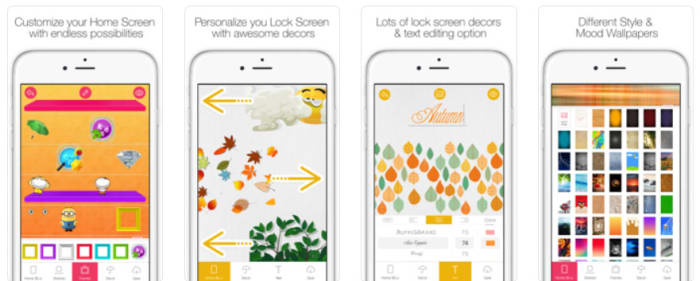
We have another great home screen customization app here, but Magic Screen brings something extra to the game as it gives you an extensive toolset for customizing your lock screen too. With Magic Screen you can customize text, draw your own shapes and designs using your finger, and even add widgets such as a calendar widget for keeping on top of things without having to unlock your iPhone.

Magic Screen Download now
8

Ringtones for iPhone

ringtones for iphone

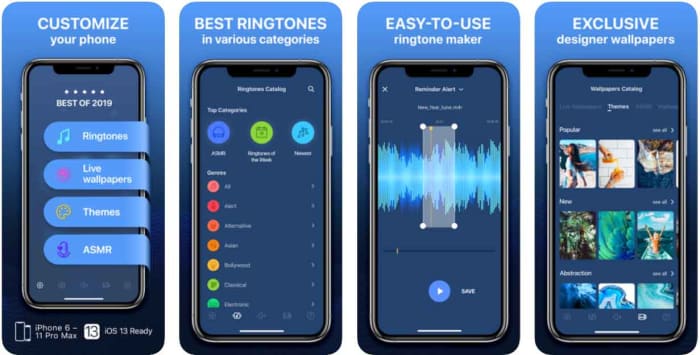
So, now that you’re well versed on customizing how your iPhone looks let’s get into controlling how it sounds. There is no better app for making your own iPhone ringtones and sounds than Ringtones for iPhone. This app has a lot of great features. You can turn any song you have on iTunes into a ringtone and you can even record your voice or a friend’s voice and then convert that into a ringtone too. If you want your iPhone to sound unlike any other iPhone out there, this is the app for you.

Ringtones for iPhone Download now
8

Gboard

Gboard is a fantastic keyboard option for iPhone that gives you the default keyboard Android users get on their phones. It includes cool options like drag typing, which allow you to type words out by dragging your finger across the letters of the word rather than tapping them individually. This offers a whole new element to your Apple iPhone that will make your iOS device feel completely different to other iPhones.

Gboard Download now
8

SwiftKey

SwiftKey for iPhone

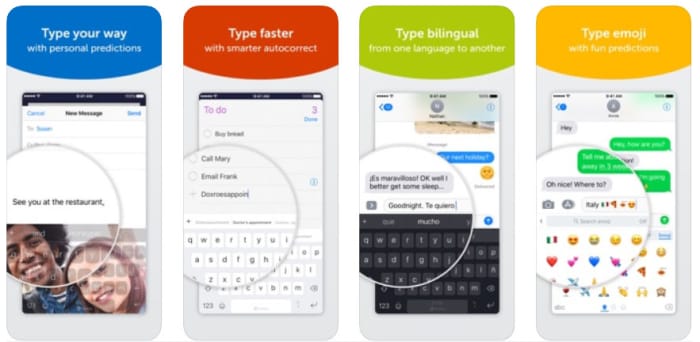
SwiftKey was the original app that introduced drag typing before Google also incorporated it into Gboard. As well as offering this new way of typing, however, SwiftKey also gives you lots of different style options for your keyboard including colors and fonts for the letter keys. As the keyboard actually takes up quite a lot of space on your screen, this offers you an extra element of control over the aesthetics of your device.

Swiftkey Kyboard Download now
9

Wrapping up

So, there we’ve been through quite a lot of different customization options for your iPhone. Unfortunately, Apple doesn’t give you quite as many customization options as you’ll find on Android but there’s still plenty for you to look into. Since iOS 11 there have been more options becoming available like GIF keyboard shortcuts, party keyboards, and a dark mode but the truth remains that Android has many more customization options.

All the new WhatsApp features from 2019

These are all the biggest features that came to WhatsApp in 2019.

WhatsApp is the biggest smartphone messaging app on the planet with over 1.5 billion active users. Being free no doubt has a lot to do with WhatsApp’s massive popularity but there are a lot of cool features behind WhatsApp’s success too. The Facebook-owned app is constantly updating itself and adding new features that make it better than it used to be.

It can be hard keeping up with WhatsApp updates, however, which is why today we’re going to walk you through all the cool new features the app got in 2019. This is strictly about features that did land on the messaging platform in 2019, so we won’t be talking about features that still on the horizon like the much talked about dark mode or anything else that is still only in the beta version of WhatsApp.

WhatsApp Messenger Download Now ►
8

All WhatsApp updates for Android and iPhone from 2019

Reply Privately

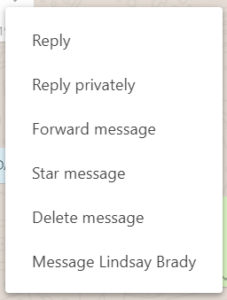
At the beginning of 2019 iPhone WhatsApp users had the new Reply Privately feature added to their app. The new feature is a WhatsApp Group’s feature and allows users to privately respond to a message they received in a group chat. You can use Reply Privately by opening the settings menu for any group chat message and selecting the Reply Privately option. Doing so will open your private chat with the user and start with a quoted reply to the message in the group chat. The feature is now live for Android users too.

Frequently forwarded label

WhatsApp has been battling a fake news problem that has had some terrible repercussions around the world. One such fake news fighting measure introduced in 2019 was an updated Frequently Forwarded label that is now added to messages that have been forwarded more than five times. Another similar measure prevents users from forwarding messages to more than five users at any one time.

Fingerprint authentication

Fingerprint security

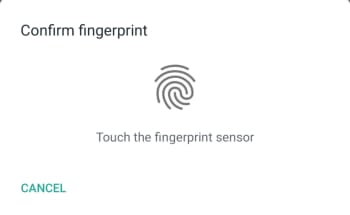
Another WhatsApp feature that came to iPhone first but is now available on Android devices too is fingerprint authentication. Users can now set WhatsApp to lock automatically and then only be opened again using an authorized fingerprint. Apple fans can also use Face ID to unlock their WhatsApp, if their iPhone has the feature.

New Group Privacy Settings

New WhatsApp group privacy settings

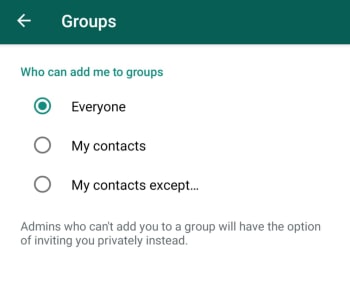
WhatsApp also updated its Group Privacy Settings in 2019. The update is designed to give you more control over the groups you’re added to by allowing you control which of your contacts can add you to a group. To take advantage of this new feature you need to go Account, then Privacy, and then Groups. Here you’ll find the My Contacts Except… below Everyone and My Contacts. Using this new option will allow you to block contacts you have saved on your phone from adding you to new group chats.

Consecutive voice messages

This is a small update, but it is one that makes hands free use much easier. When you receive multiple voice notes consecutively in a single chat WhatsApp will automatically play them one after the other. You won’t have to tap the play button every time one note finishes, and you want to move onto the next one.

Share WhatsApp Status Updates to Facebook Stories

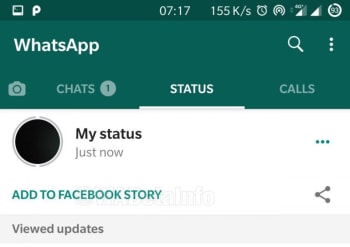
2019 was the year we learned about Facebook’s grand plan to merge Facebook, WhatsApp, and Instagram. Each will remain its own separate app offering its own separate experience, but it’ll be much easier for users of each app to communicate with each other across them. The first major step in this direction, which we saw in 2019 was the ability for users to share their WhatsApp Status Updates to their Facebook Stories. Now, whenever a WhatsApp user posts a Status Update a new button will appear under the Status tab, which gives the option to share the update to Facebook. It really is a brave new world.

Netflix trailer support for iOS

WhatsApp users on iOS have a handy new feature that allows them to watch Netflix trailers from right there in the chat window. When they receive a compatible Netflix link in a WhatsApp message and click on it, the video will start playing in a large thumbnail window like it does whenever you click on a YouTube link. Unfortunately, for Android users, this feature isn’t live on Android and there is no indication that it will roll out any time soon.

Improved Picture-in-Picture (PiP) mode for Android

The official name for the video thumbnail outlined above is WhatsApp’s Picture-in-Picture mode, commonly referred to as PiP. When PiP was first launched on Android it was limited to single chats. If you received a compatible video link in a chat, you could click it and then view the video while you continued chatting away. If you left that chat, however, your PiP video would disappear. In 2019, WhatsApp updated this feature and you can now switch between different chats while continuing to watch your PiP video. The feature also landed on WhatsApp Web and desktop in 2019 too. As always, however, the feature has been live for iOS for quite some time already.

Group Calls on Android

Group Chats on Android now has a new button that makes it very easy to launch a group call. When you click the icon, which is found in the top-right corner of the chat you’ll see a new pop-up window appear, which allows you to choose the participants of the group call. You can then select up to three participants and decide whether it will be a group video call or a group voice call. This feature is also available for iOS users too.

Wrapping up

As we started out by saying, WhatsApp is a constantly evolving messaging app, even if it feels like it never really changes. With the core feature simply being a way to contact your friends and family it can be easy to miss the new updates if you’re happily chatting away in the same way you always have. We’ve outlined above all the biggest changes to come to the main app in 2019 and avoided WhatsApp beta. There were other smaller updates too, but as long as you know about the features we’ve outlined above you’ll be up to speed with all the important features.

5 best apps to help you manage stress

Take control of your stress and anxiety with these apps.

Meditation

According to a recent poll from Gallup, 55% of Americans are stressed out at some point during the day.

When we are stressed, it affects those around us as well. We don’t sleep as well, we can fall into depression, and we can become irritable.

To help manage stress, there are apps that can help you make it through the day and keep your composure. Do yourself a favor and download some of these apps to help ease your tension. 

5 apps to help you manage stress

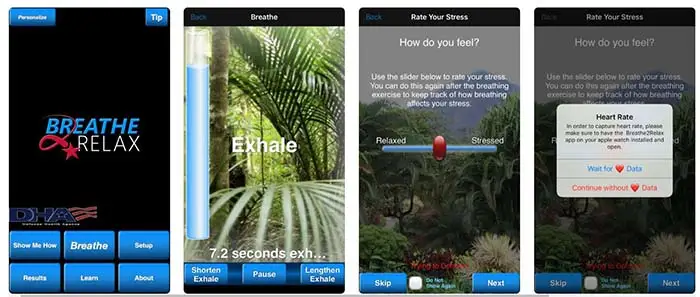
1. Breathe2Relax

Breathe2Relax

Breathe in. Breathe out.

It should be a simple concept, but when we fry ourselves, we don’t take the time to pause and calm down.

The app does so much more than give you breathing exercises. It also can pair with your Apple Watch to monitor your heart rate. It will also monitor your stress patterns for you and show you your progress.

Breathe2Relax Download now ►
7

2. At Ease

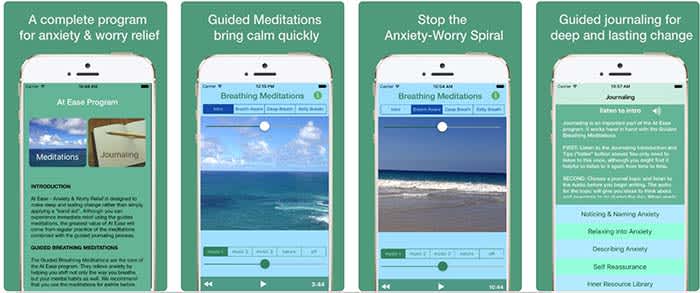
At EaseAt Ease comes with a lot of the tools you find in other stress-management apps. There are breathing exercises and meditations you can do to help manage your stress. However, where the app shines is in its guided journaling feature. 

Guided journaling helps the user become self-aware of the things causing them to feel stressed and anxious. You ask yourself some of the tough questions to help pinpoint the root causes of your stress. From there, you work on how to treat yourself.


This app costs $3, but for those who think this can help them, it’s well worth it.

9

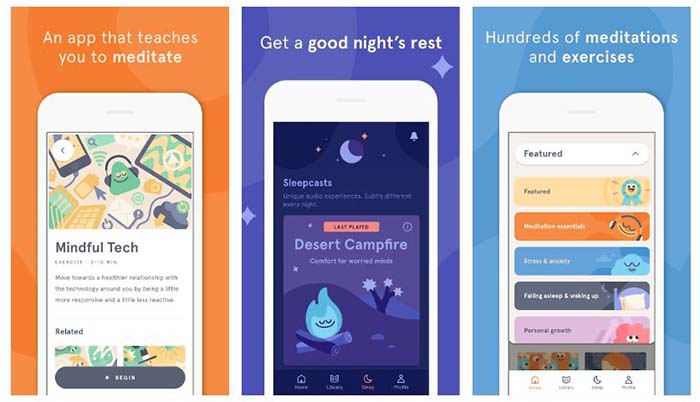
3. Headspace

Headspace

There is such a learning curve with meditation. It is so much more than sitting “criss-cross applesauce” while chanting “Om” over and over again.

Headspace has a 10-day course that teaches you how to properly mediate. That may sound excessive, but you only have to devote a few minutes a day to learning.

Headspace uses real-life science coupled with ancient meditation practices to help you reduce your stress and anxiety.

Headspace Download free ►
10

4. Happify

HappifyHappify uses activities and mobile games to help you manage your stress. Yes, we’re serious.
The app might sound a bit odd, but the experts and scientists at Happify have put research and studies into how the games operate. More than 80% of the people who used the app said that their stress levels went down because of the app.

The games help teach you positive skills like how to give, how to show empathy, and how to savor the moment. The app also helps you track your progress so you can see for yourself how far you’ve come on your journey.

8

5. Pacifica

Pacifica

We saved the best for last.

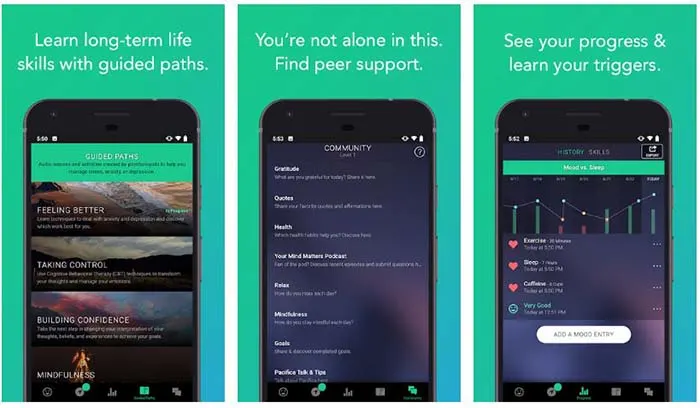
Pacifica is an all-in-one app to help manage stress, anxiety, and depression. The app features several different types of exercises to help you manage your breathing, relax your muscles, and even help give you a more positive outlook on life. 

The app also manages your lifestyle patterns such as how often you workout, how often you sleep, and your caffeine intake. Even better, the app can help you find a therapist in your area and help you find support systems such as groups and even podcasts.

10

Wrapping up

These apps can help, but the things causing you stress and anxiety might have a deeper meaning. If you have chronic anxiety, it may be in your best interest to see a therapist or psychiatrist. Anti-depressants and anxiety medication might be your answer.

Talk to your family and loved ones about your stress, and get the help you need.

Best VR Apps for 2019

Virtual reality isn’t all video games. Sure, there are some rad games out there—but were you aware that the New York Times has been making VR content for the past few years? Or, that you even though there’s no iOS compatible headset, iPhone users can still visit another version of reality?

The current crop of VR apps on today’s market let you explore other worlds, get an art history lesson, watch someone jump out of a plane—or get a different take on your favorite YouTube clips.

Here, we’ll look at some of the top VR apps for Android and iPhone.

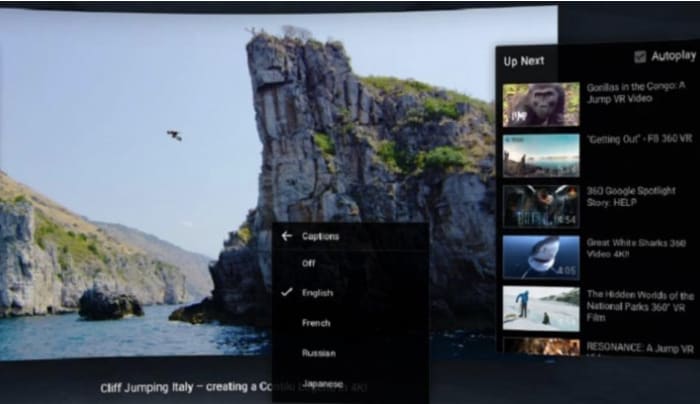
YouTube VR

YouTube VR App

YouTube VR is only available on Android, and you’ll need a Cardboard or a Samsung Gear to access the app by way of the Daydream app. But, it’s a pretty rad experience once all of the moving parts are in place.

The app brings a different perspective to the YouTube universe—you can explore all video content—from regular music videos to 3D 360 videos. The draw isn’t so much watching your favorite YouTubers perform up close and in 3D, that will get old fast.

Stick with the Virtual Reality Channel where you can experience skydiving, cliff jumping, and other thrill-seeking behaviors from the safety of your phone.

YouTube VR Download Free
9

NYT VR

New York Times VR App

Yes, the New York Times has a virtual reality app. It’s been around since 2015, and since then, they’ve created hundreds of immersive news reports that allow a glimpse into the lives of Syrian refugees or Iraqi forces or see what Pluto looks like.

NYT’s VR isn’t your standard news fare. Instead, the Times focuses on places you can’t usually go—tapping into VR’s explorative and empathetic potential.

NYT VR Download Free
8

Virtual Speech

Virtual speech app crowd example

Ever wondered what it was like to give a speech in front of a full auditorium? Need to conquer a fear of public speaking or prepare for an upcoming speech?

Virtual Speech aims to take your public speaking skills to the next level, presenting you with a virtual audience that mimics the sounds, yawns, and mannerisms of an actual crowd.

It doesn’t stop there. You can gradually increase the judgment level of the crowd, add in distractions, and amplify the sounds of rude audience members. At the end of your speeches, you’ll receive a score—for both verbal and nonverbal communication.

Google Arts and Culture

Google VR Art and Culture

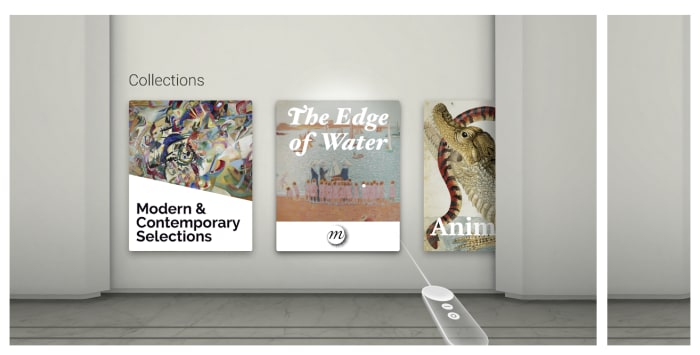
Google Arts and Culture is the next phase in Google Art. They’ve revamped the educational resource and turned it into a VR experience where you can tour the museums of the world without having to shell out for plane tickets and museum admission.

Google has partnered with 1200+ international galleries, museums, and cultural institutions from 70+ countries. You’ll have the ability to take a guided tour of some of the world’s most famous museums and exhibitions, allowing the curious to get an art history lesson at any given moment.

There’s also the option to add works to your “personal collection.” Meaning, you can save favorite pieces and share them with family and friends.

Google Arts and Culture Download Free
8

Inception

Inception VR app

This isn’t the Inception film that inexplicably came with certain Android phones a few years back, no Leo, no confusing dream sequences.

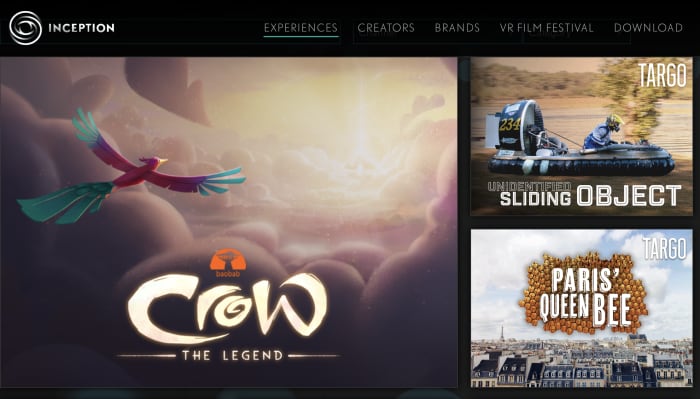
This Inception is an app that delivers a small collection of “experiences” which span a wide range of artists and aesthetics.

There’s a Dali experience (which, if you’re going to pick an artist cut out for the VR landscape, Dali’s your guy), a Mac Demarco video, and a Playboy Mansion tour.

In all—it’s an eclectic mix of art and entertainment that at the very least, should give you something to talk about.

Hidden Temple VR

Hidden Temple app

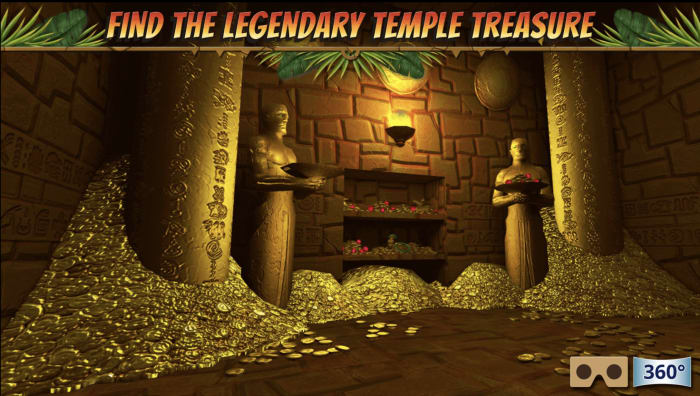
This immersive adventure game is pretty solid for a $3.99 cardboard download. Hidden Temple VR is a treasure hunting quest that takes place in the jungle—you’ll solve puzzles and riddles, and point and click your way through various temple corridors.

The game can be played with or without a VR headset, but the makers of the game say Google Cardboard delivers the best gameplay experience.

Hidden Temple VR Download Free
8

Fulldive VR

Fulldive VR

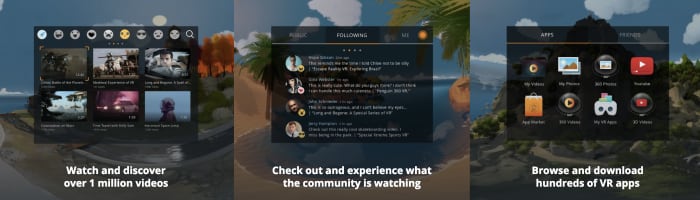
FullDive VR is a social-ish platform for Cardboard users and other VR headset owners. The app includes a whole mashup of different apps—from a VR web browser to YouTube content, a camera, and a marketplace where you can buy more apps.

The creators of this app have imported our favorite pieces of the web into a virtual universe. Additionally, FullDive also includes a social thread so you and your friends can bond over your experiences or just catch up on life.

Fulldive VR Download Free
7