How to set up voicemail on Android

This is how to set up voicemail on an Android phone.

Voicemail on android

When you get a new phone, you should set up your voicemail. We know, no one really calls anymore. But if they do, it’s nice to have a personalized greeting. It will also keep you hooked up with your friends and family who are stuck in the pre-internet era. We’re looking at you, Grandma.

How to set up voicemail on an Android phone

According to Google, there are a number of ways to set up voicemail on your Android smartphone. We’re going to walk you through the simplest way to get your voicemail ready to go. This should work for all Android phones from version 6.0 (Marshmallow) and above.

Step 1

Google Phone app

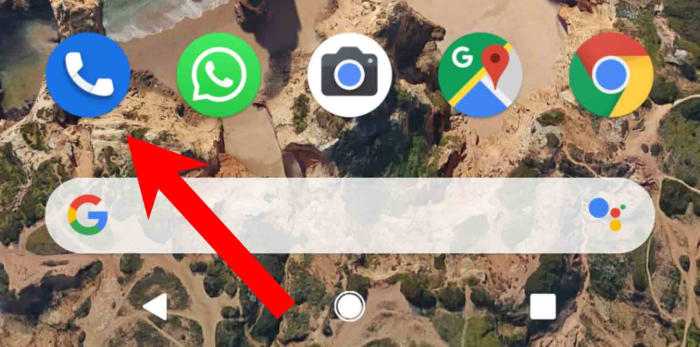
Unlock your Android phone and open the Phone app.

Step 2

Google Phone Settings

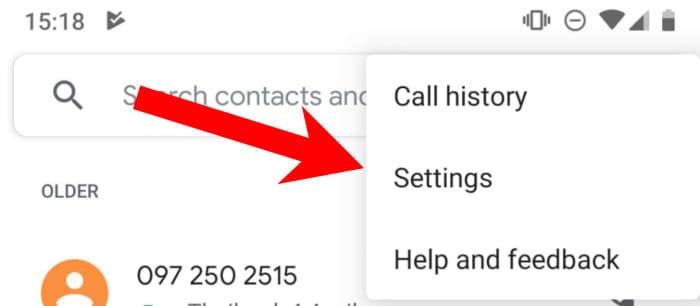
Hit the three vertical dot icon found in the top-right of the screen and then tap Settings.

Step 3

Voicemail settings

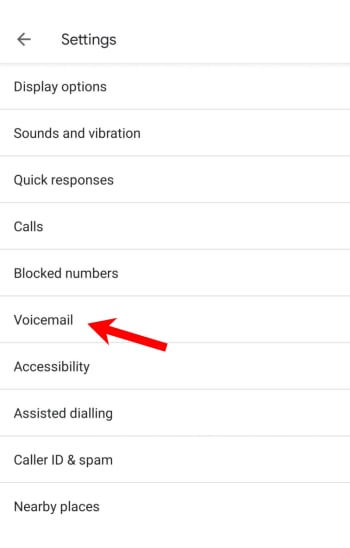
In the settings menu tap Voicemail, which is about halfway down the list.

Step 4

Voicemail setup Android Google

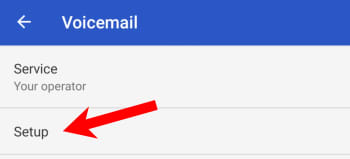
Hit Advanced, and then tap Setup.

Step 5

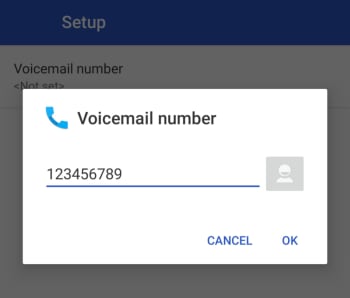
Voicemail number Android

In the box that says Voicemail number type your mobile number and then hit OK.

Step 6

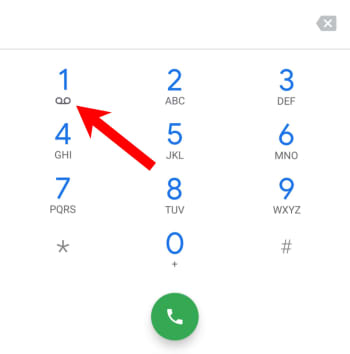
Android keypad voicemail key

Go back to the Phone app’s keypad and hold down the number one key until it begins to dial. This should then call your voicemail.

Step 7

Follow all the voice prompts to set up all your voicemail settings.

Once you’ve done all this, you should be able to check on your voicemail by holding the 1 key on your phone app’s keypad. If you want to change any of your voicemail settings, like voicemail notifications, you’ll need to go your phone app’s settings menu, using the instructions laid out above, and make the appropriate changes.

Depending on who you are and how you use your mobile phone, voicemail can feel like an essential part of your setup or a bit of a relic that you don’t really pay attention to. It is worth having it set up though, as it is the default way most people expect to leave voice messages. Whatever your reason, we hope the above tutorial helps you do it quickly and without any complications.

WhatsApp will soon stop working on some phones, will your phone be affected?

Phones running the Windows Phone operating system will stop supporting WhatsApp by the end of the year

WhatsApp icon

WhatsApp’s official blog is a bit strange. It is very rare that new posts are published, despite the multitude of updates and new features that the app regularly sees. Then, if there are new posts, with new information about the messaging app, they don’t appear as regular articles. Instead, many WhatsApp blog posts come via new answers on the WhatsApp FAQ page.

This is how we’ve found out about a rather chilling development. Come the beginning of next year, there will be a whole host of phones that will no longer be able to use WhatsApp.

Phones running the Windows Phone operating system will stop supporting WhatsApp by the end of the year

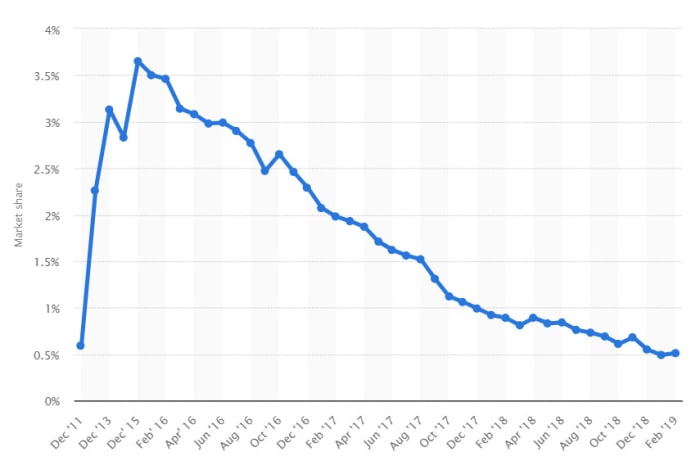
Yep, it is an updated FAQ answer page that has brought the news of doom and gloom to all Windows Phone users. On December 31, 2019 WhatsApp will stop working on Windows Phones. According to Statista, Windows Phone’s market share (in the UK) has dropped to just above 0.5%, but, to be fair, it was never that high to begin with. It enjoyed its largest market share at the end of 2015, and even then, it topped off at only 3.65% of mobile users. Less than 1% might not sound like a lot, but when you consider that we’re talking about all smartphone users, you see that the number of people who are about to fall off a WhatsApp cliff is quite high.

People still use Windows Phones
Not many people still use Windows Phones, but Windows Phone users are out there and come the turn of the year they’ll no longer be able to use WhatsApp.

The updated FAQ page relates to which versions of the most popular mobile operating systems enjoy WhatsApp support. The page also states,

“For the following operating systems, you can no longer create new accounts, nor reverify existing accounts. However, you’ll be able to continue using WhatsApp on:

  • Android versions 2.3.7 and older until February 1, 2020
  • iOS 7 and older until February 1, 2020”

With iOS 7 being from 2013 and Android 2.3.7 being from 2010, the biggest news from the page is the Windows Phone bombshell. Hardly anybody will be affected by the lack of support to the older Android and iOS versions, but if you are still running the older software, the page warns that some functions could stop working at any moment.

All mobile operating systems that support WhatsApp
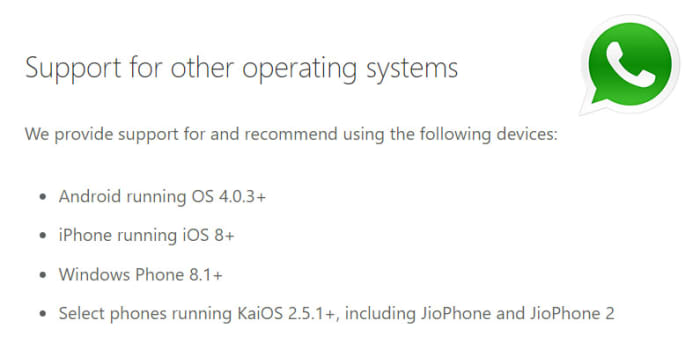
These are the mobile operating systems that support WhatsApp

Anybody running Android 4.03 or iOS 8 or newer will be able to continue using WhatsApp unhindered.

The real bad news for Windows Phone users is that come December 31, 2019, they’ll be cut off on from WhatsApp altogether. In what could be seen as another slap in the face there is, as yet, no WhatsApp FAQ answer page telling Windows Phone users what to do after that date. In the lack of any official advice from the messaging company, all we can say is get yourself an Android smartphone that’s not yet nine years old or an iPhone from the last six years.

Facebook Messenger’s coolest hidden features

Learn how to use Facebook Messenger like a pro.

Look, Facebook Messenger is great for sending messages to your friends, but if that’s all you’re using it for, you’re seriously missing out.

Over the past few years, Messenger’s lineup of features has beefed up a ton. It’s an all-in-one platform these days, teeming with games, chatbots, productivity features, and more.

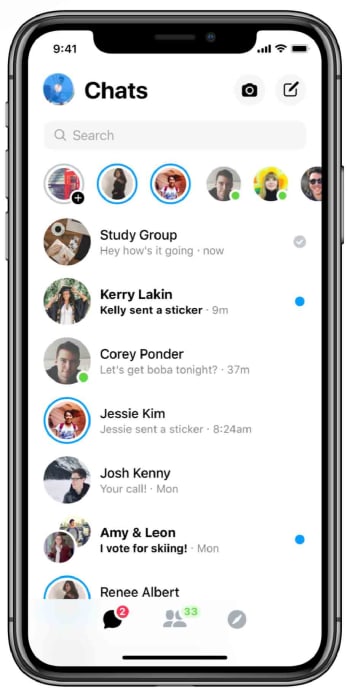
At the beginning of the year, Facebook rolled out its buzzed-about redesign:
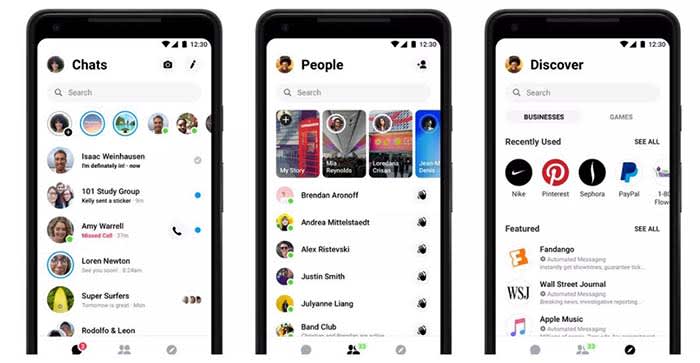
Facebook redesign

It gave the once overcrowded app a clean, fresh-looking interface. Now, some of the coolest features are hidden behind a four-dot icon.

Whether you’re new to Messenger or haven’t ventured beyond the dots, here are some features and tricks to know:

1. Use Messenger without an account

Facebook Messenger can work without Facebook? Well, yeah.

Hey, we get it, Facebook isn’t everyone’s thing. Many of us grapple with breaking up with FB, and a few actually go through with it.

Still, if all your friends are group messaging on Facebook without you, you don’t need to reactivate to join the thread.

Instead, download the app. When you get to the log-in screen, say you don’t have an account. From there, you can register your account with a phone number and use it to sign in.

2. Send money to your pals
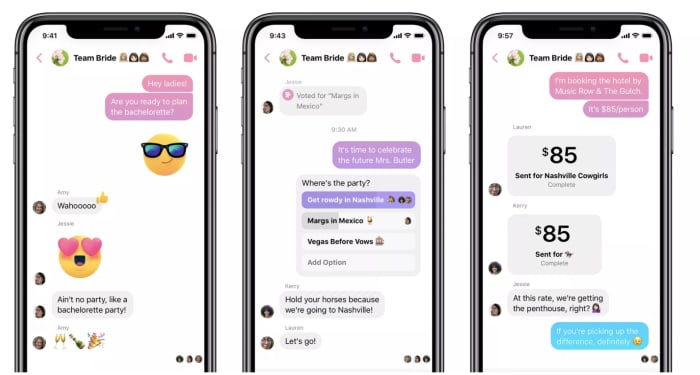
fb messenger send payments

There’s no shortage of mobile payment apps, so this whole cashless revolution thing is old news at this point. However, hitting up your friends for money or paying them back for last night’s drinks no longer means you have to leave Facebook.

Add your debit card or PayPal account to Messenger by tapping your photo at the top of the app, then selecting “payments.” There, you can link the account of your choosing, along with a PIN or fingerprint for a layer of security.

To send or request money, all you do is choose the dollar sign next to the text field, fill in the amount, then add your payment information.

3. Add extensions to your chat

Facebook Messenger extensions are third-party apps that connect to your account. This way, you can access apps through your open chat window. You can also share articles, playlists, and more with your contacts.

Here, you’ll find games, apps like Spotify, OpenTable, Kayak, or The Wall Street Journal.

Want to make your friends a mixtape? Log into Spotify and share your picks through Messenger.

You’ll need to link your accounts (i.e. log into Spotify using your Facebook credentials).

8

4. Create Stories

Yep, just like Snapchat, Instagram, and now, even LinkedIn, Facebook lets you tell your story through videos and filters.

The app has a feature called My Day, which allows you to add videos and photos to your “day feed.” You can share moments with your friends. Like Instagram and Snapchat, FB’s version expires after 24 hours.

Instagram Download Now ►
7
8

5. Encrypted conversations

If you’re wary of how social media channels are stealing all of our data, you’re not alone.

But you don’t have to switch to Signal or WhatsApp to chat off the grid. Instead, Messenger allows you to encrypt from right inside the app. Messenger actually uses Signal protocol here to ensure that only you and the other person can see the message. Not even FB can read your messages.

To turn on Secret Conversations, all you need to do is, tap the little “I” at the top of the screen and select “go to Secret Conversation.”

There is a caveat — no group chats allowed. Secret Conversations are limited to one-on-one convos only.

WhatsApp Messenger Download Now ►
8

6. Send files

Sending files is something you can do with all sorts of platforms these days, but the beauty of messenger lies in its multifunctionality. The chat app supports multiple types of files, so you can easily send friends photos, PDFs, or Word Docs without clicking around multiple tabs. Sure, FB’s file sharing feature isn’t groundbreaking, but sometimes these little timesavers are a real gift.

7. Dark Mode
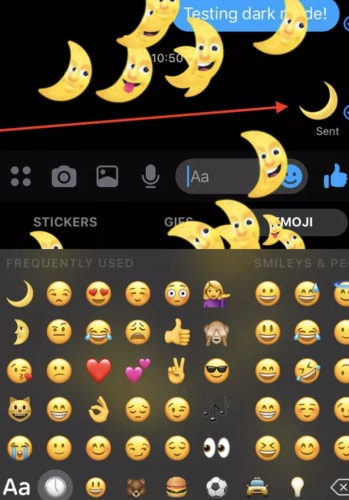
crescent moon dark mode

Dark mode was one of the most requested features for Messenger, and now our nighttime dreams have become a reality. Some users believe that dark mode reduces the eye strain that comes from looking at a bright white screen for hours on end. Others just think the inverted color scheme looks cool. Google says that activating dark mode preserves battery life on Android phones.

Here’s a step-by-step guide to activate dark mode on Messenger.

In summary

Messenger’s hidden tips and tricks can help you make the most of the messaging service. Although some of us have our issues with the big FB, Messenger’s free service keeps us coming back.

If you use WhatsApp or Facebook Messenger, you have to check out the Opera browser

No more switching tabs to message people on WhatsApp or Messenger. Opera browser has fully-featured WhatsApp and Messenger integration.

There aren’t many web browsers that stand out for having truly unique features. These days we’re all looking for a quick and secure browser and pretty much all of the big ones can offer this. After that, there isn’t too much to choose between them. Sure, privacy advocates veer towards Firefox and Apple fanboys use Safari, but it is difficult to put your finger on discernible differences between the offerings of the big web browser developers. That is, apart from Opera.

New features come to the internet all the time but has any web feature had such a huge impact on our daily lives as instant messaging? Who doesn’t have a separate tab or window with either Facebook Messenger or WhatsApp open right now? Well, Opera has long been studying how we use the web and innovating new features designed to accommodate common web practices. The Opera browser now has fully integrated versions of WhatsApp and Messenger built into the browser.

No more switching tabs to message people on WhatsApp or Messenger

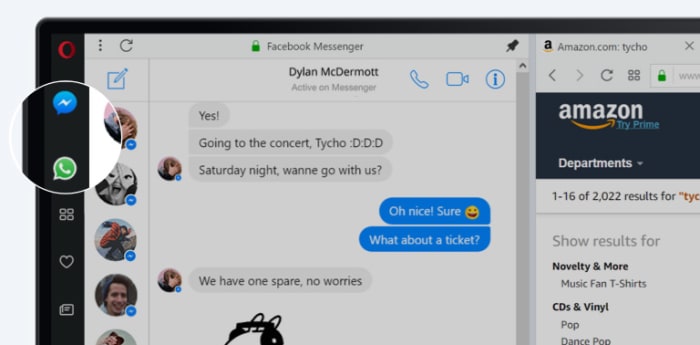
One of Opera’s key features for a while now has been its sidebar, which sits stealthily at the left-hand side of the browser. The sidebar gives quick and easy access to common web tools like search, downloads, favorites, etc. Last October, Opera also added two new buttons to the sidebar; the WhatsApp and Messenger chat bubbles.

Messenger Opera integration

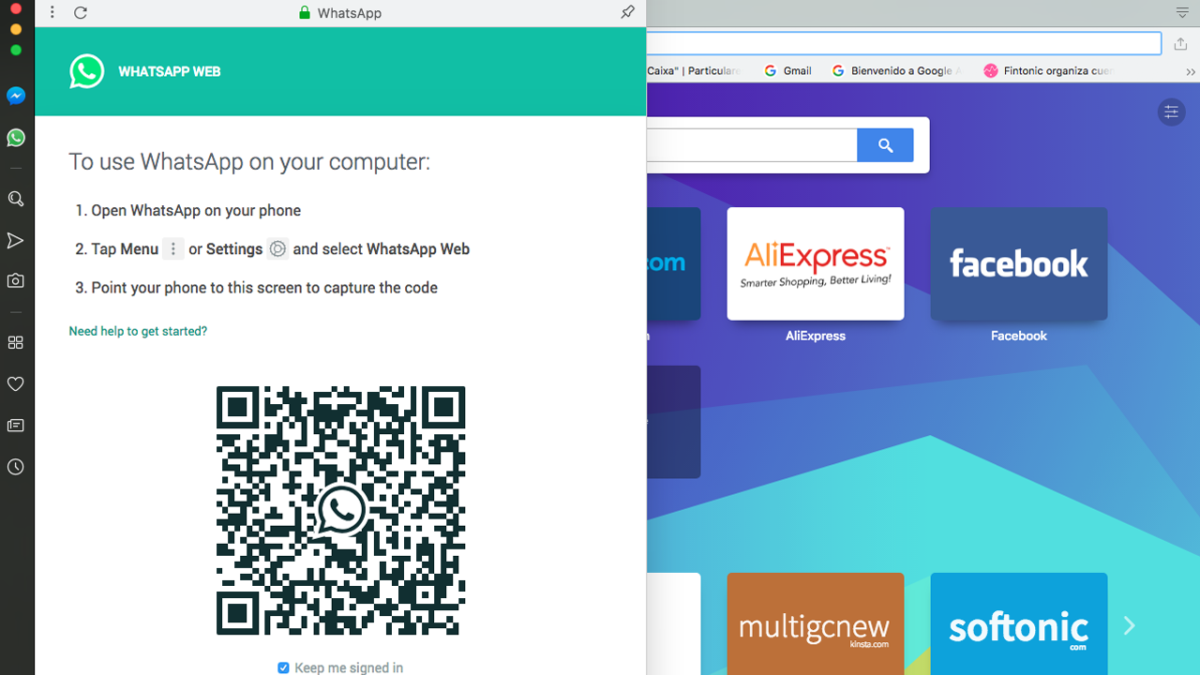
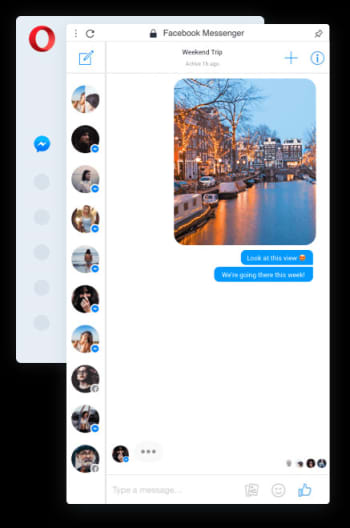
Clicking the WhatsApp and Messenger icons opens out fully functional and well-designed chat widgets from the sidebar. They offer all the features you’ll find on the web versions of both apps, but sit above the web page you’re currently browsing and only cover about a sixth of the page.

With the integrated messengers being so small, the design is key, and Opera has pulled it off nicely. All the buttons and features are there but they’re tastefully placed in a way that feels right. Contact icons are down the left and hand side, with the conversation taking up most of the display space.

Messenger Opera integration chat bubble

On top of the neat design and full feature sets, the Opera browsers WhatsApp and Messenger integrations offer other key messaging app tools to ensure you’ll never have to leave the web page you’re browsing to check your messages again. You can activate in-browser notifications for incoming messages, pin your favorite chats, mute conversations, or log off from the services altogether.

The key here is that when you get a new message all you have to do is click the icon to the left of your page, read the message, and then respond, should you feel the need. Throughout that whole process, there is no need to switch tab and the web page you’re viewing stays on the screen the whole time.

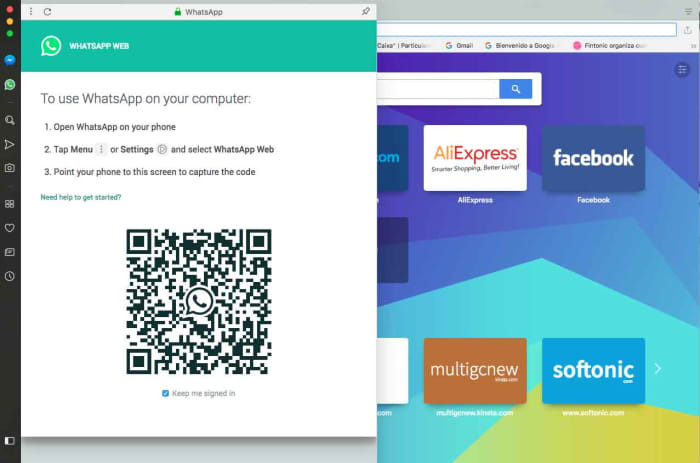
WhatsApp web on Opera browser

In the tech world, small things make big differences, but with WhatsApp and Facebook Messenger integration, Opera has added a large feature to its browser that creates a smoother workflow and makes it harder to become distracted from what you’re doing. This is more than a big difference; this is a big deal.

Softonic is proud to partner with Opera. When you download from us, we may earn a commission.

WhatsApp update: Is dark mode dead?

There has been no sign of a dark mode in the last two beta versions of WhatsApp for Android.

WhatsApp shocked emoji

There seems to have been a bit of a backlash on Twitter to news about an upcoming feature that looked like it was coming to WhatsApp. It wasn’t long ago that we were bringing you advance screenshots of how WhatsApp’s new dark mode will look when it finally lands on the app. Now, however, this has all changed and it looks like WhatsApp won’t be getting a dark mode at all. Users aren’t happy.

There has been no sign of a dark mode in the last two beta versions of WhatsApp for Android

Dark modes really have been taking the tech world by storm recently. App after app from Google Chrome to Facebook Messenger has been introducing the feature to much praise from their user bases.

A dark mode is useful for an app for a number of reasons. They’re designed to protect a user’s eyes if they’re browsing their phone at night or in dark surroundings. Lighter colors can create quite a bit of glare, so the dark mode switches the usual brightly colored white background to black, dark grey, or sometimes dark blue. The text is then cut into the dark mode using lighter colors. As well as this very functional feature, dark modes also have a pleasing aesthetic and many users choose to use them for this reason alone. People like the way dark modes look.

On top of the two reasons listed above, recent research from Google has also shown that dark modes can actually have a positive effect on battery usage. The research shows that on devices with OLED devices, brighter colors require more battery power than showing darker colors. This means that whenever an app is in dark mode it puts a lot less stress on the device’s battery if the device has an OLED screen.

So, considering all this, it came as no surprise when news broke that WhatsApp was working on a dark mode and that there was a positive response when the first screenshots hit the internet. This now seems to have changed. According to WABetaInfo, the last two versions of the WhatsApp beta for Android (versions 2.19.123 and 2.19.124) have not included a single reference to the dark mode that had been there before.

Understandably, users have not been happy by this apparent decision from WhatsApp HQ. It is bad enough when a feature you want isn’t there, but it is much worse when you’re told it is coming and then, out of nowhere, it is taken away again.

As is always the case with these types of leak, however, there is no official word from WhatsApp on its dark mode position. There is still a chance that the removal of the dark mode code from the beta is relating to a planned redesign or a link to the Android Q system-wide dark mode, which is on the way. For now, though, all we know is that there is no dark mode in the latest WhatsApp beta.

This Chrome extension makes Gmail easier to use

Simplify has been designed by one of Gmail’s former lead designers and cuts down all the clutter.

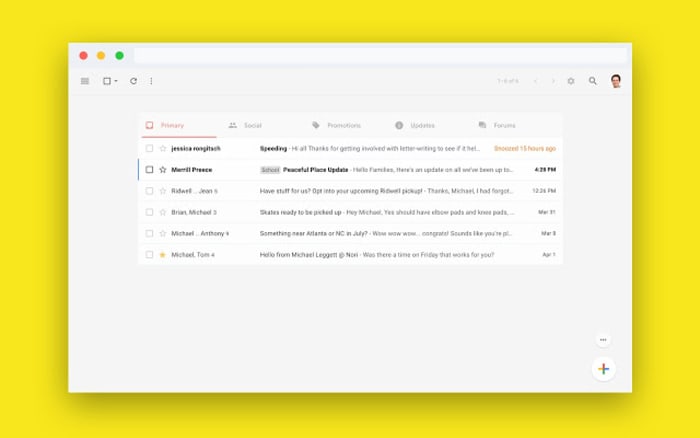
Simplify Chrome extension for Gmail

Gmail has a whopping 1.5 billion users worldwide, so Google has obviously done something right. If you ask any of those 1.5 billion users, however, we’re sure each of them would have their own little gripes as Gmail also has its fair share of problems. One of the major gripes would be that Gmail is too complicated.

There is good news though, for anybody out there who thinks Gmail has too much going on. If you only ever press a tiny fraction of the buttons you can see when you open Gmail, and don’t even know what half of the Gmail features are for, you might want to simplify Gmail, which you can now do thanks to a nifty little extension for Google Chrome.

Gmail Access now
8

Simplify has been designed by one of Gmail’s former lead designers and cuts down all the clutter

Between the years of 2005 and 2018, Michael Leggett was at the forefront of the tech world, working as a designer for both Facebook and Google. One of his major projects was working as a lead designer on Gmail. He’s since left the two titans of tech to work on a project that aims to reverse climate change, but he also has a pet project. In his spare time, Leggett has been working on an extension for Google Chrome that simplifies the Gmail interface on desktop.

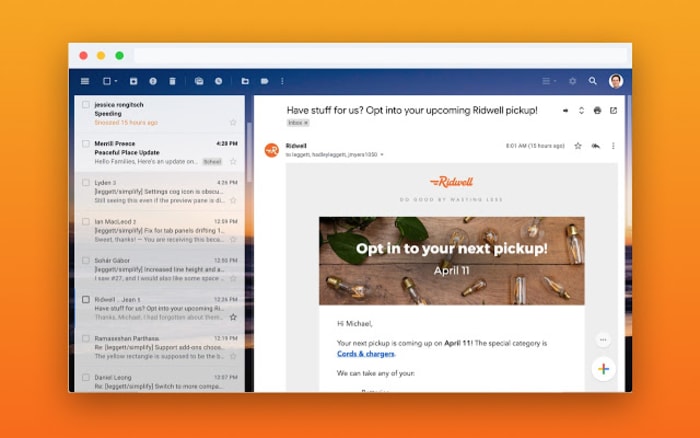
Rather imaginatively, Leggett has decided to call his extension Simplify, presumably because that is what it does. It takes the Gmail interface and makes it much simpler by moving around a few key features and making it easier to hide others that aren’t used much at all. The search bar has been moved up to the top-left of the screen, rather than going right across the top and all the sidebar options have been moved into drop-down and pull-up type menus. Another cool change is that Simplify moves the primary functions bar to the top of the screen rather the top of the inbox.

A screenshot of the new Simplify extension for Chrome
The sidebars can be removed altogether to offer a much cleaner interface

Another big deal about Simplify, considering it is an extension that works with your email inbox, is that doesn’t collect any data and won’t serve up ads. The Simplify page on the Chrome web store says, “Simplify is mostly some CSS plus a little Javascript to apply the CSS. There are no trackers. No data is sent or shared.” If you’re ever downloading anything that will have access to your online accounts, you need to make sure you’re not handing over too many permissions. That Simplify clearly states it won’t collect any of your data is reassuring.

A look at a simpler Gmail interface
Simplify states that it has no trackers and will not harvest any user data

All in all, Simplify is a solid extension for anybody who feels a little overwhelmed any time they open their Gmail inbox. If you miss the recently dropped Inbox, you should give it a try. You can add Simplify to your Chrome browser by clicking here.

WhatsApp Web: Will calls be added to the desktop version of WhatsApp?

WhatsApp is working on adding calls to WhatsApp Web.

WhatsApp logo

The Facebook Developer Conference kicks off today in San Jose. It is fair to say that Facebook has had a very bad year with scandal after scandal rocking the social media giant. The annual F8 conference then could be a good way for Facebook to divert eyes away from its shady past and towards its future.

In truth, however, this year’s Facebook Developer Conference doesn’t seem likely to include a headline-grabbing announcement that could distract the masses. There’ll likely be talks on AI, as well as privacy and encryption. There’ll also likely be news on an Oculus update and new takes on augmented reality, and we’ll likely see something about what Facebook is doing with blockchain. Nothing too exciting, though.

What we’re hoping for, however, is nothing to do with Facebook itself, but rather Facebook-owned WhatsApp. What we’d most like to hear at F8 this year is confirmation of some of the many WhatsApp updates we’ve seen added to the WhatsApp beta over the last weeks and months. These include a new dark mode, improved security features, stickers 2.0, and a vacation mode. On top of these, however, we’d love to hear about another feature we’ve only just learned has been added to the beta.

WhatsApp is working on adding calls to WhatsApp Web

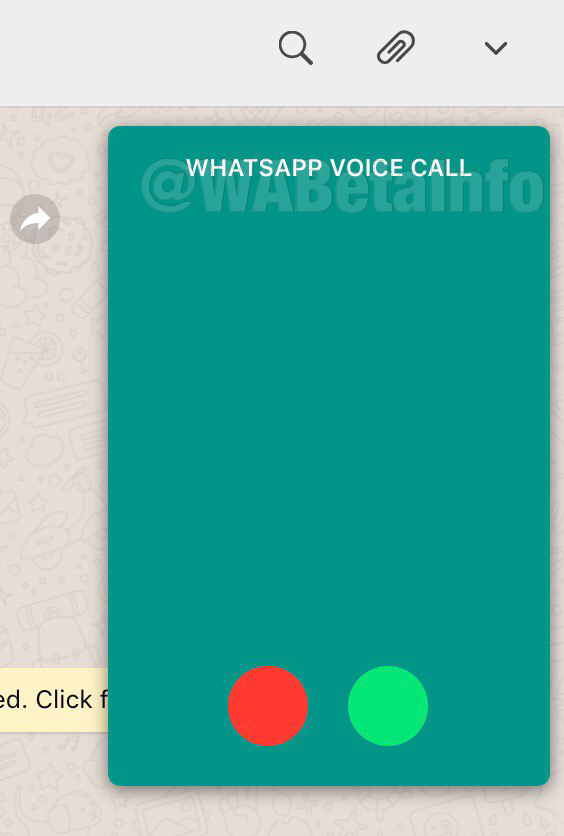
The new calls feature for WhatsApp Web is still in the very early stages of development, but a few screenshots of the feature in action have been leaked onto the internet thanks to WABetaInfo. These are only images of the voice call feature, however, as the video call feature for WhatsApp Web is still in the alpha development stage.

New voice call feature for WhatsApp Web
Image via: WABetaInfo

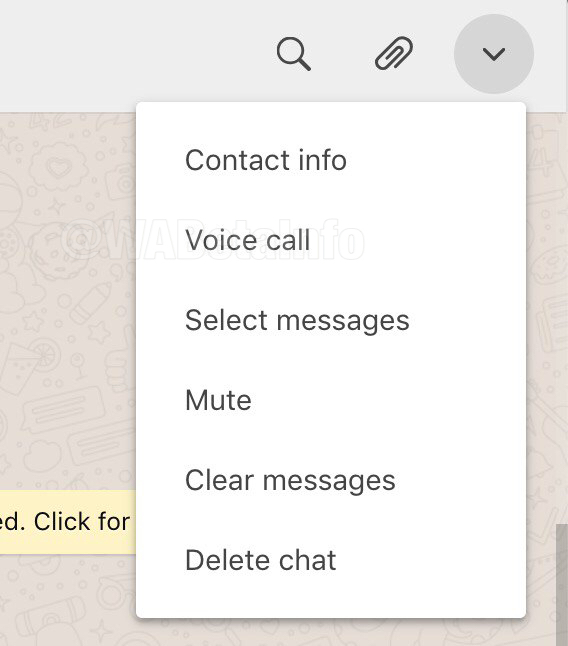
The calls feature on WhatsApp Web will be activated by clicking the settings menu icon found in the top-right of any chats screen. You’ll simply open the chat of the contact you want to call, click the icon in the top-right, and then hit voice call. It is a safe assumption that once it moves further along the development path the video call feature will also be found here.

WhatsApp voice calls on desktop

This feature is still a long way off from a general roll-out, however, as the screenshots show. Even the voice call feature is incomplete as WhatsApp still has work to do before it can release a full version to the beta community.

Even though the new calls feature is still a way off from completion, there is still a chance it might come up at the Facebook Developer Conference. Should we hear anything from the conference on calls or any of the other WhatsApp features we’ve reported on over the last few months, we’ll make sure you hear about it first.

WhatsApp stickers and emojis get an upgrade

WhatsApp is working on animated stickers and will introduce the official emojis.

pop up WhatsApp icon

We’ve reported on a lot of big WhatsApp news recently. Various analyses of the WhatsApp beta indicate that we can soon expect to see features like a dark mode, an improved vacation mode, and that WhatsApp may even be shaping up to become a decent audio player. Not all new features have to make such a big splash, however. The updates we’re reporting on today won’t make any fundamental changes to the popular messaging app, but you’ll definitely notice them when they roll out to all WhatsApp users.

“

WhatsApp is working on animated stickers and will introduce the official emojis to Doodle

Stickers have been around on WhatsApp for quite some time now, and they’ve added a fun way to customize your chats. You can even create your own WhatsApp sticker packs from photos you’ve taken or received from friends. The latest WhatsApp beta, however, shows that the Facebook-owned app is now working on an official way to kick them up to the next level. Rather than stickers appearing as static images, it looks like soon we’ll be able to send each other animated stickers that move.

Image via: WABetaInfo

There have only been a couple of examples spotted so far, but they look impressive, nonetheless. One is what appears to be a squirrel or small fox rolling around laughing and the other is a rocket ship blasting upwards into space. It also looks like WhatsApp will support animated stickers from third parties, too. Of course, there is no limit to what these animated stickers could become in the future. This is a small change to WhatsApp, but it opens up some interesting and exciting possibilities.

Image via: WABetaInfo

The other small change coming to WhatsApp is the implementation of official emojis in WhatsApp doodle. When this change lands on the full app, the emojis you can stick onto the images, GIFs, and videos you’re sending your friends will change from the specialized WhatsApp set of emojis to the more standardized emojis you see across the rest of WhatsApp and other apps. I’m sure you’ll have noticed that at the moment these emojis look different to the emojis you see when you send them in chats. Again, this isn’t the biggest change, but when it drops, you’ll definitely notice the difference.

WhatsApp emoji v Official emoji
Image via: WABetaInfo

There is no news yet about when these small tweaks to WhatsApp will land on the main app. It is likely, however, that as they are only small changes, we could get to see them sooner rather than later. With the bigger changes, like some of those mentioned at the beginning of this article, further development and testing may be needed before they can be fully implemented across the whole app. With smaller features like stickers and emojis, however, there likely won’t be much more work needed.

You need to look out for this new WhatsApp scam

WhatsApp hackers are trying to trick users into clicking fake links that will lock their accounts.

WhatsApp is quite a secure app and its end-to-end encryption is renowned for protecting user privacy. The latest security features can only go so far, though. There is one element that will always remain vulnerable even if an app is up to date with all the latest security features and protocols. That rogue element, so to speak, is us. The human factor can help hackers break through even the most secure defenses an app could possibly have.

It is the human factor that sits at the heart of the latest WhatsApp scam to do the rounds. You need to look out for this one or you could fall victim, too.

WhatsApp hackers are trying to trick users into clicking fake links that will lock and steal their accounts

WhatsApp windows wallpaper

This latest WhatsApp warning is coming out of the Middle East where the Telecommunications Authority of the UAE has published a warning against this new type of scam. Unfortunate victims have seen their WhatsApp accounts completely hijacked with hackers then able to read their messages and, even scarier, send messages on their behalf.

WhatsApp Messenger Download Now ►
8

The scam works by sending a link to users who’ve recently installed WhatsApp on a new phone. What normally happens when this happens is WhatsApp sends a verification code to the user in order to prove their identity. In this case, however, the scammers are sending the code, along with a link, to users as a text message and asking them to click the link to prove their identity. The problems arise for users when they click the link.

Clicking a link on WhatsApp
If you click the fake link, you could lose your WhatsApp account

Whenever a user clicks the link, they confirm to WhatsApp that it is them, but they do it via the hacker. This then authorizes the hacker to control the user’s WhatsApp account and freezes them out.

The warning from the UAE says, “Mobile users should not share the verification code that is sent to them by SMS, otherwise, their account will be compromised. Many WhatsApp accounts were hacked this way, and subscribers lost all their details.” The scam has already claimed a lot of victims who no longer have control of their WhatsApp accounts. Worryingly, there are also reports that the scam has since been translated from Arabic into English and French, which means it could be coming to the U.S. and Europe.

beware this new whatsapp scam
Image via: Twitter – The scam has since been translated from Arabic to English

You always need to be extremely careful when opening attachments and clicking links that you’ve received in messages, particularly when the message comes from somebody you don’t know. Phishing scams, which try to trick you into handing over sensitive information, are on the rise globally. They’ve become increasingly sophisticated in recent times meaning it is much harder to spot scam attempts.

Fortunately, we’ve prepared an infographic containing 10 key steps you should take, if you’re suspicious about a message you’ve received. You can check out our guide for avoiding phishing scams by clicking here.

How to activate Messenger dark mode

How to activate Dark Mode in Facebook Messenger.

New Facebook Messenger Dark Mode
Image via: Facebook

Last month, we first told you about Facebook Messenger’s new Dark Mode. Facebook did make the feature available to all users but hid it behind a kind of secret code. To unlock it, you had to send a crescent moon emoji to one of your friends. Now though, Facebook has finally announced that the new feature is now built-in to the settings menu for all Messenger users.

How to activate Dark Mode in Facebook Messenger

To activate Dark Mode in Facebook Messenger all you need to do is:

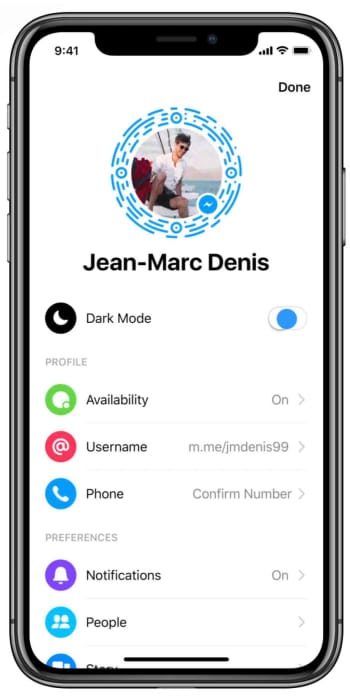
Step 1

Open Facebook Messenger on your phone and tap your profile photo to access the Settings menu.

How to enable dark mode in Messenger

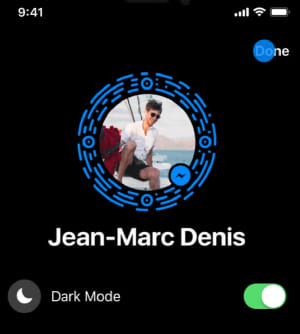
Step 2

Tap the Dark Mode toggle button to switch it to the on position.

How to enable dark mode in facebook messenger

Step 3

Hit Done in the top-right of the screen and get on with whatever you were doing in Messenger.

How to enable dark mode in Messenger

Now that there is no secret Easter Egg activation to go through, activating Messenger’s dark mode couldn’t be simpler. The dark mode will be easier on your eyes, won’t glare so much when used at night, and according to research by Google, will save your phone’s battery if you have a device with an OLED screen.