5 popular companies that already accept Bitcoin

Bitcoin is a cryptocurrency that is rapidly rising in popularity. Investing in Bitcoin could make you rich. Or it could be the dumbest mistake you’ve ever made. Because the value of Bitcoins frequently fluctuates similarly to the stock market, it can be a gamble both for investors and for businesses.

Most businesses don’t accept Bitcoin (yet), but several will. But before you start throwing around your cryptocurrency, it’s important to note that many of these companies (and others) drop Bitcoin support now and then.

5 popular companies that already accept Bitcoin

BITCOIN

1. Microsoft

Since 2014, Microsoft has allowed its customers to purchase from both its Microsoft stores and its Xbox stores with Bitcoin. So next time you want to purchase a game, you don’t have to charge it to your credit card. Also, Microsoft is adjusting Microsoft Excel to include Bitcoin in its currency calculations.

6

2. Dish Network

Those who subscribe to Dish Network can purchase its services with Bitcoin through partner BitPay. Accepting the cryptocurrency is a way to allow customers to pay in whatever way is easiest for them.

3. Overstock

Overstock has been accepting Bitcoin payments for several years now, and in 2017, they reported that they were making as much as $5 million per year in Bitcoin payments. They expect this figure to only grow thanks to recent investments in cryptocurrency technology.

4. Subway

It all started with a store in Allentown, Pennsylvania. The shop owner still had to convert Bitcoin to cash to pay the store’s bills, but it became a way to show acceptance for the cryptocurrency. So if you’ve got some Bitcoin to spare, you may be able to buy a sandwich for a fraction of a Bitcoin. Just be sure to check with your local Subway. Note: Very few Subways accept Bitcoin.

5. CheapAir.com

CheapAir.com has partnered with various payment processors over the years, and in addition to Bitcoin, it accepts the cryptocurrencies Bitcoin Cash (this is a different cryptocurrency than Bitcoin – confusing, we know), Litecoin, and Dash. However, it’s important to note that all cryptocurrency payments are final — so this isn’t a great option if you’re prone to cancelling reservations.


3 easy ways anyone can access Bitcoin

Want to earn some Bitcoin, but aren’t sure how to do it? Here are 3 easy ways.

bitcoin

Intimidated by Bitcoin? Don’t be. Earning or investing in this relatively new currency doesn’t have to be a difficult or overly risky task reserved for the select few. There are many ways that you can get involved with Bitcoin without being an expert on the subject or assuming too much risk. Here are some of the easiest ways you can get the cryptocurrency right now.

3 easy ways anyone can access Bitcoin

1. Download an investment app

Robinhood is a popular user-friendly investment app. Their mission is to prove that anyone can seek investment opportunities, no matter their skill set or financial status. The best part? Robinhood now supports cryptocurrency trading, making it even easier — for anyone at all — to invest in Bitcoin.

Robinhood Download Free ►
8

With an investment app like Robinhood, you won’t have to worry about handling private keys or storing your bitcoins in a virtual wallet (which is a lot more complex than it may sound). They will take care of it all. All you need to do is create your account and get started. So, if you’re looking for an easy way to get started with Bitcoin, consider investing with Robinhood Crypto.

2. Earn bitcoins while you shop online

Ever wish you could get paid to shop? With Lolli, you can earn bitcoins automatically just for shopping online. Lolli is a cash-back reward system that has partnered with more than 500 retailers to give you bitcoins for making a purchase on one of their sites.

Simply download the Lolli extension for your browser. Whenever you’re on one of their partner sites, Lolli will notify you. You’ll then activate Lolli on that site and start shopping as you usually would. After you’ve made your purchase, you’ll receive your bitcoins. It’s as easy as that.

Lolli currently partners with retailers such as Groupon, Forever 21, Hotels.com, and Macy’s, among many others.

bitcoin

3. Get paid to complete small tasks

Another easy way to earn bitcoins is to get paid for completing small — but time-consuming — tasks online. These tasks won’t often yield a lot of bitcoins, but they’re one of the easiest ways you can earn them. For example, some sites will pay you in bitcoins to visit a website or view ads.

Other sites like Coin Tasker or CoinWorker will pay you in bitcoins to complete a variable number of tasks. Sites like these might ask you to complete surveys, test programs, and files, or organize photos in exchange for bitcoins. However, it’s important to note that you probably won’t make that much money with any of these options. Even if you complete tasks all day, you likely won’t earn more than the equivalent of $5 to $10.

What are your favorite ways to get your hands on cryptocurrency? Let us know in the comments below!

Need to sue a company? There’s an app for that

AI-powered robot lawyer DoNotPay now has its own iOS app to help people sue for damages, refunds, and ticket cancellations

Sometimes the world isn’t fair. Sometimes bad things happen that aren’t your fault and you still have to pay for them. Whether it’s a mistaken parking ticket, an unhelpful insurance broker, or a dodgy broken gadget that you literally just bought, there are plenty of ways the modern world can knock you down. If you can afford it, a lawyer could try to help you solve some of these problems. Most of us don’t have that option. Now though, there is an app to help us out when things aren’t fair.

AI-powered robot lawyer DoNotPay now has its own iOS app to help people sue for damages, refunds, and ticket cancellations

The legal aid bot DoNotPay started its life in the UK fighting unfair parking fines. Last year, DoNotPay expanded aggressively to cover all 50 U.S. states, too. As well as a larger jurisdiction, the expansion also saw DoNotPay taking on an increased caseload on issues including consumer and workplace rights.

Robot lawyer app donotpay
DoNotPay has been a succesful web app for quite some time

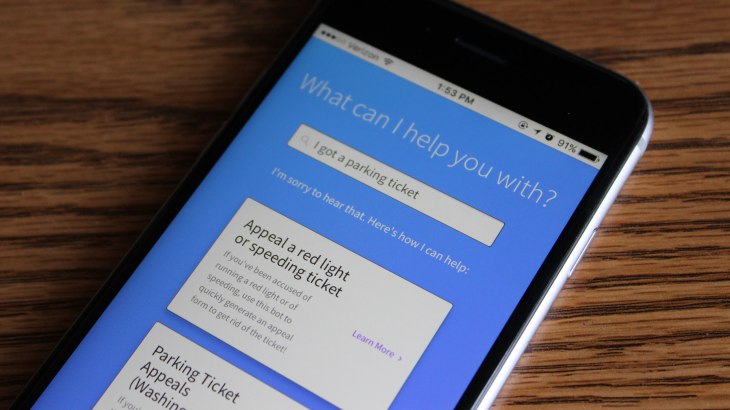
The bot has worked quite successfully online ever since. It looks similar to a standard search bar, but when users input their legal query, they’re shown a number of different ways that DoNotPay can help them solve their legal issues. With even the most basic of legal services (like drafting official letters of complaint) costing hundreds of dollars, a free virtual lawyer opens legal services to many more people.

Now DoNotPay’s services are being brought to your mobile via a brand-new free app that promises to give you the power to “Sue Anyone By Pressing The Button.” The DoNotPay app is available now on iOS.

The app works similarly to DoNotPay’s webpage. It will ask you questions relating to your legal issue and then draw up official documents that fit your particular situation. All you have to do then is print the letter and send it off, per the instructions given on the app. Then you’re a plaintiff in your very own case! What is even more impressive is that if you do have to go to court in person, the app will give you a script to read out. There is no need to have a lawyer standing next to you, you can do it yourself.

The creator of the new DoNotPay app, Joshua Browder states that user privacy is of paramount importance. All user data is protected by 256-bit encryption and DoNotPay doesn’t share any details with third parties. At the moment, the app is being funded by seed funding and small donations. Browder believes that his app is a tool for the little guy to fight back against the man. He wants all basic legal services to remain free but recognizes that in the future the app might need to charge for more advanced case-specific advice.
The figures are quite impressive too. DoNotPay has helped users recoup over $16 million in disputed parking fines. This works out at an average success rate of around 50% with an average payout of $7,000. Not bad at all for a free app.
Snapchat is killing off Snapcash

According to TechCrunch, code buried deep within the Android version of Snapchat reveals that Snapcash is being discontinued, stating that “Snapcash will no longer be available on August 30th.” A Snapchat representative confirmed this statement:

“Snapcash was our first product created in partnership with another company – Square. We’re thankful for all the Snapchatters who used Snapcash for the last four years and for Square’s partnership!”

For the uninitiated, Snapcash was a service within Snapchat that allowed users to send money to each other. The feature was the result of a partnership between Snapchat and Square. However, strict competition between other mobile payment services like Apple Pay, Zelle, Chase Quickpay, and especially Venmo led this service to an early demise.

Snapcash was never an especially popular feature of the app anyway, with its far and away most popular use being payment for explicit snaps. The combination of Snapcash’s unpopularity and its connection to explicit content could be the reason Snap Inc. decided to shut it down. Given Snapchat’s increased desperation to attract advertisers and disassociate themselves with sexting, the shutdown of Snapcash should come as little surprise.

As consolation for the loss of Snapcash, we offer you this hilariously over the top advertisement Snap produced to promote the then-new feature:

How to create an easy budget in Google spreadsheets

Everyone should make a budget. They give you a secure understanding of your financial situation and can help plan for a deficit of funds or ensure that expenditures are below income. Whether you’re looking forward to the next financial year, going on a vacation, or planning a wedding, budgets are there for one thing: to help you make the most of your cash!

Despite the benefits, it’s not hard to imagine why many people don’t make budgets: working with numbers on a spreadsheet or paper can be seen as boring or time-consuming. Neither of these things needs to be true! Open up Google Spreadsheet and get ready to change your life.

Google Sheets download free
8

Option 1: Use a Template

In Google Spreadsheets, you are given the option of a few templates, two of which are “Annual Budget” and “Monthly Budget”. Both provide easy tools which will help you track your funds.

Annual Budget

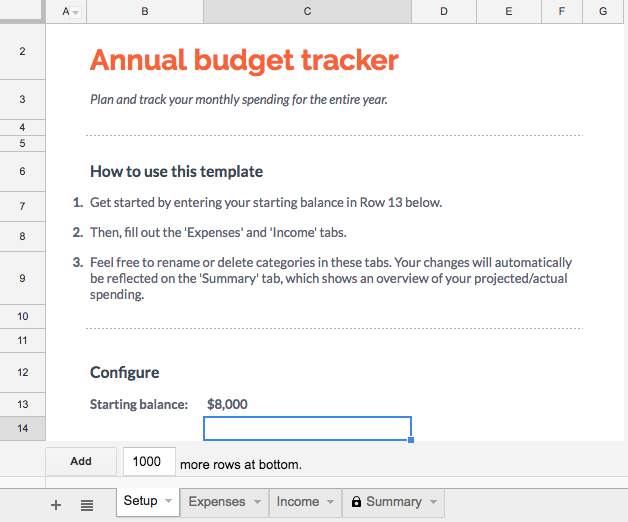
When opening the Annual Budget, you’ll see a spreadsheet with multiple tabs. We’ll go through each, explain the easy process for using it, and finally discuss how to quickly and thoroughly analyze the results!

On this first tab, enter your starting balance. This may be however much you have in savings, or it could be the maximum amount you wish to spend for the year.

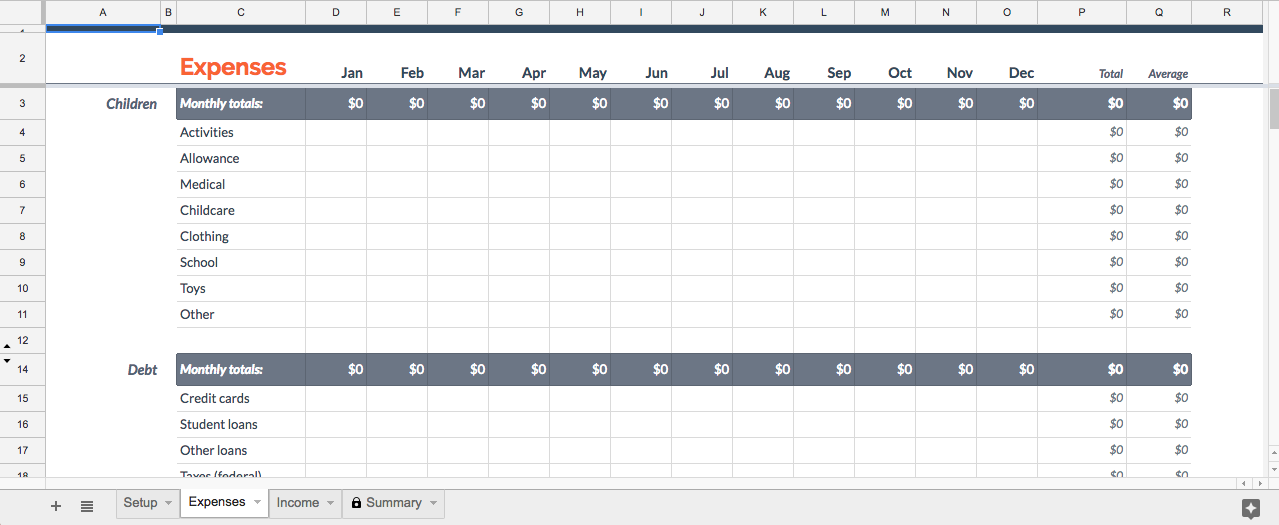
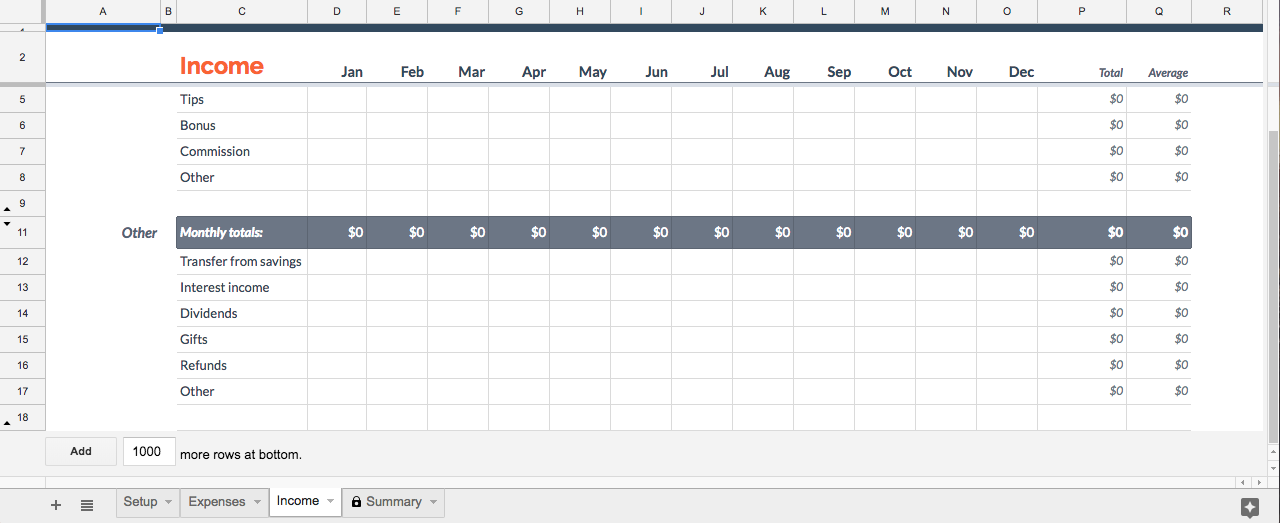
The next tab is for expenses. Simply fill in either how much you spent, or how much you plan to spend in each area:

The next tab is income, and works much the same as expenses:

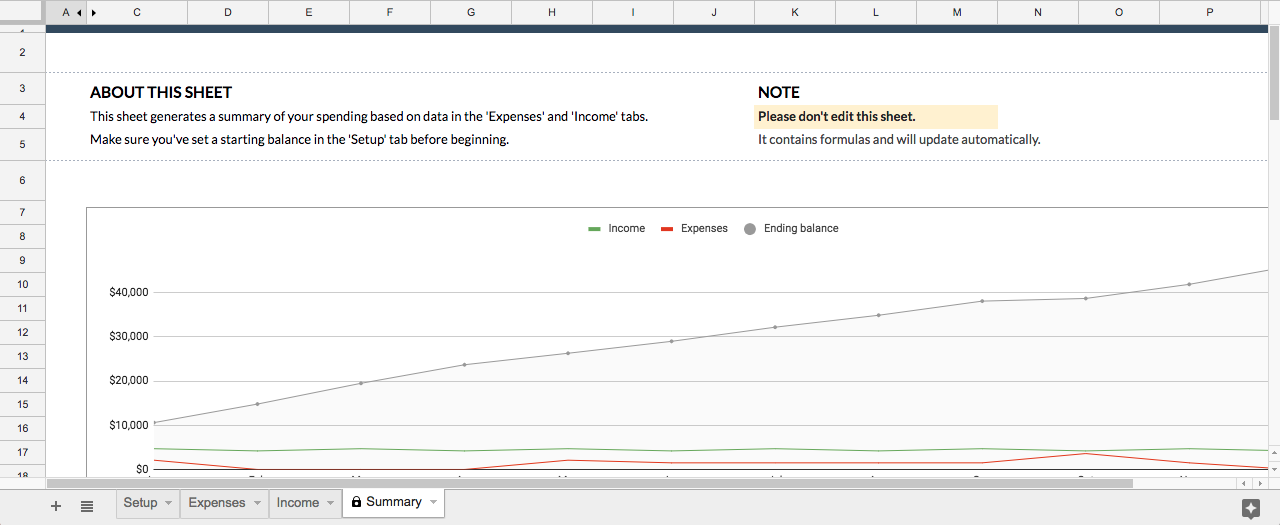
Finally, once this is finished, you can check out the summary page!

Before looking at the data below, check the graph. It quickly shows you where your income and expenses are, and where your initial balance has ended up.

If you haven’t already, now’s the time to ask questions like: where do I want the gray line to end up? If it’s falling, am I okay using up savings this year? If it’s going up, do I want to spend the extra money, keep it the same, or save even more?

If you’re okay with the results, great! If not, it’s time to head to the summary below the graph. Here, you’ll be able to see how you’re spending and earning money. The more you understand about your own cash movements, the easier it will be to figure out what needs to change to achieve your financial goals.

You Need a Budget (YNAB) DOWNLOAD AND START SAVING
8
Monthly Budget

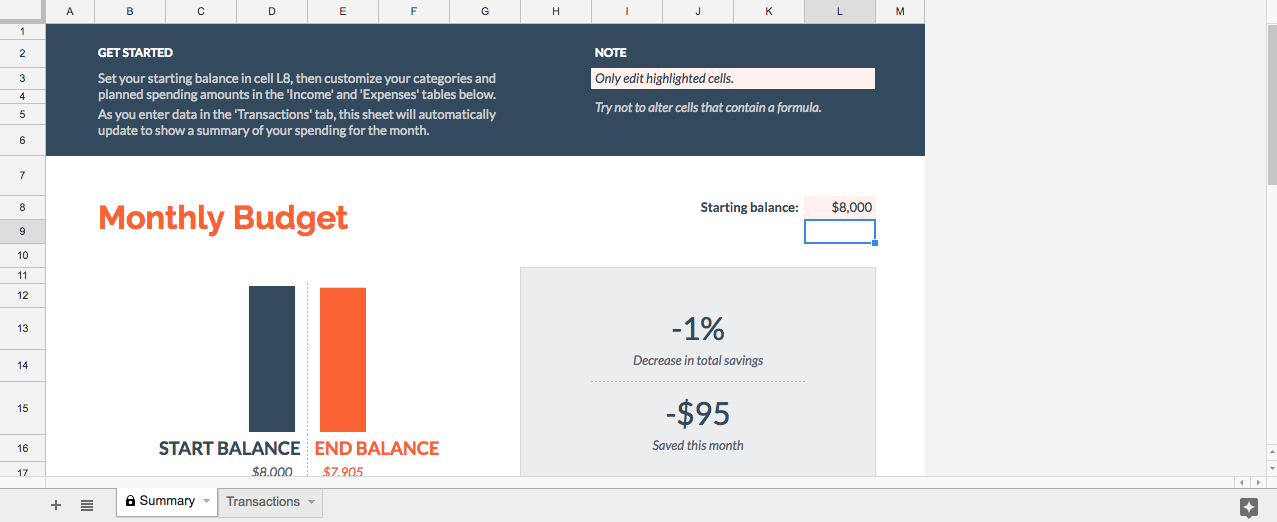
Spreadsheet’s Monthly Budget option looks a bit different, but works generally the same. There are two pages to work with, the first being “Summary”:

Here, you see the change in Starting Balance. Below, you also get a very simple and effective summary of expenses and income.

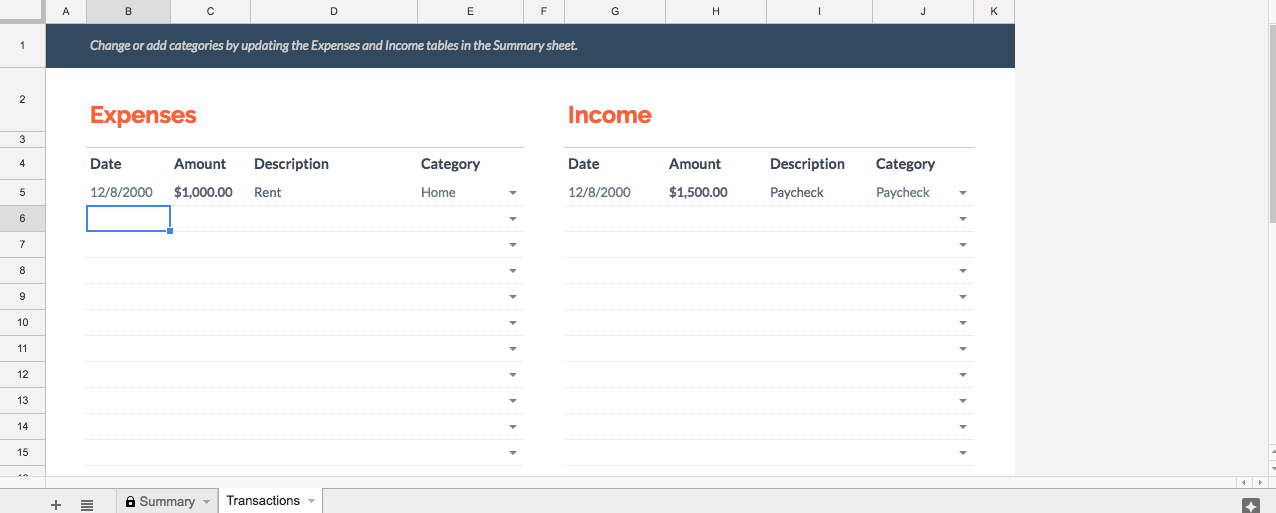
However, you probably should go to the second page, where the transactions are actually entered:

Once all the information is in place, you’re ready to head back to the summary page. As with the Annual Budget, look at what’s happening to the Starting Balance to make sure you’re where you want to be. If not, there’s no shame in that. Just check your transactions and see what can be done: either lowing expenditures or increasing income. You’ll be back on track before you know it!

Option 2: Make Your Own

If you don’t like the templates that Google provides, you are able to create your own. Both Spreadsheets and Drive offer the ability to create a blank spreadsheet document, at which point you can develop to your heart’s content.

Remember, the most important aspects of a budget are: what money is going out, what’s coming in, and what’s the overall change? From there, you can add all sorts of bells, whistles, and analyses.

Last Words

If you create a budget for past events, you may need to get help from your bank to remember what was spent/earned. On the flip side, when you’re creating a budget for future events, avoid this issue by keeping track of spent cash!


Here’s what you need to know before buying a Chromebook

Thinking of simplifying with an inexpensive Chromebook? Here’s what you’ll experience when shifting from a Mac or PC.

Chromebooks have risen to prominence in recent years as a practical and relatively cheap alternative to a PC or MacBook. Those looking for a workhorse to serve the essential functions of a computer will find most, if not all, of their needs met by one of these machines, though cost-reducing trade-offs mean they set themselves apart from their more expensive brethren in a number of ways.

Hardware

Chromebooks, generally speaking, are minimalist in the design of both their hardware and software. They tend to be small — most have screens measuring 13 inches or less — and light. This makes them even more portable than most traditional laptops; even the biggest Chromebooks, such as the 15.6-inch Acer Chromebook 15, weigh less than 4 pounds. Most newer Chromebooks are also built with aluminum, making them surprisingly durable, and their lack of a fan means they run quietly while still remaining cool to the touch.

Many newer models also boast tablet functionality, complete with a touchscreen and 360-degree hinge. This makes the switch from laptop to tablet easy and — since most Android apps are created with touchscreen-based devices in mind— useful for playing games, streaming video or reading.

However, Chromebook hardware can sometimes be of notably lower quality. Although more than functional, touchpads can be overly sensitive, touchscreens can be glitchy and running multiple programs or open Chrome tabs can slow the computer due to the limited RAM available.

Operating system

Like Apple and Microsoft, Google has its own proprietary operating system: Chrome OS, a lightweight, cloud-based system that uses the internet to limit reliance on hardware and streamline the user experience. It’s based around the Chrome web browser, a familiar tool for many, and it’s extremely fast; the system takes only a moment to boot up, and applications open instantly. This makes Chromebooks ideal for those looking to shed the bulkier operating systems offered on PCs and Macs, and the lack of bloatware means the laptop is virtually pristine on first use.

However, the system’s slim profile comes with a few major drawbacks. For starters, most major software developers offer their products for Mac or PC, but few cater to Chromebook users (at least, so far). This means Chromebooks have nothing to offer users looking to install powerful programs. An architect couldn’t install 3D modeling software, for instance, and gamers will need to look elsewhere for a computer to run StarCraft or Fortnite.

Applications

There’s plenty of utility to be found in these slim machines. Because Google’s web browser serves as the nexus for most of the system’s functions, Google Drive and its suite of office apps are easy to access, and the ability to save files for offline use means the Chromebook is much less reliant on an Internet connection than it once was. Naturally, documents are also backed up to the cloud for easy retrieval on other devices.

Access to the Google Play store brings millions of apps and games to the Chromebook, including popular programs like Gmail, Hearthstone, Minecraft, and Microsoft Word. Anything that can be accessed by an Android device can be used on a Chromebook, although few of those programs have been optimized for that purpose, causing fuzzy, unfocused graphics for a number of apps. Netflix, for example, can stream high-definition video but features a decidedly low-definition menu screen. Until more developers optimize their content for use on Chrome OS, only a small number of programs will look as though they belong on a Chromebook screen.


5 of the best laptops for around $400

Budget laptops are easy to find, but you’ll have to make sacrifices.

Depending on your needs, you might want a larger screen, more RAM, a bigger hard drive, or faster processor. If you prioritize a couple of these and accept a reduction in (or loss of) other features, you’ll find a laptop that does what you want at a price that doesn’t break the bank.

We’ve listed five of our favorite budget laptops below. Note these are proper laptops, not Chromebooks. A Chromebook outsources most of its processing power to the cloud through Google’s browser, so you need to be online to get the most out of it. If you’re really tight for cash, they’re a reasonable alternative and cost much less (usually under $250).

For everyone else, here’s our rundown of the best laptops for under $400…

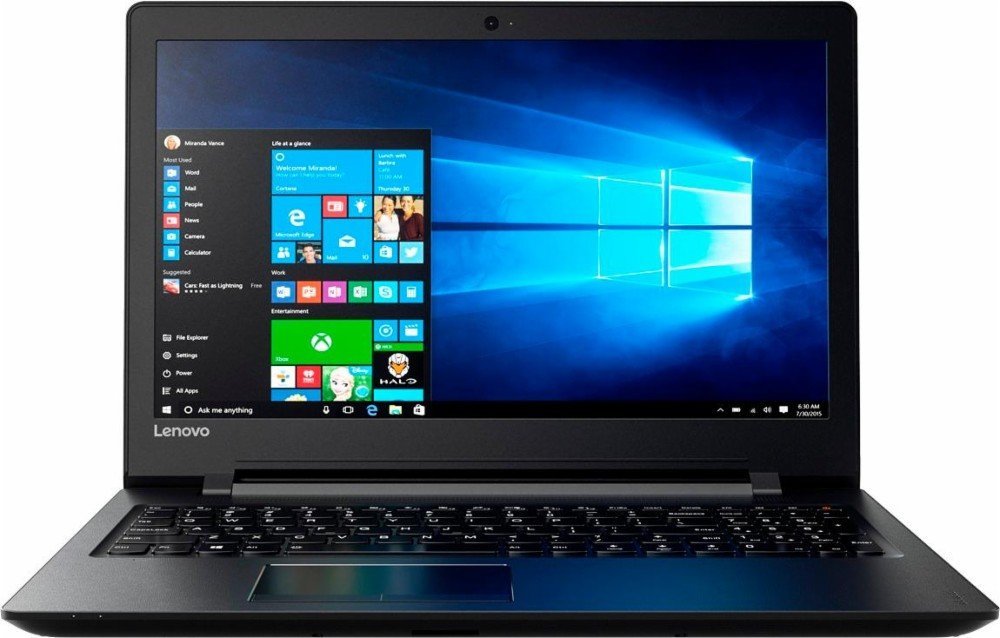
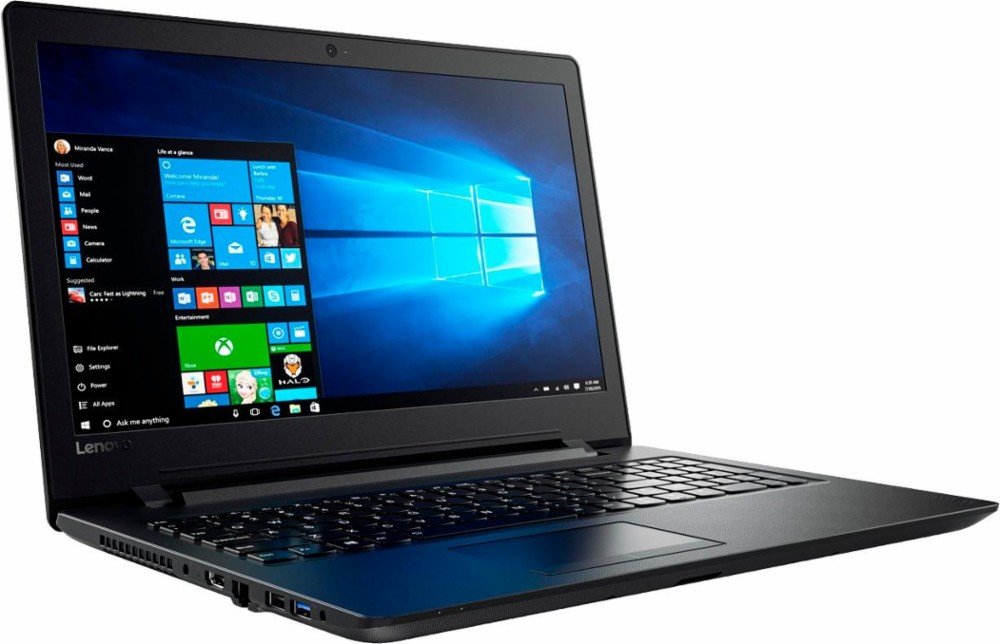
1. Lenovo IdeaPad

The Lenovo IdeaPad is a great all-rounder. From its 15.6” HD screen to its full-size keyboard, the hardware is perfect for business and study. The AMD quad-core A6 processor ramps up to 2.4 GHz – enough for most tasks – and the 500GB HDD will store hundreds of photos and movies.

The standout feature is the 8GB RAM, which ensures you don’t experience slow-down when using several applications at once, or during RAM-heavy tasks like photo and video editing.

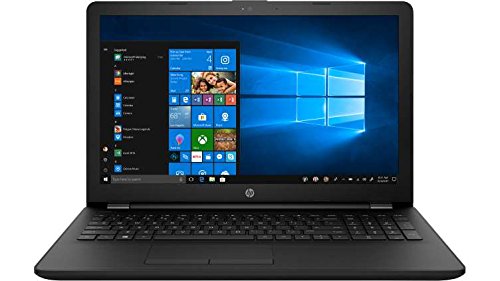
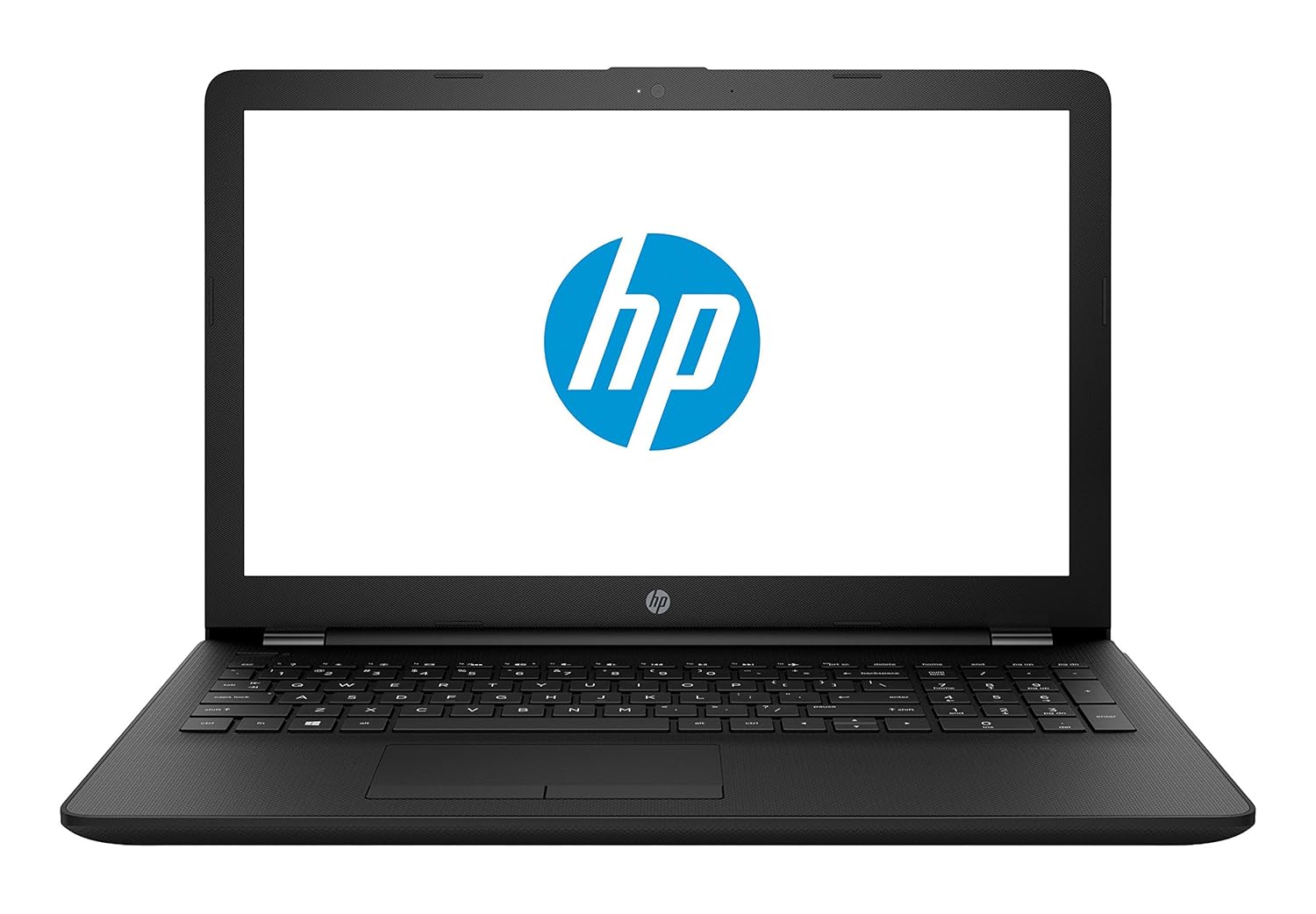
2. HP 15-BS091MS

Not the most inspiring name, but it certainly makes up for it in features. The HP 15 uses an Intel i3 processor clocking 2.4 GHz, has 6GB RAM, and a 15.6” HD LED touchscreen. The standout feature? Its massive 1TB HDD.

If you want to store all your photos and movies, as well as download the latest software without worrying about filling up the HDD, this laptop is for you. The Intel processor is also a bonus – while it clocks the same as the IdeaPad, Intel CPUs are generally considered of better quality, so should run faster.

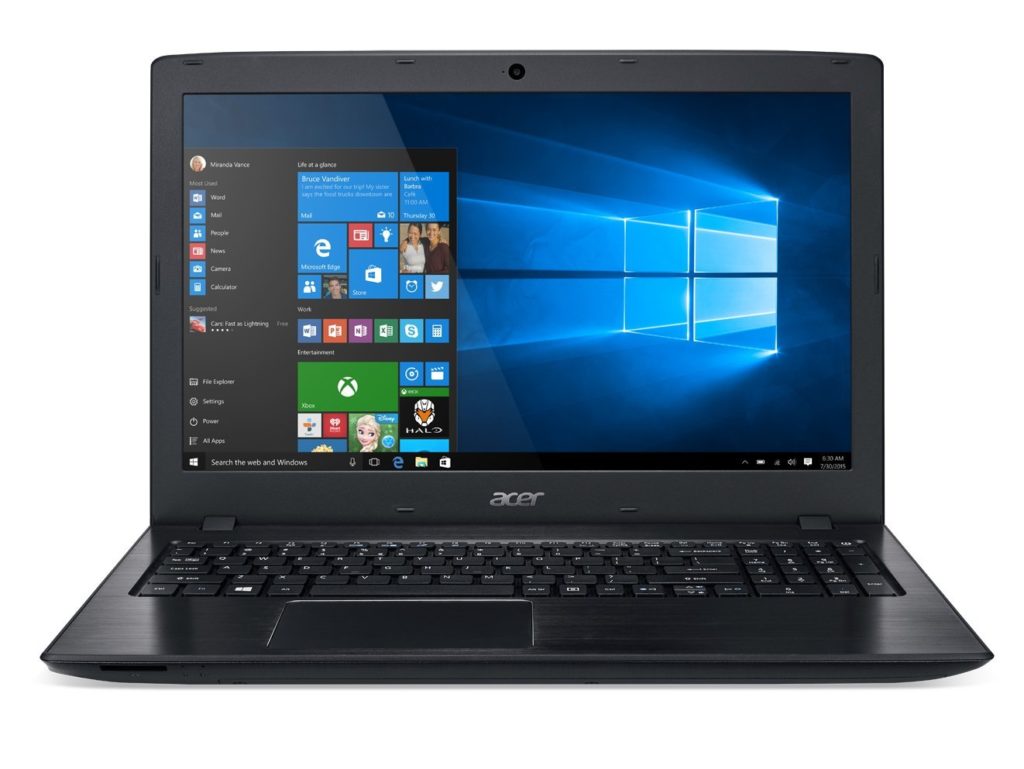
3. Acer E15

The E15 also has a 7th generation Intel i3 processor clocking at 2.4 GHz, but only 4GB RAM. This will make it a bit slow during intensive tasks, but it does make up for it in storage with a 1TB HDD (and you can always add more RAM later).

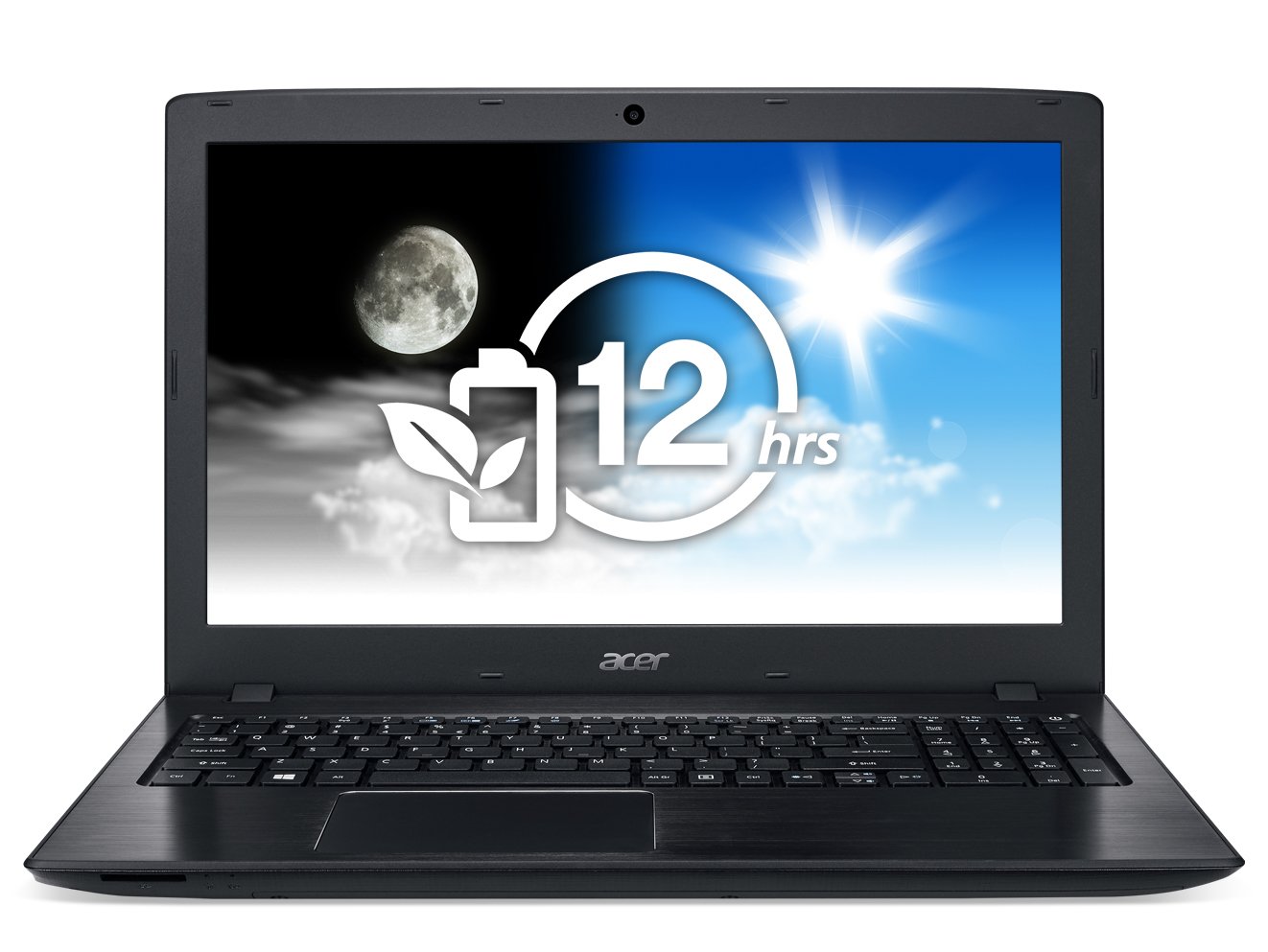
While the screen also measures 15.6”, it enjoys a full HD display of 1920×1080 – perfect for movies and media editing – but no touchscreen. The E15’s standout feature is its 12-hour battery life, the longest of any laptop on this list.

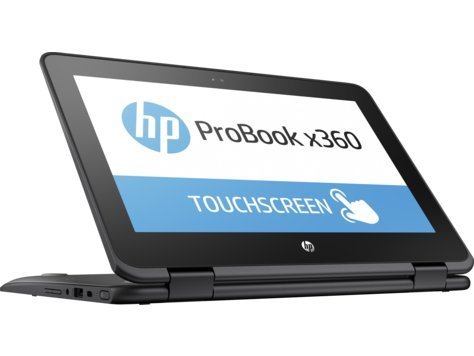
4. HP ProBook x360

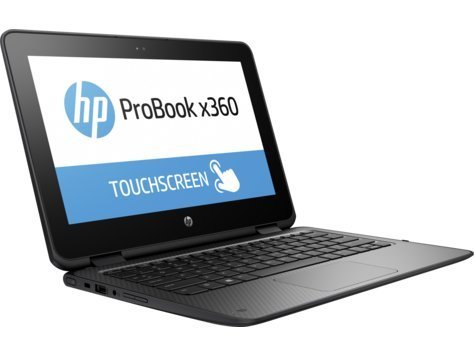
If you’re looking for something to use on the move, the ProBook is worth a look. Its processor is relatively underpowered, but for emails, watching videos, and browsing it’s more than capable. The 11.6” HD touchscreen is small enough for large handbags and small backpacks, and the 360-degree hinges mean you can use it like a tablet. Bear in mind there’s no DVD/CD drive, though.

The 128GB SSD might not hold as much as the others, but SSDs are faster and less prone to failure. There’s no standout feature as such, instead, it’s the perfect blend of size and features , touchscreen, and SSD that make this a great portable machine.

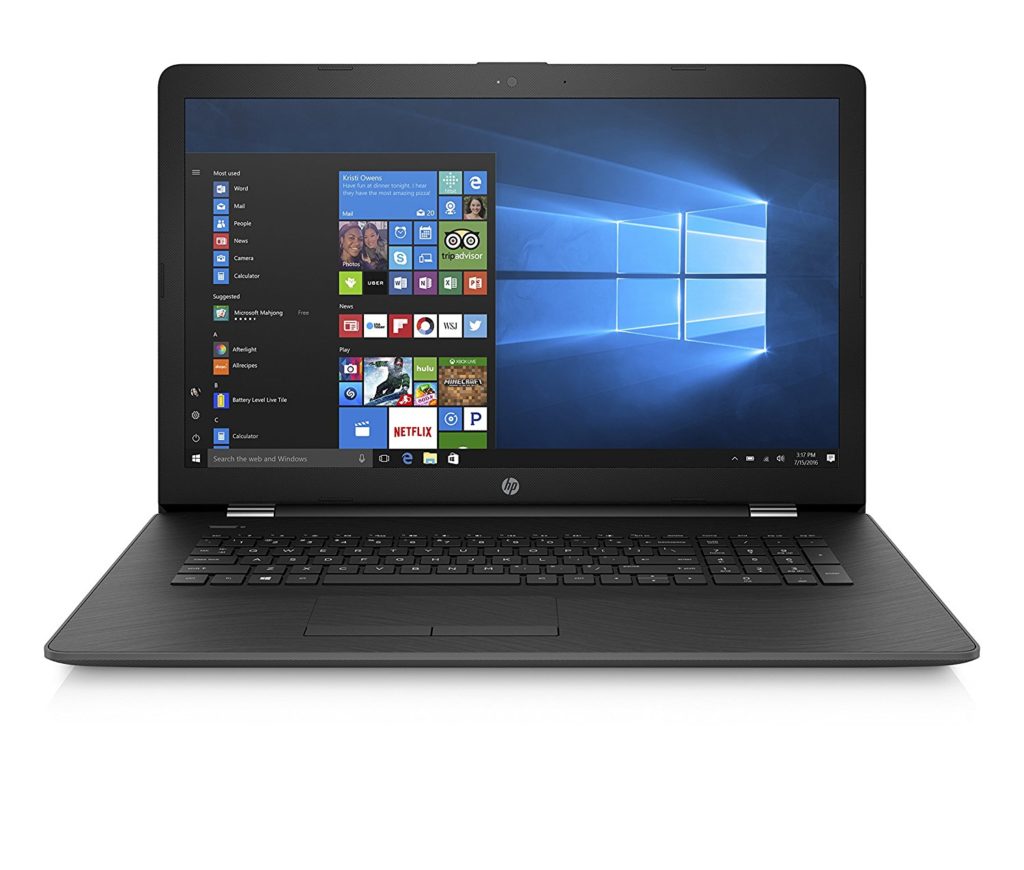
5. HP 17-AK010NR

The HP 17 might not use an Intel processor, but its AMD A9 chip clocks up to 3.6 GHz. That’s easily enough for the toughest computing tasks, but its 4GB RAM does let it down a bit. Thankfully, it’s expandable. There’s a CD/DVD drive, and a decent battery life of 6 hours for video playback. The standout feature here is the 17.3” LED screen.

At 1600×900 its not full HD, but unless you’re a pixel-peeper, you probably won’t notice. It’s higher than 720p, so still a great choice for HD movies, and that extra screen space is perfect for working on two documents at once.  

You don’t have to spend thousands to get a decent laptop. There’s plenty of choice out there for almost any budget, but to avoid disappointment, ensure you know what’s most important to you before clicking that order button. 


This free browser extension will save you money on more than 100 websites

You’re at the grocery store. You’ve got your cart full and are at the checkout lane when suddenly you hear a voice behind you. You turn. To your surprise, you see your friend rushing towards you, waving his arms with a fistful of coupons gripped in his hand.

That friend is Honey.

9

What is it?

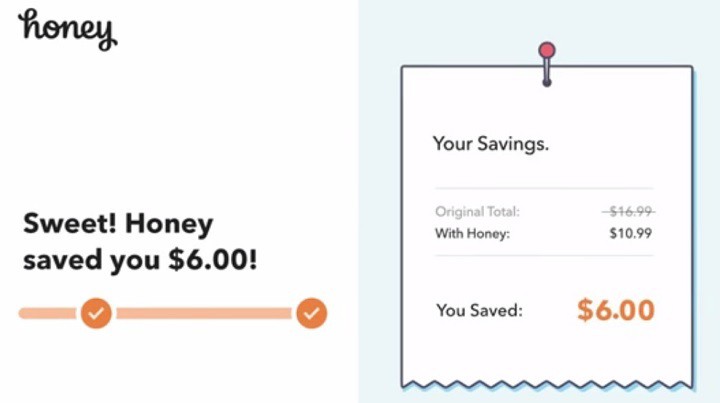
Honey is a free extension for Google Chrome, Safari, Firefox, Opera, and Edge, and its sole job is to find any relevant or applicable coupons for what you’re purchasing. It then tacks them onto your order and saves you the money. Honey looks up those coupons quietly and automatically, and you’ll honestly forget it’s even there until you’re right at checkout.

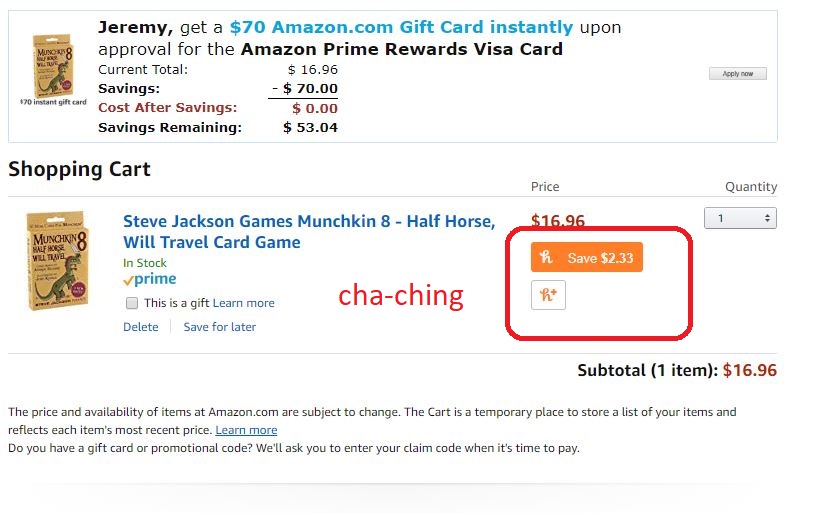
So what’s this like in action? Let’s say, for example, that you’re on Amazon about to order a new deck of cards. Browse until you find it, then add it to your cart as usual.

Amazon.com

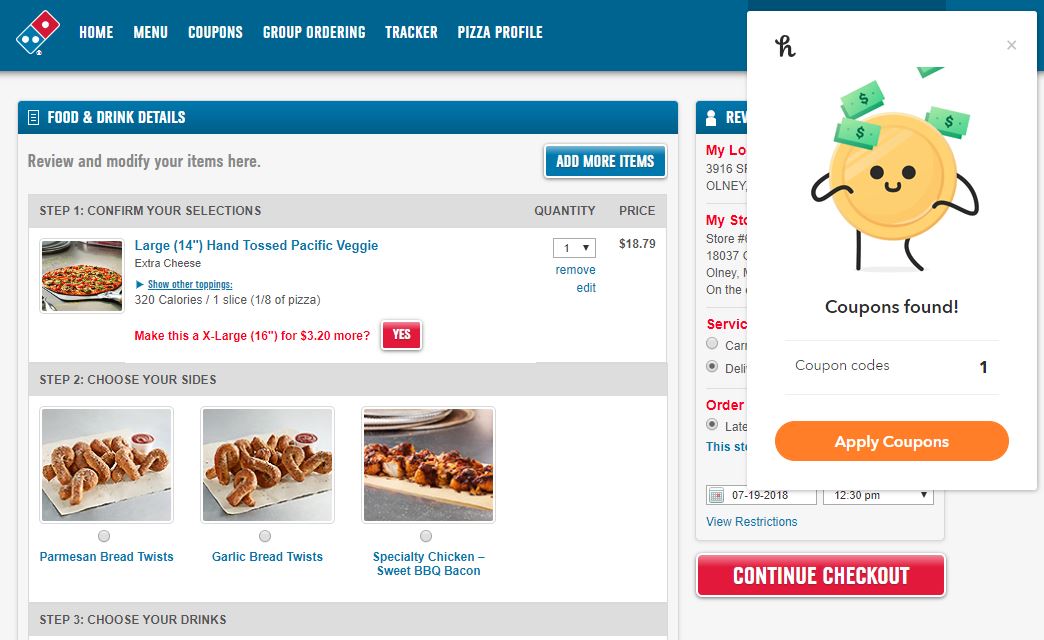
Once you’re in the cart ready to buy them, a little Honey blurb (like the one pictured above) will appear directly below the item’s cost. Honey scans through any potential coupons pertaining to your order, and automatically shaves off the most money it can. Why spend extra money, right?

This isn’t just for Amazon.com either. Honey’s got you covered for discounts with over 100 online stores. That includes things like Gamestop, Safeway, Timex, Motorola, Vonage, even Dominos. If there’s a coupon for it, Honey will find it and instantly apply it.

How can you install it?

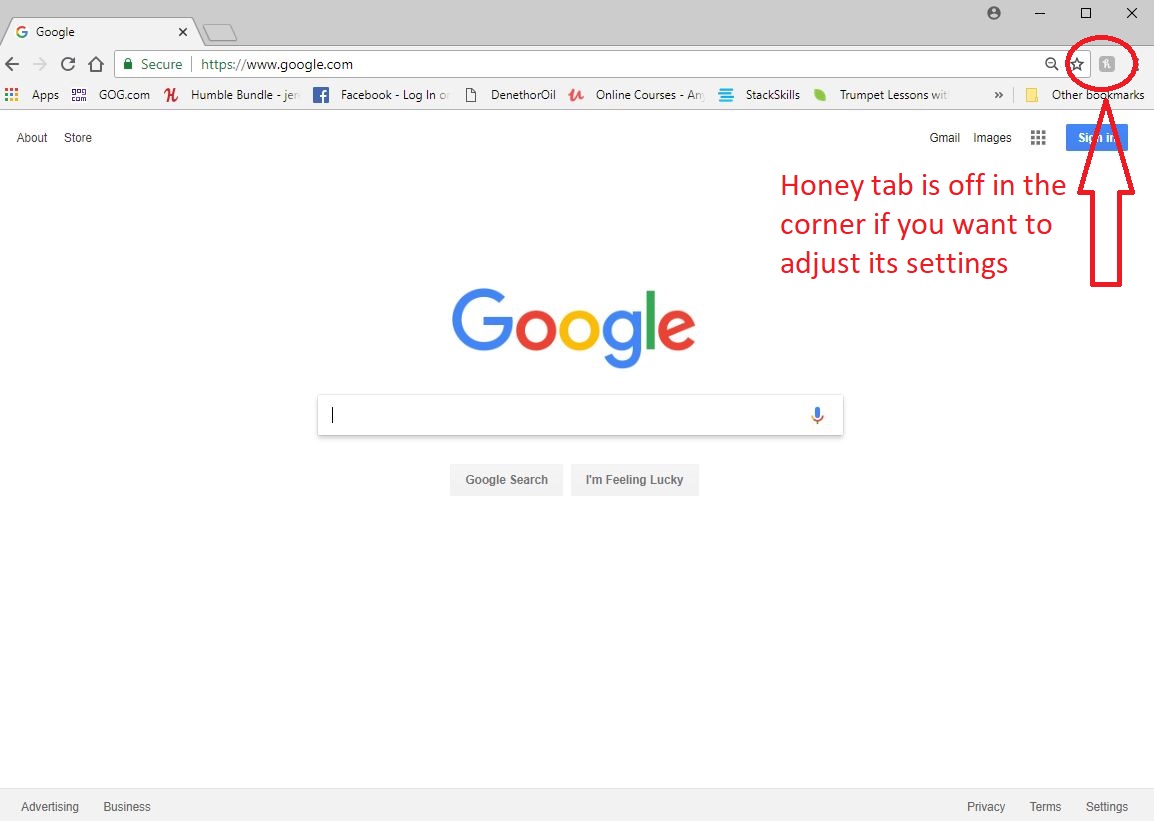
Right here. Go through the quick process and Honey will appear above your bookmarks bar in your Chrome browser. Once you see it, you’re done. If you so choose, you can click on the Honey icon at the corner of your browser if you want to see what stores are trending, or if you want to share codes that you find with the Honey community. Here’s a step by step on how to install the extension:

Once it’s set up, Honey does the work for you from here on out. No need to click anything extra or subscribe or anything.

This sounds too good to be true

If you’re wondering how Honey makes any profit, here’s the short answer: In some cases, when you use a coupon code or earn Honey Gold, the extension earns a small commission from the store you’re buying from. Some of those earnings go to members.

https://windowsreport.com/honey-extension-shopping-coupons-online/

So there you have it. There’s a free extension available right now that’s always looking to save you money. Get out there and download it.


Facebook wants to become your local mall

Facebook loves ads. Ads are what have made Facebook the Silicon Valley giant it is today. Ads pay the bills, and any time Facebook expands into a new space, ads quickly follow. Recently, we’ve seen auto-playing video ads introduced across the Facebook platform and even inserted into your private conversations on Messenger. Well now, Facebook wants its ads to evolve, and is going to use AR (augmented reality) to help them do so. Think Snapchat filters, but for products you might want to buy.

Augmented Reality ads to try on products in Facebook
Soon you’ll be able to try on products in your Facebook News Feed

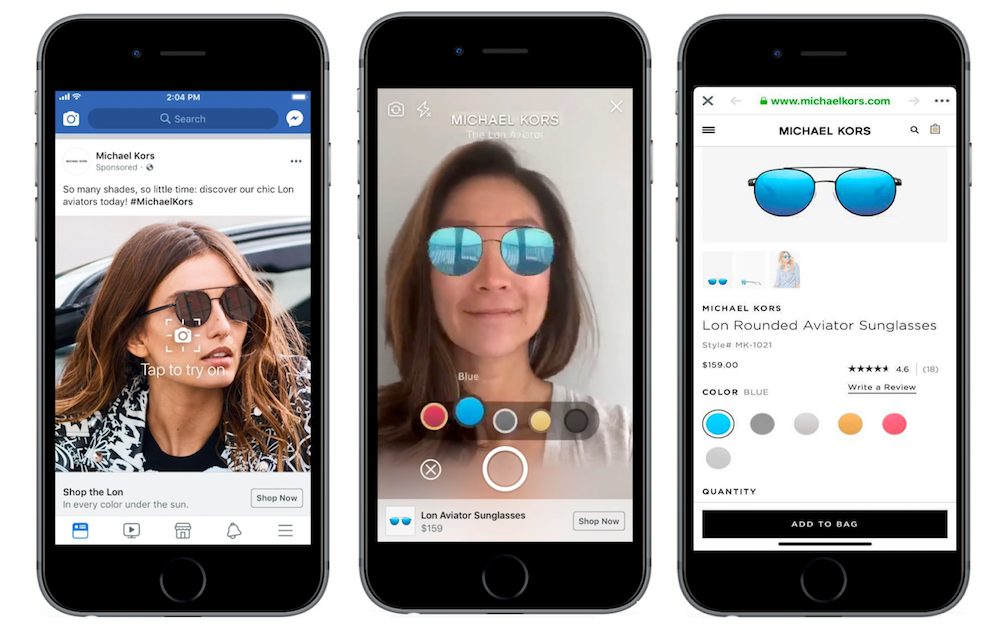
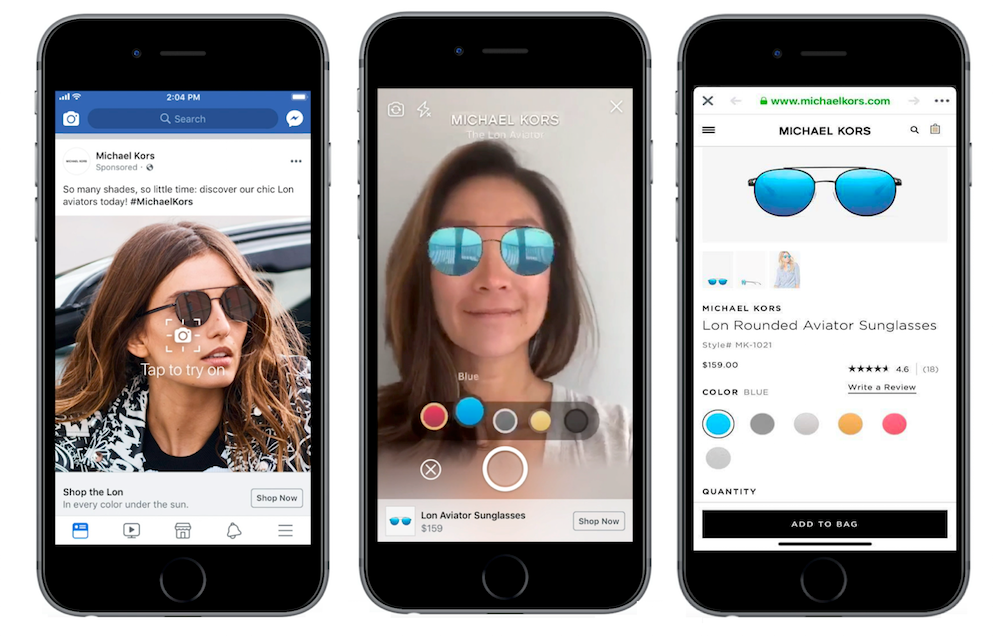
Facebook has already begun testing these new ads in the U.S. with Michael Kors sunglasses. The ads pop up in people’s News Feed and allow users to try on the sunglasses virtually using the AR filters. Other brands that will start implementing AR ads later this summer include Sephora, Bobbi Brown, Pottery Barn, Wayfair, and King.

At a launch event, Facebook’s global marketing solutions vice president of product marketing, Ty Ahmad-Taylor, described the ads as akin to trying on clothes in a store. He said:

“People traditionally have to go into stores to do this… People still really love that experience, but they would like to try it at home.”

He added this new type of ad,

“bridges the gap.”

In short, Facebook wants to become your local mall

These new AR powered ads appear completely normal in the News Feed, but they have a special Tap to try it on button, which opens up the AR features.

Since the Cambridge Analytica scandal has hit Facebook’s credibility hard, the social media company has refrained from moving into new spaces like a Facebook smart speaker, for example. This means Facebook is relying on ad innovation across its current products to maintain growth. As well as these new AR ads, Facebook also announced a new Video Creation Kit for advertisers, which will give advertisers access to a much more engaging template for ads on mobile.

These new ads seem fun and could be very effective. Do you think you’ll be persuaded to try something if you see the “Tap to try it on” button in the future?

(function(d,s,id){var js,fjs=d.getElementsByTagName(s)[0];if(d.getElementById(id))return;js=d.createElement(s);js.id=id;js.src=’https://embed.playbuzz.com/sdk.js’;fjs.parentNode.insertBefore(js,fjs);}(document,’script’,’playbuzz-sdk’));

How Overwatch raised a jaw-dropping amount of money for breast cancer research

Over the past couple of weeks, Blizzard’s Pink Mercy campaign has raised over $12.7 million for breast cancer research. Donations were sent to the Breast Cancer Research Foundation in what was the largest corporate donation in the BCRF’s 25-year history. These millions will fund the BCRF’s research into treatment, prevention methods, and the search for a cure for breast cancer.

Blizzard ran the campaign through its hit class shooter Overwatch. For $15, players could purchase an exclusive new pink skin for the hero Mercy, the sales of which went directly to the BRCF. In Overwatch, Mercy is far and away most popular healer in the game, making her thematically fitting for a breast cancer awareness skin.

The runaway success of this campaign is a testament to the generosity of the Overwatch fanbase. For more information on the Breast Cancer Research Foundation, you can check out their website here.

Overwatch download now
8