The best free music production software

These are all the essential programs a DJ needs to produce and play music.

Best audio editing software

These days your laptop can turn you into a superstar. There are people out there who travel the world with nothing but their laptops, plug them into the sound systems wherever they end up, and then blast out concerts to thousands of fans. I am of course talking about superstar DJs.

The best DJs hunt out all the best music and then play right tracks at the exact right moment for the crowd to hear them . It sounds like an easy job, but it’s not. On top of that, if you want to become a superstar DJ who tours the world, there is something else you’ll have to master; music production. Unsurprisingly, a LOT of people want to be superstar DJs, which makes it very hard to stand out the crowd. The best way you prove yourself to be special, however, is by making your own songs to play in your own sets and for other DJs to play in theirs. Yep, music production is an integral part of the journey you take towards becoming an international superstar DJ. It’s time to become a music maker.

Music production software can come with a hefty price tag though, and if you’re just starting out, you might well baulk at the cost. This is where Softonic comes in. We’re here to start you on your path to stardom by walking you through some of the best free music production software options.

Free music making software

Audacity
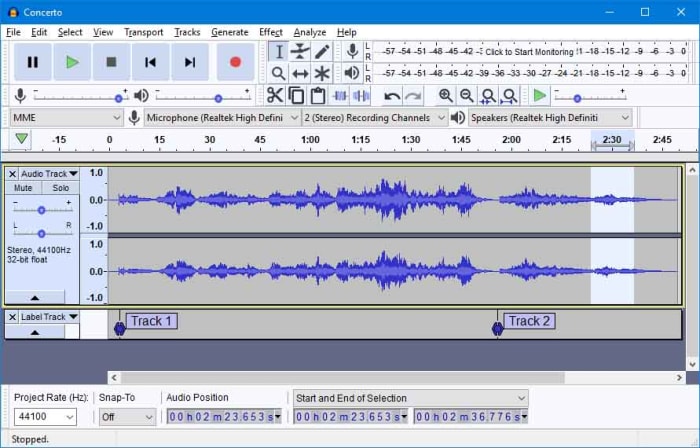
Audacity

Audacity works on Windows, MacOS, and GNU/Linux and is a marvel of free music software. Like all the best pro-grade free programs, such as the image editor GIMP, Audacity is open source software, which means users and developers can add features to the main product or iron out any bugs they find.

Audacity has a lot of features that put it alongside some of the more expensive premium options out there. With Audacity you can easily perform live audio recording, record sounds coming from your PC, convert music, edit, cut, copy, and splice tracks of many different audio formats, and download and install plugins to add new features as and when you realize you need them. Audacity offers advanced audio editing software while, somewhat surprisingly, remaining very simple to use.

7

Mixxx

Mixxx

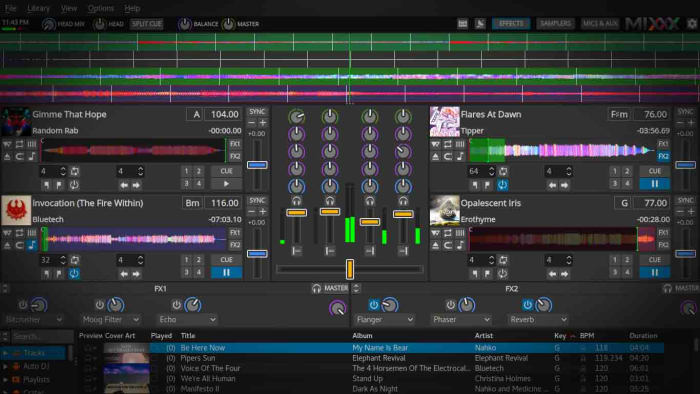
Mixxx is a fantastic piece of free software for all budding DJs. As the name suggests it is more for DJing and mixing than it is for producing music but it still an important tool for any new DJ to have. Another free and Open Source program, Mixxx is available on Windows and Mac OS X and has quite a few features that’ll make DJs happy. It integrates well with external DJ controller decks offering a complete digital audio workstation, has beats per minute (BPM) detection and auto-sync, and will even integrate with iTunes. You can broadcast your mixes live, save them as a variety audio formats or simply blast them out of your speakers for people to dance to. Mixxx is a lot of fun.

Mixxx Download now
8

LMMS

LMMS

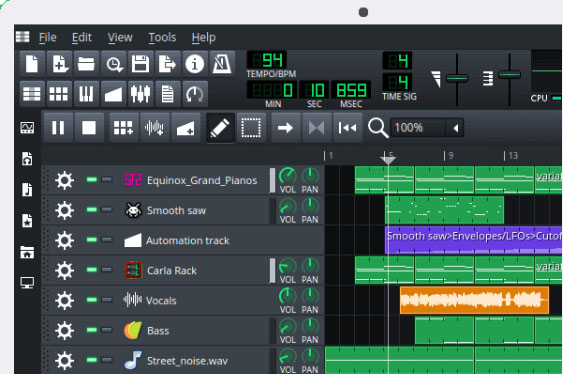
Another advanced, cross-platform, and free open-source audio production suite you can download on Windows, Mac, or Linux is LMMS. It comes with a lot of cool features that will have you creating beats in no time like a built-in Piano roll that you can connect to a MIDI controller, 64 FX mixing channels, and a specific beat and bassline editor.

LMMS loosely stands for Let’s Make Music and that is exactly what the program is designed to do, help you make music. The program works well with external instruments and samples, and, like Audacity, has a lot of plugins you can use to augment your music production experience. You won’t be able to believe that this program is free when you download it.

7

MuLab DAW

MuLab

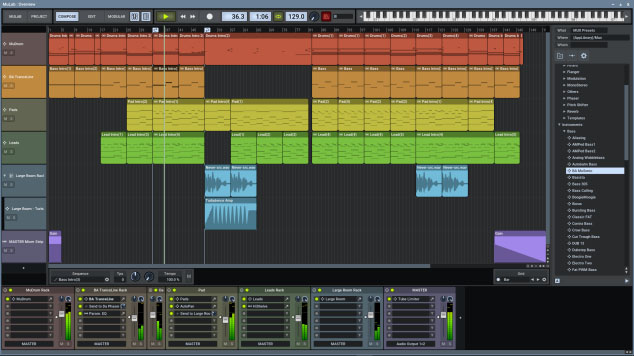
MuLab is chock full of high-end audio production and editing tools that will help you get that song you’re coming up with out of your head and into your speakers. Looking at a bit like Ableton Live and available on Windows and Mac, Mulab is a fantastic music creation program. It has over 300 selected waveforms with its superfast oscillators, multi-track support, flexible track and sub-track support, an easy to use and understand modular architecture, and automatic mono/stereo handling.

The features we’ve outlined above only cover a small portion of those offered by the free version of Mulab, which will give users access to professional-level music production facilities. With lots more features like synthesizer support, MIDI player plugin support, and even a synth effect builder this program has it all. Download it now to see just how much it has to offer.

MuLab Download now
8

GarageBand

GarageBand

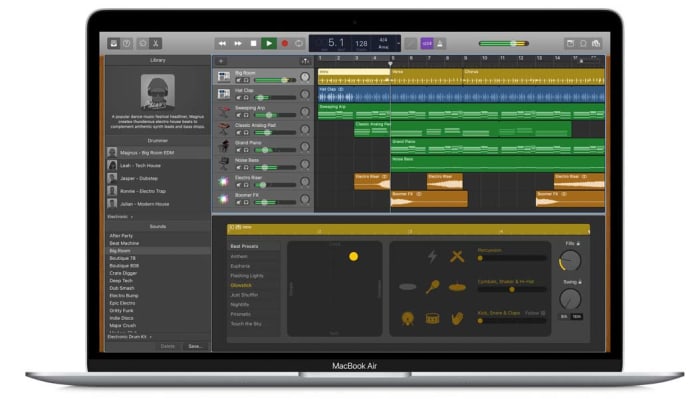
GarageBand for Mac has some really incredible pro tools that you just wouldn’t expect a corporate giant like Apple to give away for free. Many famous artists like Rihanna and Justice have created massive global hits using GarageBand, so if you have a Mac, this could be the best option for you.

GarageBand gives you the ability to create songs with up to 255 audio tracks and offers very well produced drum machine grooves to add to your songs and give them a beat. Other cool features include multi-take recording so that you always end up saving your best take and Multi-Touch support on iPad, which makes it possible to wirelessly play GarageBand virtual instruments on your Mac. This is the most user-friendly app on our list too.

GarageBand Download now
7
Wrapping up

We’ve brought you five essential apps for all budding young DJs and music producers. If you want to make a name for yourself, you’re going to have to make yourself stand out and there is no better way to do that than making your own music and having other DJs play it at their parties.

All of the programs we’ve featured today offer complete experiences that rival that offered by the premium music production apps that cost many hundreds of dollars each. With most of these apps, however, there is a steep learning curve so you should take that into account if you’re just getting started. There’s no point having massive and fully-featured music production suites on your PC, Mac, or Linux, if you don’t know how to use them. Many of these apps come with extensive online forum support so check out the forums for user guides. You’ll also be able to find extensive support on YouTube too.
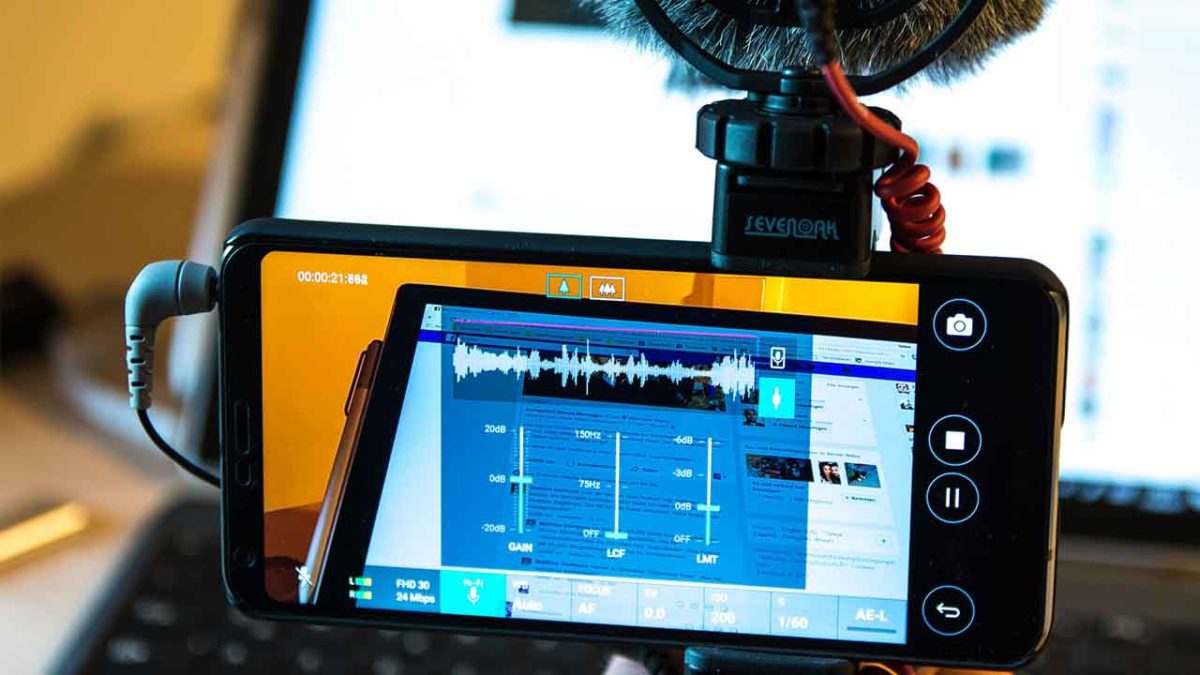
Best audio editing apps for Android

These are all the best audio editing apps available on Android smartphone

Best audio editing tools for Android

Modern phones have modern apps that can do things that just 10 years ago you’d never have imagined a phone could do.  You can now live a complete modern life without having to own a Windows PC or an Apple Mac. With smartphones becoming more and more powerful, apps can do more and more things. There are credible mobile image editing apps; you can edit video on your phone; and you can even run a complete office with productivity apps, calendars, and to-do lists, social media managing apps, and a plethora of team communication apps.

Today, we’re going to look at all the best audio editing apps you can get for your Android smartphone. With these apps, you’ll be able to produce your own music, remix your favorite classic track, make your own ringtones, or simply stitch together some audio clips into a coherent podcast. Without further ado then, these are the best audio editors and audio recorders for Android.

The best audio editing apps for Android

MP3 Cutter

MP3 Cutter

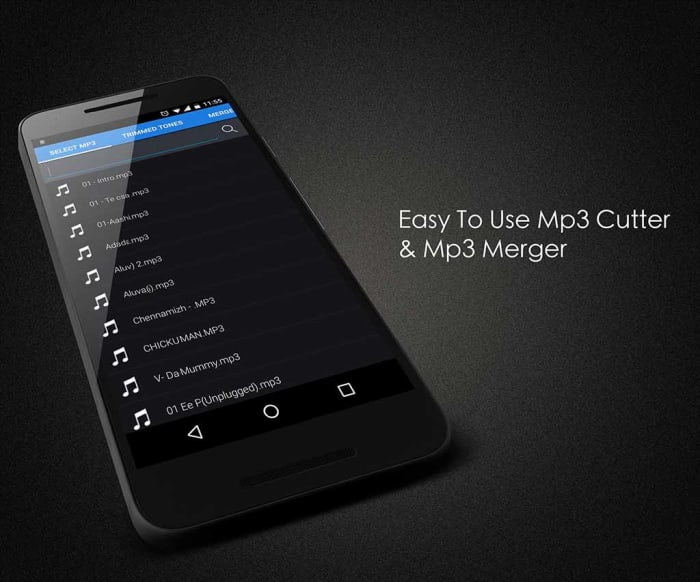
We’re starting off with a great app for stitching together your podcasts or for other basic audio editing jobs. MP3 Cutter makes it easy for you to trim your audio tracks, splice them, cut them and put them all back together again in whichever order you see fit. It works great with voice tracks as well as music. You’ll also be able to save your completed audio tracks in various file formats and even set them as your ringtone from within the app.

MP3 Cutter is a free app, paid for by ads. It does, however, offer an in-app purchase costing $1.99 that will remove all the ads.

MP3 Cutter Download now
7

WavePad Audio Editor

WavePad Audio Editor

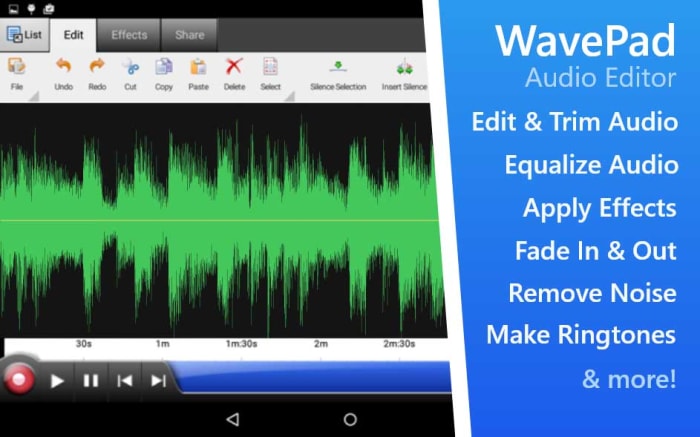
Another free audio editing app for Android is the WavePad Audio Editor. WavePad is a great editor for amateurs and professionals alike giving users the ability to stitch together many different types of audio files and then save them as a single format. You can use WavePad to record your sounds, add sound effects, and then save to the format of your choice. The app also has good sharing features, which will be good for anybody needing to submit their work or upload it to a third-party website.

WavePad is a free app but you’ll need to pay to access some premium features.

WavePad Editor Download now
8

Voice Pro

Voice Pro

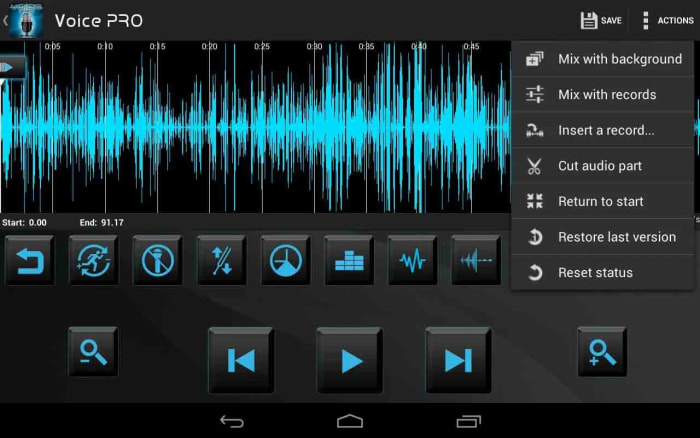
Voice Pro is another excellent app that gives you access to high-quality audio recording features. Voice Pro users will get their hands on a lot of audio editing tools including background music tracks, audio encryption, up to 100 different audio formats to save your work as, and solid mixing capabilities. Voice Pro doesn’t just record audio either, it also has a transcription feature, but we’ve found it doesn’t work as well as some other transcription apps.

Although Voice Pro is one of the most feature-rich apps on our list, unfortunately, it comes with a price tag to match. To get your hands on this professional audio editing and voice recording app will set you back $9.99.

Voice Pro Download now
8

Lexis Audio Editor

Lexis Audio Editor

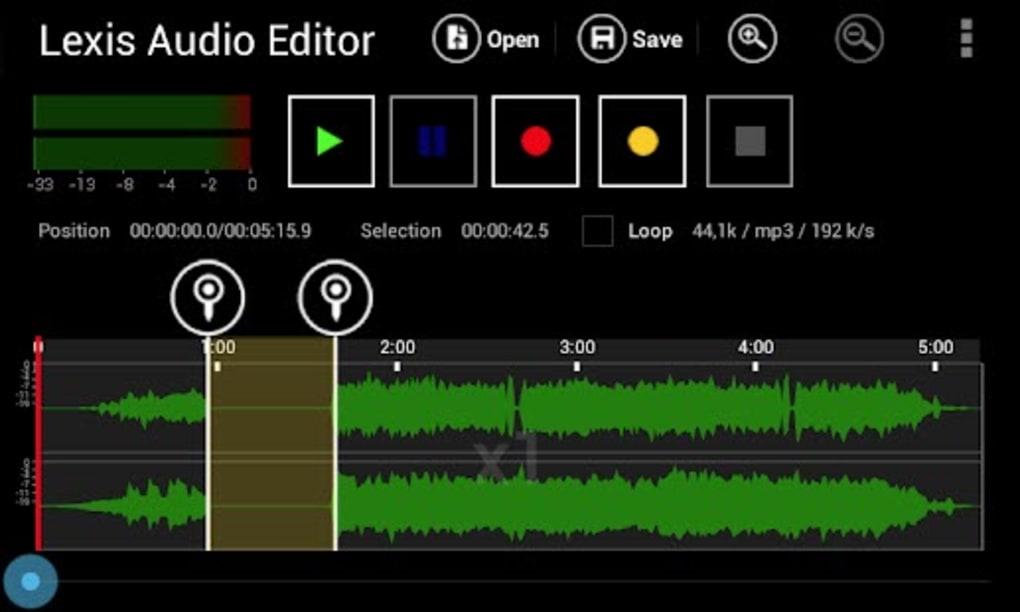
Lexis offers audio editing software available on Windows, Google Android, and iOS iPhone and iPad. The Android app offers some great audio editing capabilities and a nice user-friendly interface. This is a great app for beginners but also has plenty of tools to get more complex jobs done too. Lexis allows you to record quickly and simply, and then perform many editing tasks on your track. It has noise reduction features, tempo change, speed and pitch control, and many other useful features like normalizing and fades.

Lexis Audio Editor Download now
8

Music Maker Jam

Music Maker Jam

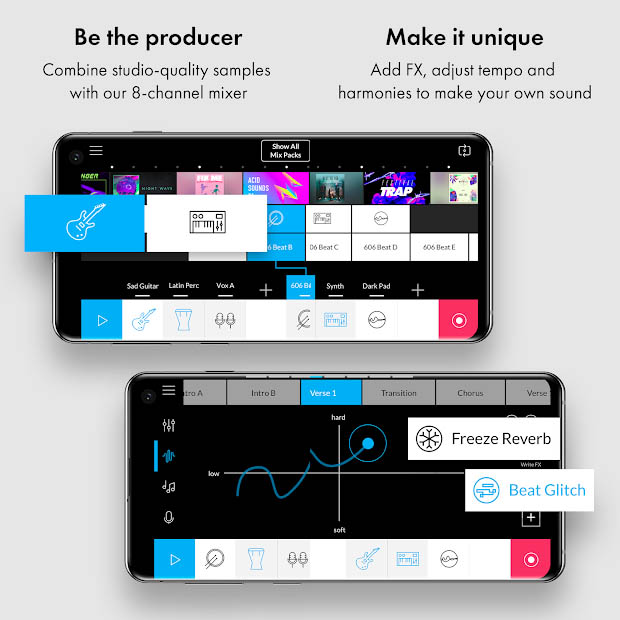
Music Maker Jam is another app that is available on Windows as well as having mobile apps for both iPhone and Android. As the name suggests, this app is a music editor much more geared towards producing music files as opposed to podcasts or interviews. The app gives eight multitrack channels for you to build your track with and offers many different sample sounds and instrument tracks for you to include in your hits.

Again, like with most of the other free apps in this list, Music Maker Jam hides some features behind in-app purchases and will show ads to all free users.

Music Maker Jam Download now
8

Audio Evolution Mobile Studio

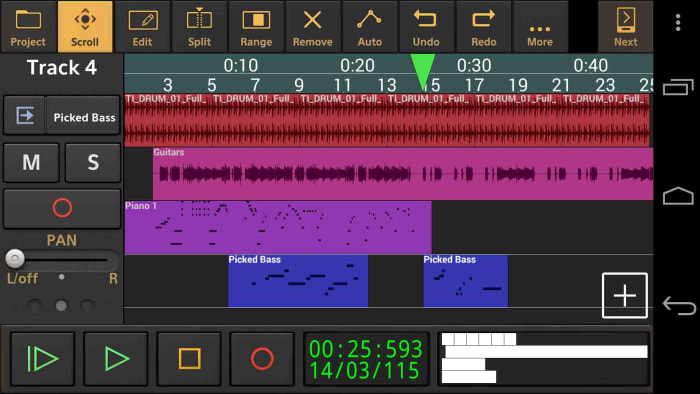
Despite how amazing our smartphones are these days they still offer a certain handicap over a full-sized laptop or Mac. That handicap is the size as it can be a lot fiddlier and frustrating trying to edit or control your audio tracks on a tiny screen. This is where Audio Evolution Mobile Studio comes in for Android users. It supports over 250 USB audio/MIDI interfaces meaning a DJ could take their midi controller with them and then DJ full gigs from their Android phone or tablet, knowing they’d be able to do everything they could on their laptop or Mac. It is also a great app recording audio on an Android device and will also help you edit audio files. It offers most of the features you can find elsewhere on this list. This app should definitely be taken seriously.

Audio Evolution Mobile Studio is a free app, but some of the more advanced features will require in-app purchases.

Audio Evolution Mobile Studio Download now
8

Media Converter

Media Converter

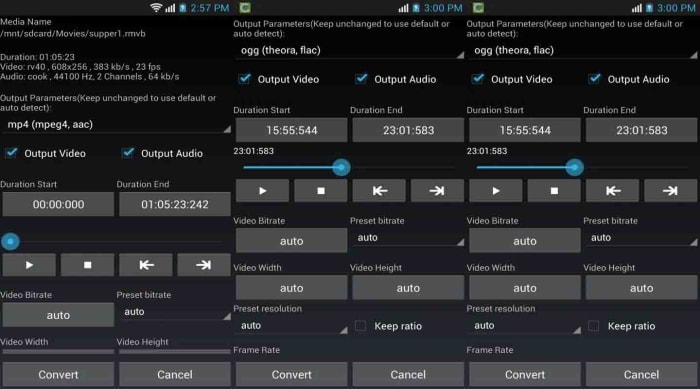
The final app on today’s list strips away all the bells and whistles you get with the more advanced apps featured above. Sometimes you don’t need to edit your tracks, trim them, splice them together, or fade in or out to a tempo change. Sometimes you don’t even need to stitch two different tracks together and you just need a simple app for a simple task. That is exactly what Media Converter is. If all you need to do is convert your audio file to upload it to a certain social network, website, or audio player then Media Converter is the app for you. It still has simple audio clipping features, but the main feature is converting your media files into various formats. It can also save your audio files as ringtones making it a great ringtone maker, which is probably the main reason you wanted to read this article anyway.

Media Converter is a free app.

Media Converter Download now
9

Best free resources for Photoshop

Check out this guide and introduction to all the best Adobe Photoshop resources available on the internet.

The best free Photoshop resources

Photoshop is the best photo editing program there is. It has so many tools and features that imagination is the only thing limiting what graphic designers and high resolution photographers can do with the Adobe program. Photoshop is a big beast though. If you don’t know what you’re doing, it is just a dark screen with lots of buttons and toolbars. It can be hard to know where to start, especially if you don’t know the difference between a PNG file and a JPG.

There are tools and resources out there though, to help you get to grips with all that Photoshop has to offer and teach you how to do whatever you need to get done. Furthermore, Photoshop is a customizable piece of software, which means you can add extra Photoshop actions to the mix by downloading plugins. Many of these are freebies too. This is why today we’re walking you through a roundup of all the best free design resources for Photoshop.

Adobe Photoshop CC Download Now ►
7

Free resources for Photoshop

Official Photoshop resources

Adobe Photoshop user guide

You don’t buy Photoshop; you subscribe to it. You pay for it each month and then use it as a service. Some people will complain about this and say it is expensive but for web designers who subscribe this gives two beneficial outcomes. The first is that Adobe will regularly update Photoshop and the second is that Adobe offers free access to a huge amount of Photoshop step-by-step guides covering every aspect of the massive image editing program.

Adobe TV

Adobe TV

As well as an extensive user guide that will walk you through how to use every tool on the program and introduce you to a number of key photo editing and graphic design techniques, Adobe will also give you access to Adobe TV. Adobe TV has plenty of videos, which will show you many different tricks and tips and also TV shows and webinars walking you through many different Adobe design products.

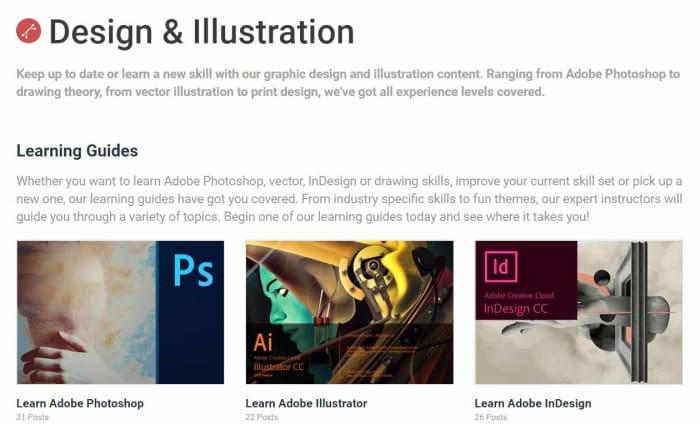
Best places for Photoshop tutorials

Before you do anything, you’re going to need to learn how to use Adobe Photoshop. This is where Photoshop guides and tutorials some in. You can teach yourself how to do anything on Photoshop with the right guide.

PSDFAN

PSDFAN has a wide variety of easily searchable Photoshop tutorials from the very basics all the way up to advanced photo editing techniques including light manipulation and blended multi-exposure shots. This is a very cool place to start.

Design tuts+

The envano tuts+ website offers a wide variety of different design focused tutorials. Many of these are Photoshop tutorials, including their very handy Photoshop in 60 Seconds series, which gives quick guides on many Photoshop tools. You’ll also find guides here for other Adobe programs too like Illustrator and InDesign.

Design Tuts+

PSHero

PSHero has many different Photoshop tutorials that’ll help you find your feet and then develop your skills all the way up to a professional level. The tutorials are split into four categories: Graphic Design, Photo Effects, Text Effects, and Tips & Tricks.

Best places for Photoshop tools (Brushes, Plugins, and Textures)

As well as the extensive set of design tools that come pre-loaded on Photoshop, you can download specialized tools for your particular needs. These include specialized brushes, textures, and plugins, which could be anything from tools to shave a few seconds off your workflow to more advanced versions of standard Photoshop tools.

BrushKing

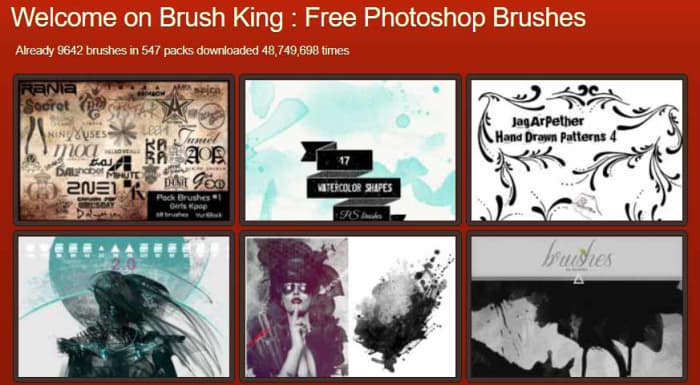
BrushKing is a Photoshop brush marketplace where you can choose between thousands of free Photoshop brushes available via hundreds of different brush sets. You will have to pay for some of these but fortunately, most are available for free.

Brush King

BrushLovers

Another excellent Photoshop brush marketplace worth your attention is BrushLovers. You’ll find all sorts of different types of high-quality Photoshop brushes here and they’ll be easy to find too, due to BrushLovers’ impressive advanced search features.

CC-Extensions

CC-Extensions have brought to the internet a variety of different plugins that add more high-end and pro-level features to Photoshop. These are mostly for experts only but if you’re at that level, they’ll add some serious swagger to your game.

Digital Anarchy

Digital Anarchy has a lot more to offer than just its Photoshop plugins but its cool list of add-ons is definitely worth a look. You’ll find tools here to help you design backdrops for your images, draw up borders, and more.

DinPattern

DinPattern

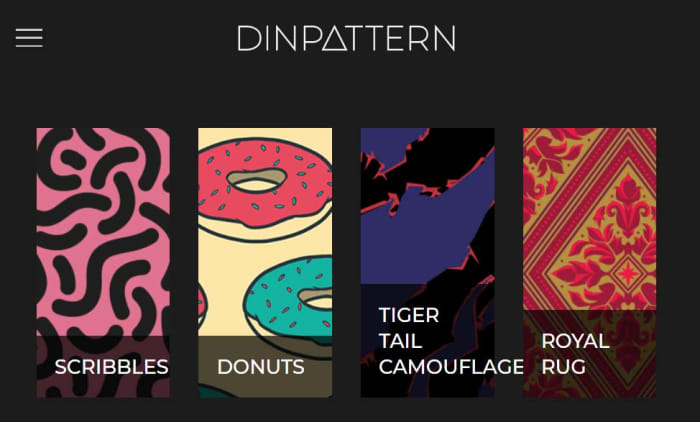
DinPattern offers Photoshop users almost endless libraries of patterns, textures, wallpapers, and backgrounds. This is your one-stop-shop for all your Photoshop patterns and texture needs.

Best place to find Free PSD files and Photoshop templates

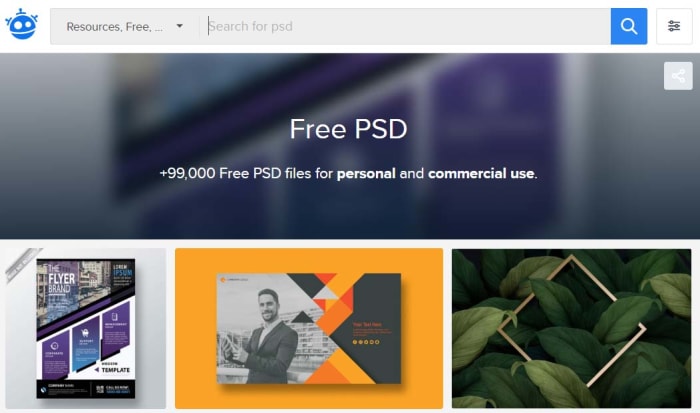
There are a LOT of places online where you can find Photoshop templates. The best of these comes in the form of the standard Photoshop file. PSDs are the format type Adobe developed for Photoshop. They save all the composite parts of a photo editing project so you can stop what you’re doing and then pick up exactly where you left off later on. This also means that you can download PSD templates that have images already built, complete with individual layer styles that you can edit to make the overall image your own.

Freepik

Freepik

The best place to find thousands of these ready-made PSD file templates is Freepik, which has almost 100,000 files for you to browse through and then download for free. There are all sorts here too including t-shirt mock-ups, business cards, flyers, and even smartphone templates. Keep an eye out, however, as sometimes you might need to attribute the author if you’re going to use the file publicly or for commercial purposes.

Wrapping up

Adobe Photoshop really is its own world. From the first second you launch it you realize that there is a lot to get lost in. To put it bluntly, you need Adobe’s extensive tutorials and video guides and then once you’ve familiarized yourself with all the tools the design suite offers, you’ll need the more creative tutorials we’ve offered too. Once you know what you’re doing though, there is still more exploring to do with all of the potential templates, textures, brushes and plugin-free downloads available for Photoshop. We’ve shown you some of the best but if you want to go deeper, you could see this guide as just the start.

Top photo editing apps for your phone

These are the best mobile photo editing apps for Apple iPhones and iPads, and Android smartphones and tablets.

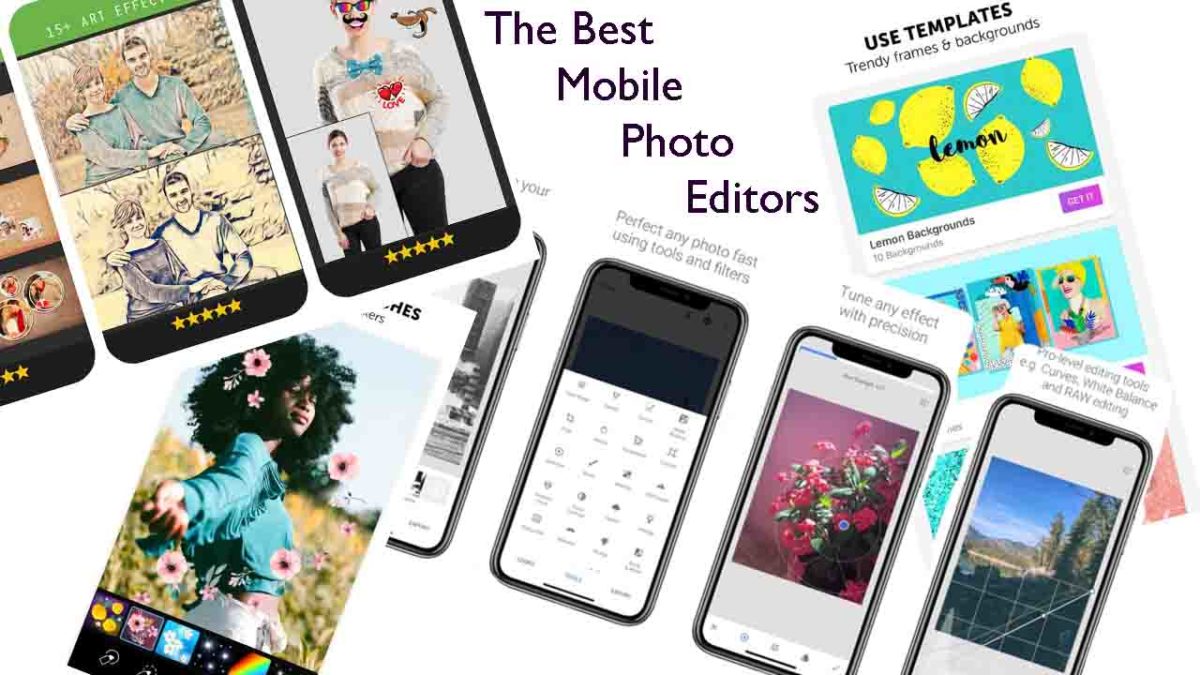
The best mobile photo editors

These days the camera on your smartphone is one of its most important features. Phone manufacturers have been falling over themselves for years now to bring us the best cameras with the most impressive bells and whistles. We’ve seen Google pumping crazy AI features into its Pixel phones and Huawei adding privacy-busting 50X zoom to its P30 Pro. Most phones now, even budget offerings, have two or sometimes even three lens camera app systems as well as a separate front-facing camera for selfies and video calls.

It isn’t just about taking photos though, oh no. These days, if you want your photos to stand out on social media, you need to optimize your photos once you’ve snapped them. That means editing them to make sure they look as good as they possibly can. Fortunately, however, just as the hardware manufacturers have been working overtime on their cameras, software developers have been working hard on photo-editing apps.

Let’s look at the best photo editing apps available for Android on the Google Play Store and iPhone on the Apple App Store.

Best photo editor apps

PIXLR

Pixlr

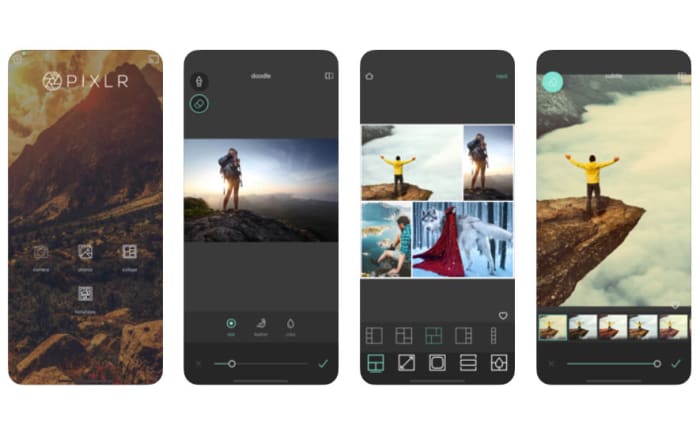
Pixlr is a very well-regarded browser-based photo editor that you can use on Linux, Windows, or Apple Mac via a modern browser like Google Chrome or Mozilla Firefox. Pixlr also has rather impressive mobile apps for Android devices and iOS iPhones and iPads. The mobile photo apps are designed for quick edits and retouching and make it very easy for users to get great results. There are plenty of filters and features here for you to play around with and once you’re done, the Pixlr apps make it really easy to share your creations via integrated social network connectivity.

If you try out the Pixlr mobile apps and like them, you should definitely try the browser-based app, which actually offers a fairly decent and free alternative to Adobe Photoshop.

PIXLR Download now
8

PicsArt Photo Studio

PicsArt

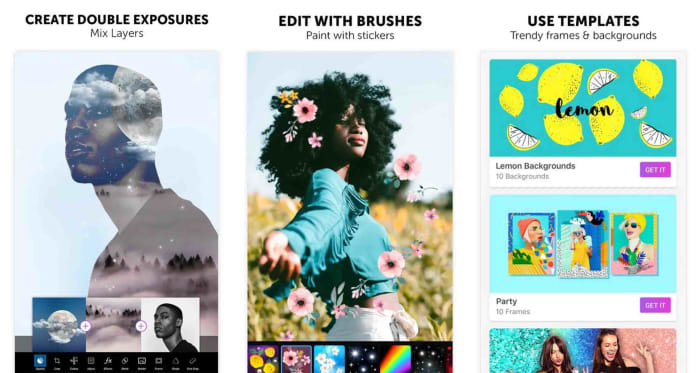
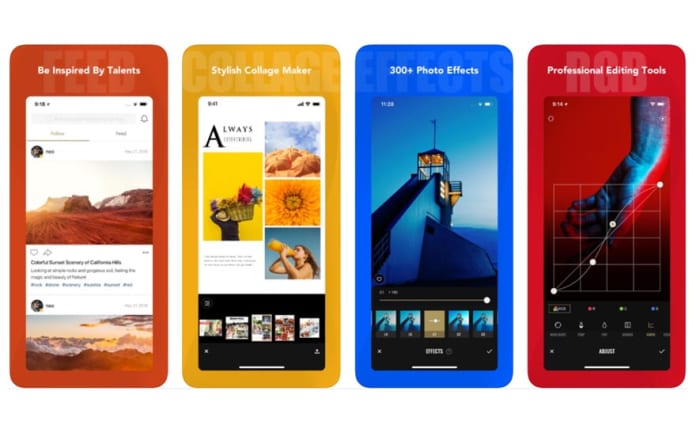
PicsArt has a really wide feature set that offers plenty for any budding amateur snapper and social sharer looking to edit photos. PicsArt makes it really easy to put together collages, add cool stickers to your photos, and add all manner of filters and text as well as optimizing your photos with improved lighting and color balancing tools.

The broad appeal of PicsArt is that it is a great tool for people looking to perform serious edits but also works well for those simply looking for a laugh by putting together a meme or creating an entertaining GIF. Interestingly, PicsArt also has a collaboration feature that allows you to submit work to the PicsArt community so that people can make their own edits.

PicsArt - Photo Studio Download now
8

Fotor Photo Editor

Fotor

Another excellent mobile photo editing app is Fotor. Fotor gives any budding photographer the tools they need to make a wide variety of professional-looking edits to their photos. The app has over 1,000 filters and includes other more regular features like vignettes, highlights, image temperature and saturation tweaks, exposure control, and more basic editing features like cropping, rotating and brightness and contrast control.

Although you can download a free version, Fotor includes in-app purchases and requires users to log in to use it. The app, however, also includes a very handy one-tap auto improvement feature. A simple click will put Fotor to work editing your photo, which if it doesn’t end up as exactly what you’re after, often provides a great starting point for further edits.

Fotor Photo Editor Download now
8

Snapseed

Snapseed

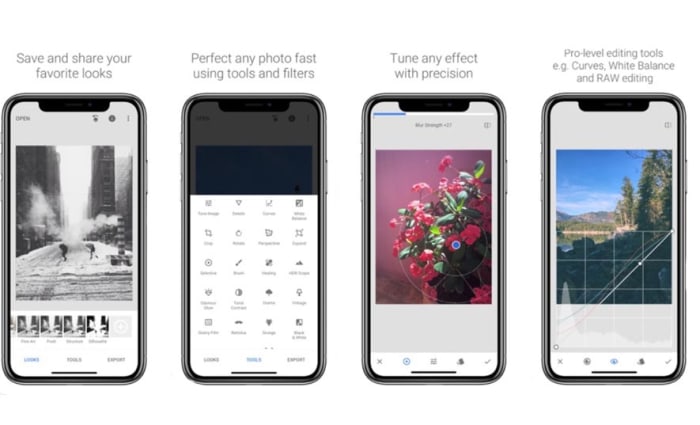
Although Snapseed is Google’s own photo editor, it is an excellent choice for anybody looking to edit the photos they take on their camera. You can add filters, edit the lighting effects on your photos, and also add interesting features like lens bokeh, which is the blurring effect that you get around the subject that is the focus of your image.

The best thing about Snapseed is that it is free and gives you access to almost all the editing features you’ll find in any mobile photo editing app. That being said, it can come off as a little intimidating, if you’re only looking to make simple edits.

9

Google Photos

Google Photos, formerly Picassa, is an incredible mobile app. Google Photos will automatically back up your photos to the cloud and then prompt you to clear space on your device. You can then view your photos using your internet connection whenever you want. This way you can have pretty much every photo you’ve ever taken in your smartphone’s photo gallery forever. Furthermore, Google’s AI will automatically organize your photos into easily searchable tag groupings and albums.

On top of that rather ridiculously well-executed feature, Google Photos also offers some pretty decent photo editing capabilities.  As well as filter options, contrast and saturation editing, and other basic features like cropping and rotating, Photos also has interesting AI-enabled features like auto-cropping of documents.

Google Photos Download Google Photos
7

Photos Effects Pro

Photos Effects Pro

We’re finishing our look at some of the best mobile photo editing apps with a fun entry to the list. Although Photos Effects Pro sounds like something you’d expect your photo enthusiast uncle to have on his ten-year-old MacBook, it is actually much more suited to a younger Instagram or Snapchat user.

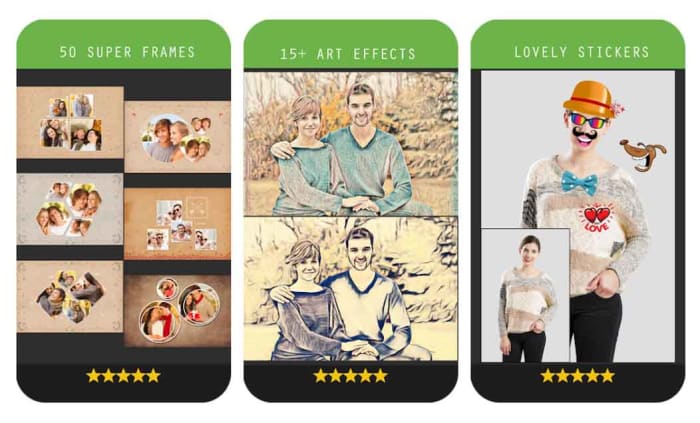
Like most mobile photo editors, Photos Effects Pros has filters and effects, but it stands out for its fun stickers that’ll take your photos and turn them into something truly comical. You can also use your finger to paint on top of your photos and add AI-infused edits like turning your photos into painted or hand-drawn scenes. Outside of these effects’ features, Photos Effects Pro only has a few rudimentary editing tools but it is completely free to use, which means it is definitely worth a download.

Photo Effect Pro Download Free ►
8
Wrapping up

Mobile photo editors are a little different from their full-size desktop companions in that they simply can’t offer the complete editing suites your PC or Mac can. Sure, expensive subscription-based apps like Adobe Lightroom CC can give you a real taste of what your PC can do, complete with RAW file editing, but editing photos is much more difficult to do on a smartphone screen of five or six inches than it is on a 15 inch laptop or a computer with a much bigger monitor. You can still do a lot, however, with filters, basic editing techniques, effects, and stickers, which is why we’ve been able to bring you six excellent photo editing apps. Another good mobile photo editing tool worth checking out on your Android phone is VSCO.

The best free video editing mobile apps from 2019

These are the best free video editing apps for mobile

Best free video editors

We recently brought you the best free video editing apps available to download. In that list we concentrated on heavy hitters like Lightworks and HitFilm Express. These feature packed programs can help you produce professional looking videos and movies, but they need powerful PCs and laptops to run. With today’s list we’re doing things a little differently. Today we’re bringing you the best free video editing apps for mobile devices running iOS or Android.

With so many mobile-only social media video sharing platforms like IG TV, Snapchat, and Tik Tok it makes sense for us to tell you about all the video editing programs for your iPhone, iPad, and Android devices. With these programs you’ll be able to record videos on your smartphone, edit them right there too, and then finally publish them to the web. All without having to transfer any files to any other devices like a Windows PC or a Mac. Let’s get started.

Best free mobile video editing apps

Quik

Want to make or share a great video? - GoPro Quik

Quik is the video editing app that GoPro brought out to help people edit all the best videos recorded on their action cams. Fortunately, it works well with mobile phone video clips too. It utilizes a lot of AI, which means many settings are automatically taken care of by the app. Things like colors and framing all take care of themselves meaning there are a few less things for you to worry about.

Quik also offers features many regular editing features like zoom, scene transitions, and also the ability to bring photos into the action from your smartphone gallery. You can publish your videos in 720p or full 1080p HD format and you can even frame your videos to fit the social network you’re looking to share them on.

9

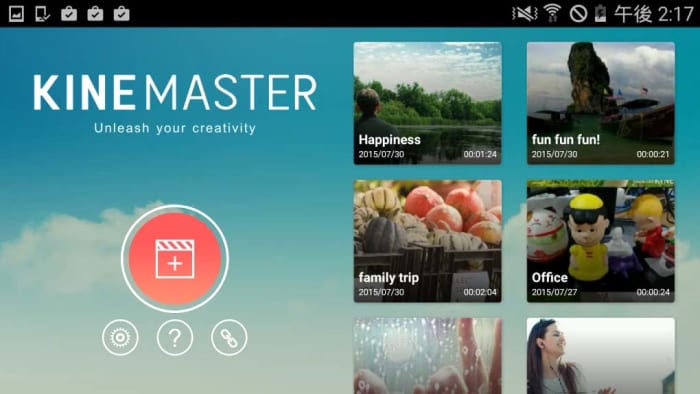
KineMaster

KineMaster mobile video editor

Just because you’re editing your videos on mobile doesn’t mean you need to accept a simplified version of the process or an app that tries to do as much as possible for you. KineMaster is for people looking to make a professional video as it offers a great video editing suite that wouldn’t be out of place on a full PC. Multiple video layers, up to four audio tracks, frame-by-frame editing, and speed and color control to name but a few.

The downside for the free version of KineMaster is that all videos will publish with a watermark. Also, there are limitations on some features with the Pro Version, which costs either $4.99 a month or $39.99 for a year’s subscription offering a more fully loaded experience. If you’re looking to make big movies on the fly though, the free version definitely offers enough for you to make an informed decision on whether to splash out and go Hollywood with Pro or not.

KineMaster Download now
9

VivaVideo

Viva Video mobile editing app

Whereas we concentrated on more advanced video editors with our list of video editing software for PC, we’re trying to mix things up here with our mobile video editors. Mobile videos can be serious business, but they can also be fun, and VivaVideo is a much more fun offering than the likes of KineMaster.

Viva Video makes it easy to edit videos complete with things like stickers, special effects, added animated content, and even has cool extras like video filters. It also comes with its own audio tracks and music library. Then once you’re done making your masterpiece VivaVideo makes it easy to share your movies on the VivaVideo network, which reportedly has over 200 million users.

VivaVideo Download now
8

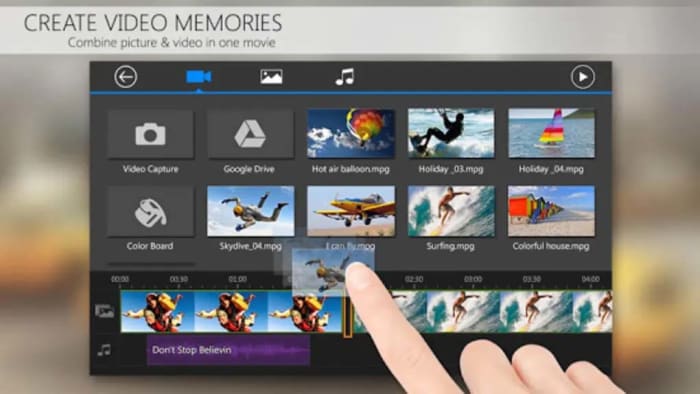
PowerDirector

PowerDirector free video editing app

PowerDirector is one of the most well-known video editing apps as it has been around for quite some time. It offers a respectable set of features including video effects, sound effects, after-effects like green screen, and other features include slow motion editing and scene transitions. PowerDirector also makes it easy to drag and drop your video clips and edit your vertical videos, which could come in handy, if you’re sharing your content on platforms like IG TV.

As is usually the case with free apps for editing videos, PowerDirector has a few negatives you’ll need to consider too. These include watermarks and quality limitations unless you make in-app purchases. For free you’ll only be able to publish your videos up to 720p and your videos will all have watermarks.

PowerDirector Download now
9

Videoshop

Video shop free video editor

Videoshop is another mobile video editor that is more fun than serious. It can help you make great animations by giving you simple control over the speed of your footage. You can speed the action right up or slow it to a crawl. Furthermore, it also has all the usual bells and whistles including text, resizing and rescaling your shots, and even the ability to use your own music from your smartphone’s library.

Unfortunately, however, although the app is free, you’ll have to pay a subscription, if you want full access.

Video Shop Download now
10

Magisto

MAgisto video editing app

Magisto might just be the simplest video editing app for mobile out there. It is all designed with one handed use in mind. Like Quik, Magisto uses a lot of Artificial Intelligence to help you get your movies looking as professional and eye-catching as possible for minimum effort. All the usual features are here with Magisto’s AI working under the hood to serve up image stabilisation, video filters, and various cropping techniques.

If you want to change up “your” movie style, you can purchase premium subscriptions that will offer different editing techniques and styles. Even with this premium model of financing the app, however, developers have still filled Magisto with ads, which might get in the way of your experience.

Magisto Download now
8

We’ve gone through six of the best free mobile apps for video editing. Although many of them do offer premium versions or pro level subscriptions each has enough in the free version for you to sink your teeth into. Some apps offer simple intuitive interfaces that will do a lot of the video editing for you while others offer more substantial feature sets that’ll give you the added control you’ll need to make the movie you want to make. The different types of app we’ve highlighted means we’re going to leave it up to to you to decide which is the best video editor for you.

Other good options we haven’t looked at today include Apple iMovie, FilmoraGo, and Adobe Premiere Clip.

The best free video editing software of 2019

These are the five best free video editors available on the internet today. Check them out now.

Best free video editors

There are a lot of amazing video sharing platforms these days. Beyond the obvious ones like YouTube and Facebook, you have smartphone specific apps like Tik Tok and IGTV. This being the case, we’re not surprised you’re looking for some top-quality video editing programs. Simply filming the best video isn’t enough these days. You need to know how to edit videos too. If you want to stand out from the crowd, you need to edit your video files, make them look as professional as possible, and then make them available cross-platform to Windows, Android, or Apple Mac OS, iPhone, and iPad so that as many people as possible can see them .

As if editing video clips wasn’t hard enough already, getting your hands on a decent video editor can end up costing an arm and a leg. Therefore, we’re bringing you a list of all the best FREE video editors.

Best free video editing software

HitFilm Express

As you’ll probably imagine, a lot of the free video editing programs we’re going to include in this list will be related to more fully featured, yet paid for, versions of the same program. HitFilm Express is one such video editing tool that offers an impressive Pro version of the software for $299. The great thing about the latest free version of HitFilm Express, however, is that it has a lot of features that have come from past Pro versions. Let’s take a closer look.

HitFilm Express

HitFilm Express uses a timeline editor interface and offers some user-friendly playback options that will help you out when you’re trying to edit your professional video. Impressively, a recent update also added the ability to edit 4K (4096 X 2160) footage, and even the ability to use the power of your GPU, with Nvidia and Intel support, to help with decoding. Other key features include 360 degree editing, special effects, video effects, multicam support, 3D effects, and GoPro support to name but a few. You’ll also be able to publish your videos into multiple output formats.

There are trade-offs, however. For a start, although you don’t have to pay for the free version you will have to ‘earn’ it. You’ll have to mention the developers on social media before they’ll give you access. On top of that, there are also some add-on features like animated text that you’ll have to pay for.

HitFilm Express Download now
8

VSDC Free Video Editor

VSDC free editor

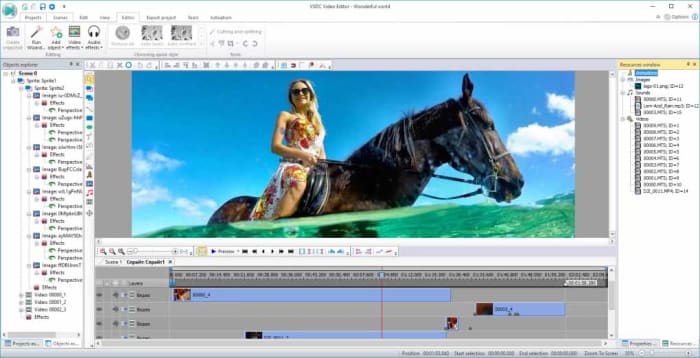
There is an awful lot you can do with the free version of VSDC Video Editor. There are many audio editing features, sound effects, and visual effects available for you to play around with. VSDC also offers green screen capabilities and there are a lot of cool Instagram-like filters that you can use to enhance your footage.

The downsides related to VSDC are mostly related to its interface. Its enhanced feature set make its interface rather complicated and a little daunting for beginners. There is a lot going on here. Fortunately, however, VSDC has a comprehensive YouTube channel filled with video tutorials for all the main features. There is also a paid real-time support service for free users that starts at $10. There is, however, a premium version of VSDC available, which is much cheaper than some of the other premium versions we’ve featured on this list.

VSDC Free Video Editor Download VSDC
7

Lightworks

Want to make or share a great video? - Lightworks

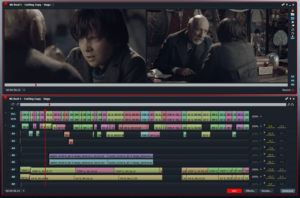
Lightworks is a well-known video editor that offers comprehensive control over all the snips and cuts you’ll need to turn your home movies into Hollywood style blockbusters. Lightworks has been used to edit Hollywood movies including Martin Scorsese’s movie The Wolf of Wall Street.

Obviously, the free version isn’t as fully featured as the pro version, which costs $24.99 a month or $437.99 outright. With the free version you’ll only be able to export your movies to YouTube or Vimeo and only with a maximum resolution of 720p. You will, however, be able to import all video formats and use a wide range of the pro features, you’ll just be heavily limited in your video export file format options.

Lightworks Download Lightworks
7

Want to learn how to use VLC as video converter?

Blender

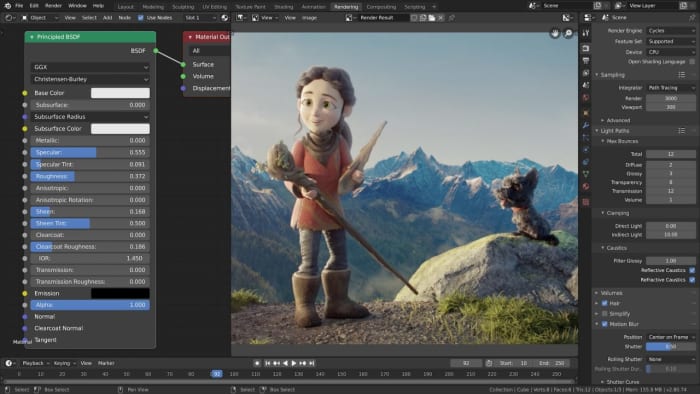
Blender is a rare thing of beauty among free video editing programs. Rather being a free version of a pro product, Blender is a completely free piece of software as it is open source. That means Blender is a community developed product that has been put together by developers all over the world. This isn’t just good because it means the software is free, it also means that new advanced features often come from video editors themselves who’ve noticed a shortcoming in the software’s capabilities.

Blender interace

Cool features that come as standard with Blender include being able to Live Preview your work, which could be made of up to 32 separate tracks each capable of holding video, images, masks, effects, and audio tracks. Other key features include transitions, filters, and speed control.

As you’d expect from a community led program, however, Blender can be a little hard to take in at times and has quite the steep learning curve. There is no set manual explaining how everything works and you won’t be able to rely on official support channels. If you look hard enough though, you should be able to find all the help you need on the online Blender forums or YouTube.

Blender Download now
8

DaVinci Resolve

DaVinci Resolve

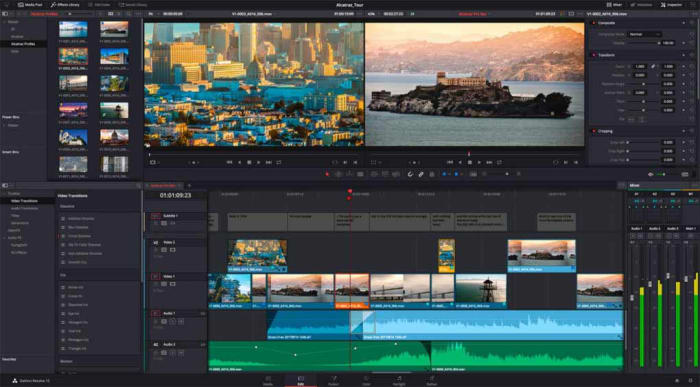
Like HitFilm Express, DaVinci Resolve has a premium version that comes in a $299. The free version of DaVinci Resolve, however, has some very capable features and should be more than enough for all amateur film makers.

DaVinci Resolve has a fully featured editing suite and offers high-resolution editing all the way up to Ultra HD and at an impressive 60 frames per second. Furthermore, it is much easier to use and has a more intuitive interface than the likes of VSDC. DaVinci also offers faster rendering times than the free version of HitFilm Express, which could give this the edge when you’re looking for a free video editing suite.

DaVinci Resolve Download now
8

We’ve outlined five of the best free video editors for you to download for free. Each represent a high level of editing features and could see you producing very professional looking results. We have assumed a certain level of video-editing ability here, with each program catering to video editors who already know what they’re doing. We’ve also not spoken about editing apps like Adobe Premiere Pro and Final Cut Pro, which target professionals.

If you’re just getting started with your new hobby and you’re just looking to make a few YouTube videos, we recommend looking for more beginner friendly programs like iMovie or Movie Maker. It is worth pointing out again though, that many of the programs we’ve listed do have online technical support channels, extensive YouTube tutorials, or community-based forums all designed to help you learn how to use your new tools.

VLC: All you can do besides play videos

Check out some of the best hidden features of VLC. Learn how to record audio, video, and your desktop and may other great features too.

VLC Media Player by VideoLAN is an absolute behemoth open-source digital media and video player. It is quite comfortably able to play almost all types of codecs, file formats, and media from MP3 files to MP4 and a whole host of other video format playlists. This is the thing though, whereas it is definitely important for a media player to be able to play video file types like MKV, MOV, and AVI; VLC Media Player can actually do so much more.

That’s why we’ve decided to put together a list of the 5 best hidden features of VLC. After reading our guide not only will you know about the best VLC features, you’ll also know how to use them. Let’s get started:

VLC media player download free ►
8

5 of the best hidden VLC tricks and features

How to use VLC to convert audio and video files

VLC Player offers a very competent option for anybody who needs to convert a media file from one format to another. If you’ve VLC Player installed on your Windows PC or Mac, you won’t need to purchase, download, or install any third-party software so that you can convert your media files. It doesn’t even require a special plugin. No more searching for solutions on Google, this is how to convert video.

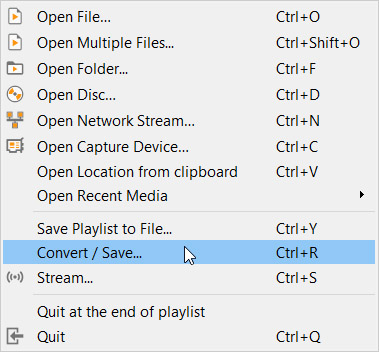
VLC media menu

First you need to open VLC, then click on the Media dropdown menu, and finally hit Convert/Save. You’ll then need to select the videos or audio files you want to convert using the Add button. Then in the Destination file box put the folder you want your converted files to save to and what you want the files to be called. After that you choose the VLC file type by clicking on the spanner button and selecting from the dropdown menu. Once you’ve followed the above instructions all you need to do is hit the Start button to begin. There are also some advanced features you can take advantage of, and you can find out all about the advanced VLC file conversion features here.

How to use VLC to record video and audio

If you have a Windows 10 PC or a Mac, you will have a native camera app and sound recorder for taking photos and videos using your webcam and recording sounds using your microphone. That’s all well and good but you can do both on just one app; VLC. Furthermore, as we’ve just seen, VLC can also convert audio and video files easily meaning you can quickly and simply take your recordings and convert them into any video output or file type. These will then be good for use on all your devices from Android smartphones and tablets to Apple iPhones and iPods.

Advanced controls on VLC

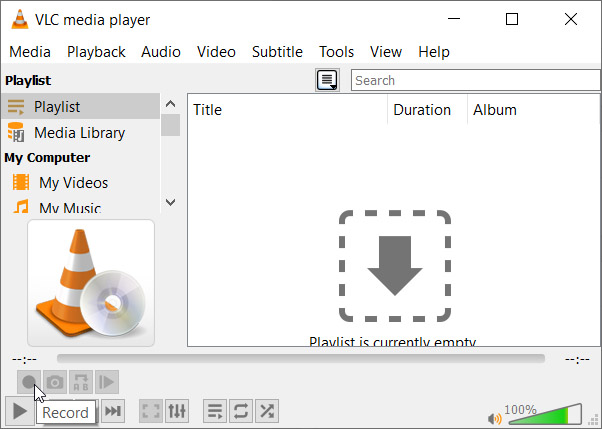
To record audio on VLC you need to activate Advanced Controls by clicking View in the top menu and then selecting Advanced Controls. This will display new controls in the bottom-left of VLC above the play button. To start recording sound all you need to do is press the Record button. To stop recording and save your file, simply press the Record button again.

Open Media on VLC

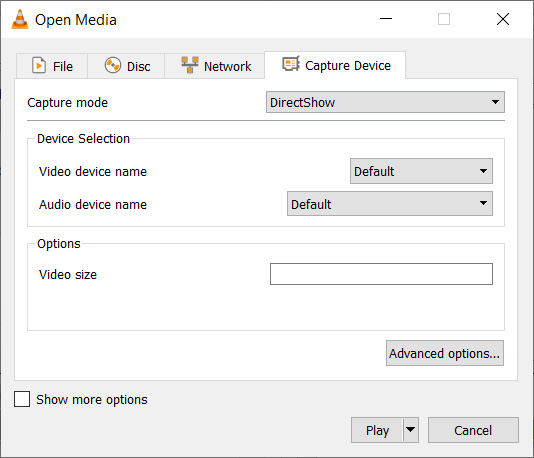
To record video on VLC using your webcam you need to go to Media then Open Capture Device. You now need to set Capture Mode to Direct Show and you’ll need to select your webcam from the options in the Video device name menu. If you want to record sound with your video, you’ll need to select your microphone from the Audio device name menu.

How to use VLC to record your desktop

Screenshots are an important part of the modern digital life we’re all living. Yes, you guessed it VLC does screenshots too, but we’ll get to that in a minute. VLC also offers the chance to record everything that is happening on your desktop rather than simply catching an instant.

Record desktop on VLC

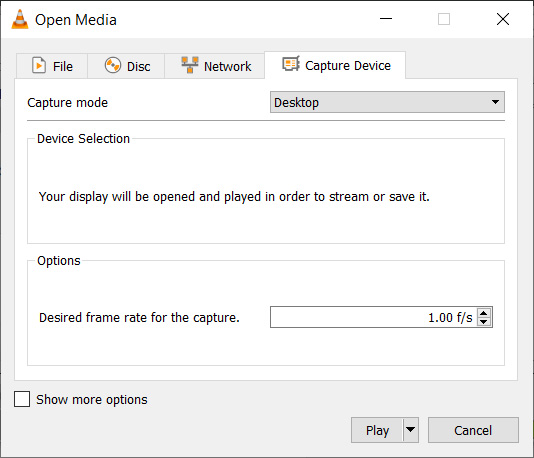
To record your desktop open VLC, hit Media in the top menu and then click Open Capture Device. You now need to change the Capture mode setting to Desktop and then select the framerate you want for your recording.  After that hit Convert so that you can select the file type your recording will save as and hit Start to begin. When you’re done recording your desktop hit Stop to save it.

How to screenshot on VLC

There are two ways to snap screenshots of videos using VLC. The first is to right-click and then select Video in the dropdown menu and select Take Snapshot. The other way to take a screenshot using VLC is to use the keyboard shortcut. On Windows or Linux press Shift + S and on Mac OS press CMD + ALT + S.

How to use VLC to rip DVDs onto your PC

DVDs used to be everything. When they first replaced VHS tapes their superior quality and sleek smaller form factor made them perfect for collections. If you’ve a huge DVD collection and want to save the movies and shows on your PC in case something happens to them or just because you never watch DVDs anymore, VLC can help you out.

Rip DVD on VLC

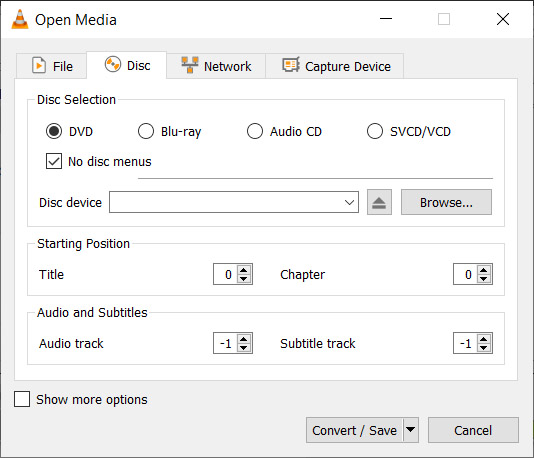
To rip a DVD using VLC insert the disc and then go to Media and then hit Convert/Save. Open the Disc tab and then choose the type of disc you’re ripping, which in this case is DVD. After that, check the No disc menus button and choose the desired Disc device where you want to save your DVD. Then hit the Convert/Save button and choose the file type you want to save your DVD as and then hit Start to begin the process.

Wrapping up

So, there you have five hidden VLC features that go beyond just playing media files. Now you know how to take advantage of some of the best VLC features. If you’d like to know more cool hidden VLC features, you’ll be glad to know that we’ve put together another guide to some of the best hidden VLC features, which you can read here. This guide includes how to listen to internet radio and podcasts using VLC and even gets into video effects.

VLC isn’t just great because it is a free open-source piece of software. It puts a lot of very powerful tools at your fingertips. We hope you enjoy using the tools we’ve highlighted in this guide.

Best apps to download audio and video from YouTube

If you want to download videos from YouTube or other video hosting websites, you should check out these great apps.

YouTube is an incredibly large video library. There are literally billions of videos you can watch on the YouTube app. You always, however, need an internet connection to watch them. YouTube allows you to stream videos but doesn’t allow you to download videos.

Well, that is not entirely true. YouTube does now give you the chance to download videos to your device so that you can watch them later, in a similar fashion to how you can download movies and shows on Netflix. Like Netflix, however, YouTube Premium costs money. If you want an official YouTube downloader, you need to pay for YouTube Premium.

Unofficially, there are many apps and programs out there that can help you download videos from YouTube. Google might not be too happy with you doing so, due to its ad-based revenue stream. If, however, you’re not going to share the videos once you’ve downloaded them, you shouldn’t fall foul of the law should you decide to use such tools to download YouTube Videos. Let’s look then at some of the best YouTube video downloader apps.

Best apps for YouTube video download (Android devices, iPhones, and Windows)

Videoder Video Downloader

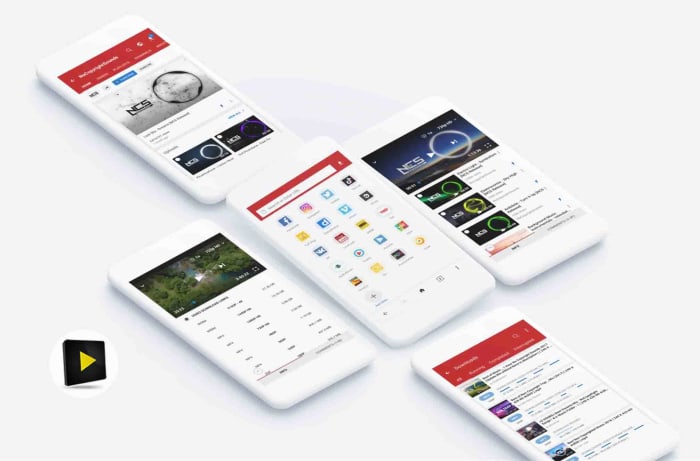
Videoder app

The Videoder Video Downloader App is by far the best app for YouTube download for Android, according to Softonic users. It has been downloaded over 2 million times and has an impressive 9 out of 10 rating.

That popularity comes from Videoder being a free, reliable, and easy to use video downloading tool. Videoder makes downloading your online videos as simple as possible by showing a video search bar that allows to search for the videos you’re after rather than simply copying and pasting the url. This is great, if you don’t already know the YouTube video you’re looking for.

The app also gives you the chance to select the video’s resolution and download file format. This makes it great should you be trying to download YouTube videos to watch on another device like an iPod or a Mac. Videoder also offers great download speeds.

Videoder Video Downloader Download now
9

Vidmate

Vidmate

If Videoder is the best YouTube downloader app according to Softonic users, then Vidmate is certainly the most popular video downloader. With over 19 million downloads to its name and an average user rating of 8 out of 10, Vidmate is clearly helping people download YouTube videos easily and effectively, all over the world.

It gives you control over video quality and is great for downloading videos in SD, HD, 2K, and even 4K formats. As well as YouTube, Vidmate also makes it very easy to download videos from other sites like Dailymotion, Facebook, Instagram, TikTok, Vimeo, and Tumblr.

On top of its video downloading abilities, Vidmate also offers a video player, huge video libraries and playlists, and even access to live TV channels, which it can help you  watch for free.

VidMate Download now
8

TubeMate

tubemate header

TubeMate is a classic YouTube downloading app for Android that has been around since Android version 2.3. The app works a bit like a web browser, so it is very simple to use. All you do is open the app and then browse away as normal or paste the url of the video you’re looking to download into the address bar. Whenever the app detects a video on the page it’ll display a download button, which will list the various options like video resolution etc. when clicked.

TubeMate works with other video sites, not just YouTube, and comes with its own media player for watching the videos you’ve downloaded. The flip of using TubeMate, is that it might struggle with today’s videos that have much higher resolutions.

TubeMate Download now
7

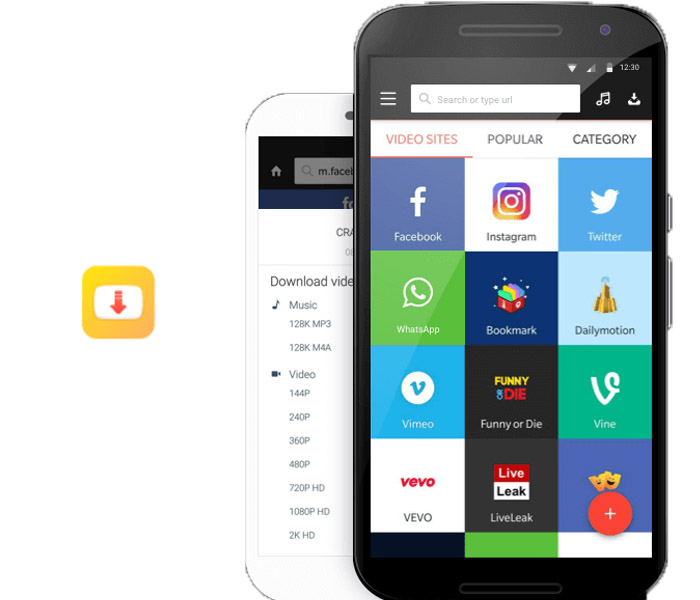
Snaptube

Snaptube

Snaptube is a great Android app that offers a simple way to download videos from YouTube. As well as offering extensive videos libraries for you to search through, Snaptube also offers YouTube batch downloads for your favorite videos. The new tool allows you to set up multiple YouTube video downloads at once. To use it though, you’ll have to first download the add-on YouTube Bulk Downloader.

Snaptube Download now
8

All Video Downloader

All Video Downloader

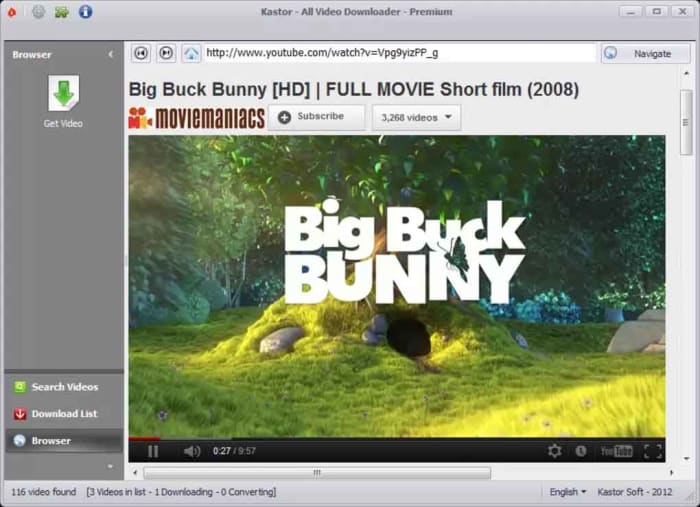
The All Video downloader app offers a competent option for downloading YouTube videos on Android. It allows you to both search for videos to download, and simply copy and paste their URL into the address bar. It also works as a video converter and offers many different video formats like AVI, WMV, MPEG etc., which can then be viewed on a plethora of different devices including the iPhone, iPad, and Android phones and tablets.

All Video downloader also gives you control over the size of your downloaded videos and will work on many different video hosting websites. It is limited, however, to only two video downloads at a time.

All Video Downloader Download now
6

Ummy Video Downloader

Ummy video downloader

The Ummy Video Downloader for Windows offers a great way to download video and audio from YouTube. It is very simple and easy to use and has a respectable 8 out of 10 rating from Softonic users. Ummy is designed to give you access to YouTube videos offline, which could come in handy, if you think you’ll be without internet connection for a prolonged period.

The app has a simple user interface and works by allowing you to copy and paste the url of the video files you’re after into a search field. You then have the option to specify the video and audio output format with choices including MP4, MP3 files, MKV, FLV, MOV, and AVI. If you’re downloading a video, you’ll also be able to specify the output resolution before hitting download.

Ummy Video Downloader Download Now
8
Wrapping up

As you can see there are lot of great free apps available online for downloading videos from YouTube. We’ve shown you six of the best apps available for downloading YouTube videos for smartphones like Android and the Apple iPhone, and even on a Windows PC too. What’s even better is that many of these apps also enable downloading videos from other video hosting sites too. That means many of the apps we’ve highlighted offer comprehensive video downloading solutions beyond just being able to save YouTube videos alone. As always, we’ll point out, however, that downloading videos from YouTube breaches the app’s terms of service and if you share any of the videos you download, you could also be guilty of trademark violation.

5 tools for creating professional looking graphics–no design skills required

If you’ve spent any time in the digital marketing or design space, you know that people can’t get enough of infographics, charts, and things visual.

We can’t help it. 50% of the brain is involved with visual processing, and it only takes 1/10th of a second to understand a visual concept—much more natural than reading a big wall of text.

The problem is, whether you’ve got a blog that needs some extra pizzazz or you want to boost your social media feed—design can be intimidating when you’re not a trained professional.

Luckily, there are plenty of resources for creating graphics yourself—no need to invest in a designer or struggle with Photoshop tutorials.

1. Canva

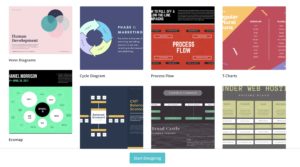
canva themes

Canva is a web app that centers on this idea that design should be something that anyone can do. When you enter the site, you’ll be greeted with a prompt that asks what you would like to design.

The app presents an attractive interface and a whole lot of presets. Preset templates are organized by type of content—so you can choose to design marketing materials, social media graphics, or visual assets to make your latest e-book pop.

Once you’ve selected a template, you can add various elements like text, graphics, borders, or your own images. There’s not a ton of customization built in, but the goal here is to create something that looks nice, without requiring any additional training.

2. Desygner

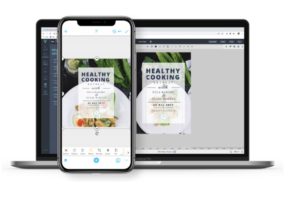
desygner app

Desygner’s primary selling point is that creating graphics on the go can be effortless. The set up allows for easy editing on iOS, Android, and the web, and the process is intuitive.

According to Desygner’s official site, the tool is made for people who aren’t trained designers but want access to professional level graphics for their business or social media channels.

The tool makes it easy by providing several templates you can make your own by using the built-in drag-and-drop editor.

3. Snappa

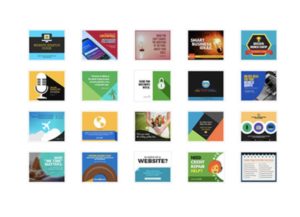
snappa templates

Low on time, but need to upload something slick in short order? Then Snappa is a sure bet for success.

The app—accessible on mobile and web alike—starts by asking you to choose from a selection of dimensions—so you’ll pick the right format for the channel you’re working with—Facebook, Twitter, etc. From there, you can start designing by picking a template, adding royalty-free stock photos, and adding text graphics, and more.

Create graphics, logos, and anything else that adds a layer of professionalism to your feed. What we liked most about Snappa is, you’ll receive step-by-step instructions that take you through the process within a few minutes.

4. Gravit Designer

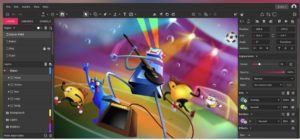
gravit designer home

If you’re a little afraid of the more advanced software programs like Photoshop or Sketch, but want something a little more fleshed out than Snappa or Canva, Gravit Designer provides a happy medium.

You’ll spend less time creating from scratch than you would with Photoshop, but it’s not all pre-designed templates like some of the other tools out there. There are some templates included—pre-sized according to each channel’s optimal dimensions, and you’ll get some pre-loaded shapes and icons built in as well.

What’s more, Gravit Designer comes with access to the Gravit Cloud, which makes it easy to store and share your creations with clients, collaborators, and colleagues.

5. Skitch

Skitch is an app created by the same folks who gave us Evernote. It’s a photo editing tool with several extras built in like filters, overlays, and the ability to add helpful arrows to your images.

We should mention that Skitch is a little different than the other apps we’ve mentioned here. Its main functionality lies in its ability to visually communicate an idea with standout markups. While you can’t design your website’s logo or create a Facebook ad—this tool is essential for bloggers who rely on screenshots to enhance their content.

4 easy ways to level up your phone photography skills

Do you suck at Instagram? Are your Facebook albums a bit of a bummer? Some of us just don’t have a knack for taking the pictures that get likes and impress your followers.

Look, anyone can pick up a smartphone and snap a few selfies and sunsets. But, without a few basics under your belt, your website, feeds, and personal albums won’t live up to their potential.

It takes more than filters to create a great image—you need to get the hang of things like focus, exposure, editing, and composition.

If you want to step up your Insta-game, it’s time to master a few key principles the pros already know. Here’s a look at some ways to get more out of your camera phone.

1. Getting set up

Before we dive into actually taking photos, you’ll want to make sure you’re setting yourself up for success. A few things to check out before you dive in:

  • Clean your phone’s lens—use a lens cloth and some cleaner to gently wipe dust, dirt, and finger print smudges from your phone’s lens. Chances are it’s pretty dirty.
  • Set phone to the highest resolution—If you take a shot you love, you want it looking its best.
  • Set white balance—Many phones come with the option to adjust white balance. The reason you’ll want to do this is, while the human eye adjusts for lighting—allowing white to appear white in most settings, cameras do not.
  • Turn off any effects—You can add these in later if you want. When you’re taking the photo, you want to start with a clean slate.

2. Compositional tips

Use the grid

One of the easiest ways to level up your photo skills is to take advantage of grid lines. Your smartphone has a setting that allows you to turn this feature on:

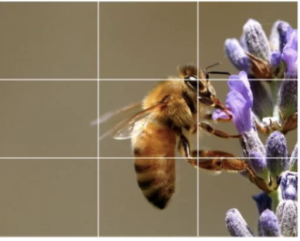
The benefit of the grid is, it allows you to intuitively follow the rule of thirds.

The rule is a compositional technique that involves dividing an image into thirds and positioning your subject within one of those areas.

grid

Use leading lines

Adding lines to your composition is a great way to lead the eye through the image, creating visual interest. Easy choices include things like train tracks, rivers, and roads.

As you can see, the photo below directs you to the people in the background. Because the lines converge, there’s a bit more interest than if the composition were to just have one line leading to the people.

leading lines example

Frame your subject

Framing means you’re arranging your photo in a way that allows you to outline your subject with something in the environment. The frame helps to highlight your subject and draws the viewer into the image.

frame your subject

Take advantage of negative space

Negative spacer is a term that refers to the areas around the subject of an image. The empty space, like in the photo below, makes your subject stand out. Things like a wide, open sky, a large body of water, and so on, can elicit a powerful reaction for viewers.

3. Lighting stuff

Lighting is the main thing to consider when you’re snapping shots for the gram or otherwise. While you can crop your way into a better composition, add filters, and special effects, you can’t edit away a poorly lit photo.

You’ll want to avoid low lighting and areas with super bright reflections. If you’re shooting on a phone, you don’t have the advantage of high ISO speeds, which allow cameras to take indoor photos without a flash.

Instead, take advantage of natural light. Smartphone photos that use flash don’t always look so hot. Instead, they may negatively alter colors or wash out your subject. In the daytime—indoor photos work best near a window, without any additional sources of artificial light, which can make your photos look yellow.

When shooting outdoors, the golden hour is your BFF.

The golden hour, or the period just before sunset or right after sunrise, is responsible for those dreamy, sun-kissed shots. During this time, the sun is closest to the horizon, and light must travel through more atmosphere—which softens the light. Thus creating a more flattering effect.

4. Editing your pics

Okay, beyond things like nailing the lighting and composition from your phone, there’s a trick to turning your social feeds into an influencer level curation.

Filters

Filters are kind of divisive in the realm of digital photography. Used correctly, they enhance an image and add some cool effects. If you’re using your iPhone or Instagram’s built-in filters, you’re using the same preset options that millions of other people are using.

Lightroom

Lightroom rules because while it’s a professional-grade tool, it’s also super easy to understand. The app comes with a wide range of features from lighting adjustments to gradients, allowing you to tweak your photos into something truly amazing.

You can even create your own filters and apply them to your next round of pics for a more customized appearance.

VSCO

VSCO is an easy-to-use app that many Instagrammers swear by. The app comes equipped with a selection of pre-set filters. You can use the built-in options, of course, but our recommendation is finding one you like and making custom tweaks. You can save your favorite filters, too. This way, you can use your favorite settings over and over again—saving time and allowing you to create a cohesive look on social media.

What’s more, the VSCO community is a great source of inspiration for those just starting out.

6

Snapseed

Snapseed is another option that makes it easy to take your photos and turn them into something more aesthetically pleasing. What we like about this app is, the developers have made it super easy to edit photos within a matter of clicks.

This option is simple, best for those who don’t want to take the time to learn Lightroom and it’s many nuances.

9