
Don’t expect to be able to let friends use your Disney+ account like you do with Netflix

Disney is joining up with Charter to try and target users who might be using friends and family passwords

Netflix is such a big company and makes so much money that it is hard to think that a lot of people actually use the account details of their friends and family and so don’t pay for their subscription. There’s no need start shifting in your chair, a lot of people do it and in fact, Netflix actually builds account sharing into its subscription plans. You can pick a Netflix account based on how many screens can view Netflix at any one time meaning you could be watching Stranger Things in your house while your nerdy brother watches Daredevil in his.

Now Netflix might be the largest streaming service but there is some serious competition on the horizon in the form of Disney+. Disney owns a lot of shows and movies including the likes of The Simpsons, the Marvel Universe, Star Wars, and yep, Disney owns all those Disney movies too.

We’ve put together a full preview of Disney + here, but at $6.99 it is fair to say that a lot of people will be tempted by a Disney+ subscription. It has come to light, however, that account sharing won’t be as easy on Disney+ as it is on Netflix.

Disney is joining up with Charter to try and target users who might be using friends and family passwords

Disney password sharing
Disney wants to stamp out password sharing

We told you last week about the new Disney +, Hulu, and ESPN + bundle that will cost $13 a month. Disney obviously thinks that the price is fair on a per person business as the Hollywood juggernaut is teaming up with the US cable giant Charter to try and protect individual subscriptions. This will make it much harder to share passwords among family and friends.

The plan, according to a joint press release, involves cracking down on what both companies call piracy mitigation. The press release notes, “The two companies will work together to implement business rules and techniques to address such issues as unauthorized access and password sharing.” Yep, they called it out specifically.

The only silver lining that this ominous storm cloud has is that the press release doesn’t really go into much detail about how Disney and Charter plan on cracking down on password sharers. Wired has hypothesized how it could happen though, with one possibility being that Charter could, “could monitor usage of its broadband network to help Disney fight account sharing. For example, Disney could track the IP addresses of users signing into its services, and Charter could match those IP addresses to those of its broadband customers.” This is a complicated way to do things, and a VPN could sidestep it, but the serious nature of the joint press release indicates all options are on the table.

If you’re a password sharer on Netflix then and you were thinking you might do the same on Disney+, don’t expect it to be so easy. Two media giants have effectively just declared war on you.

How to record internal sound on Mac OS X

Use Soundflower and Audacity to record audio!

MAc

Recording internal sound on a Mac is problematic. Unlike Windows, you can’t simply record whatever noise is playing. If you’ve ever got stuck wondering how to capture streaming audio from a website or any other sound playing through your Mac, here’s how to do it:

How to record internal sound on a Mac

Using QuickTime Player

Although we will detail another method using Audacity and Soundflower, you can also use QuickTime Player to record audio.

QuickTime Player Download now ►
7

To record audio, follow these steps:

  1. Go to the File menu
  2. Choose “New Audio Recording”
  3. Click the arrow next to the record button to choose the recording and microphone quality.
  4. Use the volume slider to monitor the audio while it’s recording.
  5. Click the red Record button to start recording. Click it again to stop.

Using Audacity and Soundflower

Step 1

Download and install Audacity, an audio recorder/editor, and Soundflower, which allows your internal sound to be captured.

7
Soundflower Download Now ►
7

Step 2

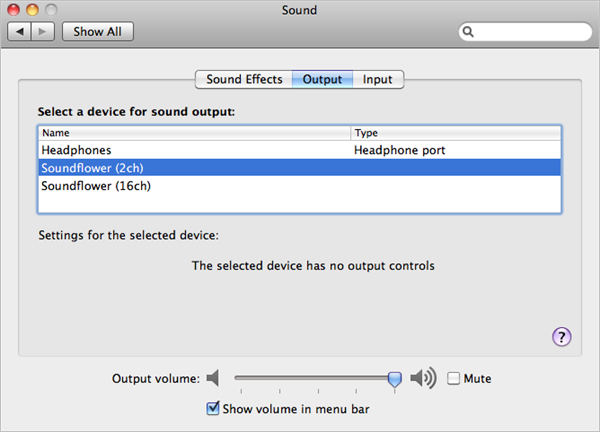
Open System Preferences > Sound > Output. Now that Soundflower is installed, you’ll be able to choose it instead of the built-in output. Soundflower (2ch) is fine for most purposes. Note that once you do this you will no longer be able to hear a sound. To make a clean recording, also turn off all sound effects here in the Sound preferences.

Soundflower

Step 3

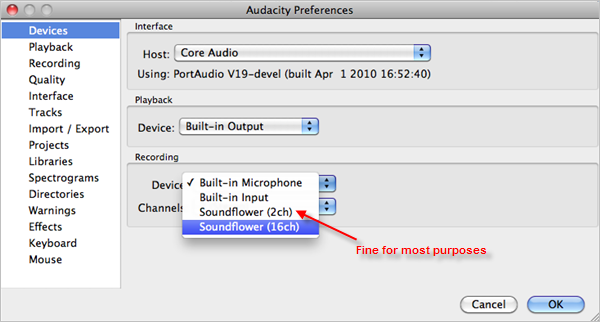
Open Audacity and in preferences, look under Devices and choose Soundflower (2ch) from the Recording Devices drop-down menu.

Soundflower

Step 4

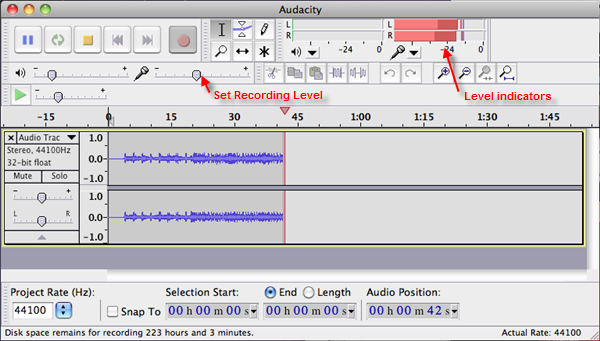
On the top right of the Audacity interface, there is a microphone symbol with a drop-down menu next to it. Click it, and hit ‘Turn on monitoring.’ You will now see red level indicators jumping whenever a sound is made. Play the sound or stream you want to capture and adjust the microphone level-slider on the left so the red bars reach close to zero when they peak.

Soundflower

Step 5

You’re now ready to capture. Stop your stream, and pause it at the start. Hit the red record button in Audacity, then play your sound stream. Be aware that if you haven’t turned off any sound alerts or effects, these will also be captured in your recording. Once finished, save the project from the File menu. At this point, you can turn on the internal audio again in System Preferences. Any editing of your recording should be done now (See this post for audio editing with Audacity).

Step 6

Again from the File menu, choose Export which allows you to convert your recording into a more useful format like MP3 or FLAC. You can now listen to your captured recording at your leisure.

WhatsApp is testing a new voice note feature for iOS

WhatsApp notifications have been spotted in the beta, complete with a play button for incoming voice messages.

Over the last few years, WhatsApp has evolved quite a bit and added more than a few new features that make our everyday messaging experience smoother. Sure, it looks the same as it always has but little tweaks like adding stickers, voice-to-text messaging, and improved voice notes have turned WhatsApp into a messaging beast.

One such update that has really made a difference has been adding the ability to preview received messages in the notifications bar of your phone. Whenever you receive a text message on WhatsApp you can read a preview of it in your system notifications without having to open the app.

Again, it was a small change but in practice, it made a big difference. WhatsApp is now running tests on extending this feature to voice notes as well as text messages.

WhatsApp notifications have been spotted in the beta, complete with a play button for incoming voice messages

WhatsApp voice notes logo

WhatsApp voice notes have become one of WhatsApp’s most-loved features and recently we’ve seen them updated. The “Consecutive voice notes” update saw multiple voice notes playing automatically, one after the other, once the user has pressed play on the first message. Voice notes now look set to get another update, although this update will offer something different to consecutive play.

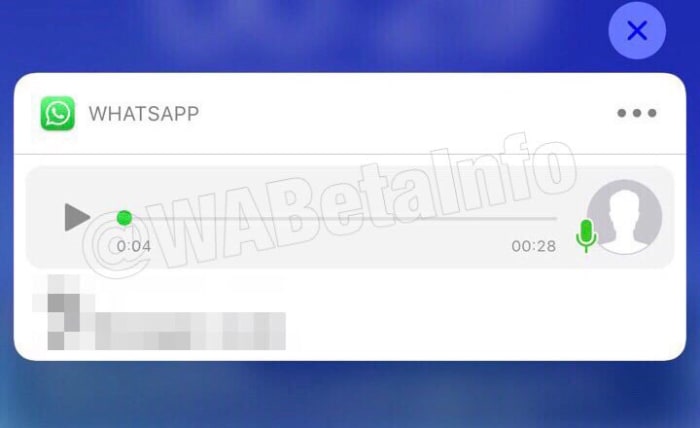
A recent tweet from WABetaInfo shows a screenshot of a WhatsApp notification that includes a play button and progress bar for a voice note. The notification is from the iOS version of WhatsApp, which means that soon we could be seeing WhatsApp voice notes we can play directly from the notification get when we receive them.

Unfortunately, beyond this leaked screenshot, information on this new feature is thin. Previews of text messages only run to a certain number of characters before being capped off with an ellipsis.

The screenshots don’t show whether something similar will happen to voice notes over a certain length. Will we only be able listen to snippets from the voice note, if it is over a certain length?

Also, there is no word on whether consecutive voice notes will work from system notifications, although an educated guess would say that this might be a bridge too far.

WhatsApp voice note in the system notfication
Image via: WABetaInfo

That’s all there is with this one for now. There is nothing on whether the feature will come to Android, too. And like with all leaks from the beta, there is no guarantee the feature will even land on iOS. This is just a very early leak on a feature that likely still has some development ahead of it before it’ll land on the regular app.

It is an interesting feature, however, which could make our lives easier should it land, and that’s why we thought you’d like to hear about it now. Stick with us for all the latest WhatsApp news and rumors.

Spotify update highlights Disney music

Everybody has a favorite Disney song!

Spotify Disney hub

Great news for Disney fans: Spotify just announced that it is teaming up with the movie studio powerhouse to create a brand-new Disney hub. The new hub will be a place where Spotify users can find all the songs from their favorite Disney movies. The new hub will include Disney songs as well as music and soundtracks from Pixar, Marvel and Star Wars movies. Yes, that means all the John Williams instrumentals will be there, too.

8

The Spotify blog post announcing the new Disney hub said, “Starting July 17, users… can search “Disney” on Spotify to find a designated hub for the music behind some of their favorite Disney movies and TV shows. Stream playlists full of everything from The Little Mermaid to modern favorites like Frozen.” The service will also include playlists curated for all times of the day and many different activities. No matter if you’re in the shower, on the road, or trying to get some sleep you can now find a Disney playlist on Spotify for your exact situation.

The move seems to make Spotify a much more family-oriented platform and could see a spate of family-based subscriptions taken out over the summer. A premium membership costs $9.99 in the U.S., but a family membership, which gives up to six people access to Spotify’s premium features costs $14.99.

The Spotify family account offers individual accounts for up to six people

One of Spotify’s best features is its Discover Weekly feature, which serves up recommended songs based on what you’ve been listening to. This means the new Disney hub could put pressure on mom and dad to get the kids a profile of their own if they don’t want songs from “The Little Mermaid” skewing their personal algorithm.

Everybody has a favorite Disney song!

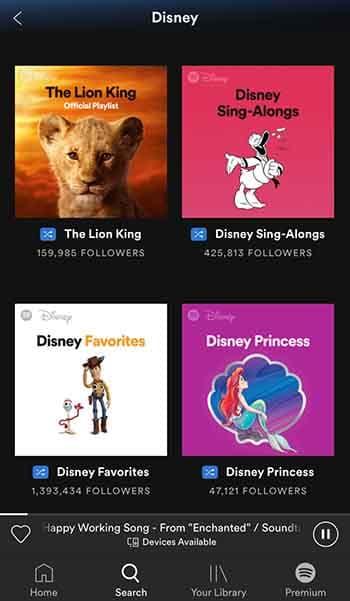
Spotify’s new Disney hub is now available to users in the U.S., UK, Ireland, South Africa, Canada, Australia, and New Zealand. You can find it simply by typing “Disney” into the Spotify search bar. Here’s what comes up when you do:

Disney Spotify hub

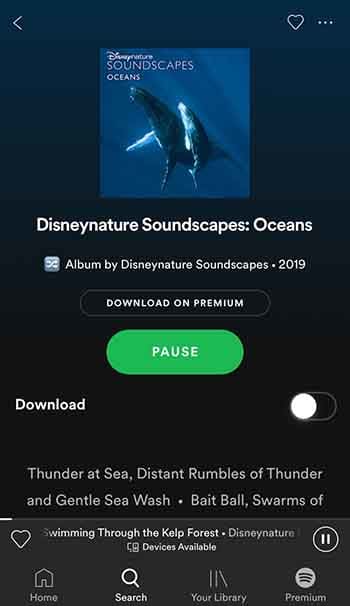
Scroll down a bit, and you’ll even find a playlist called “Disneynature Soundscapes: Oceans,” which provides some super-relaxing white noise to help you unwind.

Disneynature Soundscapes: OceanTo see some other playlist examples, you can check out the Spotify press release announcing the feature here. As well as everything you can see there now, Disney promises to keep adding to the hub throughout the summer and beyond. With big some big Disney hitters like “The Lion King” and “Frozen 2” on the way, that is not to be sniffed at.
This is big news for our family as we’ve developed a bit of a Christmas tradition involving Disney songs and lots of singing along. It isn’t just drunken karaoke Disney Princess wannabes though, who’ll be happy about this move. Anybody who has ever watched a Disney movie will love it because the music is half of the magic when it comes to Disney movies, and it’s magic we’ve all grown up with.

Google Chrome is getting some very handy new video control features

Google is looking to add a Play/Pause button to the Chrome toolbar, which will control video being played on any of your open tabs!

Google Chrome logo play video button

Tabs are something of a universal nightmare these days. No matter what we’re online for, we always seem to end up with lots of tabs open at the same time. As well as the huge amounts of memory all these tabs consume, often slowing our devices down to a crawl, they also make finding what we’re up to rather difficult.

Then, there is the even more annoying problem that having multiple tabs open throws at us. Videos and auto-play videos. How many times have you been doing something on your PC, with some random soundtrack playing away in the background? One of those tabs has a video playing and now you have to stop what you’re doing and seek out the tab in question so you can carry on distraction-free. The more tabs you have open the longer this will take. If you’ve ever experienced this problem, you’ll be glad to hear of a little test Google is currently running.

7

Google is looking to add a Play/Pause button to control video on your open tabs

Google Chrome Canary
Google uses Canary to show the new features it is working on for Chrome

A brand-new feature called Global Media Controls (GMC) has been spotted in one of the latest versions of the Google Chrome Canary build. Google uses Chrome Canary to test out new features that are late on in the development stage. This means that there is a very good chance that all Google Chrome users could see GMC on their version of Google Chrome sometime soon. So, what are Global Media Controls exactly?

New Google Chrome Global Media Controls
Image via: Tech Dows

At the moment, GMC looks like a play button and is found in the Google Chrome control bar in between the user icon and the Chrome plugin switches.

The button activates a small pop-up window, which then offers media controls for all audio and video media currently playing on Google Chrome.

This means that when you have some unknown audio track coming from one of your open tabs, all you have to do is click the GMC button and take control of the media. Impressively, according to the guys at ZDNet, the new feature should be able to control media being played in other Chrome windows and not just tabs.

Google Chrome Canary Download now ►
7

Wrapping up

The new GMC controls will be added to the desktop versions of Google Chrome running on Windows, Mac, and Linux. However, there has been no word about Chrome OS. Unfortunately, however, there is also no official word about when the feature will land on the above platforms as it looks like Google still has some work to before the feature can be rolled out to all users. The GMC feature is still very buggy and often crashes. It is good to know that Google is working on solving such an annoying problem.

Netflix tries making devices vibrate during shows

The Netflix Project Rumble Pak offers haptic responses in line with what you’re watching on the screen.

Netflix, like all good tech companies likes to encourage its employees to let their creative sides run wild every now and then. The online streaming company runs regular hackdays to give workers the chance to try and come up with ideas that could make it onto the app or simply grab people’s attention with their quirky ingenuity.

Netflix hackday
Image via: Netflix Tech Blog

At the latest Netflix hackathon there were a few impressive ideas but one in particular has piqued our interests. It is our favorite not least because we think it is brilliant, but also because it is the idea most likely to find its way into our everyday Netflix viewing experience.

8

The Netflix Project Rumble Pak offers haptic responses in line with what you’re watching on the screen

If you’ve ever played on a PlayStation or an Xbox, you’ll know what haptic feedback is. Most phones even have it for certain functions and for quite a few generations now the iPhone has used haptic feedback to simulate the feeling you get when you press a button. Haptic feedback is exactly that, simulated movement that aids immersion. It works for phone buttons, it works for video games, and there is no good reason why it couldn’t work for movies and TV shows.

This is the type of thinking that was behind Hans van de Bruggen and Ed Barker’s entry into Netflix’s most recent hackathon, The Project Rumble Pak. The Netflix Tech Blog has this to say about the pair’s ingenious innovation, “The Project Rumble Pak hack day project explores how haptics can enhance the content you’re watching. With every explosion, sword clank, and laser blast, you get force feedback to amp up the excitement.” It seems to work too, as the video below shows.

The Rumble Pak uses Immersion Corporation technology to synchronize Netflix content with the haptic feedback responses offered by modern smartphones. The result is cool vibrations in line with the action on the screen. Would you like to see this feature coming to Netflix on your smartphone?

The other entry from the recent hackathon that we think deserves some credit is Get Out! although this isn’t a feature that we’ll see on Netflix. If you’ve ever been stuck outside the meeting room you’ve booked because the meeting before you has overrun, you’ll appreciate this. Basically, Get Out! allows you to hijack the meeting room’s sound system and play music similar to that they play at the Oscars whenever somebody’s speech is going on too long. The Oscars nod is the only real connection to Netflix this feature has but we still love it.

Will these two cool innovations from Netflix employees make it to the full version of the app? If we hear anything more about it, we’ll let you know straight away.

Google is changing how you move photos from Google Drive to Google Photos: This is all you need to know

Everything you need to know about the new relationship between Google Drive and Google Photos

Google Drive, and its composite parts like Docs and Sheets, has revolutionized office teamwork. Google Photos has made it easier than ever before to back up your photos. These two programs have always been interchangeable, with photos in Drive showing in Google Photos and vice versa. This is all about to change, however.

sync between Google Photos and Google Drive

Google has announced that both apps will no longer automatically sync with each other. Now you have to move photos from Google Drive to Google Photos yourself.

Let’s have a look in greater detail at what this means.

Why is Google changing the relationship between Drive and Photos?

Google is saying that user feedback is the main reason it is making the change. Apparently, users have said that the link between the two services is confusing, so it is moving to simplify the relationship between Drive and Photos.

What does the change mean?

Starting in July, new photos and videos added to Google Photos will not show up automatically in Google Drive and new Drive photos and videos will not show up automatically in Google Photos.

Instead of auto-syncing between the two apps, Google is introducing a new feature to Google Photos called “Upload from Drive,” which will give users the chance to select photos from their Google Drive to be added to their Google Photos collection. Google has also pointed out that this will include “Shared with Me” photos.

The big thing you need to note about this change is that as these photos won’t automatically sync with your Google Photos account, they’ll count towards your storage quotas on BOTH apps if you choose to sync them.

What about photos and videos already synced?

Google has pointed out that all photos and videos synced before this change is implemented will remain so. Your Drive photos will stay in Google Photos and if you have a “Google Photos” folder in Drive, it will stay there but won’t update automatically.

Photos folder in Google Drive

Has anything stayed the same?

Yes, Backup and Sync for Windows and Mac will work the same as it always has and if used to upload photos to both services in Original Quality, the space will only count once towards your storage quota.

Google claims confusion is behind the big change. This makes some sense when you consider Photos as a chronological feed showing all the pictures you’ve taken using your smartphone camera or uploaded manually. Any photos automatically added through synchronization with Drive could cause confusion. Now, however, users will know when Drive photos will have been added to Photos as they’ll have imported them themselves.

Spotify testing ability to let friends control the Now Playing list

New Spotify “Social Listening” feature allows friends to control the Now Playing playlist together.

Spotify app on a phone

Our music collections have come a long way recently. We’ve come all the way from vinyl records and 8-tracks to constant access to almost limitless collections of music from around the world. We can now hear a song on the radio, internet, or wherever else we discover new tracks and then listen to them whenever and wherever we want via online streaming platforms like Spotify, Apple Music, and Deezer.

It’s not just us though, is it? We’re not the only ones listening to the music we love. No, we’ve all got at least one of those friends who always has a tune they want you to hear. Music is a very personal thing, but it is also very much a social experience you share with your friends and family. In recognition of music’s social side, Spotify is working on a great new feature that will put everybody in charge of the party.

New Spotify ‘Social Listening’ feature allows friends to control the Now Playing playlist together

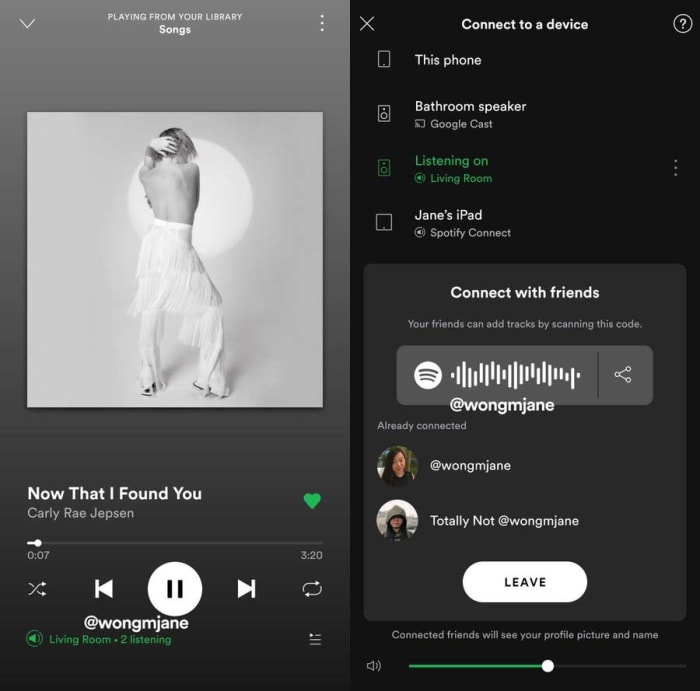
Thanks to top tech tipster Jane Manchun Wong, we’re able to bring you news of a new exclusive Spotify feature the streaming service is currently testing on its employees. On a recent dive into the code of Spotify’s Android app, Manchun Wong has found a new feature that gives friends real-time control over the Now Playing playlist. This is similar to the collaborative playlist feature, but all additions will play out as they happen, rather than being stored in a playlist for later use.

For now, the feature is only available for Spotify employees, but we can give you a little rundown on what it’ll look like and how it’ll work once it lands on your version of the app.

When the feature is live, you’ll be able to find a “Connect with friends” option when you go to the connected devices screen. Selecting this option will reveal a QR code or a link. Your friends and family can then scan the QR code or you can send them the link to join both your Spotify apps. Once done, the Now Listening playlist will be linked and anybody who is connected will be able to add or remove songs to the list.

Spotify social features
Image via: @wongmjane

There are two major caveats, however, to this leaked Spotify feature. The first is that there is no official word on when the feature will receive a general roll-out. As this is an internal test, the feature might not ever make it to the general public. The second is that, as Manchun Wong isn’t an employee of Spotify, she wasn’t able to test the feature after she discovered it. This means we don’t know how smoothly it works or if the music streaming service still has a few bugs to iron out of the code.

For anybody, who has ever been to a party and been stuck for what song to put on next, however, this feature will be good news. Let’s hope we hear more from Spotify soon.

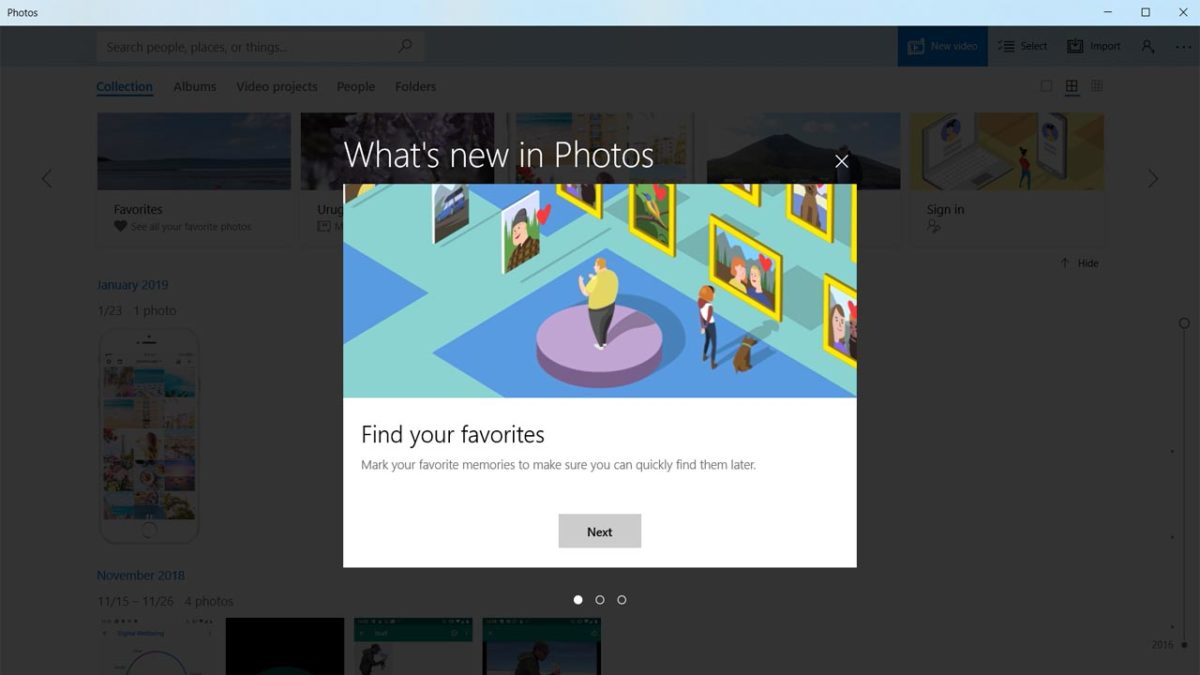
Microsoft Photos can now help you find what you’re looking for

You can now use Microsoft Photos to search for similar images on Bing

microsoft photos new features

Bing is like the forgotten lost sibling of the search engine world. Sure, it is important to some people, but most don’t even know it is there. Microsoft’s search engine has seen its fair share of problems too, like the recent scandal of the racist results it was showing to otherwise ordinary search queries. There is one key factor, however, that marks Bing out as superior to other search engines, including Google. Bing is an excellent tool for performing image searches.

It makes sense for the software giant to leverage its superiority in the image search field and that is exactly what Microsoft is doing. Microsoft is adding Bing’s image searching powers to Windows 10’s native Photos app.

You can now use Microsoft Photos to search for similar images on Bing

Microsoft’s latest addition to its Photos app is very useful. It allows you to search for similar images to those you have on your device with a simple click of a button. This could be useful if you’re trying to find information about the subject of a certain photo you have, or maybe see what an image would look like from different angles.

search for similar images bing microsoft photos
A search for similar images is a good way to learn more about the subjects of your photos

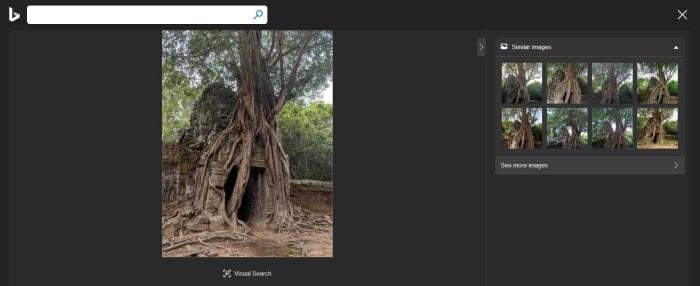
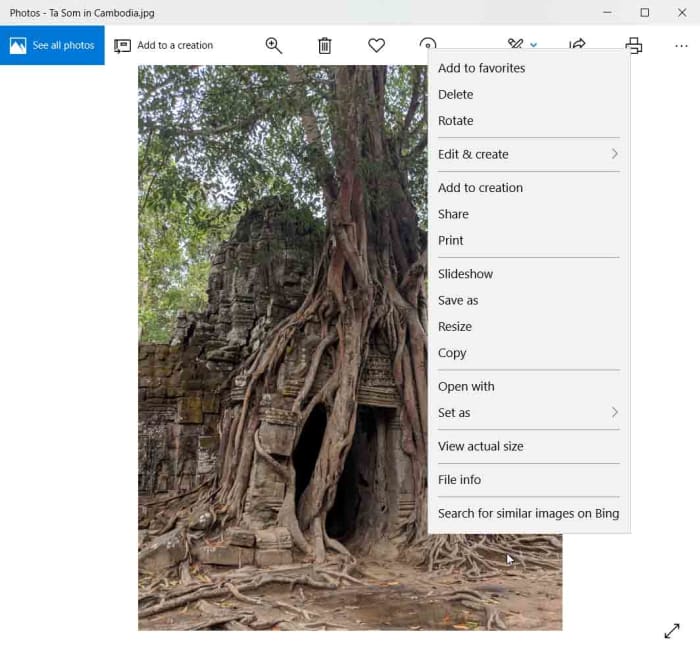
The new feature is very easy to use, too. All you have to do to perform a search for a similar image is open Microsoft Photos and select the image you want to search for. Then you need to right-click the image to open a drop-down menu and the new feature is found at the bottom of this menu. Clicking Search for similar images on Bing will open a dialog box asking for permission for Bing to use the image to improve its image processing services. Agreeing to this will then send the image to Bing and you’ll be shown a results page, on your default web browser, of similar images Bing has found.

micorosft photos now has a search for similar images featureOnce you’ve done this, you’ll be able to click on the search results to see the web pages the returned images are connected to. In this way, you might be able to put a bit of context to the images you have on your device.
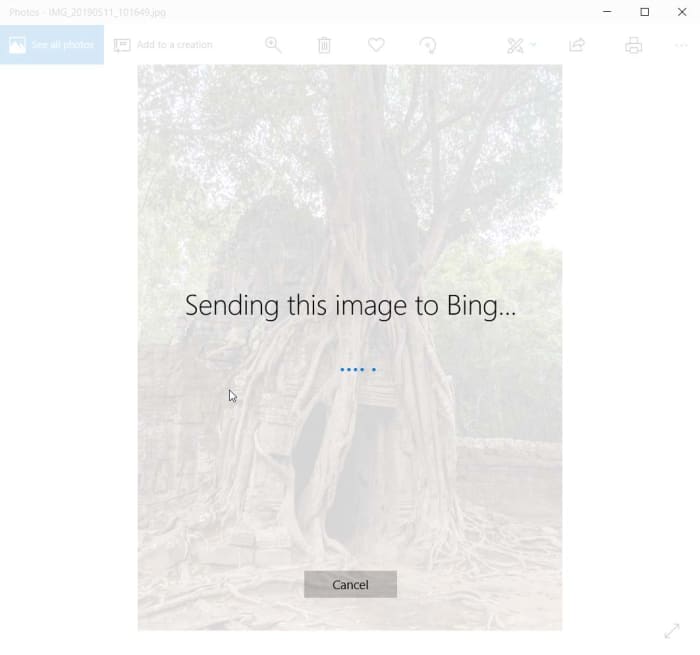
The new “Search for similar images features” is live now, but it is still a little rough around the edges. This is likely to change over the next few weeks as Microsoft refines it further and improves its functionality.

photos to bing search

Although Microsoft is ahead of the curve with its image searching capabilities, it still a little behind in all areas. In particular, Microsoft is only now starting to introduce automatic people tagging to its Photos app. Google Photos has had this facility for a while.

All-in-all these two new features add some serious clout to Microsoft Photos, turning it into strong competition for the Google offering.

Google Photos could soon colorize your black & white photos

Google Photos will soon have a colorize feature going into beta testing.

Every year Google’s I/O conference in May lays out all the big things the internet giant is hoping to bring out over the next 12 months. This year’s offering just passed and, well, it wasn’t as exciting as conferences gone by. We got a cheaper smartphone and a bit of shading around the edges on stuff like privacy. Nothing major to grab the headlines.

Fortunately, however, Google has always been a bit slow in the implementation of its I/O conference promises, which means there are still some cool new Google innovations on the way from past I/O conferences. One such promise is now closer to fruition, and it is an absolute cracker.

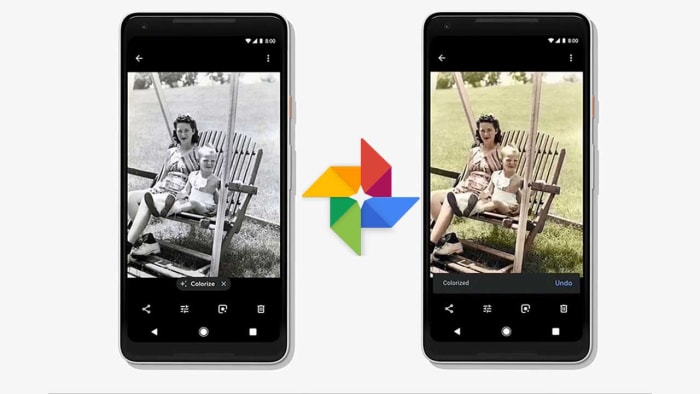
Google Photos will soon have a colorize feature going into beta testing

New colorize feature for Google Photos

At last year’s I/O conference, the buzzword was AI. Google was all about telling the world about the fancy things its impressive AI algorithms could do. There were many brags that grabbed the news, but a particularly cool feature was the AI-assisted colorize feature that Google was going to add to its Photos app.

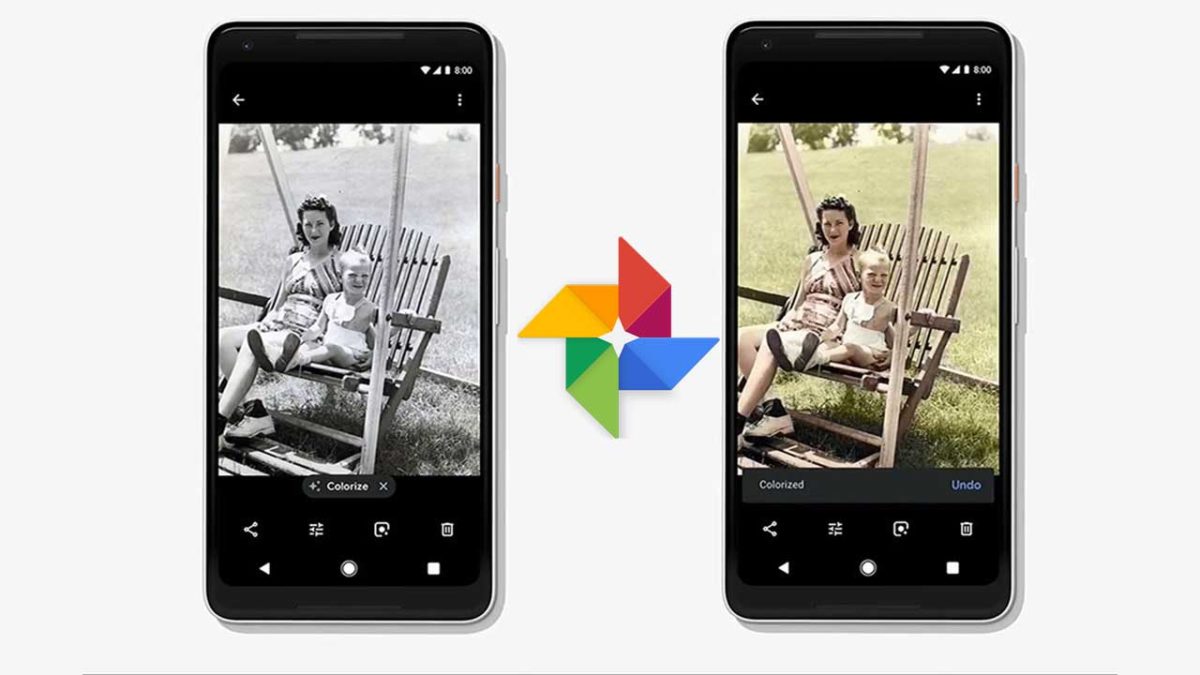
Colorize takes black and white photos and then magically turns them into photos bursting with color. Colorizing black and white photos has been around for a while, but it has always needed a person to go in and decide what colors to add and to which objects. You can see some great examples of colorized images here and here.

Google Photos Download Google Photos
7

The human process can be time-consuming, which must have been one of the reasons Google thought it would be a good idea to teach a machine to do it instead. Trouble is, it looks like training a machine to do it is a time-consuming process, too. Since Google announced the feature over a year ago, it has not been heard of again. In fact, we’re only hearing about the progress the team has made now, because Mashable called the Photos team out on their radio silence. In response to that, the Photos project lead, David Lieb, took to Twitter with a working example of Photo’s new Colorize feature.

Lieb’s working example is quite impressive, but it does show the difficulties he and his team are facing.  The AI has done an admirable job of adding colors to the black and white image, but it is clear that, in some instances, it adds the wrong colors.

The example does show, however, how easy it will be to colorize images when the feature finally lands on the Photos app. It looks like Colorize will show in the list of filters you can choose from when editing images.

The bad news though, is that although Lieb did mention that a beta version of the feature will be coming soon, he made no mention of a specific date or an expected time frame for that to happen.