
5 free alternatives to Word on Mac

Got a Mac? Need some word processing software? Try these 5 programs.

writing with a mac

In 2019, Microsoft Word is as much of a household name as Verizon FiOS, Sony PlayStation, or Colgate toothpaste. Everyone writes with Word, and it’s a staple for practically everyone with a computer.

Unless you use a Mac.

Is it possible to get Microsoft Office on a Mac? It is, but it’s probably not worth it since it’s really the only enticing program in the suite. Office is expensive, and it takes up 2.5 GB of space. Luckily, there is a selection of free and highly accomplished alternative word processing apps for Mac, some of which not only handle Word documents but that you may even find improve on Word itself.

5 free alternatives to Word on Mac

5. Celtx
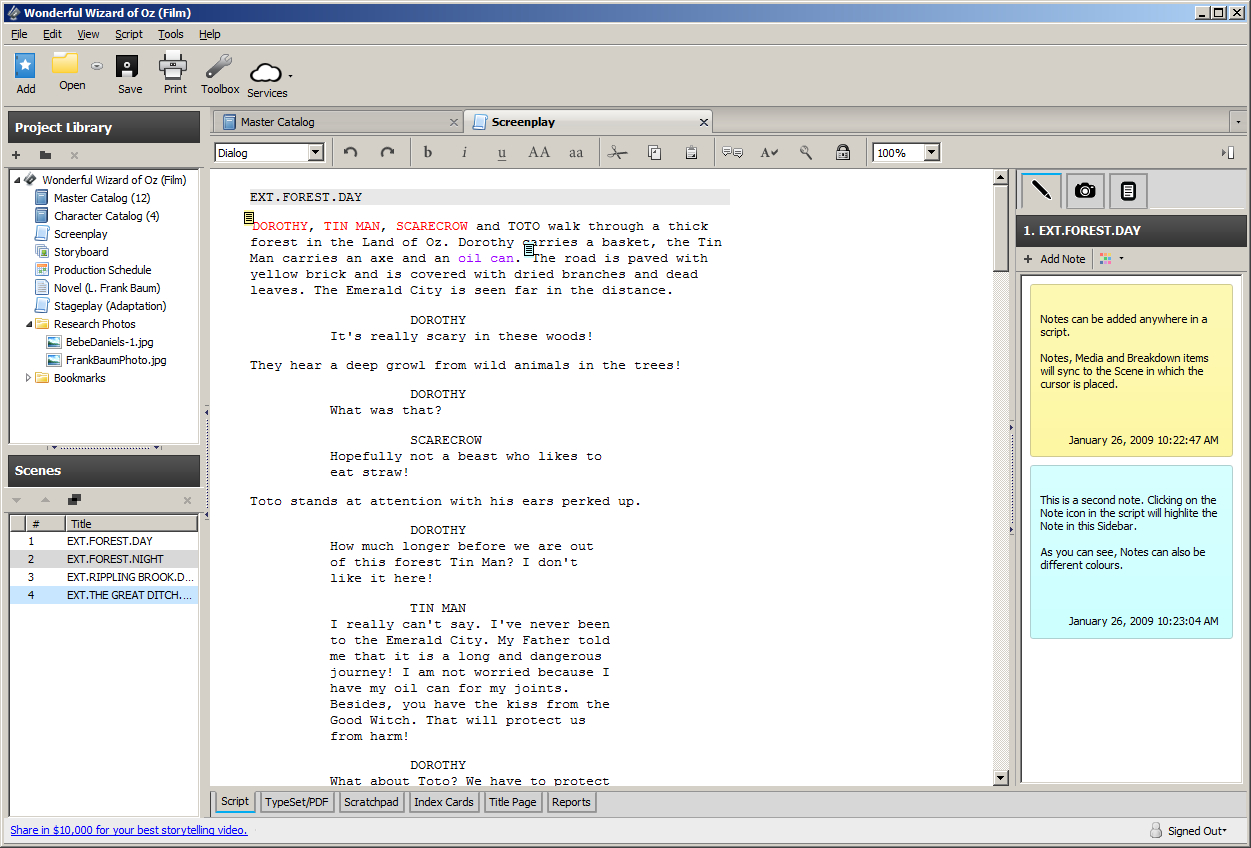
Tend to doubt Wizard of Oz was actually written with this software though.
Celtx is primarily geared towards screenwriting and TV production

Celtx is a free writing tool that’s geared mostly towards screenwriting, storyboarding, and organizing call sheets. Making an account is 100% free and all your work is saved on a cloud until you decide to download it (at which point it’s a .pdf). Available on Mac here, Celtx allows you to create properly formatted video scripts and screenplays, stageplays, audioplays, and comics. Not only that, it’ll sync up with your online studio so you can write anywhere, anytime and even share scripts with collaborators.


Celtx Script for Mac Download FREE ►
6

4. Blogo

Makes sense considering its name, huh?
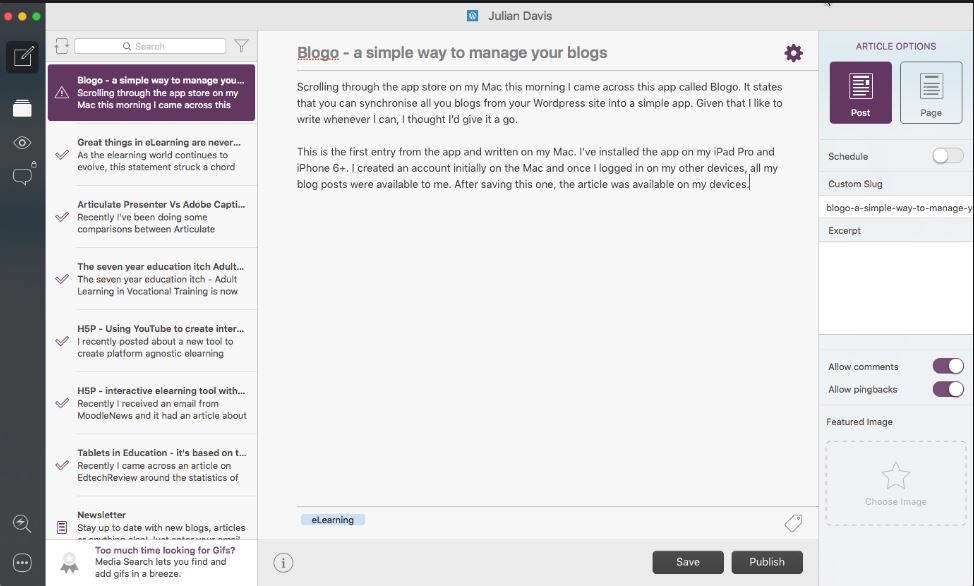
Blogo is an easy, free way to blog on the go.

Blogo is a clever app which allows users to blog right from your Mac desktop. It’s simple, distraction-free, and allows you to write even when not connected to the internet. You can use Blogo with self-hosted or WordPress blogs and the platform supports writing, editing, and rich text, but still allows for inline HTML. Blogo has a paid version which includes extra features such as Multiple blog management, integration with Evernote, enhanced social sharing functionality, and comment moderation, but odds are all you’ll really need is the free version.

Blogo for Mac Download now ►
8

3. Pages

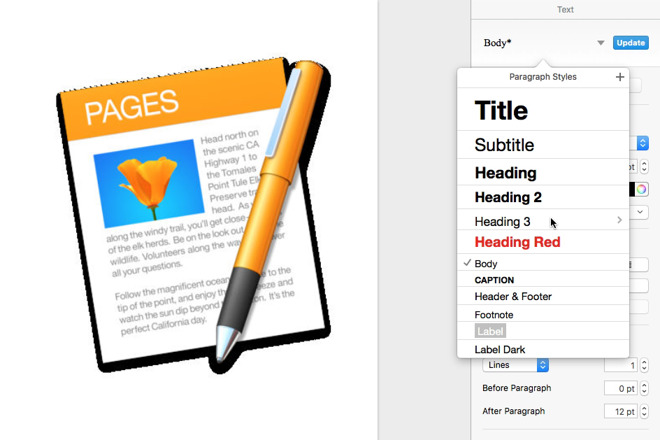
Pick different headings, subtitles - even footnotes
Create documents easily with a strong selection of slick templates

Pages is another free word processor for Mac that lets you create really beautiful documents. On top of that, the more recent versions have improved the typographical tools and are more integrated than ever with iOS and the iCloud. Users are even able to use Apple Pencil to add comments via iPad, or pen in illustrations – something that’s always been wonky on Microsoft Word. As always, Pages does a spectacular job of providing templates for easy document creation, and Placeholders also provide seamless integration with the Photos app for adding images.

Pages for Mac Download free ►
6

2. Google Docs

The best tool for collaborative writing.
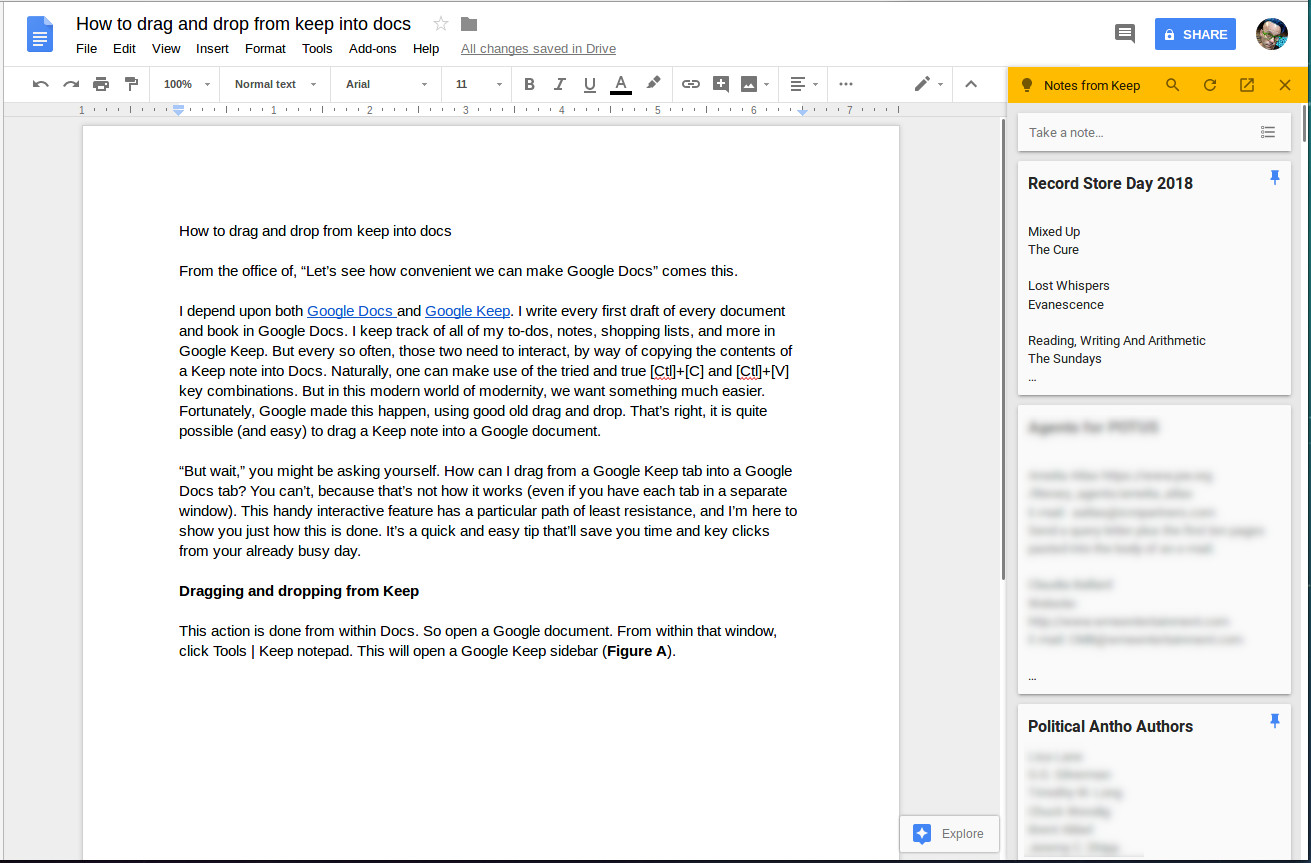
Google Docs are free, accessible on any device, and allow for multiple users at once.

Google Docs are a professional option for virtually anybody in the world. All you need is a computer (Windows and Mac both work equally well) and you’re good to go.

You don’t even need a Google account to be able to access another person’s doc; you’ll simply appear as an anonymous author with a hovering cursor. That’s one of the coolest things about Google Docs – multiple users can work on the same piece at once, meaning that it’s both a collaborative document and a chat at the same time.

You can also add comments, embed media, insert hyperlinks, and alter the settings to allow for other readers to view, comment, or edit.


Google Docs Free Download ►
8

1. LibreOffice Writer

The program allows for pretty much everything Word does too.
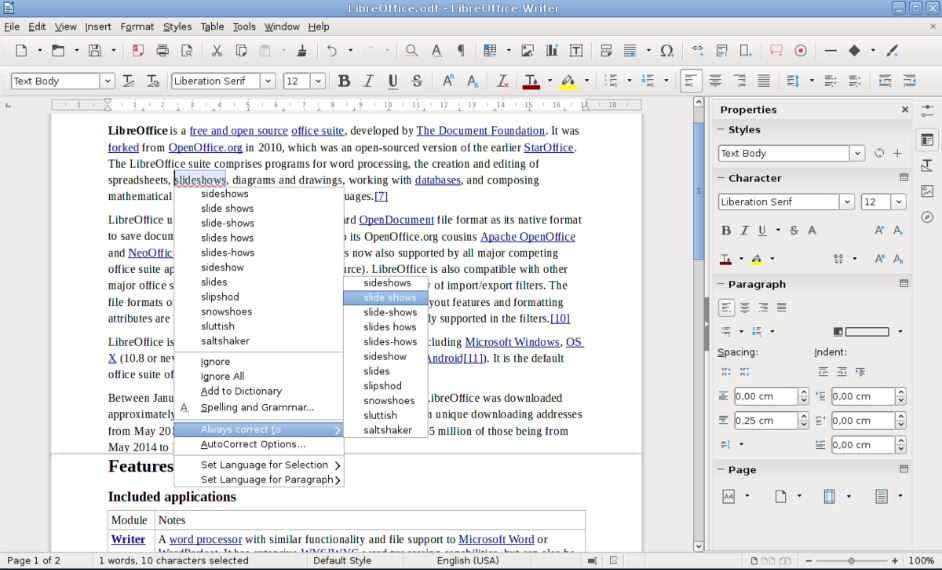
LIbreOffice is pretty much a free version of Word, so it’ll make all your Windows friends jealous.

If you’re trying to mimic the experience of Microsoft Word then your best bet is LibreOffice Writer. It’s a 100% free office suite that looks and feels about as close to Word as you can get, and supports multiple formats, covering all the basics and then some.

Wizards allow for easy set-up of memos, letters, and even mail-merge documents, and the suite comes with a variety of useful tools for formatting and styling.

LibreOffice Writer also has additional tools for creating tables of contents and indexes for longer documents, with more available for download on their website.

LibreOffice Free Download ►
7

Agree with our list? Let us know in the comments below, and if you’re looking for more methods to open Word Documents on Mac, check out this simple way to do it.


Use Calendly to schedule meetings easier and faster

Need to schedule a meeting? Calendly could be the perfect tool.

Calendly

You’ve got a busy schedule. Making ends meet is hard enough without having to log your conversations, add meetings to your to-do list, or spend time meticulously setting up virtual conference rooms.

Calendly takes care of all the tedious micromanagement of your work life so that you can spend your time preparing the important stuff. Think of it as your own personal secretary, helping you plan your itinerary and schedule meetings without the back-and-forth of countless emails.

Calendly makes it easier to access, share, and manage events both far in the future, and sudden and unexpected. You can even send them as a one-click booking experience. Check it out today on the Chrome Store, and see why it’s the go-to organization and scheduling tool for loads of people.

How it works

Time management is something we all struggle with, and it only gets harder the higher you are in the company ladder. Chief Marketing Officers have a tendency not to last more than a few years in their position, with the average tenure being just 44 months. Many CMOs stumble early in their new role solely because there are so many threads to keep track of. Calendly is a secret tool in your back pocket that partitions your daily work effectively and uniquely for you. Take a peek at the strategy:

Calendly works by seamlessly integrating itself with your digital schedules such as Google, Outlook, Office 365, or iCloud. It flags any double-bookings, and works with your selected calendars to automatically check availability to help you professionally connect with clients, contacts, and prospects. You can allow invitees to schedule individual slots (or multiple team members at once) to take the burden off your own shoulders, and create and manage all kinds of meetings, no matter how large a team you’re working with. If you like to host webinar events, Calendly is simply a must-have. For a more in-depth walkthrough of all Calendly’s specific features, check the full rundown on their website here.

Control your own experience

The best thing about Calendly is that it offers complete customization no matter what kind of business you’re working in, or what kind of relationship you have with your co-workers. You can elect to have Calendly send confirmation and reminder emails to your team so that you don’t have to do it in person (this is super helpful in improving no-show rates), and customize your alerts to account for a comfortable buffer time before the meeting officially starts. You can even use Calendly to cap the number of meetings allowed per day. It keeps track so you don’t have to.

How much does it cost?

Calendly is 100% free.

You can sign up in seconds right here. You don’t even need to give it your credit card information. Calendly has over 2 million monthly users, and requires virtually no setup. Give it a whirl right now and watch your productivity reach new levels! Never get double booked again, automate appointment scheduling, and choose to share links via your email or website to fully integrate yourself in a work environment that you set.

Let us know in the comments below if Calendly was able to help you, and enjoy easier, faster, and painless scheduling!

How to edit PDFs for free

If you’ve ever had the uniquely irritating experience of trying to open a file in your Google Docs, only to be redirected to a set of apps you can download, you’re certainly not alone.

Unlike, oh, just about any other type of file, PDFs require a dedicated tool to edit — and many require a paid subscription. In the past, Adobe Acrobat was often the best choice for individuals and businesses, but these days, there are plenty of solid options to choose from.

Still, free PDF editors aren’t always easy to find. Some are okay, others feel downright scammy or have limited features and confusing terms of service.

Here, we’ll give you a few options you can turn to next time you need to edit a document.

Why are PDFs so hard to edit anyway?

So, here’s the thing. PDFs are a proprietary file type that was initially owned by good old Adobe.

The reason they exist is, they look and act the same way no matter what device they’re on. Thus, making it easy to share content.

What to look for in a free PDF editor?

  • Content editing
  • Add annotations
  • Security settings
  • Mobile support

What do you need to accomplish?

This might seem like a dumb question, but there are several reasons why one might want to edit a PDF.

  • Do you want to switch formats?
  • Update a photo?
  • Sign a form?
  • Move pages around?
  • Extract individual pages?

Not all PDF editors are created equal. Some support digital signing and text editing, while others add watermarks and limit features.

A note about conversions: If you need to mess around with the formatting, Acrobat might be your best bet, as it tends to be more accurate than the free tools on the market.

Free PDF editors worth checking out

Smallpdf

smallpdf screen shot

Smallpdf is a free online tool designed to help you add text, images, or a signature to a PDF.

What’s nice about this option is, they don’t force you to sign up for an account or pay to remove a watermark and security is a core part of their platform, for free users and paid subscribers alike.

Key features

  • Add text to PDFs
  • Load and save from multiple sources
  • Access from anywhere
  • Secure editing
  • Converts documents to Word

That said, if you edit more than two PDFs in an hour’s time, you’ll need to pay to upgrade to a paid account.

This option is best for people who want to quickly edit forms like W9s or sign a contract here and there. Since you can’t edit existing text, it’s not the best option for anyone who needs to make significant changes to a document.

If that’s you, you might want to upgrade to a paid account, which comes with a whole host of features for $6 a month. What we’re not wild about is, while everything about the features is pretty straightfoward, it’s not clear where Smallpdf draws the line between what’s free and what requires a subscription.

FormSwift

formswift pdf editor

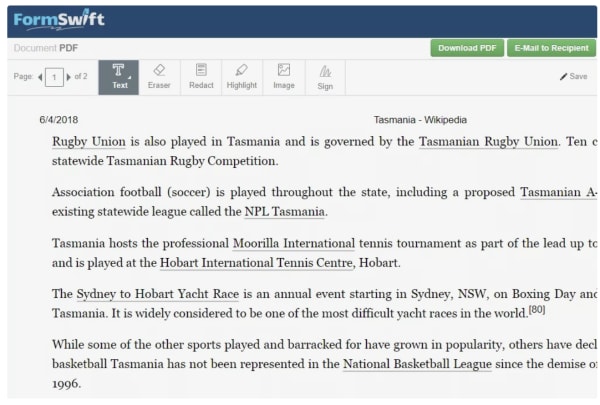
FormSwift’s Free PDF Editor is a simple PDF editor that like Smallpdf’s option, allows you to start editing documents without an account.

The editing process is simple. All you need to do is add the PDF file to the website and select one of the editing functions from the drop-down menu at the top of the page.

Some of the key features you’ll find in Form Swift’s editor:

  • Redact text with a black bar
  • Erase text
  • Insert images
  • Highlight anything on the page
  • Edit images and Word documents (as opposed to a PDF file)
  • Add checkmarks, Xs, or circles

Once you’re satisfied with your handiwork, you can download the file or print it. You can also save it as a Word document, which comes in handy if you need to edit something like an article.

While you can’t edit the text directly, the Word conversion feature is a good workaround for this issue — simply edit the document in Word and convert it back to a PDF when you’re done. Simple.

PDFsam

pdfsam split and merge

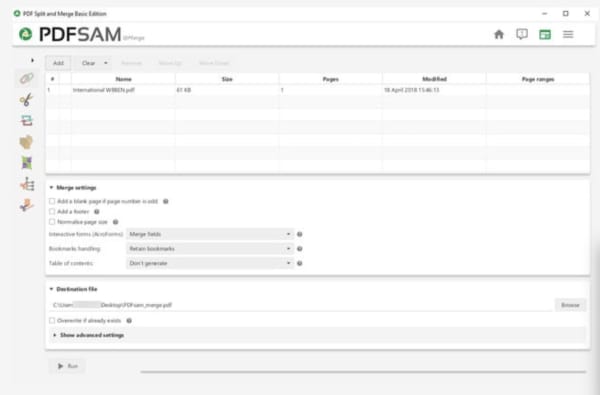
If you need a tool that lets you rearrange the contents of an existing document, PDFsam is one of the best options around. The “sam” part of the name actually stands for “split and merge,” which means that you can slice, dice, and rearrange PDFs as you see fit in order to build the document you need.

When you sign up for a PDFsam account, you’ll gain access to their free trial offer, which gives you a taste of the full set of tools included in the lineup. Here, you’ll find a full set of editing tools, plus OCR, secure signing, and more.

The free version does not come with any tools that allow you to alter the content of the document and what your left with is a page management solution.

Key features:

  • Page rotation
  • Extracting individual pages
  • Cut large files into smaller documents
  • Rearranging pages

Okay, if you’re thinking, PDFsam doesn’t perform the same basic tasks you’ll find with the others on this list, that’s totally fair. On its own, we probably wouldn’t recommend PDFsam unless you were planning on using the paid plan.

The benefit of this free version is, this one functionality doesn’t come standard in other free PDF editors so it may be worth stacking with another that allows you to sign documents and edit text.

Sejda

sejda free pdf editor

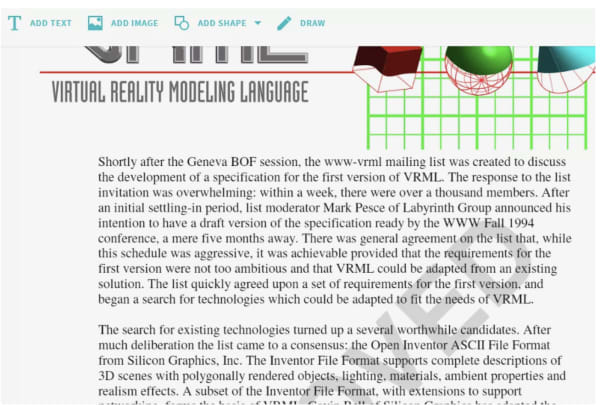
Sejda PDF Editor is a simple PDF editor that allows you to sign PDFs and edit existing texting, without adding in a watermark. The editing tool offers a free plan with some limitations based on time and volume, but it seems to offer more features than some of the other free plans we’ve mentioned above.

Key features:

  • Load PDFs from other sites
  • Allows you to add hyperlinks to documents
  • Supports e-signing
  • Doesn’t add a watermark
  • Remove pages
  • Rearrange pages
  • Insert shapes and images

PDFelement Pro

pdfelementpro editing view

PDFelement Pro is a free PDF editor that does allow you to edit the text in any PDF, but it will slap a watermark on every single page. The watermark doesn’t take up much space, so if that’s not a deal-breaker, you’ll have access to some pretty great editing tools free of charge.

Key Features:

  • Crop document pages
  • Rotate, insert, extract, delete, and rearrange pages
  • Add a password to the PDF
  • Edit the background of any page
  • Include headers and footers
  • Add images and links
  • Add custom watermarks
  • Edit text
  • Merge multiple files

In many cases, the watermark feature is a deal-breaker. We can’t imagine sending out a contract or a proposal to a new client with the watermark, as it doesn’t give off a super professional vibe. That said, if you need to sign something or edit a one-off doc and there’s no need to make that “first impression,” this PDF editor offers more features for free than most of its competitors.

Wrapping up

 As you can see, there are several options for editing PDF files without paying for an Adobe Acrobat subscription. But, all have some limitations in place as just about every tool out there wants to get more people to sign up for their paid subscriptions.
That said, something like Sejda is only about $7 a month, so those who need more features or do a whole lot of editing may find that a few extra bucks is a small investment for more convenient PDF editing.
Where free editors come in handy is, they can be a real lifesaver for situations where you need to sign a contract – -fast. Or, you need to create a PDF file on a rare occasion. Again, high-volume PDF pros probably need a more robust solution.

Google Calendar and Keep apps get the dark mode treatment

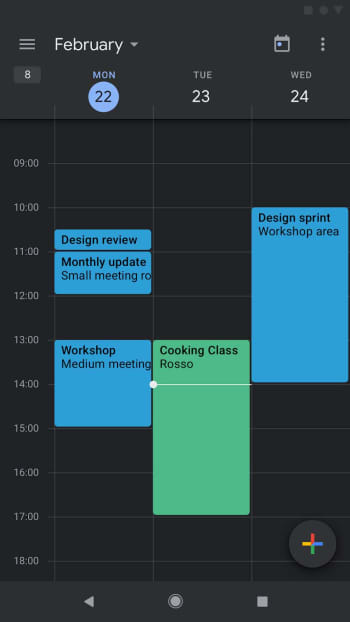
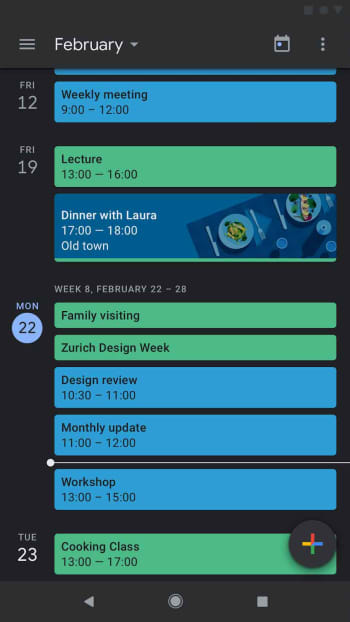
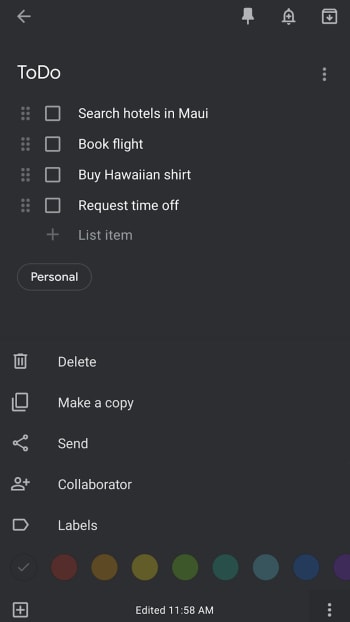
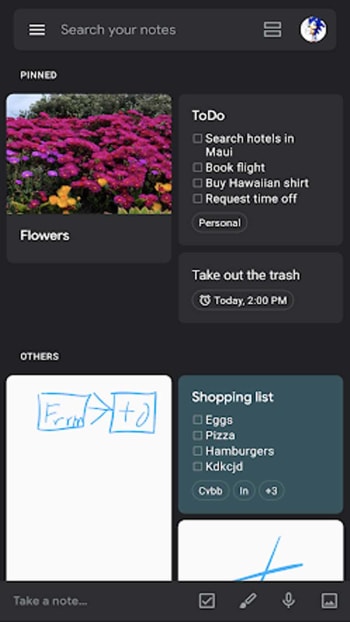
Google Calendar and Google Keep on Android get dark modes.

Google dark mode

Ever since Google released research it had done that showed darker colors require less battery power to display on OLED screens, we’ve seen a raft of apps add the dark mode feature to their setup. But dark mode has always been popular among users for both aesthetics and the eye-saving ability it offers when you’re using your phone at night.

The really hilarious thing about the Google research, however, is that it came not long after Google began implementing its Material Design philosophy, which relied heavily on clean, white backgrounds. Since then, however, Google has been moving through its core products and adding dark modes. There is also a lot of chatter going on that says when Android Q drops, it’ll have a system-wide dark mode option. For this to work though, all Google apps will need their own dark modes, and this is where we’re at today, letting you know about the newest Google apps to get dark modes.

Google Calendar and Google Keep on Android get dark modes

Google Calendar darkmode

The Google G Suites update blog has released the news that the Android versions of Google Keep and Google Calendar now have dark modes. As mentioned earlier, the release of these new dark modes relates to the upcoming system-wide dark mode that Google will introduce when it rolls out Android Q. Both apps will automatically work in dark mode when Android is set to dark mode, but there are slightly different instructions to follow to enable dark mode on both apps individually.

Google dark mode on calendar app

How to activate dark mode on Google Calendar and Google Keep

The first thing you’ll need to do is make sure that you’ve updated Google Keep and Google Calendar to the latest version. Then to enable dark mode in Google Calendar, you need to go to Settings, then General, and finally Theme. You then click Enable Dark Mode.

To enable dark mode in Google Keep, you simply need to go to Setting and hit Enable Dark Mode.

Google Keep dark mode

Google Calendar Download Free ►
8
Google Keep Download Free ►
8

The dark mode for Google Calendar is available to all users of Android versions Nougat onward and the dark mode on Google Keep is available to users of Android versions Lollipop through Pie.

Google Keep's new dark mode

If you can’t see the dark modes in our versions of the apps just yet, don’t worry. The roll-out for Calendar began on May 16 and the roll-out for Keep began on May 20. In both cases, Google has said that the feature is getting a gradual roll-out and should take up to 15 days for full feature visibility. Don’t worry, you’ll be able to go dark very soon.

Tame browser tabs with Toby

You have too many browser tabs open. Here’s how to fix that.

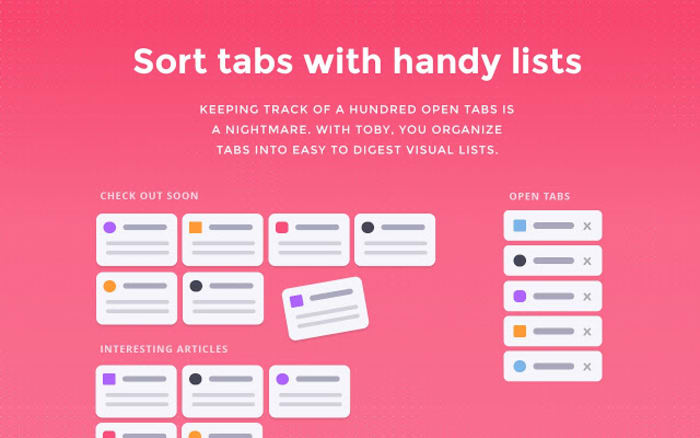
Toby sort tabs
Organize your tabs in a quick, logical, accessible way.

If you’re like most of us, there’s a lot going on in your browser at once. You’ve got an article you’re reading (hi!), email in another tab, Facebook one tab after that, a half-watched video in the next tab, a chat in the next, music playing from somewhere else, and suddenly an unannounced ad trumpeting over all of it. Before you know it your browsing session is a chaotic disarray of pinned tabs, busy extensions, and a list of unrecognizable bookmarks that scrolls on and on. If you’re drowning in the mess, Toby is the life preserver that can help you stay afloat.

7
Tame your tabs!

What is Toby?

Toby is a browser extension compatible with Chrome, Firefox, and Opera (provided you use this extender) that helps you organize tabs and save you time. According to a recent survey of Toby users, the service can save you up to eight hours a week.

How could it possibly save that much time?

Once you install Toby, the extension is present on any new tab you open, be it YouTube, Reddit, Facebook, a new search on Google. To use it all you have to do is create a ‘collection’ and drag your choice of open tabs right into it.

The simple mechanic was designed to help you keep track of relevant information throughout the day, and does so by storing tabs locally on your computer. That’s its main draw, but there’s other neat stuff the extension can offer too, like syncing files or sharing. Sometimes Toby can even restore services on deleted collections or tabs.

Toby Tabby mascot
We feel this is a good time to introduce you to ‘Tabby,’ the official mascot of Toby.

The dev team explains how it saves you time like this: “If you think about the time it takes you to find a document or the file your coworker sent you 2 months ago, you can see how it can quickly add up. Toby is an entirely new way for modern teams to access resources and share knowledge seamlessly. It will save you a significant amount of time and money and even better allow you to do more important work.”

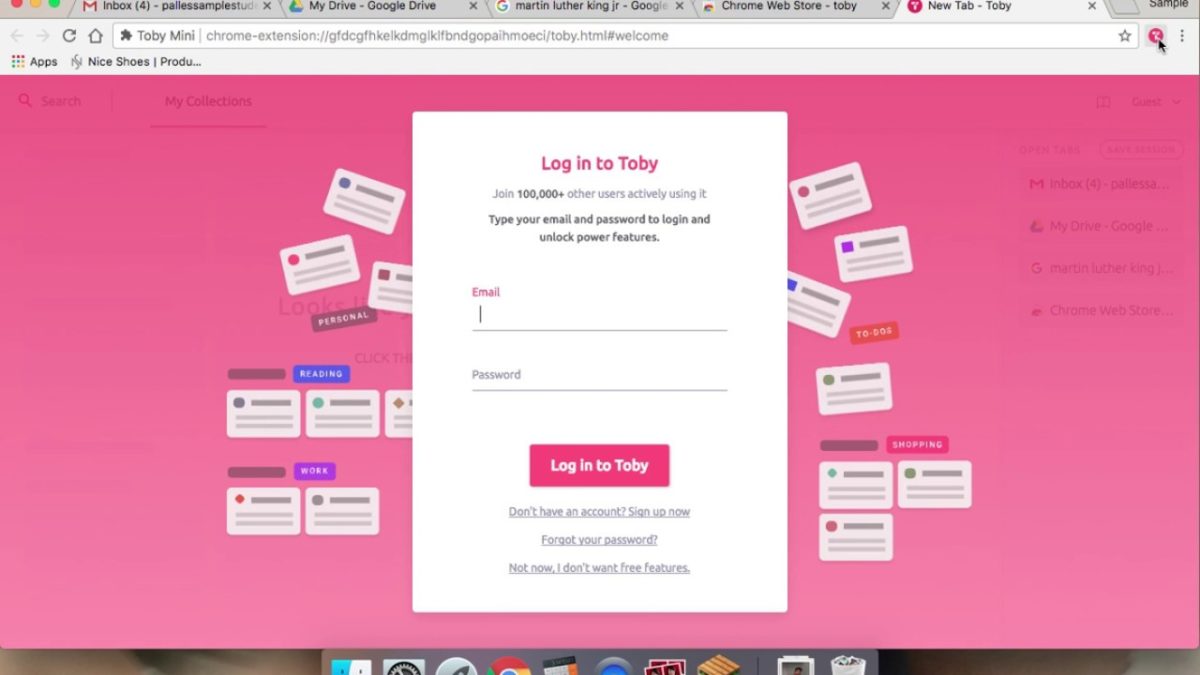
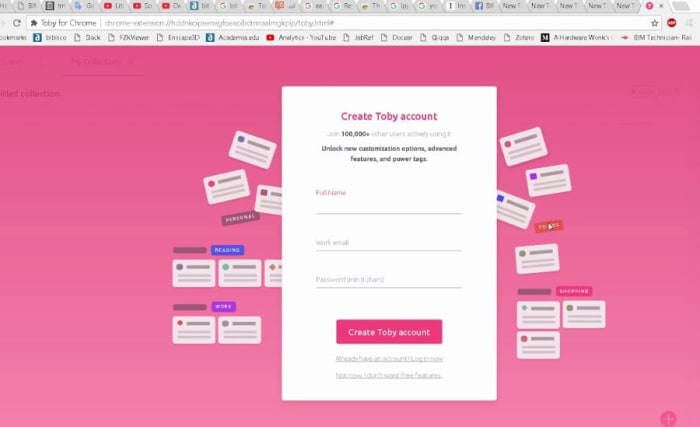
Toby create account
If your browser has this many tabs, Toby is going to make your life so much easier.

Isn’t that what folders are for?

By default, your browser already lets you make folders, sub-folders, and bookmarks at any time, so what is it that Toby does better? While folders can be a way to organize long-term, people seldom make them per browsing session; it’s usually not worth it.
Toby is much more spur-of-the-moment; an improvisational method for keeping your current objective in sight, and any additional stimulus is put somewhere separate. “Bookmarks are for books, not browsers,” says Toby. “Organize your browser tabs into Toby so you can access key resources in one click instead of seven.”

Toby make tabs work for you

How much is it?

Toby is free. You can download it right here by creating an account. There’s no trial period, no fuss; Toby can be used for your PC at work or at home, and will help you stay organized until you decide to remove it.

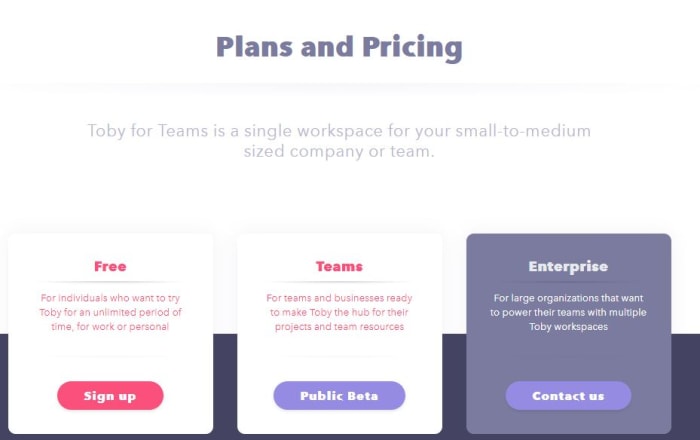
There is a public beta version of Toby that’s available for teams and businesses, as well as an Enterprise better suited for large organizations “that want to power their teams with multiple Toby workspaces.”

Toby plans and pricing
Toby can be used personally, on a team, or as a business

Getting an account is recommended, but you don’t even have to do that. It just means that your information will be stored locally instead of on a shareable cloud that can be accessed on a different computer. So give it a whirl and let us know in the comments below whether Toby has saved you time and helped you stay organized!
The best online productivity tools for writers in 2019

Whether you write for fun or for a living, these great apps will supercharge your workflow.

writer

We can’t speak for everyone, but life as a writer can feel like a constant race to get things done. We’re either going full speed ahead, banging out a few pieces of content last minute or trying to combat our worst time-wasting habits.

One second, you’re trying to come up with your latest greatest blog post and the next, you’re looking at socks on Amazon and skimming articles.

And look, there are so many productivity tools out there, but for writers, many of them present more distractions than they aim to destroy.

What makes a great app depends on several factors: your process, the type of writing you do, where your productivity challenges lie. Are you a blogger, a novelist? Are you writing a company handbook or trying your hand at a passion-fueled screenplay?

Here, we’ll look at some of the best apps for writers – be it a distraction-free digital space or a better way to work out your big ideas.

Best productivity apps for writers

Things

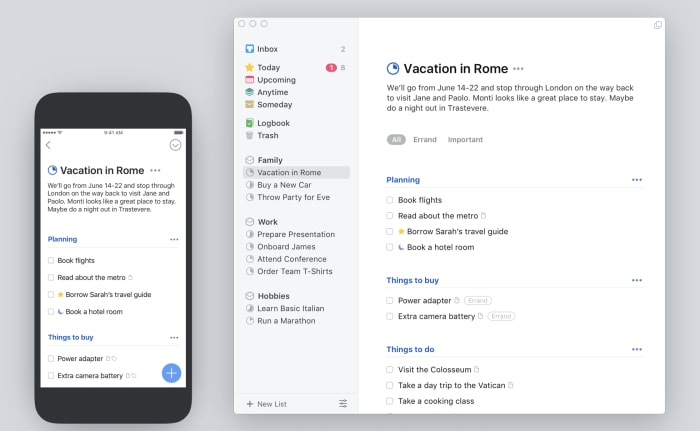
Things iOS and desktop

The Things app is probably the best to do list app, at least in our opinion. It’s a paid app, and it’s a little spendy for a lot of folks — but if you need a task manager that can do it all, this is a good choice.

The reason Things is a good thing for writers is — it’s not complicated.

In fact, it kind of feels like a mashup of Google’s tools and the apps that come standard with your Mac — you know, Notes or iCal. The benefit is, Things brings the basics together in a central hub — so you can track your deadlines, write down new ideas, and turn your notes into checklists.

What’s more, Things comes with a searchable archive, as well as the ability to set long term and short-term goals — that’s more important than one might imagine.

Things Download Free
8

Scrivener

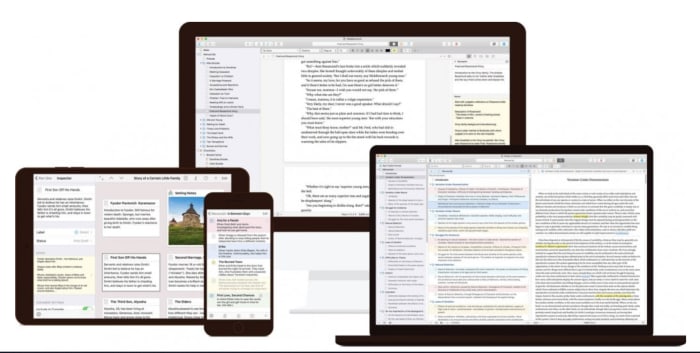
Scrivener writing app

Scrivener is a favorite among the screenwriter set, as well as those taking a crack at a novel.

The productivity benefits you’ll find here are primarily formatting oriented. You can use the platform to create comprehensive outlines, break your writing into scenes or chapters, and move full sections around without the risk of messing up your masterpiece-in-progress.

This isn’t necessarily the best tool for bloggers or those writing shorter pieces of content. But, if you’re writing academic content, this app is a real lifesaver.

They’ll help you stick to Chicago or AP guidelines, no problem. And Scrivener takes care of your formatting woes. When you start a project, you’ll select a template that matches the pilot episode, nonfiction book, or whatever creative project you’ve got up your sleeve.

Scrivener Download Free
7

Ulysses

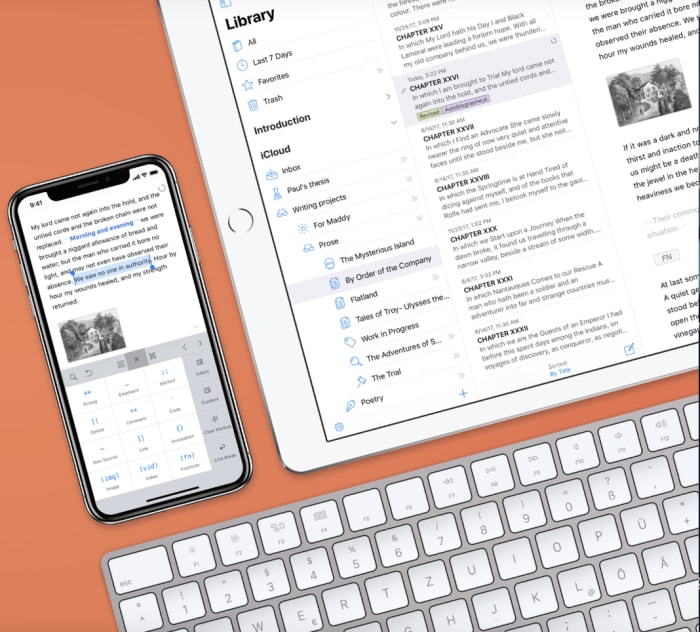
Ulysses mac iOS

Ulysses is a writing environment app with a cloud-based component. Basically, it’s a clean digital space that seeks to eliminate distractions while you strive to meet that word count minimum.

And while there are a lot of “writing environment” apps, this one brings more to the table than some of the others we’ve encountered.

Honestly, it looks like a better version of Apple’s Notes. And it also syncs your content across all devices — so you can work on your laptop, make some edits on your phone, and review your work from the iPad.

Ulysses Download Free
8

iA Writer

iA writing app

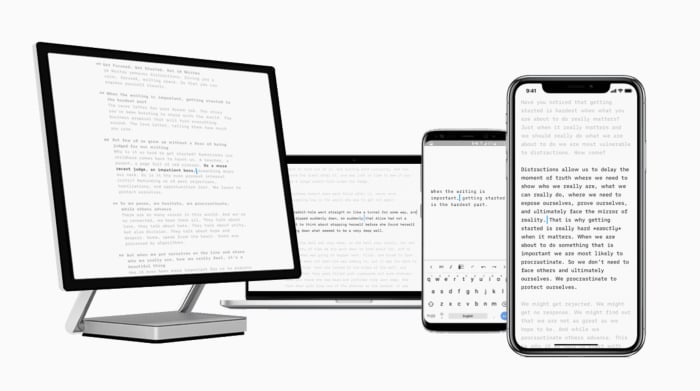
iA Writer is a distraction-free writing app for iOS, Android, Mac, and Windows. The app offers several features that help users get more done. iA writer supports full markdown language and makes it easy for bloggers that need to translate their final draft into Medium or WordPress. What’s more, the app allows you to embed images and tables into the document — which any web writer knows can be a real time-waster.

iA Writer is a minimal tool — offering few distractions and a few handy tools. Syntax highlight highlights specific parts of speech, while focus mode highlights one paragraph or sentence at a time.

iA Writer Download Free
10

MindMeister

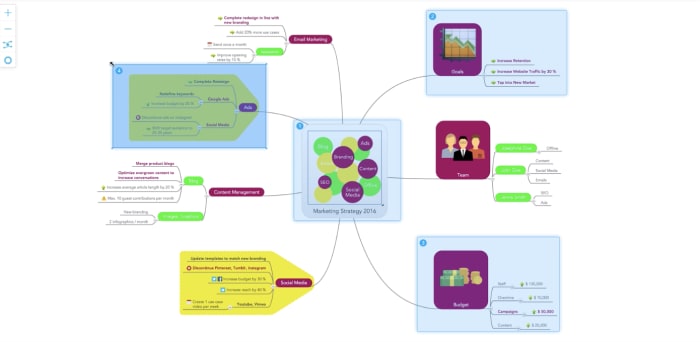
MindMeister sample map

MindMeister is an online tool that allows you to capture and work out ideas as a visual map. While it might not sound like a writing tool at first glance, this tool is a great way for users to work out just how they want to tell a story.

This tool works on Mac OS, Windows, and Linux — or you can just keep things in the web app, download-free. MindMeister is sold with a collaboration bent, but we envision this as being just as useful for solo brainstormers as the whole team.

There are several features built in, but we liked that this tool comes with an online storage system for all inspirational materials — like Evernote, but connected to the mapping feature.

Unpaywall

Unpaywall extension

Ever spend way too much time cruising the internet for reputable sources — only to find reports that cost like $200 just to review? Yeah… us, too.

Unpaywall comes in to provide a workaround. It’s a digital library of 50,000+ journals and open-access repositories. Their goal is to bring scholarly articles to everyone — whether they’re writing an article or have a school project due.

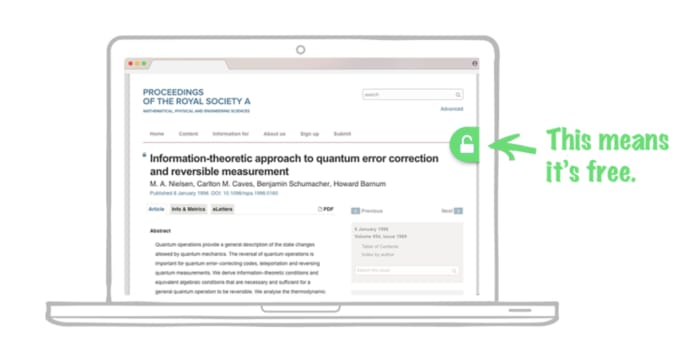
Okay, Unpaywall isn’t really an app — rather it’s a free Chrome extension. How it works is, you’ll conduct your research as usual. And when you come upon a paywalled research paper, the extension looks for a free version posted on another site. If something is available, Unpaywall displays a green icon on the right side of your screen — click it to read the article, free.

Now, it doesn’t work on everything, but it will make your life easier, especially if you need to find some stats that make your article all the more credible.

Wrapping up

The best writing tools aren’t necessarily a choice between whether you prefer Scrivener over Google Docs or Microsoft Word.

Rather, the goal is to develop a productivity stack that works for you.

We’ll say this from experience — little tasks like formatting and finding good sources can eat up a lot of time, on par with surfing the internet when we should be working.

How to use music to be more productive and creative

Looking to boost your brain? Here are the ingredients for the perfect playlist.

Headphones signal a commitment to productivity. Slapped on in open office spaces, busy train stations, school, and elsewhere, encasing our ears in sound means transporting yourself elsewhere — at least a little.

Music sets the stage for our moods and occasion. It’s there when we want to power through a workout or provide the backdrop for a friendly get together.

But, whether music is an actual productivity tool is somewhat divisive. Some types of music get in the way of getting stuff done, while others provide a sort of idea lubricant.

Here’s a little more about what science says about using music to your advantage — as well as which types are likely to help you tap into something great.

How music affects your productivity and creativity

music

Brains love rhythm

Human brains are inherently responsive to music, whether we’re aware of it or not. In 2016, researchers found that the brain automatically picks up on musical beats, meaning we recognize sound patterns on a subconscious level.

Music you love can increase your output

Positive feelings lead to better output. Kind of a no-brainer, right? A study published by the  University of Windsor measured the impact of music on work quality, finding the results were largely positive.

The study compared the output of workers listening to music as they went through their daily tasks, compared to counterparts who went without. Music was found to provide a little mood boost and it had a soothing, anti-anxiety effect, too.

According to another study from the BMS College of Engineering in Malaysia, subjects found that music played around 60 beats per minute had a calming effect.

Repeat, repeat, repeat

While lyrics can hamper concentration, a tried and true list of favorites can be the perfect soundtrack for productivity.

WordPress founder Matt Mullenweg says that one of his favorite productivity hacks is listening to one song or a very short playlist on repeat. He says his brain begins to register these familiar tunes as white noise. Another great option? Video game soundtracks. Their simple loops can tend not to be annoying and it’s more fun to work while imagining yourself traversing Hyrule.

In general, this works best if you like the songs. Familiarity gives us positive feelings. Yet, in playing the same music again and again, the brain stops trying to interpret the meaning of the lyrics.

The Mozart effect

According to the Baby Geniuses school of thought, classical music makes you smarter. And, many people believe that Mozart, specifically, offers some sort of musical biohacking benefit.

The focus on this particular composer is interesting, but some believe that Mozart had unlocked some magical formula for productivity.  We can just picture this: someone reads an article, finds Mozart on Spotify, and begins banging out the great American novel.

The Mozart effect is this idea that children who listen to Mozart will become more intelligent.  When tested in the wild (more specifically, in college students at the University of California, Irvine), students who listened to Mozart were better at completing tasks that required them to create shapes in their minds.

Still, the study concluded that those boosts only lasted about 15 minutes, not enough to move the needle on one’s IQ.

Classical music has been shown to be beneficial to listeners, but the reason isn’t the genius of a handful of dead guys from the history books. Rather, music with lyrics can create a conflict in the brain — especially if you’re trying to read or write.

Instead, workers who choose to use classical music or low-fi beats, receive that same benefit of blocking out distractions.

Different types of thinking

creativity

Abstract thinking. Big ideas. Spitballing. All that loose, creative work can be enhanced with music. If you’re trying to tap into this creative space — turn up the volume. Moderate-to-high noise stimulates abstract thought.

Though, when it comes time for implementation, turn the dial to a low-grade murmur. Loud noises make it hard to zero in on the details.

Music tempo, too, comes into play when you’re trying to optimize for certain tasks. Fast music has been shown to help listeners perform better on IQ tests.

What’s important to consider is, specific types of music aren’t a prescription for productivity. You need to actually like it to reap the benefits, otherwise, it could have a negative effect.

Classical music gets all the glory because Mozart (and others) arrangements are complicated, up-tempo, and give the brain something to do — without lyrics getting in the way.

Complete guide to self-improvement

Get smarter, healthier, more productive, and more in shape with our complete guide to self-improvement.

Ever wonder what the difference is between the people who reach their goals and those who merely dream? Those who hit their targets prepared themselves to do so. Here at Softonic, we’re focused on bringing you the best advice and digital tools to achieve any goal. Take a look at the stories we’ve assembled and consider how they can help you start building your tomorrow today!

Improve your mind

learning

Reaching your potential

Mental health

self esteem

Learning

learning

Staying balanced

meditation

Improve your body

exercise

Exercise

Food

vegetables

As we continue publishing articles to make your life better, we’ll add them to this page, so be sure to bookmark it and check back whenever you need a boost.

7 ways to stay inspired when you are your own boss

Do you work alone? If so, these tips can keep you creative, balanced, and happy.

Working for yourself might seem like the ultimate dream. You make your own hours, wear sweatpants if you want to, and don’t live life dreading pointless meetings.

Your business, your rules.

But, being a model employee and running a tight ship isn’t always easy. It’s hard to stay inspired, motivated, creative, when it’s day-in, day-out, cranking out work on your own.

Below, we’ve compiled a list of seven ways to stay inspired when you work for yourself.

How to stay motivated when you work for yourself

1. Make time for reading

reading

Adding reading to a never-ending pile of to-dos may sound counterintuitive. Where is that time for leisure reading supposed to come from anyway?

Even 45 minutes or an hour spent reading a good book can do a world of good.

For one, if you’ve ever spent days on end writing a ton of content, you know that you’ll start to sink into the habit of using the same words over and over. Reading works in a different style than your own can help you pick up some new ways to communicate an idea — even if you’re not aware of it.

Reading business books or self-help books can be great sources of inspiration, but don’t discount the power of a good pleasure read.

Emory University’s Center for Neuropolicy published in a 2013 study that found reading changes the brain not only during the activity but afterward, as well. The study found that reading promoted heightened connectivity in the temporal cortex, an area associated with our ability to process language.

In turn, reading can serve as inspiration, no matter the genre or relation to your day-to-day work.

We should mention though, the way we read on the web — scanning in an F formation — your Apple news habit doesn’t offer the same benefits as reading an old-fashioned book.

2. Spend time looking at the big picture

Focusing on the zoomed out view can help you keep your head in the game. Revisiting your mission is super important. Long term, you should look at two things: what do you want to create with your business? And, second, how far do you want your reach to extend?

It’s easy to lose sight of primary goal when you’re caught up in the weeds invoicing, editing, or putting together spreadsheets.
3. Write down goals—and review them frequently

goals

Writing down smaller goals is a basic concept. But this is different than making your to-do list.

Instead, write down goals, along with a progress report or the steps that need to be completed.

The point is, do whatever it takes to keep your big picture items in view, documenting your progress, and making plans for your business in the long run.

4. Become a mentor

Spending a lot of time working alone can make you a bit self-absorbed.

Taking some time to help someone who is just getting started in their career can renew some of the passion that gets lost in the day to day shuffle — between to-do list items, calls, and demanding clients.

Whether you choose to hire an assistant, get an intern, or spend time with someone who needs a little extra help — this relationship can be mutually beneficial.

For them — they’re benefitting from your knowledge and experience. On your end, you’ll have access to a fresh perspective. You’d be surprised; rattling off ideas and listening to what the new blood has to say can be a powerful motivator.

5. Delegate or outsource to save time

delegating

Knowing when to delegate is a skill that all bosses need to nail. It’s essential for time management and allows you to focus on the stuff that matters.

You may have started out doing everything yourself, but you can’t be a master of everything, right?

Instead, you need to realize that growing your own business means taking the time to hire an assistant for your social media accounts. Or outsourcing a graphic design job for your new website.

By all means, do the things you love, but know that getting qualified help allows you to take your vision to the next level.

One reason that people don’t delegate as much as they should is, it’s hard to write a job description and create a system for deadlines, deliverables, and standards. As such, you should start by taking a day to create your own SOPs and writing them out — for each job type.

Things to do before hiring a helper:
  1. ID tasks and associated deliverables
  2. Who do you need to delegate tasks to? How many different people do you need to find?
  3. Where will you find people? Some roles may be filled by gig workers, while others may be better suited to a real-deal employee.
  4. Management plan — from communication to deliverables ownership, to payments, write out all of the specifics, according to each role that needs to be filled.
  5. Set a schedule for status meetings and updates. Communication is critical, and regular check-ins mean you have the chance to make corrections if your designer/developer/freelance writer/social media guru isn’t entirely on the same page.

6. Brainstorm/network/talk with others

When we ditch the old 9-5, we miss out on the positives of working in an office setting too. As much as it’s nice to do your own thing, there’s a lot of creativity that comes from working with other people or you know, just chatting.

With the rise of social media and all of these business tools that have made it easier to work from anywhere, we lose something in the process. Make a point of grabbing lunch with a friend, attending local Meetups or networking events, or reaching out to contacts in your industry.

7. Find a schedule that works

schedule

Some say the secret to success is waking up early. Others get their best work done in the dead of night after everyone has long been asleep.

Whatever your chronotype, your preferences, and so on — it’s essential that you find a schedule that works for you and your brain.

Set the start of the day and the end of the day at the same time and stick to it Monday through Friday.

You’ll start to understand the times of day when you’re most productive and from there, can structure your daily tasks according to that schedule. Second, working the same hours every day makes it easier to set boundaries with your friends and family, as well as your clients.

While freelancers and entrepreneurs don’t always have the luxury of on time and off time, working during the same hours each day also prevents that inevitable work-life bleed.

Wrapping up

Inspiration comes in part by being smart with how you spend your time. For example, if you fail to delegate the tasks that are boring or hard or just not your thing, you’re sapping your mental energy before you get to the “good stuff.”

Instead, making time for networking and mentoring means you’re exposing yourself to new people and perspectives, which can help you break out of a rut. Or listening to podcasts you enjoy, reading a few chapters of a book before you go to bed each night, or even taking on a new hobby — these things get your brain working in ways that don’t immediately seem related to your work.

In the end, these habits listed above work together to save you time and help you avoid burnout.

Top 5 apps to simplify your life

Feeling like your life is too cluttered? Try these great apps to simplify and streamline your everyday existence.

minimalism

Looking for a simpler life? We’ve compiled a list of apps that will help you cut out the extra things that you don’t need, streamline productivity, and move toward a less stressful year.

Top 5 apps for minimalists

1. Amount Plus

amount plus screenshot

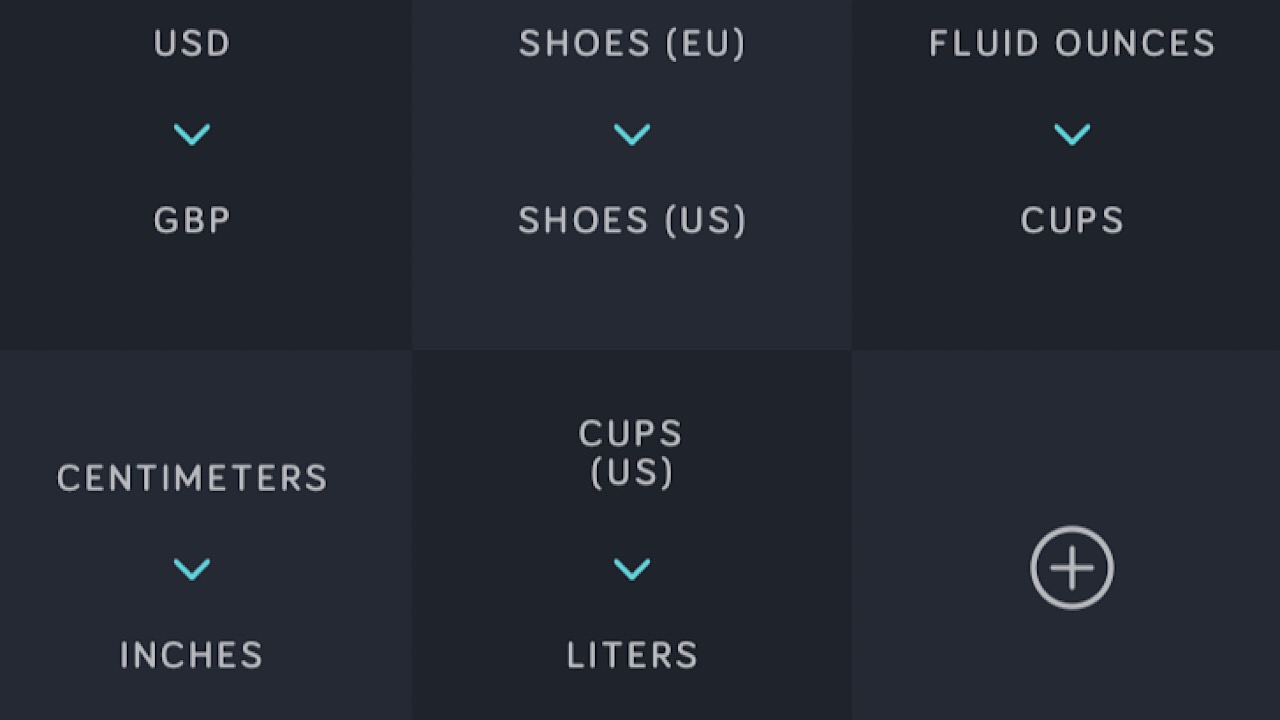
This is an app that everyone needs. Amount is a conversion app that you can whip out when you’re having a brain fart. The best part is that you can make shortcuts on the homepage for the conversions you use most. You can have your currency converter, European shoe size to American shoe size, and ounces to cups all in the same place. Toggle from day to night mode to make it easier on your eyes. Amount Plus comes in at only $0.99, so it’s definitely worth having. Available for iOS. 

Amount Plus - Unit Converter Download Now ►
8

2. MinimaList

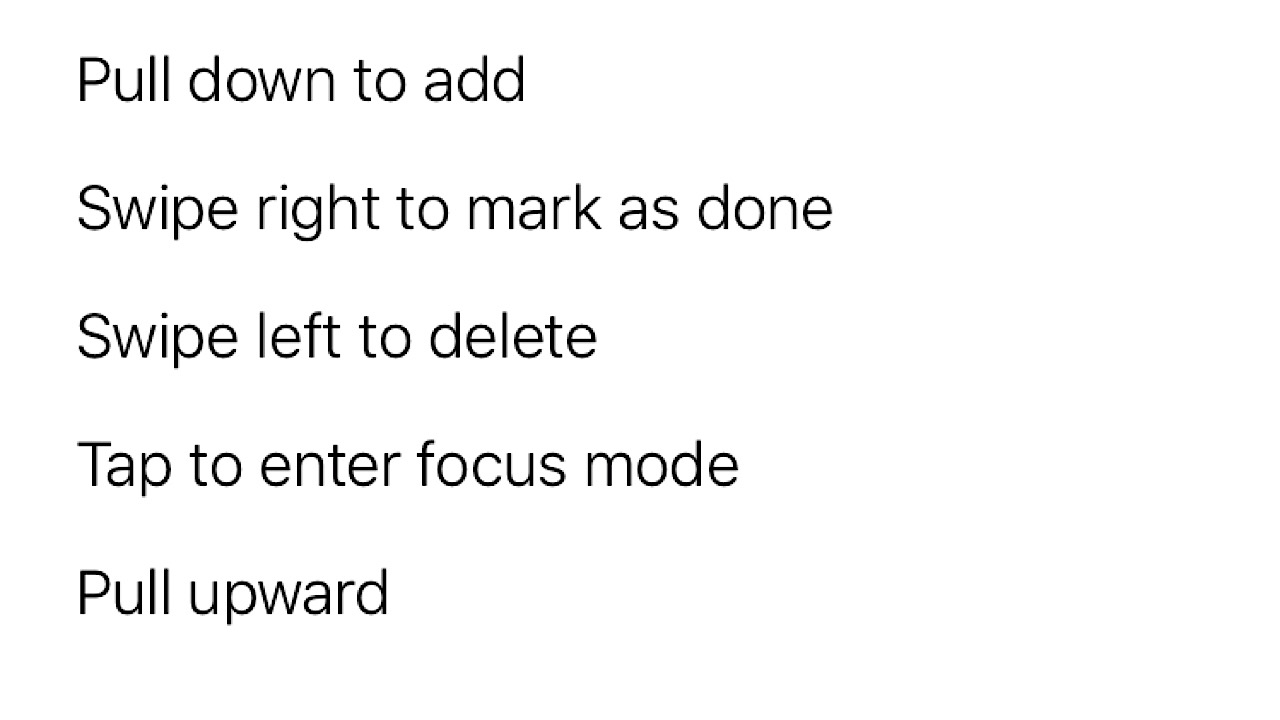
The most simple app for tasks that you’ll ever have. As soon as you open it, you’ll see only five steps you’ll need to navigate the app:

MinimaList screenshot

Create a task, mark when it’s finished, and delete it when it’s done and you want to make room for another task if you’d like. Add lists of tasks for today, tomorrow, and next week. You can even add a timer in focus mode so you don’t end up doing more than one thing at a time. For $2.99, you can get a lifetime upgrade and choose another font out of 8, or change the background color. Available for iOS.

MinimaList – To Do List, Reminder & Task Manager Download Free ►
7

3. Feedly

feedly screenshot

Stay in the loop without having to go open a lot of apps or visit a ton of websites. Feedly helps you concentrate your news sources into a few (or just one) customizable feeds, separated by industries like tech or politics. Name your ‘Comic’ feed, select from the variety of your favorite websites or apps for online comics, and add them to the feed. Every time you refresh it’ll show you what’s new with the sources that you chose. If you’re on the go but see something you’d like to read, save it to your ‘read later’ list. With the $8 per month upgrade, you can unlock features like unlimited feeds and Google keyword alerts. Media can be overwhelming, but with Feedly, it won’t be. Available for iOS and Android.

Feedly Reader Download Free ►
8

4. NoWaste

NoWaste screenshot

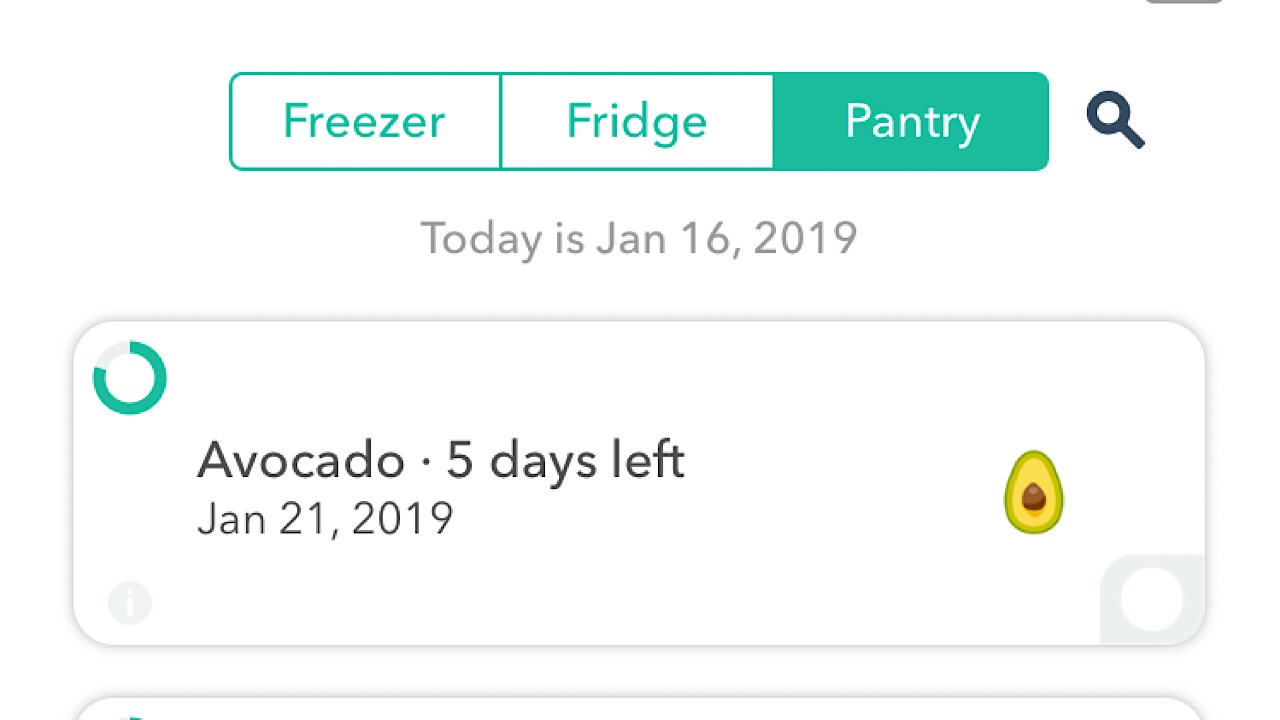
If you have issues remembering to eat food before it goes bad, NoWaste is a must have. Start by choosing the ingredients that you have in your pantry, fridge or freezer, then customize them by weight or amount. The app will automatically display how long the food will last before it spoils, so when you’re putting away your groceries, make sure to add them to the app. Every few days you can check and see which foods you should whip up into a meal so you don’t waste them. A lifetime upgrade is $5.99 and you can set expiration alerts, and create a meal plan so your family will keep their paws off of the shrimp that you’re using for dinner tonight. Available for iOS.

NoWaste - Food Inventory List Download Free ►
7

5. Minimalism Amino

Minimalism amino logo

Amino is an app for groups, and the Minimalism Amino is a group where you can chat with other minimalists on all things minimalism. Contribute to the conversations already created, or make your own chatroom within the group. This is a great place if you’re just starting your minimalist journey, or if you’re wondering about a better way to cut down on something. Join challenges to see how well you can do with food waste in 30 days, or reach out to a minimalism veteran if you’re feeling stuck or have fallen off the wagon. Available for iOS and Android.

Minimalism Amino Download Free ►
8

Making things more simple by cutting out some of the things that you think are necessities can be difficult, but try out a few of our suggestions and we can promise that you’ll be walking down the path to decluttering your space and your mind in no time.