The time has come to catch Zapdos. Niantic has added a new series of missions to Pokémon Go. Every set of tasks, upon completion, will give you a chance to capture this legendary Pokémon bird.
Niantic hasn’t given us many details about these missions. All we know is that you’ll have to face electric and flying Pokémon (like Zapdos), including“skill-based challenges that will test your abilities as a Trainer.” You’ll have to complete this batch of missions seven times to get the chance to capture this legendary Pokémon.
If these tasks are like previous ones, there will be a lot of story-driven tasks and activities related to finding and capturing Pokémon.
Zapdos’ appearance coincides with two events. The first started on May 14 and focuses on the fighting type of Pokémon, such as Machop and Makuhita: their encounter rate will go up and users will be rewarded with double experience when they participate in gym and raid battles.
Then, on May 19, we’ll have another event where players can get triple Stardust and the spawn rate of Charmander will go up.
Oh and don’t forget that on May 8, Latios and Latias, the legendary Pokémon duo, switched regions. If you haven’t captured the one in your region now, you better get going!
Since their earliest inceptions, smartphones gradually got bigger and bigger. Standard smartphone screen sizes these days rock in at between 4.5–5 inches, compared to the 3.5-inch screen of the original iPhone. XL models, which are growing in popularity, push screen size even further as they creep towards the seven inches that used to be the exclusive domain of smaller tablets.
The bigger screens make it easier to get more done and they make playing games and watching videos a much more enjoyable experience. They can be harder to use, though, and any serious attempt to take advantage of all the space offered by these plus size touchscreens requires two hands. Opera wants to address this, and its latest browser, Opera Touch, aims to put the power of the web into just one of your hands.
Opera Touch starts in Searching Mode, so you don’t have to click the URL address bar or the Google search bar at the top of the screen. You’re ready to search as soon as you open Opera Touch. The main innovation of Opera Touch, however, is what Opera is calling the “Fast Action Button” or FAB for short. True to its name, the FAB puts all of the controls you use most when browsing the web within reach of your thumb.
The FAB is always present in the center of the web page at the bottom of the browser. When you hold the button, it’ll give the option to open tabs, switch between tabs, or to close them. All you have to do is swipe across to the desired option with your thumb and then start browsing. The FAB also gives easy access to Google search if you want to perform more than one search per browsing session. Rather than holding your thumb on the FAB, a simple click will bring up your keyboard and the search bar.
Opera is a free web browser which functions in much the same way as Edge, Chrome or Firefox, but it has a handy free VPN feature which makes it stand out.
In a move to get people downloading the desktop version of its browser, Opera has also introduced a new Flow feature. If you have Opera installed on both your mobile and desktop, Opera claims you’ll be able to work seamlessly across both devices:
“You can now add images, links, videos and notes to yourself to your Flow and the other device will immediately see them. You can access them on your other device and the good part is that the Flow is encrypted, private and kept to yourself.”
Activating Opera Flow is similar to activating WhatsApp Web. You simply scan a QR code presented on the desktop version of Opera using the scanner on Opera Touch. Then you can slip from mobile to desktop and take whatever you were working on with you.
Freedompop is a free mobile phone service and free internet service provider that’s rewriting the rules of telecommunications.
Get 100% Free 4G LTE Internet Service anywhere you go. FreedomPop is now offering 100% FREE 4G LTE Wireless Internet Service anywhere you go for a steal. The activation just cost $9.99.
FreedomPop is offering a HUGE 95% discount on their top-rated Netgear Unite Hotspot (a $199.99 value), which now comes with one-time activation $9.99 fee for a limited time! Plus Free Shipping!
Supplies are selling fast and it only gets better.
FreedomPop, the nation’s first and only 100% FREE 4G LTE Wireless Internet, lets you surf the web for free. The hotspot works on the GSM Nationwide 4G LTE Network in the U.S. and lets you connect up to 10 devices via WiFi including smartphones, laptops, tablets, and other WiFi enabled devices.
There’s no contract, no commitment, and you can cancel anytime. With a 30-day money back guarantee, they are worth giving a try.
We all know that money doesn’t grow on trees. So for those of you paying for more data than you need every month or simply need access to Internet on-the-go, try their 100% FREE Basic plan, and you’ll be able to put some extra cash back in your pocket.
Here’s how it works.
FreedomPop’s 100% FREE Basic Plan
You get…
FREE – 200 MB 4G LTE data
EVERY MONTH
Plus
No contract
30-day money back guarantee
No commitment
So, if you’re paying for more than you need, FreedomPop can help you save!
The hotspot is bundled with a 100% Free Premium 2GB 4G LTE Trial (a $24.99 value) and comes with a 30-day money back guarantee. Plus FREE Shipping!
After the free trial, do nothing and enjoy saving hundreds each year with Premium 2GB 4G LTE data monthly $24.99/mo or downgrade anytime to their 100% FREE Basic Plan.
Don’t miss out on this limited time offer from FreedomPop. Get their top-rated Netgear Unite Hotspot for Free with 100% Free Internet Every Month and you’ll be on your way to saving hundreds of dollars every month!
Rumors started surfacing earlier this month about a Spotify smart speaker and a Spotify gadget for your car. Today in New York, Spotify held an event and everybody thought that’s when we’d learn more about these new Spotify peripherals. Turns out, we were wrong. Instead, Spotify released some pretty interesting news about a brand new app that it’ll be offering its free users. Let’s have a look at this in more detail.
Having already taken a swipe at traditional record stores, Spotify wants this new app to take on broadcast radio. The app will use machine learning and AI to automatically generate playlists for free users. Users will also have unlimited access to 750 tracks from 15 top playlists and will have unlimited skips so they’ll be able to pick songs directly. This number of tracks is obviously a hell of a lot less than what premium subscribers have access to but resembles something similar to the song lists radio DJs have to pick from when they’re broadcasting.
Spotify is calling the new automatic playlists “self-driving playlists,” which may explain why the Spotify car dongle rumor got started.
The new free Spotify app will start rolling out in the coming weeks so keep your eyes peeled for word on an exact date.
Apart from the new free app, Spotify’s big event brought no more big news. No changes were announced for the premium service and there was nothing mentioned about any hardware. Still, a more dynamic free Spotify experience will please a lot of people. And with Spotify having over 90 million free users, you can expect radio stations around the world will be thinking long and hard about what they’re going to do about this new threat.
Fortnite: Battle Royale has become the phenomenon of 2018. During 2017, its big rival (PUBG) won the popularity contest. This year, Fortnite is beating all the records. A few weeks ago, Elrubius and other YouTubers got an audience of more than 10 million viewers (among all the channels) while playing the game.
If you want to join in, here you’ll find seven tips to avoid dying right away on Fortnite.
Choose your landing spot well
This is a basic tip that any expert player will tell you: choose your landing spot well. It’s key that you do this before launching yourself from the Battle Bus, since there could be areas that you can sweep through better than others. Also, and this is key, you shouldn’t forget that there are 99 other players trying to kill you, so watch where they land so you’re not right next to them.
Grab a gun
The second “tip” is also basic: grab a gun. Many users go directly to collect supplies, but our advice is that you start going into buildings to find a gun, rifle, machine gun, etc. It doesn’t matter what kind you get, the important thing is that you have one at the start so you can blow up your enemies.
Build
You made a good landing, scooped up a gun to defend yourself, and now it’s time to construct buildings. Yes, to do this, you need to collect supplies first. Choose the pickaxe and start destroying everything you can. The more materials you have in your inventory, the better. You don’t want to start building a wall and running out of materials midway through.
Learn to build well
Here’s where we get into the advanced stuff. It’s one thing to know how to build a wall (the previous “tip”). It’s another thing to know when to do it. The best players of Fortnite have shown that they can build elements with frightening speedand in extreme situations. Thanks to these walls, ramps, etc. they are better protected (and covered) against enemies. If you know how to use these materials well, we can assure you’ll be in the top 20 of almost all games.
You could camp out and wait for the enemy. Or you could run for your life. Somewhere in the middle is best, so keep watching your surroundings, but never stop what you’re doing. For example, a good tip is to take advantage of the existing buildings, since they offer materials for building and additional protection.
Silence
If it’s important to watch your surroundings, remember that all players are doing this. Open fire only when you’re in an extreme situation or when you think the setting is in your favor. It’s usually a common error to see an enemy, shoot without thinking, and later say, “He was very far away, I should have stayed quiet.” Likewise, weapons aren’t the only thing that make noise: building elements does, too. Oh and don’t forget that a player can see you building from a distance.
Don’t forget the storm
Our final tip is the most ridiculous, but perhaps the most important: watch the storm. If you’re within the exclusion area, after a while you know you could die in a matter of seconds. Though it’s hard to believe, it’s unusual to have a game where players don’t die under the cloud.
A new WhatsApp update has been added to the Google Play Beta program. The guys over at WABetaInfo have put together a little breakdown of what we can expect once the features being tested in the beta version get a wider rollout. There is still no Sticker availability but it looks like WhatsApp are working on a Double Sticker function for future updates. Other cool functions added via the new update include a Location Sticker, a Dismiss as Admin feature, and Priority Messages. Let’s take a look.
Location Stickers allow you to add a signpost to your favorite places to your WhatsApp messages. There are two different styles of Location Stickers, which you can check out below.
Dismiss as Admin is aimed at WhatsApp group messages. The new feature gives group admins the power to demote other admins without having to remove them from the group. Until now, kicking other admins out of the group entirely was the only way to remove their admin privileges. To dismiss an admin, hold your finger on their name in the group chat menu. The option should then pop up in the drop-down menu.
High Priority gives you more control over the push notifications. If you enable High Priority, then your incoming WhatsApp notifications will be pinned to the top of your notification center. This feature will only be available on phones with Android version 5.0 or higher. To enable High Priority, open Settings and then tap Notifications. High Priority should be at the top of the screen if you have the latest beta version of WhatsApp installed on your phone.
Are you a member of WhatsApp’s beta testing program? If you’d like to try out the latest WhatsApp features before everybody else gets their hands on them, you should give it a try. We’ll be posting a guide to accessing beta versions of apps, games, and programs soon, so remember to keep checking in with us.
It’s the little things that make the big differences. Think about much better breakfast is in bed rather than at the kitchen table, or the difference 5 minutes of sunshine can make to your day. Google understands this perfectly and has started testing a new feature for Google Maps that will make a big difference.
Whenever your GPS is telling you where to go, you’ll normally hear instructions like, “In 500 feet, turn right,” or “Turn right onto … street.” Instructions like these are accurate, but they’re cold and they make it abundantly clear that it is a computer is talking to you. For Google Maps users, these unemotional prompts may soon become a thing of the past. According to some Twitter users, Google is testing out a new landmark-based direction feature.
Turn left after Burger King
Think about it. Whenever a person is giving you directions, they’ll normally mention a landmark that you’ll see and tell you to either turn before or after it. Google is testing out a way to incorporate this human behavior into Google Maps. Obviously, that’s a major challenge. If Maps is supposed to sound human, it’ll have to refer to the landmarks that matter to the driver and they could be different all over the world.
According to Google, landmark-based directions is just one of several ways the company is trying to improve Google Maps’ guidance systems. No word yet on when this update or the other features the search giant is currently testing will roll out to all app users.
Everybody is talking about crypto-coins. Bitcoin and Ethereum have seen their values reach such astronomical highs that people have made and lost life-changing fortunes in the blink of an eye. Cryptocurrency has caught everybody’s attention, including hackers and cyber-criminals.
The torrent site Pirate Bay was the first site to run code that would secretly use the computers of all who logged on the site to mine crypto-coins for the Pirate Bay developers. Since then, this type of malicious code has been found on lots of websites, and unfortunate users visiting these sites have seen their PC performance fall through the floor as it focuses on crypto-mining rather than running the applications and programs the user wants it to run.
Moving to mobile
Although mobiles might not be as powerful crypto-mining tools as desktop pcs, a quantity not quality approach still makes them useful tools for cybercriminals.
Unfortunately, according to Kaspersky Labs, crypto-miners have now made the jump to mobile, mostly Android, so the phone in your pocket is now vulnerable to being hijacked. Mobile devices are a lot less efficient at crypto-mining than desktop PCs, but there are a few factors that make them attractive to hackers looking to cash in.
Kaspersky reported that there are a number of simple frameworks available that make creating a mobile app that can mine cryptocurrency on mobiles relatively easy. These apps can then be distributed in a number of ways. It’s quite common for users to share apps directly via apk files, bypassing the official app stores and the security systems they have in place. Even those security systems have gaps in them, however, that malicious apps can sneak through. Kaspersky noted that the various forms of infected apps were downloaded over 150,000 times from the Google Play Store itself before Google removed them.
Things to look out for
All this means that your cell phone is now a target for criminals who are looking to cash in on cryptocurrency boom. This means you’ll have to be vigilant and keep your eye out for a number of signs that things aren’t right.
1. Primitive counterfeit apps
Kaspersky reported that some primitive versions of famous apps like Instagram and Netflix are being passed around by cybercriminals and various forms of crypto mining software are being added to them. These apps are then shared via download link. To avoid these types of apps only download apps from official app catalogs like Softonic or the Google Play Store.
2. Increased battery use
Mining crypto coins is an intensive operation, so if your phone has been infected with crypto-mining software, you’ll notice your battery dying a lot faster than usual.
3. Your phone heating up
Again, this is due to how hard your device will have to work to mine crypto coins. If your phone is working overtime computing all of the calculations required to add a new coin to the blockchain, it’ll start to become noticeably hotter. Kaspersky even reported instances where its test phones were incinerated by the heat generated by the crypto mining process. On a side note to this, however, it seems that some cybercriminals are aware of this and are including malware that monitors the device battery and temperature in an attempt to mine cryptocurrency safely. This doesn’t mean it won’t still become hotter.
If you detect any malicious apps, it is important that you remove them immediately. Kaspersky reported that a number of the apps will show scary messages about losing your data, but the important thing is to remove them completely from your mobile device. It can’t be stressed enough, however, that prevention is the key defense tactic here. Only download apps from official sources and even then keep an eye on things like the spelling of the app name and the developer’s name who is publishing it. Another thing to keep an eye on is the permissions the app asks for when you download it. For more tips on mobile security check out our 5 tips to prevent security issues with your phone.
We live in the age of video content. Everyone wants to have the next big viral hit. Fortunately, you don’t need an expensive DSLR camera to get capture quality video footage. The camera on your iPhone is more than capable enough. While this gives everyone the opportunity to take video, that doesn’t mean everyone is good at it.
If you want to stand out from the crowd with your video content, check out these tips to start taking great iPhone videos.
How to shoot better video on your iPhone
1. Use a nonstandard camera app
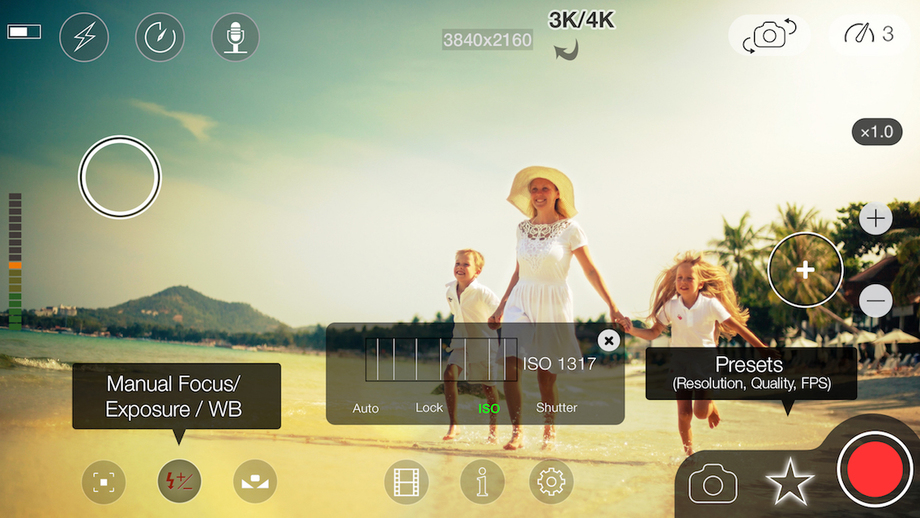
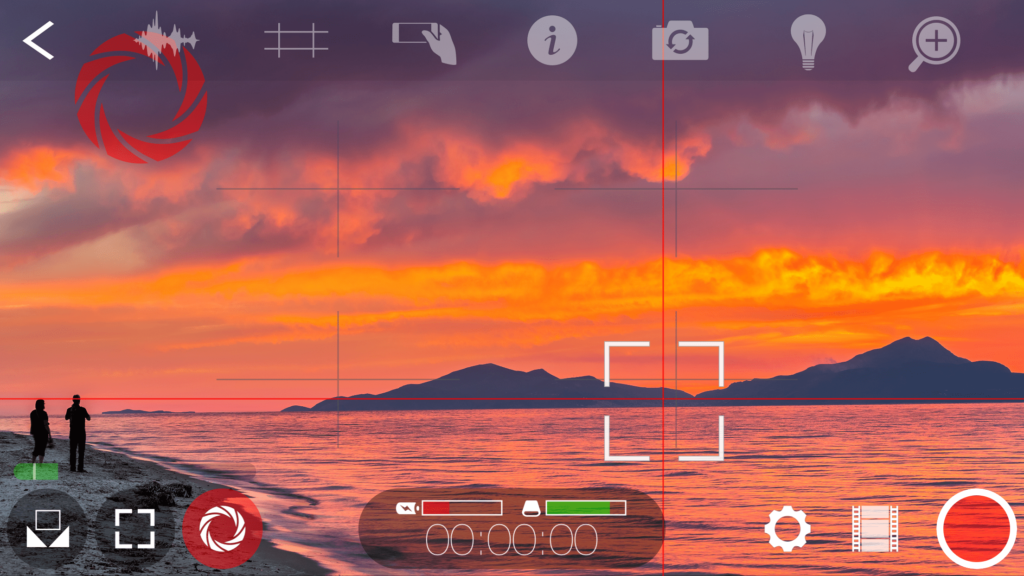
The standard iPhone camera app is all right, but top video editors use third-party software to make their shots the best they can be. Here are some popular camera apps:
These apps are worth the investment. They offer loads of features you won’t find on the standard camera app:
Bitrate Adjustment: A higher bitrate means a higher quality video.
Frame Rate Adjustment: With newer iPhones, you have the option to shoot up to 240 frames per second. Now you can achieve professional looking slow-motion at the touch of a button.
Noise Reduction: A super nice touch, noise reduction removes those dots that show up on photos that are too underexposed. It makes your darker photos look a little less amateur.
4K Resolution: Quite literally double the resolution of the standard camera’s 1080p, these camera apps allow you to shoot in a super sharp 4K. Even your salads look breathtaking with this option.
Content Management: This is an underrated feature. iOS does a decent job organizing photos automatically, but most third-party apps give you extra search and categorization options.
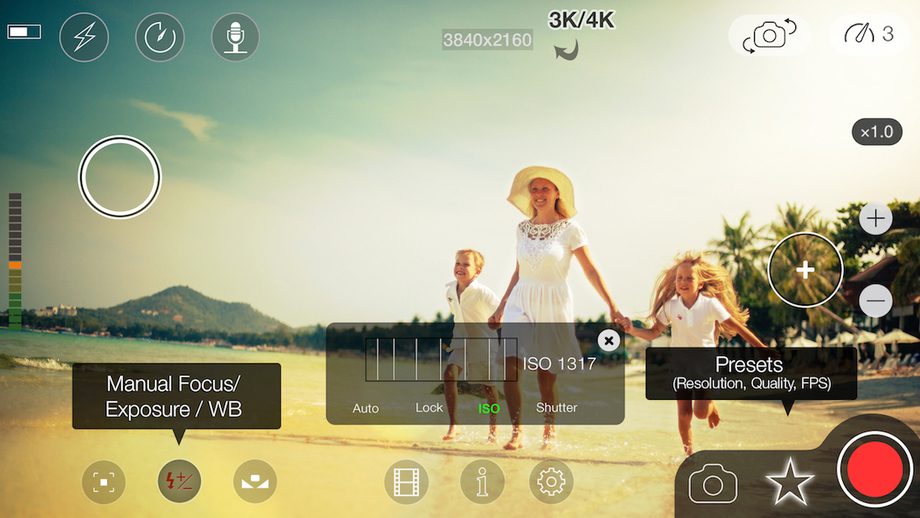
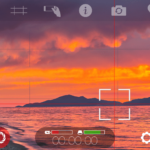
MoviePro User Interface. Source: 25pp.com
These are just some of the major changes you’ll see when upgrading to a non-standard camera app. Each top iPhone photographer has their personal favorite. Browse the app store and find which features work best for you.
2. Invest in Accessories
More than anything, purchasing accessories for your phone will give you an edge even the best app can’t bring you. Tripods, external microphones, and proper lighting go a long way toward giving your video content a more professional look.
Tripod
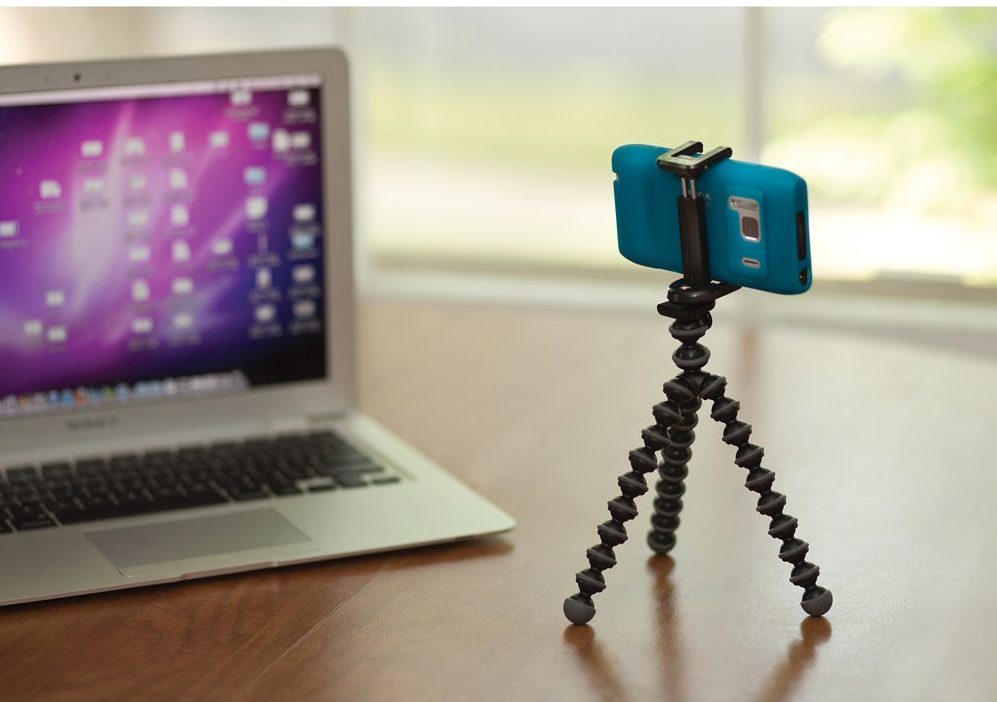
Except in very rare cases, a stable video is miles better than shaky video. Having a tripod to place your phone on gives you so many shot opportunities. You can grab a GorillaPod for hanging your phone in unique positions like tree branches, a lamp, or your ceiling fan. It’s also ideal for outdoor environments – set up on top of the half-pipe for a quick skate shot.
JOBY GorillaPod in Action. Source: JOBY Amazon page
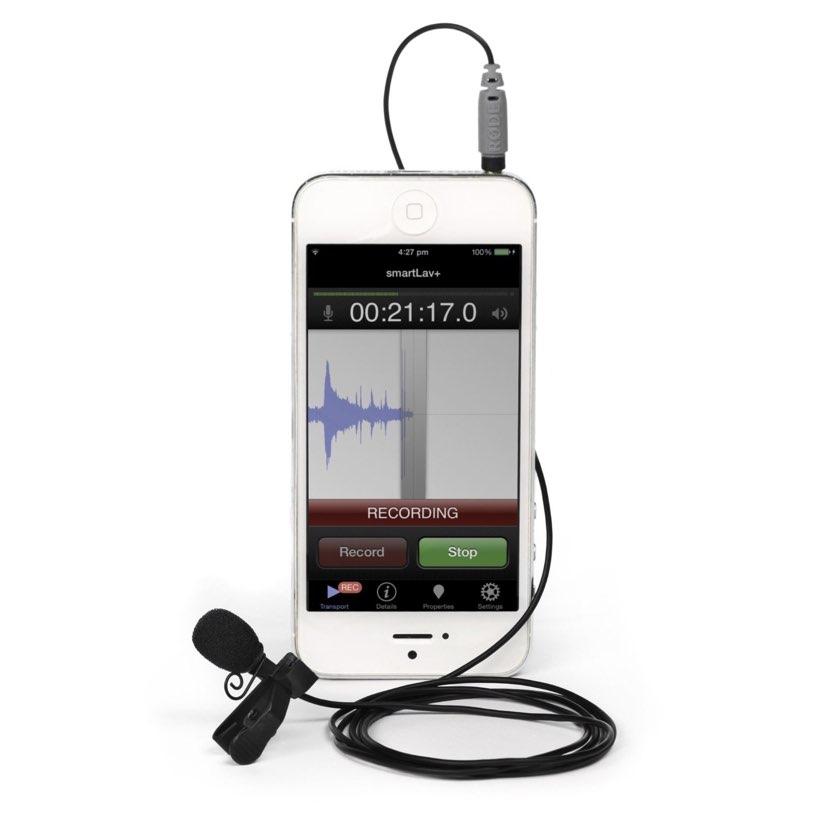
To be fair, standard iPhone microphones aren’t awful. If you’re sitting in your room recording or just capturing some ambient sounds, it should be more than enough. But, if you’re going to be doing content while moving or in a busy environment, an external microphone will help your videos pull people in with their excellent sounding audio. Even in the middle of a crowd, your voice will be loud and clear. Plus, you can even get wireless microphones if you plan on doing content far from your phone.
The smartLav+ recording app. Source: iphoneness.com
An often overlooked part of video making, lighting drastically changes the tone of your shot.
Outdoors you don’t have to worry much due to natural light, but indoor movies like vlogs will suffer greatly without proper visuals. A common mistake made by newer content creators is mixed lighting. They’ll combine their fluorescent ceiling light with an incandescent lamp, and they won’t know why their shot looks off. Investing in even a small lighting kit will put you leagues above other beginner video makers.
Source: DiCasaFilm YouTube Channel
While a bit more extreme than your typical starter kit, good lighting gives your shot that eye-catching sheen amateur videos are missing.
Whether it’s a lack of knowledge or out of laziness, too many content creators leave their camera settings on automatic. This leaves shots looking painfully average.
Great iPhone videos come from properly customized settings, taking full advantage of lighting and ensuring objects look the best they possibly can. Here are some of the major features you should learn about to guarantee great iPhone video capture.
White Balance
White balance is essential to learn
Focus vs. Non-Focus.
Source: 9to5mac.com
The grid helps line up the perfect shot.
Source: iosguides.net
Some examples of Instagram filters.
Source: recomhub.com
Whatever grabs the best shot.
Source: Tech Advisor
FiLMiC Pro User Interface.
Source: filmicpro.com
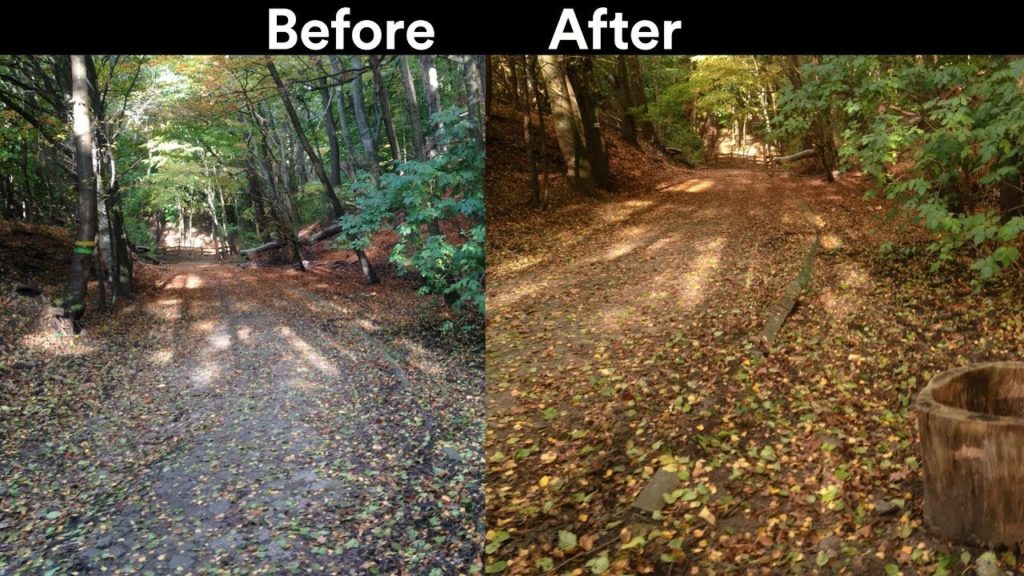
because it allows your camera to adjust itself to show proper colors based on the lighting it’s picking up. Now, a camera app usually does a decent job automatically setting the white balance for a shot. However, you’ll find your video has a bit more pop if you do some manual tweaking.
You don’t always have to have “proper” white balance, either. If a warmer balance gives you the look you’re going for, use it. Part of being a good videographer is knowing how to adjust for a specific look.
How white balance can change a shot. Source: Victor Naumik YouTube channel
Focus
This is the one feature you can almost always leave on automatic, especially if you’re leaving your phone without someone maintaining the footage. Auto-focus adjusts to whatever subject is prominent in the video, keeping it as clear as possible during recording. However, in some circumstances, manual focus can be used to pull off some crazy good iPhone shots.
For example, say you want the mountains behind your shred session in focus before they pull over to your in-air grab. Learning how to focus manually is a powerful skill that will only lead to more high-quality shots.
Focus vs. Non-Focus. Source: 9to5mac.com
Perspective
A great way to develop a personal style, a quality iPhone video is all about perspective. Sure, your front facing shots can look fine on their own, but what if you tried shooting from a lower angle? What about a lower angle and a side view? Seeking out an interesting new viewpoint can change the entire tone of your shot.
Certain perspectives can be used to reveal specific information later on in the video, or even to evoke a feeling of being there. Explore your surroundings and give your audience a new way to see the world.
A birds-eye view of a city is always gorgeous. Source: pinterest.com
Some perspectives to consider:
A Bird’s Eye View: If you can accomplish this, an aerial view of the subject is almost always guarantees an interesting shot. It’s not a natural way humans view things, and that’s what makes it stand out.
Lower Angle: Are you going for a sense of power with your subject? Try shooting from a lower angle. It will make the viewer more likely to submit to your idea.
A Slant: Sometimes a simple slant is all you need to bring your shot up a notch. Try tilting your iPhone around before pressing record. The extra effort may result in some added likes when you upload to Instagram later.
The Grid
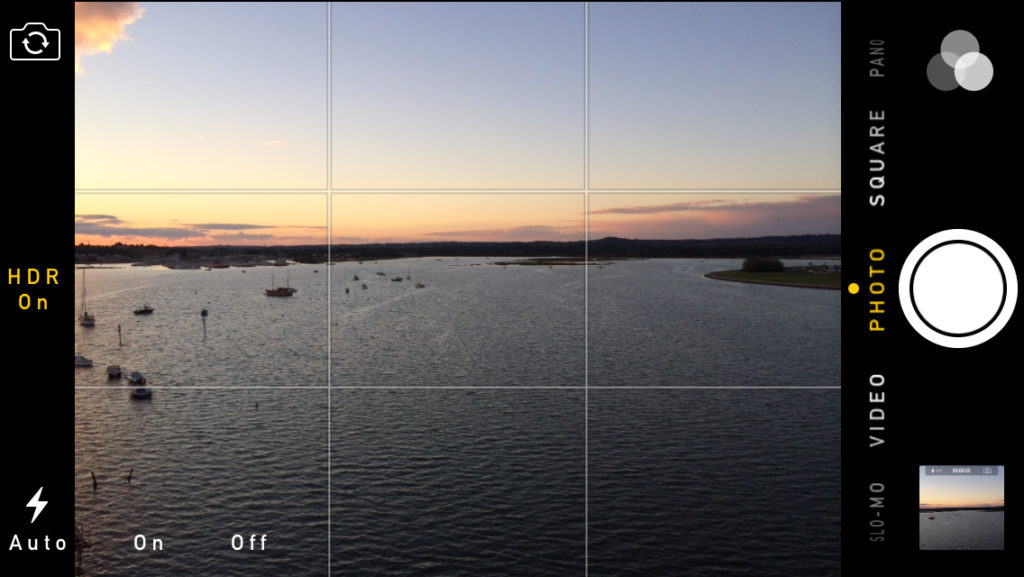
A quality shot video is all about composition. If your subject is weirdly in the center, or off in an odd space on the side, it’s going to ruin the entire shot. Turning on the grid allows you some sense of composition and provides you with a space to line up your shot to make it more visually striking. Not only that, but the grid helps you keep a straight shot going throughout the video. It’s easy to learn and even comes with your standard camera app.
The grid helps line up the perfect shot. Source: iosguides.net
Filters
Without a doubt, you’ve used filters to edit your photos before. Did you know you can also use them on video?
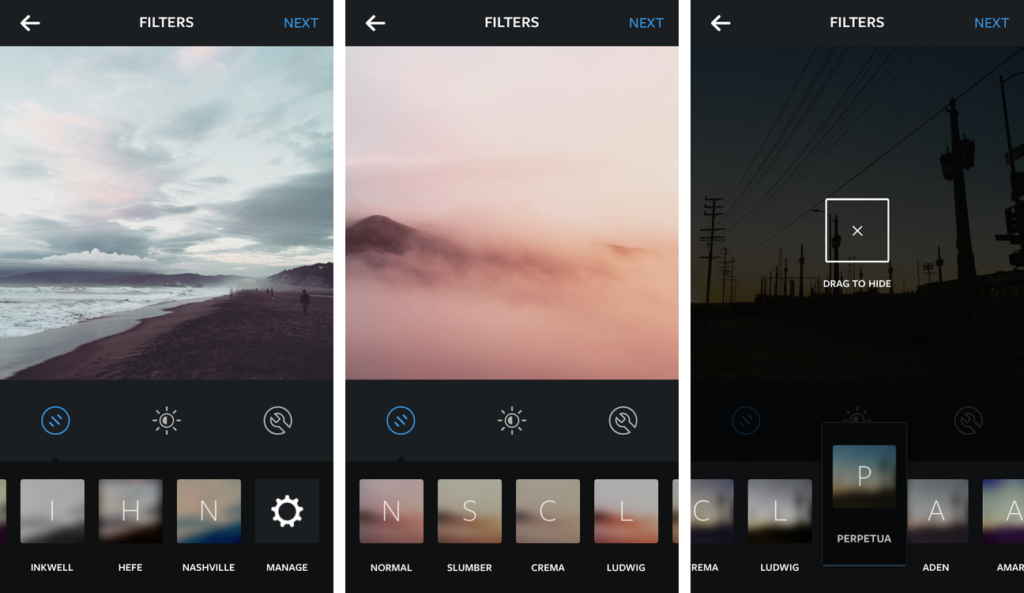
Throwing a sepia filter on your mountain footage can evoke a nostalgic feeling in your audience. Maybe your video has a lot of contrasting colors – some filters can make those colors incredibly bold and pull the eye of your viewer. Having some favorites in mind before taking a shot can give your footage some extra style.
Some examples of Instagram filters. Source: recomhub.com
Orientation
You’ve seen a video shot in portrait mode that totally should have been shot landscape. Don’t make that same mistake. Plan out your shots in advance and know which orientation is best for the subject matter.
Your platform of choice also plays into this. Shooting for Snapchat? Portrait is almost always best. Instagram? Landscape is generally preferred. Regardless, the content should dictate the shooting style, not the other way around.
Whatever grabs the best shot. Source: Tech Advisor
These are just a few ways to improve your iPhone video shots. As you work on mastering these basics, be sure to experiment with different shooting styles and video options. Knowing all the tricks can help you develop your style more quickly, and lead to you shooting the best iPhone video footage possible.
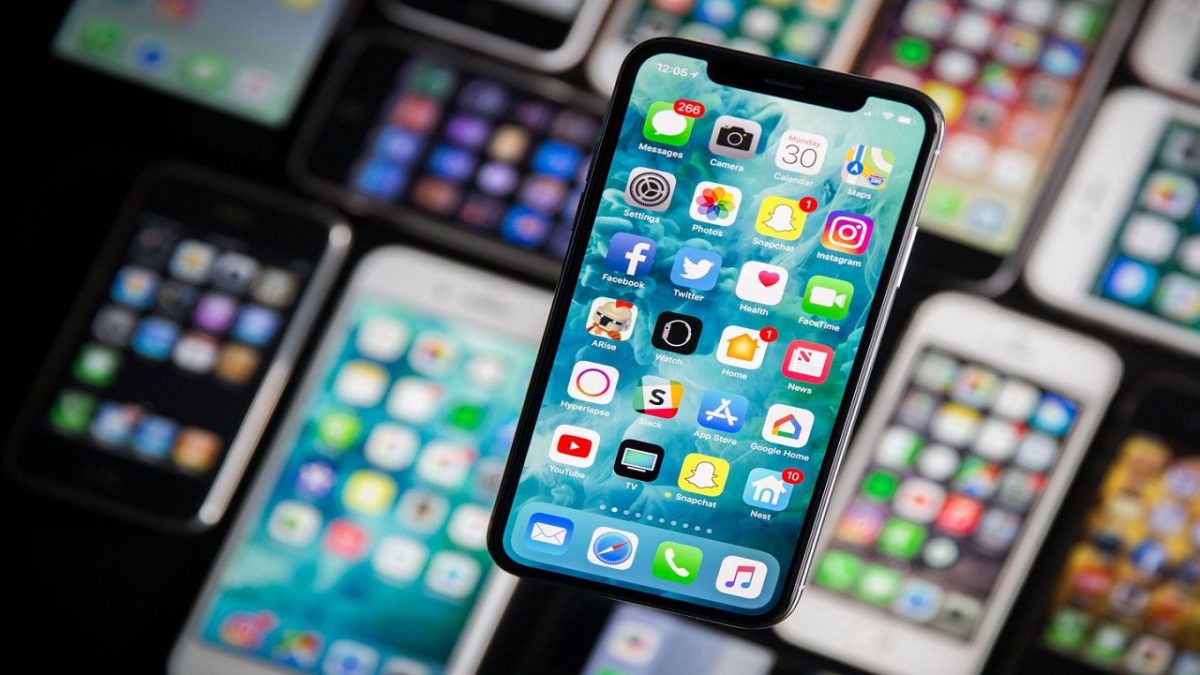
Given just how rich Apple is, it’s easy to forget that the much-hyped iPhone X’s sales have been a bit underwhelming. The reason could well be that the device was very pricey – without being that much larger than older models.
Apple is going to cover both those bases later this year, according to media reports. As well as putting out a cheaper model, the company is betting big on bigness.
The screen for a new model is predicted to be about 6.5 inches, making it not only the largest iPhone ever, but also the biggest mainstream handheld on the market.
The company is hoping a significantly increased screen size can also make a visible difference to its already astronomical profits.