Super Mario marches on

Credit: Nintendo

He may be in his thirties, but the bushy be-’stached Italian plumber shows no sign of slowing up or settling down. In fact, he and brother Luigi are more in demand than ever.

The new games keep coming, and moving onto new platforms, with Mario Kart Tour is scheduled to hit smartphones in just over a year.

Meanwhile, the great news for younger fans is that legendary game designer Shigeru Miyamoto is co-producing a Super Mario Bros. movie with the same team that brought Despicable Me and Minions to the big screen.

The film doesn’t have a set release date yet, but we do know that it’s being produced by Universal – which should mean a theme-park tie in, too.

Hold the phone! You can now use WhatsApp with a landline

The launch of WhatsApp Business has given the messaging service a completely new dimension. WA Business gives companies and customers an official and secure way to communicate with each other and in the coming months and years; we’ll see all sorts of entrepreneurs using this new facility to sell us their wares. WA Business also brings with it an interesting new function; it allows you to hook up your WhatsApp account using a landline number instead of your mobile number.

Although WhatsApp Business is designed for use by businesses, anybody can download the app. You will still need a mobile phone to run the app but you’ll be able to register your landline number instead of the number associated with your SIM card.

WhatsApp Business Download WhatsApp Business Now
7

Once you’ve downloaded WhatsApp Business all you have to do is tell the app that you won’t be registering your mobile number but rather your landline. Normally WhatsApp sends an SMS to verify your number but for landlines, you’ll have to select the Call Me option.

After you receive the call and verify your number, you’ll be able to use WhatsApp Business with your landline number the same you use WhatsApp with your mobile number.

Follow me on Twitter: @PatrickDevaney_

WhatsApp Messenger Download WhatsApp
8

A Secret WhatsApp Web Trick That’s Perfect for Gossips

Are you a bit of a gossip? Do you love knowing anything and everything that is going on in all your friend’s lives? Well, if you are, you might be interested in this little trick for WhatsApp Web. This trick, which only works on the browser version of WhatsApp, allows you to discover exactly when a message has been read. It could be particularly useful for group messages.

There are two ways you can check the time that each contact has read a message.

The first involves double-clicking the two blue ticks of the message in question. This will open a window where you can see who has read the message and at what time.

The second consists of pressing the button that appears above the date the message was sent and clicking message information. This will show the same window from before.

So there you have two quick and simple ways to find out who has read your message and when, and you don’t even have to get your phone out of your pocket to use them.


New Google Apps to Take On Skype, Facetime and Whatsapp

Google’s solution for free mobile calls and messaging was introduced to us earlier this week and is positioned to take on the likes of Apple’s Facetime, Microsoft’s Skype and Whatsapp.

Google Duo

The first of the two apps is Google Duo, a video-calling application that, unlike Facetime, is available on both Android and iOS. This means that you’ll now be able to make free calls to all your friends and family, regardless if they’re using an Android or iOS device.

The one feature that Google hopes will get you very excited about is Knock Knock. Not found on rival apps, Knock Knock lets you preview who’s on the other end of the call, and lets you decide if it’s worth getting out of that meeting to pick up.


Google Allo

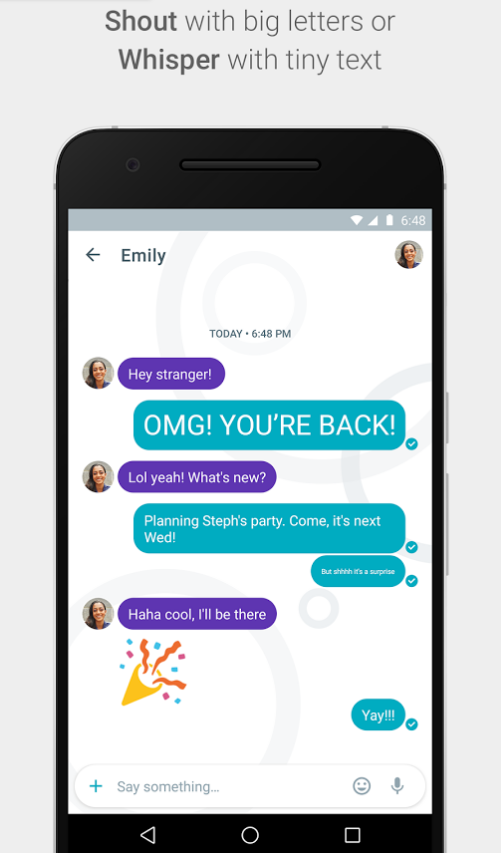
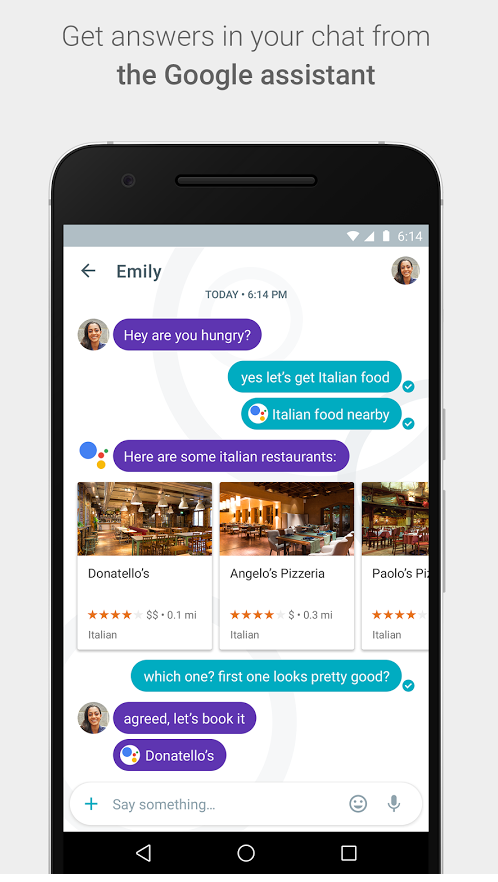
The second app is called Google Allo – a smarter, more feature-packed version of Whatsapp. With Allo, you get to make Google searches directly within the messaging app, get predictive reply suggestions, write in bigger or smaller font to simulate shouting or whispering to the other person, and many other features.

Allo Shout

Allo assistant


So when can you get your hands on these apps?


If you’re in the US, you’re in luck! Google Duo is already available on Google Play and the App Store, and for the rest of you, Google says that they will be available worldwide “in the next few days”.


There is no word yet on Google Allo’s launch date.


However, you can now pre-register for both Google Duo and Allo on Google Play, so that you get (presumably) a notification when these apps are available in your region. iOS users, you’ll just have to watch this space.


Let us know what you think about these two apps in the comments below!

LEGO Jurassic World: unlock secret characters (and dinosaurs)

LEGO Jurassic World is the first time that we’ve got to enjoy playing with our favorite characters from the four “Jurassic” movies. As you play through the game you can unlock the 100+ characters, but what if I tell you that you can play with some of these characters more easily?

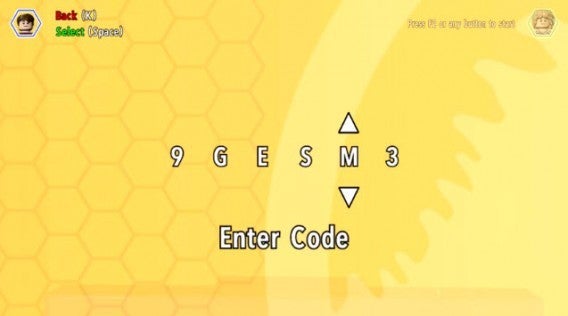
As with the previous games in the series, LEGO Jurassic World gives you the option to enter codes to unlock extras without having to wait. All you have to do is follow the below instructions and you will have access to extra characters, dinosaurs, and other bonuses.

Entering the code

– The codes are entered by pausing the game and accessing the Extras / Enter code menu. You can also enter them from the cheat console located in the Jurassic World Innovation Center.

– Note that you will have to enter the codes each time you start a game of LEGO Jurassic World until you unlock them officially.

Enter the code!

Minifigure unlock codes

ACU Trooper (Female) — AU25GR

ACU Trooper (Male) — 28SPSR

Carlos — VK3TP3

Carter — 9GESXP

Cooper — 5BETZ5

Dennis Nedry (Costa Rica) in Hawaiian shirt — RAVKRT

Dieter Stark — EKCKLC

Dino Handler Vic or Bob — YQ6S7Z

Ellie Degler — AV9DTJ

Gyrosphere Operator Josh — 9NGZZQ

Henry Wu (Jurassic World) — A3HC7E

InGen Guard Jerry — QKBCWT

InGen Hunter — 38YWVR

InGen Hunter 1 — 8XL359

InGen Mechanic AKA InGen Hunter 3 — RMVVB8

InGen Mercenary AKA InGen Contractor — VZRSD3

InGen Scout AKA InGen Hunter 1 — 8XL359

Jimmy Fallon (from The Tonight Show) — 6MKHSG

John Hammond (Lost World) — PR2R6Y

Juanito Rostagno — XTH9A3

Jurassic Park Driver — 3FE78R

Jurassic Park Warden (Female) — 8WY3FV

Jurassic Park Warden (Male) — XJS7UY

Jurassic World Paddock Worker — BX9Z6R

Jurassic World Ranger — GW9TGH

Jurassic World Worker (Female) — L5AU6Y

Nash (Runway) — BRLNWC

Raptor Handler Jenny — SXZ7CC

S.S. Venture Crewman — 62539J

Scientist (Female) — XVXGXF

Scientist (Male) — SKKLWC

Udesky (Alt) — PFEBS6

Young Raptor Handler (Jurassic World) — 7VNLJT

Dino-roars

Dinosaur unlock codes

Ankylosaurus — PAAADT

Compsognathus — KAAAWV

Dilophosaurus — HAAAVW

Indominus Rex — GAAAAC

Pachycephalosaurus — IAAADT

Spinosaurus — MAAARF

Stegosaurus — FAAAVT

Triceratops — AAAADC

Tyrannosaurus Rex — CAAADT

Velociraptor — DDDFAC

Vehicle unlock codes

Jurassic Park Responder Vehicle — 3FE78R

Red Brick codes

Minikit Detector — JYJAFX

Studs Score Multiplier x2 — 5MZ73E

Play and discover even more secrets

Additional characters and improvements are just the start in LEGO Jurassic World. Remember this is a LEGO game, so it is stuffed full of special blocks and secret areas that will demand multiple attempts to reach.

Related Stories

LEGO Jurassic World review

App of the Week: LEGO Jurassic World

LEGO Worlds Preview

Follow me on Twitter: @mariabaeta

What you need to know about syncing photos in iCloud

What happens when you sync your photos using Photo Stream, the new iCloud Photo Library, or iCloud backup? Where do they go, what happens if you stop syncing, and what are your options?

Apple’s known for its generally easy to use OS X and iOS operating systems, but services like iCloud Backup, your Photo Stream, and the most recently added iCloud Photo Library (still in beta) can be a bit of a grey area for many iPhone owners (especially celebrities, apparently).

Sure, they may be useful features, but you might not want to save every photo you take in the cloud. Recent celebrity attacks may have come from a vulnerability in iCloud (albeit one that Apple already patched), but that doesn’t mean that you shouldn’t have some control over where your photos are going when they’re being sent to the ominous sounding ‘cloud’. Consider Photo Stream, iCloud Backup, and iOS 8.1’s newest addition, iCloud Photo Library, along with the alternatives, to see what’ll work best for you.

Photo Stream

First thing to note: Apple is hoping you’ll replace your Photo Stream and Camera Roll with the consolidated iCloud Photo Library (I’ll explain more below), but it’s not mandatory. Secondly, your Photo Stream and Camera Roll are not the same thing. Your Camera Roll is in your iPhone’s local storage, while your Photo Stream contains photos synced across all your iOS devices via iCloud. Delete a photo from your Camera Roll, and it sticks around in your Photo Stream. The same is true for the reverse.

Your Photo Stream isn’t necessarily a traditional back-up though: if you have multiple iOS devices, you’ll be able to access your photos from every device, as long as your Photo Stream is turned on for both.
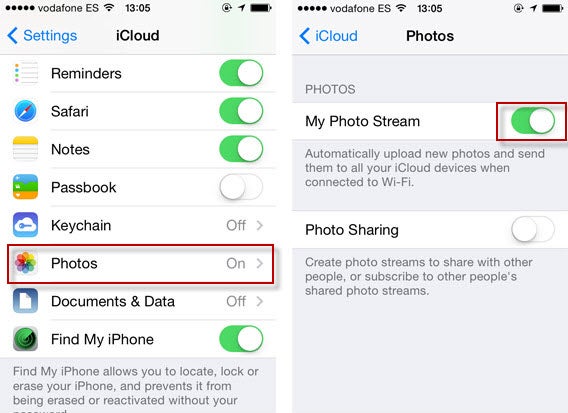
Photo Stream

What some people might not know, is that you can access your photos via desktop too. If you’re using Windows, you’ll have to download the iCloud Control Panel, while Mac users can access their photos in a forthcoming OS x Yosemite update that’ll include a new photo app, a replacement for the soon to be discontinued iPhoto and Aperture.
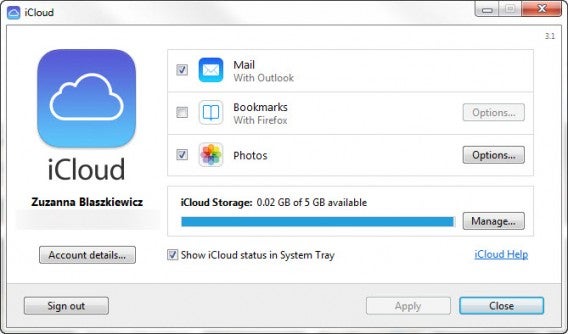
iCloud

In your Photo Stream, your photos aren’t stored in the traditional sense of a cloud service with one central, online hub. Rather, photos are available only between devices and your desktop computer. Notably, your Photo Stream doesn’t save all your photos, only 1000 at a time, deleting older ones as space fills up.

iCloud Photo Library

With iCloud Photo Library (which is still in beta), you can now automatically sync all your photos from what was previously your Photo Stream and Camera Roll. The iCloud Photo Library will sync your photos across all your Apple devices, like Photo Stream. But unlike Photo Stream, which you can only access through the iCloud Control Panel, the iCloud Photo Library automatically stores the original, high-res photos in iCloud and resizes them for every device, making them accessible through iCloud.com. Again, it’ll also be accessible to Mac users through the forthcoming photos app. Another bonus is that any edit you make on one device will be automatically saved on all other devices.

You can activate the iCloud Photo Library by going to Settings > Photos and making sure it’s turned on.
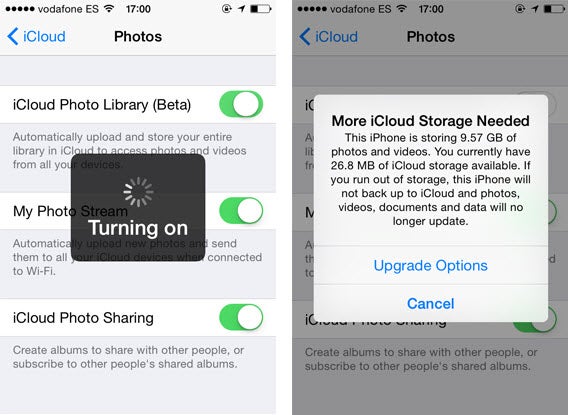
iCloud Photo Library

It seems like the perfect solution, considering that the Camera Roll doesn’t automatically sync photos, and Photo Stream only keeps up to 1000 photos or for 30 days, whichever comes first. The biggest caveat, of course, is that your iCloud backup only comes with 5GB of free storage, so if you have more than that and want to automatically backup all your photos, you’ll have to pay for additional storage.

Another downside is that it makes it more difficult to curate your photos because they’re all automatically backed up.

Storage & Backup

Backing up your device using iCloud is more comprehensive than simply the Photo Stream, letting you backup your accounts, documents, and basically your entire iPhone’s settings.

To access Storage & Backup, go to Settings, and then to iCloud. Keep scrolling until you reach Storage & Backup. If you scroll down, you’ll see the option for iCloud Backup, which automatically backs up your files and settings when your iPhone is charging and connected to Wi-Fi. To turn it off, simply swipe left.
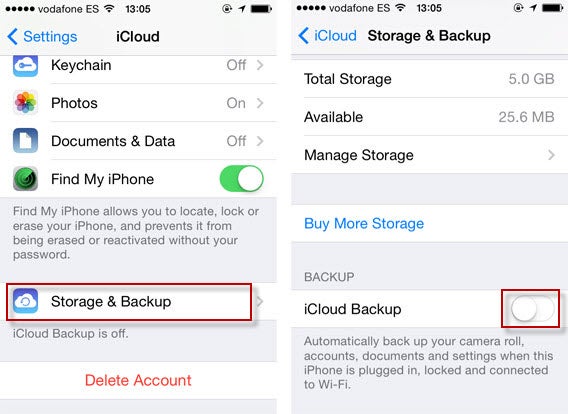
iCloud Storage

Curiously, the iCloud Backup is actually less accessible than the iCloud Photo Library or Photo Stream. There’s no online resource for you to access the data that’s been backed up; it’s only accessible when you restore an iPhone and log into your iCloud account.

Doing an iCloud backup of your phone is not to be confused with the newly introduced iCloud Drive, which similar to other cloud storage services, can be accessed online and only saves files, documents, and photos, not the entirety of your iPhone’s apps and settings.

Notably, your iCloud Backup and your Photo Stream can be used independently of each other. You can turn on your Photo Stream without having the iCloud Backup enabled and access your photos, while turning on your iCloud Backup and turning off your Photo Stream will still give you backups of your photos, although it’ll be the ones from your Camera Roll. Using the iCloud Photo Library means they’ll sync and save everywhere. Either way, there is still cloud access to your photos.

Alternative solutions

I must admit, I don’t think iCloud is the best backup service for me, mainly because I’m limited to 5GB of free space, which barely scrapes the surface of my Camera Roll.

Still, whether you insist on using iCloud or not, there are ways to protect the photos on your iOS device.

Two-Step verification

Apple ID offers two-step verification, which sends an SMS code to your mobile device in order to manage your account. Setting it up can do wonders for your protection.

iTunes Backup

It may not be as easy or convenient as the cloud, but the old classic iTunes backup is always a good option. It might be easy to forget (I learned the hard way after getting into the habit of using an external charger without plugging my iPhone into my computer, forgetting to do a backup before attempting (and failing) to update to iOS 7.1.1, and subsequently getting all my data wiped without having done an iTunes backup in 4 months), but getting into the habit of plugging your phone into your computer and setting up automatic backup upon connection is definitely worth it. There’s also the option of setting up Wi-Fi Sync between your iPhone and PC connected on the same network.

Third-party storage services

Most notably, Carousel by Dropbox will automatically sync all the photos from your Camera Roll. All you have to do is turn on the photo permissions for the app to have all your photos sync, giving you an actual storage space for your photos that can be accessed online. For added safety, you can encrypt files in cloud storage with services like Boxcryptor and Cloudfogger.
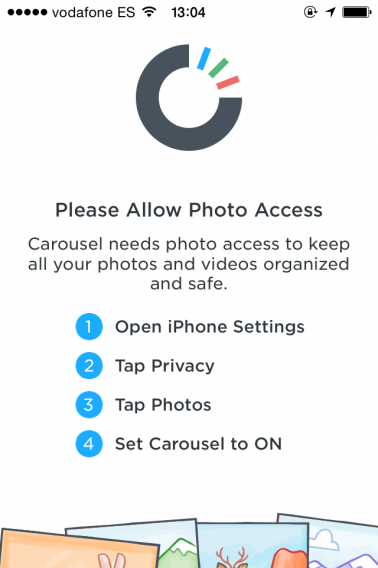
Carousel

Curate your photos

It’s not hard to understand why many people prefer the cloud as a storage space. It’s convenient, usually syncs automatically, can be accessed from almost anywhere, and can provide huge amounts of storage space at little or no cost. Despite known targeted celebrity attacks, it’s also generally safe.

Regardless, the best thing you can do is manage your personal collection of photos and where they’re stored. If you don’t want something out there in some hypothetical cloud, delete if from you Photo Stream, turn off your iCloud backup, or use two-step verification. That, or just use Snapchat.

If you want to know about cloud storage services, check out our article on creating the best backups for you.

Original article published on September 2nd, 2014.

Follow me on Twitter @suzieblaszqwicz

How to activate and deactivate roaming on your phone

Among all the things you have to keep in mind when traveling, taking your smartphone with you is usually near the top of the list. You always want to stay connected, not to mention the powerful cameras on smartphones that are now substituting for the real thing, and of course, not getting lost with the help of Google maps and guidebooks. But there’s one thing you’ll want to be wary of: roaming charges.

What is roaming?

Although the concept of roaming is more extensive and covers all types of wireless technology including Wi-Fi networks, in this case, roaming refers to the usage of another network’s coverage areas.

World map

With roaming you can communicate from any country (Image: Wikipedia)

Basically, if you have a cellular contract with a company in your country and you want to go abroad, in order to make a phone call, send messages, or use the Internet with your 2G, 3G, or 4G connection, your phone has to use connections available from local providers.

The technology is useful because it allows you to use your phone and your SIM card in other countries very easily but it’s a double-edged sword; it may turn out that your phone company’s roaming rates are high, resulting in an huge phone bill.

How do you enable and disable roaming?

There are two ways to enable and disable roaming on your mobile device. One way is to talk to your network provider, and the other is to configure it manually in your phone.

If you’d prefer not to do it manually, have a look at your network provider’s official website or call its customer service number. Sometimes the service is enabled by default, otherwise, you’ll have to ask them to turn it on. The same also applies in the opposite case, if you want to disable it.

Below, I’ll show you how to disable roaming on your Android, iPhone, Windows Phone, and Blackberry.

Android

To check whether you have roaming enabled or disabled on your Android phone, go to Settings > Wireless & networks > More > Mobile networks and look to see if the data roaming option is checked or not.

Make sure you un-check it if you don’t want to use roaming. To be sure, you should also un-check the Enable Data option.

Enable data

Another interesting option is to limit the consumption of mobile data to avoid getting a shock when the bill comes. Go to Settings > Wireless & networks > Data usage and enable the Set mobile data limit option. You can then set the limit in the chart displayed below.

Limit data

If you’re with a network provider that offers affordable roaming rates, you need to go to the same section, Settings > Wireless & networks > More > Mobile networks, and then Network operators. After scanning for networks, it will show the available network providers.

iOS

To disable roaming on your iOS device, whether it’s an iPhone or an iPad with a 3G connection, you need to go to Settings > Cellular and disable the Cellular Data and Data Roaming options.

iOS data settings

When using roaming, you can restrict which apps use mobile data to save on your bill. From the same section, Settings > Cellular, scroll down until you get to the Use cellular data for section.

Here, you’ll see a list of apps that use the Internet. Un-check those that you won’t need on your trip (especially games). The apps will still work, but won’t send or receive data.

iOS apps using data

Another possibility is that you already know which network provider offers the cheapest roaming service. In that case, go to Settings > Carrier and you’ll be able to select a specific network provider. Simply disable the Automatic option and wait to see the list of available operators in that area (it can take up to two minutes to display the full list).

Windows Phone

Using a Windows Phone, you can also enable and disable roaming.

To do this, go to the the application list and then go to Settings > Mobile Network and SIM > Data roaming options.

BlackBerry

From the Home screen, go to Settings > Network Connections > Mobile Network.

If the Mobile network selector is O, change it to I, and in the drop down menu that appears, change the Data roaming services option to O (off) or I (on).

Roaming is easy to control

As you may have seen, enabling or disabling roaming on your smartphone is relatively easy, although it’s not as apparent in the phone settings as you may have expected.

The quickest way is to directly configure the device (via calling customer service or using manuals on the official website), provided that your network provider gives you the option.

In any case, if you don’t need this service, disable it. If you do need it, try to bring down the cost by using only the apps you really need for your trip.

Related Articles

How to use Google Maps offline on Android

Google is tracking your every move but you might want it to

Why Lyft isn’t a glorified taxi service

Follow me on Twitter: @gilead1984

iPhone: how to send an MP3 via WhatsApp

Want to send a music file with WhatsApp for iPhone? For Android users it’s easy to send a song via WhatsApp, because it’s the operating system itself that offers the option. For iPhone users, it’s another matter.

WhatsApp for iOS allows you to send pictures, videos, contacts and geographic location…but not music. Fortunately,  sending an MP3 via WhatsApp for iPhone is still possible. All you need is the help of a free app that offers an Open With option. There are a few of these, but iZip seems to be the most suitable for our purpose.

Here, I’ll take you through how to send an audio file with WhatsApp for iPhone.

How to send audio files using iZip

1. Install iZip on your iPhone. Open the program.

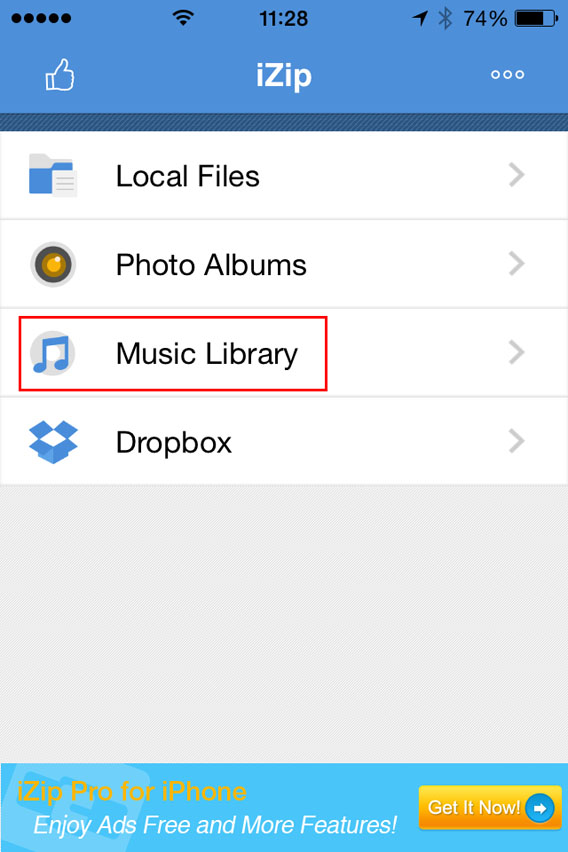
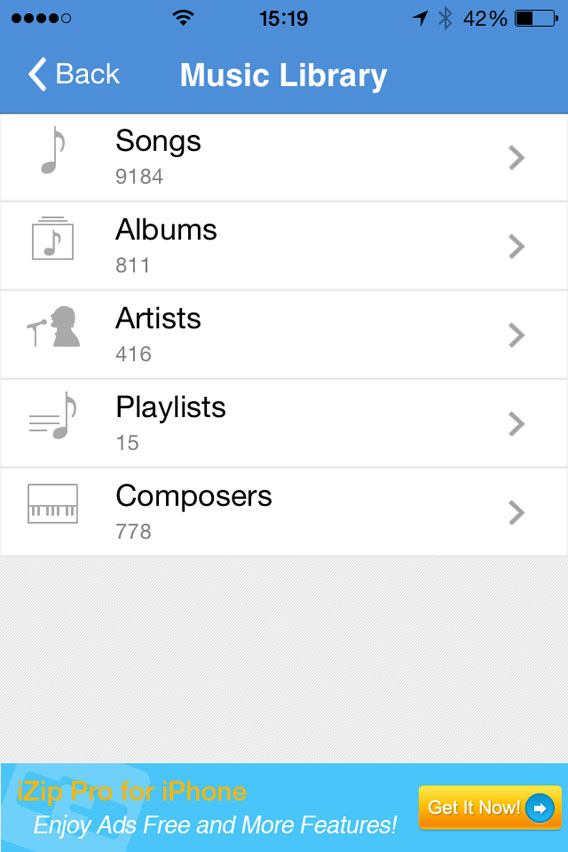
2. Select Music Library.

Select Music Library from the menu

3. Open a folder (e.g. Albums).

Select a folder in the Music Library

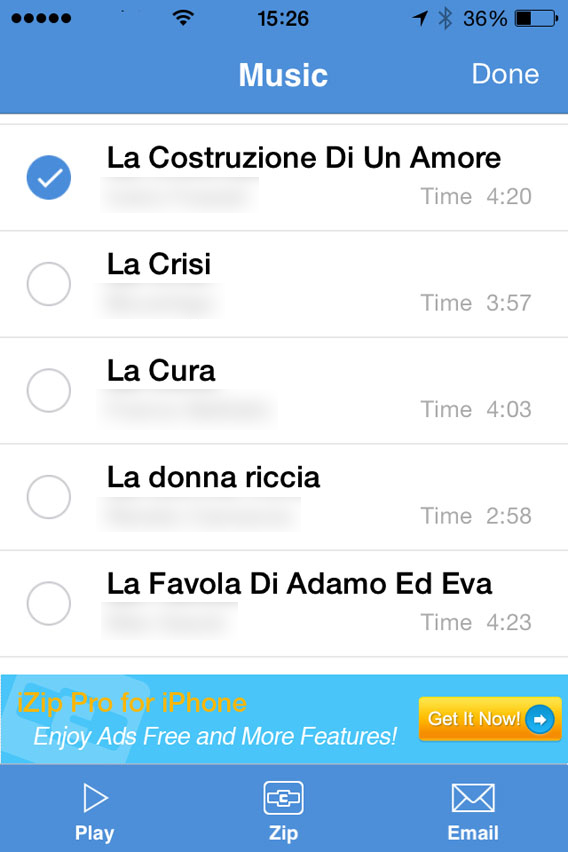
4. Tap Select in the top right of the screen and choose the song you want to send with WhatsApp. At this point, Select will be replaced by Done.

Select the song you want to zip

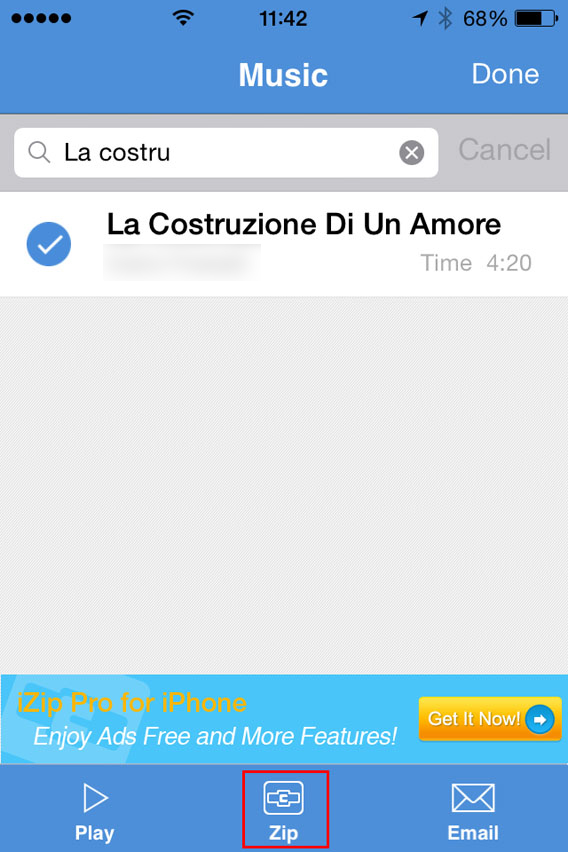
5. Tap the Zip button at the bottom center of the interface. The app will compress the file.

Select the song and then zip

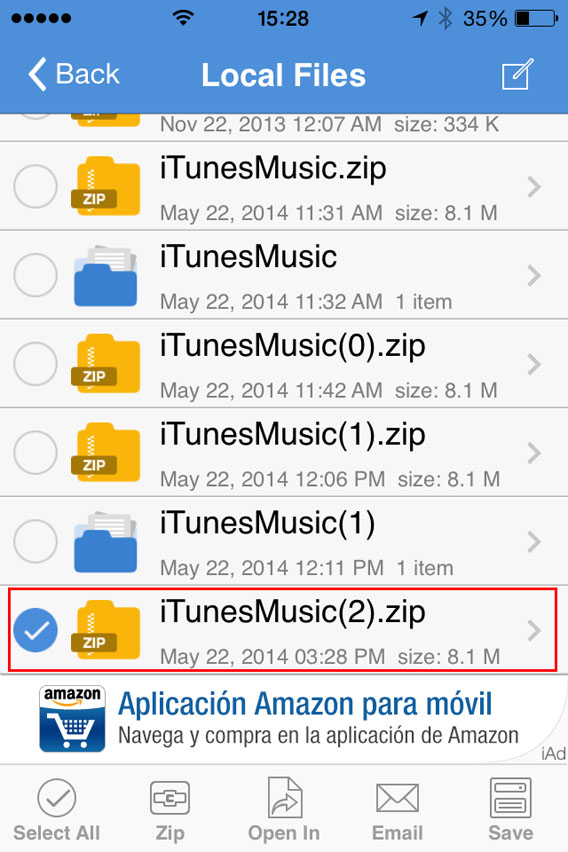
6. This will open the folder Local Files. From there, you can select the ZIP file you just created.

Select the ZIP file you just created

7. You’ll be asked Would you like to extract all files? Tap OK .

Do you want to unzip the file

8. This automatically creates and opens a folder in Local Files with the decompressed song. Then select the file .

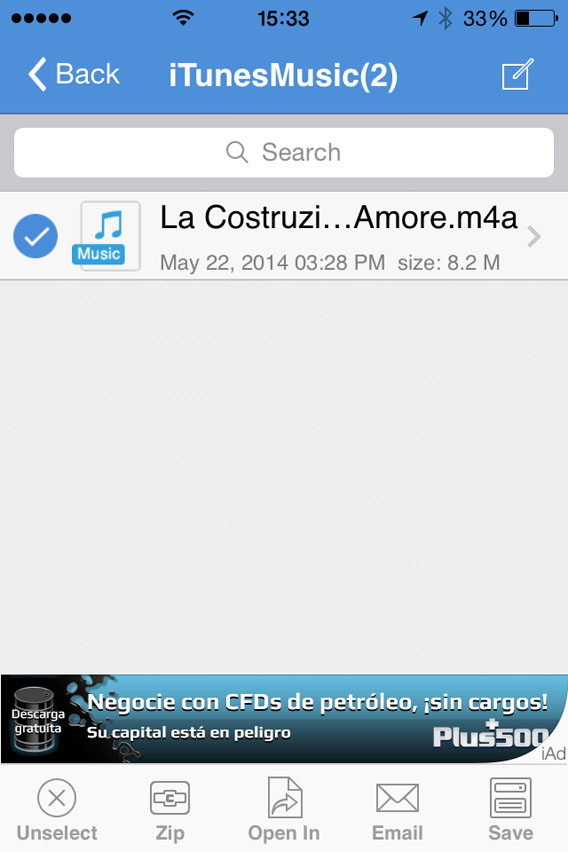
Select the file to be opened with

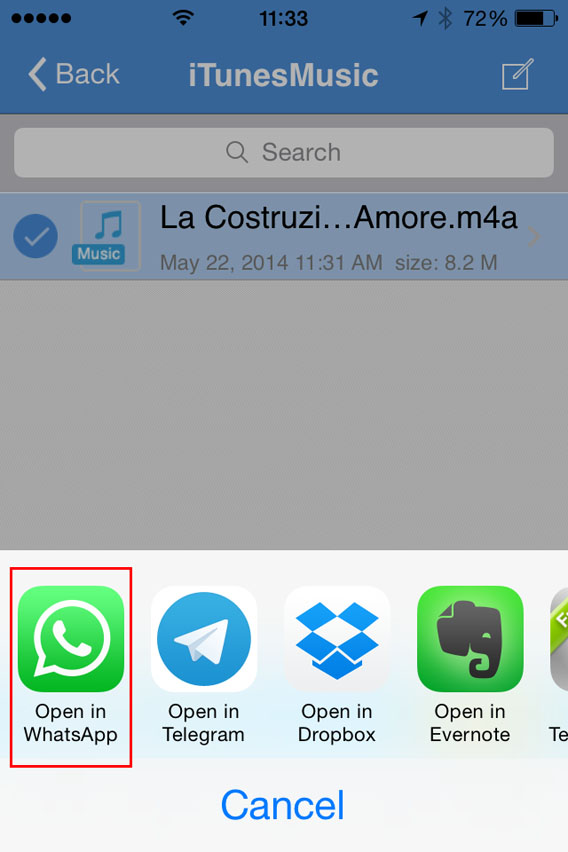
9. Now, tap Open In (at the bottom center of the screen) and, from the choices that appear, select Open in WhatsApp.

Select Open in WhatsApp

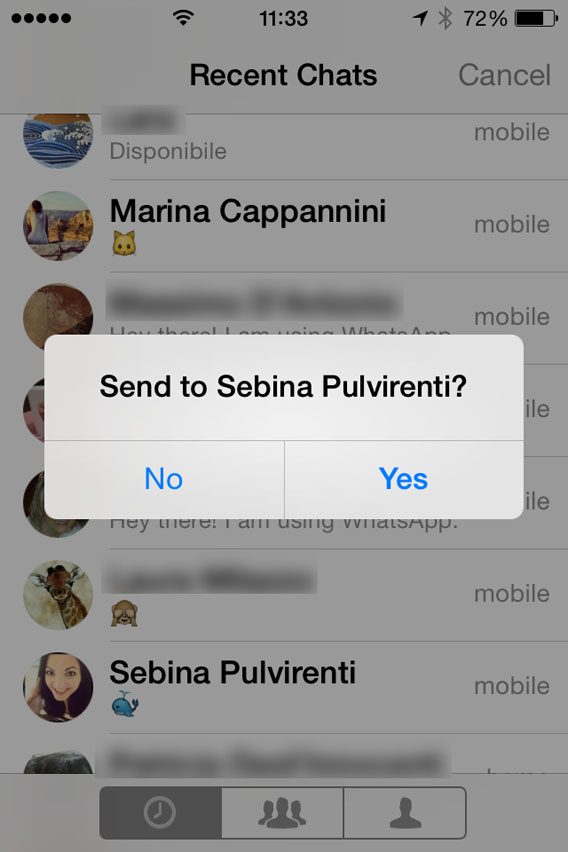
10. It will open WhatsApp automatically. Select the user you want to send the MP3 to, and when it asks you to Send to [contact name], click on Yes.

Confirmation sending files to contact

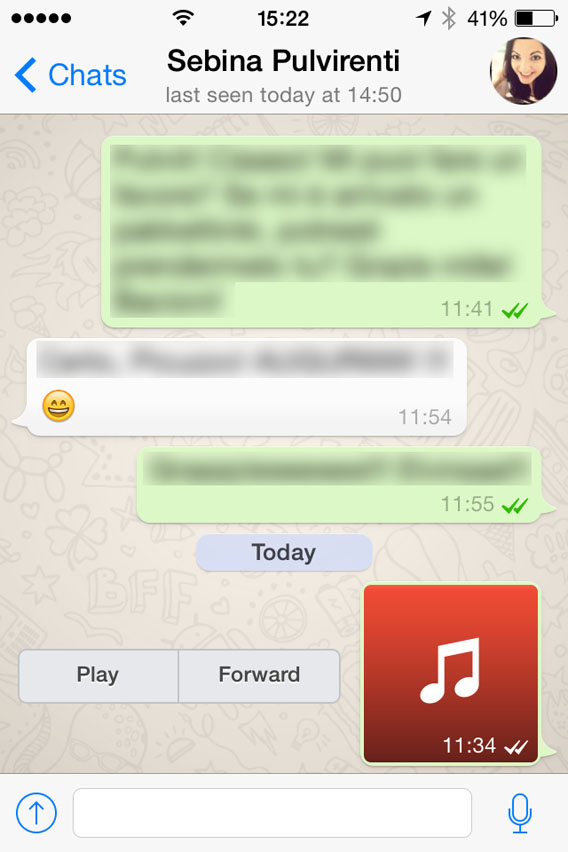
At this point, the file will load and send. When the recipient receives it, you can listen to it by tapping the Play icon next to the music file.

Listen to the file received

Beware of copyright

This method lets iPhone users exchange music via WhatsApp, even if the procedure is a bit more complicated than for Android users.Remember, however, that sharing music files protected by copyright laws is illegal, so only send audio or music that can be freely shared.

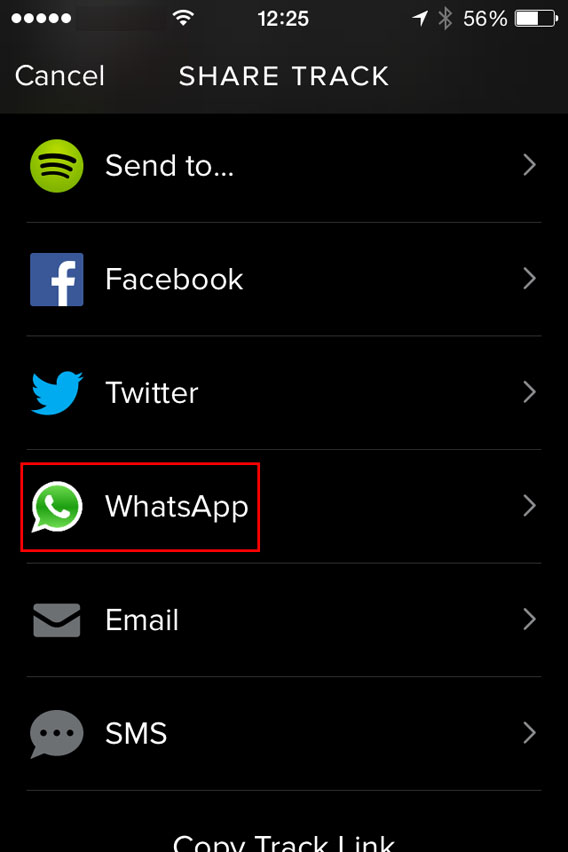
One last tip: if you want to share a new song with a friend, instead of sending the file, you can share it with them via Spotify. To do so, just find the song you like, tap the menu with the three dots next to it, and select WhatsApp.

Spotify - Share with Whatsapp

Then, select the contact, confirm you want to send it, and you’re done. Simple, fast, safe and totally legal.

If you’re looking for other tricks for using WhatsApp, look for them in the index of our comprehensive guide to WhatsApp.

Snapchat: everything you ever wanted to know

In this FAQ we focus on Snapchat: with these 13 questions and answers you’ll learn everything you’ve ever wanted to know about the app and its use.

Snapchat has become an essential app for those who wish to send messages that self-destruct. However, there are many questions that need a answers.

Confidential information and user account

How do you open an account with Snapchat?

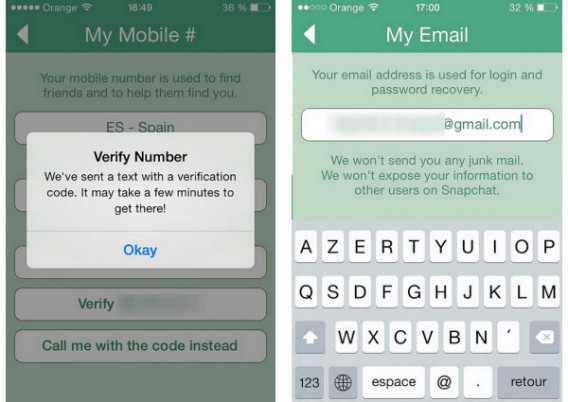
It’s free and simple. Remember that the official Snapchat app is only available for Android and iPhone, but 6snap, the unofficial app for Windows Phone works just the same.

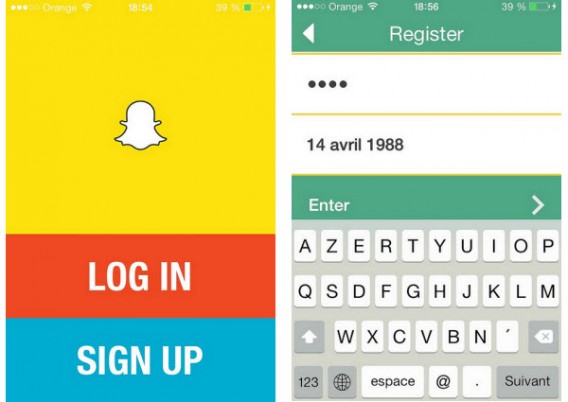
Once you’ve downloaded the app, select Sign up and fill in the fields with your email address, password, and date of birth.

Snapchat sign up

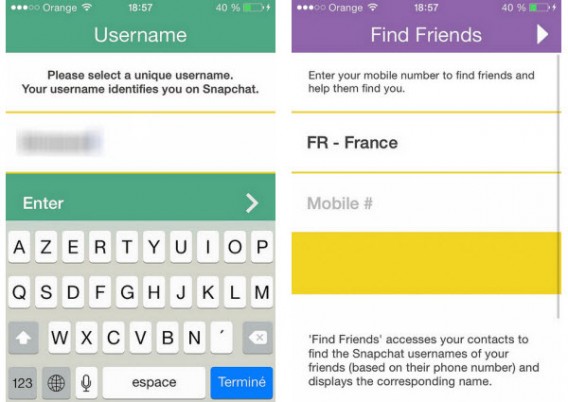
Once you pass verification, you have to choose your username. You can link your phone number to the app to help you find your friends (although this is not a prerequisite).

Snapchat username and friend search

Can I change my account and my personal information?

Once the account is created, you can modify certain personal information from settings.

Snapchat settings

On this menu you’ll be able to change the phone number associated with your account (Snapchat will then send you a code via SMS for security reasons) and the email address where you receive all the important notifications from Snapchat.

Snapchat verification

However, you won’t be able to change your username. If you want to use another nickname, we recommend you close the account and open a new one.

How do I add friends to my contact list?

The easiest way to add people to your contact list is to link your phone number to your account. Then simply go to the contacts menu in the Add Friends option.

Snapchat add friends

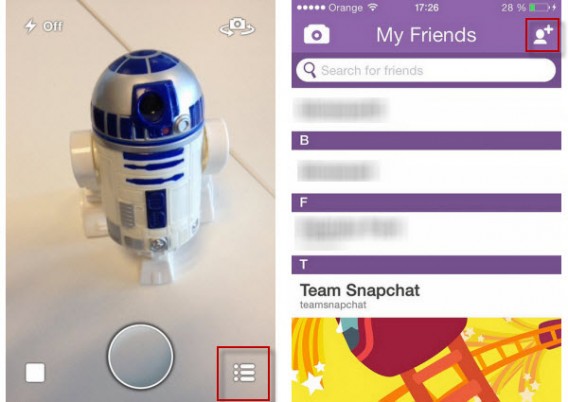
The app gives you two options to add friends. On the first, it gives you a list of the people in your address book who are using Snapchat. The search tab, symbolized by the magnifying glass, lets you search by username.

Snapchat add friends

In summary, if you want to add someone on Snapchat, you must know either their phone number or exact username.

How do you know if someone has blocked you or deleted you?

Snapchat doesn’t send notifications when one of your friends blocks you or deletes you from their contacts.

When someone blocks you, they will disappear from your contacts list. You won’t even be able to find them through Snapchat’s search engine.

If, on the other hand, someone deletes you from their contact list, they will still appear on your list of friends, but if you send them a picture, they won’t receive it.

Getting started with the app

How do you access Snapchat’s menus?

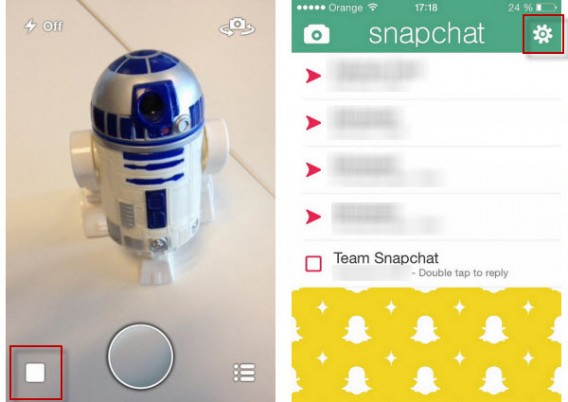
Snapchat has three main screens. Every time you open the app you start at the camera. To access the main menu, you must select the square button on the bottom left or drag the screen from left to right. To see your friends, select the icon in the bottom right corner or drag the screen from right to left.

Snapchat main interface

Can you send videos via Snapchat? How do you go from Photo mode to Video mode?

To record a video for your contacts, you simply have to leave your finger on the trigger. The maximum length of a video is 10 seconds and the sharing process is the same.

How do I choose how long the picture will be seen?

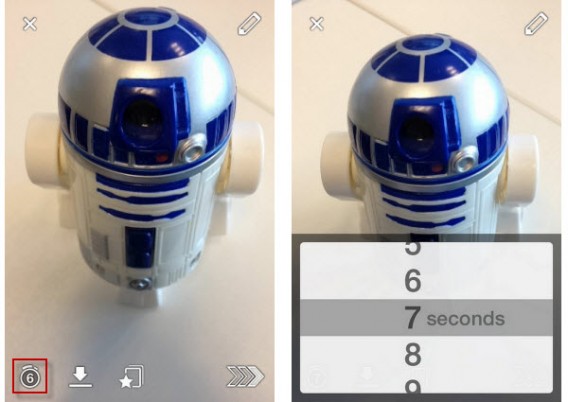
To change the allotted time you must first take the photo or video you want to share, then click on the stopwatch icon. A drop-down menu will let you set the timer from 1 to 10 seconds.

Snapchat change time limit

Can you import photos stored on your smartphone?

The answer is no. You can’t send any of the photos stored on your iPhone or Android. There are some applications like SnapRoll for iOS, but for security reasons we don’t recommend using them.

Can you comment on photos?

No, you can’t send comments on the photos or videos you receive. When taking your snaps, you can add text to the picture or video in two ways. With the pencil on the top right of the screen you can write or draw freehand. You can also add text by tapping on the screen.

If you want to comment on friends’ pictures, you can reply by sending them another photo or video. To make it easier, your friend’s username will already be selected when taking the picture. Don’t forget that Snapchat doesn’t have a standard chat system.

What is the 403 error message?

Many users complain about getting a 403 error message when sending a message to their friends. Don’t worry, it’s not your smartphone, it’s a technical problem with the app itself. You can try to uninstall and install the app again to get rid of this message. If this doesn’t work, wait until service is restored.

Advanced Features

Can you save any of the pictures, and what does the Screenshot message mean?

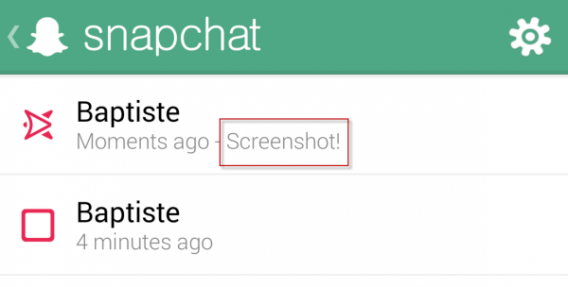
The answer is yes. Although Snapchat messages self-destruct, it’s possible to take a screenshot of the picture or video you were sent using the smartphone’s physical buttons. So, be careful with what you send and who you sent it to.

If your friend takes a screenshot of what you’ve sent, you’ll get a notification – sometimes. This depends on the smartphone you are using. Screenshots taken with an iPhone are systematically detected, while those made with a Google Nexus 5 weren’t detected during our tests.

Snapchat screenshots

How do you add filters to photos?

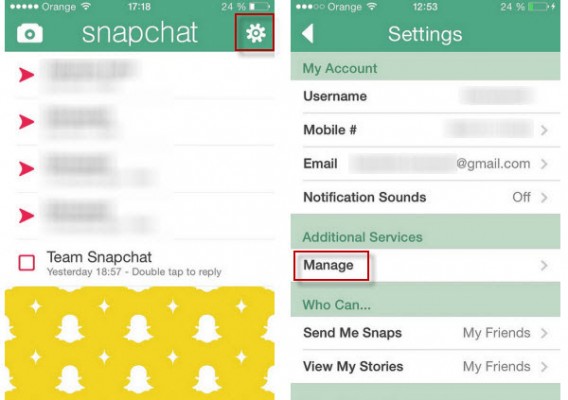
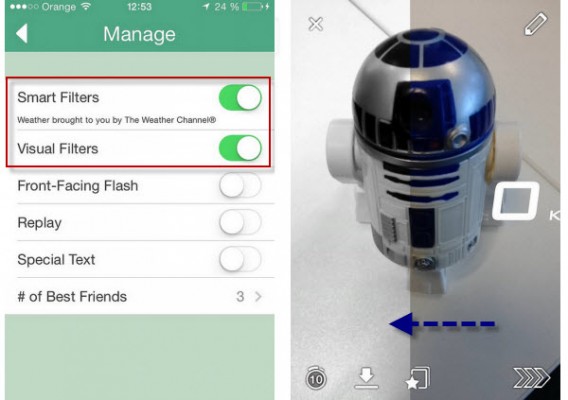
To add filters to your photos like with Instagram, you must enable the corresponding feature in the Settings menu: just click Manage under Additional Services.

Snapchat additional features

Snapchat filters

You can then activate visual filters to add effects to the pictures. Smart filters, on the other hand, will let you add a watermark with additional information (phone speed at time of photo, time, weather, etc.).

What are Snapchat Stories and how do you make a photo public?

Snapchat launched Snapchat Stories with their October 2013 update. Snapchat Stories can be compared to the “walls” found on other social networks. The snaps and videos you add to your Story are not public; they are only visible to your friends for 24 hours.

If a friend shares a photo only on Stories, you’ll have to access their profile to see the picture.

Snapchat Stories

Wrapping up

When using Snapchat, more than with any other app, it’s very important to understand how it works, or you can end up sharing content with the wrong person. So be careful with the publications that appear in your Snapchat history, or you could find yourself in a very compromising situation!

Follow me on Twitter @bbrassart

RELATED ARTICLES

20 best free games for Windows 8

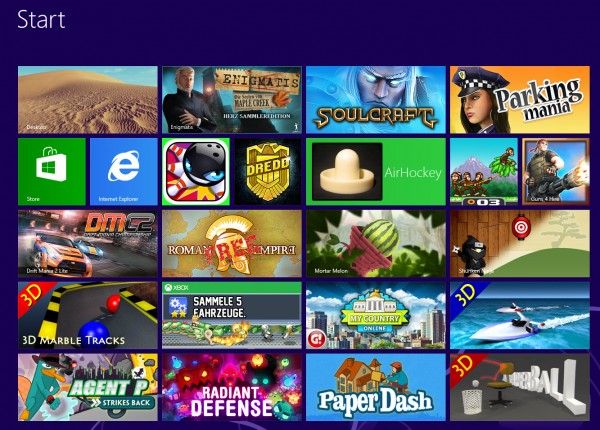
At first, there were only a few games for Windows 8, but half a year later, things are very different. Whether you’re looking for shooter, platformer, or realtime strategy game, there are lots on offer and among the (unfortunately) large number of bad games, you can find some real gems. Below is a list of games for Windows 8 that are just waiting to be played.

Windows 8 Games

Jetpack Joyride

In Jetpack Joyride, you use your jetpack to run and fly nonstop through a never ending landscape. Just like other endless runner games, the only difference is in the obstacles and gold coins you find along the way. Great graphics and a catchy soundtrack make for a light-hearted game that’s not too difficult.

Jetpack Joyride on Windows 8

Judge Dredd vs. Zombies

In Judge Dredd vs. Zombies, you have to defend Mega-City One from a zombie attack. Using different weapons, you clean out zombies from different areas over the various levels of the game.

Judge Dredd vs Zombies on Windows 8

Roman Empire

In Roman Empire, you take on the role of power-hungry Caesar. Your goal? To conquer Europe. You’ll have to vanquish neighboring villages, create alliances and make spur of the moment decisions.

Roman Empire on Windows 8

Monkey Flight

Fans of Angry Birds will enjoy Monkey Flight. Helped by special objects, the aim is to launch the monkeys so that they pick up the floating fruit.

Monkey Flight on Windows 8

Mortar Melon

In Mortar Melon, the aim is to throw watermelons from the left edge of the screen into a randomly positioned basket. This becomes more difficult when obstacles like rotating blades are added to the mix and the difficulty increases with each level.

Mortar Melon in Windows 8

My Country

In this copy of SimCity, your mission is to build a bustling metropolis. You’ll have to build and place various buildings, roads, and other utilities to create the necessary infrastructure. If the people are happy, revenues will increase and your building plans will be safe, but if you don’t manage to organize the construction well, you’ll find that building flies out of control.

My Country on Windows 8

3D Boat Race

3D Boat Race lets you compete on the water in high speed boats. Arch-shaped goals show you the route to the finish.

3D Boat Race on Windows 8

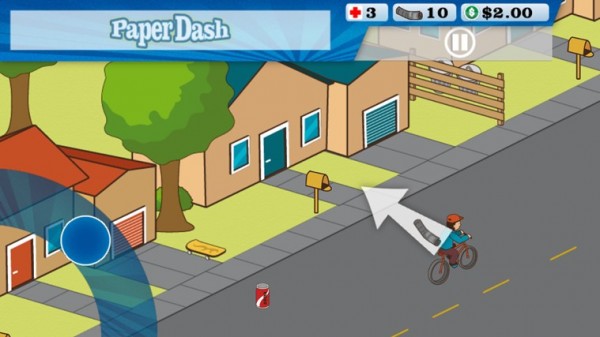
Paper Dash

This game is a remake of the classic, Paperboy. The main character is a paperboy and you need to steer him around the obstacles that he’ll find on his route.

Paperdash on Windows 8

Parking Mania

The noble art of parking is recreated in Parking Mania. The aim is to park your car in a particular space. Just as in real life, however, this isn’t always easy – there’s little room to maneuver and the best spots are already occupied by other cars. Along the way, you pick up coins and other bonuses.

Parking Mania on Windows 8

Radiant Defense

This is a colorful tower defense game. In your role as commander of a space station, you have to defend it against external attacks. Slow down your opponents by positioning defensive towers and walls.

Radiant Defense on Windows 8

3D Marble Tracks

3D Marble Tracks is an interesting mix of mini golf, bobsled racing, and billiards. You’re going to need a lot of patience and a steady hand to get to the end!

3D Marble Tracks on Windows 8

Shuriken Ninja

In this puzzle, you play the part of a ninja. Use your shuriken stars and throw them to create chain reactions so that they hit several targets at once.

Shuriken Ninja on Windows 8

SoulCraft

This time we have an action-packed role-playing game full of sinister characters. In Soulcraft, you fight your way through a colorful fantasy world as an angel, demon, or human being, building up your character by gaining experience in combat, weapons, and objects.

SoulCraft on Windows 8

Trick Shot Bowling

Trick Shot Bowling is a classic bowling game where you can choose to play against the computer or real opponents. Decide for yourself where to aim and how hard to bowl the ball so that you can create a particular effect.

Trick Shot Bowling on Windows 8

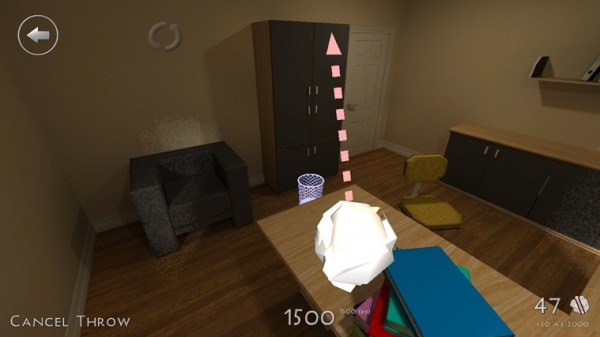
3D Paperball

Throwing a screwed up ball of paper helps to release tension. In 3D Paperball, these paper balls are virtual ones and you can show off your basketball skills by hitting the trash can in various different scenarios.

3D Paperball on Windows 8

Agent P Strikes Back

This fun adventure stars Perry the Platypus, a character from the animated series Phineas and Ferb. The idea of the game is simply to jump between platforms and defend yourself against a series of animals that Dr. Heinz Doofenshmirtz has released to wreak havoc.

Agent P Strikes Back on Windows 8

AirHockey

A good game for two people, AirHockey is classic game room entertainment. In Windows 8, the floating discs you play with become touch-sensitive controls.

Airhockey on Windows 8

Drift Mania Championship 2

Drift Mania Championship 2 is a fun racing game with good graphics and a catchy soundtrack that makes full use of the motion sensors built into your tablet.

Drift Mania Championship 2 on Windows 8

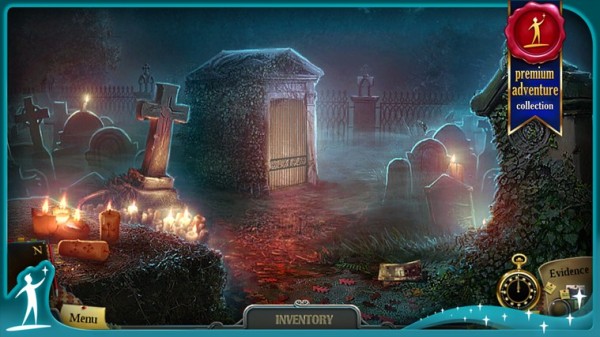
Enigmatis: The Ghosts of Maple Creek

The idea behind this game is a mystery and your job is to find the hidden objects and clues in the scene. The graphics are very good and full of details. The soundtrack also helps create an eerie and unsettling atmosphere.

Enigmatis: The Ghosts of Maple Creek on Windows 8

Guns 4 Hire

In this fast-paced action shooting game, characters are armed to the teeth. The control system is similar to that of Command & Conquer.

Guns for Hire on Windows 8

What do you think are the best games for Windows 8?

Original article by José María López on Softonic ES.