How to install Steam

Wanna learn how to download and install Steam? We got the answer for you!

Steam

If you play video games on your PC or laptop, Steam is probably your best friend.

Steam hosts a pantheon of amazing games available for purchase and it conveniently stores them in the app’s library. Along with incredible franchises like Grand Theft Auto, Steam also has many incredible original titles such as the Team Fortress games and Counterstrike. You can play and chat with friends while playing some of the best games ever made! The millions of users who use Steam every day can’t be wrong!

If this sounds like a blast to you, you’re probably wondering, “Where do I download it,” and “How do I install it?” Luckily, we have the answers!

How to download Steam

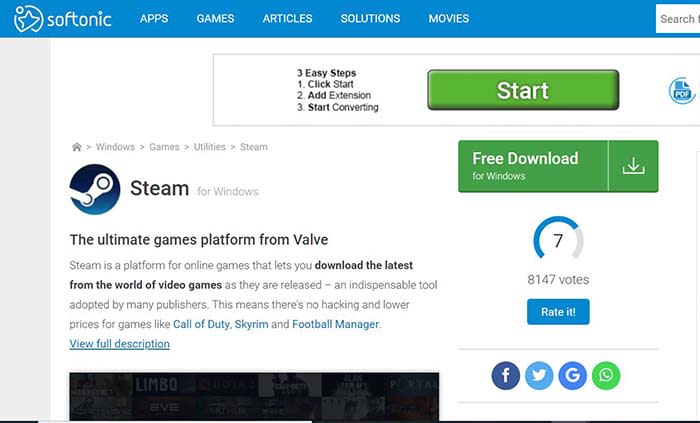
Download Steam on Softonic

Download steam

Conveniently for you, we have the Steam app available for download in our catalog. Click the link below!

After you’ve clicked the link, click on the green “Free Download” button to begin your download.  From there, you will be forwarded to a new page, where there will be another click to download icon. After clicking that, your download will start.

This initial download should take only a few seconds. Once it is done, click the file in your downloads folder to start the installation process.

Allow permission to begin installation setup

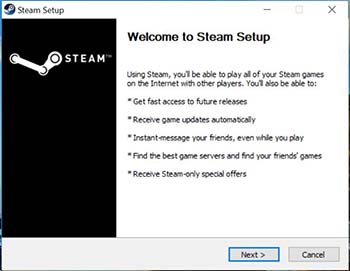
Steam setup

Once you click on the downloaded file, Steam will request permission to install onto your device. Once you give it the okay, the installation process will begin. It will ask you for your preferred language, and then the installation will begin.

Make sure you have enough space.

Steam is about 450 MB, but games can be a few GB each. If your computer doesn’t have the necessary space for new games, then you need to make room before you start downloading.

Self-updating

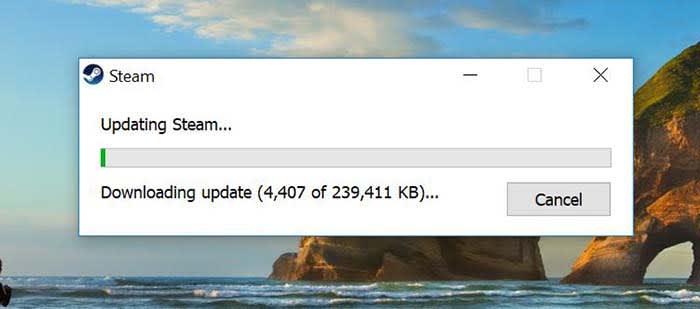
Steam update

After you’re finished downloading, Steam will automatically update itself to fit the current version. This will happen every time you open Steam. This process typically doesn’t take as long as the initial download process, but it can still take a few minutes.

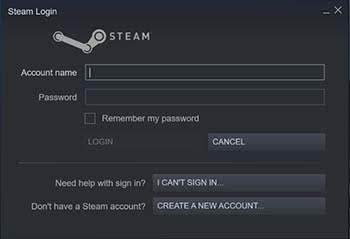
Create a new account or log into your old one

Steam loginIf you have Steam already installed on another device, you can sign into your account on this one after downloading. You can also create a new account through a quick and easy process. All you need in order to create an account is your email address. Also, you can choose when Steam sends you emails. You probably don’t need to hear about EVERY Steam sale, but you do need to know about password info and privacy matters.

Once you are logged in, you’re ready to start buying and playing games!

Wrapping up

Have fun playing on Steam! Let us know what the first game you bought was in the comments below!

13 best tricks for WhatsApp

Wanna be a WhatsApp master? These tips and tricks can help you get there!

WhatsApp

You may think you know all the functions of WhatsApp, but the fact is that this messaging app has many hidden secrets.

Did you know that you can hide your profile picture? That’s just the tip of the iceberg!

WhatsApp has endless tricks and hidden tools that only the most clever users have been finding over the last few years. Keep on reading below, and you’ll see all of the best tricks for WhatsApp!

WhatsApp Messenger Download free ►
8

The best tricks for WhatsApp

Trick 1: Disable the blue double-check

Without a doubt, this is the best-known trick since WhatsApp first came out.

Sometimes, we don’t want people to know when we saw their message. It isn’t that we’re trying to be antisocial, we just don’t want to leave our friends on “read,” and come off like a jerk.

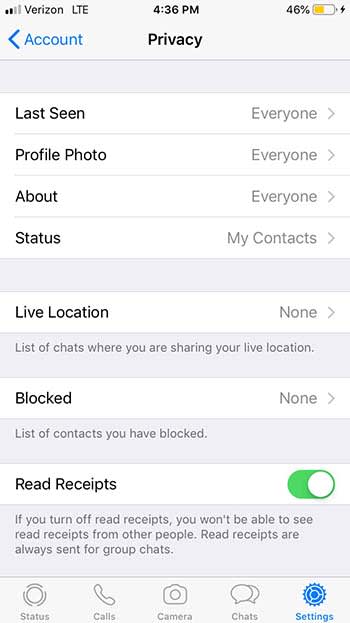
To deactivate this cumbersome option, simply go to the Settings menu WhatsApp, click on Account followed by Privacy and deactivate the Reading Confirmation option. It’s as simple as that!
WhatsApp Privacy

Trick 2: Meet your best friends

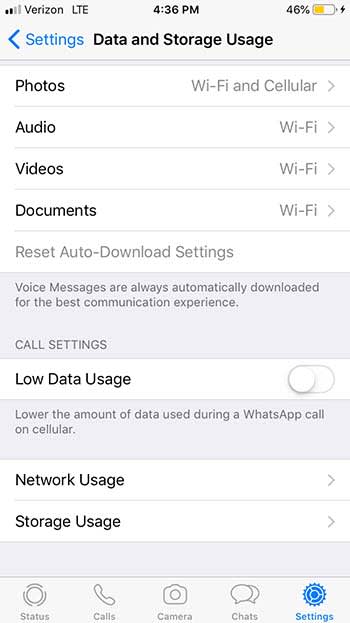
To see a list of your best friends on WhatsApp click on Settings, then on Data and Storage, and finally on Storage Usage. From this menu, you will see which groups are the ones you talk to the most and with which contacts you share more hours in front of your screen.
WhatsApp data

Trick 3: Find out when your messages have been read

If you are an Android user, press and hold a message until a menu appears. Then click on the Info option and you will see both what time you sent the message and when it was read.

If you use iOS, slide the conversation to the left and press Info.

WhatsApp Insta bro

Trick 4: Hide your profile picture

If you want to be a mysterious contact through WhatsApp you have two options. Find a profile picture of a masked hero in the style of Batman or simply hide your photo so no one can see it.

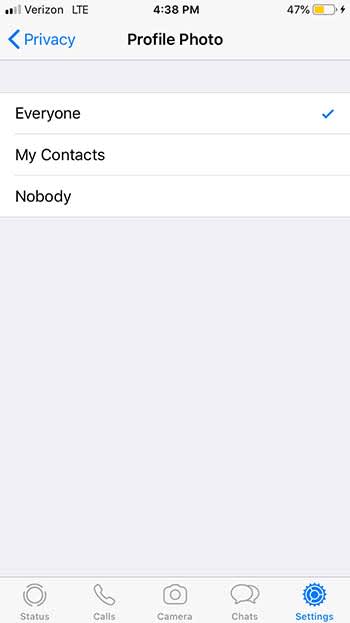
To keep your identity secret, click on Settings, Account, Privacy, and Profile Picture. From this menu, click on the option Nobody. Now nobody will know what you look like!
WhatsApp profile

Trick 5: Mute a group

Groups on WhatsApp can be really useful among small groups of friends or a living hell if it’s you’re annoying classmates in a group project. For those occasions, it’s valuable to know how to silence WhatsApp groups.

To mute a group, just click on it until the Group Information option appears. From there, click on Silence. You will have the option to block any type of message for eight hours, a week, or even a year.

Trick 6: Create shortcuts to conversations

WhatsApp allows you to create shortcuts to your most frequent conversations.

To create direct access to a conversation simply click on it until a menu appears. From here, select the option to create a shortcut and the chat will appear with the profile picture of the person. Unfortunately, this trick only works for Android smartphones.

Trick 7: Share your location with a friend

If you’re talking with a friend on WhatsApp, and you need them to find you, you can share your location with them. This option will add a pin with your current location that your contact can follow in the map application. You can also send a pin with the place you’re going to in case you have not got there yet. Finally, and for the more daring, you can also share in real time the place where you are at that moment.

If you are an iOS user you can start sharing your location by clicking on the “+” option and then on Location.

If you are an Android user, click on the Add option and then on Location. In both cases, you must authorize WhatsApp to use the location services of your mobile phone.
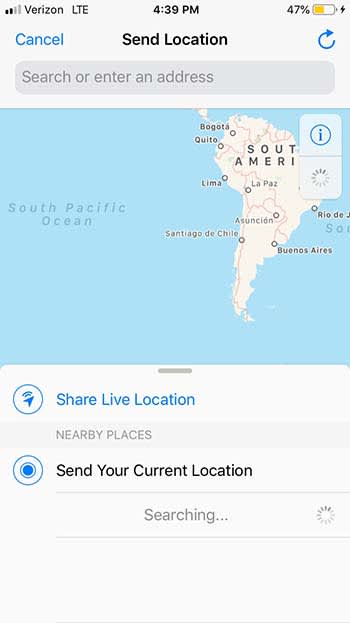
WhatsApp Location

Trick 8: Use Incognito mode

If you do not want to worry about your contacts seeing if you are connected or not, activate the Incognito mode. This is very simple to configure and will save you from more than one uncomfortable conversation if you forget to respond to a message.

To activate Incognito mode, go to the Settings and then click on Account. Enter the Privacy menu and then click on Last Seen. Change your status to Nobody so that no one can see when was the last time you were connected.
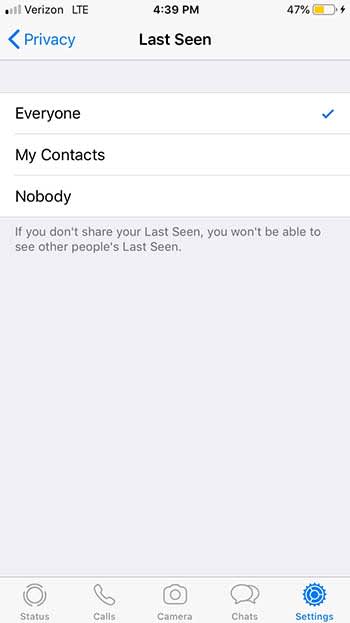
WhatsApp incognito

Trick 9: Send invitations privately

If you are having a party, you can send invitations to multiple contacts at once, and do it privately.

To do so, simply click on Chats and then on the Broadcast List option that is located just below the search bar. Create a new list, and add all the recipients you want. Create the message and that’s it! All your friends will receive it and believe that it is a personal invitation instead of a public one.
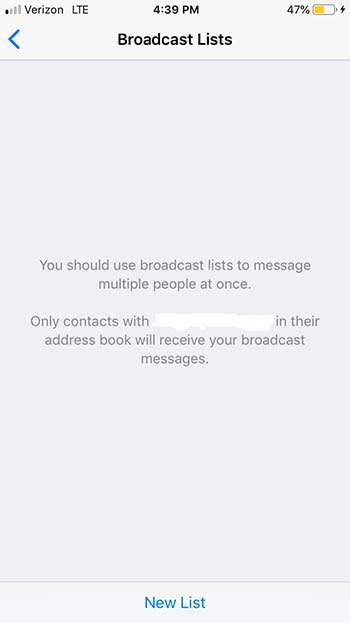
WhatsApp brodcast

Trick 10: Edit your photos

We have all sent photographs on WhatsApp on more than one occasion, but not everyone knows that we can edit them before sending them to our contacts.

To edit the images that you send through WhatsApp, use the icons that are at the top of the screen. You can add a message, draw, or even stick stickers and emoji on them. Keep in mind that depending on your phone’s OS, this option will not be available.

Trick 11: Respond to a specific message

When you get 30 messages from several different friends, it can be nauseating to sift through all of them in order to find the one or two you actually want to respond to. Luckily, WhatsApp has a trick to help you!

If you are an Android user, just click on the message you are interested in and click on the Reply option. If you are an iPhone user, swipe the message to the left and click on Reply. It’s as simple as that!

Trick 12: Keep your messages secret

Nosy mom

While it is true that WhatsApp messages are private, the notifications that appear on our phone are vulnerable to prying eyes. You know who we are talking about: moms and significant others. You’re having a casual conversation with someone, and your mother just has to be a Nosy Nelly and check to see if you have a new love in your life.

WhatsApp has an option to only show you who sent a message rather than the content of the message.

To activate this option and keep your notifications secret, go to Settings, Notifications, and then click the option to disable the preview. Take that, mom!
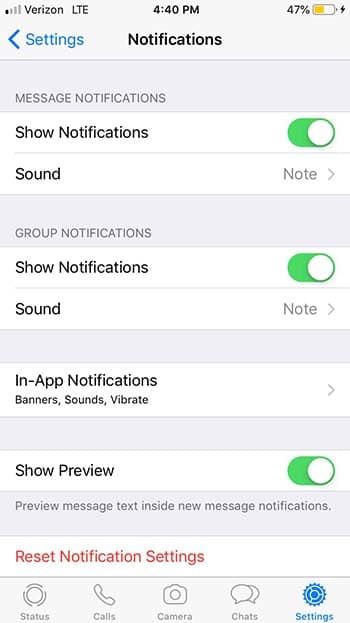
WhatsApp Notifications

Trick 13: Find a specific message within a conversation

It is likely that at some point you need to look for a specific message. However, in the sea of messages you have gotten since, it can be hard to find. For those cases, it is really useful to use the WhatsApp message browser.

To find a specific message, use the search bar located at the top of the chat window. This will give you all the conversations in which you have used the word or phrase you need to find.

If you prefer, you can also search within a single chat. If you are an iOS user, click on the chat in question and then on the name at the top of the screen. From there, click to search the chat.

If you are an Android user, click on the chat and then on the three bullets for more options. From there, hit Search.

Wrapping up

We hope that you learned something in this list! What are your favorite hidden secrets on WhatsApp? Let us know in the comments below!

How to fix slow internet

Tired of your computer taking an hour to download a small file? These tips can help!

Snail

You would think by 2019, all of us would have faster internet speeds by now. Sadly, not all of us do and it’s sometimes hard to know why.

We can stream HD movies and TV shows fine one day, and then feel our computer work overtime just to watch a two-minute YouTube video the next day.

Why is this? How do we fix it?

Luckily, we found some answers that can help you make your internet run smoothly.

Download an internet speed checker and call your provider

Call your provider

The first thing you should do is to check your internet’s current speed. You can do so by downloading your basic run-of-the-mill speed checker or just clicking here.

Speed Checker Download now ►
10

Once downloaded, compare the numbers to what you were promised from your service provider. This might be as simple as calling AT&T or Comcast and yelling at them over the phone for a few minutes.

Keep in mind that most people RARELY get the max speed promised by their service provider. More often than naught, you’ll operate a few Mbps less than what they promise.

Check other devices

Check other devices

If your laptop is running on the slower side, it might not be your network; it might be your device.

Check your internet speeds on another device like a smartphone or tablet. If the problem is your device rather than your network, this can save you a nasty phone call. If it is your device, we know just what to do to fix it…

Run virus scans  and restart often

Virus scans

There’s always a good chance that your computer sucked in a virus that is doing all sorts of damage. To avoid these issues, regular scans with an antivirus program can clear that mess right up.

Malwarebytes Download now ►
8

If you run a scan every now and then, your computer will kill whatever viruses are making your computer run slower. Once you’re done, make sure you restart your computer. 

A good sign of whether or not you have a virus is if your computer is running hotter than usual. Yes, computers get fevers when they’re sick just like us. Hot temperatures typically mean that your computer is running tasks in the background, so it is working twice as hard as it normally does. If your computer is running hot, make sure you run a virus scan and restart your computer to avoid damage.

Turn off plugins and apps

Bandwidth

Just like we are all guilty of leaving lights on after we leave, we are also guilty of not closing apps once we are done with them. A Word document in the background probably isn’t going to slow down your internet tremendously, but apps like BitTorrent siphon your bandwidth even if you’re not downloading anything.

Close out of everything you are not using to help optimize your speed. You can see everything you have open on Windows devices by hitting Ctrl+Alt+Delete and then opening the task manager, or by hitting “Force Quit” on Mac.

Check/boost your Wi-Fi signal

Wifi

Most of us have a good idea of where we get the best Wi-Fi signal in our homes. Sometimes you get a great signal in the kitchen but are out of luck in the bedroom. Typically, the closer you are to your router the better, so you need to reposition in order to get your device to run faster.

However, there is a way to boost your signal so you can run at the same speed no matter where you are in the house! Buy a signal booster! They only cost about $25, and they will go a long way. Setup is easy, and it can boost your signal by up to 600 feet!

 Wrapping up

You deserve to use the internet at the speed you purchased. These tips can help out, but if the underlying issue seems to come from your provider, it might be in your best interest to switch providers.

Guide to using Zomato

Find new local restaurants and become a review lord with Zomato!

Zomato

Imagine having the food delivery features of Grubhub with the same review system of Yelp. Enter Zomato, the new food-service app that’s changing the game!

When you’re hankering for some take-out or delivery, or if you’re just looking for a new local dive, Zomato can help you!

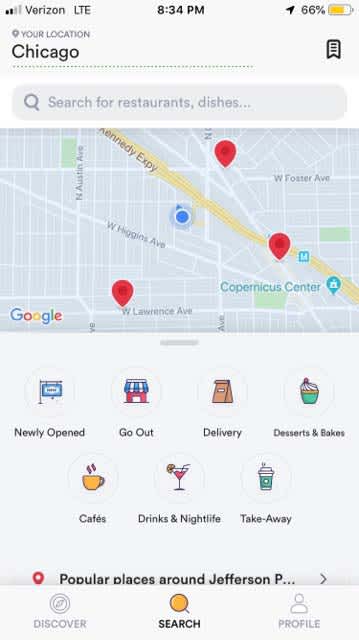
Just like with Grubhub, Zomato will provide you with a list of restaurants around you. You can narrow down your searches based on what you want to eat, if you want take-out, if you want delivery, or if you’re eating out.

Zomato delivery

However, unlike Grubhub, Zomato will get you a list of pretty much every nearby restaurant, and not just ones that opt to use the service.

find food

You don’t store credit card or specific delivery information on the app. Instead, you call the restaurant yourself to place your order. You can store your general location so the app knows to frequently search in that area. However, you don’t need to put in your specific address.

Sure, it might take a minute or two longer to place an order than if you used Grubhub, but it is still better than the dark ages of using a phone book. Plus, you don’t have to worry about your credit card and personal information being stolen in a data leak.

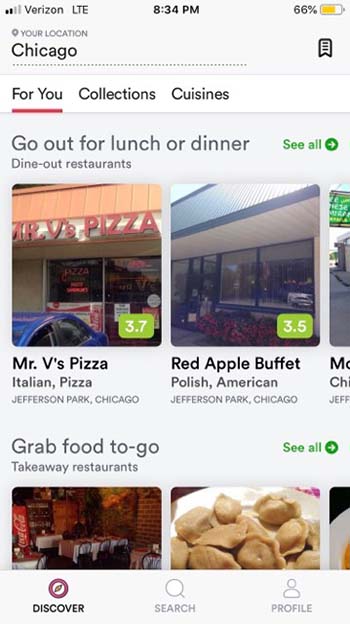
Zomato go out

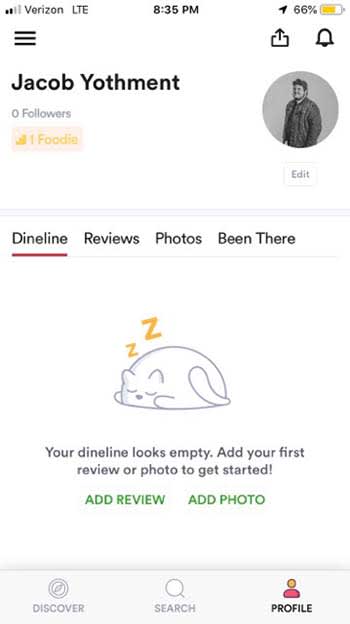
Where Zomato really stands out is in the reviews. You can build a review profile for yourself, and add photos, and reviews to the restaurants you frequent.

Zomato profile

If you order some tasty baba ganoush at your favorite Mediterranean joint, share a picture and a review for other users to see. If your sushi from a local hibachi grill made you go belly-up, give a one-star review to warn other potential patrons.

ReviewerZomato also is a great way to find new restaurants. You can search by what recently opened to find a new local hang for you and your friends. Or, better yet, find out when a new Starbucks or Dunkin Donuts opens near you so you can get a quick coffee for your morning commute.
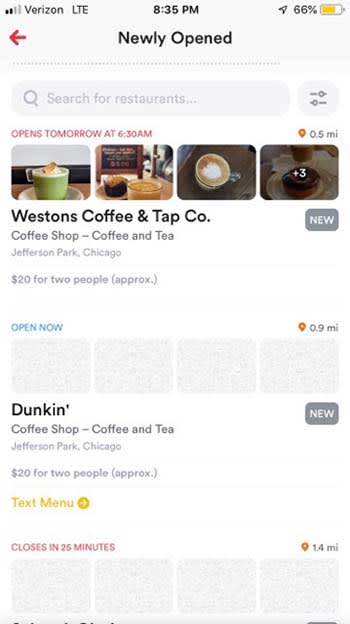

Newly opened

We can see this app really being of service on date nights. If one of your favorite date spots is too busy or is already closed, this app can help you find a suitable plan B nearby!

If you have some favorite restaurants you want to visit again, you can bookmark them in the app, so you always have them at your fingertips.

8

Wrapping up

Zomato has taken some of the best features of our favorite food-service apps to make a truly great experience for its users. If you’re looking for the ideas of where to eat, we can’t recommend it enough!

How Firefox can help block invasive ads

Tired of seeing the same ads over and over again? Firefox can help you out!

It’s happened to all of us.

You’re on Facebook, and an annoying ad pops up. You switch over to Instagram and, sure enough, it’s there, too. Finally, you start surfing the web and that same irritating ad just keeps following you.

It turns out that this ad is following you because of something called fingerprinting. Through fingerprinting, a company makes a profile all about you. These profiles make it easier for marketers to send you tailored ads.

Luckily, Firefox is here to help with a feature that can add a layer of protection between you and the companies that want to profile you.

How Firefox can stop fingerprinting

To use Firefox to stop fingerprinting, just follow these basic steps:

  • Open Firefox
  • Click on the menu in the top right of the screen (it looks like three horizontal lines)
  • Click on “Content Blocking”
  • Scroll down to the “Custom” section
  • From the “Custom” section, check the box for “Fingerprinting”
  • You’re all set!

Firefox block

Wrapping up

Blocking fingerprinting with Firefox can cause some sites to break. But if you put a premium on privacy, the positives could outweigh the negatives. Fingerprinting tracks your data without your permission as well as slows down your computer.

If you’re tired of seeing these ads over and over again, Firefox and its features offer a cleaner, more private online experience.

Softonic is proud to partner with Mozilla. When you download from us, we may earn a commission.

Best online tools to help battle addictions and vices

The battle to overcome addiction is not a sprint, it’s a marathon. These apps can help you along the journey.

Addiction

Anyone struggling with addiction should know that recovery gets far easier with a good community. While personal strength and determination may work for a select few, the rest of us need buddies, time, and a good plan.

There are apps that can help you along your journey.

We should mention two things first: while addiction can be considered bad, we aren’t saying the things that cause it always are. Alcohol can be fine if you drink responsibly. We aren’t trying to make moral assertions.

Second: if you think fighting addiction with an app sounds odd, remember nothing that makes a positive difference should be considered weird!

Top accountability apps

Screen Accountability

The following two apps allow others to monitor your browser history, at your level of comfort. While intended to keep you from watching pornography, they can be used to monitor other sites as well.

accountable2you

Accountable 2 You

It’s your account, you are in charge.

Accountable2You doesn’t set restrictions on internet usage, it notifies your chosen supporters of your site views. You may be wondering, “How does it know what to send?” The answer depends on how you design the experience.

You decide who you want to notify, when to notify them, and what devices are attached to your account. You can schedule weekly reports to your supporters, and decide if serious risks will result in immediate messages. If a malicious site doesn’t trigger the warning for some reason, you can add specific URLs and keywords to the list of banned sites.

To reduce restrictions or delete A2U, you must provide a reason, which gets sent to the members of your group. This way, you can’t just delete the app and relapse without letting your supporters know.

A monthly subscription costs $7 for each individual and $12 for a family. However, an individual plan already accepts six devices.

Covenant eyes

Covenant Eyes

CovenantEyes works much the same way as Accountable2You, with a few more features. Most importantly, CovenantEyes promotes more discussion than Accountable2You, which centers on notifications. The added ability to have a conversation can help build community faster.

Not only that, but the app also provides the option to block certain websites that are a severe issue, which could be extremely useful.

The service costs $12-16 per month.

Phone Apps

Sober Time

Sober

Although the title says “Sober,” this isn’t simply an app for those struggling against a controlled substance. Enter any type of addiction and record the year, day, and hour you stopped. From there, the app keeps track of how long you’ve been “sober!”

Earn “awards” for every stage completed, from minutes, to days, to the first year. If your addiction costs money, track how much you’ve saved by going clean. Finally, edit relapses and add notes for later!

Sometimes easy is more effective.

Sober Time Download Free ►
9

HabitShare

Share

HabitShare works more like a checklist than an accountability app. You can add things you want to remember, set daily notifications, and maintain those good habits.

So, if it’s just a checklist, why did we include it? The reason is that HabitShare allows you to add friends and have them support you!

It may not be made for accountability purposes. Sometimes a mallet can do a hammer’s job just as well, right? And if you’re trying to increase your productivity at the same time, this app might be perfect.

Habitshare Download Now ►
8

Fortify

Fortify

Fortify, like Sober Grid below, works akin to a social media program, along with many aspects of the other apps.

You can read and respond to posts created by your buddies. Visit the “training” page for resources on your journey to recovery. Create a post, join a discussion, and rate how your day went. Track your progress with daily metrics, and a growing count of how long you’ve been clean.

We recommend Fortify if you want all the features! Thanks to their well-designed user interface, you can pick and choose what functions to use or avoid with relative ease.

9

Brainbuddy

BrainBuddy

BrainBuddy creates an experience for the user. Not only does it track your progress, but the app also uses information you provide to help you understand you. It determines what starts the temptation process, where you’re most at risk, and what times you’re likely to give into temptation.

Whereas many other apps allow you to create an experience, BrainBuddy itself becomes a companion that offers daily exercises meant to renovate your habits and foster a better self!

The downside? It requires a $13 monthly payment to use. Still, this makes its large number of faithful users even more impressive!

BrainBuddy Download Now ►
8

Sober Grid

Sober Grid

Sober Grid focuses specifically on alcoholics and connects users with each other based on their location. You can enter groups and immediately be placed with other like-minded users. For example, the “100 Day Challenge” team is ready to accept newcomers!

Unlike Fortify, this app sticks close to its guns. It looks to friends for mutual encouragement with a few other bells and whistles. There are “Quests” to choose from and inspirational material provided, but nothing to get in the way of establishing real connections with real people.

If you need a support group, consider finding it here!

Sober Grid Download Now ►
9

Wrapping up

If you are battling an addiction, find the treatment that works best for you. Whether it is attending meetings, or attending a rehabilitation center, learn how to best control your urges, and get on the path to recovery.

How to write in different fonts on social media

Want to impress your friends on social media with mad font skills? Here’s how!

Facebook font

Did you know that you can write on Facebook, Twitter or YouTube using different fonts? All it takes is a simple trick!

When you write on Facebook and Twitter, there is only the default font. The text always looks really boring.

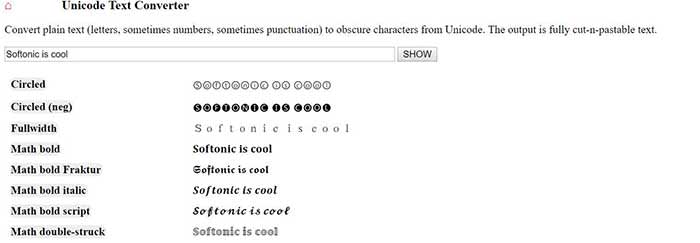
However, writing in another font is possible. To make things better, you don’t need to be a computer whiz to figure it out! Just look at what you can get!

Text converter

Do you want to use these fonts too? Then follow the steps:

How to write in different fonts on social media

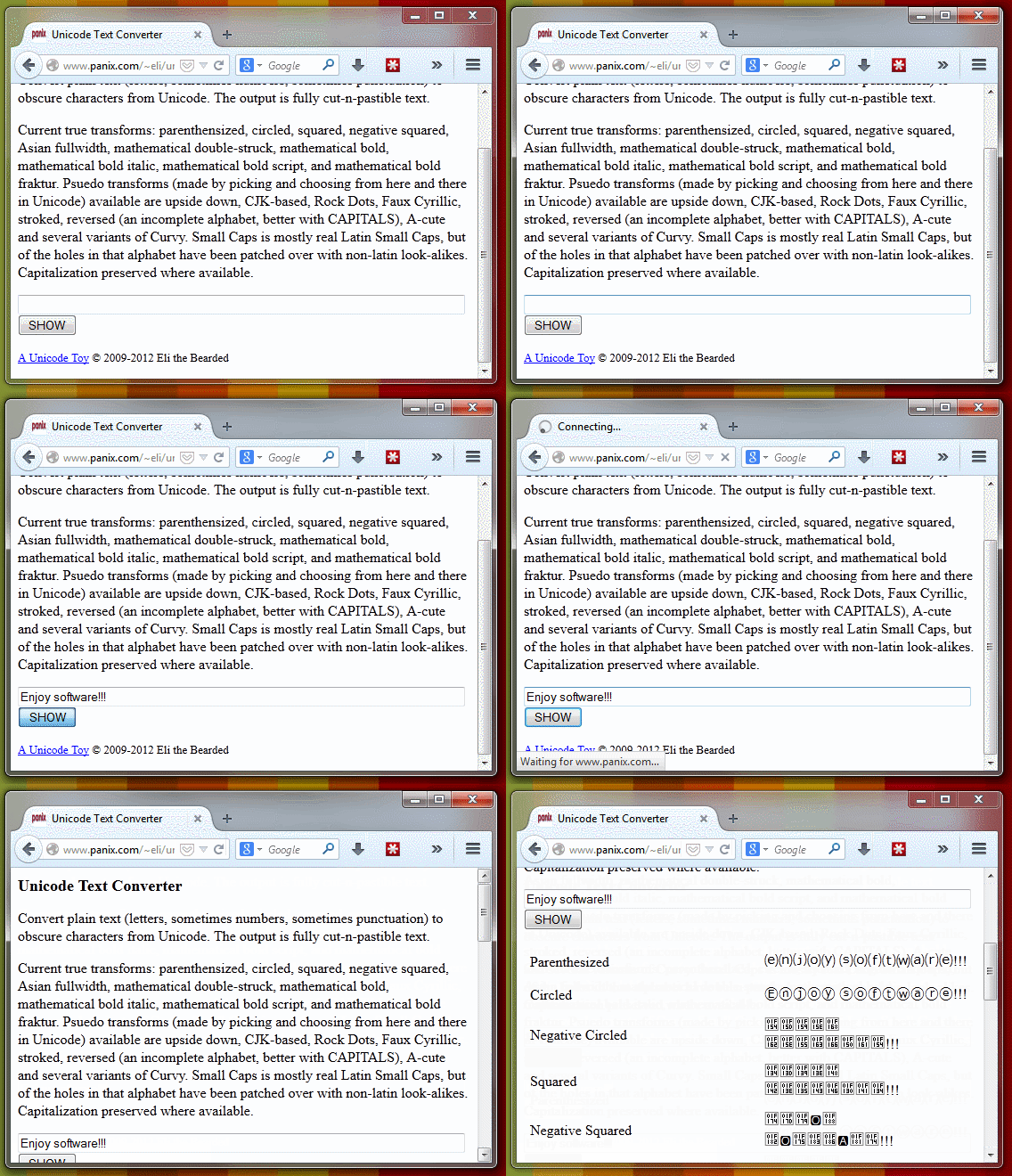
1. Go to Unicode Text Converter

Yeah, we’re sure there might be other methods for changing the font, but why not just go with the easiest?

2. Write the text you want to convert

When you’re ready, take the text you want to post on social media, and throw it into the provided space. When you’re done, hit “Show,” and the text will be shown in the newly available fonts.

Text converter

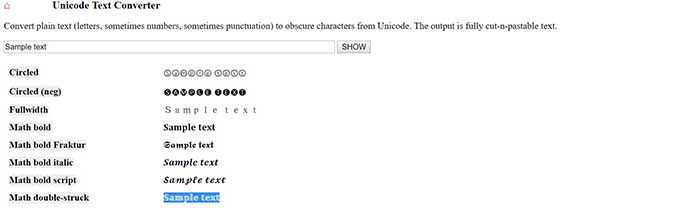
3. Copy the transformed text

Unicode sample text

Once you find your favorite font, copy it.

4. Paste the text and publish

New font in Facebook

Now you just have to go to Facebook, Twitter or any other web page and paste the text. One click on the publish button and … magic!


You can also use BabelPad

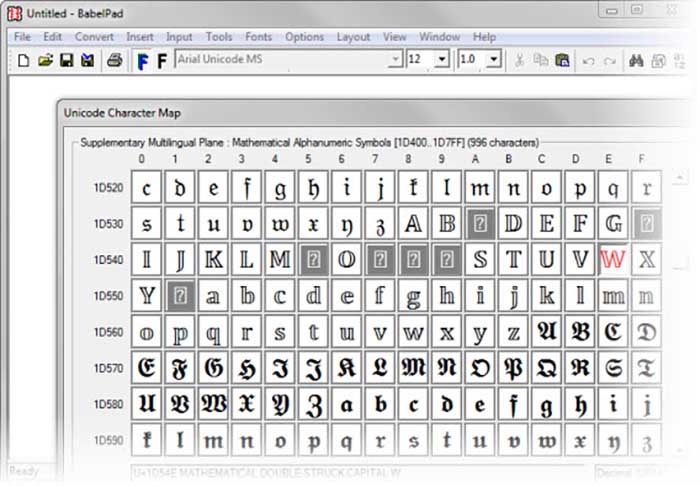
BabelPad is a free alternative to Windows Notepad that has support for the characters you just saw. These characters are not available from the Character Map; that’s why BabelPad can be very useful.

BabelPad Download now ►
7

To access special characters, go to Input> Unicode and then go to Tools> Unicode Character Map. Your list of choices is massive.

BabelPad
With BabelPad you can access hidden Unicode blocks

It is much easier to use the online converter, but it might not last forever. To be fair, Facebook and Twitter might wise up and stop users from using the site. BabelPad will always be there to help you express yourself with different fonts and symbols.

Where to find a digital farmers’ almanac

Even farming almanacs have made their way to the digital era.

Farmer's Almanac

“Almanac” may seem like an old term, like “atlas.” When you first hear the word, one of the first things that comes to mind is “Back to the Future: Part II.”

However, if the first thought that comes to your mind is incredibly old-looking books like the ones seen above, you’re not wrong! Still, just as we now use updated maps, there are great ways to find a modern farming almanac online.

Before we go on, a quick note: General almanacs are annually published volumes that have information for each day of the year.

The Farmers’ Almanac is also compilations of information organized on a day-to-day basis for the year ahead. However, the facts, tables, and advice are applicable to farming. Also, don’t think you have to own a large plantation to benefit from the information found within. Hobbyist gardeners can put almanacs to good use as well. If nothing else, they make a cool and rustic coffee table book!

So, if you want to find Farmers’ Almanac information online, there are a few ways to do that:

Where to find a digital farming almanac

Websites

Old Farmer’s Almanac

OFA

“The Old Farmers Almanac” is a classic. Founded in 1792, it continues to lead the farming almanac industry. Holding to the words of its creator, Robert B. Thomas: “Our main endeavor is to be useful, but with a pleasant degree of humor.”

Their information focuses on three things: planting guides, cooking recipes, and weather charts for the coming year. You might be surprised to know they have a number of unusual metrics. For example, they use the hardness of apples to tell how cold winter will be. They pride themselves on using tried-and-tested common sense methods to determine the outlook of next year’s weather.

As time went on, the OFA added modern aspects and created a website. The website includes articles, new products and more, in addition to their almanac. Still, you can use their almanac online for the usual reasons or buy a physical copy if you wish!

Interesting note: of all the almanacs here, they also have the best YouTube channel, with over 6,000 subscribers. Quite a count for an almanac!

Farmers’ Almanac

FA2019

“Farmers’ Almanac” attempts to improve on the formula with even more online assets. In addition to their almanac, they have a promotional almanac for businesses, online edition, and E-newsletter for those that want to stay in the know via email.

Like “The Old Farmer’s Almanac,” they’ve also begun writing interesting articles that you might just find interesting. A recent publication on lunar rainbows caught our eyes in particular. How cool!

FARainbows

The real question is: which should you choose?  Frankly, they both have great strengths, though we do lean toward the classic “The Old Farmer’s Almanac.” Still, these two venerable businesses have separate viewpoints, different styles, and various design aspects. We suggest visiting each and determining whether one works for you personally. Enjoy!

An App Option

Moon and Garden

Moon and Garden

Moon and Garden is the go-to app for planting cycles on both the Apple and Google Play Store.

Unlike a full farming almanac, you won’t have the full benefit of recipes, advice, and articles for each day of the year.

However, you will have an app that helps you schedule cycles for your organic garden and make plans for its maintenance. Yes, it’s not an almanac, but it can be a wonderfully simple tool for small-time gardeners looking to better organize their time. Give it a shot!

Moon and Garden Download now ►
9

Wrapping up

Once again, there are more reasons than one to try a farming almanac. Whether you pick it up for gardening advice, weather information, recipe suggestions, a bomb-tastic coffee table book, or an interesting source of agricultural articles, you can’t go wrong!

6 ways to level up your Instagram captions

Become an insta-sensation with these tips and tricks!

Instagram post

Sure, Instagram’s bread and butter is its focus on pretty pictures. It has been the case since 2010 when the app still had a reverse chronological timeline, well before Facebook entered the mix.

Initially, Instagram was designed as a platform for pics and pics alone. However, the founders quickly realized that something was missing… Enter the likes, comments, and yes, captions.

Instagram Download Now ►
7

Compelling captions do a lot for a post. They tell people what your photo is all about, prompt them to take action, and make sharing worthwhile.

Still, it’s hard to come up with the perfect combination of funny and thoughtful. How do you be descriptive but not too long? How many emoji should you use? What about hashtags? How many is too many?

Don’t make yourself crazy over captions. Here are some ways to drum up that coveted follower engagement without driving yourself nuts:

6 ways to level up your Instagram captions

1. Consider who you’re writing to… and why

Thinking before posting

First things first. Let’s talk goals.

Who are your followers? How old are they? If you add a reference will they get it?

Instagram has an inherently lighthearted tone. Think about it, you’ve got your pink walls and latte art, inspirational quotes, sunsets, and self-care. On a general level, you’ll likely see the best results from keeping things light.

Beyond understanding the platform, you do want to be in touch with the audience. Ask yourself what kind of language do they use?

2. Lead with the best stuff

Cool Instagram post

This is the Instagram equivalent of “above the fold.” Captions are cut off after a few lines of text. So, if you want to attract interest, you need to front load the information so that people might happen upon it while scanning through their feed.

Sure, you have 2,200 characters to say your peace. However, if you’re looking to max out your space you’ll want to treat the first part of your caption like a headline. After that, you can then dive into the rest for those care to click.

A note about caption length: The common wisdom is that shorter tends to be better, but it kind of depends on your profile personality. Some users approach their Instagram account as if it were a mini-blog while others go for brevity. They relish that expertly-selected emoji or slick one-liner. It’s all about finding what’s best for you.

3. Ask a question, make a call for action

Call to action

If you are a brand or you just work for one, you know better than to leave a social media post without listing a “next step” for your reader. The next step, otherwise known as your “call-to-action” or CTA for short invites readers to go, “Hey, I will click over to that website” or “check out that shop.”

Again, this brings us back to this idea of setting a goal. Think about what you want your post to accomplish — comments, likes, engagement, or website visits.

If you’re a typical user that just wants more engagement, try asking a question to get more people to comment. It doesn’t need to be complicated. You can ask people what they think about a new look or invite them to comment on a personal experience.

4. Formatting matters here

Yes, formatting counts when it comes to crafting the perfect post. Spaced out sentences are much easier to read than a big old wall of text. That’s blogging 101. However, you might not realize that avoiding the old text wall translates to social, too.

See this post from The Instagram Expert’s account


View this post on Instagram


– WHAT A DIFFERENCE 365 DAYS CAN MAKE IN YOUR BUSINESS (GO AHEAD, DREAM A LITTLE BIT) ⏡⏡ Meet @shannonleestrategy she has been a small business owner, like many of you, for the past 20 yrs. Shannon had been using online marketing for a while but she told me she felt like she was running on 1 cylinder when she wanted so badly to be at full throttle. Can you relate? – Because she knew she was missing something in her business, she joined Marie Forleo’s B-School last year. Shannon wanted to understand the FOUNDATION of what it takes to build a business online today using modern marketing. – After she took her leap into B-School and invested in her business she’s done some pretty tough work and she’s seen impressive results in her biz. ⠀⠀⠀⠀⠀⠀⠀⠀⠀ Including… ⠀⠀⠀⠀⠀⠀⠀⠀⠀ – How to tell stories on social and in her emails that emotionally connected to her ideal clients – She learned how to focus on always leading with giving value to her clients – She rebranded in a way that aligns with her marketing message – She started on Instagram with 300 followers and after going thru B-School and incorporating what she learned from my Instagram tactics in Ready Set Gram she now how 1,044 highly targeted followers -Since B-School & our in person B-School retreat in Boston, Shannon has… ✔️Gained confidence ✔️Made a mindset shift ✔️:Got Laser focused in her niche ✔️Has clear content that attracts her paying customer ✔️Has grown her email list from 0 to 200 ✔️Launched a website that converts to clients. Resulting in 1K views and several leads a week for her strategy and coaching business – She works less hours because of her systems in place and uses automation to work smarter. Her business has increased 800% giving her thousands and thousands of dollars a month to her household. Annnnnd this only took 1 year! 365 days! – Imagine where you could be one year from now if you invested in your business from someone Who has the step-by-step process to do what you need it?

A post shared by Sue B. Zimmerman IG Educator (@theinstagramexpert) on Feb 13, 2019 at 5:45pm PST

It’s crazy long, but she’s done a nice job making this approachable through the power of white space.

5. Include some emoji

Thinking Emoji

Well-crafted emoji captions are a real treat, and they’re more versatile than you think. These days even more serious brands are getting in on the action.

You can use emojis in a few different ways. For example, you can use them at the beginning of a post to catch people’s eye.

Or, make like Starbucks and tie your emoji back to the focal point in your photo.

Another idea is to use the “eyes” or the “finger pointing” emoji to draw the eye toward your link or CTA. It’s a nice visual trick for breaking up space, and it serves a practical purpose.

6. Hashtags

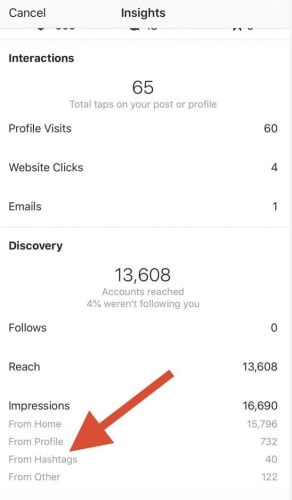
Hashtags exist as a means for classifying photos, but they also help you cast a wider net. They help you reach people who might never come into contact with your page. This Hootsuite report breaks down the stats:


Hashtag analytics

For best results, the goal is to keep your hashtags relevant first. The purpose is to help other users find content that corresponds with their interests. Essentially, save the jokes, memes, and emoji for the body of the caption.

7. Keep captions consistent

Finally, consistency is the backbone of branding whether you’re trying to build a business or turn yourself into an influencer.

In either case, people will remember your account when you deliver a high-end experience day in and day out.

Wrapping up

Instagram can be a great tool for building your own brand or your business’s brand. With these tips, you can turn the ordinary into the extraordinary.

Boost productivity with the best apps for time-tracking

Find the best app to help you manage your time and boost your productivity.

lady on the clock

There are a lot of factors in the mix when it comes to your productivity. There are external factors — the emails, notifications, and whether your colleagues are being especially chatty today. Also, there are things like whether your pants are comfortable or whether there’s a fresh cup of coffee to keep you company.

Sometimes you have trouble focusing or want to manage your output. Experts, bloggers, and productivity hackers alike recommend implementing some kind of schedule for “getting things done.”

The most popular approach is the Pomodoro Technique, which breaks your time into a series of 25-minute chunks. But, we were curious, are there other approaches to blocking off time?

Over and over, the app 30/30 came up — but it turns out, it’s been discontinued.

What is 30/30?

Time management

The 30/30 app was an iPhone app made by Binary Hammer. Weirdly, it still comes up a lot when you search for the best time-tracking apps, despite being discontinued a few years back. There is an app on the Play Store with a similar name, but it does not have the same functions.

The underlying concept was, you’d assign yourself a set of to-dos to work on in 30-second increments. The idea was that you can plan out your entire day, and can customize intervals ahead of time.

This means you’re not resetting a timer over and over, which is the basic premise behind the Pomodoro technique.

How is 30/30 different than the Pomodoro technique?

Well, classic Pomodoro is done with a simple egg timer.

Today, there are several options out there like TomatoOne which lets you customize your intervals. However, most don’t allow you to plan out your day and sort of “flow” through different tasks.

Some people like the simplicity and use the popular method to stay on task, not so much track their progress.

If that’s you, TomatoOne is a basic app you can download for your desktop or smartphone.

Tomato One Download Free ►
8

What are the best apps to track your time?

PomoDone

PomoDone

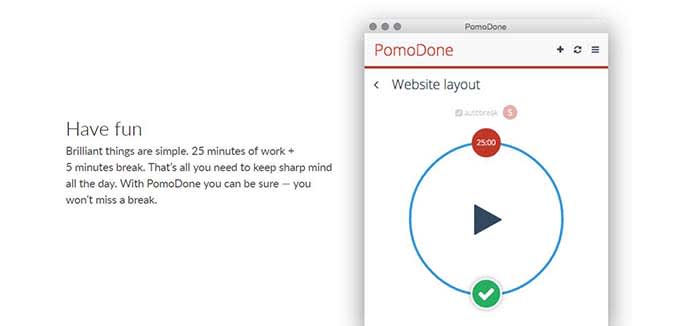
PomoDone is a productivity app built for Todoist users. The idea is that you can connect the two accounts and track the time spent on your to-do items.

What’s cool about PomoDone is that it allows you to drag your to-dos into the app and assign them by category. You can categorize your errands, emails, or work projects.

What’s more, you can also break out of the Pomodoro 25-minute cycle and assign time limits based on what you’ll need for each task.

PomoDone Download now ►
7

Focus Booster

FocusBooster

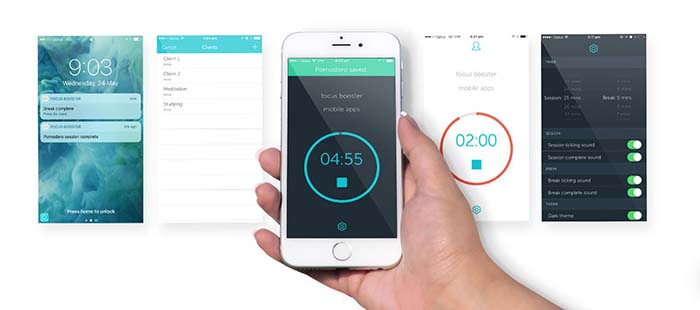
PomoDone and the Pomodoro technique can work for anyone with a to-do list and the willingness to track their output. However, Focus Booster is built for freelancers.

It comes with the standard timer app fare but allows you to break up your time-tracking by client or project. You can adjust the length of your sessions and turn your data into timesheets.

Focus Booster Download free ►
9

Focus List

FocusList

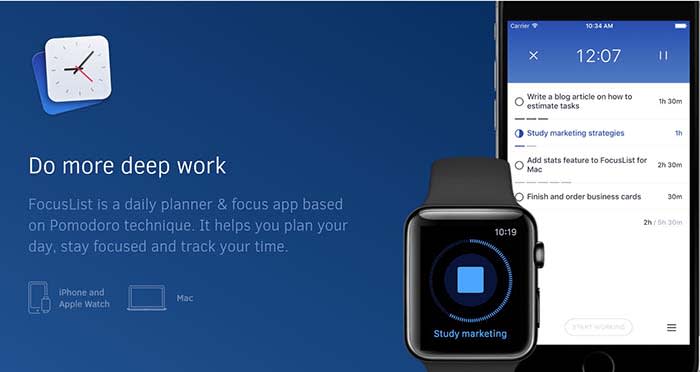
Focus List is another solid option for helping you plan your day, track your time, and review your progress. This app is something of a natural successor to 30/30, as you’ll “time box” your day. After using the app, you’ll start to understand how long it takes you to get things done.

FocusList Download Free ►
7

60-60-30 by Timerro

Timerro

The 60-60-30 technique is simple. You spend 60 minutes on one activity, then work for another 60 minutes followed by a 30-minute break.

Like Pomodoro, the hard part is getting used to staying on one task for an entire 60-minute block.

You’re supposed to take a 10-minute break between the two-hour-long chunks, which does make things slightly easier.

What we liked about 60-60-30 is that it allows time for more sustained blocks of focus than the 25 minutes Pomodoro blocks. Whether that’s invigorating or exhausting depends on how your brain is wired.

7

TL/DR: find a workflow that works for you

Stress relief

Working on a timer-system does come with some key benefits.

Short breaks can help you refill your creativity reserves and stay more productive throughout the day.

As you get used to working in a series of sprints, blocking out distractions will become second nature.

Over the long term, you’ll start to get better at managing your time. For instance, you’ll start to get a sense of how many sessions it takes to write an article, put together a report, or get through your inbox.

An article from Quartz article highlights an important point. Time-tracking is valuable, but you need to experiment with different intervals until you find what works for you.

Behavioral neuroscience professor from McGill University Daniel Levitin told Quartz that there’s no one workflow that suits every “neural style.”

For example, some people are able to focus for hours on end. Others depend on short bursts and are followed by short breaks to sustain energy throughout the day.

Levitin acknowledges that it’s a trial-and-error process, and it might take a while to find your ideal workflow.

Even Mr. Pomodoro himself, Francisco Cirillo, says it takes between seven and 20 days to master the system.

Find what works for you. The best method for your friend or coworker may not be what works best for you. Try a few different options, and stick with what fits you and your lifestyle.