
The best free music production software

These are all the essential programs a DJ needs to produce and play music.

Best audio editing software

These days your laptop can turn you into a superstar. There are people out there who travel the world with nothing but their laptops, plug them into the sound systems wherever they end up, and then blast out concerts to thousands of fans. I am of course talking about superstar DJs.

The best DJs hunt out all the best music and then play right tracks at the exact right moment for the crowd to hear them . It sounds like an easy job, but it’s not. On top of that, if you want to become a superstar DJ who tours the world, there is something else you’ll have to master; music production. Unsurprisingly, a LOT of people want to be superstar DJs, which makes it very hard to stand out the crowd. The best way you prove yourself to be special, however, is by making your own songs to play in your own sets and for other DJs to play in theirs. Yep, music production is an integral part of the journey you take towards becoming an international superstar DJ. It’s time to become a music maker.

Music production software can come with a hefty price tag though, and if you’re just starting out, you might well baulk at the cost. This is where Softonic comes in. We’re here to start you on your path to stardom by walking you through some of the best free music production software options.

Free music making software

Audacity
Audacity

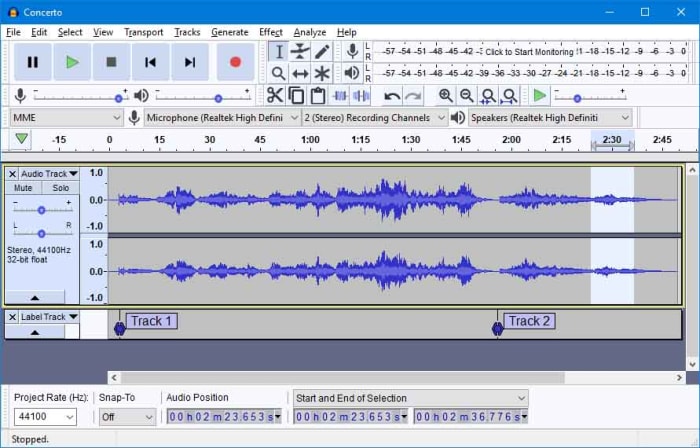
Audacity works on Windows, MacOS, and GNU/Linux and is a marvel of free music software. Like all the best pro-grade free programs, such as the image editor GIMP, Audacity is open source software, which means users and developers can add features to the main product or iron out any bugs they find.

Audacity has a lot of features that put it alongside some of the more expensive premium options out there. With Audacity you can easily perform live audio recording, record sounds coming from your PC, convert music, edit, cut, copy, and splice tracks of many different audio formats, and download and install plugins to add new features as and when you realize you need them. Audacity offers advanced audio editing software while, somewhat surprisingly, remaining very simple to use.

7

Mixxx

Mixxx

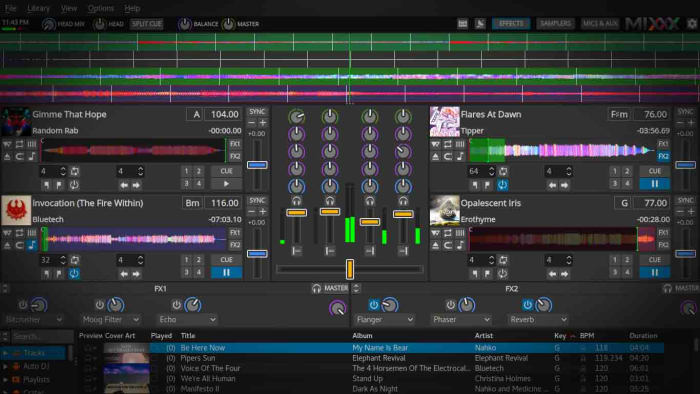
Mixxx is a fantastic piece of free software for all budding DJs. As the name suggests it is more for DJing and mixing than it is for producing music but it still an important tool for any new DJ to have. Another free and Open Source program, Mixxx is available on Windows and Mac OS X and has quite a few features that’ll make DJs happy. It integrates well with external DJ controller decks offering a complete digital audio workstation, has beats per minute (BPM) detection and auto-sync, and will even integrate with iTunes. You can broadcast your mixes live, save them as a variety audio formats or simply blast them out of your speakers for people to dance to. Mixxx is a lot of fun.

Mixxx Download now
8

LMMS

LMMS

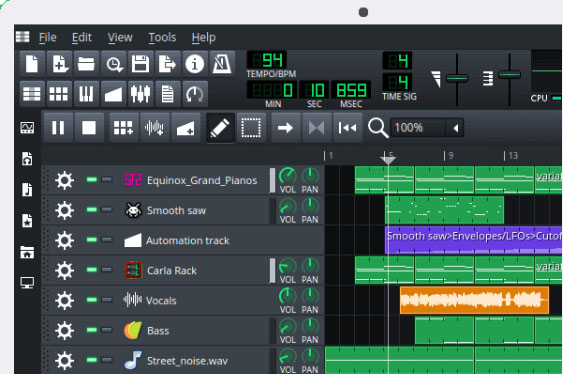
Another advanced, cross-platform, and free open-source audio production suite you can download on Windows, Mac, or Linux is LMMS. It comes with a lot of cool features that will have you creating beats in no time like a built-in Piano roll that you can connect to a MIDI controller, 64 FX mixing channels, and a specific beat and bassline editor.

LMMS loosely stands for Let’s Make Music and that is exactly what the program is designed to do, help you make music. The program works well with external instruments and samples, and, like Audacity, has a lot of plugins you can use to augment your music production experience. You won’t be able to believe that this program is free when you download it.

7

MuLab DAW

MuLab

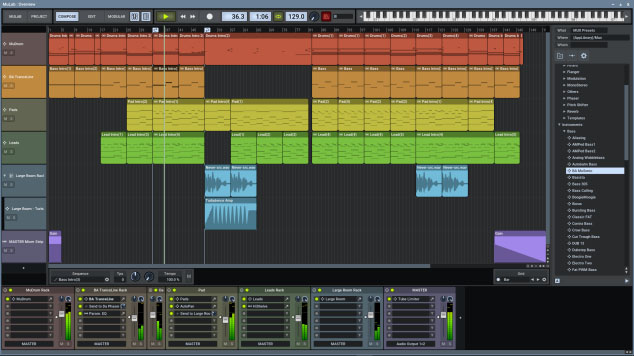
MuLab is chock full of high-end audio production and editing tools that will help you get that song you’re coming up with out of your head and into your speakers. Looking at a bit like Ableton Live and available on Windows and Mac, Mulab is a fantastic music creation program. It has over 300 selected waveforms with its superfast oscillators, multi-track support, flexible track and sub-track support, an easy to use and understand modular architecture, and automatic mono/stereo handling.

The features we’ve outlined above only cover a small portion of those offered by the free version of Mulab, which will give users access to professional-level music production facilities. With lots more features like synthesizer support, MIDI player plugin support, and even a synth effect builder this program has it all. Download it now to see just how much it has to offer.

MuLab Download now
8

GarageBand

GarageBand

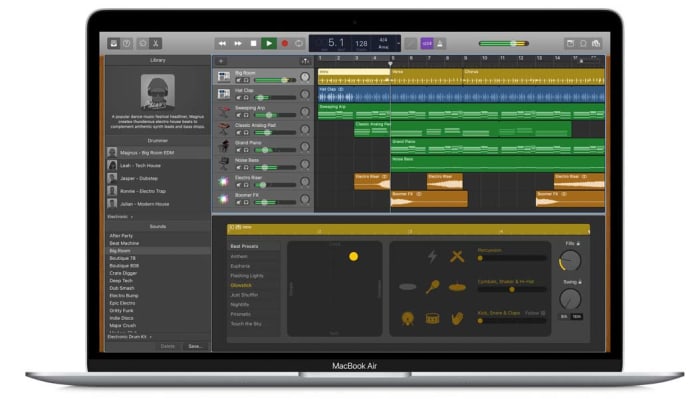
GarageBand for Mac has some really incredible pro tools that you just wouldn’t expect a corporate giant like Apple to give away for free. Many famous artists like Rihanna and Justice have created massive global hits using GarageBand, so if you have a Mac, this could be the best option for you.

GarageBand gives you the ability to create songs with up to 255 audio tracks and offers very well produced drum machine grooves to add to your songs and give them a beat. Other cool features include multi-take recording so that you always end up saving your best take and Multi-Touch support on iPad, which makes it possible to wirelessly play GarageBand virtual instruments on your Mac. This is the most user-friendly app on our list too.

GarageBand Download now
7
Wrapping up

We’ve brought you five essential apps for all budding young DJs and music producers. If you want to make a name for yourself, you’re going to have to make yourself stand out and there is no better way to do that than making your own music and having other DJs play it at their parties.

All of the programs we’ve featured today offer complete experiences that rival that offered by the premium music production apps that cost many hundreds of dollars each. With most of these apps, however, there is a steep learning curve so you should take that into account if you’re just getting started. There’s no point having massive and fully-featured music production suites on your PC, Mac, or Linux, if you don’t know how to use them. Many of these apps come with extensive online forum support so check out the forums for user guides. You’ll also be able to find extensive support on YouTube too.


The best Black Friday deals

These are all the best software deals you’ll find this Black Friday.

When Black Friday comes around, we’re inundated with limited-time special offers for all sorts of products like headphones, wearable tech, charging cases, video games, SSD hard drives, smart home devices, and iPads. With so many deals from the likes of Amazon, Walmart, Best Buy, Newegg, and Samsung, however, it can be hard to know where to start. Well, at Softonic, we’re specialists in software so you can trust us to bring you the best Black Friday sale software deals. Let’s get into it then, these are the best Black Friday deals for software and online subscriptions.

Disclosure: Softonic may receive a referral fee if you click or buy any of the products featured here.

The best Black Friday software deals 2019

ExpressVPN

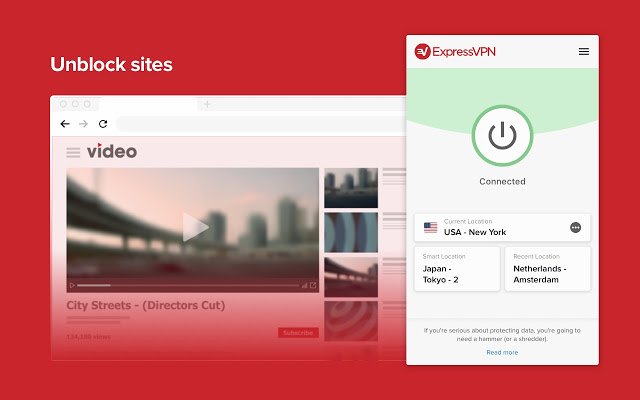
Virtual Private Networks (VPNS) allow you to mask the IP address of your Microsoft PC, Macbook, iPhone, or Android phone and encrypt all of your internet data. They have become essential for anybody who wants to surf the web safely. Add to that the fact that VPNs open up global content that would normally be locked due to your geographic location and you quickly realize that you need a powerful VPN on your machine.

The problem with VPNs, however, is that many of them are not that reliable. This is simply not the case with ExpressVPN though, which is widely regarded as the best VPN in the business. An ExpressVPN subscription will give you reliable access to over 3,000 servers round the world allowing you to protect your data and simulate your location in over 160 locations spread across 94 countries. If that sounds like something you want, act now to get three months free subscription to ExpressVPN.

Express VPN Save $$$ Now
10

Adobe Creative Cloud

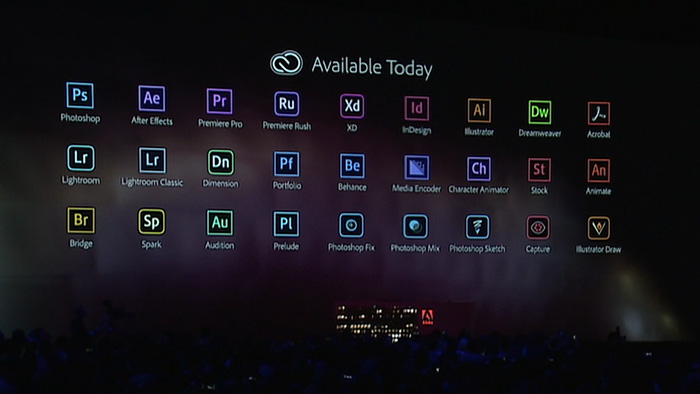
If you’ve never heard of Photoshop, then you must have been living in a cave or something. Photoshop and all the other programs in the Adobe Creative Cloud design suite are the best in their class. No matter your design job, the Adobe Creative Cloud will give you the best tools available to get it done.

Now’s your chance to get yourself a full subscription to the Adobe Creative Cloud package with massive savings of 40% off the normal price for all and 80% for students. Take advantage of early Black Friday savings that could end up saving you hundreds of dollars every year.

iObit

iObit Black Friday deal

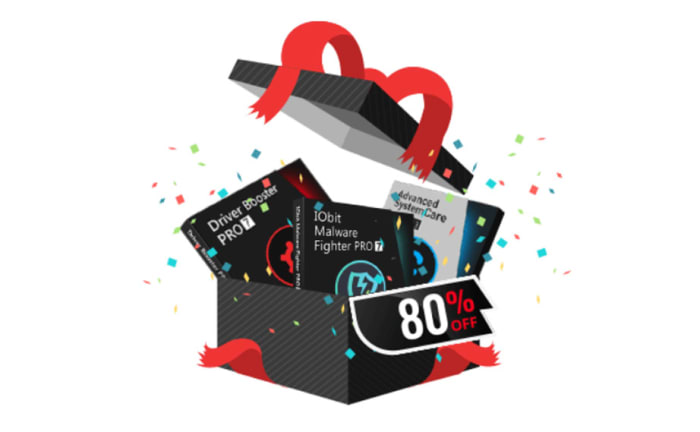
Keeping yourself safe online is a tough job these days. Online threats and more advanced types of malware hit the internet all the time. As well as online threats, as software gets more and more complicated we can experience inexplicable slowdowns on our PCs. This is why it is more important than ever to have a robust cybersecurity suite protecting you every time you’re online and to keep your PC working as well as it should.

With that being the case, you do not want to miss out on the eye watering  discounts that iOBit is offering on its line of PC optimization and protection software. You can save up to 80% on complete packages of iObit cyber security software. iObit is also giving away $60 worth of software for free with every purchase made. Check out these deals now and save yourself some money.

iObit Special Offer Save Save Save
10

MacPaw CleanMyMac

CleanMyMac black Friday deal

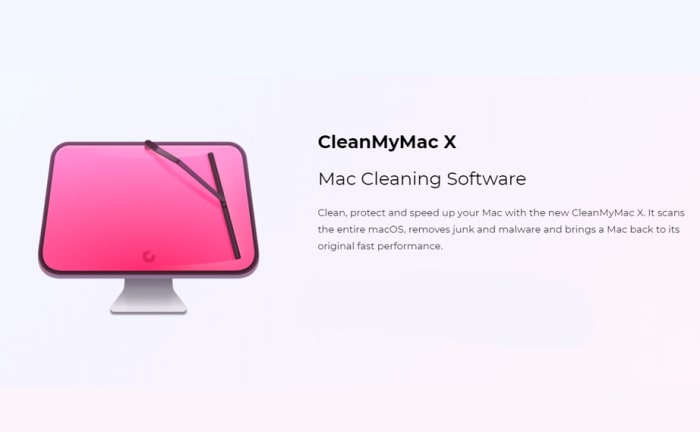
MacPaw’s CleanMyMac optimization suite offers the industry standard that all other Mac cleanup programs try to match. CleanMyMac makes it a quick and simple process to clear up space on your Mac and get your Apple Mac back to its best. With MacPaw’s amazing Black Friday deals, you can save 30% on a CleanMyMac subscription. You need to act fast, however, as MacPaw discounts are rare, and it won’t be Black Friday forever.

CleanMyMac Clean for less
10

CCleaner

CCleaner Professional is a veritable institution in PC optimization. It has been around for years and is well-known for offering a quick, safe, and reliable disk cleaning service. Regularly regarded as the most efficient tool for identifying gigabytes of erroneous files and delivering noticeable boosts to your PC’s performance every time you use it. If your PC needs a boost, act now and save 50% on a CCleaner subscription.

CCleaner Click to Save
10

Sony Vegas

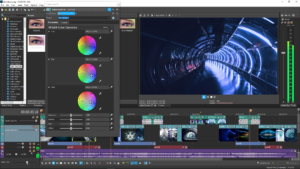
If you’re a video editor you need a feature packed video-editing suite offering full video production capabilities, audio editing, special effects, and more. Sony Vegas has all of these and more. If you’re an Instagram or YouTube video blogger then you should think seriously about this Sony Vegas Black Friday deal. Act now and you could save yourself hundreds of dollars and massively upgrade your video-making capabilities.

Sony Vegas Save $$$
10

Norton Antivirus

Norton Antivirus

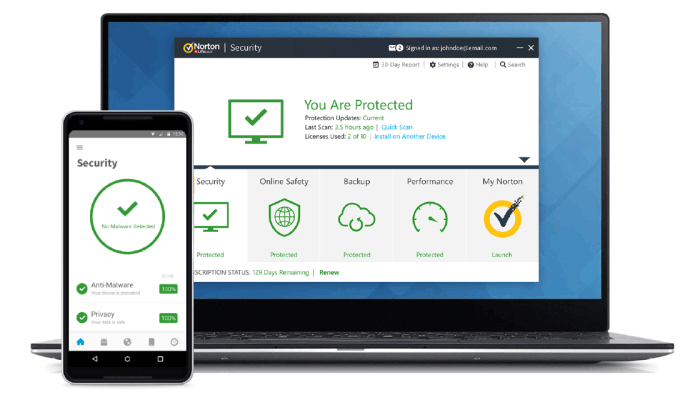
Our final Black Friday deal comes from Norton Antivirus, which is offering savings of up to $60. Protect yourself from threats including ransomware, malware, spyware, and more.  Norton will also protect your identity from potential hacks and  potential online scams and phishing attempts. Act now to save a massive $40 and protect your PC or Mac for an amazingly low $19.99. Protect up to 5 devices with the full Norton package and save a massive $60. Don’t wait to stay safe and save money.

Norton Antivirus Protect and Save
10

The best free video editing software of 2019

These are the five best free video editors available on the internet today. Check them out now.

Best free video editors

There are a lot of amazing video sharing platforms these days. Beyond the obvious ones like YouTube and Facebook, you have smartphone specific apps like Tik Tok and IGTV. This being the case, we’re not surprised you’re looking for some top-quality video editing programs. Simply filming the best video isn’t enough these days. You need to know how to edit videos too. If you want to stand out from the crowd, you need to edit your video files, make them look as professional as possible, and then make them available cross-platform to Windows, Android, or Apple Mac OS, iPhone, and iPad so that as many people as possible can see them .
As if editing video clips wasn’t hard enough already, getting your hands on a decent video editor can end up costing an arm and a leg. Therefore, we’re bringing you a list of all the best FREE video editors.

Best free video editing software

HitFilm Express

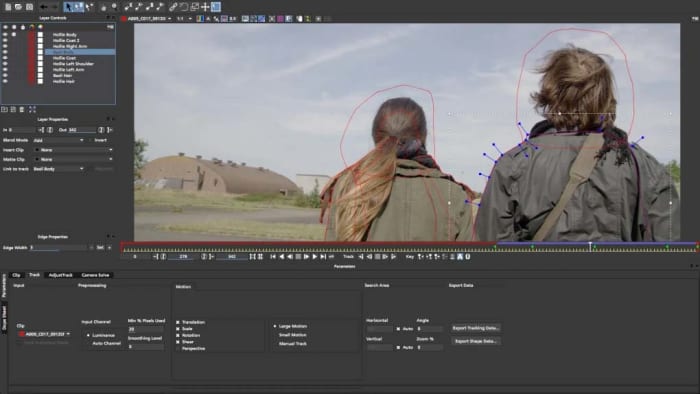
As you’ll probably imagine, a lot of the free video editing programs we’re going to include in this list will be related to more fully featured, yet paid for, versions of the same program. HitFilm Express is one such video editing tool that offers an impressive Pro version of the software for $299. The great thing about the latest free version of HitFilm Express, however, is that it has a lot of features that have come from past Pro versions. Let’s take a closer look.

HitFilm Express

HitFilm Express uses a timeline editor interface and offers some user-friendly playback options that will help you out when you’re trying to edit your professional video. Impressively, a recent update also added the ability to edit 4K (4096 X 2160) footage, and even the ability to use the power of your GPU, with Nvidia and Intel support, to help with decoding. Other key features include 360 degree editing, special effects, video effects, multicam support, 3D effects, and GoPro support to name but a few. You’ll also be able to publish your videos into multiple output formats.

There are trade-offs, however. For a start, although you don’t have to pay for the free version you will have to ‘earn’ it. You’ll have to mention the developers on social media before they’ll give you access. On top of that, there are also some add-on features like animated text that you’ll have to pay for.

HitFilm Express Download now
8

VSDC Free Video Editor

VSDC free editor

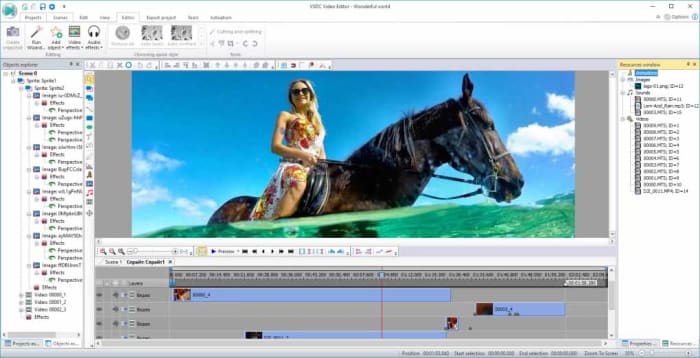
There is an awful lot you can do with the free version of VSDC Video Editor. There are many audio editing features, sound effects, and visual effects available for you to play around with. VSDC also offers green screen capabilities and there are a lot of cool Instagram-like filters that you can use to enhance your footage.

The downsides related to VSDC are mostly related to its interface. Its enhanced feature set make its interface rather complicated and a little daunting for beginners. There is a lot going on here. Fortunately, however, VSDC has a comprehensive YouTube channel filled with video tutorials for all the main features. There is also a paid real-time support service for free users that starts at $10. There is, however, a premium version of VSDC available, which is much cheaper than some of the other premium versions we’ve featured on this list.

VSDC Free Video Editor Download VSDC
7

Lightworks

Want to make or share a great video? - Lightworks

Lightworks is a well-known video editor that offers comprehensive control over all the snips and cuts you’ll need to turn your home movies into Hollywood style blockbusters. Lightworks has been used to edit Hollywood movies including Martin Scorsese’s movie The Wolf of Wall Street.

Obviously, the free version isn’t as fully featured as the pro version, which costs $24.99 a month or $437.99 outright. With the free version you’ll only be able to export your movies to YouTube or Vimeo and only with a maximum resolution of 720p. You will, however, be able to import all video formats and use a wide range of the pro features, you’ll just be heavily limited in your video export file format options.

Lightworks Download Lightworks
7

Want to learn how to use VLC as video converter?

Blender

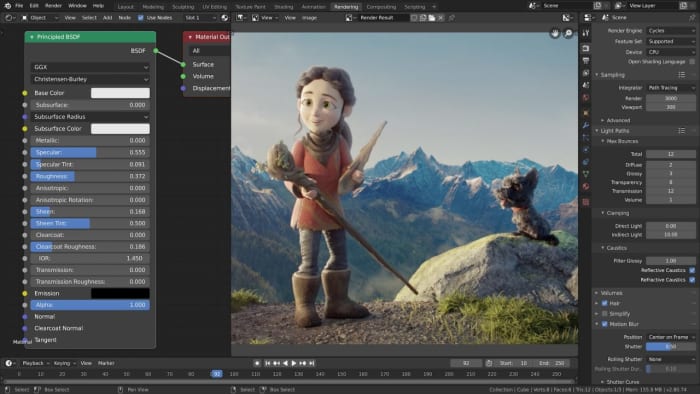
Blender is a rare thing of beauty among free video editing programs. Rather being a free version of a pro product, Blender is a completely free piece of software as it is open source. That means Blender is a community developed product that has been put together by developers all over the world. This isn’t just good because it means the software is free, it also means that new advanced features often come from video editors themselves who’ve noticed a shortcoming in the software’s capabilities.

Blender interace

Cool features that come as standard with Blender include being able to Live Preview your work, which could be made of up to 32 separate tracks each capable of holding video, images, masks, effects, and audio tracks. Other key features include transitions, filters, and speed control.

As you’d expect from a community led program, however, Blender can be a little hard to take in at times and has quite the steep learning curve. There is no set manual explaining how everything works and you won’t be able to rely on official support channels. If you look hard enough though, you should be able to find all the help you need on the online Blender forums or YouTube.

Blender Download now
8

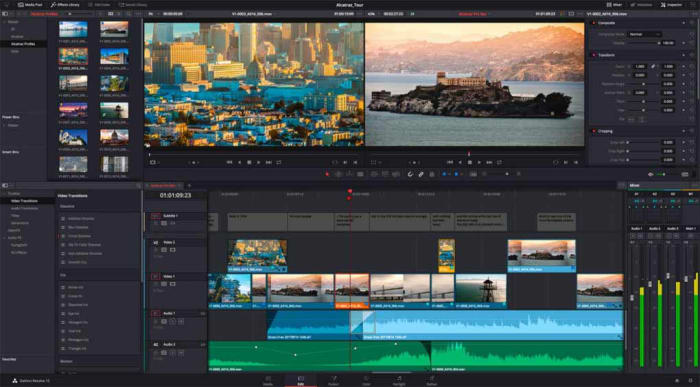
DaVinci Resolve

DaVinci Resolve

Like HitFilm Express, DaVinci Resolve has a premium version that comes in a $299. The free version of DaVinci Resolve, however, has some very capable features and should be more than enough for all amateur film makers.

DaVinci Resolve has a fully featured editing suite and offers high-resolution editing all the way up to Ultra HD and at an impressive 60 frames per second. Furthermore, it is much easier to use and has a more intuitive interface than the likes of VSDC. DaVinci also offers faster rendering times than the free version of HitFilm Express, which could give this the edge when you’re looking for a free video editing suite.

DaVinci Resolve Download now
8

We’ve outlined five of the best free video editors for you to download for free. Each represent a high level of editing features and could see you producing very professional looking results. We have assumed a certain level of video-editing ability here, with each program catering to video editors who already know what they’re doing. We’ve also not spoken about editing apps like Adobe Premiere Pro and Final Cut Pro, which target professionals.

If you’re just getting started with your new hobby and you’re just looking to make a few YouTube videos, we recommend looking for more beginner friendly programs like iMovie or Movie Maker. It is worth pointing out again though, that many of the programs we’ve listed do have online technical support channels, extensive YouTube tutorials, or community-based forums all designed to help you learn how to use your new tools.

VLC: All you can do besides play videos

Check out some of the best hidden features of VLC. Learn how to record audio, video, and your desktop and may other great features too.

VLC Media Player by VideoLAN is an absolute behemoth open-source digital media and video player. It is quite comfortably able to play almost all types of codecs, file formats, and media from MP3 files to MP4 and a whole host of other video format playlists. This is the thing though, whereas it is definitely important for a media player to be able to play video file types like MKV, MOV, and AVI; VLC Media Player can actually do so much more.

That’s why we’ve decided to put together a list of the 5 best hidden features of VLC. After reading our guide not only will you know about the best VLC features, you’ll also know how to use them. Let’s get started:

VLC media player download free ►
8

5 of the best hidden VLC tricks and features

How to use VLC to convert audio and video files

VLC Player offers a very competent option for anybody who needs to convert a media file from one format to another. If you’ve VLC Player installed on your Windows PC or Mac, you won’t need to purchase, download, or install any third-party software so that you can convert your media files. It doesn’t even require a special plugin. No more searching for solutions on Google, this is how to convert video.

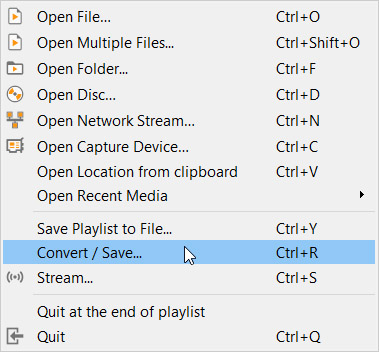
VLC media menu

First you need to open VLC, then click on the Media dropdown menu, and finally hit Convert/Save. You’ll then need to select the videos or audio files you want to convert using the Add button. Then in the Destination file box put the folder you want your converted files to save to and what you want the files to be called. After that you choose the VLC file type by clicking on the spanner button and selecting from the dropdown menu. Once you’ve followed the above instructions all you need to do is hit the Start button to begin. There are also some advanced features you can take advantage of, and you can find out all about the advanced VLC file conversion features here.

How to use VLC to record video and audio

If you have a Windows 10 PC or a Mac, you will have a native camera app and sound recorder for taking photos and videos using your webcam and recording sounds using your microphone. That’s all well and good but you can do both on just one app; VLC. Furthermore, as we’ve just seen, VLC can also convert audio and video files easily meaning you can quickly and simply take your recordings and convert them into any video output or file type. These will then be good for use on all your devices from Android smartphones and tablets to Apple iPhones and iPods.

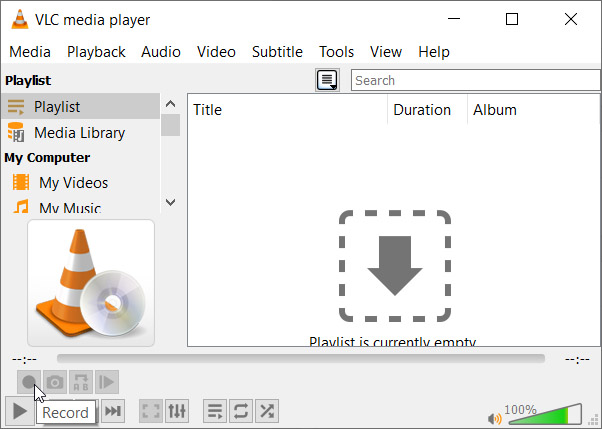
Advanced controls on VLC

To record audio on VLC you need to activate Advanced Controls by clicking View in the top menu and then selecting Advanced Controls. This will display new controls in the bottom-left of VLC above the play button. To start recording sound all you need to do is press the Record button. To stop recording and save your file, simply press the Record button again.

Open Media on VLC

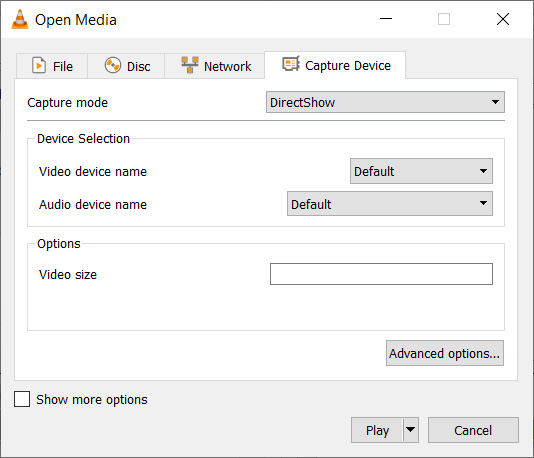
To record video on VLC using your webcam you need to go to Media then Open Capture Device. You now need to set Capture Mode to Direct Show and you’ll need to select your webcam from the options in the Video device name menu. If you want to record sound with your video, you’ll need to select your microphone from the Audio device name menu.

How to use VLC to record your desktop

Screenshots are an important part of the modern digital life we’re all living. Yes, you guessed it VLC does screenshots too, but we’ll get to that in a minute. VLC also offers the chance to record everything that is happening on your desktop rather than simply catching an instant.

Record desktop on VLC

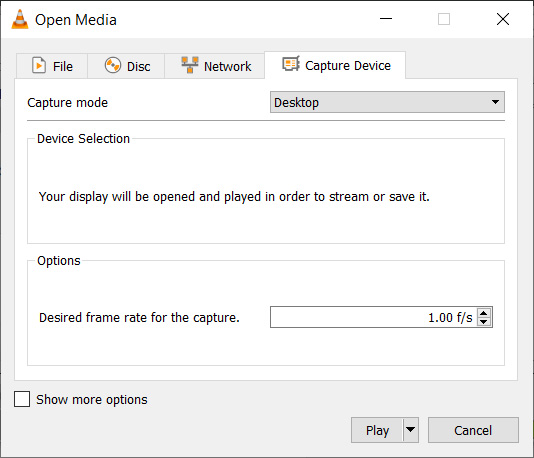
To record your desktop open VLC, hit Media in the top menu and then click Open Capture Device. You now need to change the Capture mode setting to Desktop and then select the framerate you want for your recording.  After that hit Convert so that you can select the file type your recording will save as and hit Start to begin. When you’re done recording your desktop hit Stop to save it.

How to screenshot on VLC

There are two ways to snap screenshots of videos using VLC. The first is to right-click and then select Video in the dropdown menu and select Take Snapshot. The other way to take a screenshot using VLC is to use the keyboard shortcut. On Windows or Linux press Shift + S and on Mac OS press CMD + ALT + S.

How to use VLC to rip DVDs onto your PC

DVDs used to be everything. When they first replaced VHS tapes their superior quality and sleek smaller form factor made them perfect for collections. If you’ve a huge DVD collection and want to save the movies and shows on your PC in case something happens to them or just because you never watch DVDs anymore, VLC can help you out.

Rip DVD on VLC

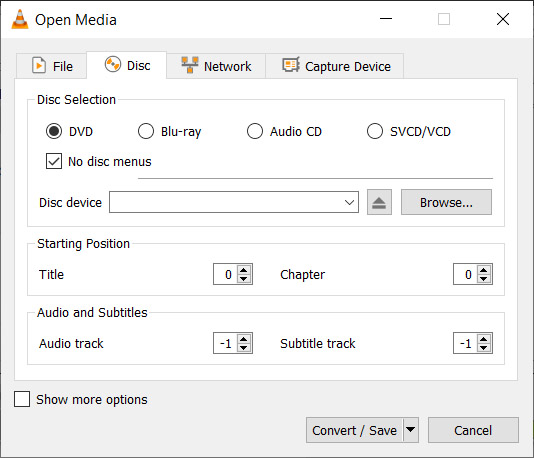
To rip a DVD using VLC insert the disc and then go to Media and then hit Convert/Save. Open the Disc tab and then choose the type of disc you’re ripping, which in this case is DVD. After that, check the No disc menus button and choose the desired Disc device where you want to save your DVD. Then hit the Convert/Save button and choose the file type you want to save your DVD as and then hit Start to begin the process.

Wrapping up

So, there you have five hidden VLC features that go beyond just playing media files. Now you know how to take advantage of some of the best VLC features. If you’d like to know more cool hidden VLC features, you’ll be glad to know that we’ve put together another guide to some of the best hidden VLC features, which you can read here. This guide includes how to listen to internet radio and podcasts using VLC and even gets into video effects.

VLC isn’t just great because it is a free open-source piece of software. It puts a lot of very powerful tools at your fingertips. We hope you enjoy using the tools we’ve highlighted in this guide.

Spring clean your computer with these digital tidying tools

Working on a messy desktop can hurt your productivity and slow down your computer, too.
Spring is on the horizon and perhaps it’s time to freshen up the old desktop. Spring cleaning isn’t just for clearing out the closets and airing out the house. Consider it a fresh start for your digital life, too.

We recommend starting with a deep clean–purging files, malware, and download remnants dragging down the system. From there, you’ve got a clean slate and can organize files whichever way best suits your workflow.
A few apps for freshening up:

CleanMyMac/CleanMyPC

CleanMyPC app

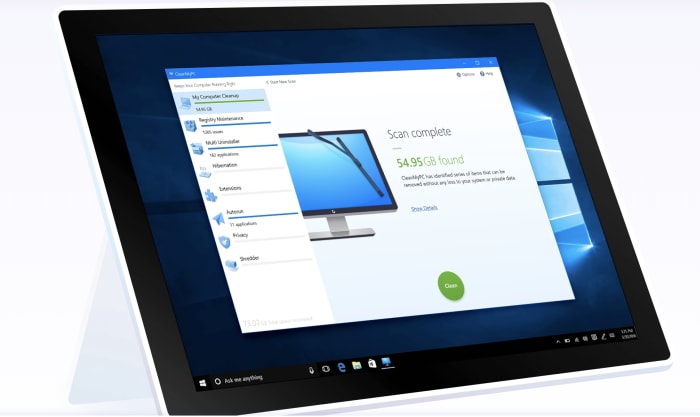
CleanMyMac and CleanMyPC are MacPaw’s solution to cleaning out the cobwebs lurking in the corners of your computer. The tool removes malware, protects your privacy, and uninstalls file remnants and unwanted apps that slow down your system.

If that were all this app did, we’d already be impressed, but there’s more. CleanMyMac/CleanMyPC automatically updates all of your apps and makes sure the items you put in the trash don’t leave any bits and pieces behind.

CleanMyMac Download Free
7

App Cleaner and Uninstaller

Nektony Cleaner Uninstaller

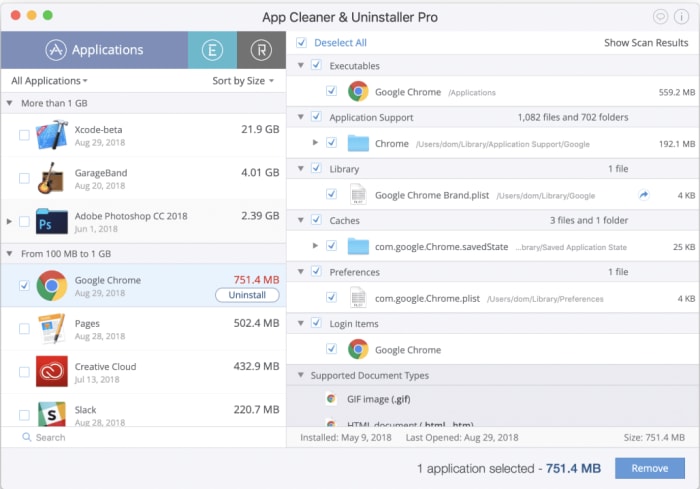
Nektony’s app is as straightforward as the name—the app cleans out any broken links, files, and anything left behind after you uninstall an app.

The cleaning tool gets rid of all unwanted apps, caches, support files, and wipes up the leftovers in a simple three-step process. Launch the app, select unneeded apps, and remove. Simple as that. From there, you’re ready to start fresh—and organize your files and folders better this time.

Razer Cortex Game Booster

Razer Cortex booster file cleaner

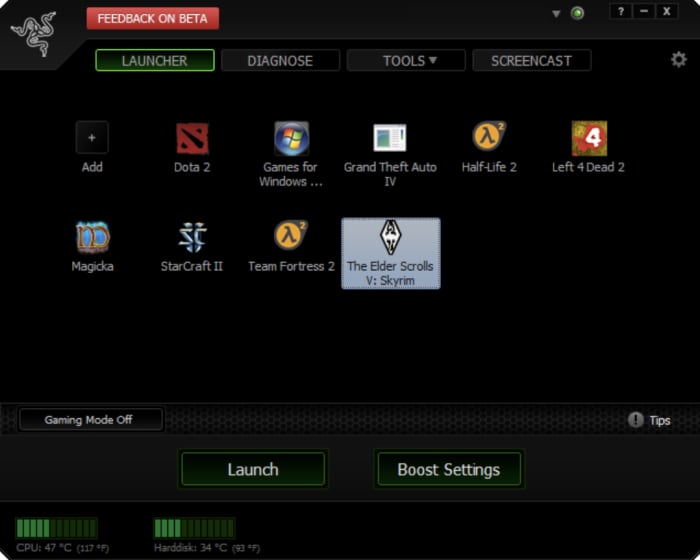
This one’s for all you gamers out there. Razer Cortex: Game Booster cleans up your PC for faster performance, no more lags, or slow load times. Razer is a bit different than say CleanMyMac. The program allows you to choose a game, then launch it through the game booster. The program then closes any nonessential background programs, allocating more computing power to your game.

While the whole “optimized game boost” functionality is something we’re not 100% sure about, the system also cleans up the junk files associated with your Steam Downloads. With Razer, you no longer need to manually find and delete the support files that come with every game; it automatically trashes these files for you–kind of like your desktop equivalent of going paperless.

Razer Cortex Download Free
10

Apple Files

Apple Files file organizer

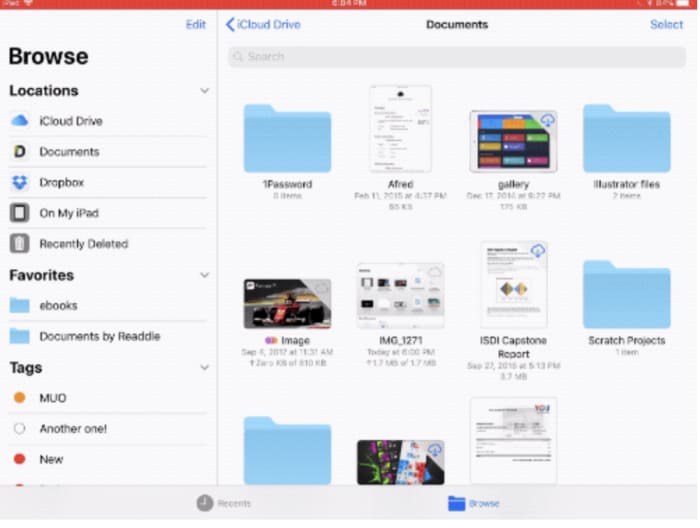
Apple Files is an app that replaces the older iCloud app with something that looks a lot like Finder. Files brings together all of your files into one place—not only on the device you’re using but all other Apple devices. While PC users can sit this one out, Apple Files is an easy way to keep your files in order and access them no matter where you are.

Beyond syncing up your photos and notes, the Files app connects to third-party accounts like Adobe Creative Cloud, Google Drive, and others.

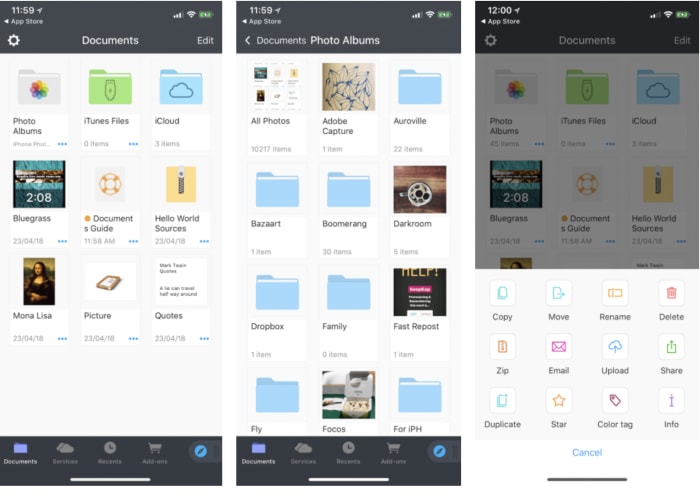
Documents 6

Documents 6 organizer

Documents 6 is a mobile hub for all of your files. Its main functionality is the ability to download files from the web and view them on your phone or tablet. It’s also an excellent way to keep your files organized so that you’re not left trying to figure out what’s essential and what can go this time next year.

Documents 6 works with all types of files formats from text and audio to videos, PdFs, and more. The app stores data locally on devices and syncs to the cloud when you’re connected online. This means you’ll have the best of both worlds—cloud-based convenience without the risk of losing data if you’re suddenly out of range.

And, it wouldn’t be a spring cleaning article if we didn’t mention organization tools. Documents 6 comes with a handful of labeling methods—color tags, stars, and more.

File Manager and Browser

file manager desktop clean

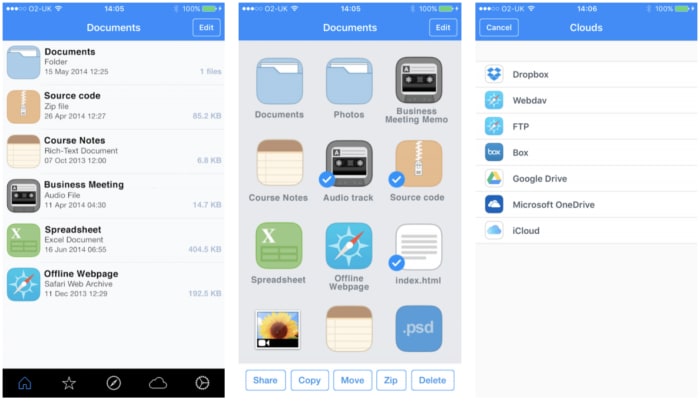
File Manager and Browser is less complicated than Documents 6, and it’s free. The app comes with a range of tools that make spring cleaning feel less like the chore that it is. It supports the Microsoft Office Suite, multiple clouds (i.e., DropBox, OneDrive), and functions as a sort of virtual USB drive.

This tool allows you to move, copy, and zip all kinds of files using WiFi, Bluetooth, or Facebook. It also comes with an integrated PDF Reader and a built-in search. In all, it’s a convenient way to manage your files with a minimal learning curve.

Browser and File Manager for Documents Download Free
9

Prepare for Apple’s Catalina update by getting your Mac in fighting form

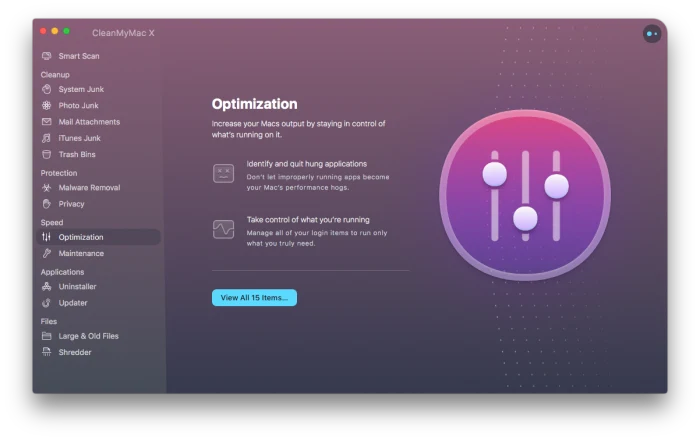
To get your Mac Catalina ready quickly, easily and effectively, you can’t do much better than CleanMyMac X, the latest release of the system optimizer from MacPaw.

This fall, Apple will release the latest iteration of their operating system, Catalina.  While you can always upgrade your Mac’s operating system without any special preparation when updates are available, new OS releases offer the perfect time to clean up your computer. Why bring along malware, bloatware, or unused or corrupted files when you’re starting with a fresh operating system? To get your Mac Catalina ready quickly, easily and effectively, you can’t do much better than CleanMyMac X, the latest release of the system optimizer from MacPaw. Here’s what you need to know.

Smart Scan

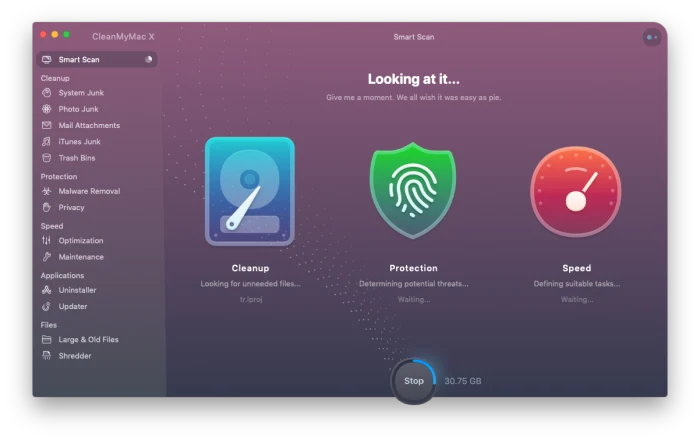
CleanMyMac XAfter installing the software, the first order of business will be running the program’s Smart Scan, which can be handled with one click. This triggers five components of the software: Cleanup, Protection, Speed Optimization, and Applications and Files modules. Once the scan is done, you have complete control over which files to delete and which maintenance tasks to execute, so nothing is changed without your permission

Cleanup

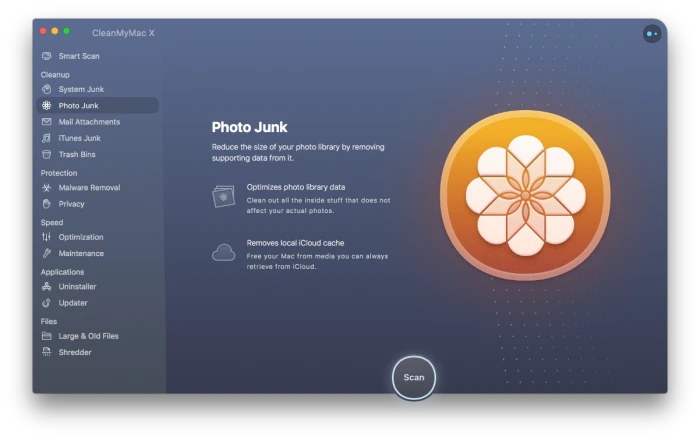
CleanMyMac XThe Cleanup portion of the software scrubs every inch of your computer to find a variety of unused or unneeded files and functions across several areas of your system. The System Junk scan looks for old cache files and logs, broken app data, unused languages and excessive versions of saved documents created in Sketch, Pages, Keynote and Numbers. The Photo Junk scan identifies the redundant, full-sized copies of images that you’ve edited in Photos, as well as cache files that identify faces and local copies of photos already stored in the cloud. The Email Attachment scan will find system-hogging resources that have landed on your computer from email attachments such as local copies of attachments, logos and images. Finally, the iTunes Junk scan will show you ways to reduce the size of your music library, while the Trash Bin scan will ensure items you’ve moved to you’ve intended to delete really are erased from your hard drive.

Protection

This latest version of CleanMyMac has an extensive Safety Database which it references during the initial scan to identify malicious files like adware, viruses, spyware and cryptocurrency miners. As each threat is identified, you have the option to remove it immediately. An additional privacy module allows you to instantly remove all tracking activity from your Mac such as your chat history, cookies, downloads and other files that are stored as you go about your daily digital routine. 

Speed

CleanMyMac XThe Speedup module of the software spots potential sources of performance slowdowns and gives you the option to alter them. It will identify login items, launch agents, and apps that are no longer responding or using an outsized portion of your resources. Additionally, this module can provide regular maintenance functions including repairing disk permissions, freeing up RAM, and flushing your DNS cache to resolve network issues and more. 

Applications

Even when you uninstall a program by dragging it your trash and them emptying it, traces of the program can still stay behind on your Mac. The Applications module will hunt them down and allow you to remove them. This portion of the software will also identify applications you no longer use and place them in a category so that you can review them, keeping only the ones you need. It can also automatically search for and install application updates. 

Files

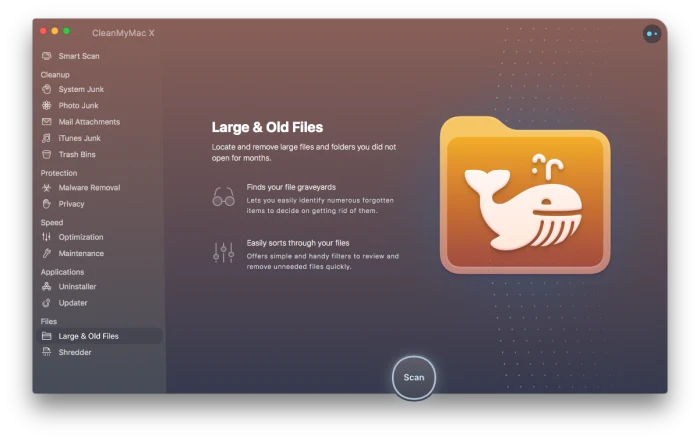
CleanMyMac XFinally, the Files module will organize every file on your computer according to size, kind and access date. This lets you look through a list to delete large files you never use, simplifying a task that might otherwise take hours.

How to stop Mac apps from automatically opening

Tired of every having 20 apps open when you log onto your Mac? Here’s how to stop them!

mac

If you have this problem, it’s either really annoying or getting to that point: you open up your Mac laptop, and that app (for us, it was Adobe Acrobat) pops up again. While it doesn’t ruin your whole day, the event brings your momentum to a halt and derails your thought process. Every day. For months. Eventually, we asked: is there an easy way to solve it?

Oh yeah. There sure was! Let’s get right in and talk about how to…

 Stop Mac apps from automatically opening

The quick and easy way

While this route usually works, you may want to check the full list of programs that open automatically from the settings. Still, if you want to go through this quickly…

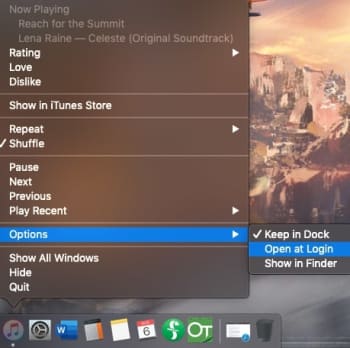
Right-click the application in question, either from the Finder menu or the App Dock. Once you have the information menu open, head into the Options bar and visit the “Open at Login” choice. If there’s a checkmark beside it, click the tab to turn off that function. Boom! Easy as that:

First Option

The surefire way

If you want to make sure this doesn’t happen again and check for any other programs that are opening when your Mac starts up, follow these comprehensive steps:

Step 1: Go to Settings

Pro tip: there are two ways to find this. For the longest time, we’ve used the System Settings app in our dock:

Settings

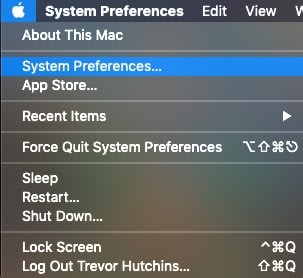
ToolbarHowever, you can also visit your Mac’s info tab, which generally is found at the top left of the screen. From there, choose System Settings in the drop-down menu:
Maccc

If you’re dying to clear up space in the dock, you can delete the app and use this shortcut instead! It’s just a suggestion, of course. If your dock looks fine or if you enjoy the shortcut too much, by all means, keep it around.

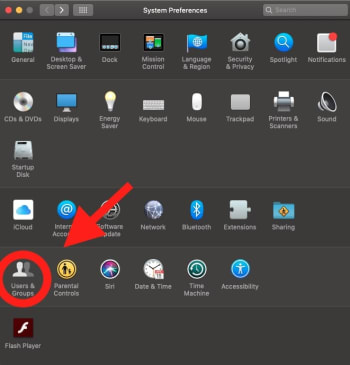
Step 2: Get to users and groups

Here’s where we get tripped up: to make the settings easy to understand, Apple combined apps in different categories. However, sometimes the specific function you’re searching for isn’t in an intuitive place.

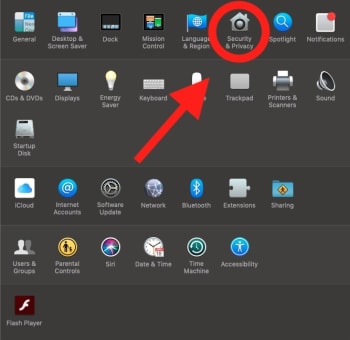
We spent a good amount of time searching through Security and Privacy (we’ll bring this up again later when discussing app permissions) when the real tools were located in Users and Groups:

Groups and SuchStep 3: Go to login items

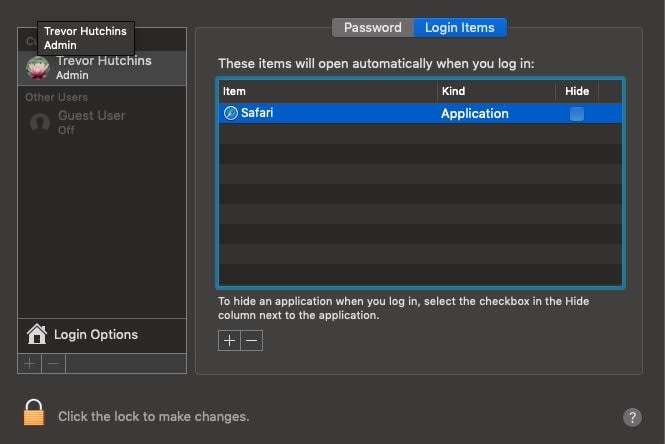
Within Users and Groups, you’ll want to choose the subtab for “Login Items,” the codename for apps-that-open-always. From here, you can choose to delete them from the list! Simply select the offending app, and click the minus button (-) below the box.

The Goods
(Safari added for example)

We were able to alter this particular window while changes were locked. However, if your computer doesn’t allow it, make sure to unlock your system by selecting the lock pictured at the bottom left. You’ll need to enter your computer login password immediately afterward:

SHERlockedOnce that’s finished, you’re good to go! Except…
Step 4: For future reference

You may have noticed we skimmed past a very important question (get ready for this reveal)…

Why does this happen in the first place?

We didn’t put Adobe Acrobat into the Login Items box, and you probably didn’t either. So how do they get in there? Can you stop it in the future? Here’s one method that might help:

Go back to settings. This time, take a right turn into Security and Privacy:

Settings Again

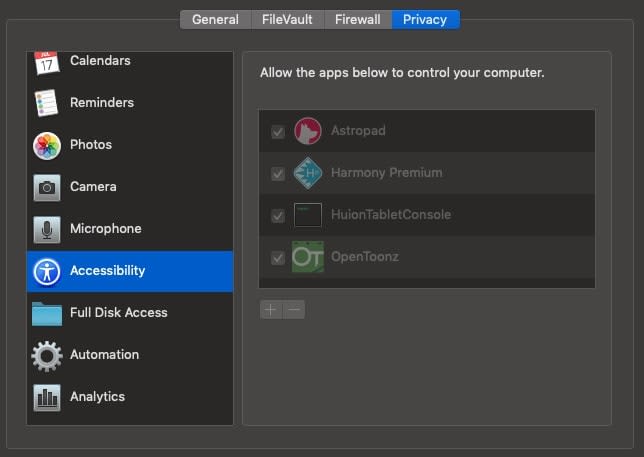
In the left bar, find Accessibility.

AccessibilityThe apps within this section are given the ability to control your computer, which is likely how unwanted apps voyage to the Login Items section. We recommend keeping only apps you trust in this section.


Still, sometimes even AAA apps like Adobe Acrobat can decide they want attention. If anything starts acting up, we recommend checking this section and removing the app in question!

And that’s about that

It’s funny how little settings and changes can make such a large difference over time. We hope this quick fix helps keep your sanity in check by stopping legitimate apps from becoming irksome pop-ups!

How to change your Mac’s ‘Open With’ settings

If you’ve screwed up the program that opens your files, here’s how to fix it in a flash.

Uh-oh LegoEver had this happen?

You download a file, let’s say a spreadsheet. Unfortunately, since you haven’t downloaded Microsoft Excel and don’t use Google Spreadsheets, you choose a random app to open the file…yep, it’s Garageband. Why Garageband???

From now on, your file will automatically open inside an app that can’t adequately read, use, or interact with the information. That can be either a frustrating inconvenience or a serious problem if the file was important for school, work, et cetera! So, what comes next?

First things first, try the official method!

How to change your Mac’s ‘Open With’ settings

Step 1: Find the file in question

Nice and easy: find the file in question. If you’re looking at the file now and know you want to change the settings in the future, we recommend dragging it to the desktop. However, you could also search for it in Finder or create a special folder, whatever works for you!

Step 2: Go into the information settings

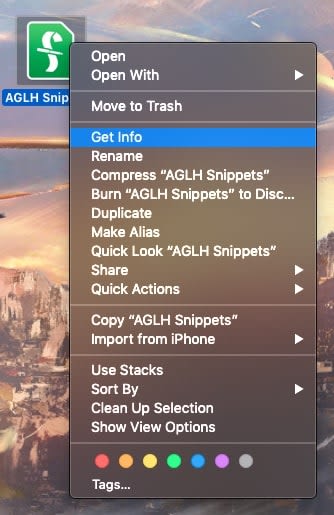
Double-click the file and choose the “Get Info” settings. For a Final Draft document, you’ll be looking at something like this:

The File

There you go! In almost all file types, it’s sandwiched between “Move to Trash” and “Rename”.

Step 3: Locate the ‘Open with’ tab

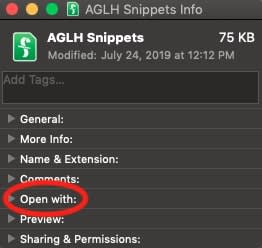
This information box can tell you the file type, size, give a preview, display the thumbnail used, and more, but right now we’re just looking for a small tab that says “Open with”:

Info

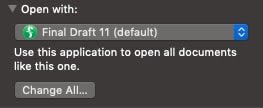
Give it a click to activate the drop-down menu! It’ll tell you right off the bat which program you’re currently using to interact with the file’s contents:

Open WithStep 4: Fix it!

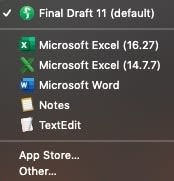
If the application listed isn’t correct, click on the app name to see a drop-down list of suggested options and more! All it takes is one click to change to another program, so we recommend selecting the right one carefully.

Programs

Just remember, there are a few other options: you can decide from the menu above to choose other applications not listed, or go to the app store and buy/download something that works better.

Also, in the main “Open With” settings locale, you may choose to open a whole category of file types with a specific app. Be careful with broad changes like this!

Once you’re finished changing the settings, make sure to check the files and ensure they’re opening properly. If they are… congrats, you’re all finished!

Except for one quick warning…

A Scary Situation: Apps (Optional Boss Fight)

You can’t easily change the “Open With” settings for applications!

A little backstory for the issue: we downloaded a free online program called Inkscape, basically Adobe Illustrator without the monthly subscription free. Sounds great, right?

It probably would’ve been, but…

Before Inkscape landed in the Applications folder, our Mac assumed the incoming program was simply a foreign file and asked what app we’d like to open it with. Adobe Illustrator (a similar app) was in the mix, so we innocently chose this.

Flash forward: every time we try to open Inkscape, we arrive at Adobe Illustrator instead.

Here’s the rub: as mentioned, you can’t change the “Open With” settings for apps because they’re meant to be opening files themselves! Once we put Inkscape into the Applications folder and it was registered, there was no way to change the setting. At least…none we’ve discovered as of yet.

If you’re downloading an app and Mac asks to open it with another, don’t allow it. It’s best to stop this problem before it happens, if possible!

Conclusion

Be careful when deciding what apps open what files. Most of those settings are fortunately easy to change, albeit difficult to find. Sometimes, however, the changes can get locked by Apple protocol and require far more work. We hope this article helps you solve the first issue and avoid the second!


How to record internal sound on Mac OS X

Use Soundflower and Audacity to record audio!

MAc

Recording internal sound on a Mac is problematic. Unlike Windows, you can’t simply record whatever noise is playing. If you’ve ever got stuck wondering how to capture streaming audio from a website or any other sound playing through your Mac, here’s how to do it:

How to record internal sound on a Mac

Using QuickTime Player

Although we will detail another method using Audacity and Soundflower, you can also use QuickTime Player to record audio.

QuickTime Player Download now ►
7

To record audio, follow these steps:

  1. Go to the File menu
  2. Choose “New Audio Recording”
  3. Click the arrow next to the record button to choose the recording and microphone quality.
  4. Use the volume slider to monitor the audio while it’s recording.
  5. Click the red Record button to start recording. Click it again to stop.

Using Audacity and Soundflower

Step 1

Download and install Audacity, an audio recorder/editor, and Soundflower, which allows your internal sound to be captured.

7
Soundflower Download Now ►
7

Step 2

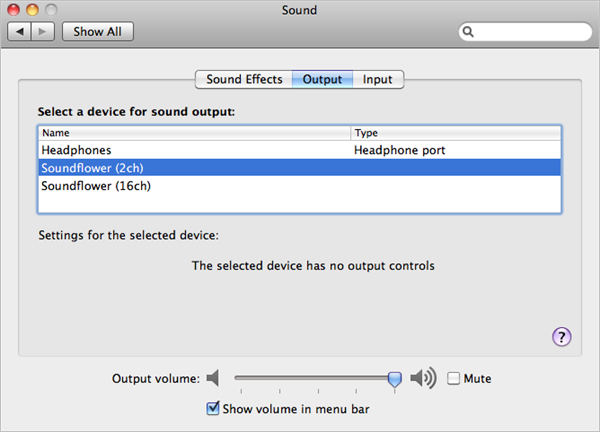
Open System Preferences > Sound > Output. Now that Soundflower is installed, you’ll be able to choose it instead of the built-in output. Soundflower (2ch) is fine for most purposes. Note that once you do this you will no longer be able to hear a sound. To make a clean recording, also turn off all sound effects here in the Sound preferences.

Soundflower

Step 3

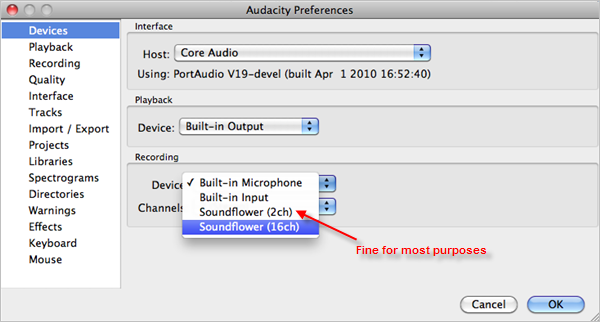
Open Audacity and in preferences, look under Devices and choose Soundflower (2ch) from the Recording Devices drop-down menu.

Soundflower

Step 4

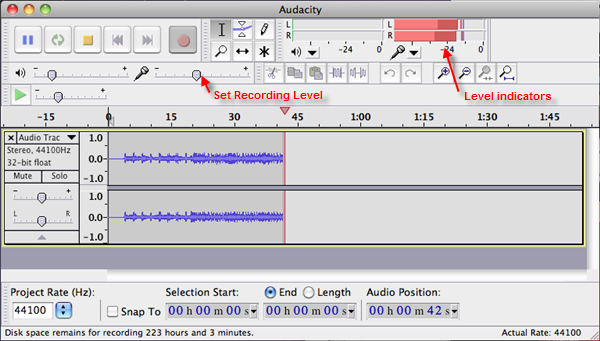
On the top right of the Audacity interface, there is a microphone symbol with a drop-down menu next to it. Click it, and hit ‘Turn on monitoring.’ You will now see red level indicators jumping whenever a sound is made. Play the sound or stream you want to capture and adjust the microphone level-slider on the left so the red bars reach close to zero when they peak.

Soundflower

Step 5

You’re now ready to capture. Stop your stream, and pause it at the start. Hit the red record button in Audacity, then play your sound stream. Be aware that if you haven’t turned off any sound alerts or effects, these will also be captured in your recording. Once finished, save the project from the File menu. At this point, you can turn on the internal audio again in System Preferences. Any editing of your recording should be done now (See this post for audio editing with Audacity).

Step 6

Again from the File menu, choose Export which allows you to convert your recording into a more useful format like MP3 or FLAC. You can now listen to your captured recording at your leisure.

Top 6 Microsoft Excel alternatives for Mac and PC

Excel isn’t your only option; check out these alternatives!

Excel

Microsoft Office has been a business standard for a long time now. Despite how common it is, using it over and over again can get very dry. Also, if you have to pay for it yourself, Microsoft Office can be a little expensive. Because of this, many people have been looking for alternative options for both their business and personal use. Excel is one of the more complicated programs offered by Microsoft Office, so finding an alternative can be a difficult task. Thankfully, there are plenty of free and cheap options. 

Microsoft Excel Download now ►
7

Top 6 Microsoft Excel alternatives for Mac and PC

LibreOffice

While LibreOffice lacks a few formatting options when compared to Excel, it is offered as a free alternative to all Microsoft Office products. Since LibreOffice only offers the basic functionality of Excel, it isn’t often that you’ll see this program in a business setting, but it can make for a free program to use at home.

If you need something to help keep organized or to help with some basic number balancing, it’s a good option. LibreOffice is available for both Mac and PC.

LibreOffice Free Download ►
7

WPS Office

Another option available on both Mac and PC, WPS Office is not only a good alternative to Excel but Word as well! 

Most free spreadsheet programs will struggle to have complex programs but provide simple features that can be nice for smaller data management. WPS Office is the middle ground between most free programs and more powerful ones like Excel.

While it won’t be able to perform as complex features like Excel, it is generally a more user-friendly program. That being said, if you choose to pay for it, you will be able to get most of the complex features that Excel itself has.

WPS Office Free Download ►
7

Google Sheets

This may seem like an obvious choice, but the Google Suite provides completely free alternatives to all Microsoft Office products. That being said, Google Sheets has the added bonus over Excel that you are able to use it as part of a browser. Additionally, Google Sheets allows for real-time collaboration. All you have to do is invite other Gmail users to edit your work and they’ll be able to start on it with you right away. Once again, this is available on both Mac and PC. 

Google Sheets Free Download ►
8

Numbers

This one is Mac exclusive, but it is super helpful.

As with most Apple products, their spreadsheet program is well-known for being one of the most user-friendly and aesthetically pleasing spreadsheet programs out there. Workbooks are able to be saved and worked on in a variety of formats, allowing you to use practically any spreadsheet with Numbers. It also has many helpful and easy-to-use templates for those who may not be the most familiar with these types of programs.

Thinkfree

Thinkfree Office is often compared to Google Suite applications, as they are both provide free alternatives to Microsoft Office. Thinkfree’s spreadsheet application is much easier to learn than similar programs, like Excel, which makes it useful for those who are less tech-savvy. Unlike LibreOffice, it also provides a variety of formatting options, making it easily compatible with Excel itself.

Although Thinkfree is available for both Mac and PC, most online tutorials you will find online are in Spanish. If that proves to be a language barrier for you, this might not be your best option.

ThinkFree Download ►
7

Gnumeric

Gnumeric is an open-source spreadsheet program that can be used for easy and simple data management. However, since it is an open-source program, it can be customized to do practically anything. While it will start as one of the less complex spreadsheet programs, it can become one of the most powerful ones. It is great for both beginners and experts; however, it is not available for Mac. 

7

Wrapping up

If you’re a beginner with spreadsheet programs, you may also want to check out our Softonic Solutions’ Best Excel Tutorials to get some help on getting started. Many of these programs can be a bit complex. Let us know in the comments below about which program worked best for you!