Is WhatsApp safe? All you need to know

Let’s take a look at some of the potential security risks that can affect you when you’re using WhatsApp

Is WHatsApp safe

WhatsApp is a huge app. Over 1.5 billion of us have the app on our Android smartphones and Apple iPhones and we send tens of billions of WhatsApp messages between us every day. Now the Facebook-owned messaging app is famous for its end-to-end encryption but, let’s be honest, Facebook isn’t exactly the most trusted company in the world right now. This begs the question for WhatsApp users all around the world: is WhatsApp safe to use?

We talk a lot at Softonic about cyber security issues. We’re here to keep you safe when you’re online and with us, like so many of you, being regular WhatsApp users, we thought we’d spend some time going through potential security weaknesses you should look out for when you’re using WhatsApp.

How safe is WhatsApp?

WhatsApp bugs

Every now and then malware and spyware-like bugs can find their way into the WhatsApp code. These can leave you open to potential hacking, which we’ll look at in a moment, but they can also end up causing other problems that may end up hitting your wallet.

One such WhatsApp bug saw the app regularly trying to backup all app data using a cellular data connection. This meant that even when users didn’t have Wi-Fi connections, their phones were constantly uploading WhatsApp data to Google Drive and iCloud. Many users ended up footing a huge bill because of this bug, as the uploading continued long after they’d used up all the data from their monthly allowance.

WhatsApp hacks

Other WhatsApp bugs might affect WhatsApp security deliberately. Hackers often try to add malicious code to WhatsApp so that they can take control of the app. Worryingly, a recent WhatsApp hack created a security flaw that gave the hackers backdoor control of the user’s WhatsApp accounts and allowed them to post fake status updates. Yep, hackers were able to post status updates using the victim’s WhatsApp.

WhatsApp scams

Another WhatsApp security weak spot that you need to look out for is scam links and phishing attacks that you might receive via WhatsApp. As we’ve already mentioned, between us we receive billions of WhatsApp messages every day and many of these include links to third-party websites. Just like with emails, however, we need to be very careful with the links we click on WhatsApp.

Fake WhatsApp message about 1000GB of free data
FAKE!!!!

One recent WhatsApp scam sent a link promising 1000GB of free mobile data. It was all a scam though, with the link leading to a fake website that was designed to steal personal information, phone numbers, and user’s credit cards.

Fake WhatsApp scams

Over the years we’ve reported on a lot of fake versions of WhatsApp doing the rounds. Like with the types of scam described above, these are designed to steal personal information but can also be used to bombard users with ads in a bid to raise revenue for the hackers. There are two main types of these fake WhatsApp scams.

The first type of fake WhatsApp scam sees the scam app trying to look as much like the real version of the app as possible. One example of this is the Update WhatsApp Messenger scam, which security experts and cybersecurity researchers discovered in 2017. The app had an ad in the Google Play Store that was almost identical to the original WhatsApp’s ad. Downloading it, however, would force the user to see a lot of unwanted ads and prompts to download further scam apps.
Beware this Fake WhatsApp Update Scam

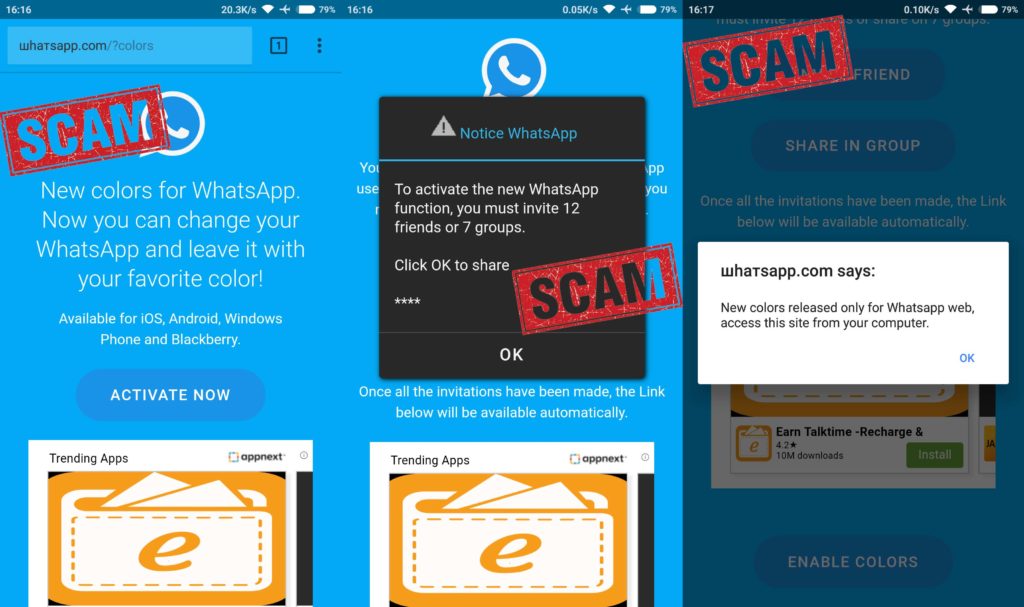
The other type of fake WhatsApp scam sees hackers trying to pitch their fake versions of WhatsApp as having new and improved features. Examples of this include the WhatsApp Gold scam, which has been distributed across WhatsApp a few times and the WhatsApp Colors scam, which promised the ability to change and set the background color of the app. Both were fake and were efforts to install adware on users’ phones.

WhatsApp’s Fake news problem

Another security risk that pops up again and again on WhatsApp is the app’s fake news problem. Fake news being spread across WhatsApp has had some truly catastrophic effects all over the world. People have been lynched in India and others were beaten to death following fake reports spread via WhatsApp that child abusers were traveling through parts of the country. The problem in India got so bad that law enforcement and government agencies were forced to intervene and force WhatsApp to take measures to address the problem.

Does WhatsApp spread fake news?

Elsewhere, fake news spread on WhatsApp in Brazil helped to win far-right politician Jair Bolsonaro the presidency. He’s since unleashed terrible forces that have seen huge swathes of the Amazon rainforest burn. Although, not on WhatsApp itself fake news spread in Myanmar using Messenger, another Facebook-owned messaging app, contributed to the Rohingya genocide. This is a very serious issue.

Unsecure chat backups

As we’ve already mentioned, WhatsApp is famous for its robust end-to-end encryption. All messages sent via WhatsApp are protected by the encryption, which makes it next to impossible for unwelcome eyes to see what’s been sent. That is, however, until they’re backed up. Recently, WhatsApp signed a deal with Google that allows users to back up all of their WhatsApp data using Google Drive for free.
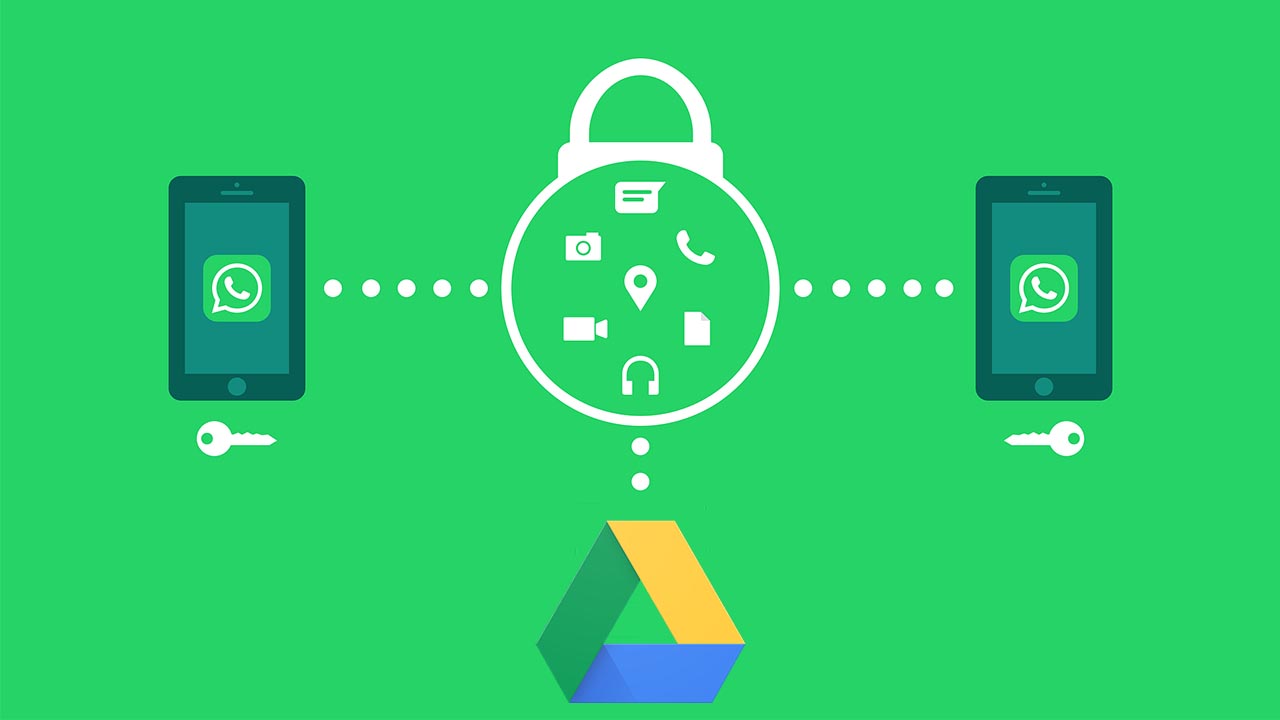
The security risk here is that the encryption Google uses to protect Google Drive data isn’t as strong as that used by WhatsApp. When you back up your WhatsApp chats using Google Drive you make them more vulnerable to hacking. The other thing to consider here is that you’re also giving Google access to all your WhatsApp data. You’d better believe that Google knows how to use that too.

Wrapping up

We’ve gone through six potential security breaches that could affect users of the WhatsApp chat app. The key to safely avoiding all of them, however, is you. As we always point out in these security guides, you are your best line of defense against online cyber-attacks. You can easily defend yourself against all of these potential WhatsApp security problems if you use your common sense. Keep your app regularly updated, think twice about the dodgy links and messages you receive, and don’t believe anything that appears too good to be true.

Your 10 most burning WhatsApp questions, answered

10 WhatsApp questions and answers

Sometimes it can feel like WhatsApp was designed by a sadist. Honestly, the amount of drama that a messaging app can produce is ridiculous. Have they read my message? Can they see if I’ve read theirs? What a stressful nightmare!

Of course, it’s possible (and probable) that WhatsApp was designed with the best intentions, and that you’re freaking out for no reason. Although, on top of knowing when someone read your messages, there are plenty of other potential mishaps and confusion that the WhatsApp messaging service can produce for any discerning smartphone user.

Determined to clear up some of these mysteries, we’ve thoroughly investigated and compiled a list of the most frequent and distressing issues about how to use WhatsApp, that people Google, in a bid to help you keep your stress level at a minimum.

WhatsApp Messenger Download Now ►
8

1. Can I stop somebody knowing I’m on WhatsApp?

No.

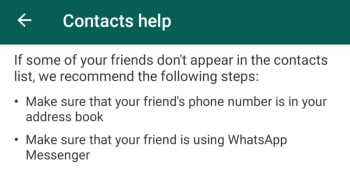
With WhatsApp it is all about the contacts you have in your phone’s contact list. Even when you block a contact, they’ll continue to have you in their contact list, if they still have your number in their phone book. The only way you won’t show up for the other person is if they don’t have your phone number saved in their phone.

WhatsApp Contacts Help

This means it has nothing to do with who you can see in your WhatsApp contact list as that doesn’t reflect the numbers, they have in their contact list on their phone. If they have your phone number, they’ll be able to see you have WhatsApp. As far as we’re aware, there is no way to delete your number from somebody else’s phone remotely.

If you don’t want somebody to know you’re on WhatsApp, don’t give them your number and don’t send them any messages.

2. Can I appear as invisible on WhatsApp?

Yes.

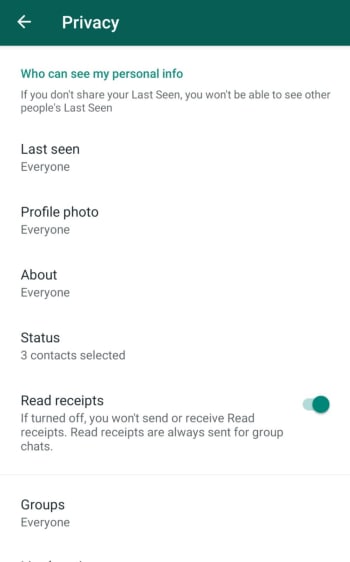
The WhatsApp FAQ page is quite clear. Unless you block a contact, there is no way to hide when you’re online or typing. You can, however, stop sharing your “last seen” status and read receipts that show when you’ve read a WhatsApp message. Doing this, however, will stop you from being able to see the corresponding statuses from your contacts.

WhatsApp Privacy Settings

To change these settings on both Android and iOS iPhones you need to open WhatsApp, then go to Settings, then Account, and finally land on the Privacy settings menu. You’ll then be able to toggle your privacy settings including when you were last online and who can see your profile picture etc.

3. If someone is given my old number, will they be able to download my messages and see my contacts?

No.

They won’t see contacts or be able to access old chats – that data is saved on your phone – but they can receive messages sent to your old number (without knowing who sent them).

WhatsApp gets its contacts from your phone book, so it’s unlikely that the person taking your old number will have the same contact. On the other hand, if the other person has WhatsApp installed, your friends will see that this person isn’t you.

To avoid any problems, WhatsApp recommends the following:

A) Post a status update with your new phone number.

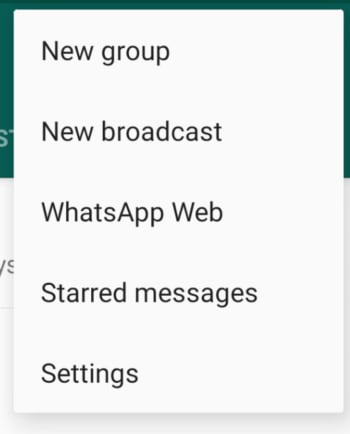
B) Tell everyone you’ve changed your number using a broadcast message.

New WhatsApp Broadcast

C) Delete your account using the following methods:

Android phones: Settings > Account Info > Delete my account

Apple iPhone and iPad: Settings > Chat > Advanced > Delete my account

Deleting the account removes all chat history on your mobile, payment information, and participation in WhatsApp groups. It will make your account disappear.

4. Is WhatsApp free or paid for?

WhatsApp is free. The app used to have rolling free trial periods, but these long since been scrapped. Making money from WhatsApp is a problem that has dogged Facebook ever since it bought what is now the most popular messaging app on planet earth. Soon, however, we’ll see ads showing up on the WhatsApp Status page and there is also the new WhatsApp Business app, which charges businesses to use the platform to communicate with clients and customers.

WhatsApp Business Download Now ►
7

5. Is there a way to delete contacts forever?

Yes.

To delete contacts, simply remove them from your phone book. If you then want to stop that person messaging you at all, you’ll have to block them.

But remember, if they have you in their phone book, then they’ll still see you on their contact list.

6. Is there any way to tell if someone has read my messages?

Yes.

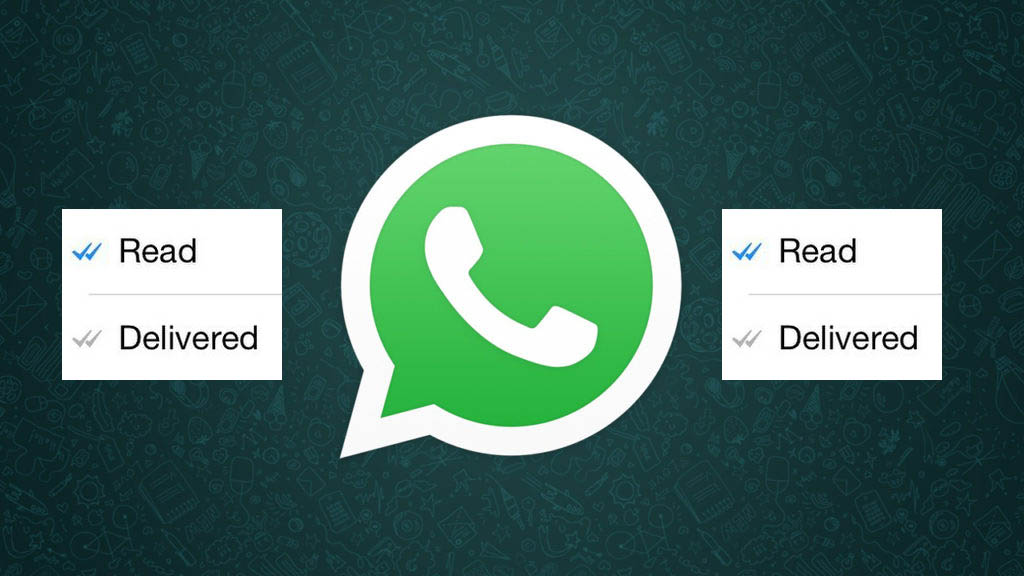
Theoretically, there is no way to know for sure if someone’s read your message, but the introduction of the double blue check mark indicates just that. Here’s a quick summary of what WhatsApp’s icons mean:

Clock: The message hasn’t left your phone yet, meaning there’s either a problem with data or Wi-Fi connection. You can delete the message before it’s sent.

Single grey check mark: The message has been delivered to the WhatsApp server. It’s left your phone but hasn’t yet been received by the other person.

Double grey check mark: The message has been delivered to the other person’s phone, but they haven’t necessarily read it yey.

Double blue check: A new icon that indicates that the message has been read (or at least opened in your conversation) by the recipient.

In addition, if you hold down on the message and tap Info, you’ll be able to see what time the message was delivered, and what time it was read. Remember though, that just because the message is ‘read’, doesn’t mean that the person has definitely read the message. Chances are they have, but they may also have left open your chat and gotten the message without actually reading it.

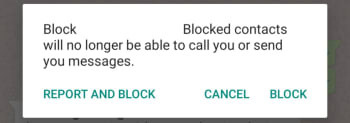
7. If I block a person, can they tell?

No.

A common symptom of blocking is that you can’t see the “last seen” or “online” status. As we’ve already seen though, this might be because they’ve deactivated those privacy settings.

Whatsapp Block contact

Another result of blocking is that messages are left with only one tick and never get a second, although this could also be due to other causes, like the phone being turned off or lost.

If you know it’s neither of these reasons, the chances that you’ve been blocked are high, but it’s still not 100%. If you really want to know, you’re going to have to try calling them or sending them a message.

8. Is there any way to silence a group and still receive messages?

You don’t need to.

When you mute a group, you’ll keep receiving the messages, you just won’t receive notifications when you get them.

To silence a group, just tap the menu button (on Android) or info (on iPhone) and press Mute or Mute Group. It’s a useful feature to prevent your phone from vibrating incessantly.

9. When you invite someone to a group, will they be able to read previous messages?

No.

When you enter a group, you can only see messages from the point you entered the group. You don’t get access to the chat history or any media sent before you joined the group.

10. If I delete a message or photo on my phone, is it deleted from the other person’s phone too?

No.

If only it were that simple. As it turns out, a message, photo, or sound sent through WhatsApp will be delivered as soon as the first green tick appears. There is a window, however, from when you send your message that WhatsApp will allow you to delete the message from your own phone as well as from the phones of anybody who received it. You have exactly 1 hour 8 minutes and 16 seconds to delete the messages, images, and sounds you’ve sent. After that you won’t be able to and they’ll be the recipients’ phones forever.

Best Chrome VPN extensions

Check out the best free and premium VPN extensions for Google Chrome

Chrome VPN extensions

More and more, VPNs are becoming essential pieces of kit for the modern internet user. Virtual Private Networks encrypt your web traffic and then route it through secure servers dotted all around the world. In this way they can keep all your most private details secret and also give you the ability to mask your geographic location. VPNs keep you safe when surfing the web via public Wi-Fi and can keep you in touch with what is going on at home, even when you’re abroad. VPNs can even help you access restricted parts of the internet when you’re in oppressive countries that censor the web.

You don’t need to install a full VPN program, however, to protect your web usage. You can get decent VPN coverage with a simple browser extension. If you’re using the Google Chrome browser to surf the internet, you can download and install a Chrome VPN that will protect everything you do on your web browser. These are the best VPN extensions for Chrome.

Chrome VPN extensions

NordVPN Chrome extension

NordVPN multi device

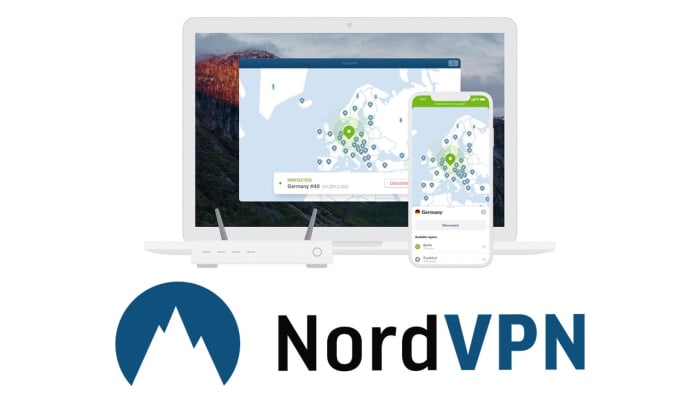
NordVPN is based out of Panama and offers users very strong privacy-protecting credentials. Nord doesn’t log user behavior meaning no personal information is kept from the sites you visit when you’re securely surfing the web via a NordVPN server. Furthermore, NordVPN has almost 5,000 VPN server locations all over the world, meaning you can easily mask your IP address to access content that is limited to the US, UK and Ireland, Australia and more with fast speeds. All this comes at a premium, however, with NordVPN having a number of different payment options with the cheapest requiring a three-year subscription paying for upfront.
NordVPN Download Now
8

Hola VPN extension for Chrome

Hola VPN Chrome extension

The Hola VPN extension for Chrome is an effective and free Chrome VPN to help anonymize your internet usage. The Hola VPN service is used primarily to unblock geo-restricted content without having to pay for an option like NordVPN. Being free, however, means that Hola logs some of your data and then sells it to third parties. Also, Hola isn’t as reliable as NordVPN so there is a good chance that that movie you wanted to watch on the US Netflix or that TV show on BBC iPlayer might still be out of reach if you’re using this extension.

Hola Unlimited Free VPN Download now
7

ExpressVPN Chrome extension

ExpressVPN Chrome extension

ExpressVPN is another premium option like NordVPN. Again though, the premium option offers solid reliability just like the Nord offering does. In fact, ExpressVPN is regularly voted as the best VPN available today, which makes this one of the best VPN extensions available on the Chrome Web Store. The ExpressVPN Chrome extension is built with simplicity in mind too. One click is all that is needed to start browsing the internet safely and securely through one of over 3,000 servers in 160 locations spread across 94 countries around the world.

ExpressVPN Download now
8

Browsec VPN Chrome extension

Browsec VPN extension

The Browsec VPN Chrome plugin is also available on Android. It offers free and unlimited secure browsing, which means there won’t be a data cap when using the VPN like there often is on free VPN proxy programs. The extension is easy to use and offers fast browsing speeds. This could be why Browsec has accumulated over 8,000,000 users with almost 25,000 of them leaving positive reviews on the Chrome store. It isn’t the most private VPN, however, with its Russian HQ creating several privacy-related issues should the Russian government decides to request information. Browsec also logs user data too.

Browsec VPN Download now
9

CyberGhost VPN Chrome extension

CyberGhost VPN Chrome extension

CyberGhost is another free VPN Chrome extension that offers free one-click access to its secure servers. It does, however, have a paid version too. Like with the other free VPN extensions on this list, CyberGhost doesn’t offer reliable connections as you’d get with NordVPN or ExpressVPN. It also falls short on privacy matters too. Also, the free version could see you having to queue for servers, which are only available in 15 countries. It does offer fast speeds when you do connect, but you can also expect to see plenty of ads for CyberGhost premium and you’ll disconnect every three hours meaning you’ll have to manually reconnect.

CyberGhost Download now
7

PureVPN Chrome extension

PureVPN Chrome extension

PureVPN will offer you reliable connections via its secure servers, which is why we’ve included it in our list. Another good point attached to PureVPN is that the service comes with Live Chat customer support service that should help you deal with any problems you come up against. If you’re in the least bit bothered about privacy, however, it might not be the best VPN plugin for you. There have been quite a few reported data leaks from the PureVPN servers. Another con to consider is that although PureVPN connections may be reliable, they won’t be as fast as the speeds you’ll find on some of the other extensions in our list.

PureVPN Download now
7

DotVPN

DotVPN Chrome extension

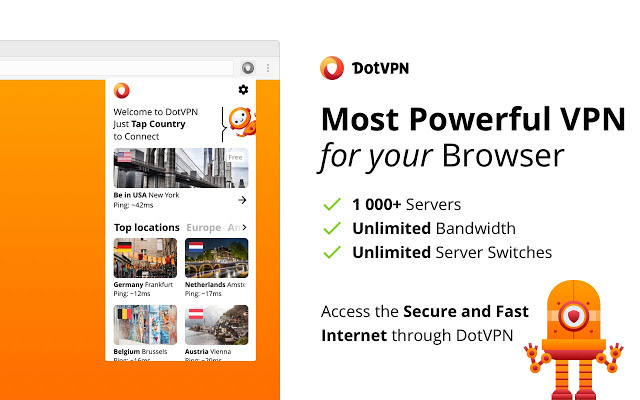
DotVPN offers unlimited bandwidth through over 1,00 servers located in different countries around the world. It offers robust encryption to protect what you’re doing online from prying eyes and is available across a variety of platforms including Windows and Mac, Firefox, Android, and iOS devices like iPhone and iPad. DotVPN offers limited service for free users, which still has unlimited data usage but unfortunately doesn’t support video or audio streaming. If, for example, you want to access Netflix using DotVPN, you’re going to have to pay for a premium subscription, which costs $4.99 a month or $2.99 a month, if you pay for a full year’s subscription at once.

DotVPN Download now
9
Wrapping up

We’ve walked you through some of the best VPN extensions available for Google Chrome. Some offer free services while others ask for a paid subscription. It obviously depends on what you want to use your VPN for, but in our experience, we recommend the paid VPN extensions like NordVPN and ExpressVPN. Whereas free VPNs can work sometimes, they’re not as reliable as the two options we’ve just mentioned and can prove to be quite frustrating. If you add to that the privacy issues that are attached to all the free VPNs we’ve mentioned, we believe the case is there to pay for a strong, reliable, and secure VPN.

How to fix the most common Windows 10 update errors

Windows 10 updates can cause a lot of problems. This guide will walk you through some common problems and solutions but will also show you how to deal with more specialized and advanced problems.

Possibly the most controversial feature of Microsoft Windows 10 is the regular update service that is forced upon users. Sure, it is good to have your desktop operating system receive whatever  regular feature updates and security updates that that come with the latest update. The flip of this, however, is that for too long Microsoft was forcing these updates upon us when we weren’t ready, getting in the way of whatever we were doing at the time. Even worse, in many cases Windows updates haven’t worked properly, Windows update problems are very common. If you’ve ever encountered a Windows update error, or if you’re annoyed because you tried to run Windows update and it failed, fear not; don’t go back to Google, we’re here to help.

The latest and greatest version of Microsoft's operating system.

Common Windows update errors and problems

As Microsoft has been updating Windows every six months or so since midway through 2015, there are many updates we could get into. We’re going to concentrate on the recent updates from October of last year (2018) and May of this year (2019). For clarity these are Windows versions  1809 and 1903 respectively. We’ll start with the most recent update, Windows 10 version 1903. This is how to fix Windows.

Windows 10 version 1903 update issues

The recent Windows 10 May update has caused quite a few problems for users despite Microsoft trying to reboot its reputation and going to great pains to try and prevent similar issues to those cause by the October update from 2018. Microsoft has even created a dedicated webpage that lists all recorded Windows update 1903 issues. The page also includes a list of known fixes to each issue.

Windows 10 version 1903 update errors

There are many different types of Windows 10 update error codes that could be behind your problem. You could see error codes like “windows 10 error code 0xc00000e9”, “windows 10 error code 0xc00000f”, “windows 10 error code 0xc004c003”, or “windows 10 update error 0x8000ffff”. If the sight of such codes gives you a headache, don’t worry. There is simple way to address many different types of Windows update errors. Step forward the Windows 10 update troubleshooting tool.

Windows Update Troubleshooter

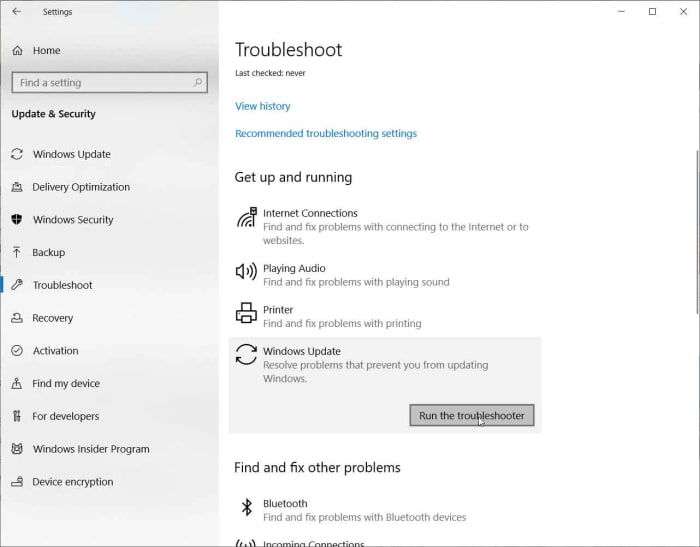
The Windows Update Troubleshooter will analyse your system files, search for the problem that has stopped the Windows 10 update working, and then try and find a fix. All it takes is a simple click here and a right-click there. If you’re looking to fix Windows update without getting into the command prompt, this is what you need to do. When trying this fix remember to run as administrator.

windows 10 update troubleshooter

To start the Windows update troubleshooting tool, open the Windows Settings, then hit Update & Security, and then finally select the Troubleshoot option. Find the Get up and running menu and then hit Windows Update at the bottom of the list. Click the Run the troubleshooter button to start the tool. The troubleshooter will then investigate what’s blocking your update and may offer a solution. If it does, click Apply this fix. Follow all the instructions the tool gives and then restart your device. This should have fixed your problem.

More ways to fix your Windows update problems

Obviously, the Windows update troubleshooting tool we walked you through above can also be used to address common issues that’ll mean your Windows update won’t work. There are a number of other tricks you can use to try and sort out your update error codes.

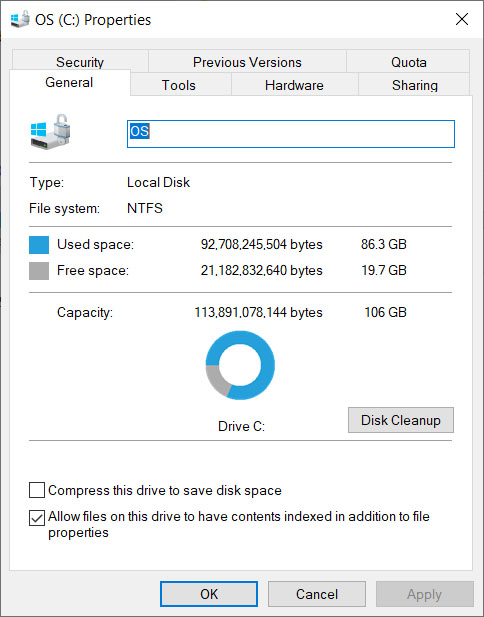
One of the most common Win 10 update problems is not enough disk spaceWindows 10 updates are very large these days meaning, if you don’t have plenty space on your hard drive, they won’t work properly. Check how much space you have on your drive, free up some disk space, and then try again when you have more free space.

windows 10 disk space

Another problem, which you might not have considered is that your antivirus program might be interfering with the Windows update and causing errors. If you’ve run into problems updating Windows 10, try disabling your antivirus program and then running the update again. In extreme circumstances you may even need to delete your antivirus software temporarily while you update to the latest version of Windows 10.

Windows 10 update 1809 issues

You may remember that the Windows October 2018 update caused a lot of problems for the first people to download it. We specifically warned you not to install updates until, because they were deleting people’s files! Microsoft ended up pausing the roll-out of the update so that they could address the main issues.

If the update deleted any of your files, you need to contact Microsoft that says it is able to help you reclaim your lost files. You can find out all the necessary contact details on the Microsoft support website.

Windows 10 Error Recovery

We’ve tried to walk you through the common tools and solutions Windows 10 has for fixing update errors. We’ve also shown you how to find official extensive lists of known Windows 10 update problems and potential fixes in case the common solutions won’t deal with your Windows 10 update error code. All of this, however, can seem a bit daunting and if your Windows 10 update fails every time, you may decide that you want to uninstall your Windows 10 update. If you can’t fix problems, reset them.

reset Windows 10 updates

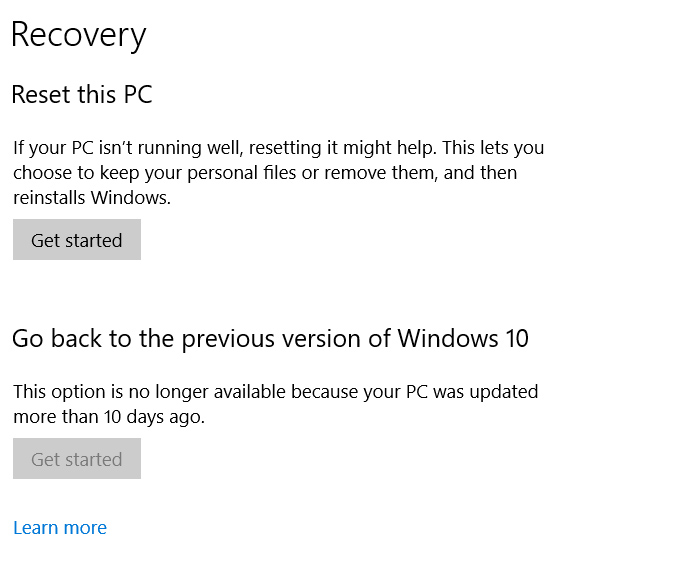
To uninstall your Windows 10 update if you have your login details, all you need to do is go to Settings, then Update & Security, look for Recovery, and then find Go back to the previous version of Windows 10. Finally, click Get started. You’ll see your update history and need to answer a quick question to help Microsoft improve future updates and then click No thanks when it asks you if you want to check for updates. Then keep clicking next until you get the option Go back to earlier build. Following these steps will revert Windows back to the previous version. This option is only available for ten days after you’ve updated Windows.

The latest and greatest version of Microsoft's operating system.

One thing you need to consider, however, on top of the ten day period is that if you’ve deleted the previous versions to free up space on your hard drive, this option won’t be available. This means you need to be sure you’re happy with the update you’ve installed before you delete previous versions.

8 new Windows 10 2019 features that you may have missed

Check out all the best new features that have come with Windows 10 updates in 2019.

Windows 10 is an ever-evolving operating system for your PC. Once you download Windows 10 and install it, you’ll regularly receive updates and new features. Microsoft has turned Windows 10 into the most popular desktop OS on the planet, which means an article about new Windows 10 best hidden tips and features will be very useful to a lot of people. Therefore today; we’re bringing you a list of 8 Windows 10 best new features from 2019 that you might have missed.

Best Windows 10 features of 2019

Due to the regular updates, Windows 10 has a number of different versions. These versions have numbers, which usually show the month and year that Microsoft first made them available. They begin with 1507 (July 2015) and go all the way up to the latest version of Windows 10, which is 1903. In this article, we’ll be looking at some of the Windows 10 1903 best new features.

The latest and greatest version of Microsoft's operating system.

The final thing to consider about Windows 10 updates, however, is that they tend to come every six months. If you’ve been paying attention, you’ll realize that this means we should be about to see a new Windows 10 update arrive on our PCs any second now, in fact it started rolling out on September 25, 2019. It might be a while before you get it though. We’ll finish up our Windows 2019 new feature update then by looking at some of the features that will ship with version 1909.

1. Windows Sandbox

One of the biggest new features to land on Windows 10 in 2019 is only available for Windows 10 Pro users and above. It has, however, also been added to Windows Defender. The Sandbox feature marks a major update as it allows you to test new software in a secure environment, which is cut off from the rest of your machine.

Why is it important that Windows Defender Antivirus can run in a sandbox?

2. Improved Cortana and Search features

When Microsoft first started pushing Windows 10 as a free desktop operating system in 2015, the software giant made a huge deal about Cortana. Microsoft’s AI assistant was baked into the search bar found next to the Start button. Basically, Cortana handled all search queries on Windows 10.

This has now changed, as Microsoft has decided to give you a choice for search. Thanks to the 2019 Windows 10 update you can now choose to show the regular search box or Cortana on the taskbar. Also, the new prevalence of the text search bar means Cortana will only handle voice searches from now on. If you really don’t like Cortana, you can go one further. By going to Settings, then Cortana, and finally Talk to Cortana you can stop her from performing voice searches too, essentially disabling her altogether.

The new Windows 10 search features now also allow you to perform Enhanced searches. These new types of search will go through everything on your PC rather than just your file libraries and desktop. To perform Enhanced searches go to Settings, then Search, then hit Permissions and History, and finally open the Searching Windows tab.

Cortana and Search options

3. Windows 10 Light Theme

Dark Modes have seemingly been taking over recently, with all major apps announcing their own darker way of doing things. This year though, Windows decided to go the other way by making a big deal out of the introduction of a Light Theme. To give your Windows 10 a brighter and sunnier outlook all you have to do is go to Settings, then Personalization, Colors, and then Choose your Color. You even have the option to run a Custom theme, which will allow you to select separate color options across the OS.

Windows 10 Light Theme

4. Improved Game Bar

The Windows 10 Game Bar made a splash on launch as it brought lots of different gamer friendly features into one handy place. The 2019 Windows 10 update added Spotify and meme making features to the Game Bar. This means you can now control Spotify while you’re playing your games on Windows 10 and more easily snap screenshots and make memes from your gameplay.

5. Improved Windows 10 Security features

An interesting little change that Microsoft has introduced to Windows 10 this year is the introduction of password free log ins. With password databases often ending up in the hands of hackers, Microsoft has pushed forward with alternative means of signing into your Microsoft account, and then offering local (on your device only) ways of logging in thereafter. You can now register your phone number with your account and use a special code Microsoft will send you each time you want to log in. After that you can use Windows Hello to log in using a fingerprint or PIN once you’ve signed in locally. Check out the link below to see why your four-digit Windows Hello PIN code is more secure than a much longer password.

Best Windows 10 September 2019 features

Windows 10 update screen

The thing about Windows 10 updates is that they tend to be big and have, over time, attracted a fair amount of criticism. They take time to download and install and  can be rather annoying, if they come at the wrong time. Microsoft has tried to alleviate this in a number of ways and Windows 10 version 1909 shows a new way it is attempting to do so. The September update has been designed to be less disruptive and will offer fewer changes than past updates. There are a few nice new features to talk about, however, so let’s get started.

6. Add other AI Assistants to the Taskbar

Following on from the silencing of Cortana we metioned earlier, Microsoft seems to be turning its back on the Master Chief’s faithful assistant even further. With the latest Windows 10 update, you’ll be able to add other AI assistants to your Windows 10 taskbar, like Amazon’s Alexa for example.

7. Online Search

Another boost to Windows 10’s search features that 2019 has wrought, is the addition of Online Search features to File Explorer. As well as searching all your local files, Windows 10 1909 gives you the option to search files you’ve stored on your One Drive too.

OneDrive devices header

8. Create a Calendar event directly from the Taskbar

This little update will make life much easier for anybody who uses the Windows 10 calendar. As soon as you have the Windows 1909 update installed on your PC, you’ll be able to open the Calendar widget in the taskbar and create a reminder right there. A quick, simple, and elegant solution.

windows 10 2019 new feratures
Image via: Windows Blog

So, there you have the best new features to come to Windows 10 in 2019. Make sure you stick with Softonic for more cools lists, tips, tricks, and solutions for all your favorite apps, programs, and software.

How to detect a Wi-Fi thief

These apps can keep Wi-Fi trespassers from slowing down your network.

Protecting Wi-Fi

Your Wi-Fi network at home is sacred. Allowing a friend to access to your Wi-Fi network is now the equivalent of letting them getting something out of your fridge.

When someone hijacks your Wi-Fi and slows it down, it is not only a breach of trust but a breach of privacy. However, we have the solution:

Two key applications

In order to find out if someone is accessing your network, we are going to use some applications: IP Tools Wi-Fi Analyzer and Who’s On My Wi-Fi.

IP Tools Wi-Fi Analyzer allows you to configure everything in the fabric of your internet connection. Likewise, it is also able to show if there are technical difficulties. You will know if there are connection failures as well. It also tells you which devices are currently connected to your network.

IP Tools: WiFi Analyzer Download now ►
9

In the case of Who’s On My Wi-Fi, the functions are more limited than in IP Tools Wi-Fi Analyzer. However, the name says it all. It sees who is on your Wi-Fi connection and takes the appropriate measures. We recommend downloading both applications, but we will use the latter to perform the analysis.

Who Is On My WiFi Download now ►
10

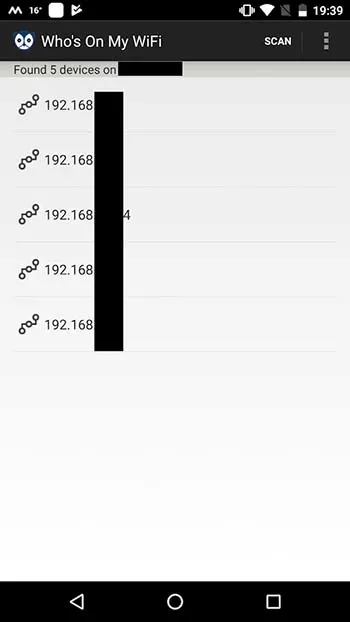
Open Who’s On My Wi-Fi and look for the network to which you are connected. In a matter of seconds, the application shows all the devices that are using your internet connection. From here, you can kick trespassers off your virtual lawn. You need to enter your network information to do so.

Who's on my wifi

Staying protected

Another way to do this is by changing the router password. Once you modify the password, that person cannot connect again.

You pay for your Wi-Fi connection with your hard-earned money, so you should get to decide who is using it. If someone is going to try and sneak into your system, don’t be afraid to virtually go “Gran Torino” on them. 

Secure all your passwords for free

Dashlane is a world-class passwords manager and generator. Store up to 50 passwords accounts and autofill your information for free. Try the Pro version with a free VPN. Download it now!

Let me ask you a question.

You probably have an account with Google, Spotify, Facebook, Instagram or Netflix, right? Do you remember all of your passwords?
Or do you simply use one password for all these websites?
Using the same password is far from safe, but it makes life so much easier, wouldn’t you agree? But what if I tell you that there is now a solution which simplifies your life, uses only one single password guarantees you stay super safe, and on top of all, it is completely free.

I can hear you thinking: “Wait. What? What are you talking about?”
I am talking about a popular and secure free password manager: Dashlane.

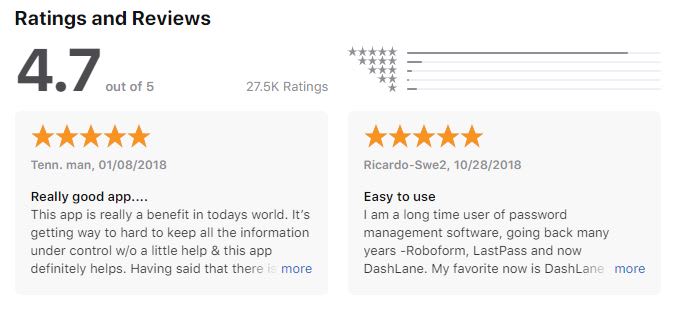
Look at what users think about Dashlane – rankings and comments directly from the Apple Store:

Why you need Dashlane

Being safe online for free is a real choice

Now, this is probably the most appealing feature: Dashlane is absolutely free as long as you don’t exceed more than 50 stored passwords. All your passwords on your Windows, iOS, Mac or Android devices are completely safe. Do yourself a huge favor and make your (online) life easier. With Dashlane you have to remember only one password, plus it doesn’t limit its power to passwords but you can also save your notes, codes, and anything highly private you cannot lose.

Super strong password generator

Your password won’t be hacked anymore with Dashlane. Your password is probably something like 123456 or supersecret1 (at least, that’s mine) but Dashlane generates passwords up to 40 random characters made up of a combination of numbers, letters and symbols.

Every time you visit a website which asks you to register or log-in, Dashlane will prompt you to create a password and it will store it for you. Set it and forget it. All you need to do is create your one single Master Password which will give you access to the Dashlane app. With Dashlane, remembering all those different passwords is a thing of the past.

What else does it do to make your life easier? Dashlane fills out forms with one click. Also tired of filling out forms over and over again with your address and shipping details? The next time you order something online and you are being asked to fill out your billing or shipping details, one simple click and Dashlane will take care of everything.

Dashlane Auto-fill option

Secure digital wallet

There is an option to add your credit card details which will be securely stored by Dashlane. You don’t have to pull your credit card out of your wallet every time you buy something online – a simple click will fill out your card details. Safe and Easy. Store secure notes within the app. Confidential information like your WiFi password, your passport information or the access code to the alarm system of your house, it’s all in safe hands. You no longer have an excuse to keep this type of info as a note on your fridge or in some random app on your phone. Dashlane keeps its secure and will only be visible to you.

Two steps to check out! No need to remember all details, Dashlane does it for you. Keep your data safe, always.


Go Pro!

Besides the free version, there is also a Premium version which has two major benefits. First of all, it allows you to synchronize your passwords across all your devices. Keeps passwords safe on your pc and on your mobile phone at all times. The second BIG benefit is that it comes with a free VPN service included. This is a great feature if you are using public wifi or are relaxing by the pool on your holidays. You want to make sure you maintain your privacy at all times.

Dashlane offers great value for money since most VPN services charge more per month for just a VPN service alone. Dashlane premium offers the best of both worlds: a world-class security product PLUS a VPN service.

Dashlane is a trustworthy app, try it for yourself! Get your free Dashlane here!

Is your web cam being hacked? Here’s how you can check

Hackers can gain access to your webcam through malware from spammy links, pop-ups, and pirated content. Or, maybe they find an “in” through one of those “tech support” scams. 

It sounds alarmist, right?

Not so fast. Webcam infections are the real deal, not just some conspiracy theory nonsense.

Unfortunately, it’s relatively easy for outsiders to access your computer and gather materials for blackmail or fraud.

In any case, it doesn’t hurt to give your webcam a little checkup every now and again.

Here are a few (easy) ways to make sure no one is watching you through your devices.

 Check the indicator light

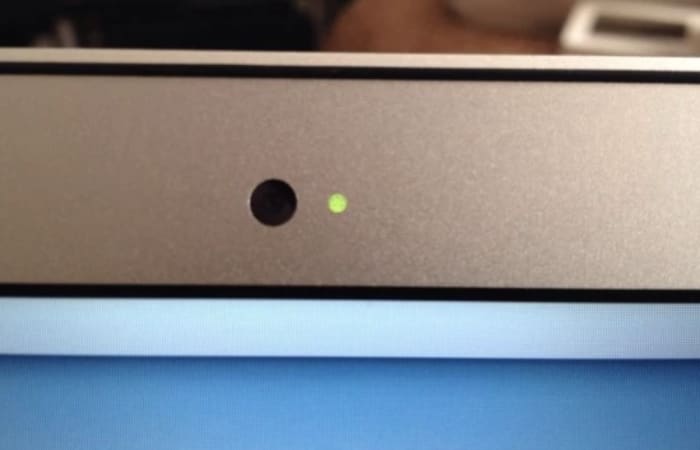
The easiest way to check for spies is checking if that little blue or green light next to the lens is on.

You know, this thing:

is your webcam indicator on?

This is the most obvious giveaway that the camera is recording.

Since hacking victims might notice this right away, savvy hackers often disable the webcam light.

See if your webcam is running

The next thing you’ll want to do is go to your Task Master tab and click “Processes.” From there, you’ll look through the list, scanning for anything that uses the webcam utility.

Keep in mind that a running webcam utility doesn’t necessarily mean that you’ve been hacked. Restart your computer to see if your camera turns on automatically. If it does—consider changing the settings.

Look at the applications that use the webcam

Try running the webcam. If you get a message that says the device is already in use—it either means you’ve been hacked or there’s a program currently using the camera. From there, open Process Explorer (PC) and look through the programs that are using the cam.

Mac’s Mojave now lets you look at the apps connected to the camera and microphone. You’ll find these settings by navigating here:

System Preferences —> Security & Privacy. Select Camera and Microphone and check or uncheck the boxes that indicate permission.

Scan for unknown applications—After you’ve looked at the apps you know about, think Skype, Zoom, Google, you’ll want to check for any apps that you don’t know about. Are there any unfamiliar items that show up in your preferences list?

If you see a message that says your camera is in use and you’ve turned off the usual suspects, chances are, there’s an application controlling your cam. This could be a sign that you’ve downloaded a piece of malware that has taken control of your webcam.

Check the storage files—Another sign that someone has hijacked your camera is the presence of audio or video files you’ve never seen before.

Do a malware scan

Finally, you’ll want to run a malware scan. If the program finds any infections, write down the names to find out if any of them are linked to webcam hijacking.

And, some tips for staying safe

Install antivirus software

Prevention is the best medicine. Antivirus software is the flu shot of the tech world,  allowing you to inoculate yourself against webcam attacks.

Be careful that you choose a reputable program with advanced features—protection against viruses, malware, and spyware. While there are some good free options, you’ll want to make sure you read the reviews before downloading.

Get a VPN already

VPNs have become an essential tool for protecting your computer from hackers, as well as hide from your ISP.

VPNs also provide an added level of protection when you’re using public networks.

Cybercriminals often target users hanging around public hotspots like the airport, Starbucks, or the public library. You might not think about it, but those public networks with multiple guest accounts might be the mark of a fake WAP attack.

Basically, a hacker sets up a wireless router that looks like it comes from the local cafe—then uses that connection to steal sensitive data or get you to download malware—which, of course, could open your webcam to attack.

Monitor your cam activity

Look—if you’re not a big Skype user and avoid FaceTime calls like the plague—you might think that disabling your webcam is the way to go.

Instead, consider enlisting the help of a third-party monitoring app like OverSight to send you a notification when your webcam becomes active.

You’ll get the notifications any time someone uses the camera—so this means you’ll see the little push notifications when you log into Skype for a call, as well as the next time there’s a hacker peeping into your device.

Oversight Download Free
7

Wrapping up

The idea of someone secretly watching you through your computer sounds like the makings of a Mr. Robot episode or a misguided warning from your tech-averse mom.

Unfortunately, webcam hacking is real, and it’s a treat for anyone with a smartphone or laptop.

Staying safe means performing regular camera checks, installing a few good security tools, and of course, not clicking links in suspicious emails.

Look, you really need to get a password manager

Honestly, password managers aren’t the most exciting topic.

Between the thumbprints and the face-scanners—passwords are becoming obsolete, anyway, right? 

Not exactly. 

Yes, passwords are a big pain, but it seems they’re hanging around for the foreseeable future.

Between the bank accounts and streaming services, web apps you’re forced to use at work, emails, socials, and more—coming up with an endless supply of unique, unhackable passwords is near impossible.

Our brain is fairly good at remembering passwords, but we suck at creating log-ins that properly protect our information.

What does a password manager do?

As per Techopedia, a password manager is a software application that stores and manages your passwords for all of your online accounts.

They automatically generate hard to guess passwords you’d never remember on your own, and they’re stored in an encrypted format, that you can access with one master password.

A password manager is an app designed to keep your identity safe and save you the time and headache associated with the countless accounts few all have now.

Why you need to use one

The reason is pretty straightforward. You need strong, unique, unguessable passwords—with special characters, mixed case letters, and numbers.

Any password you can remember—is likely easy to hack. Add in the fact that, handling passwords manually means–you’re likely using the same password over and over or you’re dealing with frequent resets.

One of the biggest reasons to get one of these apps—many of which are free, BTW—is something called credential stuffing.

What this means is, if a hacker gets ahold of your information during a data breach, they’ll use that same password to log into multiple sites.

That’s why beyond some demographic details or privacy concerns, data breaches in places like Target or Facebook can put your identity and credit at risk.

Or, there’s the issue of phishing—you click on some malicious link posing as your bank or something and inadvertently install malware on your computer that collects keystrokes.

And, finally, a password manager means you don’t have to type in passwords. So, if you’re working in a public space like a coffee shop, no one can see over your shoulders.

While you might think, “hey, I’m pretty safe online, and I definitely know a phishing attack when I see one”—don’t be so sure. Better secure than sorry, right?

Which password managers work best?

There are a lot of options out there these days. 1Password, Dashlane, and LastPass are the first ones that come to mind.

LastPass is free, so long as you don’t want to shell out for the premium features (but, even so, we’re talking $36 per year). The app has dealt with security issues in the past, but they have done a good job addressing vulnerabilities and keeping the cloud-based system updated.

LastPass and Dashlane both update passwords automatically, though some users have reported that the feature doesn’t work as well as advertised.

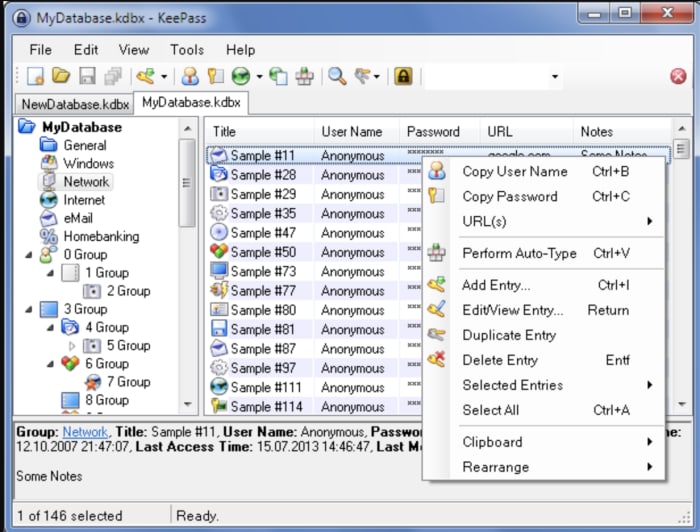
Another option, KeePass doesn’t use the cloud. Instead, the open source program can be downloaded to your computer— no need to worry about data breaches.

KeePass is OSI certified, and you can look at the source yourself to see whether the encryption algorithms are working correctly. As you can see, below, KeePass keeps things old school–no frills, just good old-fashioned protection.

KeePass portable password manager

Can you use them on your phone, too?

Yes—Dashlane, for example, is a cross-platform application—so one account works across all of your devices. It also allows you to set up autofill—so you can skip filling out online forms and check out fast. It also comes with a VPN, scans for dark web activity, and lets you securely store documents and notes containing sensitive information.

Dashlane Download Free
7

1Password records user names and passwords across mobile apps, websites, and online accounts across all devices—promoting single click or touch access.

1Password Download Free
6

LastPass, too, works across all devices—and comes with similar features—like simplified online shopping, digital record-keeping, and file sharing.

LastPass Download Free
9

But, can password managers be hacked?

Unfortunately, yes.

OneLogin was hacked in June 2017. LastPass has dealt with a handful of hacks over the past few years, too. But, it’s important to remember that any piece of software or website can potentially be hacked. If this is your biggest concern, KeePass may be your best bet, as it puts the control in your hands—not the cloud.

Still, LastPass, Dashlane, and 1Password are all solid options that employ several layers of security you won’t find on say, all the places you shop online.

The risks outweigh the benefits—reducing the risk of credential stuffing and keylogging attacks. And, you’ll free your brain from trying to come up with another Apple password you haven’t used yet but can easily remember.

In the end, you will need to remember your master password, no matter which one of these apps you choose. And, because this one password rules them all—you better pick a good one—be it a passphrase or some sort of code you can remember—or keep stored on a piece of paper.

Ransomware hackers have found a new type of institution to target

Hundreds of dentist offices all over the US have been hit by ransomware attacks

phishing scams

Of all the types of malware, ransomware is definitely the most Hollywood. We’ve commented before on the showy nature of its name and how it invokes ideas of Hollywood style face-offs between hostage takers and negotiators. Even in real life though, ransomware certainly knows how to grab the headlines. The nature of the threat sees it targeting large institutions rather than private individuals and this has led to some big targets and even bigger ransom payments.

We’ve seen hospital networks targeted, schools, and recently we’ve even had to deal with whole cities being crippled by ransomware attacks, with two cities in Florida being forced to stump up over $1 million in ransom between them. It seems that even moving on to smart devices like Wi-Fi connected cameras isn’t enough either, as ransomware hackers have found a brand-new type of institution to target. If you’re afraid of going to the dentist, look away now.

Hundreds of dentist offices all over the US have been hit by ransomware attacks

According to a report by ZDNet, two Wisconsin-based software providers, The Digital Dental Record and PerCSoft, were recently compromised by a ransomware gang. The gang was able to initiate a REvil (Sodinokibi) ransomware attack across the company’s customers’ systems, which total hundreds of dentists’ offices across the US.

a dentist
Time to be afraid

The breach occurred over last weekend but then only came to light on Monday morning when Dentists up and down the country found that they couldn’t log on to their systems when they returned to work. The ZDNet report goes on to say that the Wisconsin-based companies decided to pay the ransom and have since been sharing a decrypter with all of the effected dentists, which should help them recover their lost files. There is no mention, however, of how large or small the ransom was that they paid.

This isn’t the first time that this particular type of ransomware attack has been launched by a ransomware gang. A recent report listed the REvil (Sodinokibi) attack as one of the most prevalent types of ransomware attack out there. With this attack on nationwide dentist offices being the third time a major service provider has been targeted using this type of attack, it puts it as the fourth most popular type of ransomware attack out there.

Ransomware attacks usually encrypt or steal data from the victim’s database. The data is then held ransom, with the victim having to pay to recover it. As the attack requires a lot of work, it makes sense to target larger organizations rather than individuals. It also applies more pressure as the data that is held ransom usually plays a key role in the running of the victim organization and immediately starts applying financial pressure. This means you’re not likely to be targeted yourself by a ransomware attack, but there is every chance an organization you’re connected to could be.