
The best Black Friday deals

These are all the best software deals you’ll find this Black Friday.

When Black Friday comes around, we’re inundated with limited-time special offers for all sorts of products like headphones, wearable tech, charging cases, video games, SSD hard drives, smart home devices, and iPads. With so many deals from the likes of Amazon, Walmart, Best Buy, Newegg, and Samsung, however, it can be hard to know where to start. Well, at Softonic, we’re specialists in software so you can trust us to bring you the best Black Friday sale software deals. Let’s get into it then, these are the best Black Friday deals for software and online subscriptions.

Disclosure: Softonic may receive a referral fee if you click or buy any of the products featured here.

The best Black Friday software deals 2019

ExpressVPN
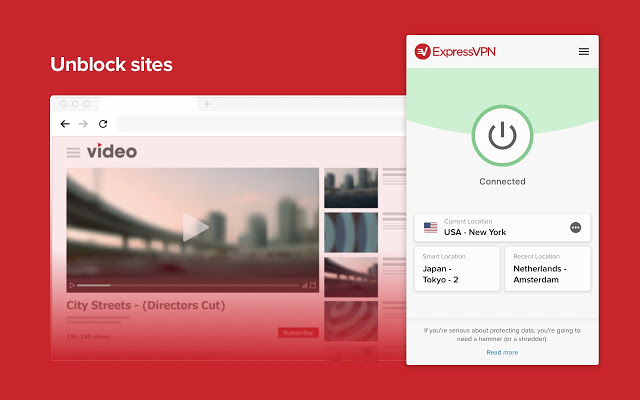
Virtual Private Networks (VPNS) allow you to mask the IP address of your Microsoft PC, Macbook, iPhone, or Android phone and encrypt all of your internet data. They have become essential for anybody who wants to surf the web safely. Add to that the fact that VPNs open up global content that would normally be locked due to your geographic location and you quickly realize that you need a powerful VPN on your machine.

The problem with VPNs, however, is that many of them are not that reliable. This is simply not the case with ExpressVPN though, which is widely regarded as the best VPN in the business. An ExpressVPN subscription will give you reliable access to over 3,000 servers round the world allowing you to protect your data and simulate your location in over 160 locations spread across 94 countries. If that sounds like something you want, act now to get three months free subscription to ExpressVPN.

Express VPN Save $$$ Now
10

Adobe Creative Cloud

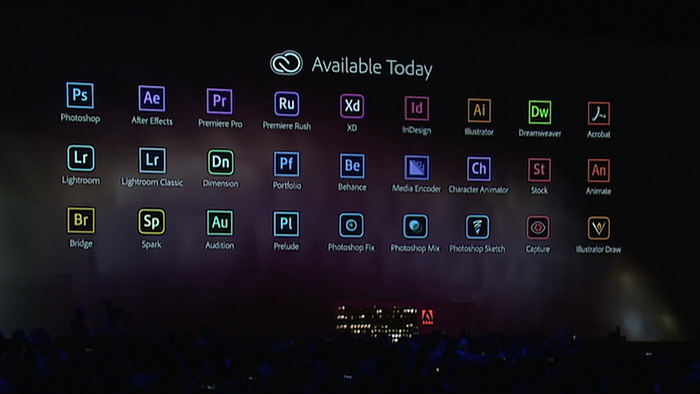
If you’ve never heard of Photoshop, then you must have been living in a cave or something. Photoshop and all the other programs in the Adobe Creative Cloud design suite are the best in their class. No matter your design job, the Adobe Creative Cloud will give you the best tools available to get it done.

Now’s your chance to get yourself a full subscription to the Adobe Creative Cloud package with massive savings of 40% off the normal price for all and 80% for students. Take advantage of early Black Friday savings that could end up saving you hundreds of dollars every year.

iObit

iObit Black Friday deal

Keeping yourself safe online is a tough job these days. Online threats and more advanced types of malware hit the internet all the time. As well as online threats, as software gets more and more complicated we can experience inexplicable slowdowns on our PCs. This is why it is more important than ever to have a robust cybersecurity suite protecting you every time you’re online and to keep your PC working as well as it should.

With that being the case, you do not want to miss out on the eye watering  discounts that iOBit is offering on its line of PC optimization and protection software. You can save up to 80% on complete packages of iObit cyber security software. iObit is also giving away $60 worth of software for free with every purchase made. Check out these deals now and save yourself some money.

iObit Special Offer Save Save Save
10

MacPaw CleanMyMac

CleanMyMac black Friday deal

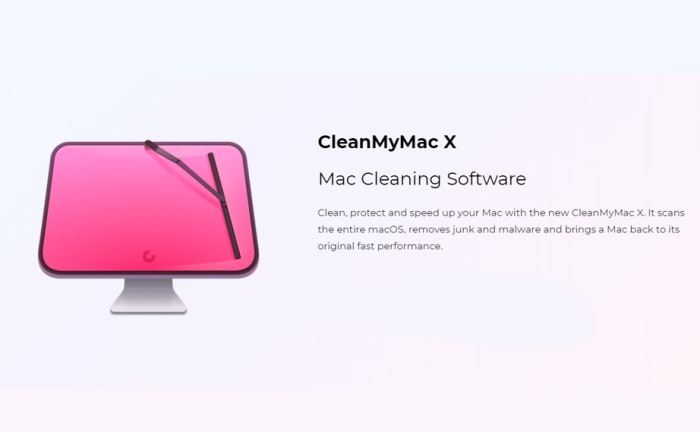
MacPaw’s CleanMyMac optimization suite offers the industry standard that all other Mac cleanup programs try to match. CleanMyMac makes it a quick and simple process to clear up space on your Mac and get your Apple Mac back to its best. With MacPaw’s amazing Black Friday deals, you can save 30% on a CleanMyMac subscription. You need to act fast, however, as MacPaw discounts are rare, and it won’t be Black Friday forever.

CleanMyMac Clean for less
10

CCleaner

CCleaner Professional is a veritable institution in PC optimization. It has been around for years and is well-known for offering a quick, safe, and reliable disk cleaning service. Regularly regarded as the most efficient tool for identifying gigabytes of erroneous files and delivering noticeable boosts to your PC’s performance every time you use it. If your PC needs a boost, act now and save 50% on a CCleaner subscription.

CCleaner Click to Save
10

Sony Vegas

If you’re a video editor you need a feature packed video-editing suite offering full video production capabilities, audio editing, special effects, and more. Sony Vegas has all of these and more. If you’re an Instagram or YouTube video blogger then you should think seriously about this Sony Vegas Black Friday deal. Act now and you could save yourself hundreds of dollars and massively upgrade your video-making capabilities.
Sony Vegas Save $$$
10

Norton Antivirus

Norton Antivirus

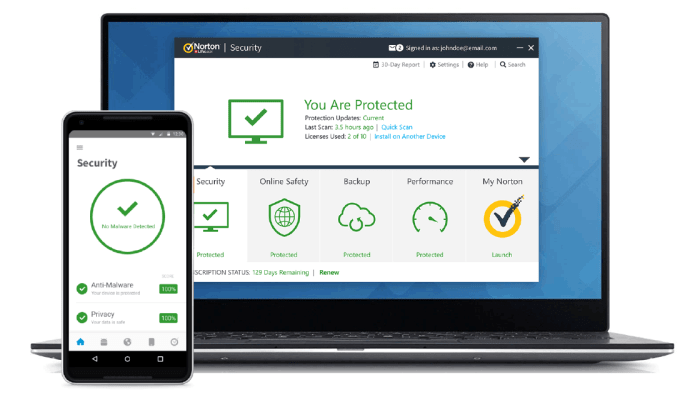
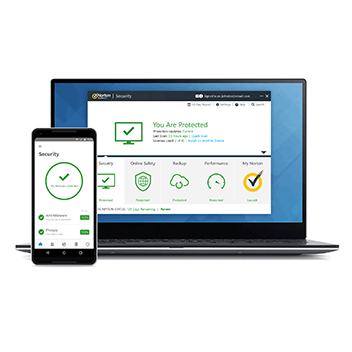
Our final Black Friday deal comes from Norton Antivirus, which is offering savings of up to $60. Protect yourself from threats including ransomware, malware, spyware, and more.  Norton will also protect your identity from potential hacks and  potential online scams and phishing attempts. Act now to save a massive $40 and protect your PC or Mac for an amazingly low $19.99. Protect up to 5 devices with the full Norton package and save a massive $60. Don’t wait to stay safe and save money.

Norton Antivirus Protect and Save
10

Top photo editing apps for your phone

These are the best mobile photo editing apps for Apple iPhones and iPads, and Android smartphones and tablets.

The best mobile photo editors

These days the camera on your smartphone is one of its most important features. Phone manufacturers have been falling over themselves for years now to bring us the best cameras with the most impressive bells and whistles. We’ve seen Google pumping crazy AI features into its Pixel phones and Huawei adding privacy-busting 50X zoom to its P30 Pro. Most phones now, even budget offerings, have two or sometimes even three lens camera app systems as well as a separate front-facing camera for selfies and video calls.

It isn’t just about taking photos though, oh no. These days, if you want your photos to stand out on social media, you need to optimize your photos once you’ve snapped them. That means editing them to make sure they look as good as they possibly can. Fortunately, however, just as the hardware manufacturers have been working overtime on their cameras, software developers have been working hard on photo-editing apps.

Let’s look at the best photo editing apps available for Android on the Google Play Store and iPhone on the Apple App Store.

Best photo editor apps

PIXLR

Pixlr

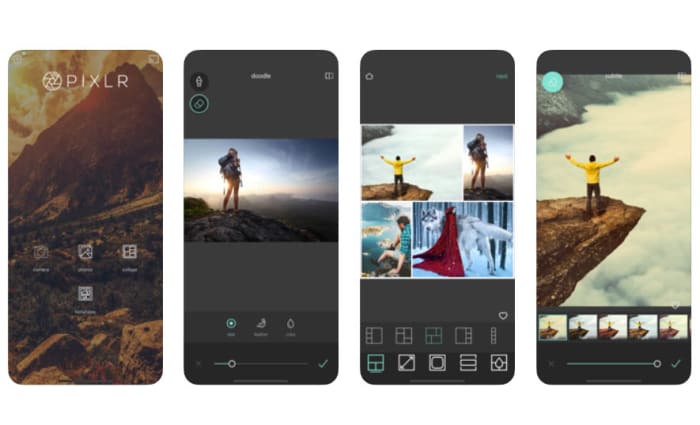
Pixlr is a very well-regarded browser-based photo editor that you can use on Linux, Windows, or Apple Mac via a modern browser like Google Chrome or Mozilla Firefox. Pixlr also has rather impressive mobile apps for Android devices and iOS iPhones and iPads. The mobile photo apps are designed for quick edits and retouching and make it very easy for users to get great results. There are plenty of filters and features here for you to play around with and once you’re done, the Pixlr apps make it really easy to share your creations via integrated social network connectivity.

If you try out the Pixlr mobile apps and like them, you should definitely try the browser-based app, which actually offers a fairly decent and free alternative to Adobe Photoshop.

PIXLR Download now
8

PicsArt Photo Studio

PicsArt

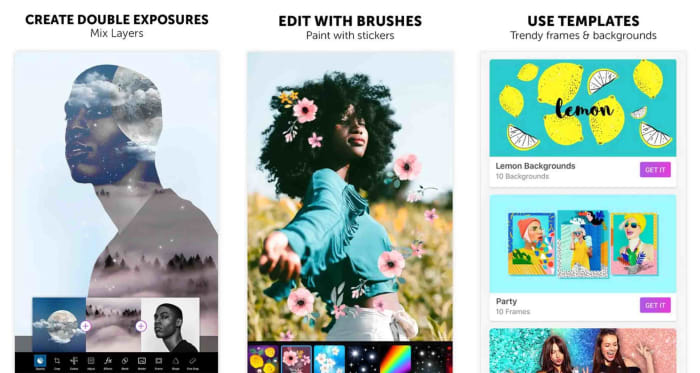
PicsArt has a really wide feature set that offers plenty for any budding amateur snapper and social sharer looking to edit photos. PicsArt makes it really easy to put together collages, add cool stickers to your photos, and add all manner of filters and text as well as optimizing your photos with improved lighting and color balancing tools.

The broad appeal of PicsArt is that it is a great tool for people looking to perform serious edits but also works well for those simply looking for a laugh by putting together a meme or creating an entertaining GIF. Interestingly, PicsArt also has a collaboration feature that allows you to submit work to the PicsArt community so that people can make their own edits.

PicsArt - Photo Studio Download now
8

Fotor Photo Editor

Fotor

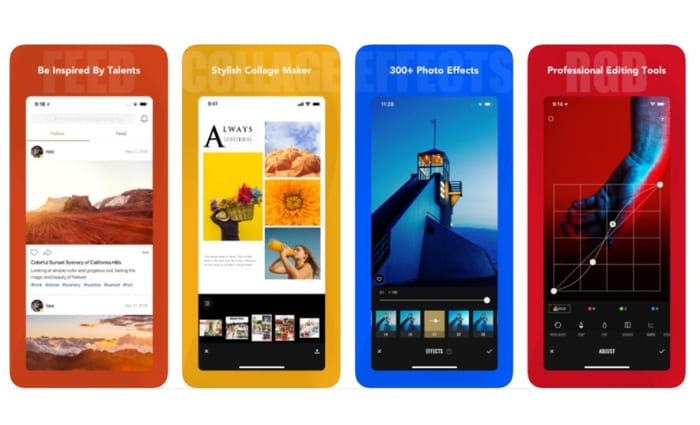
Another excellent mobile photo editing app is Fotor. Fotor gives any budding photographer the tools they need to make a wide variety of professional-looking edits to their photos. The app has over 1,000 filters and includes other more regular features like vignettes, highlights, image temperature and saturation tweaks, exposure control, and more basic editing features like cropping, rotating and brightness and contrast control.

Although you can download a free version, Fotor includes in-app purchases and requires users to log in to use it. The app, however, also includes a very handy one-tap auto improvement feature. A simple click will put Fotor to work editing your photo, which if it doesn’t end up as exactly what you’re after, often provides a great starting point for further edits.

Fotor Photo Editor Download now
8

Snapseed

Snapseed

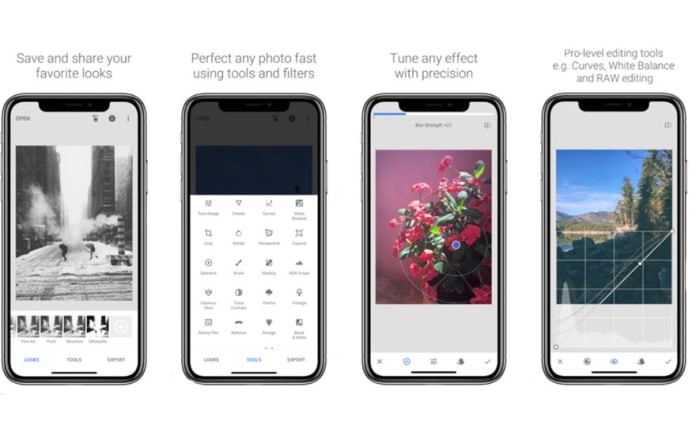
Although Snapseed is Google’s own photo editor, it is an excellent choice for anybody looking to edit the photos they take on their camera. You can add filters, edit the lighting effects on your photos, and also add interesting features like lens bokeh, which is the blurring effect that you get around the subject that is the focus of your image.

The best thing about Snapseed is that it is free and gives you access to almost all the editing features you’ll find in any mobile photo editing app. That being said, it can come off as a little intimidating, if you’re only looking to make simple edits.

9

Google Photos

Google Photos, formerly Picassa, is an incredible mobile app. Google Photos will automatically back up your photos to the cloud and then prompt you to clear space on your device. You can then view your photos using your internet connection whenever you want. This way you can have pretty much every photo you’ve ever taken in your smartphone’s photo gallery forever. Furthermore, Google’s AI will automatically organize your photos into easily searchable tag groupings and albums.

On top of that rather ridiculously well-executed feature, Google Photos also offers some pretty decent photo editing capabilities.  As well as filter options, contrast and saturation editing, and other basic features like cropping and rotating, Photos also has interesting AI-enabled features like auto-cropping of documents.

Google Photos Download Google Photos
7

Photos Effects Pro

Photos Effects Pro

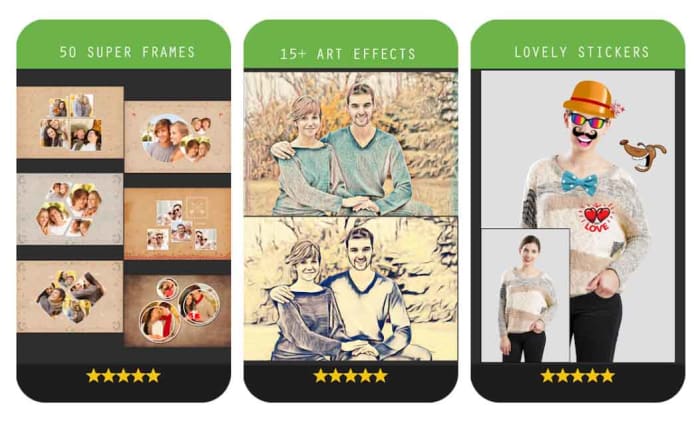
We’re finishing our look at some of the best mobile photo editing apps with a fun entry to the list. Although Photos Effects Pro sounds like something you’d expect your photo enthusiast uncle to have on his ten-year-old MacBook, it is actually much more suited to a younger Instagram or Snapchat user.

Like most mobile photo editors, Photos Effects Pros has filters and effects, but it stands out for its fun stickers that’ll take your photos and turn them into something truly comical. You can also use your finger to paint on top of your photos and add AI-infused edits like turning your photos into painted or hand-drawn scenes. Outside of these effects’ features, Photos Effects Pro only has a few rudimentary editing tools but it is completely free to use, which means it is definitely worth a download.

Photo Effect Pro Download Free ►
8
Wrapping up

Mobile photo editors are a little different from their full-size desktop companions in that they simply can’t offer the complete editing suites your PC or Mac can. Sure, expensive subscription-based apps like Adobe Lightroom CC can give you a real taste of what your PC can do, complete with RAW file editing, but editing photos is much more difficult to do on a smartphone screen of five or six inches than it is on a 15 inch laptop or a computer with a much bigger monitor. You can still do a lot, however, with filters, basic editing techniques, effects, and stickers, which is why we’ve been able to bring you six excellent photo editing apps. Another good mobile photo editing tool worth checking out on your Android phone is VSCO.

How to make WhatsApp stickers

This is how to make your own WhatsApp sticker packs

For years WhatsApp has been growing and adding new and improved features for users to take advantage of. Some of these new features have been practical in nature like voice notes and improved WhatsApp Group features, but others have attempted to make the Facebook-owned app much more fun to use. Think about integrated GIF-sharing features for example.

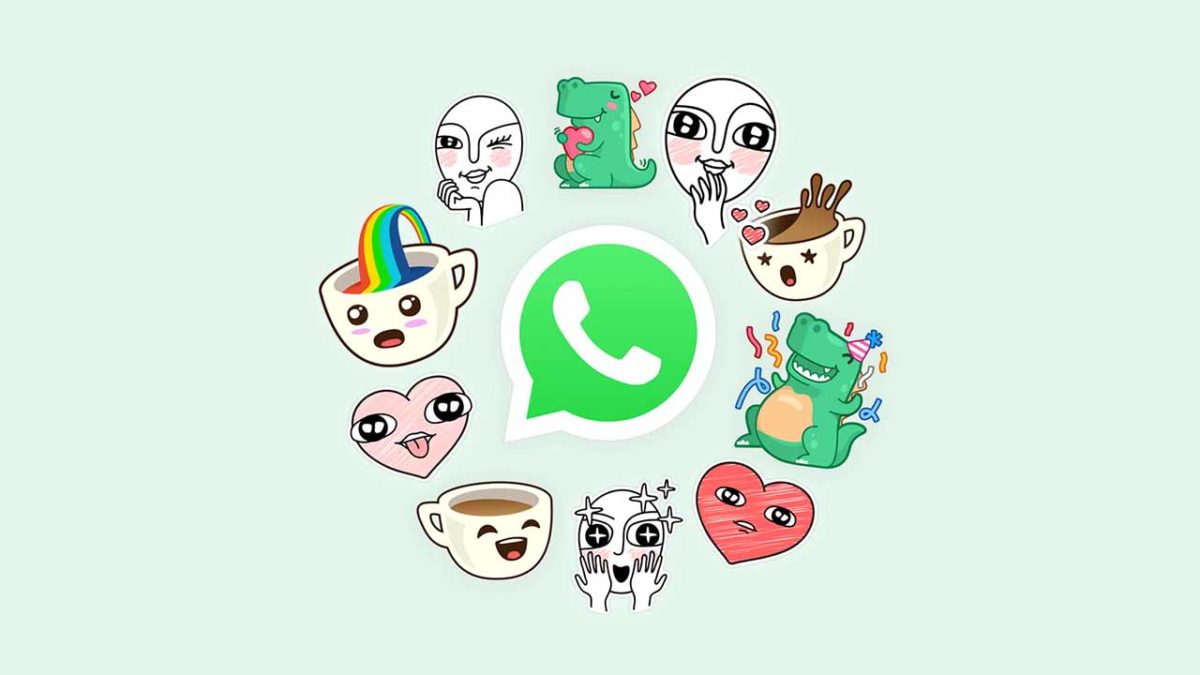
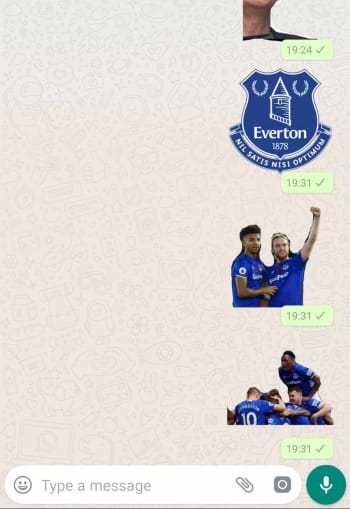
Another fun feature that has been added to WhatsApp recently is stickers. WhatsApp stickers work a little like PNG images, with transparent backgrounds, that you can add to your WhatsApp chats. They can be of anything and will appear as any shape they need to be. Stickers don’t need to have a pre-defined frame around them for example. If your Sticker is a happy dinosaur or a shocked cup of coffee, that is what shape the sticker will be.

This what WhatsApp stickers look like

As you can imagine with the examples we’ve laid out above, WhatsApp stickers can be really whacky. In fact, there are no limits to what WhatsApp stickers can be because you can make your own. Let’s have a look then at how to download stickers for WhatsApp and then at how you can make your own WhatsApp stickers.

WhatsApp Messenger Download Now ►
8

Download and create WhatsApp stickers

How to download WhatsApp stickers

WhatsApp stickers have come a long way since they first launched in 2018. WhatsApp has made it very easy to download new sticker packs via a sticker store that you can find right there in WhatsApp chats.

Download WhatsApp sticker packs

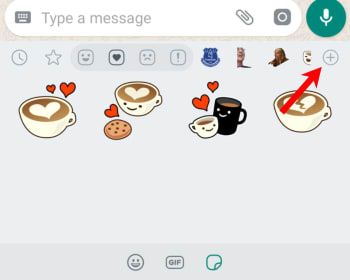
To download new sticker packs, open WhatsApp, then click on a chat, and after that hit the emoji smiley button to the left of the text bar. You’ll then see the stickers tab next to the GIF icon. Hit it to take you into your WhatsApp sticker management screen. To the top-right of this screen, you’ll see a + button. Clicking this will take you to the WhatsApp sticker store where you can download new sticker packs.

How to make WhatsApp stickers

The best way we’ve found to make your own WhatsApp stickers is to use third-party WhatsApp sticker making apps. We’ve found a couple of great apps that offer simple ways to create stickers. Let’s take a look at them now.

Sticker Studio – Sticker Maker for WhatsApp

Sticker studio Whatsapp stickers DIY

The first app is called Sticker Studio and offers users a great way to create stickers out of any image. You can take any image you can find off the internet, an image you’ve made yourself, or even a photo you’ve taken using a camera and turn it into a WhatsApp sticker. Sticker Studio will bunch your homemade sticker creations into sticker packs, and you’ll need to create at least three stickers per pack before you can add the sticker pack to WhatsApp.

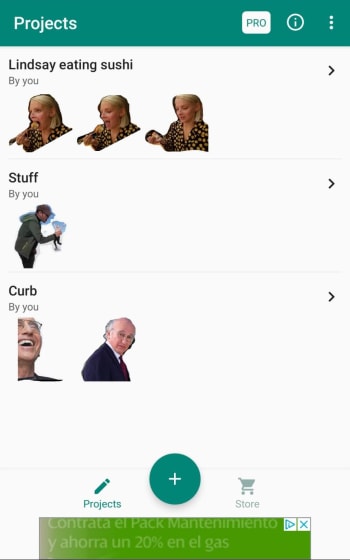
The good thing about Sticker Studio though, is that it is easy to use. To create a WhatsApp sticker using Sticker Studio you need to download and then launch the app. When you launch the app, you’ll see all your current projects, which are your active sticker packs.

Sticker studio WhatsApp sticker maker

You can either start a new project or click on an active project to continue where you left off. Click the + Add sticker button and then either Select the image you want to use from your gallery or Capture one using your phone’s camera. Once you have your image, turning it into a sticker is very easy. You simply resize the image and then draw around the part you want turning into a sticker. Once you’re done the background will magically disappear. Do this for at least three stickers, name the sticker pack, and then export it to WhatsApp. Easy Peasy.

You will, however, have to view ads at various points throughout the sticker pack creation process.

Sticker Studio Sticker Maker for WhatsApp Download now
9
WAStickerApps

WAStickerApps is a little fiddlier that Sticker Studio but it still offers an effective way to create custom WhatsApp stickers. The only thing, however, is that again you need to make sticker packs with WAStickerApps so you’ll need to have enough images ready to make at least three stickers before you’ll be able to add them to WhatsApp.

WAStickerApps

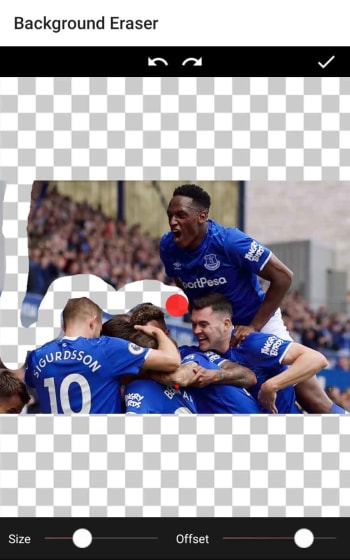
You add images to WAStickerApps the same you do on Sticker Studio. The difference here, however, is that rather than drawing a line around what you want to go into a sticker, you control a red dot that deletes everything it touches. This way you can erase the background and even get in there and erase the little fiddly bits that you can’t get to, using the Sticker Studio method. It is a little fiddlier but once you’re used to the method, it is more effective.

Once you’re done erasing the background you save your image and add it to the sticker pack. When you have at least three stickers you can then send the pack to WhatsApp.

“”

Making stickers with PNG images

Another interesting feature of both Sticker Studio and WAStickerApps is that you can use them to very easily make stickers out of PNG files. As PNG files already have transparent backgrounds you can simply download them to your phone’s gallery, add them to WAStickerApps, and save them as stickers without having to mess around with erasing backgrounds, etc. As the internet has thousands of PNG images available, this is the easiest method by far to quickly make unique sticker packs for WhatsApp. All you have to do is search for the type of image you’re looking for and include PNG in the search term and away you go.

WhatsApp stickers

Wrapping up

We’ve walked you through how to download stickers using WhatsApp and also shown you two great apps for creating sticker packs on your Google Android or Apple iOS iPhone. The method we showed you for turning PNG images into stickers also opens up other sticker making possibilities. Using this method, not only can you turn PNG images you find online into stickers, but you can also easily turn any image you can create yourself into a WhatsApp sticker. This means, should you have any other desktop or mobile photo-editing software like Photoshop that you’re comfortable using to remove backgrounds you can use those apps and then simply send the images to the apps we’ve outlined above.

Is WhatsApp safe? All you need to know

Let’s take a look at some of the potential security risks that can affect you when you’re using WhatsApp

Is WHatsApp safe

WhatsApp is a huge app. Over 1.5 billion of us have the app on our Android smartphones and Apple iPhones and we send tens of billions of WhatsApp messages between us every day. Now the Facebook-owned messaging app is famous for its end-to-end encryption but, let’s be honest, Facebook isn’t exactly the most trusted company in the world right now. This begs the question for WhatsApp users all around the world: is WhatsApp safe to use?

We talk a lot at Softonic about cyber security issues. We’re here to keep you safe when you’re online and with us, like so many of you, being regular WhatsApp users, we thought we’d spend some time going through potential security weaknesses you should look out for when you’re using WhatsApp.

How safe is WhatsApp?

WhatsApp bugs

Every now and then malware and spyware-like bugs can find their way into the WhatsApp code. These can leave you open to potential hacking, which we’ll look at in a moment, but they can also end up causing other problems that may end up hitting your wallet.

One such WhatsApp bug saw the app regularly trying to backup all app data using a cellular data connection. This meant that even when users didn’t have Wi-Fi connections, their phones were constantly uploading WhatsApp data to Google Drive and iCloud. Many users ended up footing a huge bill because of this bug, as the uploading continued long after they’d used up all the data from their monthly allowance.

WhatsApp hacks

Other WhatsApp bugs might affect WhatsApp security deliberately. Hackers often try to add malicious code to WhatsApp so that they can take control of the app. Worryingly, a recent WhatsApp hack created a security flaw that gave the hackers backdoor control of the user’s WhatsApp accounts and allowed them to post fake status updates. Yep, hackers were able to post status updates using the victim’s WhatsApp.

WhatsApp scams

Another WhatsApp security weak spot that you need to look out for is scam links and phishing attacks that you might receive via WhatsApp. As we’ve already mentioned, between us we receive billions of WhatsApp messages every day and many of these include links to third-party websites. Just like with emails, however, we need to be very careful with the links we click on WhatsApp.

Fake WhatsApp message about 1000GB of free data
FAKE!!!!

One recent WhatsApp scam sent a link promising 1000GB of free mobile data. It was all a scam though, with the link leading to a fake website that was designed to steal personal information, phone numbers, and user’s credit cards.

Fake WhatsApp scams

Over the years we’ve reported on a lot of fake versions of WhatsApp doing the rounds. Like with the types of scam described above, these are designed to steal personal information but can also be used to bombard users with ads in a bid to raise revenue for the hackers. There are two main types of these fake WhatsApp scams.

The first type of fake WhatsApp scam sees the scam app trying to look as much like the real version of the app as possible. One example of this is the Update WhatsApp Messenger scam, which security experts and cybersecurity researchers discovered in 2017. The app had an ad in the Google Play Store that was almost identical to the original WhatsApp’s ad. Downloading it, however, would force the user to see a lot of unwanted ads and prompts to download further scam apps.

Beware this Fake WhatsApp Update Scam

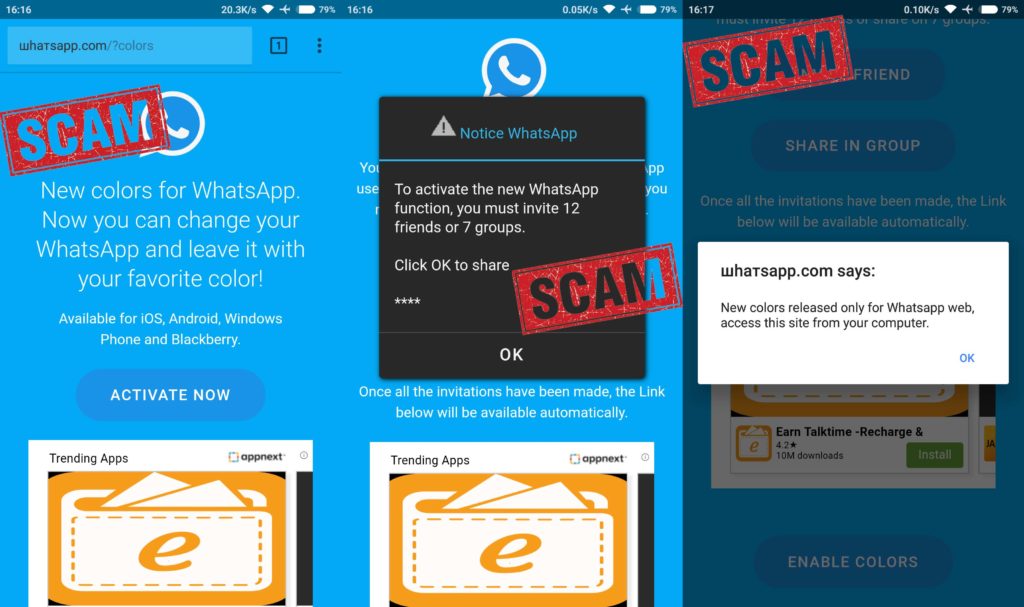
The other type of fake WhatsApp scam sees hackers trying to pitch their fake versions of WhatsApp as having new and improved features. Examples of this include the WhatsApp Gold scam, which has been distributed across WhatsApp a few times and the WhatsApp Colors scam, which promised the ability to change and set the background color of the app. Both were fake and were efforts to install adware on users’ phones.

WhatsApp’s Fake news problem

Another security risk that pops up again and again on WhatsApp is the app’s fake news problem. Fake news being spread across WhatsApp has had some truly catastrophic effects all over the world. People have been lynched in India and others were beaten to death following fake reports spread via WhatsApp that child abusers were traveling through parts of the country. The problem in India got so bad that law enforcement and government agencies were forced to intervene and force WhatsApp to take measures to address the problem.

Does WhatsApp spread fake news?

Elsewhere, fake news spread on WhatsApp in Brazil helped to win far-right politician Jair Bolsonaro the presidency. He’s since unleashed terrible forces that have seen huge swathes of the Amazon rainforest burn. Although, not on WhatsApp itself fake news spread in Myanmar using Messenger, another Facebook-owned messaging app, contributed to the Rohingya genocide. This is a very serious issue.

Unsecure chat backups

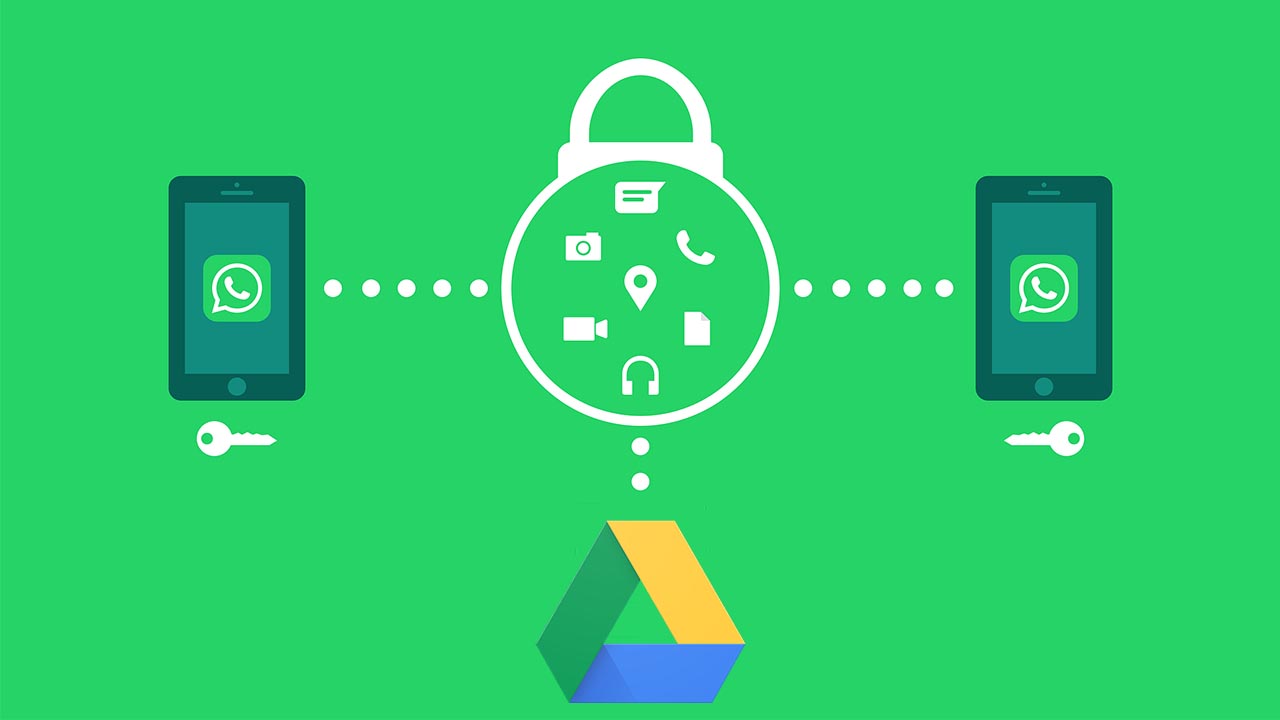
As we’ve already mentioned, WhatsApp is famous for its robust end-to-end encryption. All messages sent via WhatsApp are protected by the encryption, which makes it next to impossible for unwelcome eyes to see what’s been sent. That is, however, until they’re backed up. Recently, WhatsApp signed a deal with Google that allows users to back up all of their WhatsApp data using Google Drive for free.

The security risk here is that the encryption Google uses to protect Google Drive data isn’t as strong as that used by WhatsApp. When you back up your WhatsApp chats using Google Drive you make them more vulnerable to hacking. The other thing to consider here is that you’re also giving Google access to all your WhatsApp data. You’d better believe that Google knows how to use that too.

Wrapping up

We’ve gone through six potential security breaches that could affect users of the WhatsApp chat app. The key to safely avoiding all of them, however, is you. As we always point out in these security guides, you are your best line of defense against online cyber-attacks. You can easily defend yourself against all of these potential WhatsApp security problems if you use your common sense. Keep your app regularly updated, think twice about the dodgy links and messages you receive, and don’t believe anything that appears too good to be true.

How to know if WhatsApp is down and what to do

If you’re WhatsApp isn’t working, try these steps to get it working properly again.

There is an old adage that goes something like, “You never know how much you need something until it’s gone.” This certainly rings true for the WhatsApp messaging app. It is oh so easy to take the Facebook-owned messaging service for granted. It is free, it is always on, and it makes talking to anybody anywhere incredibly easy. The trouble is though, sometimes it doesn’t. In fact, WhatsApp goes down quite often just like other social media sites, like Facebook, Facebook Messenger, and Instagram. Furthermore, when it doesn’t work you don’t get a message explaining what is going on, it just doesn’t work.

If WhatsApp is not working on your smartphone, you’re likely confused. Is the problem local to your mobile app, is it a wider WhatsApp outage, or is it something to do with the service provider? These are the questions that’ll usually send iPhone and Android users to Google but worry not because Softonic is here to help. This is how to figure out why WhatsApp isn’t working on your iOS or Android device and how to fix it.

“

Why isn’t WhatsApp working?

Is WhatsApp down?

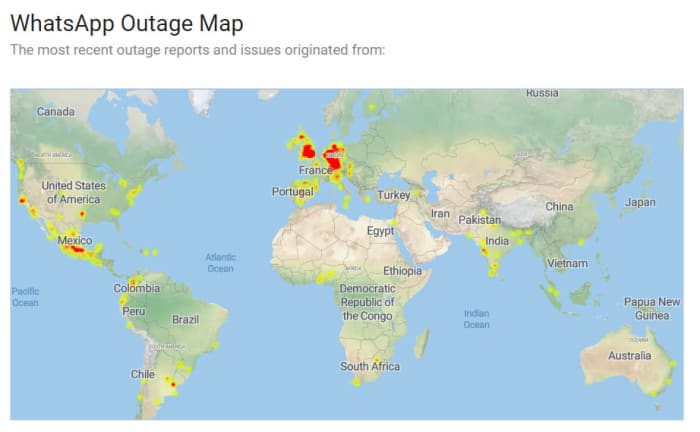
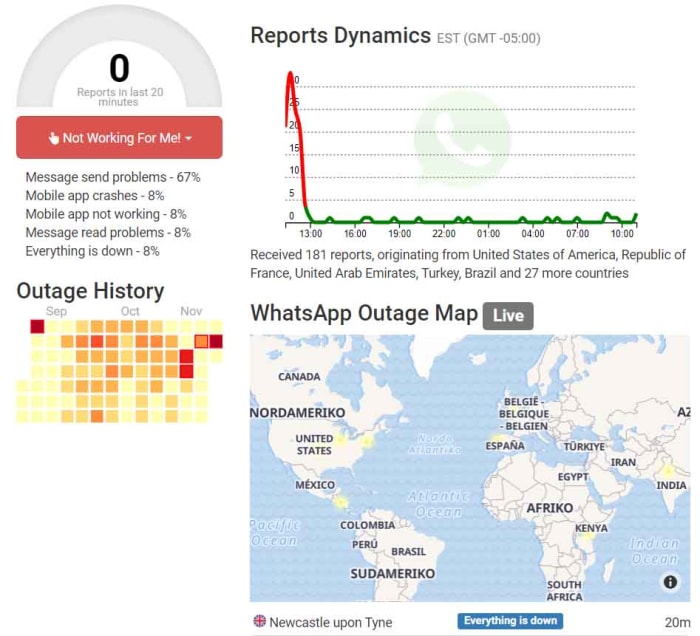
WhatsApp is a ridiculously popular program. It has over 1.5 billion users, which means there are quite a few different sites you can visit to find out whether you have a local WhatsApp problem or if WhatsApp itself is experiencing a more general problem. These sites include Is The Service Down, Is It Down Right Now, Outage Report, and Down Detector. If your WhatsApp isn’t working, these sites should be your first ports of call. If the problem is affecting the network, then these sites will let you know. You’ll get outage maps and up to date graphs showing reported problems.

WhatsApp outage map
Image via: Is The Service Down?

Unfortunately, however, if the problem is a wider WhatsApp outage, there is nothing you can do. You simply have to wait until WhatsApp is up and running again. Fortunately, however, when these massive issues arise the teams at WhatsApp HQ don’t usually take too long to resolve them. You can check out a list of historical problems that have affected the WhatsApp network here.

What if WhatsApp isn’t down?

If the above sites show that WhatsApp is working perfectly in your country or local area, then you’ll need to start looking into potential local problems that could be stopping your WhatsApp messages coming through. The first thing you should look into is your active internet connection. You can do this by checking your Wi-Fi and mobile data connectivity using your phone’s network and connectivity settings menu. If both of these are switched on but WhatsApp still isn’t working, you should try and see if the internet works for another app like Google Chrome or YouTube.

WhatsApp outage report
Image via: Outage Report

Switch it on and off again

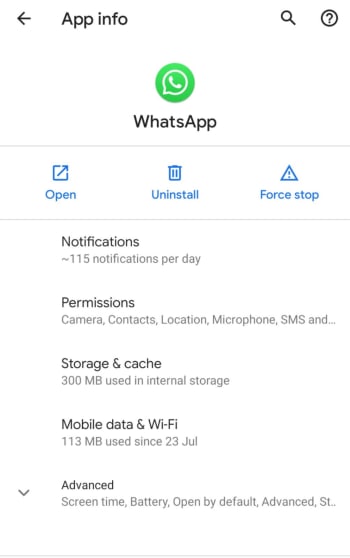
If WhatsApp isn’t working but other apps like YouTube or Google Chrome are then there is a problem within the app itself. The first step you should take, should this be the case, is stopping the app completely. To do this you need to go to the Apps settings menu on your Android or iPhone, select WhatsApp, and then hit Force Stop.

Forcing WhatsApp to stop will then make it possible for you to clear the WhatsApp cache, which may contain the bug that is stopping WhatsApp from connecting to the internet. To clear the WhatsApp cache, scroll down to the Storage & cache option in the WhatsApp App info page. Once you click that, you’ll see the option to Clear cache. After you’ve done that turn your phone off and then on again, and then launch WhatsApp to see if you’ve resolved the issue.

WhatsApp app info on Android

Update WhatsApp

If you’ve got this far and WhatsApp still isn’t working, you’re going to have to start taking more drastic actions. First, though, you should check you are running the latest version of WhatsApp by going to the Apple App Store or the Google Play Store. You need to find the list of all the apps you’ve bought and installed on your phone. When you’ve found it, scroll down until you find WhatsApp, and then select it. You should then see the version you are running and whether there is an update available.

If you are running the latest version of WhatsApp or if you update WhatsApp and it still doesn’t work, the next thing you can try is uninstalling the app and then reinstalling it. To do this, go to the WhatsApp App info page on your phone, using the method outlined above, and hit Uninstall. If you don’t want to lose all your app data including your chats and downloaded images etc. tick the box that says Keep app data before confirming the uninstall. Then, head over to the Google Play Store or Apple App Store and reinstall WhatsApp. This should install a clean and up to date version of WhatsApp.

Wrapping up

When WhatsApp goes down it can feel like you’re cut off from everyone and everything. We’ve walked you through all the steps you need to follow, should it happen to you. The key is finding out whether the problem is on your phone or whether there are actual WhatsApp servers down causing problems for millions of WhatsApp users at the same time. The sites listed above will show you about potential outages and will offer real-time maps showing all the different WhatsApp problems being reported at the same time as well as historical data.

If the problem is a local one, however, one of the other steps we’ve laid out for you should see you have WhatsApp working normally again. Hopefully, you won’t have to uninstall WhatsApp and reinstall it to resolve your issues, but you can always take the nuclear option should you need to. Just remember to save your app data, if you don’t want to lose all your chats.

Your 10 most burning WhatsApp questions, answered

10 WhatsApp questions and answers

Sometimes it can feel like WhatsApp was designed by a sadist. Honestly, the amount of drama that a messaging app can produce is ridiculous. Have they read my message? Can they see if I’ve read theirs? What a stressful nightmare!

Of course, it’s possible (and probable) that WhatsApp was designed with the best intentions, and that you’re freaking out for no reason. Although, on top of knowing when someone read your messages, there are plenty of other potential mishaps and confusion that the WhatsApp messaging service can produce for any discerning smartphone user.

Determined to clear up some of these mysteries, we’ve thoroughly investigated and compiled a list of the most frequent and distressing issues about how to use WhatsApp, that people Google, in a bid to help you keep your stress level at a minimum.

WhatsApp Messenger Download Now ►
8

1. Can I stop somebody knowing I’m on WhatsApp?

No.

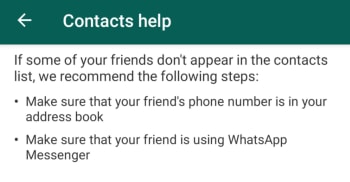
With WhatsApp it is all about the contacts you have in your phone’s contact list. Even when you block a contact, they’ll continue to have you in their contact list, if they still have your number in their phone book. The only way you won’t show up for the other person is if they don’t have your phone number saved in their phone.

WhatsApp Contacts Help

This means it has nothing to do with who you can see in your WhatsApp contact list as that doesn’t reflect the numbers, they have in their contact list on their phone. If they have your phone number, they’ll be able to see you have WhatsApp. As far as we’re aware, there is no way to delete your number from somebody else’s phone remotely.

If you don’t want somebody to know you’re on WhatsApp, don’t give them your number and don’t send them any messages.

2. Can I appear as invisible on WhatsApp?

Yes.

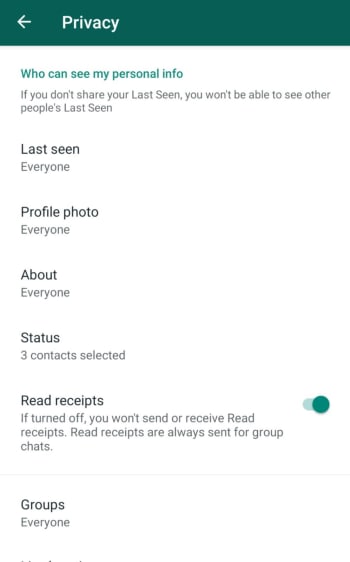
The WhatsApp FAQ page is quite clear. Unless you block a contact, there is no way to hide when you’re online or typing. You can, however, stop sharing your “last seen” status and read receipts that show when you’ve read a WhatsApp message. Doing this, however, will stop you from being able to see the corresponding statuses from your contacts.

WhatsApp Privacy Settings

To change these settings on both Android and iOS iPhones you need to open WhatsApp, then go to Settings, then Account, and finally land on the Privacy settings menu. You’ll then be able to toggle your privacy settings including when you were last online and who can see your profile picture etc.

3. If someone is given my old number, will they be able to download my messages and see my contacts?

No.

They won’t see contacts or be able to access old chats – that data is saved on your phone – but they can receive messages sent to your old number (without knowing who sent them).

WhatsApp gets its contacts from your phone book, so it’s unlikely that the person taking your old number will have the same contact. On the other hand, if the other person has WhatsApp installed, your friends will see that this person isn’t you.

To avoid any problems, WhatsApp recommends the following:

A) Post a status update with your new phone number.

B) Tell everyone you’ve changed your number using a broadcast message.

New WhatsApp Broadcast

C) Delete your account using the following methods:

Android phones: Settings > Account Info > Delete my account

Apple iPhone and iPad: Settings > Chat > Advanced > Delete my account

Deleting the account removes all chat history on your mobile, payment information, and participation in WhatsApp groups. It will make your account disappear.

4. Is WhatsApp free or paid for?

WhatsApp is free. The app used to have rolling free trial periods, but these long since been scrapped. Making money from WhatsApp is a problem that has dogged Facebook ever since it bought what is now the most popular messaging app on planet earth. Soon, however, we’ll see ads showing up on the WhatsApp Status page and there is also the new WhatsApp Business app, which charges businesses to use the platform to communicate with clients and customers.

WhatsApp Business Download Now ►
7

5. Is there a way to delete contacts forever?

Yes.

To delete contacts, simply remove them from your phone book. If you then want to stop that person messaging you at all, you’ll have to block them.

But remember, if they have you in their phone book, then they’ll still see you on their contact list.

6. Is there any way to tell if someone has read my messages?

Yes.

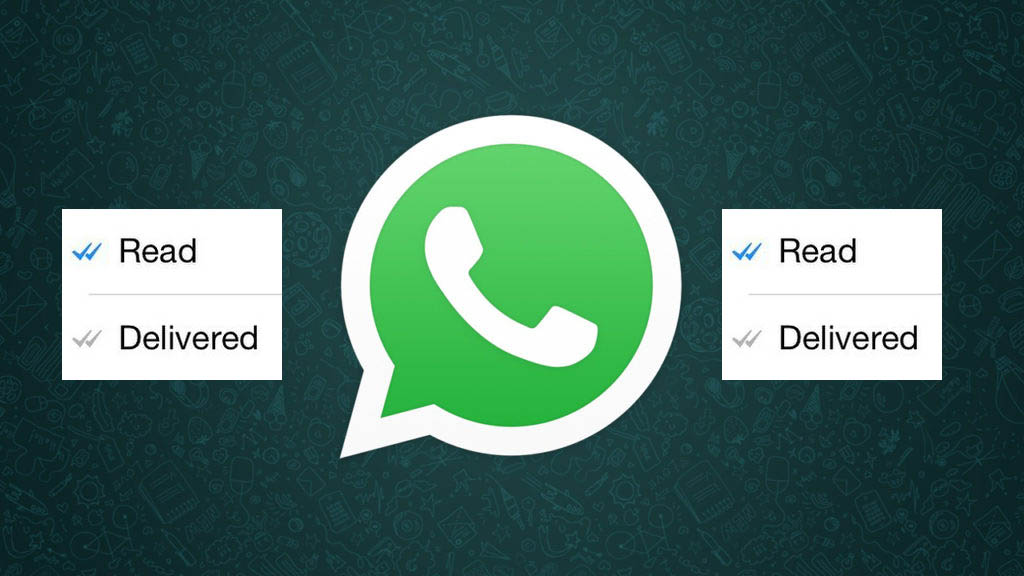
Theoretically, there is no way to know for sure if someone’s read your message, but the introduction of the double blue check mark indicates just that. Here’s a quick summary of what WhatsApp’s icons mean:

Clock: The message hasn’t left your phone yet, meaning there’s either a problem with data or Wi-Fi connection. You can delete the message before it’s sent.

Single grey check mark: The message has been delivered to the WhatsApp server. It’s left your phone but hasn’t yet been received by the other person.

Double grey check mark: The message has been delivered to the other person’s phone, but they haven’t necessarily read it yey.
Double blue check: A new icon that indicates that the message has been read (or at least opened in your conversation) by the recipient.

In addition, if you hold down on the message and tap Info, you’ll be able to see what time the message was delivered, and what time it was read. Remember though, that just because the message is ‘read’, doesn’t mean that the person has definitely read the message. Chances are they have, but they may also have left open your chat and gotten the message without actually reading it.

7. If I block a person, can they tell?

No.

A common symptom of blocking is that you can’t see the “last seen” or “online” status. As we’ve already seen though, this might be because they’ve deactivated those privacy settings.

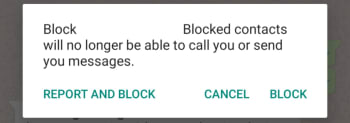
Whatsapp Block contact

Another result of blocking is that messages are left with only one tick and never get a second, although this could also be due to other causes, like the phone being turned off or lost.

If you know it’s neither of these reasons, the chances that you’ve been blocked are high, but it’s still not 100%. If you really want to know, you’re going to have to try calling them or sending them a message.

8. Is there any way to silence a group and still receive messages?

You don’t need to.

When you mute a group, you’ll keep receiving the messages, you just won’t receive notifications when you get them.

To silence a group, just tap the menu button (on Android) or info (on iPhone) and press Mute or Mute Group. It’s a useful feature to prevent your phone from vibrating incessantly.
9. When you invite someone to a group, will they be able to read previous messages?
No.

When you enter a group, you can only see messages from the point you entered the group. You don’t get access to the chat history or any media sent before you joined the group.

10. If I delete a message or photo on my phone, is it deleted from the other person’s phone too?

No.

If only it were that simple. As it turns out, a message, photo, or sound sent through WhatsApp will be delivered as soon as the first green tick appears. There is a window, however, from when you send your message that WhatsApp will allow you to delete the message from your own phone as well as from the phones of anybody who received it. You have exactly 1 hour 8 minutes and 16 seconds to delete the messages, images, and sounds you’ve sent. After that you won’t be able to and they’ll be the recipients’ phones forever.

What is WhatsApp Web and how to use it on your pc

This is your complete guide to WhatsApp Web

WhatsApp Messenger is a great tool. It connects over 1.5 billion of us with free messaging and calls. Smartphones have come a long way too, and it’s easier than ever to type out messages on your mobile phone. It is still, however, much easier to type on your computer.

This makes WhatsApp Web, the desktop version of the Facebook-owned messaging app you can use on your Windows PC or Mac, an essential tool. If you’re wondering how to use WhatsApp on computer, we have the ultimate guide for you below.

What is WhatsApp Web?

Instead of sitting on your phone and chatting to contacts and friends, you can also use the WhatsApp Web version. It opens the messenger application on your browser or the downloadable WhatsApp client. You can then use a keyboard to type, which is faster. You’ll also have access to similar features. All messages synchronize with your phone.

How to use Whatsapp Web on your computer?

Now that you have a better understanding of what the program is, let’s see how to use WhatsApp on a laptop or computer.

How to log into WhatsApp Web

To run WhatsApp on your computer screen all you need is a modern web browser like Safari, Google Chrome, or Firefox and an Android or iOS smartphone that already has an active WhatsApp account. You then need to type https://web.whatsapp.com into the address bar of your web browser and as long as your PC has an active internet connection, you’ll be taken to the WhatsApp Web page. There you will find a QR code waiting for you to scan.
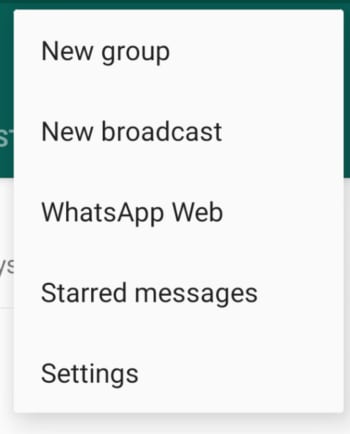
You then need to open WhatsApp on your Android or iPhone. If you don’t have the latest version of the app, you should update WhatsApp. Once you’ve opened the app, tap the horizontal ellipsis icon to open the WhatsApp Settings menu.

Then you need to tap the WhatsApp Web option and tap the + icon in the top-right corner. This will open a QR scanner on your phone, which you then use to scan the QR code on the WhatsApp Web homepage. Once you’ve done this the web version of WhatsApp will be ready to go.

What can you do on WhatsApp Web?

Once you’ve followed the instructions above, your WhatsApp account will be linked to your web browser. You should see a list of all your WhatsApp messages down the left of the page and then when you click on one of them, you’ll see the chats screen on the right.

WhatsApp Web window

Although this looks a lot like WhatsApp on your mobile, WhatsApp Web has limited functionality compared to the iOS and Android versions of WhatsApp. You can send and receive text messages, images and videos, voice messages, documents, and WhatsApp contacts just like you can on your mobile phone. You can do all this in the same way you do it on your smartphone. You can also connect your WhatsApp account across multiple web browsers on multiple PCs, set up or mute desktop notifications, send GIFs and emojis like you can on mobile, view status updates, clear and delete messages, forward messages, and edit your profile.
What you can’t do, however, is call your contacts using voice or video calls or receive calls from them. Other limitations include being unable to send multiple messages at once via WhatsApp Broadcast, being unable to share your location, to post your own status updates, or to use WhatsApp Web on two PCs at the same time.

How to install WhatsApp Web on your PC

As well as using the WhatsApp Web app through your web browser, you can also install the desktop version of WhatsApp onto your PC. This will offer you the exact same experience as you’ll find on WhatsApp Web, but it’ll open in a dedicated program. To download WhatsApp desktop app on your PC, hit the download button below and follow the instructions.

WhatsApp for PC Download Now
8

How to set up WhatsApp Web notifications

Setting up notifications on WhatsApp Web couldn’t be easier. When you first log into your account you’ll notice a blue banner at the top of your chats. Clicking this button will bring up a dialog box in your web browser asking you to allow WhatsApp Web to show you notifications through your browser. Click Allow and your browser will notify you every time you receive a message.

WhatsApp Web notifications

You can also hit the horizontal ellipsis icon just above this banner and click Settings to open up the WhatsApp Web settings menu and then click the Notifications option. Here you can control whether your notifications will make sounds and also whether you’ll see previews of the messages you’ve received in your notifications.

WhatsApp Web tricks and tips

So, as you can see, although WhatsApp Web is a little limited compared to the mobile app, it still has plenty to offer. Not least because it is much easier to participate in long conversations using an actual keyboard rather than your smartphone. Furthermore, WhatsApp Web also has some very useful keyboard shortcuts.

These include pressing Ctrl + N to start a new chat, Ctrl + Delete to delete a chat, and you can scroll through your different chats by pressing Ctrl + ] to go to the next chat and Ctrl + [ to go to the previous chat.

Another trick for anybody who has more than one WhatsApp account is to set up WhatsApp Web on two different browsers on the same PC. You could do this using any modern browser like Chrome, Firefox, Opera or Edge. This also works, if you log into WhatsApp Web using a privacy protecting mode like Incognito mode on Google Chrome. This, however, will log out every hour, meaning you’ll have to repeatedly log back in should you need to use WhatsApp Web for an extended period. If you’re using WhatsApp Web on a public PC, you should always use Incognito mode as it’ll protect you, if you forget to log out.

How to log out of WhatsApp Web

How to log out of WhatsApp Web on desktop

As we’ve already mentioned if you use WhatsApp Web in Incognito mode, it’ll automatically log you out after one hour. If you’re not using WhatsApp Web in Incognito mode, however, don’t worry it is easy enough to log out yourself.

To log out from WhatsApp Web from your PC all you need to do is open the menu using the horizontal ellipsis icon that is above your chats and click Log out. This will then take you back to the QR code homepage you saw the first time you landed on the WhatsApp Web homepage.

WhatsApp Web how to log out on mobile

You can also log out from WhatsApp Web desktop devices using the WhatsApp app on your phone. To do this open the app and then open the Settings menu and then hit WhatsApp Web.

You’ll then see a list of all the devices that currently have an active WhatsApp Web connection to your account. Clicking these will then give you the option to log out. At the bottom of the list, you’ll also see the Log out from all devices button, which does exactly what it says it will.

How to stop the two blue ticks showing when you read a message! Read now
8

Is it possible to use Whatsapp Web without a phone?

There are various ways you can use Whatsapp Web on your computer without a phone. One technique is to install an app like TextNow to give you a number even without a mobile device. It lets you deal with verifying your number, but you’ll still need to scan the QR code.

There’s also a new Whatsabb Web beta that permits multiple devices to be linked to your number. It lets you use your app on your PC without keeping your phone connected. You’ll be able to connect four devices to your account.

And without scanning QR codes and Bluestacks?

The benefit of using Bluestacks for WhatsApp is that you don’t need to scan a QR code, as it accepts the platform as a mobile emulator. However, you can still use WhatsApp web without it in the new Beta version, but you’ll need to scan the code at least once for the PC to be connected to your phone.

Other WhatsApp guides

If you enjoyed this WhatsApp guide, you may want to check out these others:

Top free online games

These are the best free online games you can play right now.

BEst online games for free

The internet. A modern technical marvel that has truly revolutionized the human experience. We’re now constantly connected to almost all human knowledge that has ever existed, we can talk to people on the other side of the world for free whenever we want, and we’re able to watch almost any movie or TV show and listen any song or album at any moment of any day. The internet is amazing and has gifted us some truly marvelous things.

No list of the internet’s greatest hits, however, would be complete without games. Not just any games, though. Free games. Yep, since the dawn of the internet we’ve been coming up with better and more beautiful ways to kill our time and free online games stand at the pinnacle of our achievements. So, without further ado, let’s have a look at the best free online games to play on the internet. We’ll start off with a couple of the biggest free games ever, but then we’ll move on to free online games you don’t even need to download. Free games you can play in your browser.

The best free online games

Fortnite: Battle Royale

Fortnite is the biggest multiplayer game in the world right now and could, quite possibly, be the biggest game ever. Each new game of Fortnite will see you battle against 99 other players in a cartoon-like wonderland. The Fortnite map is split into separate areas based on different climates and environments and you’re free to travel through all of them once you’ve parachuted in off a flying school bus. Fortnite: Battle Royale is a lot of fun to play. So much so, that an almost unbelievable 250 million people play it.

Fortnite: Battle Royale Download Fortnite: Battle Royale ►
10

Dota 2

Following Fortnite: Battle Royale with Dota 2 in a list of free online games illustrates perfectly that today, free doesn’t have to mean limited. Both games offer vast experiences that could warrant large price tags. Dota 2 is a MOBA game, which means the strategy game action takes place in a Multiplayer Online Battle Arena. This genre is incredibly popular and Dota 2 is one of the original MOBA big hitters. In Dota 2 teams square up against each other, set up their defenses, and then try to take each other out. The action is fast and addictive.

8

The best free online games you don’t need to download

Mahjongg Candy

Mahjongg Candy

Mahjongg Candy is an addictive game you can play online without having to download anything at all. You simply head over to the Mahjongg Candy site and hit the play button. The game sets up like traditional Mahjong, with the main difference being that that the Mahjongg symbols on each tile have been replaced with different pieces of candy. Match the tiles to clear the board. It really is that simple. Mahjongg Candy is also available on iOS iPhones and iPads, and Android smartphones and tablets.

Daily SuDoku

Daily Sudoku

Sudokus are the classic puzzle game where you have to fill nine square blocks, each split into nine separate tiles with the numbers one to nine. The Daily SuDoku website gives you a brand new sudoku puzzle to do for free every day. If you’re looking for a great puzzle game, this is it. There’s also Daily Solitaire and Daily Word Search.

8 ball pool

8 ball pool

8 ball pool is an excellent free multiplayer game. This fun game is simple enough. You head over to the site, hit play, and the game will match you up with another player somewhere around the world. You can either play as a guest or create a game ID to use every time you play. This simple pool simulator doesn’t have complex actions like putting a spin on the cue ball, but it is lots of fun.

Bubble shooter

Bubble Shooter

Bubble shooter is an absolute classic shooter game. You sit at the bottom of the screen with your bubble cannon and above you sits an army of bubbles slowly coming to get you. You need to fire your bubble in the hopes of matching up with other bubbles of the same color. If you match up more than three bubbles of the same color, they’ll pop. It’s as simple as that, pop all the bubbles before they get to the bottom of the screen.

MOTO X3M

Moto X3M

Now, this is a fast action game. Using the arrow keys on your keyboard you fly through the 2D course on a motocross bike. You’ll need to jump and flip your way through all the life-threatening obstacles you come up against. This game is fun and frustrating in equal measure. You’ll love this racing game.

Outspell

Outspell

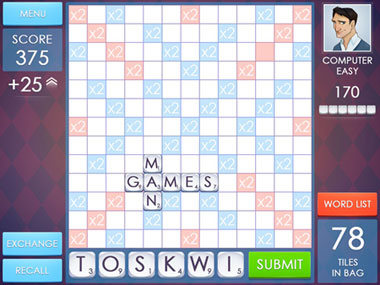
If Daily SuDoku is your number puzzle game then Outspell is your word game. The game is a copy of the classic board game Scrabble. You get six tiles, each with a letter and with a corresponding number of points you’ll score if you can use that letter to spell a word using the tiles already placed on the board. You play against the computer.

Jigsaws

Jigsaws

Another classic board game style puzzle you can play online for free is a good old jigsaw. You can find plenty of free jigsaw puzzles online. You can even set the difficulty by selecting the image of the puzzle and how many pieces it will have.

Blackjack

Blackjack

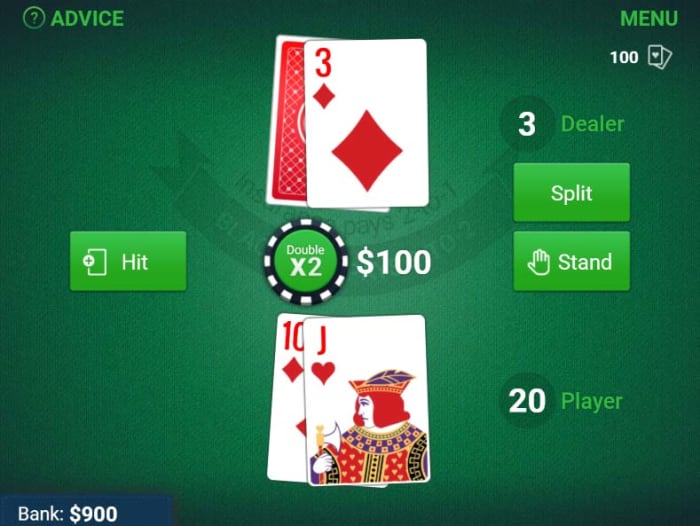
There are many classic card games you can play for free online. Perhaps the most popular of all is Blackjack. We’re not talking about gambling here, just some honest, fun, and free card play. What’s great about this free online version of Blackjack is that it’ll give you tactical and strategic tips as you’re playing, to help you develop your game.

Wrapping up

So, there you have ten free online games. We’ve tried to look deeper than the likes of Klondike Solitaire and Freecell to bring you a broad mix of games for you to play. Remember too, that the first two games we mentioned are completely free-to-play. The only thing that sets them apart from the rest of the list is that you need to download them first.

Top 20 best free games for Windows or mobile

Check out 20 free games packed with fun!

Free games for Windows 10

Microsoft has worked hard on making Windows 10 an excellent operating system for gamers. So much so, that the Microsoft Store is now full of amazing free games that will play just as well on your PC as they will on your Xbox One. Gone are the days of only having Solitaire or Minesweeper to play on your Windows PC. Now, PC games can bring intense gameplay action, massive FPS multiplayer battles, and many different game modes for you to sink your teeth into. Don’t worry about Steam, this list is the 20 best games you can find on the Windows Store.

The 20 best free games on Windows 10

Roblox

ROBLOX

It would be a massive understatement to call Roblox a big game. This is because Roblox is about building. You build your character, then you build your world, and then finally, if you’re up to it, you build your own game. You can make as many games as you like, and you can also play as many other people’s games as you like. There is a lot of gameplay action here.

Minecraft: Story Mode

Minecraft Story Mode header

Minecraft: Story Mode takes the blocky aesthetic made famous by the open-ended player led Minecraft and adds a story. The game plays a bit like a “choose your own adventure” book with the main characters having lots of adventures and you deciding how they’ll act in certain situations. The game is funny and definitely worth a try. Kids will love it too. It’s also available on iOS and Android.

Minecraft: Story Mode Download now
8

Jetpack Joyride

Jetpack Joyride

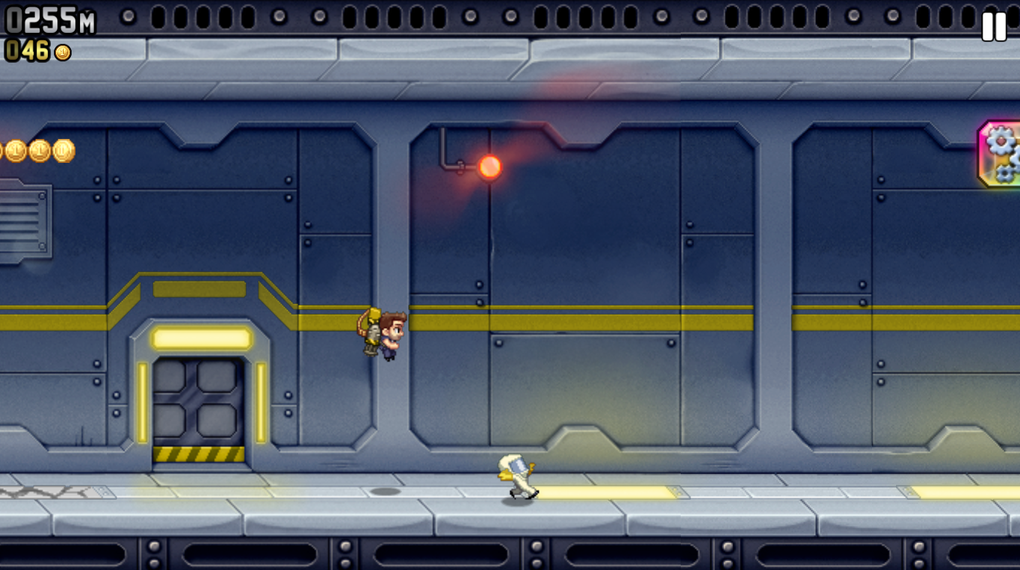
In Jetpack Joyride, you use your jetpack to fly nonstop through a never-ending landscape. It plays a lot like other endless runner games, with the only difference being the obstacles and gold coins you find along the way. Great graphics and a catchy soundtrack make for a light-hearted game that’s not too difficult.

Jetpack Joyride Download now
8

Judge Dredd vs. Zombies

Judge Dredd vs. Zombies for Windows 10

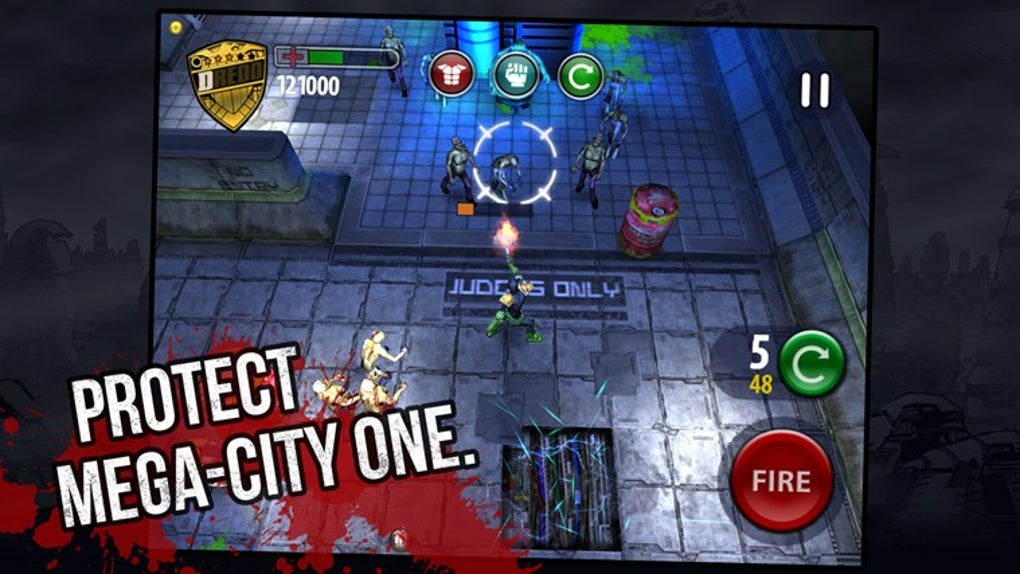
In Judge Dredd vs. Zombies, you must defend Mega-City One from a zombie attack. Using different weapons, you will clean out zombies from different areas as you move through the various levels of the game.

Judge Dredd vs. Zombies Download now
7


Roman Empire

Roman Empire for Windows 10

A bit like in Age of Empires, in Roman Empire, you take on the role of power-hungry Caesar. Your goal? To conquer Europe. You’ll have to vanquish neighboring villages, create alliances, and make spur of the moment decisions. Time to rule the world.

Roman Empire Download now
7

Microsoft Treasure Hunt

Microsoft Treasure Hunt

Microsoft Treasure Hunt is a new take on a classic puzzle game. It builds new elements on to the Minesweeper game as you search through underground tombs in search of long-lost treasure. A great game for anybody who loves to think.

Microsoft Treasure Hunt Download now
8

Monkey Flight

Monkey Flight for Windows 10

Fans of Angry Birds will enjoy Monkey Flight. The aim of the game is to throw your monkeys at flying fruit that passes you by, taking advantage of all the special items you can find to help your mission.

Monkey Flight Download now
7

My Country

My Country for Windows 10

In this copy of SimCity, your mission is to build a bustling metropolis. You’ll have to build and place various buildings, roads, and other utilities to create all the necessary infrastructure. If the people are happy, revenues will increase and your building plans will be safe, but if you don’t organize yourself well enough, you’ll find that you’ll soon lose control of your city planning.

My Country Download now
7

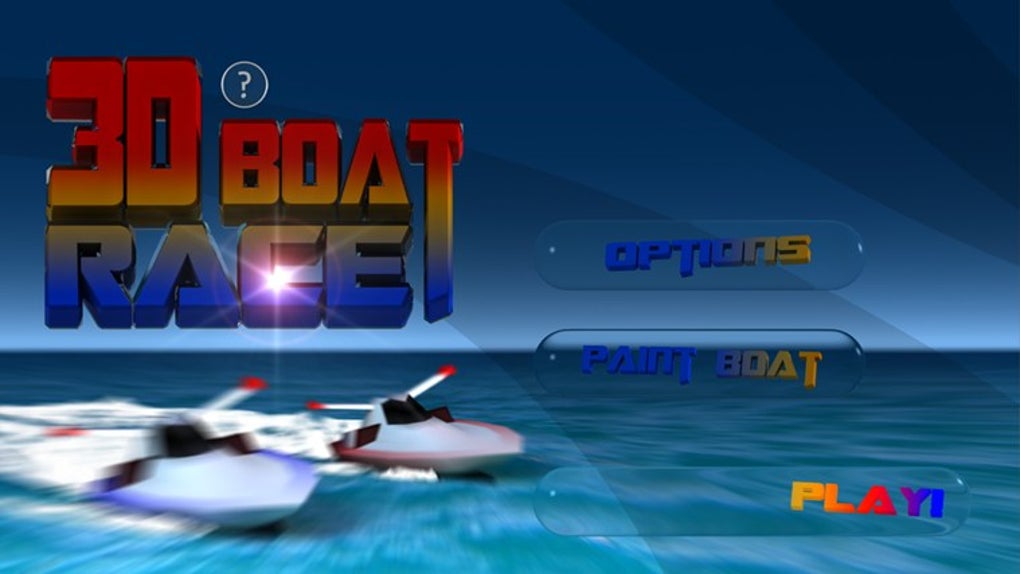
3D Boat Race

3D Boat Race for Windows 10

3D Boat Race lets you take part in adrenaline-fuelled, high-octane boat races through some fantastic aquatic locations. Make sure you stay in the arches as you fly around the course though, you don’t want to be disqualified.

3D Boat Race Download now
9

Asphalt 8: Airborne

Asphalt 8: Airborne for Windows 10

For more rip-roaring racing action, you can’t go wrong with Asphalt 8: Airborne. Start your engines and hit the streets for this high-energy multiplayer beast. Free games shouldn’t be this good.

Asphalt 8: Airborne Download now
8

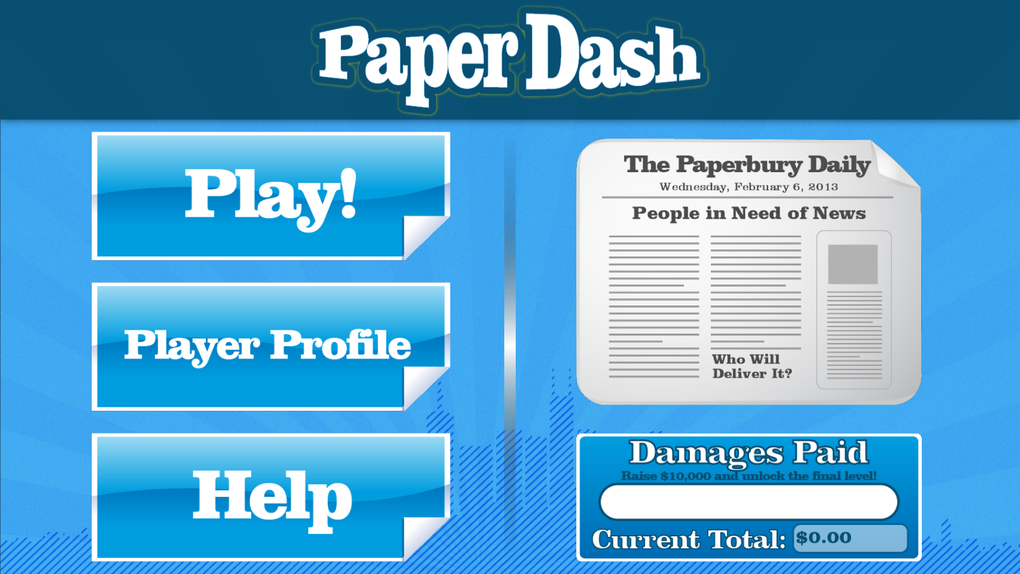
Paper Dash

Paper Dash

This game is a remake of the classic, Paperboy. The main character is a paperboy and you need to steer him around the obstacles that he’ll find on his paper route. Simple, but fun.

Paper Dash Download now
6

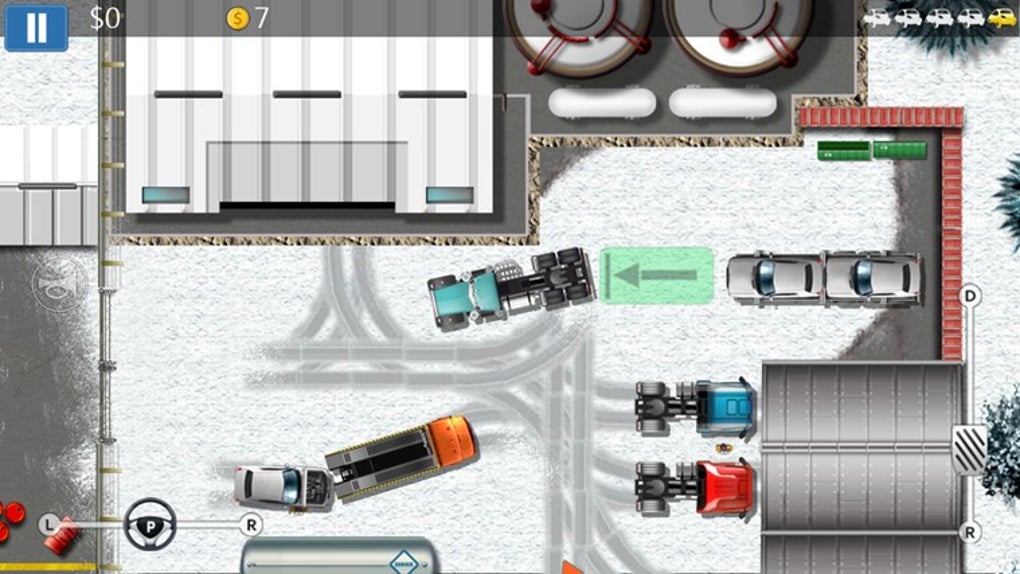
Parking Mania

Parking Mania

The noble art of parking is recreated in Parking Mania. The aim is to park your car in a particular space. Just as in real life, however, this isn’t always easy – there’s little room to maneuver and the best spots are already occupied by other cars. Unlike with real parking, however, you’ll also need to keep an eye out for coins and other bonuses.

Parking Mania Download now
8

Radiant Defense

Radiant Defense for Windows 10

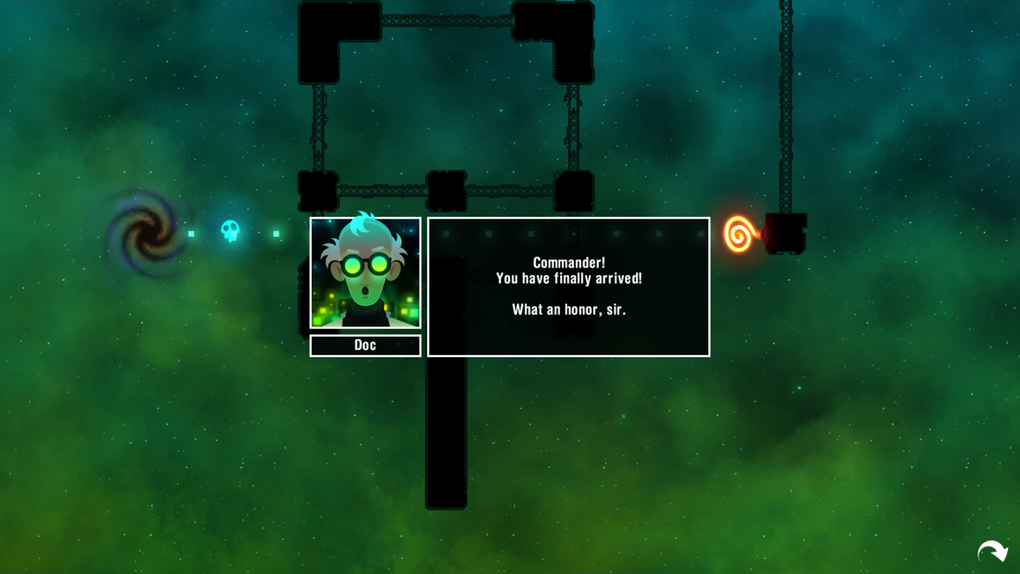
This is a colorful tower defense game. In your role as commander of a space station, you must defend the station against external attacks. Slow down and ultimately defeat your opponents by positioning defensive towers and walls.

Radiant Defense Download now
8

3D Marble Tracks

3D Marble Tracks for Windows 10

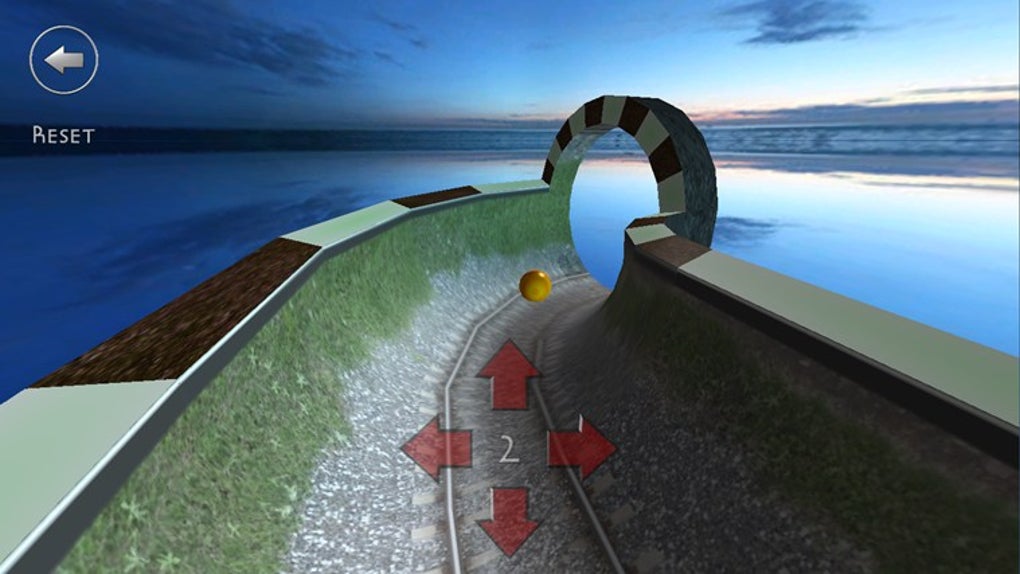
3D Marble Tracks is an interesting mix of mini-golf, bobsled racing, and billiards. You’re going to need a lot of patience and a steady hand to get to the end!

3D Marble Tracks Download now
9

SoulCraft

SoulCraft

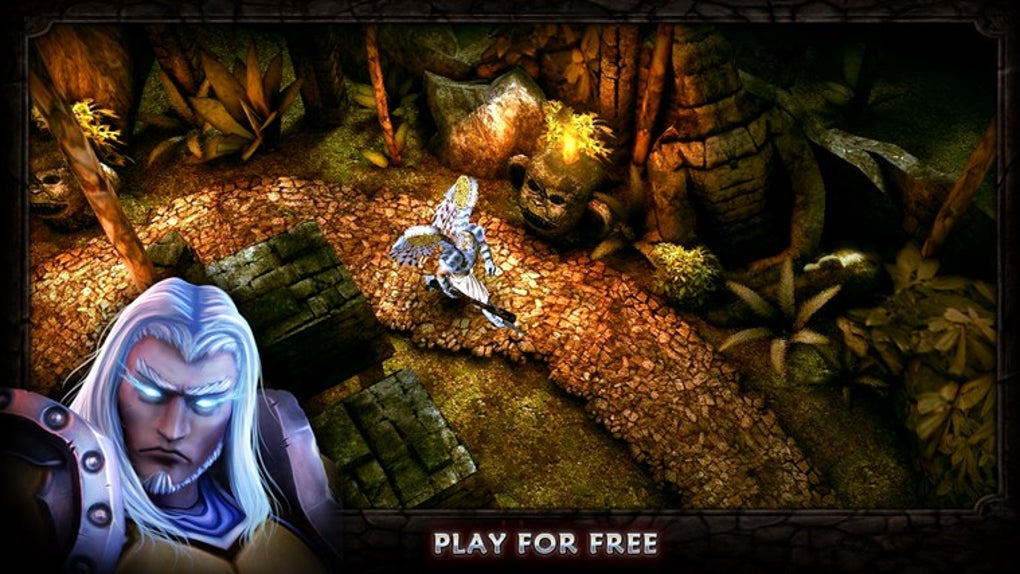
This time we have an action-packed role-playing game full of sinister characters. In Soulcraft, you fight your way through a colorful fantasy world as an angel, demon, or human being. You need to build up your character by gaining experience in combat, weapons, and objects.

SoulCraft Download now
8

Trick Shot Bowling

Trick Shot Bowling on Windows 8

Trick Shot Bowling is a classic bowling game where you can choose to play against the computer or real opponents. You’ll need to decide for yourself where to aim and how hard to bowl the ball depending on the pins that are left standing in front of you.

Trick Shot Bowling Download now
7

Agent P Strikes Back

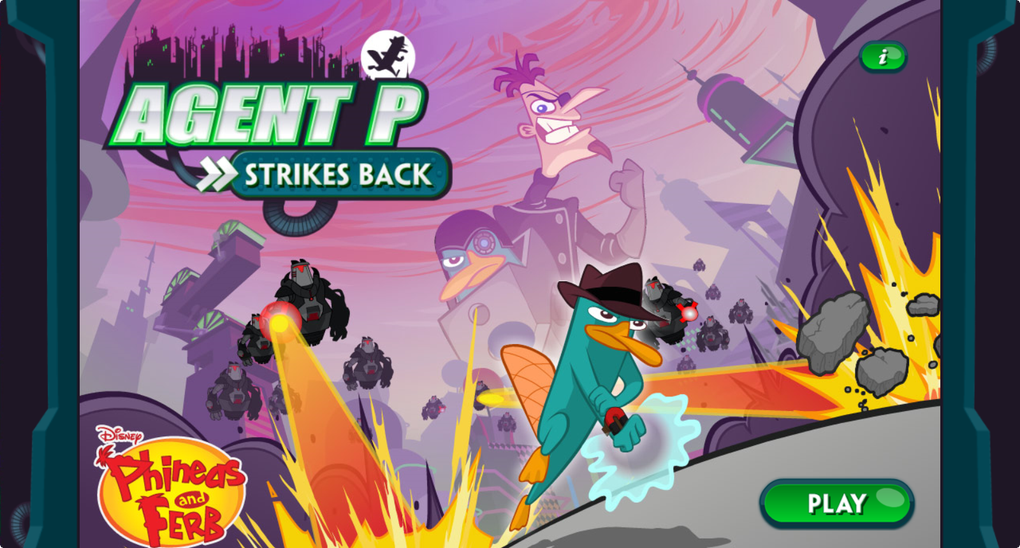
This fun adventure stars Perry the Platypus, a character from the animated series Phineas and Ferb. The game is a basic platformer that sees you jump between platforms and defend yourself against a series of animals that Dr. Heinz Doofenshmirtz has released to wreak havoc.

Agent P Strikes Back Download now
9

Drift Mania Championship 2

Drift Mania Championship 2 for Windows 10

Drift Mania Championship 2 is a fun racing game with good graphics and a catchy soundtrack. This isn’t just about being the best driver or winning the race, it is about looking good as you take the corners.

Drift Mania Championship 2 Download now
7

Guns 4 Hire

Guns 4 Hire for Windows 10

In this fast-paced action shooting game, characters are armed to the teeth. The control system is similar to that of Command & Conquer.

Guns 4 Hire Download now
7

Sniper Fury

Sniper Fury

Sniper Fury is an excellent First-Person Shooter for Windows 10. As the name suggests, however, the action concentrates on sniping enemies from far away. With amazing graphics, this is one you should definitely give a go.

Sniper Fury Download now
7

Top free games for kids

These are best free games your kids will love to play

Best free games for kids

Video games for kids. It sounds like the kind of irresponsible nonsense that would have conservatives screaming in panic. Kids games! The truth, however, is that there is plenty of research out there that shows video games, when played in moderation, can be a healthy hobby for children to have. Think about it, puzzle games, adventure games, educational games, and learning games can all help kids think creatively as they solve problems that are presented in abstract ways.

So, with that being the case, let’s look at some the best free games out there that you can introduce to your kids. Not only will these games keep your kids occupied and maybe get you a bit of peace in times of need, they’ll also stimulate your kids’ imaginations and boost their creativity. These are the best free games for kids online.

Free games for kids to play

Roblox

roblox

Roblox is great for kids aged 10 and up who want to play games. Letting your kids play Roblox is like giving them a virtual Lego set. Once they start playing their imaginations will be the only things holding them back. Like a virtual game of dress up, Roblox allows kids to  build their own characters. It goes further though, giving them the chance to build their own worlds, and even their own video games. On top of that they’ll also be able to play any of the thousands upon thousands of fan made games that are already available online.

Roblox also gives parents the ability to manage their children’s accounts to keep them safe. Roblox is available across all major platforms too with a version available on Windows, Apple Mac, Xbox One, PS4, iOS, and Android.

Disney Crossy Road

Disney Crossy Road

If you’ve ever played classic video games, you might have heard of Frogger, which is one of the all time most fun games to play. Disney Crossy Road is a new game that plays exactly like Frogger. The game offers over 100 Disney characters for you to take control of and guide across busy train tracks, highways, and rivers. Crossy Road is available to download for both Android smartphones and tablets, and iOS iPhones and iPads.

Disney Crossy Road Download now
8

Quick Draw

Quick Draw

An excellent free online game for your kids to play is Quick draw by Google. Quick Draw is perfect for any aspiring little artists but is also lots of fun for kids who don’t see themselves as being creative. Basically, players have 20 seconds to draw a defined item so that Google’s AI neural net can recognize it. These items could be simple like a “pool” or more complicated concepts like “animal migration”. The fact that that the game shouts out its guesses gives the action a more frantic feel and is definitely worth a try. Don’t be surprised, if you get dragged into this one too.

Fruit Ninja

What kid doesn’t want to be a pirate, a cop or a robber, or what about a Ninja? Yep, kids love playing make believe and often they want to play at being some magical and often violent character. Fruit Ninja offers the perfect way to deal with this difficult crossroads. The game introduces samurai swordplay elements but in a way that sees your kids making a fruit salad rather than vanquishing enemies. Fruit Ninja is a colorful game that looks great and is available for both iOS and Android devices. As a parent, however, you should be aware that the game does include in-app purchases for non-essential items.

Fruit Ninja Download Now
8

Spaceteam

Spaceteam

This game is lots of fun for kids to play, but it might not be the best option, if you’re looking for a bit of peace and quiet. Spaceteam is a multiplayer game that requires each child has their own device. Once the game is downloaded on all devices, however, and then linked to each other the action can begin. The premise is that your team of intrepid space travelers is trying to outrun an exploding star. The instructions on how to fly their ship will show up on one screen but the controls might be on another. This means the game is all about teamwork and it’ll probably get loud. Check it out on iOS and Android now.

Spaceteam Download now
8

Pokémon Camp

Pokemon Camp

If you’re looking for the best free Pokémon games, you’ll find our list here. Our next game, however, although not on that list is bit of a crossover. Pokémon Camp is an excellent Pokémon game that has been built specifically for your little ones. For those too young to head out on a full Pokémon adventure, Camp offers the perfect place to get started.

Young Pokémon trainers can go to the Pokémon  Camp where they’ll be able to learn from camp counselors how to do the Pokémon basics such as throwing Poke Balls and finding Pokémon. There’s plenty here too, with Pokémon from the original Red and Blue generation available in the game as well as Pokémon from the more recent Sun and Moon games.

Pokémon Camp Download now
7

All Aboard: Trackin through Canada

All Aborad

All Aboard is a simple enough web browser game. All your kids have to do is build a track on the grid using the different track pieces that the game offers them. The pieces come at you in a similar way to pieces on Tetris, meaning you have no control over what piece comes next, but you can see what the following series of track pieces you’ll have to play with will be. It sounds simple but is challenging enough and will prove quite the puzzle for kids of all ages.

As well as All Aboard, you’ll also find hundreds of other kid’s games on the CBC Canada website. It is a real treasure trove for your kids.

Wrapping up

So, there you have seven excellent free games that your kids can play in any situation. We’ve tried to cover all bases here. You have apps that you can download onto your smartphones and tablets; both Android and iPhone. We’ve also included web browser games and PC games that your kids can play at any time. Most of all though, we’ve tried to include games that will stimulate your little ones. These games are not just about fun, although that’s very important here too, they’re also about pushing your kids to be creative and learn how to solve problems and express themselves. We hope they enjoy playing them.