FastestVPN: A lifetime of top-notch VPN access for $20

Get your hands on a lifetime deal with your online security and privacy. FastestVPN now for 20$ forever.

When it comes to the world of virtual private networks (VPNs), one thing has been true up till now. Cheap or free VPNs provided only basic services, while more robust VPNs cost a whole lot of money. FastestVPN is disrupting this model by offering a full-featured VPN package that you can now get for a limited time at the truly mind-blowing price of $20 for a lifetime of use.

Here’s what you need to know.

What is a VPN?

VPNs are servers located in different locations around the world. When you use a VPN, you first connect to one of these remote servers before accessing the internet. You might be, for example, physically located in Germany, but you can “tunnel” into a server in Japan and do all of your surfing from there. All transmissions from that server are generally encrypted, so you get to explore the internet completely anonymously.

Easy-to-use interface

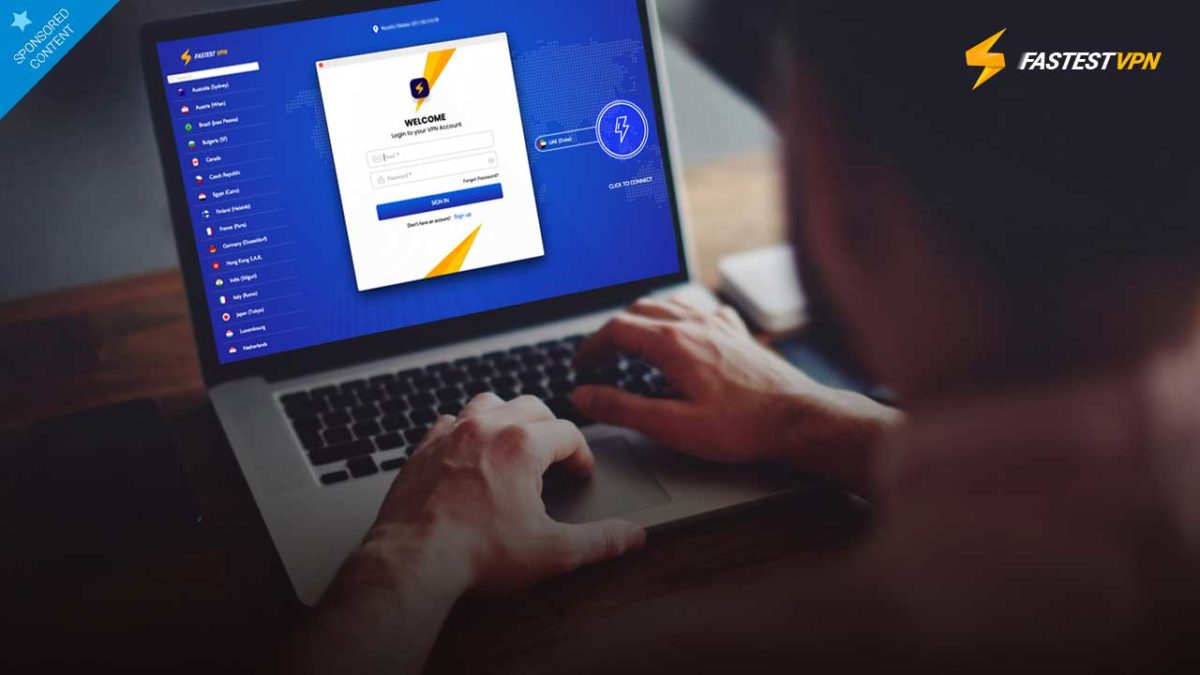
Most users want their VPN provider to work quickly, easily and as unobtrusively as possible. FastestVPN delivers on all fronts. The service is super simple to set up. After you create your login credentials and download the app, you simply click on the country of your choice then hit the “click to connect” button and you’re good to go within seconds. Alternatively, you can click on the “Smart Connect” button and the service will tunnel you into the best location for speedy surfing.

What’s more, FasterVPN has just completed a complete revamp of their apps from the ground up – making the interfaces clean and responsive, and baking in a host of new features.

FastestVPN

Speed and worldwide connections

FasterVPN offers servers in over 31 countries, router-level protection, and device compatibility across Mac, iOS, Windows, Android, Android Box, Smart TV, Firestick, making its capabilities truly unbeatable.

Plus as its name implies, FastestVPN offers speeds that compete at the very top of the VPN spectrum, letting you surf with virtually no lag, no matter where you connect.

FastestVPN also allows full access to streaming services like Netflix, Amazon Prime, Disney+ and Hulu – something that many providers can’t offer – along with the option to connect 10 different devices at one time, a benefit that’s often unseen even in offerings from giant VPN companies. This basically means you can surf, stream, torrent, and use your apps wherever you are, whenever you want with no noticeable disruptions or data caps.

FastestVPN

Security

When you’re accessing the internet from someone else’s server, you want to make sure that it encrypts all your data both when connecting to it, and when accessing the web. FastestVPN gets the job done with 256-Bit AES encryption, just about the highest level of encryption offered anywhere, so your data stays secure at all times.

Plus, FastestVPN doesn’t keep a log of your activity, so even if they were asked to provide user data to an investigative entity like a government, there’s no way for them to link you to your browsing activity.

Typically, when you think of affordable VPN companies, you think of sacrifices. But there simply aren’t any with FastestVPN.

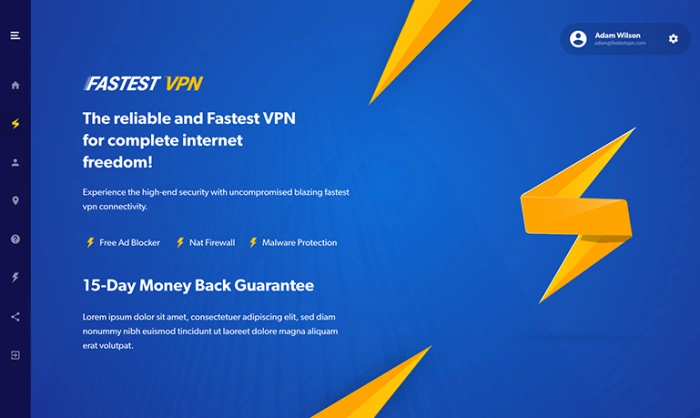
You get malware blocking, ad blocking, firewall protection, servers that are optimized for P2P sharing and streaming, and unlimited bandwidth and server switching. Plus, the software comes with a built-in kill switch so that your internet activity is halted if the VPN server goes down – something that’s pretty unlikely because the company reports an uptime of 99.9 percent.

Get the deal

And yes, all of this really does come for a one-time payment of $20 thanks to this special limited-time offer. A deal this good really doesn’t come along very often. We’re super impressed!

Browse privately with Brave

If you think it’s time to browse the Internet in privacy, it’s time to step up and be Brave. Download and install the Brave browser now.

It’s 2019 and ads are everywhere. Whether you’re watching YouTube or just doing a quick Google search everybody’s trying to watch you work. Incognito mode doesn’t help either. If you think it’s time to browse the Internet in privacy, it’s time to step up and be Brave.

Browse the web up to 3x faster FREE DOWNLOAD ►
9
Surf the net free of unwanted ads

Brave blocks all ads

The Brave browser automatically blocks all trackers, pop-ups, cookies, and banners. This not only frees you from irksome advertisements and interruptions, but also saves you time and money. “It’s hard to believe,” says Brave’s co-founder Brendan Eich, “but we’re paying to be bothered by ads.” You’re paying for bandwidth, technically spending money to load not only the content you view, but all the ads that come with it – ads that you never asked to see in the first place.

Brave’s shield requires no set-up and begins working as soon as you open the browser. They’ve recently improved the ad blocker algorithm to keep your browsing even more private. Check out the details here.

Brave rewards content creators

Brave utilizes an advertising platform built on privacy. As long as you’re on Brave you’ll never have to deal with ads again. Choose to turn them back on, though, and you’ll actually be rewarded for viewing them. “The [Basic Attention] Token is derived from, and therefore denominates, user attention,” explains Eich.

Brave Basic Attention Token

As you view pages and tabs, Brave will accurately and privately monitor where you spend your time. It then compiles the time (and attention) you gave these ads, and rewards you with digital tokens, or BATs. “That’s really just focused mental engagement – on an advertisement, on great content, on whatever the user is looking at.” The result is far fewer instances of fraudulent marketing and malvertising.

Adjust the shield

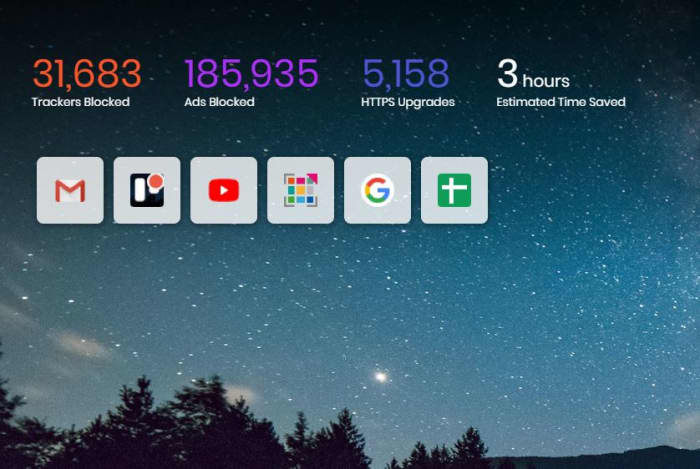
Brave automatically blocks all advertisements and trackers, and even tells you how many it’s succeeded in thwarting every time you open a new tab. Brave even bumps HTTP to HTTPS whenever possible to offer you the highest security possible when you’re online. If you want to personally customize your experience it’s a simple as opening up the Settings menu in-browser. Scroll down to the Shields settings to adjust the level of ads and cookies that make it through. You can even choose to allow or block all fingerprinting.

Brave new tab tracker ad blocked
Brave can save you hours of load times

Right below these options, you can also toggle shields pertaining to social media – Google login buttons, embedded Tweets, and posts from LinkedIn or Facebook. If you’re unsure whether Brave is the right browser for you, we recommend installing it and seeing for yourself. Brave has had over 28 million downloads on Android alone, with over 2 million downloaded every month. The download is 100% free and it’s available for download right here. Give it a try and let us know what you think!

Browse the web up to 3x faster FREE DOWNLOAD ►
9
Surf the net free of unwanted ads

Softonic is proud to partner with Brave. When you download from us, we may earn a commission.

What Google Fiber is and how to get it

Looking to upgrade your internet access? Google Fiber might be the answer!

Google Fiber

If you don’t know what Google Fiber is, the name may sound like a line of new granola bars. Heads up: it isn’t.

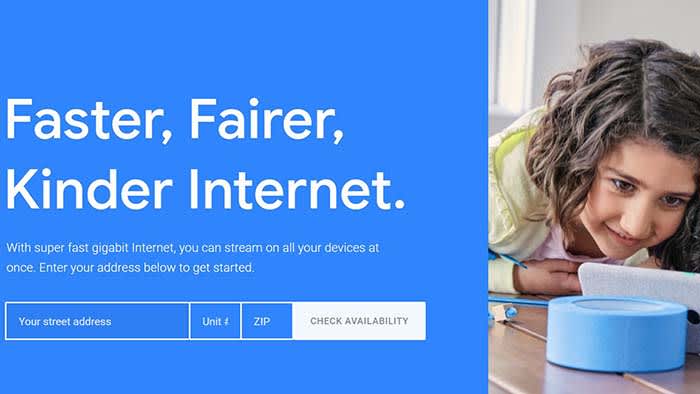
Google Fiber brings relatively blistering fast Wi-Fi speeds via a cable connection to your home. If you’ve ever plugged your gaming device into a router to reduce lag while playing Fortnite, you’ve had a small taste of the benefits possible with a physical internet connection. Now, imagine the router itself directly tied to Google’s powerful network!

This program is fast, and the cost may not be for everyone. It’s only available in certain areas, called fiberhoods, but is gradually expanding.

Google Fiber Download now ►
7

What Google Fiber is and how to get it

How fast is it, really?

Internet speed

Well, as you might imagine, it’s really fast. Allow us to throw some numbers at you:

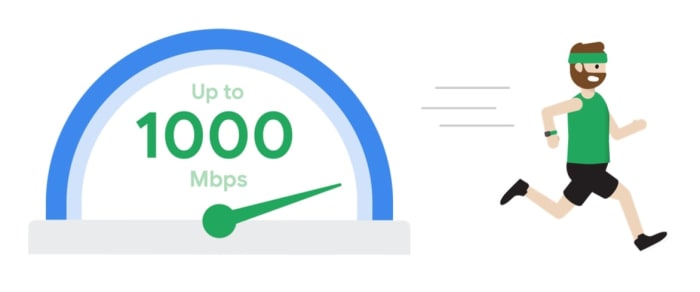
It goes at 1,000 megabits per second. Eight “bits” means one “byte,” so that’s 75 megabytes per second. Dang! One gigabyte equals 1,000 megabytes, right? Right. So, if your device can handle it, the download speed has the potential to reach 7.5 gigabytes per minute!

Now, mind you, this all comes on a physical landline, so you can also expect to avoid a lot of the normal issues attributed to Wi-Fi, like lag spikes and connection loss. The high speeds seen above will be more far more consistent than other options!

How does Google Fiber work?

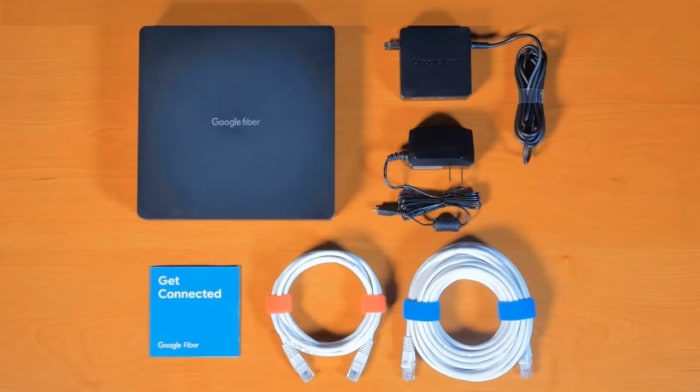
First, a Google Fiber technician will connect your house with a cable to ensure you’re properly linked into their system. This wire will be in a box known as a “fiber jack,” which is likely placed near your TV or living room.

From there, plug the internet box (router) into the fiber jack, and connect them both to power. From here, you can use a physical Wi-Fi cable to a device or simply connect to the wireless internet. Easy as that!

However, the availability of these services is dependent on your location. At this time, Google Fiber only extends to a few key cities where they’ve begun rolling out its web of connections.

Where is Google Fiber found?

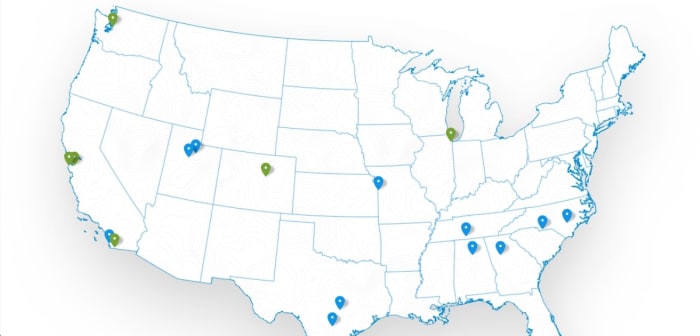
MapWith a physical connection, the initial speed of installation will be much slower than setting up a satellite dish (ah, there’s always a catch). This means there are only a few areas at this time where Google fiber can be found. In fact… there are only a few states.

If you want to know whether your area has been added to the “Fiber Cities,” visit their web listing to check.

Also, a heads-up: the blue dots on the map are full-access Fiber Cities, the green markers are locations that only serve apartments and condos. Google aims to benefit communities first, and are more likely to install a Fiber hub for a densely-packed group of people (it makes sense economically as well).

Who is it this for?

GoogleFiberKit

Recap: Google Fiber targets large areas, runs extremely fast, and takes more investment than other sources. With that being said, who should be looking to connect?

We highly recommend this service to anyone who could benefit from the speeds such as streamers who want to make sure they can deliver top-quality video to their fans.

Of course, we can still recommend the Fiber program to anyone in a Fiber area that can afford it. Google has competitive pricing, so you won’t be breaking the bank, and we’re confident their service will be excellent.

What does Google Fiber cost?

Prices

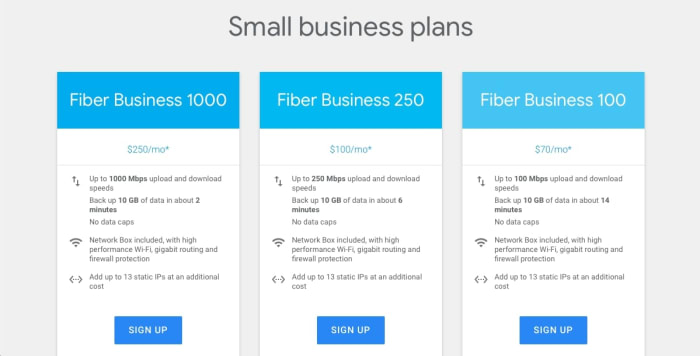
For any given plan type (Fiber, Fiber with TV, Business), there are three options: 100, 250, and 1000. It’s simple, really: the number represents how many megabits per second you can expect.

Unfortunately, Google requires you to enter your address for more information on pricing.

Luckily, for the curious readers, a page on howmuchisit.org has some answers. Normal Fiber costs $50-$95 dollars per month. With TV, you’ll see about $140-$160. Even better? You can change the prices any time, without being locked into a contract.

For comparison, you can check out other good providers like Verizon, Dish, and AT&T. For a few laughs, you can look into Cox, which offers faulty internet at $60 a month with a one-year binding contract.

Conclusion

Google Fiber is a new, powerful internet option from a well-respected company. We hope it sparks your interest in finding fiber optic Wi-Fi or at least gives you a better sense of how setting up a new provider works. If you’re looking to increase your internet speed, consider giving it a try!

How to fix slow internet

Tired of your computer taking an hour to download a small file? These tips can help!

Snail

You would think by 2019, all of us would have faster internet speeds by now. Sadly, not all of us do and it’s sometimes hard to know why.

We can stream HD movies and TV shows fine one day, and then feel our computer work overtime just to watch a two-minute YouTube video the next day.

Why is this? How do we fix it?

Luckily, we found some answers that can help you make your internet run smoothly.

Download an internet speed checker and call your provider

Call your provider

The first thing you should do is to check your internet’s current speed. You can do so by downloading your basic run-of-the-mill speed checker or just clicking here.

Speed Checker Download now ►
10

Once downloaded, compare the numbers to what you were promised from your service provider. This might be as simple as calling AT&T or Comcast and yelling at them over the phone for a few minutes.

Keep in mind that most people RARELY get the max speed promised by their service provider. More often than naught, you’ll operate a few Mbps less than what they promise.

Check other devices

Check other devices

If your laptop is running on the slower side, it might not be your network; it might be your device.

Check your internet speeds on another device like a smartphone or tablet. If the problem is your device rather than your network, this can save you a nasty phone call. If it is your device, we know just what to do to fix it…

Run virus scans  and restart often

Virus scans

There’s always a good chance that your computer sucked in a virus that is doing all sorts of damage. To avoid these issues, regular scans with an antivirus program can clear that mess right up.

Malwarebytes Download now ►
8

If you run a scan every now and then, your computer will kill whatever viruses are making your computer run slower. Once you’re done, make sure you restart your computer. 

A good sign of whether or not you have a virus is if your computer is running hotter than usual. Yes, computers get fevers when they’re sick just like us. Hot temperatures typically mean that your computer is running tasks in the background, so it is working twice as hard as it normally does. If your computer is running hot, make sure you run a virus scan and restart your computer to avoid damage.

Turn off plugins and apps

Bandwidth

Just like we are all guilty of leaving lights on after we leave, we are also guilty of not closing apps once we are done with them. A Word document in the background probably isn’t going to slow down your internet tremendously, but apps like BitTorrent siphon your bandwidth even if you’re not downloading anything.

Close out of everything you are not using to help optimize your speed. You can see everything you have open on Windows devices by hitting Ctrl+Alt+Delete and then opening the task manager, or by hitting “Force Quit” on Mac.

Check/boost your Wi-Fi signal

Wifi

Most of us have a good idea of where we get the best Wi-Fi signal in our homes. Sometimes you get a great signal in the kitchen but are out of luck in the bedroom. Typically, the closer you are to your router the better, so you need to reposition in order to get your device to run faster.

However, there is a way to boost your signal so you can run at the same speed no matter where you are in the house! Buy a signal booster! They only cost about $25, and they will go a long way. Setup is easy, and it can boost your signal by up to 600 feet!

 Wrapping up

You deserve to use the internet at the speed you purchased. These tips can help out, but if the underlying issue seems to come from your provider, it might be in your best interest to switch providers.

How the newest Firefox keeps you safe

Firefox is more than just a browser. Here’s what it does to keep you safe!

If you’re looking for a browser to keep you safe, the latest version of Mozilla Firefox is here to watch your back. From password management to security alerts and beyond, Firefox makes safety and privacy their top priorities.

Firefox Monitor alerts you to data breaches

Firefox Monitor

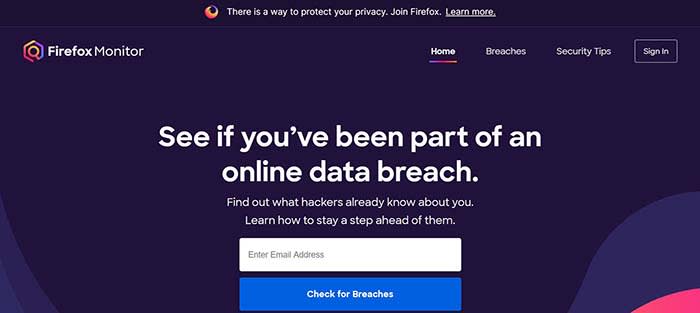
It seems like there’s a new data breach every other day. Have you ever been concerned that you were involved in one, and that your data has been compromised? Firefox Monitor can help you find out!

Simply enter your email address, and Firefox Monitor will tell you if that email address was ever involved in a data breach. Also, when you join Firefox, you can save all of your email addresses in their system, and receive a notification if one is ever involved.

Firefox Lockwise safely saves and syncs your passwords across devices

Many of us have a system for keeping track of our passwords that’s probably less than ideal. Maybe we have a sticky note in the corner of our monitor with a list of them. Maybe we threw them into the notepad on our phone or computer. It could be we just think we have a good enough memory to remember them all. Either way, none of these methods are optimal.

That’s where Firefox Lockwise comes in handy. It keeps all of your passwords safely behind a firewall and autofills them in the login page when you give the okay. The best part? Lockwise can carry those passwords across devices so you’re never locked out or trying to find that Post-It note with the password you created for that site you haven’t visited in three years.

Send big files with Firefox Send

Firefox send

It’s happened to all of us: we have a large file we need to send, but we don’t have a flash drive nearby, and it’s too big to send via email. That’s where Firefox Send comes in handy. Firefox Send allows you to send a file up to 2.5 gigabytes in size just by joining Firefox.

Sync to your Android or iPhone

Maybe you have 12 tabs open on your desktop, but when you jump on your mobile device, you have to remember what those tabs were. Firefox solves that problem by syncing your sessions between desktop and mobile devices.

When you sign in on Firefox on any of your devices, your browser will be personalized the same way thanks to Firefox’s syncing feature. Even better: your sessions are protected by end-to-end encryption.

The newest Firefox is the best version of a trusted browser from a team that puts your privacy first. Give it a spin and see why these features are so groundbreaking!

Softonic is proud to partner with Mozilla. When you download from us, we may earn a commission.

Science confirms the internet is changing our brains

See how the internet is changing you.

internet brain

Your parents memorized all kinds of stuff. Important dates. Addresses. Multiple phone numbers. They could draw you a map anywhere in your hometown, complete with street names.

Now?

Now, at least a third of Europeans say they don’t even know their partner’s phone number. You know, the person you kiss and touch body parts with? Why don’t you know their number?

The internet is changing the way our brains work, and an international team of researchers is discovering just how. The team studied our attention spans, our memories, and the social impacts of a life lived online. Here’s what they found.

Fractured focus

distracted driver

“The key findings of this report are that high levels of internet use could indeed impact on many functions of the brain. For example, the limitless stream of prompts and notifications from the Internet encourages us towards constantly holding a divided attention – which then, in turn, may decrease our capacity for maintaining concentration on a single task,” said Dr. Joseph Firth.

Just try sitting down to dinner and leaving your phone in another room. Doesn’t it feel like you’re floating adrift like Sandra Bullock in “Gravity?” A part of our brain is always occupied with the world online. It is hard to concentrate on one thing, isn’t it?

Maybe you think you’ll fare better if you focus on a game. Think again. The report notes that after just six weeks of engaging in an online role-playing game, participants had significant reductions in a brain region associated with impulse control and decision making.

Okay, but maybe all this information juggling is helping us become better multitaskers? Wrong again. Heavy media multi-taskers performed worse in task‐switching tests than those who spent less time plugged in. Those who spend the most time plugged in have less grey matter to help maintain goals in face of distraction. Basically, we’re all just Pavlov’s dogs, waiting for our phones to tell us what to do.

Why remember anything?

confusion

“Given we now have most of the world’s factual information literally at our fingertips, this appears to have the potential to begin changing the ways in which we store, and even value, facts, and knowledge in society, and in the brain,” Dr. Firth says.

Although we can learn anything, we’re not really banking that knowledge. People who get information online aren’t storing it for the long term. Why would you? Google will still be there tomorrow.

For kids growing up in the internet age, they have no memory of a time when the answers to, well, every question weren’t readily available. And if you grow up with split attention and a kneejerk need to reach out to the internet for answers, that is a radical departure for the human species. The World Health Organization recommends that children between the ages of 2-5 shouldn’t get more than one hour of screen time per day.

Who needs friends?

Perhaps the scariest finding relates to our society as a whole. Since we can find the answers to everything online, humans are beginning to see things like books, friends, and community as “redundant.” Why ask Grandpa to teach you how to build a desk when you can trust the YouTube algorithm to provide the best process without mid-tutorial digressions about growing up on the farm?

Professor Jerome Sarris said, “I believe that this, along with the increasing #Instagramification of society, has the ability to alter both the structure and functioning of the brain, while potentially also altering our social fabric.”

How to regain your brain

meditation

Worried about how the web is boggin’ down your noggin? Sarris recommends the following steps:

  • Mindfulness and focus practice
  • Reduce online multitasking
  • Pull back on “checking” apps and messages all the time
  • Dial back your internet use at night
  • Do more activities with other humans IRL

What will the future hold?

In the report’s conclusion, they note, “For better or for worse, we are already conducting a mass‐scale experiment of extensive internet usage across the global population.” That’s right, guinea pigs. Although we don’t know the long-term effects of being plugged in, we’re plugged in anyway. And while there are many benefits to a connected world, we won’t know how we’ll be impacted over the long haul until the long haul is over.

You can read the full report here.

How Brave eliminates common browser problems

Brave brings you fast, private browsing without many of the drawbacks of other browsers.

Brave

The internet has evolved into an essential component of our daily lives, and its use in American homes has increased by 400% in the past 20 years. According to the USC Annenberg Center for the Digital Future the number of hours we spend on the internet every week has risen from 9.4 (the statistic back in 2000) to 23.6. Overall internet penetration has increased from 67% to 92%. That’s all time that you’re spending on a specific internet browser, whether it’s Firefox, Chrome, Safari, Opera, or what have you. No matter your choice, it’s helpful to know the good, the bad, and the ugly of every choice out there. Not all browsers are created equally, so we’ve compiled a list of each one’s strengths and weaknesses:

Is it time for you to make a switch? Check out the stats below and decide for yourself!

1. Google Chrome
Google ChromePros:

With the monolithic Google behind its creation, it’s no surprise that Chrome is fast, efficient, and user-friendly. It’s got pretty much anything you’d need to make the most of the web, like quick answers in your address bar, one-click translations, and a wide variety of extensions and customization options.

Chrome will also automatically protect you from security issues like scamming and phishing, making it pretty safe to browse with, too. Just as Google is the most popular search engine, Google’s Chrome is currently the most popular browser. Chrome’s popularity has led to a surplus of extensions and websites catered to the browser, making it a highly customizable experience to boot.

Google Chrome Download now ►
7

Cons:

As powerful and popular as Chrome is, the browser is not without fault. In order for it to achieve its impressive speeds, Chrome needs to take extra resources from your PC:

Chrome splits every tab, plugin, and extension into its own process – that’s how it manages crashes so competently. The downside is that means it’s far more taxing on RAM since it’s duplicating tasks for each tab. Chrome is one of the ‘heaviest’ browsers and can get swarmed by bloatware, making it less than ideal for machines with limited RAM. There’s also the mounting suspicion of tying your data to Google, and if privacy is your concern you should likely look elsewhere.

2. Mozilla Firefox
FirefoxPros:

One of the earliest browsers out of the gate, Firefox brings to mind two things: Privacy and speed. While other browsers that capitalize on privacy do so at the cost of loading speed and/or heavier use on system resources, Firefox manages to succeed on both fronts, achieving a browsing experience that gives Chrome a run for its money.

Mozilla is a non-profit organization, meaning it’s got far less interest in mining and selling your data than, say, Google Chrome. Firefox also updates on the regular to bolster user privacy and ad-blocking. Its combined speed and safety put it at the top of TechRadar’s web browser ranking as recently as September 2018, claiming that Firefox has “retaken its crown” in recent months, and is now deserving of another look from avid Chrome users.

Mozilla Firefox Download Now ►
7

Cons:

Firefox is fast, but it’s not always faster than Chrome. This is mostly apparent on pages with tons of images or videos, at which point you’ll probably want to simply install an add-on or extension to either speed it up or block them. This brings us to Firefox’s second weakness: If you start installing extra plug-ins to customize your experience to the same extent as Chrome, Firefox will start to lag noticeably behind the competition.

Lastly, Firefox doesn’t have built-in support for Flash. Flash is notoriously dangerous, so this isn’t so much of an issue in 2018 when the internet is largely abandoning the platform. Even so, just like Apple got a negative response for removing the aux jack, we feel it’s necessary to mention any upgrades that leave old tech in the dust.

3. Microsoft Edge
Microsoft EdgePros:

Microsoft Edge the default browser for Windows 10. As such, it does a decent job of keeping in line with the speed, intuitive UI, and ‘clean’ aesthetic of many facets of Windows 10. Edge holds its own by modern web standards, and additionally offers a few capabilities you won’t get in other browsers: Webpage markup, integrated Cortana features, and a clean-cut reading mode.

Recent updates have also included a Tab Preview, Set Aside, ebook reading, and a handful of nifty extensions. Edge also no longer uses the infamous ActiveX, browser helper objects, or VBScript support that made Explorer slow as dirt. Edge is easily a significant improvement over Internet Explorer in terms of speed, accessibility, and compatibility. It also weighs substantially less than Chrome, meaning you’ll have a less bloated browser experience, albeit a more bare-bones one.

Cons:

Edge has struggled to achieve market share, mindshare, and positive reviews. The first three months of 2018, Microsoft Edge pulled a less-than-impressive 8% of the 1.2 billion visits to government websites from consumer and business PCs and Macs. This figure isn’t wholly reliable for another reason that Edge gets a lot of flak: The browser is not even available on any Windows OS older than 10, or if you’re using a Mac.

The real head-scratcher is why Microsoft feels the need to support multiple browsers for different Windows Operating Systems when they could just work to make Edge backward compatible. Doing so would certainly help give it some much-needed traction. For more reasons why you might find Edge disappointing, check out this article.

4. Opera
Opera browserPros:

Opera is as underrated as it is high-quality, and it’s certainly both of those things. Opera is a Chromium-based software, which means it’ll feel similar to Google Chrome when it comes to facets like rendering, and was the flagship for popular modern browser features such as private browsing and pop-up blocking. Opera also offers a free VPN that will replace your IP address with a new one, making it more difficult for ads to track your location and harass you.

Opera pushes a focus on privacy and like Edge offers a simple, intuitive layout, and has built-in messenger services like WhatsApp, Telegram, and Messenger, making it altogether a quick, smart, intuitive browser that go toe-to-toe with the competition.

Cons:

Opera doesn’t offer as many plug-ins as other browsers and it’s also lacking in parental controls (if such a thing matters to you). Occasionally the browser will also have issues playing videos or have trouble keeping pace with other browsers like Firefox.  Moreover, there’s no shining reason why a person would switch to Opera. It performs everything a browser should, but doesn’t really excel in anything either. For speed, people go to Chrome. For customization,they go to Firefox. With Opera, there’s little pull to use it when compared to the competition; most people have a strong reason for using one browser or another and being caught in the middle isn’t helping its case.

5. Safari
SafariPros:

Safari’s got the home field advantage with the Apple crowd. It’s the default browser for all the company’s products, mobile or otherwise, and Safari has become intertwined with the Apple experience. Apple does a solid job with security, and Safari is no exception. Browsing with Safari is a ‘better safe than sorry’ experience and can be further optimized quite easily to bump your protection even higher. Safari uses default pop-up blocking, which is always a huge plus.

If you’re an Apple user, Safari is still an excellent browser, even 15 years after its release. It’s already preloaded on all Apple products, so it’s at your disposal immediately and seamlessly works in tandem with all software produced by the company.

6

Cons:

If you’re not an Apple user, then Safari is useless to you. Microsoft products want as little to do with the competition as possible, so if you’re in with Microsoft you may never even use Safari. Besides the enhanced security options, there also isn’t a ton you can do to customize Safari, meaning that you’ll get a good, safe experience but not necessarily and adjustable one.

Why we like Brave
BraveIf you haven’t heard of Brave before, it’s likely because its first stable release just landed for iOS back in early August. The platform is now available on iOS, Android, macOS, Windows, and Linux. Who created it? Brian Bondy and Brendan Eich, who you’ll remember as the inventor of JavaScript and the co-founder of Mozilla (makers of Firefox).

Much like Firefox prioritizes user privacy, Brave automatically blocks any third party trackers, shutting down anything that might worsen your browsing experience such as third party cookies, pop-ups, and ads. None of that even makes it past the first line of defense. From that point forward, the rest is up to the user.

Brave is fast (up to eight times faster than the mobile competition), offers extensions that you’re familiar with, shields you from third party trackers, and because Brave blocks excessive third party requests, you’re actually saving money on your data plan. But then we get to the age-old dilemma of publishers and advertisers not generating revenue due to blocked ads.

Brave has an answer for that too:

How Brave solves the ad problem
Basic Attention TokenWith Brave, users can always select an ad-free browsing experience. However, Brave introduces a new private advertising platform that users can opt-in to and receive rewards for their attention. Users who elect to view ads earn Brave’s Basic Attention Tokens (BATs) which can then be used to support publishers and content creators, distributing your monetized attention how you see fit. You’ll then benefit from better ad-matching, and your data remains private.

Thirty percent of the ‘revenue’ gained from watching the ads goes to Brave, while the other 70% goes directly to the user. Should you choose to browse with Brave Rewards, your data stays private and you’ll still benefit from more accurate ad-matching and reception of Basic Attention Tokens. If this sounds like a feature you’d be interested in, you’ll be happy to know over 33,000 content creators and publishers are already registered receive tips and contributions from their users.

Softonic is proud to partner with Brave. When you download from us, we may earn a commission.
Facebook’s Project Libra plans to introduce new cryptocurrency

Facebook makes another play for your wallet.

Ever since Bitcoin exploded into popularity, cryptocurrency has proven itself a mainstay of our internet 3.0 world. Back in December, Bloomberg News reported Facebook was working on a digital coin of their own via WhatsApp. How serious are they about the project? Enough that they’re seeking to raise as much as $1 billion dollars to see it through, reports the New York Times. Here’s everything we know so far:

Facebook Access Facebook
7

Project Libra

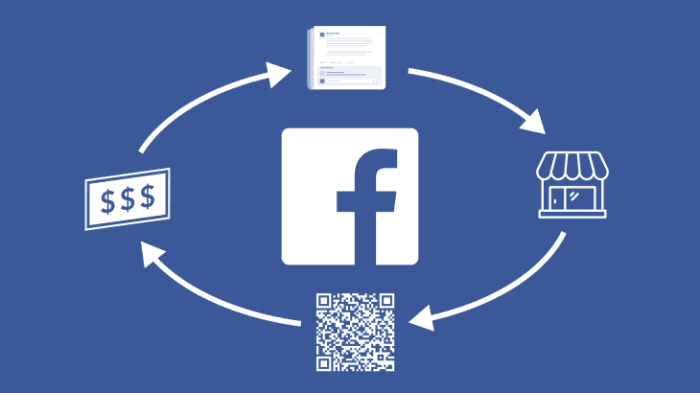
Facebook has had its eye on their own cryptocurrency for more than a year now, and is navigating through the footsteps of other tech giants like Amazon and Apple. Apple announced the new Apple Card back in March, also seeking to change and improve the digital transaction game. The goal of Facebook’s code-named Project Libra is to create a digital coin that Facebook users can use to make purchases on the social media site, as well as anywhere else across the internet.

The process is an arduous one, but would be a huge step for Facebook, utilizing investments from financial firms and online merchants. Additionally, there’s the project’s promising potential to reward users for their activity on the platform. “Like many other companies, Facebook is exploring ways to leverage the power of blockchain technology,” a Facebook spokesperson explained in an email.

Facebook cryptocurrency

User rewards

Rewarding users for viewing ads is a growing trend (the Brave browser’s Basic Attention Token seeks to do this as well), and it works similarly to accruing loyalty points at your chosen retailer – eventually those digital points can be put towards user rewards, such as improved ad targeting, or even access to premium content.

While inclusion of this facet is still speculation, it certainly meshes well with the user-publisher relationship that Facebook claims to encourage. It would be a welcome change from the flame wars, hate speech, political rants, and bot-created garbage that’s weighing more and more on the increasingly disgruntled Facebook community. It may even waive some of the condemnation that the organization has received of late for making money by invading user privacy.

Facebook Rewards
Facebook Rewards prove the company is familiar with this type of user transaction.

Progress and impact

As you might expect, Libra’s progress has been slow-going thus far. The cryptocurrency system that currently exists is beset by roadblocks both technological and political, with entrenched interests and stubborn affiliates refusing to budge. Despite its tumultuous 2018, Facebook is still trying to brave the waters of a new business outlet – one that, if successful, could threaten the card networks’ dominance over global payments, and arm 1.5 billion users with a new tool to use in online commerce.

Will Project Libra usher in a new mainstream application of cryptocurrency, and dethrone the traditional online payment system? A third of the world’s population logs on to Facebook monthly, and we all need to buy things. Is that enough? Let us know your thoughts in the comments below, and stay tuned for more details as they are made available.

How to remove Internet Explorer from your PC

Don’t leave yourself open to the latest hacking threat, completely eliminate Internet Explorer with these steps.

Internet Explorer has long been the butt of jokes and the wearer of the dunce cap in browser class. It’s no news that IE’s best days are long behind it, but now it’s not only terrible – it’s dangerous. Internet Explorer currently sports an unpatched exploit in the way it processes MHT files, the web archive format that the browser uses. Consequently, any hacker with malicious intent can easily spy on a Windows user and break into their local data. The flaw puts you at risk for doing something as harmless as opening an attachment. With so many better browsers out there, Internet Explorer is doing you more harm than good. Time to get rid of it:

But first…

Is removing IE dangerous?

Windows Features turn off Internet Explorer 11

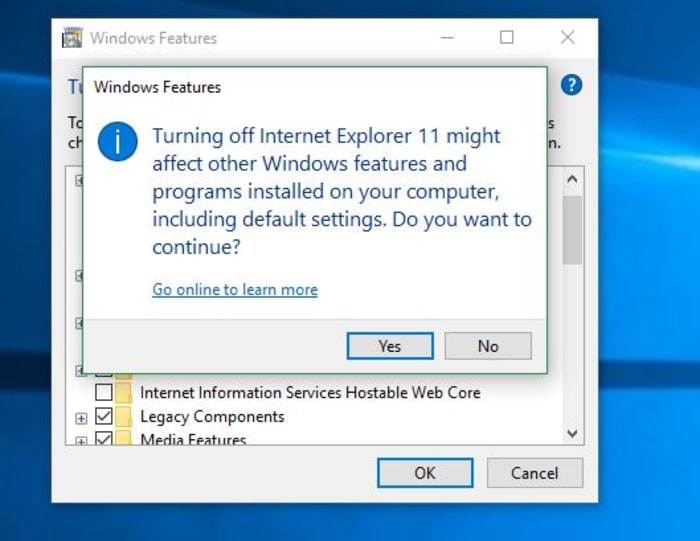
When you try to turn off IE, you’ll get a scary message from your PC, saying that removing IE might mess with your default programs or settings. Surely this means the process is dangerous, right? Is this meddling in affairs that we do not comprehend?? Honestly … it’s not that big of a deal. Removing IE will change a couple of small things:

1. Links leading to IE are removed

If you remove IE, you’ll no longer have a shortcut for it (boo hoo), and until you elect to restore it, you’ll have no conventional way to run the browser. Obviously, you should have another browser in place before you remove IE (even if it’s just Windows Edge, the other default), otherwise, when you try to open a URL web address, nothing will happen.

2. IE is no longer the default for opening HTML

You won’t be given the option to use IE as a default program for opening HTML or FTP. It won’t even be listed in your Control Panel’s Default Programs anymore. Again, we’re not going to shed a tear.

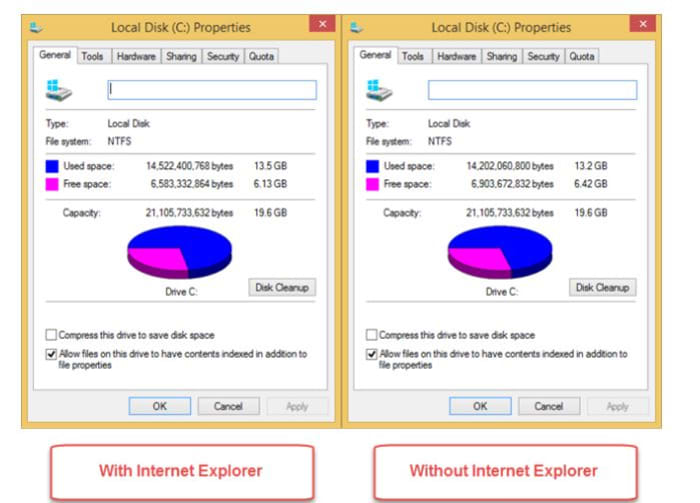
Removing IE from your device in the following manner will shuffle how certain programs get opened, but it won’t actually delete any of your files that rely on the browser. As long as you have some other browser installed, you’ll be totally fine. All of your universal Windows apps will continue to function as normal, too. You’ll even gain hundreds of MB of free space!

Local disk space Windows 10 Internet Explorer 11

Install an alternative browser first!

9
Browse better for free

As we mentioned above, turning off Internet Explorer is perfectly safe, but we strongly encourage you to install some other browser first. Our recommendation is Brave, a browser that prioritizes speed, safety, and privacy. Brave was created by Brian Bondy and Brendan Eich a few years back. Like Eich’s previous baby, Firefox, Brave boasts great speed, safer connections, and more private browsing, even integrating other big names in anonymity like DuckDuckGo and Tor. In a lot of ways, Brave feels like an upgrade to Firefox, it’s default being to block any and all trackers, cookies, ads, pop-ups, and banners right out of the gate. It even automatically boosts your connections to HTTPS for the highest protection.

On top of that, the browser also introduces Basic Attention Tokens, a form of e-currency that safely allows users to distribute “attention” to their favorite publishers. The token encourages a more direct relationship between user and content publisher, and is working to usher in a “web 3.0” atmosphere where users are only given ads that are relevant, and only when they elect to see them. The Brave browser is free, and can be installed in three easy steps, so our recommendation is to install Brave before you rid yourself of Internet Explorer, which we’ll walk you through right now:

How to remove Internet Explorer

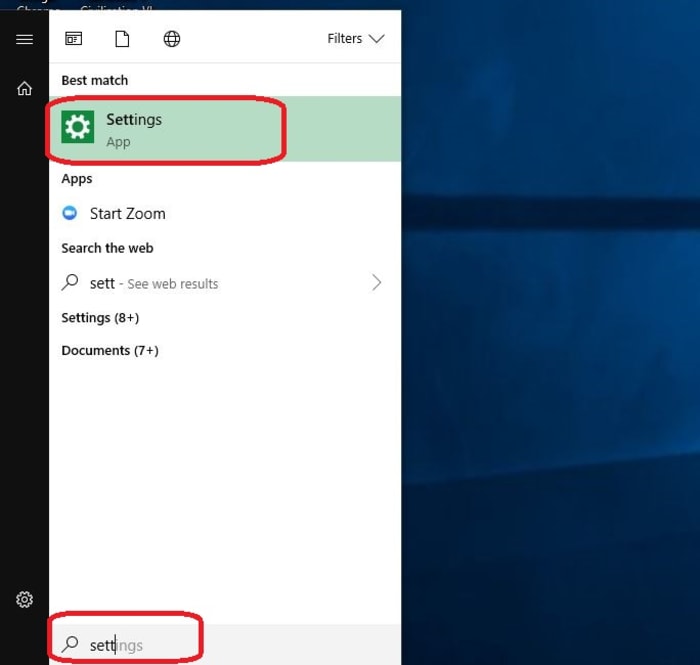
1. Open Settings

The easiest way to get to your Settings screen is to simply hit the ‘Win’ key and start typing “settings.” Once the option pops up, click on it.

Windows 10 open settings

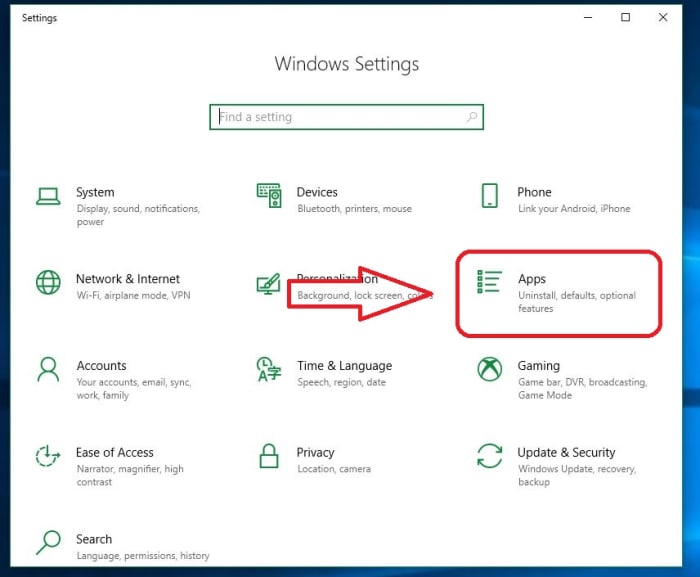
2. Go to Apps

On the right of your Settings page you’ll see ‘Apps.’ Click here.

Windows 10 Settings Apps

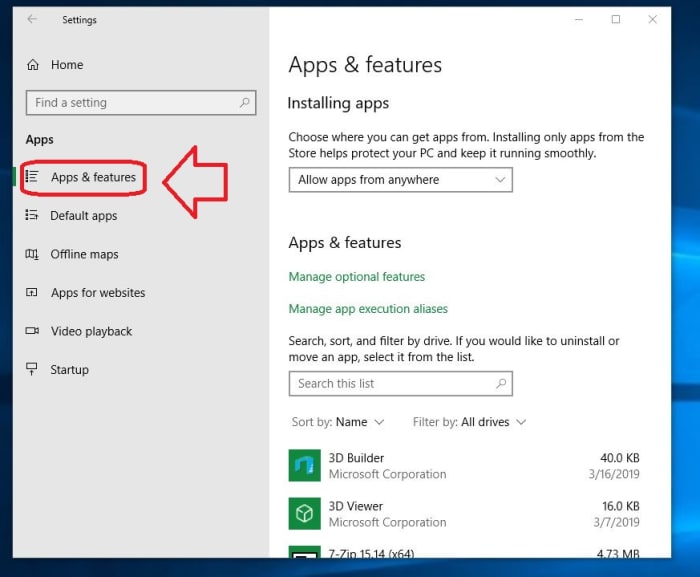
3. Open Apps and Features

On the left of the Apps page you’ll see a list of subcategories. The first one on the list is ‘Apps and Features.’ Click this and it’ll take you to them.

Windows 10 Apps and Features

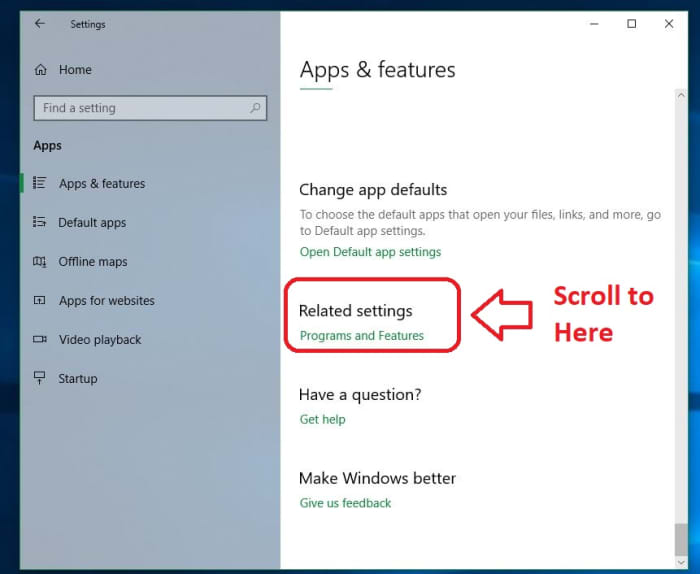
4. Open Programs and Features

The only tricky part of this whole process is finding where your Programs and Features link is located. Luckily, there are two easy ways to do this. The first is to maximize the window and you should see ‘Programs and Features’ on the right. Alternatively, you can also just scroll past all your apps and you’ll find it under the list. Typing in the search portal will not help here, so don’t let that discourage you. Eventually, you should see ‘Programs and Features’ right under ‘related settings.’

Windows 10 Related Settings Programs and Features

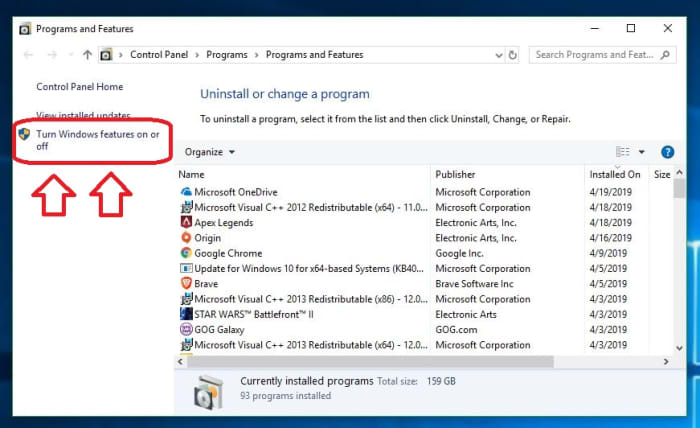
5. Toggle Windows features

On the left of this new window, you’ll see an admin option to toggle Windows features. Clicking this will bring you to a list of Windows features, one of them being the elusive IE 11.

Windows 10 Settings Programs and Features Admin features on or off

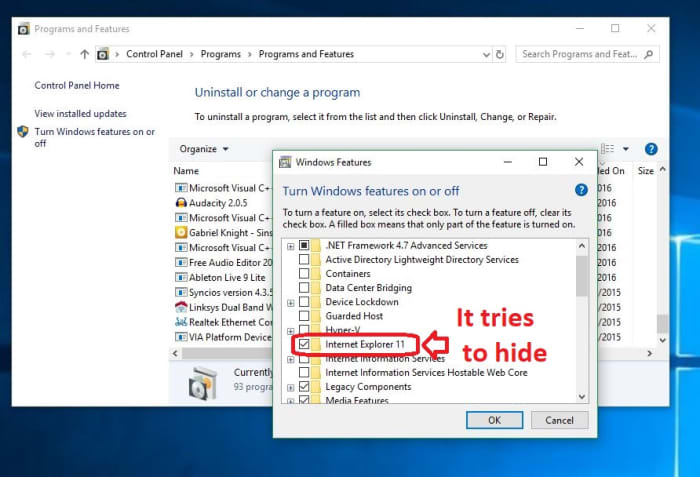
6. Uncheck Internet Explorer

Now that you’ve found it, disabling IE is as simple as unchecking the box next to it. Do so and banish it from your realm.

Windows Features Internet Explorer 11

Once the box is unchecked, click OK, then ‘yes’ to confirm that you want this dastardly piece of software removed from your OS. When prompted, click ‘restart now’ and enjoy your newly protected computer that’s at last free of its IE shackles. It’s also worth noting that if you want to bring the browser back (though we can’t see any reason why you would), you can just repeat the process above and when you get to step 6, re-check the Internet Explorer 11 box.

And there you have it! Your computer is safer, more efficient, and now has a bunch more space to boot. Let us know in the comments below if you have any questions with the process, and stay tuned with us for more tech tips and tricks.

Internet Explorer is now a back door for hackers

Merely not using it won’t protect you…

Hacker

Internet Explorer is a terrible browser. In other news, water is wet. While it comes as no surprise that there are a ton of browsers stronger, faster, and safer than Internet Explorer, now it turns out you don’t even need to use it to be at risk. Heck, you don’t even have to open it. As long as the browser exists on your computer, it’s a back door that hackers can use. Congrats, IE. You’re worse than useless – now you’re dangerous.

The vulnerability

Security researcher John Page recently found an exploit in the way IE handles its MHT files, the web archive format that the browser uses. Through this exploit, any hacker with malicious intent can spy on Windows users and steal local data. Since the Windows default is to open MHT files via IE, you can be at risk simply for doing something as harmless as opening an attachment.

The solution

MHT is an outdated format by now, and modern browsers no longer save web pages in that format (opting instead for HTML). As such, the first step is simply to not use IE anymore, which is probably already the case. Even Microsoft is discouraging you from using the browser. They’re aware of this issue, and their response was less than reassuring: “We determined that a fix for this issue will be considered in a future version of this product or service,” said Microsoft. “At this time, we will not be providing ongoing updates of the status of the fix for this issue, and we have closed this case.”

As Microsoft’s Chris Jackson tells it, “we’re not supporting new web standards for [Internet Explorer] and, while many sites work fine, developers by and large just aren’t testing for Internet Explorer these days. They’re testing on modern browsers. As new apps are coming out with greater frequency, what we want to help you do is avoid having to miss out on a progressively larger portion of the web!”

The next thing to do is completely remove Internet Explorer from your PC. There’s an easy way to do this in fewer than 10 steps. Check out this guide.

Try Brave

There’s more reason now than ever to stop using Internet Explorer in favor of a more useful browser. Brave is one of our favorites. It was created by Brian Bondy and Brendan Eich, the inventor of JavaScript and the founder of Mozilla Firefox. As such, Brave feels like an upgrade to Firefox, boasting faster speeds, safer connections, and more private browsing. Brave’s default is to block any and all trackers, cookies, ads, pop-ups, and banners – even automatically bumping connections to HTTPS for the highest protection.
On top of that, the browser also introduces Basic Attention Tokens, a form of e-currency that safely allows users to distribute “attention” to their favorite publishers. The token encourages a more direct relationship between user and content publisher, and is working to usher in a “web 3.0” atmosphere where users are only given ads that are relevant, and only when they elect to see them. The Brave browser is free, and can be installed in three easy steps, so check it out today for the best in security, privacy, and speed!