
Best free board games

These are all the best free board games you can download for free from the Softonic games catalog

Free board games

Who doesn’t love a good old classic board game? With all the incredible advancements in video-game processors, graphics, and most of all production and marketing budgets, it is easy to forget the fun you can have playing board games. You have the board, the rules, and then any extra cards, pieces, or paraphernalia and then you are good to go. Board games can take you into any type of game world and provide any type of experience.

These days board games are easier than ever to play as many of the best games have been digitized and made available online. What’s even better is that many are available to play right now for free. Let’s not waste any more time then and dive into the best place to get your hands on free board games and all the best games you can download. If you have a party coming up, this is the list for you.

Free board games online

Softonic

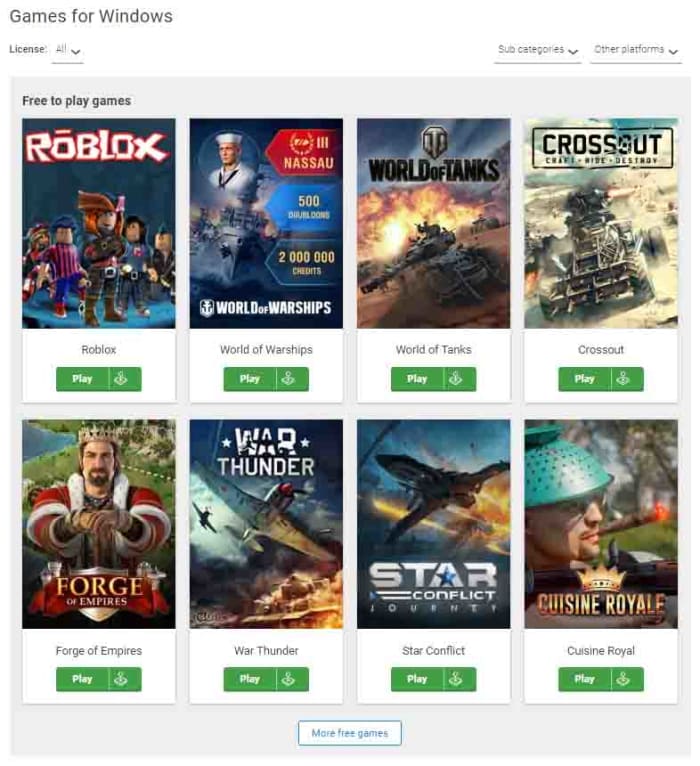
Softonic is the web’s number one source of secure downloads for all different types of software. At Softonic, you can download everything from service packs for Microsoft Office to the latest Opera web browser. Games also form a massive part of the Softonic download catalog and there is a dedicated section for popular board games.
Amazing free games

This is the place to go if you want a game for free and you want it for life. There are lots of classic online board games here for you to choose from including the likes of Chess, Yahtzee, Uno, Monopoly, and classic games like Dominoes and Mahjong. Let’s go through the best games together.

Best free board games

Free Chess

Free Chess

Chess is probably the most famous board game there’s ever been. The classic strategic battle of wits has been played for centuries and its winners have long been marked as the most intelligent people out there. Free Chess offers all chess fans, old and new, a free and lightweight program that offers quick access to single and multiplayer games of chess. This program isn’t feature-rich; it is simply a popular platform for playing chess.

Free Chess Download now
8

Mahjong Deluxe

Mahjong deluxe for freeAlongside Chess, Mahjong is another classic game that has been played throughout the ages. Originally developed in China, Mahjong is a tile-based game that sees three or four players battle it out in a game of tactics, memory, and strategic observation. Mahjong Deluxe offers a beautiful Mahjongg simulation that looks fantastic and plays very smoothly. It also offers stunning backgrounds and a variety of sounds and songs that play in the background.

Mahjong Deluxe Download now
8

Monopolie

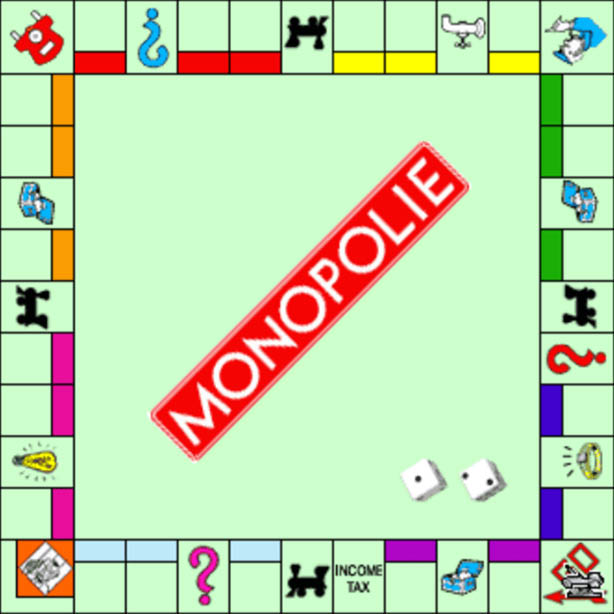
You are reading that right and it isn’t a typo. Monopolie is a free version of the classic property tycoon simulator board game. This program is simple enough. You get a board, you get the cards, you get dice, you get the famous little pieces, and yes, you get $200 when you pass Go. There are other versions of Monopoly out there and you might even say some of them are slicker than Monopolie, but this is free, and it works well so we’re happy to add it to our list.

Monopolie Download now
8

Pyramid Solitaire Saga

Pyramid Solitaire

Pyramid Solitaire is a particularly entertaining version of the classic card game you play on your own. The action sees you lay out the cards in a pyramid shape and then try to work your way through them all from the foundation up. Pyramid Solitaire Saga brings all the elements of the solitaire game and plays on the Pyramid theme by adding a narrative that involves traveling around the world and searching out the secrets of the ancient of the world.

Pyramid Solitaire Saga Download now
7

Uno

Uno

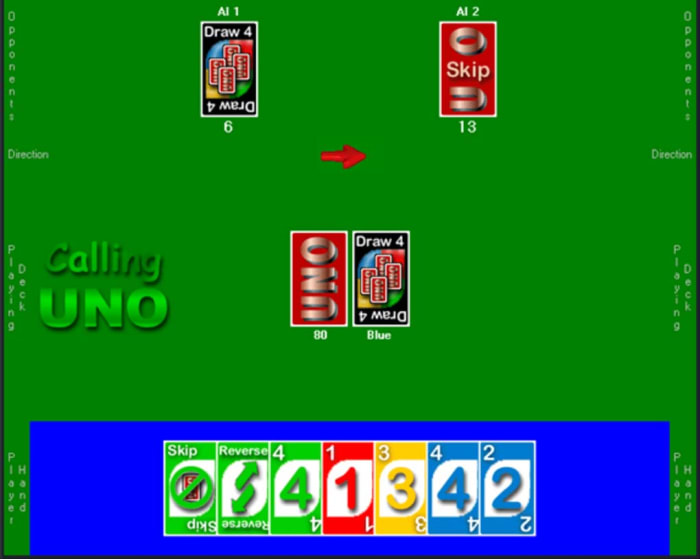
Uno is another classic card game that offers players lots of fun. This simple and free version of the famous game recreates exactly, everything you can do with Uno cards on your PC. You can play against up to 9 players, either AI or human, and the action is exactly the same as you’ll get playing the game in real life. No bells, no whistles; just Uno.

9

CheckerBoard

The real beauty of a good board game stems from the endless hours of fun that can be had with such simple concepts. Perhaps no board game encapsulates this truth more than checkers. Played on a chessboard, checkers is easy to learn and rewarding to master. This excellent free version of the game mirrors the real-life version. It is simple yet effective. You won’t get explosions or cutting-edge graphics, but you will get to play Checkers.

CheckerBoard Download now
8

Domination

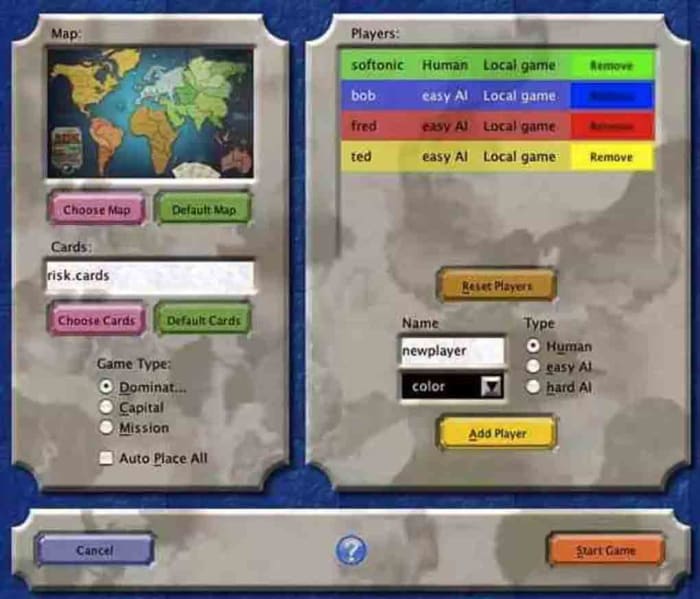
If you’re a strategy game fan, you’ve probably played Risk. Risk is the game of global domination that carves up the world and then asks players to try and win the largest share of the pie. Domination is a well-executed free version of the classic strategy board game that mirrors the original, complete with global power plays and epic battles. What the game adds to the traditional board game experience though, is detailed performance statistics on how you and up to five other players did during the game.

Domination Download now
9

Dominoes

From Domination to Dominoes. Again, this is a classic tabletop game expertly recreated in video game form. The game offers customizable tables and has three different game modes. You’ll also get a tutorial that will teach you the basics and train you up to be a more advanced player. What’s even cooler about this simple recreation of a simple table game is that you can also play it on your phone and even in 3D using a Microsoft HoloLens. If that sounds a bit complicated for you, don’t worry, the standard Windows version is lots of fun too.

Dominoes Download now
9
Wrapping up

There you have eight excellent free board games you can download for free right now. As well as the eight games we’ve highlighted above you’ll find many more board games in the Softonic library like Backgammon, Battleship, and Ludo. Make sure you head over there and check out all the games Softonic has to offer.
Why Chrome uses so much RAM and how to make it use less

This all you need to know about why Google Chrome uses so much RAM and what you can do to reduce Chrome’s RAM usage.

If you’ve ever used Google Chrome, you’ve probably seen your Windows PC or Mac slow down considerably. This is because Chrome is famous for using a lot of RAM. If you go to your Task Manager right now, you’ll likely see that Google Chrome is using more of your system’s RAM than any other program.

Today we’re going to walk you through why that happens and then show you some tricks you can use to help cut down on Chrome’s RAM usage so that your browser and system can work efficiently. As smartphones like Android handsets and Apple iPhones and iPads work a little differently to desktop PCs, we won’t be looking at them with this article.

7

Why does Chrome use so much of your computer’s RAM?

Chrome uses RAM in just the same way as any other app, program, or piece of software. It uses your system memory to store various processes while it performs the tasks that you and the websites you visit set it. This means that if you were to open Chrome on its own it wouldn’t actually require that much RAM, not much more than other web browsers like Microsoft Edge or Mozilla Firefox anyway. It is only when you start browsing the internet that Chrome’s bumper RAM requirements quick in. Modern websites have more fluid and interactive elements than ever before, with each requiring a lot of processes and therefore a lot of memory to perform. This is then amplified when you consider how we use the internet these days.

More Tabs = More RAM

Too many tabs open

We now think nothing of having a lot of websites open at the same time using Chrome tabs. The thing we don’t consider, however, is that every open Chrome Tab needs about 50MB of RAM to operate normally. Yes, that does say MB, which is so 90s I know, but look at how many Chrome tabs you have open right now. Ah, now you understand. It is easier than ever to browse multiple web pages at once and when your Chrome memory usage is going up in multiples of 50 things add up fast.

How to reduce the amount of RAM the Chrome browser uses

Chrome’s experimental features

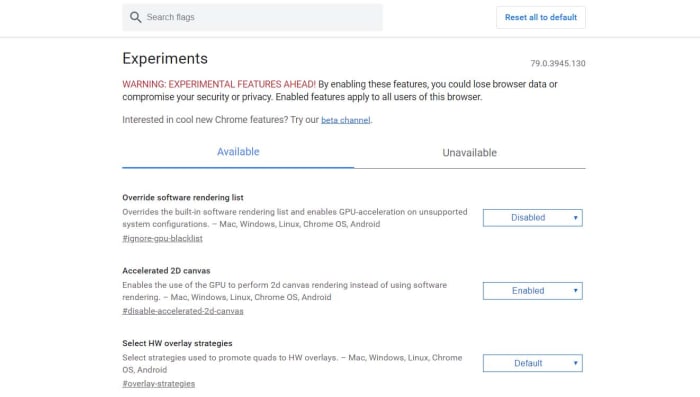
Google Chrome has a number of experimental features called Flags. These Flags might be what the Chrome team is planning to introduce with future Chrome updates, or they might just be pet projects of individual team members. Some of them have been designed to help Chrome users limit Chrome’s memory consumption. You can access the Google Chrome Flags menu by copy and pasting chrome://flags/ into Chrome’s address bar.

The best Chrome Flag to help you reduce Chrome’s RAM usage is Tab Freeze. When enabled, Tab Freeze will suspend all eligible Chrome tabs that have been inactive for more than five minutes. They’ll reload when you open them again, but until that time they’ll sit dormant and won’t use any of your system’s RAM.

Extensions Toolbar Manager is another Chrome Flag that you should think of installing if you have many different extensions on Chrome performing many different tasks. Extensions can be process heavy, which means the more you have the more pressure they place on your system. The thing is, however, you might not them to perform their processes all the time. Enabling the Extensions Toolbar Manager Flag will shrink all your extensions icons into a single menu. This will then make it much easier to disable them when you’re not using them so that you can use the RAM for something else.

The Chrome Task Manager

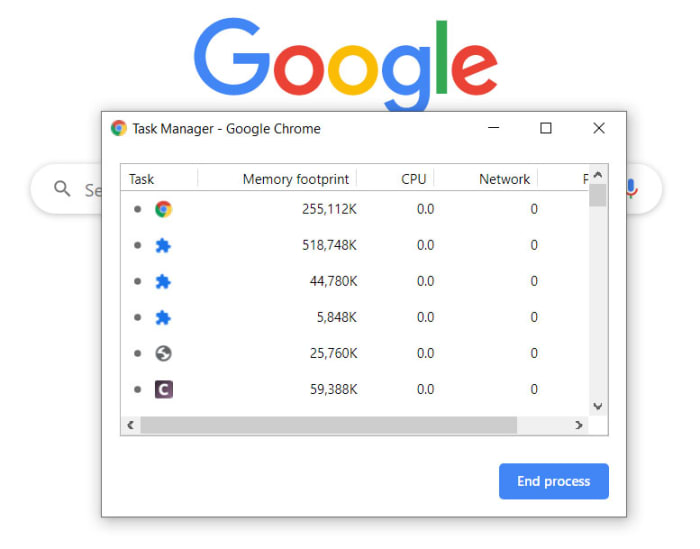
Just like Windows has one, Google Chrome has a Task Manager too. You can activate the Google Chrome Task Manager by opening Chrome and then hitting the Shift + Esc keys at the same time. Unfortunately, that hotkey only works in Windows, so if you’re using a Mac, you’ll have to go into the Window menu.

The Chrome Task Manager

Once you have the Chrome Task Manager open, you’ll be able to see each individual task that Chrome is running and shut down the ones that are hogging up all your RAM. If you have extensions that use a lot of RAM and your system is struggling, get rid of them. Another you’ll be able to do here kills any open tabs that might be using too much RAM also. Sometimes tabs might not be working exactly as they should, or the content they’re displaying may be putting excess strain on your system resources. The Task Manager will show you exactly how much system memory each tab is using and if one of them is using a lot more than the rest of them, close it.

Chrome Browser Extensions

If you find that the Chrome Flags haven’t done enough and you’re still having problems even though you know how to access the Chrome Task Manager, then maybe you should head to the Chrome Web Store and think about installing some Chrome extensions that will help you manage and reduce Chrome’s RAM usage better.

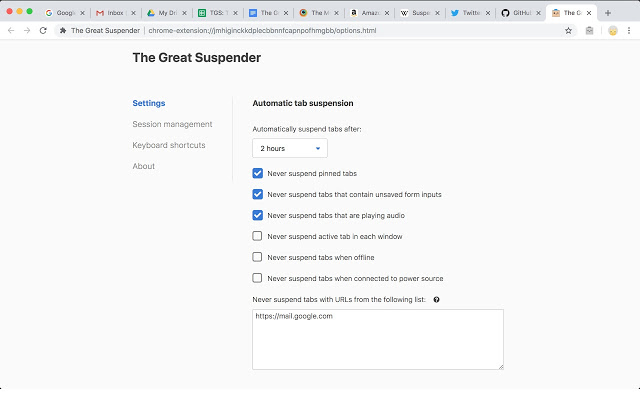
The Great Suspender is a fantastic Chrome plugin that will deliver effective results quickly. It works by giving you a number of options including setting time limits for how long tabs can remain inactive or unused before the extension will freeze their operation. When the tabs are frozen they’ll no longer put a strain on your system’s resources, which should see an upturn in performance, if you’re pushing your system’s limits. The tabs will appear dimmed when inactive and will then simply reload again when you open them up again.

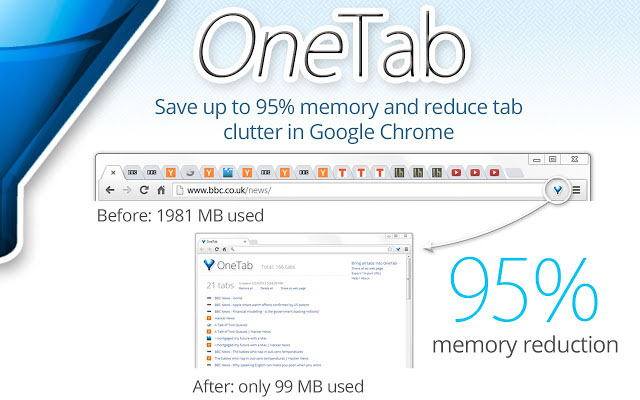
One Tab is another great Chrome extension that promises a massive 95% memory reduction against Chrome browsers that don’t have the extension installed. When activated all open tabs are shrunk down to a single tab, which then shows a list of all tabs. They’re all right there ready to go, they’re just not using all your system’s RAM anymore.

Wrapping up

Now you know why Chrome uses so much RAM and how to reduce its RAM usage. It is important to note, however, that you should only really limit Chrome’s RAM usage if it is causing a problem. If you have RAM to spare while Chrome is running full blast and it isn’t affecting your browsing experience, leave it that way. If not, which will happen more and more if your device has 8GB of RAM or less work your way through the tricks outlined above?

How to stop Facebook from spying on you

This how to stop Facebook tracking your online behavior.

It is possibly the worst kept secret in tech that Facebook is spying on you. Mark Zuckerberg is keen to know absolutely everything about you, he is prepared to go to some pretty shameful lengths do so like tracking people’s smartphones who don’t even have the Facebook app, and then when he gets your personal data he’s not exactly careful with what he does with it or who he shares it with. Everybody remembers the Cambridge Analytica scandal. Yep, this is all known and this probably why you want to stop Facebook tracking you and collecting your private data.

That is why we’re here today. It is possible to stop Facebook spying on you and by the end of this article you’ll know how to do it. Let’s get started.

How and why Facebook tracks your data

Facebook makes more money, the more information it knows about you. The more accurate the data, the higher price they can charge advertisers to access it. That is why Facebook doesn’t just track people who actually use Facebook. Sure, Facebook is very good at tracking Facebook users by their Facebook accounts, likes and sharesFacebook cookies, and then also tracks users across other apps it owns like Instagram and WhatsApp.

Money
This is what it is all about

Facebook goes further than this though, giving third-party websites what it calls a Facebook Pixel, which allows the site owners to analyze the effectiveness of their ad campaigns. Facebook of course, uses this data too meaning it has data on anybody visiting any sites with a Facebook Pixel. This all means it is difficult to stop Facebook tracking your data, but, importantly, it can be done.

How to block Facebook tracking your data

Opt out of ads

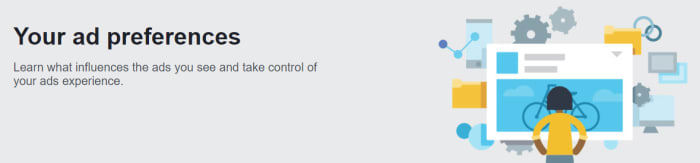
Your web behavior follows you around wherever you go. Advertisers want to get their hands on this so that they can show you relevant ads for products that your behavior tells them you want or need. This is the basic formula that pays for the modern internet as we know it today. You can opt out of this ad tracking relationship, however, by using certain online tools that are different depending on where you are around the world. Doing so will put up a block to the tracking that Facebook carries out. You’ll still get Facebook ads, they just won’t be target ads based on you data.

opt out of ads to stop Facebook tracking you

If you’re in Europe, you can opt out of advertising based on your web behavior by going to the European Interactive Digital Advertising Alliance homepage. If you’re in the USA, you can opt out by heading over to the Digital Advertising Alliance. The name of the organization Canada is the same as it is the USA; click here to go to the Canadian Digital Advertising Alliance.

As we’ve just mentioned, however, this underpins the whole of the modern internet so don’t expect this process to be easy. Stick with it though, and you will get it done.

Browser plugins

Your browser is Facebook’s main tool for tracking your online behavior. This means you can set up your browser to be your first line of defense. You can use third-party plugins to add certain protections that will block tracking protocols.

Limiting scripts

One such protocol that you can limit to better protect your privacy is the scripts. Scripts can alert advertising trackers to your presence whenever you log on to a website. This means if you block a website’s scripts, you can prevent the advertising trackers from knowing you’re there.

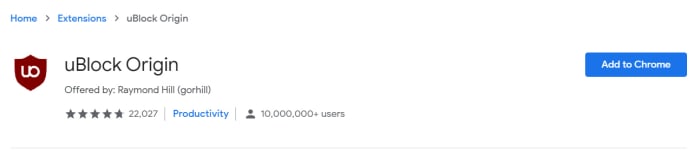
uBlock Origin

An excellent free plugin you can install on ChromeFirefoxOpera, and Safari for free is uBlock Origin, which gives you the option to block scripts across all sites and then white list sites you can trust. Another fantastic little plugin you can use is Privacy Badger, which is very easy to use. If you’re reading here about advertising trackers and scripts and thinking you’re out of your league, then this is the plugin for you. Privacy Badger makes it very easy for you to control which scripts track what. It is important you get this right because many basic web functions rely on scripts so blocking the wrong ones could be like shutting off the internet.

Automatic cookie deletion

Another type of plugin you can download will address a problem you probably know more about. Cookies are much more well known than website scripts. Cookies remember the choices and actions you make on certain websites and Facebook can then read these to get an understanding of your online behavior.

If you’re a Firefox or Microsoft Edge user, you can set your browser to automatically delete your third-party cookies every time you close your web browser. You can find a guide on how to do this for both browsers here. If you’re a Chrome user, however, there is no such option. Fortunately, though, there is a browser plugin you can download for Chrome, imaginatively called Cookie AutoDelete that will do the trick. Install it and set it up on your Chrome browser to fight back against Facebook.

Dedicated privacy-protecting browser

Another great option for making it much more difficult for social networks like Facebook to track your online activity is to use a browser that is dedicated to protecting your privacy. This will mean ditching Google Chrome, as Google is perhaps the only other company on the planet that is as good as Facebook is at tracking your data. In this regard, we strongly recommend the Brave browser, which is committed to protecting your privacy.

Brave does not collect any user data, unlike Chrome, and comes ready-made to block third-party and advertising cookies. This means you don’t have to worry about which security plugins or addons to install as all the functions are already a part of the Brave browser. Brave is actually trying to readjust the modern internet model that we described earlier and push web developers to rely less on advertising by offering something called Brave rewards instead. If this mission is successful, you won’t need to block Facebook tracking as it won’t be such a lucrative business anymore. What’s even better about Brave is that it is based on the opensource Chromium code that built Google Chrome meaning it also works with your Chrome browser plugins too.

All the best new features your web browser got in 2019

Google Chrome is the most popular major web browser. Here we walk you through all the biggest new features that landed on Google Chrome in 2019.

The best new browser features 2019

Modern browsers like Mozilla Firefox, Microsoft Edge, Safari, Opera, and of course Google Chrome are monster programs that can do amazing things. The days of Internet Explorer are long gone. You only have to consider the fact that Google used its web browser Chrome to develop a whole new operating system that runs Google powered laptops called Chromebooks, and rivals the likes of Windows and MacOS. This incredible feat has been made possible by Google’s policy of continually updating the Chrome browser.

It can be hard to keep up with all these updates, however, as they just keep coming. What use is a shiny new updated feature, if you don’t even know that it’s there. Well, that’s what we’re here for today. We’re going to walk you through all the new features that came to the Google Chrome web browser in 2019.

7

New Chrome features 2019

The Google Chrome web browser received a massive 7 updates in 2019 with the first, Chrome 72, landing in January and the last, Chrome 79, arriving just before the new year in December. Let’s look at all the best new Chrome features that these updates brought with them.

Default Flash blocker

Default Flash blocker

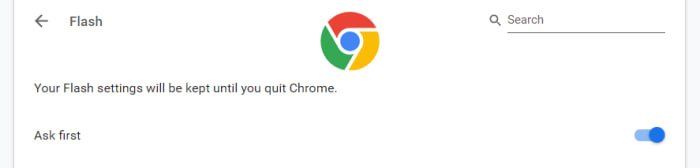
Google has already said that it will remove the Flash plugin from Chrome towards the end of 2020. In 2019, however, Google put the impetus on users to activate Flash in Chrome by making the browser block the plugin by default. You can set the browser to ask you before blocking it, however, on each site you visit. To do so copy and paste chrome://settings/content/flash into the Chrome address bar.

Password checkup tool

Google has integrated a former Chrome plugin directly into the browser, meaning it is now available for all Chrome users. The feature will scan your passwords and then check them against known databases of leaked passwords. Basically, if any of your accounts and passwords have fallen victim to any of the massive data breaches you hear about all the time, Chrome will now tell you. To activate this feature copy and paste chrome://flags/#password-leak-detection into the Chrome address bar.

Send tabs to other devices

Send tabs to other devices on Chrome

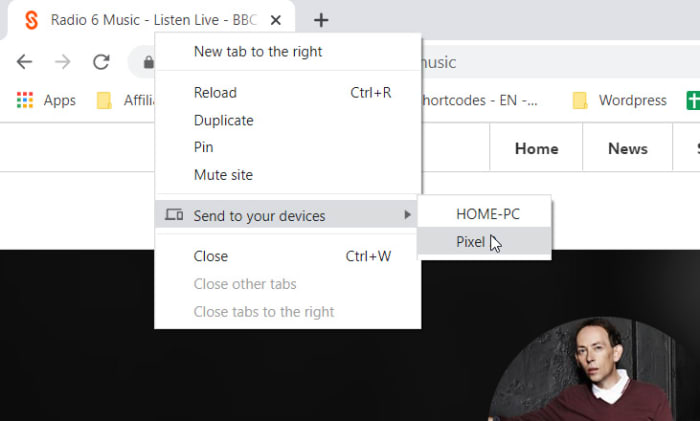
Chrome 77 introduced an interesting feature that allows users to send tabs to other devices that use the same Google account on Chrome. If you use the same Google account on Chrome across different devices, you can now right-click on any of your open tabs on Chrome for desktop and hit the Send to your devices option to see a list of devices you can share the tab with.

Copy and paste across devices

Another cool Chrome Sync feature that was introduced in 2019 is the clipboard synchronization feature across multiple devices. This new feature means you can copy something on one device and then paste it on another that is using the same Google account for Google Chrome. This feature came with Chrome 79, which means both devices will need to be updated to Chrome 79 before it will work. If you have two devices that qualify, however, you’ll be able to right-click anywhere on the webpage and then select Copy to (your device’s name).

Chrome backgrounds and themes

Chrome backgrounds and themes

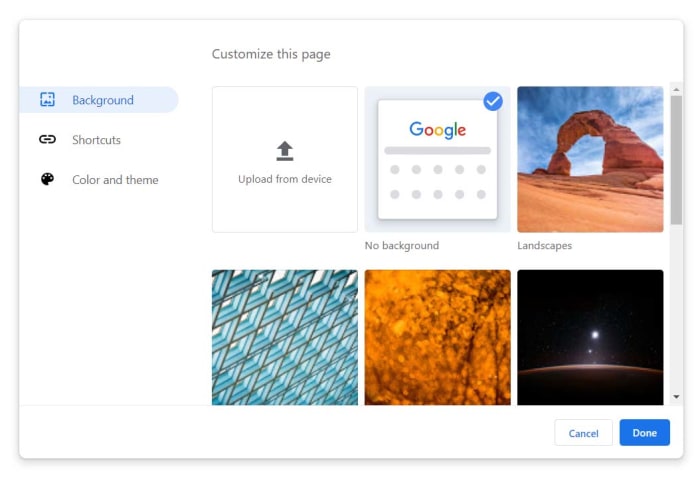
Another cool feature that landed with Chrome 77 is the Customize button you’ll find in the bottom-right corner of the Chrome homepage. Clicking this will give you a series of different customization options including BackgroundColors & Themes, and Shortcuts. You can decide on the shortcuts Chrome will show on the homepage, pick from a whole host of interesting background images, and set different themes and color schemes for the browser.

The Dark Mode

Google split the Chrome Dark Mode roll-out over two separate updates with the Mac Dark Mode coming with Chrome 73 and the Windows Dark Mode coming with Chrome 74. Both operating systems now support Chrome’s Dark mode but there are no controls for this on the web browser itself. Instead, Chrome simply copies your system OS color scheme meaning if you’ve set your Mac or Windows system to run in Dark Mode then your Chrome browser will do too. The Chrome support page here shows you how to do so.

Tab info cards

Tab info cards

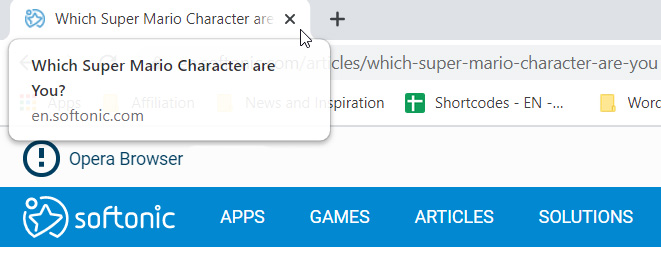
A small but useful change is the introduction of tab info cards. All you need to do here is hover your cursor over an open tab and Chrome will show you the name of the site open on the tab, and its URL.

Dodgy site warning

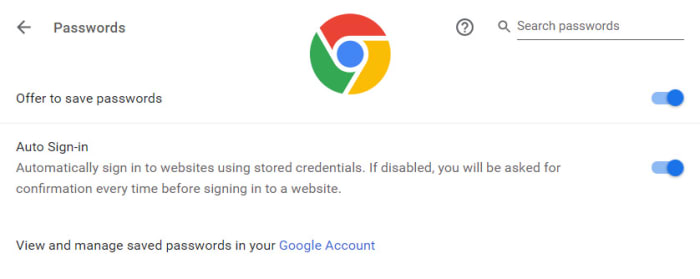
Chrome’s password protection features were updated again when Chrome 79 landed. Chrome now offers real-time protection and will warn you whenever you enter your passwords on sites that are suspected of phishing.

Hardware support for media controls

Hardware media controls

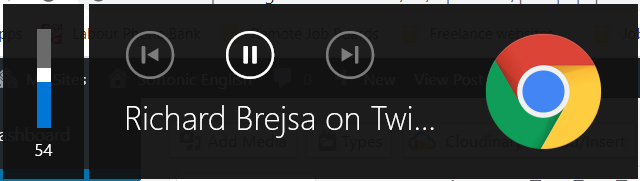
Chrome now supports media control buttons on any hardware you have connected to your device. This means if you have a keyboard with a Play/Pause button, you can now use that button to control playback on any media that is active in Google Chrome. The same goes for other controls and other types of hardware such as headphones etc.

Tab freezing

This updated feature might not sound too exciting, but it will actually make a big difference for laptop users. Basically, Chrome now automatically freezes tabs that you’ve had running in the background for a while. Chrome will no longer load ads or perform other CPU heavy tasks in tabs you’re not using, but will instead pause them and then resume them when you open them again. This is to put less pressure on your device’s CPU and then, accordingly, make your laptop’s battery last longer.

Password manager

Chrome password manager

Chrome 75 introduced the built-in password manager to Android and iOS devices meaning Chrome can now generate and store strong and unique passwords for you every time you open a new online account. This is an incredibly useful and essential feature as any time you duplicate a password across different accounts you leave yourself vulnerable to hacking.

How to Know If My Phone Is Hacked and What to Do

Let’s have a look at some of the things you should look out for to make sure your phone hasn’t been hacked.

Have you ever wondered how to know if your phone is hacked? We are all aware of the many cyber threats surrounding us when we use the internet on our PCs. Think of all the measures we take to protect our computers from hackers, antivirus programs, VPNs, proxies, and more. But when it comes to our mobile devices, we aren’t always as careful.

With so much of our lives contained in our smartphones, these devices have become a crucial part of our daily lives. Think about that one time you forgot your phone at home, how utterly lost you felt without it. We store almost everything on our phones these days, important documents, bank details, health care, IDs, and more. If someone were to hack our phones, they’d have access to all of this information.

A lot of the time, you might not even know that you’re being hacked. This type of attack is much more subtle than a robbery. Once the hacker gets into your devices, they can easily access your apps, files and even use your data without you even knowing. This is why it is critical to know the signs of a hacked phone to protect yourself.

Can iPhone Get Hacked? or Is it Just a Matter of Android?

Although iPhones are usually better protected than Android devices, they can still be hacked. Unfortunately, as technology advances, so do hackers. Using a device that seems safe is no longer a surefire way to protect yourself from hackers. If they want to, hackers will find a way through the protective measures, which is why it is essential to stay one step ahead and not assume your safety just because of your device type.

Is my phone hacked? 8 ways to find out

There are quite a few things to look out for that could indicate your phone has been hacked. On their own, these could be simple issues that should be looked at individually. If you’re experiencing a few of them, however, then you should think about dealing with them as a whole.

1. Your device is a lot hotter than usual

phone is too hot

If your mobile phone has been hacked, there will be lots of unauthorized programs running in the background behind your operating system. These could be things like adware, spyware, trojans, etc. all designed to make money for the hacker in different ways. These will be putting extra pressure on your device’s processor and memory. This will, in turn, cause the processor to heat up much more than normal. If your device is hotter than usual, try to find out why. If you can’t get to the bottom of it, something fishy might be going on.

2. Your battery doesn’t last as long as it should

The same that goes for extra heat will also go for extra power. Even if you’re not feeling the heat, you might still notice that your battery is running down much quicker than it used to. Again, this could be because of unknown programs always running in the background.

3. You seem to be using more data than you usually do

This follows on from the other two. Most malicious programs running in the background will connect to the internet to do whatever it is they’ve been programmed to do. This could something like be transferring your data to a third-party server or showing you ads that wouldn’t normally be there. If you’re not connected to Wi-Fi, this will use mobile data. Check your data usage.

4. Your call message records include calls you didn’t make and messages you didn’t send

If the malware infecting your phone has permission to make calls or send messages then this could end up costing you big. Some hackers will program the malware to call their own premium rate phone lines that can cost many dollars a minute to call. The same goes for SMS messages too. If you notice outgoing phone numbers you don’t know or phone calls you don’t remember, check with your network provider immediately.

5. You’re seeing a lot more pop-up ads than you’re used to

As we’ve just mentioned, one way for hackers to make money is through raising ad-based revenue. They do this by forcing their victims to view more ads than they normally would. If you’re noticing more ads than usual, your phone may have been infected with adware and most likely has been hacked.

6. Your phone has new apps that you didn’t install

Always pay attention to the apps you have on your phone. For one of many reasons, hackers could try to install false apps. If something is there and you don’t remember how it got there, it may have been installed remotely by a malicious third party.

7. Your phone isn’t working as well as it should

As we’ve already mentioned, hackers will try to install their secret programs onto your device. These will try to do a number of things but will run in the background without you knowing about it. It stands to reason then that if your phone is running all sorts of extra little programs and protocols in the background, it won’t be able to perform its normal functions as efficiently.

8. Unusual Background Noises

Another telltale sign that your phone may be hacked is if you hear odd background noise. This can either be while you’re listening to the audio or even while making calls. If you hear strange background noises, you should immediately investigate further as it could mean that your phone has been hacked and someone is listening in on your conversations. 

What to Do If Your Phone Has Been Hacked

If you’ve noticed any of the above signs and you suspect that your phone has been hacked, don’t panic. There are things you can do to get rid of the hacker and keep them from coming back.

Check Your Phone Bill

First, you should check your phone bill for any calls you didn’t make. Make sure to check for any unknown number dialed and the length of the calls. Make notes of anything unfamiliar to you. Also, don’t forget to check your messages as well. You should carefully check all your messages for any traces of messages sent to numbers you don’t know or containing texts you haven’t sent. Once you’ve gathered all this data, contact your service provider and discuss the matter with them. You may even get the chance to claim back your losses.

Change All Account Passwords

If you notice any unfamiliar activity on your device, immediately log out of all accounts and change the password. It is best to use a strong, randomly generated password consisting of letters, characters, and numbers when doing this. It is a good idea not to make up a password yourself if you suspect that you’ve been hacked. This is because the hacker potentially already knows you and might be able to guess the new passwords.

Uninstall Any Malicious/Suspicious Apps

Go through all of your apps and delete any ones that are unfamiliar or that you don’t use often. This may take some time, but it is a crucial step as the hacker might be using malicious apps to gather your data, or worse.

Install an Antivirus App

Make sure to install a good antivirus app. As soon as you’ve installed the antivirus, make sure to run a full scan and remove any threats picked up by the app. Also, if your app has ‘Real-Time Protection, ’ we recommend enabling it. This feature will assist in keeping you safe by flagging suspicious websites, links and phishing attacks in the future.

Worse Case Scenario – Restore Phone to Factory Settings

If you’ve done all the above steps and it still seems like your phone has been hacked, you might have to resort to a factory reset. This will return your phone to how it was when you first took it out of the box. Any apps that you’ve installed will be removed. Any messages, emails, and photos will also be removed. This is why the factory reset is the last option on our list. Make sure to backup anything you want to keep before restoring your phone to factory settings.

Know the Signs of a Hacked Phone

In this day and age, we have to stay one step ahead of hackers. With more and more of our lives taking place online and through our mobile devices, we cannot afford to have our data breached. One way to stay safe is to know the warning signs and act immediately if you suspect anything.

Best free antivirus for mobile 2020

The best mobile antivirus apps

Android is more popular than Windows. It might be hard to believe it, but Android is used more than any other operating system in the world. Now Windows is famous for many things but one of its more infamous claims to fame is how susceptible users are to viruses and malware, just ask an Apple Mac user. This is because the more people use an operating system, the more hackers and cybercriminals will target it. So, with that being the case, you already know that there are plenty of malicious actors out there targeting your Android smartphone.

Today, to help you stay safe when you’re on your phone, we’re going to look at some of the best antivirus apps available on the Google Play Store that you can download and install on your Android device. Even better, all the Android apps we’re talking about today are free.

Best free antivirus for Android phone

AVG Antivirus Free

AVG for Android

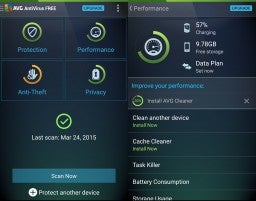
AVG is another strong mobile device version of a fully featured desktop antivirus program. It comes with a call blocker, regular scanner, cache cleaner for getting rid of your junk, and a power saving feature that can make your phone’s battery life last much longer. Another cool feature you’ll get with AVG is a RAM booster, which will hunt out programs that are hogging up your system’s RAM while not actually doing anything. This is excellent, if you’re phone is running slower than usual and your scans have turned nothing up.

AVG Free Download now
8

Sophos Free Antivirus and Security

Sophos is an excellent mobile antivirus app that regularly scores highly with independent testing labs. The app offers an ad-free experience, which is rare for free apps and also has robust anti-malware procedures. Other tools that come with this feature-packed app include an app locker, loss, and anti-theft features, web filtering, malicious site blocking, and call protection and spam blocking. This app is massive and free.

Sophos Download now
8

Bitdefender Antivirus Free

Bitdefender mobile security is a lightweight Android antivirus app, which makes it ideal for anybody using an older phone or a more mid-range model. Bitdefender spares your system resources by not running real-time protection all the time in the background. You’ll have to schedule your scans manually, although all new apps will be scanned when they’re downloaded. It isn’t hard to get it all set up though, so we can recommend Bitdefender for all users.

Bitdefender 2018 Download now
7

Avira Antivirus Security

AVIRA Android hero

The Avira mobile app has some neat features that set it apart from the rest. Apps are rated with a privacy scale, so it is very easy for you to know how they use your data and your phone’s sensors. The free version doesn’t come with malicious site blocking, however, you’ll have to pay for that, but you will get a comprehensive scanner that can not only scan the contents of your phone’s hard drive but also any SD cards you’re using too.

Avira Free Antivirus Download Avira ►
8

Avast Mobile Security

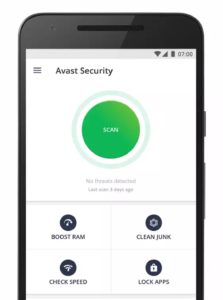
Avast is one of the best names out there when it comes to Antivirus software so you know you’ll get comprehensive protection from its mobile app. Features include monitoring how long you’re spending on each app, a disc cleaning feature that’ll get rid of all your junk files, and a strong scanner that works with a simple tap. Another cool feature is the Avast photo vault, which will give you a secure place to store private photos.

Avast Free Antivirus Download now ►
8

360 Security

Another cool free antivirus app worth your consideration is 360 Security. With this app, you’ll get all the usual features we’ve been through with other apps including an antivirus scanner, anti-theft protection, junk cleaner, and more. You’ll also get a rather handy CPU cooler tool, which will come in very handy whenever you feel your phone heating up, which more phones seem to do much more often these days.

360 Security - Antivirus Download now
8

Kaspersky Internet Security

The free Kaspersky mobile security app gives you access to a strong malware protection tool that’ll sniff out almost all types of malware that get onto your Android phone. It also has a robust blocker for malicious sites and will flag up dodgy links it doesn’t think you should click. Kaspersky runs in the background checking for apps, however, so it could be a little heavy on your phone’s processor and RAM.

Kaspersky Anti-Virus Download Kaspersky
8

Norton Security and Antivirus

Norton for Android

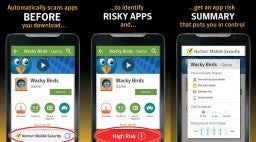
Norton is another big name in antivirus protection and the giant is proud to offer a mobile app that gives a 100% detection rate with its antivirus and anti-malware scanner. All viruses and malware are then safely removed from your mobile. Other cool features include a find my phone type feature, dodgy website blocker, spam filters and call blocking, and a rather cool feature that will use your phone’s selfie camera to snap a picture of anybody trying to access your phone when you’re not there.

Norton Download now
8

DFNDR

DFNDR, like 360 Security, is another mobile antivirus and internet security app that doesn’t have the big-name recognition of the likes of Avast and AVG, but that still packs quite a punch and offers a feature-rich mobile security suite. It comes loaded with anti-hacking, anti-spyware, and anti-phishing features on top of the regular scanning features you’ll find elsewhere. Other cool features include an AppLock, which will secure your private apps behind a passcode or fingerprint, and an assist feature that will keep you updated on how best to use the app and its features. The only downside of DFNDR is that it’ll show you ads, which can be very annoying.

DFNDR Download now
10

Wrapping up

There you have ten of the best free mobile antivirus apps you can download for your Android smartphone. They all offer strong protection against viruses and malware and many come with feature rich toolsets to back up their core functions. When picking the right one for you consider the features you’ll need specifically and also think about whether you’re happy to view ads. Unfortunately, you may have to pay, if you have a specific feature in mind and can’t stand ads. If you’re not so rigid, however, you’ll definitely find what you’re looking for free in this list.

5 Myths and truths about the dark web

This is all you need to know about the dark web and some myths you shouldn’t believe.

Myths about the dark web

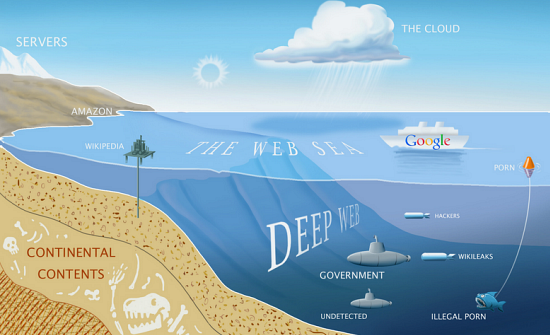
The dark web. As if the name doesn’t say it all already! Imagine an iceberg floating in the ocean. We can see about 10% of the iceberg above the water with 90% hidden below the surface. What we see is the popular image of icebergs that everybody is familiar with but hidden out of sight lies something more, something that is there but that not many people know too much about. This is kind of what the dark web is like when you think about the world wide web instead of icebergs. What we see and what everybody thinks of as the internet is just a small part of the overall web. The dark web is the vast part of the internet that most people don’t see.

What exactly is it though? Well, that is what we’re here for today. As most people don’t know too much about the dark web, rumor and myth can take hold. We’re here today to give you a clearer idea of what the dark web actually is and bust a few common web myths that are swirling around the internet.

What is the dark web?

deepweb

The dark web is the internet that you can’t find through search engines like Google or by clicking on links. The dark web goes beyond things like the BitCoin cryptocurrency and darknet markets like The Silk Road and, in fact, contains around 550 billion documents, which is a lot more than the 1 billion documents that the regular web has. It is very very big. Basically, it is everything that is online but isn’t easy to find. This is fact but it leads into our first common myth about the dark web.

Myth #1 You need special equipment to access the dark web

There is a commonly held misconception that only hackers and people with specialized computer abilities can access the dark web. This isn’t true. You don’t need special server banks or super-powered routers to access the dark web. Not at all. Instead, all you need to access the dark web is a web browser called Tor.

The Tor Project offers a free web browser that allows you to access the dark web. You can’t access the dark web without it, and it works by anonymizing and hiding your browsing activity. Tor, just like 95% of all the content you’ll find on the internet, is free to access.

Myth #2 The dark web is the same thing as the deep web

Both the dark web and the deep web are commonly referred to like each other. In fact, there are technical differences between the two.

The difference between them is how you collect information. The deep web refers to content that is usually locked up behind passwords and held in restricted forums. You can’t access these sites via search engines, but you don’t necessarily need Tor to access them. The Dark Web is all the information that can only be gathered by users who’ve anonymized their traffic using a web browser like the Tor Network.

Myth #3 It is illegal to access the dark web

This is just completely untrue. To the extent that even social media sites like Facebook have a presence on the dark web. In fact, it wasn’t long ago that Wikipedia set up a dark web page called the Hidden Wiki so that people in parts of the world living under government censorship could access the world’s biggest encyclopedia. It is in exactly these parts of the world, however, where it becomes a bit of a grey area.

In countries that like to keep tabs on their citizens and limit what they can see on the internet, the governments usually have laws against encrypting your data. As you need to use Tor browser to access the internet, which anonymizes and encrypts your data, it could be illegal to use Tor browser and therefore accessing the dark web would be illegal, even if there is no explicit law against it.

The other thing you need to consider is that due to its anonymous nature the dark web is filled with illicit information that could be illegal to access.

Myth #4 Only criminals use the dark web

Whereas anonymity does attract a certain kind of cybercriminal and deviant, there are plenty of other people who use the dark web. Sure you can hire a hitman, buy illegal drugs, download child pornography, and do other disgusting illegal activities but there are plenty of normal activities people do on the dark web. Things like socializing, sharing images and movies, and generally using and surfing the web in a similar way to how they browse the regular web.

Like we’ve already mentioned the dark web offers a way for people living under restrictive governments to access controlled information. The dark web also gives journalists and whistleblowers a safe way to communicate without fear of recrimination. They should still be careful, however, because of the final myth we’re going to bust.

Myth #5 You’re completely anonymous when you’re browsing the dark web

If you’re a journalist, whistleblower, or anti-government activist you’re going to have to take some further anonymity precautions than the baseline offered by the Tor browser. Although Tor was built to keep you anonymous and is needed before you can access the dark web it cannot guarantee your privacy on its own. A study concluded that Tor is not “…completely verifiable on the Dark Web.” This shouldn’t come as a complete surprise, however, when you consider just how seriously some governments take their efforts to oppress their people.

The good news, however, is that when combined with another privacy-protecting tool, Tor and the dark web can go a long way to keeping you safe. Using a strong VPN program when accessing the dark web, using Tor, will further enhance your privacy by masking your IP address and encrypting your data even further before communicating with your internet service provider. VPNs can even go so far as to hide the country you’re accessing the dark web from. If you’re busting out government secrets in China, a strong VPN can make it look like your connecting to the internet from the US.

Best password generators 2020

These are all the best password manager programs and online password generators.

The best password generators

Passwords are bit of a nightmare. Weak passwords are useless and we need to make our passwords as complex as possible so that brute force attack won’t break through them by having a computer simply go through all the possible combinations. Furthermore, we need to change them regularly. As we all now have more online accounts than we’ve ever had before the result of having to regularly change complex passwords is one big mess. Let’s face it, we either have lots of accounts with the same password, which is a security nightmare as one data breach will unlock all your accounts or we’re constantly hitting the “I forgot my password button” and resetting.

The other option for avoiding the randomness is writing down all of our passwords so that we don’t forget them, and can keep track of all the changes we make. This, however, is very impractical and also very insecure. You don’t want to carry around a book full of passwords with you everywhere you go and you don’t want people seeing a password you’ve written down.

This is where password managers come in handy. They provide a secure place where you can store all your passwords behind a single master password that you can safely carry with you everywhere you go on your Android mobile phone or iPhone. Furthermore, password managers can instantly generate passwords for you so that you won’t have to spend hours and hours thinking of something that is 8-16 characters long and has lower case and upper-case letters, at least one number etc.

Let’s look at five of the best password managers and password generators available today.

The best random password generators

LastPass

LastPass

LastPass is an excellent password manager that also has a fantastic free version too. For free, LastPass will securely store all of your passwords and let you access them across three of your devices. This means you’ll be able to securely log into your accounts from your PC, mobile, and tablet without having to pay for the premium version.

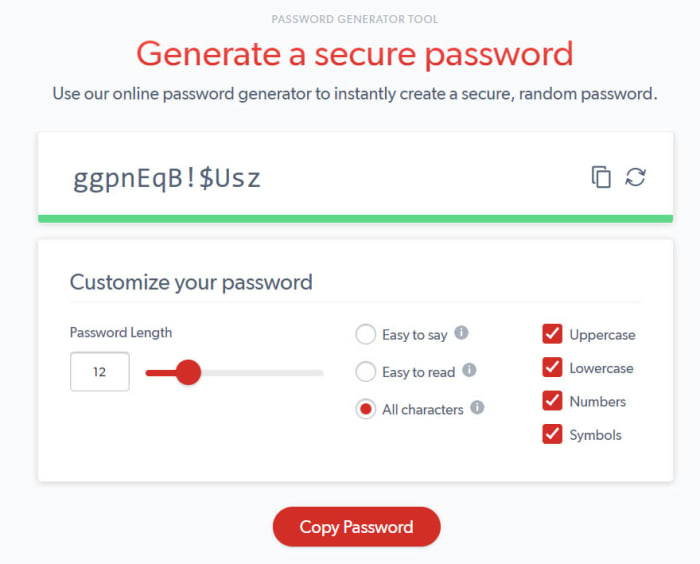
LastPass also offers a great password generator that will automatically come up with secure passwords whenever you sign up to a new account and then prompt you and fill it in every time you try to log in. If, however, you don’t want to install LastPass, you can use the web version the of LastPass password generator every time you need to create a password. It offers a number of customization options including Uppercase and Lowercase Letters, Numbers, and Special Characters. You’ll also be able to set password length and choose whether to have a password that is Easy to say or Easy to read. Once you have your password you can simply hit the copy button and then paste it where you decide to keep it.

8

Avast

Avast password generator

Avast is, of course, famous for its antivirus software and we recently recommended Avast Free Antivirus as the best free antivirus program available today as it offers many features that you’d normally have to pay for. One such feature is the Avast password manager.

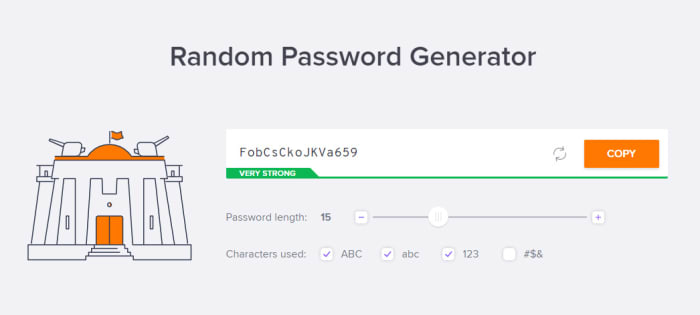
Although the free version of Avast’s password manager isn’t as good as the free version of LastPass it does still have a great password manager. Just like with LastPass, Avast also offers a web version of its password generator. It offers all the usual customization options for your password generation and couldn’t be easier to use.

Avast Free Antivirus Download now ►
8

NordPass

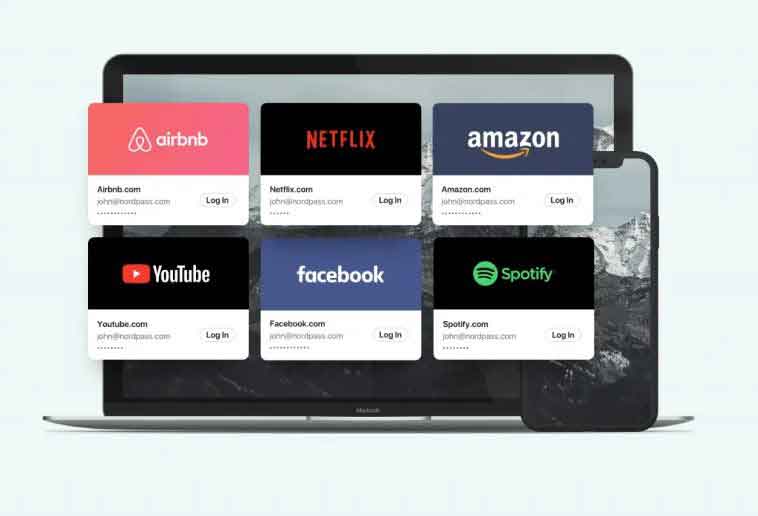
Behind NordPass we found the same cybersecurity experts of the complete and successful NordVPN. The big main feature? The XChaCha20 encryption algorithm. It supports two different lengths of keys, with the 256-bit one being the strongest. As a result, it’s one of the safest encryption algorithms. And the best part? You, as an user, don’t need to worry about this settings: NordPass does it for you.

In addition to the XChaCha20 encryption, we have all the advantages that we already expect on a pass manager: two-step authentication, personalized configuration, protection of our bank data, apps for all types of platforms … Oh, and with a completely free option. There’s also a Premium version, which allows to be used up to six simultaneous devices.

NordPass Download now ►
8

Dashlane

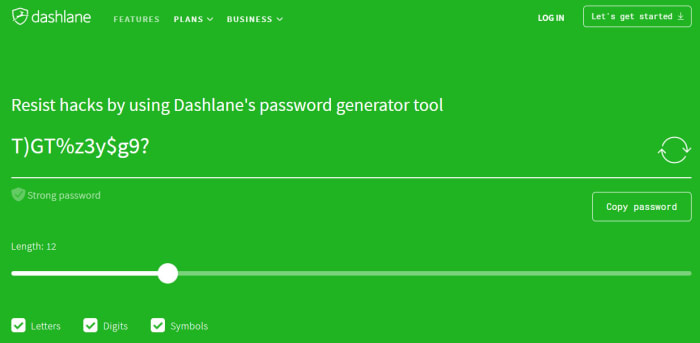
Dashlane password generator

Dashlane, like LastPass, is a specialized password manager. It offers extensive features that enable you to coordinate your secure passwords across multiple devices. It is widely regarded as one of the best password managers in the business. Unlike with LastPass, however, you can’t use Dashlane on more than one device for free. You’ll have to pay for multi-device.

The good thing about Dashlane though, is that its excellent password generator is available for free online. You can easily set the different parameters your good password needs and then Dashlane will make it very clear whether the parameters you’ve entered create a strong password or a weak one. If the generated password is strong the green will shine bright green. If it isn’t, your screen will shine fiery red.

Dashlane Download now
8

1Password

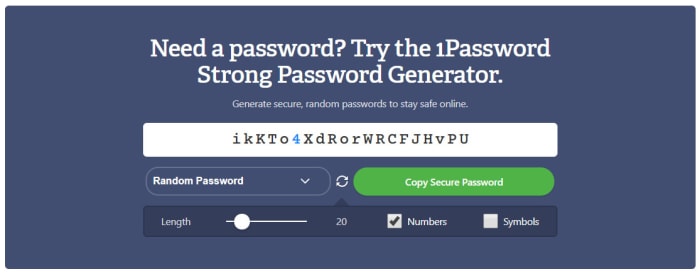
1Password password generator

With a name like 1Password we’re pretty sure that you already know this is another specialized password managing program. With 1Password you’ll get all the automated password features you get with Dashlane and LastPass, rigorous encryption protecting your stored passwords, and a strong password generator that makes it very easy to create new online accounts securely.

The 1Password password generator is also available online and offers a rather useful feature that sets it apart from the other password generators in this list. As well as giving you control over password length, and numbers and symbols, 1Password also offers users a free PIN generator too. With Windows 10 and other similar programs offering offline PIN login alternatives these days a random PIN generator is very useful as it’ll stop you from falling back on to a random date.

1Password Download 1Password
6

Norton Lifelock

Norton is another famous Antivirus security suite that has recently developed a password manager and password generation feature. This is because having safe and secure passwords is a very important part of your online security toolkit.

The online version of Norton Lifelock is similar to that offered by Dashlane. You select all of the criteria you need your password to have and the tool with then show you whether the resulting password is bad, weak, or strong by showing a red, orange, or green background. As well as this, Norton gives you all the regular password customization options including Numbers, Mixed Case letters, Punctuation marks, and symbols.

Norton Download now
8

Wrapping up

We can’t stress enough just how important it is that you have unique and strong passwords on all of your online accounts. We know, however, that it can be hard coming up with new passwords when you have to change them all the time. Each of the password generators we’ve mentioned will create strong and unique passwords for all of your online accounts. The 1Password PIN generator is also very useful.

All in all, though, we think you’d be much more secure if you installed one of the full password manager programs we’ve featured today. In that respect, we recommend LastPass, which will give you your passwords across multiple devices for free.

8

Best free antivirus 2020 (Desktop)

These are all the best antivirus programs you can download for free

The best antivirus for free on Windows

If you think about all the things you do on your PC and online these days, you quickly see why it is more important than ever to have a strong and reliable antivirus program protecting your interests. Think about it, these days we buy more things online than ever using our credit cards, we click on links every day, we receive hundreds of emails every week, and now we’re even furnishing our homes with smart devices connected to the internet.

Yes, all of these technological advances make life that little bit easier, but they also offer new ways in for hackers and cyber criminals, which only add to all the classic threats we face like trojans and adware. We could click on a dodgy link, open a phishing email, give our credit card details to a fake store’s website, and we’re not even going to get into what hackers could do with that new smart lock you’ve just installed or that always listening smart speaker that sits in your den. Even our Wi-Fi networks are vulnerable to exploitation.

Fortunately, there are plenty of excellent free antivirus programs available these days, that are even better than Windows Defender, and we’re going to run through the best of them now. Hold tight for our list of the best free antivirus software for Microsoft Windows 10.

Free antivirus for Windows 10

Avast Free Antivirus

Avast Free

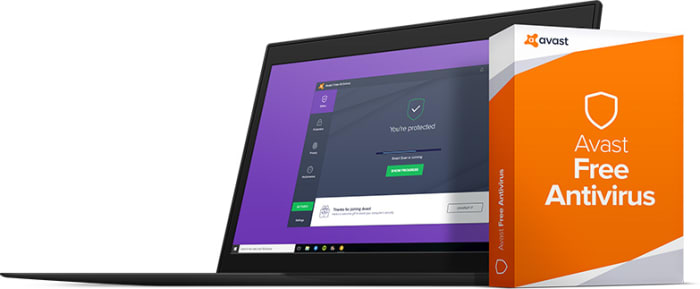
All five of the free antivirus programs we’re featuring today offer strong protection. If we had to pick out one, however, Avast might get our best antivirus recommendation. As well as offering antivirus and malware protection features that regularly score highly with independent testing labs, Avast also offers a wide range of extra features that you’d normally have to pay for.

The best of these extra features is the Password Manager. This will create new and extremely secure passwords for all of your online accounts, store them securely, and then automatically fill them in whenever you’re trying to access your accounts. The only limit to this feature, however, is that it can’t be used across multiple devices, which means you won’t be able to log into your accounts via your mobile if you use Avast on your PC. Avast free still remains an excellent choice though, for anybody looking for a strong level of antivirus protection but who don’t want to pay out a lot of cash for it.

Kaspersky Security Cloud Free

cover

Kaspersky has long been respected as one of the strongest antivirus programs on the market and has always scored well across most of the independent antivirus testing labs like AV-Test and AV-Comparatives. Fortunately, Kaspersky began offering a free version of its antivirus total security and malware protection software back in 2017. The cloud-based offering has plenty in its locker too.

You can install it on your PC, but Kaspersky Free also offers support for iOS iPhone and Android users too. Key features include full malware protection, spyware defense, and almost flawless real-time protection from phishing scams. The software will flag dodgy links and block malicious URLs. For a free program, Kaspersky Antivirus offers robust security features and even has some you’d have to pay for elsewhere. Definitely worth a look.

Kaspersky Anti-Virus Download Kaspersky
8

Sophos Home Free

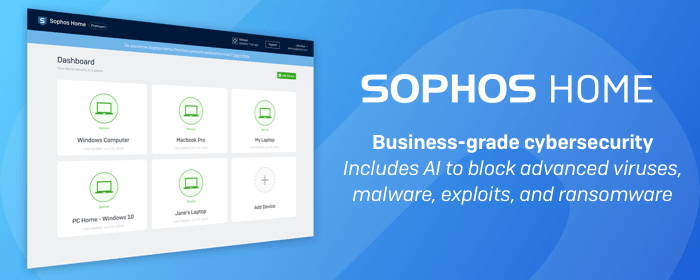
Sophos has long specialized in protecting business computer networks containing hundreds, if not, thousands of computers. Protecting business interests means the Sophos team has long had to ensure the tightest of security measures in its programs. Thankfully, the move into home security software hasn’t resulted in any lower levels of security. The latest version of Sophos Home Premium makes it easy to coordinate security across multiple devices but the free offering has just been boosted with new AI algorithms.

The idea behind Sophos’ AI antivirus features is a neural network that learns from the threats being dealt with on all machines running the program. This means Sophos can preempt malicious behavior rather than having to check dodgy files and programs against known threats.

Other great features that come with Sophos Home Free include strong anti-phishing protection, anti-malware features, and the ability to protect and remotely control security features across three devices, just like the network administrator would do in an office.

Sophos Download now
8


AVG Antivirus Free

AVG Free

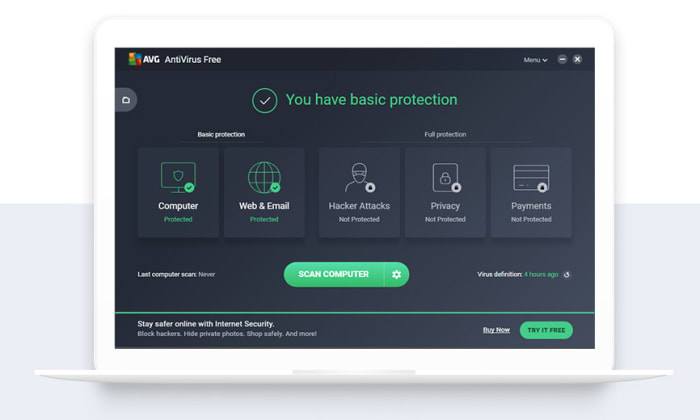
AVG Antivirus is another established and very well-respected antivirus software suite. Furthermore, AVG offers a free version of its antivirus technology that comes packed with plenty of features like malware and antivirus scanner, and robust phishing protection including blocking dodgy URLs and rating websites for you so you know which ones are safe and which ones are not.

AVG offers a wide range of free features for internet security-conscious web users. Recently, however, it has lost a couple of prime features including web browser protection and scan speeds have slowed significantly also. Protection-wise, you can still count on AVG to keep you as safe as any of the other free antivirus offerings we’ve included in our list.

AVG Free Download now
8

Bitdefender Antivirus Free Edition

Bitdefender

The final antivirus program we’re bringing you today is BitDefender, which brings you a robust offering for free that is really simple to install. There is no need to answer all sorts of questions or hand over lots of details to get your hands on the free version of BitDefender, which is something that sets it apart.

The free version of BitDefender offers the same level of antivirus and malware protection that you get with the paid antivirus version. The difference is that you’ll miss out on some of the premium features like a password manager, ransomware protection, or multi-device support. This means if you’re all your after is a strong scanner and always-on protection, you’ll be happy with what BitDefender Free Edition gives you. If you’re looking for advanced features, however, you’d be better looking at one of the other programs we’ve listed.

Bitdefender 2018 Download now
7

Wrapping up

Today we’ve shown you five antivirus programs that will keep you safe online for free. In truth, it is hard to pick between them as each offers strong enough protection to make it onto our list. We wouldn’t recommend any programs that didn’t offer robust security features. If we had to pick one antivirus solution, however, it’d likely be Avast that tops our list. For free you’ll also get a number of premium features with Avast, that you won’t get with the other programs.

The best Black Friday deals

These are all the best software deals you’ll find this Black Friday.

When Black Friday comes around, we’re inundated with limited-time special offers for all sorts of products like headphones, wearable tech, charging cases, video games, SSD hard drives, smart home devices, and iPads. With so many deals from the likes of Amazon, Walmart, Best Buy, Newegg, and Samsung, however, it can be hard to know where to start. Well, at Softonic, we’re specialists in software so you can trust us to bring you the best Black Friday sale software deals. Let’s get into it then, these are the best Black Friday deals for software and online subscriptions.

Disclosure: Softonic may receive a referral fee if you click or buy any of the products featured here.

The best Black Friday software deals 2019

ExpressVPN

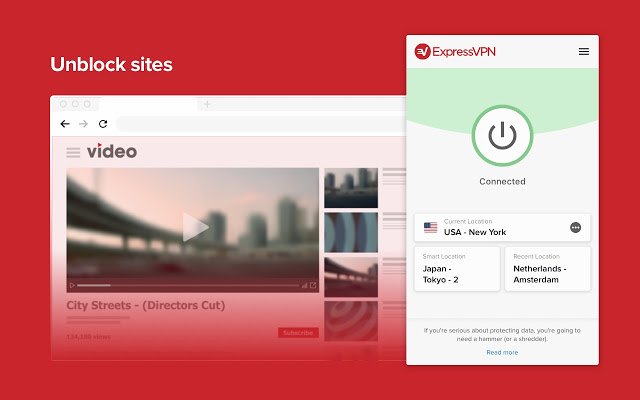
Virtual Private Networks (VPNS) allow you to mask the IP address of your Microsoft PC, Macbook, iPhone, or Android phone and encrypt all of your internet data. They have become essential for anybody who wants to surf the web safely. Add to that the fact that VPNs open up global content that would normally be locked due to your geographic location and you quickly realize that you need a powerful VPN on your machine.

The problem with VPNs, however, is that many of them are not that reliable. This is simply not the case with ExpressVPN though, which is widely regarded as the best VPN in the business. An ExpressVPN subscription will give you reliable access to over 3,000 servers round the world allowing you to protect your data and simulate your location in over 160 locations spread across 94 countries. If that sounds like something you want, act now to get three months free subscription to ExpressVPN.

Express VPN Save $$$ Now
10

Adobe Creative Cloud

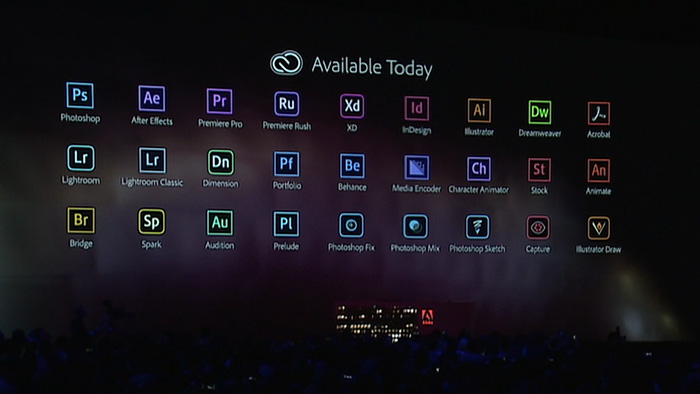
If you’ve never heard of Photoshop, then you must have been living in a cave or something. Photoshop and all the other programs in the Adobe Creative Cloud design suite are the best in their class. No matter your design job, the Adobe Creative Cloud will give you the best tools available to get it done.

Now’s your chance to get yourself a full subscription to the Adobe Creative Cloud package with massive savings of 40% off the normal price for all and 80% for students. Take advantage of early Black Friday savings that could end up saving you hundreds of dollars every year.

iObit

iObit Black Friday deal

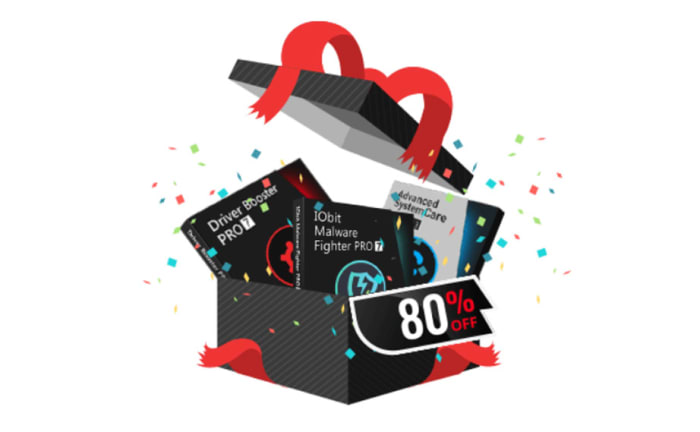
Keeping yourself safe online is a tough job these days. Online threats and more advanced types of malware hit the internet all the time. As well as online threats, as software gets more and more complicated we can experience inexplicable slowdowns on our PCs. This is why it is more important than ever to have a robust cybersecurity suite protecting you every time you’re online and to keep your PC working as well as it should.

With that being the case, you do not want to miss out on the eye watering  discounts that iOBit is offering on its line of PC optimization and protection software. You can save up to 80% on complete packages of iObit cyber security software. iObit is also giving away $60 worth of software for free with every purchase made. Check out these deals now and save yourself some money.

iObit Special Offer Save Save Save
10

MacPaw CleanMyMac

CleanMyMac black Friday deal

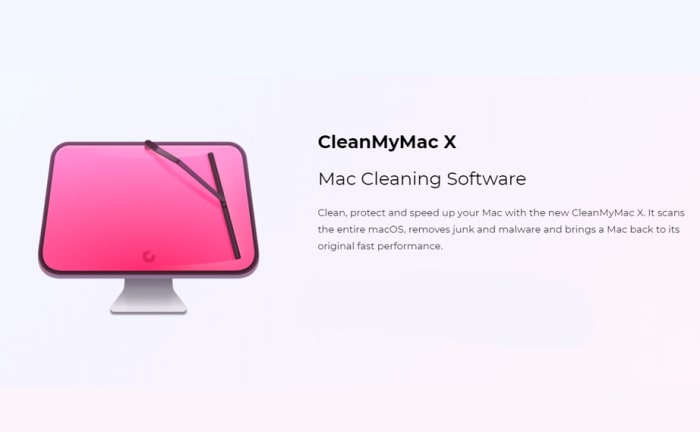
MacPaw’s CleanMyMac optimization suite offers the industry standard that all other Mac cleanup programs try to match. CleanMyMac makes it a quick and simple process to clear up space on your Mac and get your Apple Mac back to its best. With MacPaw’s amazing Black Friday deals, you can save 30% on a CleanMyMac subscription. You need to act fast, however, as MacPaw discounts are rare, and it won’t be Black Friday forever.

CleanMyMac Clean for less
10

CCleaner

CCleaner Professional is a veritable institution in PC optimization. It has been around for years and is well-known for offering a quick, safe, and reliable disk cleaning service. Regularly regarded as the most efficient tool for identifying gigabytes of erroneous files and delivering noticeable boosts to your PC’s performance every time you use it. If your PC needs a boost, act now and save 50% on a CCleaner subscription.

CCleaner Click to Save
10

Sony Vegas

If you’re a video editor you need a feature packed video-editing suite offering full video production capabilities, audio editing, special effects, and more. Sony Vegas has all of these and more. If you’re an Instagram or YouTube video blogger then you should think seriously about this Sony Vegas Black Friday deal. Act now and you could save yourself hundreds of dollars and massively upgrade your video-making capabilities.

Sony Vegas Save $$$
10

Norton Antivirus

Norton Antivirus

Our final Black Friday deal comes from Norton Antivirus, which is offering savings of up to $60. Protect yourself from threats including ransomware, malware, spyware, and more.  Norton will also protect your identity from potential hacks and  potential online scams and phishing attempts. Act now to save a massive $40 and protect your PC or Mac for an amazingly low $19.99. Protect up to 5 devices with the full Norton package and save a massive $60. Don’t wait to stay safe and save money.

Norton Antivirus Protect and Save
10