
3 great privacy-focused web browsers

Chrome may not be your best bet for privacy. Check out these alternatives.

internet security

Hackers are more prevalent than ever today. The only way you can keep your personal information and data truly private is through being proactive with a privacy-focused web browser. Here are the top three web browsers that will help you keep your information private!

3 great privacy-focused web browsers

1. Tor

Tor is one of the most notable privacy-focused web browsers out there today. The web browser is built on a collection of hidden relay servers. Basically, the way it keeps your information private is through bouncing your connection between various distributed nodes. This means that your connection will be completely private.

However, it is important to note that this is a true privacy-focused web browser, and it will not protect you from malware or viruses. The only negative aspect of this web browser is that it can slow down your browsing. We’re not saying you have something to hide… but if you want to be completely anonymous when surfing the internet, then Tor is the best on the market.

2. Brave

Brave is great for anyone who wants a privacy-focused web browser that’s also quick. The problem with many other web browsers is that they can be slow in order to operate at full capacity. However, Brave has great speeds and can even custom block ads and trackers.

Browse the web up to 8x faster than Chrome and Safari. DOWNLOAD NOW ►
10
Enjoy private, secure and fast browsing with Brave.

The only downside to this browser is that it’s relatively new and may not be as fully developed as other privacy-focused web browsers. However, there is a great team of developers always working to improve the browser to ensure you will have a great experience while using it. Want to learn more about why Brave is a great choice? Check out these articles:

3. Firefox

Although many people may assume that Firefox is just your average browser, if you add some specific add-ons it can be great for privacy. If you add the extensions HTTPS Everywhere, NoScript, Windscribe, and uBlock Origin, they can make your Firefox browser extremely secure and private. Another great element of using Firefox as your privacy-focused web browser is that it has really good downloading speeds and won’t slow down your Internet browsing at all. In addition, Firefox’s latest version claims to use 30 percent less memory than the Chrome on Windows computers. This is a great web browser for someone who wants added privacy but isn’t an expert on browsers.

Overall, privacy is extremely important when selecting a web browser. Any of these three privacy-focused web browsers can help keep your information and personal data safe.


4 great music apps that aren’t Spotify

Looking for a great Spotify alternative? We’ve got four.

MUSIC APPS

Music is such an important part of the lives of so many people. For some, tunes are crucial whether they’re entertainment on a commute to work, therapeutic in emotional moments, or simply what you jam to in the shower.
That said, having a reliable way to stream music is important, too. Below, learn about the four best music apps that aren’t Spotify. These streaming services deserve love and attention too, so be sure to check them out.

4 great music apps that aren’t Spotify

1. Google Play Music

Available on both iOS and Android, this music app is free to download (and also has a subscription option starting at $9.99 a month). The app offers a range of advantages.

First, it’s flawlessly designed with intuitive features that are easy to navigate. Additionally, the app is robust with hand-picked playlists and custom radio stations, making it easy to find something that you love listening to.

Subscribers enjoy a massive database of songs, more personalized radio stations, unlimited skips, and well-targeted recommendations. The free version of Play Music allows users to upload up to 50,000 of their own songs to the cloud, which users can listen to advertisement-free. Overall, this app is worth downloading — and worth the monthly fee for a great music experience.

Google Play Music Download Free
9

2. Apple Music

This is another music app available for both Android and iOS. Boasting a catalog of 50 million songs, Apple Music also has radio shows, custom playlists, and other great draws to it that make it worth considering. Plus, since it’s designed by Apple, you know it’s going to be clean, easy to navigate, and well thought out. The one thing to note about this service is that aside from a free trial, there is no free option — subscriptions cost $4.99 for students, $9.99 for individuals, and $14.99 for a family account (up to six people).

Apple Music Download Now
7

3. Amazon Music

More of a “new kid on the block” as far as music apps go, Amazon Music packs a serious punch. This service provides users with access to many free songs and also allows users to upload music of their own and any purchased on the site. While there’s a free version of Amazon Music, access to the full library is available only through Amazon Music Unlimited, which starts at $7.99 a month. A perk of this service is that anyone with an Amazon Prime account automatically has access to a special version of membership with 2 million songs.

Amazon Music Download Free
8

4. TIDAL

TIDAL has an impressive library of over 59 million songs. This app also allows access to music videos and makes custom recommendations for listeners. TIDAL offers a free trial period and a wide range of subscription options  including family, student, and military plans  making it the perfect option to suit your musical needs as well as your budget.

Tidal Download Now
7

There you have it — you don’t need to opt for Spotify to have an unforgettable musical experience in the palm of your hand. Check out these apps to enjoy your favorite tunes whenever you feel the urge to rock out.

Lolli pays you Bitcoin for everyday online shopping

You’re already shopping online. Why not get free Bitcoin for it?

bitcoin

These days, everyone is after ways to earn Bitcoin — and everyone is shopping online. So why not link the two? That’s what startup Lolli is doing. The company launched a new platform that allows you to earn free Bitcoin while you shop.

Lolli brings Bitcoin to everyday online shopping

Getting everyone involved in Bitcoin

Bitcoin is the most well-known cryptocurrency, and it’s getting a lot of attention from those in the finance industry. Stock traders are interested in it, but what about everyday people? Bitcoin has opportunities to help everyone to achieve the same benefits, but the currency isn’t as readily available in the mainstream right now. Lolli can change that.

How does Lolli work?

In short, Lolli is a rewards-like platform similar to the many others out there. When you use the app, you earn Bitcoin when you make a purchase through a wide range of retailers. At this time, there are over 500 participating companies involved.

If you are interested, all you have to do is download the browser extension. The process is easy, and it takes only a minute to download from the company’s site. This is also the place to check out the list of retailers participating in the service. (Wal-mart, Seat Geek, VRBO, Barnes & Noble, Sam’s Club, and CVS are some of the heavy hitters.) The company currently offers the service just for Chrome and Safari users. However, Lolli plans to offer more browser support in the future.

Then what happens?

When you activate Lolli and shop, you can earn as much as 30 percent back in Bitcoin rewards. The tool automatically alerts users when they are shopping on one of the approved and partner websites. Once the transaction is complete, you earn your sweet, sweet Bitcoin.

For those who want a Bitcoin version of a cash-back app, Lolli is the way to go.

How to get text messages on your MacBook

It only takes a second to sync texts across your Apple devices.

macbook

Once upon a time, phone calls and emails were the most popular ways to communicate. These days, texting is king.  Avid texters often want to be able to keep track of all their messages and save them in an easy-to-access area. One simple way to do this is by syncing a MacBook and an iPhone. Linking these devices can save time and make the texting process that much faster for frequent MacBook users. Here’s how to get text messages on a MacBook.

How to get text messages on your MacBook

Determine your eligibility

The basic requirement for getting text messages on a MacBook is to have both an Apple phone and a MacBook (or any other Apple computer). You can even receive SMS text messages in addition to iMessages.

Both the phone and the computer need to be logged into iCloud using the same Apple ID. Both also must run operating systems that can handle the text message forwarding software. The most recent operating systems for both iPhones and Macs have this capability.

Sync your phone and your computer

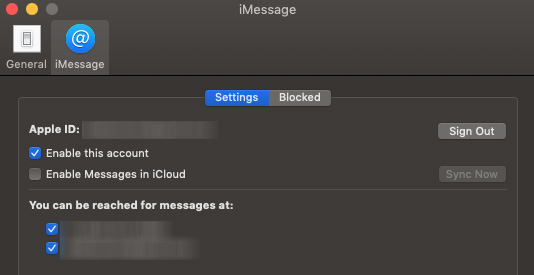
Once you’ve determined that you meet these criteria, you need to sync your phone and your computer. Make the connection by opening the Messages app on your Mac, logging in, and then enabling iMessages from your phone number and Apple ID email in Preferences.

imessages

The process is as simple as changing a notification and opening a window on an already-loaded app for your computer.

Confirm text message forwarding

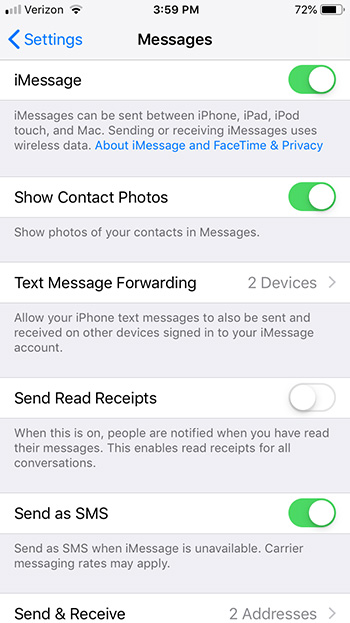
Then, to send and receive text messages on a Mac, you can set up text message forwarding on your iPhone. On your phone, open Settings, tap Messages, and then select both Text Message Forwarding and Send & Receive to link your accounts. Enter a verification code if prompted on your Mac’s Messages app. Note: if you’re not logged into Messages on Mac, you won’t even see the Text Message Forwarding option. But other than that, you’ll be quickly streamlined across your devices!

imessages setup

The benefits of MacBook texts

You can use the Messages app to send text messages to phones from your Mac. This option is particularly helpful if you don’t want to (or can’t) tap out long text messages on a small phone screen.

Text message forwarding also can help you share the storage load of your messages between your computer and your phone. In addition, text message forwarding can increase your productivity as you work on your laptop.

Greater connectivity makes communication that much easier for Apple ID users.

4 best apps for managing your social media posts

Feeling overwhelmed with too many posts? Try these apps to promote your brand.

If you manage a social media profile, you know how busy you can get. You’re probably frequently responding to comments, scheduling posts, analyzing your audience and engagement statistics, and maintaining a consistent profile or brand message. At times, it can seem like your page requires constant attention.

Thankfully, several companies have released apps with tools that help you reduce the time you spend crafting and honing your social media presence. The best apps offer various options that cater to single influencers, big companies, and everything in between. Take a look at some of these affordable suite-style options and free integration apps below.

4 best apps for managing your social media posts

1. Agorapulse

Agorapulse is widely used by companies that want members of their marketing teams to have access to multiple social media accounts at a time. However, the app also serves a number of influencers and individual social media users with several platforms to manage.

Users can choose between monthly and annually-billed plans, ranging from $49-$299/month and $39-$239/month respectively. The different plans are meant to benefit a range of individuals, small businesses, agencies, and large organizations.

The app allows users to integrate up to 40 profiles and up to 12 individuals at a time, depending on the given plan. Thanks to the dashboard, content queue, detailed calendar, and real-time syncing on both smartphones and computer formats, you’ll have all you need to keep track of every detail of your profiles.

2. Social Report 

Like Agorapulse, Social Report is useful for both individual influencers and bigger companies alike. The app offers integration capabilities for platforms including Instagram, Facebook, Twitter, Google Analytics, Yelp, and TripAdvisor, to name a few.

The app also offers suite features for basic users without significantly upping the price, which comes in at just $49/month. These include direct scheduling, PDF analytic reports, inbox management, and the ability to reuse your best content and bring in more views. There is also an Advanced plan ($99/month) that allows for 50 social media profiles and 10 users, and a Pro plan ($199/month) with over 200 profiles and an unlimited amount of users.

3. Hootsuite

Individual influencers and personal social media managers have often referenced Hootsuite as the No. 1 free integration app available to users worldwide. The app allows users to sync dozens of platforms at once. Functions include monitoring conversations by keyword, hashtag, and location, in addition to scheduling posts, maintaining pre-approved content, and tracking ROI.

The Hootsuite app is available in both desktop and mobile formats, making it perfect for social media users who are often traveling or moving around the office. Plans range from $29-$599/month, with an additional, customizable plan, but you’ll need to request a price for that.

HootSuite Download Free ►
8

4. IFTTT

IFTTT is a wonderful free service that’s a bit different from the others in format. Short for “If This Then That,” the service allows users to create their own conditional statements, called “Applets,” that dictate what exactly they want the app to do for them across multiple social media platforms. The service includes a list of curated collections to find “Applets” for things like moving content between two different social media apps or saving photos, captions, or videos to DropBox folders.

IFTTT Try IFTTT
7

IFTTT also includes a suite of newer apps, such as the Do Button, Do Camera, and Do Note. These three tools are for even readier-made task automation.

Tired of spending too much time managing your social media posts? With one (or more) of these smart apps, syncing and controlling your social media accounts can be easy and within your budget.

4 incredibly useful templates in Google Sheets

These are our favorite Google Sheets templates to be more productive.

google sheets templates

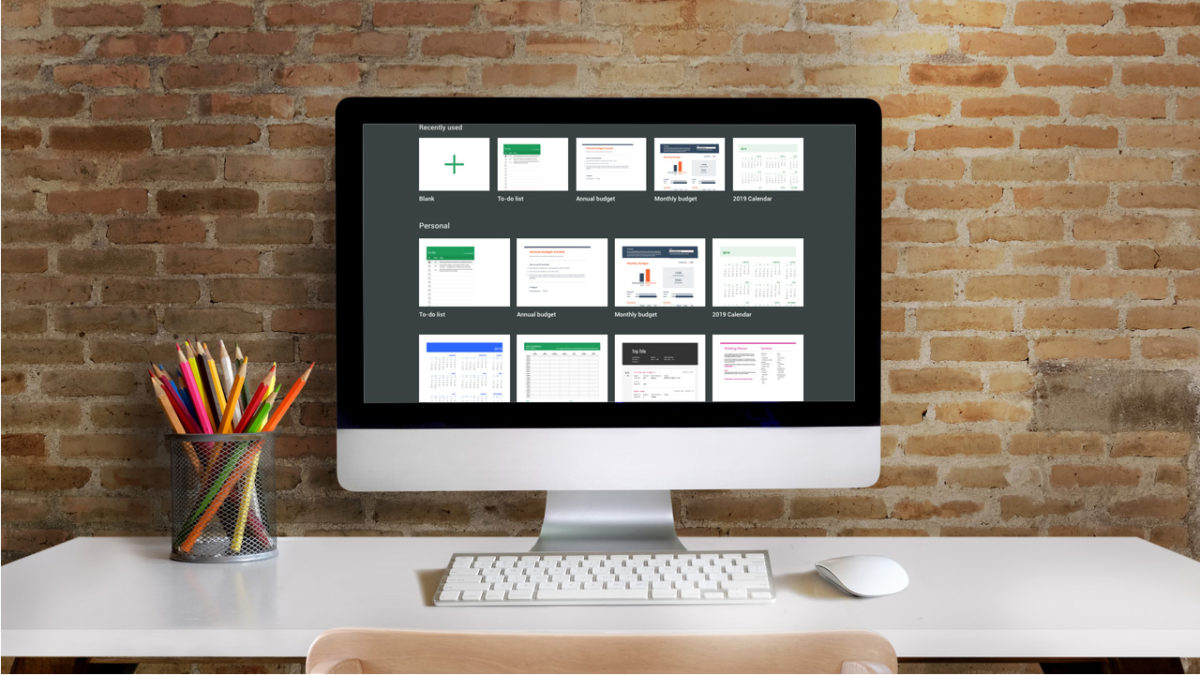
No matter how you use Google Sheets, at home or at work, it’s important for the spreadsheet program to be as efficient and user-friendly as possible. One of the many benefits of the program comes in the form of Google Sheets templates. Below, learn about the different templates available at your fingertips. These four handy tools can boost productivity and make life easier for all G-Suite users.

4 incredibly useful templates in Google Sheets

1. Invoice

If you own a small business or operate as a freelancer, the invoice template is a lifesaver. It’s a completely customizable template that looks way more professional than a run-of-the-mill spreadsheet. That way, you can impress clients without very much backend work.

7

2. Project timeline

Project management can be tough, which is why this template is so thoughtful and useful. The timeline helps you organize and implement different steps of any large-scale project. A lot of users appreciate its visual separation of larger tasks, which makes it easier to delegate (and is a lot less stressful to look at).

3. Employee shift schedule

This is another template that simplifies the lives of business owners. The shift schedule template makes it easy to track who is working what hours, at what rates, and even calculating paychecks.

4. Financial statements

Anyone who’s in charge of reconciling the finances for a business knows what a daunting task it can be. By helping to track business transactions, P&Ls, and assets and liabilities, this template makes the process much easier. It is even broken up into different tabs that automatically summarize certain information, along with a dashboard where you can calculate YTD growth with minimum data-inputting effort. This template significantly helps minimize the chance of human error when calculating important information for any business or organization.

All of these templates make it much more possible to be efficient and productive when using Google Sheets. And let’s face it, that’s the reason most users turn to the program in the first place.

How to create custom lenses on Snapchat

Feeling creative? Make your own lens for Snapchat!

Snapchat lenses are a great way to keep the app fresh, exciting, and — most of all — fun! Thankfully, you can access a whole world of lenses you can use on the app when taking photos and videos. But the best part? You can also create original lenses by yourself! Below, learn how to go about creating custom Snapchat lenses to suit all of your snapping needs.

How to create custom lenses on Snapchat

Snapchat’s Lens Studio

As an add-on to the regular Snapchat app, the platform released its second app at the end of 2017. This app, referred to as the Lens Studio, allows users to design and build their own augmented reality lenses to use on the regular app. Pretty cool, right?

This app is a bit different in the fact that it works on desktop computers rather than mobile devices. One of the neat things about it, though, is that the tools you use to create your custom lenses are similar to those Snapchat’s professionals use to create theirs.

Snapchat Lens Studio Download Free ►
7

This app was a huge release for the social media giant: A whopping 70 million users interact with Snapchat lenses on a daily basis. Now that’s a lot of dog faces and flower crowns!

Designing your own lens

So how difficult will it be for users to take advantage of this platform and create stellar lenses? Not hard at all! You don’t have to be a design whiz to do this.

The Lens Studio will conveniently include templates and guides that help individuals get started on their creation, including those for both two- and three-dimensional designs. It’s as easy as building a filter base and then tapping on items to change their shapes or other characteristics.

Once these lenses are created, users receive a unique Snapcode and Lens Link that they can share and utilize to put their lenses into action. It’s as easy — and fun — as that!

How to save a web page to Evernote

Save that site and come back when you have more time.

Evernote

Have you ever stumbled upon a fantastic web page and wished you could save it? Well, in just a few easy steps you can do just that in the note-taking app Evernote. Just make sure you follow the instructions for your specific phone.

How to save a web page to Evernote

Saving a Web Page on iPhone

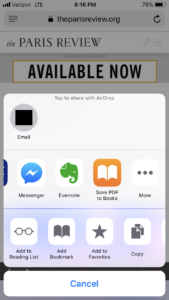
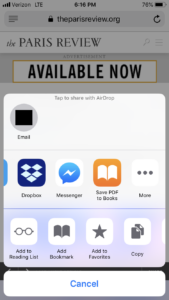
First, you will need to tap the iOS sharing button – it looks like a square with an arrow pointing up.

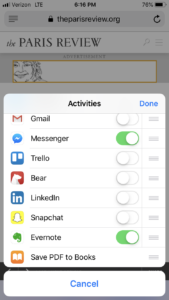
Once you’ve done that, tap the More button. This will allow you to edit your sharing options.

After you’ve done that, you can tap the Evernote switch to make it active. By tapping the switch, you’ll add Evernote as a sharing extension in the future. Once you’ve done so, tap the Done button to close the share options panel.

After you have closed the share options panel, Evernote will now appear in the list of apps your device can share to. If you want Evernote to appear higher up on that list, you can simply tap and drag Evernote to move it to the front of the list.

Just click the Evernote icon and the web page is clipped and shared to Evernote in the background. You have the option of selecting a notebook to save the clipped note to in Evernote.

Saving a Web Page on Android

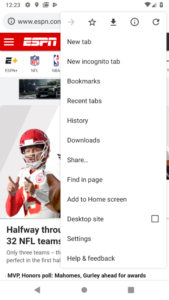
In your browser, select the Share… option from the options menu on your Android device. (If you’re having trouble finding the options menu on your Android, remember it is typically represented by three small vertical dots). Finally, you can select Evernote from the list of sharing options.

For Android, unless you choose otherwise, web pages will be saved as full articles to the default notebook. If you want to change the destination notebook, add tags, or save only the URL, tap the elephant button that appears after you share to Evernote.

Once you’ve added the share option to your device, saving a web page to Evernote is easier than ever!

How Google Allo learns your style to create messages for you

Google Allo can make your replies even faster.

Google Assistant

Google Allo is a smart messaging app that offers a variety of images and predictive features to help you communicate more efficiently. It features Google Assistant, which uses artificial intelligence (AI) technology to learn more about you so that it can better create messages for you, among many other things. The longer you use Allo, the better it will get to know you — and the more accurate it will become. (Although Google is pulling the plug on it this March.) Here are some ways you can help Allo learn your style.

Google Allo Download Free ►
8

How Google Allo learns your style to create messages for you

Chat and use Smart Reply

The first thing to do is to start chatting with your friends. When you do so, Allo will learn more about you. Once Allo gets to know how you communicate — such as how you say hello to a friend — it will give you the option to use Smart Reply. With Smart Reply, you can simply click on a small text bubble that features something you might normally say in response to a question or greeting. Or, Smart Reply might suggest an emoji or sticker if that’s how you prefer to communicate.

When you answer with Smart Reply, Allo learns your preferences and can suggest similar or better responses in the future. The more you use it, the better it gets.

Give Google Assistant access

Google Assistant is one of the smartest AI bots around. Because it has access to all of your personal info — such as your appointments, calendar notes, flights, and any other information you’ve given it access to — it can better understand your needs and style. It will also keep tabs on all of the information you’ve told it via chat or search. This way, it’ll learn your interests, plans, and even your likes or dislikes.

Why spend time looking up your flight info or the name of a movie when Google Assistant can do it for you in no time at all? You won’t even have to leave a conversation to look something up, either. Google Assistant will be right there to help you out.

Google Assistant Download now
8

Give Google Allo some time

Just as it is when you’re getting to know a real person, you need to give Allo some time to get to know you. Don’t expect it to pick up on your specific style immediately. You’ll only see the perks of smart messaging if you give it a real chance. And if you’re looking for a fun way to pass the time, try getting to know Allo, too — Allo knows plenty of games and jokes to keep you entertained.

How to download your messages

If you’re an Allo fan, Google wants you to be able to save all your messages. Just click here to learn how.

5 apps for creating the perfect Instagram story

Upgrade your Insta stories with these awesome apps.

Instagram stories

Instagram stories have become a phenomenon. Your friends, organizations, celebrities, and brands have embraced them. They’re fun to watch and fun to make. Are you looking to take your Instagram stories to the next level? Below, you’ll find some of the best apps to help you do just that.

5 apps for creating the perfect Instagram story

1. Canva

Available for both Android and iPhone, this app is awesome and allows users to easily make collages and add fun fonts to their Insta stories. It’s fast, efficient, and user-friendly. It comes with many templates and allows users to upload photos, icons, graphs, and text. It’s available on desktop, too.

2. Hype-Type

Create the Insta story of your dreams with this app, which lets you add animated captions to your stories. Given how cool Hype-Type is, it’s surging in popularity. Just upload photos or videos and then add styled and designed motion typography on top of them.

Hype Type Animated Text Videos Download Now ►
8

3. 8mm

Love all things vintage? This is a must-have Insta story app editor for you. With a simple concept, it makes all Insta story videos look vintage, applying a range of retro film grains, lenses, and frame shakes. Everything old is new again!

8mm Vintage Camera Download Now ►
7

4. Preview

If you have an on-the-go lifestyle but want to post Insta stories in a timely manner, Preview is a must. The app allows you to plan and schedule stories in advance – perfect for influencers. With over 70 filters, the app is intuitive and a great way to save time and keep your Insta active.

Preview: Planner for Instagram Download Free ►
8

5. Font Candy

If you’re looking to use custom fonts in an Insta story, this is a useful app to have on your device. It allows brands to provide consistent visuals across platforms, which is essential in today’s world. On this app, choose your own images or find one on Pixabay, which is conveniently integrated into the app.

Font Candy - Typography Photo Editor DOWNLOAD FREE ►
9

Improving your Instagram stories can be serious stuff! These apps enable you to perfectly enjoy the process, take care of business, and bring your stories to the next level.