How to Mash Songs Together

Pick any two songs and make a mash-up masterpiece!

Have you ever wondered what your two favorite songs would sound like together? Or perhaps you just know that two specific pieces were meant to be mashed into a single song? Rave DJ is an online website that lets you mash two songs together for fantastic, bizarre and sometimes awful results. 

Since it is a song-mashup website, you can access the website for Rave DJ from any browser on any operating system. This means there’s no reason for you not to try and mix songs together

Rave DJ – The Best Website App to Mix Songs

Rave DJ is an AI-based platform that you can use to mash two songs together in a matter of minutes. The AI technology used takes care of all the mixing and adjustments so that even a beginner can use the platforms easily to create new music.

Rave DJ is the first successful successor of SKYGGE as an AI platform for mixing music, mashing songs together and creating DJ playlists. Rave DJ 2021 also features a trending page where you can see what mashups other users have created. You’ll find some odd, interesting, good, and sometimes just plain terrible mashups on this page. I mean, have you ever thought of mixing A-Ha and Slipknot?

Another entertaining feature of the Rave DJ mashup creator is that when you choose two music videos from YouTube to be combined, the program also incorporates the video and not just the audio. This means you can have an entertaining audio and video experience.

How to Mix Two Songs Together with Rave DJ

Now that we’ve covered what Rave DJ is, let’s mix two songs together. To clearly illustrate this for you, we will be combining Psy’s Gangnam Style with MC Hammer’s Can’t Touch This. We cannot take credit for the mashup, but it is an awesome one to see what this AI technology is capable of, so I highly recommend you give it a try.

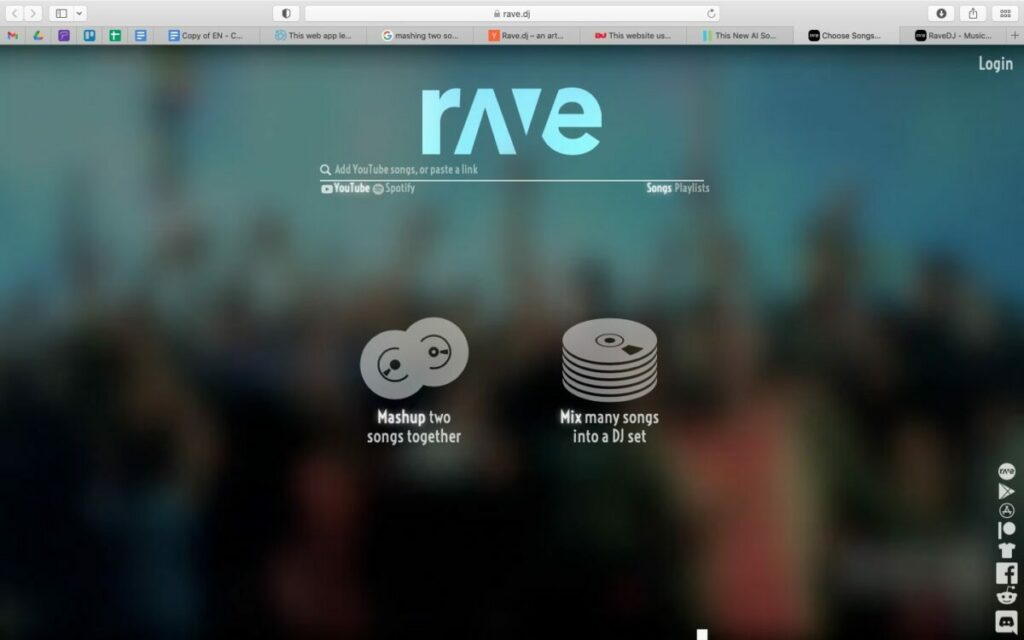
Step 1: Head to the Rave DJ Website

First, you need to go to the Rave DJ website.

How to Mash Songs Together in 7 Simple Steps

Step 2: Open Another Tab to YouTube or Spotify

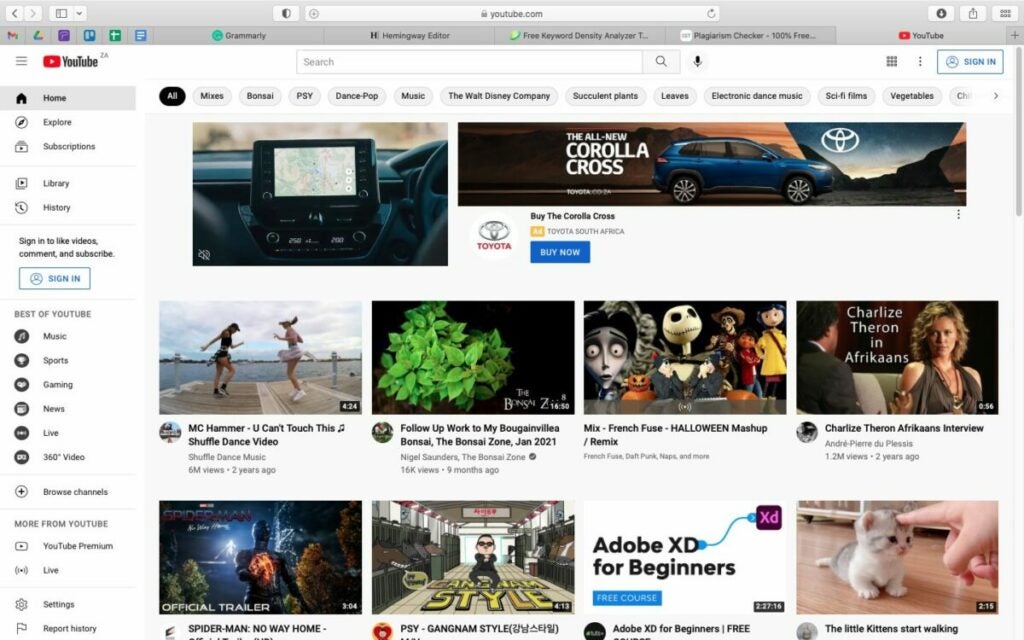
Now open a second tab in your browser and go to either YouTube or Spotify. For this example, we used YouTube, but Spotify works the same way.

How to Mash Songs Together in 7 Simple Steps

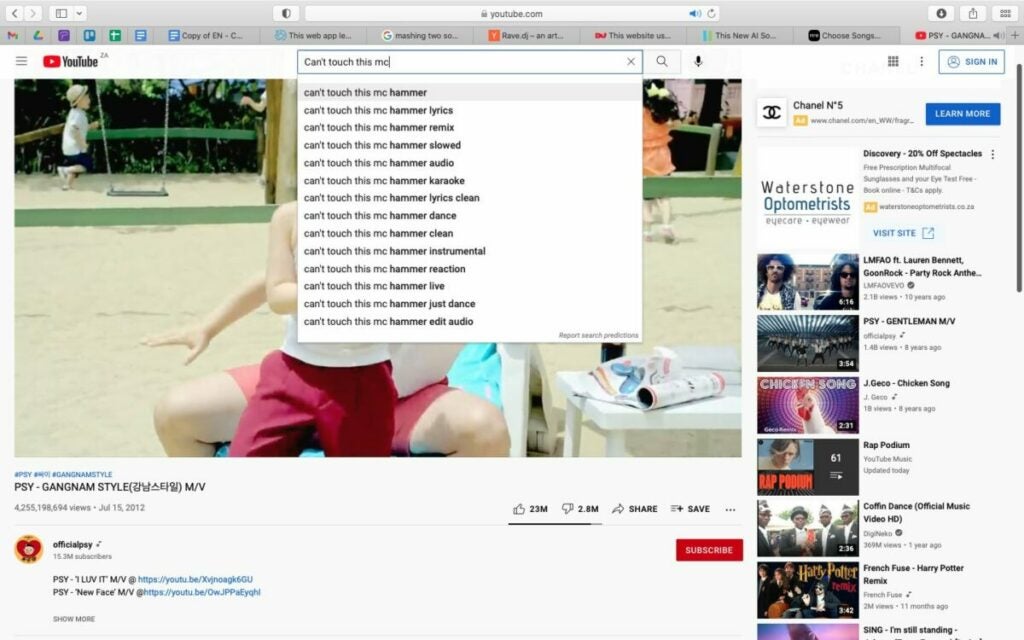
Step 3: Find the Song You Want on YouTube or Spotify

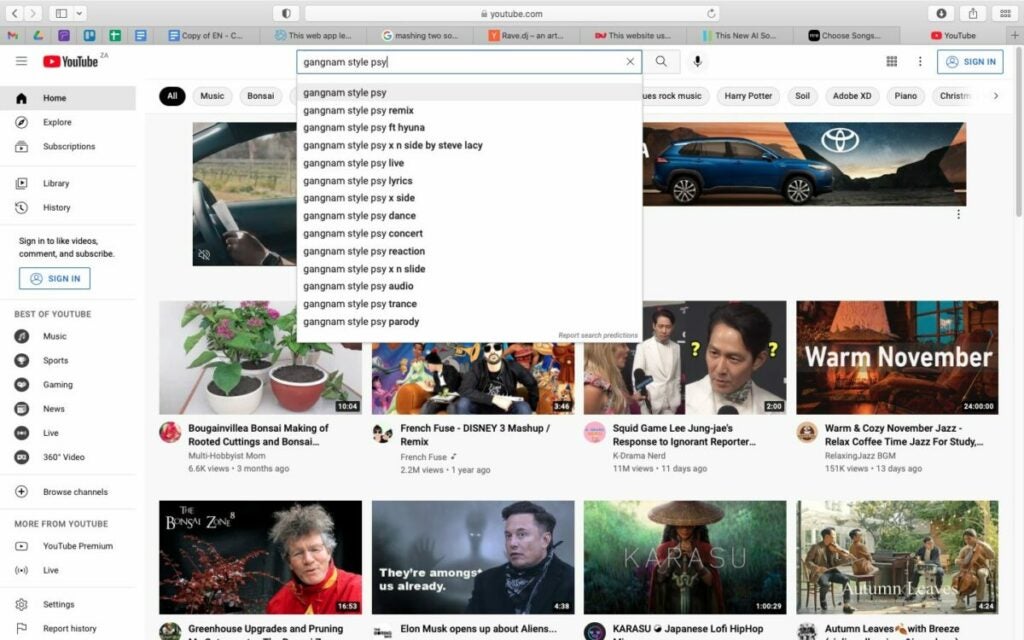
Search for the song you want by typing the name in the search bar. From the options provided, choose the song you want to use. Remember that when selecting a music video on YouTube, Rave DJ will also combine and overlap the music videos.

How to Mash Songs Together in 7 Simple Steps

Step 4: Copy the Link and Paste it Into Rave DJ / Type the Song and Artist Name

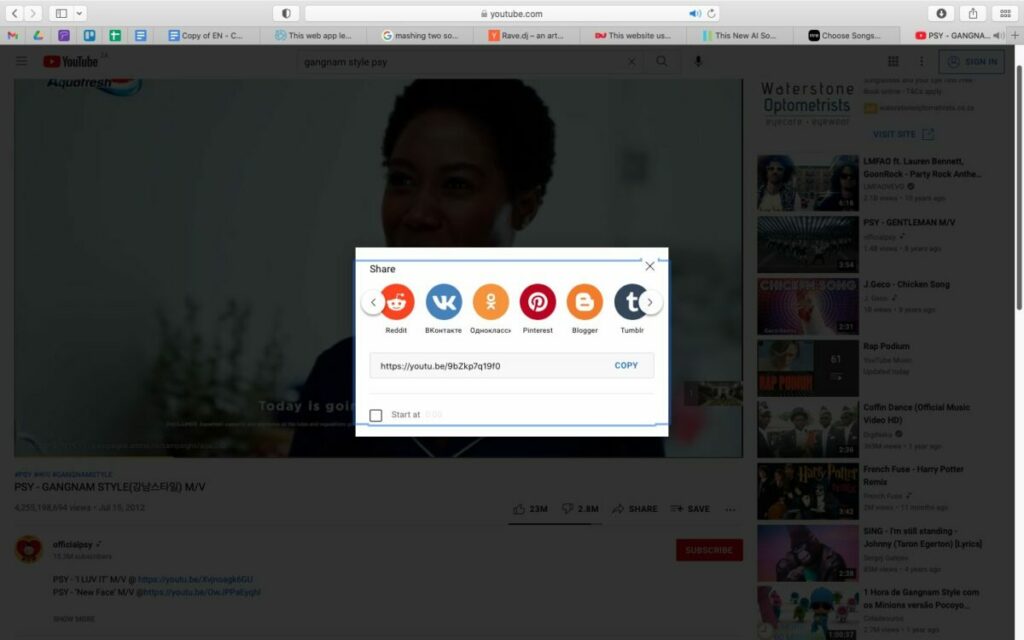
To copy the link, you can simply copy the URL directly or click on ‘Share’ in the song options and then copy the link.

How to Mash Songs Together in 7 Simple Steps

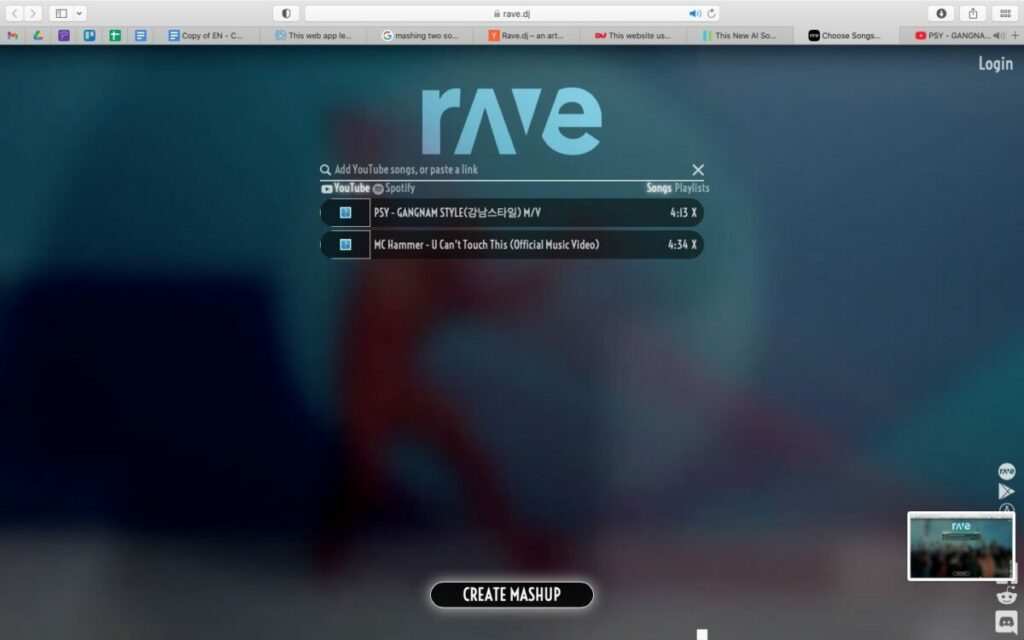
Step 5: Paste the Link Into Rave DJ

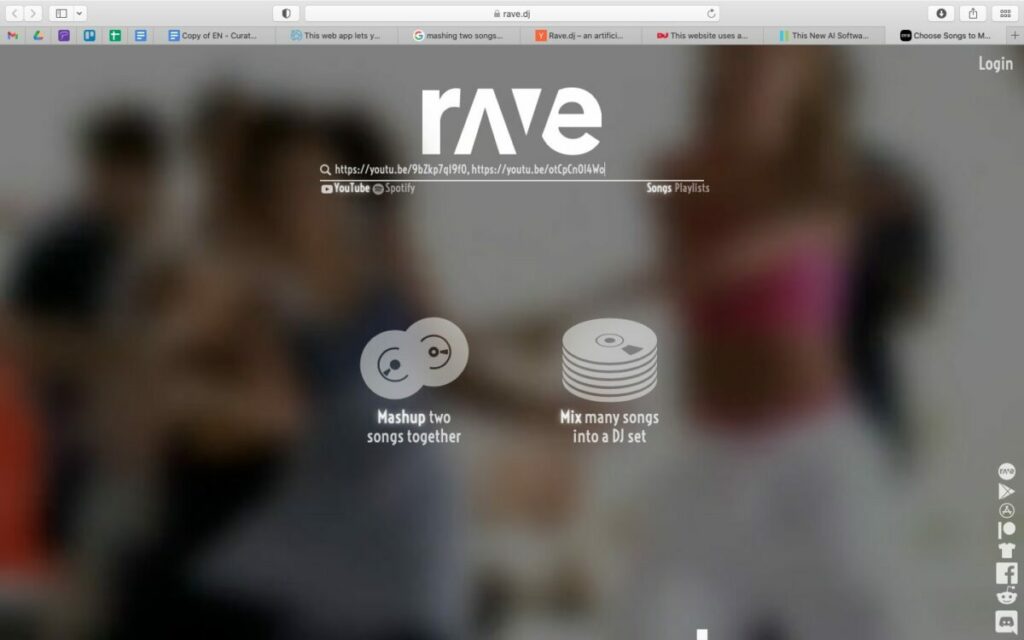
Now head back to the Rave DJ website tab, and paste the link into the program. Options will come up. Click on the one you want to use, and it will be added to your list shown below the search bar.

How to Mash Songs Together in 7 Simple Steps

Step 6: Repeat Step 3 and 4 for the Second Song

Now, you can repeat steps three and four to add your second song. Alternatively, if you don’t want to navigate between two windows, you can just type the song and artist name in the search bar, and Rave DJ will give you the options it finds, and you can just choose the correct one.

How to Mash Songs Together in 7 Simple Steps

Step 7: Click on ‘Mashup Two Songs Together’

Now, with both songs added to your list, you can click on the ‘Mashup Two Songs Together’ button and give Rave DJ some time to mix the songs together. Once your mashup is ready, you can click on it to see how well the songs have been combined.

How to Mash Songs Together in 7 Simple Steps

Alternatives to Rave DJ

If you enjoy using Rave DJ, but would like something with a few more features so that you can customize the audio files with a bit more freedom, here are three of the best alternatives to Rave DJ you can try.

Audacity

Audacity is free-to-use open-source software that has a lot of features for mixing music. Not only can you mix multiple songs, but you also have form creative freedom and can make many more changes to create a new song.
You can download Audacity for Mac and Windows.

GarageBand

This program is another free-to-use audio editing software. It comes very highly rated, and the user reviews are very positive. The program usually comes stock standard on many Apple devices, and you can download GarageBand for Mac, iOS and Android devices.

DJ Mixer Express

DJ Mixer Express for Windows is another free tool that you can use to mix music and create new songs from existing ones. You can even mix music videos and create custom karaoke with this software.

Spotify for Podcasters offers in-depth listener data

Get key-analytics information about your audience with Spotify for Podcasters!

Spotify

Finally, Spotify’s new podcaster-friendly service is here!

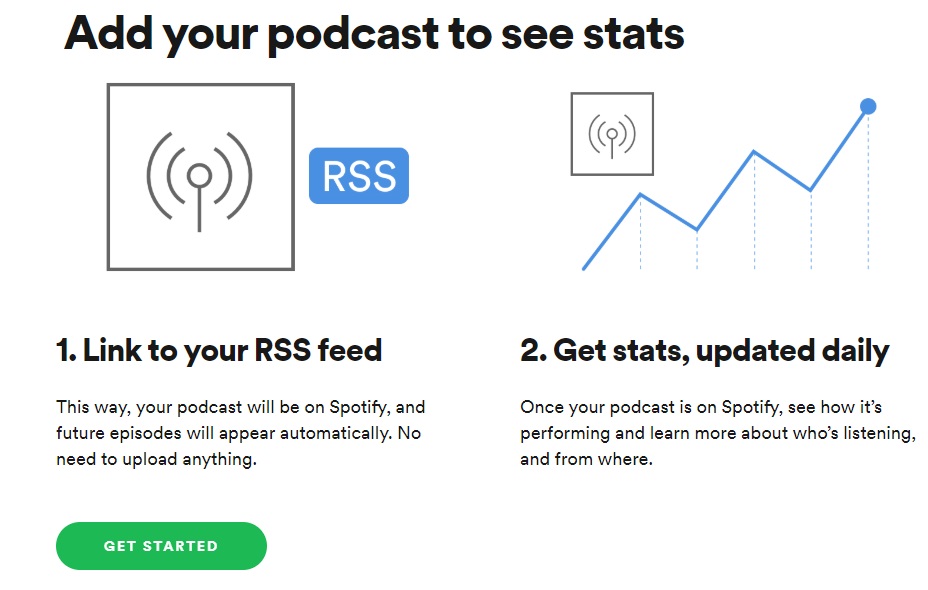
Spotify for Podcasters is a way for podcasters to have incredible analytics tools at their fingertips. Now podcasters will have a huge amount of data of their listers including their music tastes, gender, age, and location. They will also learn about their podcasts such as how long people typically listen to one of their podcasts, and at what point they stop.

For podcasters that don’t have the money or resources of shows like The Joe Rogan Experience, Spotify for Podcasters is probably the best analytics tool at their disposal. If you’re a podcaster, this tool is right up your alley.

Spotify also released this video to talk about all of the benefits of the new feature:

Wait, is Spotify stealing my data?

Don’t worry, Spotify is not mining user data. In order to listen to music on Spotify, you need to create an account. This account data is where Podcasters are getting all of their new analytics data.

Also, podcasters aren’t getting data that links back to specific users. Basically, if you listen to My Favorite Murder on Spotify, the creators won’t know that you specifically live in the U.S., are a man, and are between 18 and 25 years old. However, they will know that at least one of their listeners falls into those demographics.

8

What does it cost?

Spotify for Podcasters is free. But it’s important to note that Spotify won’t host your podcast. You need to provide a link to an RSS feed that’s on a hosting provider in order to get your podcast on Spotify.

You could upload your podcast to YouTube for free where there are a bunch of other great podcasts, but you won’t get access to these same detailed analytics tools.

Wrapping up

If you’re currently dipping your toes into the world of podcasts, we’ve got tons of helpful articles for you to check out below. Until then, make sure you check out Spotify for Podcasters to determine if it is the right tool for you!

What is Soundcloud, how does it work and how to use it

Spotify may be the big dog when it comes to music streaming, but there’s a lot to like about SoundCloud!

SoundCloud is a free website and app that lets users share, collect and discover music and podcasts. It is the ideal platform to share your own musical creations and mixes with the world. All the music you upload to SoundCloud is streamable. The artist can even make the songs or playlists downloadable or redirect interested parties to a website where they can purchase the songs/albums.

The app is a great platform for discovering new artists or sharing their music with a new audience, thus growing their following. SoundCloud has a desktop version for Mac as well as mobile apps for iPhone and Android. In this SoundCloud guide, we will cover what SoundCloud is, how it works and how to start using it.

What Is SoundCloud?

SoundCloud is known as an online audio distribution platform, which simply means it is a platform where users can share music. SoundCloud was founded in 2007 and remains one of the premier artist-first platforms that is driven by a community of artists and listeners.

While SoundCloud is free to use for artists and listeners alike, a subscription version is available. If you want more freedom, you can consider SoundCloud Go. What is SoundCloud Go? SoundCloud Go is the first tier in the SoundCloud subscription and costs $4.99/month. The subscription version doesn’t contain any ads and offers offline listening options as well. 

If you are an artist, SoundCloud is a great platform to get your music out into the world and start building a global following. If you are a music enthusiast that loves staying on top of the hottest music trends, SoundCloud is a great space to find new talent.

Soundcloud

How Does SoundCloud Work?

To start using SoundCloud, you’ll have to create an account first. This can be done through the Mac desktop client directly or via the app. Once you’ve created your account, you can start listening to music or uploading your own. Anyone can start using SoundCloud to listen to music or start uploading music for free.

If you are an artist, there are also subscriptions available specifically for music creators. These subscriptions include more insights and stats, support and other opportunities. This is perfect once you’ve established your profile and are starting to grow a following.

It is important to note that you can only upload music you have rights to on the platform. This means you cannot just upload your favorite artists’ songs. The creators who hold the rights to those have to upload them.

What Is the SoundCloud App?

The SoundCloud app is a convenient way to take all your music, playlist and likes with you wherever you go. The SoundCloud app is available on both Android and iOS devices. Once you have the app installed on your phone and logged in with your account, you can take your music with you wherever you go.

How to Use SoundCloud?

To start using SoundCloud, the first thing you’ll need to do is create your account. You can do this easily through the SoundCloud website, the app or the Mac desktop client. Once logged in, you can customize your profile by clicking on your display name at the top right of the screen and then selecting ‘Profile’. Once all the basics are in place, you can use the below SoundCloud tips to get started.

Discover new music on SoundCloud

soundcloud feed

Everything is taggable, and it’s easy to bump into music similar to or related to the music you like.

Here are some of the new features included in the SoundCloud app this year:

  • Personalized recommendations
  • “The Feed” is a feature that curates an artists’ likes, follows and reposts on the platform. The idea is, it helps foster a connection between artists and listeners, giving artists a chance to share recommendations.
  • New playlists: The Morning Mourning, Drippin (new rap), and Speed Bumps (new electro), and more.
  • Communities: Genre-based pages designed to help you find new music, in a way that feels different than the Netflix or Spotify approach.

Many of the newer features aim to give users a sense of community, which certainly isn’t unique to the SoundCloud website.

Find your community

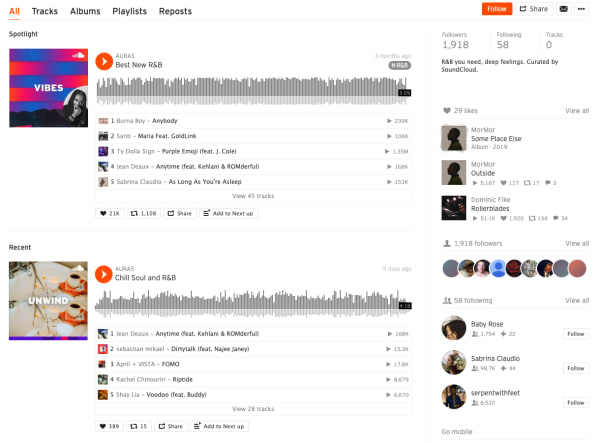
SoundCloud is aiming to position itself as a digital community. As such, they’ve introduced community profile pages, which work just like any of the other pages on the SoundCloud website. However, it aims to bring together “authentic” communities (their words).

What these community pages look like out in the wild represents something a bit different than what you’ll get from your average profile page on social media.

Instead, you can follow any of the following communities:

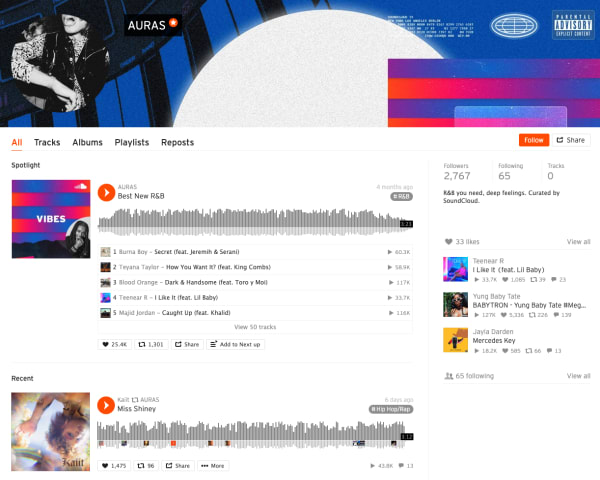
Here’s what AURAS looks like:

Soundcloud communities

As you can see, you’ll get a round-up of different playlists based on your favorite types of music.

While initially, we were a bit confused about how this feature differs from say, following Spotify playlists, it turns out that Communities are a cool way to discover new music. It is not some shoddy attempt at turning SoundCloud into, say, Facebook for music.

The community building part comes in here. Fans and creators can connect with other people who share similar tastes. Join Scenes if you’re looking for some low-key relaxation vibes.

Follow Hustle for the latest in hip hop. AURAS is all about R&B, while Circuits represents the electronic underground.

How to download from SoundCloud

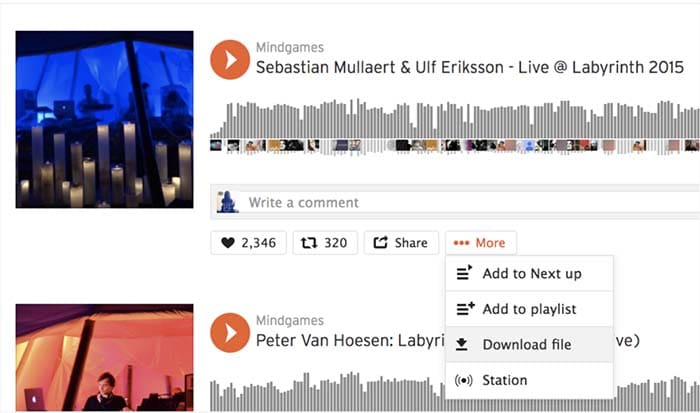
Not every track on SoundCloud is downloadable. To figure out if a track is downloadable, first, find a track on SoundCloud that you’d like to download. Click the More button, and look for the Download file option. If you don’t see one, that means that the creator of the track did not want the track to be downloaded.

SoundCloud
Source: SoundCloud

If it is there, you are in luck, and you can commence with your download! Just make sure you have a decent app for listening to the track.

VLC media player Download free ►
8

How to upload to SoundCloud

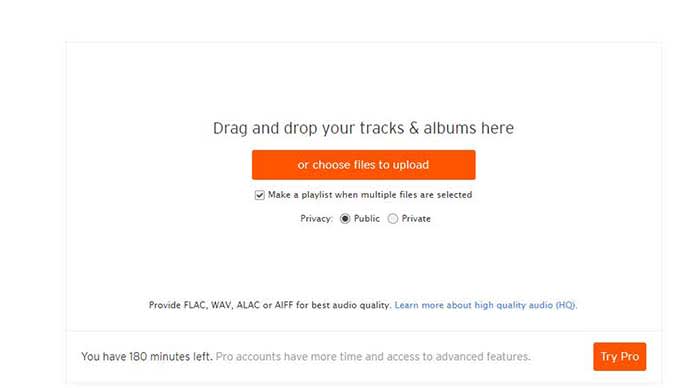
Uploading tracks to SoundCloud is a pretty quick and painless process. First off, in order to upload anything to SoundCloud, you need to sign in. Once you’re signed in, go to the Upload page. From there, you’ll see a page that looks like the one below:

SoundCloud

You can either drag and drop tracks and albums onto the page, or you can use their file uploader. Check the box on whether you want to share your tracks publicly or privately.

Please note that if you don’t have a Pro account, you have three hours worth of content that you can upload. If you only have a few singles you want to share, that should be enough for you. However, if you also have several diss tracks, love ballads, a swan song, and a comeback album, you may want to consider upgrading to pro. 

Once you choose the tracks you want to upload, click the button to begin uploading. Once you’re done, you can fill out the track names, the genre, and add whatever tags you’d like. After that, you’re all done! Make sure you give yourself a cool artist name and tweet out to all your friends so you can share your tracks with them!

Promoting your music on SoundCloud

Not just a listener? SoundCloud is one of the few accessible forms of DIY distribution and marketing for independent artists.

While podcasters have tools like Stitcher, Anchor, Apple, and Google, there are few places for aspiring artists to connect with their fans.

Spotify and Stem recently discontinued their music distribution offerings. Stem announced it would be dropping tens of thousands of artists, while Spotify called it quits on their self-upload beta program.

Music

It may be in your best interest to create a page or a site to help promote your work. WordPress has great tools for making a free website, or a cheap website if you want access to more customization.

Wordpress Download now ►
7

However, one of the best tools for promoting your work is Tumblr. Although posting on all your social networks can help, Tumblr is a cut above the rest.

If you make a Tumblr post, you can copy your track or playlist’s URL and paste it into the Audio section of a post. Tumblr allows users to use tags to help discover new tracks. If you include the genre, your name, and the themes of your music, Tumblr users can start finding you. For example, if you write a break-up song, include “break-up” in your tags so all of the lonely hearts out there can find it!

SoundCloud recently announced that it is adding distribution to its self-monetization Premier program.

Eligible creators now have access to an open beta where they can upload songs, monetize, and publish to external streaming platforms like Apple Music and Spotify.

What’s more, SoundCloud says those who use its distribution service will keep ALL royalties obtained from third-party services.

How to Embed

This is just a quick little note for promoting, but if you want to embed a track, click the Share button next to the track and then on the Embed tab. From there, you will get an embed code that you can copy and paste to your heart’s desire.

SoundCloud vs. Spotify

From a user standpoint, SoundCloud and Spotify bring very different experiences to the table. While it’s almost not really a matter of SoundCloud vs. Spotify, here’s a quick look at some of the pros and cons associated with each platform. You’ll see that there’s plenty of reason why you should get a SoundCloud account.

Spotify vs SoundCloud
8

Spotify

Pros

  • Spotify is more polished. The user interface is super easy to use. You can search for artists, follow playlists, and browse through recommendations without any onboarding tutorials.
  • Spotify allows for offline use. You can download as many songs and podcasts as your phone storage allows. No need to worry about usage caps or dead spots.
  • Spotify has established artists are on the platform. From indie bands to pop stars, most artists that you can name can be found here. It’s the leading streaming platform, so you’ll generally find what you’re looking for.

Cons

  • The free version is super limited. Unless you love hearing ads after every other song, regular listeners should invest the $10/month for an upgrade.
  • It’s not great for finding underground artists and hidden gems. Spotify hosts a ton of music, but mainly from established artists. If you’re all about the “obscure” Spotify won’t cover all of your bases.
  • It’s missing some big names, too. From time to time, an artist might feud with Spotify and pull their music. There’s no guarantee every song you want will be on the platform.

SoundCloud

Pros

  • It’s great for finding independent artists. SoundCloud hosts known artists alongside those still grinding it out from home. The platform provides a great way to find hidden gems from total unknowns. “Old Town Road” and “The Git Up” are recent songs that exploded from SoundCloud.
  • Discovery feels less “algorithm-driven.” While personalized recommendations are a core feature, it’s easier to break out of the recommendation loops you’ll find on Spotify.
  • Stream provides a unique way to get updates. Users can follow artists and playlists they like to receive updates and keep track of their favorite tunes. They can also share tracks with the community, almost like retweeting on Twitter.
  • SoundCloud has private sharing. You can use the share button to privately embed and share artists and tracks.

Cons

  • It does not have the best sound quality. Spotify has SoundCloud beat when it comes to audio. We’re talking 320 kbps vs. 128 kbps. You’ll notice the difference.
  • The user-experience can be confusing. While the design is attractive in a lot of ways, SoundCloud is somewhat hard to figure out.
  • There is no offline support. You’ll need to signup for SoundCloud Go to download songs to your device.

Wrapping up

There’s a lot to take in when it comes to breaking down the SoundCloud experience. For creators and listeners alike, the platform remains a solid choice for anyone who wants to discover new content and break away from the algorithmic rut that sometimes happens when you depend on Spotify or Pandora for recommendations.

Ultimately, the SoundCloud app has some limitations. Again, the usability and sound quality could be better, but it’s also one of the few places online where not everything is super polished, commercial, and on everyone’s radar.

Quentin Tarantino reveals his favorite music from his films

Relive your favorite moments from your favorite Tarantino creations with this playlist!

TarantinoIf you’re like us, you are beyond excited to see Quentin Tarantino’s new movie “Once Upon a Time… in Hollywood.”
Tarantino films aren’t just great summer flicks, but each one feels like an event. We know that with each movie he makes, we will get to see what may be considered the next standard in filmmaking.

Along with another movie, Tarantino has given us another gift in the form of a Spotify playlist. 

The famed director has created a playlist filled with music from his work throughout the ages. This includes songs from “Pulp Fiction,” “Kill Bill: Vol. 1,” and “Inglourious Basterds.” 

The playlist begins with a message from Tarantino himself, who tells the listener “they may never want to leave” after listening to his playlist

8

You can view the playlist in its entirety below:

With such a variety of movies, there appears to be a song for everything in this playlist. At one moment, you’ll be listening to the perfect song for when you pick up your boss’s wife for an evening out.

At the next moment, you’ll be listening to the perfect song for when you kill your former lover with the five-point palm exploding heart technique.

VIDEO IS NSFW

Finally, we were looking for the perfect tune for that one.

With more than 60 songs in the playlist, this is sure to have you dancing in no time.

What’s your favorite song in this playlist? Did Tarantino miss one? Let us know in the comments below!

Spotify update highlights Disney music

Everybody has a favorite Disney song!

Spotify Disney hub

Great news for Disney fans: Spotify just announced that it is teaming up with the movie studio powerhouse to create a brand-new Disney hub. The new hub will be a place where Spotify users can find all the songs from their favorite Disney movies. The new hub will include Disney songs as well as music and soundtracks from Pixar, Marvel and Star Wars movies. Yes, that means all the John Williams instrumentals will be there, too.

8

The Spotify blog post announcing the new Disney hub said, “Starting July 17, users… can search “Disney” on Spotify to find a designated hub for the music behind some of their favorite Disney movies and TV shows. Stream playlists full of everything from The Little Mermaid to modern favorites like Frozen.” The service will also include playlists curated for all times of the day and many different activities. No matter if you’re in the shower, on the road, or trying to get some sleep you can now find a Disney playlist on Spotify for your exact situation.

The move seems to make Spotify a much more family-oriented platform and could see a spate of family-based subscriptions taken out over the summer. A premium membership costs $9.99 in the U.S., but a family membership, which gives up to six people access to Spotify’s premium features costs $14.99.

The Spotify family account offers individual accounts for up to six people

One of Spotify’s best features is its Discover Weekly feature, which serves up recommended songs based on what you’ve been listening to. This means the new Disney hub could put pressure on mom and dad to get the kids a profile of their own if they don’t want songs from “The Little Mermaid” skewing their personal algorithm.

Everybody has a favorite Disney song!

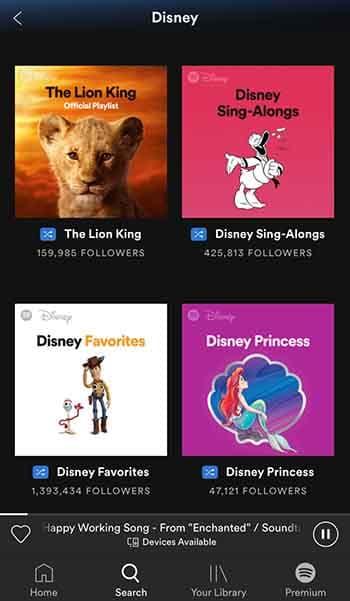
Spotify’s new Disney hub is now available to users in the U.S., UK, Ireland, South Africa, Canada, Australia, and New Zealand. You can find it simply by typing “Disney” into the Spotify search bar. Here’s what comes up when you do:

Disney Spotify hub

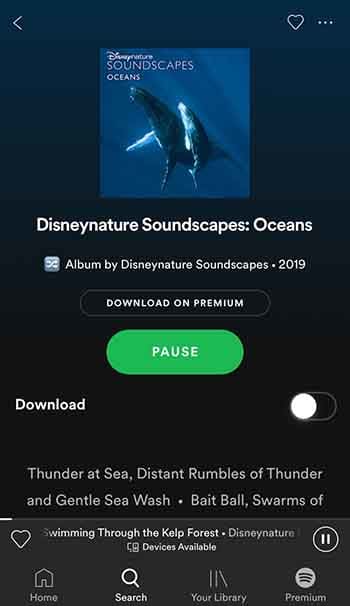
Scroll down a bit, and you’ll even find a playlist called “Disneynature Soundscapes: Oceans,” which provides some super-relaxing white noise to help you unwind.

Disneynature Soundscapes: OceanTo see some other playlist examples, you can check out the Spotify press release announcing the feature here. As well as everything you can see there now, Disney promises to keep adding to the hub throughout the summer and beyond. With big some big Disney hitters like “The Lion King” and “Frozen 2” on the way, that is not to be sniffed at.
This is big news for our family as we’ve developed a bit of a Christmas tradition involving Disney songs and lots of singing along. It isn’t just drunken karaoke Disney Princess wannabes though, who’ll be happy about this move. Anybody who has ever watched a Disney movie will love it because the music is half of the magic when it comes to Disney movies, and it’s magic we’ve all grown up with.

11 hidden Spotify tips and tricks

Make Spotify even better with these 11 features!

Spotify

Having a hard time requesting a song while driving? Or maybe you want to preview a song without playing the whole thing? What about when you can’t find a particular song? Spotify is an awesome for listening to (and for teaching) music, and while it doesn’t take a music degree to create a new playlist or put your library on shuffle, there are some handy tricks to the app that are a little more under the radar. Check out these 11 tips that will add utility and ease to the software:

8

1. Quality vs Data

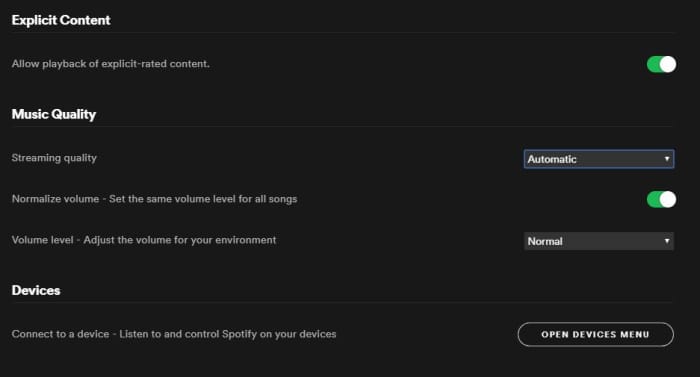
On both desktop and mobile you’ve got the option to either stream or download music on Spotify. By default, this process strikes a balance between fidelity and data, but through the Settings menu you can actually tweak which gets priority.

To do so (on Desktop) open the Settings menu from the drop-down under your profile picture. Scroll down until you see Music Quality. Use the ‘streaming quality’ drop-down to manually select either normal, high, or very high quality for your streaming.

You can use this function via mobile, too; just open Settings from Your Library and find it under Music Quality. On iOS specifically, you can find it under the Streaming Quality menu.

Spotify Settings menu Music Quality

2. Keep tabs with Last.fm

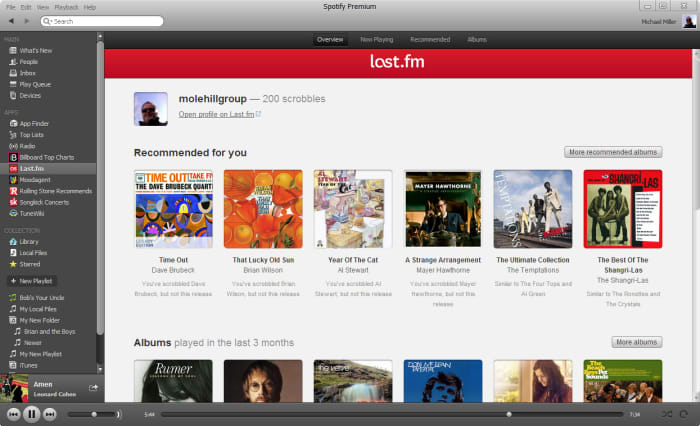
Spotify is integrated with Last.fm, a service that lets you track and discover new music. If you make an account with Last.fm (which you can do right here) it can connect directly to Spotify and you’ll be able to browse through the records it keeps of all the tracks you’ve been listening to on any of your devices. It’s even free!

Spotify Last.fm integration

3. Sing along with the lyrics

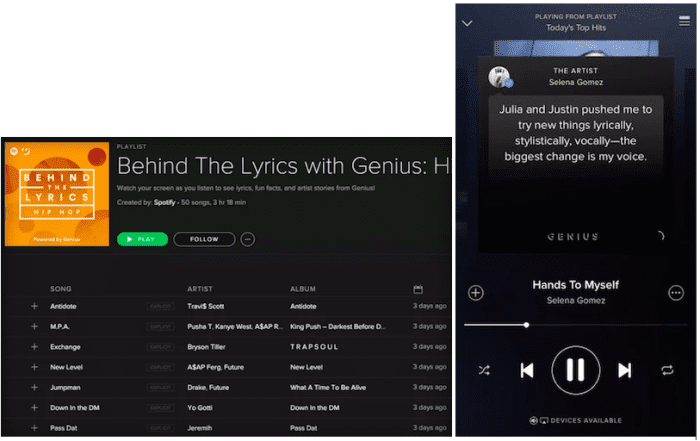
How does the second verse to “Tiny Dancer” go? Whether it’s because you’re trying to sing the song on the fly, or simply because not knowing what the singer is saying has always bothered you, it helps to have the lyric sheet handy.

Spotify might have the lyrics up for you already – all you have to do is tap on the album picture while the track is playing. Spotify is partnered with Genius and certain songs have the lyrics integrated right in. Alternatively, you can switch this feature to “Behind the Lyrics” mode which tells information about the song alongside its lyrics.

Spotify Genius lyrics

4. Set up the queue

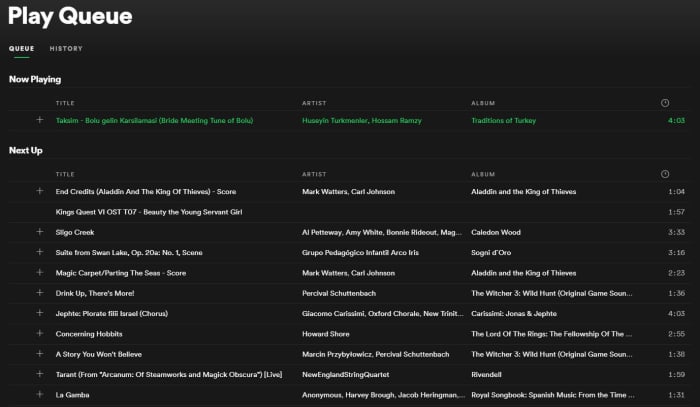
One of our favorite features for Spotify is that you can set multiple tracks in a queue, and they’ll play one after another. Doing so is very easy; on mobile all you need to do is select the song and press the ellipsis. From here you can do all sorts of things (view the album, check out the artist, add it to a playlist, or go to the radio), one of which is “add to queue.”

Once the current song is finished playing, it’ll start the next one in your queue, and then afterwards it’ll go right back into whatever playlist you were in before. It’s especially useful when you’re in something like a “classic rock” playlist but are hankering to hear one specific jazz tune before resuming.

Spotify Queue menu

You can also view the default queue of songs as well as your song history at any time by pressing the “queue” button on the bottom right (on desktop) or by looking through the queue menu on mobile.

5. Preview a track

If you’re a fan of instrumental music, you might not recognize a song by its title (since there are no lyrics to go by). Or maybe you just can’t remember how a song starts.

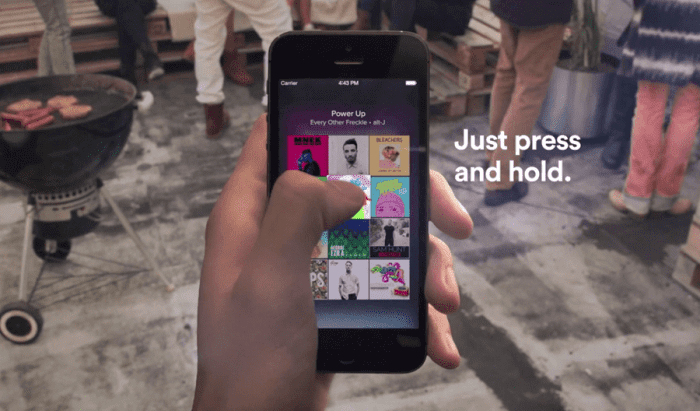
A neat trick on mobile is to press and hold the song title for a quick preview. That way you can navigate away from the page, check out other music, or show your friend a quick sample without committing to the whole track.

Spotify preview track mobile

6. Follow artists

It’s always exciting to find a new artist you like, and Spotify makes it very easy to look up more tunes, more information, or even upcoming concerts from artists in its huge roster.

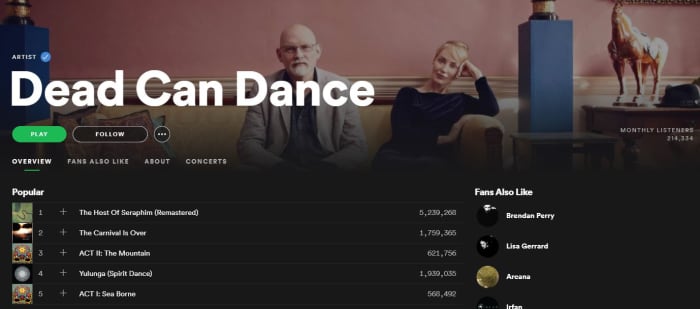
Next time you’re listening to a song on Spotify, click on the artist’s name (or find it via pressing the ellipsis on mobile) and it’ll take you right to their page. Here you’ll see their most popular tracks, albums they’ve put out, and even recommendations for other similar artists.

Spotify artist page

7. Crossfade tracks

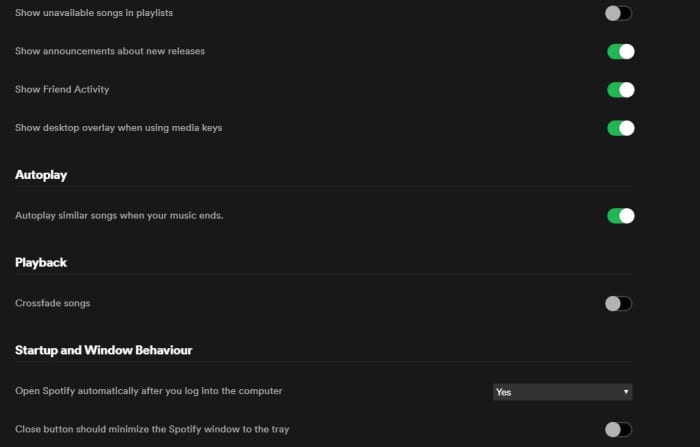
If you want your Spotify experience to sound extra fancy, you can set it to seamlessly blend from song to song using crossfades between tracks.

To engage this just go back into your Settings menu and look for “Playback.” Enabling the crossfade feature is the only option here; just toggle it on.

If you’re on desktop you might find this option under “Advanced Settings” instead. Just scroll down and you’ll see a button for it.

Spotify Settings Playback crossfade

8. Request tracks via voice command

Texting and driving is a terrible idea, and that’s why it’s illegal. If you use Spotify on mobile, there’s a good chance you listen to it while driving, too. Sometimes, there’s a song we really want to hear and it’s tempting to scramble during a red light to try and put it in queue – but there’s actually a much safer, more convenient way.

Spotify can recognize voice commands, so just hit the mic button on your smartphone and tell it the song you want to hear. Tap it and it’ll start to play immediately. It’s faster and nearly hands-free!

Spotify mobile driving voice command

9. Make a collaborative playlist

Planning a road trip with friends? Maybe trying to organize a list of songs for your band to cover? Maybe your friend’s getting married and you and the other bridesmaids are in charge of making a playlist.

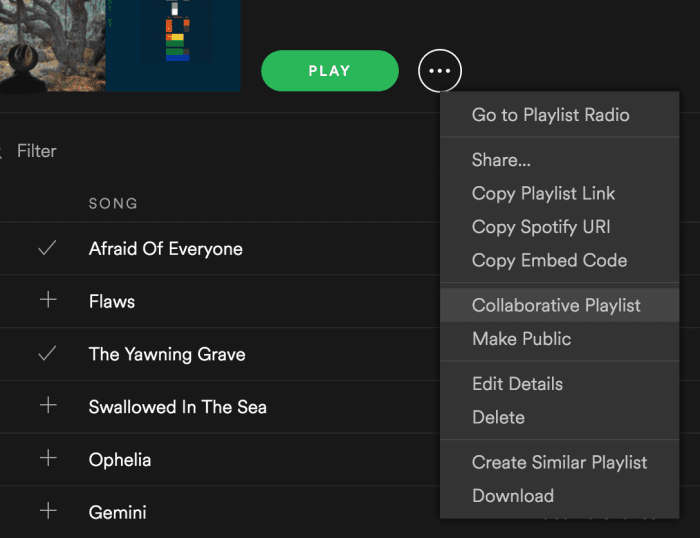
Start making a new playlist and then right-click on it. In the drop-down you’ll see an option to “make it collaborative.” Select this and then select any friends with whom you’d like to share the monumental task of picking the most appropriate music.

Good luck with that.

Spotify drop-down collaborative playlist

10. Recover deleted playlists

There’s definitely a moment of panic when you think you’ve accidentally deleted an entire playlist. Fear not; there’s a way to fix it.

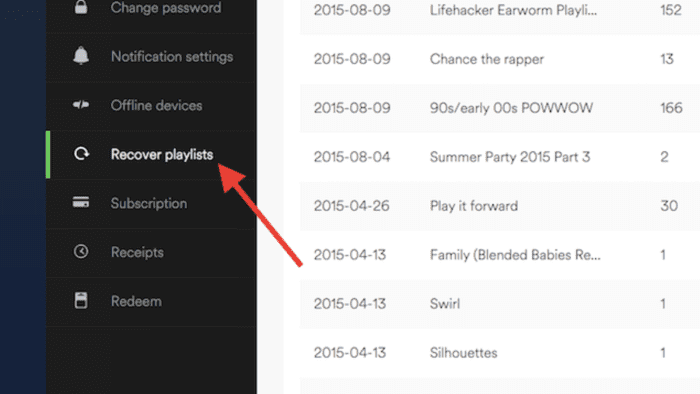
Go to Spotify’s website right here, log in to your profile, and there’s a Recover Playlist option right there. You’re welcome!

Spotify website recover deleted playlist

11. Add music that isn’t on Spotify

Spotify’s got thousands of tracks out there, but there’s still the odd outlier that you can’t find in their massive library. If you’re willing to take a few minutes, there’s a way you can add your own local MP3s to your playlist.

All you have to do is access your Local Files via the Settings menu, add a source (giving Spotify the path through your File Explorer), and then sync it up with whatever playlist you like. Check out our full walkthrough of the process for details!

We hope these tips and tricks will make using Spotify easier and allow you to use it more effectively.

Let us know in the comments below if there’s one that we missed, and stay tuned with Softonic for more Spotify news and info!

Spotify testing ability to let friends control the Now Playing list

New Spotify “Social Listening” feature allows friends to control the Now Playing playlist together.

Spotify app on a phone

Our music collections have come a long way recently. We’ve come all the way from vinyl records and 8-tracks to constant access to almost limitless collections of music from around the world. We can now hear a song on the radio, internet, or wherever else we discover new tracks and then listen to them whenever and wherever we want via online streaming platforms like Spotify, Apple Music, and Deezer.

It’s not just us though, is it? We’re not the only ones listening to the music we love. No, we’ve all got at least one of those friends who always has a tune they want you to hear. Music is a very personal thing, but it is also very much a social experience you share with your friends and family. In recognition of music’s social side, Spotify is working on a great new feature that will put everybody in charge of the party.

New Spotify ‘Social Listening’ feature allows friends to control the Now Playing playlist together

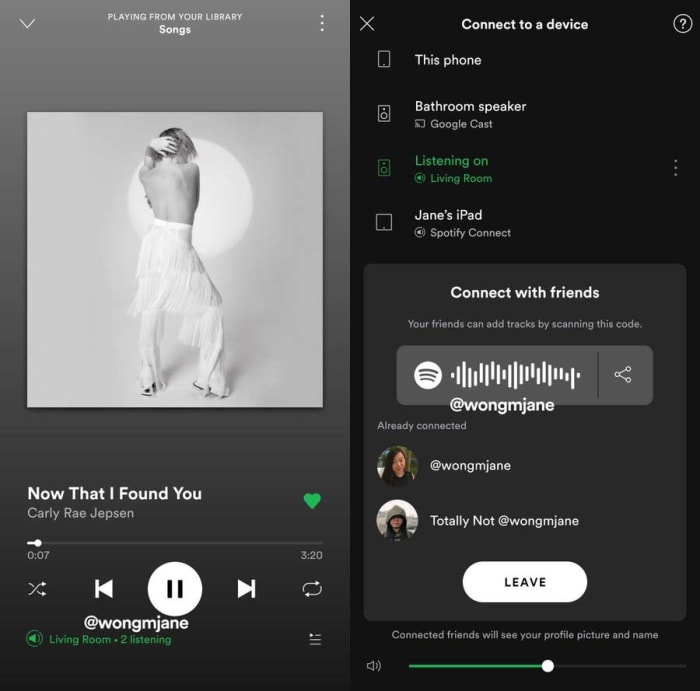
Thanks to top tech tipster Jane Manchun Wong, we’re able to bring you news of a new exclusive Spotify feature the streaming service is currently testing on its employees. On a recent dive into the code of Spotify’s Android app, Manchun Wong has found a new feature that gives friends real-time control over the Now Playing playlist. This is similar to the collaborative playlist feature, but all additions will play out as they happen, rather than being stored in a playlist for later use.

For now, the feature is only available for Spotify employees, but we can give you a little rundown on what it’ll look like and how it’ll work once it lands on your version of the app.

When the feature is live, you’ll be able to find a “Connect with friends” option when you go to the connected devices screen. Selecting this option will reveal a QR code or a link. Your friends and family can then scan the QR code or you can send them the link to join both your Spotify apps. Once done, the Now Listening playlist will be linked and anybody who is connected will be able to add or remove songs to the list.

Spotify social features
Image via: @wongmjane

There are two major caveats, however, to this leaked Spotify feature. The first is that there is no official word on when the feature will receive a general roll-out. As this is an internal test, the feature might not ever make it to the general public. The second is that, as Manchun Wong isn’t an employee of Spotify, she wasn’t able to test the feature after she discovered it. This means we don’t know how smoothly it works or if the music streaming service still has a few bugs to iron out of the code.

For anybody, who has ever been to a party and been stuck for what song to put on next, however, this feature will be good news. Let’s hope we hear more from Spotify soon.

Spotify testing Instagram-like stories feature

Spotify’s new Storyline feature allows artists to share both insight and their creative process.

Spotify feature

Spotify is testing a new feature similar to Instagram’s “Stories” feature, according to an article from TechCrunch.

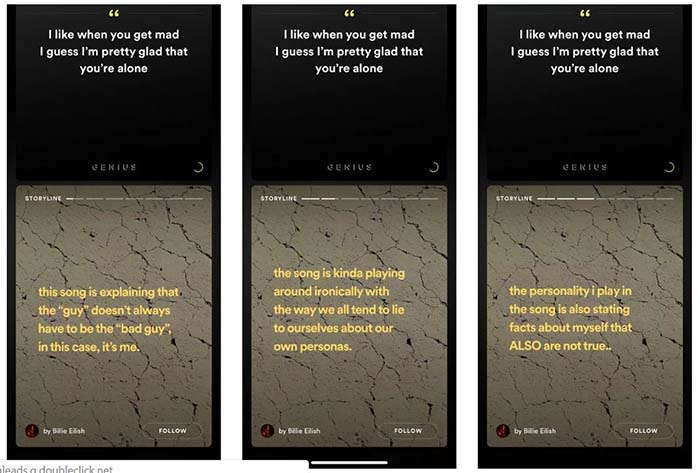
The new feature, called “Storyline,” will allow artists to share their insights into the creative process of their music.

Spotify Storyline
Source: Thomas Ricker / The Verge

For example, if T-Pain releases a new album, he can go into the deeper meaning behind his songs in Storyline. Users could sift from segment to segment in Storyline to the parts they want to see. Each part of the Storyline would be static text and video.

8

“We are always testing new ways to create better experiences for more users,” a spokesperson said in a statement to TechCrunch. The spokesperson confirmed that Storyline is being tested.

Spotify does already have a feature that shows the lyrics of a song, and some of the insight behind them. 

However, the feature was known to be incorrect at times. In one case, Hayley Williams from Paramore tweeted at Spotify to correct “outdated facts” in one of her band’s songs.

Right now, there is no set release date. Also, none of the testers are in the U.S. However, the new feature would give Spotify original content, which users have noted is lacking on the app. Reddit users have spotted the feature on songs from the Jonas Brothers and Billie Elish. 

How to submit your podcast to Stitcher

Stitcher can be the tool that takes your podcast to the next level.

Making a podcast

So, you’ve created a podcast poised to become the next big thing in true crime, pop-culture, or something new altogether.

Now, you’re thinking distribution, expansion, and the ability to monetize.

Your next move is to submit your podcast to a few platforms. Think Apple, Google Play, Spotify, and of course, Stitcher.

Stitcher Download now ►
9

Below, we’ll look at what it takes to get your podcast on to the popular platform. Although, standing out in a sea of aspiring podcasters may well be another story for another time.

How to get your podcast on Stitcher

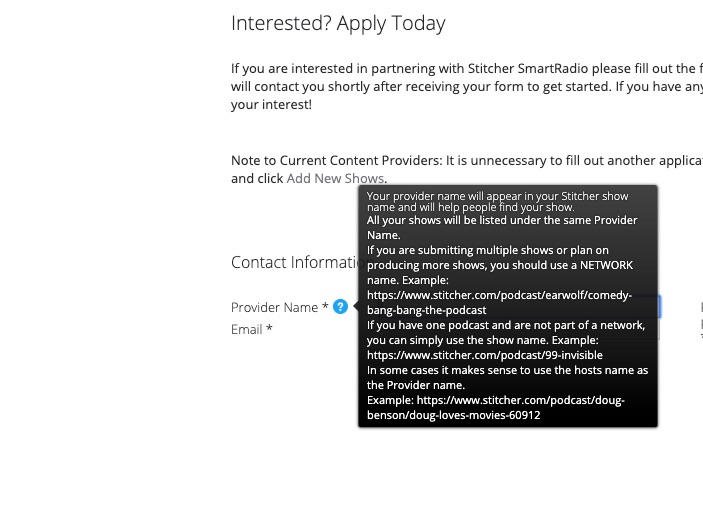
Getting your podcast on Stitcher is relatively easy. All you’ll need to do is head over to the official website, and create a content provider profile.

apply to be a stitcher content creator

Once you’ve created a login, click the “Add Shows” tab in the top navigation.

Add your RSS feed, show details, and hit submit.

That said, there’s more to it than adding your RSS link. To find your RSS link, you’ll need to go to your podcast hosting platform — BluBrry, Spreaker, Libsyn, etc. From there, you can get the link.

Adding your link will provide Stitcher with your podcast’s metadata, but you can customize further once you’ve connected your episodes.

BluBrry

You can add a description that lets your audience know what each episode is about. This is better than lumping everything together under one umbrella description.

You’ll need to make sure you have a unique podcast title — hopefully, you’ve done this before you hit the record button the first time. However, we’d advise double checking that no one else is already using the name of your show.

You’ll also need to make sure your podcast artwork is 1,400 x 1,400 pixels, and in either PNG or JPG file format. Also, audio files must be in MP3 or M4a format.

Once all of those components are in place, you’ll just kick back and wait for approval.

Free MP4 MP3 Converter Download now ►
7

We should also mention that adding your show doesn’t mean you have a blanket approval for all future episodes. Stitcher manually approves each episode and can take up to a week to approve each show.

Keep that in mind if you’re posting on a regular schedule, as fans will expect shows to drop at a specific time each week.

What’s the deal with Stitcher approval times?

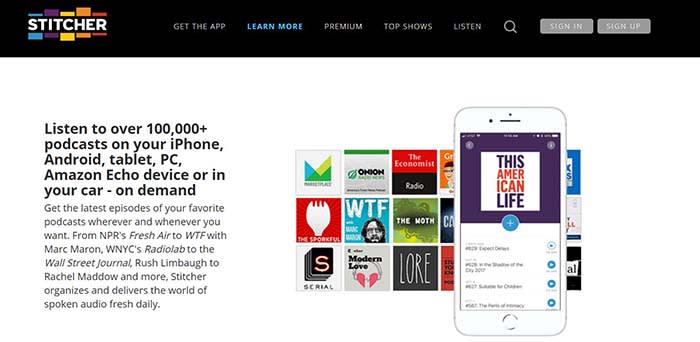
Stitcher

Good question. The Stitcher website isn’t especially forthcoming about who gets approved, and why, at least not at first glance.

According to a user on Reddit’s r/podcasting, Stitcher takes about an hour to approve content creator applications.

In that same thread, a few users mention that Apple Podcasts can take up to two weeks to grant their approval. Other platforms like Spotify and Google Play take a few hours.

8

Now, this is all anecdotal. It’s worth pointing out that approval times might vary based on factors such as listenership or whether you’ve submitted the requested information correctly.

After the initial approval, the platform may take a few days to approve each episode. So, you might want to front-load your content in order to make sure you can schedule regular drops.

Can you make money on Stitcher?

Make money on a podcast

Yes, but Stitcher won’t pay you outright. The whole purpose of Stitcher is to help you extend your reach to more listeners. However, you’ll need to establish partnerships with advertisers on your own.

According to the platform’s Content Provider page, podcasters who can grow a larger audience may be eligible to participate in the platform’s revenue sharing program.

But, if you’re just starting out, your best bet is to work on growing your audience on your own.

Promoting a podcast can turn into a full-time effort, just like any form of marketing.

Again, Stitcher isn’t the only place where you can submit your podcast. For best results, you should submit your podcast to Apple, Spotify, Google. From there, promote your podcast like crazy on social media.
How to add your podcast to Spotify

Don’t miss out on potential listeners. Add your podcast to Spotify with our guide.

Spotify with headphones

While Apple has dominated the podcast industry for a long time, Spotify has stepped up and become one of the top competitors in this field.

8

Many people who are new to podcasts are going to Spotify first because of how easy it is to integrate with your music. If you don’t have your podcast on this site, then you’re missing out on a lot of potential listeners.

How to get your podcast on Spotify

Step 1: Log in

Log into your Spotify account on their podcasters page.

Spotify podcast

Step 2: “Add your Podcast”

You’ll be redirected to the “Add your Podcast” tab once you log in. On this tab, press the “Get Started” button.

Spotify Podcast

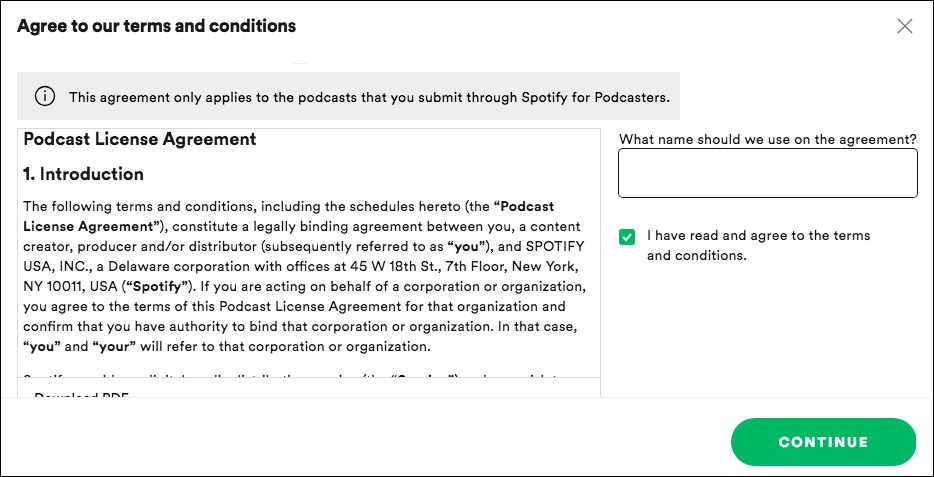
Step 3: Terms and Conditions

Check the box saying you have read the terms and conditions and enter your legal name or company name. Then press “Continue.”

Spotify Podcast

Step 4: Enter your information

Enter the RSS feed URL of your podcast into the box and press “Continue.” Your podcast’s information should appear after you put the RSS feed URL in the box. If it doesn’t, you may have a hosting problem that you’ll have to fix before you can continue.
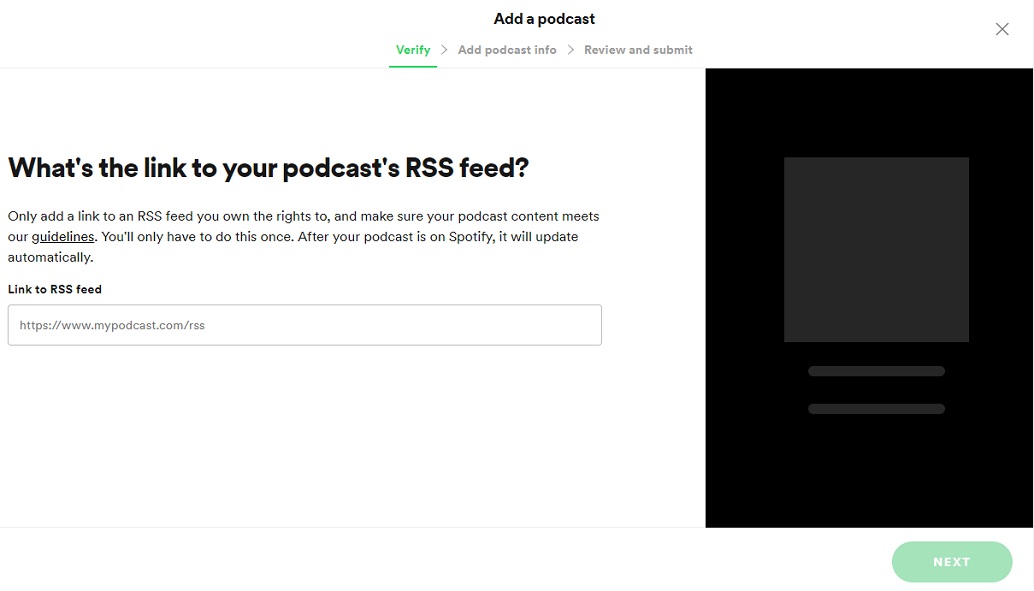
Spotify Podcast

Step 5: Answer Spotify’s questions

Spotify will then ask you to fill out your location, podcast category, and some other basic information about your podcast. Once you’re done filling this out, you can press “Next.” Then press “Submit,” and you’ll be finished.

In conclusion

You will likely hear back from Spotify within the next few days. It is possible for them to deny your request if your podcast episode files are too large. They can also reject you if you lack a description, image, or episodes in your RSS feed. If any of these happen, Spotify will let you know the reason for your denial, so that you can go fix it and resubmit your podcast.

Additionally, if you haven’t submitted your podcast to iTunes, then you may want to check out this guide to help you do that as well. Since iTunes is still the most popular site for podcasts, it’s well worth using.