6 Things you didn’t know you could do on Google Maps

We use Google Maps all the time. Whether you’re driving in an unfamiliar area or just trying to find that restaurant that must be around here somewhere, it’s a miracle of modern technology. But Google Maps has lots of great features you may not even know about. It’s time to raise your Google game, friends. Read on and start exploring!

6 Things you didn’t know you could do on Google Maps

Download maps

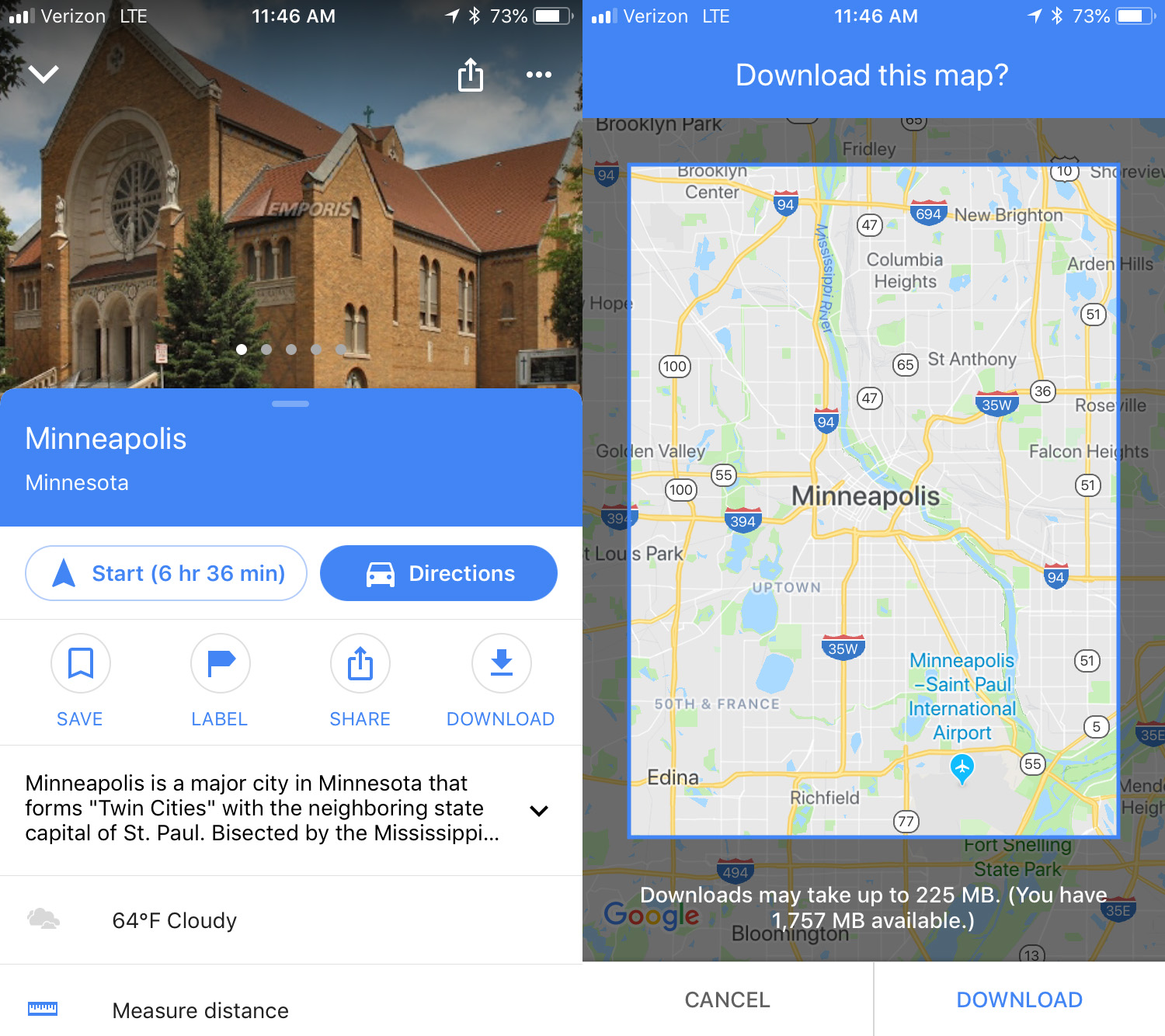
This is an awesome option for travelers: download maps to see them later offline. To do this, search for the location you want, then swipe up and you’ll see a download button. Click that and then you can refine the area you want to save. Click download again to save the map to your device. The larger the map, the more memory it will use. To access the maps offline, click the menu in the upper left corner and select Offline maps. No Wi-Fi? No problem.
Custom maps

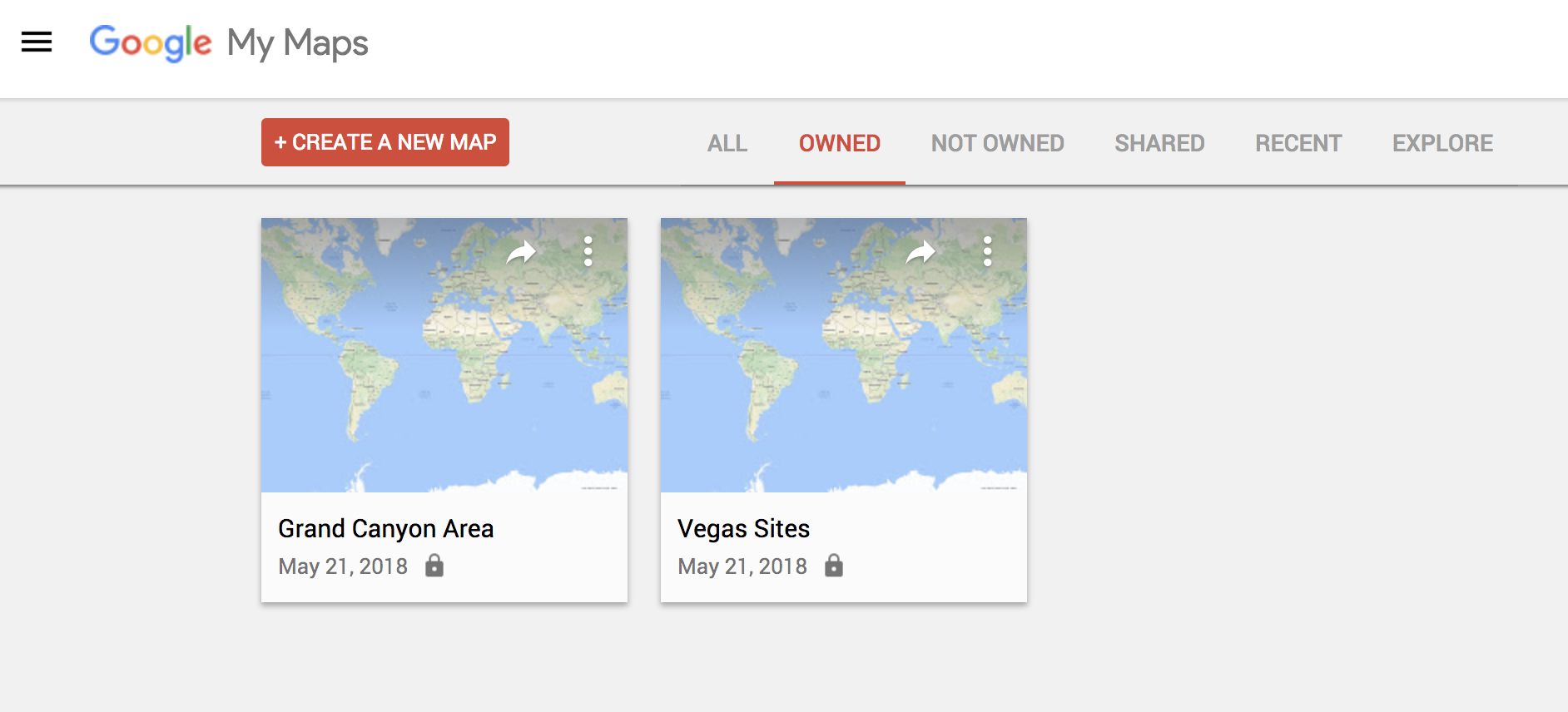
If you’re thinking of going on a trip somewhere and you would like to have a custom map that includes points of interest, Google Maps has a simple feature for this. To make one, you just have to go to this URL from your PC and click on the option that says “Create a new map.” From there, it’s up to you. Everything you save, you can see later from the mobile version by clicking on Your places.

Check traffic

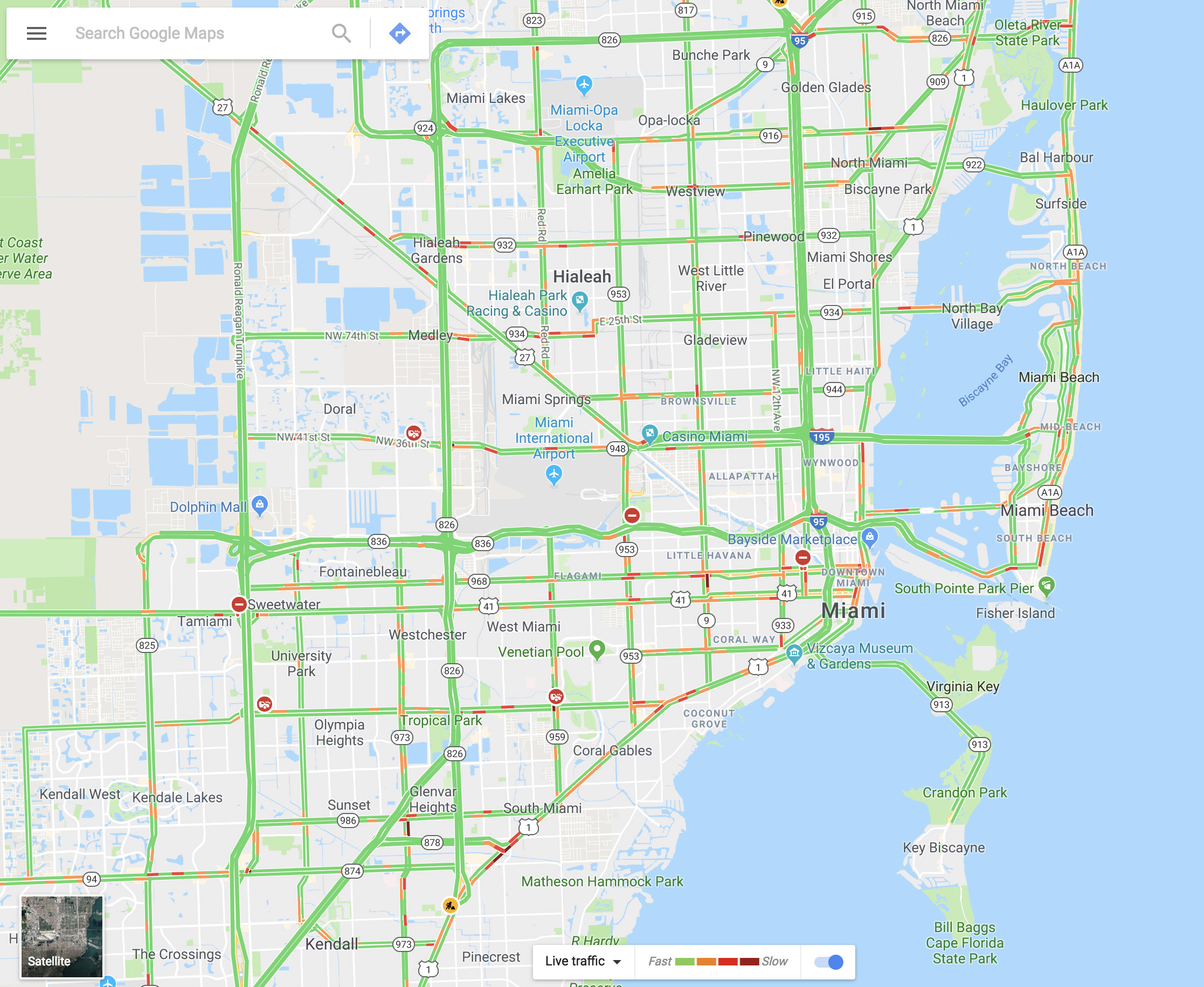
You can see the traffic in your city via Google Maps within seconds. It’s as easy as going to the menu and selecting “Traffic.” The green lines represent streets that have steadily flowing traffic, yellow signals some congestion, and red is gridlock.
Share your real-time location

Almost no one knows about this feature, but it’s really cool. Imagine that you’re meeting a friend at a concert, but you’re not there yet. Google Maps lets you share your location in real time with that person. You move, your friend watches. It’s that simple. Just go to the menu and click on “Location sharing.” Give access to everything it asks and add the amount of time you’ll be sharing your location. Choose a contact and that person can watch your every move.

Google Maps Download Google Maps
7

Avoid tolls

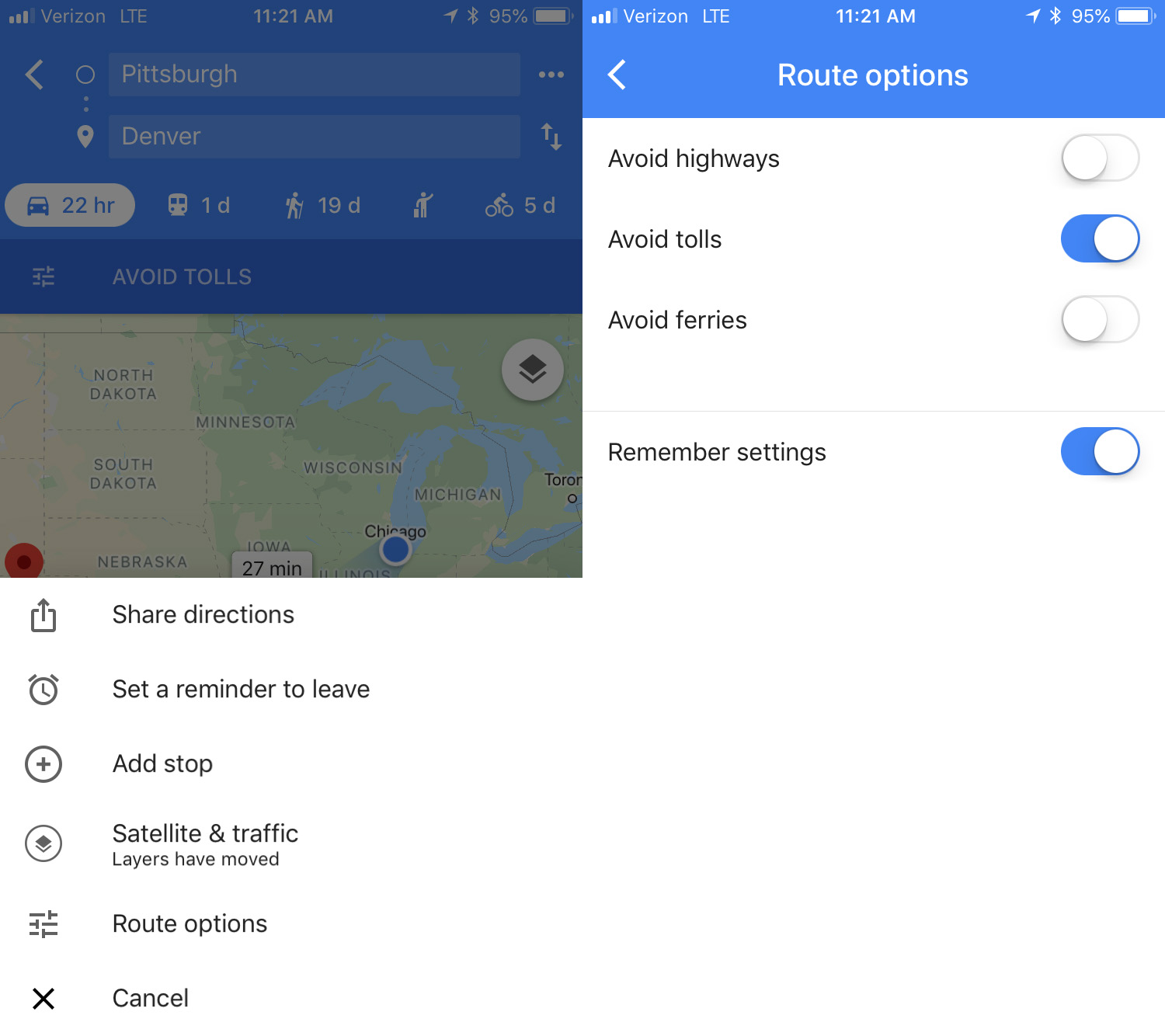
If you want to avoid all possible tolls, Google Maps can help! Just put in your destination and click on “Directions.” On the upper right, click on the three dots, then hit “Route options.” There you’ll see several fields, though the one we want is “Avoid tolls.” Check it and you’re good to go.
Calibrate your compass

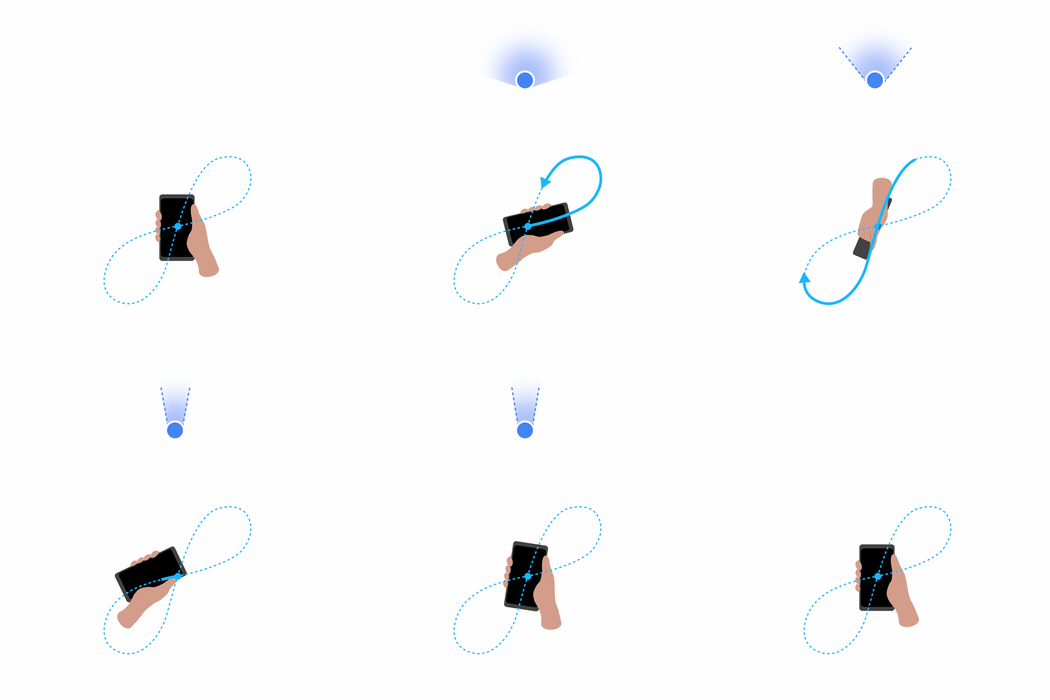
If you want your position to be more accurate you can calibrate your compass on Google Maps. To do this, click on the blue dot indicating your current position and look for the option that says “Calibrate compass.” Once you click there, you have to make a figure 8 (or loop) with your phone. Do it several times and keep checking the status of the calibration. If on screen it says “high” accuracy, you’re all set. (This isn’t an option on iOS – just open your Compass app to calibrate there.)

 

WhatsApp adds useful new emoji feature

WhatsApp just added a very useful option to the emojis section: now your most-used emojis appear, making it easier to select your go-to images.

This option, called “Top Emoji,” appears when you tap the magnifying glass to search for emojis. Besides showing the little box to put in keywords, now we can see a history of our emojis:. the ones we use most.

WhatsApp Messenger Download WhatsApp
8

This option is similar to what some cell phone keyboards offer, including iOS and Android.

The “Top Emojis” option appears in the beta version of Android 2.18.133. To learn to become a part of the app’s beta program to receive updates before everybody else, click here.

Source: WABetaInfo

Zapdos comes to Pokémon Go: This is how to catch her

The time has come to catch Zapdos. Niantic has added a new series of missions to Pokémon Go. Every set of tasks, upon completion, will give you a chance to capture this legendary Pokémon bird.

Niantic hasn’t given us many details about these missions. All we know is that you’ll have to face electric and flying Pokémon (like Zapdos), including “skill-based challenges that will test your abilities as a Trainer.” You’ll have to complete this batch of missions seven times to get the chance to capture this legendary Pokémon.

If these tasks are like previous ones, there will be a lot of story-driven tasks and activities related to finding and capturing Pokémon.

Zapdos’ appearance coincides with two events. The first started on May 14 and focuses on the fighting type of Pokémon, such as Machop and Makuhita: their encounter rate will go up and users will be rewarded with double experience when they participate in gym and raid battles.

Then, on May 19, we’ll have another event where players can get triple Stardust and the spawn rate of Charmander will go up.

Pokémon GO Download Free
7

Oh and don’t forget that on May 8, Latios and Latias, the legendary Pokémon duo, switched regions. If you haven’t captured the one in your region now, you better get going!

Source: Gamespot

This is how to make money using Google Rewards

Want to make money with Google quickly and easily? This may seem like a scam, but it’s possible. Google gives you the chance to make money through its Rewards program. If you want to know a little more about this, we’ll explain how you can make money using Google Rewards, the Android app.

Google Opinion Rewards Download Now
7

Google Rewards is an app that you can download for free. Once you’ve downloaded it, open it up. The first screen is self-explanatory: Google requests info about you. They’re basic questions that are easy to answer. The idea is for the search engine to get more info about you, the user.

Once you answer these questions, the app will open and you can start using it. How do you make money? By responding to surveys that Google sends you periodically. In general, you’ll get one survey per week, though the frequency can sometimes be higher (or lower). The price of each survey depends on the importance Google assigns it, though the most you can get is $1 in Google Play credits. That’s right. A whole dollar.

These surveys look to get feedback on general Google issues. For example: which logo you like better; if this ad looks interesting; where you want to travel; if you use Google products regularly; etc.

It’s an easy way to get a few bucks that you can then redeem for some apps. Also, the surveys can be answered in one or two minutes, so it’s worth trying out!


New Opera mobile browser has some really cool features

Since their earliest inceptions, smartphones gradually got bigger and bigger. Standard smartphone screen sizes these days rock in at between 4.5–5 inches, compared to the 3.5-inch screen of the original iPhone. XL models, which are growing in popularity, push screen size even further as they creep towards the seven inches that used to be the exclusive domain of smaller tablets.

The bigger screens make it easier to get more done and they make playing games and watching videos a much more enjoyable experience. They can be harder to use, though, and any serious attempt to take advantage of all the space offered by these plus size touchscreens requires two hands. Opera wants to address this, and its latest browser, Opera Touch, aims to put the power of the web into just one of your hands.

Opera Touch Download Free
8

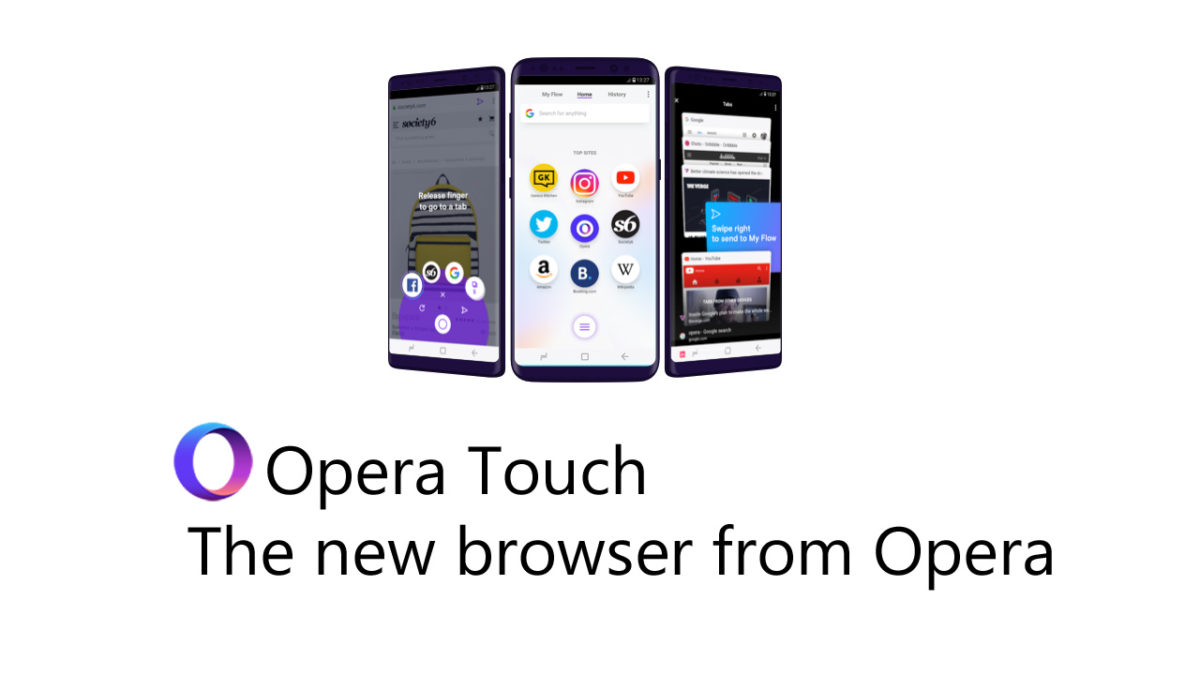
Opera Touch starts in Searching Mode, so you don’t have to click the URL address bar or the Google search bar at the top of the screen. You’re ready to search as soon as you open Opera Touch. The main innovation of Opera Touch, however, is what Opera is calling the “Fast Action Button” or FAB for short. True to its name, the FAB puts all of the controls you use most when browsing the web within reach of your thumb.

Image via: Opera

The FAB is always present in the center of the web page at the bottom of the browser. When you hold the button, it’ll give the option to open tabs, switch between tabs, or to close them. All you have to do is swipe across to the desired option with your thumb and then start browsing. The FAB also gives easy access to Google search if you want to perform more than one search per browsing session. Rather than holding your thumb on the FAB, a simple click will bring up your keyboard and the search bar.

Opera is a free web browser which functions in much the same way as Edge, Chrome or Firefox, but it has a handy free VPN feature which makes it stand out.

In a move to get people downloading the desktop version of its browser, Opera has also introduced a new Flow feature. If you have Opera installed on both your mobile and desktop, Opera claims you’ll be able to work seamlessly across both devices:

“You can now add images, links, videos and notes to yourself to your Flow and the other device will immediately see them. You can access them on your other device and the good part is that the Flow is encrypted, private and kept to yourself.”

Image via: Opera

Activating Opera Flow is similar to activating WhatsApp Web. You simply scan a QR code presented on the desktop version of Opera using the scanner on Opera Touch. Then you can slip from mobile to desktop and take whatever you were working on with you.

Opera Touch is available now on Android and will be available on iOS soon.

Google gets into Podcasts

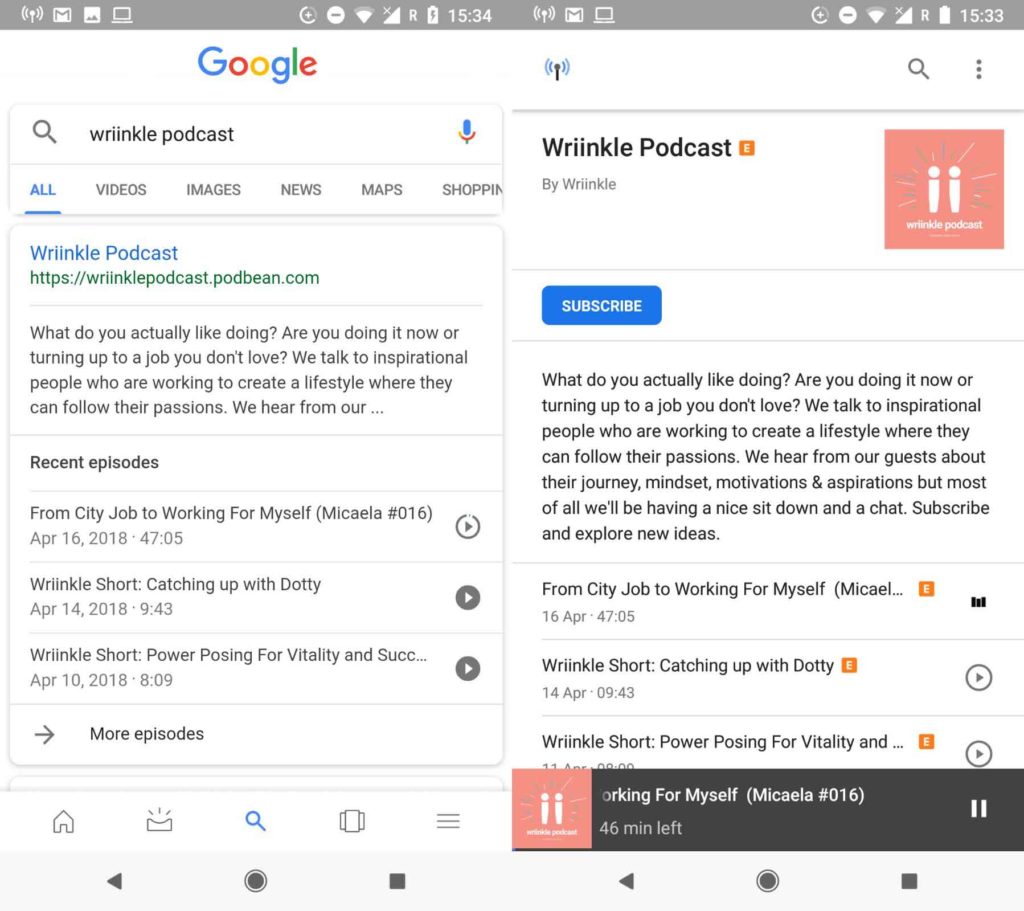
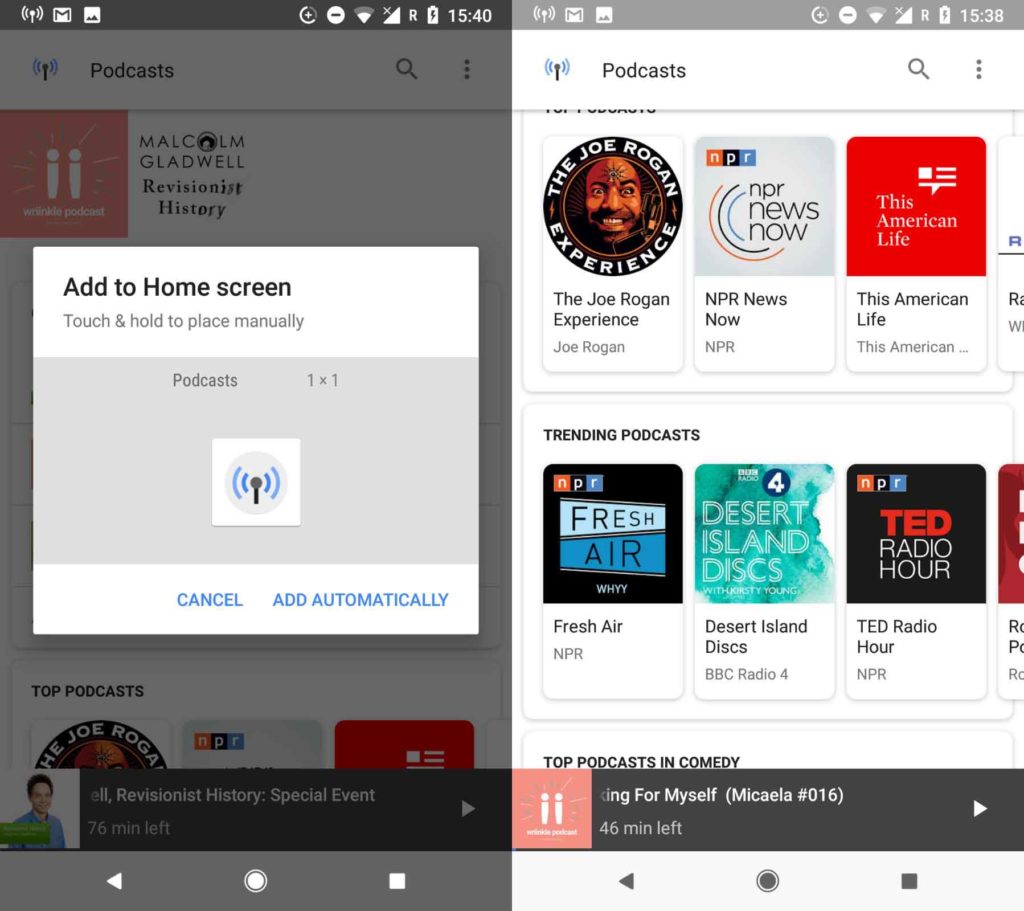
Google has a brand new podcast app, but it is not like all the other podcast apps out there. In fact, it is only available for Android users and is built into the Google app. If you’re an Android user, you won’t need to download any new apps or software. You’ll just be able to start using Google to listen to your podcasts.

All you have to do to start using the new Google podcast “app” is to search for your chosen podcast using the Google app or Google Assistant. You’ll then find all of the info relating to the podcast, including a list of recent episodes that you can start playing right away by tapping the play button.

Google App Download Now
8

Once you click on the search result, you’ll be taken to the podcast’s page. Here, you can subscribe to the podcast and download episodes for offline listening. You’ll also find a podcast icon in the top left of the page, which will take you to the Google podcast “home page.”

This homepage resembles more established podcast apps. It allows you to search for podcasts, resume listening to the episodes you haven’t finished, view top and trending podcasts, search through different categories, and keep track of the podcasts you follow. Another cool option is that you can create a home screen icon for the new podcasts app and even create particular icons for individual podcasts.

When you’re playing your podcasts, you can skip forward and back in 10- and 30-second increments. The whole experience is pretty lightweight, but overall, it is straightforward to use and does a great job. If you’re an Android user and you listen to podcasts, it is definitely worth checking out. It’s already on your phone, so it should be easy enough. Even if you’ve never listened to a podcast before this new offering from Google gives a simple and intuitive way to get started.

So far, there has been no news from Google about whether or not this will be coming to iOS.

Get 100% FREE 4G LTE Internet Service Anywhere You Go

Freedompop is a free mobile phone service and free internet service provider that’s rewriting the rules of telecommunications.

Get 100% Free 4G LTE Internet Service anywhere you go. FreedomPop is now offering 100% FREE 4G LTE Wireless Internet Service anywhere you go for a steal. The activation just cost $9.99.

FreedomPop is offering a HUGE 95% discount on their top-rated Netgear Unite Hotspot (a $199.99 value), which now comes with one-time activation $9.99 fee for a limited time! Plus Free Shipping!

Supplies are selling fast and it only gets better.

FreedomPop, the nation’s first and only 100% FREE 4G LTE Wireless Internet, lets you surf the web for free. The hotspot works on the GSM Nationwide 4G LTE Network in the U.S. and lets you connect up to 10 devices via WiFi including smartphones, laptops, tablets, and other WiFi enabled devices.

There’s no contract, no commitment, and you can cancel anytime. With a 30-day money back guarantee, they are worth giving a try.

We all know that money doesn’t grow on trees. So for those of you paying for more data than you need every month or simply need access to Internet on-the-go, try their 100% FREE Basic plan, and you’ll be able to put some extra cash back in your pocket.

Here’s how it works.

FreedomPop’s 100% FREE Basic Plan

You get…

  • FREE – 200 MB 4G LTE data

EVERY MONTH

Plus

  • No contract
  • 30-day money back guarantee
  • No commitment

So, if you’re paying for more than you need, FreedomPop can help you save!

Special Sale for only a limited time

The hotspot is bundled with a 100% Free Premium 2GB 4G LTE Trial (a $24.99 value) and comes with a 30-day money back guarantee. Plus FREE Shipping!

After the free trial, do nothing and enjoy saving hundreds each year with Premium 2GB 4G LTE data monthly $24.99/mo or downgrade anytime to their 100% FREE Basic Plan.

Don’t miss out on this limited time offer from FreedomPop. Get their top-rated Netgear Unite Hotspot for Free with 100% Free Internet Every Month and you’ll be on your way to saving hundreds of dollars every month!


What happened at the big Spotify event?

Rumors started surfacing earlier this month about a Spotify smart speaker and a Spotify gadget for your car. Today in New York, Spotify held an event and everybody thought that’s when we’d learn more about these new Spotify peripherals. Turns out, we were wrong. Instead, Spotify released some pretty interesting news about a brand new app that it’ll be offering its free users. Let’s have a look at this in more detail.

Spotify Download Now
8

Having already taken a swipe at traditional record stores, Spotify wants this new app to take on broadcast radio. The app will use machine learning and AI to automatically generate playlists for free users. Users will also have unlimited access to 750 tracks from 15 top playlists and will have unlimited skips so they’ll be able to pick songs directly. This number of tracks is obviously a hell of a lot less than what premium subscribers have access to but resembles something similar to the song lists radio DJs have to pick from when they’re broadcasting.

Spotify is calling the new automatic playlists “self-driving playlists,” which may explain why the Spotify car dongle rumor got started.

The new free Spotify app will start rolling out in the coming weeks so keep your eyes peeled for word on an exact date.

Apart from the new free app, Spotify’s big event brought no more big news. No changes were announced for the premium service and there was nothing mentioned about any hardware. Still, a more dynamic free Spotify experience will please a lot of people. And with Spotify having over 90 million free users, you can expect radio stations around the world will be thinking long and hard about what they’re going to do about this new threat.

Spotify Download Now
8

A complete (for the moment) list of “OK Google” commands for Google Assistant

Google Assistant give you a dizzying number of phrases to work with on its Home and Android devices. You can ask Google Assistant to help you communicate, work smarter, and even lock your doors at night. The hardest part is keeping track of all the new stuff, since Google is always adding new phrases. For the moment, here’s a complete list. Have fun!

A complete (for the moment) list of “OK Google” commands for Google Assistant

Communication & Productivity

  • Call someone: “OK Google, call Mom.”
  • Text someone: “OK Google, text Mom.” Or, “Ok Google, text Mom and let her know my flight lands at noon tomorrow.”
  • Send an email: “OK Google, email Joe and confirm our meeting for tomorrow.” You can also CC or BCC contacts.
  • Have messages read aloud: “OK Google, show me my messages.” You’ll be shown or read your recent messages, and you can reply by voice.
  • Create a calendar event: “OK Google, schedule my meeting with Joe for tomorrow at 10 am.”
  • Set an alarm or timer: “OK Google, set an alarm for 6:30 am tomorrow.” Or, “Ok Google, set a timer for 20 minutes.”
  • Take a note: “OK Google, make a note: The window frame is 36 inches tall by 48 inches wide.”
  • Make a list: “OK Google, start a grocery list.” Or, “Ok Google, add butter to my grocery list.”
  • Set reminders: “OK Google, remind me to get cash back next time I’m at Kroger.” Or, “OK Google, remind me to order printer ink tomorrow morning.”
  • Ask for stored information: “OK Google, when is my next meeting?” Or, “OK Google, read me my grocery list.”

Search

You can ask Google Assistant for any information you might search Google for, or might dig through your emails and texts looking for.

  • Cooking questions: “OK Google, what temperature should you cook chicken to?”
  • Recipes: “OK Google, how do I make marinara sauce?”
  • Important dates: “OK Google, what day is Christmas this year?”
  • Local queries: “OK Google, what’s the best pizza place nearby?”
  • Weather info: “OK Google, what’s the weather like?” Or, “Ok Google, do I need a jacket this morning?”
  • Calculations: “OK Google, what’s 20 percent of 58 bucks?”
  • People: “OK Google, who’s the guy in the Heineken holiday commercials?” Or, “What movies was Patrick Swayze in?”
  • Places: “OK Google, how many people live in Chicago?” Or, “OK Google, how far are we from Dubai?”

Navigation & Travel

  • Get directions: “OK Google, take me home.” Or, “OK Google, take me to my meeting at Starbucks.”
  • Get traffic info: “OK Google, what’s the traffic look like on the way into work today?”
  • Get specific location info: “OK Google, where is Hell’s Kitchen?”
  • Find places: “OK Google, where’s the nearest Starbucks?”
  • Get directions however you want them: “OK Google, how do I walk to the nearest coffee shop? Send directions to my phone.”
  • Get flight information: “OK Google, how much is a flight to Vegas next weekend?” Or, “OK Google, what time is my flight tomorrow?”
  • Get destination ideas: “OK Google, what’s a good place for a ski trip?”
  • Get time changes: “OK Google, what time is it in London?”
  • Get translations: “OK Google, how do I order a beer in French?”
  • Ask about your surroundings: “OK Google, how old is this church?” Or, “OK Google, what is there to do around here?”

Entertainment

  • Get showtimes: “OK Google, when is Star Wars playing near me?”
  • Get scores and sports info: “OK Google, how did the Spurs do last night?” Or, “OK Google, when is the College Football Playoff?”
  • Find out what song is playing: “OK Google, what song is this?”
  • Play media: “OK Google, play “Bad at Love” by Halsey.” Or, “OK Google, show me a YouTube video on how to flip a fried egg.”

External Apps

  • Uber: “OK Google, order an Uber to O’Malleys.”
  • Social media: “OK Google, send a Tweet.” Or, “OK Google, post my photos from the Europe trip to Facebook.”
  • Shopping: “OK Google, order more printer ink from Amazon.” Or, “OK Google, order my cart from Walmart to pick up.”
  • Dining: “OK Google, order my usual order from Dominos.” Or, “OK Google, order my usual drink to pick up at Starbucks.”

Settings & Smart Home

  • Find your phone: “OK Google, find my phone,”
  • Adjust volume: “OK Google, turn it up.” Or, “OK Google, set the volume to 9.”
  • Adjust your smart lights: “OK Google, turn off the lights.” Or, “OK Google, dim the lights.” Or, “OK Google, switch the lights to red.”
  • Adjust your smart thermostat: “OK Google, turn the heat on upstairs.” Or, “OK Google, turn the A/C on at home when I leave the office.”
  • Lock your doors with a smart lock: “OK Google, make sure the front door is locked.” Or, “OK Google, unlock the door for the kids.”
  • Control your smart TV or Chromecast: “OK Google, play Bojack Horseman on Netflix.” Or, “OK Google, show me what games are on tonight.”

Broadcast – for use with multiple Google Home speakers & Assistant devices

  • Broadcast lets you communicate with people at home while you’re out. “OK Google, broadcast that I’m on my way home.” Or, “OK Google, tell everyone it’s time to wake up.” Or, “OK Google, tell everyone dinner is ready.”

Easter Eggs

Here are some phrases you can use just for fun.

  • “OK Google, do a barrel roll.”
  • “OK Google, sing me a song.”
  • “OK Google, tell me a story.”
  • “OK Google, I am your father.”
  • “OK Google, it’s my birthday.”

And more – keep asking!


These are the most expensive (and absurd) apps in the Google Play Store

We always say that the Google Play Store is like a real shopping mall: there are lots of products for sale. Unfortunately, Google’s shopping mall is crowded with those goofy kiosks that sell worthless junk. We’re not talking about fake or counterfeit apps: we’re talking about apps that are useless, but completely legal.

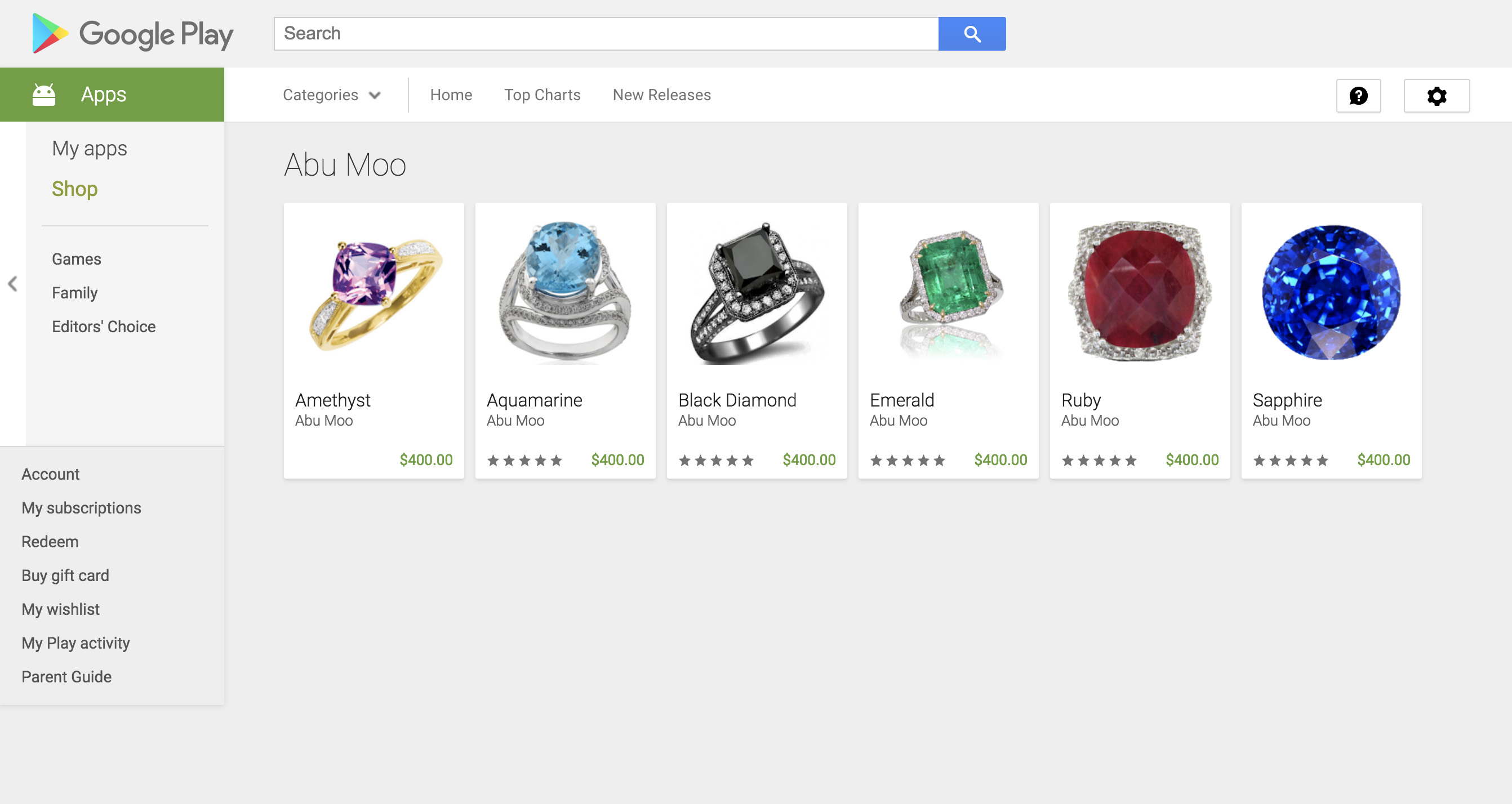
Introducing Abu Moo, the most expensive (and absurd) app developer in the Google Play Store. It. is. insane.

Good for nothing

Let’s get to the point: the app developer Abu Moo is worthless. Literally. When you download an Abu Moo app, its sole purpose is to appear in the main menu as a widget. That’s it. You download the app and it does nothing. It just sits there on your screen. Sounds fun, right? An icon that does nothing? Hold on to your butts. Each app costs a staggering $400.

To be exact, there are six “apps”: Amethyst, Aquamarine, Black Diamond, Emerald, Ruby, and Sapphire. Buying all six would cost you a total of $2,400. That’s money you might as well set on fire.

Its creator, the developer Abu Moo, doesn’t scam anybody. In fact, it’s very clear in the description of every app: “Are you rich and successful? Want to buy expensive apps just because you can? Maybe you want to impress your poor friends? Show them a widget that they do not own and never will. Or maybe you want to make a gift for your girlfriend, who happens to own an Android device? Why buy flowers, when you can buy virtual jewelry – an excellent solution! In any case, this widget is just for you! One of the most expensive apps on the Market, that does absolutely nothing, except show the world how rich and awesome you are!”

Abu Moo has been available on the market since 2013 and each of the apps has more than five downloads, which means there are actual living humans who spent actual money actually purchasing them. Even if you had a Scrooge McDuck money vault, there’s no point in buying this thing. It’s such a simple widget that anybody can create it.

Thanks to our pals at Andro4All for the tip.